Loading…


KnowledgeBase
Customize AI Summary Style with AI Behaviours
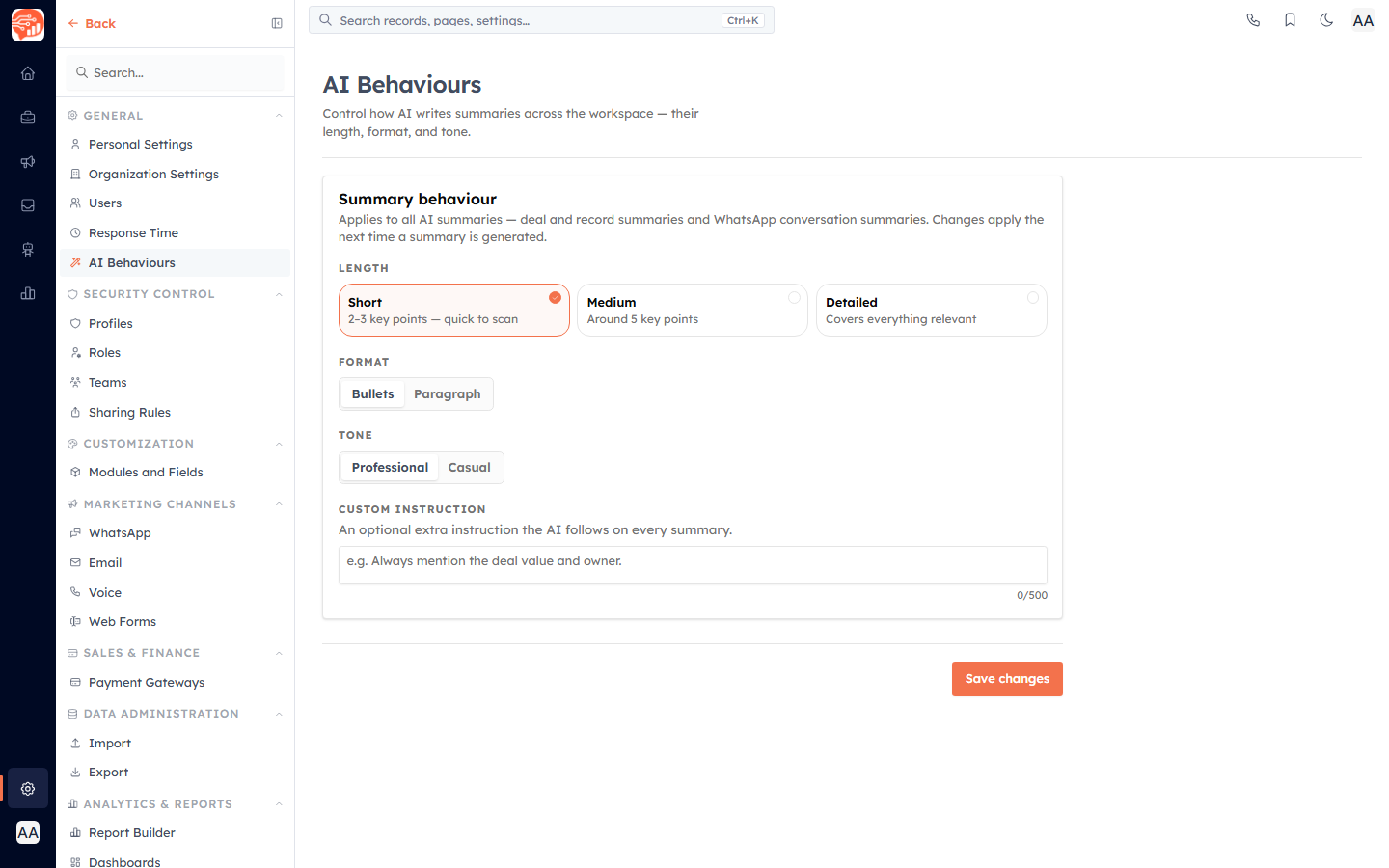
The AI Behaviours settings page controls how the AI writes every summary across your workspace — their length, format, and tone — from one place. Set it once and it governs record summaries, deal summaries, and WhatsApp conversation summaries alike.
Before you start#
- Manage-organisation permission — AI Behaviours is an organisation-level setting. It appears only to users whose role can manage the organisation. If you don't see it, ask an admin.
Open it from Settings → AI Behaviours. The page opens on the Summary behaviour card, which notes it applies to all AI summaries — deal and record summaries and WhatsApp conversation summaries. Changes apply the next time a summary is generated.
Set the summary style#
- Choose a Length:
- Short — 2–3 key points — quick to scan (the default).
- Medium — Around 5 key points.
- Detailed — Covers everything relevant.
- Choose a Format: Bullets (the default) or Paragraph.
- Choose a Tone: Professional (the default) or Casual.
- Optionally add a Custom instruction (see below).
- Click Save changes. While saving the button reads Saving…, and on success you'll see the toast AI behaviour settings saved.
💡
The defaults for a workspace that has never saved settings are Short, Bullets, and Professional.
Custom instruction#
The Custom instruction field is an optional extra instruction the AI follows on every summary — for example Always mention the deal value and owner. It is limited to 500 characters (a live counter shows how many you've used). Leave it blank to add no extra instruction.
⚠️
These settings change how summaries are written, not the ones you've already generated. Existing summaries keep their old style until you regenerate them — the new style applies the next time a summary is generated (or re-generated).
How it fits together#
- One place, everywhere — the same Length, Format, Tone, and Custom instruction govern record, deal, and WhatsApp conversation summaries, so all AI summaries read consistently.
- Applies going forward — after you save, generate or re-summarise a record, deal, or chat to see the new style. On a summary card, the Change summary behaviour gear links straight back here.
- Simple, focused controls — Length is a set of three selectable cards, while Format and Tone are two-option toggles, so there's little to get wrong. Your saved choices load back into the page each time you open it.
Good to know#
- These preferences are organisation-wide, not per-user — everyone's summaries follow the same Length, Format, Tone, and Custom instruction.
- Use the Custom instruction to bake in a rule you always want, such as always naming the record owner or flagging the next step, rather than editing every summary by hand.
- Nothing regenerates automatically on save — you choose when to (re-)summarise each record, deal, or conversation, and the current style is applied at that moment.
Troubleshooting#
- The page isn't in your menu — you likely lack the manage-organisation permission; an admin can grant it or make the change for you.
- Failed to save settings — a save error toast appears if the update is rejected; check your entries (for example the custom instruction length) and try again.
New to AI summaries? Start with Turn On AI Summaries to enable them, then see AI Summary of a Record to generate one.
Was this article helpful?
Ready to implement this?
OpenAI Engage and apply what you just learned to your own workspace.
Open AI Engage CRM