Loading…


KnowledgeBase
Create and Complete Tasks
Settings first: task statuses & priorities#
Tasks use two pick-lists you can tailor in the Module Builder (Settings → Customization → Modules and Fields → Tasks → Configure):
Status — Not Started, In Progress, Completed, Deferred, Waiting for Input (default Not Started).
Priority — Low, Medium, High, Hot (default Medium).
Create a task#
Open the Tasks module and click Create Task — or use the Tasks quick-action chip on any contact or deal to attach it to that record.
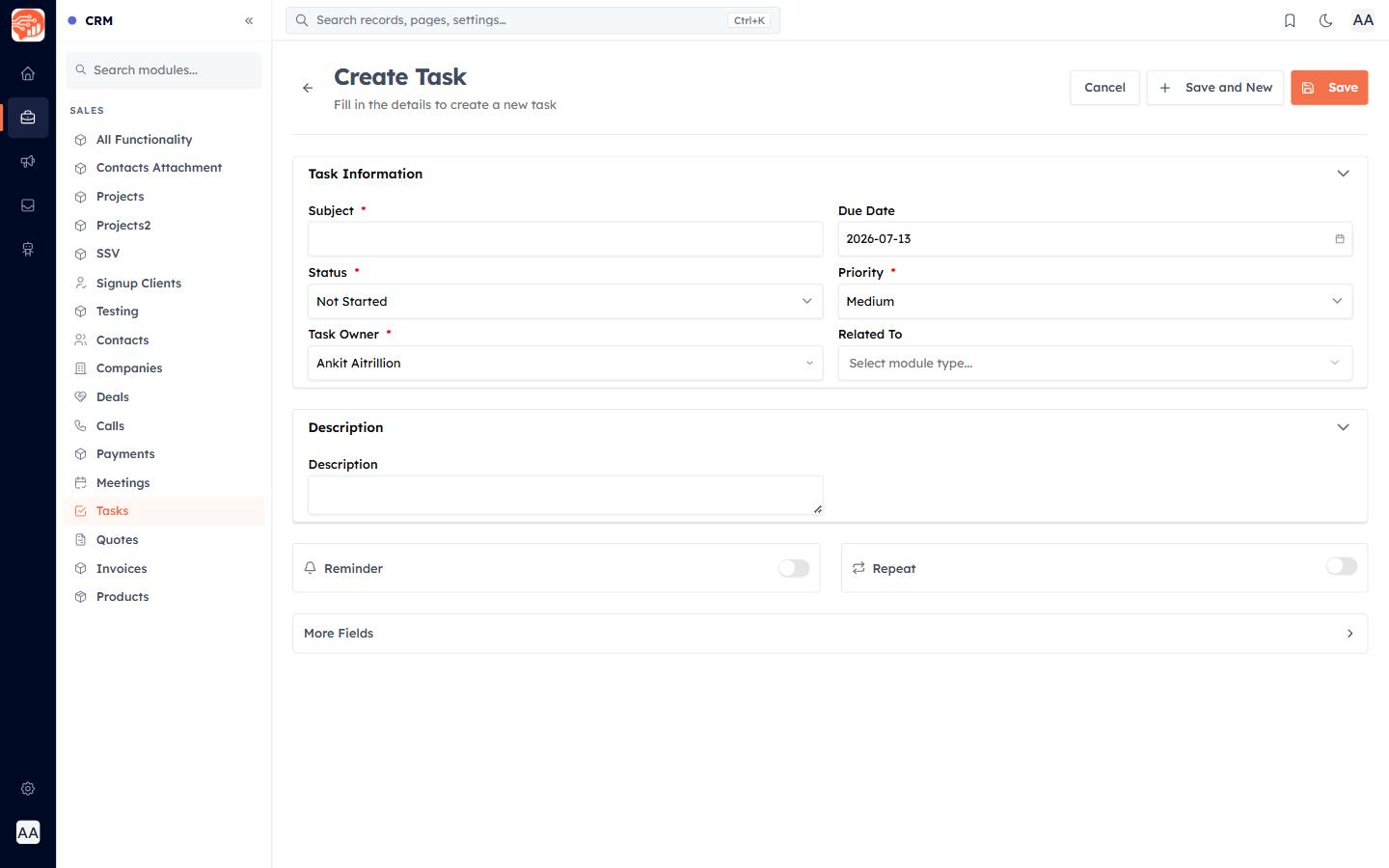
Subject (required) and Due Date (defaults to today).
Status and Priority.
Task Owner — defaults to you.
Related To — the contact/deal it belongs to.
Reminder & Repeat — get a reminder before it is due, and repeat it on a schedule (daily, weekly, monthly, or custom).
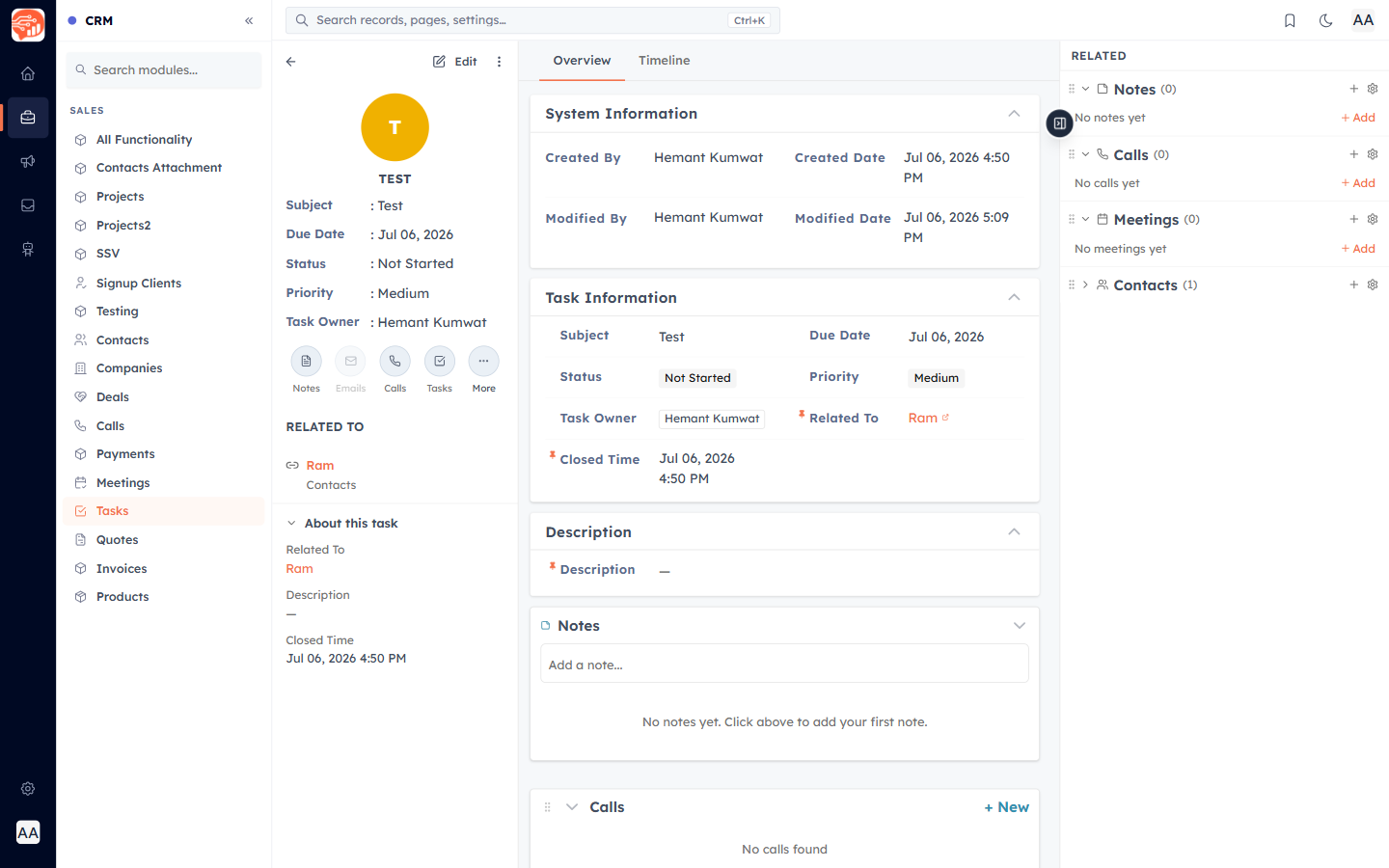
🎉 Now, your task is created — here is how it appears:
Complete a task#
Tick the checkbox next to a task to mark it Completed — it gets a strikethrough and a green badge, and you will see "Task marked as completed". Untick to reopen it. You can also set the status in the edit form, or drag it to Done on your Home dashboard board.
Was this article helpful?
Ready to implement this?
OpenAI Engage and apply what you just learned to your own workspace.
Open AI Engage CRM