Loading…


KnowledgeBase
Inbox Intelligence: Ask AI About Your WhatsApp Conversations
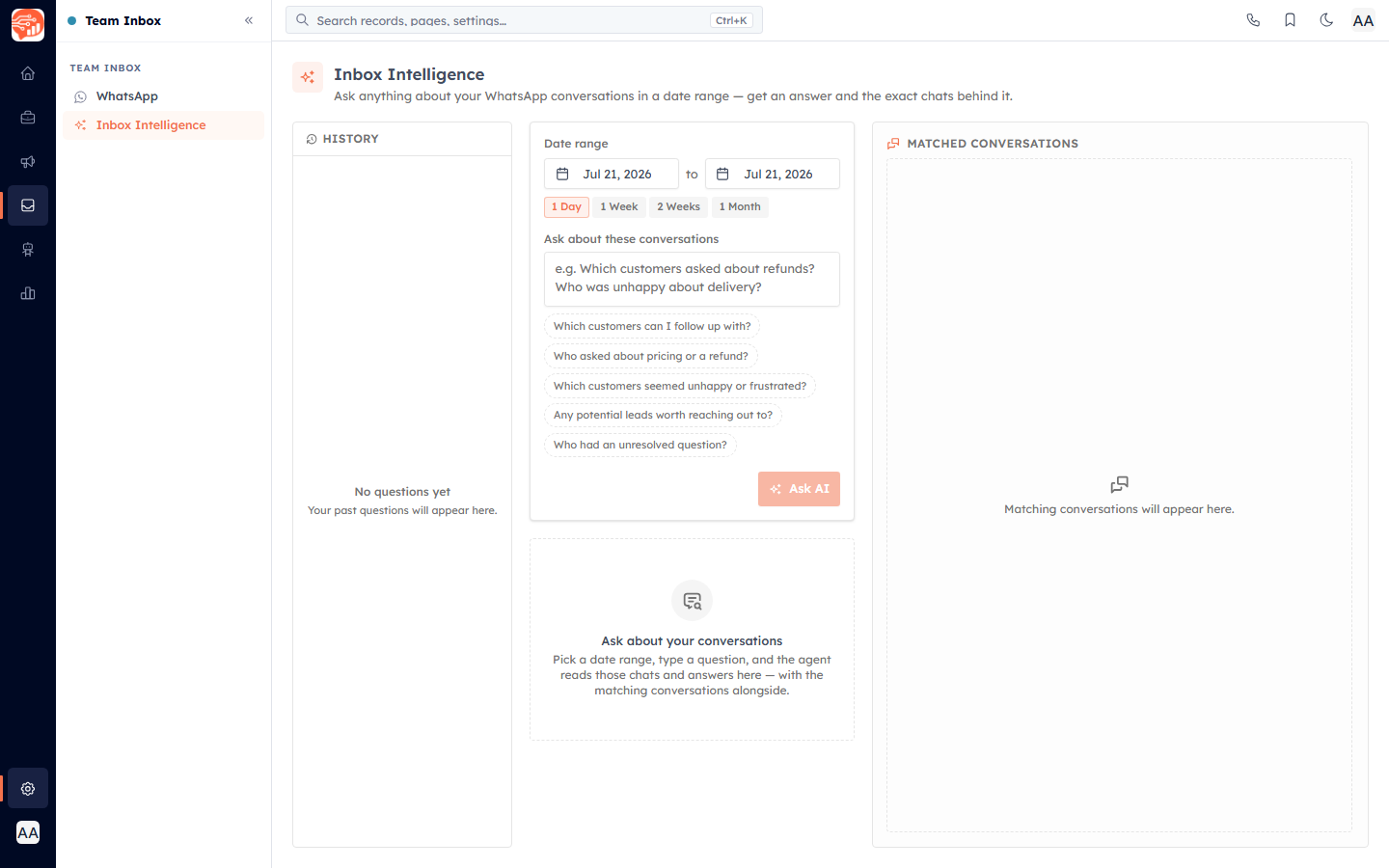
Inbox Intelligence is a full-page console where you ask a natural-language question about your WhatsApp conversations over a date range. The AI reads those chats, writes you a short answer, and lists the exact conversations it drew from so you can open any of them in one click.
Before you start#
Team Inbox access — Inbox Intelligence sits in the sidebar right under WhatsApp and is shown only to users who have the WhatsApp inbox feature. If you can open the WhatsApp inbox, you can open Inbox Intelligence.
AI credits — every Ask AI run spends AI credits from your organisation's shared balance. Re-opening a past question from History costs nothing. See AI Credits & Pricing.
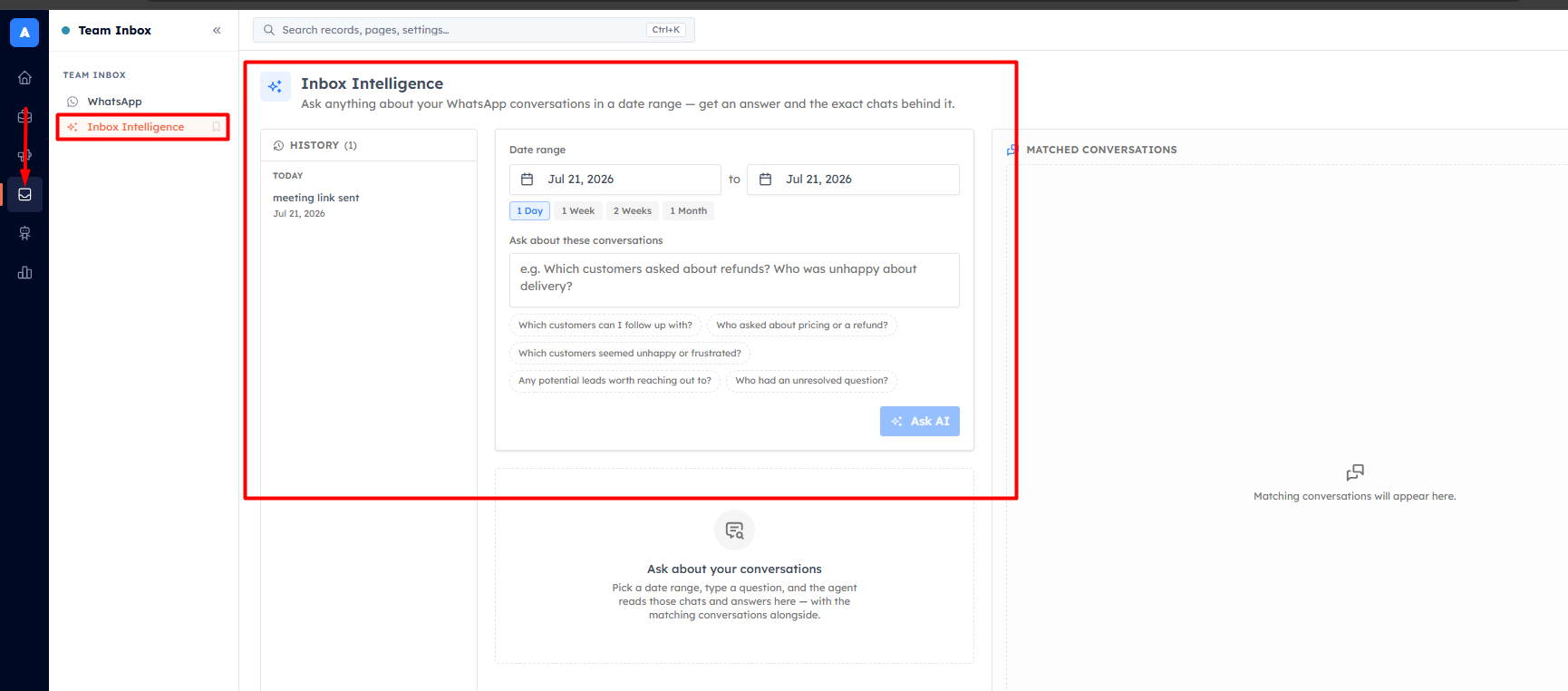
Open it from Team Inbox → Inbox Intelligence.
Ask a question#
Set the Date range. Use the Start date and End date calendar pickers (future dates are disabled), or tap a quick preset chip: 1 Day, 1 Week, 2 Weeks, or 1 Month. Each preset sets the window to the last N days ending today.
In Ask about these conversations, type your question, for example Which customers asked about refunds? Who was unhappy about delivery? Before you type, one-tap suggestion chips appear — Which customers can I follow up with?, Who asked about pricing or a refund?, Which customers seemed unhappy or frustrated?, Any potential leads worth reaching out to?, and Who had an unresolved question? — tap one to drop it in as a starting point.
Press Enter or click Ask AI. Use Shift+Enter for a new line. While it runs, the button reads Analyzing….
💡
The date range can be at most 31 days. If you pick a wider span the Ask AI button is disabled and an inline hint appears — Date range can be at most 31 days (you picked N).
Read the answer and matches#
The result appears in two columns. On the left, under the Answer heading, is the AI's written reply. On the right, Matched conversations (N) lists the chats it used.
Matched conversation card — shows the contact's name, phone number, the last message time, and a short reason for the match. Click the card to open that thread in the WhatsApp inbox.
Suggested follow-up — when the AI drafts a reply for a match, expand this section to read it, use the copy button, or click Open conversation to open the thread with the draft pre-filled in the composer. The draft is never sent automatically — you review, edit, and send it yourself.
Scope note — a line under the answer explains how the set was narrowed when relevant: No direct keyword matches — analyzed the N most recent conversations in range, or Analyzed the top N of M conversations in range.
If nothing fits, you'll see No matching conversations found for that question and date, and occasionally No answer was returned for that question.
History rail#
Every question you ask is saved to the History rail on the left (a permanent, ChatGPT-style list grouped by Today, Yesterday, and older days). On a phone, History is a collapsible disclosure above the question box.
Select a row — restores that run instantly from cache, including its answer and matches. This does not make a fresh AI call and does not spend credits.
Delete — the trash icon on a row removes it from your history.
Load more — history loads 30 at a time; the button at the bottom pulls the next page.
When you have never asked anything, the rail shows No questions yet and Your past questions will appear here.
Troubleshooting#
You're out of AI credits. Top up to keep using the agent. — your organisation's AI credit balance is exhausted; top up to continue.
The AI service is unavailable right now. Please try again shortly. — a temporary upstream issue; retry in a moment.
The AI service is not configured. Contact your administrator. — the AI service hasn't been set up for your workspace.
Couldn't analyze the conversations. Please try again. — the run returned nothing usable; try rephrasing or narrowing the range.
💡
Inbox Intelligence only reads conversations inside the date window you choose, so a tighter range gives faster, more focused answers. To act on a match, open the thread and reply there — see WhatsApp Inbox.
Was this article helpful?
Ready to implement this?
OpenAI Engage and apply what you just learned to your own workspace.
Open AI Engage CRM