Loading…


KnowledgeBase
Actionable AI in the Team Inbox: Prioritise, Close & Follow Up Automatically
A busy WhatsApp inbox has one problem that never goes away: everything looks the same. The person ready to buy, the wrong number, the existing customer chasing a refund and the lead who went quiet three days ago all sit in the same list, in the same order, wearing the same face. Your team works down it from the top and hopes.
Actionable AI is the page that fixes that. It reads your conversations and does three separate jobs: it marks every lead hot, warm or cold, it closes the chats that were never going anywhere, and it follows up with the people who went quiet. You write the rules in plain English; the AI applies them.
This article walks the whole page, control by control, with every screen ringed and arrowed. It is long because the page is powerful, and because three of its settings send real messages to real customers — those are worth understanding before you switch them on.
ℹ️
Where to find it. Open Team Inbox from the left sidebar, then Actionable AI at the bottom of the Team Inbox menu. Each of the three parts works entirely on its own — you can run lead priority for months without ever turning on the other two.
Finding the page#
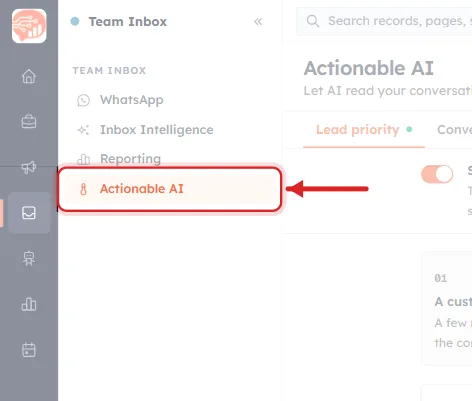
Reading this screenshot. The ring is around Actionable AI, the fourth and last entry in the Team Inbox menu, and the arrow points at it from the right. Everything else on the screen has been faded back — that is the treatment on every figure here: dimmed means context, ringed means this is what the paragraph is about.
The three entries above it are worth knowing, because they are what this page is not:
- WhatsApp — the inbox itself, where conversations are read and answered by people.
- Inbox Intelligence — ask a question about a date range of chats and get an answer. It reads; it never changes anything. Covered in Inbox Intelligence: Ask AI About Your WhatsApp Conversations.
- Reporting — volume, status and team performance numbers.
- Actionable AI — the ringed one. The only entry in this menu where the AI writes: it sets priorities, closes conversations and drafts messages.
Note that Actionable AI is in orange in this screenshot — that is simply the selected-page highlight, because the page was open when the shot was taken.
The whole page at a glance#
Before the close-ups, here is the entire page in one shot — the Lead priority tab, top to bottom, exactly as it arrives. Every other figure in this article is a crop of something you can see here, so it is worth a minute to learn the shape of the page first.
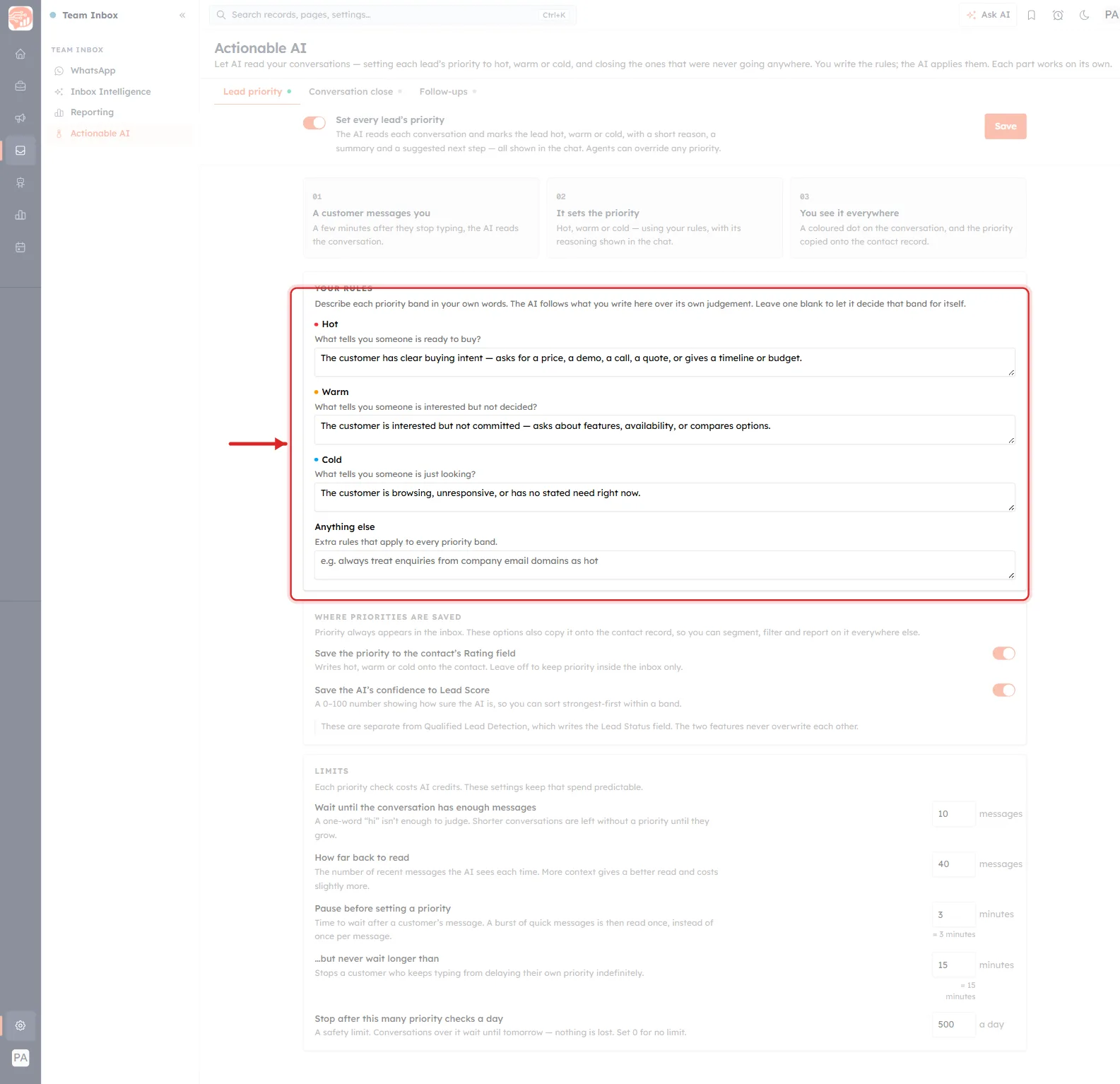
Reading this screenshot. One tab, five stacked blocks, and the same left-hand navigation you would see anywhere in AiEngage. Top to bottom, the column down the middle is:
- The heading and its one-line description — what the whole page is for.
- The three tabs, each carrying a coloured dot that tells you whether that part is switched on.
- The master toggle for the tab you are on, with its own Save button at the right-hand end.
- Three numbered cards — 01, 02, 03 — explaining the mechanism in a sentence each.
- The settings themselves, in cards headed by small grey uppercase labels: YOUR RULES, WHERE PRIORITIES ARE SAVED, LIMITS.
All three tabs use this same shape — description, toggle, three numbered cards, then rule boxes and a Limits card at the bottom. Learn it once here and the other two tabs need no re-learning; only the contents change.
The ring is around Your rules, and that is the point of this figure. Everything else on the page is a switch or a number that ships with a sensible default and that you may never touch. The four boxes inside the ring are the part only you can fill in: they are where you describe, in your own words, what a hot, warm or cold lead looks like in your business. The AI cannot work that out for you, and the quality of everything downstream — the coloured dots, the Rating on the contact, which follow-up ladder a lead climbs — comes from what you write in that one card.
ℹ️
Notice how far down the page Limits sits. On a laptop it is below the fold, and it is the section most people never scroll to — which matters, because it holds the daily caps that decide how much this feature can cost you. Scroll to the bottom of every tab at least once.
The three parts, and how to tell what is running#
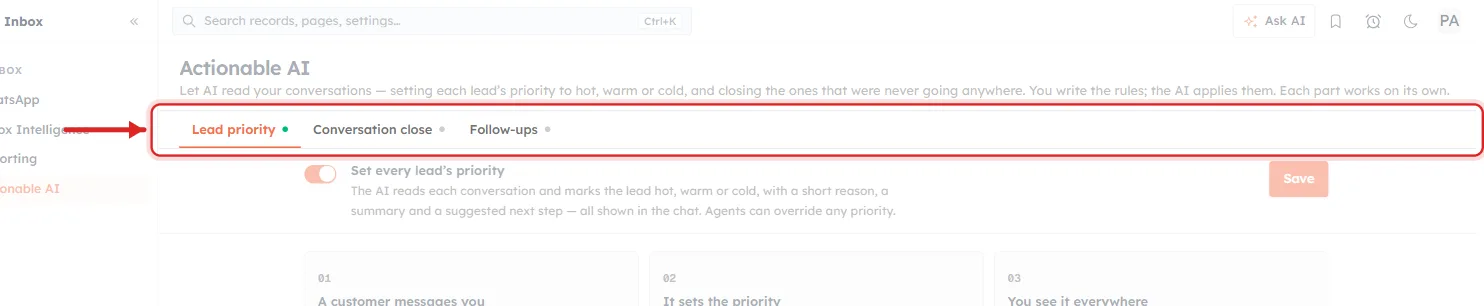
Reading this screenshot. The ring encloses the tab strip, which is the single most useful control on the page — not because of the tabs, but because of the coloured dot beside each tab name.
- Lead priority — green dot. This part is switched on and running right now.
- Conversation close — grey dot. Off.
- Follow-ups — grey dot. Off.
You can read the entire state of the feature from this one row without opening anything. That matters more than it sounds: two of these three parts can act on customers without a human in the loop, and this strip is how you confirm at a glance which of them are live.
The orange underline under Lead priority marks the tab you are currently viewing, which is a different thing from the dot. A tab can be selected and off, or unselected and running.
The page description above the tabs is worth reading in full: “Let AI read your conversations — setting each lead’s priority to hot, warm or cold, and closing the ones that were never going anywhere. You write the rules; the AI applies them. Each part works on its own.” Three promises in three sentences: it reads, you decide the rules, and nothing here is all-or-nothing.
💡
Each tab has its own Save button, and saving one tab does not save the others. If you edit rules on two tabs, save before switching — there is no warning when you navigate away.
Part 1 — Lead priority#
The first part answers the question your inbox cannot: which of these people is actually ready to buy?
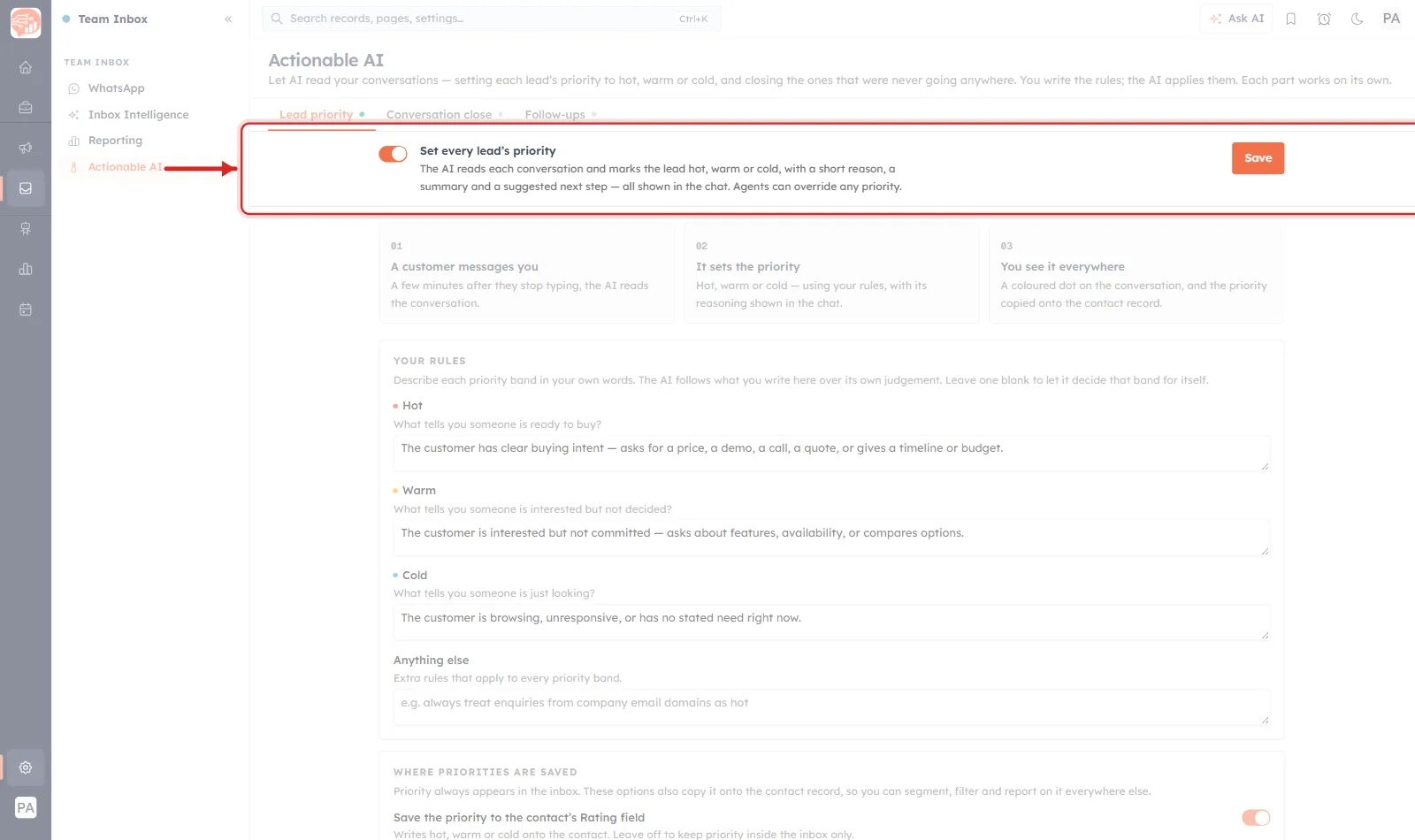
Reading this screenshot. The ring holds the whole master row: the toggle on the left, the label and its description in the middle, and Save on the right. Four things in the helper text define exactly what this feature does, and each is load-bearing:
- “reads each conversation” — every conversation, continuously, not a nightly batch you could review first.
- “marks the lead hot, warm or cold” — three bands, never more, never a numeric grade.
- “with a short reason, a summary and a suggested next step — all shown in the chat” — you get the why alongside the label. An unexplained badge would be useless; a badge with its reasoning is auditable.
- “Agents can override any priority.” The AI never gets the last word. A human who disagrees simply changes it.
The toggle is orange and on in this screenshot. Orange is the accent AiEngage reserves for live, consequential state throughout the product — grey here would mean no conversation is being read at all.
How a priority actually gets set#
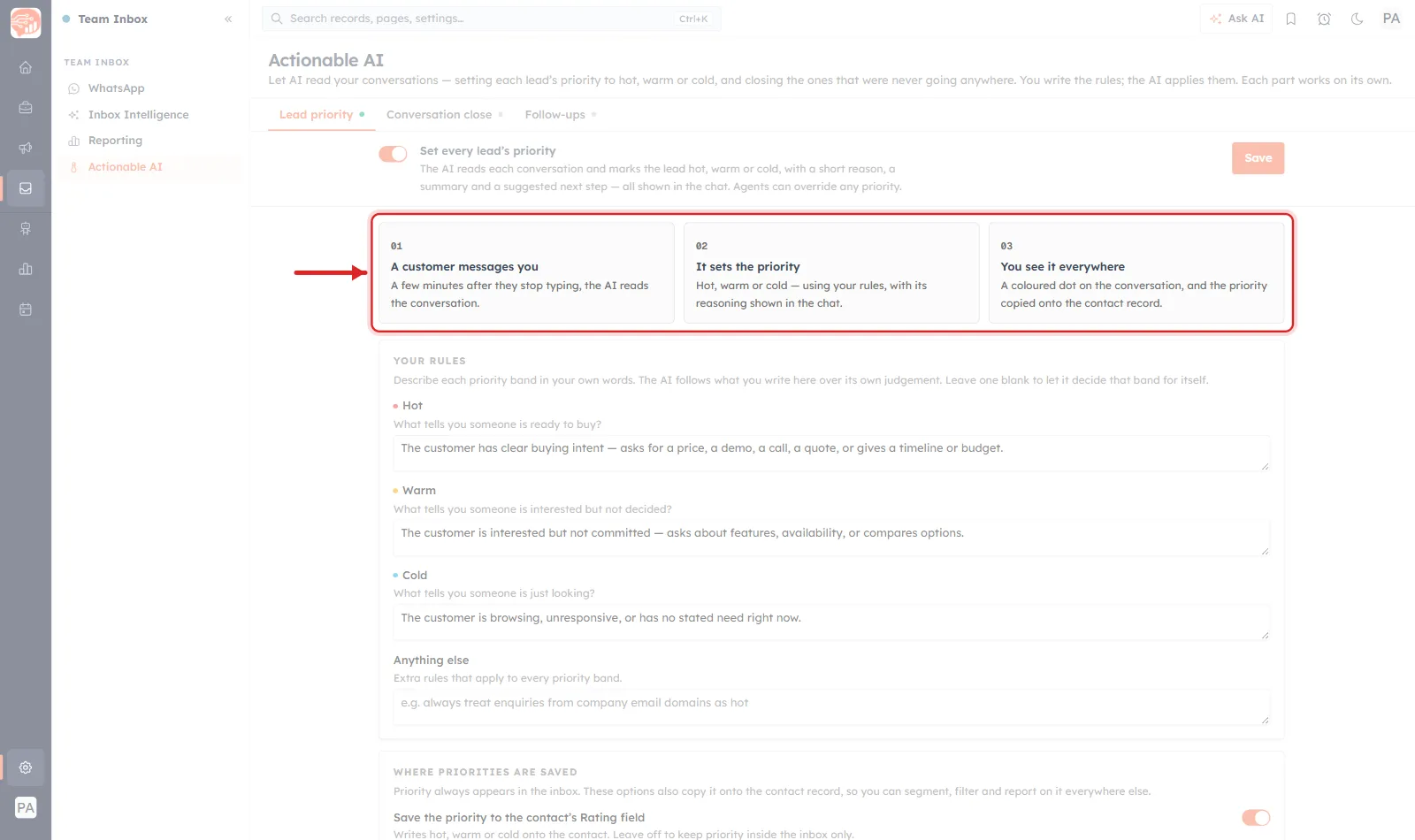
Reading this screenshot. Three cards, numbered 01, 02 and 03 in small grey type, laid left to right as a timeline. This is the whole mechanism in three sentences, and it answers the three questions people ask first:
- 01 — When does it run? “A few minutes after they stop typing, the AI reads the conversation.” Not on every message. It waits for the customer to finish, so a burst of five quick messages is read once rather than five times. That wait is configurable, and appears in the Limits section below.
- 02 — What does it decide? “Hot, warm or cold — using your rules, with its reasoning shown in the chat.” Note using your rules, not its own opinion of what a good lead looks like.
- 03 — Where does it show up? “A coloured dot on the conversation, and the priority copied onto the contact record.” Two places: inside the inbox, where your agents work, and on the contact, where your segments and reports can reach it.
That last point is what separates this from a nice label. A priority that lived only in the inbox would help one agent for one shift. A priority copied onto the contact record can be segmented, filtered, reported on and used to trigger a campaign.
Your rules — the part that actually matters#
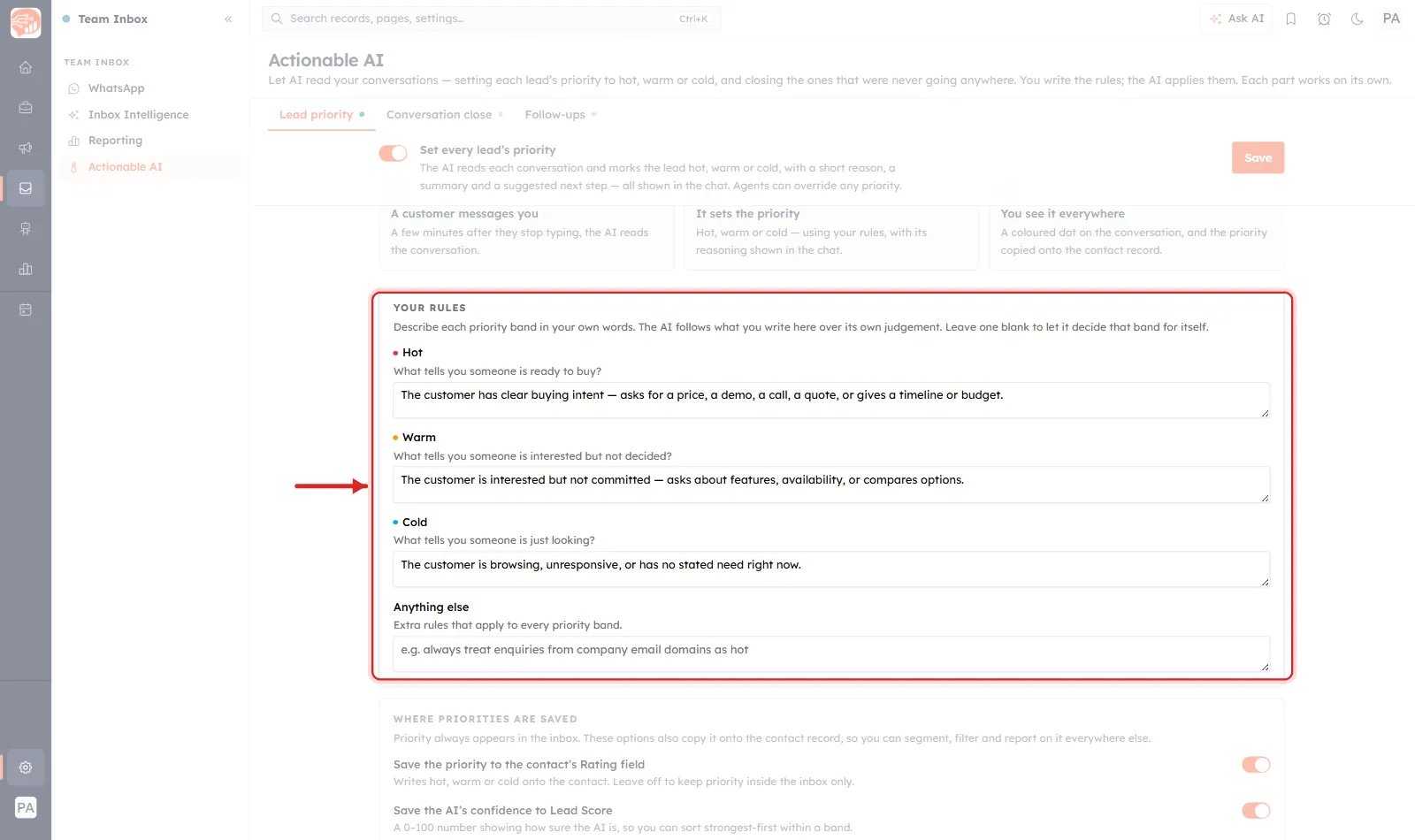
Reading this screenshot. One card, four text boxes. This is where you do the real work — everything else on the tab is plumbing.
The instruction at the top of the card is the important one: “The AI follows what you write here over its own judgement. Leave one blank to let it decide that band for itself.” Two separate facts in one sentence. Your words win over the model’s defaults, and a blank box is not an error — it is an explicit instruction to fall back to the model’s own reading.
The three bands, each with its own coloured dot — red for Hot, orange for Warm, blue for Cold — are labelled with a question rather than a definition, which is a deliberate and helpful piece of interface design:
- Hot — “What tells you someone is ready to buy?”
- Warm — “What tells you someone is interested but not decided?”
- Cold — “What tells you someone is just looking?”
You are not being asked to write a prompt. You are being asked to answer three questions you already know the answers to, in your own words, about your own business.
The fourth box, Anything else, is for rules that cut across all three bands. Its placeholder shows exactly the kind of thing it is for: “e.g. always treat enquiries from company email domains as hot.” This is where your business’s peculiarities go — the reseller who always orders in bulk, the region you do not ship to, the competitor who keeps asking for quotes.
One band, up close#
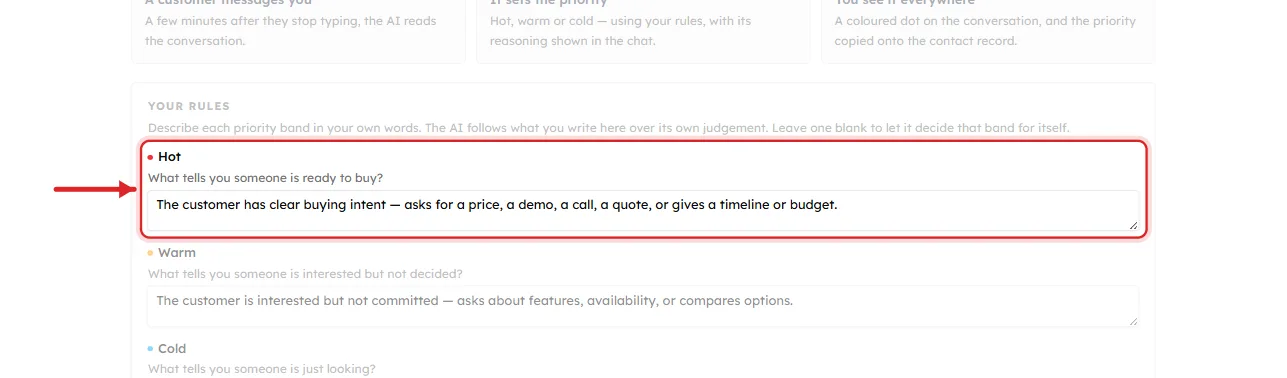
What this close-up shows. One band, isolated, so you can see the anatomy every band repeats: coloured dot, band name, a question, a box.
The default Hot rule is a good model to copy, because of how it is written:
- It names a category first, then examples. “clear buying intent” followed by “asks for a price, a demo, a call, a quote, or gives a timeline or budget.” The category tells the AI what kind of thing to look for; the examples calibrate how strong the signal must be.
- Every example is observable in a transcript. Asking for a price is something you could point at. “Seems serious” is not, and gives the AI nothing to check against.
- It is one sentence. You have room for more, but a band described in a paragraph is usually two bands wearing a trench coat.
💡
Write these as if briefing a new salesperson on their first morning. If a sentence would not help a human decide which pile to put a chat in, it will not help the AI either. And write the boundaries, not the middle — the hard cases are always between two bands, never in the centre of one.
Where the priority is saved#
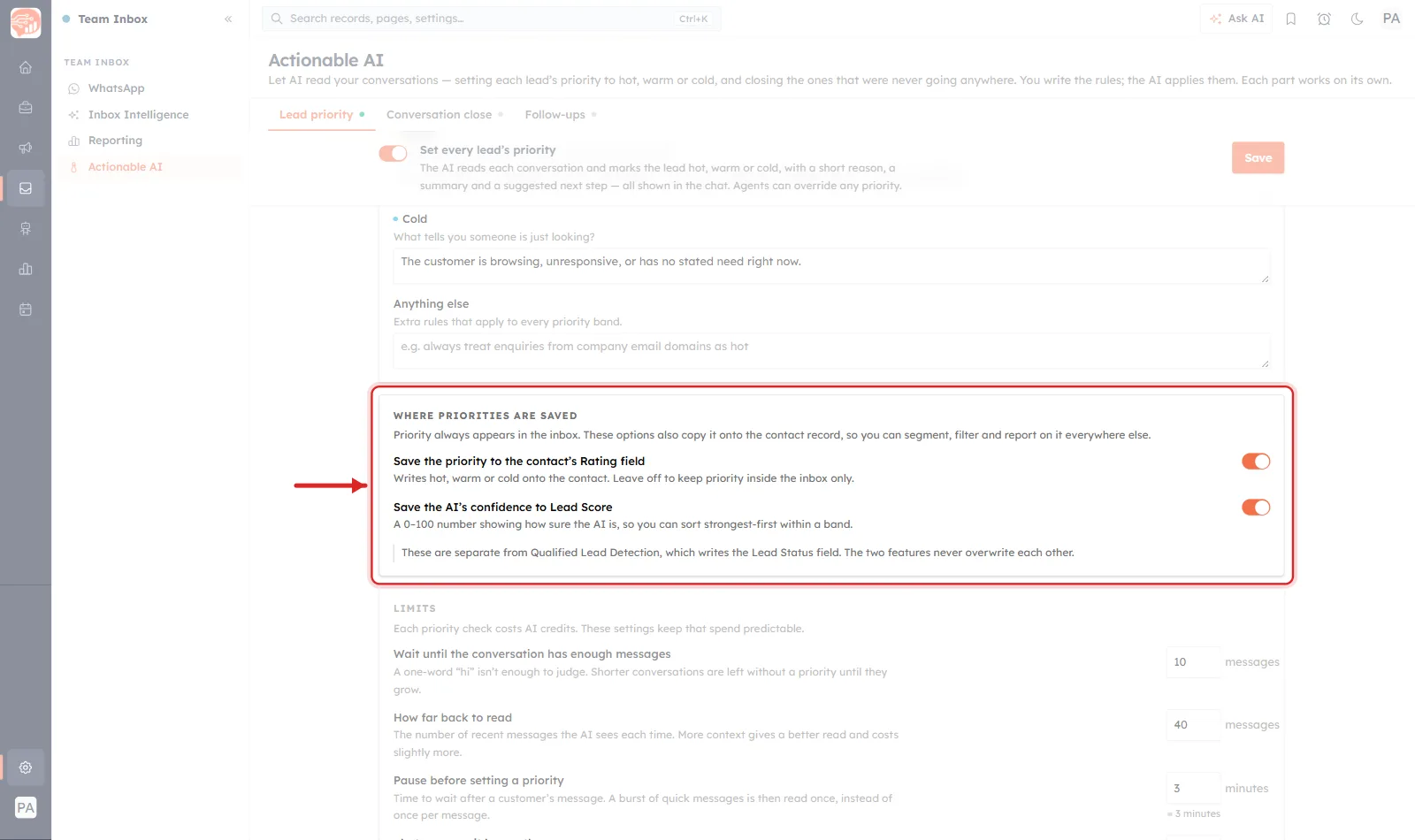
Reading this screenshot. Two toggles, both on, and a note. The card’s opening line draws the key distinction: “Priority always appears in the inbox. These options also copy it onto the contact record.” The inbox dot is not optional; writing to the contact is.
- Save the priority to the contact’s Rating field. Writes the words hot, warm or cold onto the contact’s Rating field. Turn it off and the priority stays locked inside the inbox — useful if your Rating field already means something else to your team.
- Save the AI’s confidence to Lead Score. Writes a 0–100 number for how sure the AI is. The description explains the point precisely: “so you can sort strongest-first within a band.” Twenty hot leads are not equally hot, and this is the tie-breaker.
Together these two turn an inbox label into something the rest of the CRM can use: a segment of hot leads scored above 80, a report on how priority converts, a campaign aimed at everything warm.
The note that prevents the most likely mistake#
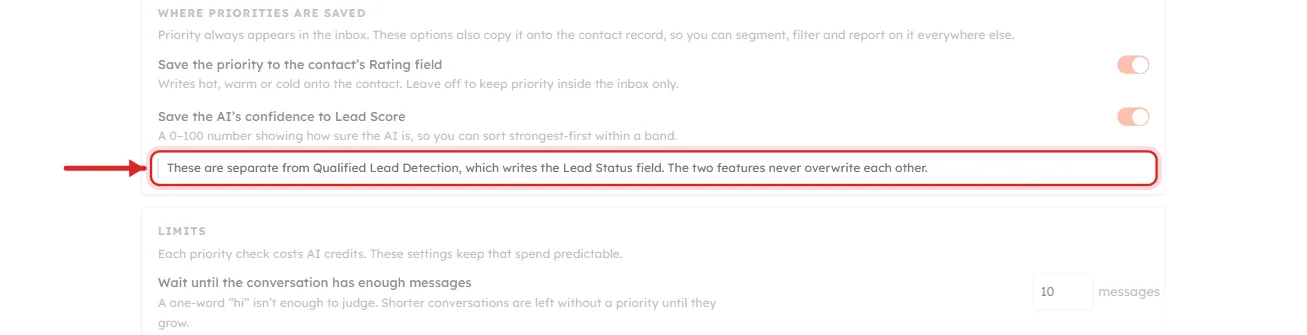
What this close-up shows. One sentence, in its own bordered box, answering the question every experienced AiEngage admin will have by this point: doesn’t the AI agent already qualify leads?
It does, and they are different features writing to different fields:
- Lead priority (this page) writes Rating — hot, warm or cold — and optionally Lead Score.
- Qualified Lead Detection (configured on the AI Agent itself, see Automatically Detect & Qualify Leads with Your AI Agent) writes Lead Status.
“The two features never overwrite each other.” You can run both. A contact can be Rating: hot and Lead Status: qualified at the same time, and the two settings answer genuinely different questions — how warm is this person versus has this person crossed the bar into the sales queue.
✅
If you already run Qualified Lead Detection, turning lead priority on adds a second, finer-grained signal without disturbing the first. Nothing you have already configured needs changing.
Limits — keeping the credit spend predictable#
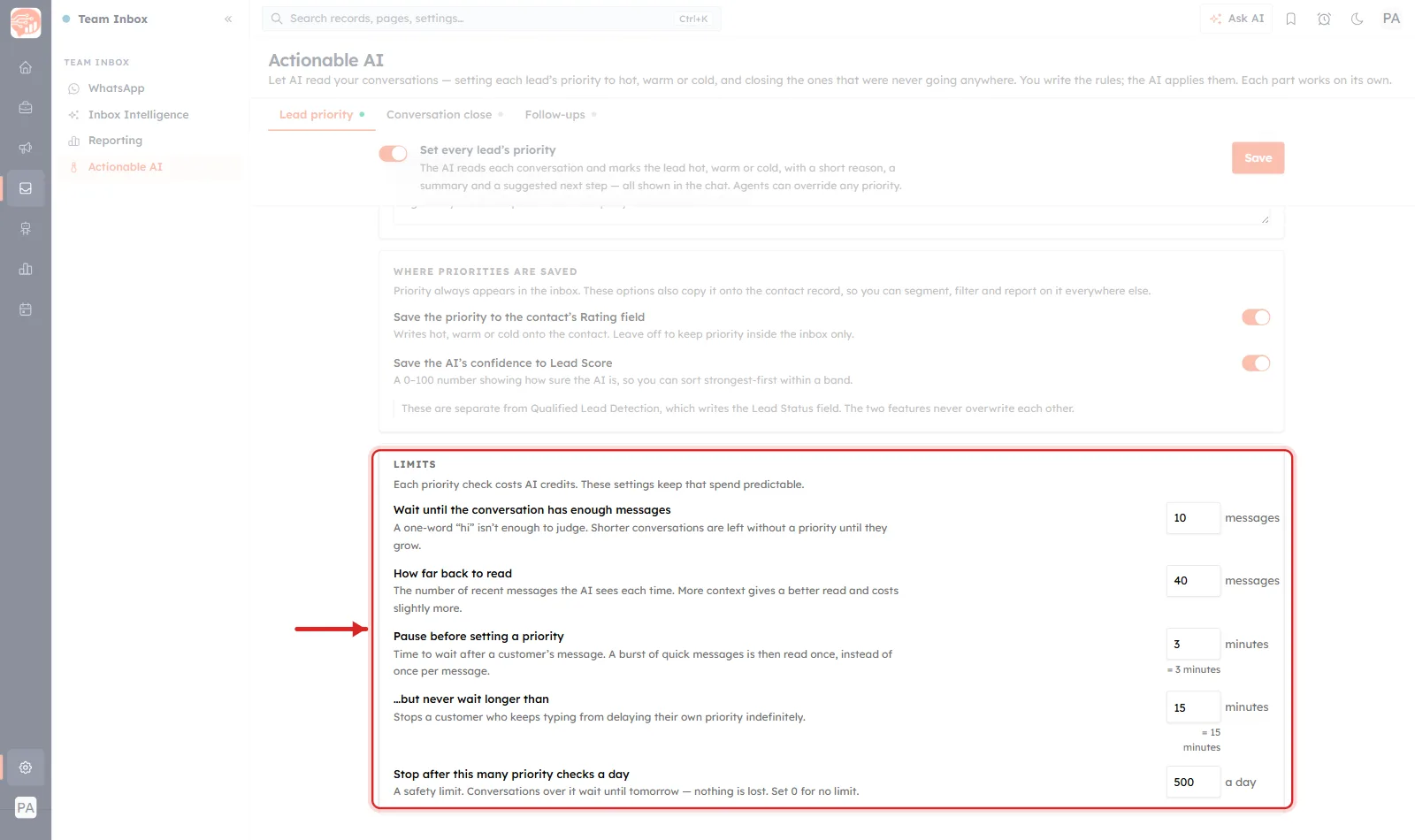
Reading this screenshot. Five numeric settings, shown here at their shipped defaults. The card opens by telling you why it exists: “Each priority check costs AI credits. These settings keep that spend predictable.” Every one of these is a cost control as much as a quality control.
- Wait until the conversation has enough messages — 10. “A one-word ‘hi’ isn’t enough to judge.” Below this length the conversation is simply left unrated. Ten is conservative; if most of your sales happen in five or six messages, lower it or you will rate almost nothing.
- How far back to read — 40 messages. The context window. More context is a better read and costs slightly more. Long support-style threads are the case where this matters.
- Pause before setting a priority — 3 minutes. This is the “few minutes after they stop typing” from card 01. It exists so a burst of quick messages is read once rather than once per message — a direct, large saving on credits.
- …but never wait longer than — 15 minutes. The ceiling on that pause. Without it, a customer who keeps typing every two minutes would never get rated at all. This is the setting that stops the most engaged person in your inbox from being the last one you notice.
- Stop after this many priority checks a day — 500. A hard daily cap. Read the reassurance carefully: “Conversations over it wait until tomorrow — nothing is lost.” They are deferred, not skipped. Set 0 for no limit.
ℹ️
Settings 3 and 4 are a pair and only make sense together: wait for a natural pause, but never longer than a quarter of an hour. If you raise one, look at the other — a 10-minute pause under a 15-minute ceiling leaves almost no room for the ceiling to do its job.
Part 2 — Conversation close#
The second part deals with the other half of a cluttered inbox: the conversations that are finished and will not admit it.
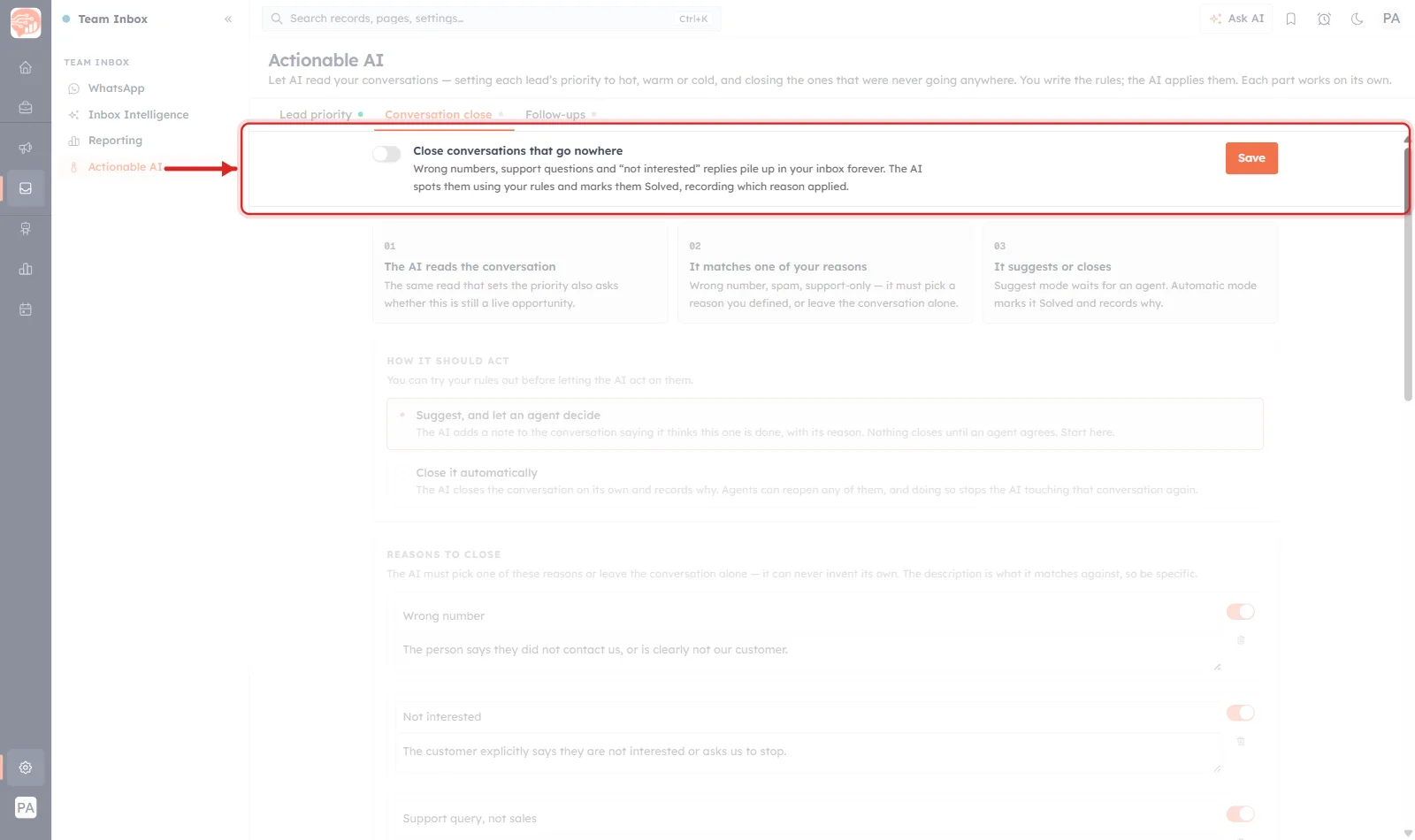
Reading this screenshot. The master toggle for this part, and note that it is grey and off — the opposite of the orange toggle on the priority tab. That is what an inactive part looks like, and it matches the grey dot beside the tab name above.
The helper text names the exact problem: “Wrong numbers, support questions and ‘not interested’ replies pile up in your inbox forever.” Nobody closes these. Closing them is unpaid administrative work with no upside for the person doing it, so they accumulate until your open-conversation count means nothing.
Two words in the second sentence are the whole safety story: the AI marks them Solved, “recording which reason applied.” Every automated close carries a stated reason, which means every one can be audited.
Suggest first, close later#
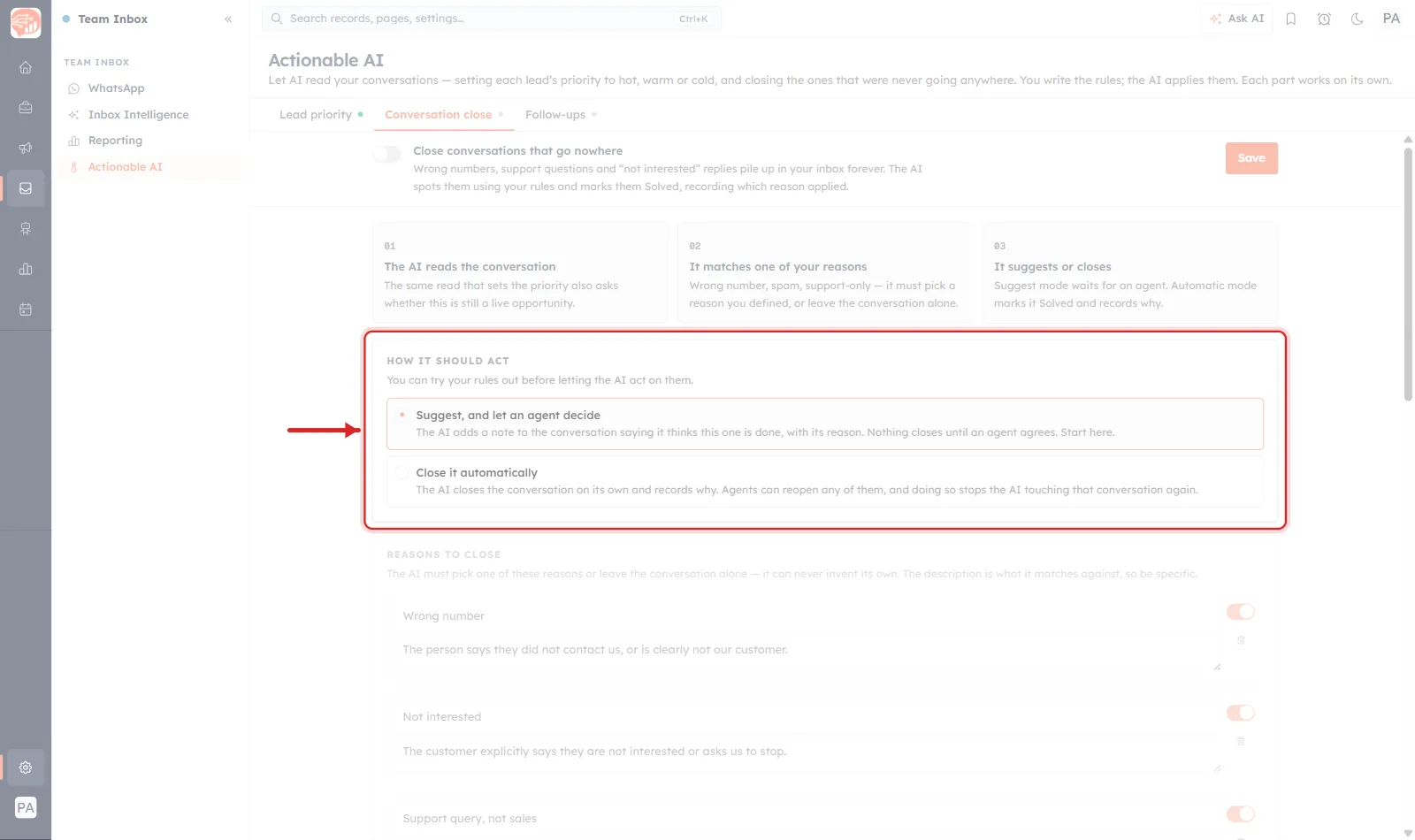
Reading this screenshot. Two radio options, the first selected. This is the most important decision on the tab, and the interface is unusually direct about which one to pick — the words “Start here” are printed in the first option.
- Suggest, and let an agent decide. “The AI adds a note to the conversation saying it thinks this one is done, with its reason. Nothing closes until an agent agrees.” This is a dry run against live traffic. You get to read the AI’s judgement on real conversations, with its reasoning, while it has no power at all.
- Close it automatically. “The AI closes the conversation on its own and records why. Agents can reopen any of them, and doing so stops the AI touching that conversation again.”
That last clause is the feature’s best idea. Reopening a conversation is not just an undo — it permanently removes that conversation from the AI’s reach. A human correction is treated as final, so the same argument can never happen twice on the same thread.
Above the ring, the three numbered cards describe the sequence: 01 the AI reads the conversation — and notably “the same read that sets the priority also asks whether this is still a live opportunity”, so running both parts does not double your credit cost; 02 it matches one of your reasons, “or leave the conversation alone”; 03 it suggests or closes depending on the mode you picked here.
⚠️
Run Suggest for at least a week before switching to automatic. You are not testing whether the AI works — you are testing whether your rules describe your business. Those are different questions, and only live traffic answers the second one.
The reasons it may use — and may not invent#
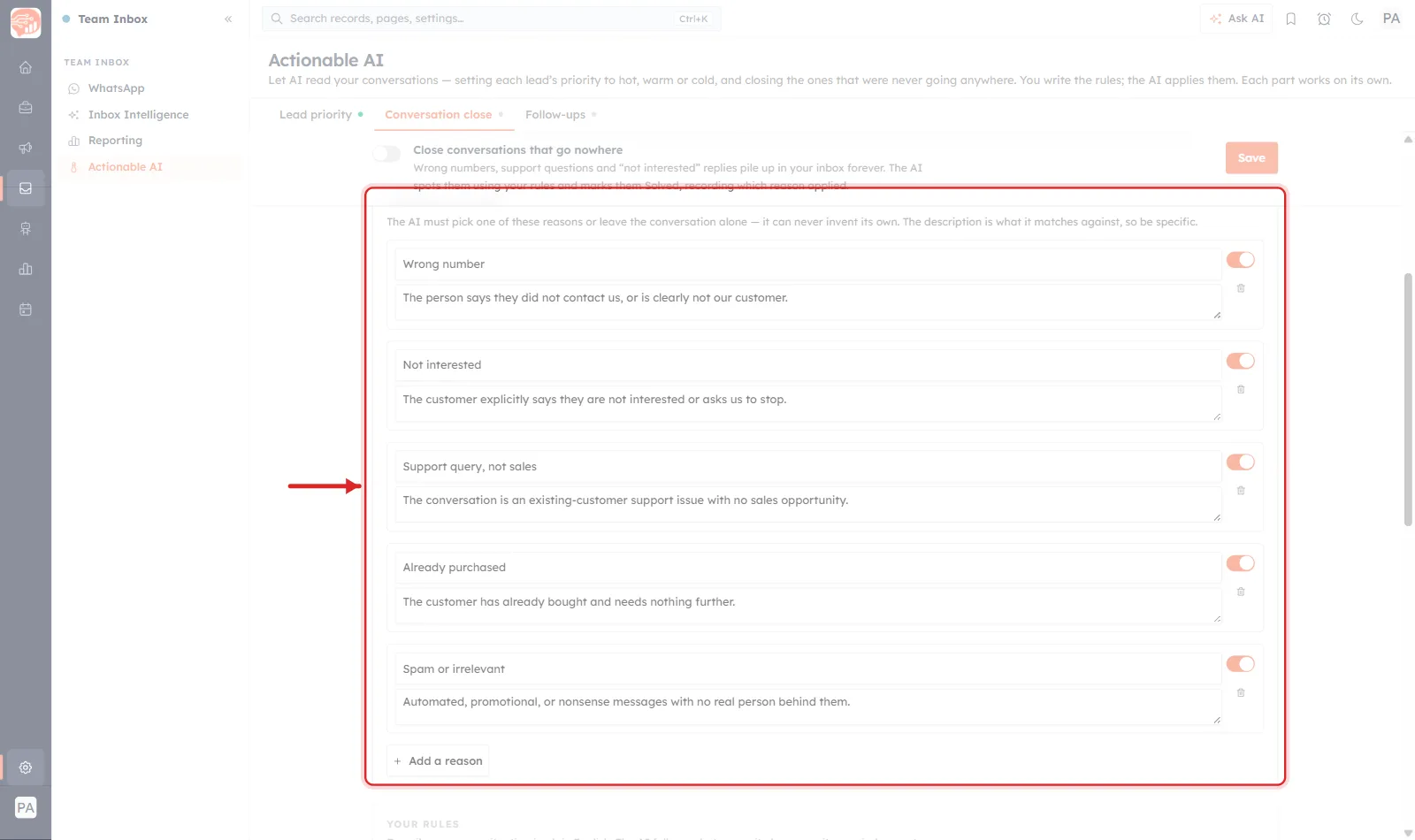
Reading this screenshot. Five reason cards, each switched on, and an Add a reason button. The instruction above them is the safety guarantee of the whole feature: “The AI must pick one of these reasons or leave the conversation alone — it can never invent its own.”
That is a closed list, not a suggestion. The AI cannot decide a conversation is over for a reason you never authorised. If nothing in your list fits, the conversation stays open.
Each card has three parts, and the middle one is where the work is:
- The title — what you will see in reports later. Wrong number, Not interested, and so on.
- The description — and the instruction is explicit that “the description is what it matches against, so be specific.” The title is a label for humans; the description is the actual rule.
- The toggle — each reason can be switched off individually without deleting it. Useful when one reason is misfiring and you want the other four to keep working.
Look at how the five defaults are written. “The person says they did not contact us, or is clearly not our customer” is checkable against a transcript. “The customer explicitly says they are not interested or asks us to stop” uses explicitly to rule out inference — a customer going quiet is not a customer saying no.
Add a reason is where your own business goes: Out of our delivery area, Job applicant, not a customer, Supplier enquiry. These are usually the ones clogging your inbox, because they are the ones no generic list anticipates.
The three rule boxes#
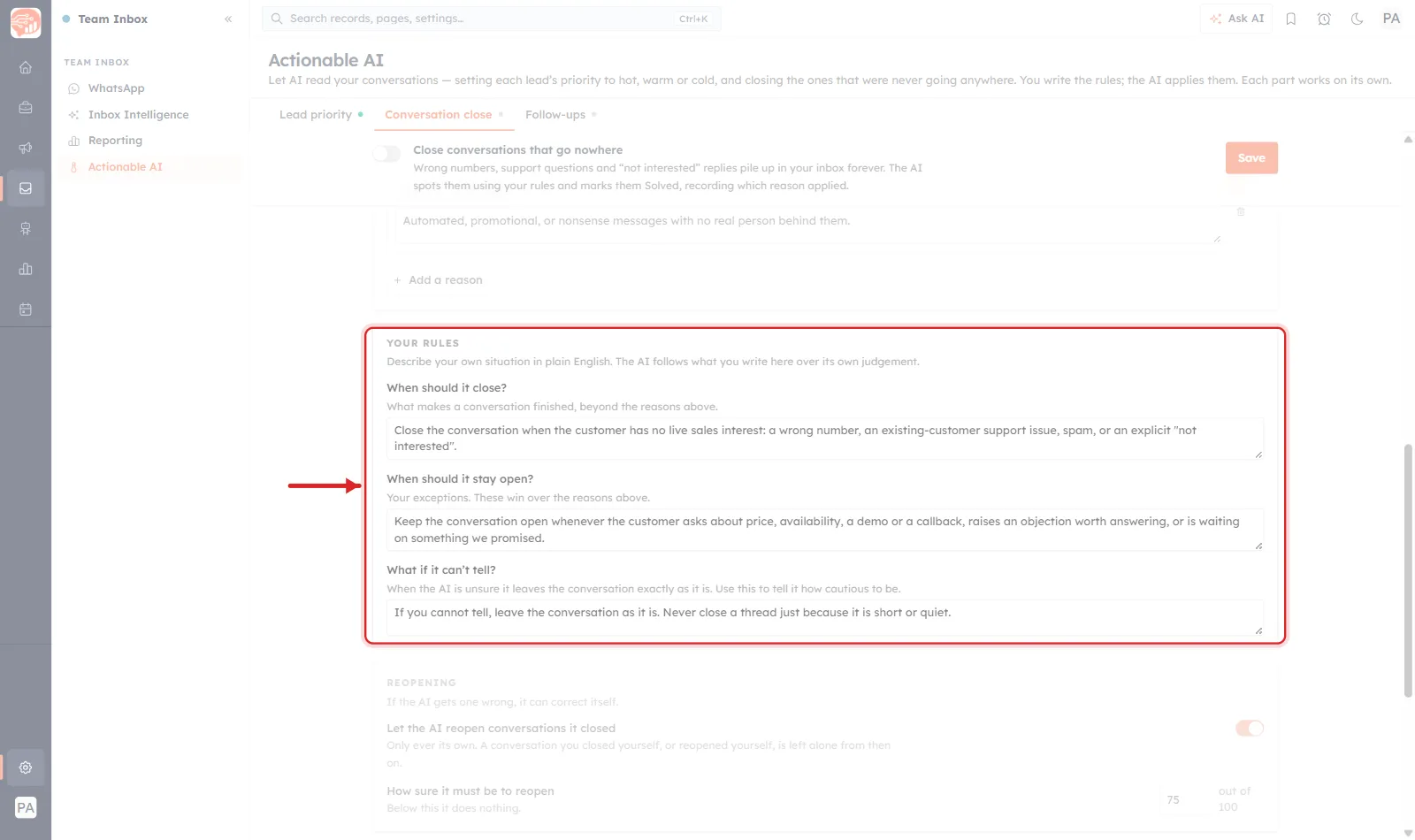
Reading this screenshot. Three boxes, and they are deliberately not symmetrical — they form a hierarchy, and the middle one outranks the first.
- When should it close? Your general rule, beyond the five reasons. The default gathers them into one sentence.
- When should it stay open? Your exceptions — and the label states the precedence outright: “These win over the reasons above.” Look at the default: price, availability, a demo, a callback, an objection worth answering, “or is waiting on something we promised.” That last one is the expensive mistake this box exists to prevent — a conversation where the customer is quiet because you owe them something looks exactly like an abandoned thread.
- What if it can’t tell? The tie-break. The label states the default behaviour — “When the AI is unsure it leaves the conversation exactly as it is” — and the box is where you say how cautious to be. The shipped text is worth keeping: “Never close a thread just because it is short or quiet.”
💡
Spend your effort on box two. Box one is easy to write and rarely wrong; the damage in this feature always comes from a conversation that looked finished. Every time you catch a bad close during the suggest phase, add the reason it was wrong to When should it stay open?
Reopening — the AI correcting itself#
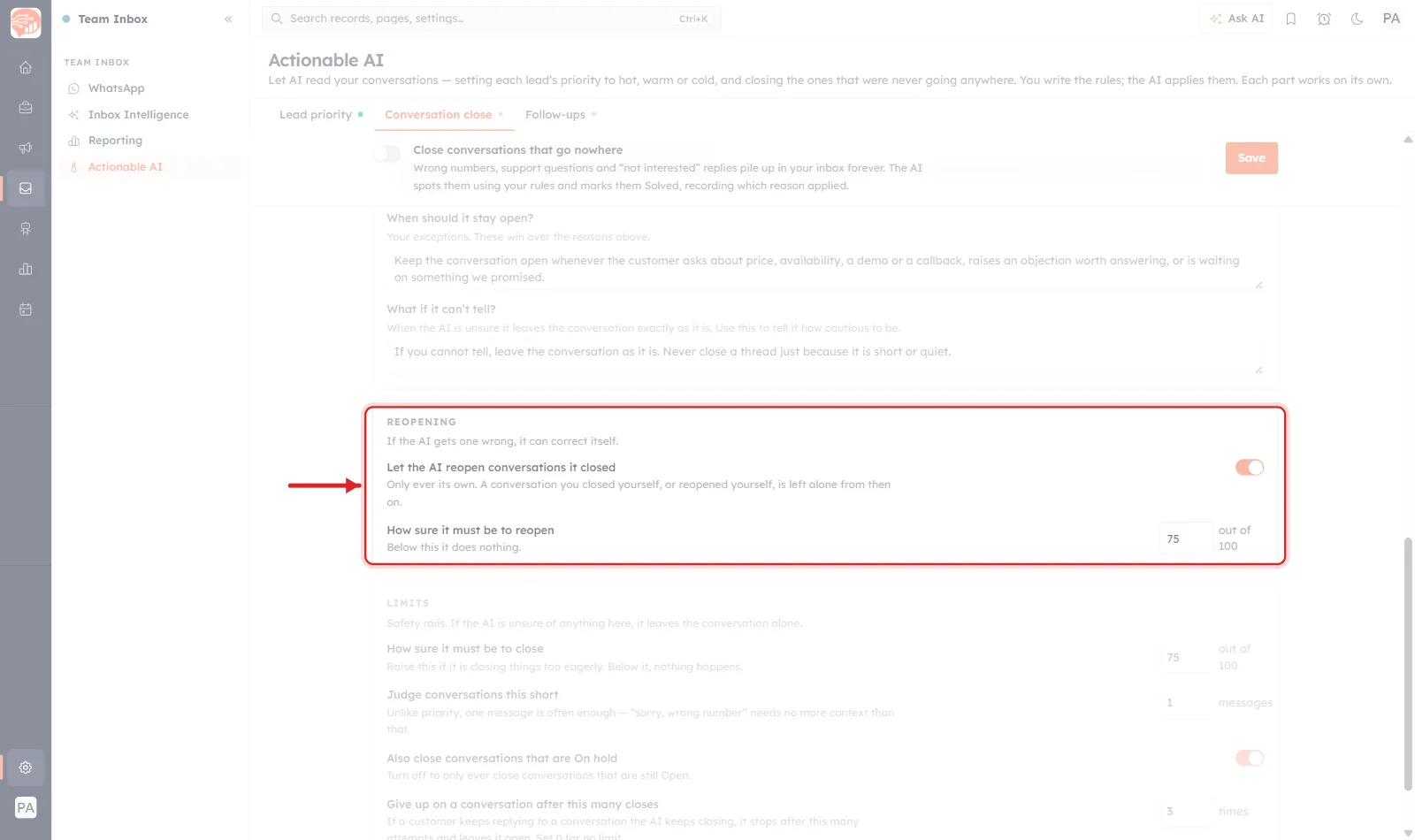
Reading this screenshot. Two settings that exist for one situation: the AI closed a conversation, and then the customer replied.
- Let the AI reopen conversations it closed — on. The qualifier is the point: “Only ever its own. A conversation you closed yourself, or reopened yourself, is left alone from then on.” The AI can undo its own decisions and only its own. A human decision on a thread makes that thread permanently off-limits.
- How sure it must be to reopen — 75 out of 100. A confidence floor. “Below this it does nothing” — and doing nothing means leaving it closed.
The asymmetry here is deliberate and worth noticing: the AI needs permission and confidence to reopen, but a human needs neither. That is the right way round.
Limits — the safety rails#
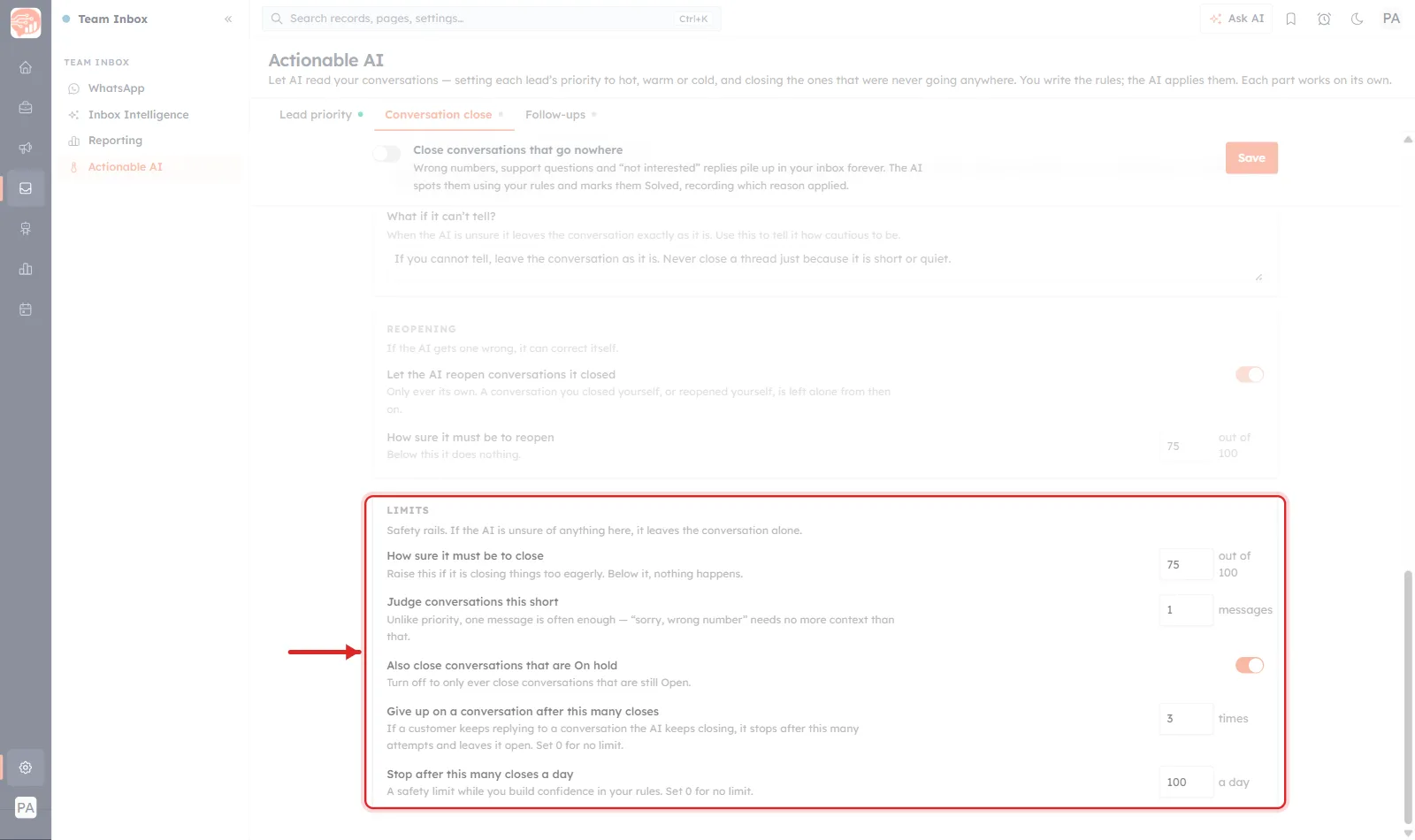
Reading this screenshot. Five settings at their defaults. The opening line sets the tone for all of them: “If the AI is unsure of anything here, it leaves the conversation alone.” The bias throughout is towards doing nothing.
- How sure it must be to close — 75/100. Your main dial. The description tells you which way to turn it: “Raise this if it is closing things too eagerly.” This is the first thing to change when suggest mode shows bad calls.
- Judge conversations this short — 1 message. Note the explicit contrast with the priority tab, which needs ten: “Unlike priority, one message is often enough — ‘sorry, wrong number’ needs no more context than that.” Judging intent needs a conversation; recognising a dead end often needs one line.
- Also close conversations that are On hold — on. Turn it off to restrict the AI to conversations still marked Open. If your team uses On hold to mean “waiting on us”, turn this off.
- Give up on a conversation after this many closes — 3. The loop-breaker, for when a customer keeps replying to a thread the AI keeps closing. After three attempts it stops and leaves the conversation open. Set 0 for no limit.
- Stop after this many closes a day — 100. A daily ceiling, described as being “while you build confidence in your rules” — a blast radius on day one, when a badly worded rule could otherwise close your whole inbox.
✅
The first day you switch to automatic, set the daily cap low — twenty or thirty. If the rules are wrong you will find out having lost twenty conversations to a wrong close, not two hundred. Raise it once a week of closes reads correctly.
Part 3 — Follow-ups#
The third part is the only one that sends messages to customers, and it is the one to approach most carefully.
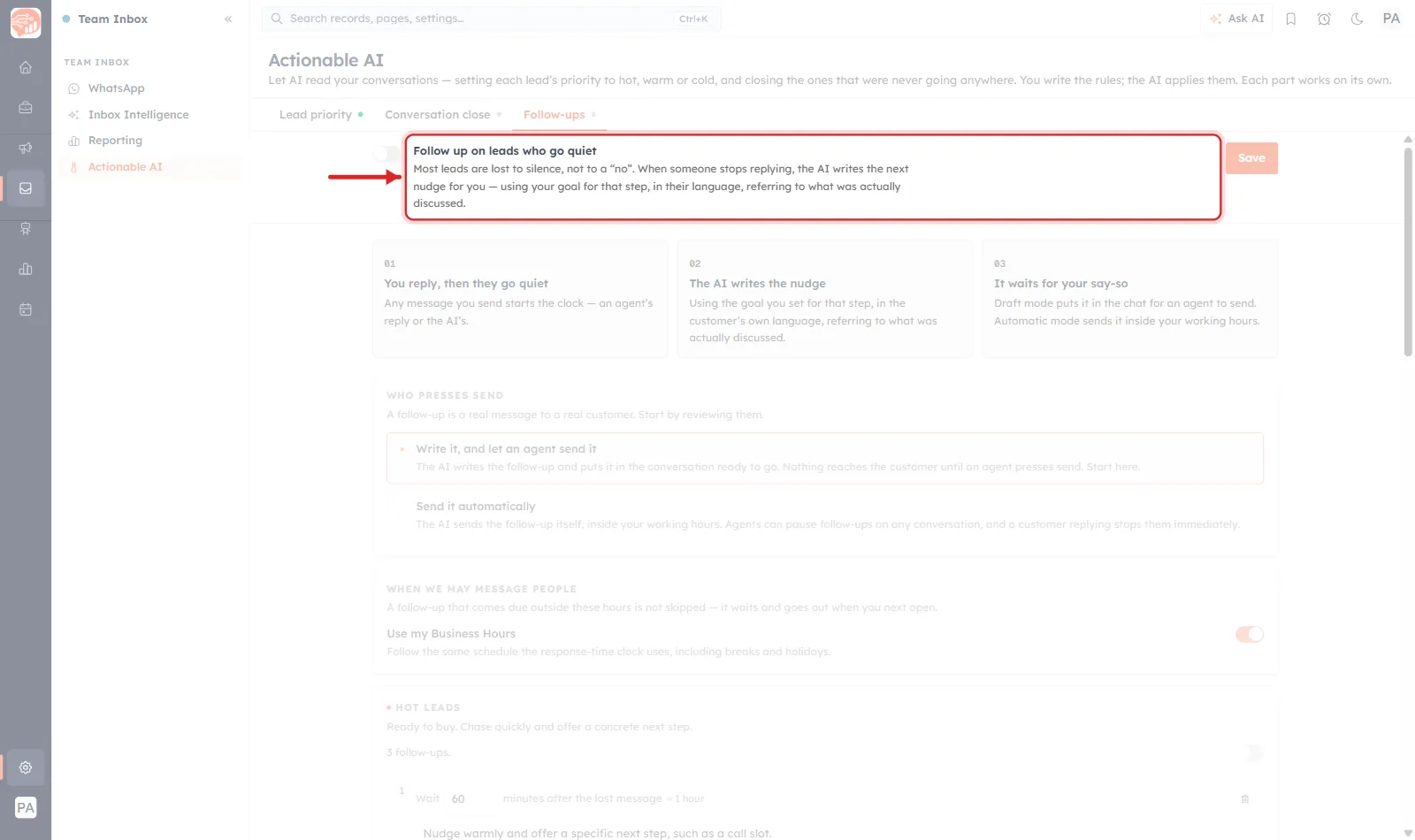
Reading this screenshot. The master toggle, grey and off. The helper text opens with the argument for the feature: “Most leads are lost to silence, not to a ‘no’.”
The second sentence describes the output precisely, and it is more specific than most AI features manage. The AI writes the nudge:
- “using your goal for that step” — you do not write the message, you write what the message should achieve. Different steps have different goals.
- “in their language” — the customer’s language, matched from the conversation. A chat in Hindi gets a follow-up in Hindi.
- “referring to what was actually discussed” — the thing that separates this from a scheduled broadcast. A follow-up that mentions the specific product they asked about is a follow-up; “Just checking in!” is spam with better manners.
Who presses send#
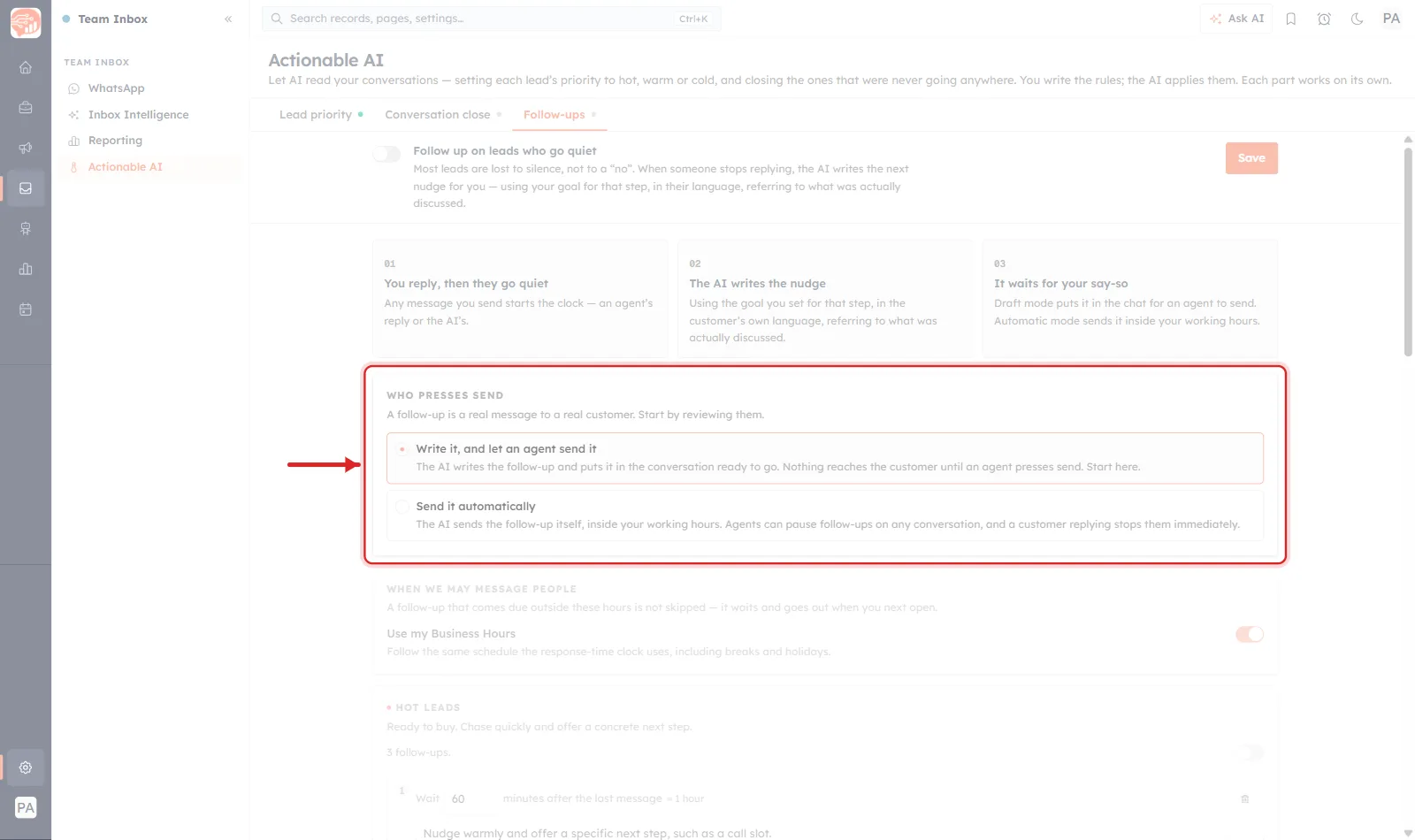
Reading this screenshot. The same shape as the close tab’s mode selector, and again the recommended option says “Start here”. The opening line is blunter than anywhere else on the page: “A follow-up is a real message to a real customer. Start by reviewing them.”
- Write it, and let an agent send it (draft mode). “The AI writes the follow-up and puts it in the conversation ready to go. Nothing reaches the customer until an agent presses send.” Your agents get a written draft instead of a blank box — most of the value, none of the risk.
- Send it automatically. “The AI sends the follow-up itself, inside your working hours.” With two brakes named in the same sentence: agents can pause follow-ups on any conversation, and “a customer replying stops them immediately.”
That second brake is the one that matters. A reply cancels the remaining ladder instantly. The nightmare case — a customer answers and still receives tomorrow’s scheduled nudge — is designed out.
The three cards above the ring set the timing: 01 “Any message you send starts the clock — an agent’s reply or the AI’s”; 02 the AI writes the nudge; 03 it waits for your say-so. Note what starts the clock: your message, not theirs. The ladder measures how long they have been silent since you last spoke.
When it is allowed to message#
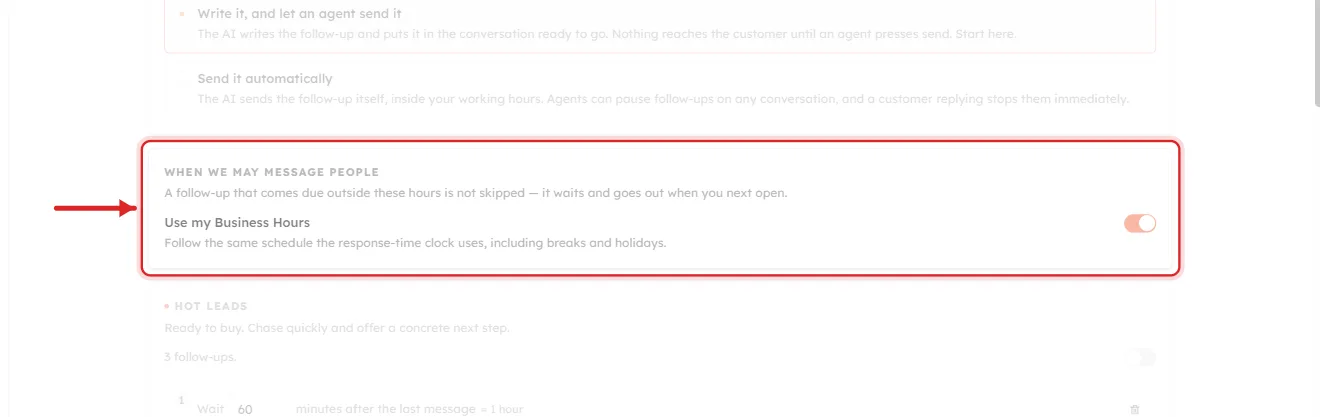
What this close-up shows. One toggle and one very important sentence: “A follow-up that comes due outside these hours is not skipped — it waits and goes out when you next open.”
Deferred, not cancelled. A nudge that falls due at 2am on Sunday arrives Monday morning rather than vanishing. Without this, an overnight ladder step would silently disappear and you would never know a lead had been dropped.
Use my Business Hours reuses the schedule you already configured for response-time tracking, “including breaks and holidays” — one schedule, maintained once, covering both. See Business Hours, Schedules & Holidays for Response Time.
⚠️
Check your Business Hours before enabling automatic sending. If they are wrong, or the timezone is not what you think, this is the feature that will message your customers at three in the morning — and unlike a wrong priority, you cannot take that back.
The follow-up ladders#
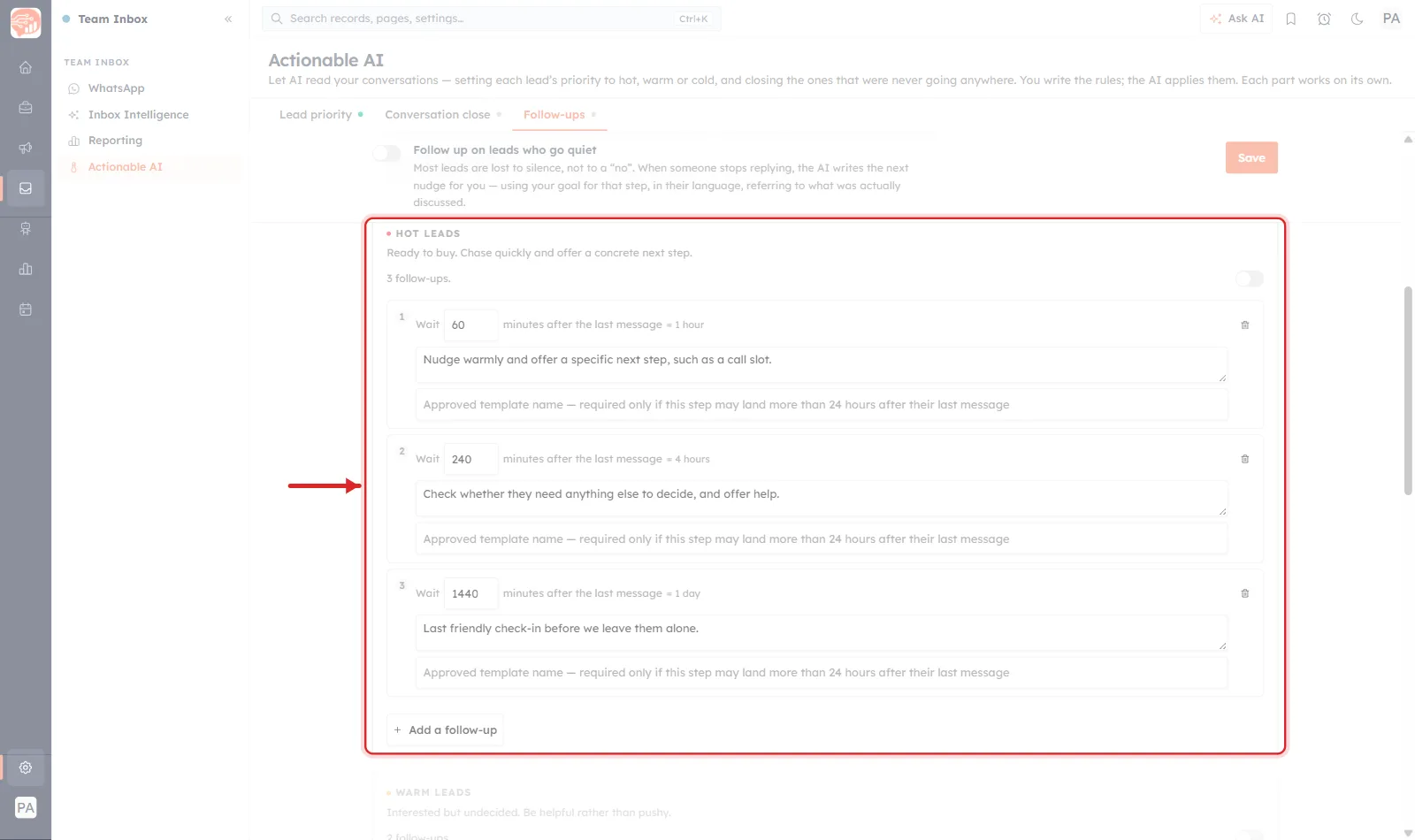
Reading this screenshot. One ladder — the one for hot leads. There are four ladders on this tab, one per priority band, and this is where the two features on this page connect: lead priority decides which ladder a conversation climbs.
The band header sets the strategy in one line: “Ready to buy. Chase quickly and offer a concrete next step.” Then 3 follow-ups, and a toggle at the right — each ladder is enabled separately, so you can run follow-ups for hot leads only and leave the rest alone.
The three steps escalate in time and de-escalate in pressure:
- Wait 60 minutes (shown as = 1 hour) — “Nudge warmly and offer a specific next step, such as a call slot.” An hour, because someone who just asked your price is still shopping right now.
- Wait 240 minutes (= 4 hours) — “Check whether they need anything else to decide, and offer help.” The tone shifts from chasing to assisting.
- Wait 1440 minutes (= 1 day) — “Last friendly check-in before we leave them alone.” A graceful exit.
The waits are cumulative from the last message, not from the previous step, and the interface converts minutes to plain English beside each box as you type — the small grey = 1 hour, = 4 hours, = 1 day. That conversion is there because minutes are the wrong unit for humans and the right unit for precision, and it saves you the arithmetic that causes mistakes.
The other three ladders follow the same pattern with less intensity: Warm leads — “Interested but undecided. Be helpful rather than pushy” — two steps at 4 hours and 2 days; Cold leads — “Little interest so far. One light touch, then leave them be” — a single step at 2 days.
A single step, up close#
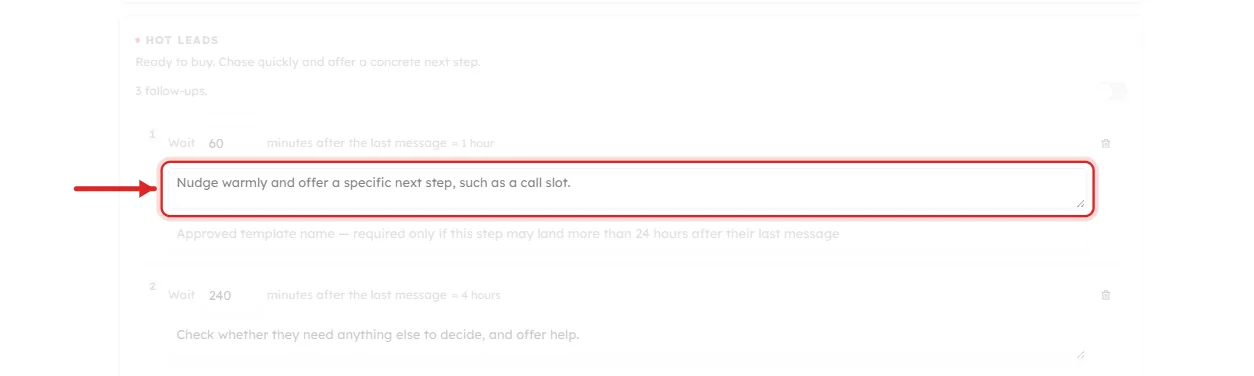
What this close-up shows. The goal box for step one, isolated, plus the two fields that surround every step.
You are writing a goal, not a message. “Nudge warmly and offer a specific next step, such as a call slot” is an instruction to the AI about what this message should accomplish. The words the customer actually receives are written fresh for each conversation, in their language, referring to what was discussed. That is why the same goal works for a customer asking about pricing and one asking about delivery.
The greyed box below is the WhatsApp compliance catch, and it is the single most common reason a follow-up fails to send. Its placeholder states the rule: “Approved template name — required only if this step may land more than 24 hours after their last message.”
WhatsApp allows free-form business messages only inside a 24-hour window that starts at the customer’s last message. Outside it you must use a pre-approved template. So in the hot ladder above: steps 1 and 2 (1 hour, 4 hours) are comfortably inside the window and need nothing. Step 3 at 1440 minutes is exactly 24 hours — right on the boundary — and the warm ladder’s second step at 2 days is well outside it. Those steps need a template name here, or they will not deliver.
⚠️
Any step with a wait of 1440 minutes or more needs an approved template name. Add the template first — approval is not instant — then come back and enter its exact name here. See Create and Manage WhatsApp Message Templates.
The ladder for leads with no priority#
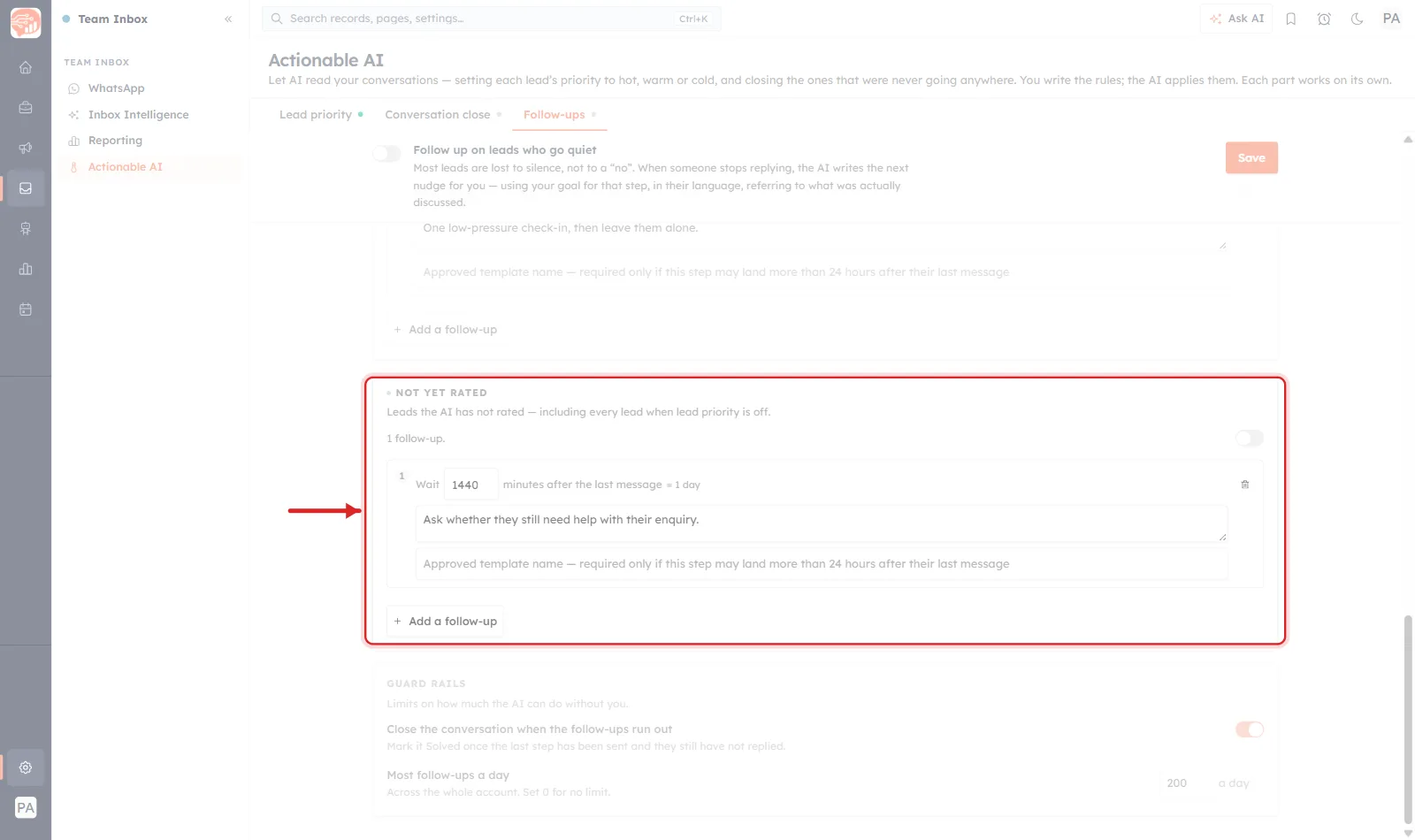
Reading this screenshot. The fourth ladder, and the one people miss. Its description does the explaining: “Leads the AI has not rated — including every lead when lead priority is off.”
Two quite different groups land here:
- Conversations too short to rate. Remember the priority tab needs 10 messages. Anything shorter has no band, so it falls here.
- Every conversation you have, if the Lead priority tab is switched off.
This is why the two parts are worth reading together. Turn on follow-ups with lead priority off, and the hot, warm and cold ladders you carefully designed will never run — every conversation will take this single generic step instead. The goal here is deliberately neutral for that reason: “Ask whether they still need help with their enquiry.”
💡
Turn on Lead priority first and let it run for a week before enabling follow-ups. Priority is what makes the ladders meaningful; without it you have one generic nudge for everybody, which is the thing follow-ups were meant to replace.
Guard rails#
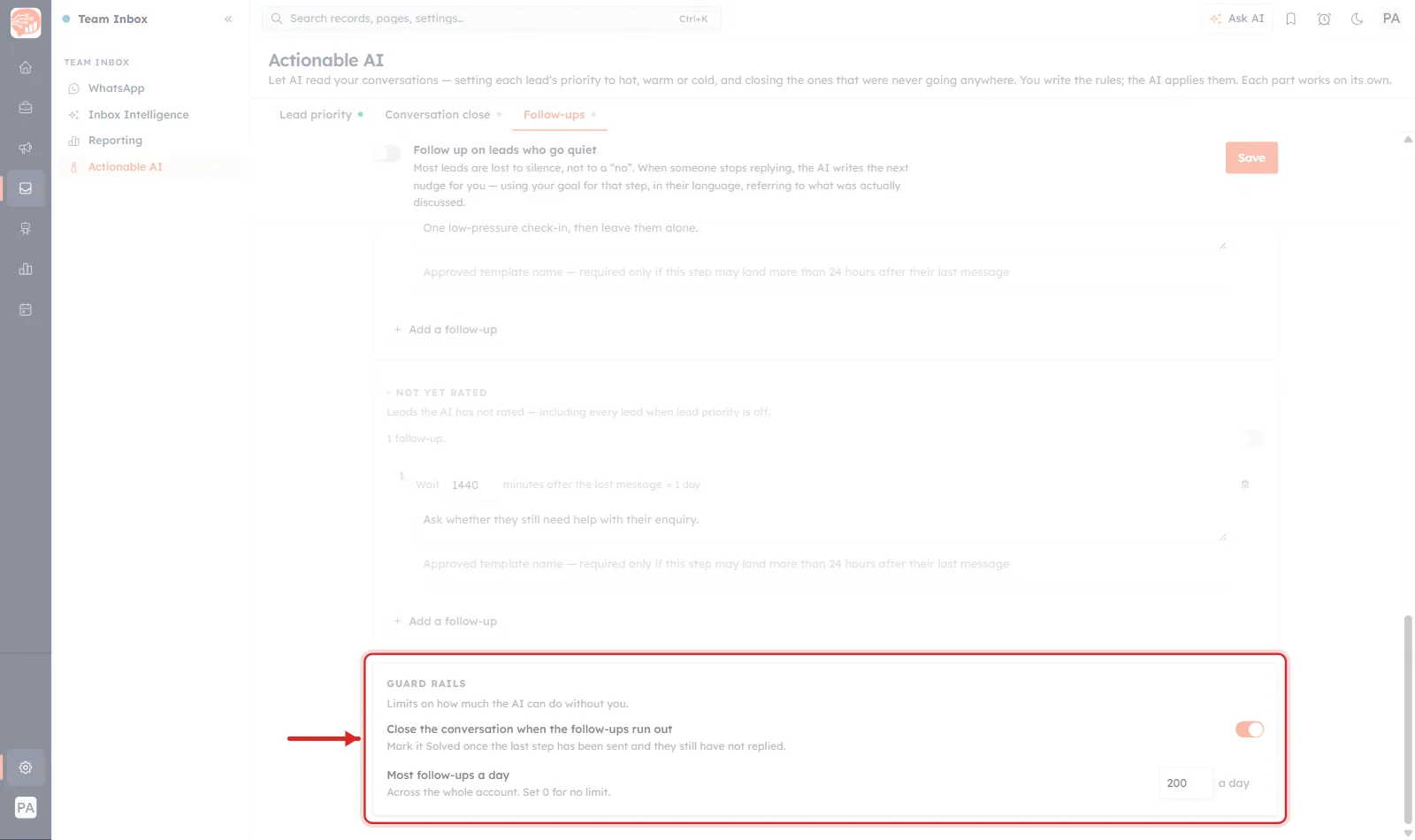
Reading this screenshot. Two settings, and the card’s subtitle is the clearest statement of intent anywhere on this page: “Limits on how much the AI can do without you.”
- Close the conversation when the follow-ups run out — on. “Mark it Solved once the last step has been sent and they still have not replied.” This is where parts two and three meet: the ladder finishes, nobody replied, and the conversation closes itself. Without it, every exhausted ladder would leave another dead thread in your inbox — exactly the problem the close tab exists to solve.
- Most follow-ups a day — 200. A hard ceiling “across the whole account”, not per agent or per conversation. This is your blast radius: the maximum number of customers who can be messaged by the AI in a day, whatever else is misconfigured. Set 0 for no limit — which you should not do while you are still learning what your rules produce.
How the three parts work together#
Run all three and a conversation has a complete lifecycle that nobody has to administer:
- A customer messages you. After they stop typing and once the thread has enough substance, the AI reads it.
- It sets a priority. Hot, warm or cold, with its reasoning in the chat, a coloured dot in the inbox, and Rating plus Lead Score written onto the contact.
- Or it spots a dead end. The same read asks whether this is still a live opportunity. A wrong number or a support-only thread is suggested for closing — or closed, with its reason recorded.
- Your agent works the hot ones first, because they now look different from everything else in the list.
- The lead goes quiet. The ladder for their band starts, and each step is written against the goal you set, in their language, referring to what was discussed.
- They reply — the ladder stops instantly. Or they do not, the ladder runs out, and the conversation closes itself.
Notice how little of that is new work for a human. The one job left is the one that was always the job: talk to the people who are ready to buy.
A safe rollout order#
All three parts are independent, so turn them on in the order that risks least:
- Lead priority, week one. It never messages anybody. Write your three bands, turn it on, and read the reasoning it shows in the chats. Adjust the band descriptions until you agree with it.
- Conversation close in Suggest mode, week two. Still no customer contact. Read its suggestions and their reasons. Every bad call goes into When should it stay open? Raise the confidence floor if it is too eager.
- Conversation close on automatic, week three — with a low daily cap. Raise it as the closes keep reading correctly.
- Follow-ups in draft mode, week four. Your agents get written drafts to review and send. This is where you find out whether the goals produce messages you would have sent yourself.
- Follow-ups on automatic, only when the drafts have been good for a while — and only after checking your Business Hours and adding approved templates to every step of 24 hours or more.
✅
Every stage above except the last two is fully reversible and invisible to customers. Spend as long as you like in stages one and two — the rules you write there are what make the later stages safe.
Things worth knowing before you start#
- Every part costs AI credits. Priority checks, close judgements and written follow-ups all consume them. The Limits sections exist to keep that predictable — see AI Credits & Pricing: How AI Usage Is Billed.
- Priority and close share one read. The close judgement rides along with the priority read, so running both is not twice the cost of running one.
- Agents always outrank the AI. They can override any priority, reopen any conversation the AI closed — which permanently removes it from the AI’s reach — and pause follow-ups on any thread.
- A customer reply stops follow-ups immediately. No scheduled nudge can arrive after somebody has answered.
- Nothing here touches Lead Status. That field belongs to Qualified Lead Detection. The two features run side by side without collision.
- Each tab saves separately. Three tabs, three Save buttons, no cross-tab warning.
Related#
- Inbox Intelligence: Ask AI About Your WhatsApp Conversations — the sibling Team Inbox AI page: ask a question about a date range of chats, and change nothing.
- Get an AI Summary of a WhatsApp Conversation — AI on a single thread, on demand.
- Automatically Detect & Qualify Leads with Your AI Agent — the agent-side feature that writes Lead Status, and why it never collides with priority.
- WhatsApp Inbox: Manage Conversations with Your Contacts — the inbox itself, where the coloured dots appear.
- Business Hours, Schedules & Holidays for Response Time — the schedule automatic follow-ups obey.
- Create and Manage WhatsApp Message Templates — needed for any follow-up step of 24 hours or more.
- Managing Leads: Lifecycle Stage, Lead Status & Source — how Rating, Lead Score and Lead Status differ.
- AI Credits & Pricing: How AI Usage Is Billed — what every read, close and follow-up costs.
- Actionable AI: Turn AI Answers Into Actions in Your CRM — the same idea across the rest of the CRM.
Was this article helpful?
Ready to implement this?
OpenAI Engage and apply what you just learned to your own workspace.
Open AI Engage CRM