Loading…


KnowledgeBase
Data Mapping with Your AI Agent on Chat: Ask Questions and Save the Answers to CRM Records Automatically (Step-by-Step)
Introduction#
When a customer chats with your AI agent, they often share exactly the details your team needs: which product they want, their budget, when they want to start, whether they need a payment plan. Normally someone has to read the chat later and type those details into the CRM by hand.
Data mapping removes that manual work. In your agent’s settings you turn on Ask initial questions and map with data, choose a module (for example Contacts, or a custom module such as Course Enquiries), and add up to 10 questions. Each question is mapped to one field of that module. During the chat, the AI asks these questions naturally, when they fit the conversation, and saves each answer into its field on a record that is linked to the customer’s contact.
In this guide we set it up from scratch for a sample agent, BrightPath Course Advisor, which advises learners of an IT training institute. Its questions save each learner’s requirements into a Course Enquiries record. Then we follow a real website chat with a sample visitor, Neha Kulkarni, and open the record the agent filled in for her.
What you set | Where | What it does |
|---|---|---|
Ask questions and save answers | Edit agent → Ask initial questions and map with data | Switches data mapping on for this agent. |
Module | Same card | Where answers are saved: Contacts, or a module that has a Contacts lookup field. |
Questions (up to 10) | Same card | One field per question. The AI writes the question for you; you can edit it. |
Ask visitor details | Edit agent → Ask visitor details | Website widget only: asks the visitor’s name, email and phone before the chat, so the chat is linked to a contact. |
The saved answers | The record in your chosen module | Filled in automatically as the customer answers. |
ℹ️
Before you start:
• You need an AI agent. If you don’t have one yet, see Build Your First AI Agent.
• Decide where the answers should go. You can save them on the contact itself, or on a record in another module, as long as that module has a lookup field to Contacts, so every answer stays linked to the person who gave it.
• Make sure the fields exist. You can also create a new field from inside the agent settings (Step 9) if you are an admin.
Step 1: Open AI Agents → My Agents#
Click the AI Agents icon in the left-hand rail, then click My Agents. You see every AI agent in your account with its status and where it is connected. Click the name of the agent you want to collect data with.
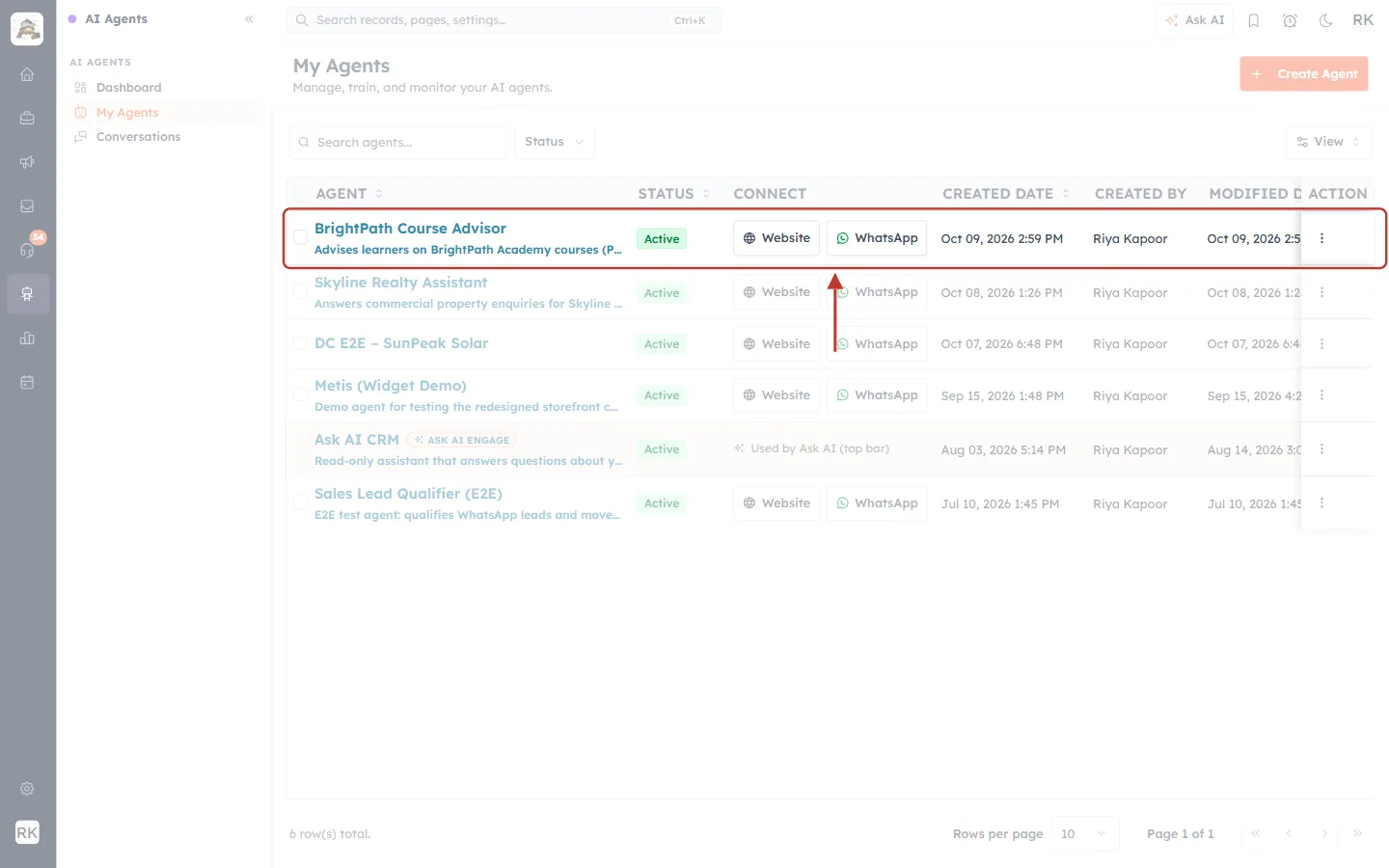
What this screenshot shows. The My Agents page, with the sample agent BrightPath Course Advisor ringed in red.
Agent: the agent’s name and a short description. Click the name to open the agent.
Status: Active means the agent is answering chats.
Connect: the Website and WhatsApp buttons show where you can connect the agent. Data mapping works on both channels.
Created date / Created by / Modified date: who created the agent and when it was last changed.
+ Create Agent (top right): creates a new agent. The data mapping card you will use below is also in the create form, so you can set it up while building a new agent.
Step 2: Click Edit agent#
The agent’s page opens with its details, usage and a Test Chat panel. Click Edit agent at the top right to open its settings.
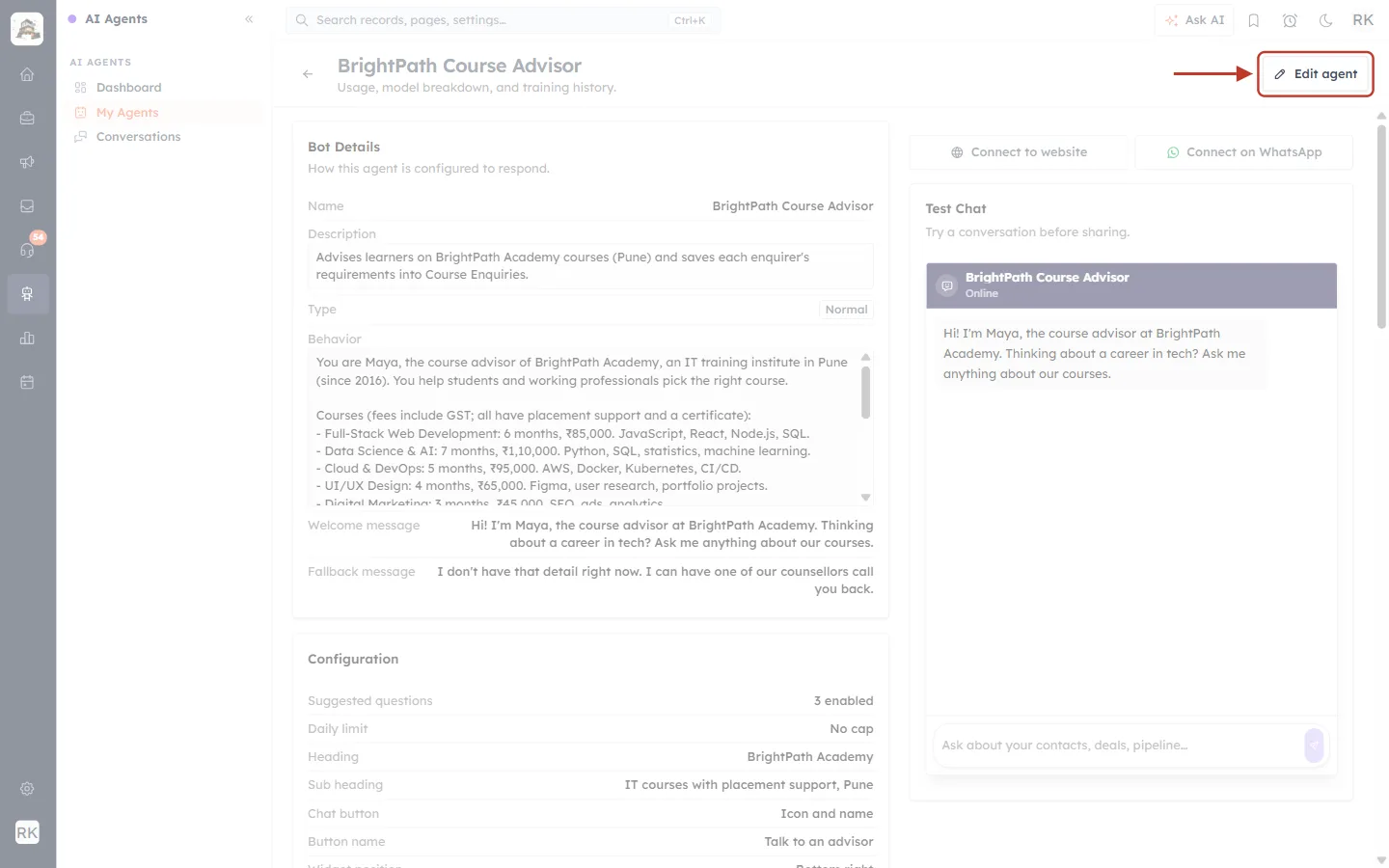
What this screenshot shows. The agent’s detail page, with the Edit agent button ringed.
The page title shows the agent’s name, BrightPath Course Advisor.
Bot Details (left) shows the agent’s name, description, type and behaviour prompt.
Connect to website and Connect on WhatsApp (right) are where you add the agent to your channels.
Test Chat lets you try the agent’s replies. Answers are saved only for chats that are linked to a contact: website chats where the visitor filled in their details, and WhatsApp chats.
Step 3: Find “Ask initial questions and map with data”#
The edit page has two steps at the top: 1 Build and 2 Review & Publish. On the Build step, scroll down past Identity, Persona and Lead Qualification until you reach the card Ask initial questions and map with data.
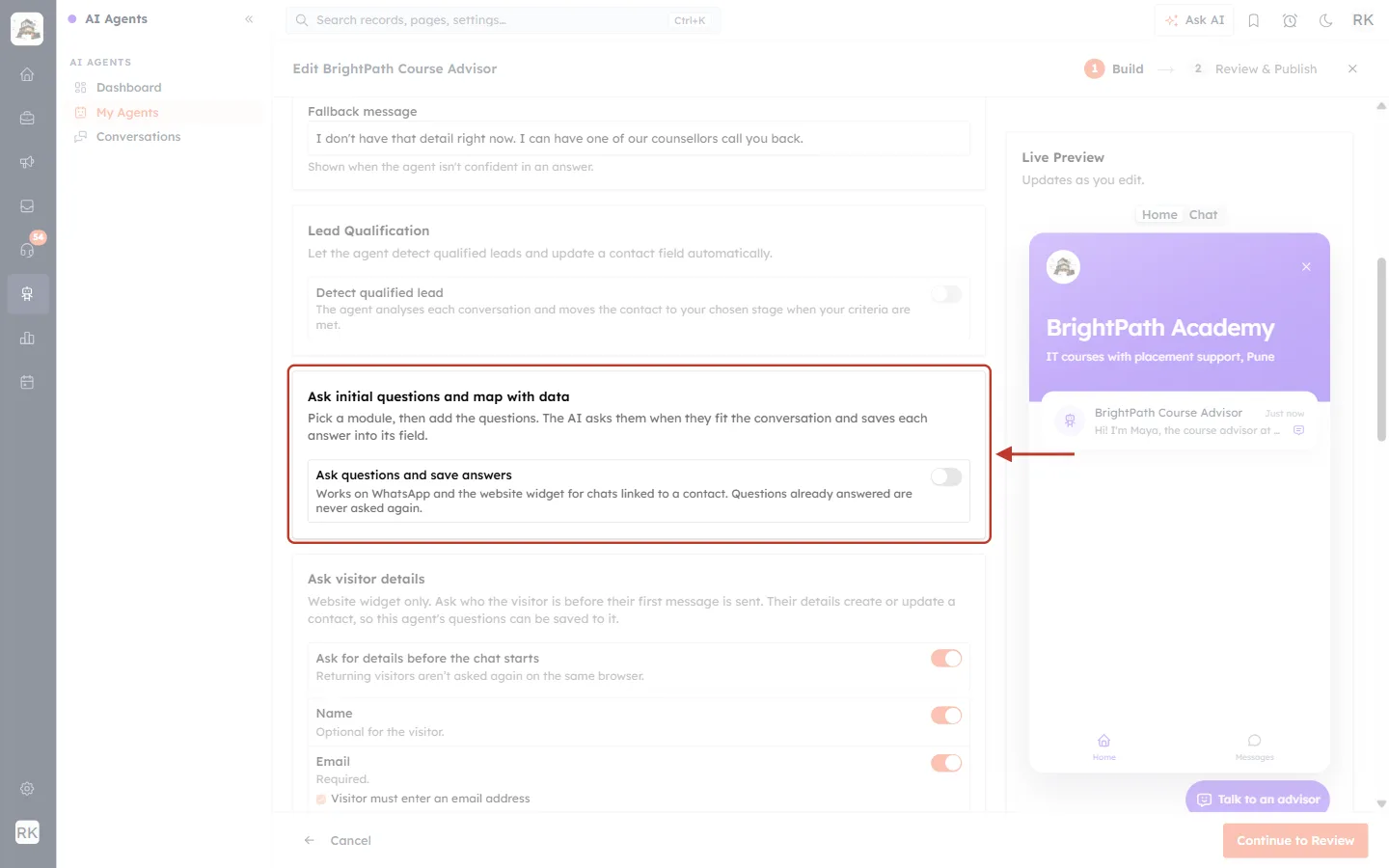
What this screenshot shows. The Ask initial questions and map with data card before it is switched on.
The card’s description: “Pick a module, then add the questions. The AI asks them when they fit the conversation and saves each answer into its field.”
Ask questions and save answers: the switch that turns data mapping on for this agent. It is off here.
The note under it explains where it works: “Works on WhatsApp and the website widget for chats linked to a contact. Questions already answered are never asked again.”
On the right, the Live Preview shows how your chat widget looks while you edit.
Step 4: Turn on “Ask questions and save answers”#
Click the Ask questions and save answers switch so it turns orange. The rest of the card opens: a Module picker and an empty Questions table.
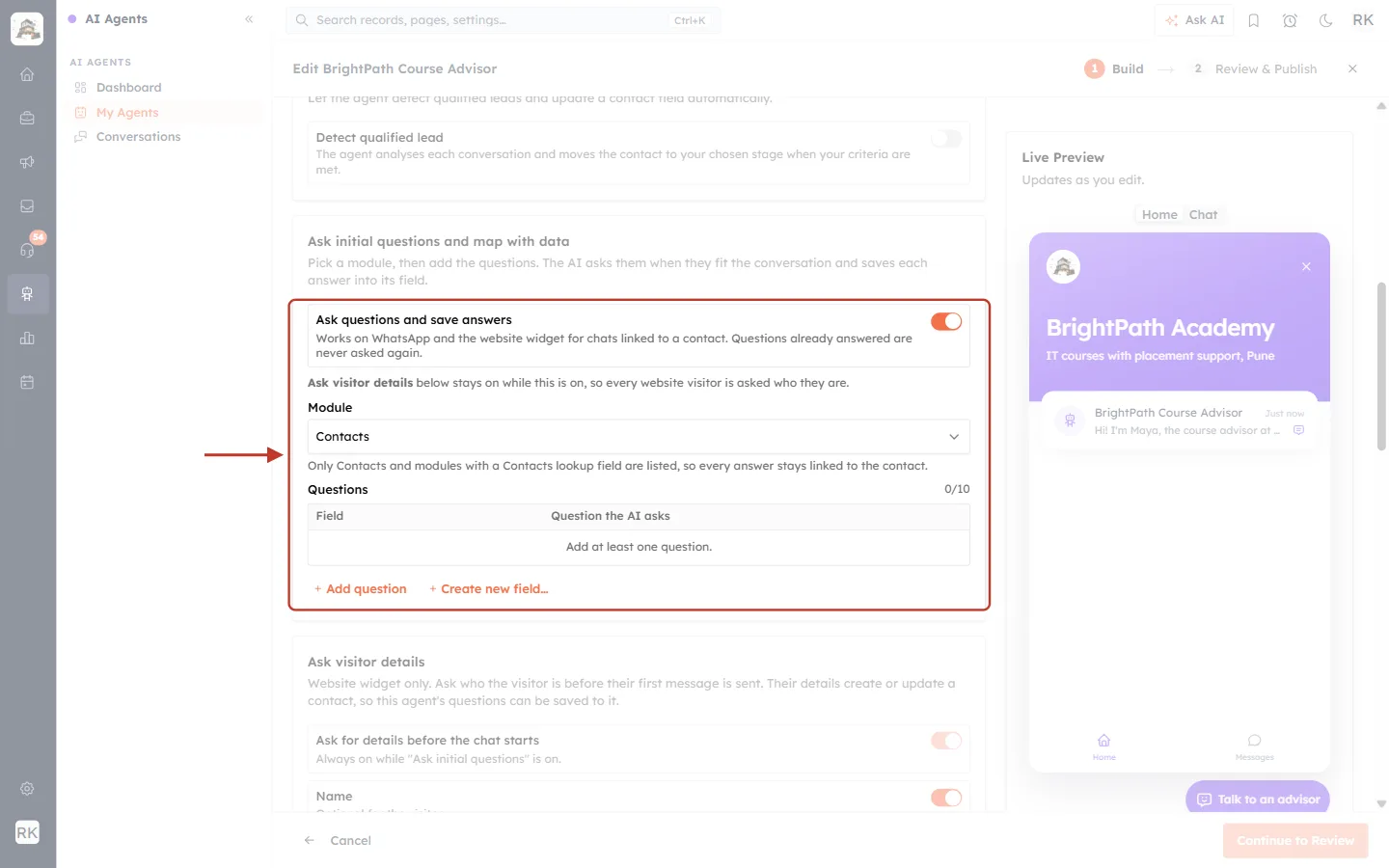
What this screenshot shows. The switch is on and the card now shows the module and question settings.
Ask questions and save answers is switched on (orange).
The line “Ask visitor details below stays on while this is on…” tells you that the website widget will now always ask visitors who they are (see Step 10).
Module starts as Contacts. The note below it explains that only Contacts and modules with a Contacts lookup field can be chosen.
Questions 0/10: no questions yet, with the message “Add at least one question.” You can add up to 10.
+ Add question and + Create new field… are the two ways to add a question.
⚠️
You can’t publish the agent while this switch is on and the question list is empty. Add at least one question, or switch it off again.
Step 5: Choose the module the answers are saved to#
Click the Module drop-down and pick where the answers should be stored. In our example the institute keeps every enquiry in a custom module called Course Enquiries, so we pick that.
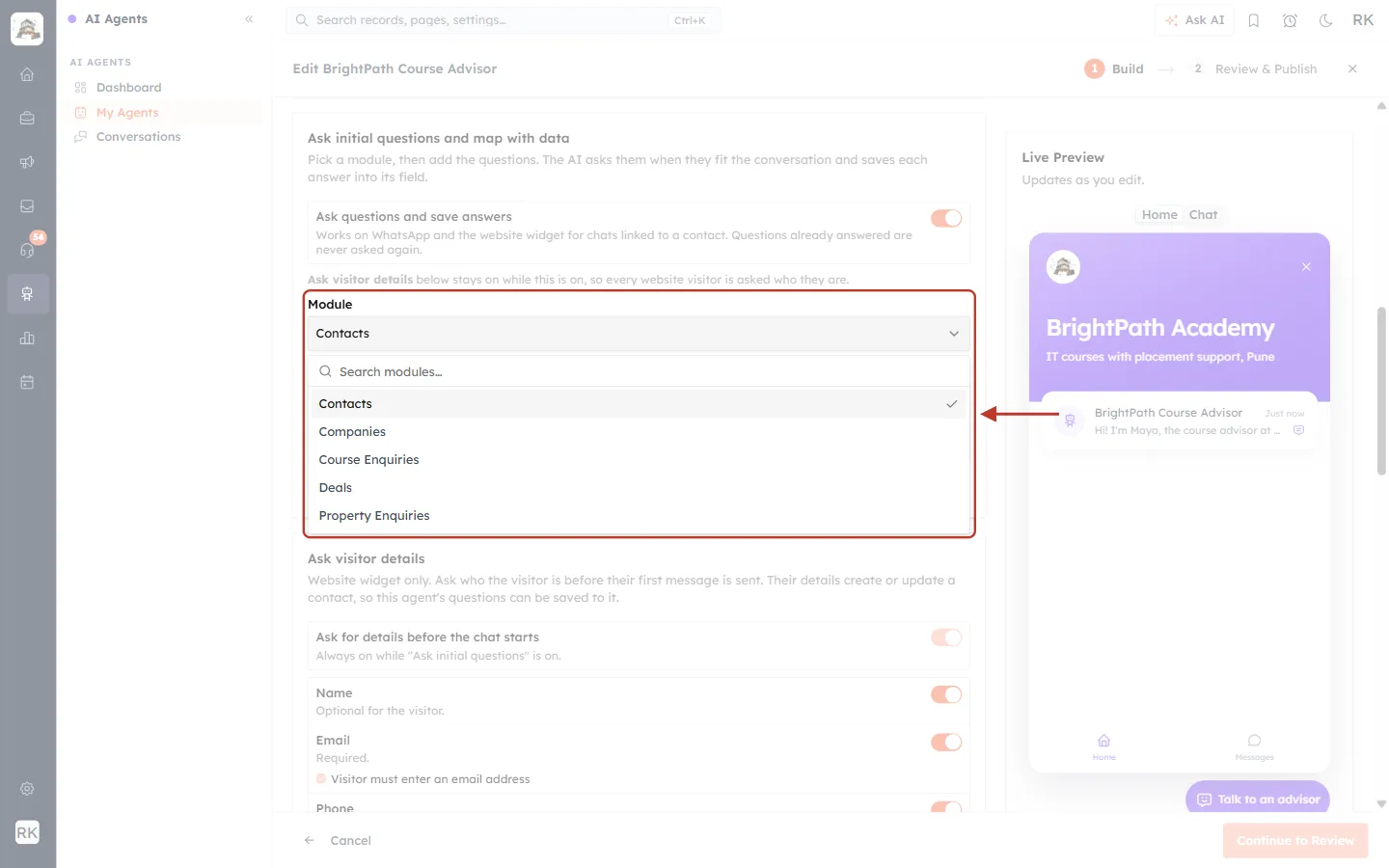
What this screenshot shows. The Module drop-down, open.
A Search modules… box at the top helps when you have many modules.
Contacts (ticked) is the default. Choose it to save the answers straight onto the person’s contact record.
The other entries (Companies, Course Enquiries, Deals, Property Enquiries) are modules in this account that have a lookup field to Contacts. Your list shows your own modules.
Modules without a Contacts lookup field are not listed, because their records could not be linked back to the person who answered.
If you choose… | Where the answers go |
|---|---|
Contacts | Into fields on the visitor’s own contact record. |
Another module (e.g. Course Enquiries) | Into a record in that module, linked to the visitor’s contact through the module’s Contacts lookup field. In our example the record is named after the contact and the agent: “Neha Kulkarni (BrightPath Course Advisor)”. |
Step 6: Add your first question#
Click + Add question under the table. A new row appears with a Choose a field… list. Pick the field this question should fill. You don’t have to write the question yourself: as soon as you pick a field, the AI writes a question for it, using your agent’s name and behaviour so it sounds like your agent.
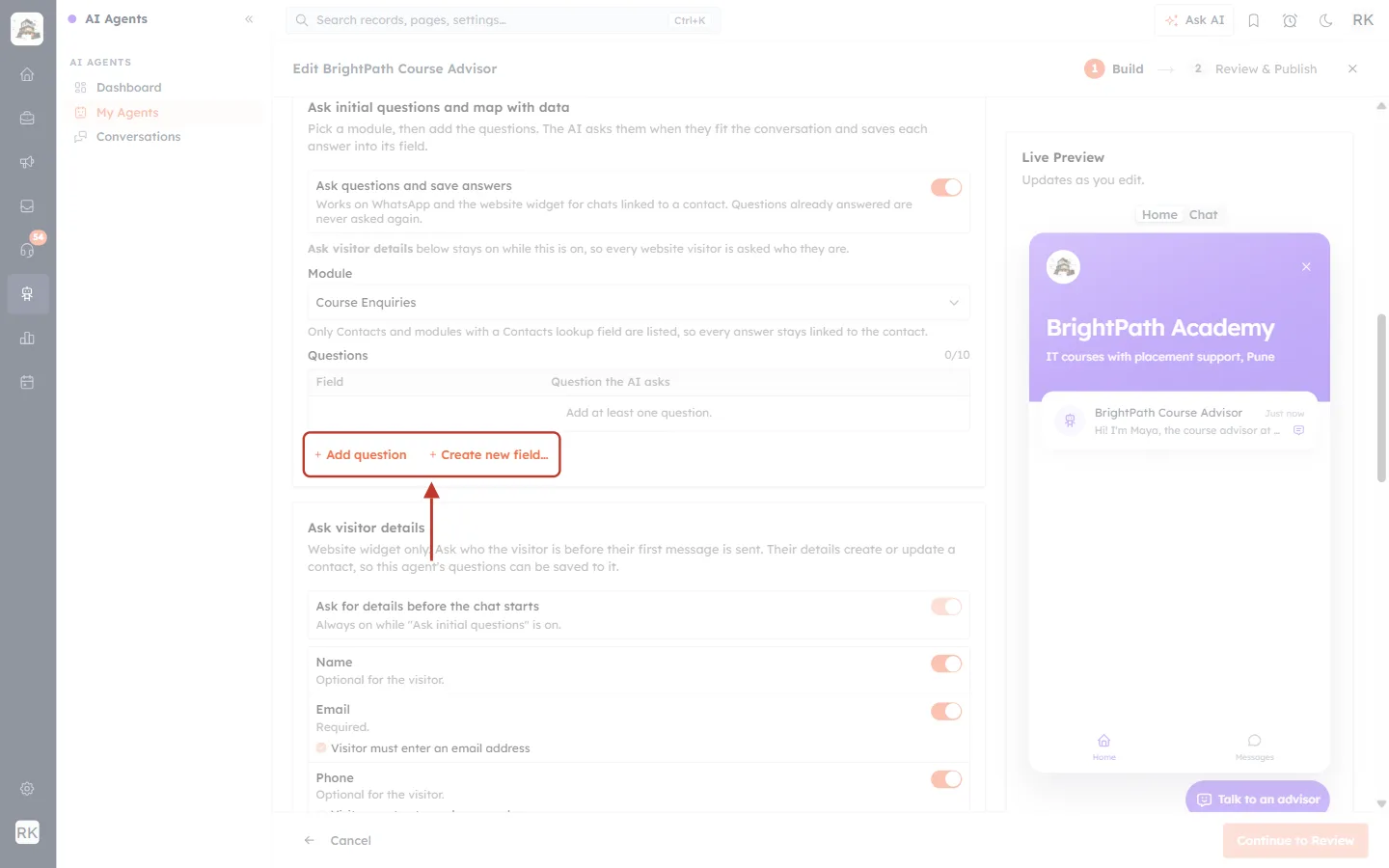
What this screenshot shows. The two buttons under the Questions table.
+ Add question: adds a row and lets you pick an existing field.
+ Create new field…: makes a brand-new field in the chosen module and adds a question for it (see Step 9).
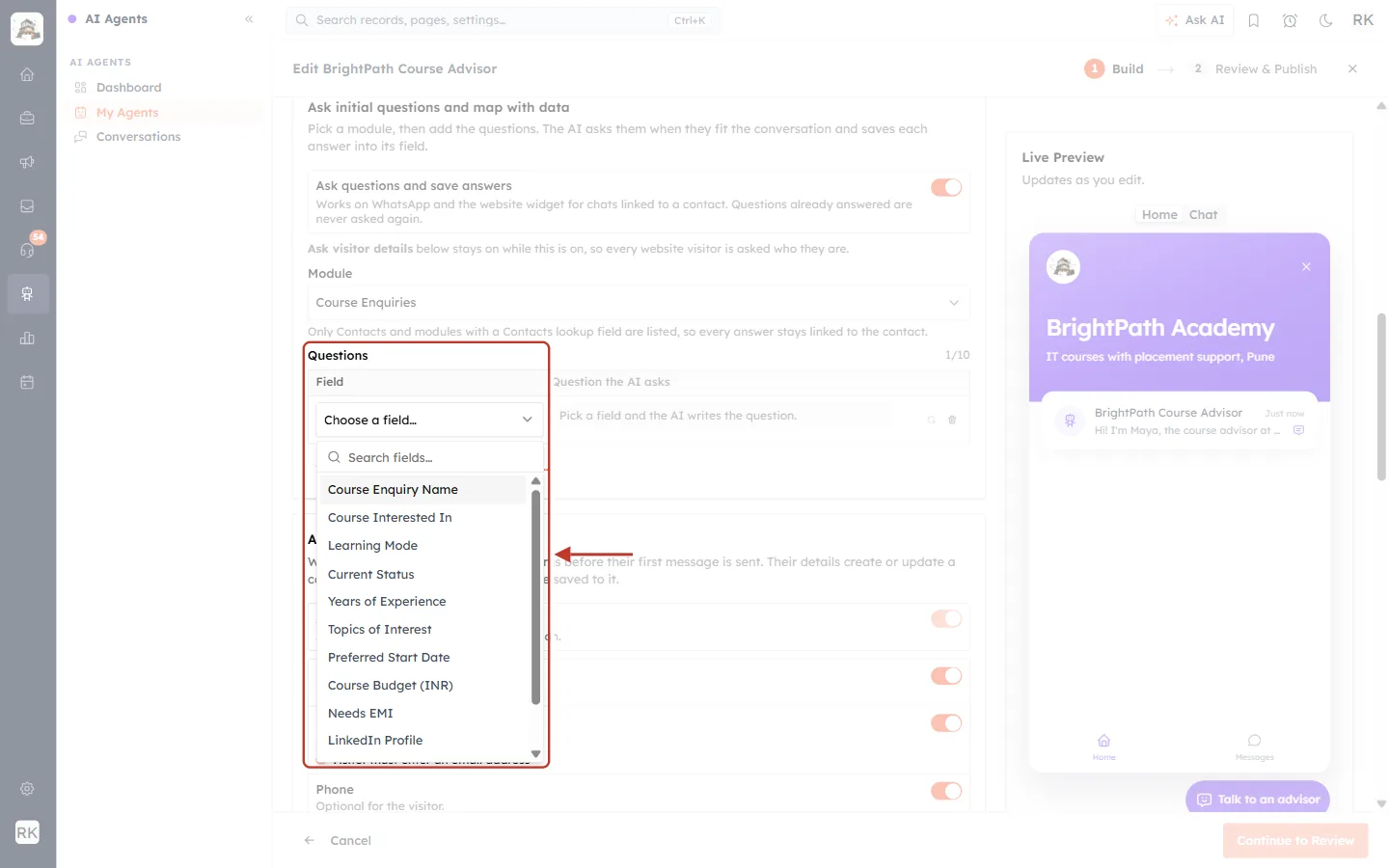
What this screenshot shows. The field list for the new row, showing the fields of Course Enquiries that can store an answer.
Search fields… filters the list as you type.
Each entry is a field of the chosen module, for example Course Interested In, Learning Mode, Current Status, Years of Experience, Topics of Interest, Preferred Start Date, Course Budget (INR), Needs EMI and LinkedIn Profile.
A field that already has a question is not offered again, so each field is asked once.
In the background, the Question the AI asks box reads “Pick a field and the AI writes the question.”
Only fields that can hold a typed answer are listed:
Field types you can map | Not offered |
|---|---|
Text, Long text, Email, Phone, Website (URL), Number, Decimal, Percent, Dropdown (pick list), Multi-select, Yes / No (checkbox) and Date | Lookup fields, user fields, read-only system fields (such as Created By), internal or inactive fields |
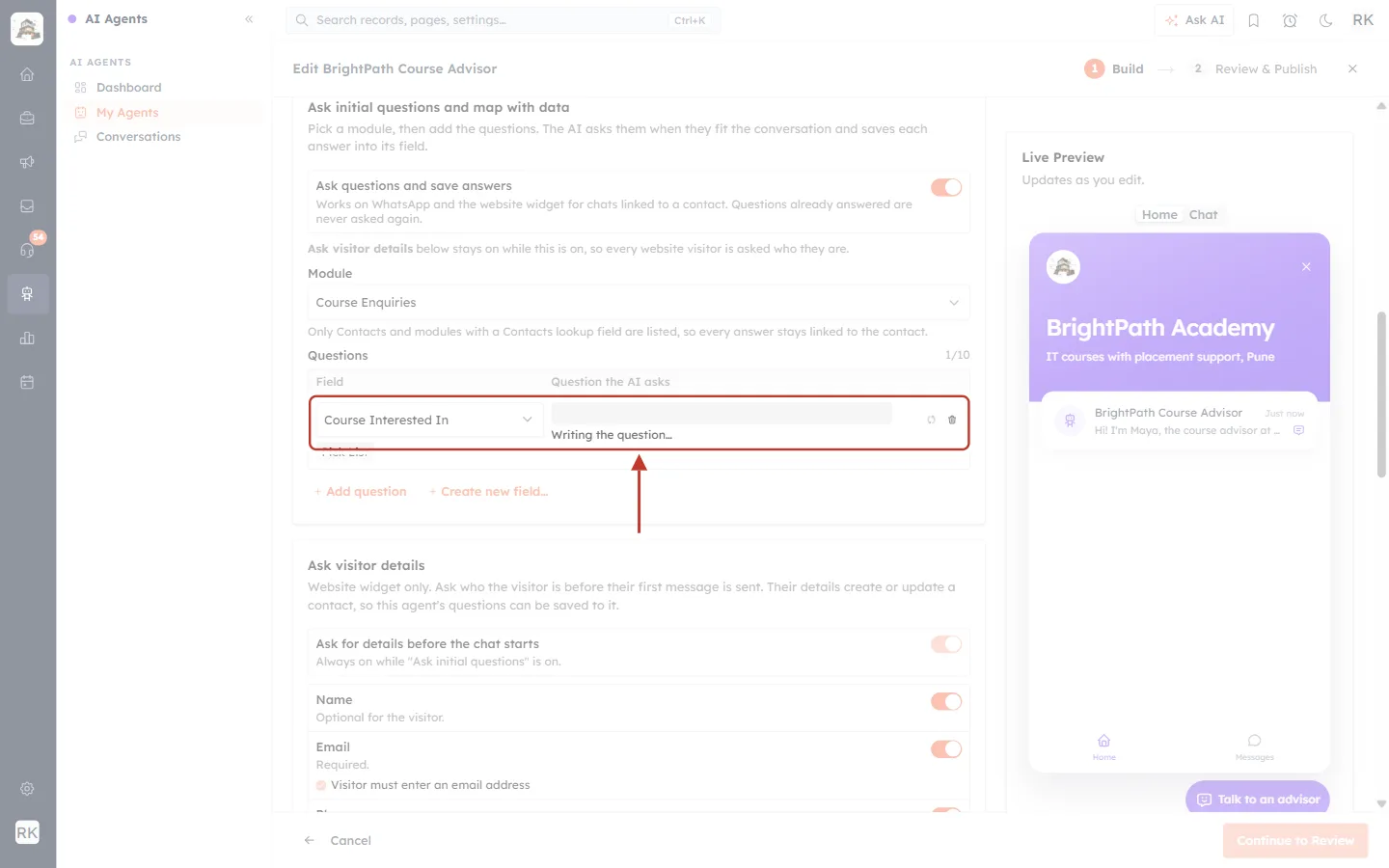
What this screenshot shows. The row right after picking Course Interested In, while the AI is writing.
The Field column shows the chosen field and its type badge (Pick List).
The Question the AI asks column shows “Writing the question…” for a second or two.
The two icons on the right are Regenerate and Remove (Step 7).
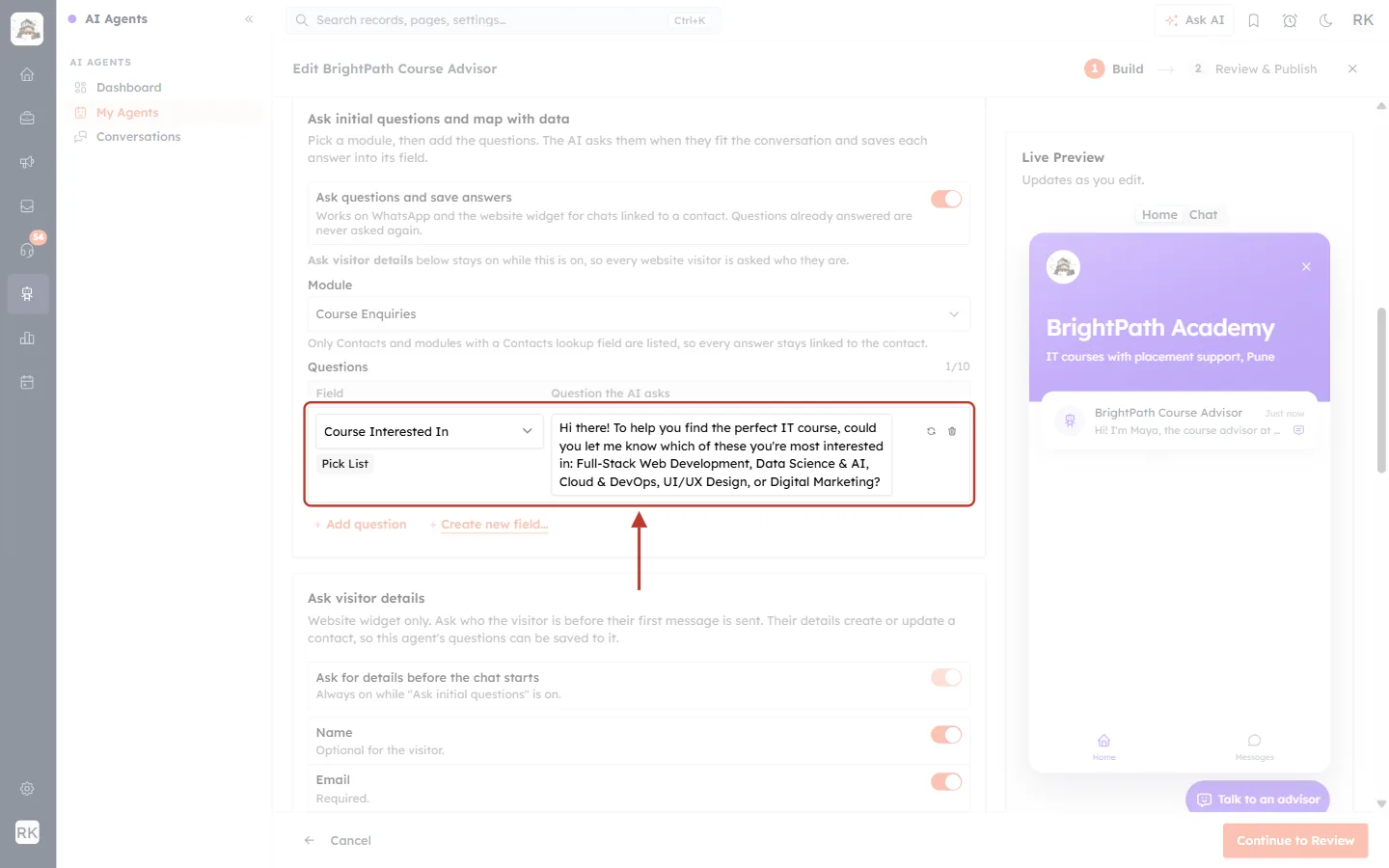
What this screenshot shows. The finished first question.
Field: Course Interested In (Pick List).
Question the AI asks: “Hi there! To help you find the perfect IT course, could you let me know which of these you’re most interested in: Full-Stack Web Development, Data Science & AI, Cloud & DevOps, UI/UX Design, or Digital Marketing?” For a drop-down field, the AI includes the field’s choices in the question so the answer matches one of them.
The box is editable. Click into it and change the wording any way you like, up to 300 characters.
ℹ️
Writing a question uses a small amount of AI credit. If the AI can’t write one (for example, your account is out of AI credits), a simple question is filled in instead with the message “Couldn’t write this question with AI — using a simple one you can edit.” Just edit it. See AI Credits & Pricing: How AI Usage Is Billed.
Step 7: Rewrite or remove a question#
Each question row has two small icons on the right:
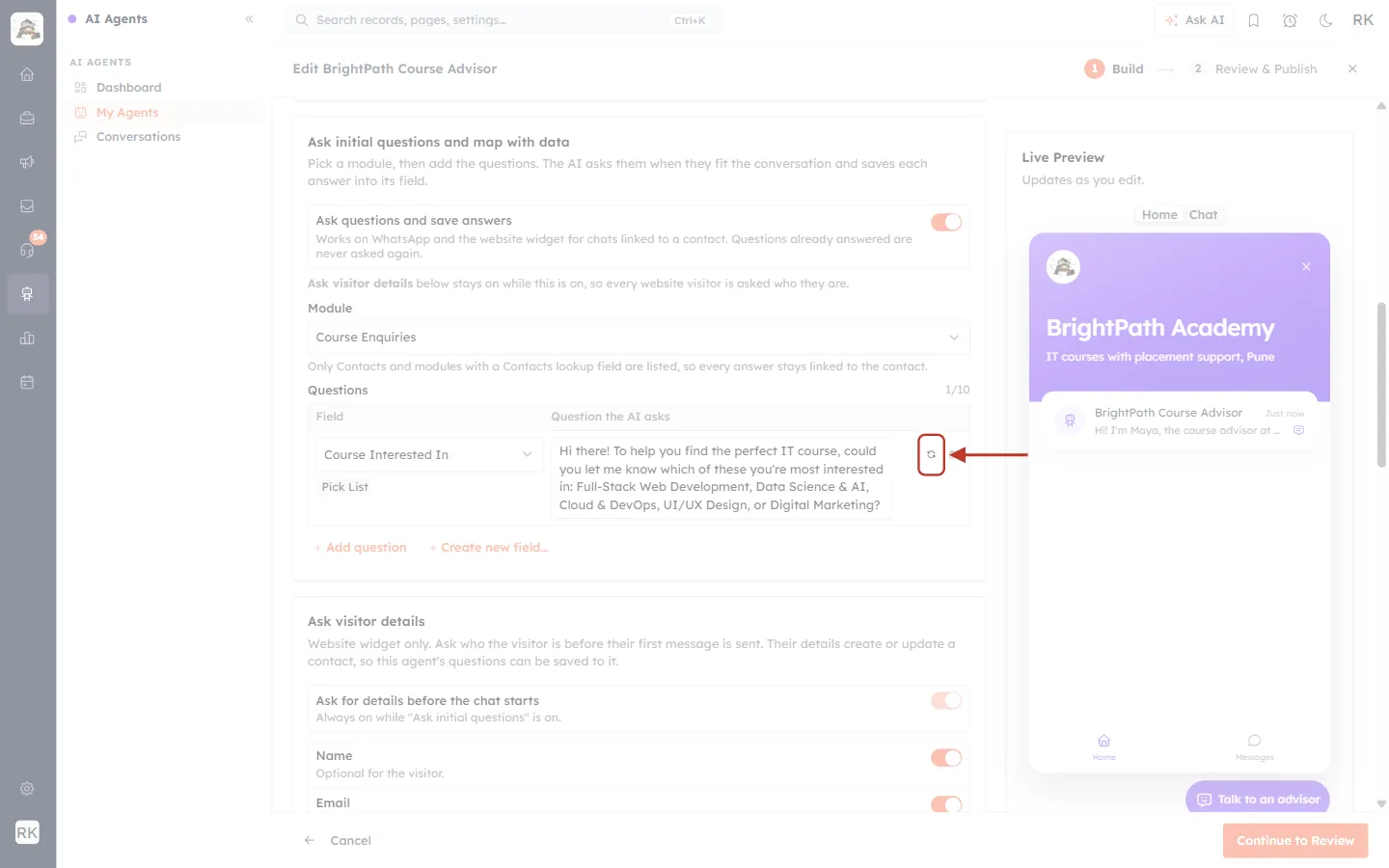
What this screenshot shows. The Regenerate icon (circular arrows), ringed.
Click it to have the AI write a fresh version of the question for the same field.
It replaces the text currently in the box, including any edits you made, so copy your own wording first if you want to keep it.
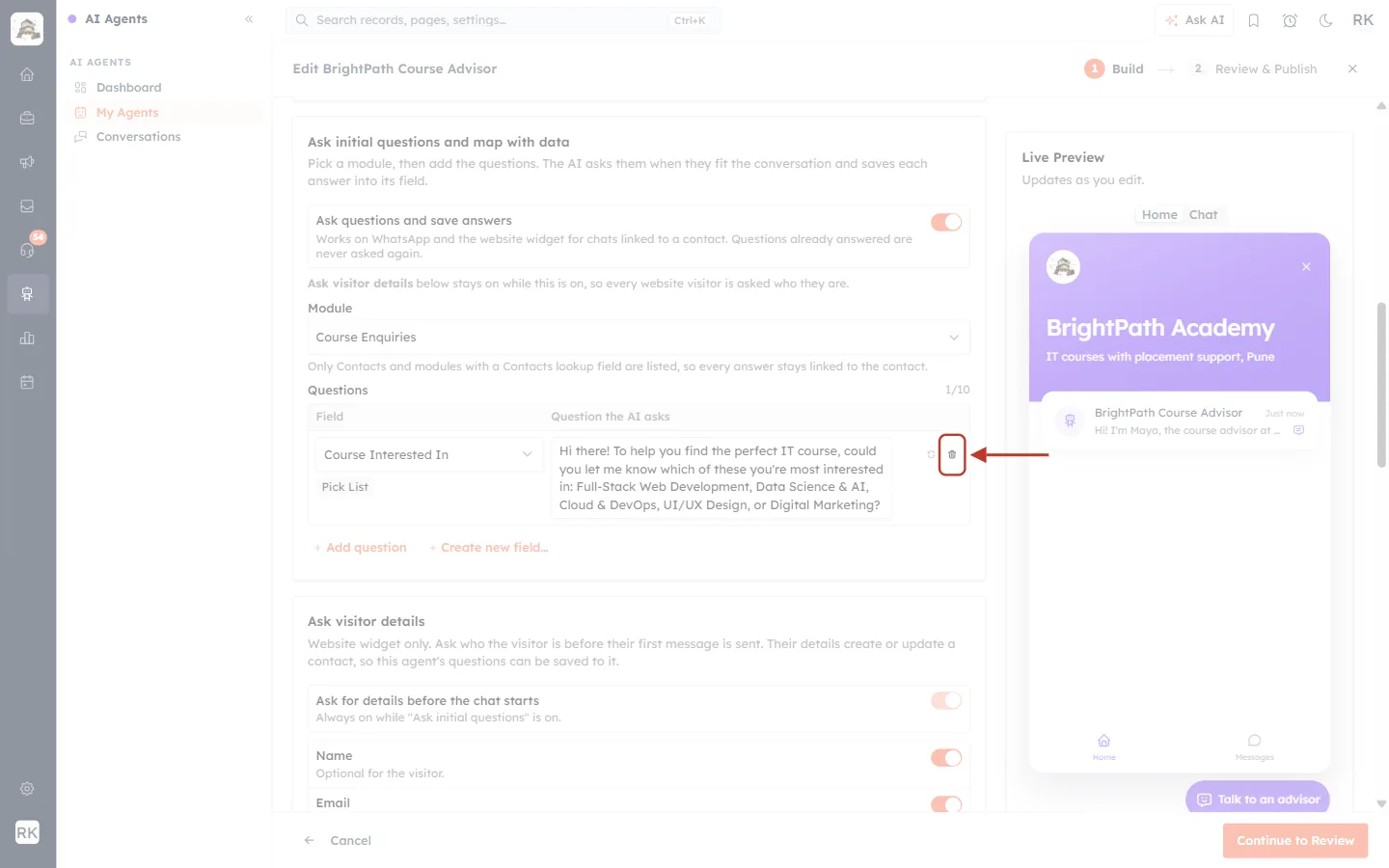
What this screenshot shows. The Remove icon (bin), ringed.
Click it to delete the question row. The field becomes available in the field list again.
Removing a question only stops the agent asking it. Answers already saved on records stay where they are.
Step 8: Add the rest of your questions (up to 10)#
Repeat Step 6 for every detail you want to collect. Our sample agent asks nine questions. The counter at the top right of the table shows how many you have used out of 10. When you reach 10, + Add question is disabled with the message that the limit is reached; remove one to add another.
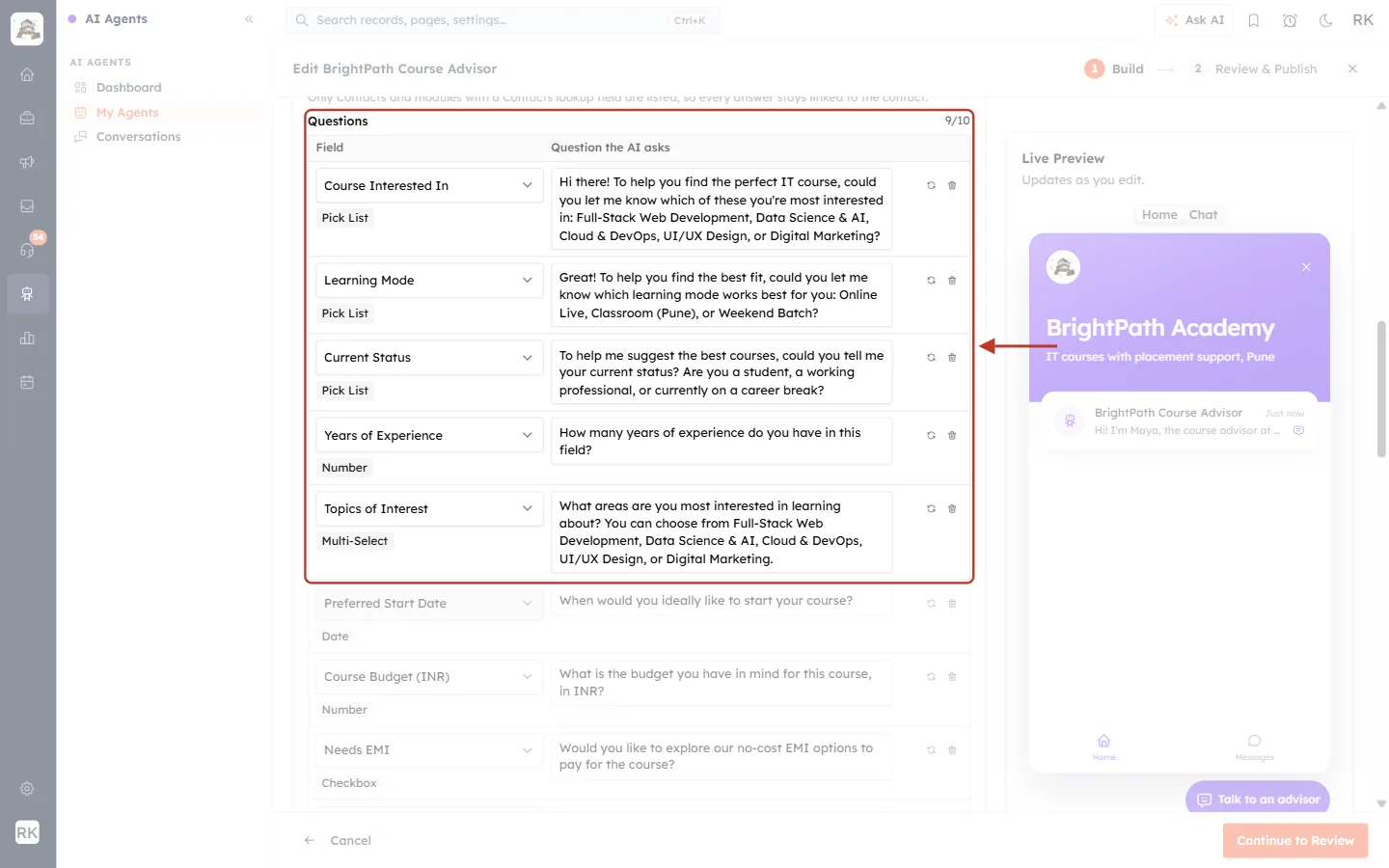
What this screenshot shows. The top of the question list, with 9/10 questions.
Course Interested In (Pick List), Learning Mode (Pick List), Current Status (Pick List), Years of Experience (Number) and Topics of Interest (Multi-Select).
Each row pairs one field (left) with the question the AI will ask for it (right). The type badge under each field tells you what kind of answer will be stored.
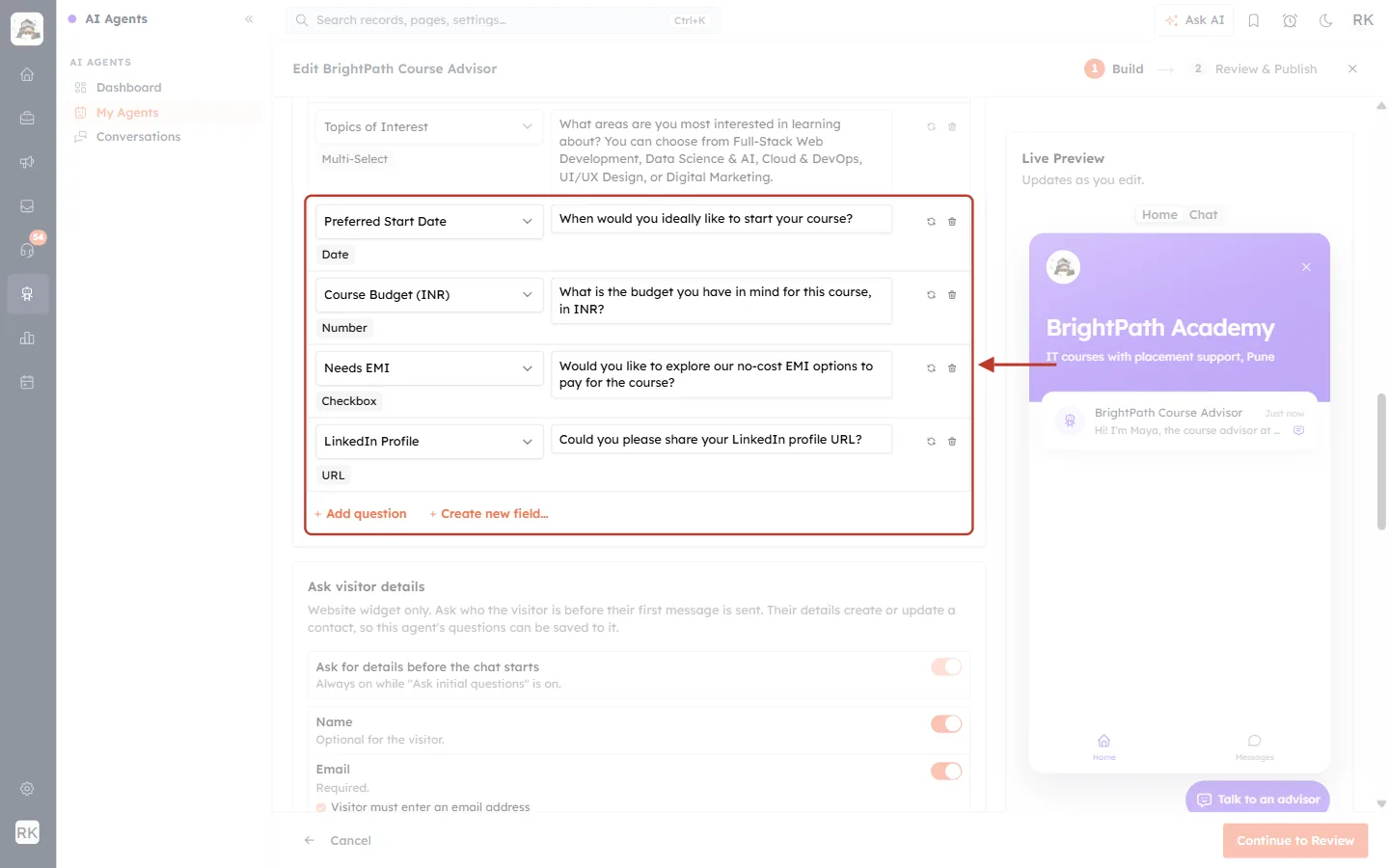
What this screenshot shows. The bottom of the list.
Preferred Start Date (Date): “When would you ideally like to start your course?”
Course Budget (INR) (Number), Needs EMI (Checkbox, saved as Yes / No) and LinkedIn Profile (URL).
+ Add question is still active because one slot (10th) is free.
✅
Order your questions the way a person would ask them. Put the most important question first. The AI doesn’t fire them off as a form: it works them into the conversation when they fit, and skips any question the customer has already answered, on this record or earlier in the chat.
Step 9 (optional): Create a new field for a question#
If the detail you want to collect has no field yet, click + Create new field…. A small form opens for the module you chose.
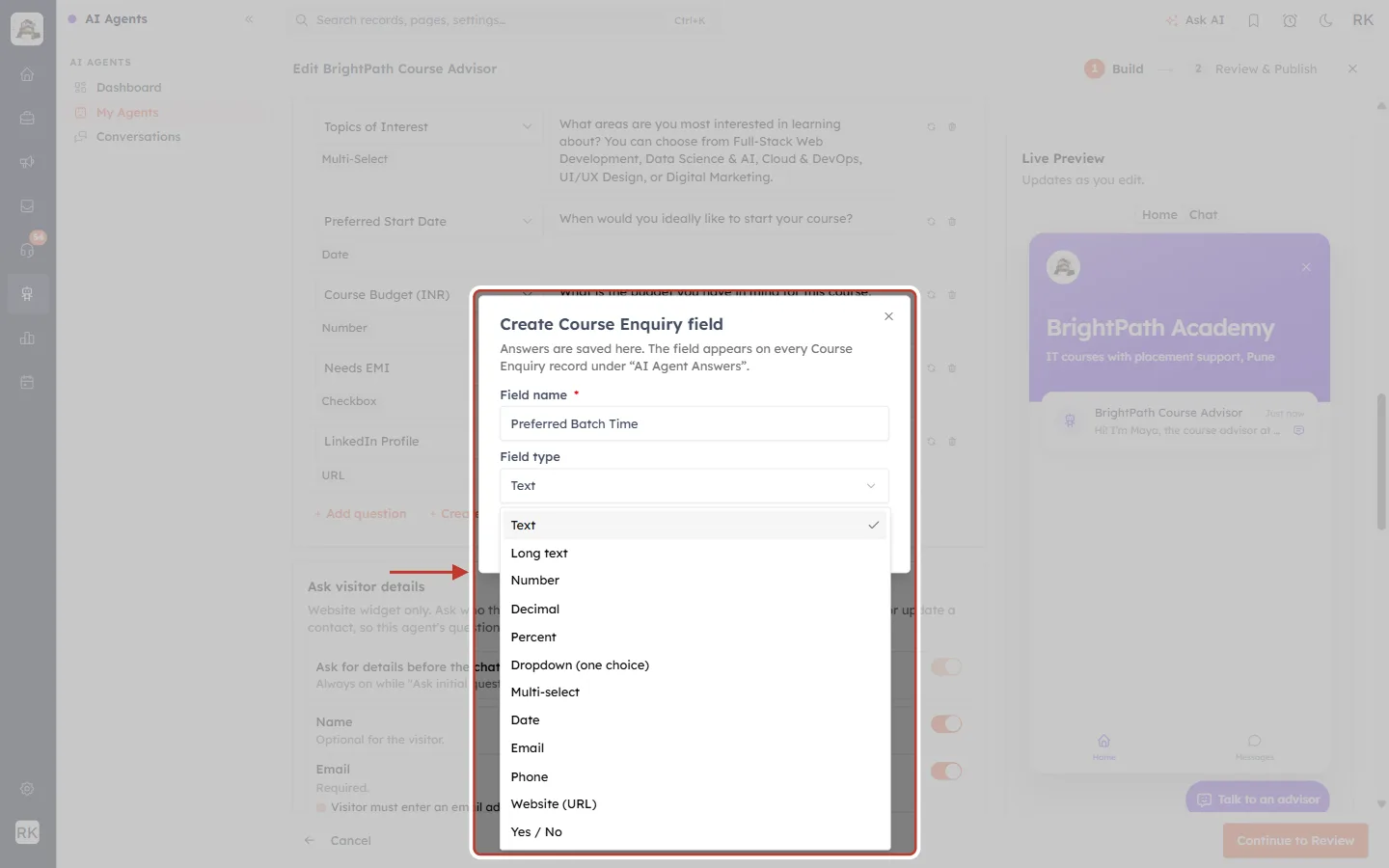
What this screenshot shows. The Create Course Enquiry field dialog with the Field type list open.
The dialog explains: “Answers are saved here. The field appears on every Course Enquiry record under ‘AI Agent Answers’.”
Field name (required): what the field is called, here Preferred Batch Time.
Field type offers: Text, Long text, Number, Decimal, Percent, Dropdown (one choice), Multi-select, Date, Email, Phone, Website (URL) and Yes / No.
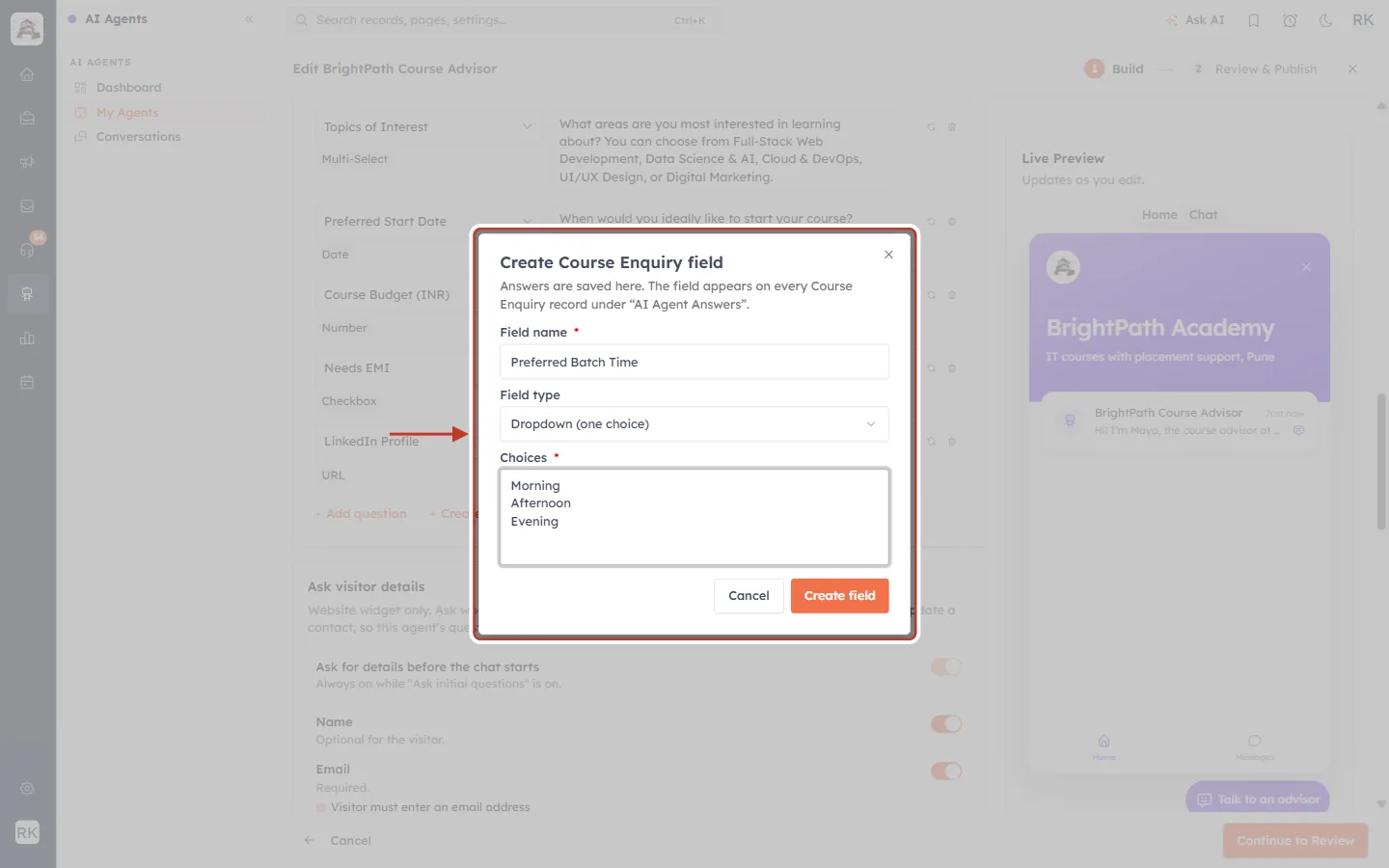
What this screenshot shows. The dialog filled in for a drop-down field.
Field type: Dropdown (one choice).
Choices (required for Dropdown and Multi-select): one choice per line, here Morning, Afternoon and Evening.
Click Create field to create it. The field is added to the module, placed in a section called AI Agent Answers on every record, and a question row for it is added to your list. Cancel closes the dialog without creating anything.
ℹ️
Only users who are allowed to change modules can create fields here. Other users see “Need a new field? Ask an admin to add it in Modules.” instead.
Changing the module later#
Questions belong to the fields of one module. If you pick a different module after adding questions, AiEngage CRM asks first:
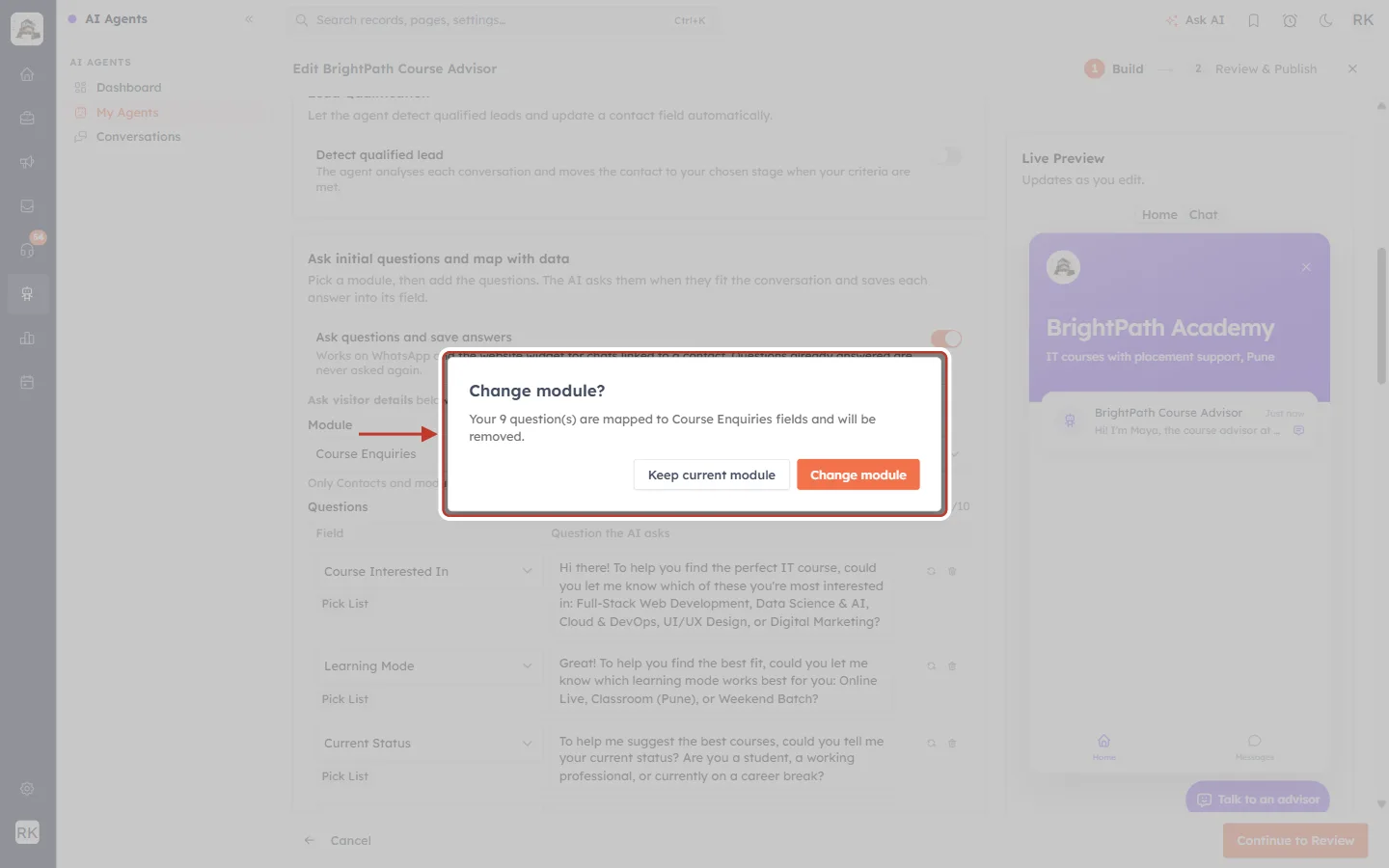
What this screenshot shows. The Change module? confirmation.
The message: “Your 9 question(s) are mapped to Course Enquiries fields and will be removed.”
Keep current module cancels the change and keeps your questions.
Change module switches module and clears the question list, so you can add questions for the new module’s fields.
Step 10: Check “Ask visitor details” (website widget)#
Answers can only be saved for a chat that is linked to a contact. On WhatsApp the phone number links the chat. On your website, the widget has to ask who the visitor is, so while data mapping is on, Ask visitor details is switched on for you and can’t be turned off. Scroll to that card and choose which details to ask for.
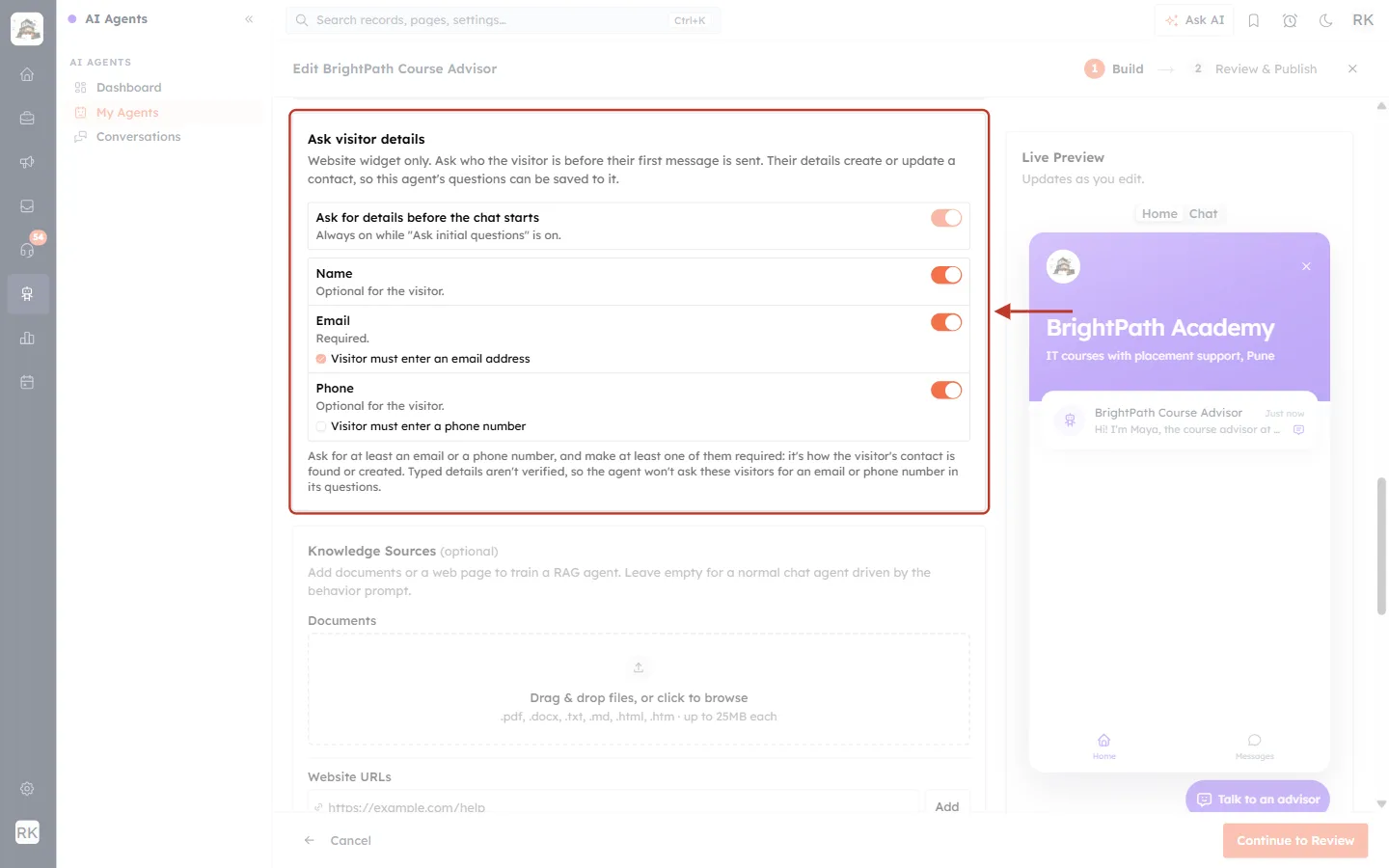
What this screenshot shows. The Ask visitor details card.
Ask for details before the chat starts is on and locked, with the note “Always on while ‘Ask initial questions’ is on.”
Name: asked, optional for the visitor.
Email: asked and required (the Visitor must enter an email address box is ticked).
Phone: asked, optional. Tick Visitor must enter a phone number to make it required.
The rule at the bottom: ask for at least an email or a phone number and make at least one of them required, because that is how the visitor’s contact is found or created. Typed details aren’t verified, so the agent won’t ask these visitors for an email or phone number again in its questions.
ℹ️
On WhatsApp: the chat is linked to the contact with that phone number. If people message you from numbers that aren’t in your CRM yet, turn on Create a contact for unknown numbers for your sender in WhatsApp Settings; otherwise their answers have no contact to be saved to. See Connect an Agent to WhatsApp.
Step 11: Review and publish#
When your questions are ready, click Continue to Review at the bottom right.
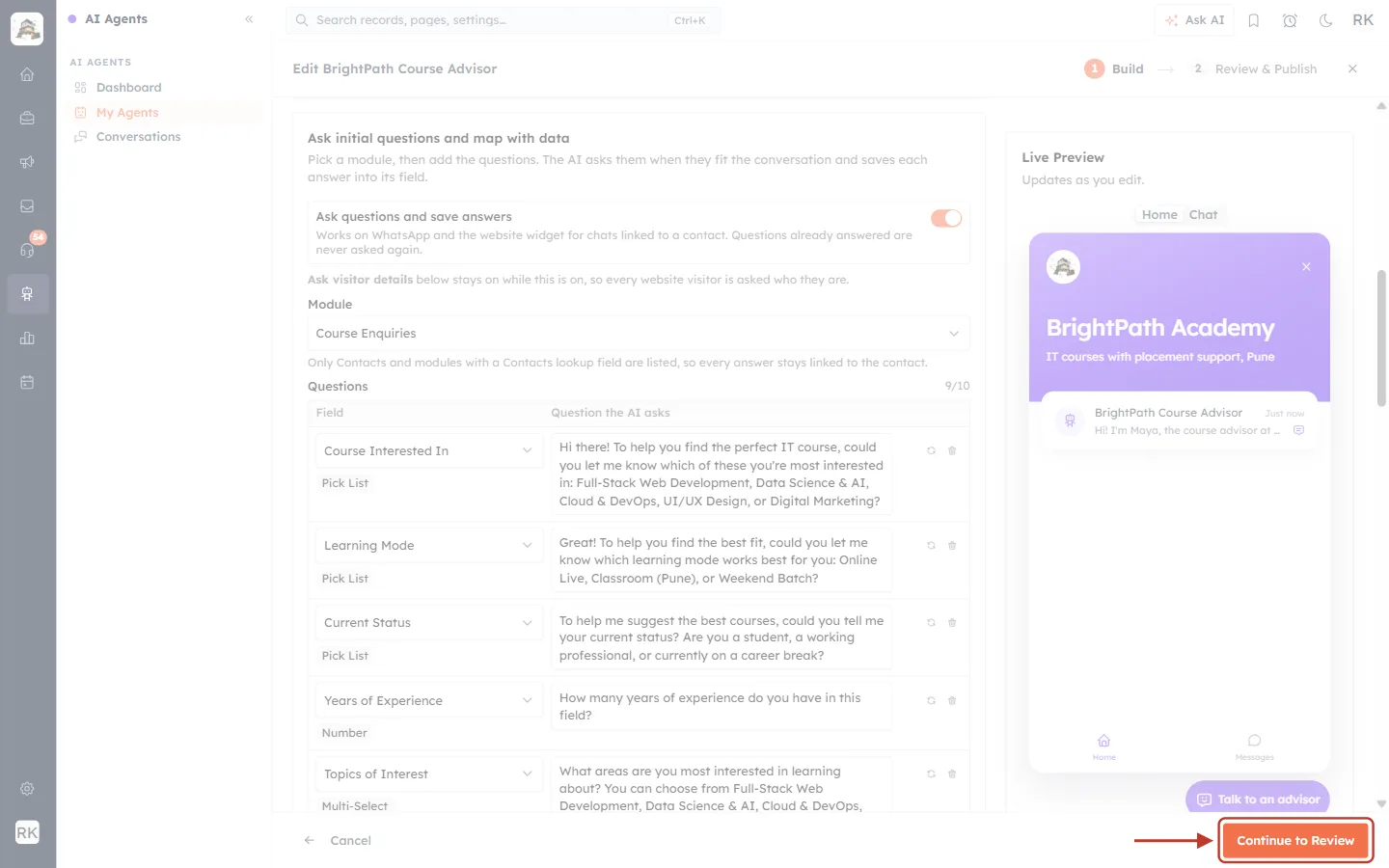
What this screenshot shows. The Continue to Review button, ringed. Cancel on the left leaves without saving.
If something needs fixing (for example a row with no field, or a question that is empty or longer than 300 characters), the button stays disabled until you fix it.
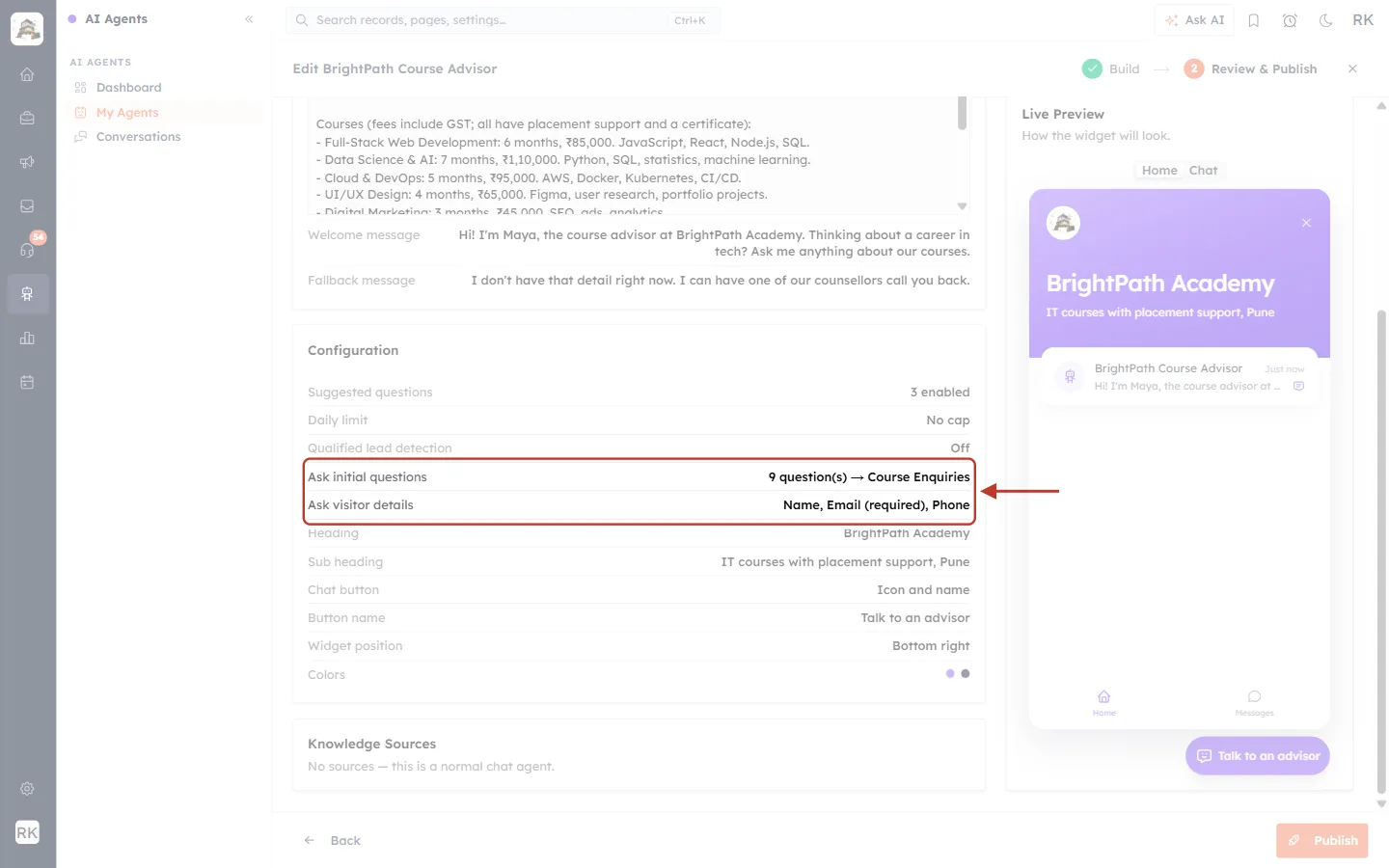
What this screenshot shows. The Review & Publish step, with the Configuration summary.
Ask initial questions: 9 question(s) → Course Enquiries confirms how many questions are mapped and to which module.
Ask visitor details: Name, Email (required), Phone shows what the website widget will ask.
The rest of the summary repeats your other agent settings, so you can check everything in one place before publishing.
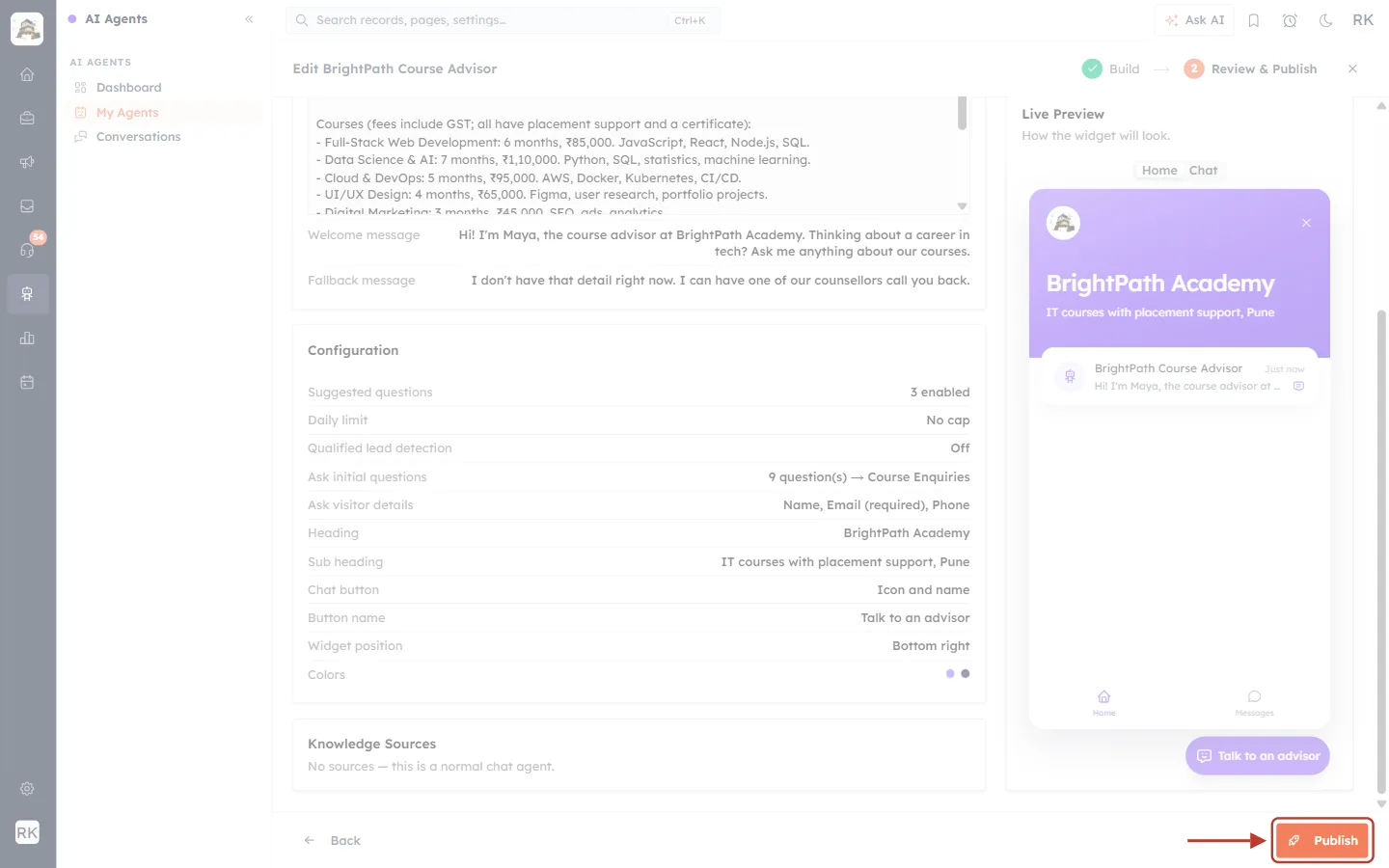
What this screenshot shows. The Publish button, ringed. Back returns to the Build step.
Click Publish to save. The agent starts asking the new questions in its next chats.
Step 12: Check the summary on the agent page#
Open the agent again from My Agents. Its detail page now has a card that lists the whole mapping.
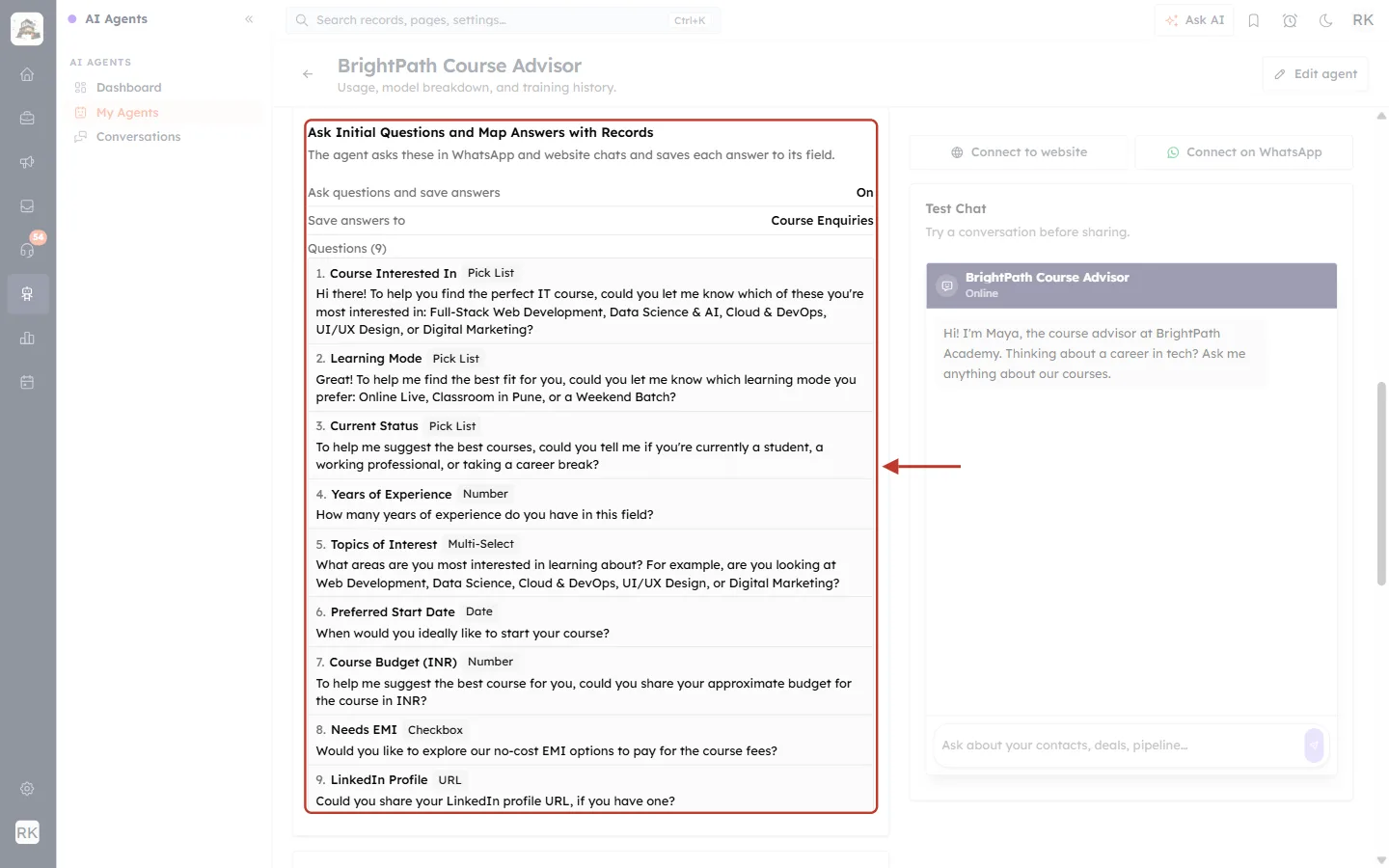
What this screenshot shows. The Ask Initial Questions and Map Answers with Records card on the agent page.
Ask questions and save answers: On.
Save answers to: Course Enquiries.
Questions (9): each numbered question with its field name, field type and the exact wording the agent uses.
To change anything, click Edit agent again.
Step 13: What your customer sees in the chat#
Make sure the agent is on your website (Publish to Your Website) or WhatsApp (Connect an Agent to WhatsApp). Here is a real conversation on a sample BrightPath Academy website, with the visitor Neha Kulkarni.
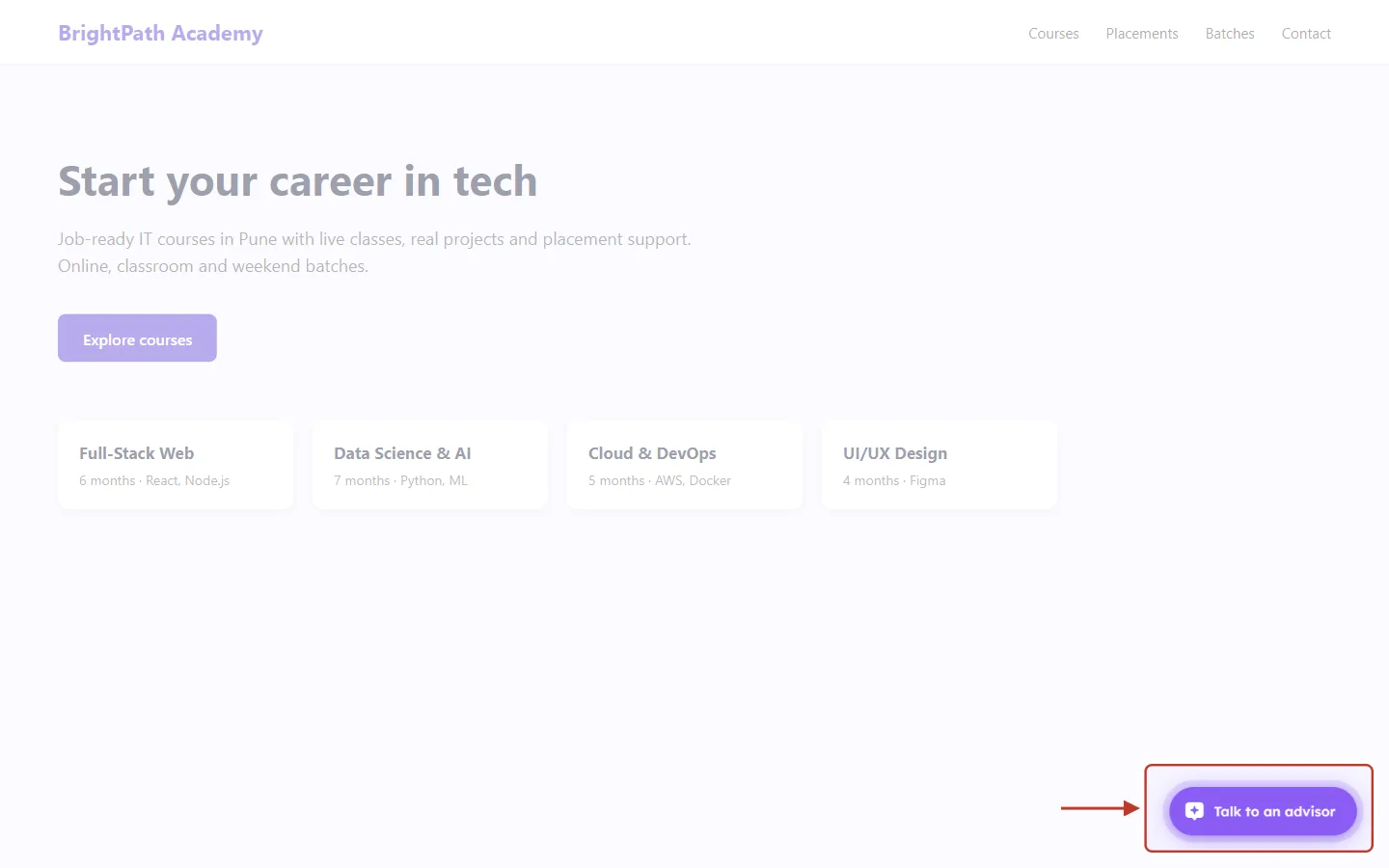
What this screenshot shows. The website, with the agent’s chat button (Talk to an advisor) ringed at the bottom right.
The button’s wording and colours come from the agent’s Appearance settings.
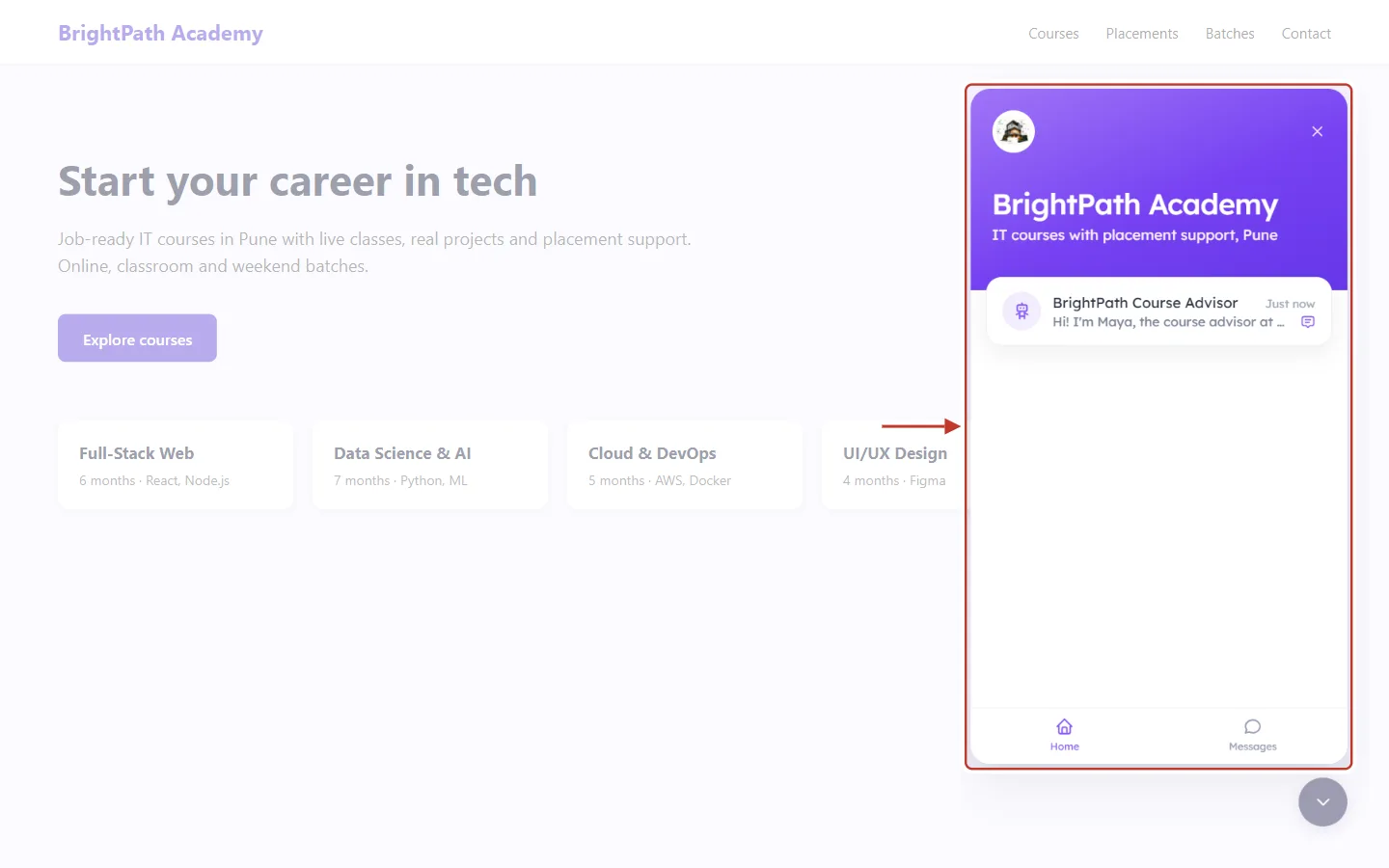
What this screenshot shows. The widget after the visitor clicks the button.
The heading BrightPath Academy and sub heading come from the agent settings.
The card BrightPath Course Advisor shows the welcome message. The visitor clicks it to start chatting.
The visitor types a first message: “Hi! I want to move into a tech career. Which course would suit me?” Before it is sent, the widget asks who they are:
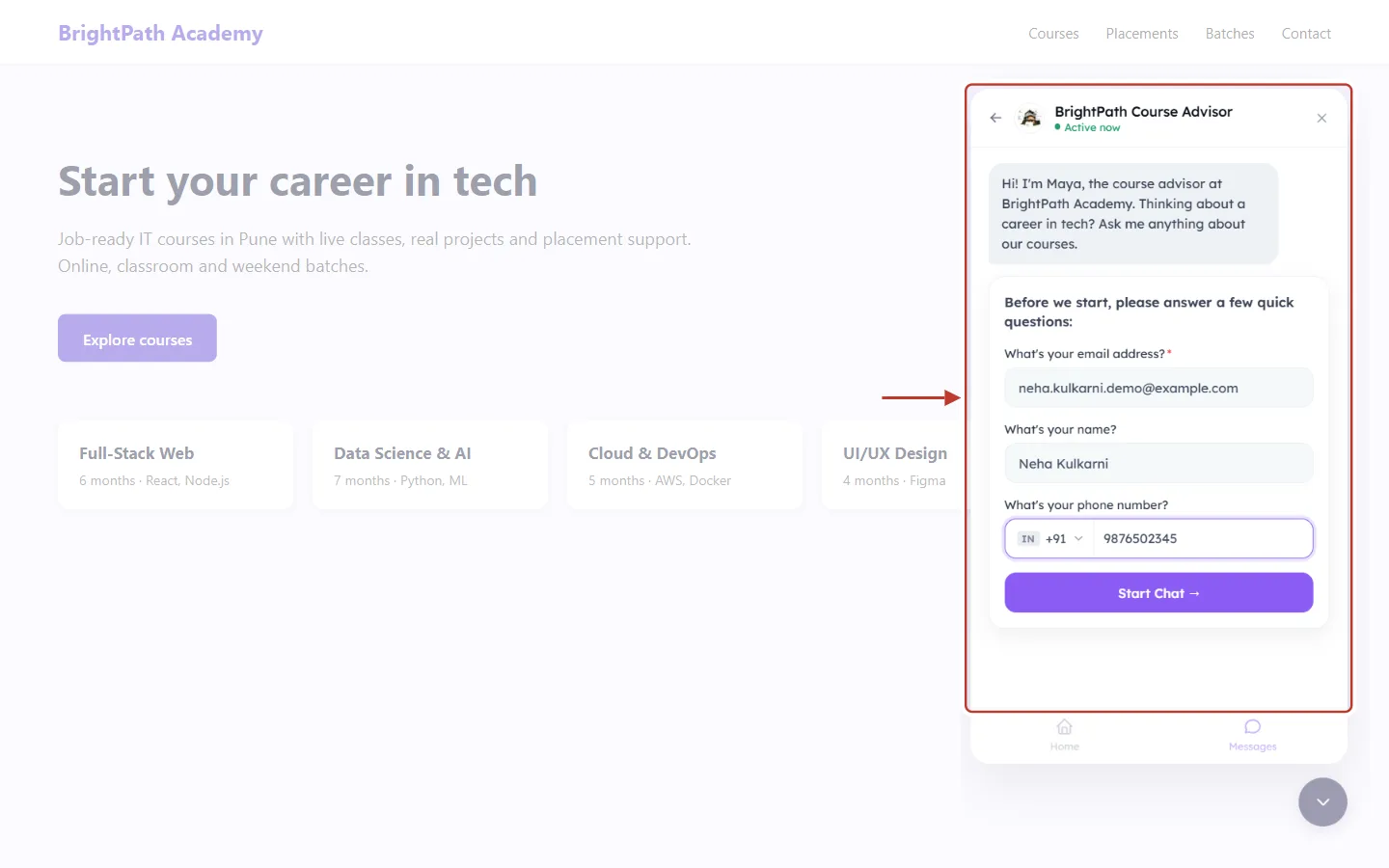
What this screenshot shows. The visitor details form, filled in by the visitor.
“Before we start, please answer a few quick questions:”
What’s your email address?* (required): neha.kulkarni.demo@example.com
What’s your name?: Neha Kulkarni
What’s your phone number?: +91 9876502345, with a country code picker.
Clicking Start Chat → finds or creates the contact Neha Kulkarni and sends her first message. A returning visitor on the same browser isn’t asked again.
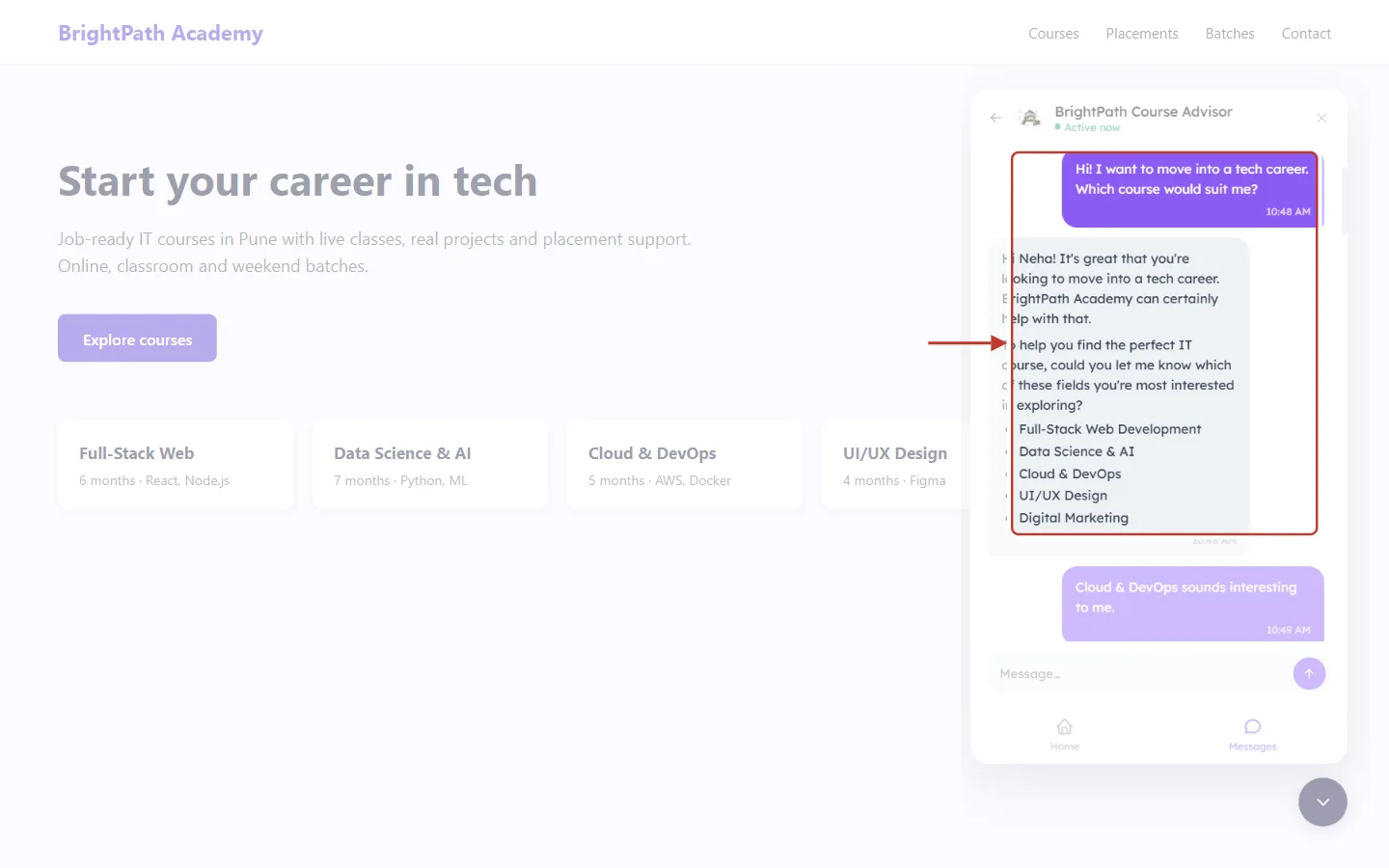
What this screenshot shows. The agent answers and asks its first mapped question.
It greets Neha by name (taken from the form).
It asks which field she is interested in and lists the Course Interested In choices: Full-Stack Web Development, Data Science & AI, Cloud & DevOps, UI/UX Design and Digital Marketing.
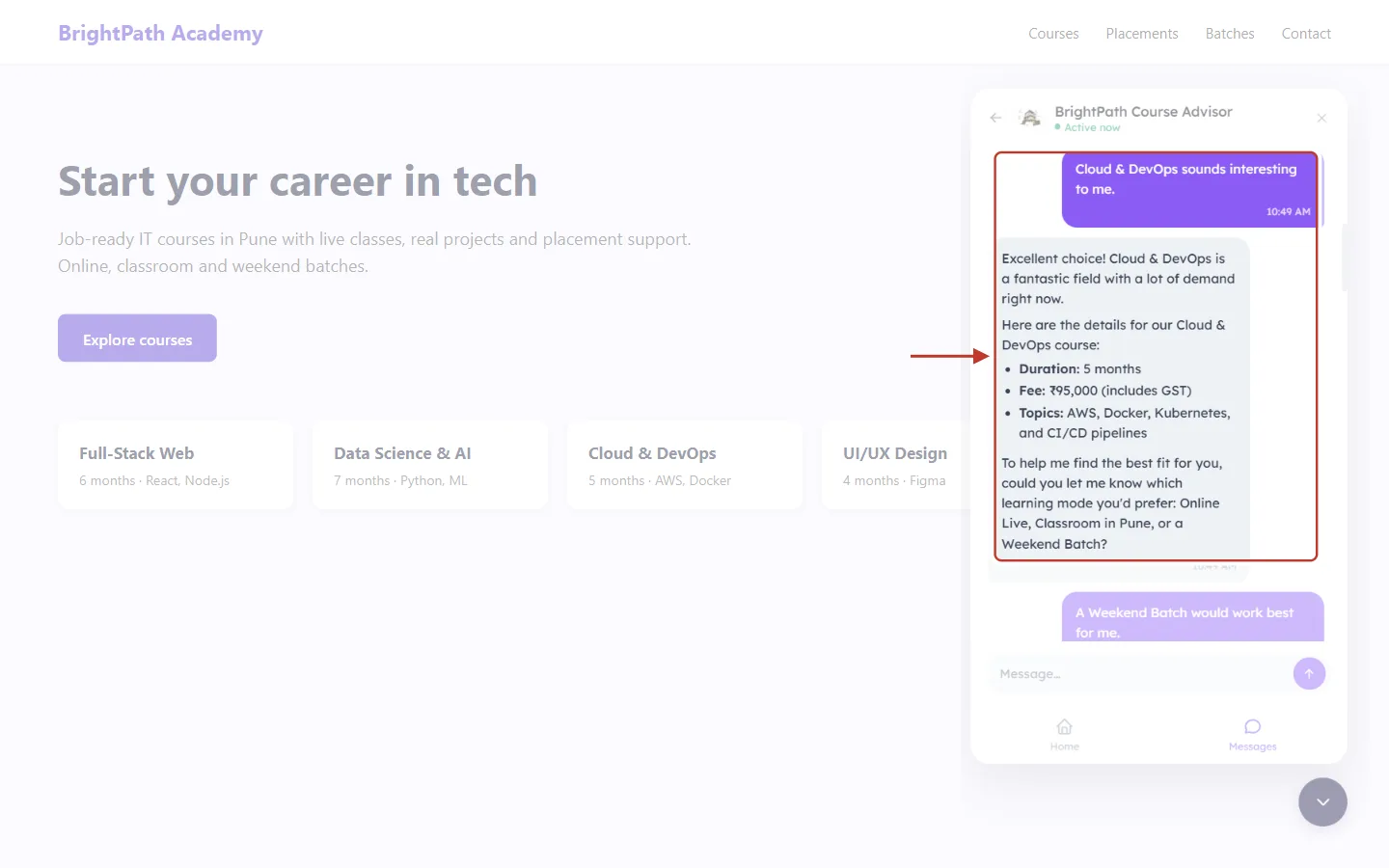
What this screenshot shows. Neha answers, and the agent moves on to the next question.
Neha: “Cloud & DevOps sounds interesting to me.” This is saved to Course Interested In.
The agent first answers like a real advisor (duration, fee, topics), then asks the Learning Mode question: Online Live, Classroom in Pune, or a Weekend Batch.
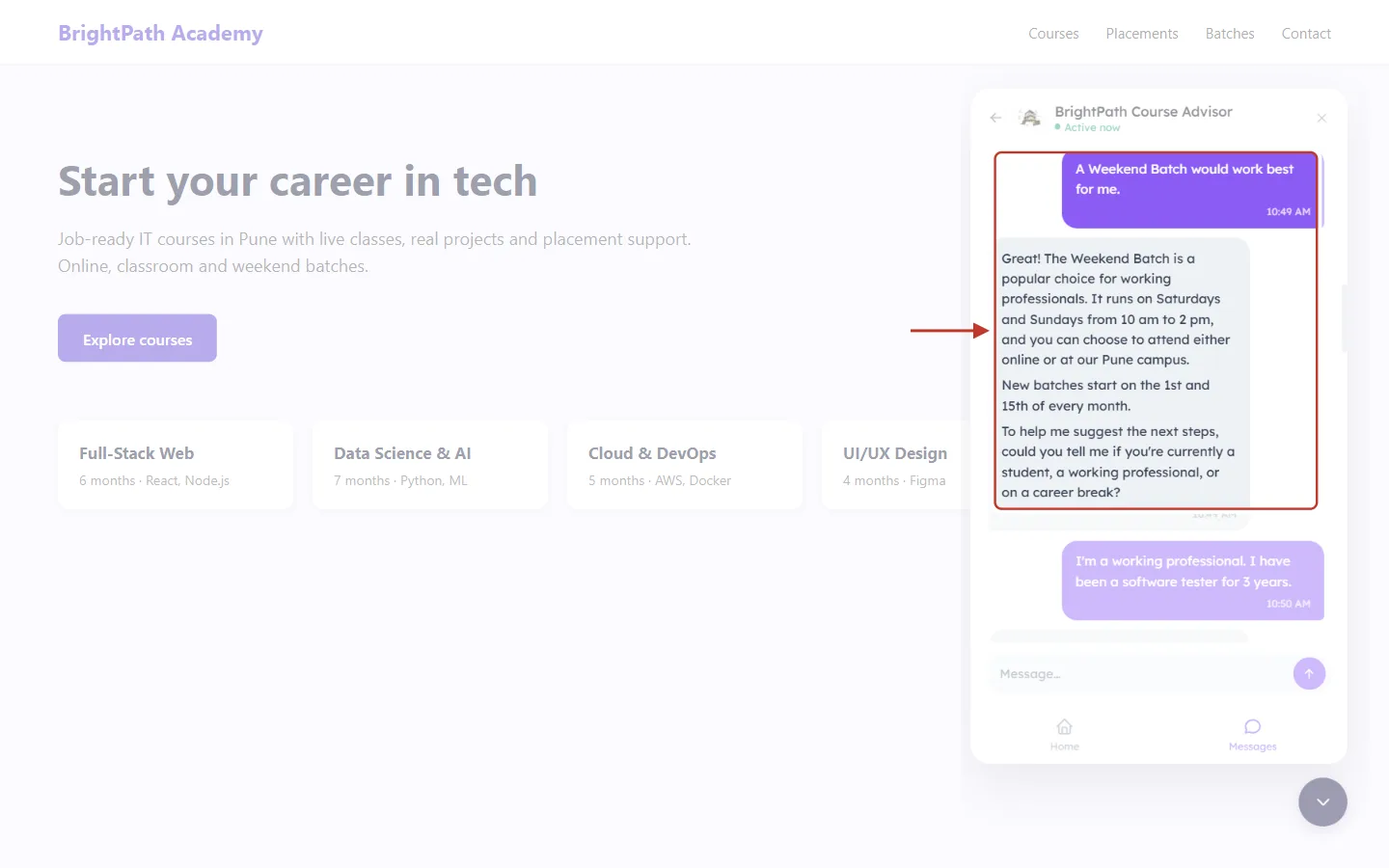
What this screenshot shows. The next turn.
Neha: “A Weekend Batch would work best for me.” Saved to Learning Mode as Weekend Batch.
The agent explains the weekend timings and asks the Current Status question: student, working professional or career break.
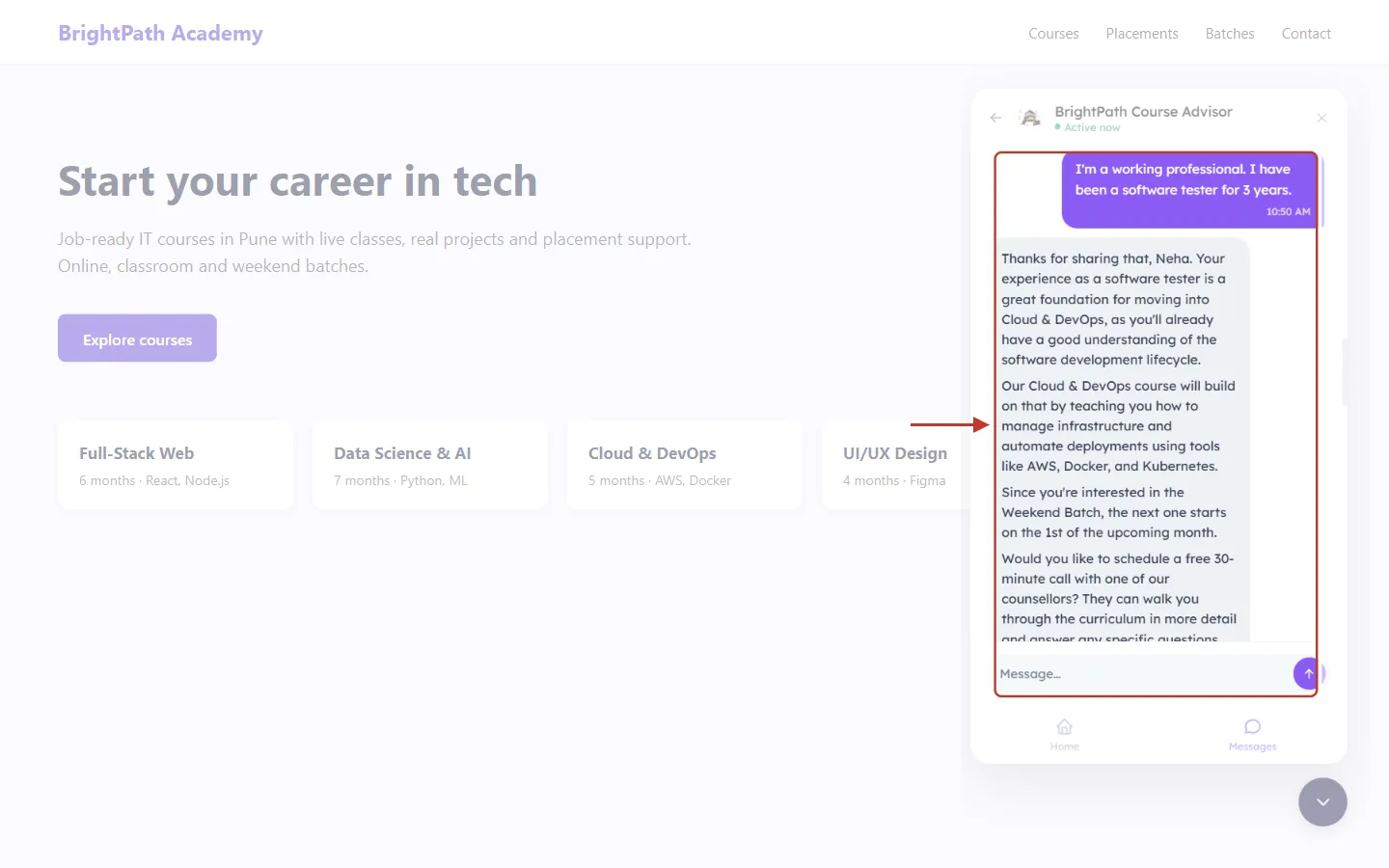
What this screenshot shows. One message, two answers.
Neha: “I’m a working professional. I have been a software tester for 3 years.”
The AI saves Working Professional to Current Status and 3 to Years of Experience, so it never asks the experience question.
It replies to what she said and offers a counselling call, keeping the chat natural.
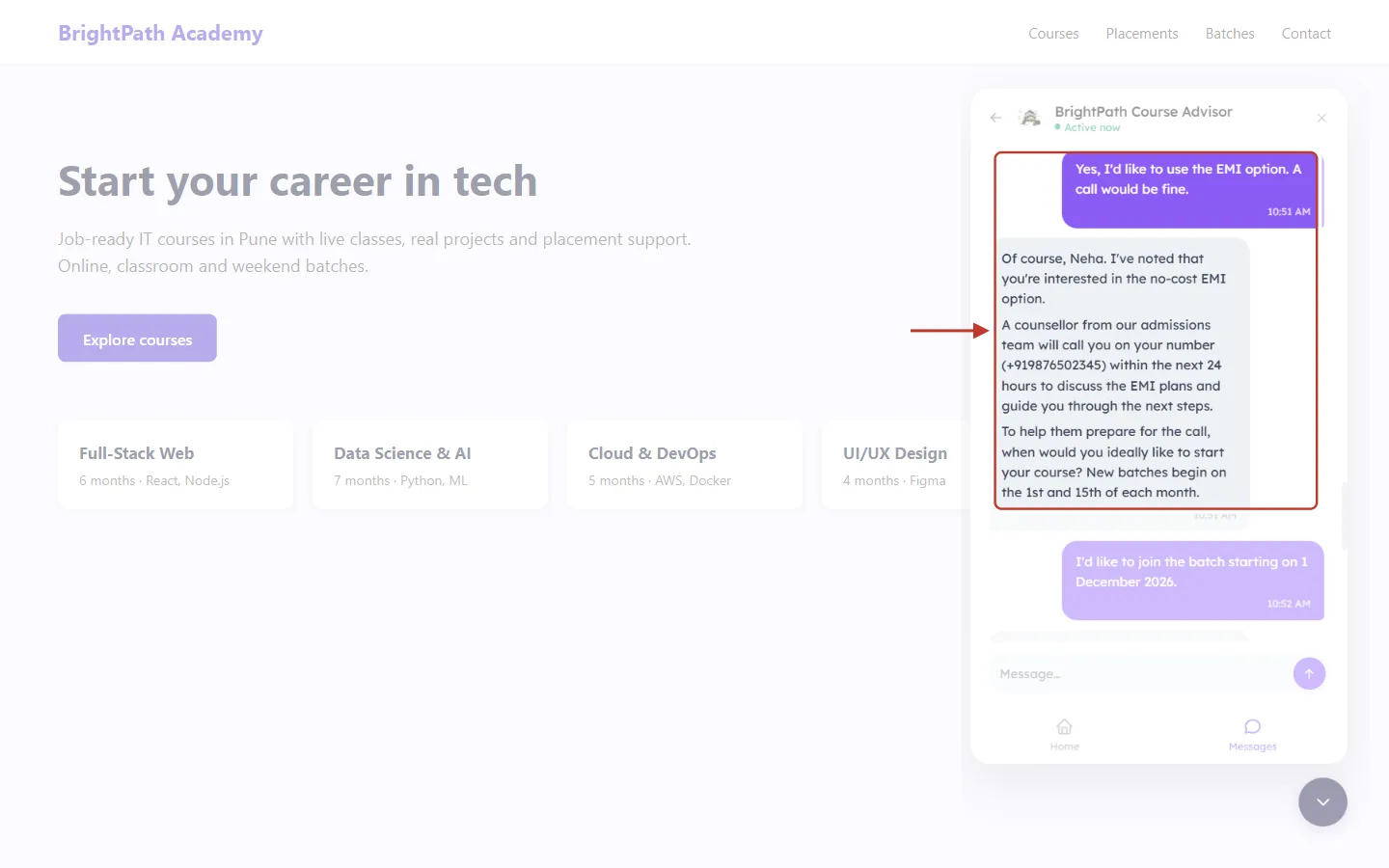
What this screenshot shows. Answers given in passing count too.
Earlier, Neha asked about EMI and mentioned she is keen on AWS. Now she says: “Yes, I’d like to use the EMI option.” Saved to Needs EMI as Yes.
The agent then asks the Preferred Start Date question.
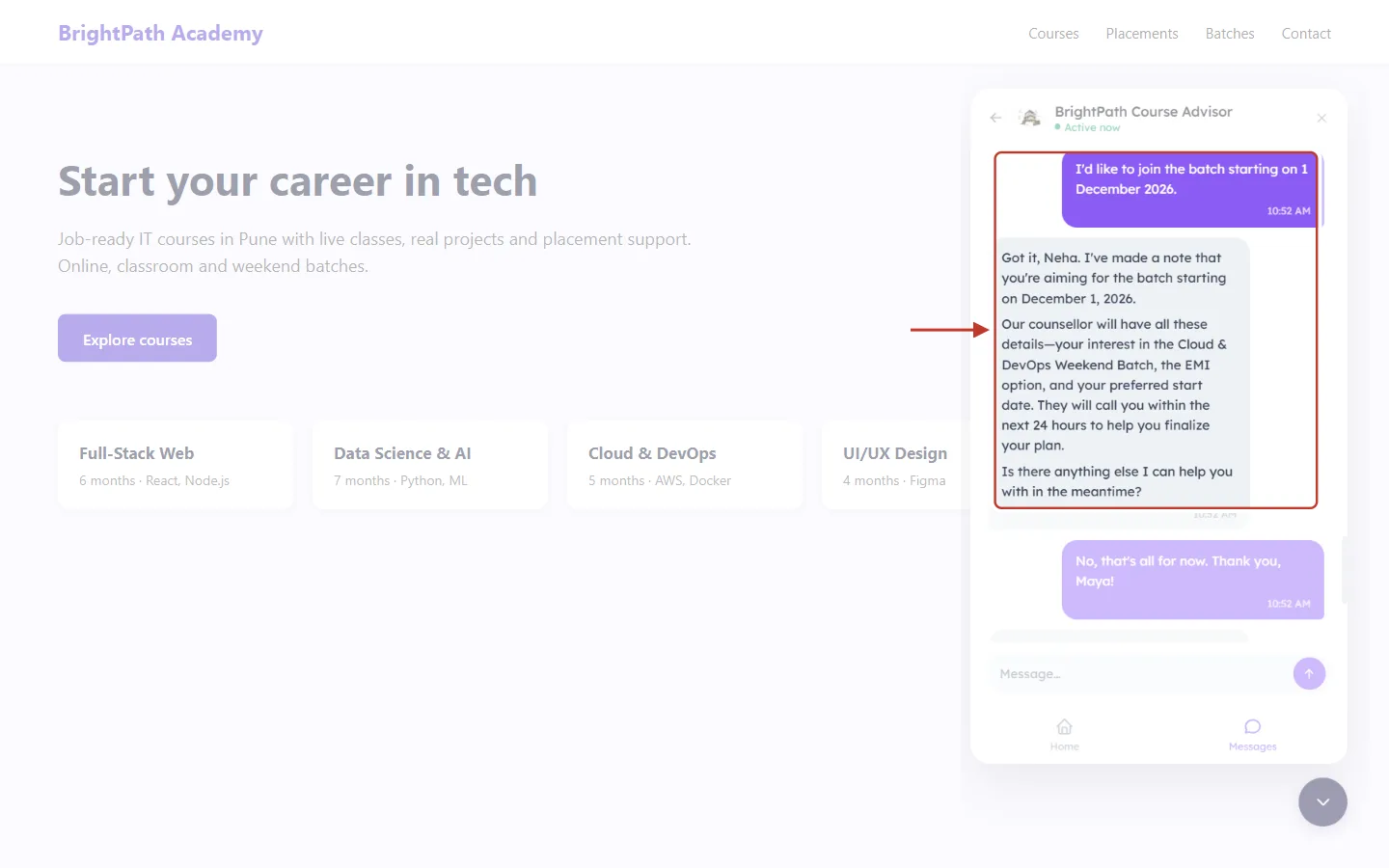
What this screenshot shows. The last answer.
Neha: “I’d like to join the batch starting on 1 December 2026.” Saved to Preferred Start Date.
The agent sums up what it noted and asks if there is anything else. It didn’t get to the budget and LinkedIn questions because they didn’t come up naturally, so those fields stay empty.
Step 14: See the answers saved in the CRM#
Open the module you chose. You don’t need to wait for the chat to end: the record is created after the first answer and updated as more answers come in.
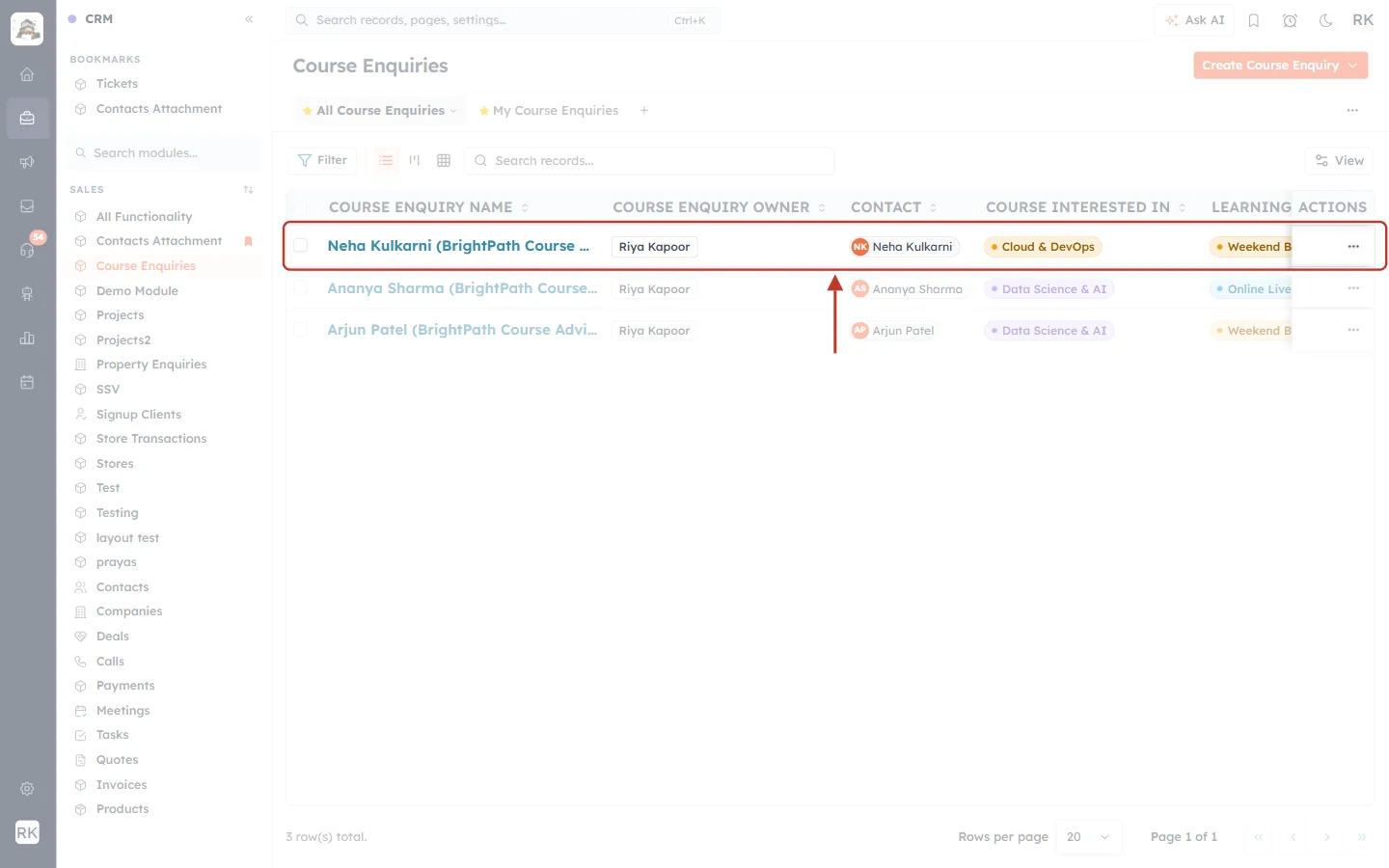
What this screenshot shows. The Course Enquiries list, with the record the agent created for Neha ringed.
Course Enquiry Name: Neha Kulkarni (BrightPath Course Advisor), the contact’s name followed by the agent’s name.
Contact: Neha Kulkarni, the contact created from the visitor details form.
Course Interested In: Cloud & DevOps and Learning Mode: Weekend Batch, straight from the chat.
The other rows are earlier chats with the same agent. Each person gets their own record.
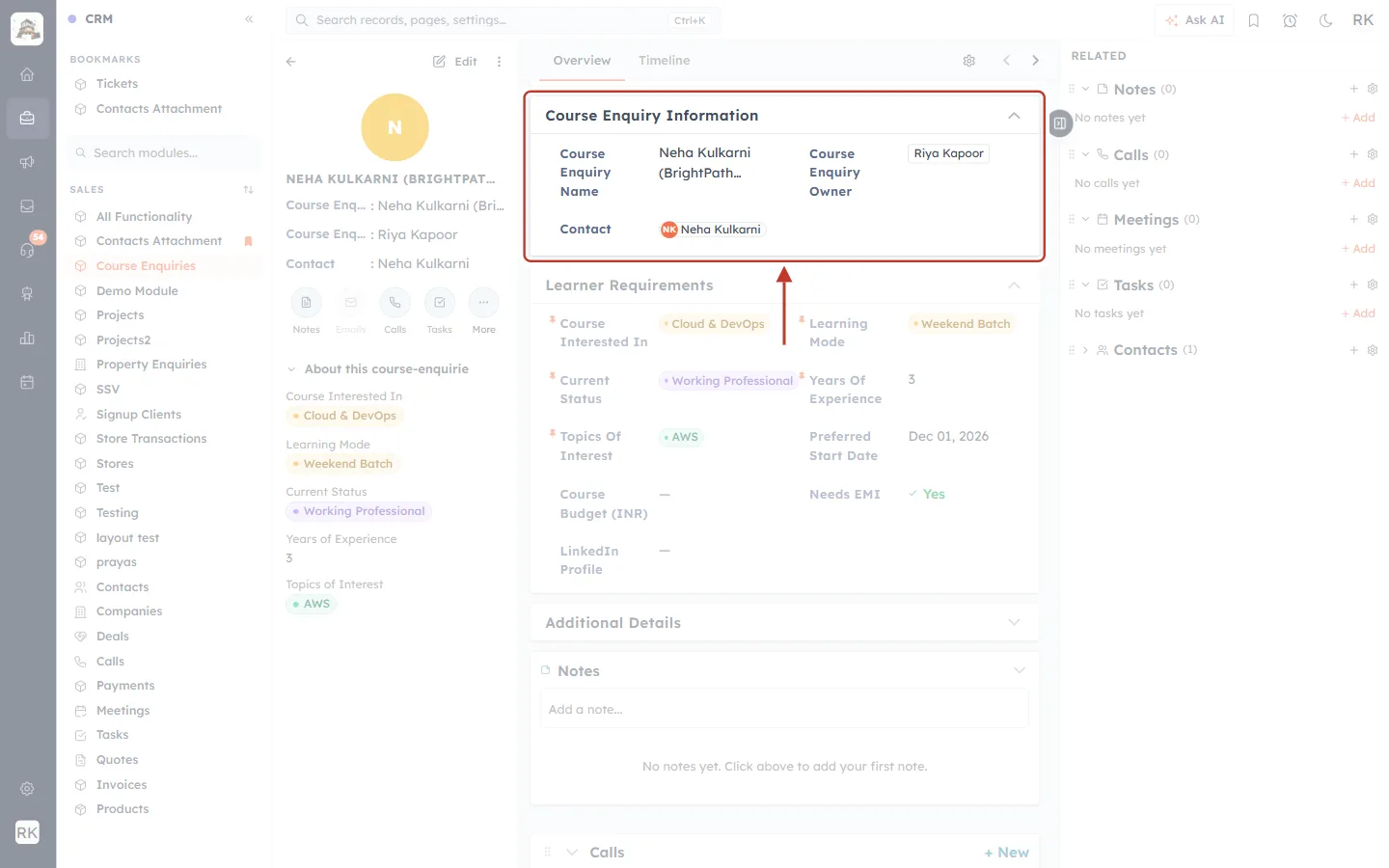
What this screenshot shows. The top of Neha’s record: Course Enquiry Information.
Course Enquiry Name and Course Enquiry Owner are filled automatically. You can change the owner like on any record.
Contact: Neha Kulkarni is the lookup that links this enquiry to her contact. Click it to open the contact.
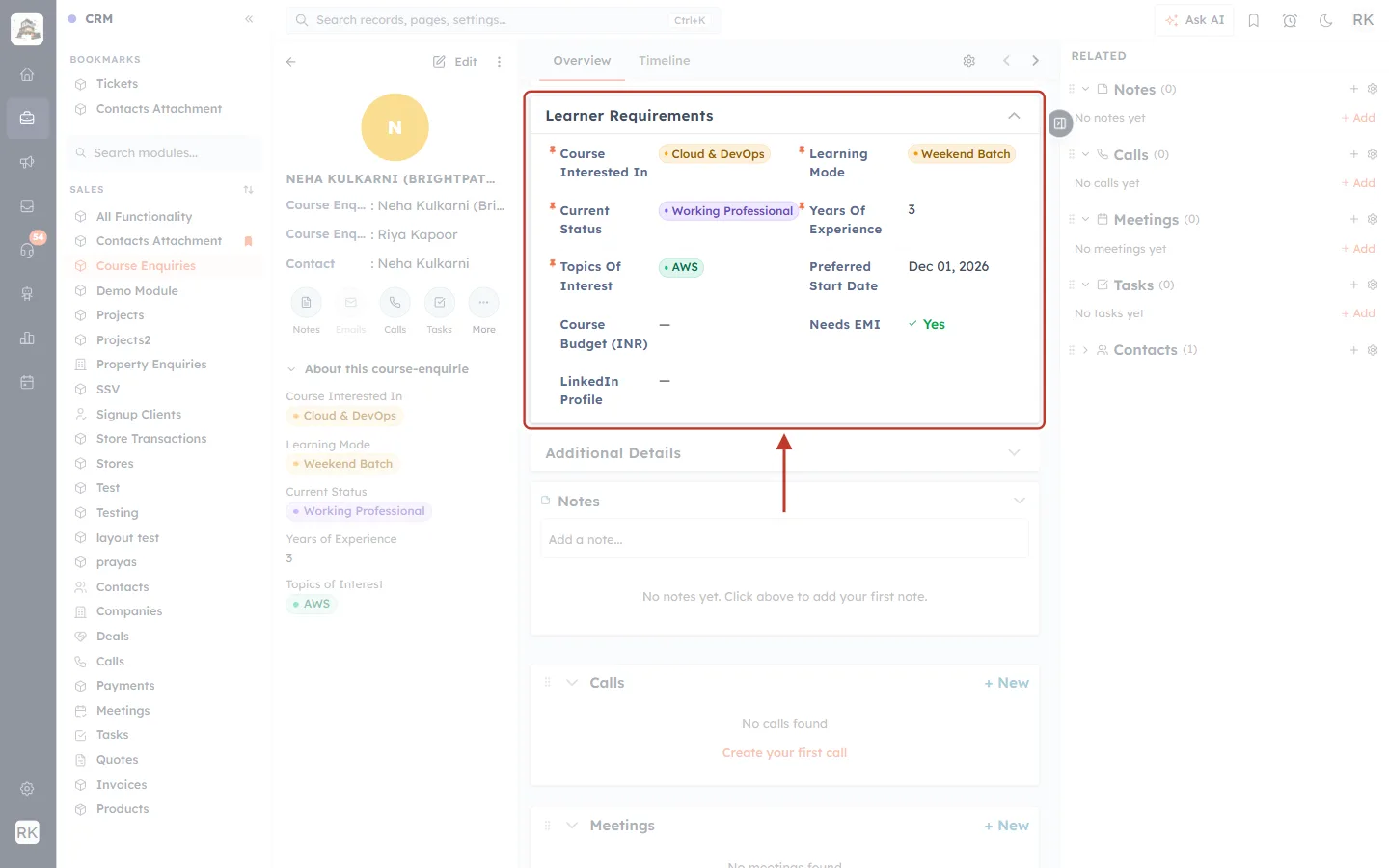
What this screenshot shows. The Learner Requirements section, holding the mapped fields.
Course Interested In: Cloud & DevOps. Learning Mode: Weekend Batch.
Current Status: Working Professional. Years Of Experience: 3.
Topics Of Interest: AWS. Neha also mentioned Kubernetes, but that isn’t one of the field’s choices, so only the matching choice is stored.
Preferred Start Date: Dec 01, 2026. Needs EMI: Yes.
Course Budget (INR) and LinkedIn Profile show “—” because they weren’t answered in this chat.
✅
Use the saved answers right away. Because they are ordinary fields, you can filter list views on them (for example, all Weekend Batch enquiries that need EMI), show them as columns, use them in workflows, or report on them.
Tips for good results#
Keep it short. Five to seven questions feel like a conversation; ten can feel like an interview. Ask the rest later, by phone or email.
Use drop-downs for anything you want to filter on. A Dropdown or Multi-select keeps answers consistent (for example “Weekend Batch” rather than “weekends”, “Sat-Sun” and so on).
Mention the choices in the question. The AI does this for drop-downs; keep the choices in if you rewrite the question.
Describe the goal in the behaviour prompt. A line such as “Help the learner pick a course and find out their preferred batch” helps the agent bring the questions up at the right moment.
Test on your real website. Open your site in a private browser window, fill in the visitor details form with a test email, chat, and then open the record to see what was saved.
Check new records now and then. The AI fills fields from what customers say in their own words. Glance at new records in the first days and adjust the wording of a question if an answer is often missed or misread.
Troubleshooting#
Problem | What to check |
|---|---|
My module isn’t in the Module list. | The module needs a lookup field to Contacts. Add one in the module’s fields, then reopen the agent. |
A field isn’t in the field list. | It is already used by another question, or its type can’t store a typed answer (lookup, user, read-only system field), or it is inactive. |
“+ Add question” is greyed out. | You already have 10 questions, or a row still has no field chosen. |
Continue to Review / Publish is disabled. | A question is empty or longer than 300 characters, a row has no field, or the switch is on with no questions. |
The agent asked nothing. | Questions are asked when they fit the conversation. Also check the switch is on and the agent was published. |
Nothing was saved from a website chat. | The chat must be linked to a contact. Make sure the visitor completed the details form before chatting. |
Nothing was saved from a WhatsApp chat. | The number must belong to a contact. Turn on Create a contact for unknown numbers in WhatsApp Settings. |
A question was skipped. | The answer was already known (on the record, or given earlier in the chat), so the agent didn’t ask again. |
An answer isn’t stored in a drop-down field. | The customer’s answer didn’t match any of the field’s choices. Add the missing choice to the field. |
“The saved module can’t be used any more…” | The module was removed or lost its Contacts lookup. Choose another module and add the questions again. |
“This field can no longer store answers. Remove this row.” | The field was deleted, deactivated or changed to a type that can’t be mapped. Remove the row and map another field. |
Frequently asked questions#
Does the AI ask the questions in a fixed order?
No. It uses your list as a guide and asks each question when it fits the conversation, often after answering the customer’s own question first.
What happens when the same person chats again?
Questions that already have an answer are not asked again, so returning customers aren’t asked the same thing twice.
Can I edit what the AI saved?
Yes. The answers are normal field values, so you can edit them on the record like any other field.
Does it cost AI credits?
Writing questions in the settings and the chats themselves use your AI credits, like any AI agent chat. See AI Credits & Pricing: How AI Usage Is Billed.
Can I use it together with Lead Qualification?
Yes. Lead Qualification moves the contact to a status when your criteria are met; data mapping fills in the details. See Automatically Detect & Qualify Leads with Your AI Agent.
Previous and next#
Related#
Was this article helpful?
Ready to implement this?
OpenAI Engage and apply what you just learned to your own workspace.
Open AI Engage CRM