Loading…


KnowledgeBase
Create and Manage WhatsApp Message Templates
Why templates are required#
Meta requires that every WhatsApp message sent by a business — whether a campaign, an automated message, or a direct send — uses a pre-approved template. Templates are reviewed by Meta to ensure they comply with WhatsApp's commerce and messaging policies.
There are three template categories:
Marketing — promotional messages, offers, product announcements, follow-ups
Utility — transactional messages, order confirmations, appointment reminders, delivery updates
Authentication — one-time passwords and verification codes
💡
Marketing templates have the highest cost per message but the widest use case. Utility and Authentication templates cost less. Meta sets the rates — check your WhatsApp Credits page for current pricing by country.
Template types#
You can create three types of templates in AI Engage CRM:
Standard — a single message with optional header (text, image, video, or document), body text, footer, and buttons
Carousel — up to 10 cards each with an image, text, and buttons — ideal for showcasing multiple products or options
Limited Time Offer (LTO) — a special offer card with a countdown timer and a copy-code button
Step 1 — Open Templates#
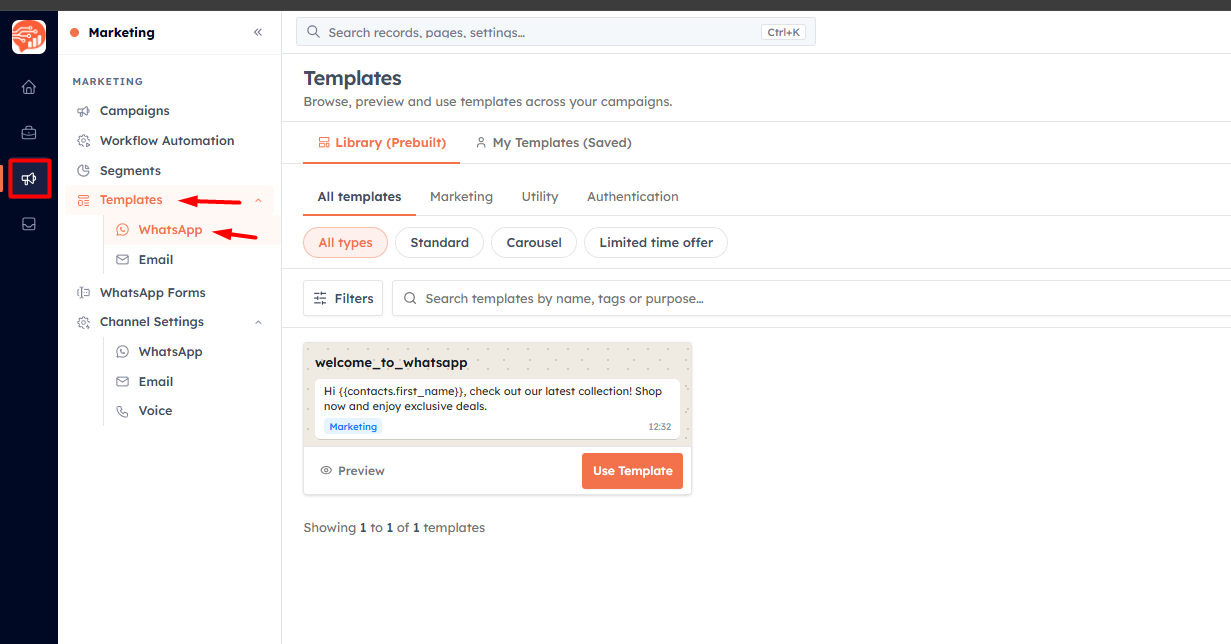
Navigate to Marketing → Templates → WhatsApp. The templates table shows all your templates with their name, category, type, language, and approval status.
💡
Browse the Prebuilt Library tab before creating a template from scratch. Meta provides dozens of pre-approved templates you can clone and customise — no waiting for approval.
Step 2 — Create a new template#
Click + Create Template.
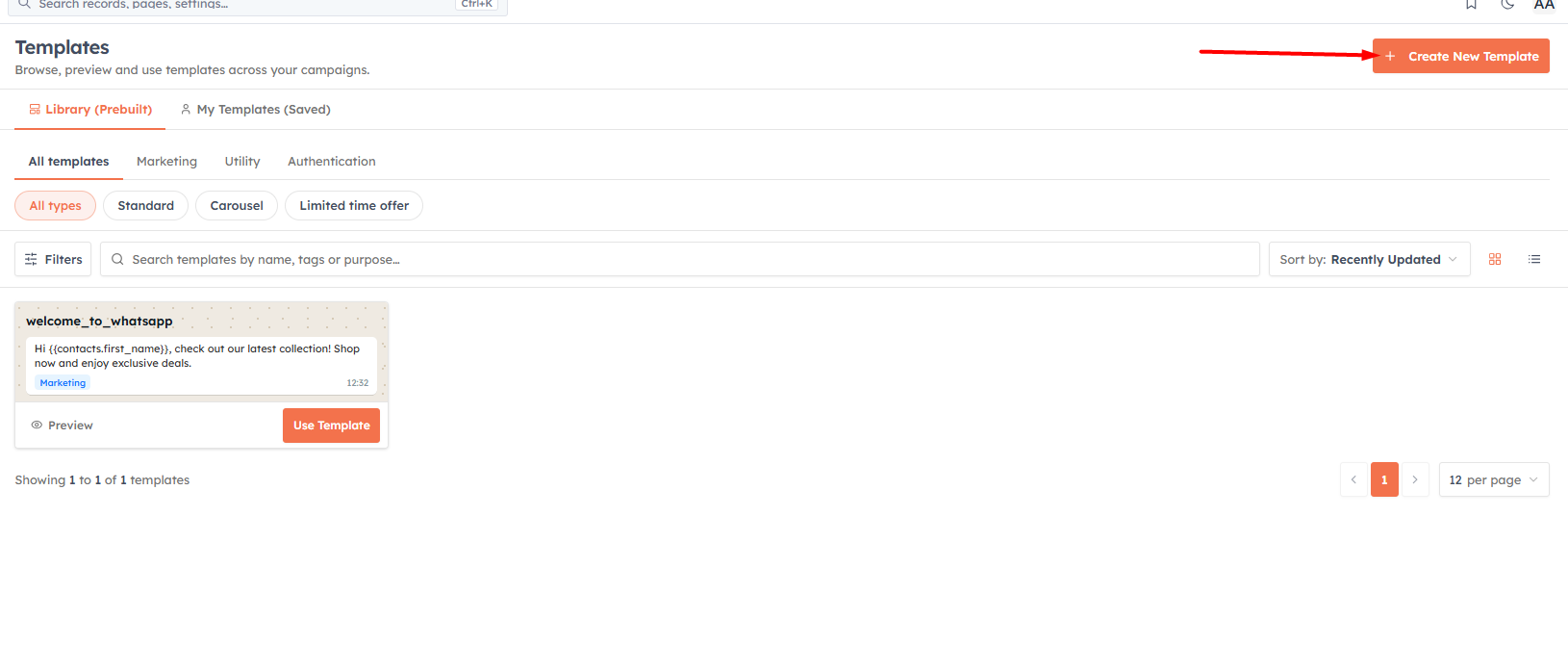
Fill in the template fields:
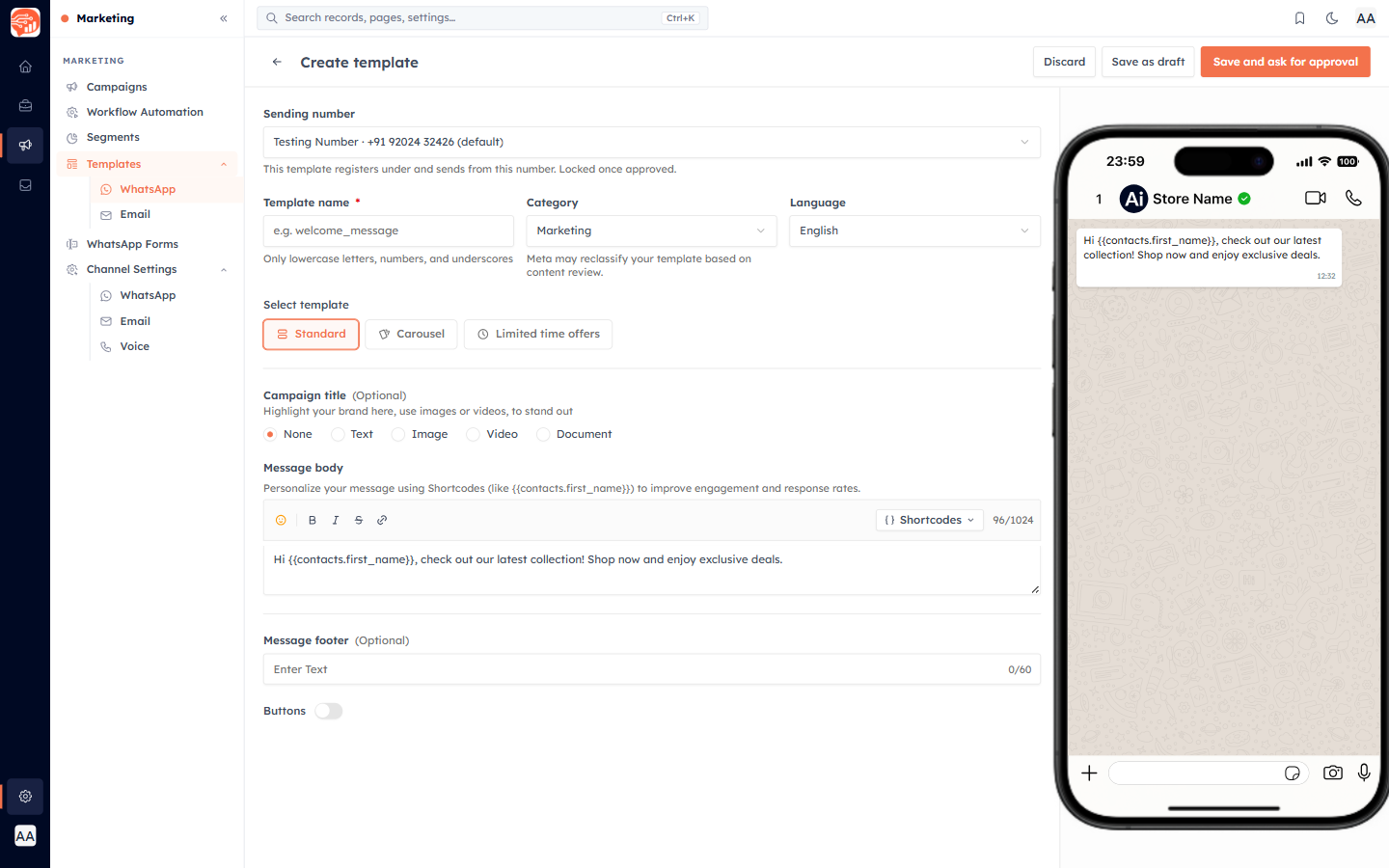
Template Name — lowercase letters, numbers, and underscores only (e.g., welcome_new_contact). This name is sent to Meta and cannot be changed after approval.
Category — Marketing, Utility, or Authentication
Language — the language of your message content
Type — Standard, Carousel, or Limited Time Offer
Step 3 — Build the message#
For a Standard template:
Header (optional) — choose Text, Image, Video, or Document. Media headers require a URL.
Body (required) — your message text. Use shortcodes like
{{contacts.first_name}}to personalise with contact data. Click the + button next to the body field to insert available fields.Footer (optional) — small text shown below the message (e.g., "Reply STOP to unsubscribe")
Buttons (optional) — add up to 3 call-to-action buttons, plus one optional copy-code button:
Visit Website — opens a URL
Call — dials a phone number
Open Form — opens a WhatsApp Flow form
Copy Offer Code — copies a promo code to clipboard (maximum one)
(Quick Reply buttons are available on Carousel templates, not standard ones.)
A live phone preview updates as you type so you can see exactly how the message will look on the recipient's screen.
💡
Template body text cannot be edited after Meta approves it. If you need changes, you must delete and recreate the template with a new name. Plan your copy carefully before submitting.
Step 4 — Submit for approval#
Click Submit for Approval. The template status changes to Pending. Meta reviews templates within 1–2 business days. You will see the status update to Approved or Rejected automatically — or click Sync Status to check immediately.
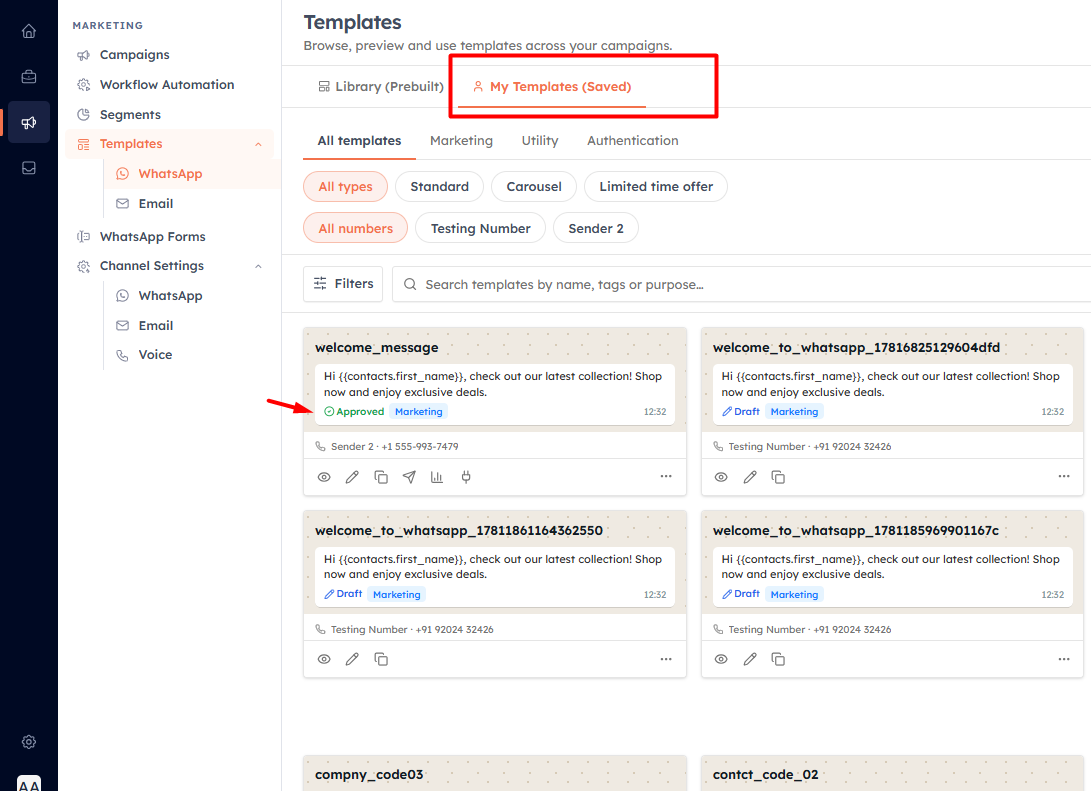
If rejected, Meta shows the reason. Common rejection reasons: promotional language in a Utility template, missing opt-out instructions in Marketing templates, or prohibited content. Edit the template and resubmit.
💡
Once a template is approved, you can use it in campaigns, automated workflows, the inbox, and direct sends from contact records.
💡
You can save a template as a draft without submitting — useful when you want to build the content but are not ready to send to Meta yet.
💡
Next up: Send a WhatsApp Campaign — use your approved templates to broadcast messages to a segment of contacts.
Was this article helpful?
Ready to implement this?
OpenAI Engage and apply what you just learned to your own workspace.
Open AI Engage CRM