Loading…


KnowledgeBase
WhatsApp Inbox: Manage Conversations with Your Contacts
What is the WhatsApp Inbox?#
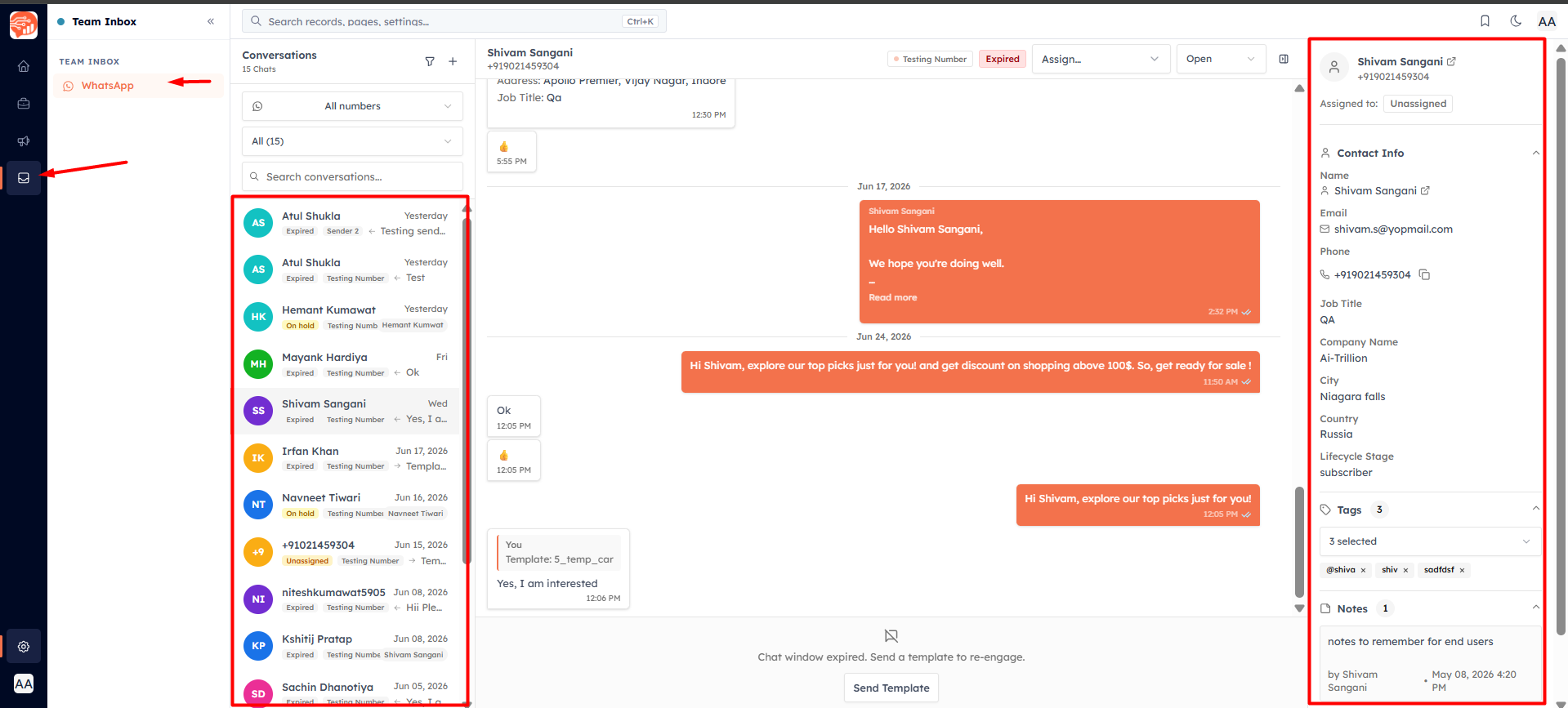
The WhatsApp Inbox is your team's shared workspace for two-way WhatsApp conversations. When a contact replies to a campaign, sends an inbound message, or is sent a form, the conversation appears here. Unlike campaigns (which are one-directional broadcasts), the inbox supports full back-and-forth messaging.
How conversations work#
WhatsApp's 24-hour messaging window applies to all conversations:
When a contact messages you first, or replies to your template, a 24-hour conversation window opens during which you can reply freely with any text.
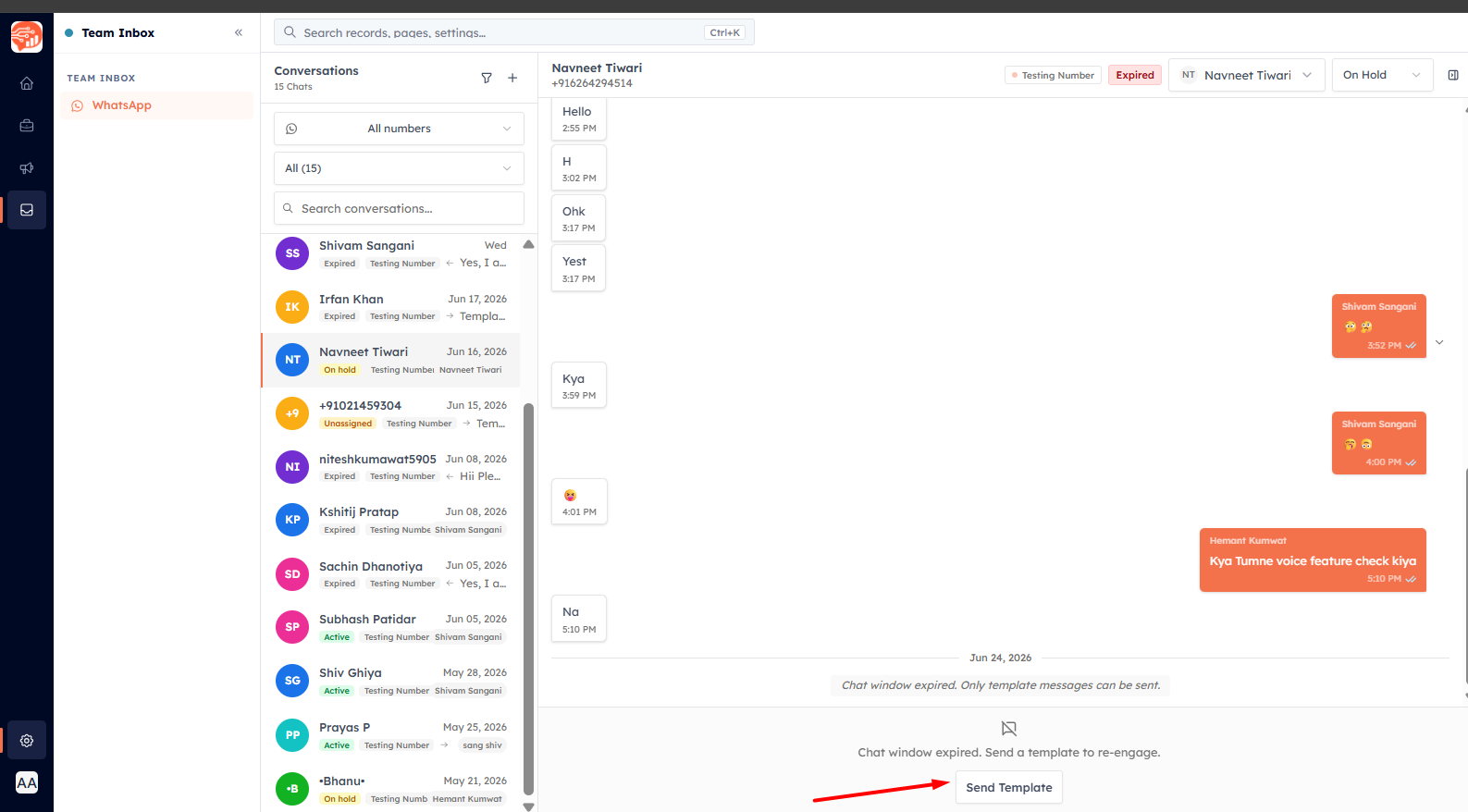
If the 24-hour window expires, you must send a new approved template to re-open the conversation before sending free-form text again. To learn how to create WhatsApp template, Click Here.
💡
Respond to inbound messages as quickly as possible. The 24-hour window starts from the customer's last message — not from when you open it. Assign conversations to team members promptly to avoid the window expiring unattended.
Replying to a conversation#
Click any conversation in the left panel to open the message thread. In the reply box at the bottom you can:
Type a text reply — sent as a free-form message (within the 24-hour window)
Attach media — images, videos, or documents
Send a template — choose an approved template to re-open an expired window or send a structured response
Send a form — share an approved WhatsApp Form to collect information from the contact
Managing conversations#
Use the action panel on the right side of an open conversation to:
Assign to a team member — route the conversation to the right agent or salesperson
Change conversation status — Open, Pending, or Closed
Add tags — label conversations for filtering and reporting
Add notes — internal notes visible only to your team (not sent to the contact)
View contact details — the contact's CRM record is shown in the panel so you have full context without switching tabs
💡
Conversations can be filtered in the left panel by status (Open / Pending / Closed), by assigned agent, or by tag. Use filters to prioritise high-urgency conversations and ensure nothing slips through the cracks.
Starting a new conversation#
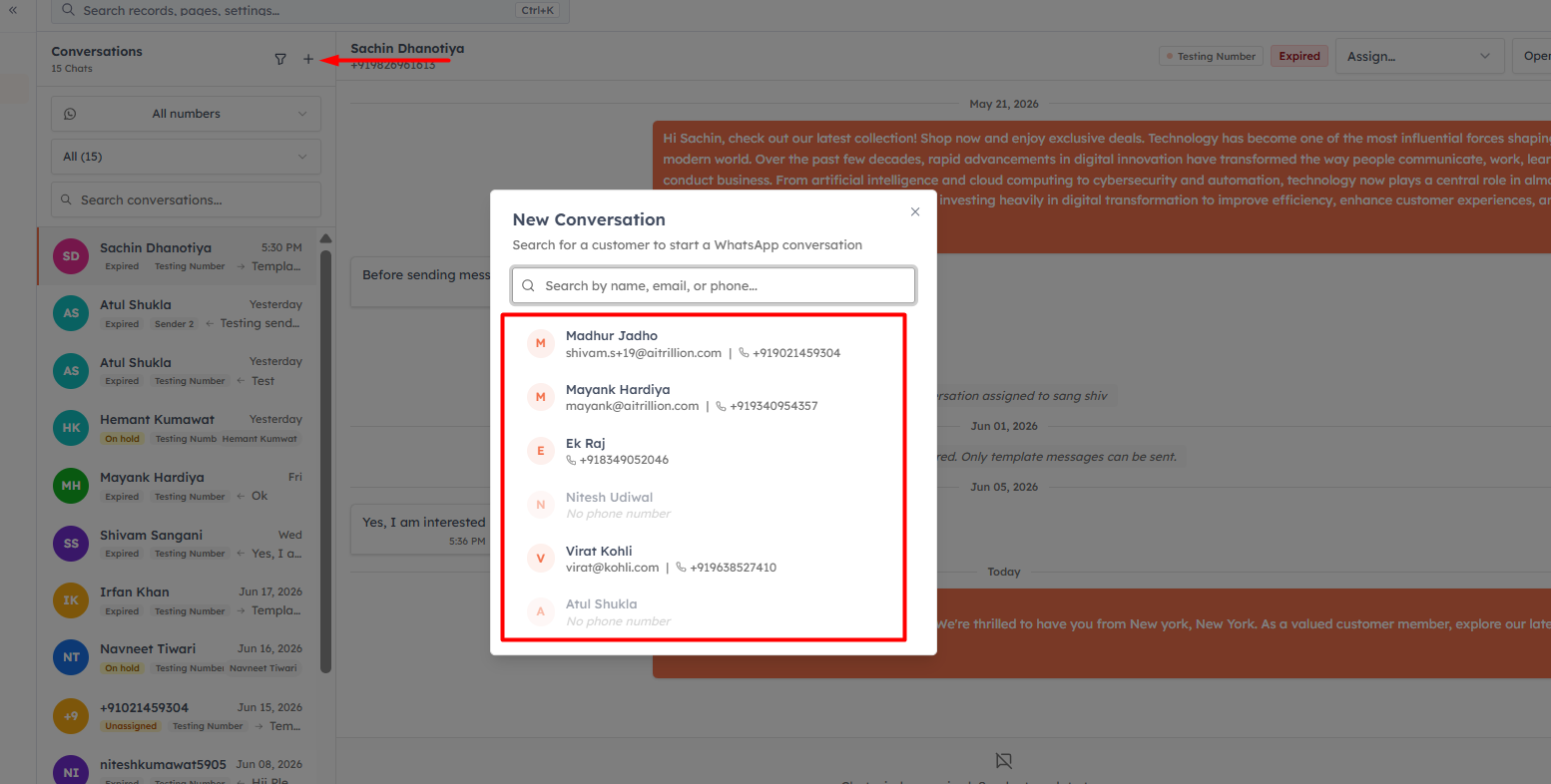
To initiate a WhatsApp message to a contact who has not recently messaged you, click the New Conversation button (compose icon) in the inbox header. Search for the contact, then select an approved template to start the conversation. You cannot send a free-form message to start — WhatsApp requires a template for business-initiated conversations.
💡
Contacts must not have opted out of WhatsApp messaging. If you attempt to send to an opted-out number, the message will fail with an "Opt-out" failure status. Enable Strict Opt-in Mode in Settings → WhatsApp → Settings to prevent attempted sends to opted-out contacts.
💡
Related: Send WhatsApp Messages from Contact Records — initiate WhatsApp conversations directly from a contact's detail page without opening the inbox.
Was this article helpful?
Ready to implement this?
OpenAI Engage and apply what you just learned to your own workspace.
Open AI Engage CRM