Loading…


KnowledgeBase
CRM API & MCP FAQ: Answers to Common Questions About API Keys, Permissions, Limits, Errors and AI Assistants
This FAQ collects the questions people ask most often about the AiEngage CRM API (for developers connecting their own apps) and the MCP connector (for connecting AI assistants such as Claude). Each answer is short and links to the full step-by-step guide. Where a screen helps, there is a screenshot with every part explained, so you can find the same place in your own CRM.
Topics covered:
Getting started
API keys and permissions
Modules, records and fields
Limits, quotas and usage
Errors and safe retries
Sending email and WhatsApp
MCP and AI assistants
ℹ️
Base URL for every API call:
https://app.aiengagecrm.com/cback/api/public/v1. Every request needs the header Authorization: Bearer cak_live_… with your API key. The full reference, with a Send button on every endpoint, is at developer.aiengagecrm.com.Getting started#
What is the difference between the CRM API and MCP?#
Both read the same CRM data with the same permissions, but they are for different people:
CRM API | MCP connector | |
|---|---|---|
Who uses it | Developers, in their own code, scripts, Zapier-style tools or Postman. | Anyone, inside an AI assistant such as Claude, Cursor or VS Code. |
How you sign in | An API key ( | Your own CRM login and an Allow access screen. No key. |
What it can do | Read, create, update, archive, search and batch-process records; send email and WhatsApp. | Read only. It can never create, change, delete or send. |
See Introduction to the AiEngage CRM API & MCP.
Does my plan include API access?#
The API and MCP need a plan that includes API access (Business Pro). Without it, API calls are refused with 403 NO_API_ACCESS, and an MCP connection authorises but every question comes back refused. Ask your account owner to check the plan.
Where is the API documentation, and can I try it without writing code?#
Yes. Open developer.aiengagecrm.com. Paste your key once, and every code sample on the page fills in with it, and every endpoint gets a working Send button.
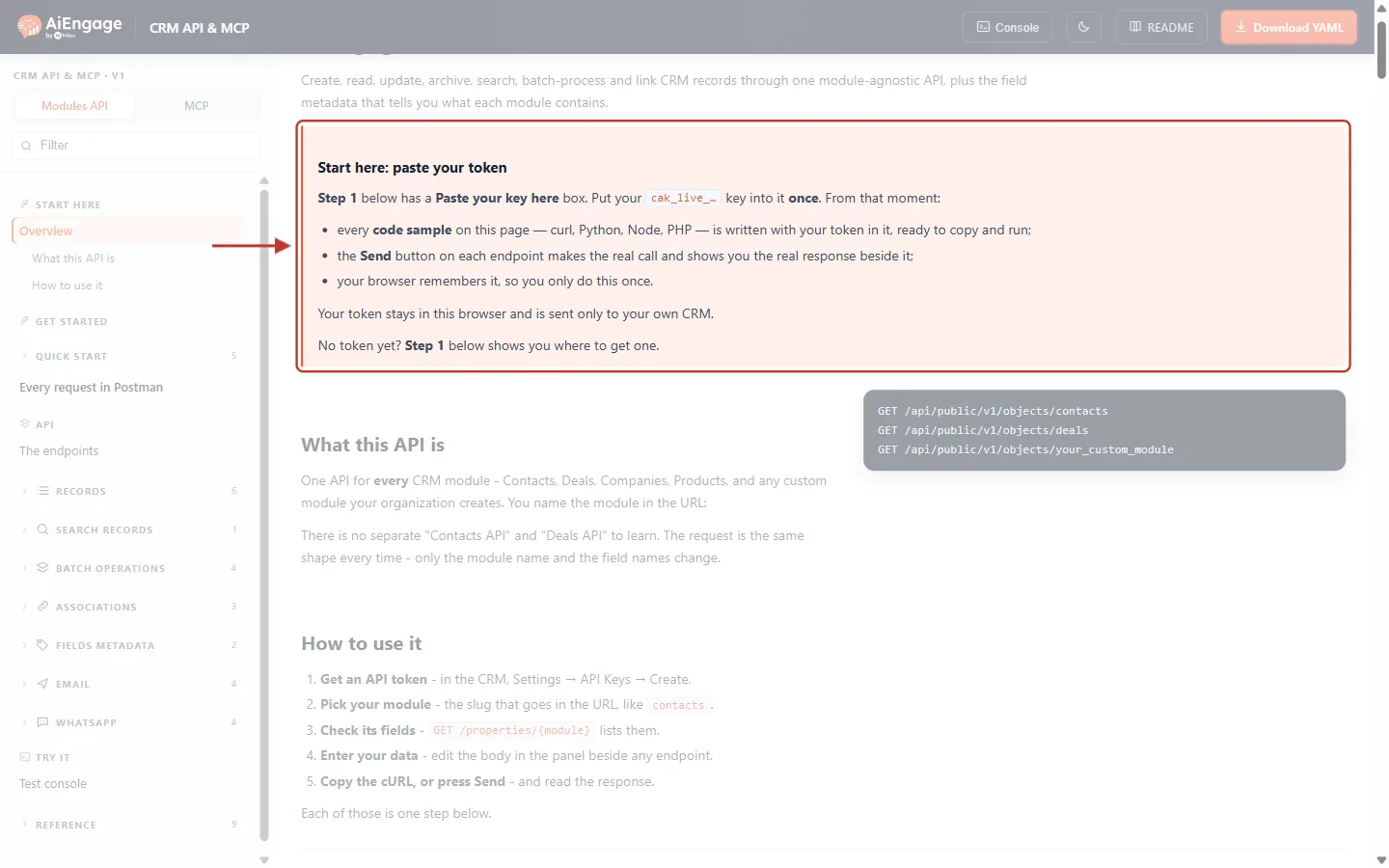
What this screenshot shows. The Start here: paste your token box at the top of the developer portal, marked by the red box and arrow.
Step 1 below this box has a Paste your key here field. Put your
cak_live_…key into it once.From then on, every code sample (cURL, Python, Node, PHP) is written with your key, ready to copy and run.
The Send button on each endpoint makes the real call and shows the real response beside it.
“Your token stays in this browser and is sent only to your own CRM.” Your browser remembers it, so you do this only once.
Left sidebar: Start here, Get started (Quick Start), API (every endpoint group), Try it (Test console) and Reference.
You can also import everything into Postman from https://developer.aiengagecrm.com/module-public-api.yaml. See Test the AiEngage CRM API in the API Console and Postman and Quick Start: Make Your First AiEngage CRM API Call in 5 Minutes.
What can the API do?#
The API has 24 calls, and they work the same way for every module, including the custom modules you build.
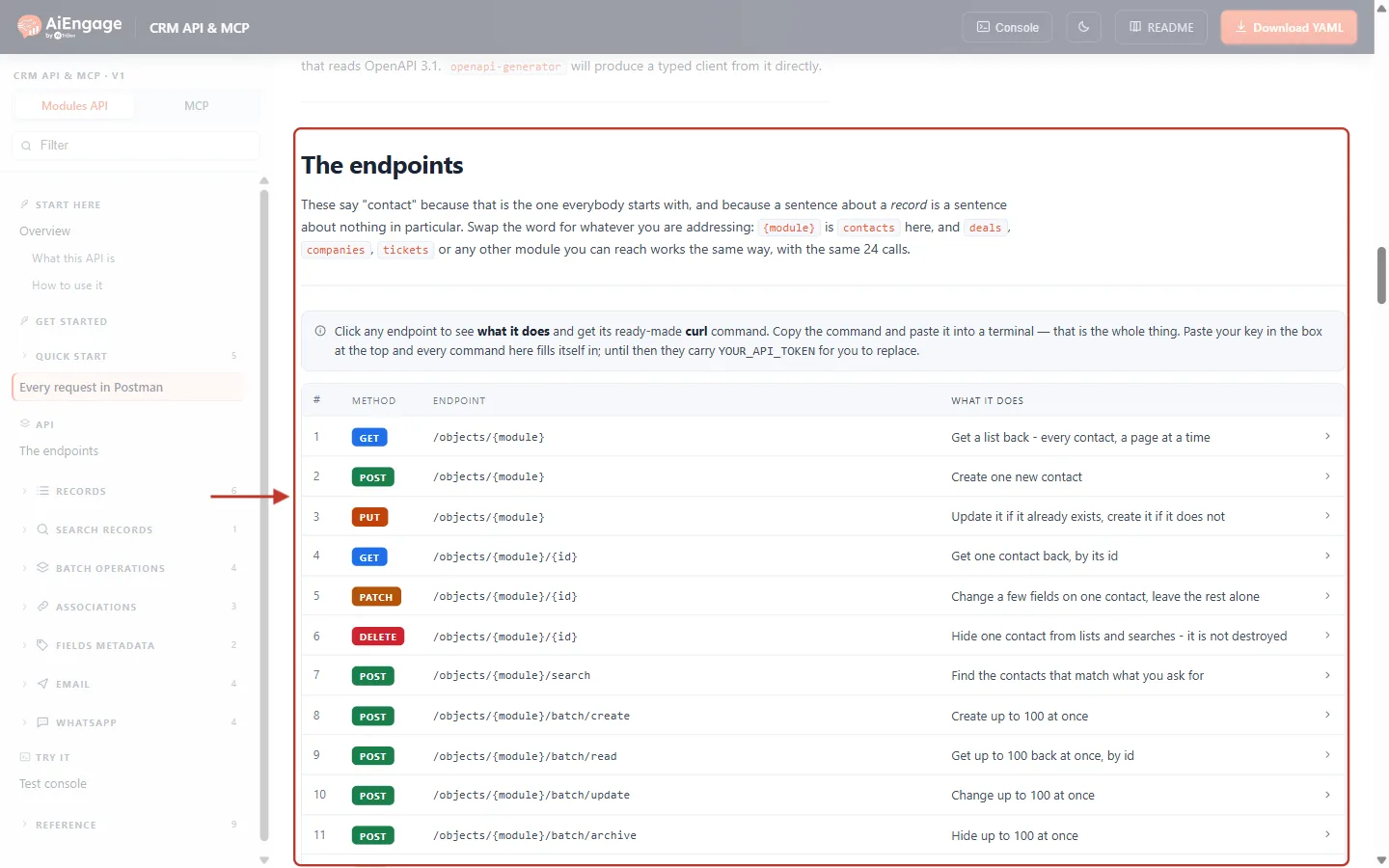
What this screenshot shows. The The endpoints section of the developer portal, marked in red.
The text explains that you swap
{module}for the module you want:contacts,deals,companies,ticketsor any other module you can reach.Table columns: number, Method (GET reads, POST creates or runs, PUT upserts, PATCH updates, DELETE archives), Endpoint path, and What it does in plain words.
Rows 1–6: list, create, upsert, get one, update and archive a record. Row 7: search. Rows 8–11: batch create, read, update and archive up to 100 records at once.
Further down (not shown): associations (linking records), fields metadata, email and WhatsApp. Click any row for its details and a ready-made cURL command.
Is there a sandbox or test key?#
Not yet. cak_test_ keys are refused with “Test-mode tokens are not yet supported.” To test safely, use a test record (for example a contact with your own email address), read before you write, and on email sends leave test_mode at its default true, which checks everything but sends nothing.
API keys and permissions#
How do I get an API key?#
Go to Settings → Developer Hub → API Keys and click Generate API key.
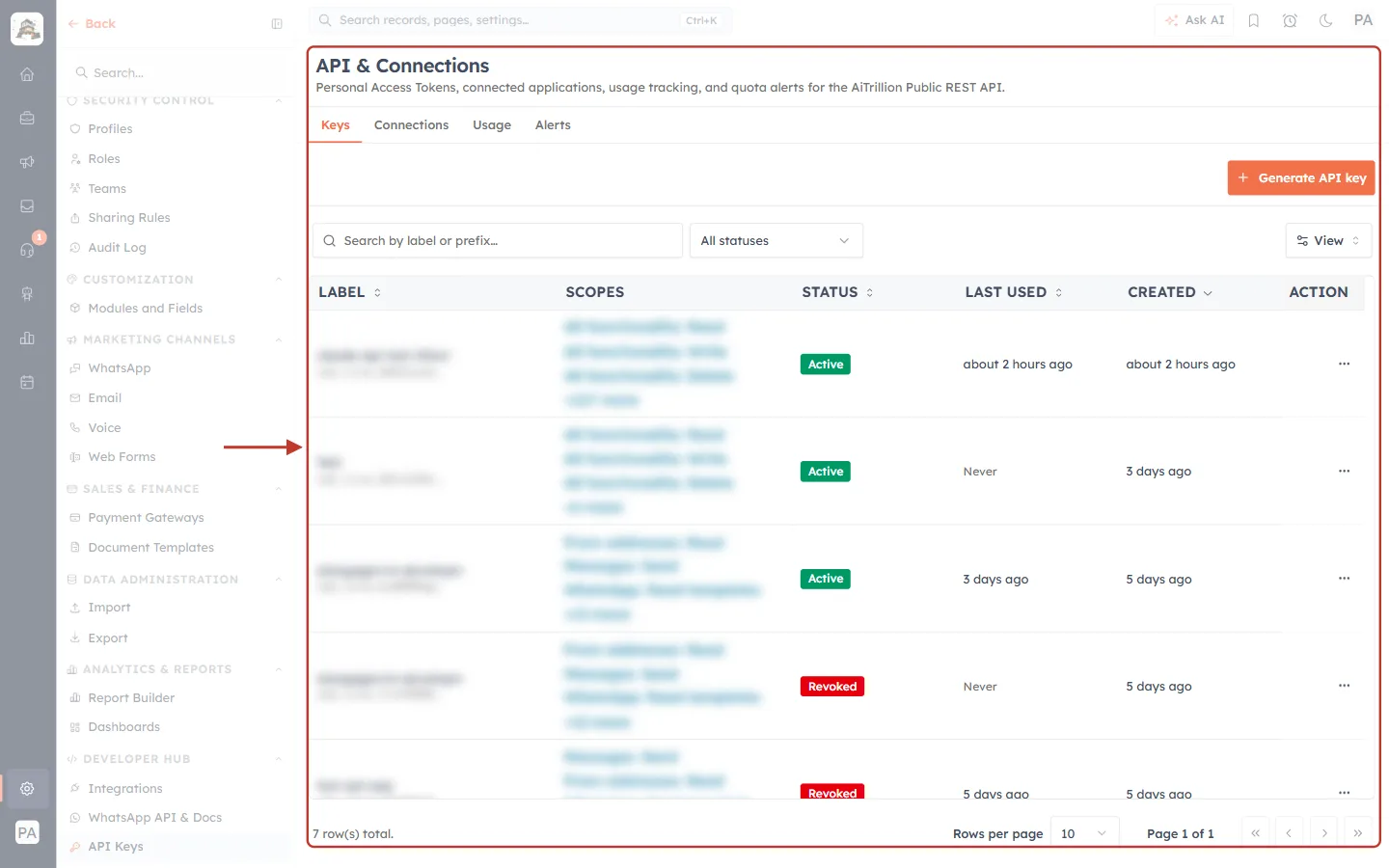
What this screenshot shows. The API & Connections page on the Keys tab, marked in red. (Existing key names are blurred.)
Tabs: Keys (API keys), Connections (AI assistants connected through MCP), Usage (calls used against your quota) and Alerts (quota warnings).
Generate API key (orange, top right) starts a new key.
Search by label or prefix… and All statuses filter the list.
Columns: Label and key prefix, Scopes (what the key may do), Status (Active, Revoked or Expired), Last used, Created, and the ⋯ Action menu, where you can revoke a key.
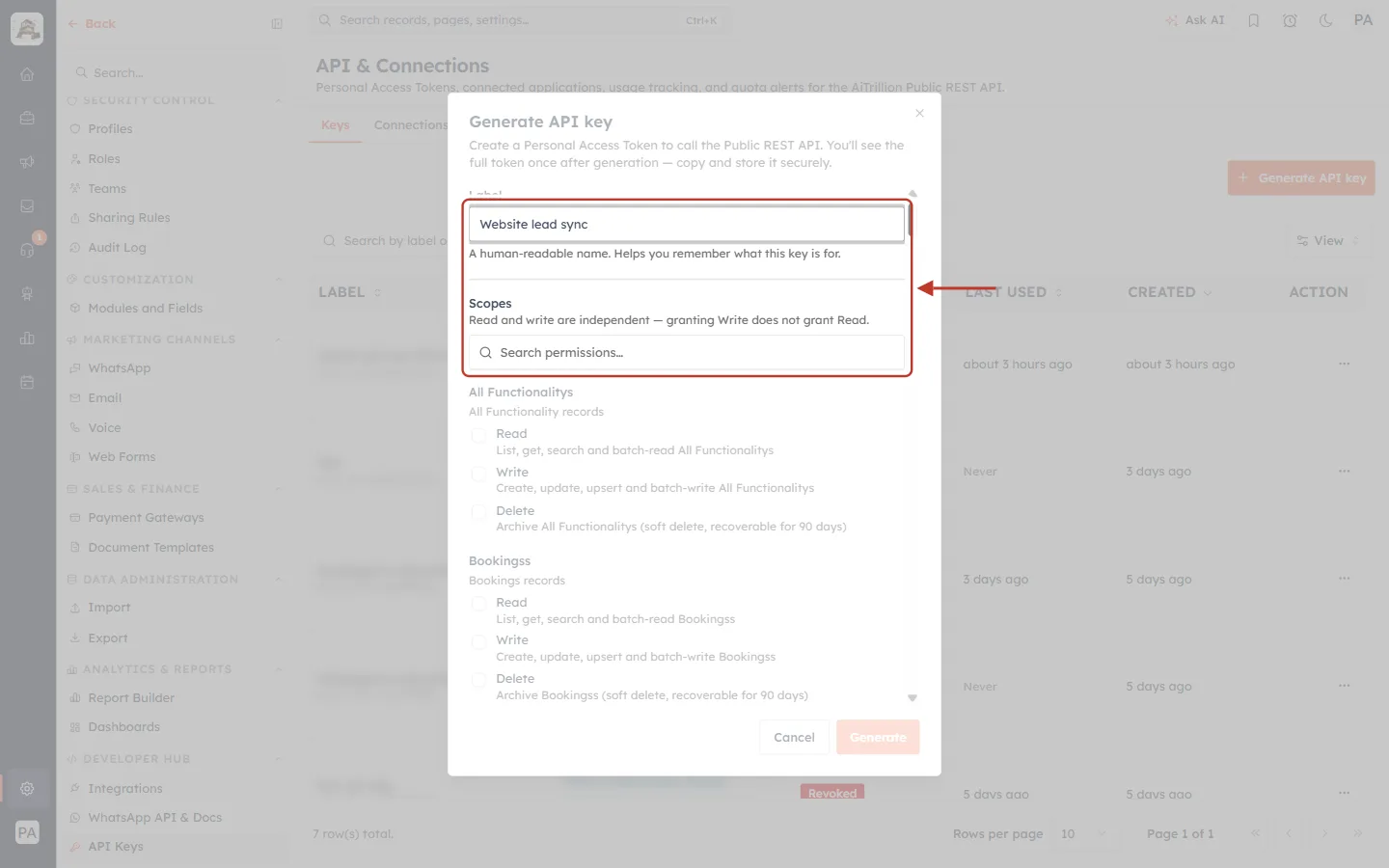
What this screenshot shows. The Generate API key dialog, with the Label and the top of Scopes marked in red.
Label (here “Website lead sync”): a name that says what the key is for.
Scopes: the permissions this key will have. “Read and write are independent — granting Write does not grant Read.”
Search permissions… filters the long scope list, for example type “contacts” or “email”.
Below, each module has Read, Write and Delete boxes; further down are Schema, Email and WhatsApp groups. Then choose Expires and click Generate.
⚠️
The full key is shown only once, right after you click Generate. Copy it and store it somewhere safe, such as a password manager or your server’s secret store. If you lose it, revoke it and create a new one.
Which scopes (permissions) should I tick?#
Only the ones your integration needs. Tick Read to list, get and search; Write to create, update and upsert; Delete to archive.
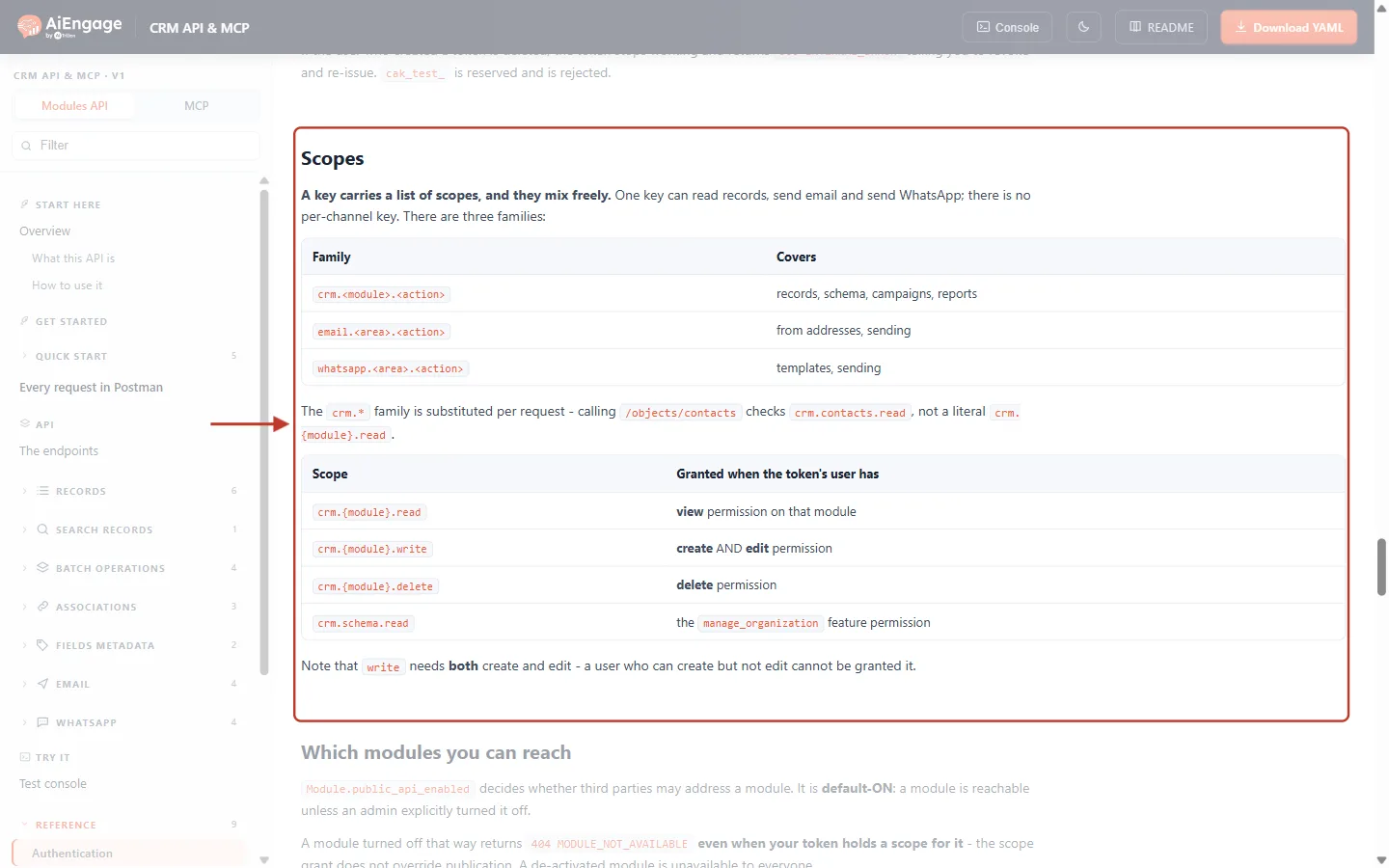
What this screenshot shows. The Scopes section of the developer portal Reference, marked in red.
Three families:
crm.<module>.<action>(records, schema, campaigns, reports),email.<area>.<action>(from addresses, sending) andwhatsapp.<area>.<action>(templates, sending). One key can mix them freely.Per request: calling
/objects/contactscheckscrm.contacts.read.When a scope can be granted: Read needs view permission on the module; Write needs both create AND edit permission; Delete needs delete permission;
crm.schema.readneeds the manage organization permission.
See API Token Scopes & Permissions.
Whose permissions does a key use?#
The person who created it. A key can never do more than its creator can do in the CRM: profiles, roles and sharing rules still apply. If the creator is deactivated, their keys stop working (401).
Can I add a scope to an existing key?#
No. Generate a new key with the scopes you need, update your integration, then revoke the old key from its ⋯ menu. Revoking can’t be undone.
I get 401 Unauthorized. What’s wrong?#
The key is missing, mistyped, revoked, expired, or its creator was deactivated. Check the header is exactly Authorization: Bearer cak_live_… with one space after “Bearer”. See API Authentication & Bearer Tokens.
Modules, records and fields#
What module name do I use in the URL?#
The module’s API name (slug), not its display label. You can see it under each module name on Settings → Modules and Fields, or with GET /objects.
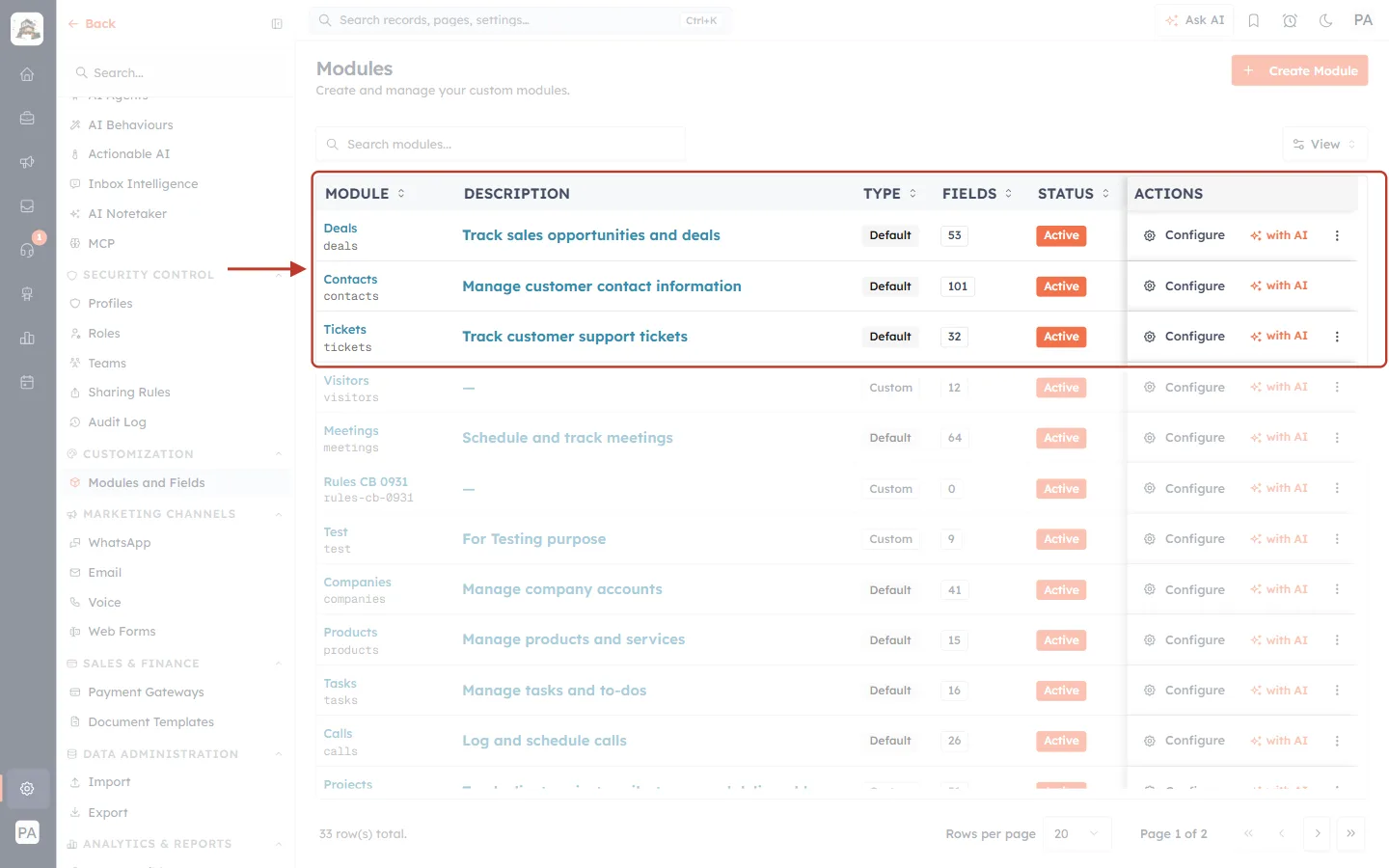
What this screenshot shows. The Modules list, with the first three modules marked in red.
Module column: the display label in blue (Deals, Contacts, Tickets) and, underneath in grey, the API name (
deals,contacts,tickets). Use the grey one in the URL, for example/objects/deals.Type: Default (built in) or Custom (made by your organization). Custom modules work with the API exactly the same way.
Fields: how many fields the module has. Status: Active modules can be used.
Configure opens the module builder, where each field’s API name is shown.
See Records, Modules & the Record Envelope.
Why do I get 404 MODULE_NOT_AVAILABLE when my key has the scope?#
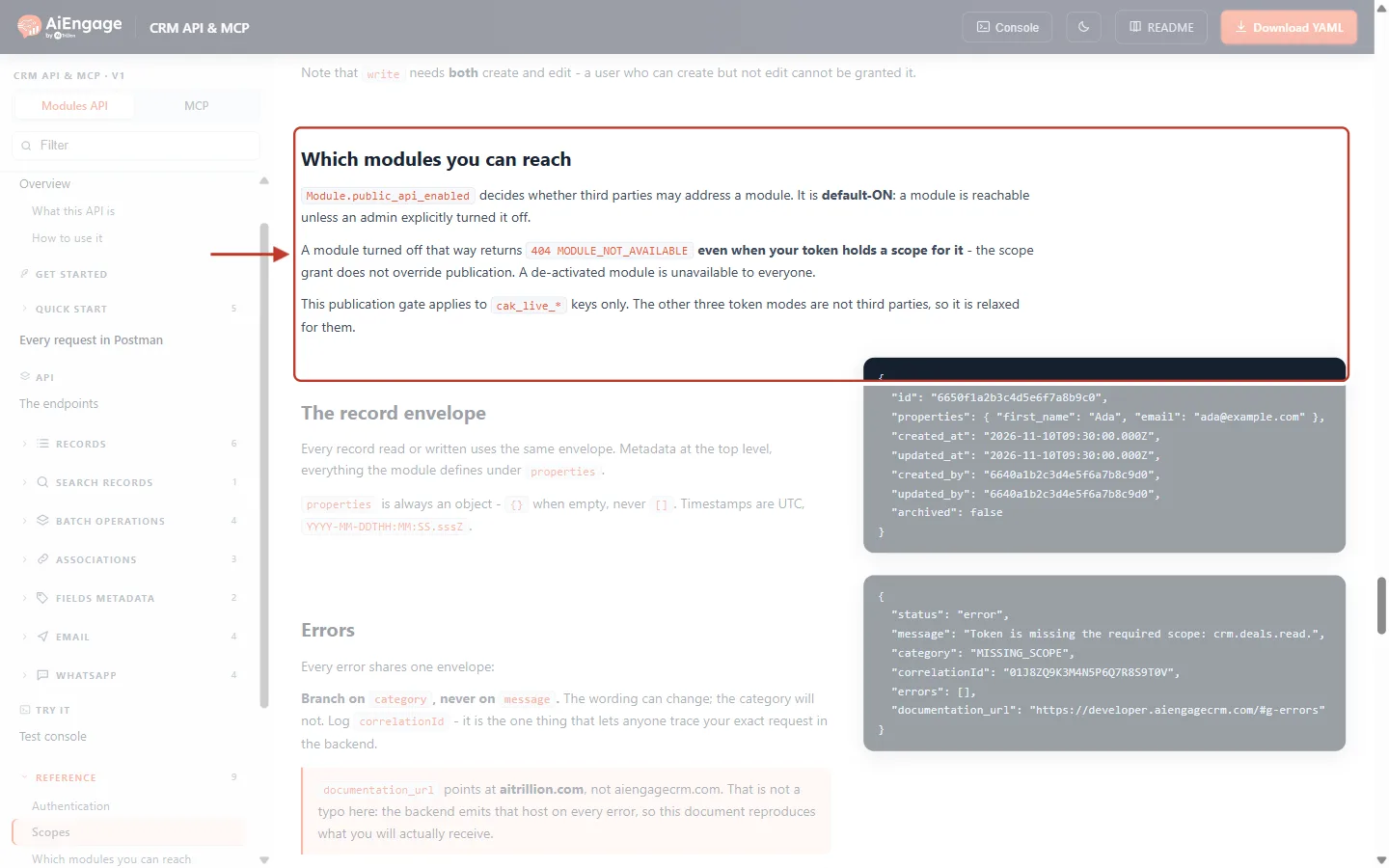
What this screenshot shows. The Which modules you can reach section of the developer portal, marked in red.
Each module has an API setting that is on by default: a module can be reached unless an administrator turned it off.
A module turned off returns
404 MODULE_NOT_AVAILABLEeven when your key holds a scope for it. The scope does not override the module setting.A deactivated module is unavailable to everyone.
Ask an administrator to turn the module back on for the API, or check you spelled the module’s API name correctly.
Which field names do I send?#
The field’s API name, not its label. List them with GET /properties/{module}, which also tells you each field’s type, required rules and picklist values. Picklists take the option value, and lookups take the related record’s id. See Fields Metadata API.
Does DELETE really delete a record?#
No. DELETE /objects/{module}/{id} archives the record. It disappears from lists and searches but can be recovered for 90 days. See Get, Create, Update and Archive Records.
How do I avoid creating duplicates?#
Use upsert (PUT /objects/{module}) with a matching field such as email: it updates the record if one matches and creates it if none does. If two or more records match, you get 409 instead of a guess. See Upsert Records with a Matching Property.
How do I get more than 100 records?#
Page through them. Each response holds up to 100 records and a paging.next.after cursor; send that as after to get the next page. On the list endpoint a larger limit is reduced to 100; on search it is rejected. See API Pagination & Limits and Search Records with the CRM API.
Can I create or update many records in one call?#
Yes, up to 100 per call with the batch endpoints. See Batch Operations in the CRM API.
Limits, quotas and usage#
How many calls can I make?#
Two kinds of limit apply.
Rate limits per key, to stop bursts: how many calls in a few seconds.
Your organization’s quota, set by your plan: how many calls per day and per month, shared by every key and MCP connection.
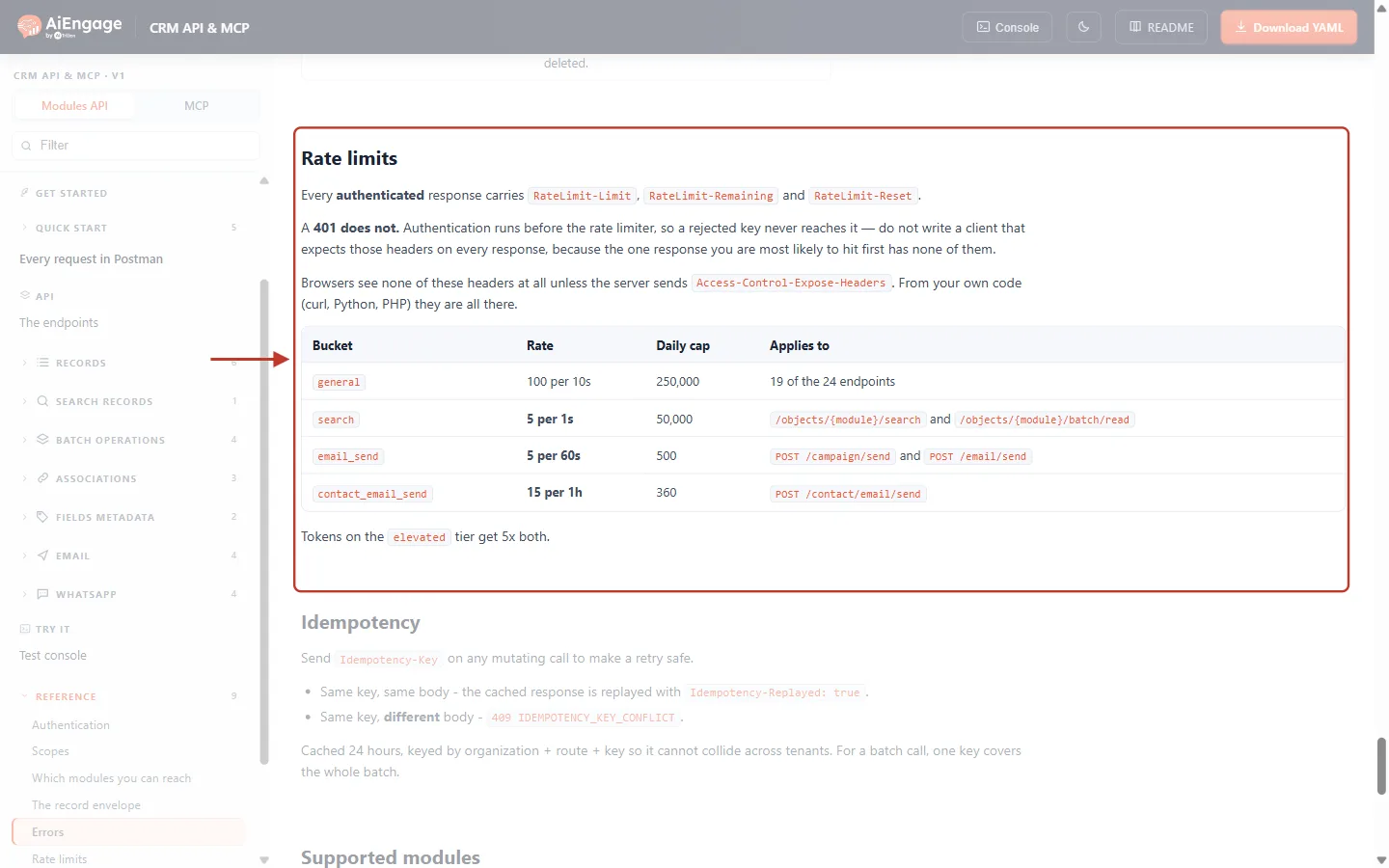
What this screenshot shows. The Rate limits section of the developer portal Reference, marked in red.
Headers: every authenticated response carries
RateLimit-Limit,RateLimit-RemainingandRateLimit-Reset, so your code can slow down before it hits the limit. A401response does not carry them.general — 100 requests per 10 seconds, for most endpoints.
search — 5 per second, for
/searchand/batch/read.email_send — 5 per 60 seconds, for
POST /campaign/sendandPOST /email/send.contact_email_send — 15 per hour, for
POST /contact/email/send.Use the Rate column. Your organization’s plan quota (next question) decides the daily and monthly totals.
WhatsApp template sends have their own limit of 30 per minute. See API Rate Limits & Quotas.
How do I see how much of my quota I have used?#
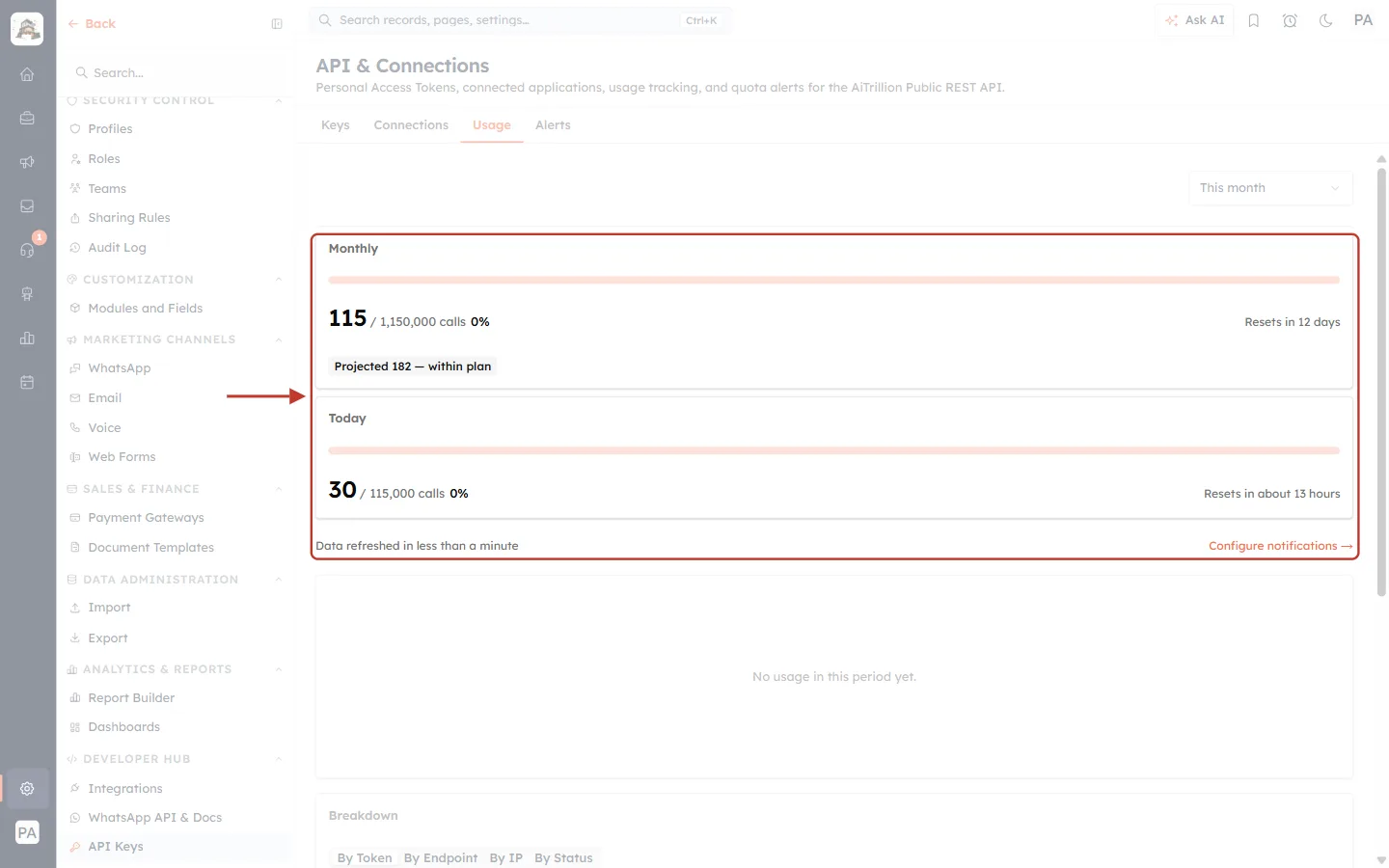
What this screenshot shows. The Usage tab of API & Connections, with the quota cards marked in red.
Monthly: calls used this month out of your plan’s monthly allowance (here 115 of 1,150,000), the percentage, when it resets, and a Projected total for the month.
Today: calls used today out of your daily allowance (here 30 of 115,000), and when it resets.
Data refreshed… shows how fresh the numbers are. Configure notifications → opens the Alerts tab.
This month (top right) changes the period. Further down, Breakdown shows usage by token, endpoint, IP and status, and Recent activity lists the last 100 calls.
⚠️
When the daily or monthly quota is used up, every call is refused with
429 RATE_LIMITED_DAILY or 429 RATE_LIMITED_MONTHLY until it resets (midnight UTC for daily, the start of the next month for monthly). Calls that fail with a server error (5xx) are not counted, and rejected keys (401) never count.See Monitor API Usage & Set Quota Alerts.
Can I get warned before I run out?#
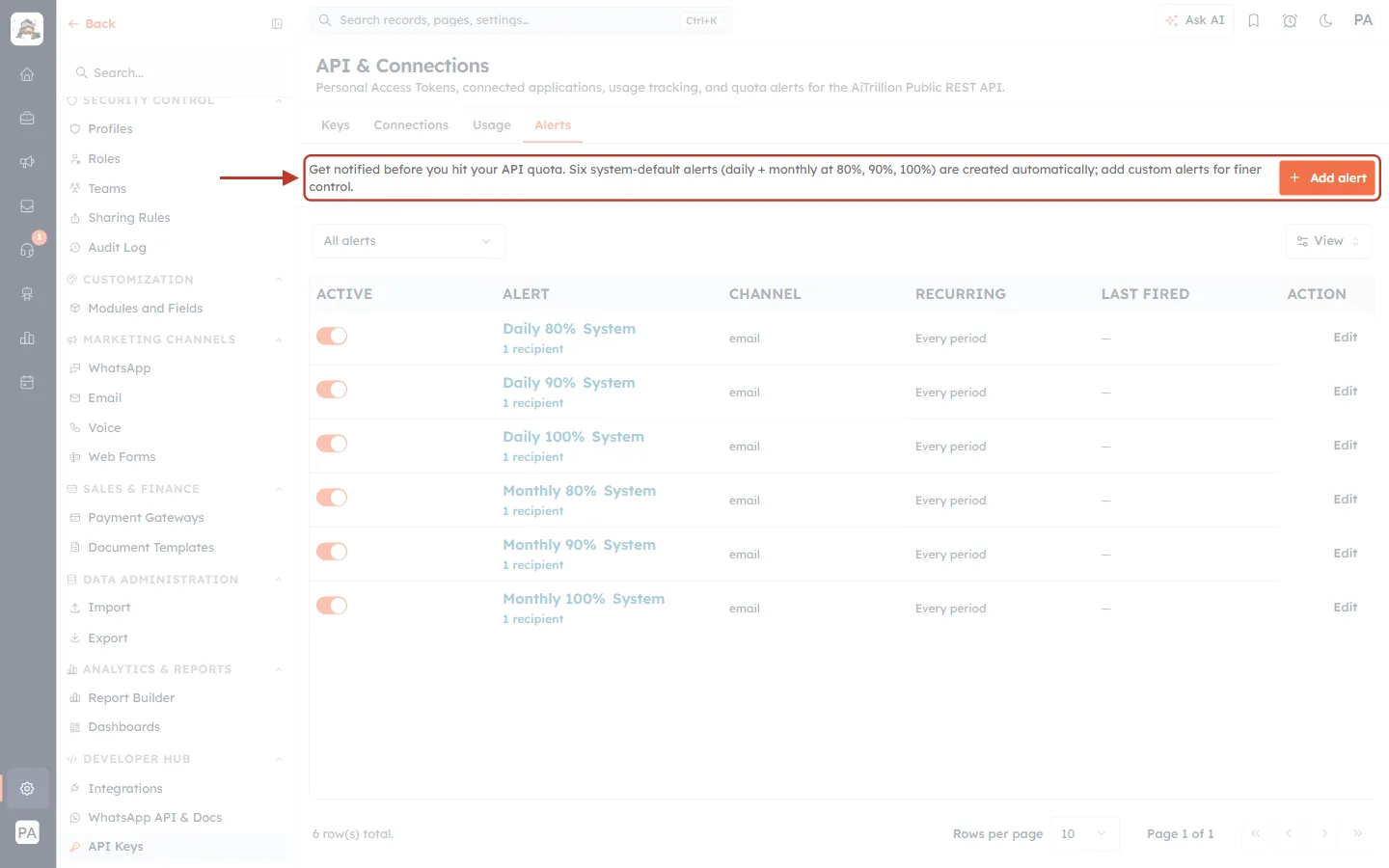
What this screenshot shows. The Alerts tab of API & Connections, marked in red.
“Get notified before you hit your API quota. Six system-default alerts (daily + monthly at 80%, 90%, 100%) are created automatically; add custom alerts for finer control.”
Add alert creates your own alert with a threshold and channel.
Table columns: Active, Alert, Channel, Recurring, Last fired and Action.
If the list is empty, the six default alerts appear automatically once the first API key is generated.
Errors and safe retries#
How do I read an error?#
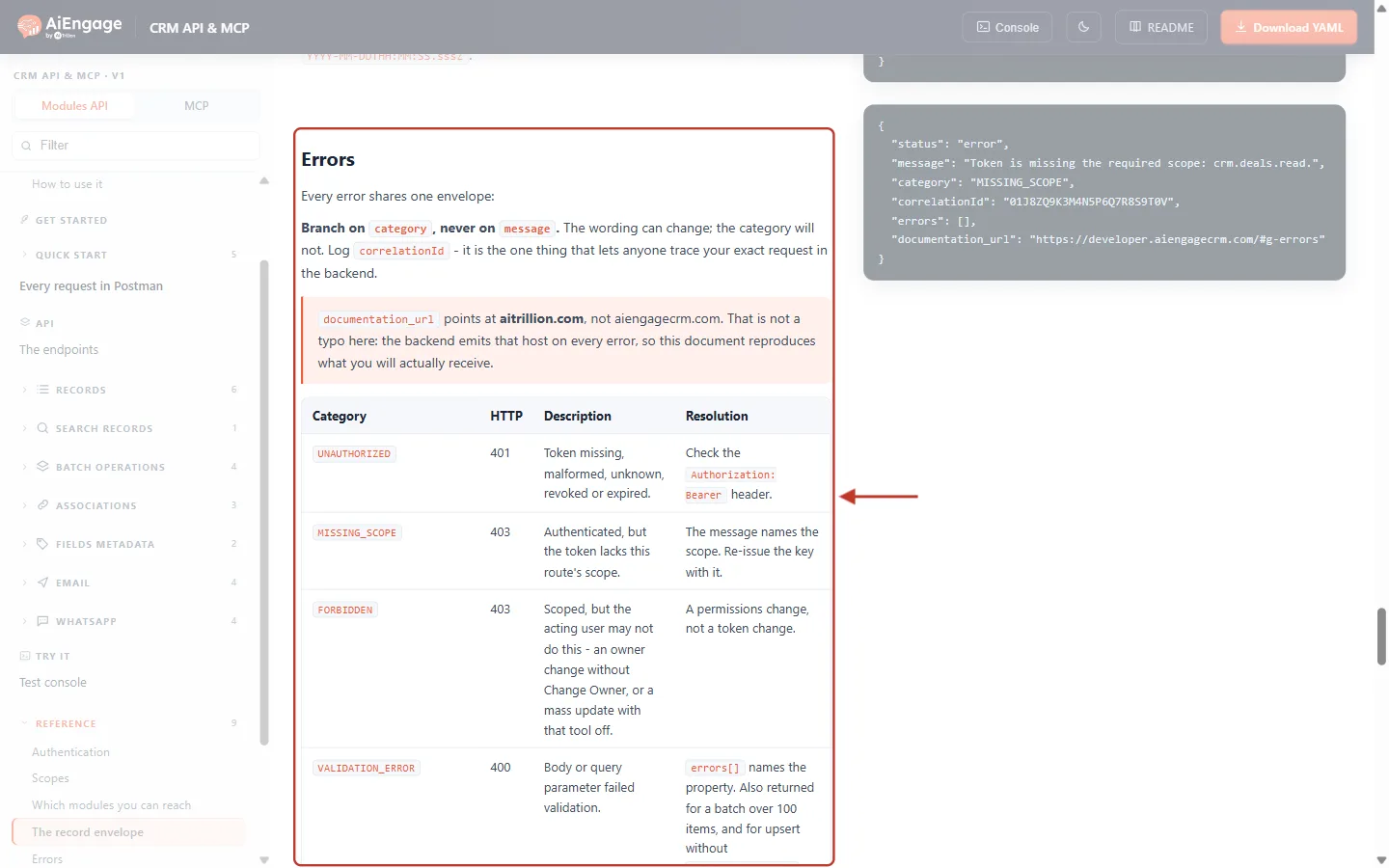
What this screenshot shows. The Errors section of the developer portal Reference, marked in red.
“Every error shares one envelope”:
status,message,category,correlationId,errorsanddocumentation_url(example on the right).Branch on
category, never onmessage. The wording can change; the category will not.Log the
correlationId. It is the one thing that lets support trace your exact request.Table: each Category with its HTTP status, what it means and how to fix it, for example
UNAUTHORIZED401,MISSING_SCOPE403,FORBIDDEN403 (the user lacks a CRM permission) andVALIDATION_ERROR400.
Status | Most common cause | First thing to try |
|---|---|---|
400 | A field is missing or malformed. | Read |
401 | Bad, revoked or expired key. | Check the Authorization header, or create a new key. |
403 | Missing scope, missing CRM permission, or no API access on the plan. | The message names what is missing. |
404 | Wrong id, wrong module name, or module turned off for the API. | Check the module’s API name and the id. |
409 | Upsert matched several records, or an Idempotency-Key was reused with a different body. | Narrow the match, or use a new key. |
429 | Too many calls, or the quota is used up. | Wait the |
5xx | A temporary server problem. | Retry with the same Idempotency-Key. |
See API Errors & Troubleshooting: Fix 400, 401, 403, 404, 409, 429 and 500 Errors Step by Step.
How do I retry without creating a record (or sending an email) twice?#
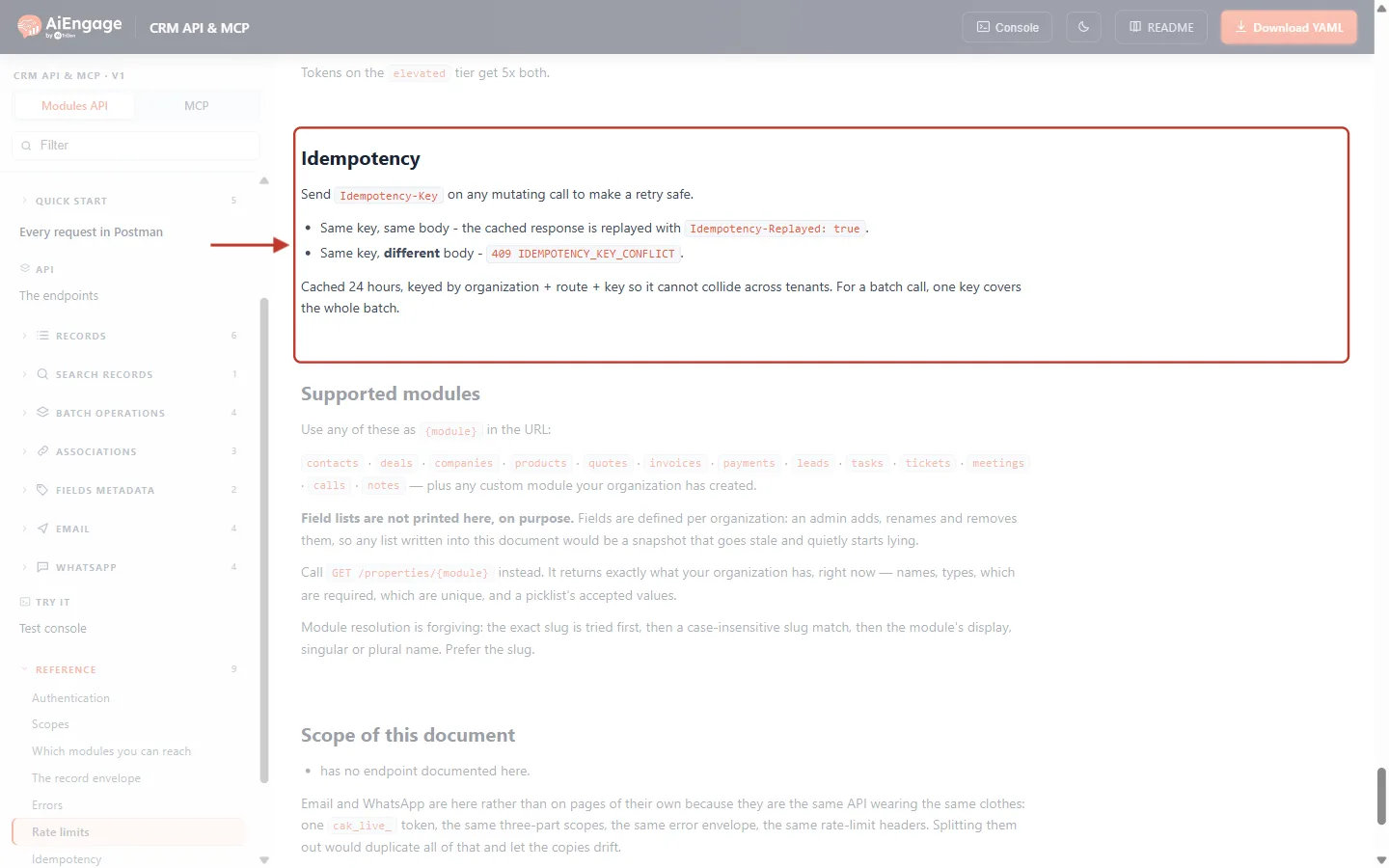
What this screenshot shows. The Idempotency section of the developer portal Reference, marked in red.
Send an
Idempotency-Keyheader (a unique value such as a UUID) on any call that changes data.Same key, same body: the first response is replayed with
Idempotency-Replayed: true; nothing runs twice.Same key, different body:
409 IDEMPOTENCY_KEY_CONFLICT.Keys are remembered for 24 hours, per organization. For a batch call, one key covers the whole batch.
Email and WhatsApp sends require this header. See Idempotency Keys & Safe Retries.
Where can I paste a request someone sent me and run it?#
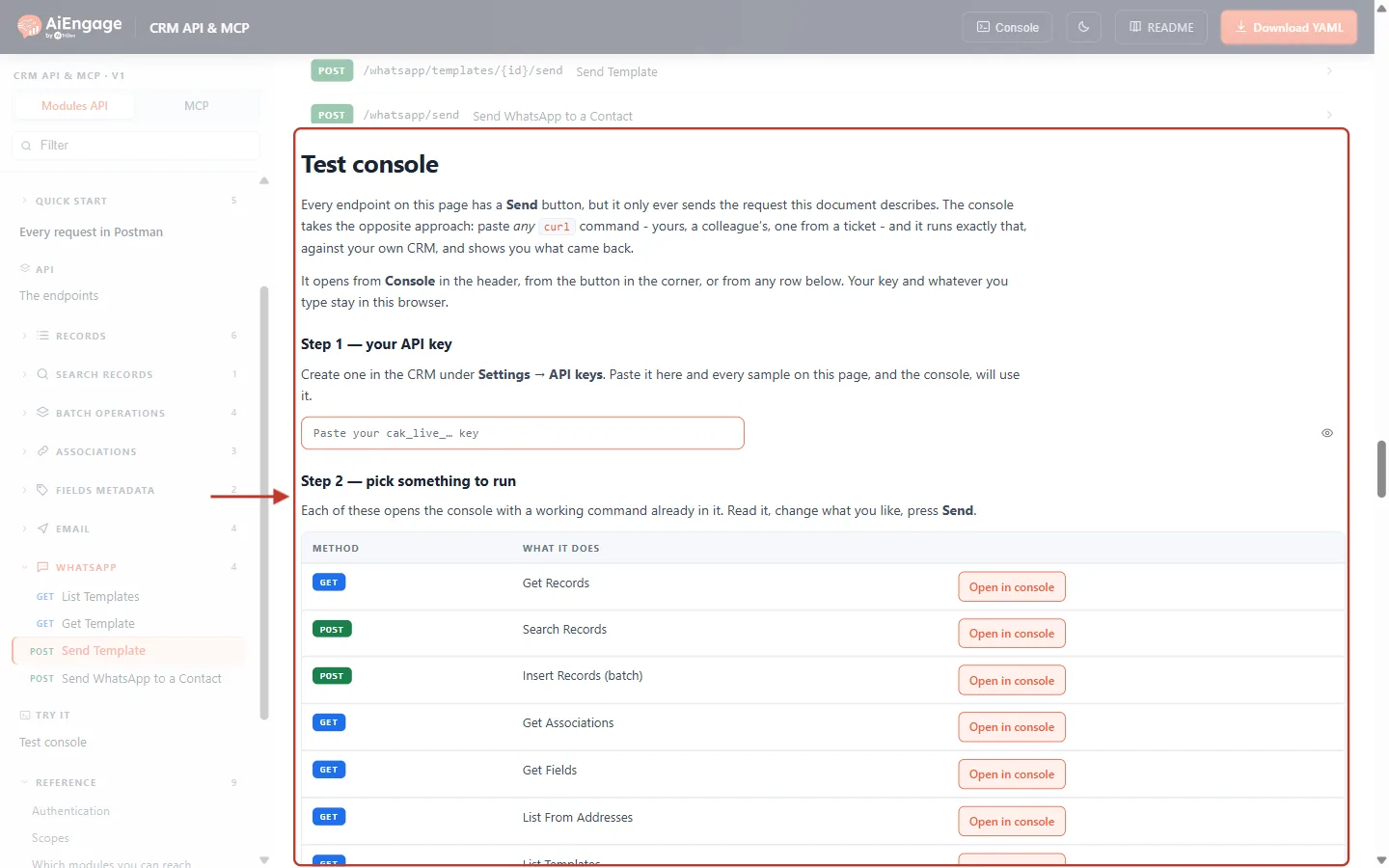
What this screenshot shows. The Test console section of the developer portal, marked in red.
Paste any cURL command (yours, a colleague’s, one from a support ticket) and it runs exactly that against your own CRM and shows what came back.
It also opens from Console in the header or the button in the corner.
Step 1 — your API key: paste your
cak_live_…key; it stays in your browser.Step 2 — pick something to run: each row (Get Records, Search Records, Insert Records (batch)…) has Open in console, which loads a working command you can edit and send.
Sending email and WhatsApp#
Will testing an email send deliver a real email?#
No, not unless you ask it to. On every email endpoint test_mode defaults to true: everything is checked and described, but nothing is sent and no contact is created. Pass "test_mode": false to send for real. See Send Email through the API.
Which address can an API email come from?#
Only an active organization address (Settings → Email → Organization Emails) on an authenticated domain. Personal addresses and addresses that use your own SMTP server can’t be used. List the allowed ones with GET /email/from-addresses.
Can I send WhatsApp messages through the API?#
Yes, using your approved WhatsApp templates: list them with GET /whatsapp/templates and send with POST /whatsapp/templates/{id}/send or to a contact with POST /whatsapp/send. See Send WhatsApp via API.
MCP and AI assistants#
How do I connect Claude (or another AI assistant) to my CRM?#
Open Settings → AI Centre Hub → MCP and copy the address.
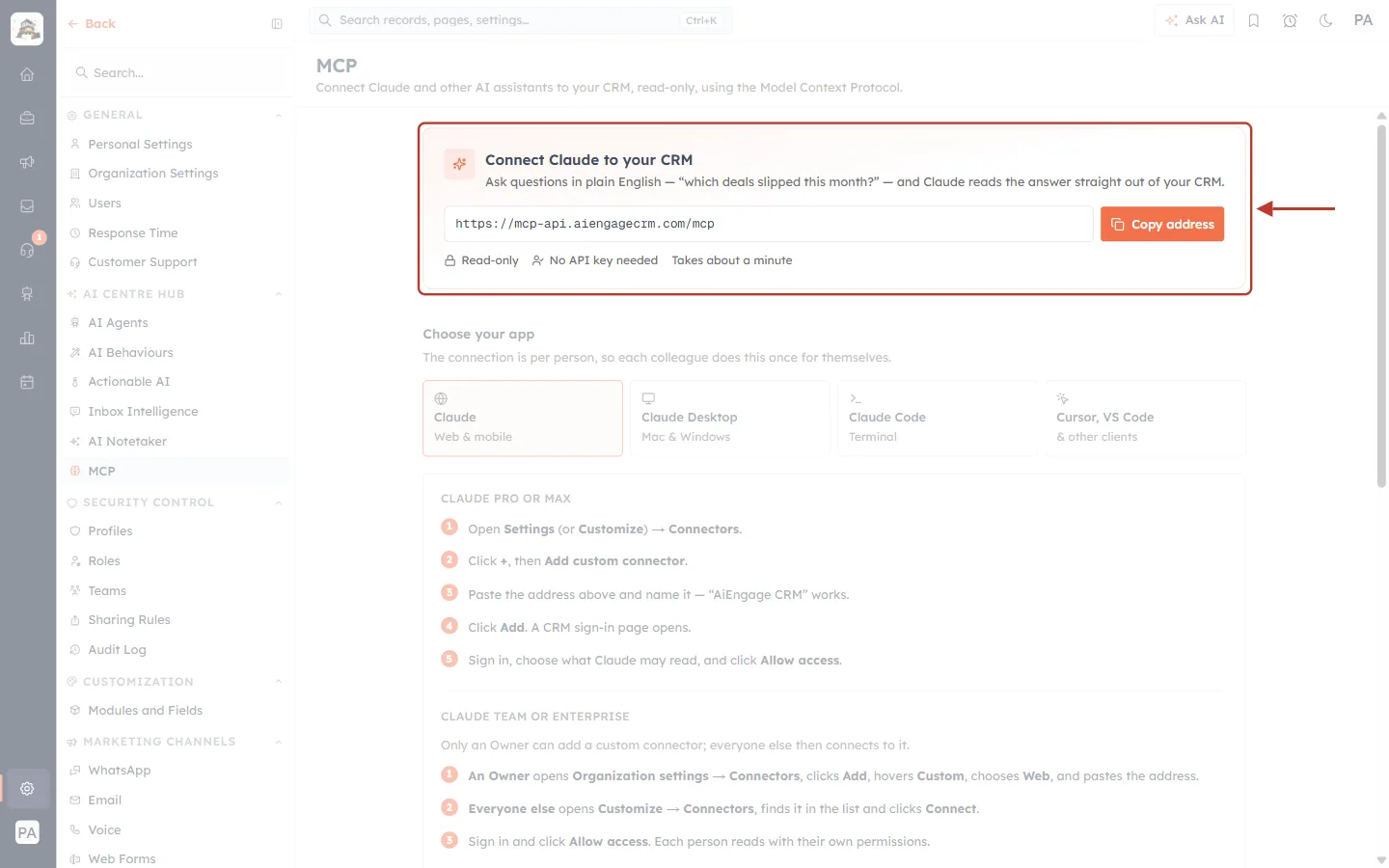
What this screenshot shows. The Connect Claude to your CRM card on the MCP page, marked in red.
Address:
https://mcp-api.aiengagecrm.com/mcp, the same for every customer.Copy address copies it so you can paste it into Claude (Settings or Customize → Connectors → Add custom connector), Claude Desktop, Claude Code, Cursor or VS Code.
Read-only, No API key needed and Takes about a minute: you sign in with your CRM login and click Allow access.
See Connect Claude to AiEngage CRM (MCP) and MCP Overview & Available Tools.
Can an AI assistant change or delete my data?#
No. The MCP connector is read-only: none of its 49 tools can create, update, delete or send. It also reads as you, so it only sees what you can see in the CRM.
How do I stop an assistant from reading my CRM?#
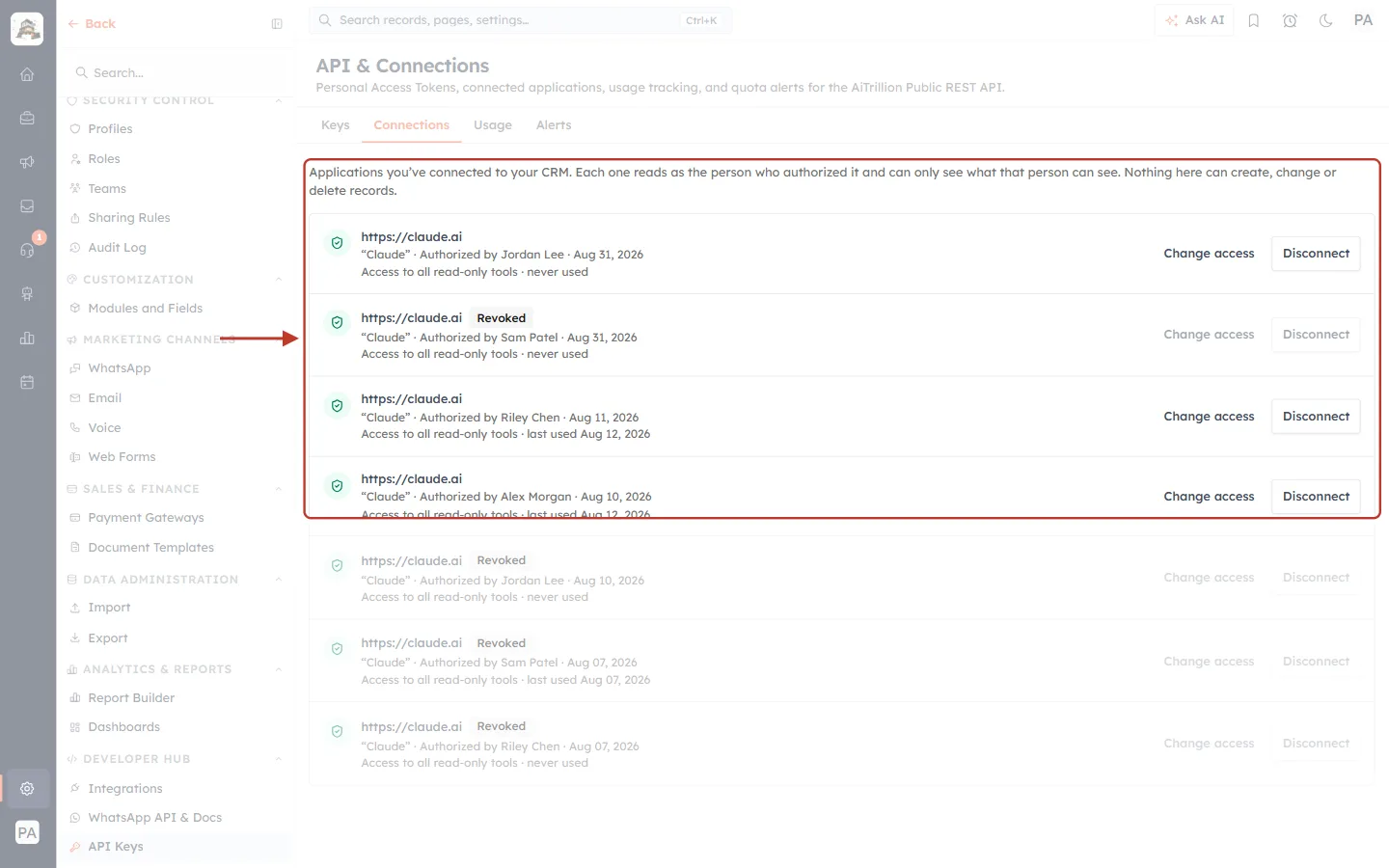
What this screenshot shows. The Connections tab of API & Connections, marked in red. (Names are examples.)
Each row is one connected assistant: its web address (https://claude.ai), who authorized it and when, what it may read, and when it was last used.
Change access narrows (or widens) what it may read; the change applies on its next request.
Disconnect cuts it off immediately. Revoked rows have already been disconnected or have expired.
You see your own connections; users with the manage organization permission see everyone’s.
See MCP Authorization (OAuth), Connections & Revoking Access.
Do MCP questions use my API quota?#
Yes. MCP questions draw on the same daily and monthly API allowance as the REST API, shown on the Usage tab. If an assistant suddenly says its requests are refused, check the quota first.
Why does Claude keep asking me to authorize again?#
The connection was disconnected, wasn’t used for 60 days, or reached its 365-day maximum. Authorize again from the assistant.
Still stuck?#
Read the error’s category and message, and check it in API Errors & Troubleshooting: Fix 400, 401, 403, 404, 409, 429 and 500 Errors Step by Step.
Try the same request in the developer portal’s Test console with your key.
Check Usage for quota problems and Keys for the key’s status and scopes.
Contact AiEngage support with the correlationId from the response, the endpoint, and the time of the call. Never send your full API key.
✅
Never put an API key in a web page, mobile app or public code repository. Keep it on your server. If a key may have leaked, revoke it straight away and create a new one.
Previous and next#
Previous: API Errors & Troubleshooting: Fix 400, 401, 403, 404, 409, 429 and 500 Errors Step by Step
Next (back to the start): Introduction to the AiEngage CRM API & MCP
Related articles#
Was this article helpful?
Ready to implement this?
OpenAI Engage and apply what you just learned to your own workspace.
Open AI Engage CRM