Loading…


KnowledgeBase
API Errors & Troubleshooting: Fix 400, 401, 403, 404, 409, 429 and 500 Errors Step by Step
Introduction#
When a call to the AiEngage CRM API does not work, the API never fails silently. It always sends back an HTTP status code (such as 401 or 404) and a short error response that says what went wrong and how to fix it. Once you know how to read that response, almost every problem can be solved in a minute or two, without contacting support.
This guide walks you through it step by step:
Read the error response and pick out the one field that matters most.
Look the error up in the complete error table.
Reproduce the problem safely in the API Console.
Fix each kind of error: 401 (key problems), 403 (scope and permission problems), 400 (bad request data), 404 (wrong module, record or path), 409 (conflicts), 429 (too many calls), 422 / 402 / 502 (email and WhatsApp sending) and 500 (server errors).
Find your failed calls on the Usage tab in the CRM.
Send support everything they need when you do have to ask for help.
Each screenshot has a red ring and arrow on the part to look at, followed by a description of the whole screen. The error responses in the API Console, the three example keys, the failed rows in Recent activity and the By Status numbers use example data, so your own values (ids, times, counts) will differ. The error shapes, categories and messages are exactly what the API returns.
Before You Begin#
You have an API key, or permission to create one, under Settings → Developer Hub → API Keys (see API Keys Step by Step: Generate, Use and Revoke a Personal Access Token).
You know how to send the key in the
Authorization: Bearerheader (see API Authentication & Bearer Tokens).You can open the developer portal at developer.aiengagecrm.com. Its Reference → Errors section and its Console are used throughout this guide.
ℹ️
All examples use the API base address
https://app.aiengagecrm.com/cback/api/public/v1. Every error described here comes back in the same format, whichever endpoint you call — records, search, batch, associations, fields, email or WhatsApp.Step 1: Understand the Error Response#
Open developer.aiengagecrm.com and click Reference → Errors in the left menu. This section is the official list of errors, and it starts with the format that every error shares.
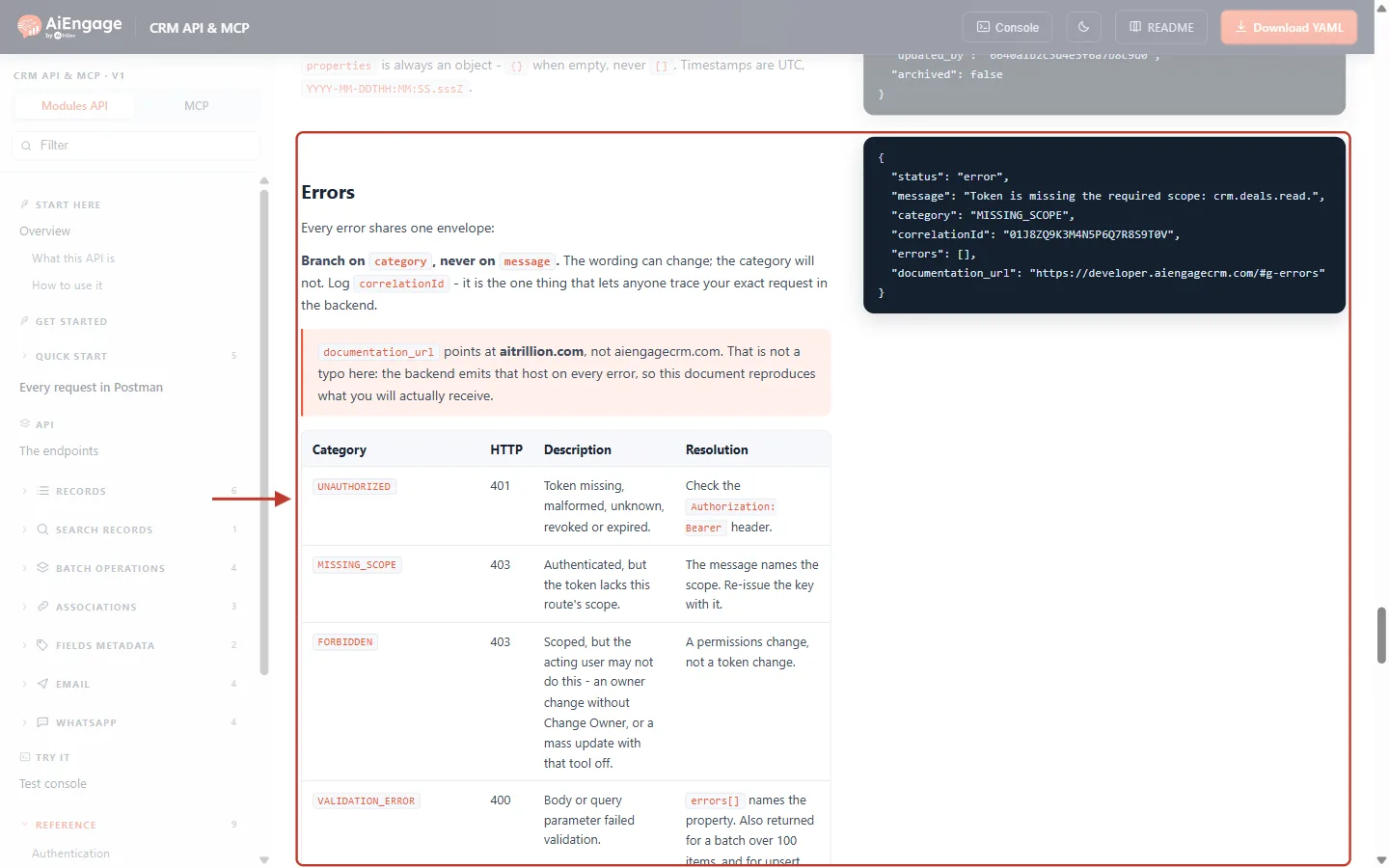
What this screenshot shows. The Errors section of the developer portal. On the left is the explanation and the start of the error table; on the right is an example error response.
Every error shares one envelope — whichever call fails, the body has the same six fields, so you only need to learn the format once.
Branch on
category, never onmessage— the wording of a message can change, but the category will not. Write your code to check the category.Log
correlationId— it is the one value that lets the AiEngage team find your exact request in the server logs.The pink note explains that
documentation_urlmay point at an aitrillion.com address instead of aiengagecrm.com. That is expected, not a mistake in your request.Below that begins the error table (Category, HTTP, Description, Resolution), which is covered in Step 2.
The left menu shows where you are: Reference → Errors is highlighted, with Rate limits and Idempotency just below.
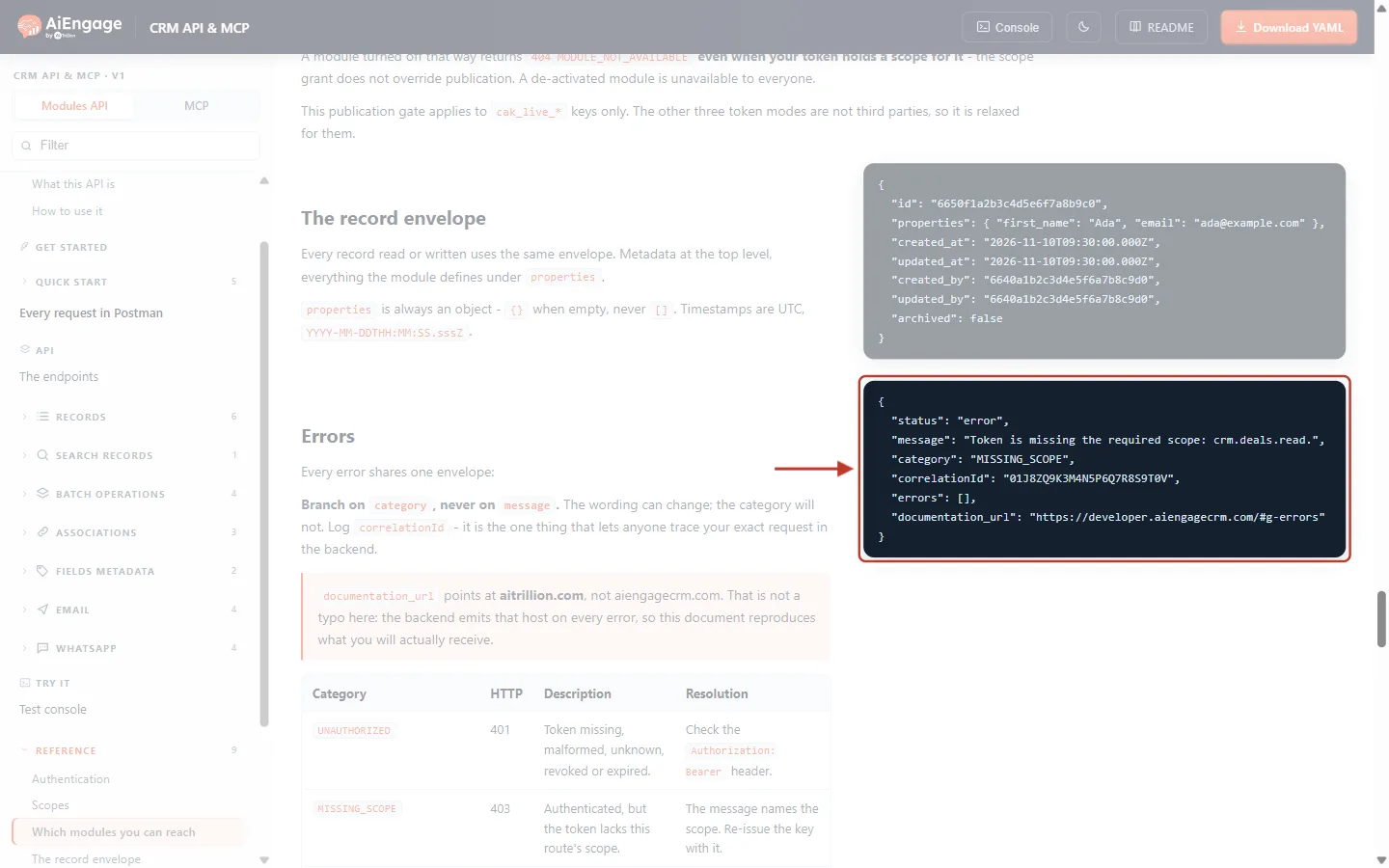
What this screenshot shows. The example error response, close up. This one says the key is not allowed to read Deals.
"status": "error"— always the word error when a call fails."message"— a sentence written for a person. Here it even names the missing permission: crm.deals.read."category"— the short, fixed code (here MISSING_SCOPE). This is the value to look up and to use in your code."correlationId"— a unique id for this one request. Copy it whenever you report a problem."errors": []— a list of field-level problems. It is empty here; for a validation error it names each field at fault (see Step 6)."documentation_url"— a link to this Errors section.
Field | What it tells you | What to do with it |
|---|---|---|
| Always | Nothing — just confirms the call failed. |
| A human-readable explanation, often naming the field, scope or module. | Read it while debugging. Do not compare it in code. |
| The fixed error code, such as | Look it up in Step 2 and use it in your code’s error handling. |
| A unique id for this request (also sent as the | Save it in your logs and send it to support. |
| A list of individual problems, e.g. one item per invalid field or per failed batch item. | Fix each item listed. |
| A link to the Errors reference. | Open it if you need the full table. |
Step 2: Look Up the Error in the Error Table#
Scroll down a little in the Errors section to the table. It lists every error category, its HTTP status, what it means and how to fix it.
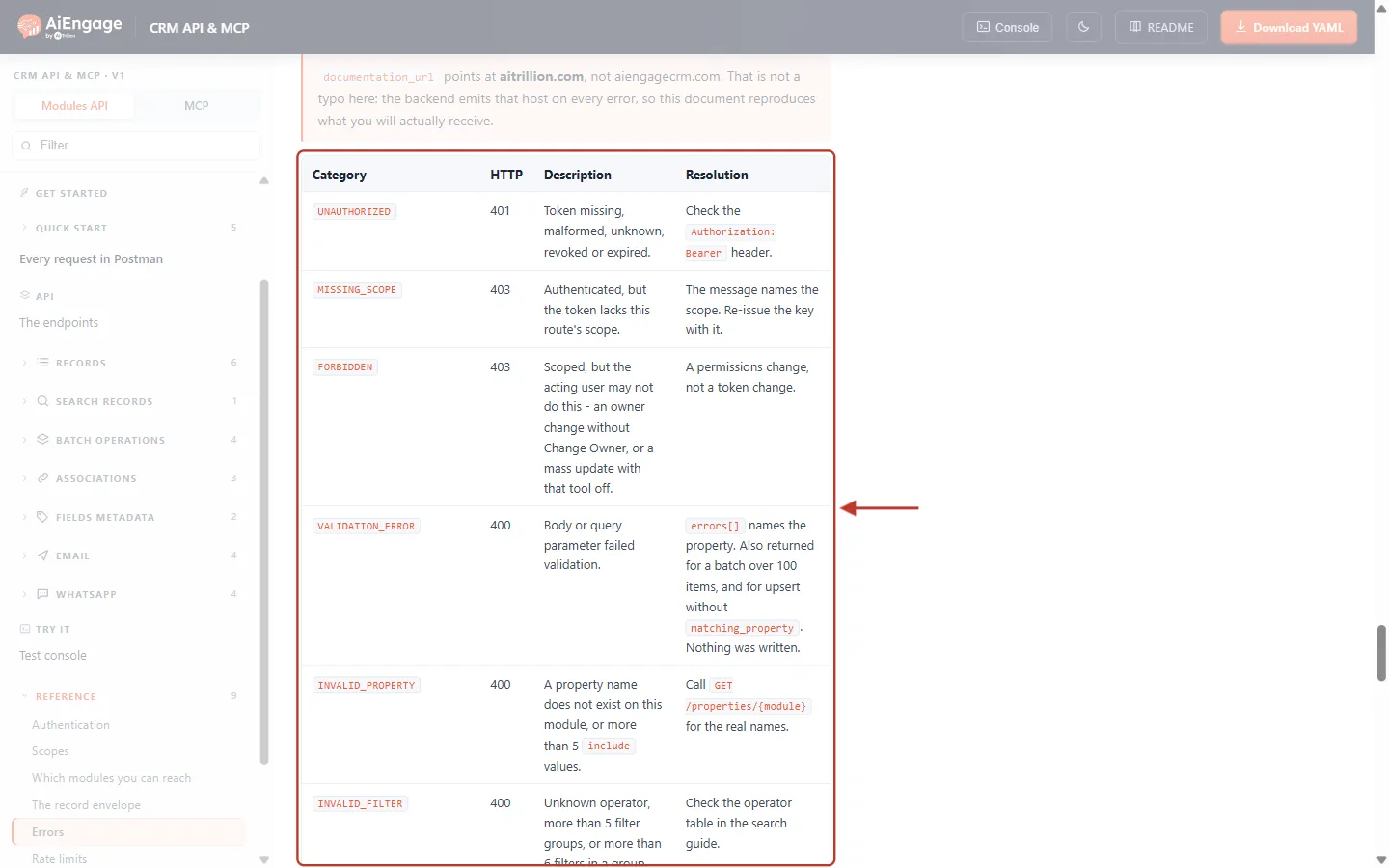
What this screenshot shows. The first half of the table: problems with your key, its permissions and the data you sent.
UNAUTHORIZED (401) — the key is missing, malformed, unknown, revoked or expired. Check the
Authorization: Bearerheader.MISSING_SCOPE (403) — the key works but is not allowed to use this endpoint. The message names the scope; issue a key with it.
FORBIDDEN (403) — the key has the scope, but the CRM user behind it may not do this (for example change an owner without the Change Owner permission). This is fixed with a permissions change in the CRM, not a new key.
VALIDATION_ERROR (400) — the body or a query parameter failed validation.
errors[]names the property. Also returned for a batch of more than 100 items and for an upsert withoutmatching_property. Nothing was written.INVALID_PROPERTY (400) — a field name does not exist on this module, or you passed more than 5
includevalues.INVALID_FILTER (400) — an unknown search operator, more than 5 filter groups, or more than 6 filters in a group.
INVALID_CURSOR (400) — the
afterpaging cursor is damaged. Passpaging.next.afterback exactly as you received it.
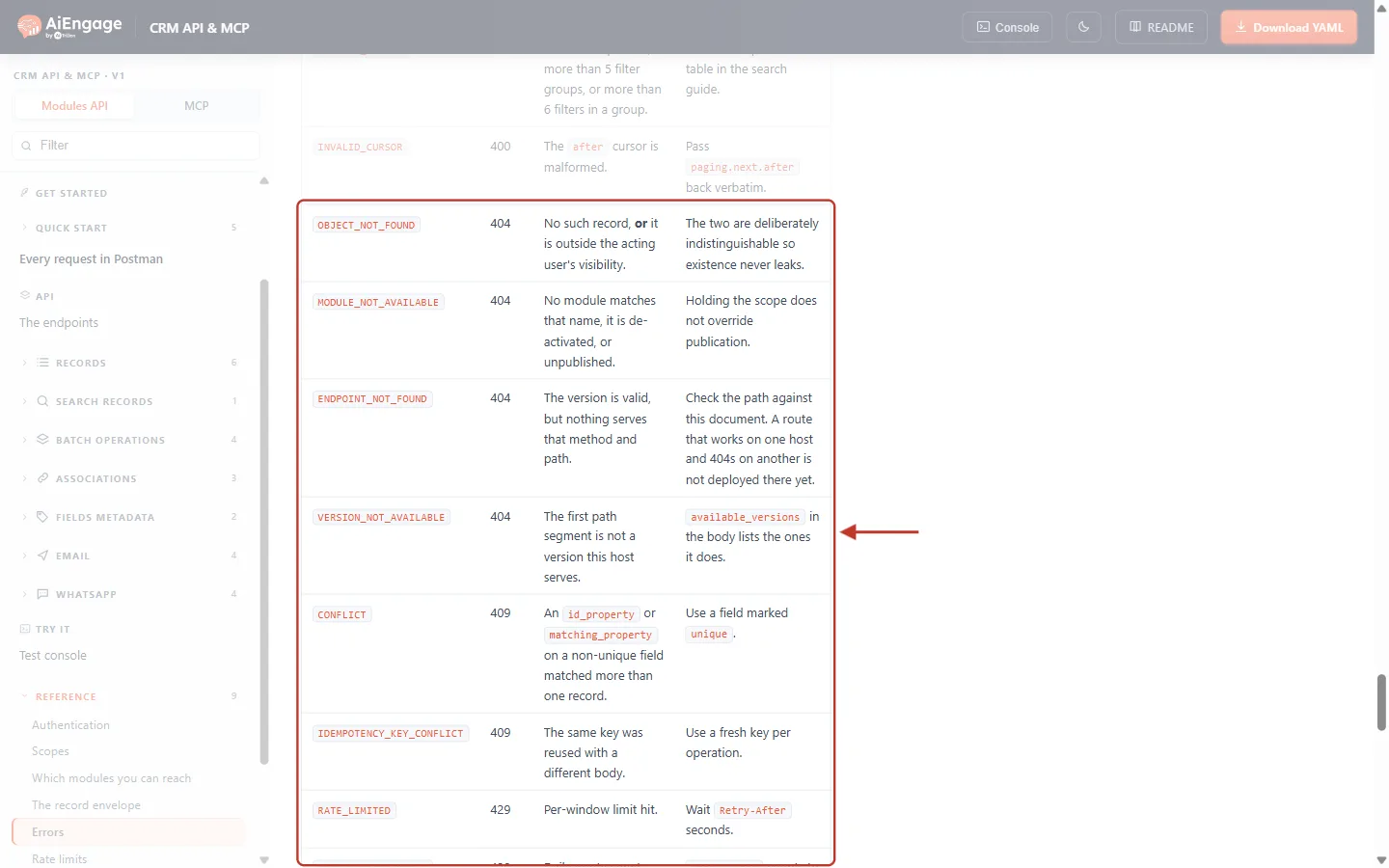
What this screenshot shows. The second half of the table: things that could not be found, conflicts, limits and server errors.
OBJECT_NOT_FOUND (404) — no record with that id, or the record exists but the key’s user cannot see it. The two look the same on purpose, so records you cannot see are never revealed.
MODULE_NOT_AVAILABLE (404) — no module has that name, or it is deactivated or not published to the API.
ENDPOINT_NOT_FOUND (404) — the version is right but no endpoint exists for that method and path. Check the path and method.
VERSION_NOT_AVAILABLE (404) — the first part of the path is not a version this server offers;
available_versionsin the response lists the valid ones.CONFLICT (409) — an
id_propertyormatching_propertyon a non-unique field matched more than one record. Use a field marked unique.IDEMPOTENCY_KEY_CONFLICT (409) — the same
Idempotency-Keywas reused with a different body. Use a new key for each operation.RATE_LIMITED (429) — too many calls in a short time; wait the
Retry-Afterseconds. Below it (out of view) are RATE_LIMITED_DAILY, RATE_LIMITED_MONTHLY and INTERNAL_ERROR (500).
Here is the whole table in one place, grouped by status code, with a plain-English fix for each. Use it as your quick reference:
HTTP | Category | In plain words | How to fix it | Safe to retry as is? |
|---|---|---|---|---|
400 |
| Something in the body or URL is missing or wrong. | Read | No |
400 |
| A field name does not exist on this module. | Get real names from | No |
400 |
| The search filter is not valid. | Check operators; max 5 groups and 6 filters per group. | No |
400 |
| The paging cursor is damaged. | Send | No |
401 |
| The key is missing, wrong, revoked or expired. | Fix the header or use an active key (Step 4). | No |
403 |
| The key is not allowed to use this endpoint. | Generate a key with the scope named in the message (Step 5). | No |
403 |
| The CRM user behind the key may not do this. | Ask an admin to change that user’s profile permissions. | No |
404 |
| No such record, or the user cannot see it. | Check the id and the key owner’s visibility (Step 7). | No |
404 |
| The module name is wrong or the module is off. | Use the module’s slug from | No |
404 |
| The path or method does not exist. | Compare the path and method with the reference. | No |
404 |
| The API version in the path is wrong. | Use a version from | No |
409 |
| Your match field found more than one record. | Match on a field marked unique (Step 8). | No |
409 |
| Same Idempotency-Key, different body. | Use a fresh key per operation (Step 8). | No |
429 |
| Too many calls in a short window. | Wait | Yes, after waiting |
429 |
| Your account used its daily quota. | Wait for the reset at midnight UTC. | Yes, after reset |
429 |
| Your account used its monthly quota. | Wait for month end (UTC) or upgrade the plan. | Yes, after reset |
500 |
| Unexpected server failure, or the key’s creator was deleted. | Retry once; if it repeats, revoke and re-issue the key and contact support with the correlationId (Step 10). | Once |
ℹ️
Email and WhatsApp endpoints have a few extra categories of their own (422, 402 and 502). They are listed in Step 10.
Step 3: Reproduce the Error in the API Console#
Before changing your code, repeat the failing call in the developer portal’s API Console. You see the full response — status, headers and body — side by side with the request, which makes the cause easy to spot.
On developer.aiengagecrm.com, click Console in the top bar. A panel opens on the right.
In 1 · Your API key, paste your key (it is kept only in your browser).
In 2 · The request, choose the endpoint from Start from an endpoint…, or paste the exact curl command your integration sends.
Click Send in 3 · Send it, and read 4 · The response.
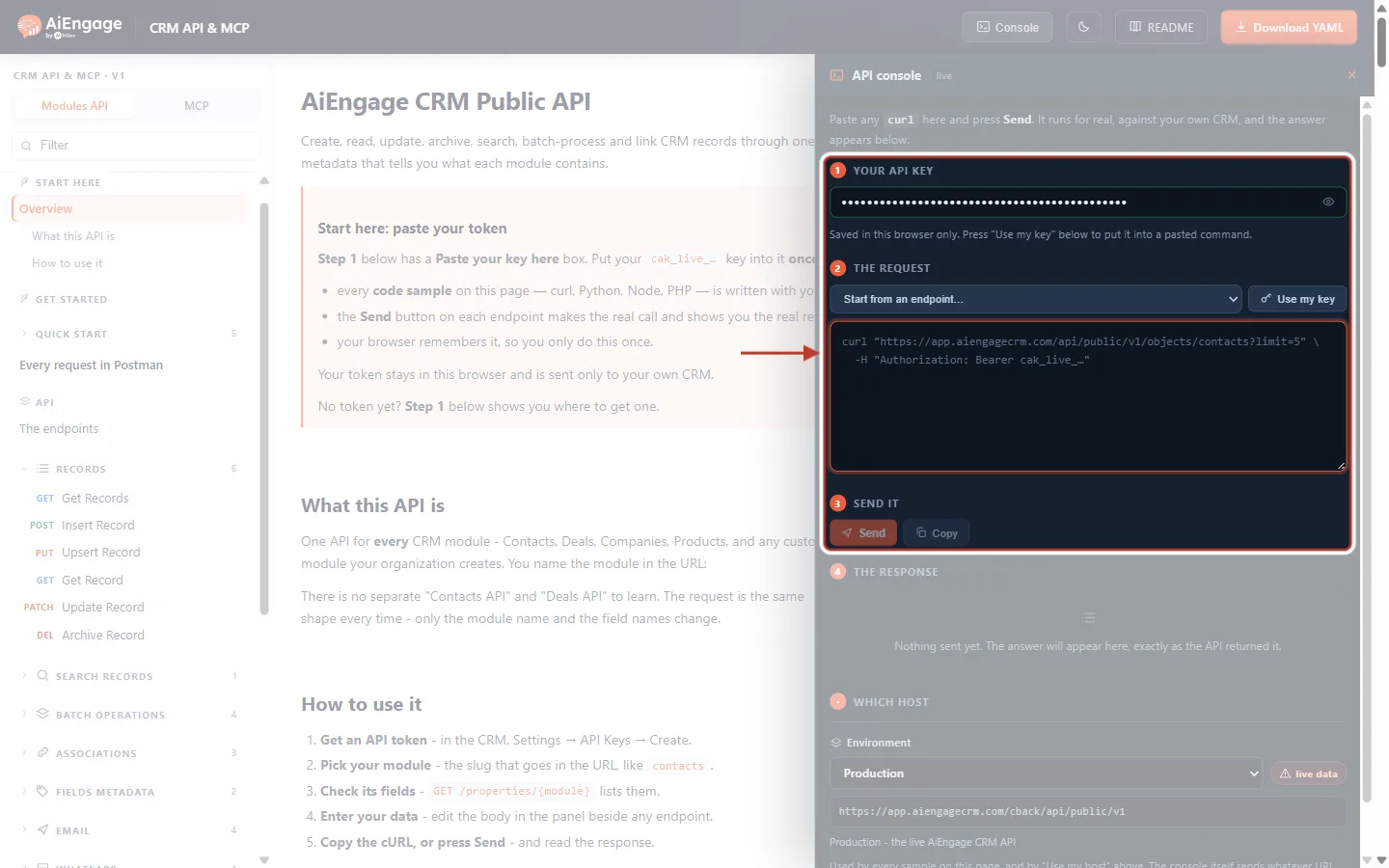
What this screenshot shows. The API console panel, ready to send a request.
1 · Your API key — the saved key, shown as dots. The note says it is saved in this browser only; Use my key puts it into a pasted command.
2 · The request — the Start from an endpoint… list fills in a ready-made request for any endpoint. The large box holds the curl command and can be edited freely — change the module, the id or the body to test your theory.
3 · Send it — Send runs the request for real against your CRM; Copy copies the command.
Below are 4 · The response (empty until you send) and Which host (the environment, normally Production).
⚠️
The console makes real calls. Requests that create, change or archive data really do change your CRM, and the console says so next to the Send button. Reproduce write errors on a test record.
Every endpoint in the portal also has its own Responses and errors list. Open the endpoint you are calling (for example Records → Insert Record) and scroll to it to see only the errors that endpoint can return.
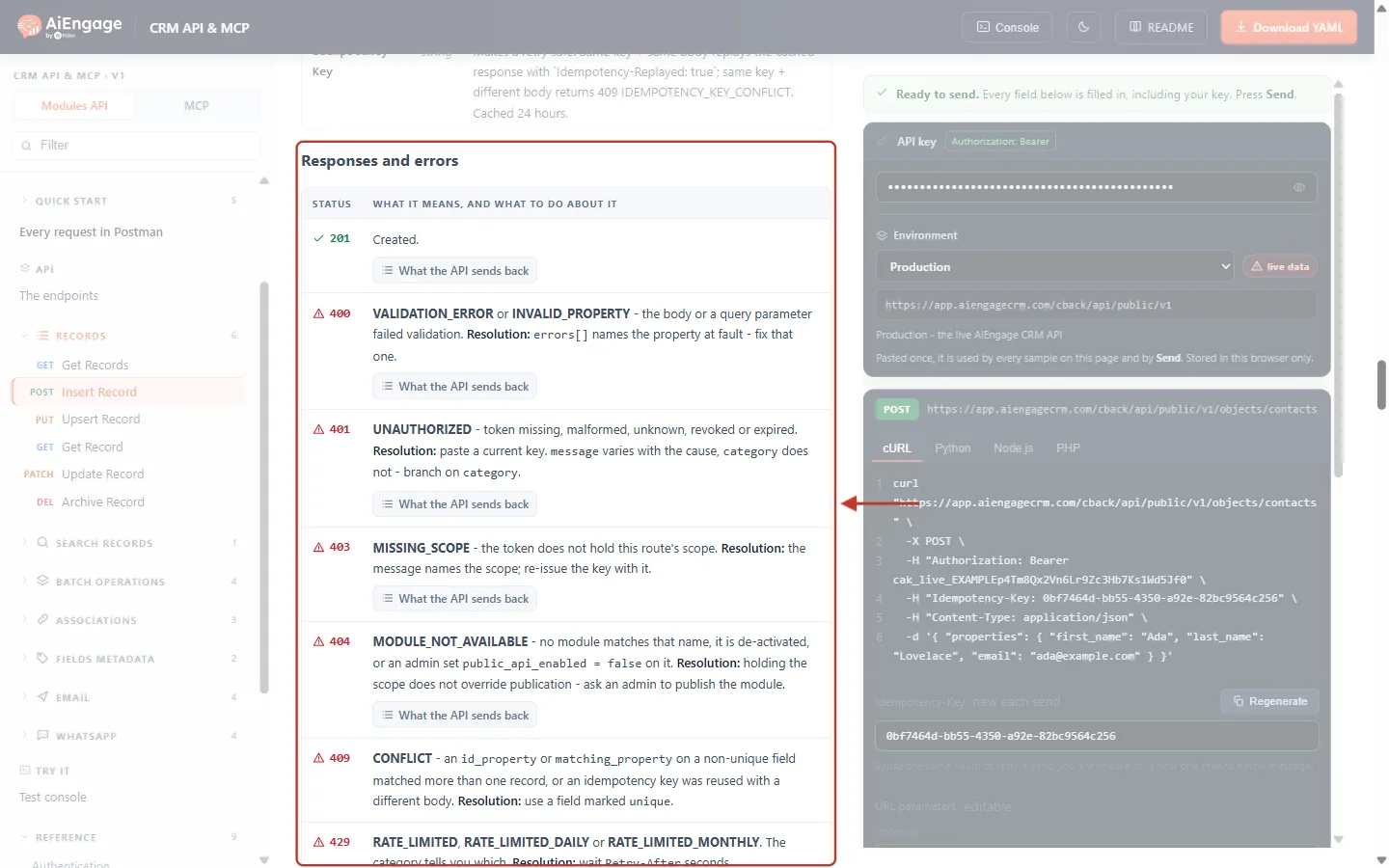
What this screenshot shows. The Responses and errors list of the Insert Record endpoint. The panel on the right is that endpoint’s Try-it panel.
201 (green tick) is the success answer: the record was created.
Each red warning row is an error this endpoint can return — 400, 401, 403, 404, 409, 429 — with what it means and a Resolution.
What the API sends back under each row expands an example response body.
The left menu shows the open endpoint (POST Insert Record) highlighted.
Step 4: Fix 401 UNAUTHORIZED (Key Problems)#
A 401 means the API did not accept your key at all, so it did not even look at the rest of the request.
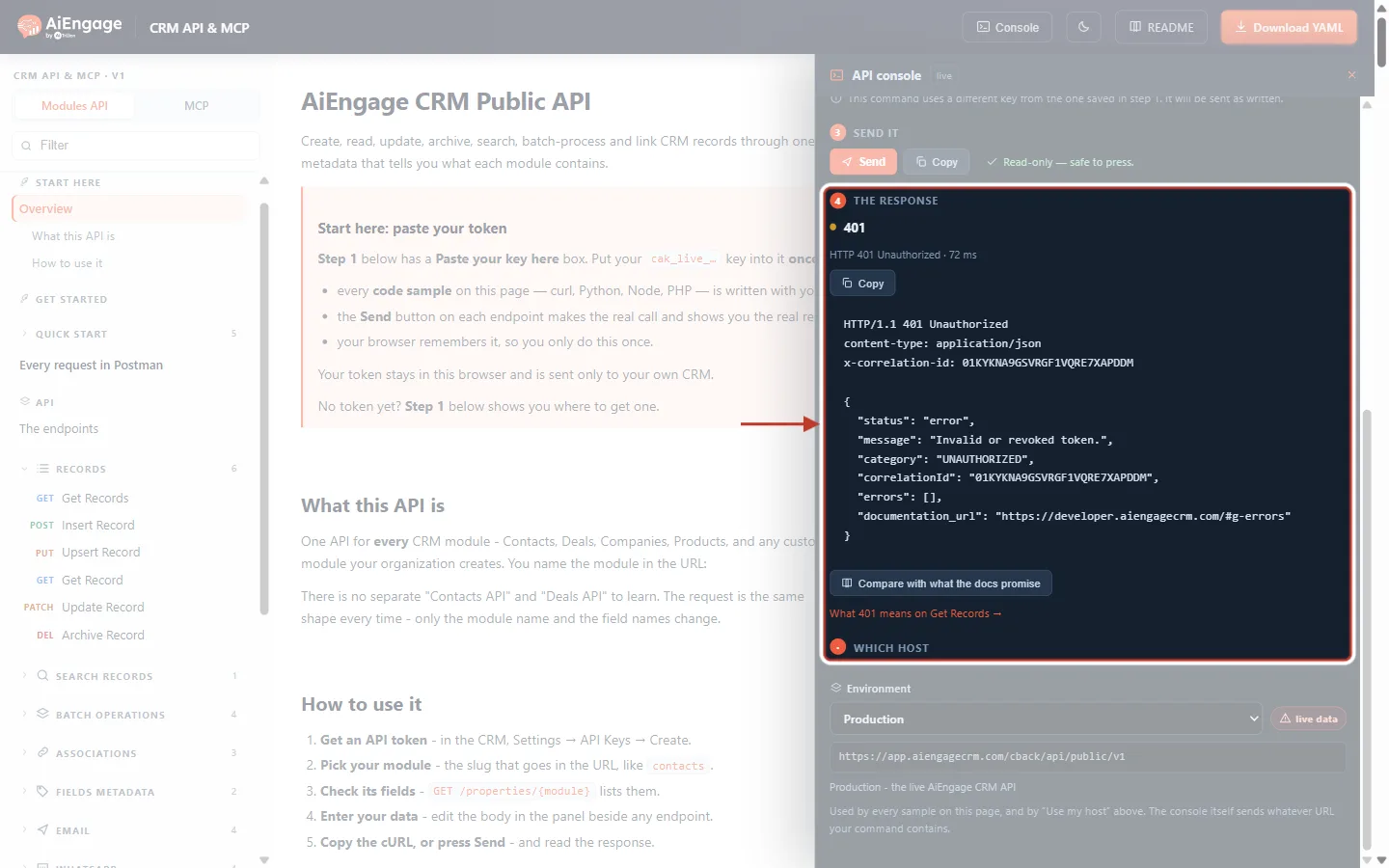
What this screenshot shows. A 401 in the console (example). The request was sent with a mistyped key.
401 and HTTP 401 Unauthorized at the top, with how long the call took.
The headers show only
content-typeandx-correlation-id. A 401 has no RateLimit headers, because the key is checked before the rate limiter — do not write code that expects them on every response.The body: message “Invalid or revoked token.” and category UNAUTHORIZED.
Compare with what the docs promise opens the matching example in the reference; What 401 means on Get Records → jumps to that endpoint’s error list.
The message tells you which of three causes you hit:
Message | Cause | Fix |
|---|---|---|
Missing or malformed Authorization header. | No | Send exactly |
Invalid or revoked token. | The key is mistyped or cut off, was revoked, has expired, or its creator was deactivated. | Check the key’s status on the Keys tab (below). If it is not Active, generate a new one. |
Test-mode tokens are not yet supported. | A key starting | Use a live key ( |
To check the key, go to Settings → Developer Hub → API Keys in the CRM. Type the start of your key (for example cak_live_ab12) in Search by label or prefix… to find it.
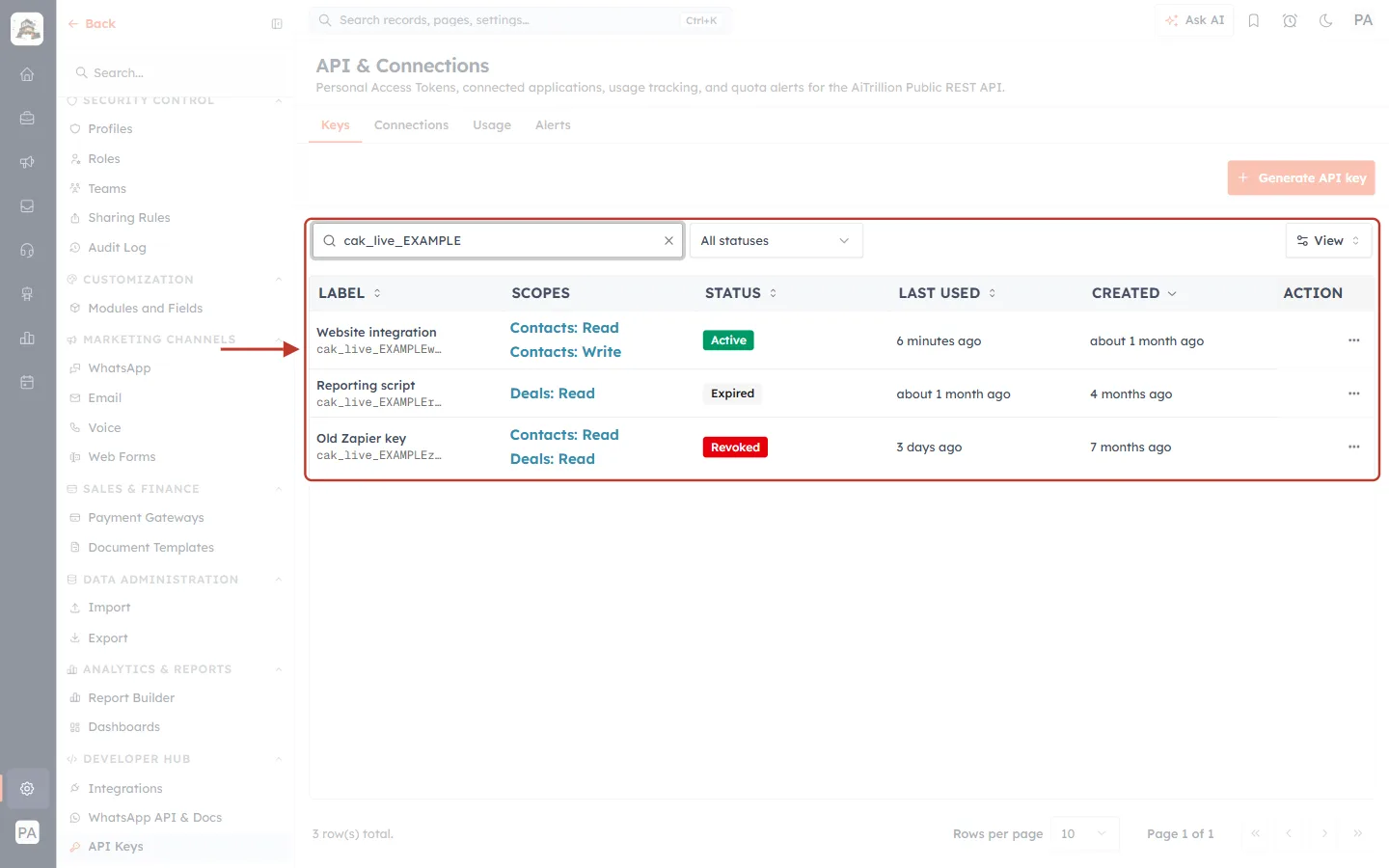
What this screenshot shows. The Keys tab of API & Connections, searched by key prefix. Three example keys show the three possible statuses.
The search box matches a key’s label or the first characters of the key (its prefix, shown under each label as
cak_live_EXAMPLE…). You never see the full key again after it is created.Website integration is Active — it works. Last used says 6 minutes ago, so it is in use.
Reporting script is Expired — its expiry date has passed. Every call with it gets a 401.
Old Zapier key (just below the ring) is Revoked — someone revoked it, which cannot be undone. Every call with it gets a 401.
The All statuses filter shows only Active, Revoked or Expired keys; Generate API key (top right) creates a new one.
Check the key is Active. If it is Revoked or Expired, click Generate API key, give it the same scopes, and replace the old key in your integration.
Check that the key in your code matches the prefix shown in the list — a missing character at the start or end is the most common cause.
Check that your code reads the key from the right setting or environment variable (an empty variable sends
Bearerwith nothing after it).If the key’s creator has left and their user was deactivated, the key stops working. Generate a new key from an active admin user.
Step 5: Fix 403 MISSING_SCOPE and FORBIDDEN (Permission Problems)#
A 403 means the key itself is valid, but it is not allowed to do this particular thing.
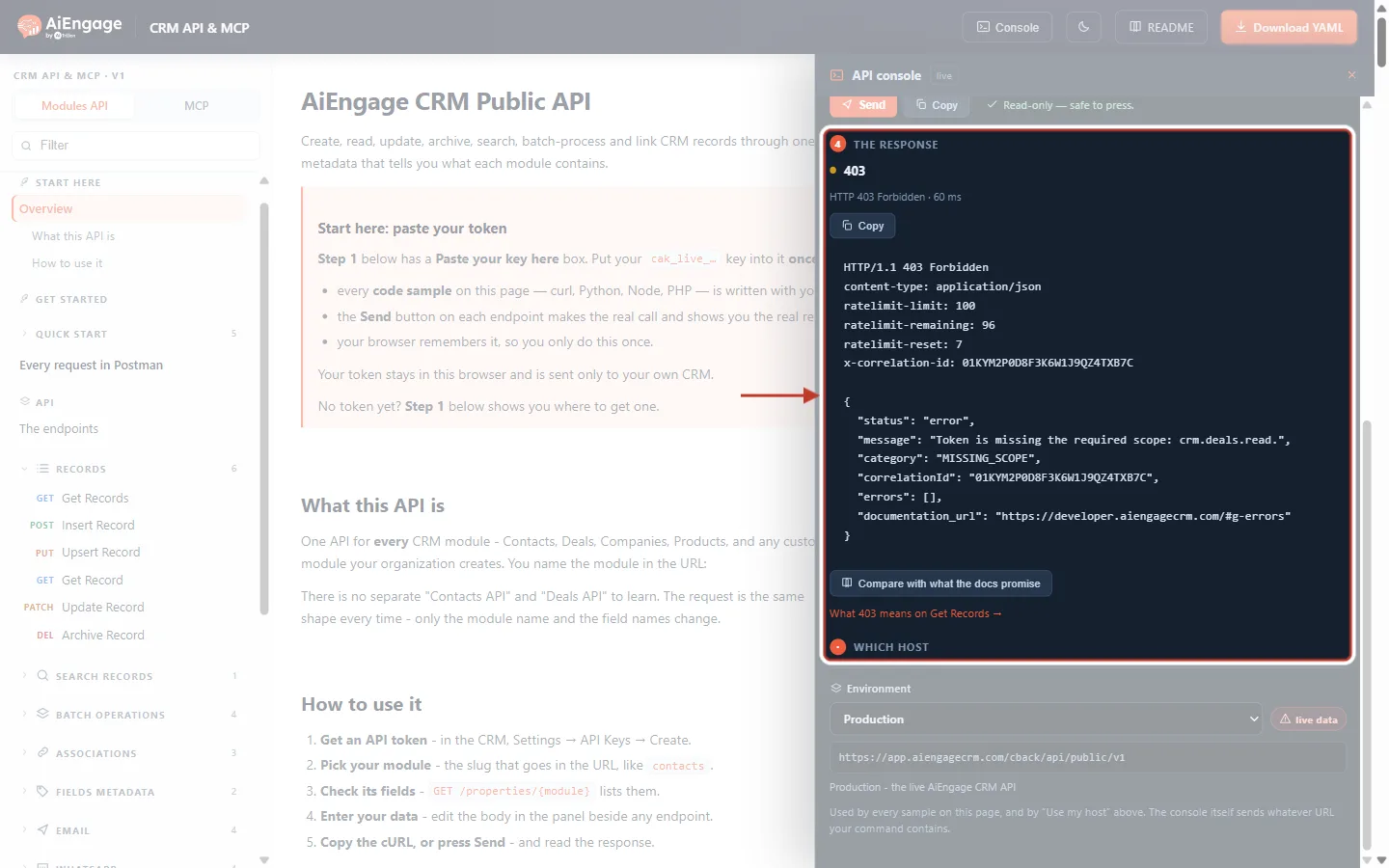
What this screenshot shows. A 403 in the console (example). The key can read Contacts but the request asked for Deals.
The request was
GET /objects/deals. The status is 403 Forbidden.Unlike a 401, the headers now include
ratelimit-limit,ratelimit-remainingandratelimit-reset— the key was recognised.The message names exactly what is missing: “Token is missing the required scope: crm.deals.read.”
The category is MISSING_SCOPE.
Scopes are written as crm.<module>.<action> — for example crm.deals.read, crm.contacts.write, crm.tickets.delete. Compare the scope in the message with the scopes your key has on the Keys tab:
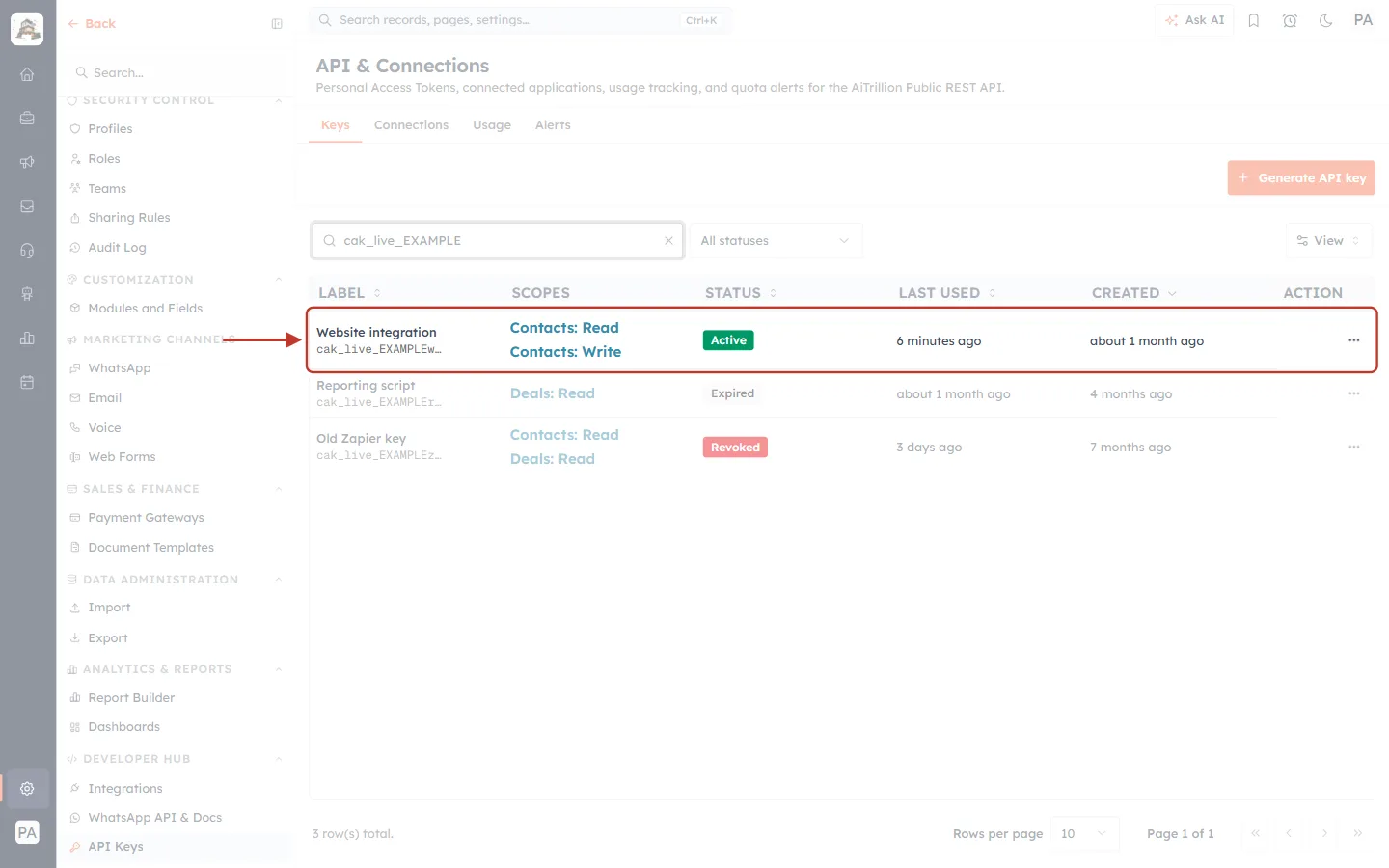
What this screenshot shows. The Website integration key row (example).
Scopes: Contacts: Read and Contacts: Write. There is no Deals scope, which is why the Deals call above was refused.
Status is Active, so the key itself is fine — only the scope is missing.
The ⋯ menu at the end of the row offers only Revoke. Scopes of an existing key cannot be edited, so you add a scope by generating a new key.
To fix it, generate a replacement key that has every scope your integration needs:
Click Generate API key and enter a Label (for example Website integration v2).
Under Scopes, tick the same scopes as the old key, plus the one named in the error message.
Choose when it Expires, click Generate, then copy the key — it is shown only once.
Put the new key in your integration and test it. When it works, Revoke the old key.
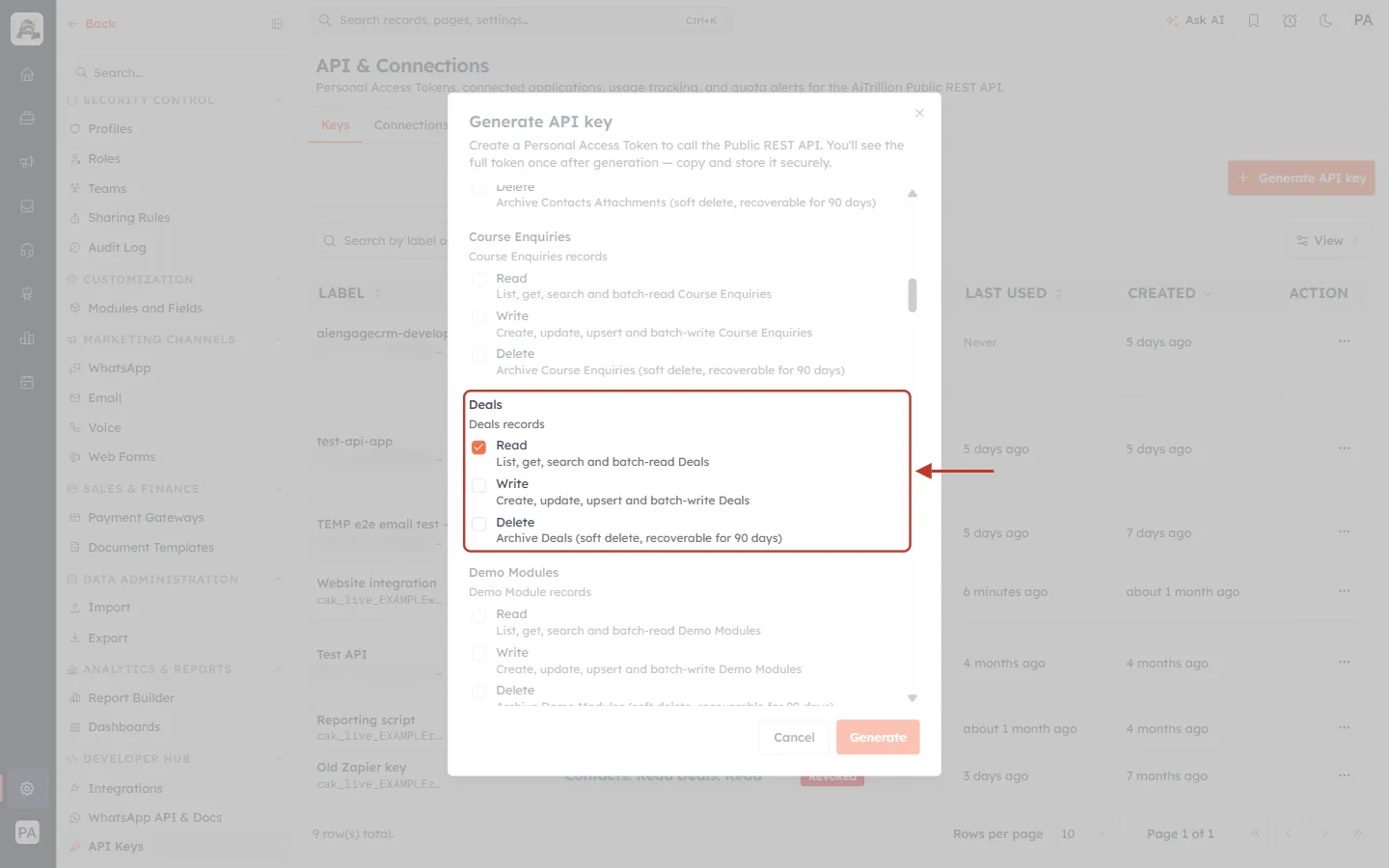
What this screenshot shows. The Generate API key dialog, scrolled to the Deals scopes.
Every module has its own block with three separate permissions: Read (list, get, search and batch-read), Write (create, update, upsert and batch-write) and Delete (archive — soft delete, recoverable for 90 days).
Read under Deals is ticked — this adds the
crm.deals.readscope the error asked for.Other modules, including custom ones such as Course Enquiries and Demo Modules, appear in the same list above and below.
Generate (bottom right) becomes available once a label and at least one scope are set; Cancel closes without creating anything.
✅
Give each key only the scopes it really needs. If a key ever leaks, it can then do as little damage as possible. See API Token Scopes & Permissions for the full scope list.
Other 403 categories and what to do:
Category | Meaning | Fix |
|---|---|---|
| The key has the scope, but the CRM user who created it may not perform this action (for example a change of owner without the Change Owner permission, or a mass update when that tool is off for their profile). | Ask an admin to give that user’s profile the permission, or create the key from a user who has it. A new key from the same user will not help. |
| The key is limited to certain IP addresses and the call came from another one. | Call from an allowed IP address, or issue a key without the IP restriction. |
| API access is not available for your account. | Contact your account admin or AiEngage support about API access on your plan. |
ℹ️
A key always acts with the permissions of the user who created it. If that user cannot see a record in the CRM, the key cannot see it through the API either.
Step 6: Fix 400 Errors (Wrong or Missing Data)#
A 400 means the request reached the right place, but something in it is not valid. Nothing was saved, so you can fix the request and send it again.
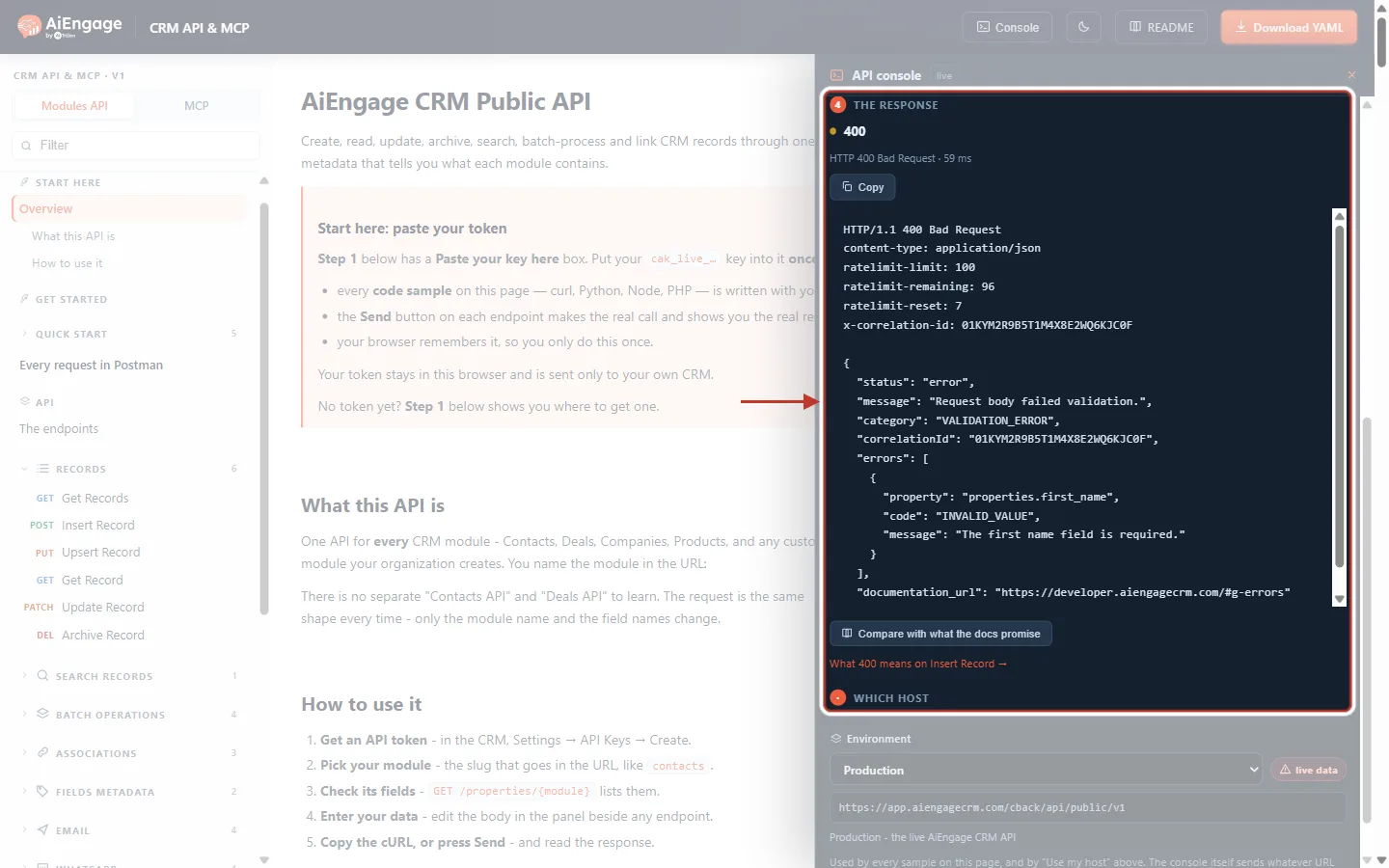
What this screenshot shows. A 400 in the console (example). A new contact was sent without a first name.
The request was POST · Insert Record on
/objects/contacts. The status is 400 Bad Request.The message is general: “Request body failed validation.”, with category VALIDATION_ERROR.
The details are in
errors: each item has aproperty(hereproperties.first_name), acode(INVALID_VALUE) and amessage(The first name field is required.).If several fields are wrong,
errorslists one item for each, so you can fix them all in one go.
How to fix the four kinds of 400:
Category | Common causes | Fix |
|---|---|---|
| A required field is missing (on Contacts, for example, First Name and Contact Owner are required on create); a value has the wrong type (text in a number field, an invalid date or email); a pick-list value that is not one of the options; a batch of more than 100 items; an upsert without | Fix each field named in |
| A field name is misspelt, uses the label instead of the API name, or the field was renamed or deleted by an admin; more than 5 | Call |
| An unknown operator in a search, more than 5 filter groups, or more than 6 filters in one group. | Use the operators listed in the search reference (such as |
| The | Copy |
✅
Field names in the API are the API names, not the labels you see on screen. A field labelled “Lifecycle Stage” is
lifecycle_stage. See Records, Modules & the Record Envelope for how fields and values look in the API.Step 7: Fix 404 Errors (Something Was Not Found)#
A 404 can mean one of four different things, so always check the category.
Wrong module name — MODULE_NOT_AVAILABLE#
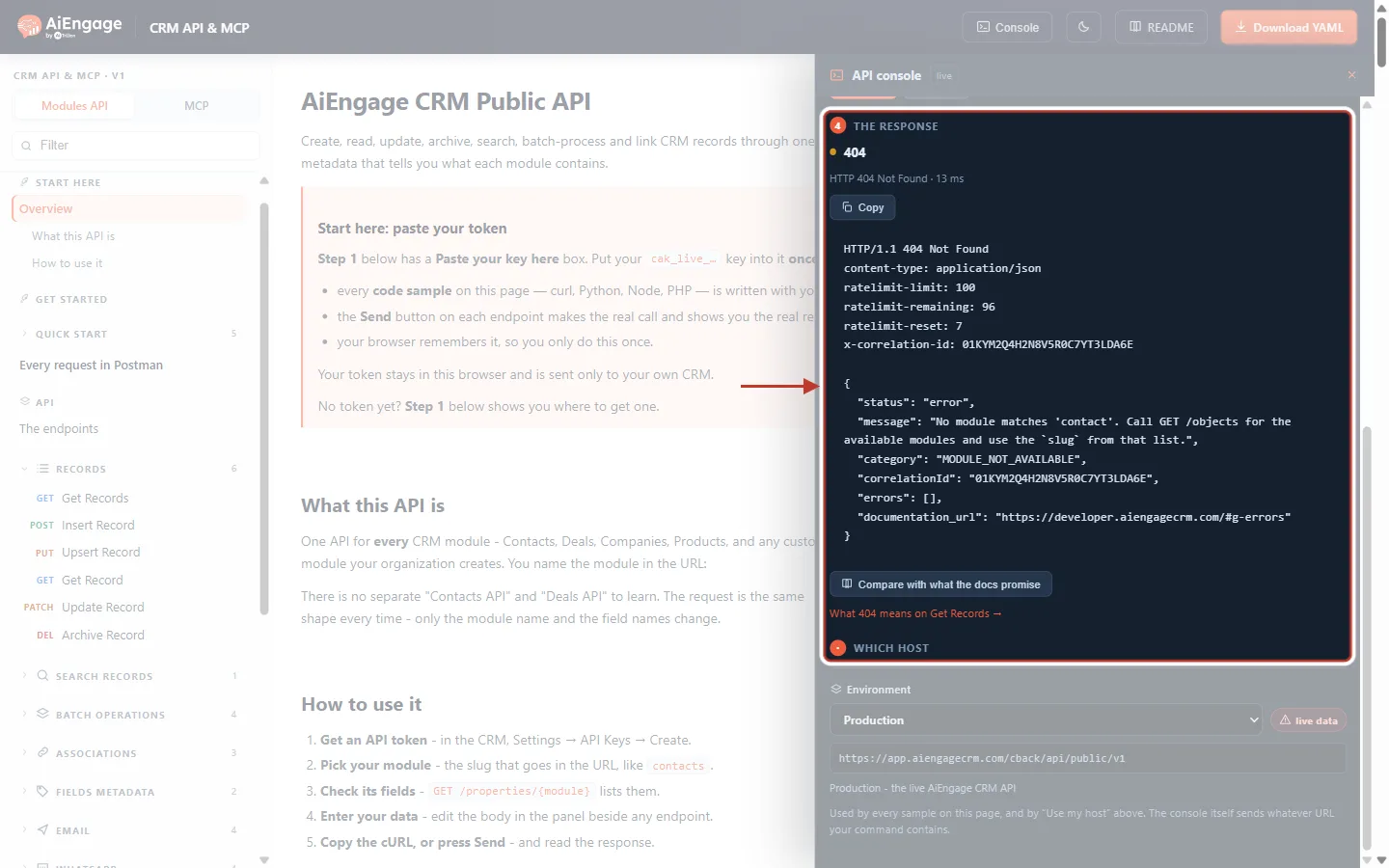
What this screenshot shows. A 404 in the console (example). The request used /objects/contact — singular — instead of contacts.
Status 404 Not Found; the RateLimit headers are present, so the key was fine.
The message says exactly what is wrong and what to do: “No module matches ‘contact’. Call GET /objects for the available modules and use the `slug` from that list.”
Category MODULE_NOT_AVAILABLE.
The name in the URL must be the module’s slug. You can see each module’s slug in the CRM under Settings → Customization → Modules and Fields:
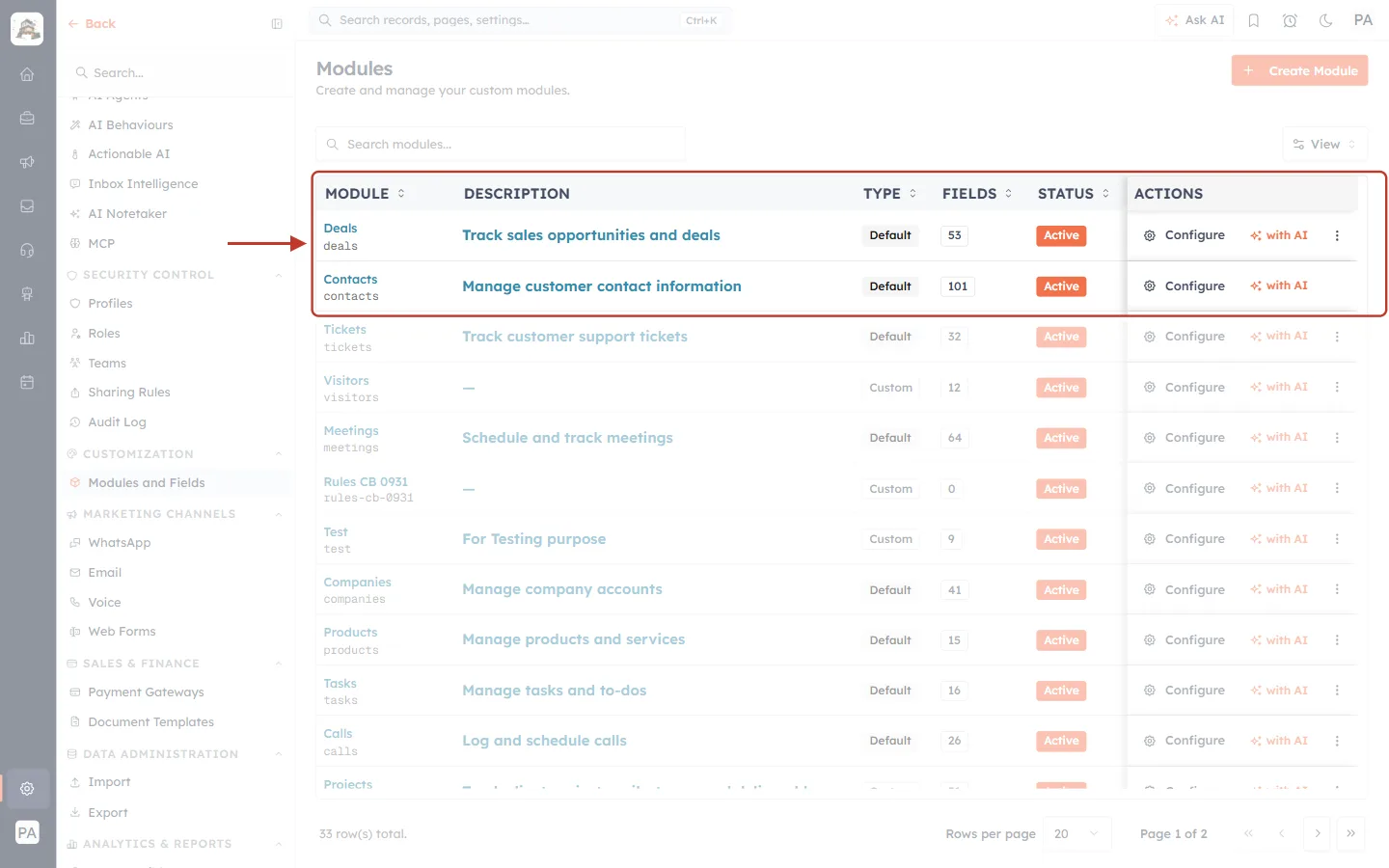
What this screenshot shows. The Modules page in the CRM.
The Module column shows each module’s name, with its slug in small grey text underneath — Deals →
deals, Contacts →contacts. The slug is what goes in the API path:/objects/contacts.Type shows whether it is a Default or Custom module; custom modules work in the API the same way, using their own slug (for example
rules-cb-0931further down).Fields shows how many fields the module has; Status must be Active — a deactivated module returns MODULE_NOT_AVAILABLE.
Configure opens the module’s fields, where you can also see each field’s API name.
Wrong or hidden record — OBJECT_NOT_FOUND#
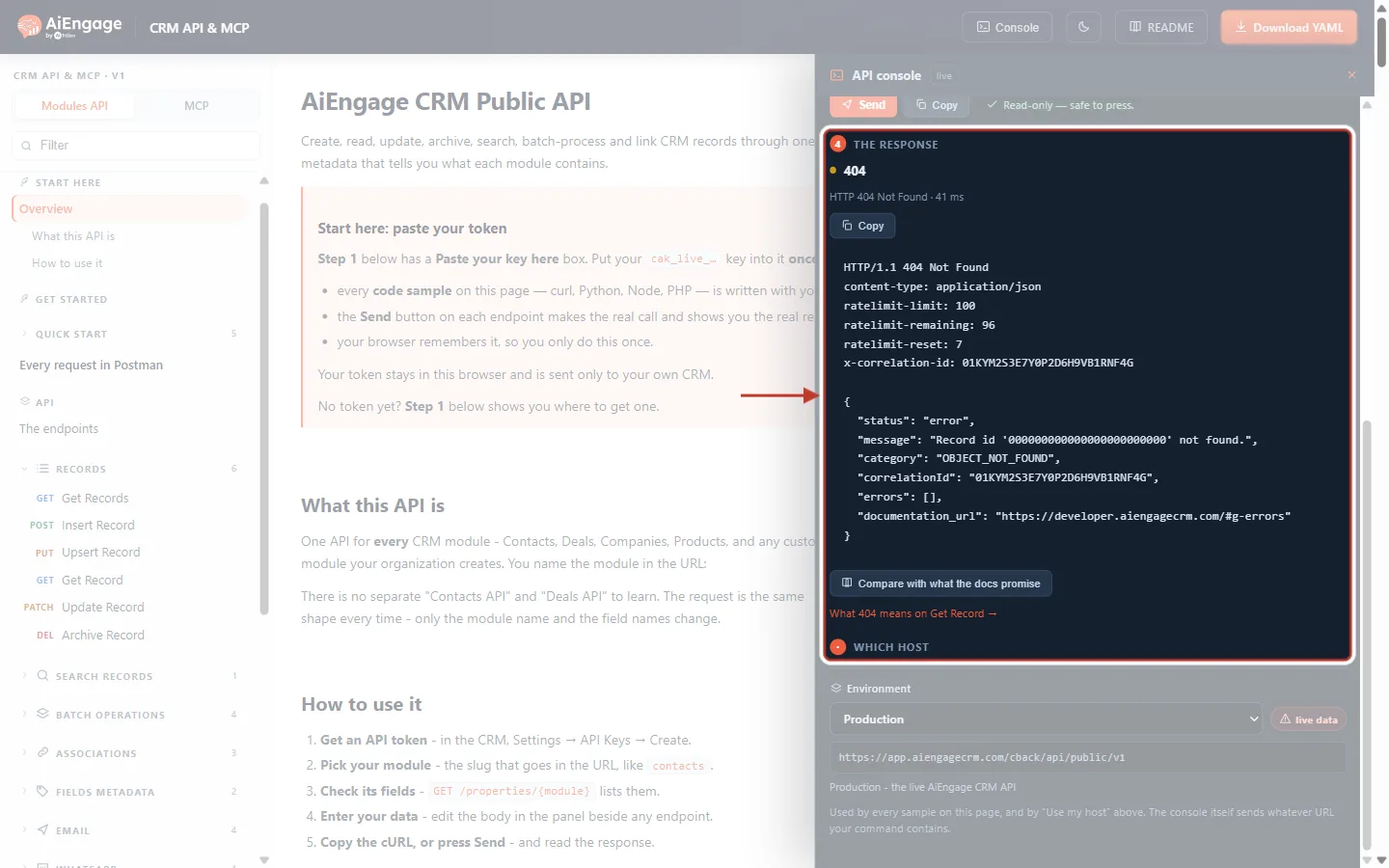
What this screenshot shows. A 404 in the console (example). The request asked for a contact id that does not exist.
The request was GET · Get Record for
/objects/contacts/000000000000000000000000.The message repeats the id that was not found, and the category is OBJECT_NOT_FOUND.
Check the id is complete (24 characters) and belongs to this module — a deal id sent to
/objects/contacts/…is not found.Check the record was not archived (deleted). Archived records are not returned, but can be restored in the CRM for 90 days.
Check the key’s user can see the record in the CRM. If sharing rules, roles or ownership hide it from that user, the API answers 404 — on purpose, so that it never reveals that a hidden record exists.
If you look records up by another field, use Search Records instead of guessing ids.
Wrong path or version — ENDPOINT_NOT_FOUND / VERSION_NOT_AVAILABLE#
ENDPOINT_NOT_FOUND — check the path, the HTTP method (GET, POST, PATCH, PUT, DELETE) and that the URL starts with
/cback/api/public/v1. A path that works on one server but not another may not be released there yet.VERSION_NOT_AVAILABLE — the part after
/public/must be a valid version, todayv1. The response lists the valid ones inavailable_versions.
Step 8: Fix 409 Conflict Errors and Make Retries Safe#
CONFLICT — when you update or upsert by matching on a field (
id_propertyormatching_property), that field must be unique. If you match on a field such as a phone number and two records share the value, the API refuses rather than guess. Match on a field marked unique in the module’s fields, or update by record id.IDEMPOTENCY_KEY_CONFLICT — you reused an
Idempotency-Keyheader with a different request body.
The idempotency key is what makes a retry safe. It is explained in the Reference → Idempotency section of the portal:
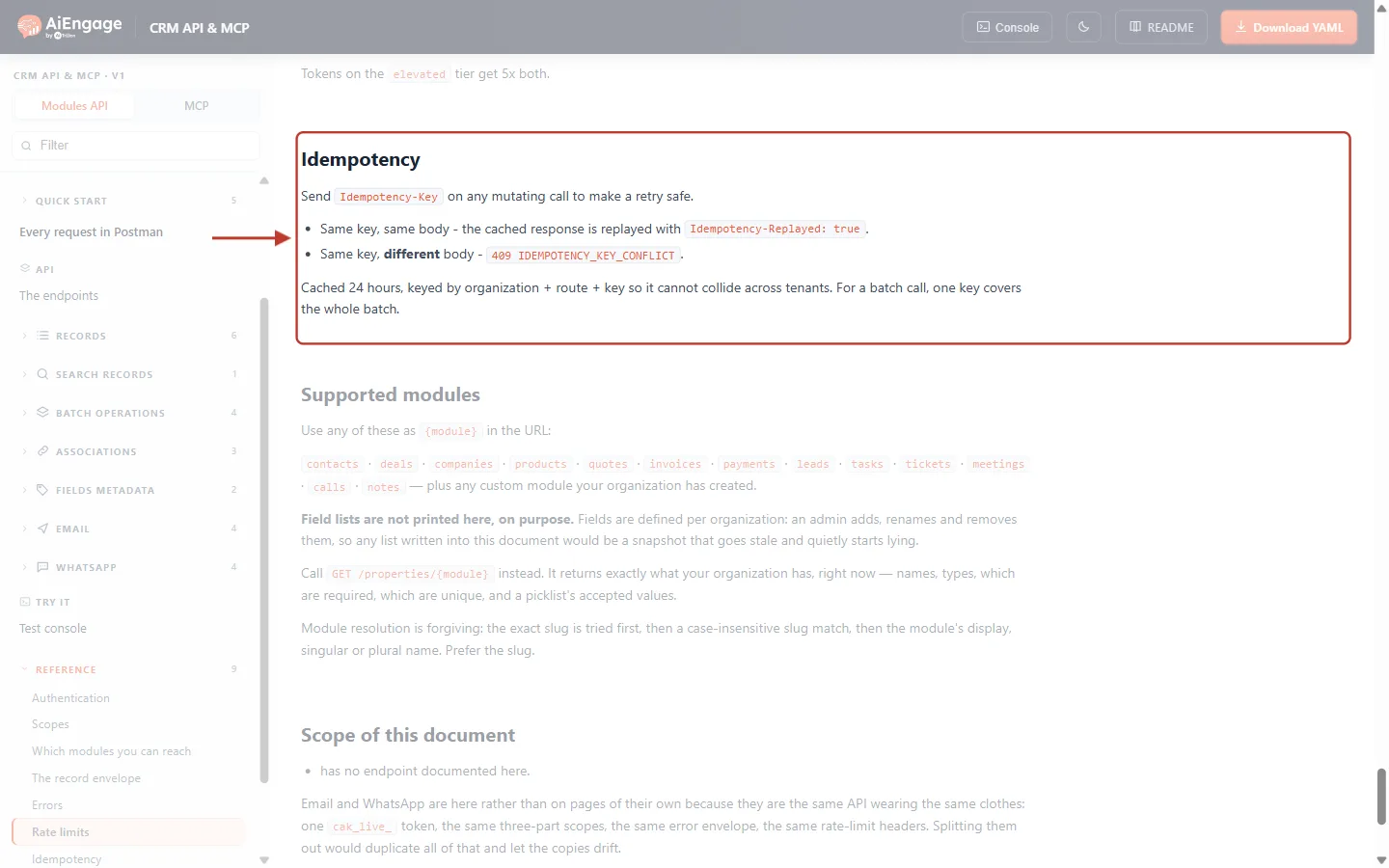
What this screenshot shows. The Idempotency section of the developer portal.
Send an
Idempotency-Keyheader (any unique value, such as a UUID) on any call that creates or changes data.Same key, same body — the API does not run the call again; it replays the first answer and adds the header
Idempotency-Replayed: true. So if your connection dropped and you are not sure the first call worked, resend it with the same key.Same key, different body — the API answers 409 IDEMPOTENCY_KEY_CONFLICT.
Keys are remembered for 24 hours, per account and per endpoint. For a batch call, one key covers the whole batch.
✅
Create one new idempotency key per operation (for example per order you are syncing), store it with the operation, and reuse it only when retrying that same operation.
Step 9: Fix 429 Errors (Too Many Calls)#
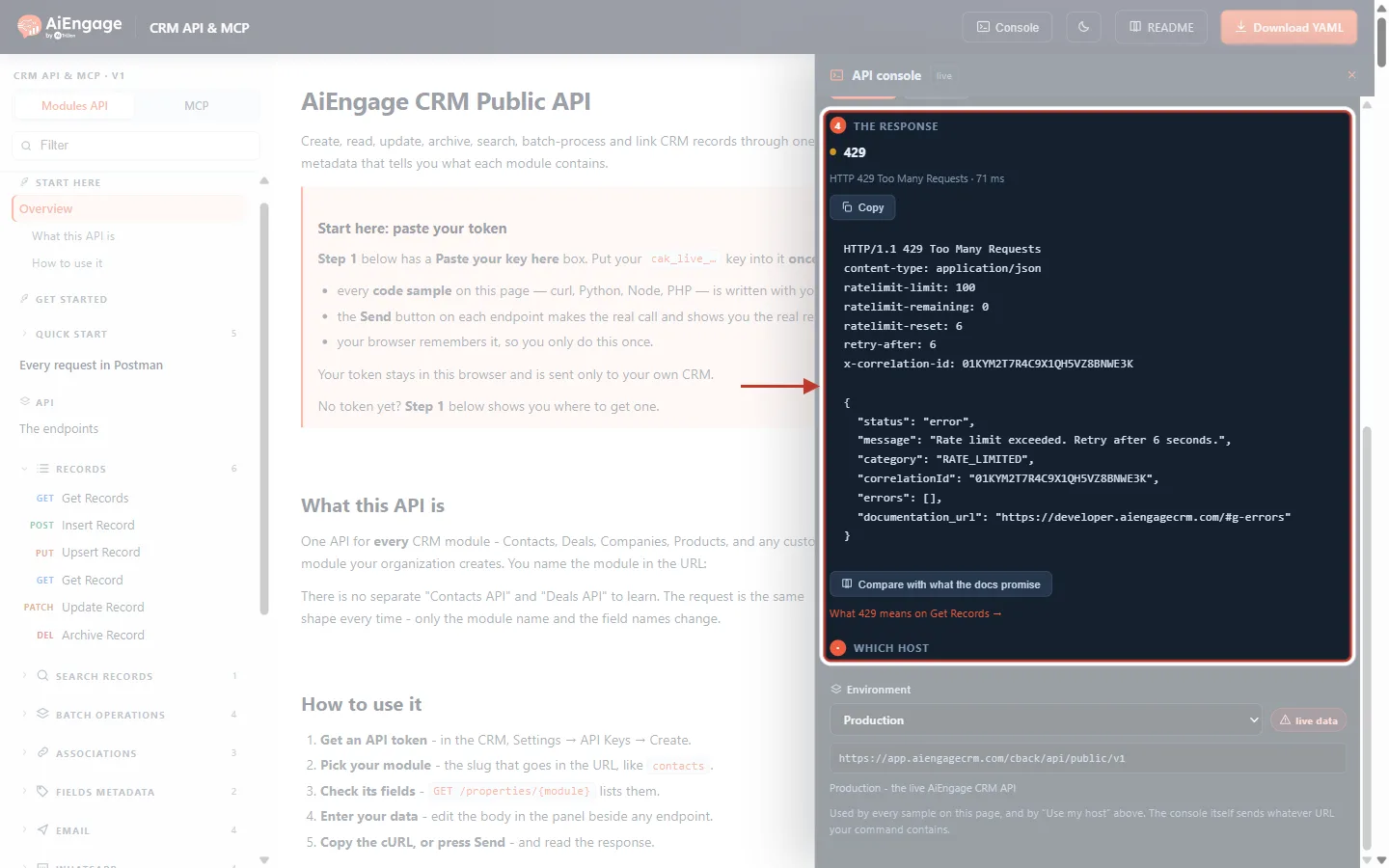
What this screenshot shows. A 429 in the console (example). The key sent too many calls in a short time.
Status 429 Too Many Requests.
The headers show why and for how long:
ratelimit-remaining: 0(nothing left in this window) andretry-after: 6(wait 6 seconds).Category RATE_LIMITED. For a used-up daily or monthly quota it would be RATE_LIMITED_DAILY or RATE_LIMITED_MONTHLY, and
Retry-Afterwould count to the reset.
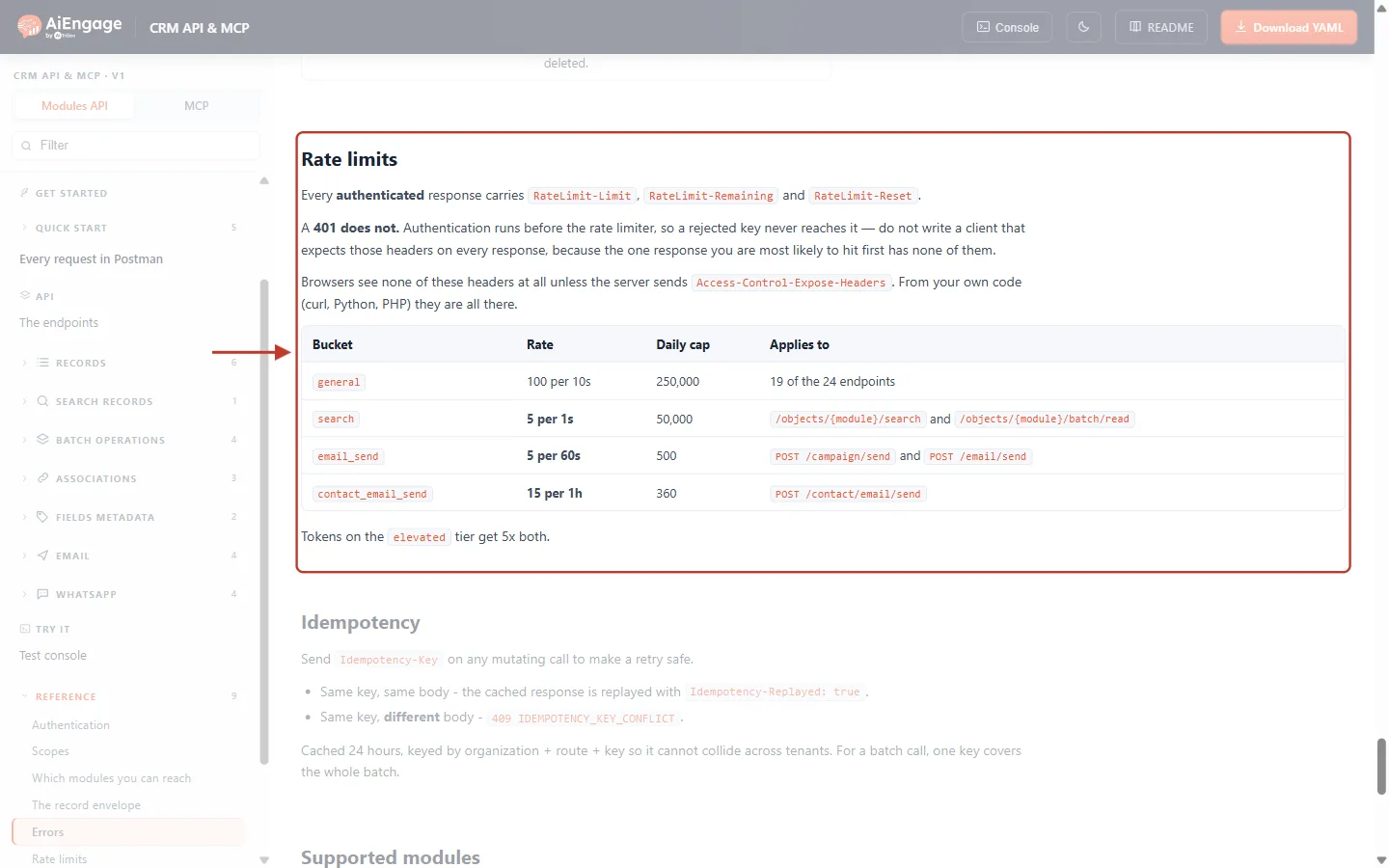
What this screenshot shows. The Rate limits section of the developer portal, which lists each limit.
Every successful response carries
RateLimit-Limit,RateLimit-RemainingandRateLimit-Reset; a 401 does not.general — 100 calls per 10 seconds for most endpoints.
search — 5 per second for search and batch-read.
email_send — 5 per 60 seconds; contact_email_send — 15 per hour.
Keys on the elevated tier get five times these limits.
For your daily and monthly allowance, go by the quota cards on the CRM’s Usage tab, which show your plan’s actual numbers, rather than the Daily cap column here.
Stop sending for the number of seconds in
Retry-After, then retry the same call.If it happens often, slow your integration down: watch
RateLimit-Remainingand pause before it reaches 0.Use batch endpoints (up to 100 records per call) instead of one call per record.
For RATE_LIMITED_DAILY / MONTHLY, the whole account’s quota is used up — every key is blocked until the reset. Check what is using it on the Usage tab, or upgrade your plan.
All the limits, headers and retry code are explained in API Rate Limits & Quotas: Understand the Limits, Read the Headers and Handle 429 Errors.
Step 10: Fix Email, WhatsApp and Server (5xx) Errors#
The sending endpoints check several things before a message goes out. When one of these checks fails, nothing is sent and nothing is charged.
HTTP | Category | Meaning | Fix |
|---|---|---|---|
400 |
| Sending calls must have an | Add one (a new UUID per message). |
400 |
| The phone number has fewer than 10 digits once spaces and symbols are removed. | Send the full number with country code. |
402 |
| Not enough WhatsApp credits. | Top up WhatsApp credits in the CRM, then resend. |
404 |
| No approved WhatsApp template has that id. | Use List Templates to get the id of an approved template. |
422 |
| Email: the from address is not verified, or is personal, disabled or sends over its own SMTP; a recipient has opted out; or more than 50 addresses. | Use an address from List From Addresses. The message names the addresses that would work. |
422 |
| WhatsApp: the recipient has not opted in, or unsubscribed. | Only message contacts who have opted in. |
422 |
| WhatsApp: your account has several senders and the template is not tied to one. | Pass a |
422 |
| WhatsApp: the | Leave |
422 |
| No usable WhatsApp sender is connected. | Connect a WhatsApp number under Settings → Marketing Channels → WhatsApp. |
422 |
| The price for this destination could not be worked out. | Retry later; if it persists, contact support. |
502 |
| The email or WhatsApp provider refused the message. | Read the provider’s reason in the message. Safe to retry with the same idempotency key. |
500 |
| Unexpected failure, or the user who created the key has been deleted. | Retry once after a short wait. If it repeats, revoke the key, issue a new one, and contact support with the correlationId. |
ℹ️
Calls that fail with a 5xx error are not counted against your API quota.
Step 11: Find Failed Calls in the CRM#
If you do not have your integration’s logs to hand, the CRM shows recent calls and their status codes. Go to Settings → Developer Hub → API Keys and open the Usage tab.
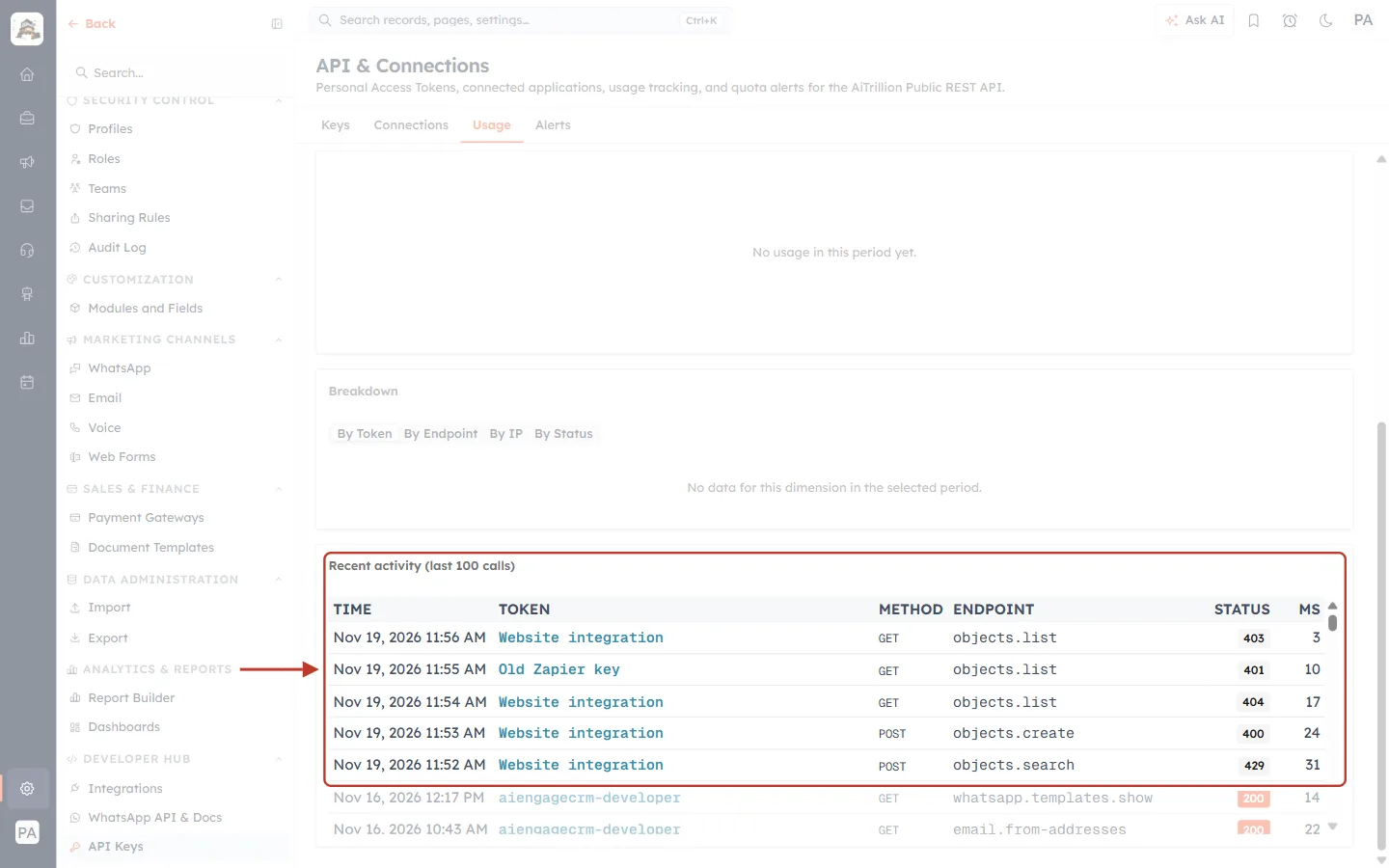
What this screenshot shows. The Recent activity (last 100 calls) table at the bottom of the Usage tab. The five ringed rows are example failed calls.
Time — when the call was made, newest first.
Token — which key made the call. Here, four failures came from Website integration and one 401 from the revoked Old Zapier key — a sign that some system is still using the old key.
Method and Endpoint — what was called, such as GET objects.list or POST objects.create.
Status — the HTTP code: 403, 401, 404, 400 and 429 in the ring; the successful calls further down show 200.
MS — how long the call took in milliseconds.
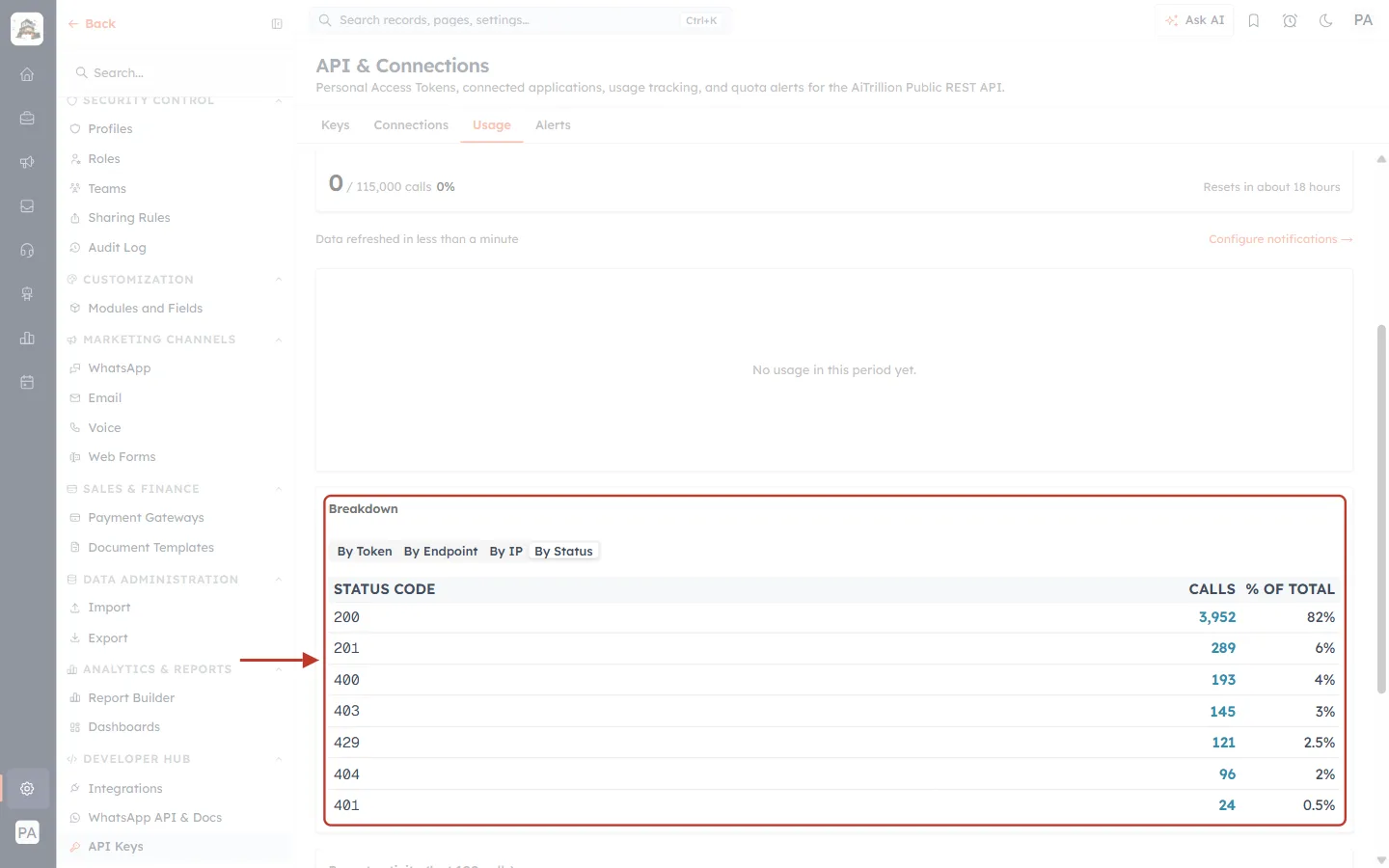
What this screenshot shows. The Breakdown card on the Usage tab with By Status selected (example numbers).
Each row is one HTTP status code, with the number of Calls and the % of total.
200 and 201 are successful calls. Everything from 400 upwards is an error.
A sudden rise in one code tells you where to look: many 403s point to a missing scope, many 429s to an integration that sends too fast, and any 401s to a key that was revoked or expired.
By Token, By Endpoint and By IP show the same calls grouped differently — useful to find which integration is failing.
More about the Usage tab: Monitor API Usage & Set Quota Alerts.
Step 12: Contact Support With the Right Details#
If you have worked through the steps above and the error continues, contact AiEngage support and include:
The correlationId from the error response (or the
x-correlation-idheader). This is the most important item — it lets the team find your exact request.The date and time of the call, with time zone.
The HTTP method and path, for example
POST /objects/contacts.The full error response body.
The key label and prefix (for example Website integration, cak_live_ab12…).
⚠️
Never send your full API key to anyone, including support, and never post it in a ticket, chat or screenshot. The label and the first few characters are enough to identify it. If a key has been exposed, revoke it straight away and generate a new one.
Quick Troubleshooting Checklist#
Does the URL start with
https://app.aiengagecrm.com/cback/api/public/v1?Is the header exactly
Authorization: Bearer cak_live_…?Is the key Active on the Keys tab?
Does the key have the scope for this module and action (
crm.<module>.read / write / delete)?Is the module name the slug (e.g.
contacts, notContact)?Are field names the API names from
GET /properties/{module}?For writes: is
Content-Type: application/jsonset, and is the body valid JSON with apropertiesobject?Can the key’s user see this record in the CRM?
Are you within the rate limits — and does your code wait for
Retry-After?Did you log the
correlationId?
Frequently Asked Questions#
Should my code check the message or the category?
Always the category. Messages are written for people and can be reworded at any time; categories are fixed.
Which errors should my integration retry automatically?
Only 429 (after waiting Retry-After seconds), 502 sending errors (with the same idempotency key) and, once, a 500. Every 4xx other than 429 will fail again until you change the request, so retrying it only wastes calls.
Why do I get 404 for a record I know exists?
Either the id is for another module, the record was archived, or the user who created the key cannot see it because of ownership, roles or sharing rules. The API deliberately does not tell these cases apart.
My key worked yesterday and now returns 401. Why?
It was most likely revoked, reached its expiry date, or its creator’s user was deactivated. Check its status on the Keys tab and generate a new key if needed.
Can I add a scope to an existing key?
No. Generate a new key with all the scopes you need, switch your integration to it, then revoke the old one.
Do failed calls use up my quota?
Calls rejected with 401 and calls refused by the short-term rate limit are not counted, and 5xx failures are refunded. Other errors may count, so fix the request rather than retrying it in a loop.
Why are there no RateLimit headers on some of my responses?
A 401 is rejected before the rate limiter runs, so it has none. Browsers also hide these headers unless the server exposes them; from server-side code (curl, Python, PHP, Node.js) they are always there.
Previous and Next Articles#
Previous: API Rate Limits & Quotas: Understand the Limits, Read the Headers and Handle 429 Errors
Next: Connect Claude to AiEngage CRM (MCP): Ask Your CRM Questions in Plain English
Related Articles#
Was this article helpful?
Ready to implement this?
OpenAI Engage and apply what you just learned to your own workspace.
Open AI Engage CRM