Loading…


KnowledgeBase
Send WhatsApp via API: Personal Access Token & API Logs
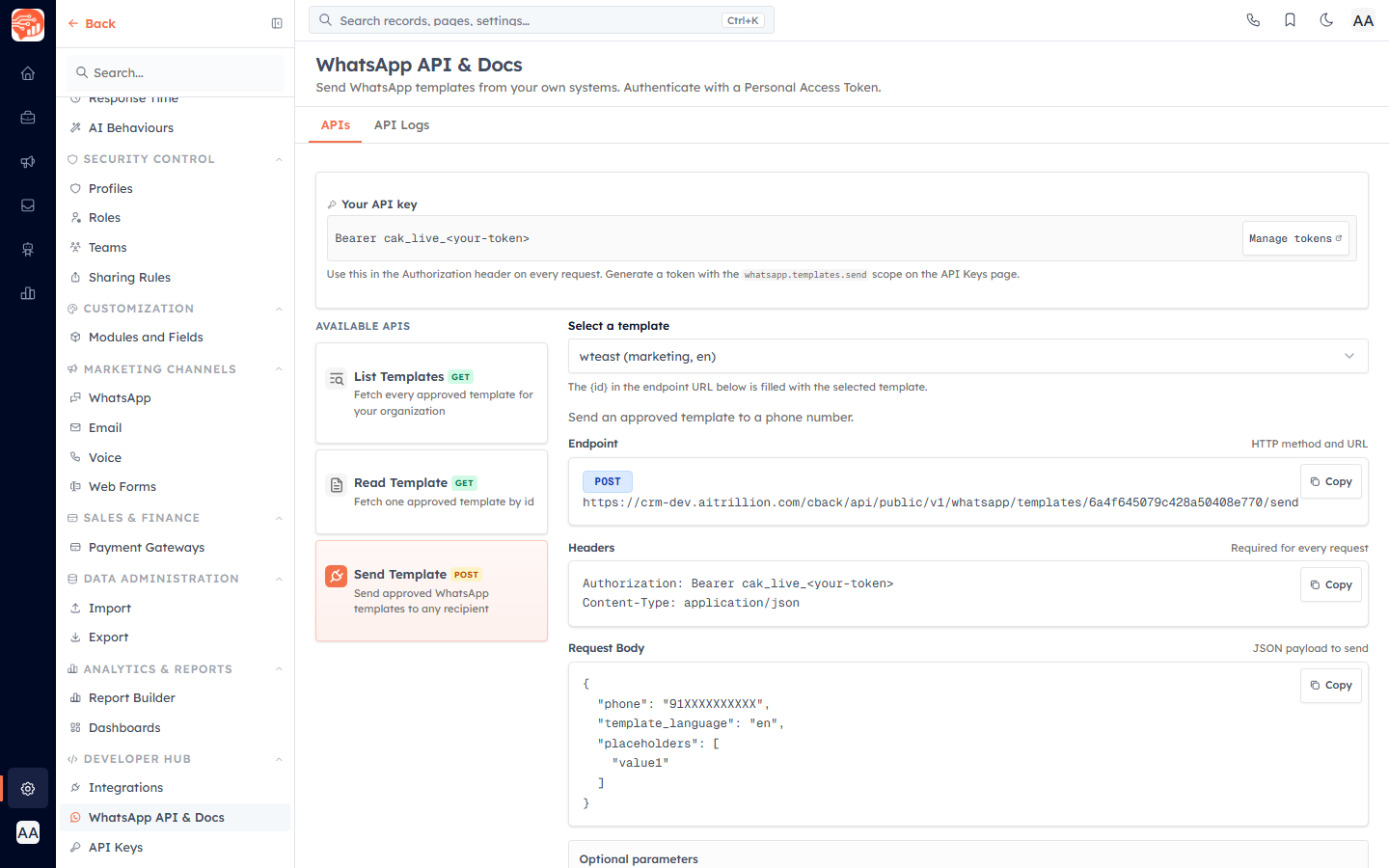
The WhatsApp API & Docs page lets you send approved WhatsApp templates straight from your own systems — a website backend, an order system, a script — by calling AI Engage's public API. It gives you an interactive reference for the three template endpoints, ready-to-copy request examples, and an API Logs tab that records every send made through the API.
Before you start#
Two things are required:
- A Personal Access Token (PAT) with the right scope. Every request authenticates with a bearer token in the Authorization header. Generate one with the
whatsapp.templates.sendscope on the API Keys page — see API Keys. - At least one approved template. The API only sends templates Meta has approved. If you have none, the page shows “No approved WhatsApp templates yet.” with a link to Templates. Build and submit templates in WhatsApp Templates.
⚠️
The page never displays a real token. The Your API key card shows the placeholder
Bearer cak_live_<your-token> and a Manage tokens link — generate and copy the actual token on the API Keys page, and store it securely.Open the API reference#
- Go to Settings → WhatsApp → API & Docs. The page opens on the APIs tab.
- You can also jump here for one specific template from the template's row menu — choose Use via API (available on approved templates), which pre-selects that template for you.
The three endpoints#
The left column lists three clickable API cards; selecting one updates the endpoint, headers and request body shown on the right.
- List Templates (GET) —
GET /public/v1/whatsapp/templates. Returns every approved template for your organisation. - Read Template (GET) —
GET /public/v1/whatsapp/templates/{id}. Returns one approved template by id; responds 404 if the template isn't approved or doesn't exist. - Send Template (POST) —
POST /public/v1/whatsapp/templates/{id}/send. Sends an approved template to a phone number.
Build a request#
- Pick the endpoint card you want. For Read Template and Send Template, a Select a template dropdown appears — each option shows the template name, its category and language. Choosing a template fills the
{id}in the endpoint URL automatically. - Copy the Endpoint (HTTP method and full URL).
- Copy the Headers. Every request needs
Authorization: Bearer cak_live_<your-token>andAccept: application/json; sends also includeContent-Type: application/json. - For Send Template, copy the Request Body — a real, placeholder-mapped JSON payload generated for the selected template, so it's exactly what you need to send.
💡
The Send endpoint accepts two optional parameters, kept out of the copy-paste example to keep it clean:
sender_id — the WhatsApp number to send from. Omit it to use the template's registered sender (returned on the Read Template response). It only matters if your account has more than one connected number, and a value that doesn't match the template's registered sender is rejected.
header_placeholder — a value for a template whose header contains a variable.
sender_id — the WhatsApp number to send from. Omit it to use the template's registered sender (returned on the Read Template response). It only matters if your account has more than one connected number, and a value that doesn't match the template's registered sender is rejected.
header_placeholder — a value for a template whose header contains a variable.
Audit sends in API Logs#
Switch to the API Logs tab to see a paginated table of every send made through the API (its address stays shareable via the URL). Filter by search, date range (defaults to the current week) and status (defaults to all). Each row shows:
- Sent — when the send happened, in your saved date format.
- Template — the template used.
- Recipient — the destination phone number.
- Status — a badge: Sent, Delivered, Read or Failed.
- Token — the last four characters of the Personal Access Token that made the call, so you can tell which integration sent it.
- Failure reason — the reason shown when a send failed, otherwise a dash.
✅
For richer analytics across every send channel — not just the API — open a template's full report. See WhatsApp Template Reporting.
Good to know#
- Approved-only — List and Read return only approved templates, and Send works only for approved templates; a request for a non-approved template returns 404.
- Every template type is sendable — standard, carousel, limited-time-offer and authentication templates can all be sent through the Send endpoint.
Was this article helpful?
Ready to implement this?
OpenAI Engage and apply what you just learned to your own workspace.
Open AI Engage CRM