Loading…


KnowledgeBase
Introduction to the AiEngage CRM API & MCP: Connect Your Own Apps and AI Assistants to Your CRM (Step-by-Step)
Introduction#
AiEngage CRM gives you two ways to connect other software to your CRM data:
The CRM API (REST API) is for your own apps, websites and scripts. A developer writes code that sends requests to the CRM, for example “create this contact”, “find all deals in Negotiation” or “send this WhatsApp template”. The API can read, create, update and archive records, and send email and WhatsApp messages.
MCP (Model Context Protocol) is for AI assistants such as Claude, Cursor or VS Code. You connect the assistant to your CRM once, then ask questions in plain English, for example “Which deals slipped this month?”. No code is needed. MCP is read-only: the assistant can look things up, but it can never create, change, delete or send anything.
Both use the same permissions and the same scopes, and both show only the records the connected person is allowed to see. This article is the starting point for the CRM API & MCP collection. It explains what each one is for, takes you on a tour of every API and MCP screen in the CRM, and shows you how to make your first API call. The rest of the collection then covers each topic step by step.
ℹ️
The screenshots use sample data: the API keys, connected apps and usage numbers are examples. Your screens show your own keys, connections and numbers. Nothing was created, changed or sent while taking them.
API or MCP: which one do I need?#
CRM API (REST) | MCP | |
|---|---|---|
Who uses it | Developers, and tools such as Zapier, Make or your own website. | Anyone who uses an AI assistant: sales, support, managers. |
What you do | Write code (or use a tool) that sends HTTP requests. | Ask questions in plain English. No code. |
Can it change data? | Yes. It can read, create, update and archive records, and send email and WhatsApp messages, depending on the key’s scopes. | No. Read-only by design. No create, update, delete or send. |
How it signs in | A Personal Access Token (API key) that starts with | Your own CRM sign-in (OAuth). No API key needed. |
Whose permissions | The person who created the key. | The person who connected the assistant. |
Where to set it up | Settings → Developer Hub → API Keys. | Settings → AI Centre Hub → MCP. |
Typical uses | Send website sign-ups to the CRM, sync orders, send order updates on WhatsApp, export data to a warehouse. | “Summarise my overdue tasks”, “How many leads did we get from Google Ads last week?”, “Show the pipeline by stage”. |
✅
Not sure? If you want something to happen automatically (a record created, a message sent), use the API. If you want answers to questions about your CRM data, use MCP.
Before you begin#
Plan: your subscription must include API access (Business Pro). Without it, API keys are refused, and an MCP connection signs in but every question comes back refused.
Permission: to open the API Keys page you need the API access permission in your profile. Administrators have it. If you can’t see the page, ask your administrator. See Profile Permissions Explained.
For the API: someone who can make an HTTP request: a developer, or a tool such as Postman. You don’t need to install anything to read this article.
For MCP: an AI assistant that supports custom MCP connectors, for example Claude (Pro, Max, Team or Enterprise), Claude Code, Cursor or VS Code.
Step 1: Open Settings#
Every API and MCP screen is in Settings.
Sign in to AiEngage CRM.
In the dark rail on the far left of the screen, click the gear (Settings) icon near the bottom.
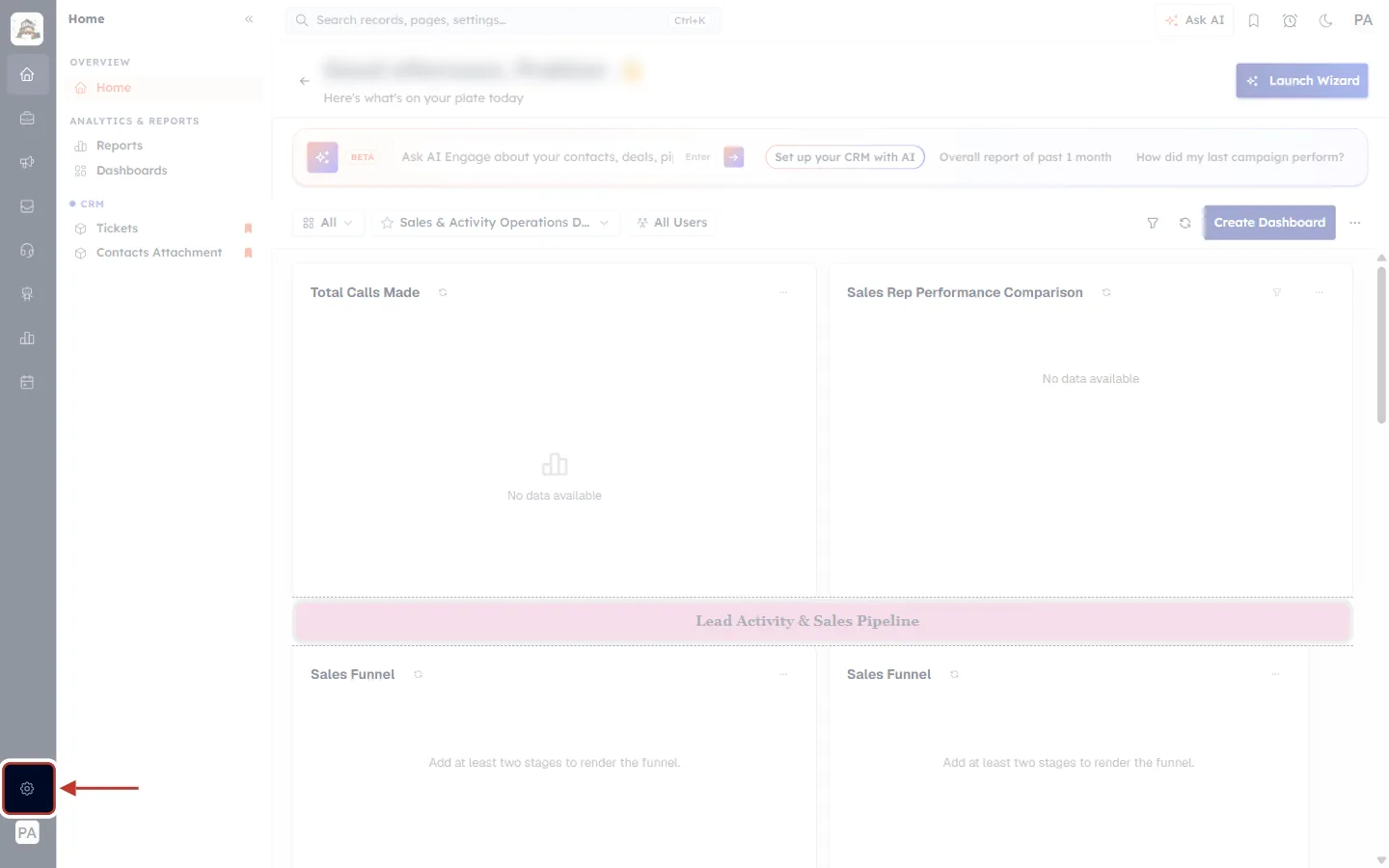
What this screenshot shows. The CRM home screen. The red box and arrow point to the Settings gear icon in the left rail.
Left rail (dark strip): the icons for the main areas of the CRM, such as Home, Sales, Marketing, Inbox and Support. The gear near the bottom opens Settings.
Bottom of the rail: under the gear is your profile picture or initials.
Top bar: the search box (Search records, pages, settings…, shortcut Ctrl+K), Ask AI, reminders and your notifications.
Main area: your Home dashboard with the Ask AI Engage bar and your dashboard charts. You can open Settings from any page, not only from Home.
✅
Shortcut: press Ctrl+K (Cmd+K on a Mac), type API Keys or MCP and press Enter.
Step 2: Find Developer Hub and MCP in the Settings menu#
The Settings menu on the left is split into groups. The API and MCP screens are in two of them.
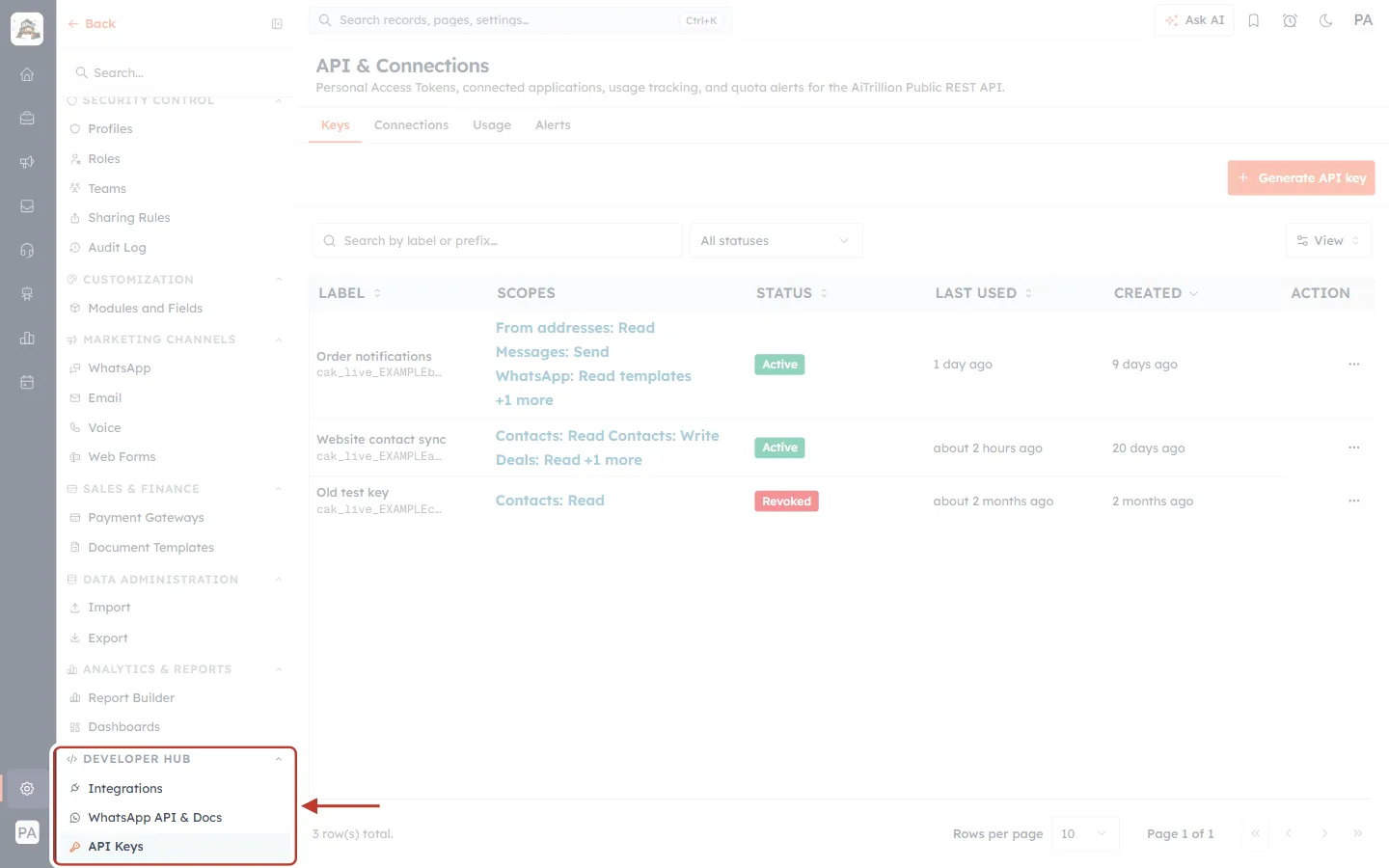
What this screenshot shows. The Settings menu scrolled to the bottom. The red box highlights the DEVELOPER HUB group.
DEVELOPER HUB is the last group in the Settings menu.
Integrations: ready-made connections to other products (ad platforms, Shopify and more). See Introduction to Integrations & Lead Capture.
WhatsApp API & Docs: the WhatsApp-specific API information.
API Keys: opens the API & Connections page, where you create API keys, see connected AI assistants, track usage and set quota alerts. Steps 3 to 7 cover this page.
The groups above it (Analytics & Reports, Data Administration, Sales & Finance and so on) hold the other settings.
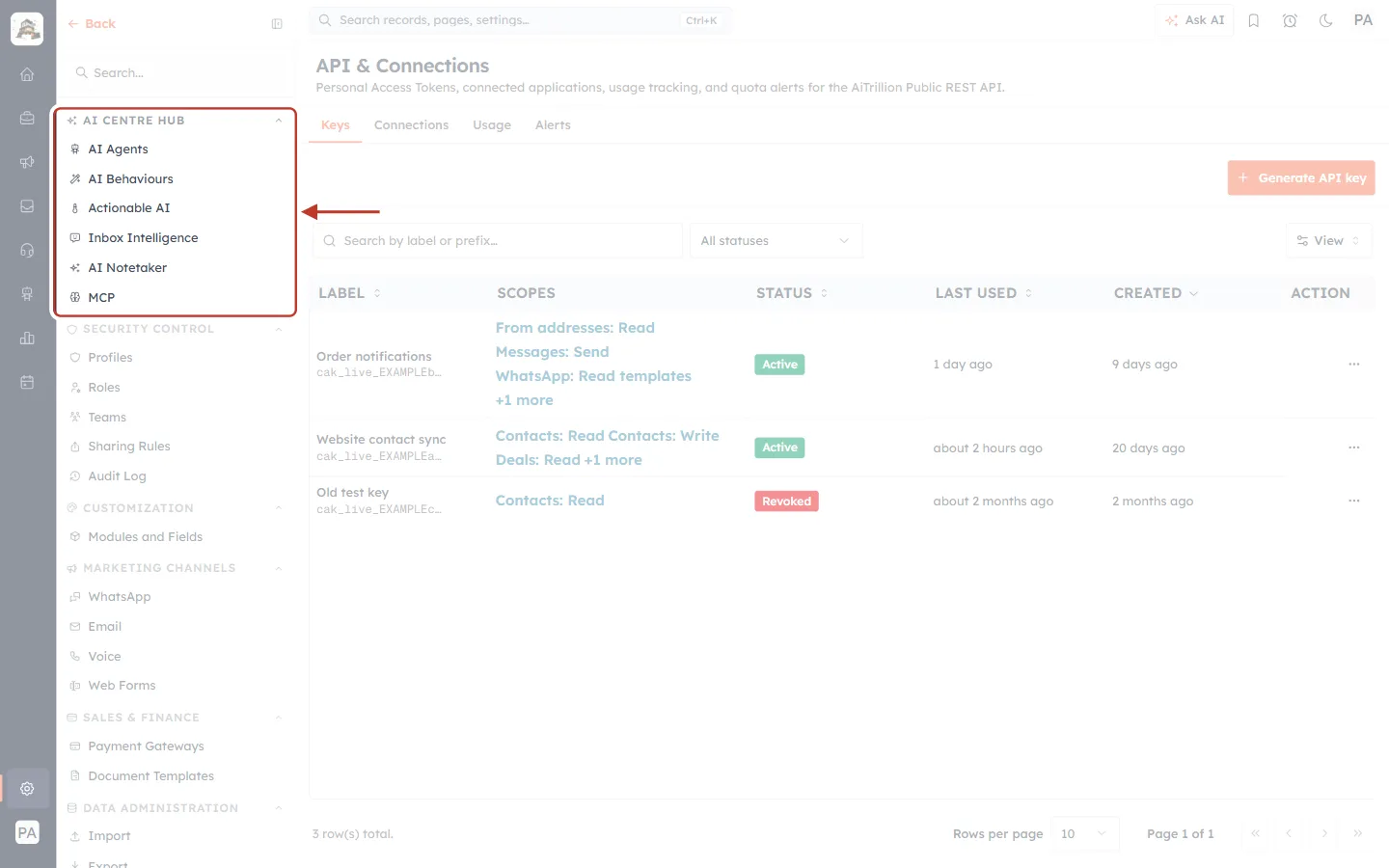
What this screenshot shows. The top of the Settings menu. The red box highlights the AI CENTRE HUB group and its last item, MCP.
AI CENTRE HUB holds the AI features: AI Agents, AI Behaviours, Actionable AI, Inbox Intelligence and AI Notetaker.
MCP is the last item in the group. It opens the page that connects Claude and other AI assistants to your CRM (Step 8).
Below it are the SECURITY CONTROL group (Profiles, Roles, Teams, Sharing Rules, Audit Log), CUSTOMIZATION and the other groups. Scroll the menu up to see the GENERAL group (Personal Settings, Organization Settings, Users).
Step 3: Tour the API & Connections page#
Click Developer Hub → API Keys. The page is called API & Connections and has four tabs. You will use all of them.
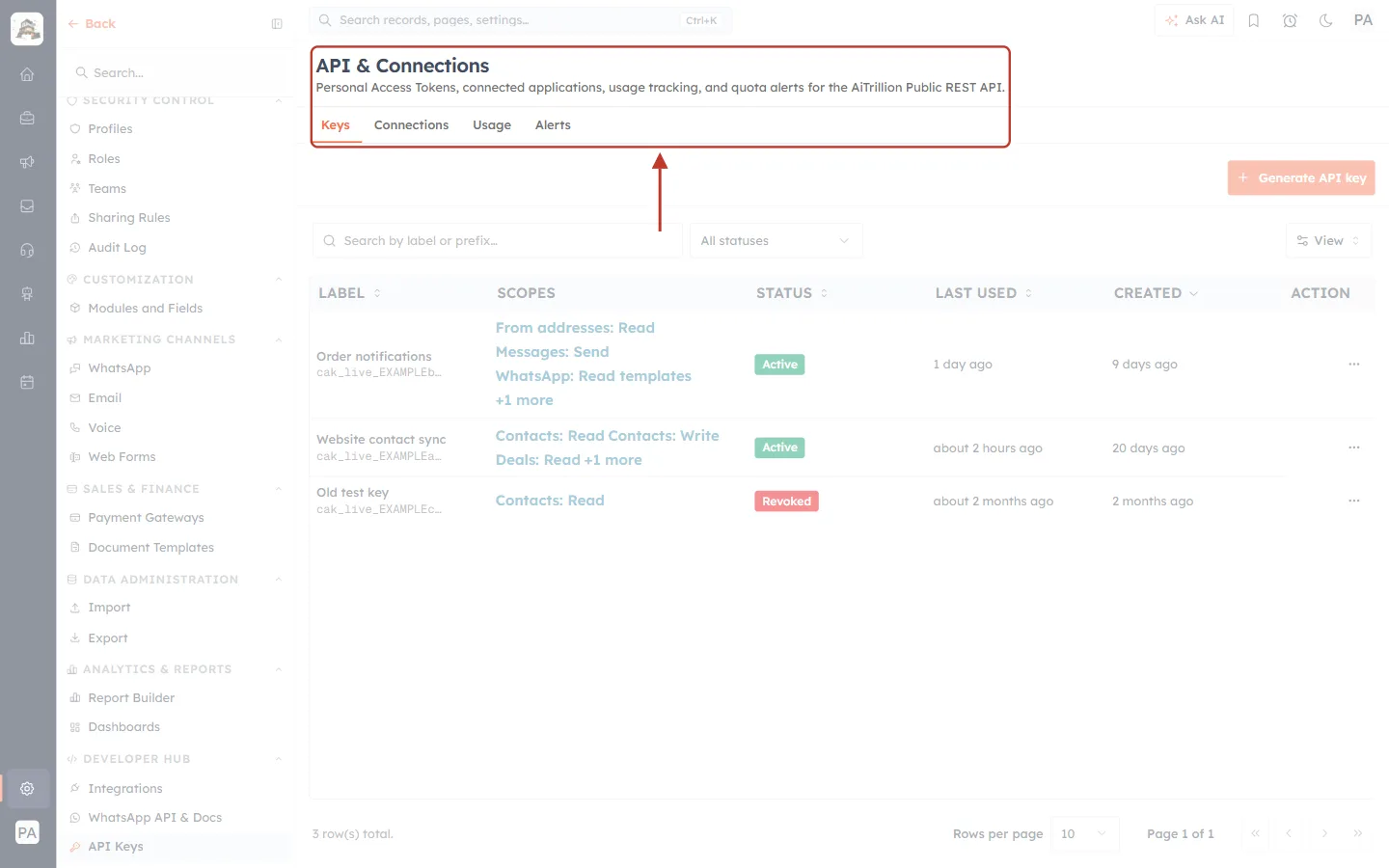
What this screenshot shows. The top of the API & Connections page. The red box highlights the title, the description and the four tabs.
Title and description: “API & Connections — Personal Access Tokens, connected applications, usage tracking, and quota alerts for the Public REST API.”
Keys (selected, underlined in orange): your API keys (Personal Access Tokens). Used by the API.
Connections: AI assistants that people have connected through MCP.
Usage: how many API calls you have made against your plan’s daily and monthly allowance.
Alerts: emails that warn you before you reach the allowance.
Step 4: The Keys tab: your API keys#
An API key (also called a Personal Access Token) is the password your app sends with every API request. Each key has a name, a list of scopes (what it is allowed to do) and a status.
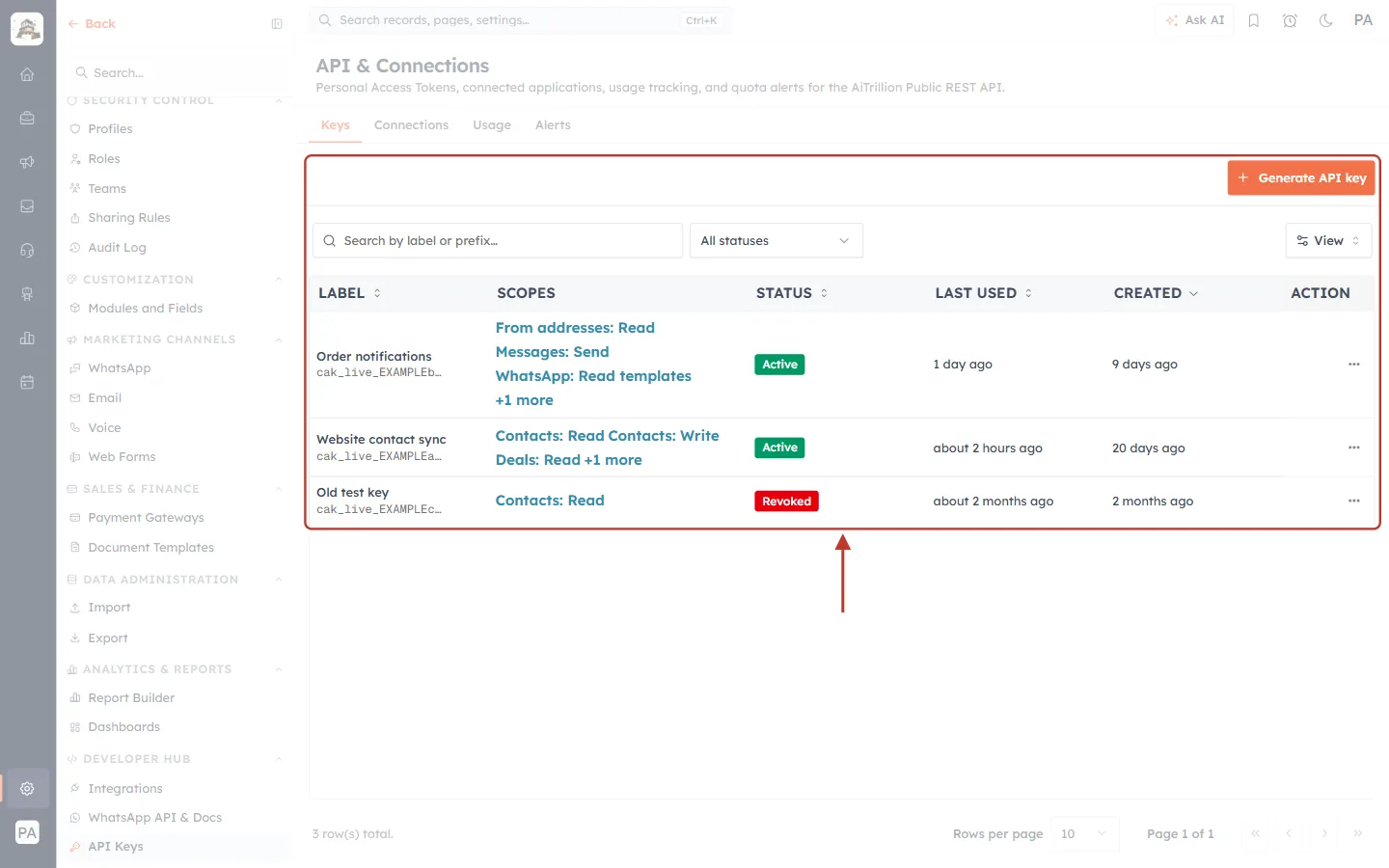
What this screenshot shows. The Keys tab. The red box highlights the Generate API key button and the list of keys.
Generate API key (orange button, top right): creates a new key. API Keys Step by Step walks through it.
Search by label or prefix…, All statuses and View: find a key, show only Active or Revoked keys, and choose which columns to show.
LABEL: the key’s name (for example Website contact sync) and, under it, the first characters of the key (
cak_live_EXAMPLEa…). The full key is never shown again after it is created.SCOPES: what the key may do, for example Contacts: Read, Contacts: Write, Messages: Send. Long lists end with +N more.
STATUS: green Active keys work. Red Revoked keys no longer work and can’t be turned back on.
LAST USED and CREATED: when the key was last used and when it was made. A key that says Never has not been used yet.
ACTION (⋯): the menu with Revoke.
The three sample keys show the two common kinds of integration:
Website contact sync works with records: it reads and writes Contacts, reads Deals and reads the module and field list (Schema).
Order notifications sends messages: it reads the email “from” addresses and WhatsApp templates, and sends email and WhatsApp messages.
Old test key was revoked, so it no longer works. It stays in the list for your records.
What a key can be allowed to do (scopes)#
Click Generate API key to see every scope you can give a key. (We only look here. Click Cancel or press Esc to close without creating anything.)
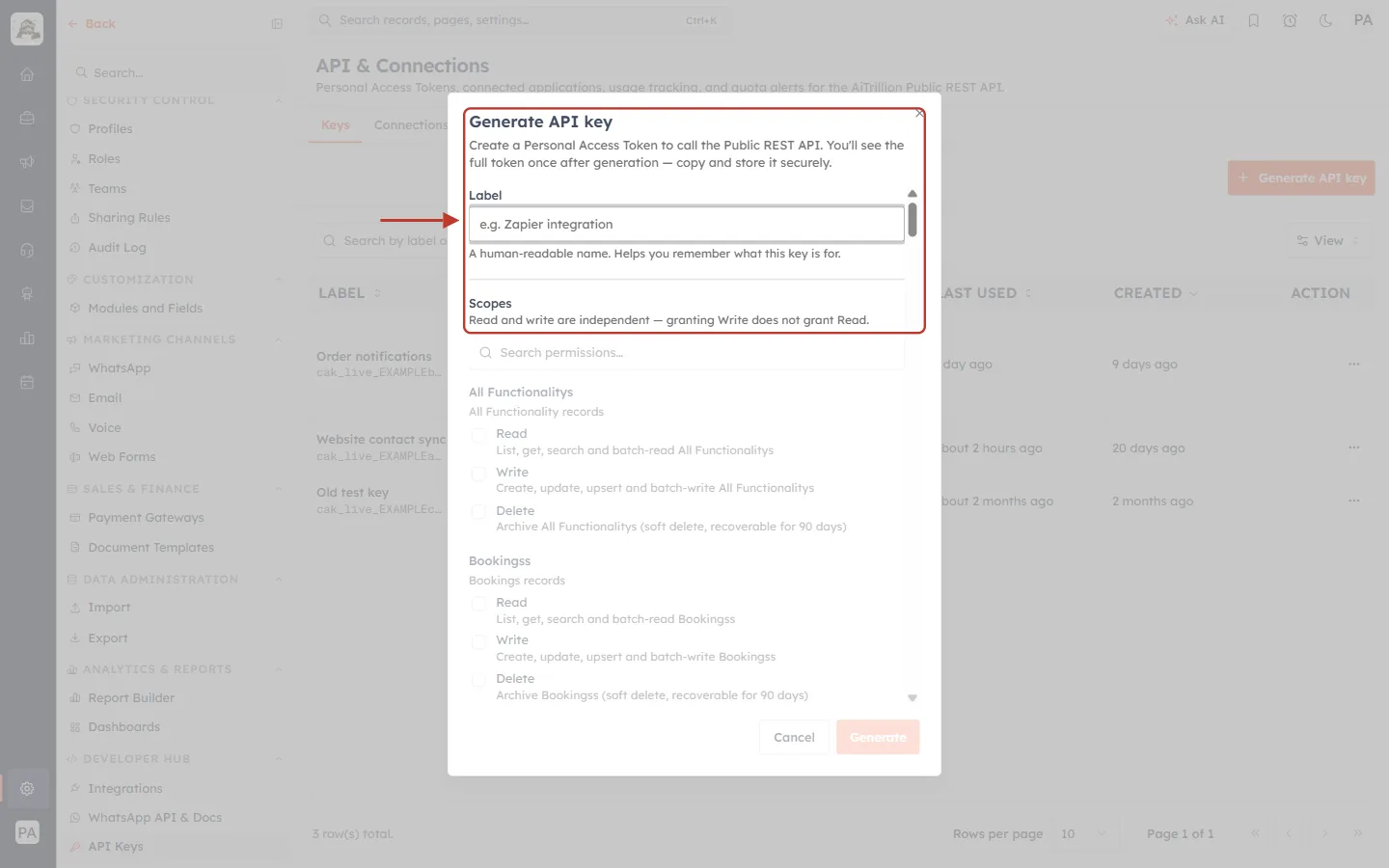
What this screenshot shows. The Generate API key dialog. The red box highlights the top part of the form.
Description: “Create a Personal Access Token to call the Public REST API. You’ll see the full token once after generation — copy and store it securely.”
Label: a name that reminds you what the key is for. The box suggests e.g. Zapier integration; our sample keys use names such as Website contact sync.
Scopes: the list of permissions starts here. The note “Read and write are independent — granting Write does not grant Read” means you must tick Read as well if your app needs to look records up.
Search permissions… (just below the highlighted area): type a module name, such as Contacts, to jump to its scopes.
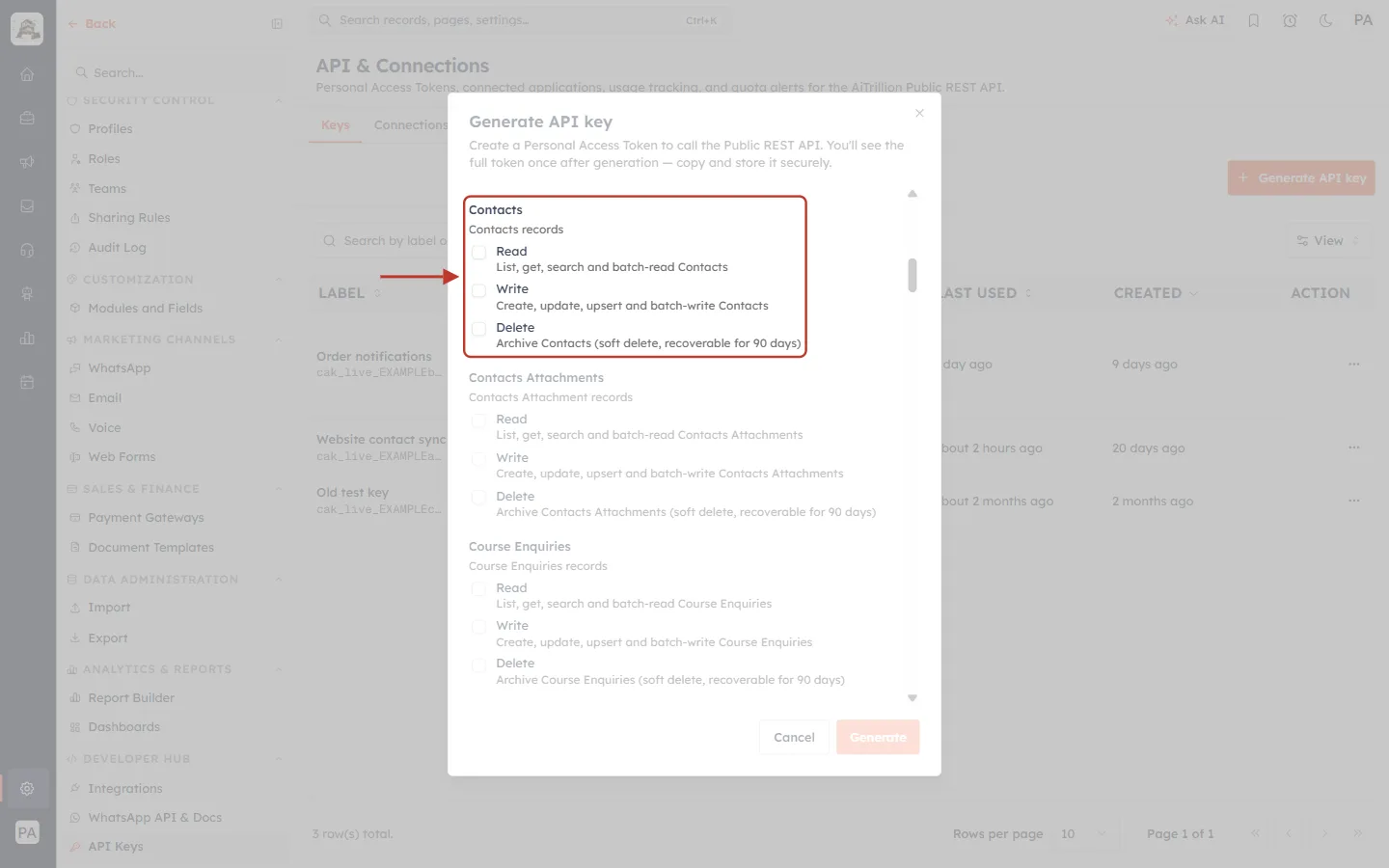
What this screenshot shows. The scopes for one module, Contacts. Every module in your CRM, including your custom modules, has the same three scopes.
Read: “List, get, search and batch-read Contacts.”
Write: “Create, update, upsert and batch-write Contacts.”
Delete: “Archive Contacts (soft delete, recoverable for 90 days).” The API never destroys a record. An archived record can be restored for 90 days.
The list continues with every other module: Companies, Deals, Tasks, Tickets, Quotes, Invoices, Products and so on.
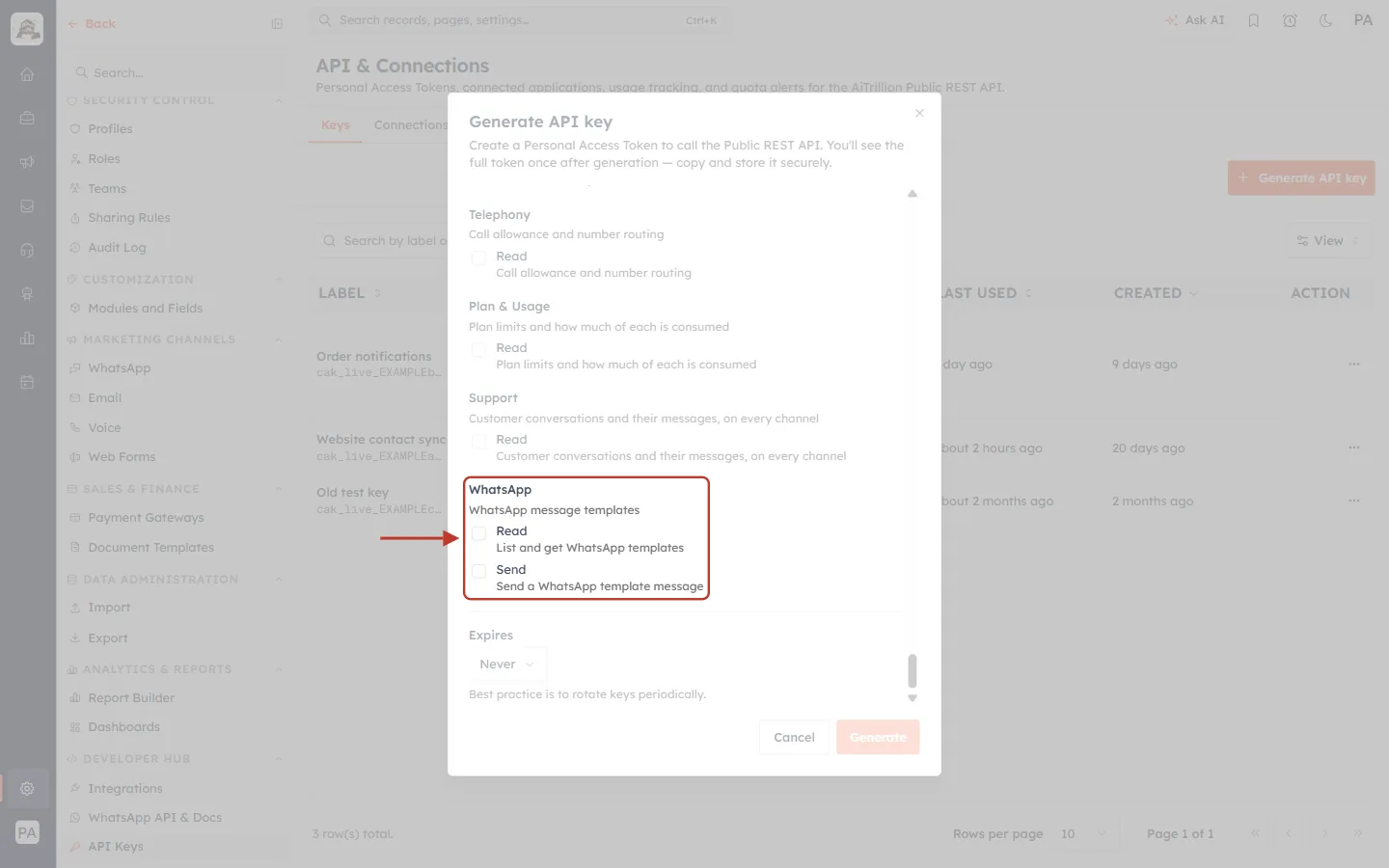
What this screenshot shows. The end of the scope list. The red box highlights the WhatsApp group.
WhatsApp → Read: “List and get WhatsApp templates.”
WhatsApp → Send: “Send a WhatsApp template message.”
Above it are the read-only areas: Schema, Reports, Analytics, Dashboards, Advertising, Campaigns, Segments, Contact Lists, Workflows, People, Teams, Agenda, Web Forms, Telephony, Plan & Usage and Support. These can only be read, never changed.
Email sending uses its own scopes, From addresses: Read and Messages: Send, as on the Order notifications sample key.
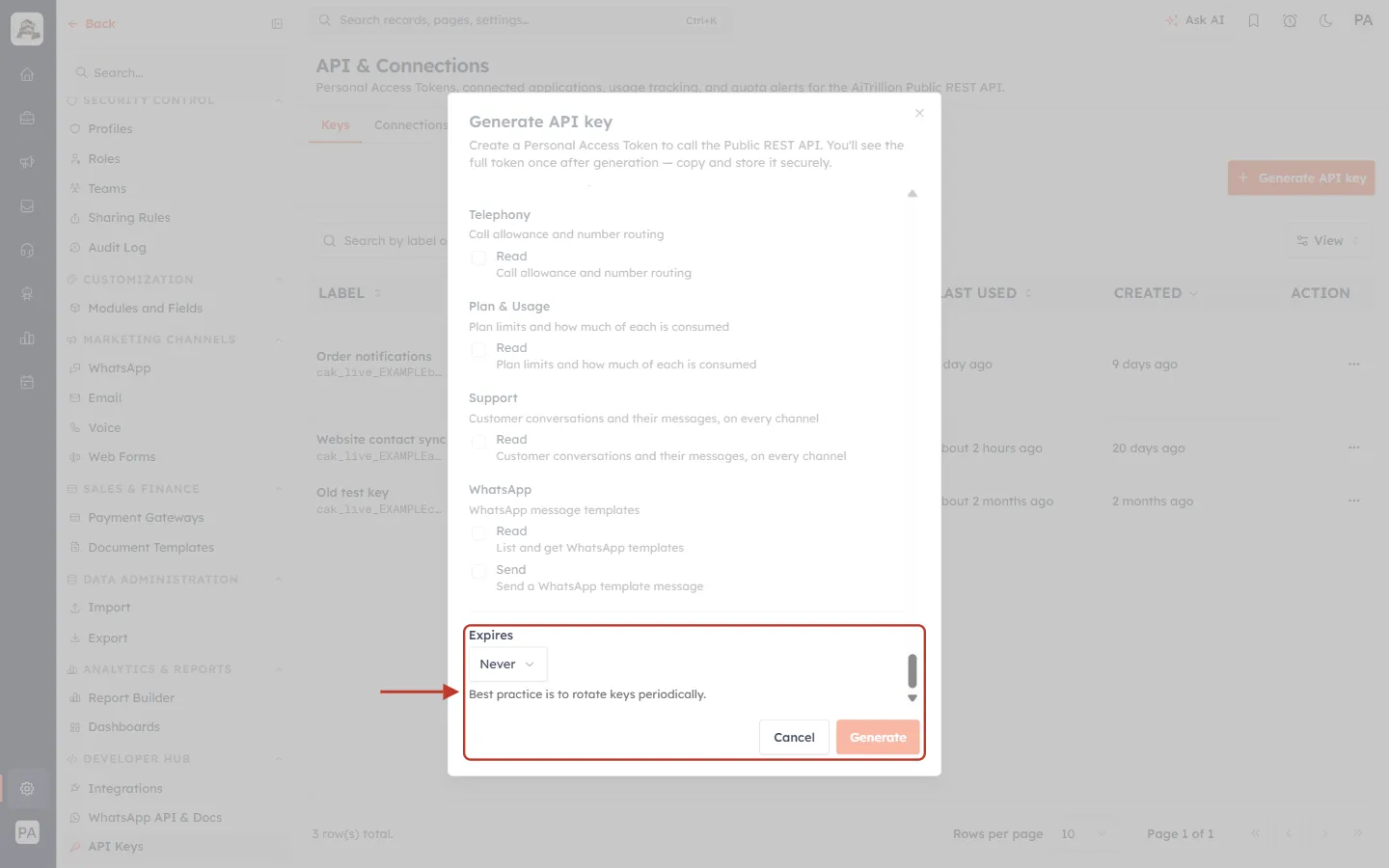
What this screenshot shows. The bottom of the dialog. The red box highlights Expires and the buttons.
Expires: when the key stops working by itself. The default is Never; you can also choose 30, 90, 365 or 730 days.
“Best practice is to rotate keys periodically”: replace keys from time to time, and revoke any key you no longer use.
Cancel closes the dialog without creating anything. Generate creates the key and shows it once.
⚠️
A key works with the permissions of the person who created it, and only ever sees the records that person can see. Its scopes can’t be changed after it is created. To change them, generate a new key and revoke the old one.
Step 5: The Connections tab: AI assistants connected through MCP#
Click the Connections tab. Every time someone connects Claude or another AI assistant to the CRM through MCP, it appears here.
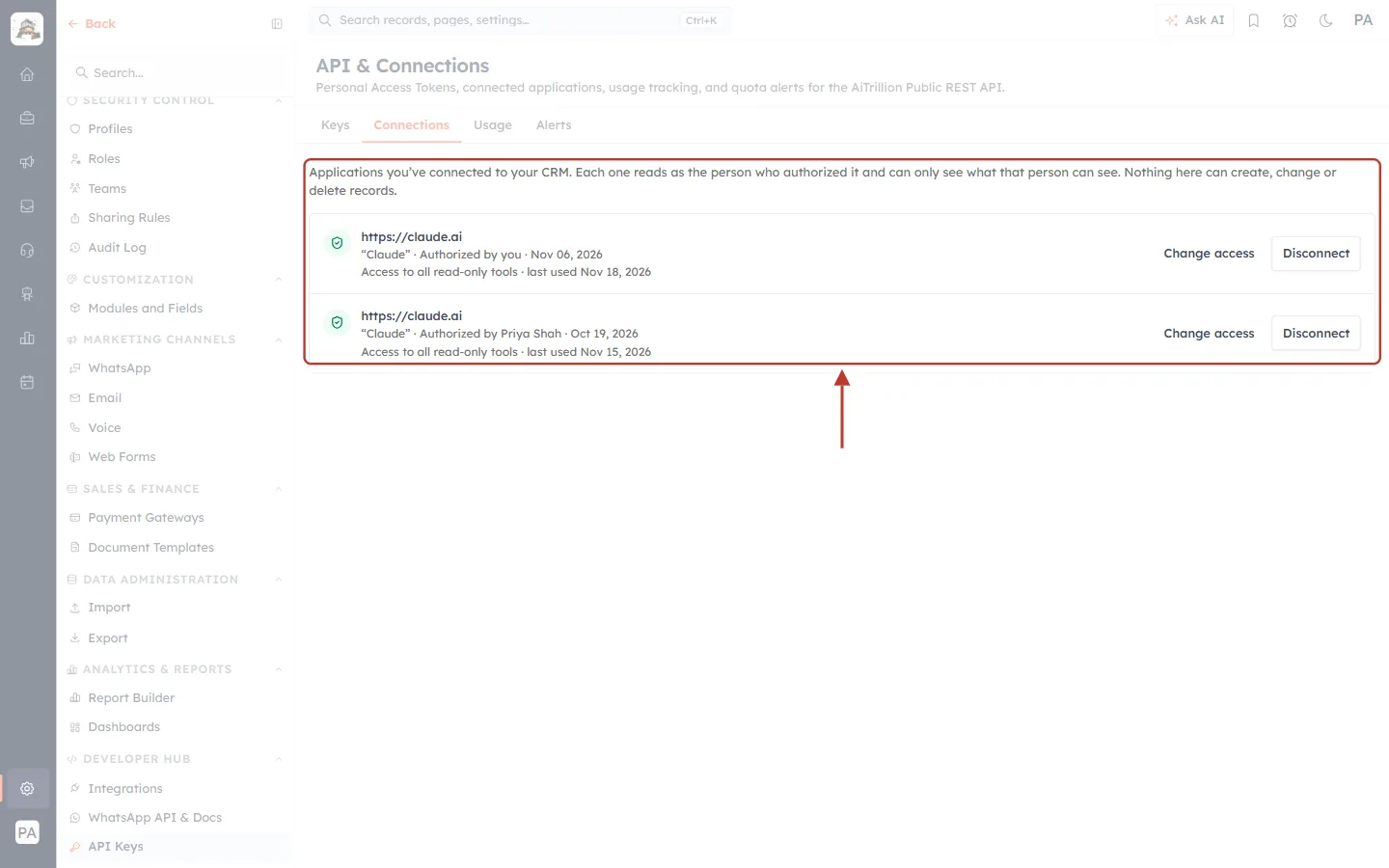
What this screenshot shows. The Connections tab. The red box highlights the description and the list of connected applications.
Description: “Applications you’ve connected to your CRM. Each one reads as the person who authorized it and can only see what that person can see. Nothing here can create, change or delete records.”
Each row shows the application’s web address (https://claude.ai), its name (“Claude”), who authorized it and when. Your own connection says Authorized by you; a colleague’s shows their name, for example Authorized by Priya Shah.
Access to all read-only tools · last used …: what the assistant may read, and when it last asked a question.
Change access: narrow what the assistant may read. It applies on the very next question.
Disconnect: cut the assistant off straight away. A disconnected row shows a Revoked badge.
You see your own connections. With the Manage organization permission you also see everyone else’s, which is useful when someone leaves the company.
Step 6: The Usage tab: how many API calls you have made#
Every API request counts against your plan’s daily and monthly allowance. Click the Usage tab to see where you stand.
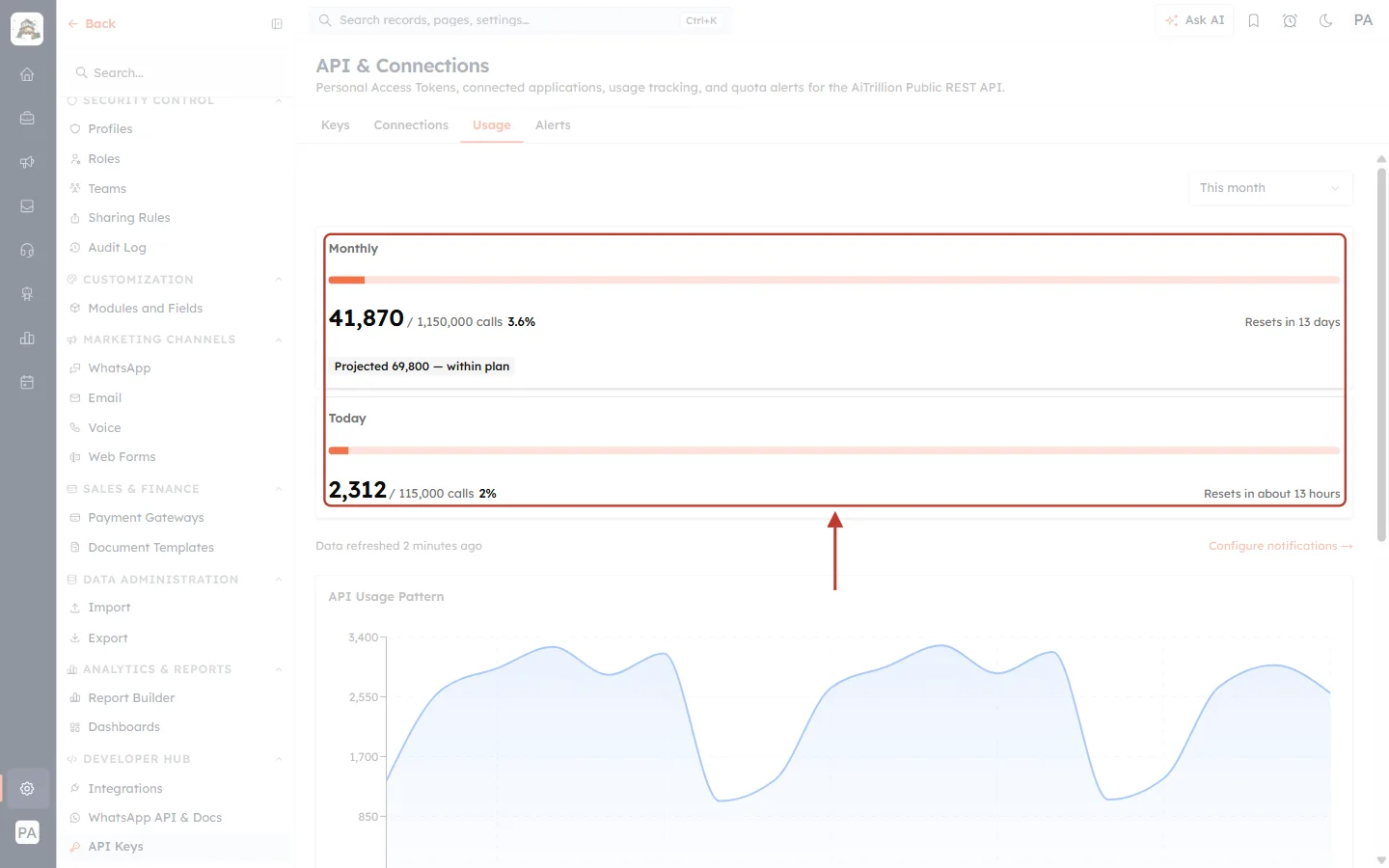
What this screenshot shows. The top of the Usage tab. The red box highlights the two allowance cards.
Monthly: calls made this month against the monthly limit, for example 41,870 / 1,150,000 calls (3.6%), with a progress bar.
Resets in …: when the monthly count starts again from zero.
Projected … — within plan: how many calls you will make by the end of the month at today’s pace, and whether that fits your plan.
Today: calls made today against the daily limit, for example 2,312 / 115,000 calls (2%), and when the daily count resets.
Around the cards: the This month box (top right) changes the period. Under the cards are Data refreshed …, Configure notifications → (opens the Alerts tab) and the API Usage Pattern chart of calls per day.
Your limits depend on your plan, so your numbers will differ from the example.
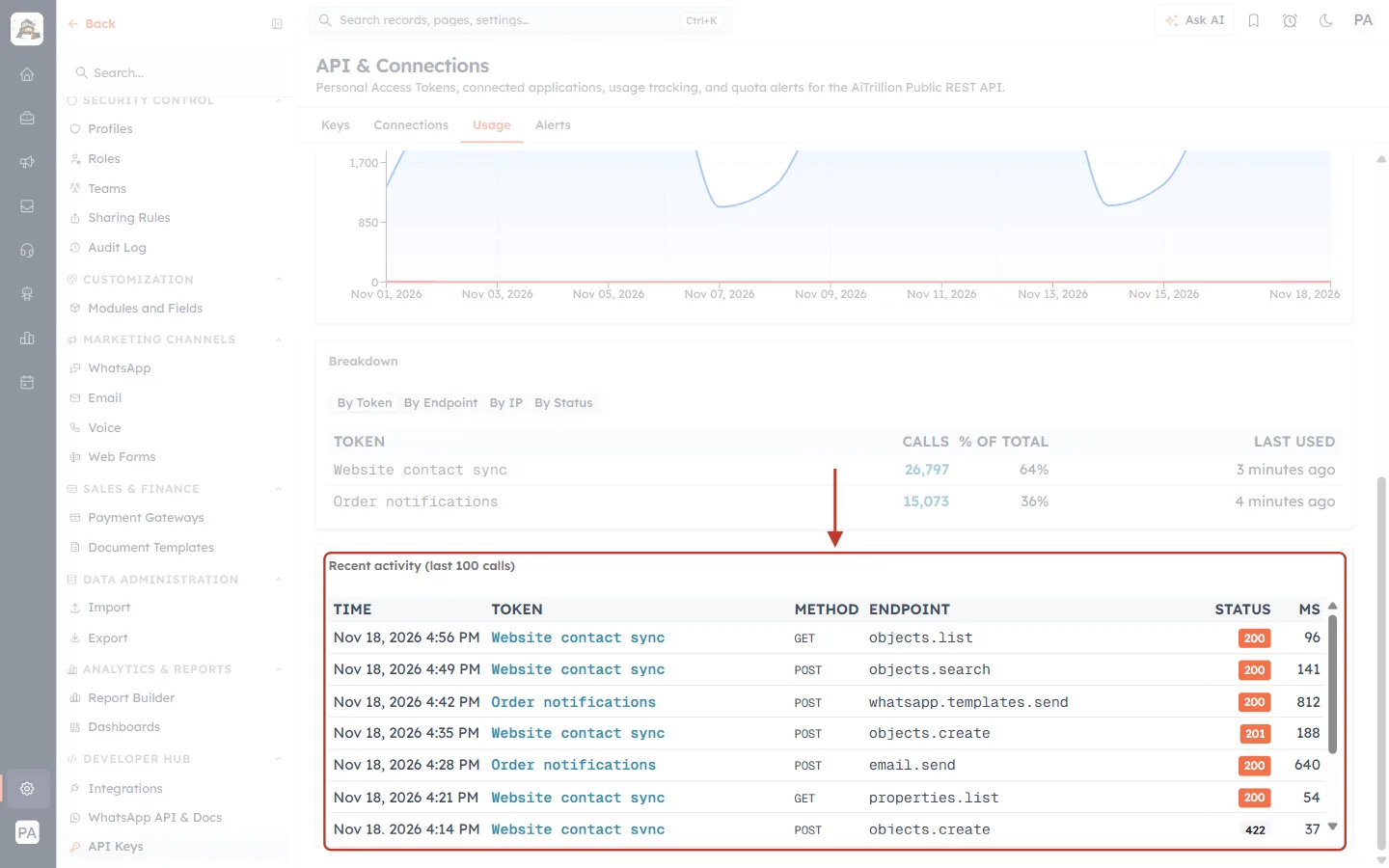
What this screenshot shows. Further down the Usage tab. The red box highlights Recent activity (last 100 calls).
TIME: when the call was made.
TOKEN: which API key made it, for example Website contact sync or Order notifications.
METHOD and ENDPOINT: what the call did, for example
GET objects.list(list records),POST objects.create(create a record),POST email.sendorPOST whatsapp.templates.send.STATUS: the result. 200 and 201 mean success; 4xx numbers (such as 422) mean the request was refused. See Errors below.
MS: how long the call took, in milliseconds.
Above the table: the Breakdown card. Its By Token, By Endpoint, By IP and By Status buttons show which key, call, address or result used the most of your allowance. Here Website contact sync made 64% of the calls.
For the full guide, see Monitor API Usage & Set Quota Alerts.
Step 7: The Alerts tab: get warned before you hit the limit#
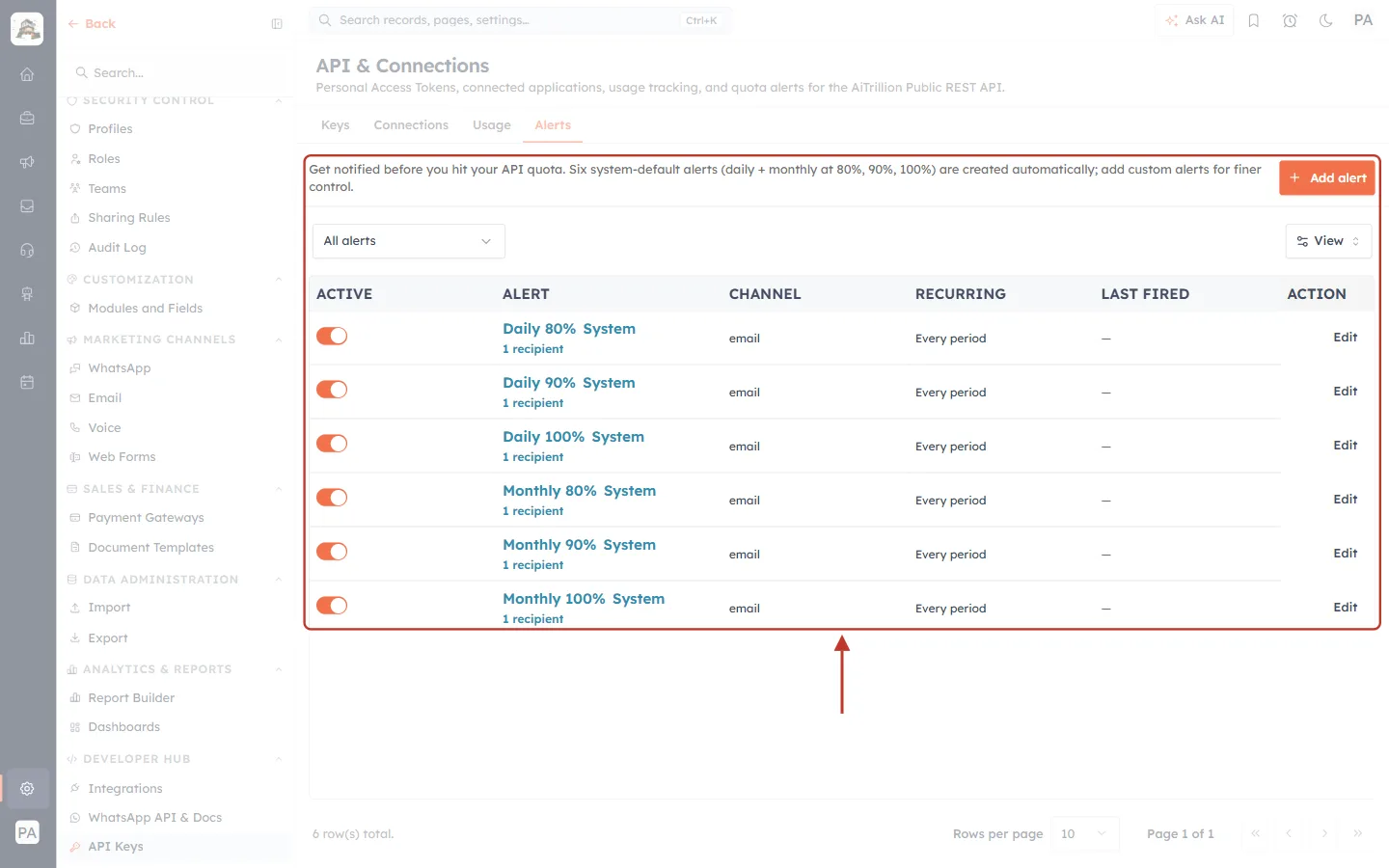
What this screenshot shows. The Alerts tab. The red box highlights the description and the list of alerts.
Description: “Get notified before you hit your API quota. Six system-default alerts (daily + monthly at 80%, 90%, 100%) are created automatically.”
System alerts: Daily 80%, Daily 90%, Daily 100%, Monthly 80%, Monthly 90% and Monthly 100%, each marked System.
ACTIVE: the switch that turns an alert on or off.
CHANNEL and RECURRING: alerts are sent by email, every period (every day or every month).
LAST FIRED shows when the alert was last sent; Edit changes its recipients.
Add alert (top right) creates your own alert, for example at 75%.
⚠️
When you reach 100% of the daily or monthly allowance, further API calls are refused with error 429 until the count resets. Keep the system alerts switched on.
Step 8: The MCP page: connect Claude and other AI assistants#
Go to Settings → AI Centre Hub → MCP. This page has everything a person needs to connect their own AI assistant.
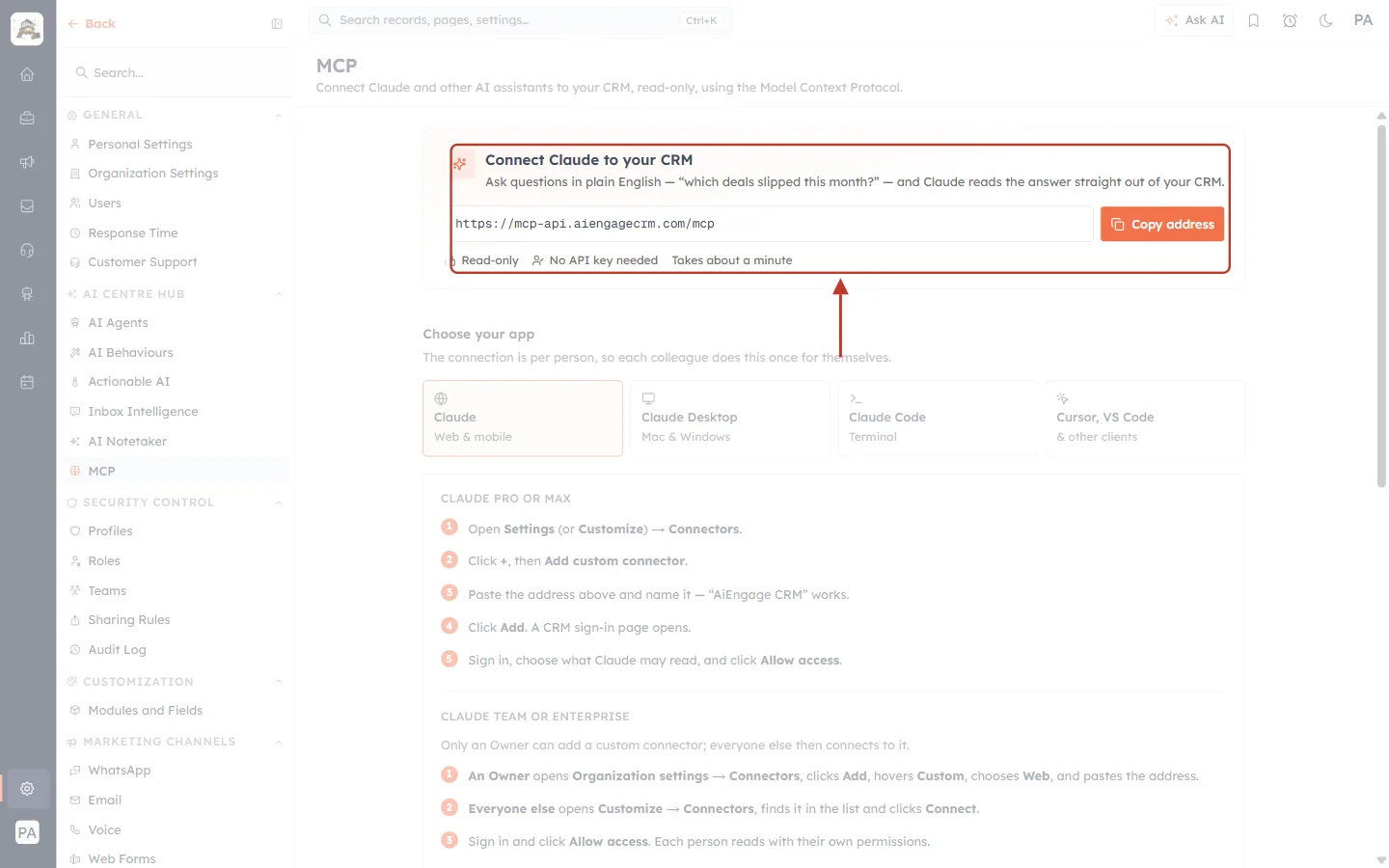
What this screenshot shows. The top of the MCP page. The red box highlights the connection card.
Connect Claude to your CRM: “Ask questions in plain English — ‘which deals slipped this month?’ — and Claude reads the answer straight out of your CRM.”
The server address:
https://mcp-api.aiengagecrm.com/mcp. It is the same for every customer. You paste it into your AI assistant.Copy address: copies the address so you can paste it.
Read-only, No API key needed and Takes about a minute: MCP signs in with your own CRM login, not an API key.
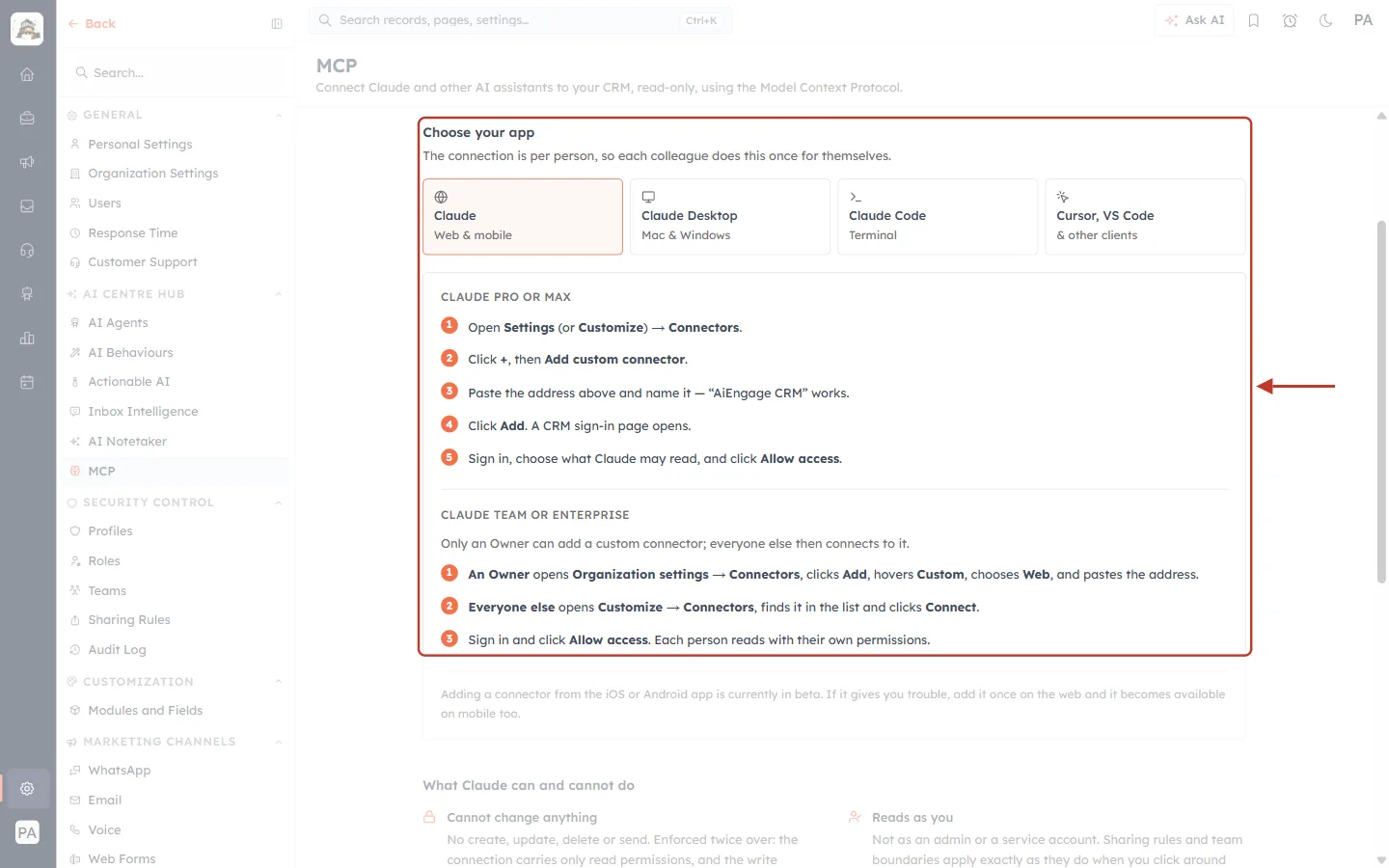
What this screenshot shows. The Choose your app section. The red box highlights the app tabs and the steps for Claude.
“The connection is per person, so each colleague does this once for themselves.”
App tabs: Claude (web and mobile), Claude Desktop (Mac and Windows), Claude Code (terminal) and Cursor, VS Code & other clients. Each tab shows the steps for that app.
Claude Pro or Max: open Settings (or Customize) → Connectors, click + then Add custom connector, paste the address, name it (“AiEngage CRM” works), click Add, sign in to the CRM, choose what Claude may read and click Allow access.
Claude Team or Enterprise: an Owner adds the connector once for the organization; everyone else finds it under Customize → Connectors and clicks Connect.
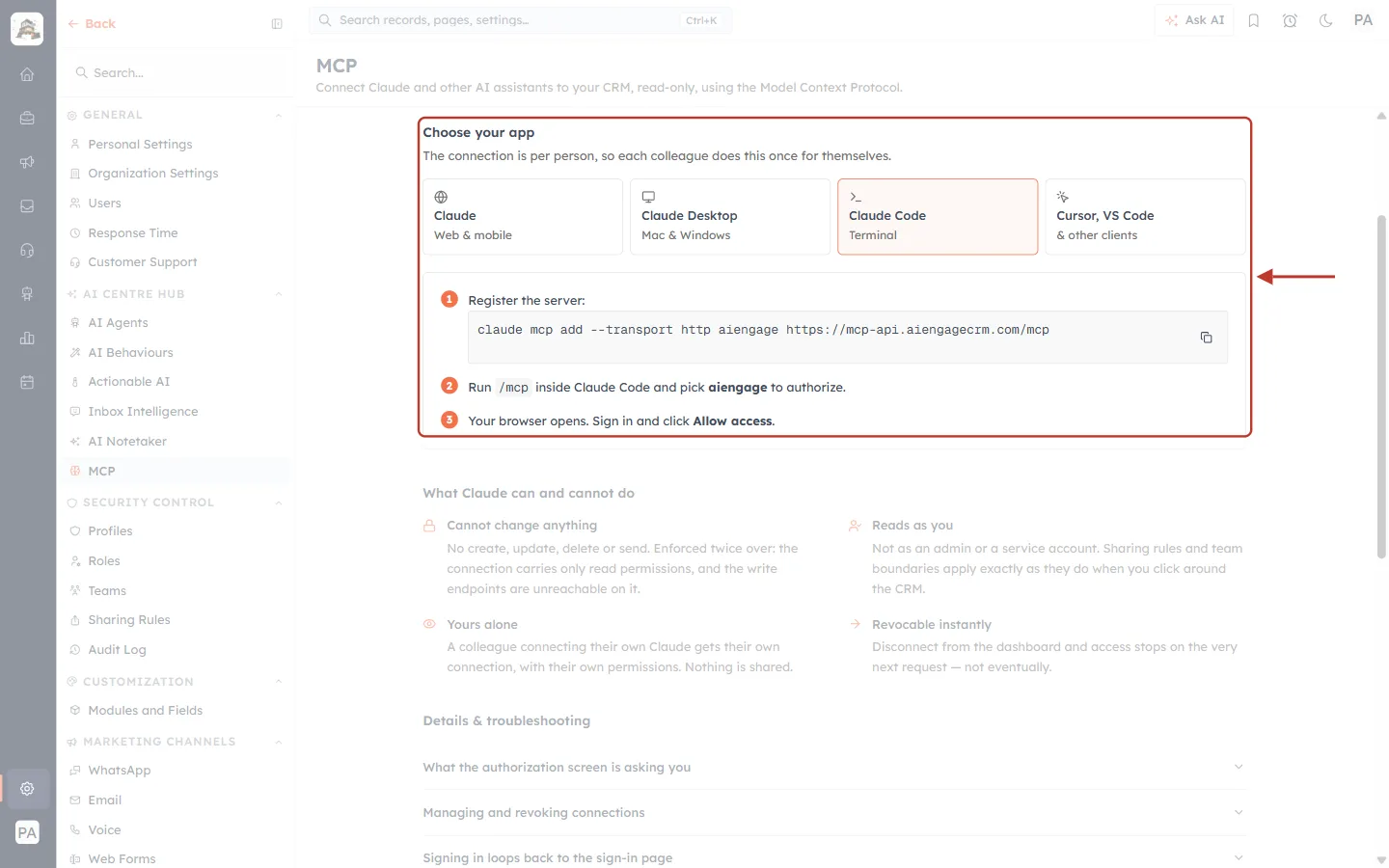
What this screenshot shows. The same section with the Claude Code tab selected. The red box highlights the instructions for a terminal or code editor.
1. Register the server: run
claude mcp add --transport http aiengage https://mcp-api.aiengagecrm.com/mcpin your terminal. The copy icon on the right copies the command.2. Run
/mcpinside Claude Code and pick aiengage to authorize.3. Your browser opens. Sign in to the CRM and click Allow access.
There is no API key in the command. After you click Allow access, Claude Code keeps the connection from then on.
The Cursor, VS Code & other clients tab shows the same address in the settings format those editors use.
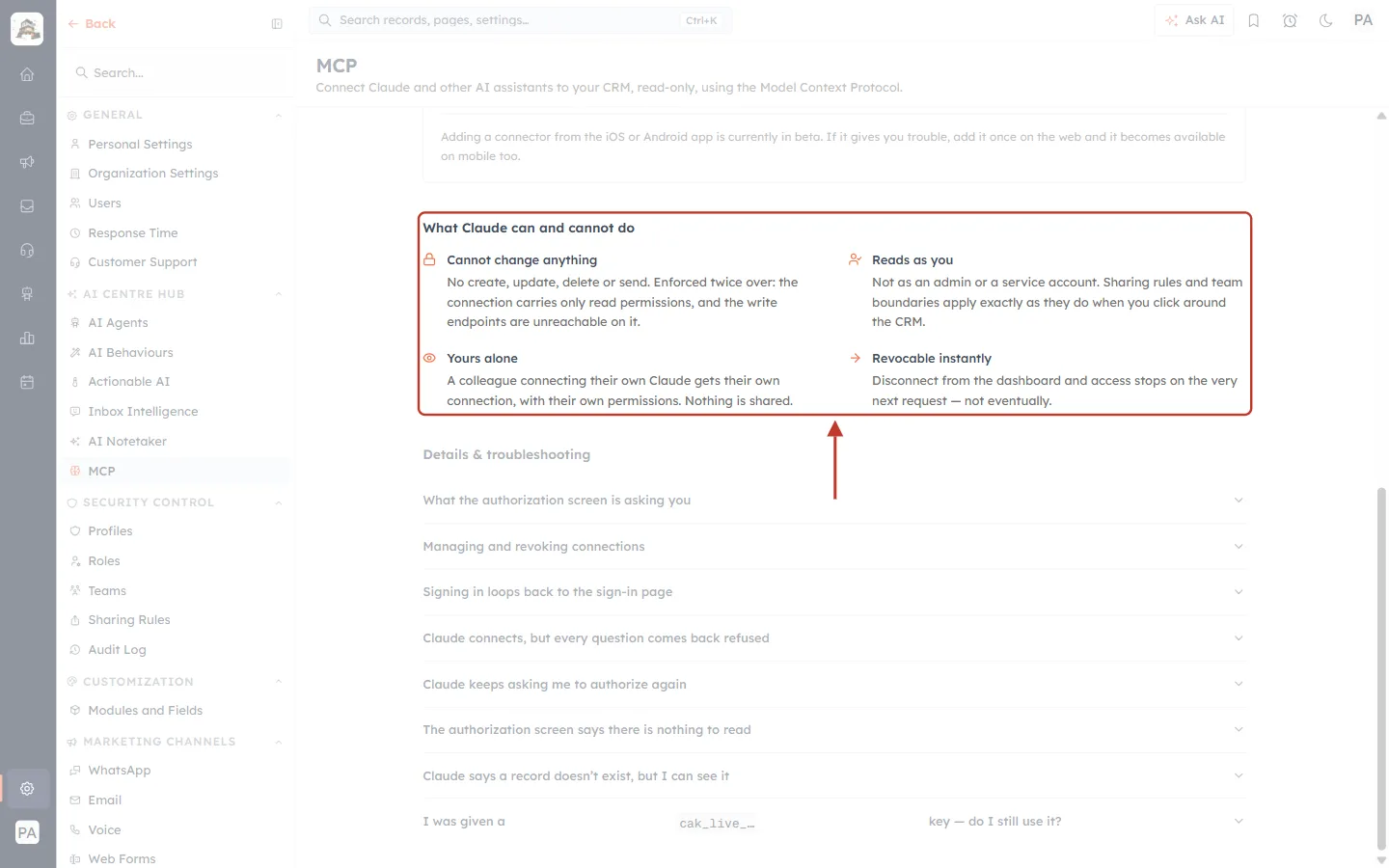
What this screenshot shows. The What Claude can and cannot do section. The red box highlights the four promises MCP makes.
Cannot change anything: “No create, update, delete or send.” The connection only carries read permissions, and the write endpoints can’t be reached from it.
Reads as you: not as an admin. Sharing rules and team boundaries apply exactly as when you use the CRM yourself.
Yours alone: each colleague who connects gets their own connection with their own permissions.
Revocable instantly: disconnect on the Connections tab (Step 5) and access stops on the very next request.
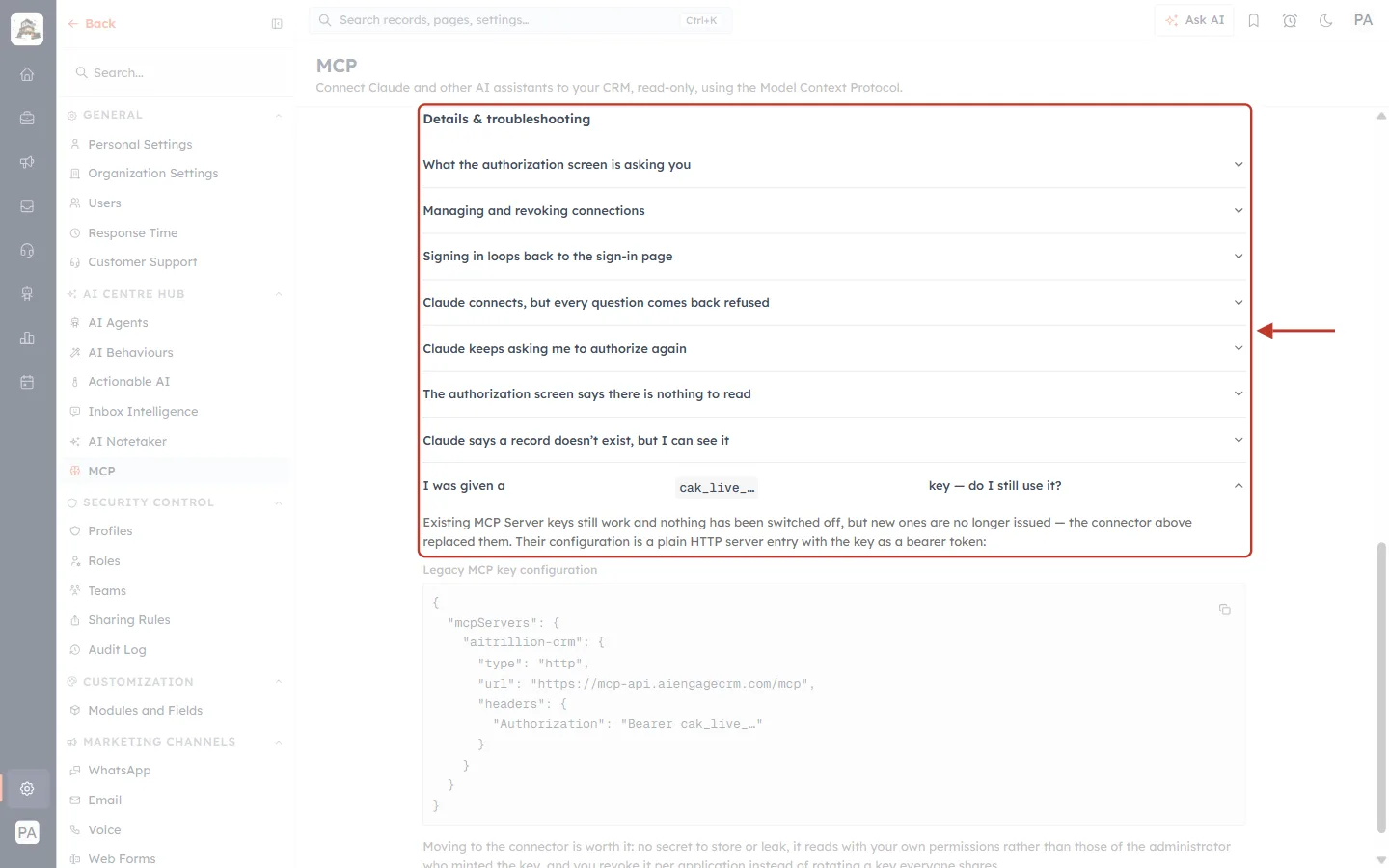
What this screenshot shows. The Details & troubleshooting list at the bottom of the page, with one question opened. The red box highlights the question and its answer.
The list answers the common questions: what the authorization screen asks, managing and revoking connections, sign-in loops, questions coming back refused, repeated authorization requests, records that seem to be missing, and API keys.
“I was given a cak_live_… key — do I still use it?” (opened): “Existing MCP Server keys still work and nothing has been switched off, but new ones are no longer issued — the connector above replaced them.” So you don’t need an API key for MCP. If you still use an old key, switching to the sign-in connection is safer: there is no secret to store, and it reads with your own permissions.
Click any question to open its answer. Click it again to close it.
For the full click-by-click guide, see Connect Claude to AiEngage CRM (MCP).
Step 9: Open the developer documentation#
Developers find the full API reference, ready-to-copy code and a live test console at developer.aiengagecrm.com. You don’t need to sign in to read it.
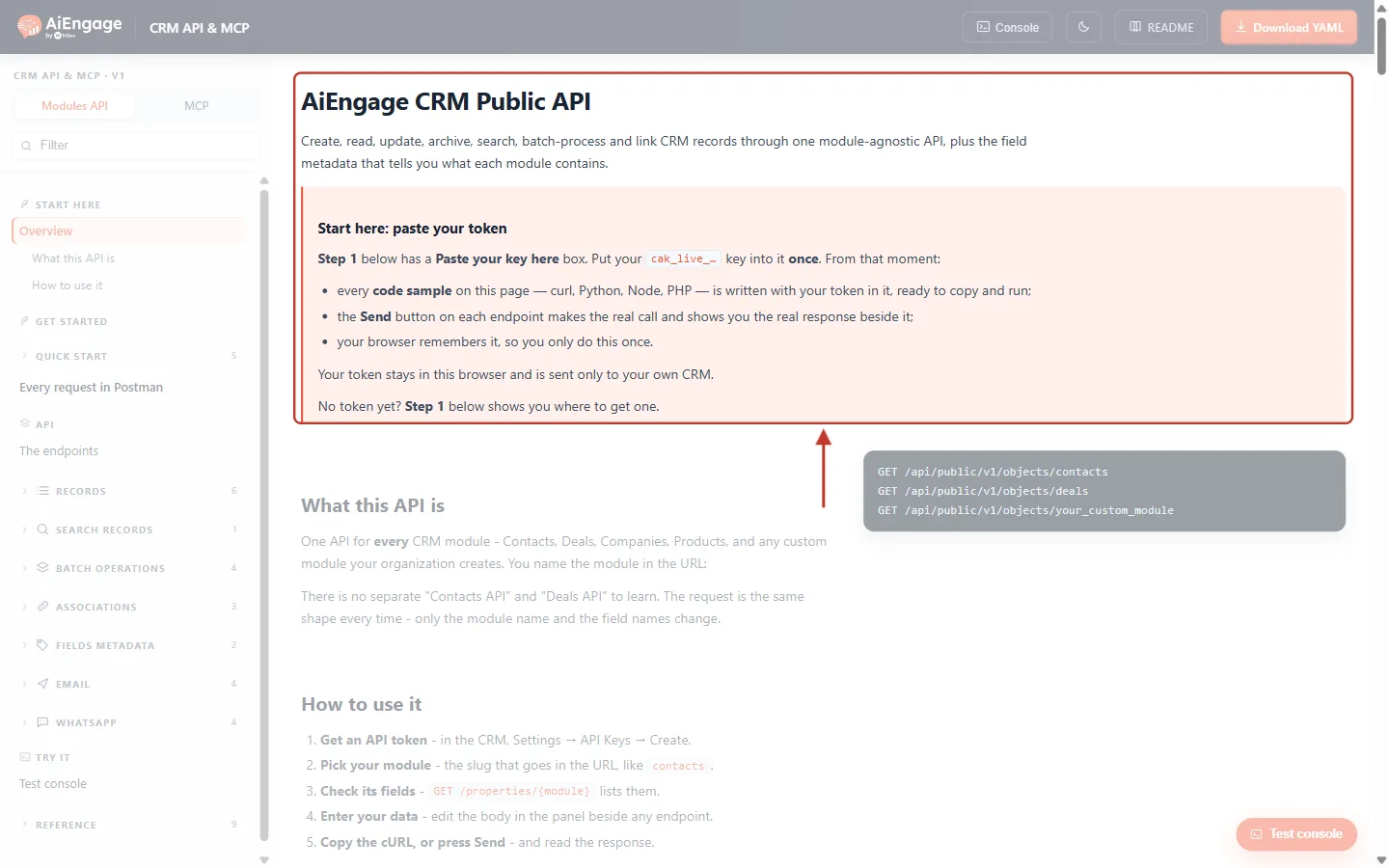
What this screenshot shows. The developer site’s Overview. The red box highlights the title and the Start here: paste your token box.
AiEngage CRM Public API: “Create, read, update, archive, search, batch-process and link CRM records through one module-agnostic API, plus the field metadata that tells you what each module contains.”
Start here: paste your token: paste your
cak_live_…key into the Paste your key here box (in Quick Start, Step 1) once. Every code sample on the site (curl, Python, Node and PHP) is then filled in with your key, and each Send button makes a real call to your CRM.“Your token stays in this browser and is sent only to your own CRM.”
Top bar: Console (run any request), the light/dark switch, README and Download YAML (the OpenAPI file).
⚠️
The Send buttons make real calls with your key. A create, update, archive or send request really changes your CRM or really sends a message. Practise with a test contact.
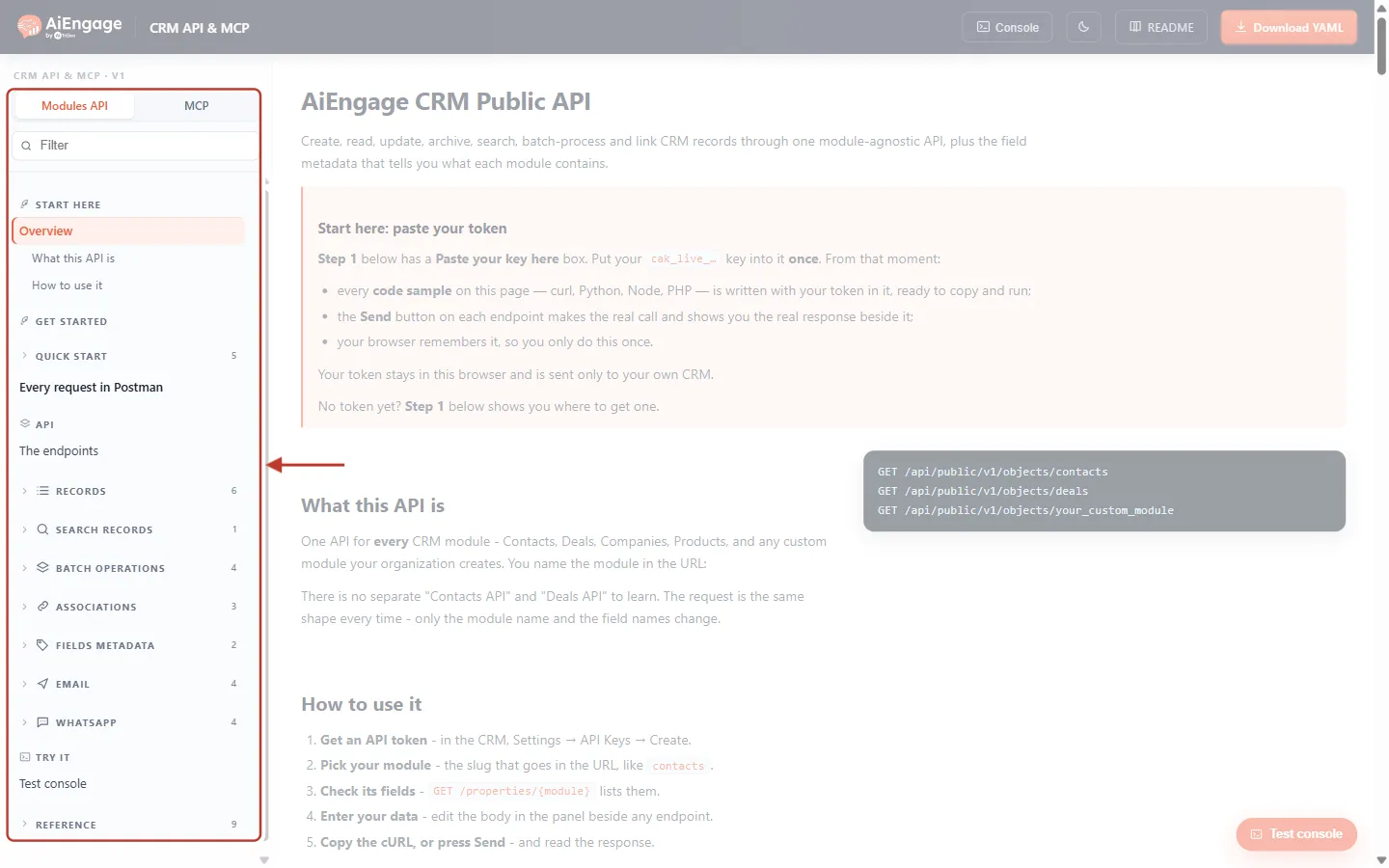
What this screenshot shows. The menu on the left of the developer site. The red box highlights the two tabs and the sections.
Modules API and MCP tabs: switch between the API reference and the MCP guide.
START HERE and GET STARTED: Overview, Quick Start (5 steps) and Every request in Postman.
API: Records (6), Search Records (1), Batch Operations (4), Associations (3), Fields Metadata (2), Email (4) and WhatsApp (4). The number is how many calls each section has.
TRY IT → Test console and REFERENCE (authentication, scopes, errors, rate limits and more).
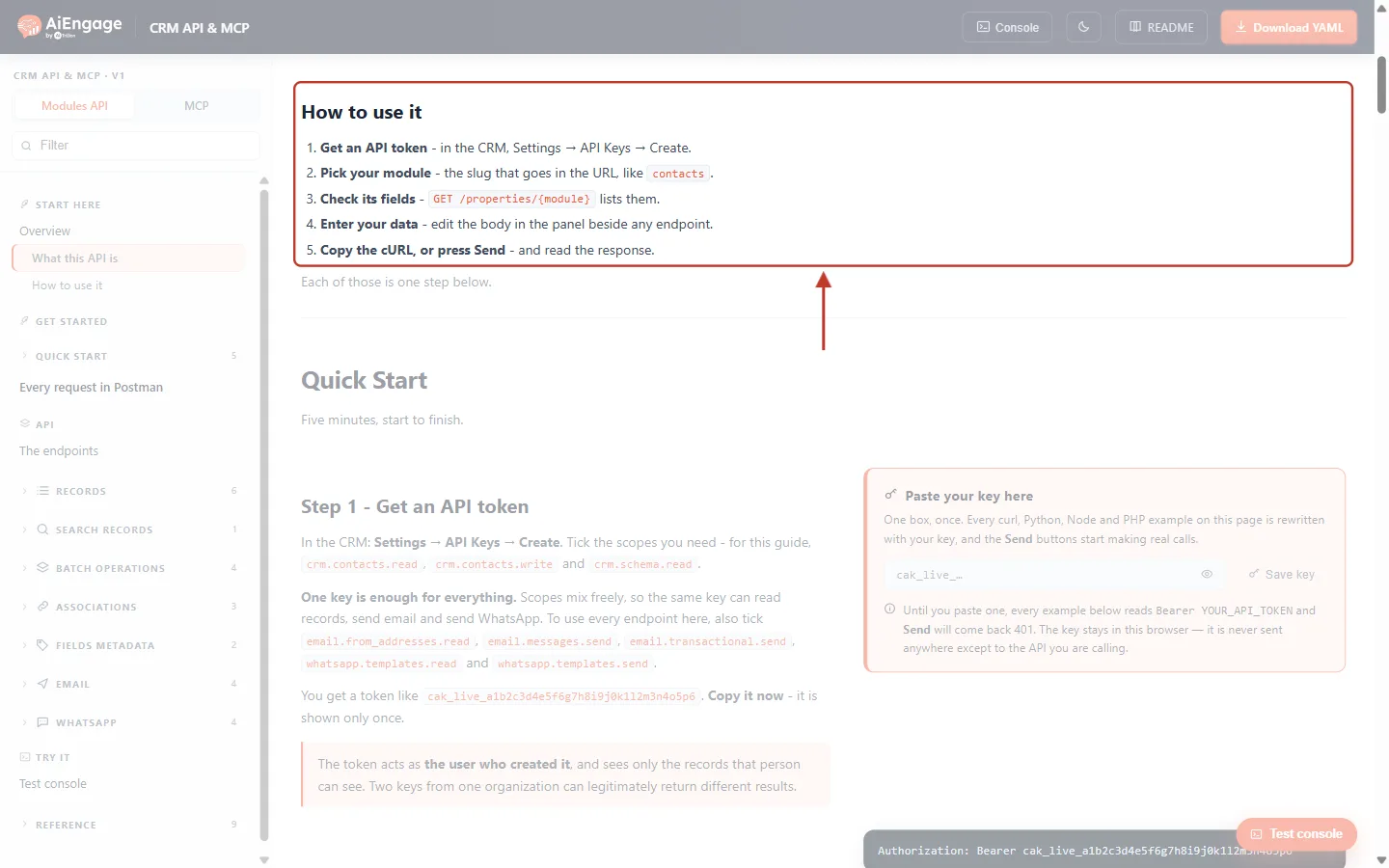
What this screenshot shows. The How to use it section. The red box highlights the five steps every integration follows.
1. Get an API token: in the CRM, Settings → API Keys (Step 4 of this article).
2. Pick your module: the short name that goes in the web address, such as
contacts.3. Check its fields:
GET /properties/{module}lists them.4. Enter your data: edit the request body beside any endpoint.
5. Copy the cURL, or press Send: and read the response.
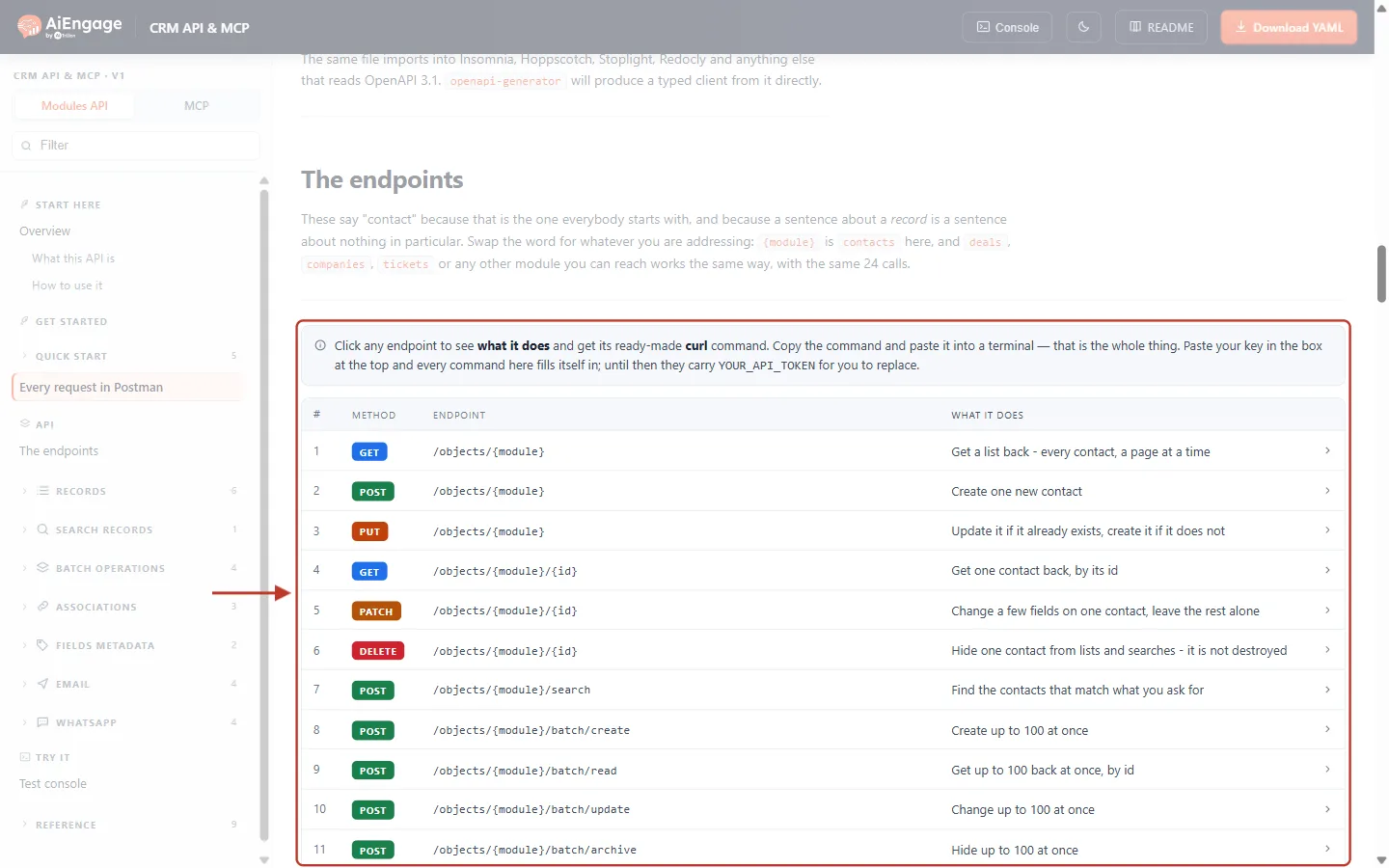
What this screenshot shows. The The endpoints table, which lists all 24 API calls in plain words. The red box highlights the note above the table and calls 1 to 11. Each row shows the number, the method (GET, POST, PUT, PATCH or DELETE), the address and What it does. Click a row to see its ready-made curl command.
1–6, Records: get a list of records, create one, create-or-update (upsert), get one, change some fields, and archive one.
7, Search: find the records that match what you ask for.
8–11, Batch: create, get, change or archive up to 100 records at once.
Every call works for any module. The table says “contact”, but you can swap in deals, companies, tickets or your own custom module.
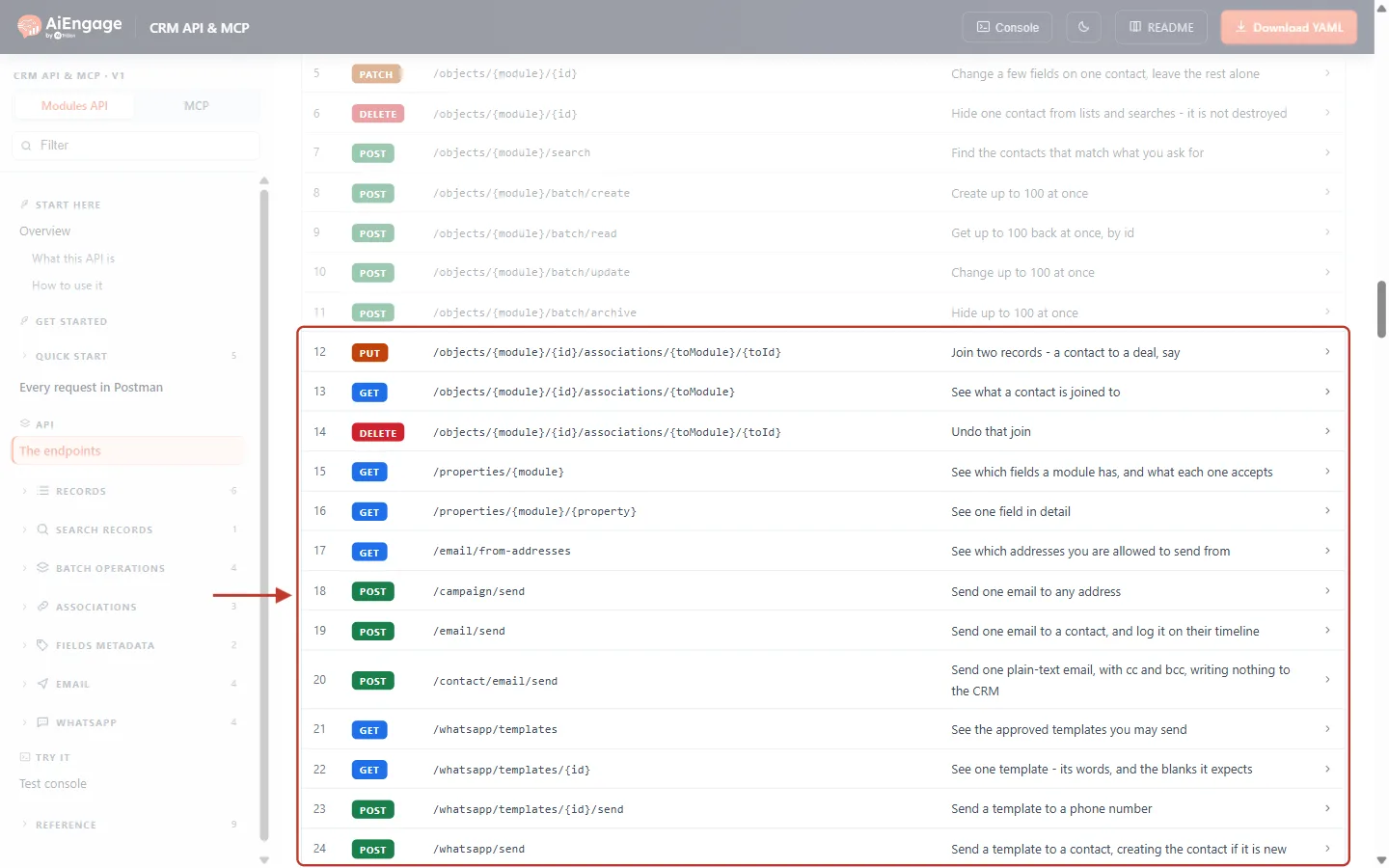
What this screenshot shows. The rest of the table. The red box highlights calls 12 to 24.
12–14, Associations: link two records (for example a contact to a deal), see links, and remove a link.
15–16, Fields: see which fields a module has and what each one accepts.
17–20, Email: see which addresses you may send from, and send an email (to any address, to a contact with a timeline entry, or as plain text with cc and bcc).
21–24, WhatsApp: see your approved templates, see one template, send a template to a phone number, or send a template to a contact (the contact is created if it is new).
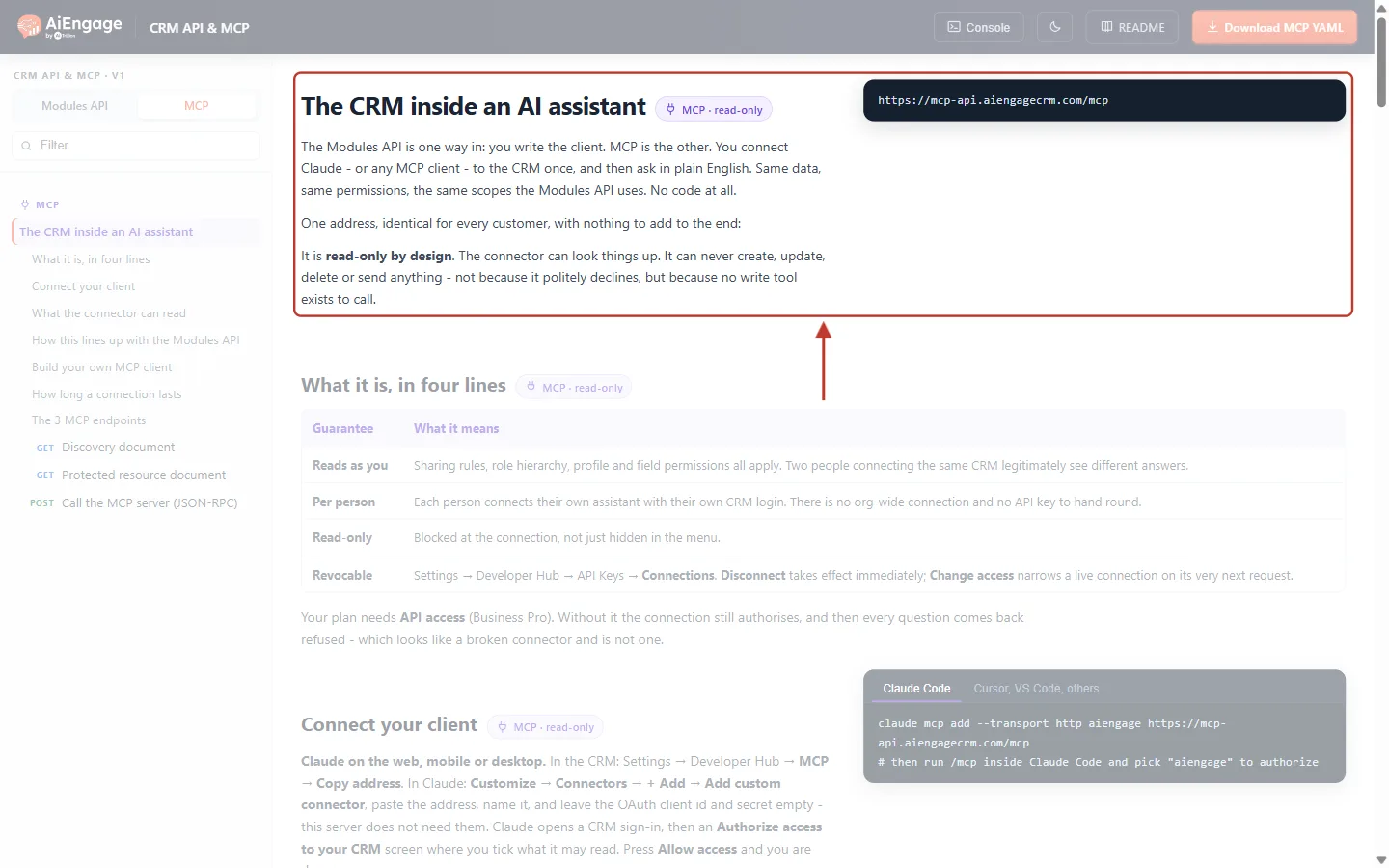
What this screenshot shows. The developer site with the MCP tab open. The red box highlights the introduction and the server address.
The CRM inside an AI assistant (MCP · read-only): “The Modules API is one way in: you write the client. MCP is the other.”
The address
https://mcp-api.aiengagecrm.com/mcp, identical for every customer.Read-only by design: “It can never create, update, delete or send anything — because no write tool exists to call.”
The MCP menu continues with Connect your client, What the connector can read (48 read-only tools in 16 groups, such as records, reports, analytics, dashboards, campaigns and workflows) and Build your own MCP client.
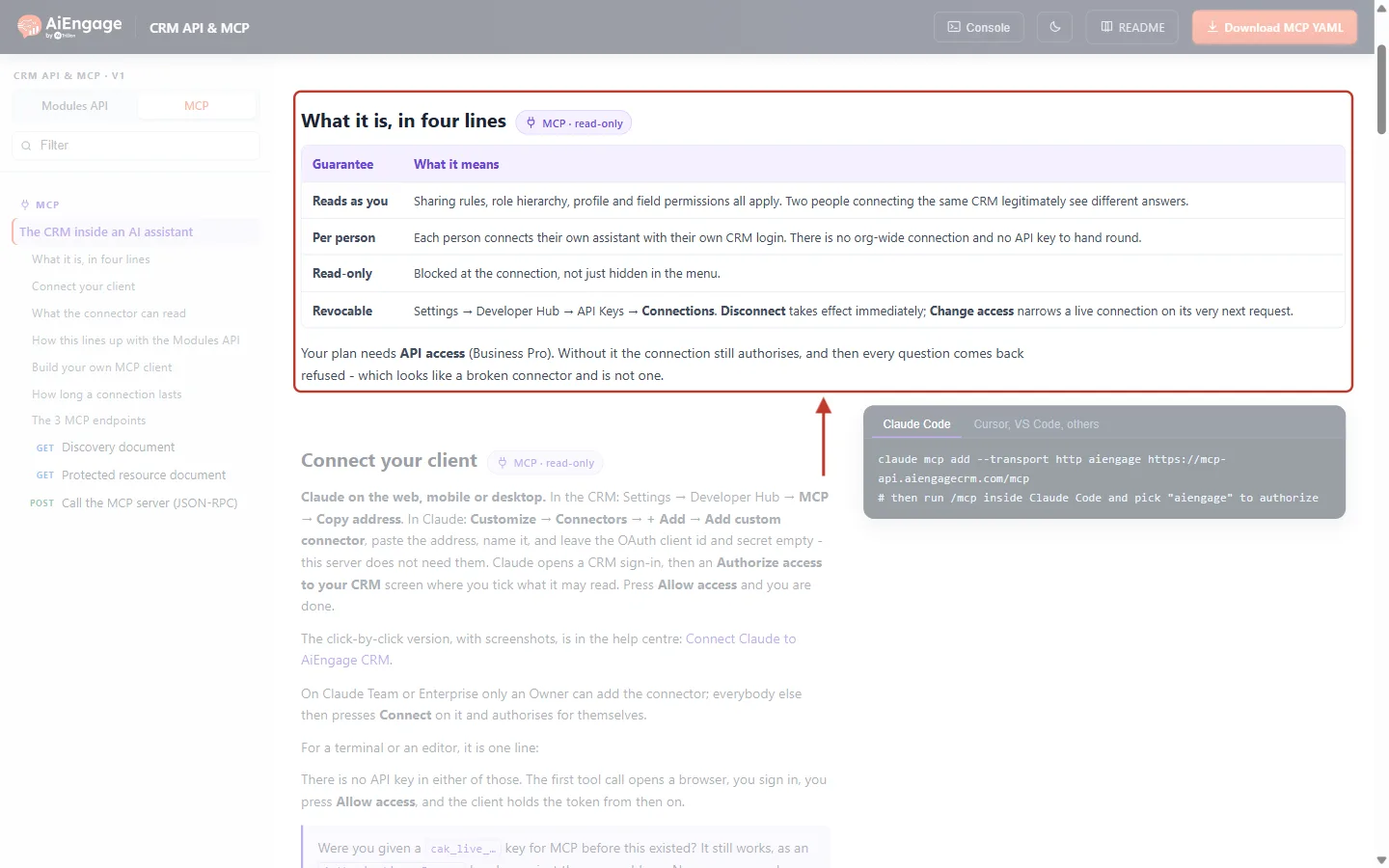
What this screenshot shows. The What it is, in four lines table.
Reads as you: sharing rules, role hierarchy, profile and field permissions all apply. Two people connected to the same CRM can get different answers.
Per person: each person connects their own assistant with their own login. There is no company-wide connection and no API key to share.
Read-only: blocked at the connection, not just hidden in the menu.
Revocable: Settings → Developer Hub → API Keys → Connections. Disconnect works immediately; Change access applies on the next request.
Under the table: “Your plan needs API access (Business Pro). Without it the connection still authorises, and then every question comes back refused.”
Step 10: Make your first API call#
This is the shortest possible test that your key works. You need a key with the Contacts: Read and Schema: Read scopes (see API Keys Step by Step). Replace YOUR_API_TOKEN with your key and run the commands in a terminal, or paste them into the developer site’s Console. For a click-by-click version with screenshots, see the next article, Quick Start: Make Your First AiEngage CRM API Call in 5 Minutes.
1. See which modules your key can reach. The answer lists each module with its slug, the short name you put in the address.
curl "https://app.aiengagecrm.com/cback/api/public/v1/objects" \
  -H "Authorization: Bearer YOUR_API_TOKEN"
2. See which fields the Contacts module has. Field names differ between organizations, so always read them from here rather than guessing.
curl "https://app.aiengagecrm.com/cback/api/public/v1/properties/contacts" \
  -H "Authorization: Bearer YOUR_API_TOKEN"
3. Get your five newest contacts.
curl "https://app.aiengagecrm.com/cback/api/public/v1/objects/contacts?limit=5" \
  -H "Authorization: Bearer YOUR_API_TOKEN"
A successful answer looks like this. Each record has an id, its fields under properties, and the dates it was created and updated. paging.next.after is the bookmark for the next page.
{
  "results": [
    {
      "id": "6650f1a2b3c4d5e6f7a8b9c0",
      "properties": { "first_name": "Ada", "last_name": "Lovelace", "email": "ada@example.com" },
      "created_at": "2026-11-10T09:30:00.000Z",
      "updated_at": "2026-11-10T09:30:00.000Z",
      "archived": false
    }
  ],
  "paging": { "next": { "after": "eyJpZCI6IjY2NTBmMWEyIn0" } }
}
Then check the Usage tab (Step 6): your calls appear under Recent activity with status 200.
✅
Prefer clicking to typing? In Postman choose Import → Link and paste
https://developer.aiengagecrm.com/module-public-api.yaml. All 24 calls arrive ready to run. Add your key once as the collection’s Bearer Token.Key facts at a glance#
Topic | What to know |
|---|---|
Base address |
|
Sign-in header |
|
Modules | One API for every module: |
Scopes | Three families that mix freely on one key: |
Records | The same shape for every module: |
Pages | Lists return up to 100 records per page (default 10). Pass |
Archive, not delete | Deleting a record archives it. It can be restored for 90 days. |
Safe retries | Send an |
Rate limits | General calls: 100 per 10 seconds. Search and batch-read: 5 per second. Email sending has its own lower limits. Every response carries |
Module access | Every module is available to the API unless an administrator turns it off. A module that is turned off answers 404 MODULE_NOT_AVAILABLE. |
Errors you may see#
Every error has the same shape, with a category that tells you what went wrong and a correlationId to quote if you contact support.
Status | Category | What it means | What to do |
|---|---|---|---|
401 | UNAUTHORIZED | The key is missing, mistyped, revoked or expired. | Check the |
403 | MISSING_SCOPE | The key doesn’t have the scope this call needs. The message names it. | Generate a new key with that scope. |
403 | FORBIDDEN | The key has the scope, but the person who created it isn’t allowed to do this (for example, mass update is switched off in their profile). | Ask your administrator to check that person’s profile. |
404 | MODULE_NOT_AVAILABLE | No module has that name, or it is turned off for the API. | Use a |
400 / 422 | VALIDATION_ERROR | A field value is wrong or a required field is missing. | Check the field with |
429 | RATE_LIMITED | Too many calls too quickly, or the daily or monthly allowance is used up. | Wait for the number of seconds in |
What’s in this collection#
The CRM API & MCP collection is organised so you can read it from top to bottom:
Section | What it covers |
|---|---|
Getting started | This introduction, creating an API key, and making your first request. |
Core concepts | Modules and fields, record IDs, pagination, filters, scopes, rate limits and error codes. |
Working with records | Create, read, update, search, archive, batch and link records (contacts, companies, deals and any module). |
Messaging | Send email and WhatsApp template messages from your own systems. |
MCP | Connect Claude, Claude Code, Cursor and other AI assistants, what they can read, and how to revoke them. |
Wrap-up | Best practices, troubleshooting and answers to common questions. |
Good to know#
A key is a password. Store it in a password manager or your server’s secret settings. Never put it in a website’s public code, an email or a shared document.
Use one key per integration. If one integration is compromised, you revoke only that key, and the Usage tab shows clearly which integration made each call.
Give each key only the scopes it needs. A key that only reads contacts should not be able to send messages.
A key follows its creator. If the person who created a key is deleted, the key stops working. Create keys for long-running integrations from an account that will stay.
MCP needs no key. Each person connects their own AI assistant with their own CRM sign-in.
MCP can’t change anything. To create records or send messages automatically, use the API.
Troubleshooting#
I can’t see API Keys or MCP in Settings#
Why it happens: your profile doesn’t have the API access permission, or your plan doesn’t include API access. How to fix it: ask your administrator to check your profile and the company’s plan.
Every API call returns 401#
Why it happens: the header is missing or mistyped, or the key was revoked or has expired. How to fix it: send exactly Authorization: Bearer cak_live_… (one space after “Bearer”), and check the key’s status on the Keys tab.
The API returns 403 MISSING_SCOPE#
Why it happens: the key wasn’t given the scope for that call, for example it has Contacts: Write but not Contacts: Read. How to fix it: scopes can’t be added to an existing key. Generate a new key with the right scopes and revoke the old one.
Claude connects, but every question comes back refused#
Why it happens: your plan doesn’t include API access, or you unticked everything on the authorization screen. How to fix it: check the plan with your administrator, or use Change access on the Connections tab to allow more.
The API or Claude says a record doesn’t exist, but I can see it#
Why it happens: the key or connection reads as a different person who can’t see that record. How to fix it: check who created the key (or who connected the assistant) and what their sharing rules allow.
Frequently asked questions#
Do I need to be a developer to use MCP?
No. Connecting Claude takes about a minute and needs no code. Only the API needs a developer (or a tool such as Postman or Zapier).
Can Claude update my CRM or send messages through MCP?
No. MCP is read-only. To create, update or send automatically, use the API with a key that has the Write or Send scopes.
Do API calls count against a limit?
Yes. Calls made with an API key count against your plan’s daily and monthly allowance. See the Usage tab (Step 6).
Can I see the API key again after I create it?
No. It is shown once. If you lose it, generate a new key and revoke the old one.
Where is the full list of API calls?
On developer.aiengagecrm.com, under The endpoints.
Previous and next#
Previous: Introduction to Integrations & Lead Capture: Find, Connect and Manage Every Integration Step by Step
Next: Quick Start: Make Your First AiEngage CRM API Call in 5 Minutes
Related#
Quick Start: Make Your First AiEngage CRM API Call in 5 Minutes
API Keys Step by Step: Generate, Use and Revoke a Personal Access Token to Build Custom Integrations
Connect Claude to AiEngage CRM (MCP): Ask Your CRM Questions in Plain English
Introduction to Integrations & Lead Capture: Find, Connect and Manage Every Integration Step by Step
Was this article helpful?
Ready to implement this?
OpenAI Engage and apply what you just learned to your own workspace.
Open AI Engage CRM