Loading…


KnowledgeBase
API Rate Limits & Quotas: Understand the Limits, Read the Headers and Handle 429 Errors
Introduction#
To keep the AiEngage CRM API fast and reliable for everyone, it limits how many calls you can make. There are two separate limits, and it helps to understand both before you build an integration:
Limit | What it controls | Applies to | When it resets |
|---|---|---|---|
Rate limit (short-term) | How fast you can send requests — e.g. 100 requests every 10 seconds. | Each API key separately | A few seconds later, as the window rolls over |
Quota (long-term) | How many calls your whole account can make per day and per month. The numbers come from your plan. | Your whole organization — all keys together | Daily at midnight UTC; monthly at the end of the month (UTC) |
If you go over either one, the API answers 429 Too Many Requests instead of running your request. This guide shows, step by step:
Where to see your quota and how much of it you have used.
How to spot rate-limited calls in your usage.
Which alerts warn you before you reach the quota.
Every rate limit, endpoint by endpoint.
How to read the
RateLimitheaders on each response.What the two kinds of 429 error look like, and how your code should retry.
Each screenshot has a red ring and arrow on the part to look at, followed by a description of the whole screen. Screenshots of the API reference, the two 429 rows in Recent activity and the By Status numbers use example data; the quota cards and alerts are real.
Before You Begin#
You need access to Settings → Developer Hub → API Keys (see API Keys Step by Step: Generate, Use and Revoke a Personal Access Token).
Your integration already sends an API key in the
Authorization: Bearerheader (see API Authentication & Bearer Tokens).
Step 1: Open the Usage Tab#
Go to Settings → Developer Hub → API Keys. The page is called API & Connections. Click the Usage tab.
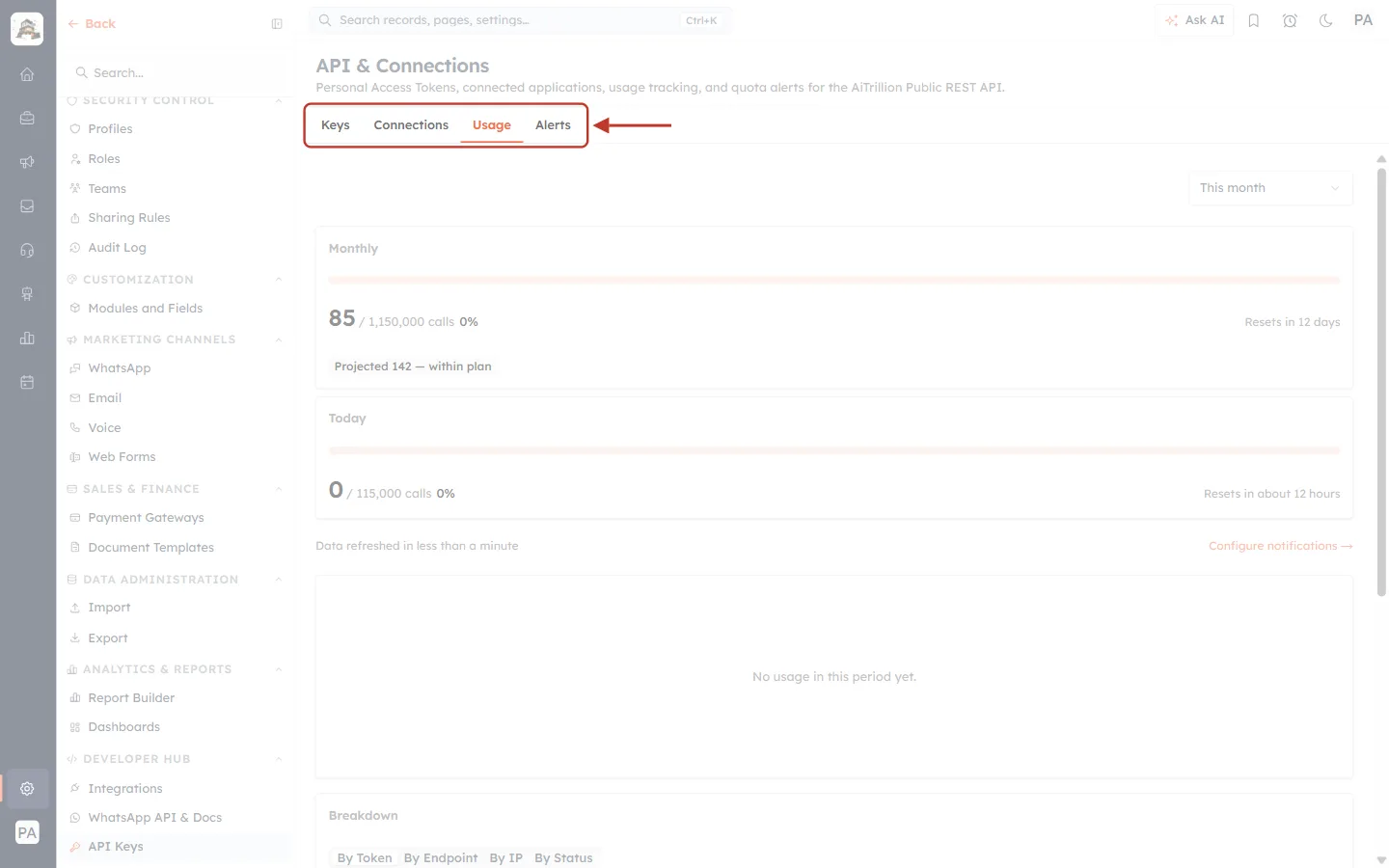
What this screenshot shows. The four tabs at the top of the API & Connections page.
Keys — your API keys (Personal Access Tokens).
Connections — apps such as Claude that you connected through an approval screen.
Usage — selected here; shows your quota and every recent call. This is where you check limits.
Alerts — e-mail warnings before you reach your quota (Step 3).
The settings menu on the left shows API Keys highlighted under Developer Hub.
Step 2: Check Your Quota#
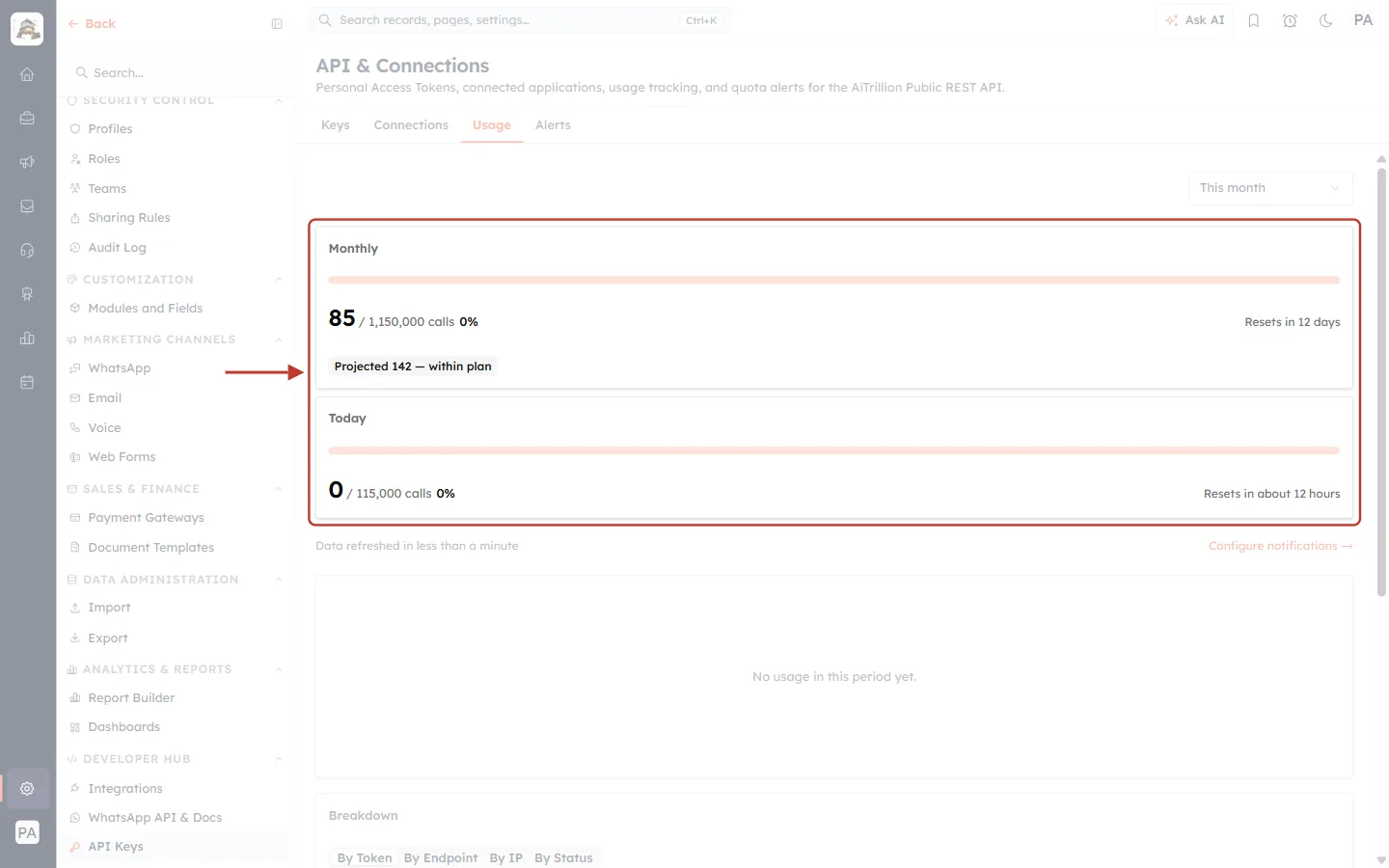
What this screenshot shows. The two quota cards at the top of the Usage tab. These numbers are real for the account used in this guide.
The This month drop-down at the top right changes the period used by the chart and tables lower down; the two cards always show the current month and today.
Each card has a progress bar that fills up as you use your quota.
Below the cards: “Data refreshed in less than a minute” (how fresh the numbers are) and Configure notifications →, a shortcut to the Alerts tab.
Further down are the usage chart, the Breakdown table and Recent activity.
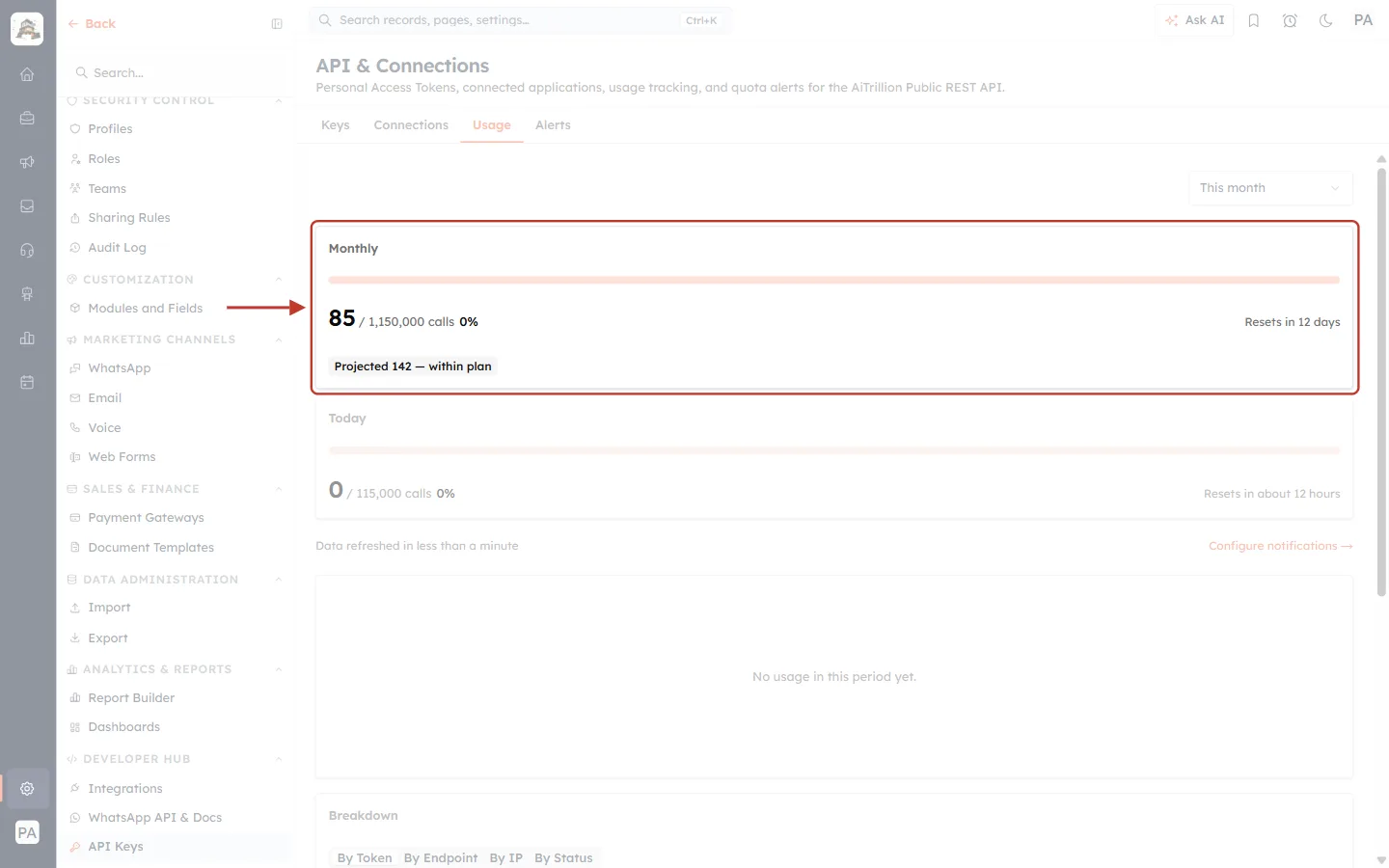
What this screenshot shows. The Monthly card on its own.
85 / 1,150,000 calls · 0% — 85 calls used this month out of the plan’s 1,150,000 (this account is on the Advance plan; yours shows your plan’s number).
Resets in 12 days — the counter goes back to zero at the end of the month, UTC time.
Projected 142 — within plan — an estimate of the month’s total at your current pace. If it says you will go over, slow your integration down or upgrade before you are blocked.
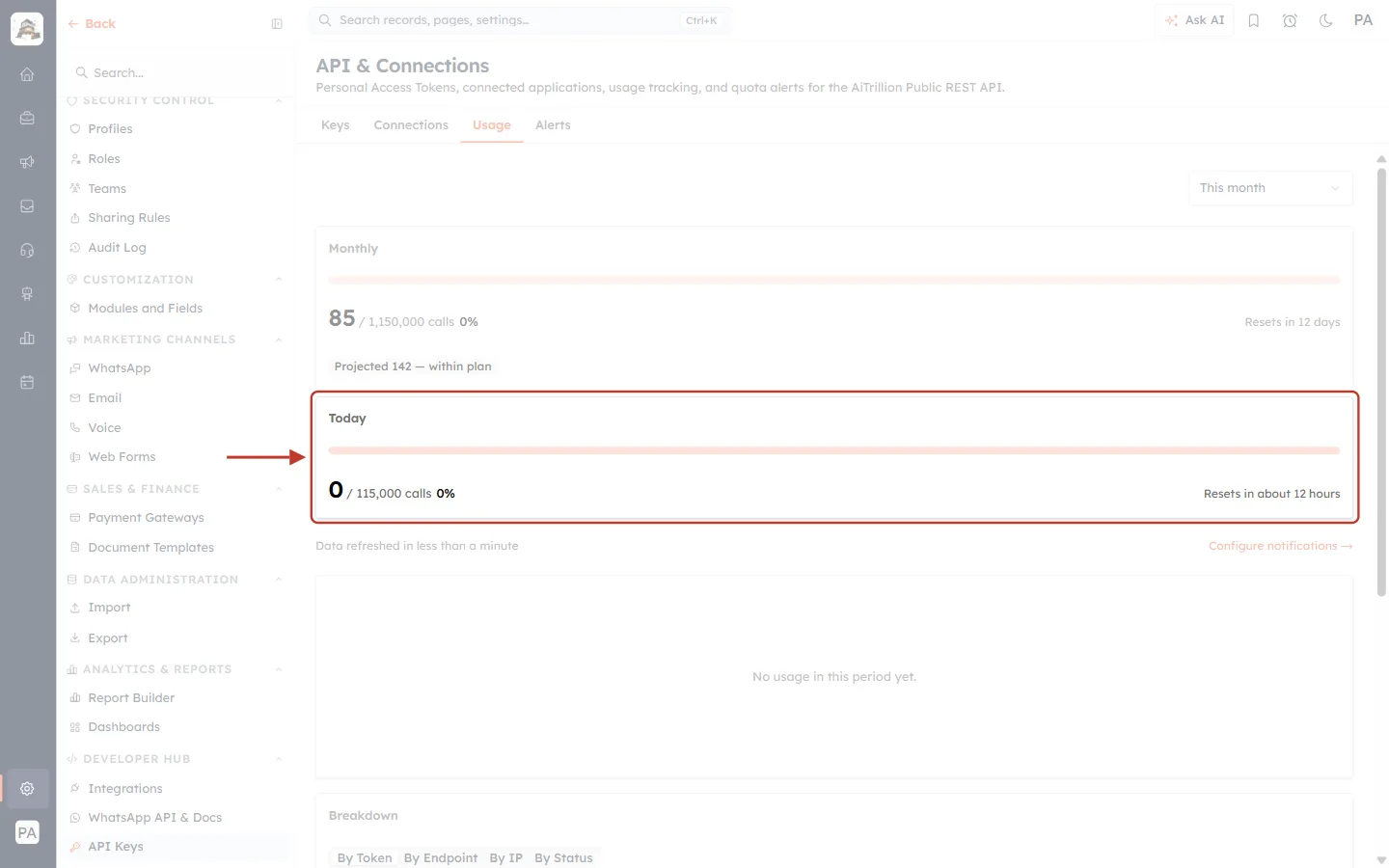
What this screenshot shows. The Today card.
0 / 115,000 calls · 0% — calls made today against the daily quota.
Resets in about 12 hours — the daily counter resets at midnight UTC, which may not be midnight where you are.
When either card reaches 100%, every further call is refused with 429 until that counter resets. There is no overage — the block is immediate.
ℹ️
What counts against the quota? Every call that passes the key check and the rate limit. Calls refused with 401 (bad key) or a rate-limit 429 are not counted, server errors (5xx) are refunded, and
/ping is free. All keys in your organization share one quota.Step 3: Spot Rate-Limited Calls#
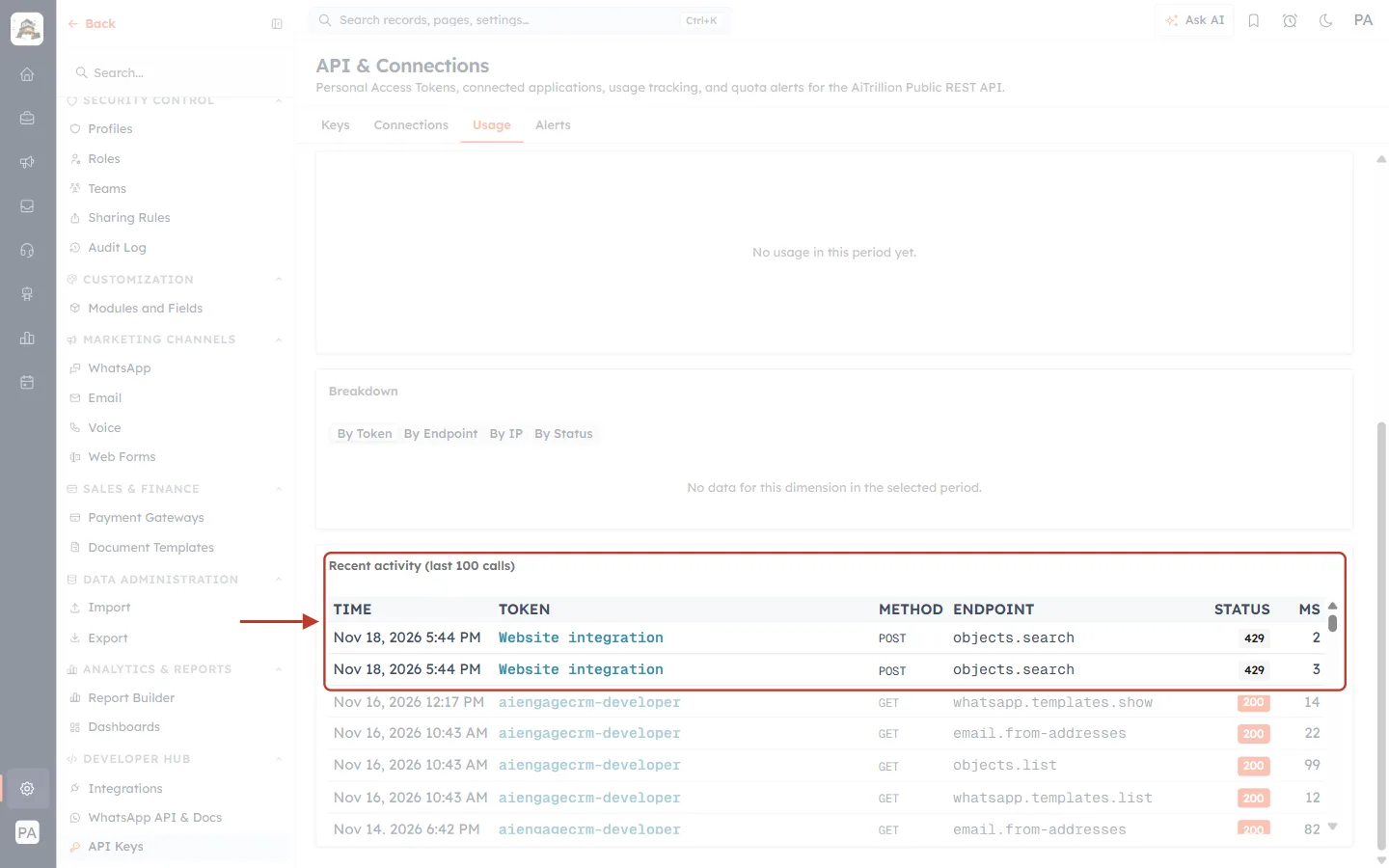
What this screenshot shows. The Recent activity (last 100 calls) table, at the bottom of the Usage tab. The two ringed rows are examples of rate-limited calls.
Columns: TIME, TOKEN (the key’s label), METHOD, ENDPOINT, STATUS and MS (how long the call took).
The ringed rows show the key “Website integration” calling
objects.searchtwice in the same second, both answered 429 in 2–3 ms — the API refused them immediately without doing any work.The rows underneath are ordinary successful calls (200) from other keys.
If you see 429s here, find the key in the TOKEN column — that is the integration sending too fast.
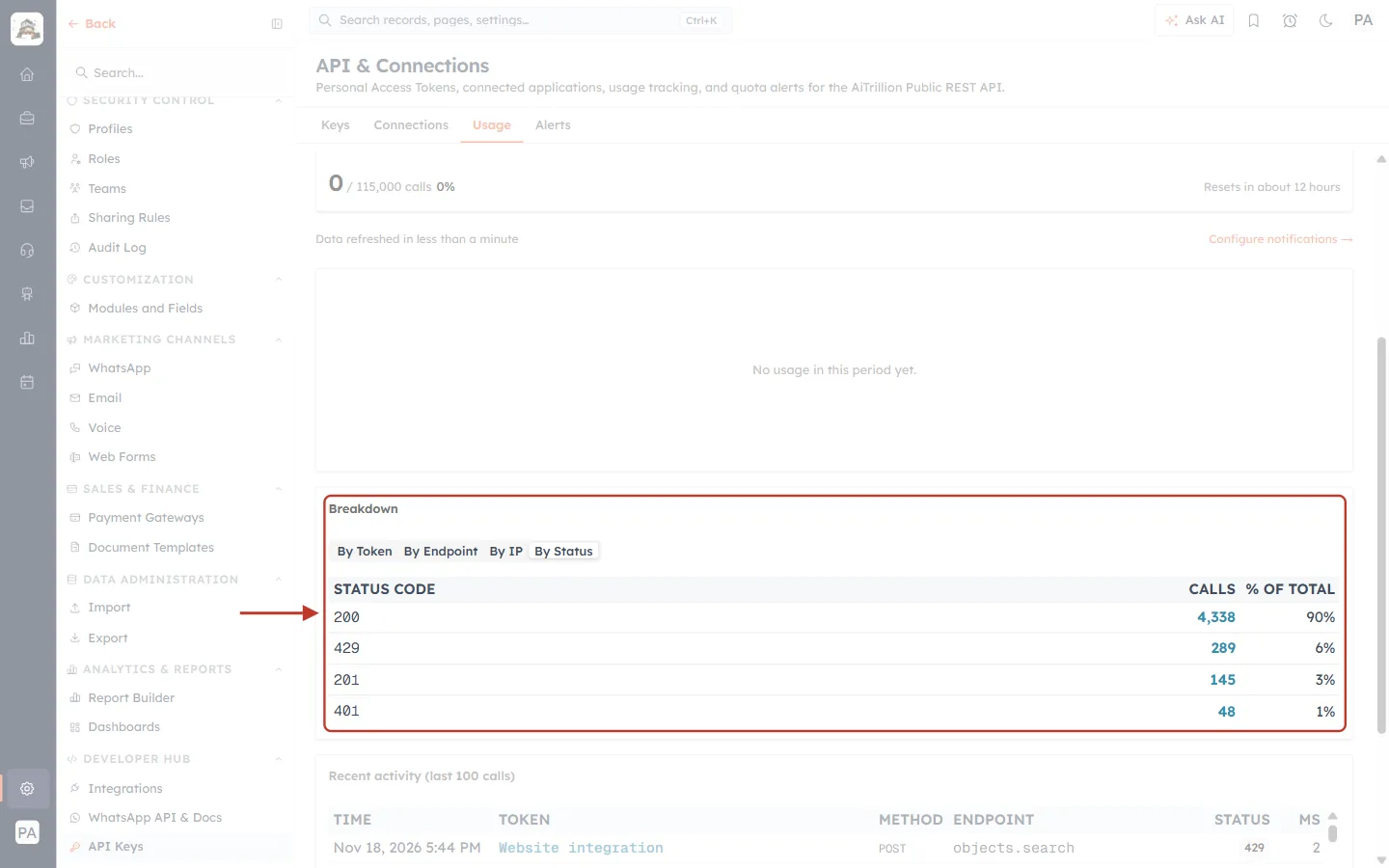
What this screenshot shows. The Breakdown table with the By Status tab selected (example numbers).
Each row is an HTTP status code with how many calls returned it and the share of the total.
Here 429 is 289 calls (6%) — a sign an integration is sending faster than its limit. A healthy integration shows 429 at or near 0%.
Switch to By Token or By Endpoint to see which key or endpoint is responsible.
Step 4: Get Warned Before You Hit the Quota#
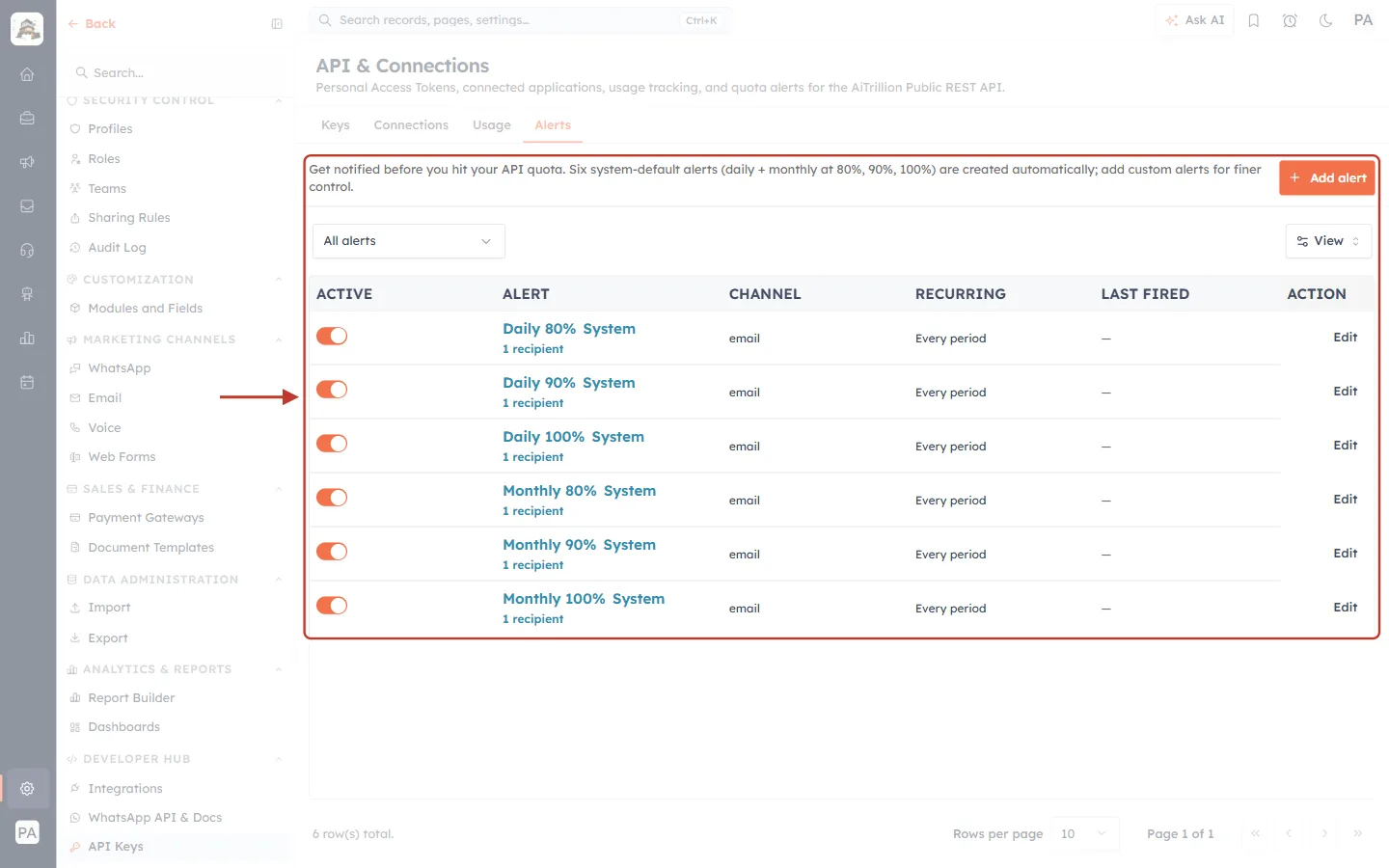
What this screenshot shows. The Alerts tab. These six alerts are created automatically for every account.
The description reads: “Get notified before you hit your API quota. Six system-default alerts (daily + monthly at 80%, 90%, 100%) are created automatically.”
Rows: Daily 80%, Daily 90%, Daily 100%, Monthly 80%, Monthly 90%, Monthly 100% — each marked System, with 1 recipient.
ACTIVE toggles turn an alert on or off; CHANNEL is e-mail; RECURRING “Every period” means it can fire again each day or month; LAST FIRED shows “—” until it has fired.
Edit changes recipients; Add alert (top right) creates your own threshold. See Monitor API Usage & Set Quota Alerts for details.
Alerts cover the quota only. Short-term rate-limit 429s don’t trigger e-mails — your code should handle those (Step 7).
Step 5: Know the Rate Limits#
Every API key has its own rate limit. The general limit applies to every call; some heavier or sensitive endpoints have an extra, tighter limit on top.
Limit group | Allowed | Endpoints |
|---|---|---|
General | 100 requests per 10 seconds per key | Every endpoint |
Search & heavy reads | 5 requests per second per key |
|
Email send | 5 per minute per key |
|
WhatsApp send | 30 per minute per key |
|
Transactional email | 15 per hour per key |
|
✅
Need to load a lot of data? Use the batch endpoints and page with
limit=100 — one call that returns 100 records costs the same as one that returns 1. Spreading work across several keys does not raise your quota, which is shared by the whole organization.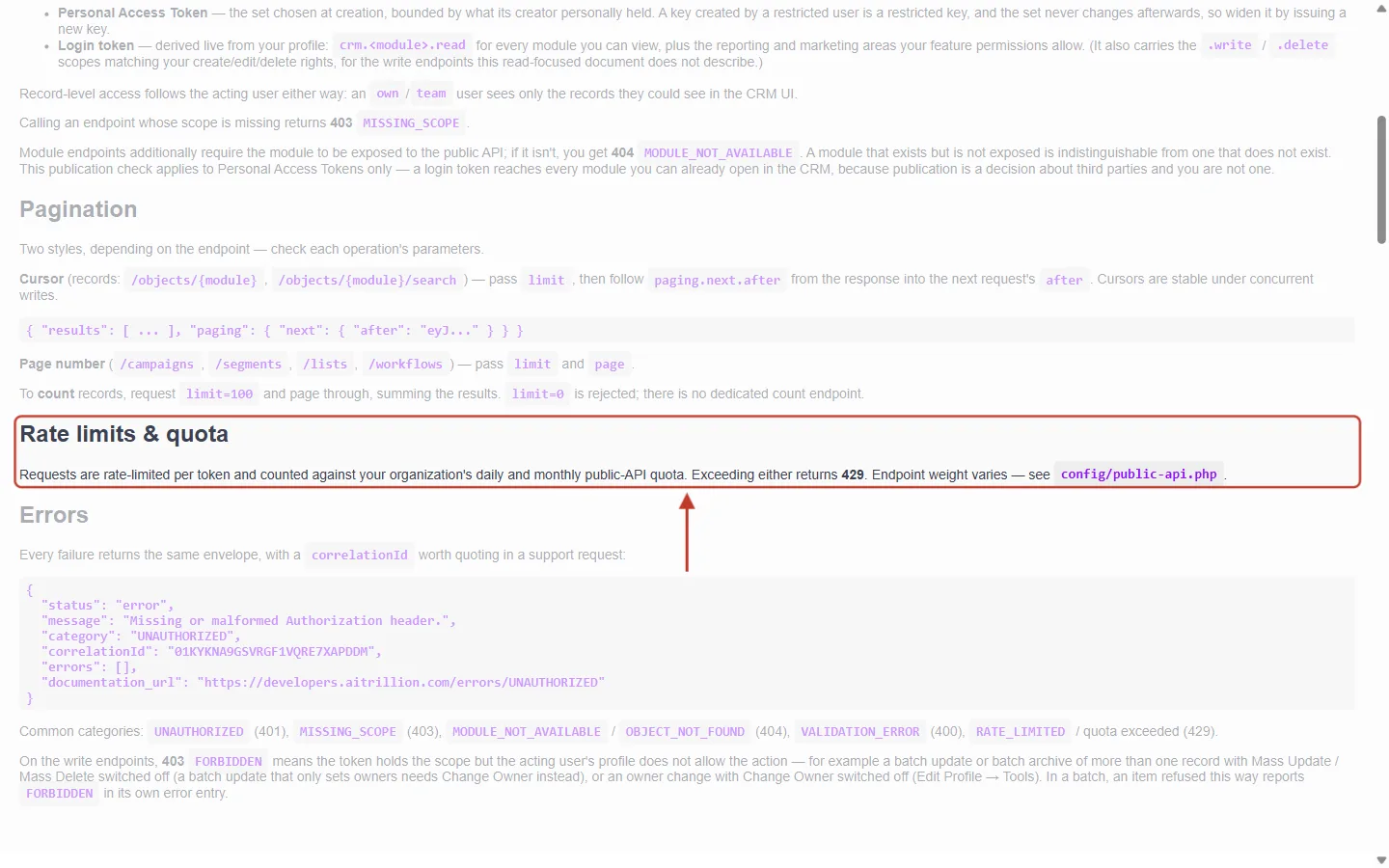
What this screenshot shows. The Rate limits & quota section of the interactive API reference (https://app.aiengagecrm.com/cback/api/public/v1/docs).
It summarises the rule: “Requests are rate-limited per token and counted against your organization’s daily and monthly public-API quota. Exceeding either returns 429.”
Above it is the Pagination section (use
limitandpaging.next.afterto page through records); below it, Errors, which listsRATE_LIMITED/ quota exceeded (429) among the common categories.
Step 6: Read the RateLimit Headers#
Every successful response tells you how close you are to each limit, so your code can slow down before it is refused. In the API reference, run any request and look at Response headers; in code, read them from the response object.
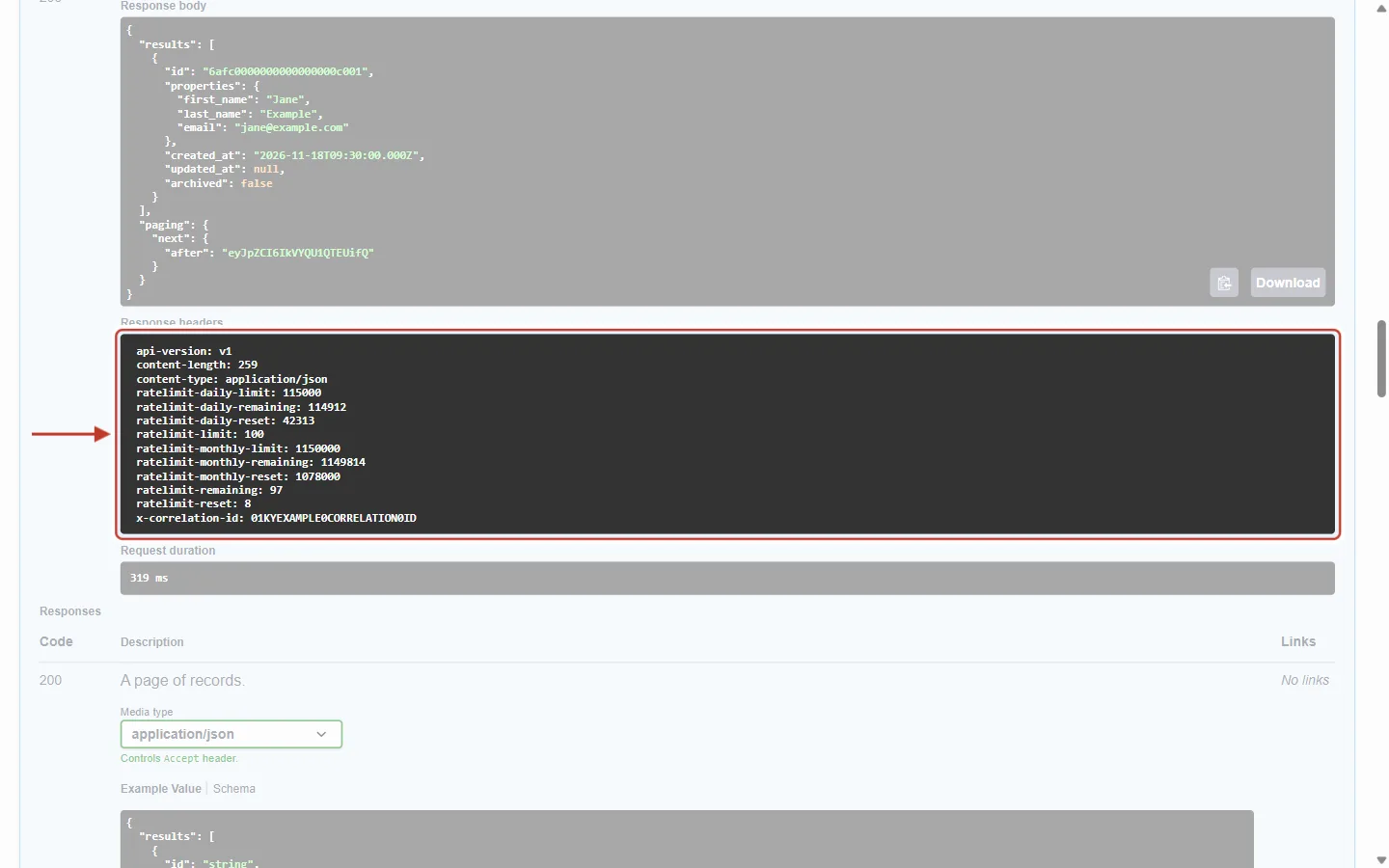
What this screenshot shows. The response headers of a successful call (example values).
ratelimit-limit: 100— the key’s general limit for the current 10-second window.ratelimit-remaining: 97— calls left in this window.ratelimit-reset: 8— seconds until the window starts again.ratelimit-daily-limit: 115000,ratelimit-daily-remaining: 114912,ratelimit-daily-reset— the organization’s daily quota, what is left of it, and seconds until midnight UTC.ratelimit-monthly-limit,-remainingand-reset— the same for the monthly quota.x-correlation-id— the request’s id; quote it if you contact support.
Header | Meaning |
|---|---|
| Requests allowed per window for this key. |
| Requests left in the current window. When it reaches 0, pause. |
| Seconds until the window resets. |
| Organization daily quota, calls left today, seconds to midnight UTC. |
| Organization monthly quota, calls left this month, seconds to month end. |
| Only on a 429: how many seconds to wait before trying again. |
Step 7: Recognise and Handle 429 Errors#
There are two kinds of 429. The category in the response body tells you which one you hit.
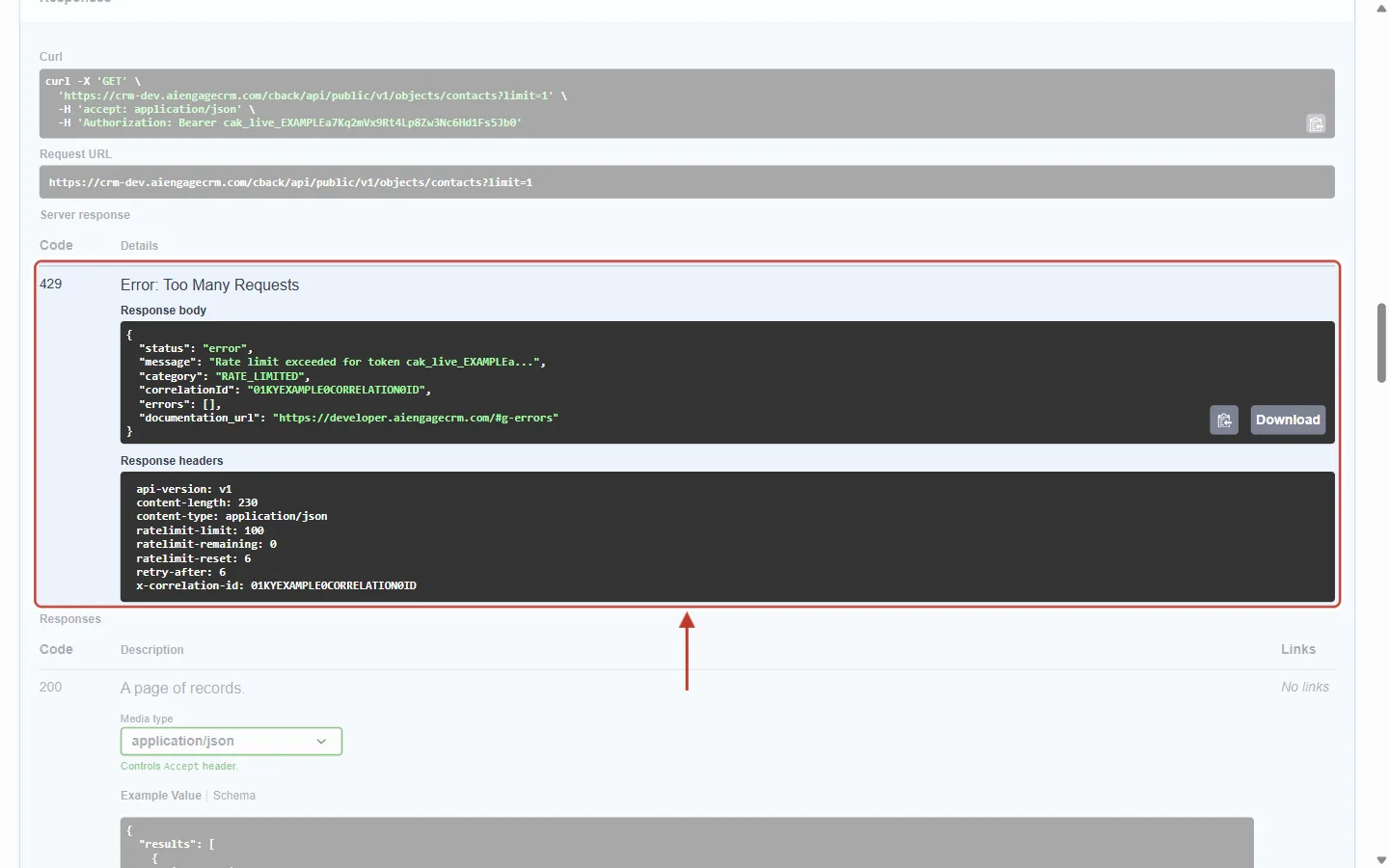
What this screenshot shows. Type 1 — sending too fast (example). The key went over its short-term rate limit.
Code 429 — Error: Too Many Requests.
Body:
"message": "Rate limit exceeded for token cak_live_EXAMPLEa..."— the message names the key by its prefix — and"category": "RATE_LIMITED".Headers:
ratelimit-limit: 100,ratelimit-remaining: 0, andretry-after: 6— wait 6 seconds and the same request will work.Above the ring, the Curl box shows the request was sent correctly with the Bearer token; nothing is wrong with the request itself, it just came too soon.
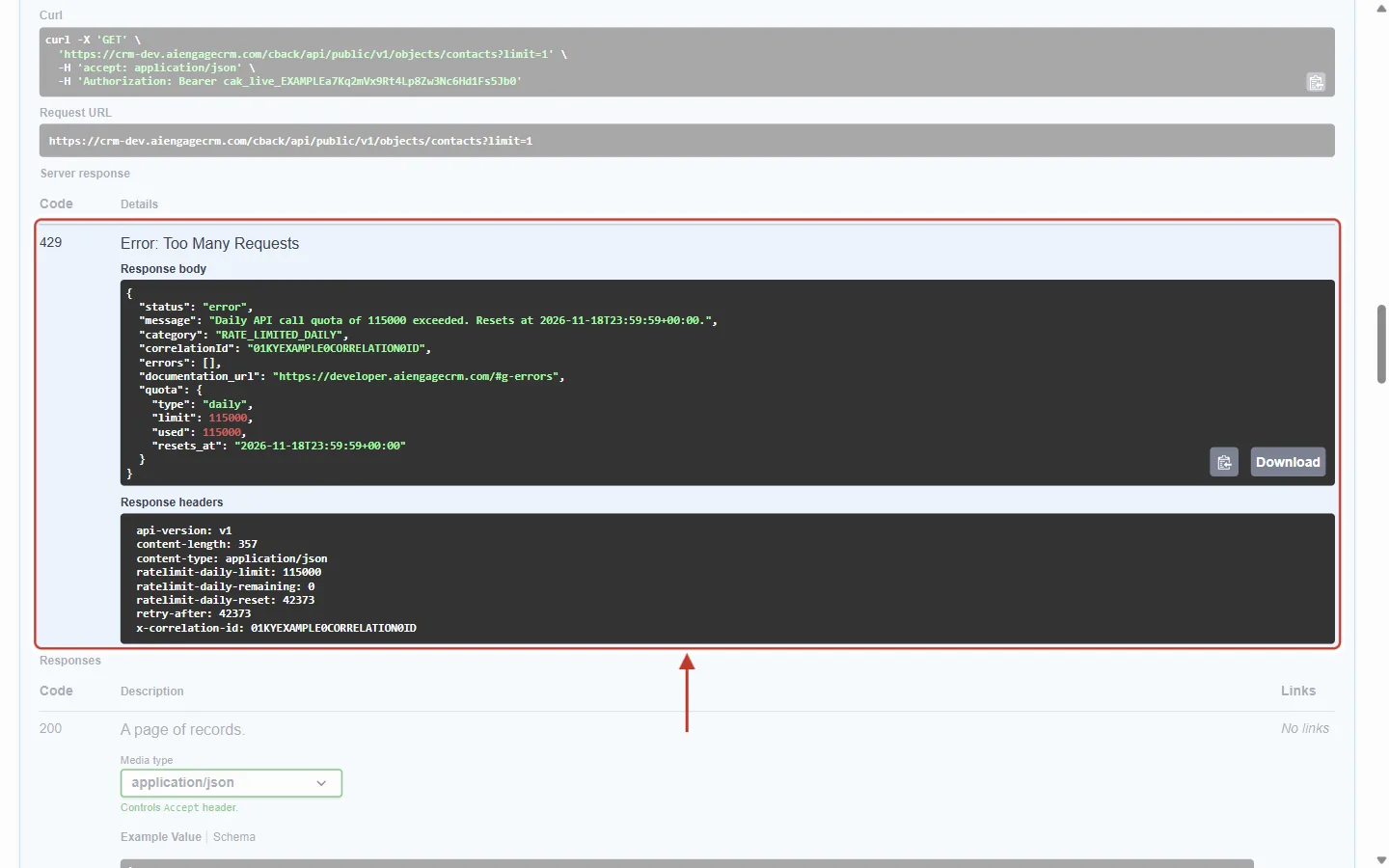
What this screenshot shows. Type 2 — quota used up (example). The organization has used its whole daily quota.
Body:
"message": "Daily API call quota of 115000 exceeded. Resets at 2026-11-18T23:59:59+00:00."and"category": "RATE_LIMITED_DAILY"(for the monthly quota it isRATE_LIMITED_MONTHLY).An extra
quotaobject givestype(daily or monthly),limit,usedandresets_at.Headers:
ratelimit-daily-remaining: 0and a longretry-after(here 42,373 seconds, about 12 hours) — the time until midnight UTC plus one minute.Retrying sooner won’t help: every call from any key is refused until the counter resets. Pause the integration or upgrade your plan.
Category | Cause | What to do |
|---|---|---|
| This key sent too many requests in a short time. | Wait |
| The organization used its whole daily quota. | Stop sending until midnight UTC (see |
| The organization used its whole monthly quota. | Stop until the month resets, or upgrade your plan. |
Retry safely in code. Wait for Retry-After, and give up for long waits (a quota block) instead of sleeping for hours:
// JavaScript (Node.js 18+)
async function callApi(url, options = {}, attempt = 0) {
  const res = await fetch(url, {
    ...options,
    headers: { ...options.headers, Authorization: `Bearer ${process.env.AIENGAGE_API_TOKEN}` },
  });
  if (res.status !== 429) return res;

  const body = await res.json();
  const wait = Number(res.headers.get("Retry-After") || 1);
  if (body.category !== "RATE_LIMITED" || wait > 60 || attempt >= 5) {
    throw new Error(`${body.category}: ${body.message}`); // quota used up — stop
  }
  await new Promise(r => setTimeout(r, (wait + Math.random()) * 1000));
  return callApi(url, options, attempt + 1);
}
# Python
import os, time, random, requests
def call_api(method, url, attempt=0, **kwargs):
headers = {"Authorization": f"Bearer {os.environ['AIENGAGE_API_TOKEN']}"}
res = requests.request(method, url, headers=headers, **kwargs)
if res.status_code != 429:
return res
body = res.json()
wait = int(res.headers.get("Retry-After", 1))
if body.get("category") != "RATE_LIMITED" or wait > 60 or attempt >= 5:
raise RuntimeError(f"{body.get('category')}: {body.get('message')}")
time.sleep(wait + random.random())
return call_api(method, url, attempt + 1, **kwargs)⚠️
Retrying a send or create call? Add an
Idempotency-Key header with a unique value per operation, and send the same value on the retry. The API then recognises the retry, so a contact isn’t created twice or a message sent twice.Best Practices to Stay Within the Limits#
Watch
RateLimit-Remainingand pause when it gets low, instead of waiting to be refused.Spread scheduled jobs out — don’t start every sync at exactly the top of the hour.
Fetch 100 records per page and use the batch endpoints instead of one call per record.
Cache data that rarely changes, such as the list of modules and fields (
/objects,/properties).Use one key per integration so the Usage tab shows exactly which one is busy.
Keep the system alerts switched on, and add your team’s address as a recipient.
If an integration genuinely needs more, contact AiEngage support — keys can be moved to a higher rate-limit tier, and a larger plan raises the quota.
Frequently Asked Questions#
Do my keys each get their own quota?
No. Each key has its own rate limit, but the daily and monthly quota is shared by all keys in your organization.
Does a call refused with 429 use up quota?
A call refused by the short-term rate limit is not counted. Calls refused because the quota is full are not counted either, since the counter is already at its limit.
What time does the daily quota reset?
At midnight UTC every day. The Today card shows how long is left, and the RateLimit-Daily-Reset header gives the exact number of seconds.
Can I go over the quota and pay later?
No. When the quota reaches 100% further calls are blocked until it resets. Use the 80% and 90% alerts to act early.
Do the rate limits apply to the Claude (MCP) connection?
Yes — connected apps are rate-limited too. See Connect Claude to AiEngage CRM (MCP): Ask Your CRM Questions in Plain English.
Previous and Next Articles#
Previous: Monitor API Usage & Set Quota Alerts
Next: Connect Claude to AiEngage CRM (MCP): Ask Your CRM Questions in Plain English
Related Articles#
Was this article helpful?
Ready to implement this?
OpenAI Engage and apply what you just learned to your own workspace.
Open AI Engage CRM