Loading…


KnowledgeBase
Upsert Records with a Matching Property: Create or Update CRM Records in One API Call
Introduction#
When you connect another system to AiEngage CRM — your online store, a website form, a billing tool or a spreadsheet — you usually know a person by their email address (or an id from that other system), not by the CRM’s own record id. Each time a change comes in, you need to answer one question: is this person already in the CRM?
Without upsert, your code has to search first, then decide to create or update — two calls, and a chance of duplicates if two changes arrive at the same moment. Upsert (“update or insert”) does both in one call:
You tell the CRM which field to match on, for example
email. This is the matching property.If no record has that value, the CRM creates a new record.
If exactly one record has that value, the CRM updates that record.
If more than one record has that value, the CRM refuses with 409 CONFLICT, because it will not guess which one you meant.
In this guide you will learn, step by step:
How to make the matching field unique in the CRM, so it can never match two records.
Where the Upsert Record endpoint is documented, and what it needs.
How to send an upsert that creates a record, and the same upsert that then updates it.
How to tell whether a call created or updated a record.
What the 400 and 409 upsert errors mean and how to fix them.
How to use upsert in your own code, with ready-to-copy examples.
Steps 1–2 use the CRM (Setup → Customization → Modules and Fields). The other steps use the AiEngage developer portal, developer.aiengagecrm.com. Each screenshot has a red ring and arrow on the part to look at, followed by a description of the whole screen. The API answers in the developer-portal screenshots use example data (sample contacts with @example.com addresses).
Before You Begin#
An API key that starts with
cak_live_and has write access to the module (scopecrm.{module}.write, for examplecrm.contacts.write). See API Keys Step by Step: Generate, Use and Revoke a Personal Access Token.Basic knowledge of creating and updating records with the API. See Get, Create, Update and Archive Records with the CRM API: A Step-by-Step Guide.
To change field settings (Steps 1–2) you need a profile that is allowed to customise modules, for example Administrator.
To try the calls in your browser, open developer.aiengagecrm.com and paste your key once in Paste your key here. See Test the AiEngage CRM API in the API Console and Postman.
⚠️
The Send button in the developer portal is real. An upsert really creates or changes a record in your CRM. Practise with test contacts that use
@example.com addresses and delete them afterwards.How Upsert Works (Quick Summary)#
Records that already have the value | What the CRM does | What you get back |
|---|---|---|
None | Creates a new record with the fields you sent. |
|
Exactly one | Updates that record. Only the fields you sent change; all other fields keep their values. |
|
Two or more | Nothing. No record is created or changed. |
|
The request looks like this:
PUT https://app.aiengagecrm.com/cback/api/public/v1/objects/contacts?matching_property=email
Authorization: Bearer cak_live_YOUR_KEY
Content-Type: application/json

{
  "properties": {
    "email": "ada@example.com",
    "first_name": "Ada",
    "last_name": "Lovelace"
  }
}
Two things are required: the matching_property in the address (the API name of the field to match on), and the same field with its value inside properties.
ℹ️
Archived (deleted) records are ignored when the CRM looks for a match. If the only contact with that email was archived, an upsert creates a new contact.
Step 1: Open the Field in the Module Builder#
A good matching field holds a value that belongs to only one record: an email address, a customer number, or the id of the record in your other system. Mark that field unique so the CRM never allows two records to share a value. Then an upsert can never hit the 409 conflict.
Click the Setup (gear) icon at the bottom of the left rail.
Under Customization, click Modules and Fields.
Open the module (here Contacts) and its layout (Standard). The module builder opens.
Find your matching field — here Email — and move the mouse over it. A ⋮ (three dots) button appears on the right of the field.
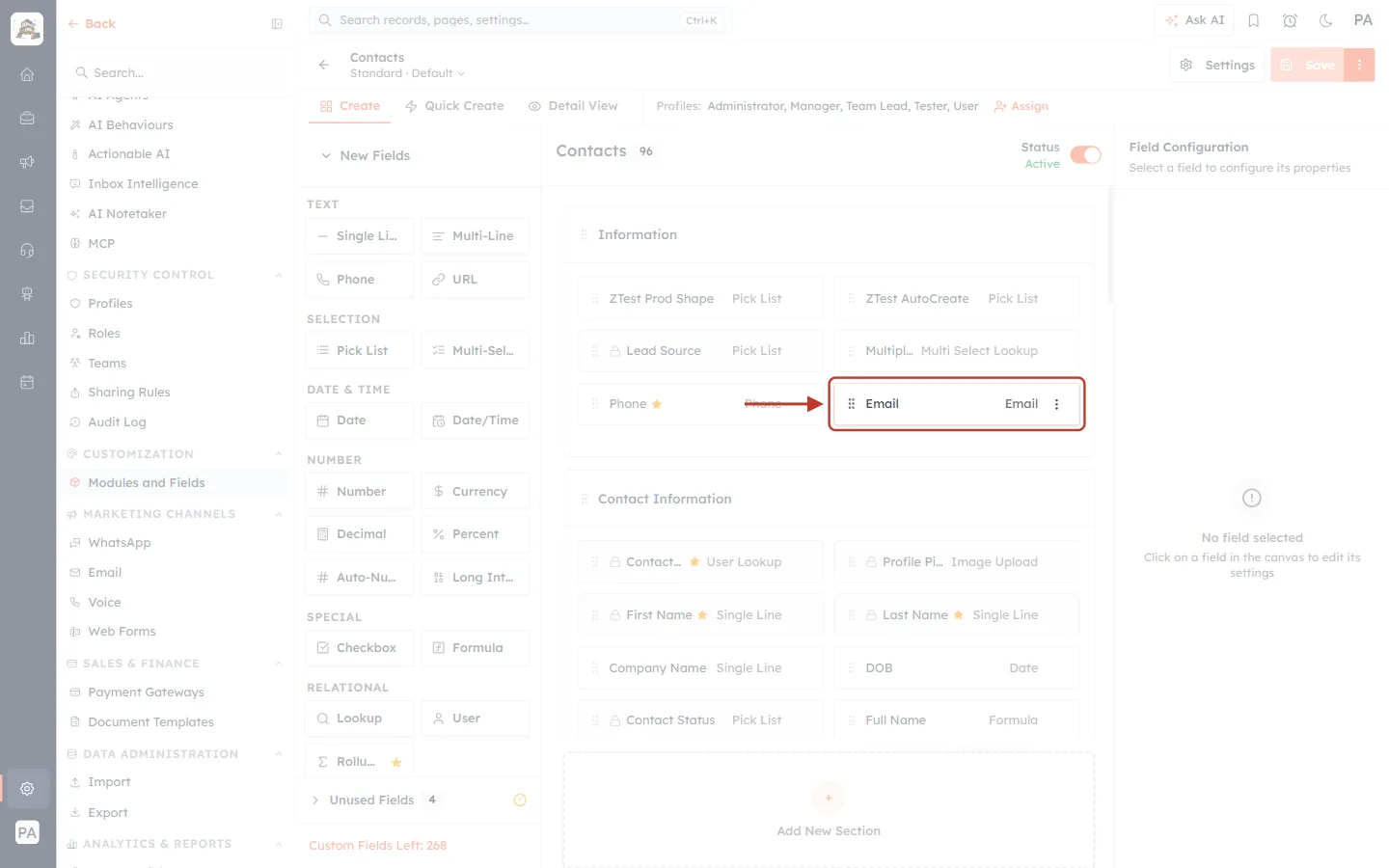
What this screenshot shows. The Contacts module builder on the Create tab, with the Email field ringed.
The field shows its name (Email) on the left and its type (Email) on the right. The ⋮ button appears when you point at it.
A gold star next to a name (for example Phone, First Name, Last Name) means the field is required. A blue key means it is unique. Email has neither yet.
The top bar shows Contacts — Standard · Default, the tabs Create, Quick Create and Detail View, and the profiles that use this layout.
On the left are New Fields you can drag in. On the right, Field Configuration shows the settings of the field you click.
Settings and Save are at the top right.
Step 2: Turn On “Do Not Allow Duplicate Values” and Save#
Click the ⋮ button on the field. A small menu opens.
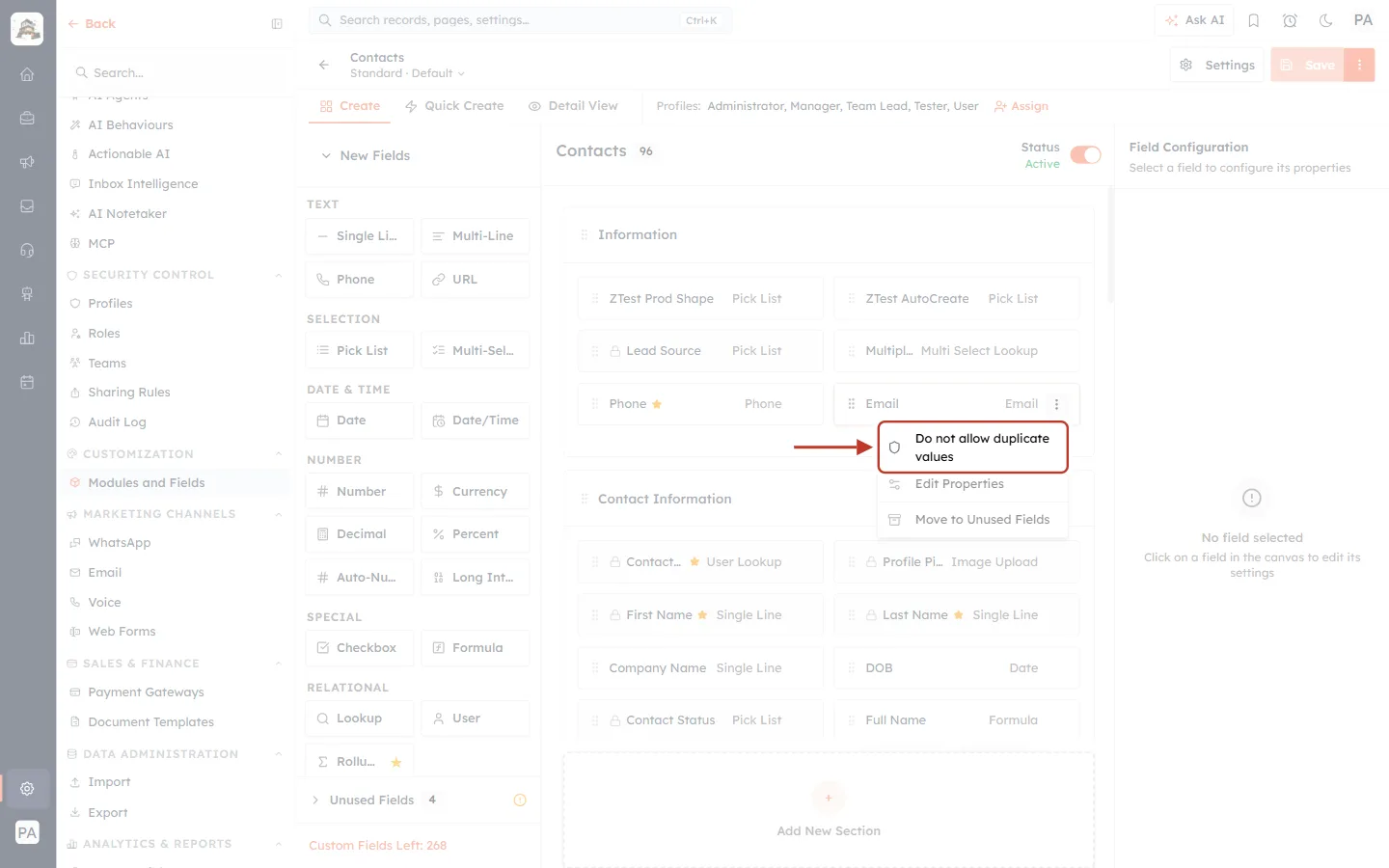
What this screenshot shows. The field menu of Email, with Do not allow duplicate values ringed.
Do not allow duplicate values — makes the field unique. (On a field that is already unique, this item reads Allow duplicate values and turns it off again.)
Edit Properties — opens the field’s settings on the right.
Move to Unused Fields — removes the field from this layout without deleting its data.
Click Do not allow duplicate values. A blue key icon appears next to the field name.
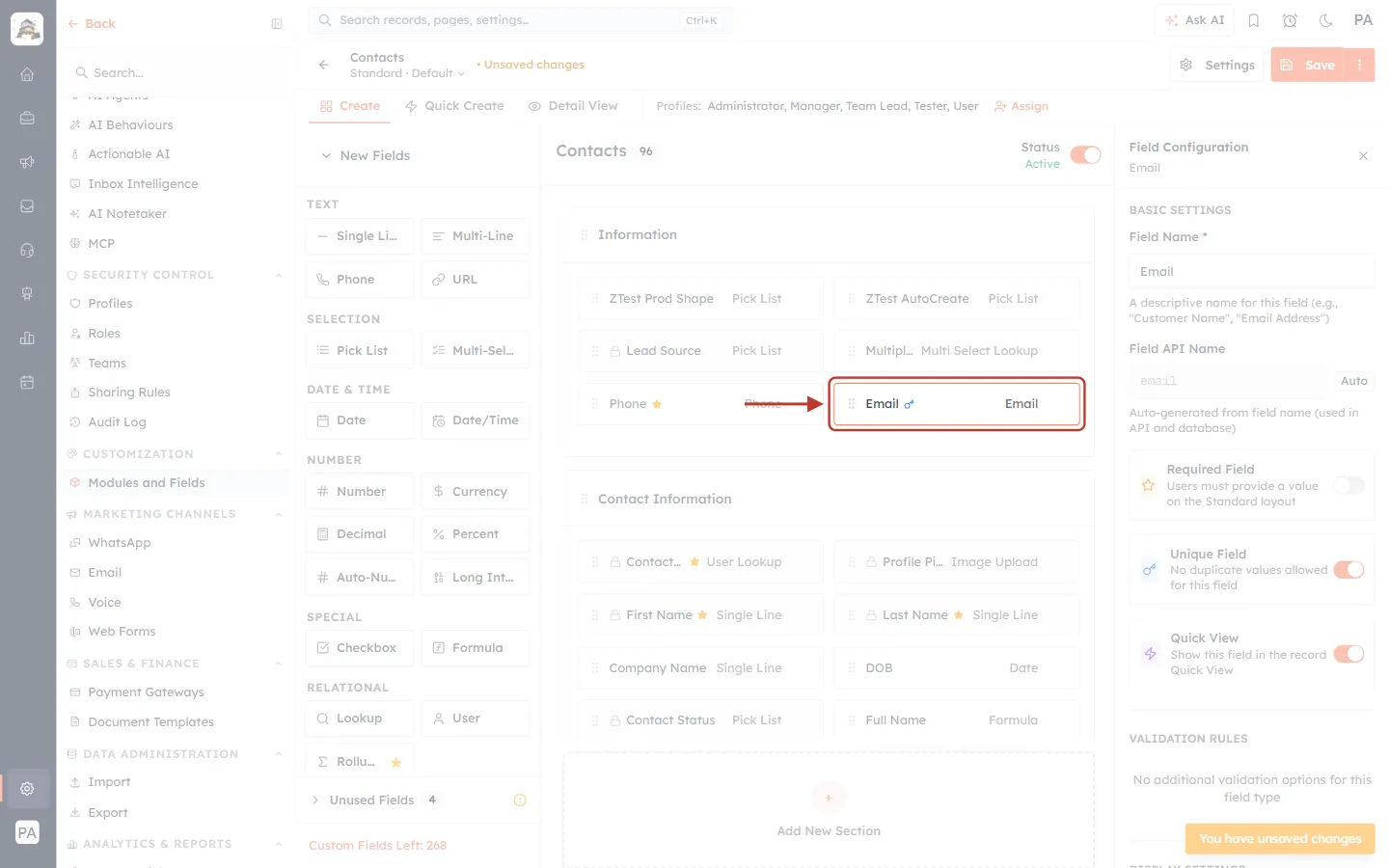
What this screenshot shows. The Email field after the option was clicked. A blue key icon is now next to the name.
The key means “unique”: the CRM will not allow two contacts with the same email.
Next to Contacts at the top, the text • Unsaved changes reminds you that nothing is stored yet.
The Field Configuration panel on the right now shows the settings of Email.
You can also switch it on from the field’s settings: click the field, then in Field Configuration turn on Unique Field.
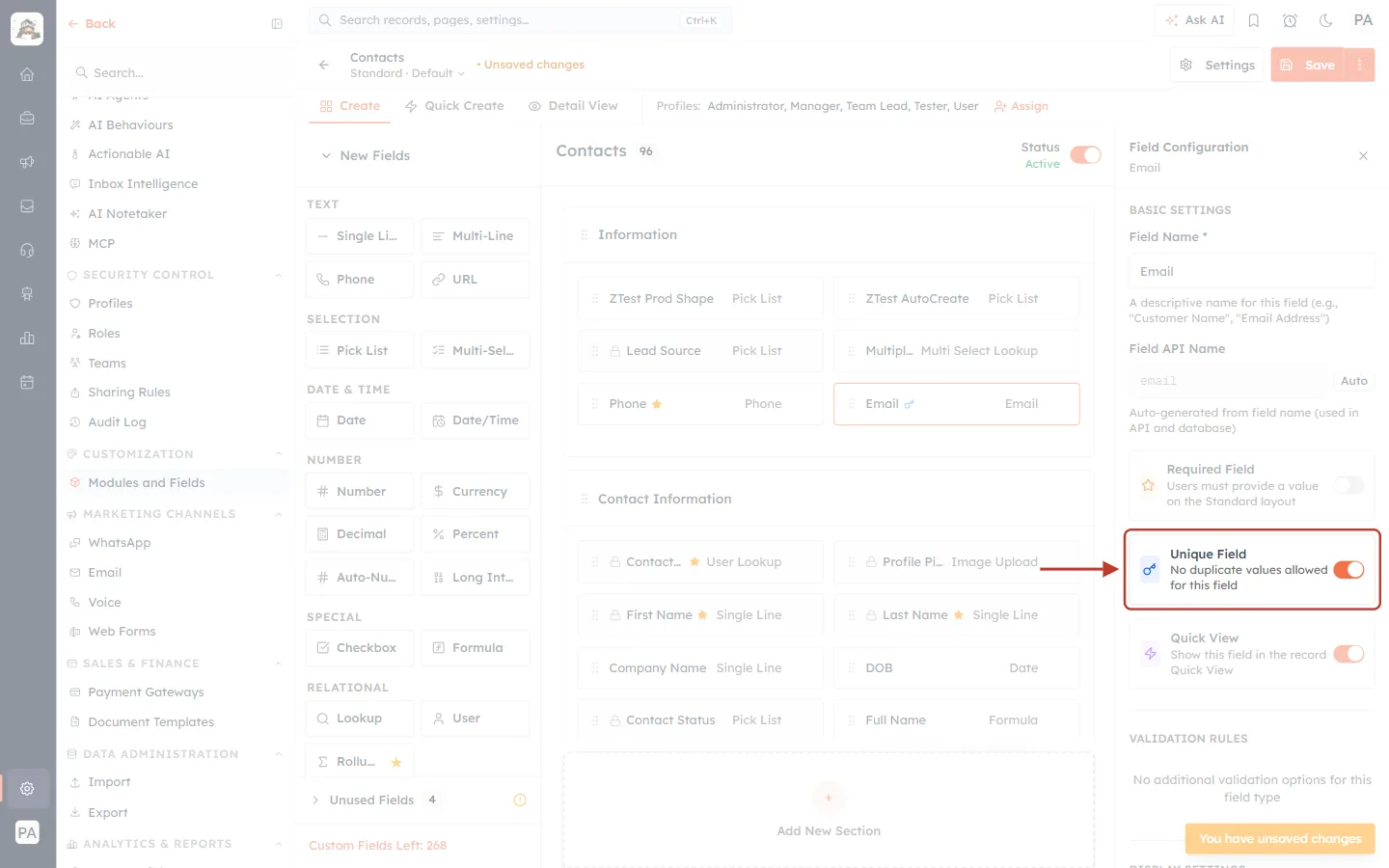
What this screenshot shows. The Field Configuration panel for Email, with the Unique Field switch ringed.
Unique Field — No duplicate values allowed for this field. The switch is on (orange). This is the same setting as the menu option.
Above it: Field Name (Email), the locked Field API Name (
email, the name you use asmatching_property) and Required Field.Below it: Quick View, and the field’s validation and display settings.
The orange note at the bottom right, You have unsaved changes, appears until you save.
Finally, click Save at the top right of the builder.
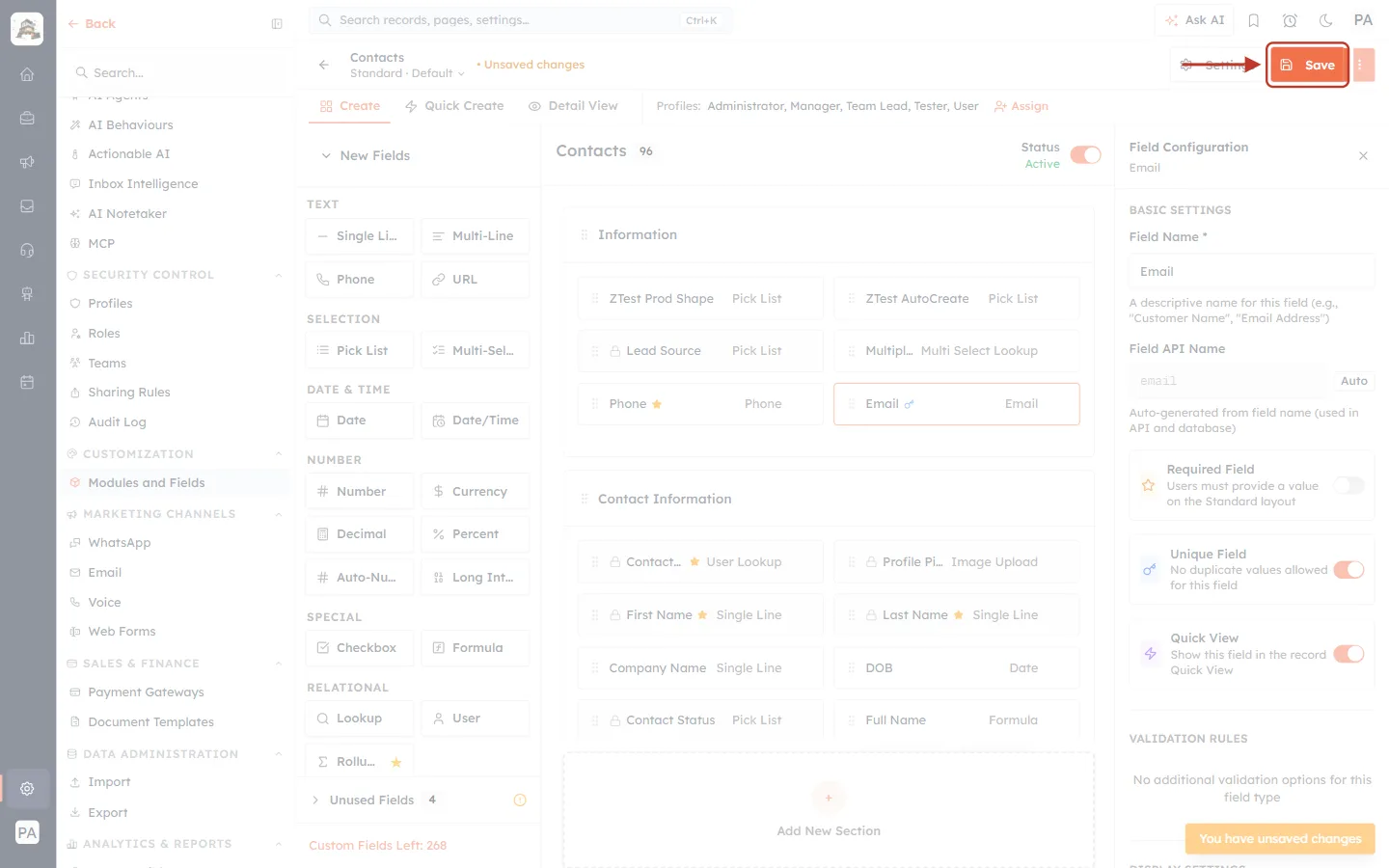
What this screenshot shows. The Save button at the top right of the module builder, ringed.
Changes in the builder are only stored when you click Save. If you leave without saving, the field stays non-unique.
Next to it are Settings (module settings) and the ⋮ menu with more layout actions.
⚠️
Clean up existing duplicates first. If two contacts already share an email, an upsert with that email returns 409 CONFLICT. Merge or fix those contacts before you rely on upsert. Owner fields (for example Contact Owner) cannot be made unique.
ℹ️
The API does not insist on a unique field: an upsert works with any field. But only a unique field guarantees there is never more than one match. To check a field from the API, call
GET /properties/contacts/email and look for "unique": true.Step 3: Open Upsert Record in the Developer Portal#
Open developer.aiengagecrm.com. In the left menu, under Records, click PUT Upsert Record.
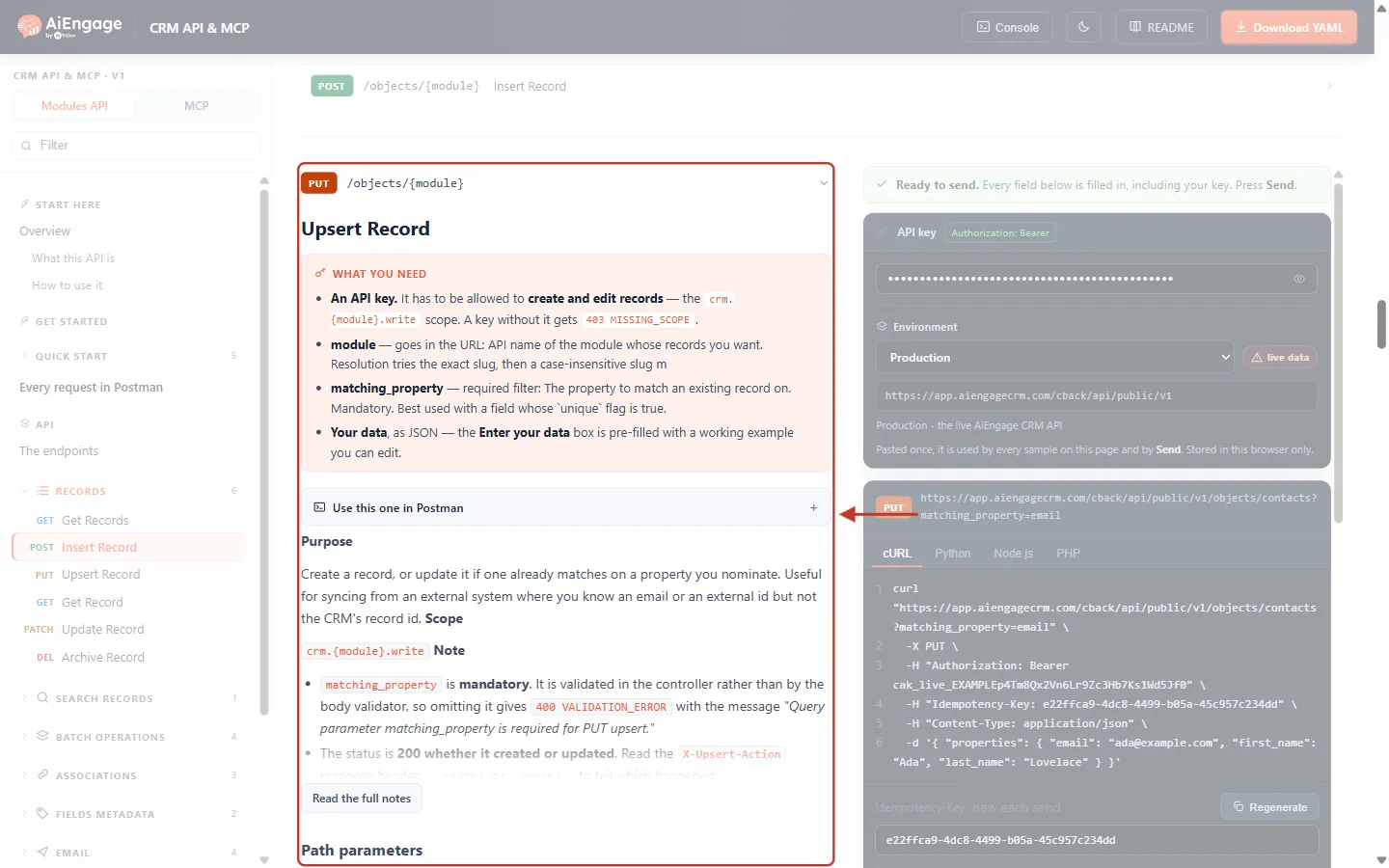
What this screenshot shows. The top of the Upsert Record section (PUT /objects/{module}), ringed.
PUT /objects/{module} — the method and address. It is the same address as Insert Record, but with
PUTinstead ofPOST.What you need: an API key with the
crm.{module}.writescope (a key without it gets403 MISSING_SCOPE), the module in the URL, matching_property (“required filter … Mandatory. Best used with a field whose unique flag is true”), and your data as JSON.Purpose: “Create a record, or update it if one already matches on a property you nominate. Useful for syncing from an external system where you know an email or an external id but not the CRM’s record id.”
On the right is the Try it panel with your key, the environment and the ready-made request.
Click Read the full notes to see the three rules that matter most.
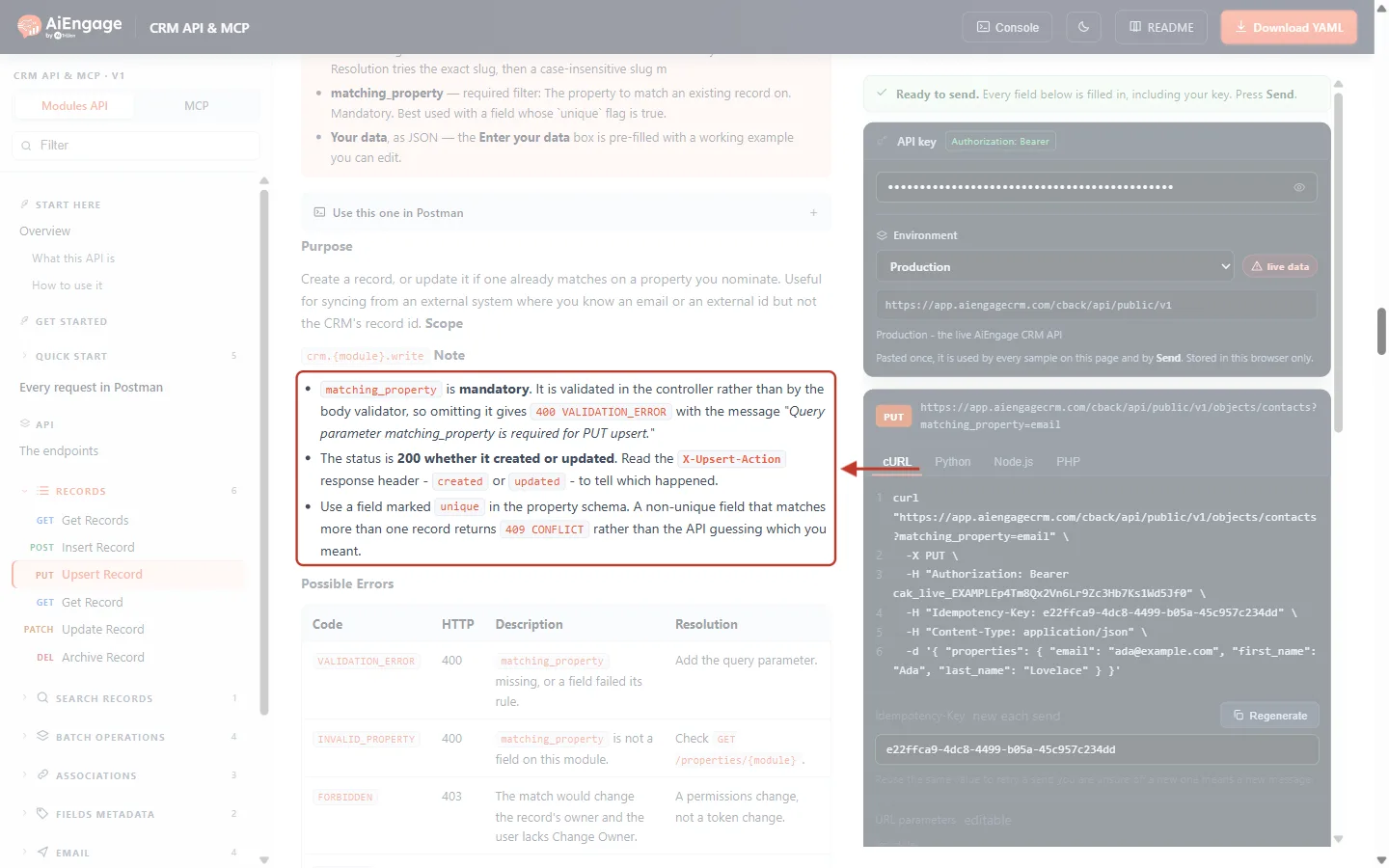
What this screenshot shows. The Note list of Upsert Record, ringed.
matching_property is mandatory. Without it you get
400 VALIDATION_ERROR“Query parameter matching_property is required for PUT upsert.”The status is 200 whether it created or updated. Read the
X-Upsert-Actionresponse header —createdorupdated— to tell which happened.Use a field marked unique. A non-unique field that matches more than one record returns
409 CONFLICTrather than the API guessing.
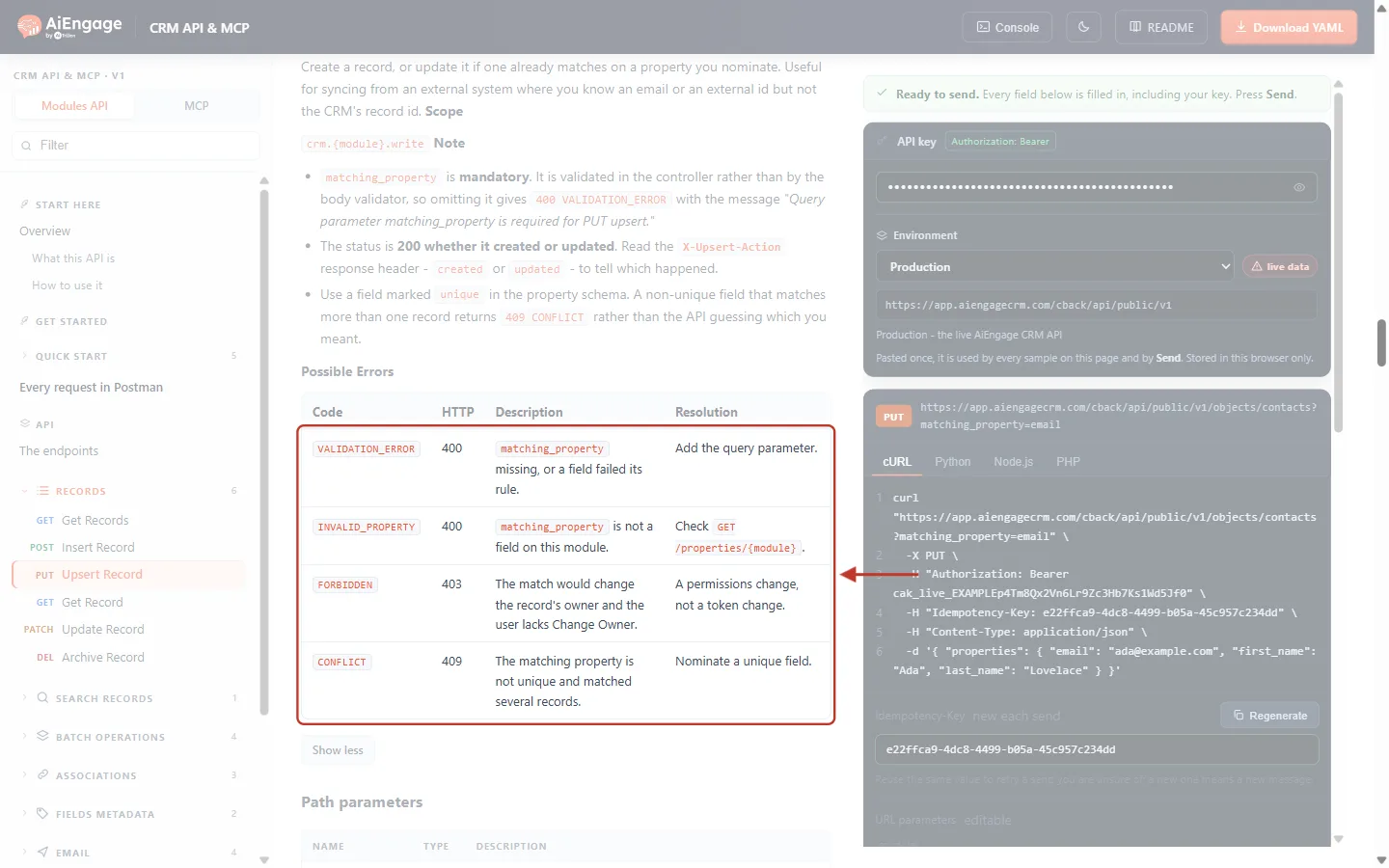
What this screenshot shows. The Possible Errors table of Upsert Record, with its four rows ringed.
VALIDATION_ERROR(400) —matching_propertyis missing, or a field value broke a rule. Fix: add the query parameter or correct the value.INVALID_PROPERTY(400) — the matching property is not a field on this module (or is missing from the body). Fix: check the field names withGET /properties/{module}.FORBIDDEN(403) — the match would change the record’s owner, and the key’s user is not allowed to use Change Owner. Fix: a permission change on the user’s profile, not a new key.CONFLICT(409) — the field is not unique and matched several records. Fix: use a unique field (Steps 1–2).
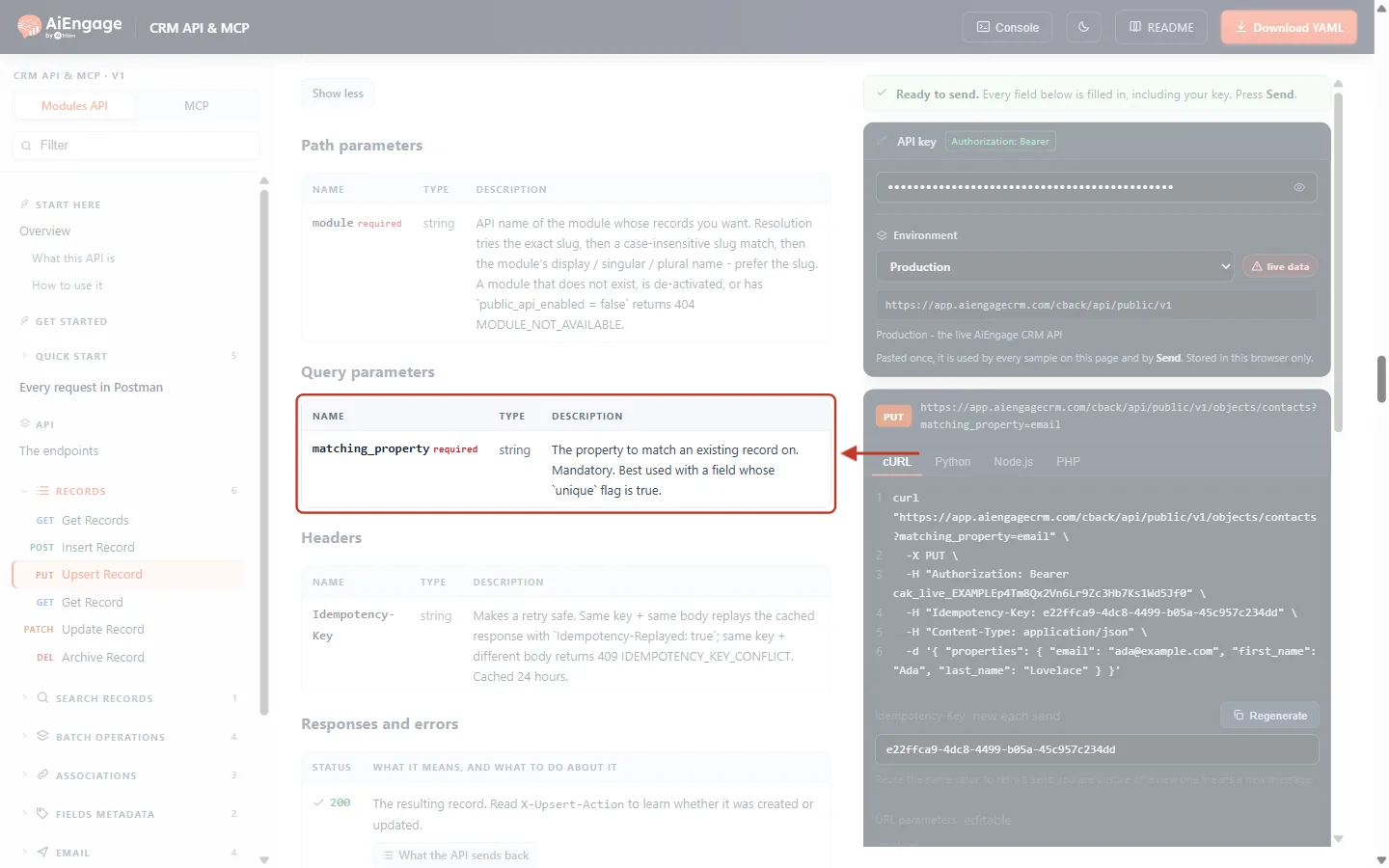
What this screenshot shows. The Query parameters table, ringed.
matching_property with a red required label, type
string.Its value is the field’s API name (for example
email), not its label. A field labelled “Customer Number” could have the API namecustomer_number.Above is Path parameters (
module); below are Headers (the optionalIdempotency-Key) and Responses and errors.
Step 4: Fill In the Try It Panel#
In the Try it panel, type contacts in {module} (it is filled in already). Under Additional filters, the matching_property box already says email.
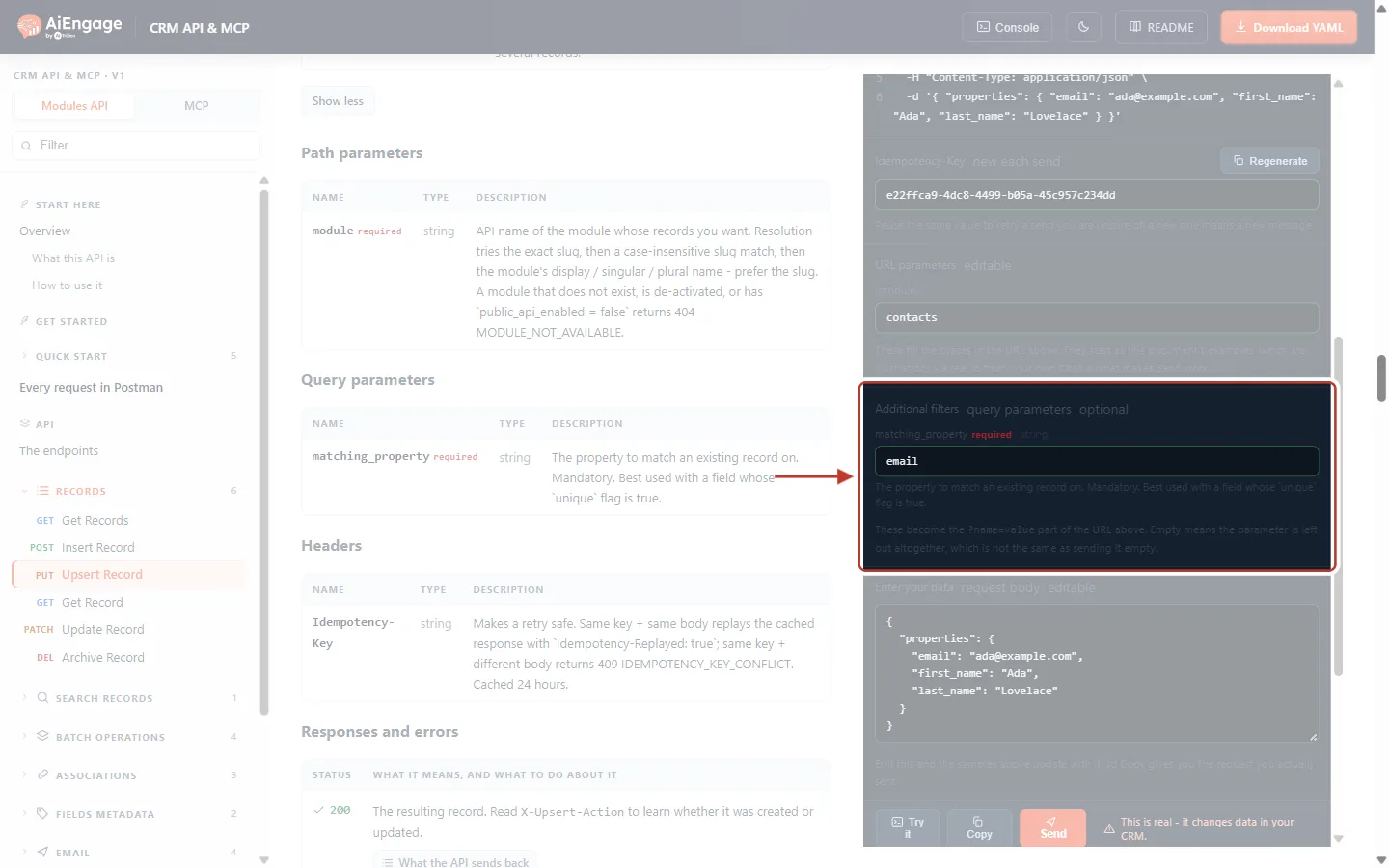
What this screenshot shows. The Additional filters (query parameters) box of the Try it panel, ringed.
matching_property · required · string with the value
email. Type a different API name here to match on another field.The note says that an empty box leaves the parameter out completely — which gives the 400 error you will see in Step 7.
Above: the Idempotency-Key box (new key on each send) and the {module} box (
contacts). Below: Enter your data.
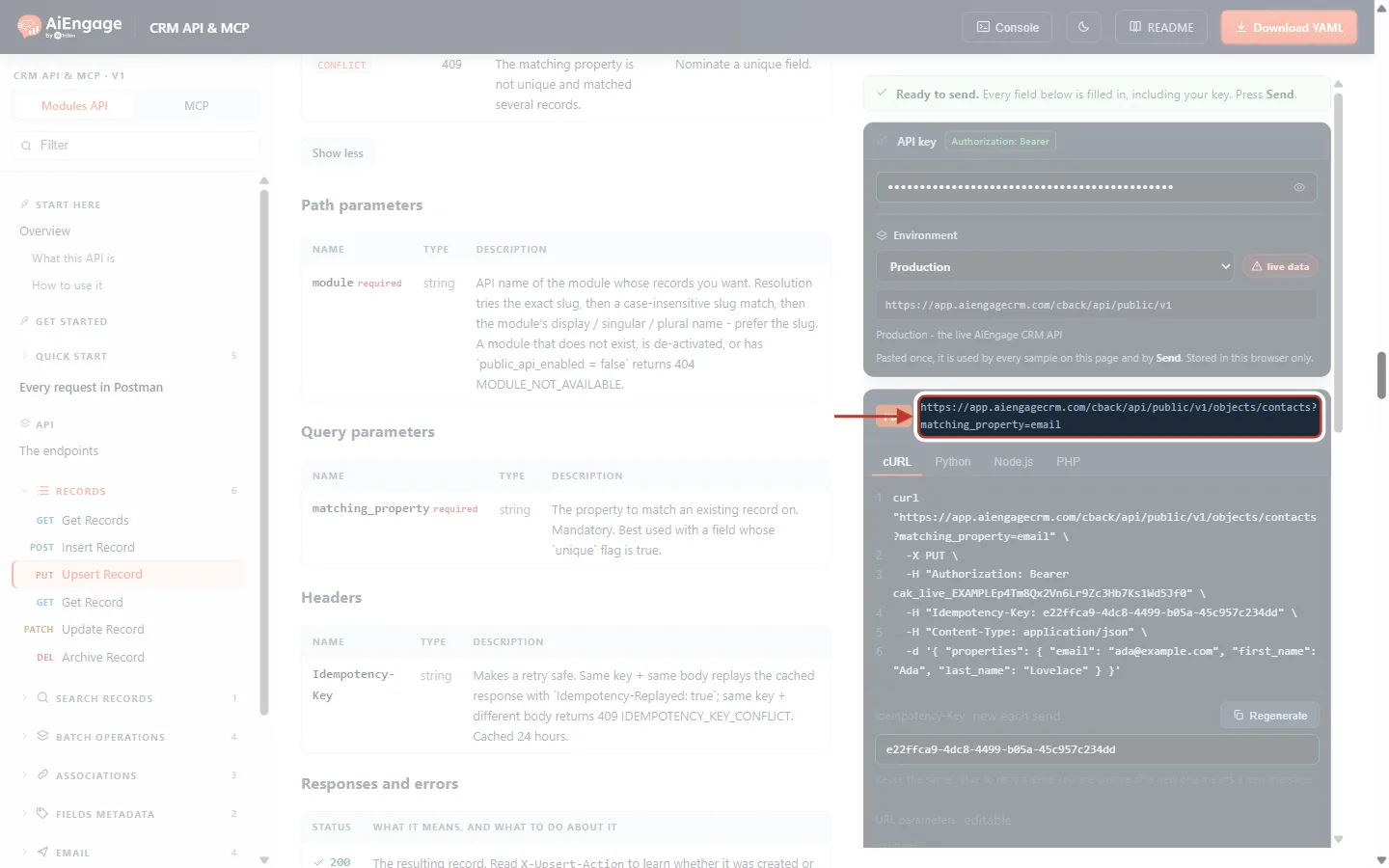
What this screenshot shows. The request address at the top of the code sample, ringed.
The address ends with
/objects/contacts?matching_property=email. The part after?comes from the box you just saw.The green PUT chip is the method.
The code sample below (cURL, Python, Node.js, PHP) always matches what Send will do, so Copy gives you a working command.
In Enter your data, type the contact. It must contain email, because that is the matching property.
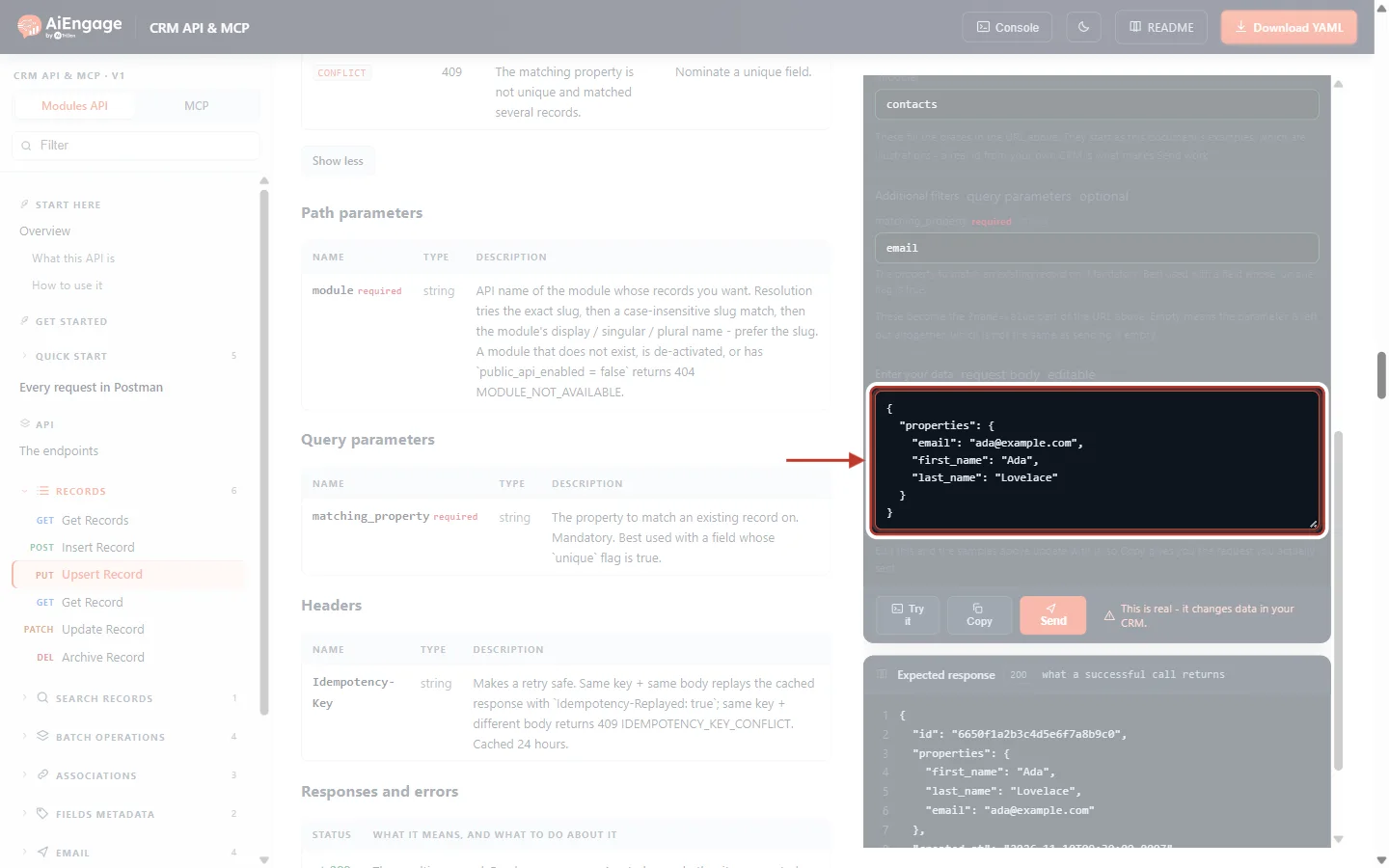
What this screenshot shows. The Enter your data box, ringed.
"email": "ada@example.com"— the value the CRM will look for."first_name"and"last_name"— the values to store.Everything goes inside
"properties", using field API names.
Step 5: Send — the Record Is Created#
Press Send. No contact has the email ada@example.com yet, so the CRM creates one.
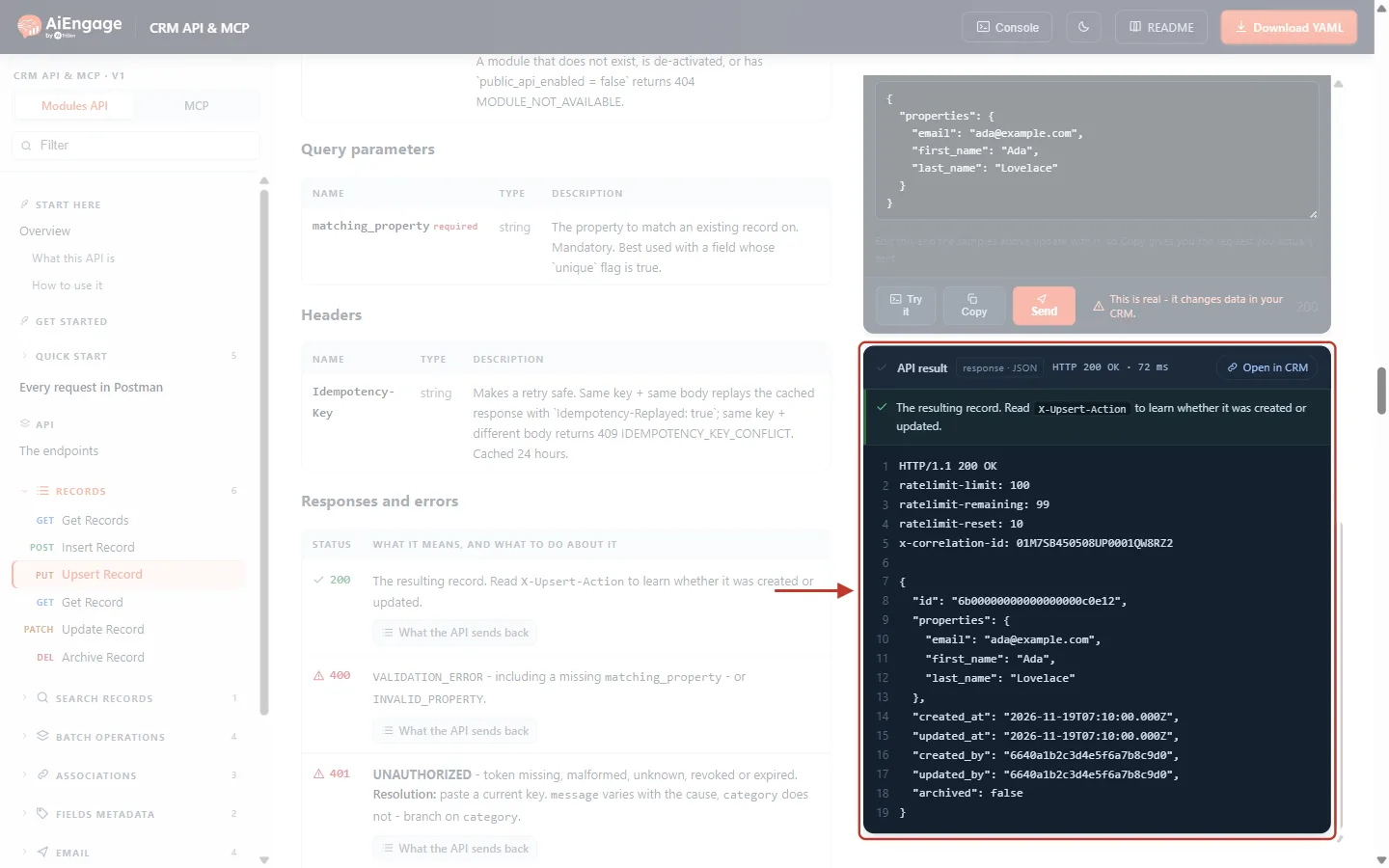
What this screenshot shows. The API result card after the first upsert (example data).
The bar says HTTP 200 OK. Upsert always answers 200, never 201, even when it creates.
The green line repeats the rule: “The resulting record. Read X-Upsert-Action to learn whether it was created or updated.”
From line 7 down is the record: its new
id, thepropertiesyou sent, andcreated_at/updated_at, which are the same moment because the record is brand new.Lines 2–5 are the rate-limit headers and the
x-correlation-id(the request’s tracking number for support).
ℹ️
Where is X-Upsert-Action? The API sends it on every upsert, but the developer portal’s Try it panel shows only a few headers and leaves it out. In the portal, compare the id and dates instead (Step 6). In your own code, or with curl -i, you can read the header directly:
HTTP/1.1 200 OK
X-Upsert-Action: created
Step 6: Send Again — the Same Record Is Updated#
Now change the body. Keep the same email, and send other fields — here a job title and a phone number. Leave out the name.
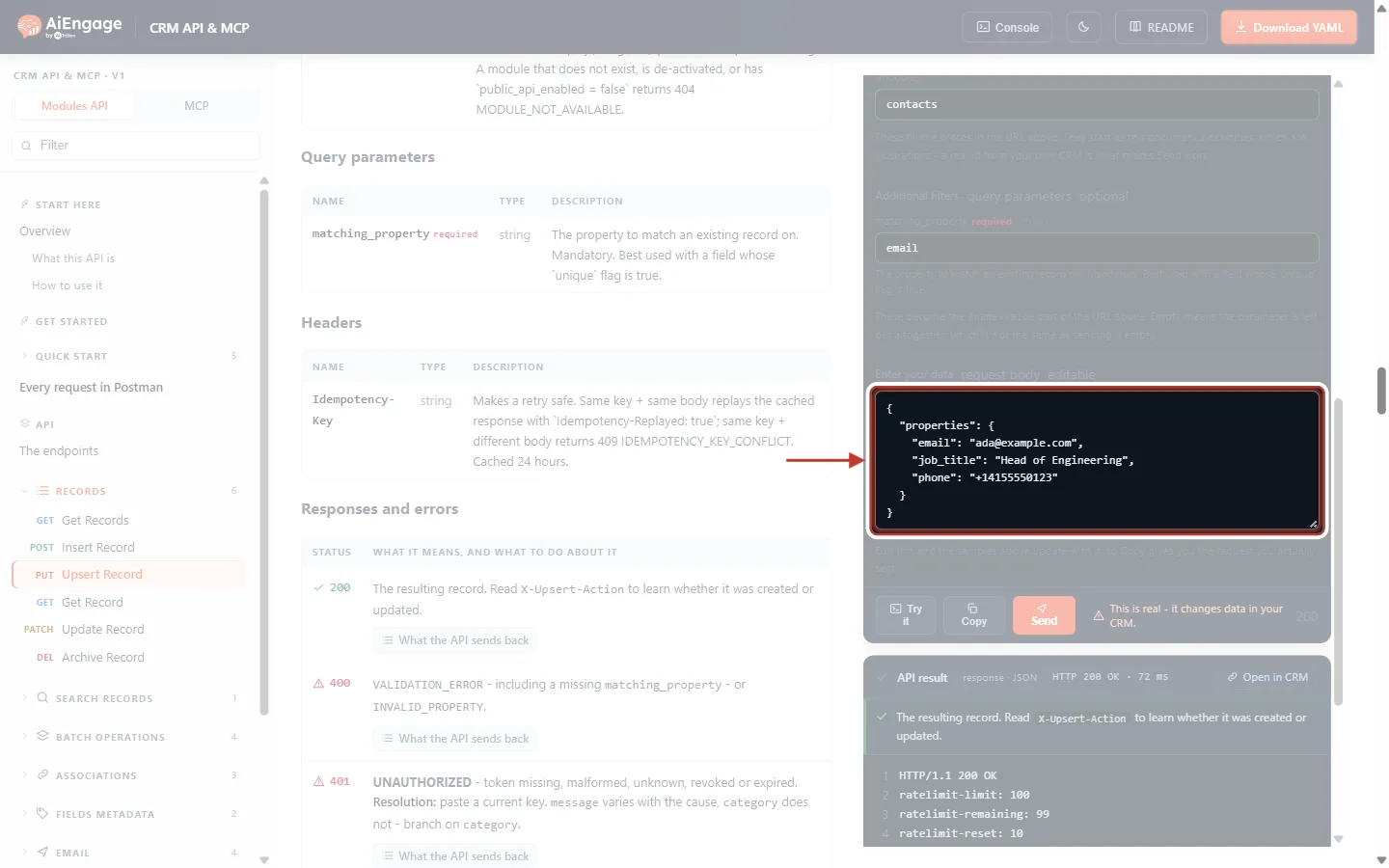
What this screenshot shows. The Enter your data box for the second upsert, ringed.
"email": "ada@example.com"— the same value as before, so the CRM will find Ada."job_title"and"phone"— the fields to change.first_nameandlast_nameare not sent. They will keep their values.
Press Send.
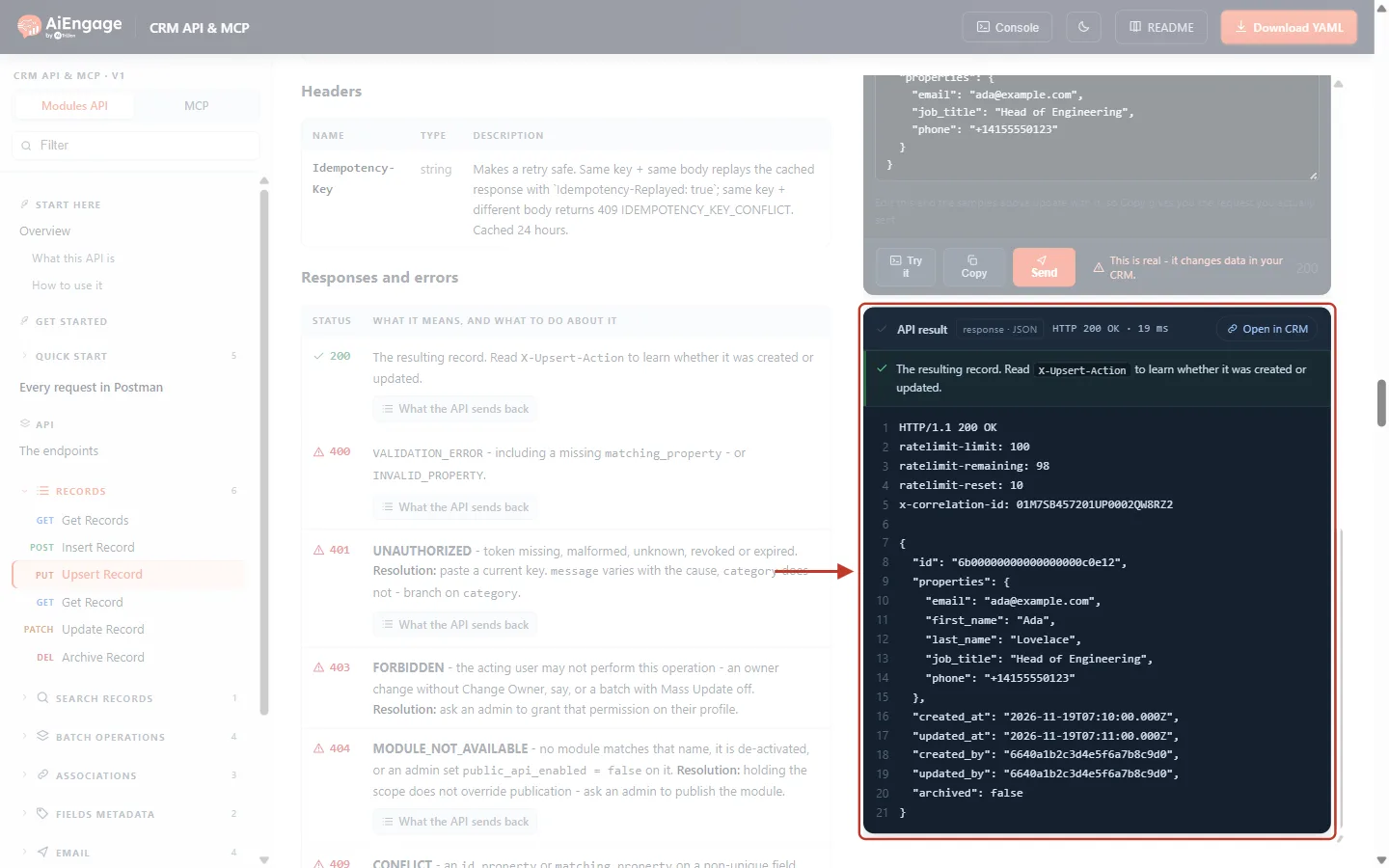
What this screenshot shows. The API result card after the second upsert (example data).
HTTP 200 OK again. The
X-Upsert-Actionheader (not shown by the portal) isupdated.The
idis the same as in Step 5 — no second Ada was created.The
propertiesnow contain all values: the name from the first call plus the newjob_titleandphone.created_atis unchanged, andupdated_atis later: the record was updated.
✅
Update rules: only fields you send are changed. To empty a field, send it with
null, for example "phone": null. A field you leave out is never touched.Step 7: Fix the 400 Errors#
The matching value is missing from the body. If you remove email from Enter your data and press Send, the CRM cannot look anyone up:
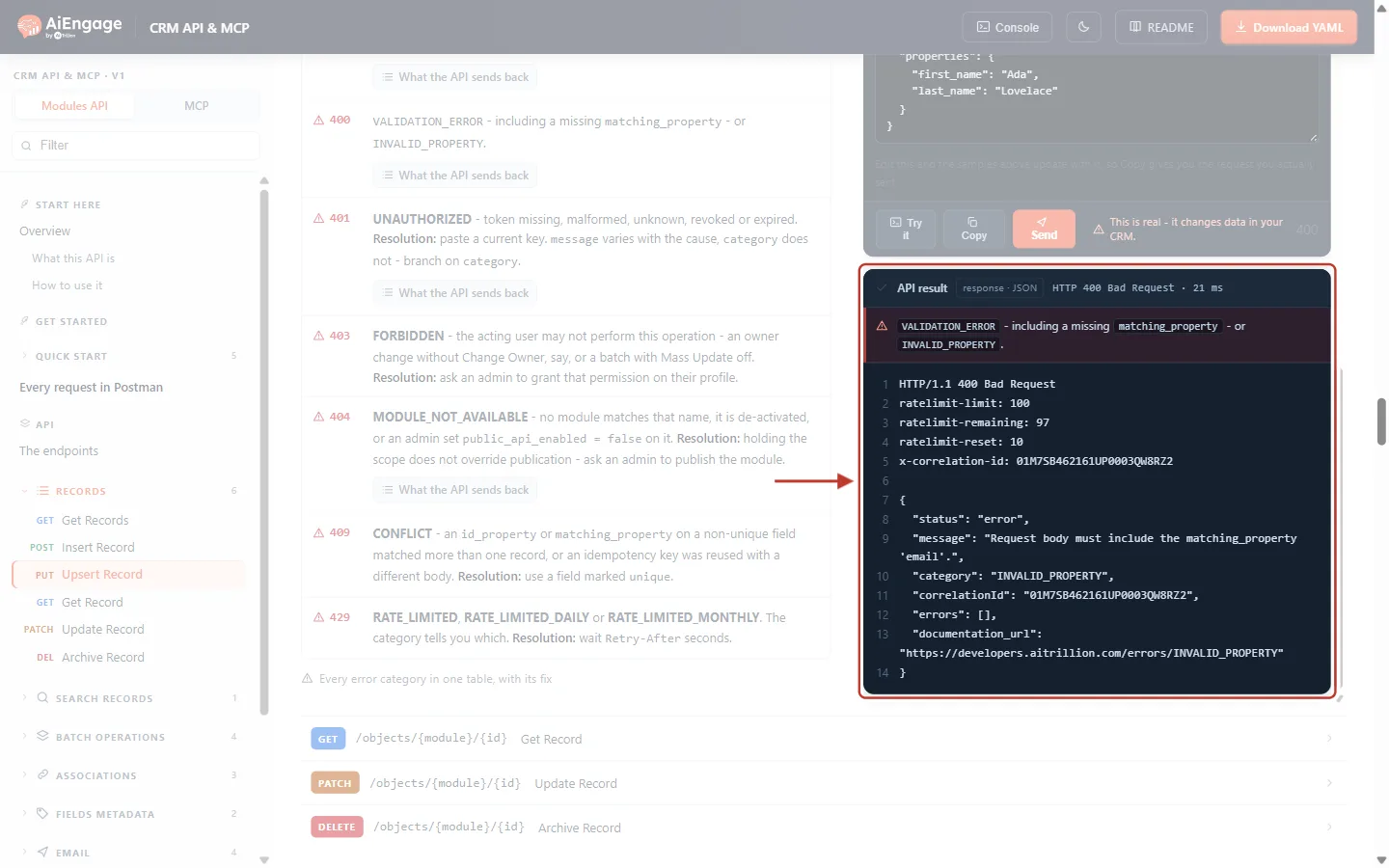
What this screenshot shows. The API result for a body without email (example data).
HTTP 400 Bad Request.
"category": "INVALID_PROPERTY"and"message": "Request body must include the matching_property 'email'."Nothing was created or changed. Fix: always send the matching field and its value inside
properties.
The matching_property is missing from the address. If the matching_property box is empty, the address has no ?matching_property= part:
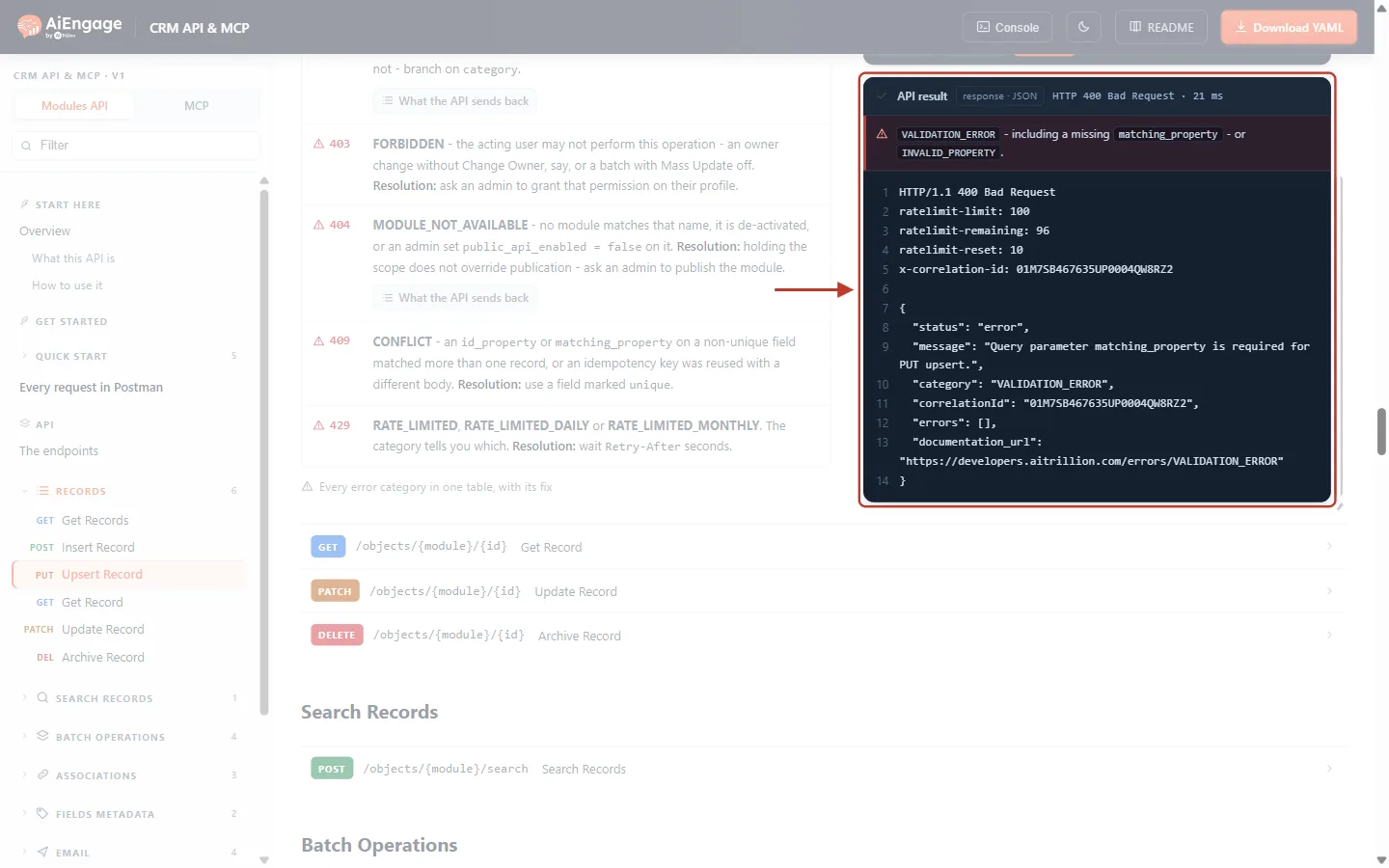
What this screenshot shows. The API result for a request without matching_property (example data).
HTTP 400 Bad Request.
"category": "VALIDATION_ERROR"and"message": "Query parameter matching_property is required for PUT upsert."Fix: add
?matching_property=email(or your field’s API name) to the address.
If the field name itself is wrong — for example emial — you get 400 INVALID_PROPERTY “Property 'emial' does not exist on module 'contacts'.” Check the exact API names with GET /properties/contacts.
Step 8: Fix the 409 Conflict#
In this example, two contacts (Sam Rivera and Samuel Rivera) were entered by hand with the same email, sam@example.com, before the field was made unique. An upsert with that email cannot know which one to update:
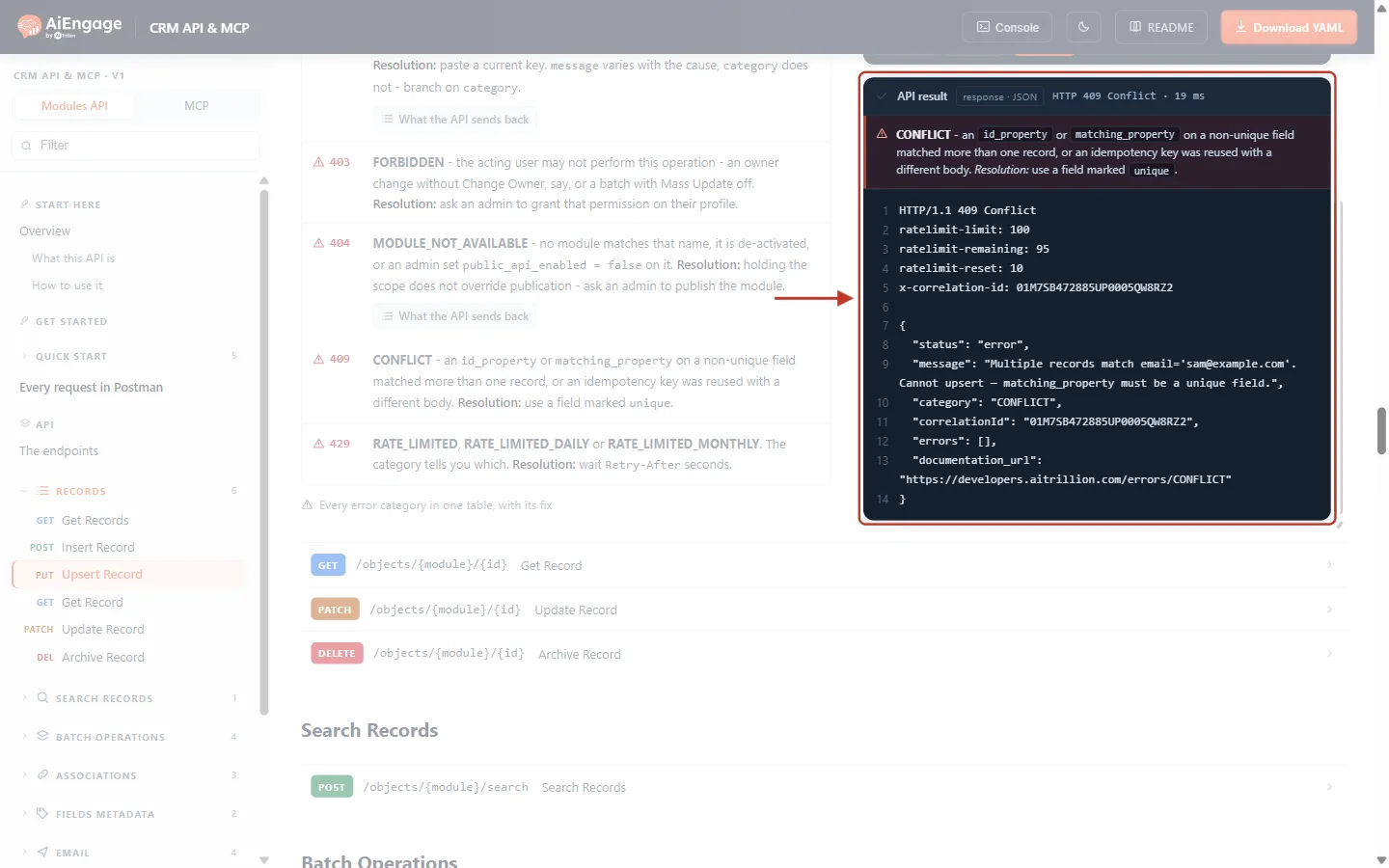
What this screenshot shows. The API result for an upsert that matches two contacts (example data).
HTTP 409 Conflict.
"message": "Multiple records match email='sam@example.com'. Cannot upsert — matching_property must be a unique field.""category": "CONFLICT". This is not the idempotency conflict (IDEMPOTENCY_KEY_CONFLICT); the red banner covers both kinds of 409.Nothing was created or changed.
How to fix it:
In the CRM, search Contacts for the value from the message (
sam@example.com).Merge the duplicates into one contact, or correct the email on the wrong one.
Make the field unique (Steps 1–2) so it cannot happen again.
Send the upsert again.
Step 9: Use Upsert in Your Own Code#
cURL — -i prints the response headers, so you can see X-Upsert-Action:
curl -i -X PUT "https://app.aiengagecrm.com/cback/api/public/v1/objects/contacts?matching_property=email" \
  -H "Authorization: Bearer $AIENGAGE_API_TOKEN" \
  -H "Content-Type: application/json" \
  -H "Idempotency-Key: $(uuidgen)" \
  -d '{ "properties": { "email": "ada@example.com", "first_name": "Ada", "last_name": "Lovelace" } }'
Node.js (18 or later)
import { randomUUID } from 'node:crypto';

const BASE = 'https://app.aiengagecrm.com/cback/api/public/v1';

async function upsertContact(properties) {
  const res = await fetch(`${BASE}/objects/contacts?matching_property=email`, {
    method: 'PUT',
    headers: {
      Authorization: `Bearer ${process.env.AIENGAGE_API_TOKEN}`,
      'Content-Type': 'application/json',
      'Idempotency-Key': randomUUID(),
    },
    body: JSON.stringify({ properties: { ...properties, email: properties.email.trim().toLowerCase() } }),
  });
  const body = await res.json();
  if (!res.ok) throw new Error(`${res.status} ${body.category}: ${body.message}`);
  console.log(res.headers.get('x-upsert-action'), body.id); // "created" or "updated"
  return body;
}

await upsertContact({ email: 'ada@example.com', first_name: 'Ada', last_name: 'Lovelace' });
Python (requests)
import os, uuid, requests

BASE = "https://app.aiengagecrm.com/cback/api/public/v1"

def upsert_contact(properties):
    properties = {**properties, "email": properties["email"].strip().lower()}
    res = requests.put(
        f"{BASE}/objects/contacts",
        params={"matching_property": "email"},
        json={"properties": properties},
        headers={
            "Authorization": f"Bearer {os.environ['AIENGAGE_API_TOKEN']}",
            "Idempotency-Key": str(uuid.uuid4()),
        },
        timeout=15,
    )
    body = res.json()
    if not res.ok:
        raise RuntimeError(f"{res.status_code} {body.get('category')}: {body.get('message')}")
    print(res.headers.get("X-Upsert-Action"), body["id"])  # "created" or "updated"
    return body

upsert_contact({"email": "ada@example.com", "first_name": "Ada", "last_name": "Lovelace"})
✅
Send values exactly as they are stored. The CRM compares the value exactly:
Ada@Example.com and ada@example.com are different values, so the first would create a second contact. Spaces inside an email are removed automatically, but capitals are not changed. Lower-case emails before you send them, as the examples do, and store them the same way everywhere.ℹ️
Retrying an upsert? Sending the same upsert twice is already safe — the second call simply updates the record again. Adding an
Idempotency-Key (as in the examples) also returns the first answer on a retry. See Idempotency Keys & Safe Retries: Prevent Duplicate Records and Double Sends in the CRM API.Upsert or Something Else?#
You want to… | Use | Notes |
|---|---|---|
Create or update by email or external id | PUT | One call. Creates when there is no match. |
Update only, never create | PATCH | Returns 404 if no record matches, instead of creating one. |
Create only | POST | Always creates a new record. |
Upsert many records at once | Call upsert once per record | There is no batch upsert. Batch endpoints offer create, read, update (by id) and archive, up to 100 records per call. |
Troubleshooting#
What you see | Why it happens | How to fix it |
|---|---|---|
| The address has no | Add it with the field’s API name. |
| The matching field is not in | Send the field and its value in the body. |
| A field name is misspelt, or the field is hidden from the API. | Use the names from |
| No match was found, so a record is created — and a required field is missing or a value is invalid. | Send all fields marked |
| The upsert matched a record and would change its owner, but the key’s user may not use Change Owner. | Leave the owner field out, or ask an admin to enable Change Owner on that user’s profile. |
| The key cannot write to this module. | Create a key with |
| Two or more records have that value. | Merge the duplicates, then make the field unique (Steps 1–2 and 8). |
A duplicate was created instead of an update | The value differs slightly (capital letters), or the existing record is archived. | Normalise values (for example lower-case emails); restore the archived record if you want it updated. |
For every other error code, see API Errors & Troubleshooting: Fix 400, 401, 403, 404, 409, 429 and 500 Errors Step by Step.
Best Practices#
Match on a field marked unique: email, a customer number, or your other system’s id stored in a custom field.
For syncs from another system, create a custom single-line field such as External ID, make it unique, and use it as the matching property. It never changes, unlike an email address.
Normalise matching values the same way every time (trim spaces, lower-case emails).
Send only the fields you want to change. Leave out the owner field unless you really mean to reassign the record.
Log the
X-Upsert-Actionheader and the recordidso you can see what each sync did.Add an
Idempotency-Keyso retries return the first answer.
Frequently Asked Questions#
Does the matching field have to be unique?
The API accepts any field, but if two records share the value you get 409 CONFLICT. Making it unique prevents that.
Why does upsert return 200 and not 201 when it creates?
Upsert always answers 200. Use the X-Upsert-Action header (created or updated) to tell which happened.
Can I match on two fields at once?
No. matching_property takes one field. If you need a combination, store it in one custom field (for example store-42-order-1001), make that field unique and match on it.
Does upsert work for Deals, Companies and custom modules?
Yes. Put the module’s API name in the address, for example PUT /objects/deals?matching_property=external_id.
Will an upsert bring back an archived record?
No. Archived records are ignored when matching, so a new record is created.
Do I need to search before I upsert?
No. That is the point of upsert: it does the search and the create-or-update in one call.
Previous and Next Articles#
Previous: Get, Create, Update and Archive Records with the CRM API: A Step-by-Step Guide
Next: API Errors & Troubleshooting: Fix 400, 401, 403, 404, 409, 429 and 500 Errors Step by Step
Related Articles#
Get, Create, Update and Archive Records with the CRM API: A Step-by-Step Guide
Idempotency Keys & Safe Retries: Prevent Duplicate Records and Double Sends in the CRM API
API Errors & Troubleshooting: Fix 400, 401, 403, 404, 409, 429 and 500 Errors Step by Step
Records, Modules & the Record Envelope: How Your CRM Data Looks in the API
API Keys Step by Step: Generate, Use and Revoke a Personal Access Token
Was this article helpful?
Ready to implement this?
OpenAI Engage and apply what you just learned to your own workspace.
Open AI Engage CRM