Loading…


KnowledgeBase
Get, Create, Update and Archive Records with the CRM API: A Step-by-Step Guide
Introduction#
Almost every integration with AiEngage CRM does the same four things with records: it reads them, creates new ones, updates existing ones and, when they are no longer needed, archives them. The AiEngage CRM API does all four with one small set of endpoints that work the same way for every module — Contacts, Deals, Companies, Tickets, Products and any custom module your organization has created.
This guide follows one example contact, Ada Lovelace, through her whole life in the CRM:
Prepare: check your key’s scopes, the module name and the field names.
List the records in a module.
Create a new record.
Get that one record — by its id, or by its email address.
Update it.
Archive it, and list archived records to see it again.
Upsert: create-or-update in one call, for syncing from another system.
Every step is tried live in the Try it panel of the developer portal at developer.aiengagecrm.com, so you can follow along without writing any code, and the matching curl command is shown so you can copy it into your own app.
Each screenshot has a red ring and arrow on the part to look at, followed by a description of the whole screen. The API responses in the screenshots use example data (example key, example ids and example.com addresses); the screens and the response shapes are exactly what you will see. Your own ids and dates will differ.
The five endpoints at a glance#
What you want to do | Method and path | Scope the key needs | Success answer |
|---|---|---|---|
List records |
|
| 200 + a page of records |
Create a record |
|
| 201 + the new record |
Get one record |
|
| 200 + the record |
Update a record |
|
| 200 + the updated record |
Archive a record |
|
| 204, no body |
Create or update (upsert) |
|
| 200 + the record |
ℹ️
Every path starts with the base address
https://app.aiengagecrm.com/cback/api/public/v1, and every request sends your key in the header Authorization: Bearer cak_live_…. See API Authentication & Bearer Tokens if you have not set this up yet.Before You Begin#
You have an API key, or can create one under Settings → Developer Hub → API Keys (see API Keys Step by Step: Generate, Use and Revoke a Personal Access Token).
You have opened developer.aiengagecrm.com and pasted your key into the Paste your key here box once — every Try-it panel then uses it automatically (see Test the AiEngage CRM API in the API Console and Postman).
It helps to know what a record looks like in the API (its
id,propertiesand timestamps). See Records, Modules & the Record Envelope.
⚠️
The Try-it panels make real calls to your CRM. Creating, updating and archiving there really changes your data — practise on a test record you are happy to change.
Step 1: Give Your Key the Right Scopes#
Each kind of call needs its own permission (scope) on the key. Reading, writing and archiving are three separate scopes, so a key that can create contacts cannot archive them unless you also tick Delete.
In the CRM, go to Settings → Developer Hub → API Keys, click Generate API key, enter a label and scroll to the module you want to work with:
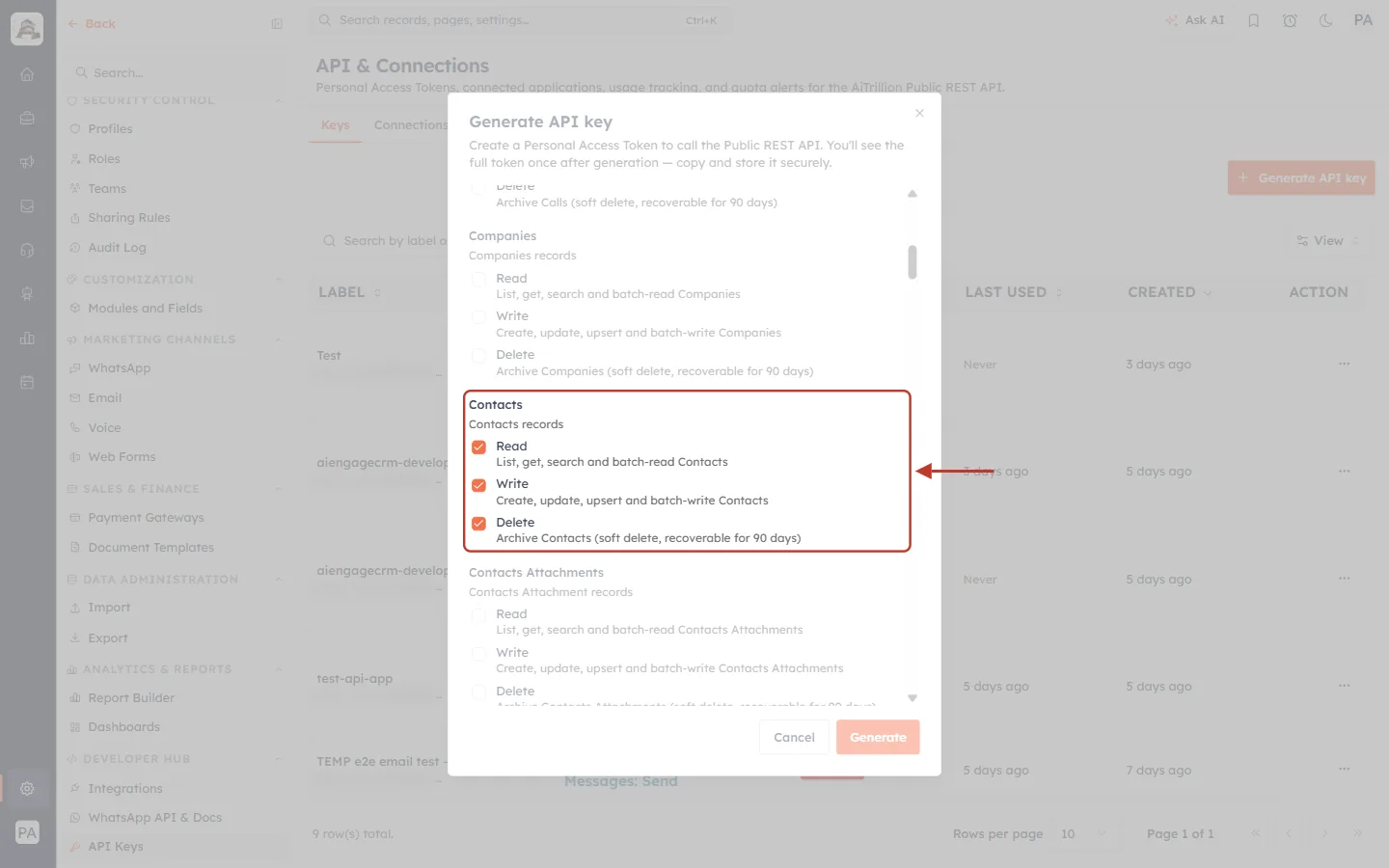
What this screenshot shows. The Generate API key dialog, scrolled to the Contacts block, with all three Contacts permissions ticked.
Read — List, get, search and batch-read Contacts. Needed for Step 2 (list) and Step 4 (get). It becomes the scope
crm.contacts.read.Write — Create, update, upsert and batch-write Contacts. Needed for Step 3 (create), Step 5 (update) and Step 7 (upsert). Scope
crm.contacts.write.Delete — Archive Contacts (soft delete, recoverable for 90 days). Needed for Step 6 (archive). Scope
crm.contacts.delete.Every module has its own block — above are Companies, below is Contacts Attachments. Tick only the modules and actions your integration really uses.
Generate (bottom right) creates the key once a label and at least one scope are chosen; Cancel closes the dialog without creating anything.
ℹ️
The key also acts with the permissions of the CRM user who creates it. Write is only granted when that user can both create and edit records in the module, and the API returns only the records that user can see in the CRM.
Step 2: Find the Module Name and Field Names#
The API uses API names, not the labels you see on screen. You need two of them:
the module slug, which goes in the URL — for example
/objects/contacts;the field API names, which go inside
properties— for examplefirst_nameorlifecycle_stage.
To see the slug, go to Settings → Customization → Modules and Fields:
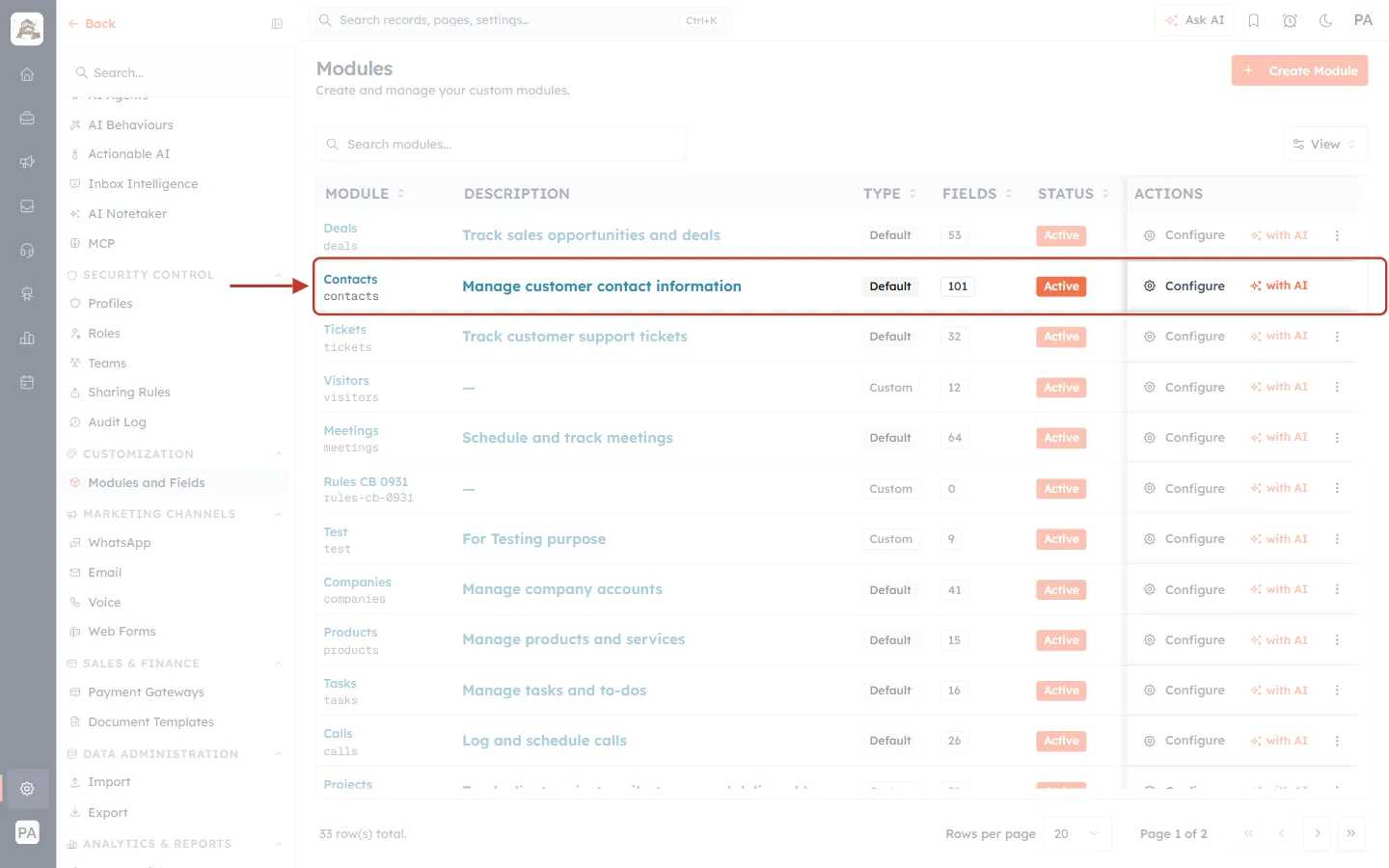
What this screenshot shows. The Modules page with the Contacts row ringed.
The Module column shows the name Contacts and, in small grey text underneath, its slug
contacts. That slug is what goes in every URL in this guide.Description, Type (Default or Custom) and Fields (101 fields for Contacts on this account).
Status must be Active; a deactivated module answers
404 MODULE_NOT_AVAILABLE.Configure opens the module’s fields, which is where you find each field’s API name (next screenshot).
Click Configure on the Contacts row, then click any field on the layout to open its settings:
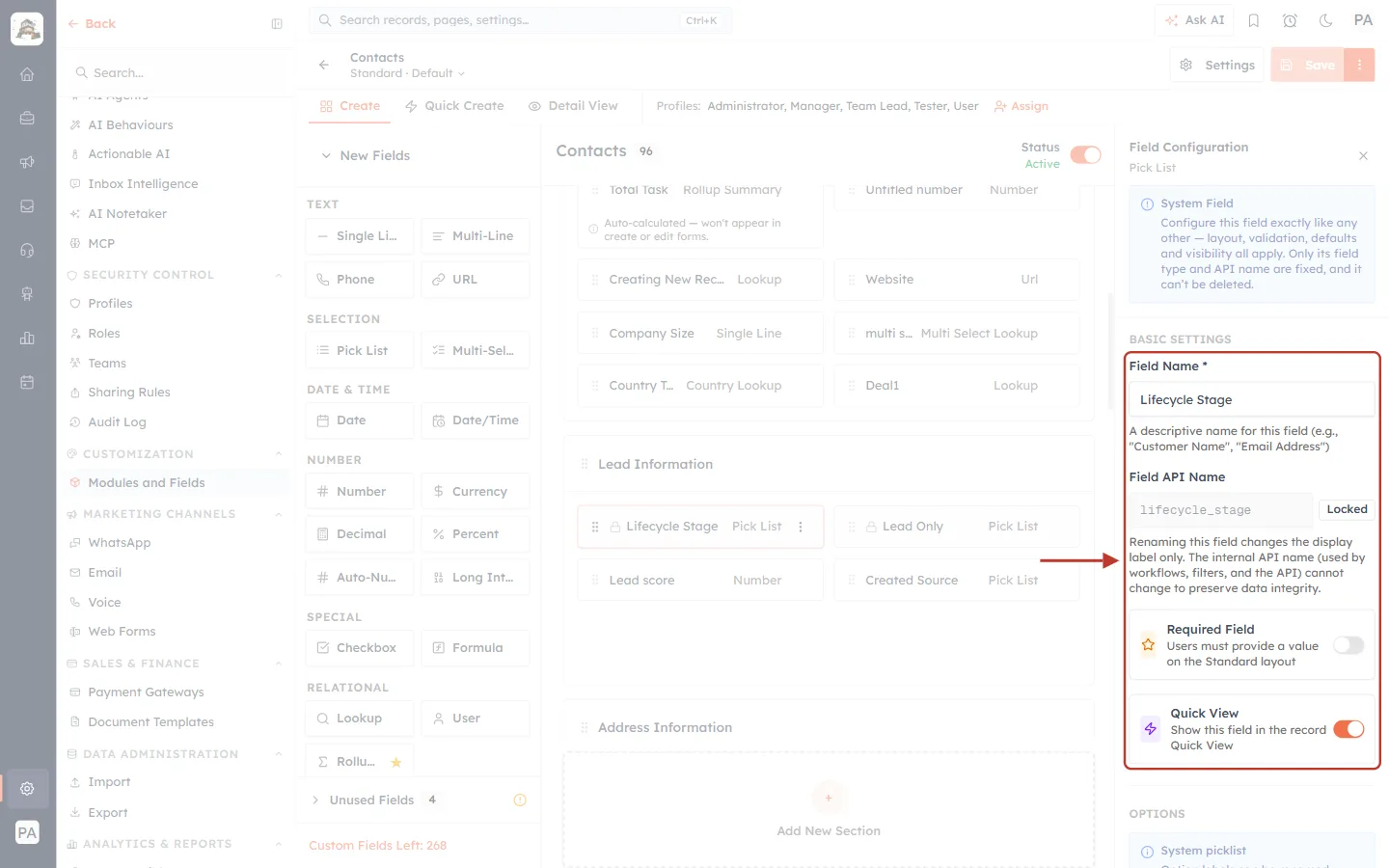
What this screenshot shows. The Contacts field builder with the Lifecycle Stage field selected; its settings are open on the right.
Field Name — the label people see in the CRM: Lifecycle Stage.
Field API Name — the name to use in the API:
lifecycle_stage. It is marked Locked.The note explains why: renaming a field changes only its display label. The internal API name, used by workflows, filters and the API, never changes — so your integration does not break when an admin renames a field.
Below are the field’s Required Field and Quick View switches. A field that is required on the layout must also be sent when you create a record through the API.
On the left are the field types you can add (Single Line, Pick List, Date, Lookup and more); in the middle is the layout, with Lifecycle Stage highlighted in the Lead Information section.
✅
To get every field name, type, required flag and the allowed values of pick lists in one go, call
GET /properties/contacts. It always reflects your account exactly as it is today.Step 3: List Records (GET /objects/{module})#
On developer.aiengagecrm.com, open Records in the left menu. It lists the six record endpoints used in this guide:
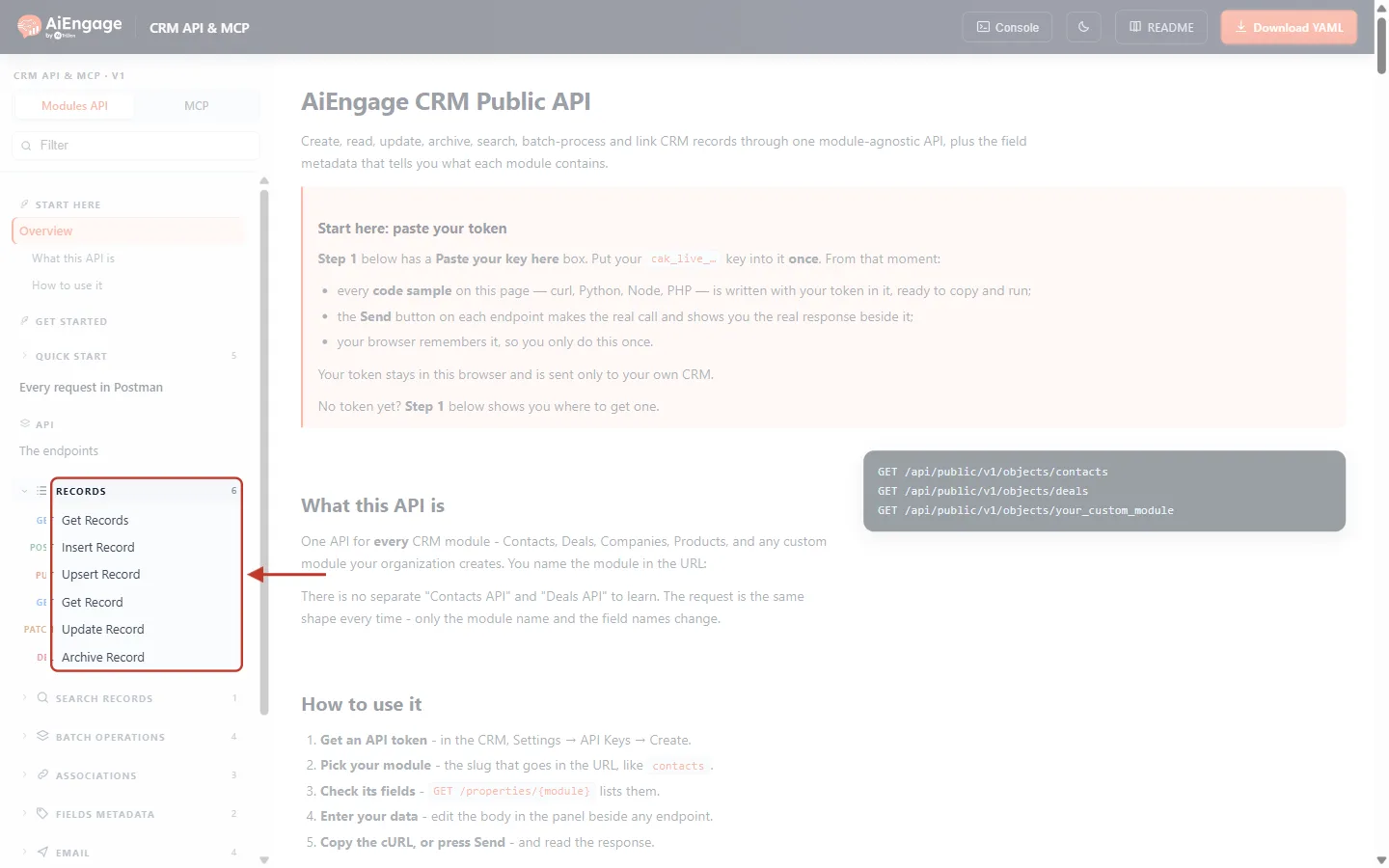
What this screenshot shows. The left menu of the developer portal with the Records group open.
Get Records — list a module’s records (this step).
Insert Record — create one record (Step 4).
Upsert Record — create or update by matching a field (Step 8).
Get Record — read one record (Step 5).
Update Record — change one record (Step 6).
Archive Record — archive one record (Step 7).
The coloured tags beside each name are the HTTP methods: GET, POST, PUT, PATCH and DEL(ETE). Further down are Search Records, Batch Operations and Associations.
Click Get Records. The left half of the page explains the endpoint; the right half is its Try it panel.
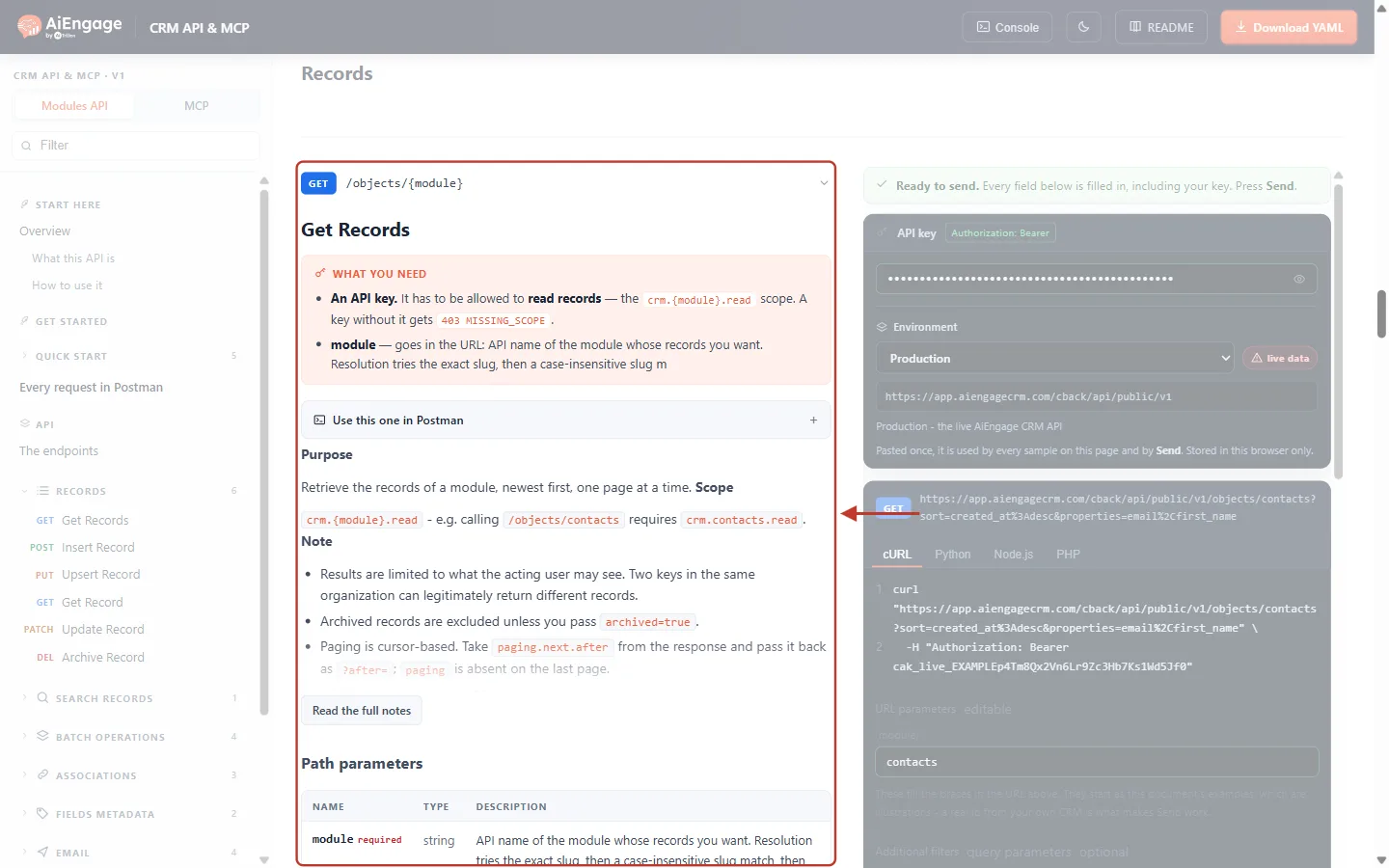
What this screenshot shows. The description of GET /objects/{module}.
What you need — a key with the
crm.{module}.readscope (otherwise403 MISSING_SCOPE) and the module slug in the URL.Purpose — returns the records of a module, newest first, one page at a time. Calling
/objects/contactsneedscrm.contacts.read.Note — results are limited to what the key’s user may see; archived records are left out unless you pass
archived=true; paging uses a cursor (paging.next.after).Use this one in Postman shows how to run the same request in Postman. On the right, the Try-it panel already shows your key (as dots), the Production environment and the curl command.
Scroll the Try-it panel to the parameters and fill them in:
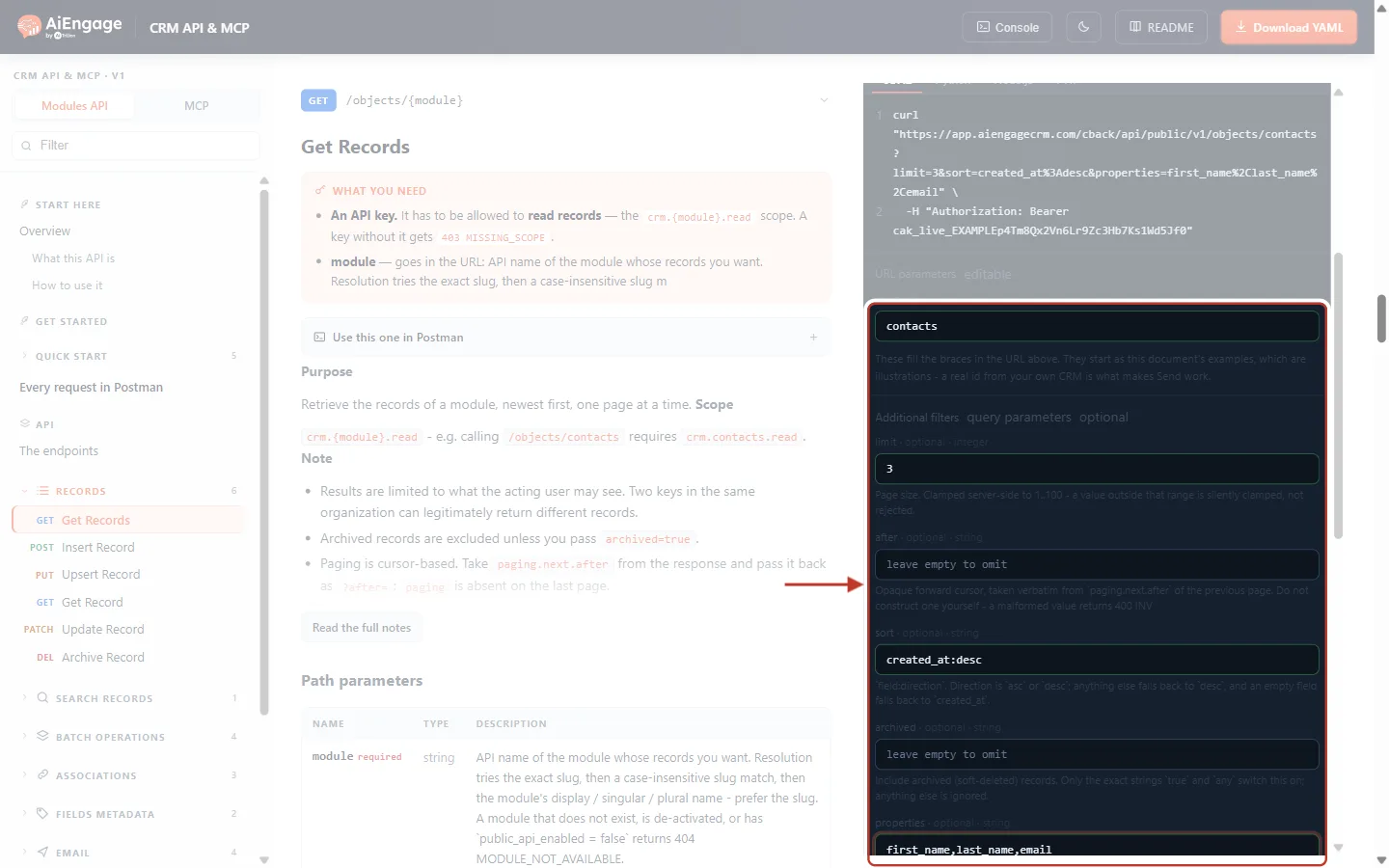
What this screenshot shows. The parameters of the Try-it panel, filled in for this example.
{module} =
contacts— the module slug from Step 2.limit =
3— how many records per page. The default is 10 and the maximum 100; a larger or smaller value is quietly changed to fit, not refused.properties =
first_name,last_name,email— return only these fields. Leave it empty to get every field.Other optional parameters: after (the next-page cursor), sort (for example
created_at:asc), archived (trueto include archived records) and include (expand up to 5 lookup fields).
The panel builds this request for you:
curl "https://app.aiengagecrm.com/cback/api/public/v1/objects/contacts?limit=3&properties=first_name,last_name,email" \
  -H "Authorization: Bearer cak_live_…"
Click Send. The answer appears under the panel:
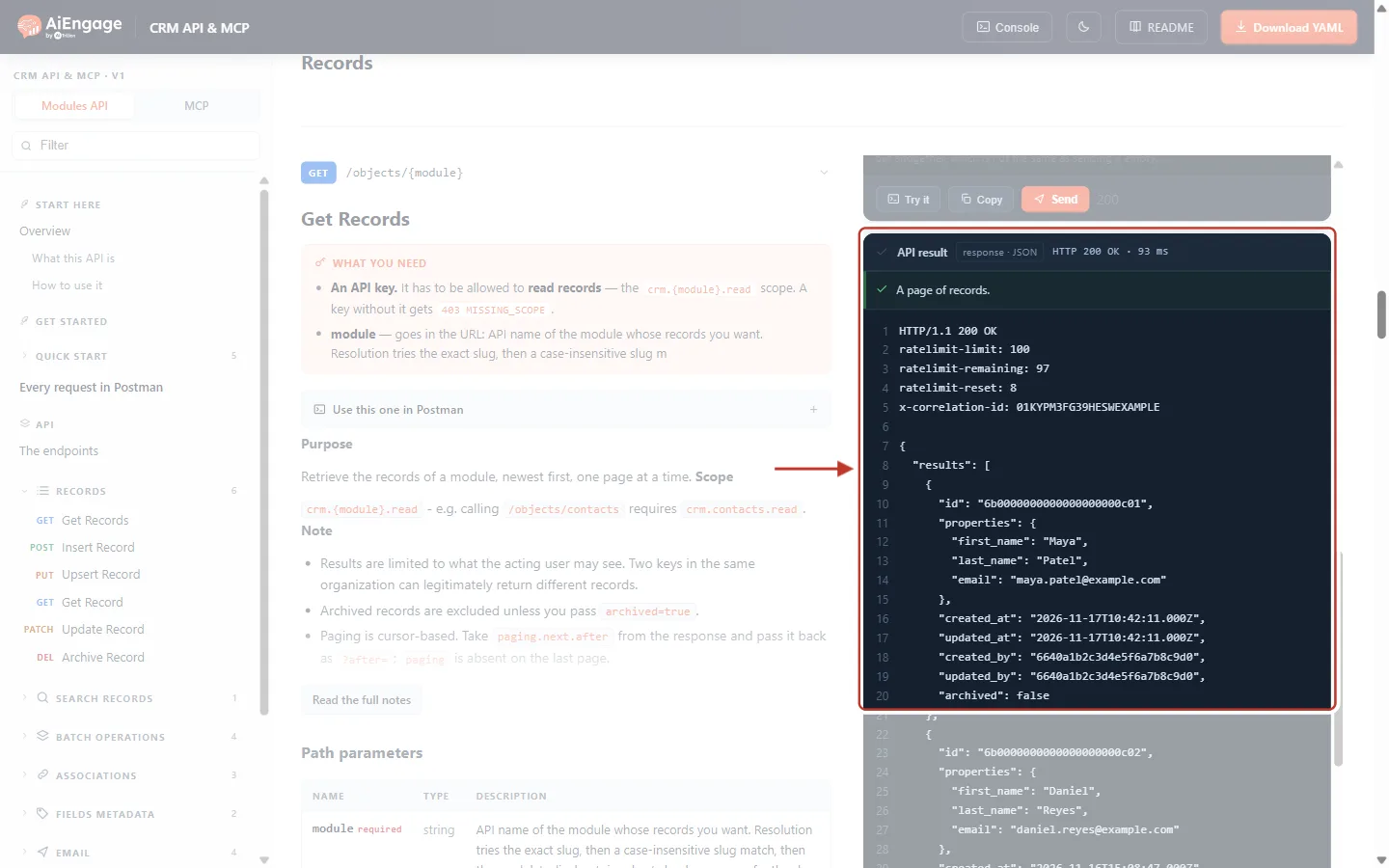
What this screenshot shows. The API result of the list call (example data).
The header reads HTTP 200 OK and how long the call took; the green line says A page of records.
Lines 1–5 are the response headers: the ratelimit values (how many calls you have left in the current window) and the x-correlation-id (quote it if you ever need support).
The body has a
resultslist. Each item is one record: itsid, itsproperties(only the three fields asked for),created_at/updated_at,created_by/updated_by(user ids) andarchived: false.The first record shown is the newest — Maya Patel. The other two records follow below.
At the end of the body (below the ring) is
paging.next.after: send it back as?after=…to get the next page. When there are no more pages,pagingis missing.
✅
Reading every record of a large module? Keep requesting with
limit=100 and the after value from each page until paging is absent. See API Pagination & Limits.Step 4: Create a Record (POST /objects/{module})#
Open Insert Record. In its Try-it panel set {module} to contacts, then write the new record in the Enter your data box:
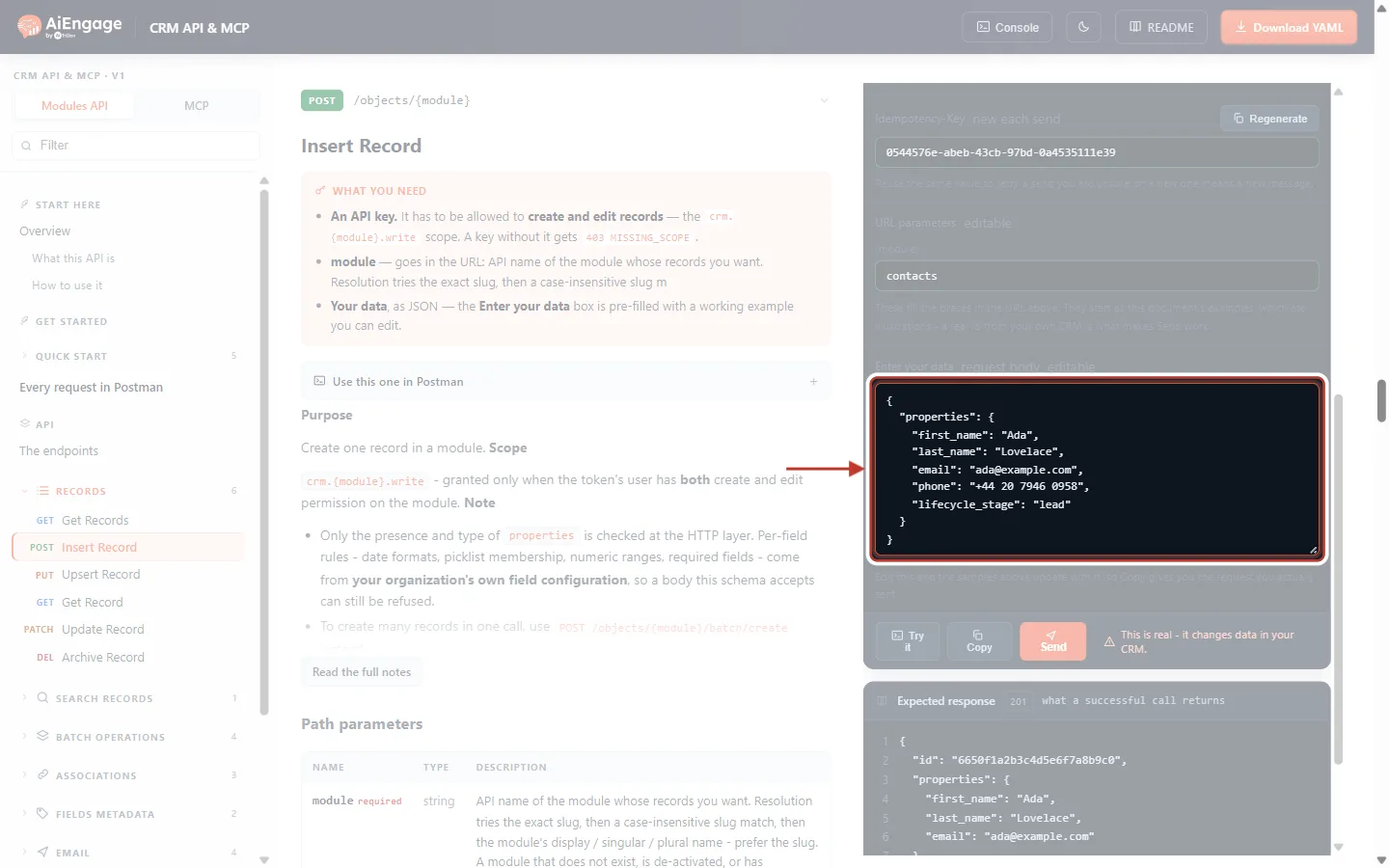
What this screenshot shows. The Enter your data box of Insert Record, with the new contact.
The body is JSON with one object,
properties, holding the fields to set — using the API names from Step 2.first_name,last_name,emailandphoneare plain text values.lifecycle_stageis a pick list, so it takes one of the option values — herelead— not the label shown in the CRM.Above the box, {module} is
contacts; on the left, What you need says this endpoint needs thecrm.{module}.writescope.
Just above the parameters is the Idempotency-Key:
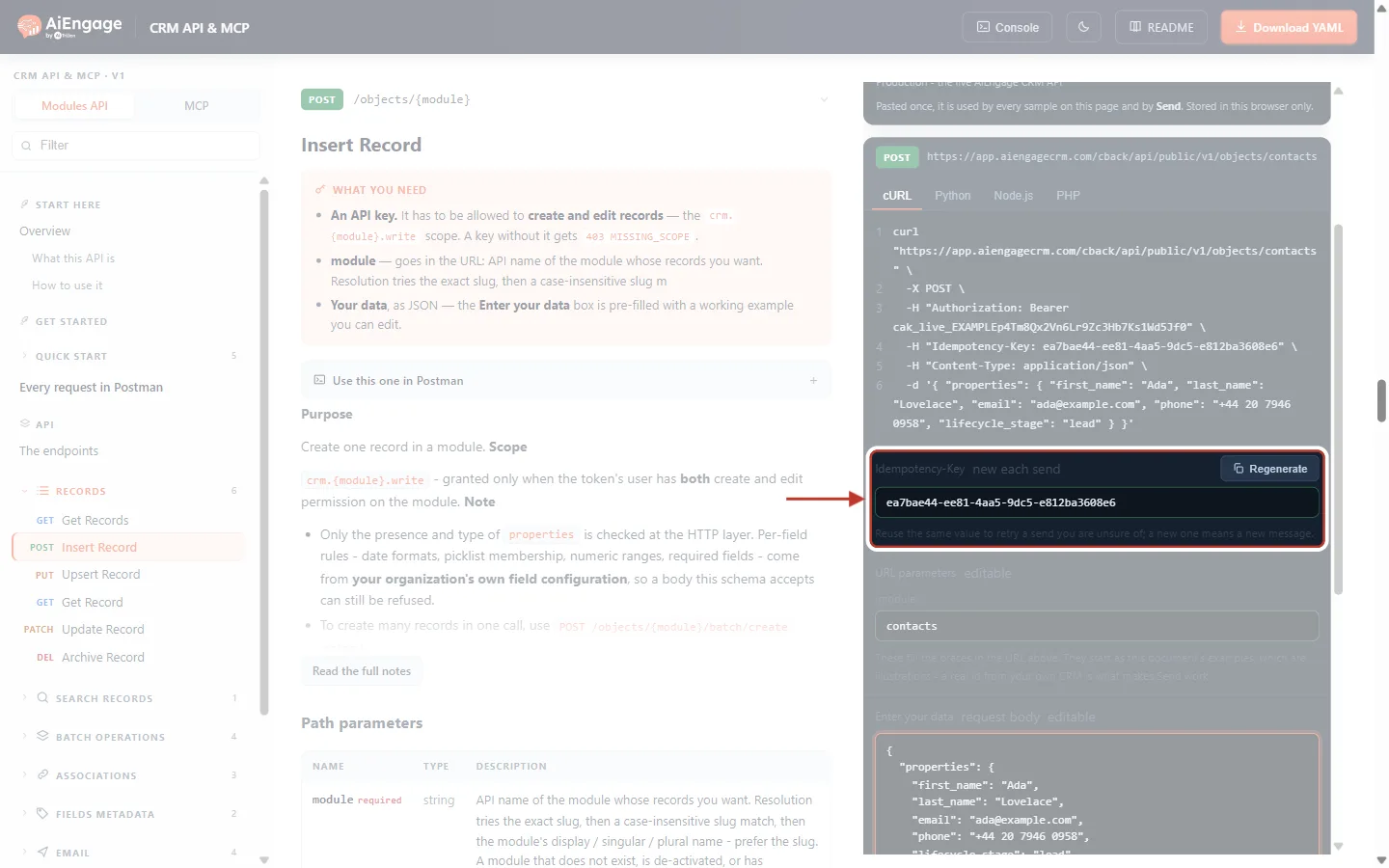
What this screenshot shows. The Idempotency-Key of the Insert Record panel.
The panel creates a new random key for each send (new each send), and adds it to the curl command above as
-H "Idempotency-Key: …".Regenerate makes a new one.
The hint explains the rule: reuse the same value to retry a send you are unsure of; a new value means a new record. So if your connection drops after you send, resending with the same key never creates a duplicate contact.
The curl command above it shows the complete request:
-X POST, the Authorization header, the Idempotency-Key,Content-Type: application/jsonand the body.
The full request your app sends looks like this:
curl "https://app.aiengagecrm.com/cback/api/public/v1/objects/contacts" \
  -X POST \
  -H "Authorization: Bearer cak_live_…" \
  -H "Idempotency-Key: 0544576e-abeb-43cb-97bd-0a4535111e39" \
  -H "Content-Type: application/json" \
  -d '{ "properties": { "first_name": "Ada", "last_name": "Lovelace", "email": "ada@example.com", "phone": "+44 20 7946 0958", "lifecycle_stage": "lead" } }'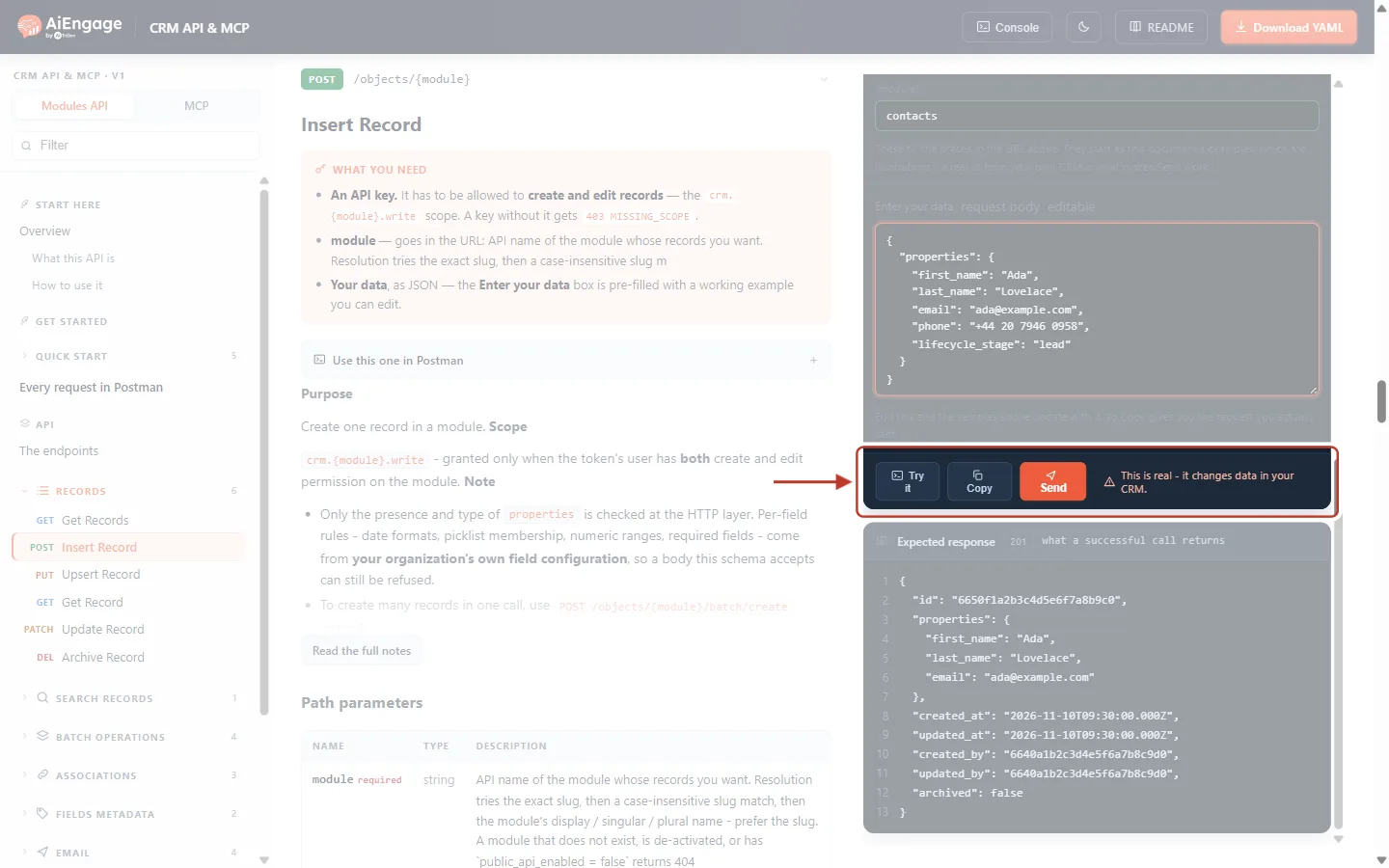
What this screenshot shows. The buttons under the request body.
Try it opens the same request in the API console; Copy copies the curl command; Send runs it.
The warning “This is real – it changes data in your CRM.” appears on every call that writes data. Reads say Read-only — safe to press instead.
Below is Expected response — 201, what a successful call returns — so you know what to look for before you send.
Click Send:
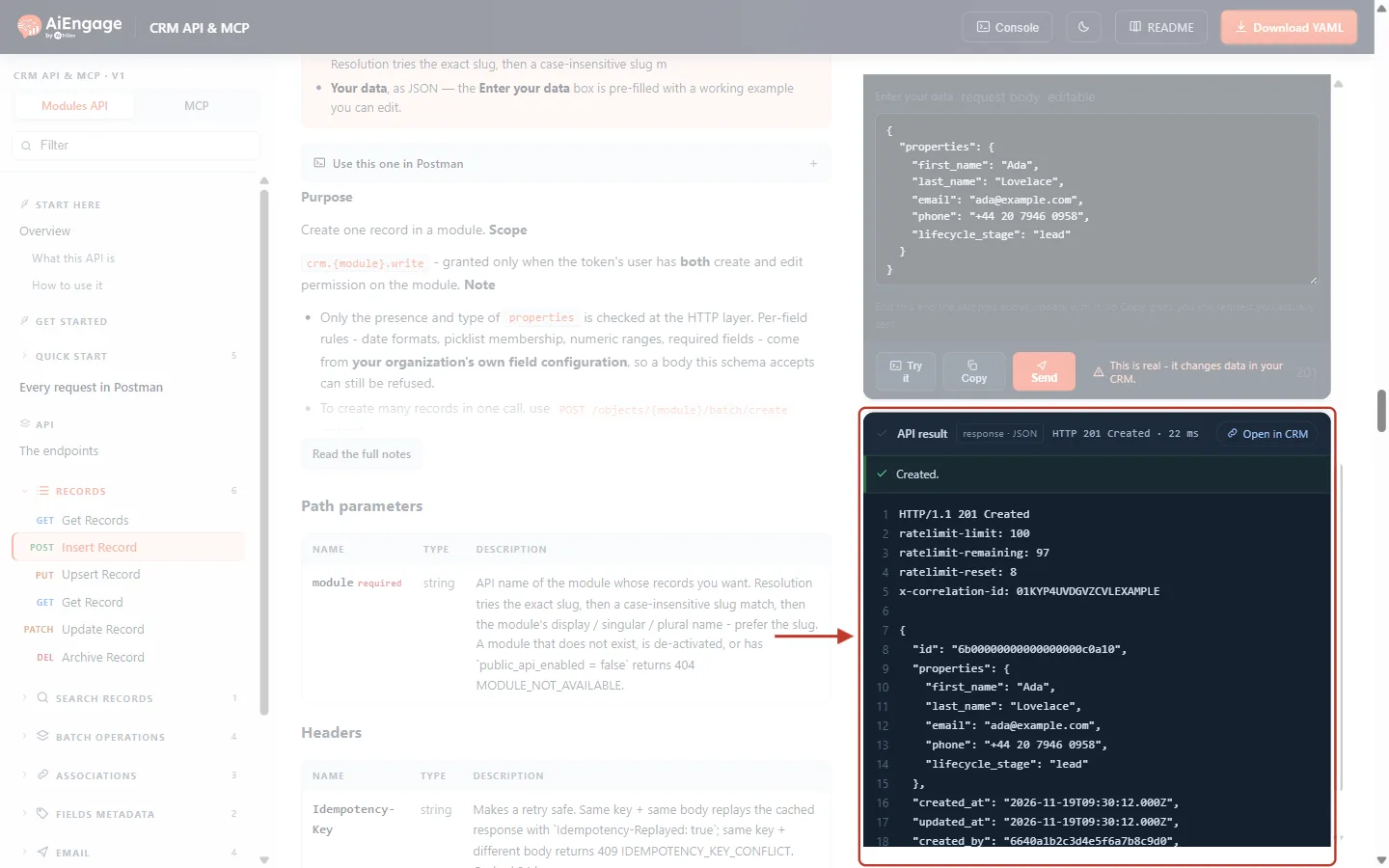
What this screenshot shows. The API result after creating the contact (example data).
HTTP 201 Created and the green line Created. — the record now exists.
The body is the new record. Its
id(here6b00000000000000000c0a10) is what you use in Steps 5–7 — store it in your own system.propertiesrepeats the values that were saved;created_atandupdated_atare the same because it has never been changed;archivedisfalse.Open in CRM (top right) opens the new record in AiEngage CRM so you can see it in the app.
If the record cannot be created, nothing is saved and you get an error instead, most often:
Answer | Why | Fix |
|---|---|---|
400 VALIDATION_ERROR | A required field is missing (on Contacts, for example, First Name and Contact Owner) or a value breaks a field rule — a pick-list value that is not an option, a bad date or email. | Read |
400 INVALID_PROPERTY | A name in | Use the API names from |
403 MISSING_SCOPE | The key has no Write scope for this module. | Generate a key with Write ticked (Step 1). |
409 IDEMPOTENCY_KEY_CONFLICT | The Idempotency-Key was reused with a different body. | Use a new key for each new record. |
ℹ️
To create many records at once, use Insert Records (batch) — up to 100 per call — instead of one call per record. More on errors: API Errors & Troubleshooting: Fix 400, 401, 403, 404, 409, 429 and 500 Errors Step by Step.
Step 5: Get One Record (GET /objects/{module}/{id})#
Open Get Record, set {module} to contacts and paste the id returned in Step 4 into {id}:
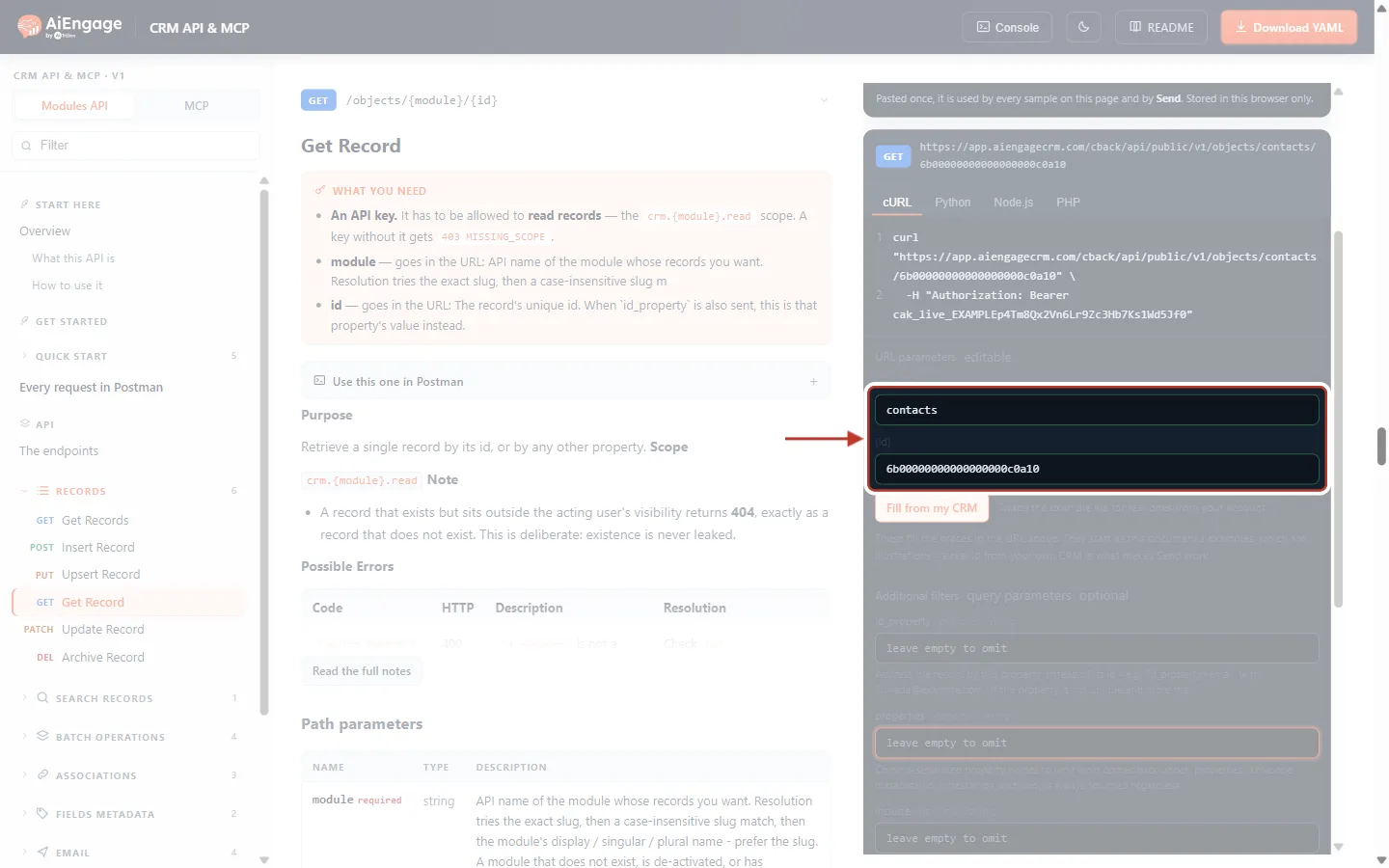
What this screenshot shows. The URL parameters of Get Record.
{module} =
contacts.{id} =
6b00000000000000000c0a10— the id of the contact created in Step 4.The curl command at the top of the panel updates as you type:
GET …/objects/contacts/6b00000000000000000c0a10.
curl "https://app.aiengagecrm.com/cback/api/public/v1/objects/contacts/6b00000000000000000c0a10" \
  -H "Authorization: Bearer cak_live_…"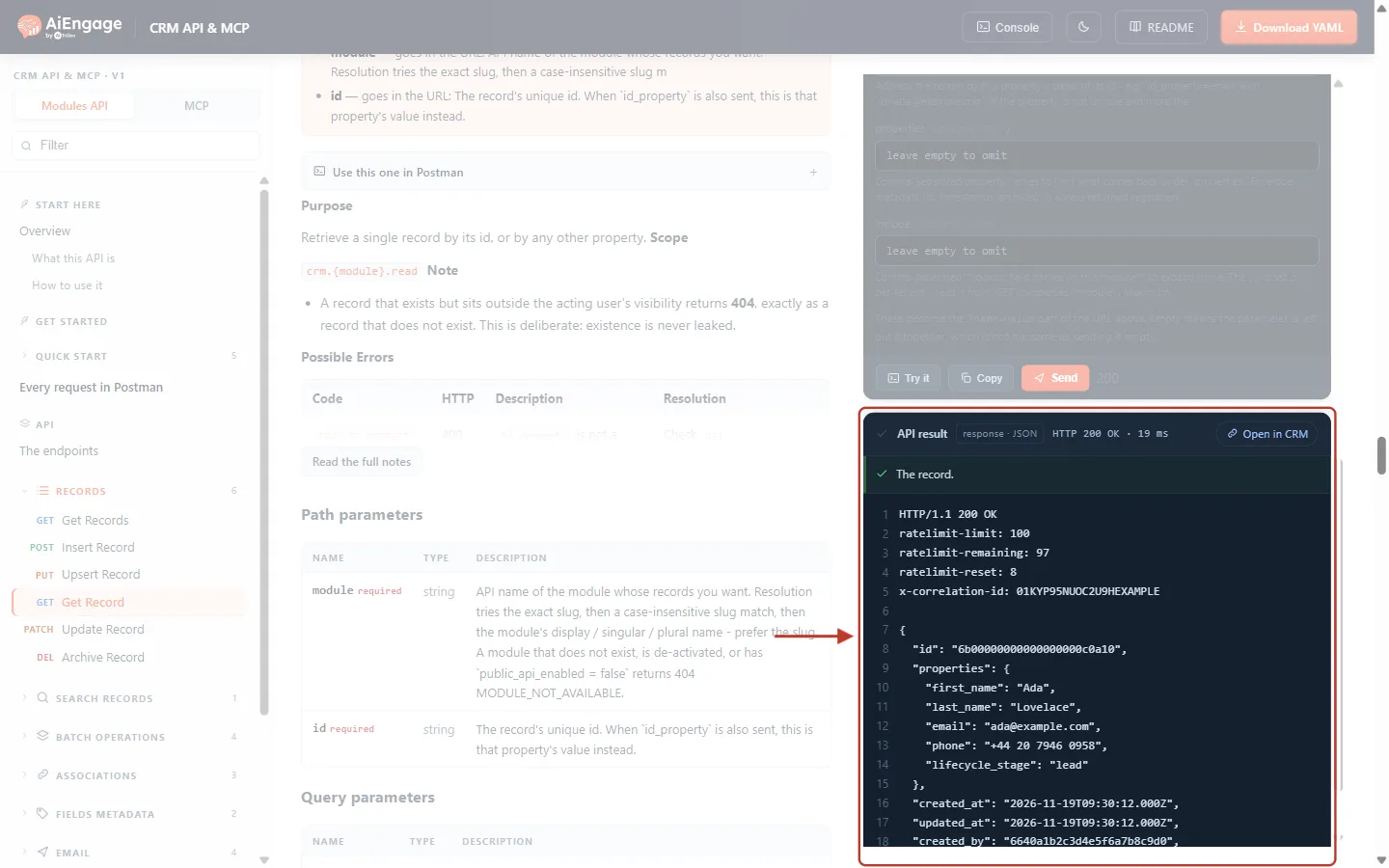
What this screenshot shows. The API result of Get Record (example data).
HTTP 200 OK and The record.
The body is the single record, in exactly the same shape as one item of the list in Step 3 —
id,properties, timestamps andarchived.Because no
propertiesfilter was set, every saved field is returned, includingphoneandlifecycle_stage.
Get a record by email (or any other field)#
Often your other system knows the customer’s email but not the CRM id. Put the email in {id} and set the query parameter id_property to the field it belongs to:
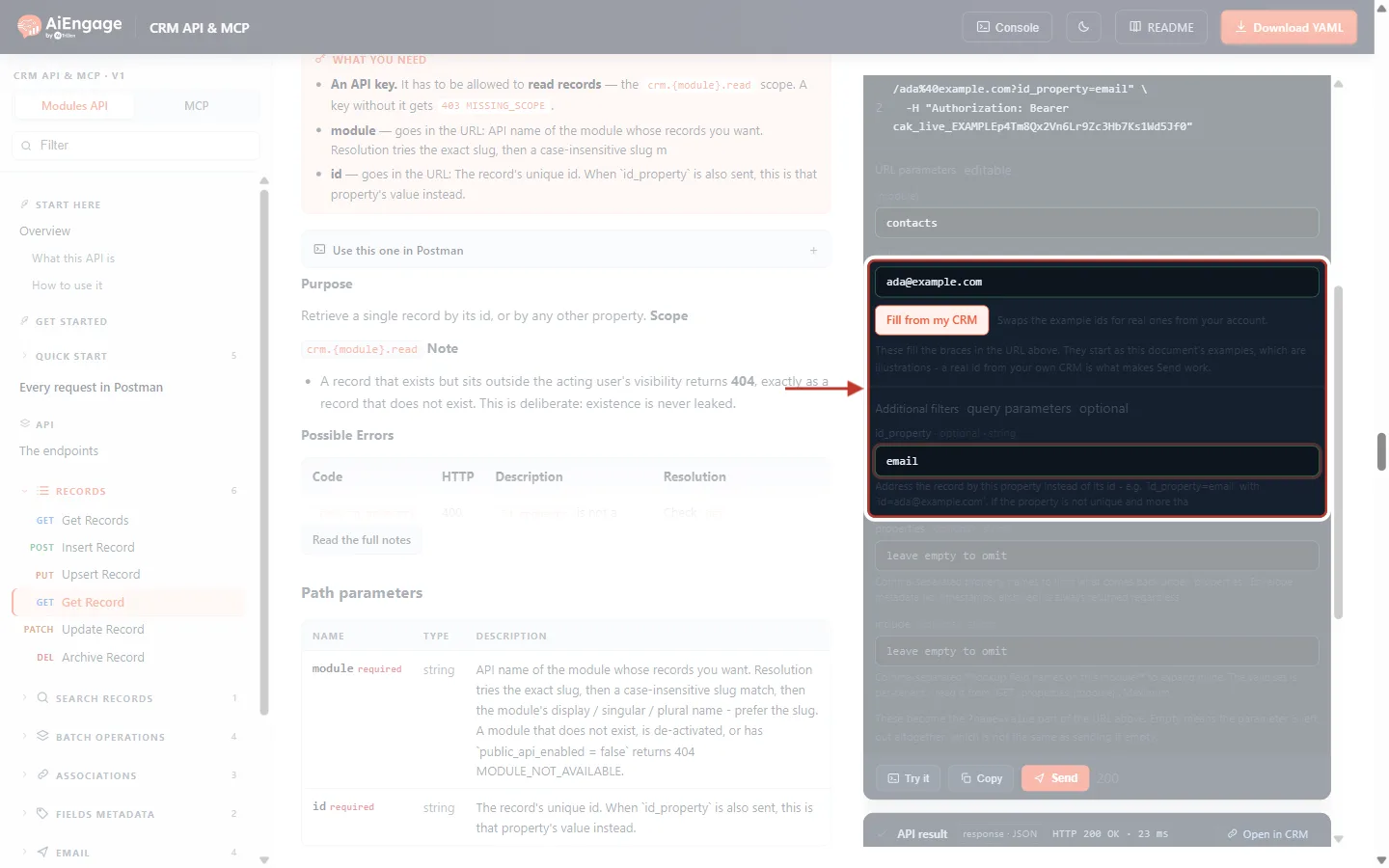
What this screenshot shows. Get Record set up to find the contact by email.
{id} =
ada@example.com— the value to look for.id_property =
email— the field that value belongs to.The curl line at the top now ends in
/contacts/ada%40example.com?id_property=email(the@is encoded automatically).Fill from my CRM can put a real id from your account into the {id} box for read-only calls.
curl "https://app.aiengagecrm.com/cback/api/public/v1/objects/contacts/ada%40example.com?id_property=email" \
  -H "Authorization: Bearer cak_live_…"
⚠️
If two records share the value (for example two contacts with the same email), the API answers 409 CONFLICT instead of guessing which one you meant. Use a field marked unique for lookups when you can.
A 404 OBJECT_NOT_FOUND means there is no such record — or the record exists but the key’s user cannot see it. The API deliberately does not tell these two apart.
Step 6: Update a Record (PATCH /objects/{module}/{id})#
Open Update Record, set {module} and {id} as in Step 5, and in Enter your data send only the fields you want to change:
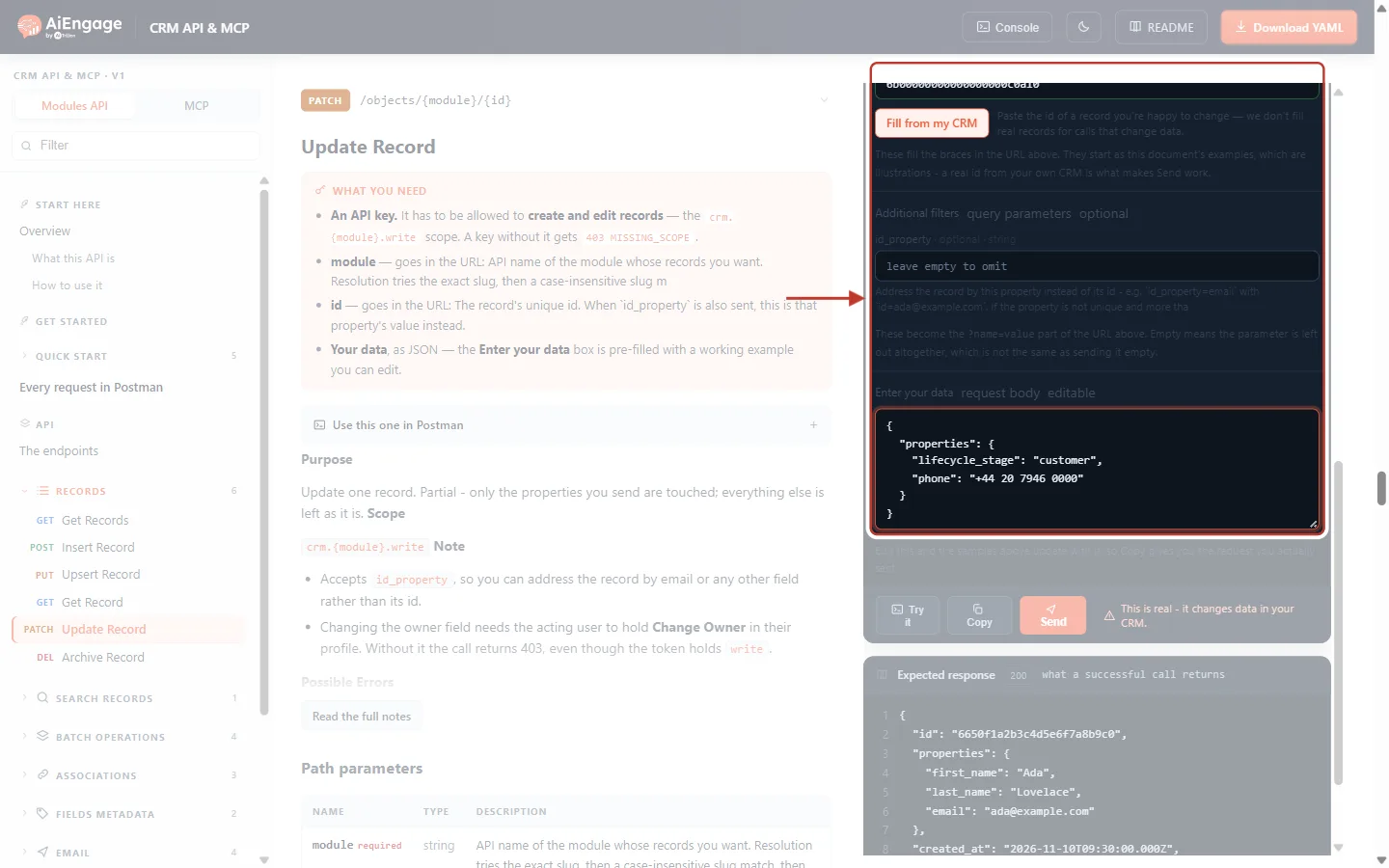
What this screenshot shows. The {id} and request body of Update Record.
{id} is the contact from Step 4.
The body changes two fields:
lifecycle_stagefromleadtocustomer, and a newphonenumber.Every field you leave out stays exactly as it is — the update is partial. You do not need to send the name or email again.
curl "https://app.aiengagecrm.com/cback/api/public/v1/objects/contacts/6b00000000000000000c0a10" \
  -X PATCH \
  -H "Authorization: Bearer cak_live_…" \
  -H "Idempotency-Key: 1d0e853d-d594-4240-93c5-18440bc50ef5" \
  -H "Content-Type: application/json" \
  -d '{ "properties": { "lifecycle_stage": "customer", "phone": "+44 20 7946 0000" } }'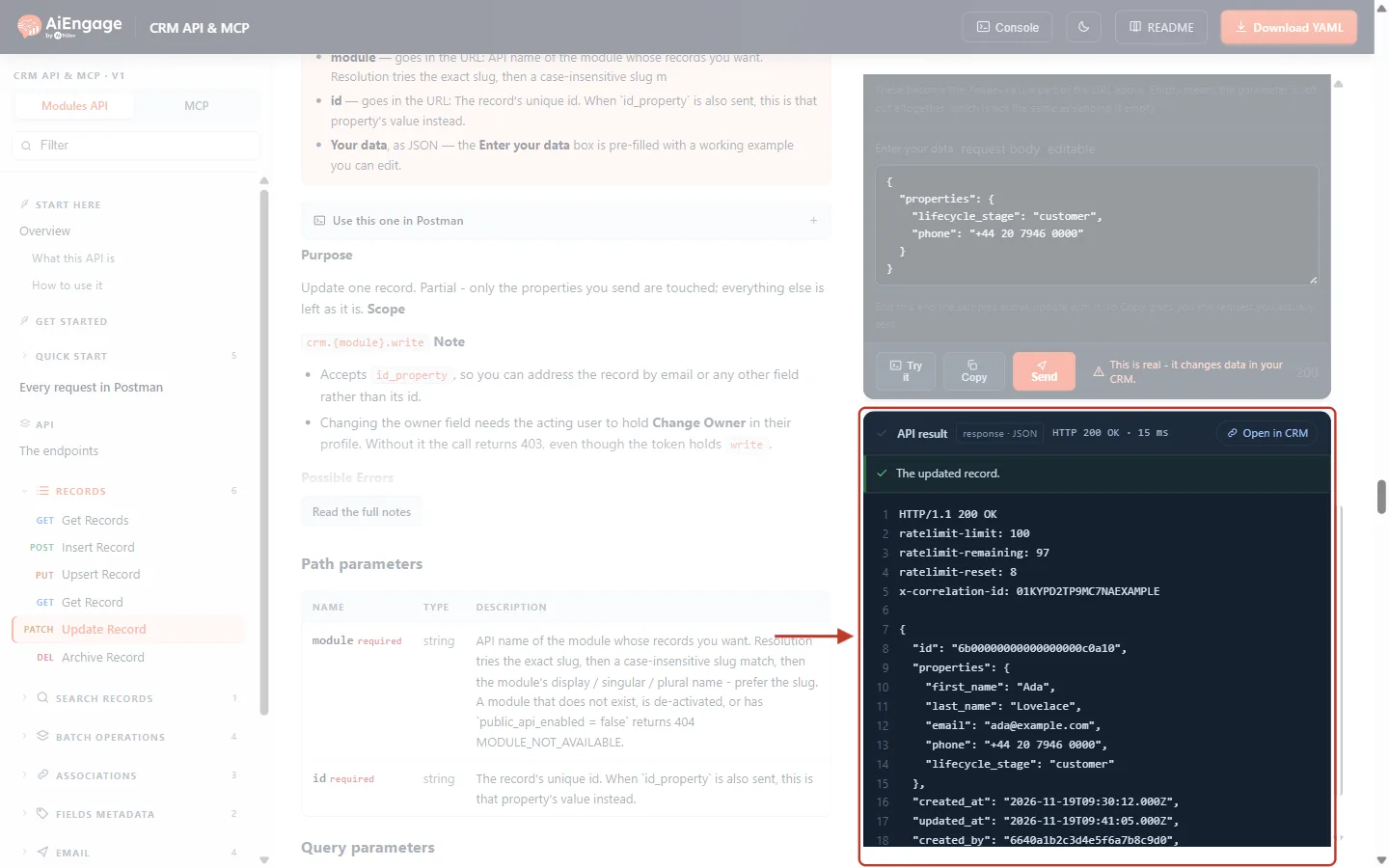
What this screenshot shows. The API result after the update (example data).
HTTP 200 OK and The updated record.
phoneandlifecycle_stageshow the new values;first_name,last_nameandemailare unchanged.updated_at(09:41:05) is now later thancreated_at(09:30:12), andupdated_byis the key’s user.
Changing the record’s owner needs the Change Owner permission on the key user’s profile; without it the call answers 403 FORBIDDEN, even though the key has Write.
Like Get Record, Update Record accepts
id_property, so you can update by email:PATCH /objects/contacts/ada%40example.com?id_property=email.
Step 7: Archive a Record (DELETE /objects/{module}/{id})#
Archiving is a soft delete: the record disappears from lists and searches, but it is not destroyed and can be brought back. Open Archive Record:
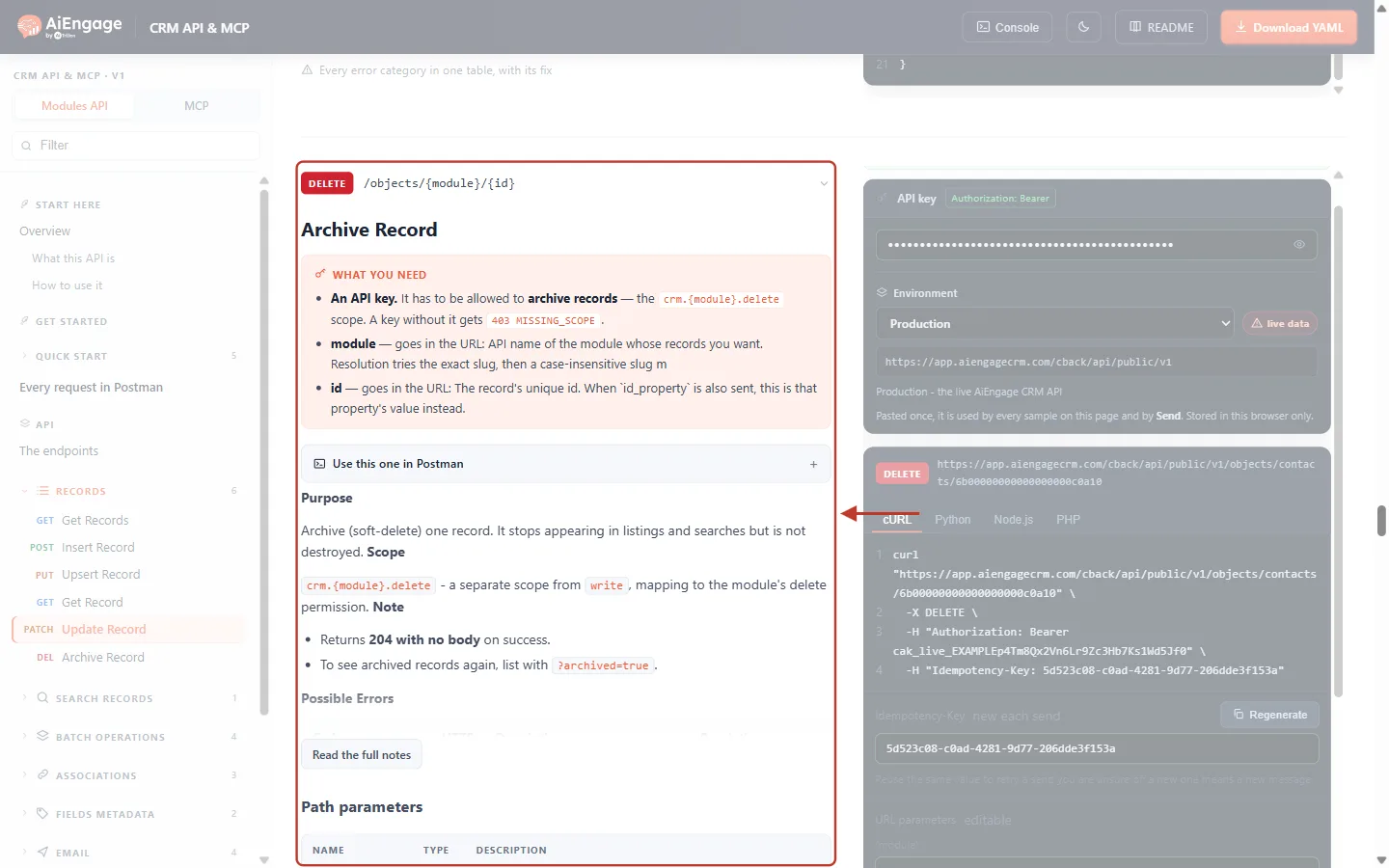
What this screenshot shows. The description of DELETE /objects/{module}/{id}.
What you need — a key with the
crm.{module}.deletescope (the Delete tick in Step 1), the module slug and the record id.Purpose — archive (soft-delete) one record. It stops appearing in listings and searches but is not destroyed.
The scope is separate from write: a key that can create and update records still cannot archive them without Delete.
Note — success returns 204 with no body, and archived records can be listed again with
?archived=true.On the right, the Try-it panel shows the DELETE request with its own Idempotency-Key.
curl "https://app.aiengagecrm.com/cback/api/public/v1/objects/contacts/6b00000000000000000c0a10" \
  -X DELETE \
  -H "Authorization: Bearer cak_live_…" \
  -H "Idempotency-Key: d64ab9ef-e3be-4156-9dfc-9dec0c9294d3"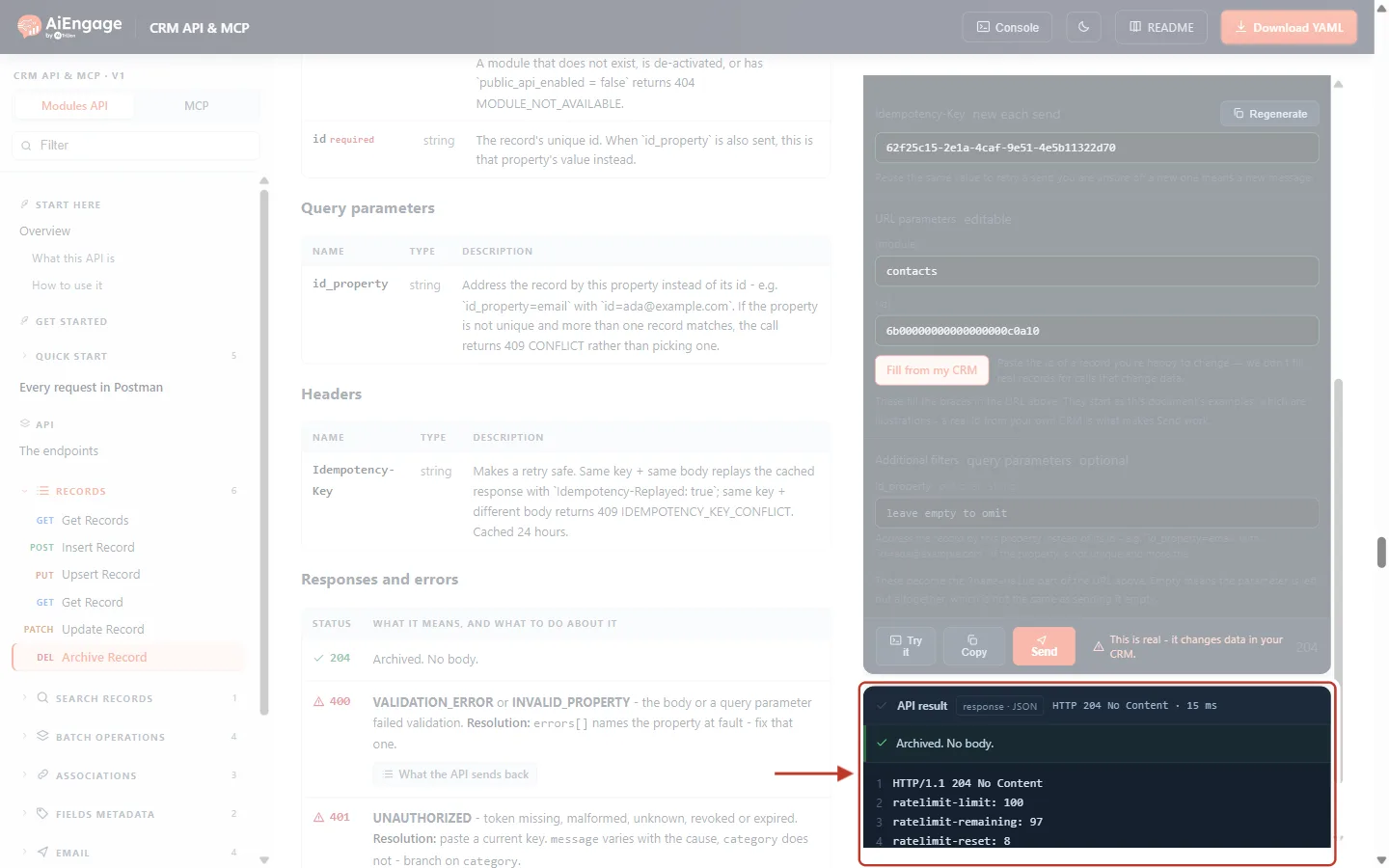
What this screenshot shows. The API result after archiving (example data).
HTTP 204 No Content and Archived. No body. — the contact is archived.
There is no JSON body on purpose: the status code alone tells you it worked. Only the response headers (rate limit and correlation id) come back.
Above, in the panel, {id} still holds the archived contact’s id, and the warning This is real – it changes data in your CRM sits next to Send.
The record no longer appears in Get Records. To see archived records, call Get Records with archived = true:
curl "https://app.aiengagecrm.com/cback/api/public/v1/objects/contacts?archived=true&limit=3" \
  -H "Authorization: Bearer cak_live_…"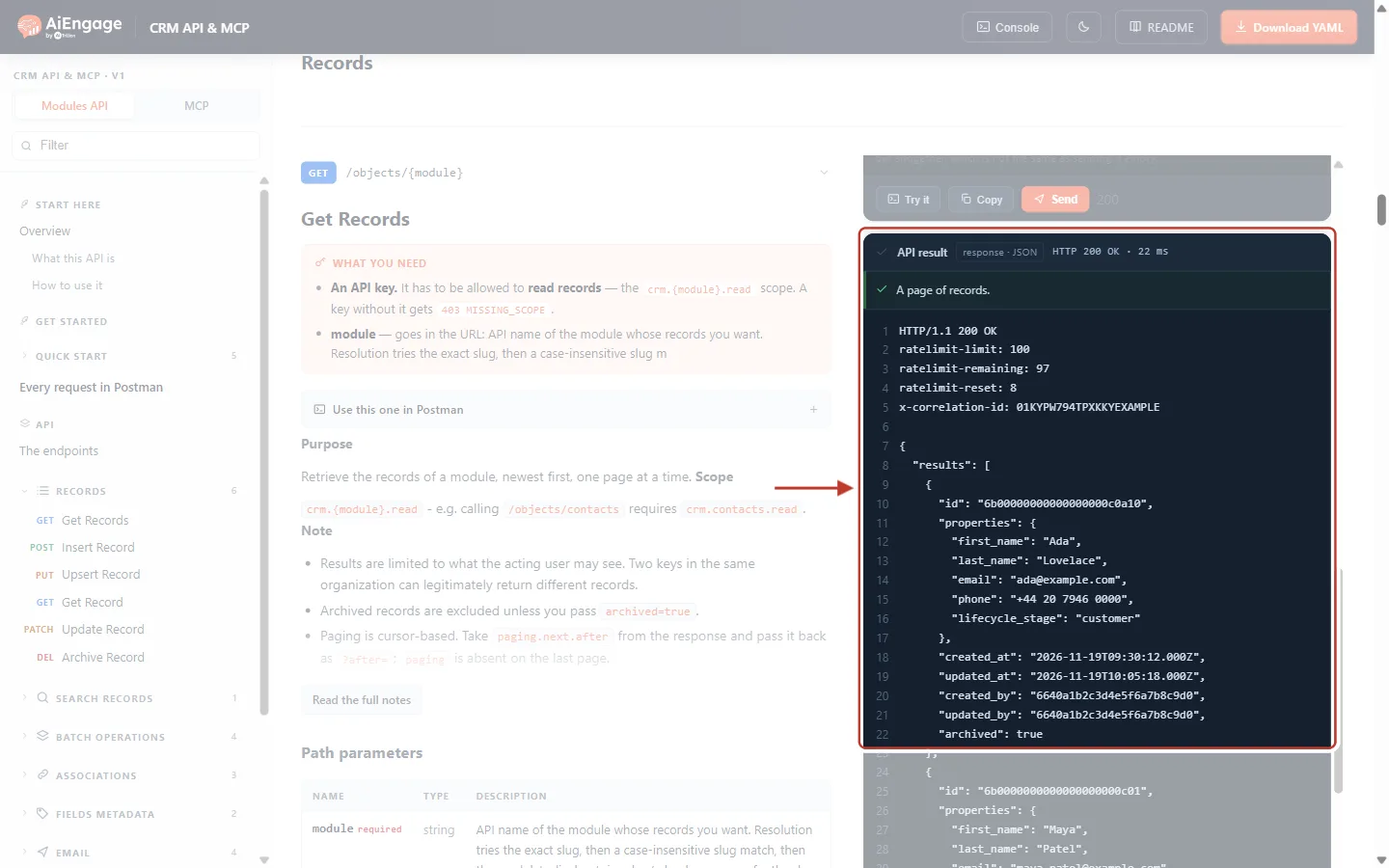
What this screenshot shows. Get Records with archived=true (example data).
HTTP 200 OK — A page of records, now including archived ones.
The first result is Ada Lovelace, with the values from Step 6 and
"archived": true.Her
updated_athas moved on to the time she was archived.Active records follow below with
"archived": false, so you can tell them apart by that one field.
ℹ️
Archived records can be recovered for 90 days, as the Delete scope description in Step 1 says. Archive only records you really want out of everyday lists, and do not rely on archiving as long-term storage.
Step 8: Create or Update in One Call (Upsert)#
When you sync from another system — a website form, a shop, a spreadsheet — you often do not know whether the contact already exists. Upsert Record (PUT /objects/{module}) solves this: it looks for a record whose field matches, updates it if found, and creates it if not.
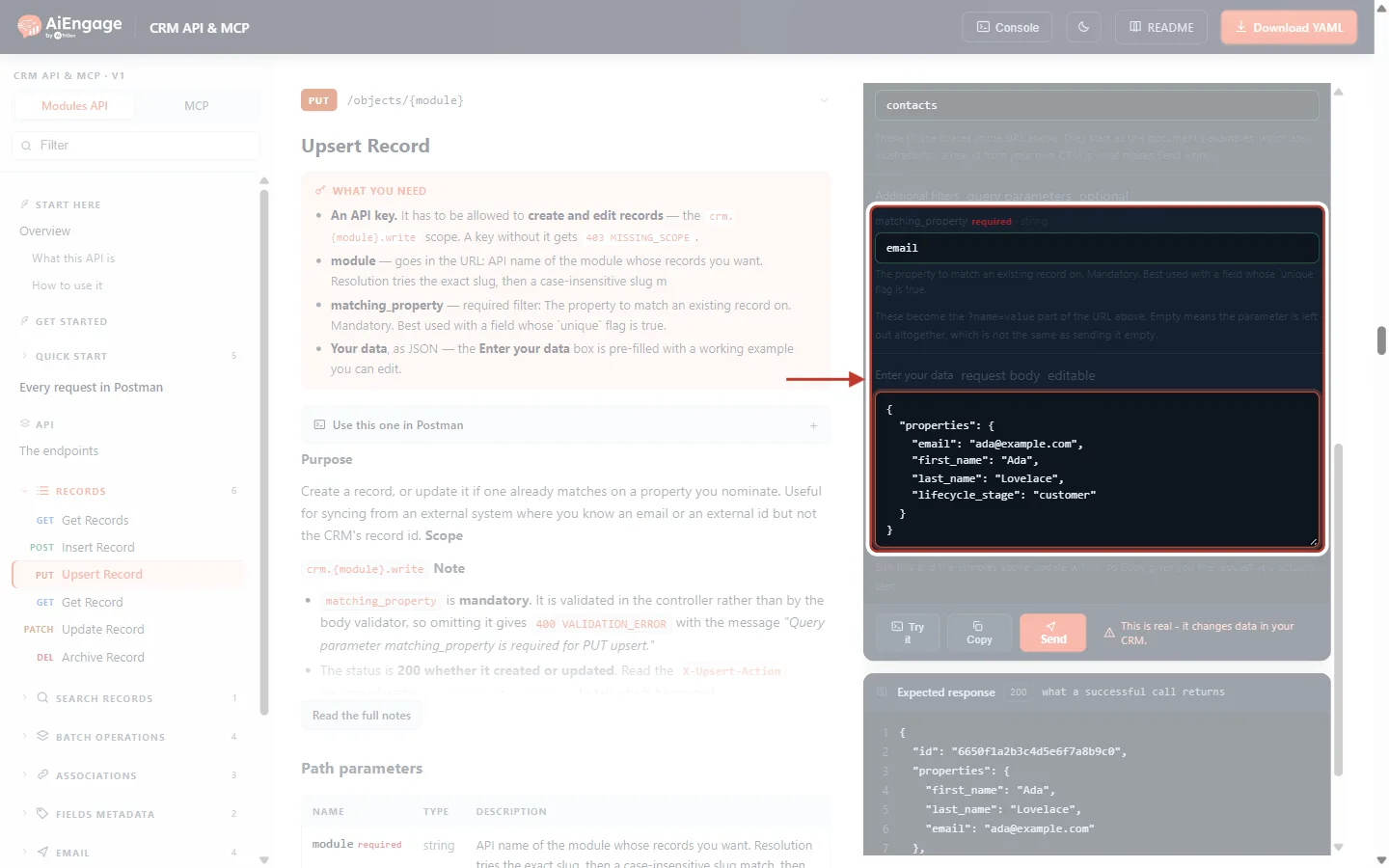
What this screenshot shows. The Try-it panel of Upsert Record.
matching_property =
email— the field used to find an existing record. It is required; without it the API answers 400 “Query parameter matching_property is required for PUT upsert.”The body must include that field (
email) plus any fields to set — here the name andlifecycle_stage: customer.The left side explains the purpose: create a record, or update it if one already matches — useful when you know an email or external id but not the CRM id.
curl "https://app.aiengagecrm.com/cback/api/public/v1/objects/contacts?matching_property=email" \
  -X PUT \
  -H "Authorization: Bearer cak_live_…" \
  -H "Idempotency-Key: b4e50fd0-4569-42fb-9e25-f13fb4b0963c" \
  -H "Content-Type: application/json" \
  -d '{ "properties": { "email": "ada@example.com", "first_name": "Ada", "last_name": "Lovelace", "lifecycle_stage": "customer" } }'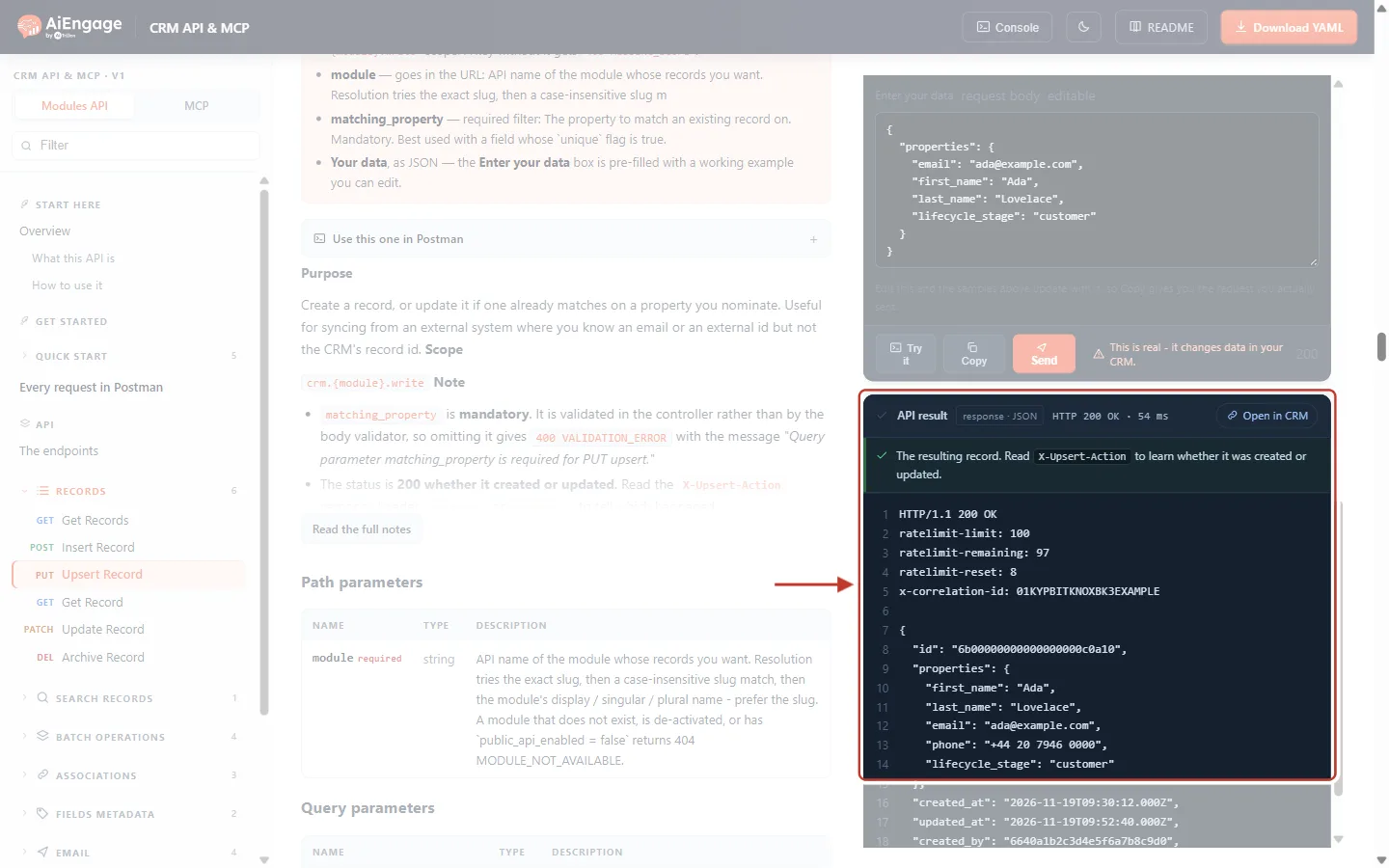
What this screenshot shows. The API result of the upsert (example data).
HTTP 200 OK — upsert answers 200 whether it created or updated the record.
The green note says how to tell which: read the X-Upsert-Action response header, which is
createdorupdated. (Read it in your own code; the panel lists only the main headers.)The body is the resulting record — here the existing contact (same
id) with the values sent.
⚠️
Match on a field marked unique. If the matching field is not unique and finds several records, the API answers 409 CONFLICT and changes nothing.
Step 9: The Same Calls for Any Module#
Nothing in Steps 3–8 is specific to Contacts. To work with another module, change only the slug in the URL and the field names in properties, and make sure the key has that module’s scopes:
Module | List | Create | Scopes |
|---|---|---|---|
Deals |
|
|
|
Companies |
|
|
|
Tickets |
|
|
|
A custom module |
|
|
|
Best Practices#
Store the CRM
idof every record you create, so later updates and archives go straight to the right record.Send an
Idempotency-Keyon every create, update, upsert and archive, and reuse it only when retrying the same operation (see Idempotency Keys & Safe Retries: Prevent Duplicate Records and Double Sends in the CRM API).Ask only for the fields you need with
properties=…— responses are smaller and faster.Use upsert with a unique field for syncs, and batch endpoints when handling many records.
Give each integration its own key with only the scopes it needs, so you can see its usage separately and revoke it on its own.
Check the status code first: 200/201/204 mean success; anything from 400 up is an error with a
categorythat tells you what to fix.
Frequently Asked Questions#
Why does the list not show all my records?
The API returns only records the key’s user can see in the CRM, leaves out archived records, and returns one page at a time (10 by default, up to 100). Use paging.next.after to get the next page.
Do I have to send every field when I update?
No. PATCH changes only the fields you send; the rest stay as they are.
What is the difference between Insert and Upsert?
Insert always creates a new record. Upsert first looks for an existing record by matching_property and updates it if found, so running it twice does not create a duplicate.
Is archiving the same as deleting?
No. An archived record is hidden from lists and searches but can be recovered for 90 days. List it again with archived=true.
Why do I get 403 when archiving, although the key can create and update?
Archiving needs the separate Delete scope. Generate a key with Delete ticked for that module.
Can I use the field label instead of the API name?
No — use the API name (for example lifecycle_stage, not “Lifecycle Stage”). For pick lists, send the option value, not its label.
How fast can I call these endpoints?
Up to 100 calls per 10 seconds per key, within your plan’s daily and monthly quota. See API Rate Limits & Quotas.
Previous and Next Articles#
Previous: Idempotency Keys & Safe Retries: Prevent Duplicate Records and Double Sends in the CRM API
Next: Search Records with the CRM API: Filter, Combine Conditions, Sort and Page Through Results
Related Articles#
Search Records with the CRM API: Filter, Combine Conditions, Sort and Page Through Results
Idempotency Keys & Safe Retries: Prevent Duplicate Records and Double Sends in the CRM API
API Keys Step by Step: Generate, Use and Revoke a Personal Access Token
API Errors & Troubleshooting: Fix 400, 401, 403, 404, 409, 429 and 500 Errors Step by Step
Was this article helpful?
Ready to implement this?
OpenAI Engage and apply what you just learned to your own workspace.
Open AI Engage CRM