Loading…


KnowledgeBase
Fields Metadata API: List a Module’s Fields, Their Types, Required Rules and Picklist Values
Introduction#
Every AiEngage CRM account is different. Your administrator can add custom fields, rename labels, make fields required, add picklist values or build entire custom modules. An integration that guesses field names will sooner or later send "Email Address" instead of "email", or "Customer" instead of "customer", and get an error.
The Fields Metadata endpoints tell your integration exactly what your CRM contains, right now:
Endpoint | What it returns |
|---|---|
| Get Fields — every field of a module, in the order they appear on the layout. |
| Get Field — one field, by its API name. |
For each field you learn its API name (the name to use in properties), its type, whether it is required, unique or read-only, which values a picklist accepts, and which module a lookup points to. Both endpoints only read; they never change anything.
In this guide you will learn, step by step:
Where a field’s API name comes from in the CRM.
How to list all fields of a module and read each part of a field definition.
How to read one field — a text field, a picklist and a lookup.
How to fix the 404 errors, and how to use field metadata in your own code.
Step 1 uses the CRM (Setup → Customization → Modules and Fields). The other steps use the AiEngage developer portal, developer.aiengagecrm.com. Each screenshot has a red ring and arrow on the part to look at, followed by a description of the whole screen. The answers in the portal screenshots are real field definitions from a demo CRM (its Contacts module); your own CRM will return your own fields.
Before You Begin#
An API key (
cak_live_…) with thecrm.schema.readscope. This one scope covers the fields of every module; it is not set per module. See API Token Scopes & Permissions.To try the calls in your browser, open developer.aiengagecrm.com and paste your key once in Paste your key here. See Test the AiEngage CRM API in the API Console and Postman.
It helps to know how records look in the API. See Records, Modules & the Record Envelope: How Your CRM Data Looks in the API.
ℹ️
Both endpoints only read data, so pressing Send in the portal is always safe here.
Step 1: See a Field’s API Name in the CRM#
Every field has two names: the label people see on screen, and the API name your integration uses. You can see both in the module builder:
Click the Setup (gear) icon at the bottom of the left rail.
Under Customization, click Modules and Fields, then open the module (here Contacts) and its Standard layout.
Click a field — here Email. Its settings open in Field Configuration on the right.
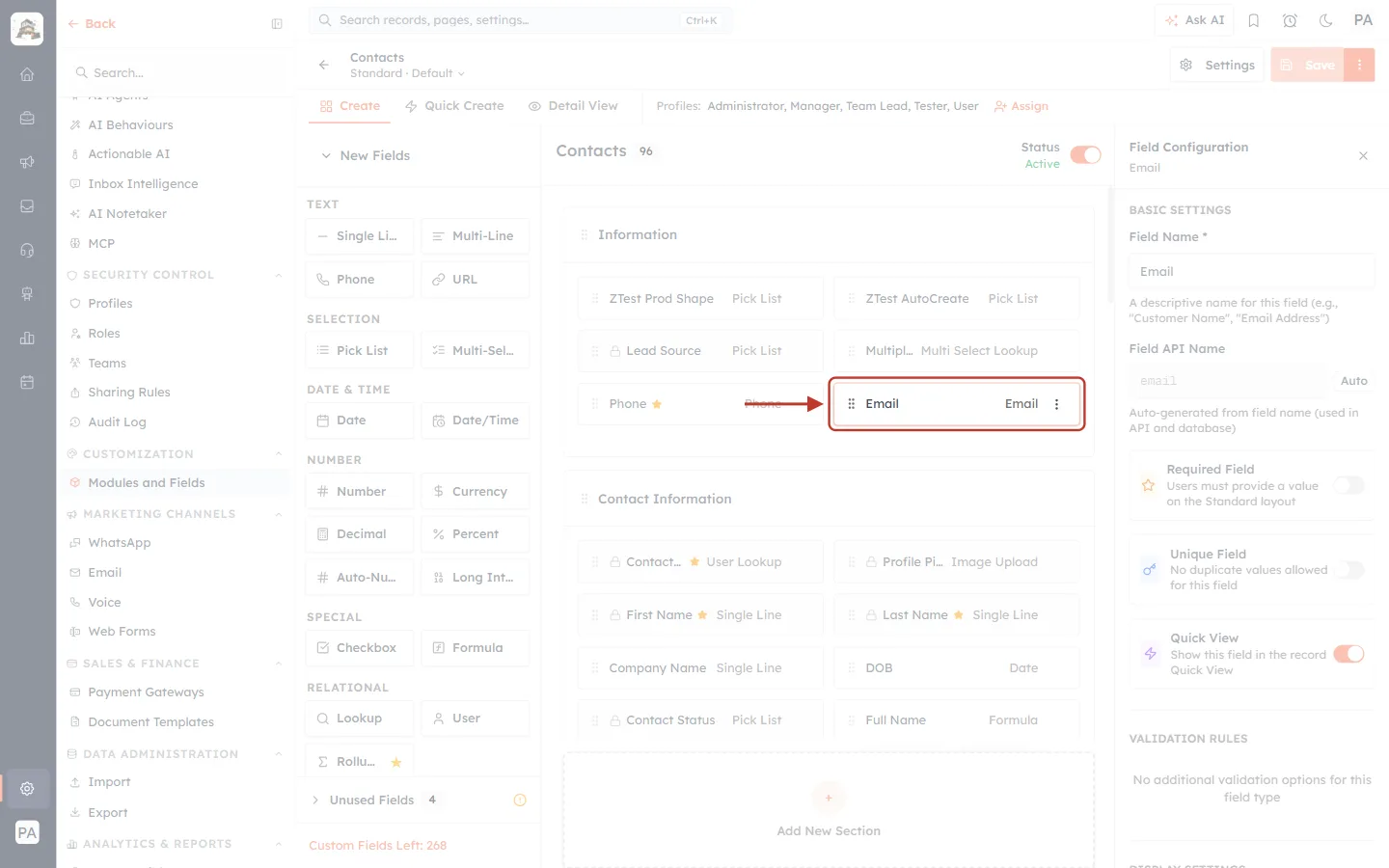
What this screenshot shows. The Contacts module builder with the Email field selected and ringed.
Each field box shows the label on the left (Email) and the type on the right (Email). In the API the same type is written
email.A gold star means the field is required (Phone, Contact Owner, First Name, Last Name). A padlock marks system fields, which cannot be deleted.
Fields sit in sections (Information, Contact Information, Lead Information…). In the API, the section name is the field’s
group.On the left are New Fields you can drag in, sorted by type (Text, Selection, Date & Time, Number, Special, Relational).
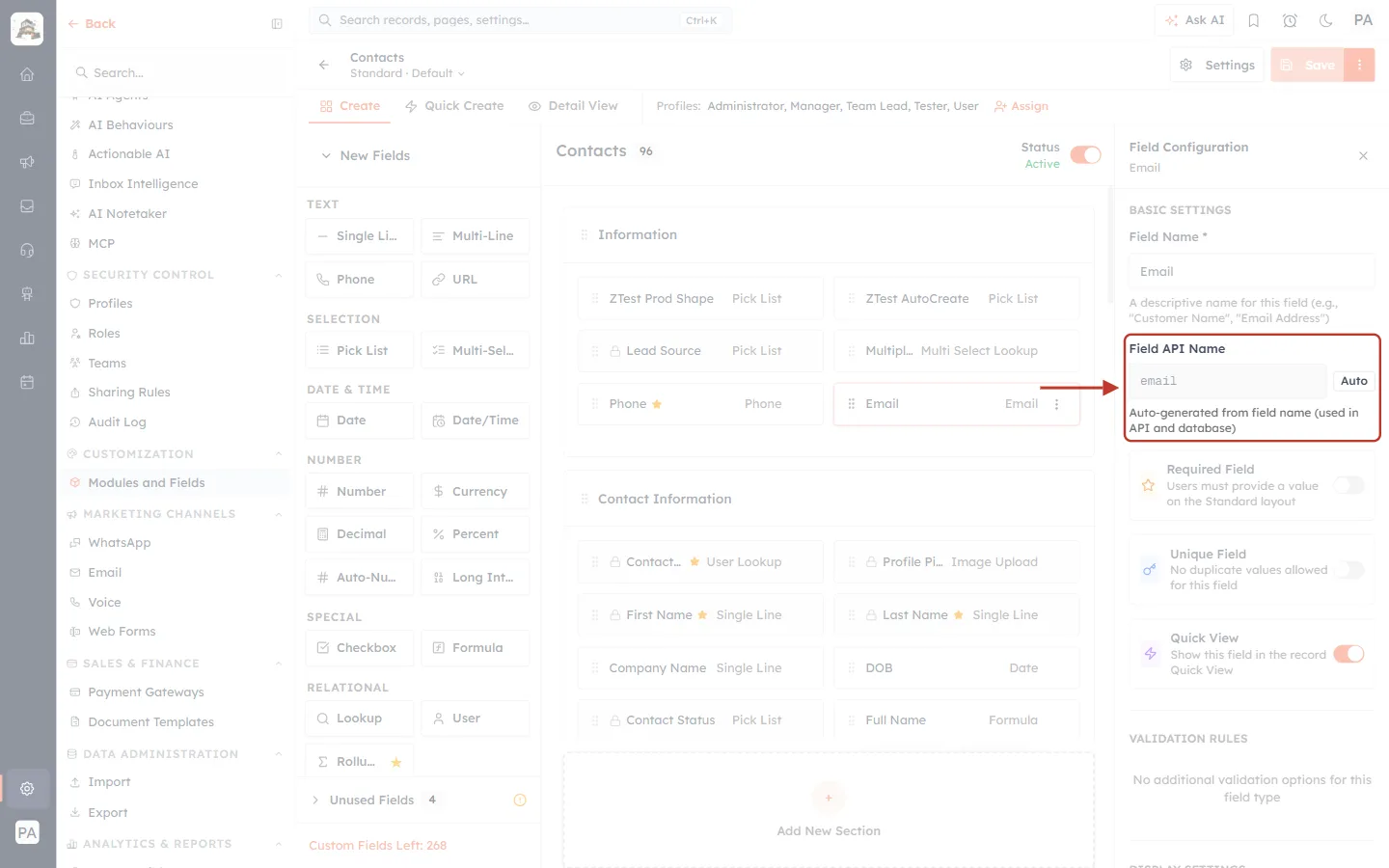
What this screenshot shows. The Field API Name setting of the Email field, ringed.
Field API Name:
email, greyed out with the label Auto.The hint says it is “Auto-generated from field name (used in API and database)”. When you create a field called “Customer Number”, its API name becomes something like
customer_number.On system fields the API name is Locked: “Renaming this field changes the display label only. The internal API name (used by workflows, filters, and the API) cannot change.” So renaming a label never breaks your integration.
Below are Required Field, Unique Field and Quick View. In the API these appear as
required_on_createandunique.
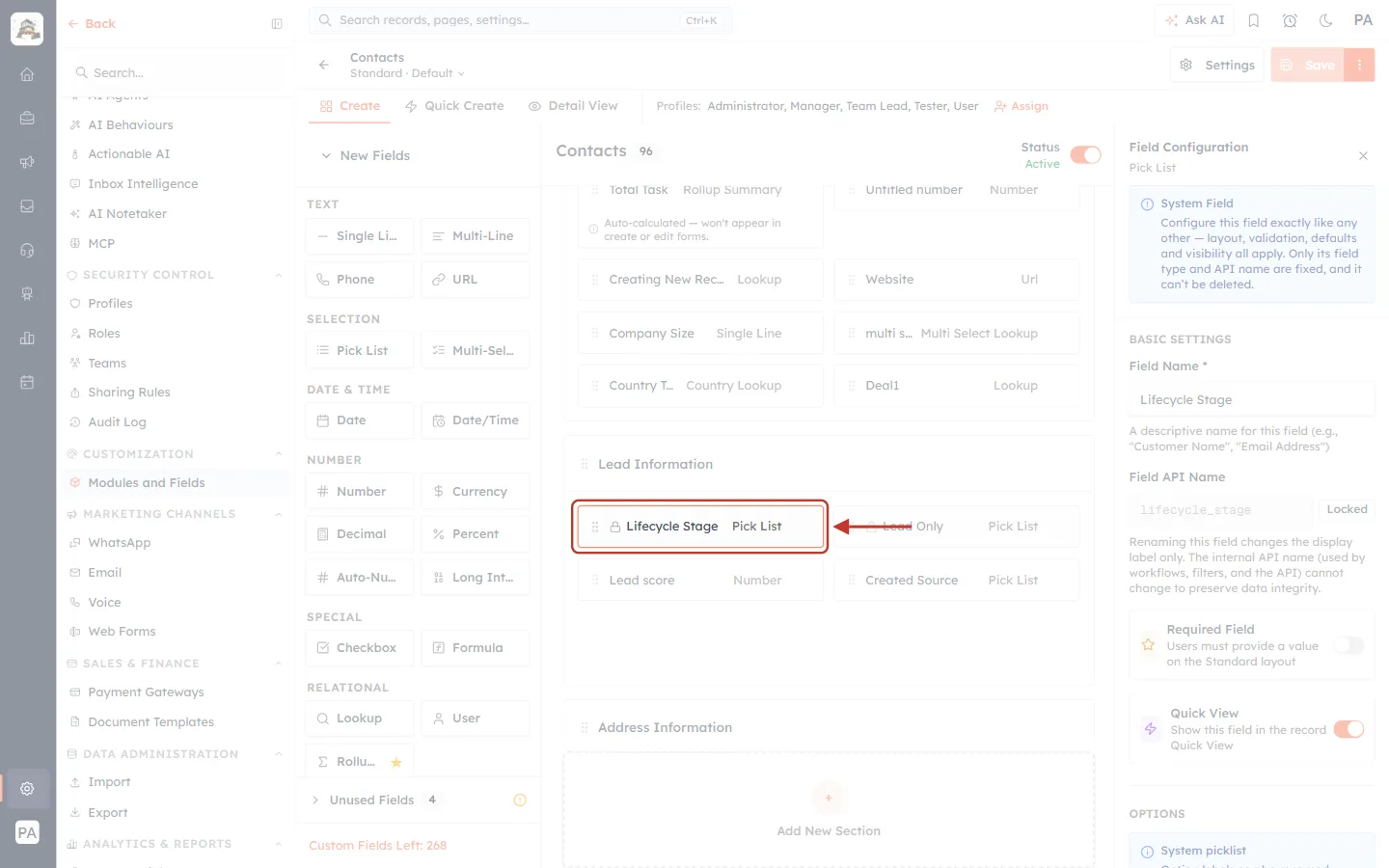
What this screenshot shows. The Lifecycle Stage field (type Pick List) in the Lead Information section, ringed and selected.
A Pick List lets users choose one value from a fixed list. In the API its type is
pick_list.On the right, Field Configuration now shows Pick List with a System Field note: its field type and API name are fixed.
Lower in the panel, the Options section lists the choices. Its note explains that option labels can be renamed and reordered, but an option’s internal value never changes once created — which is why the API uses values, not labels.
Clicking a field only shows its settings; nothing changes unless you edit it and click Save.
Step 2: Open Fields Metadata in the Developer Portal#
Open developer.aiengagecrm.com. In the left menu, click Fields metadata.
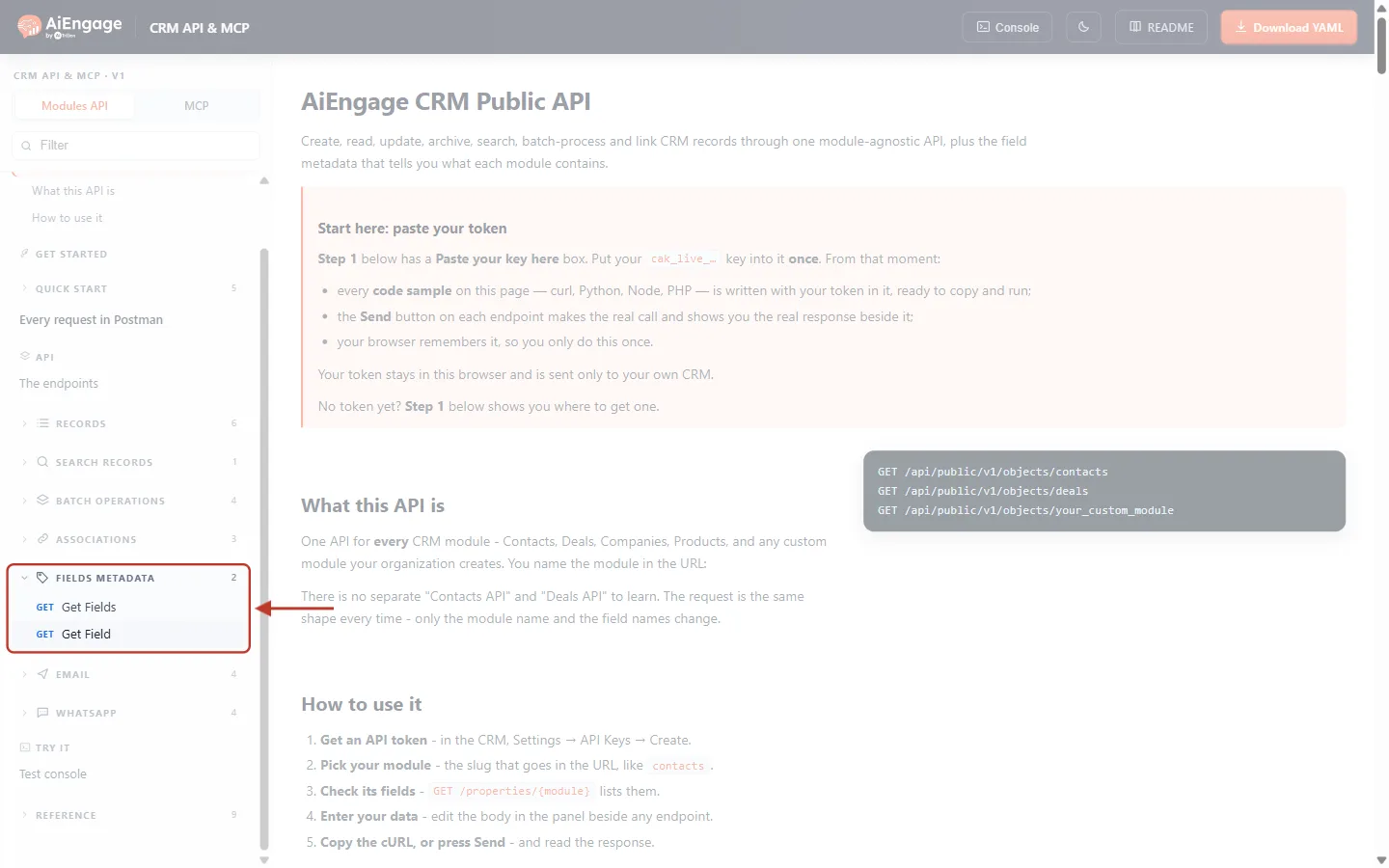
What this screenshot shows. The left menu with the Fields metadata group opened and ringed.
GET Get Fields — all fields of a module.
GET Get Field — one field.
The number 2 next to the group is the number of endpoints. Above are Records, Search records, Batch operations and Associations; below are Email and WhatsApp.
Step 3: Read the Get Fields Rules#
Click Get Fields.
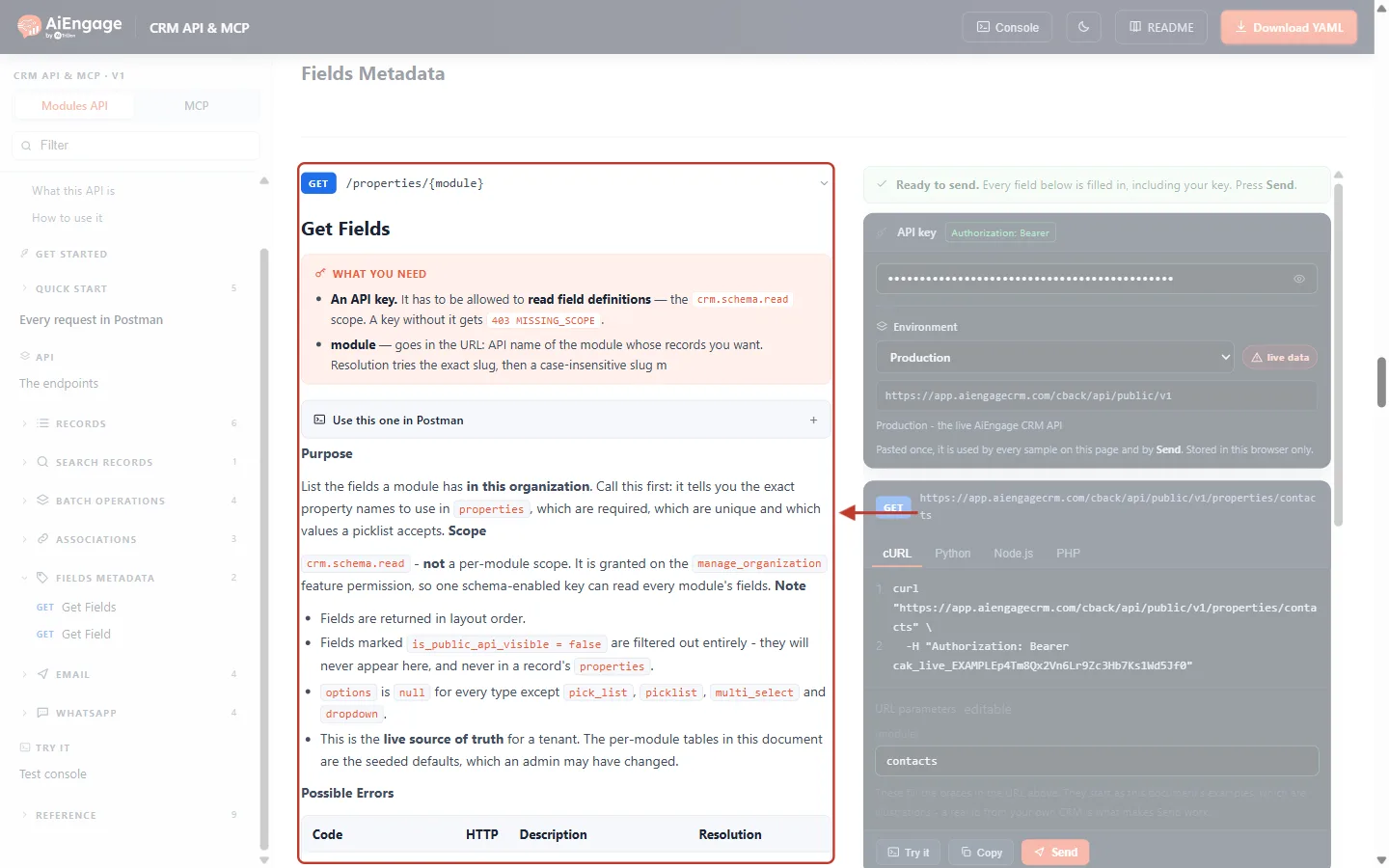
What this screenshot shows. The top of the Get Fields section (GET /properties/{module}), ringed.
What you need: an API key with
crm.schema.read(without it:403 MISSING_SCOPE) and the module in the URL.Purpose: “List the fields a module has in this organization. Call this first: it tells you the exact property names to use in properties, which are required, which are unique and which values a picklist accepts.”
Scope:
crm.schema.readis “not a per-module scope” — one key can read every module’s fields.Notes: fields come back in layout order; fields hidden from the API never appear (here or in records);
optionsisnullexcept for picklist types; and this is the live source of truth — the per-module tables in the documentation show the default fields, which your administrator may have changed.
Step 4: List All Fields of a Module#
In the Try it panel, type the module’s API name in {module} — here contacts.
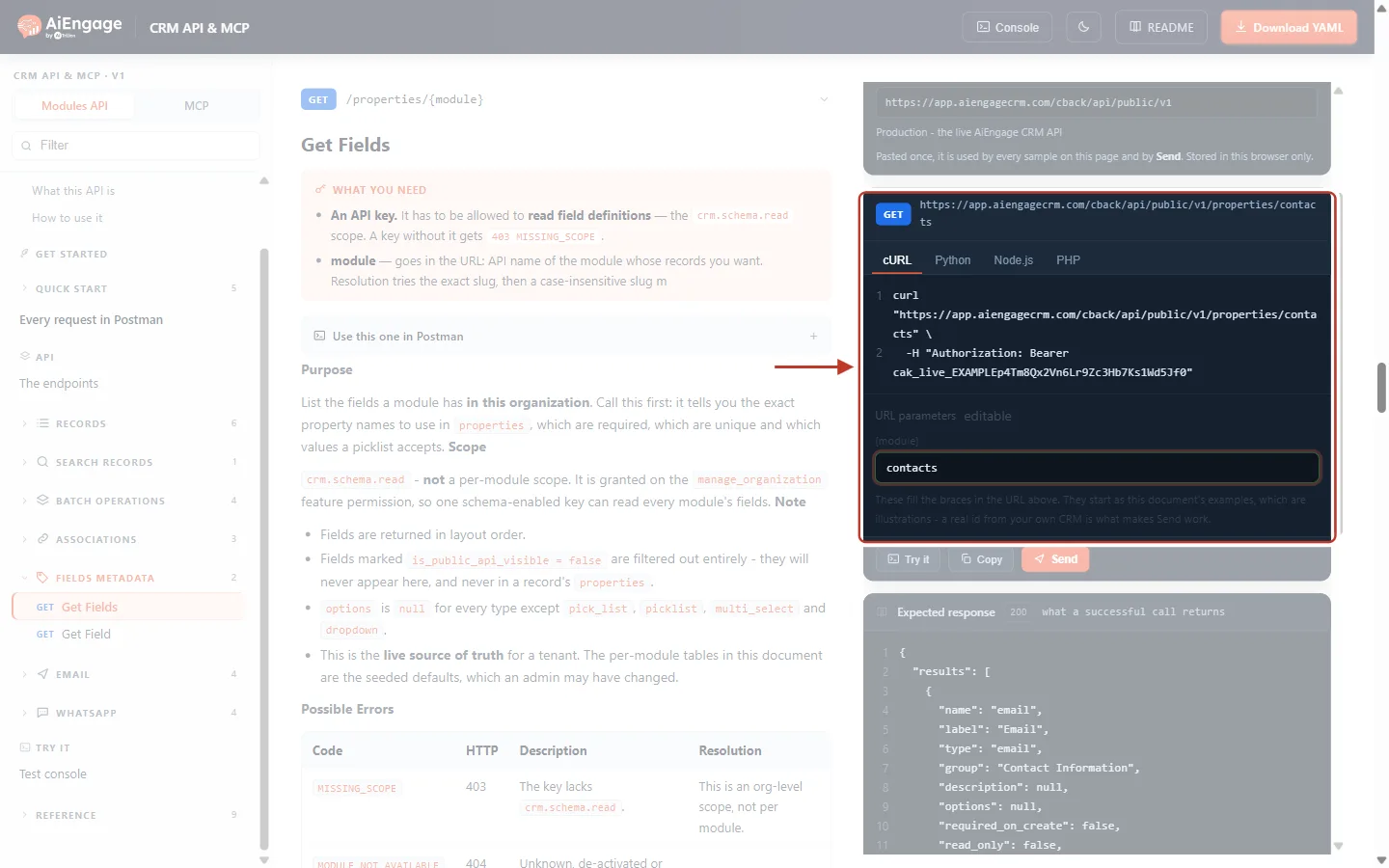
What this screenshot shows. The {module} box and the request address, ringed.
{module}:
contacts. Use the module’s API name (slug):deals,companies, or a custom module’s slug.GET /objectslists all of them.The address updates to
…/properties/contacts.There is no request body: it is a GET.
Press Send.
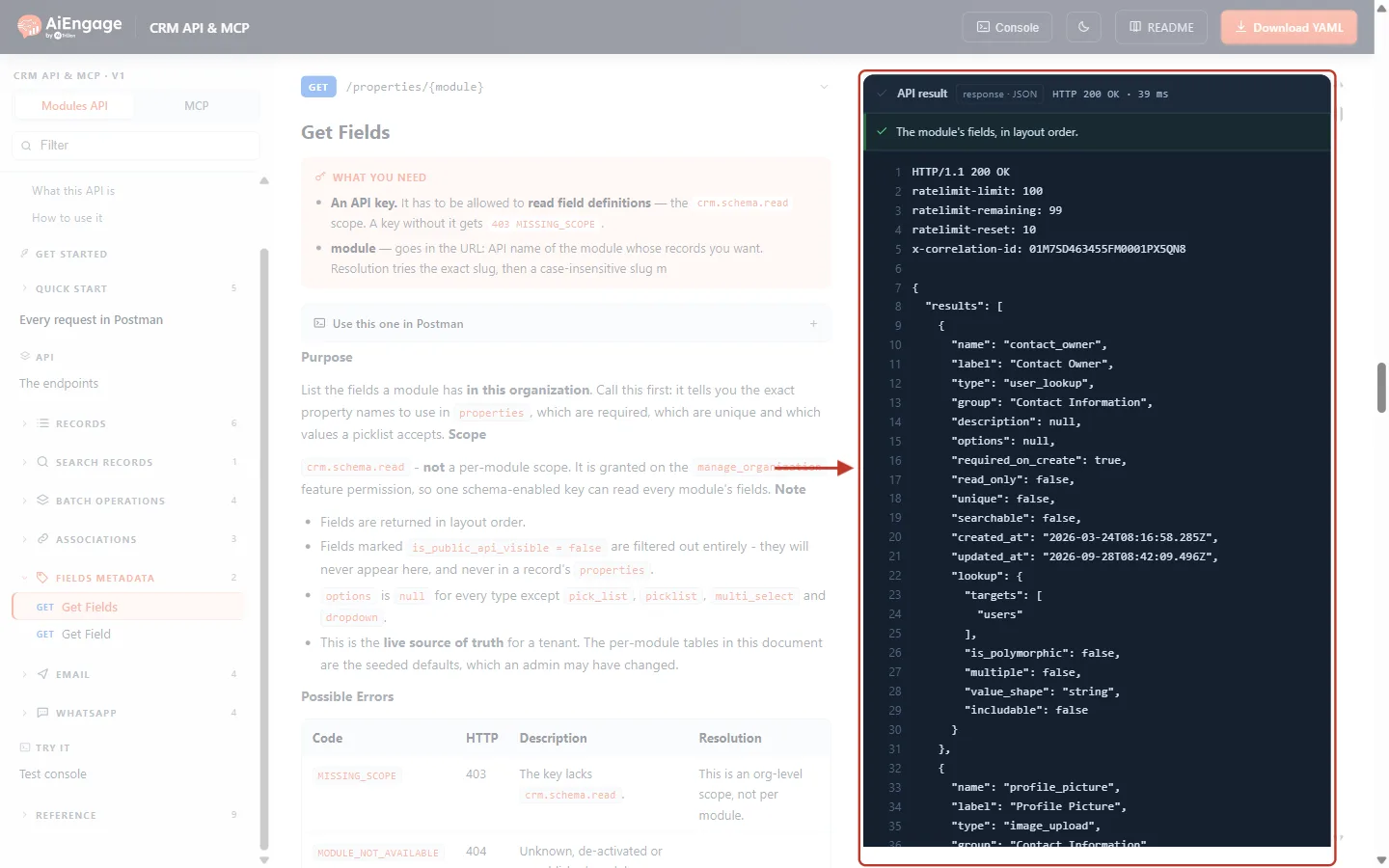
What this screenshot shows. The API result for GET /properties/contacts (real data from the demo CRM).
HTTP 200 OK — “The module’s fields, in layout order.”
The body is
{ "results": [ … ] }, one object per field. The demo CRM’s Contacts module returns 101 fields of 21 different types.The first field is
contact_owner(“Contact Owner”, typeuser_lookup, group “Contact Information”) with"required_on_create": true.Because it is a lookup, it also has a
lookupblock:targets: ["users"], not polymorphic, single value,value_shape: "string"(send a user id),includable: false.The next field,
profile_picture, begins below. Scroll the result to see them all.
Every field definition has the same parts:
Key | Meaning | Example |
|---|---|---|
| The API name. Use it as the key in |
|
| The name shown in the CRM. For display only — never send it. |
|
| The field type. It decides what value to send (see the table in Step 7). |
|
| The layout section the field is in (can be |
|
| The help text set by your administrator, or |
|
| Picklist choices; | see Step 6 |
|
|
|
|
|
|
|
|
|
| Whether the field is marked searchable in the CRM. |
|
| When the field definition was created and last changed. | ISO dates, UTC |
| Only on lookup and user-lookup fields: which module(s) it points to and how to send the value. |
|
⚠️
About
required_on_create: it reflects the field’s own Required setting. An administrator can also make a field required on the default layout only; a create through the API checks those layout rules too. If a create fails on a field that shows false here, check the module’s default layout in the CRM.Step 5: Read One Field#
Click Get Field in the left menu.
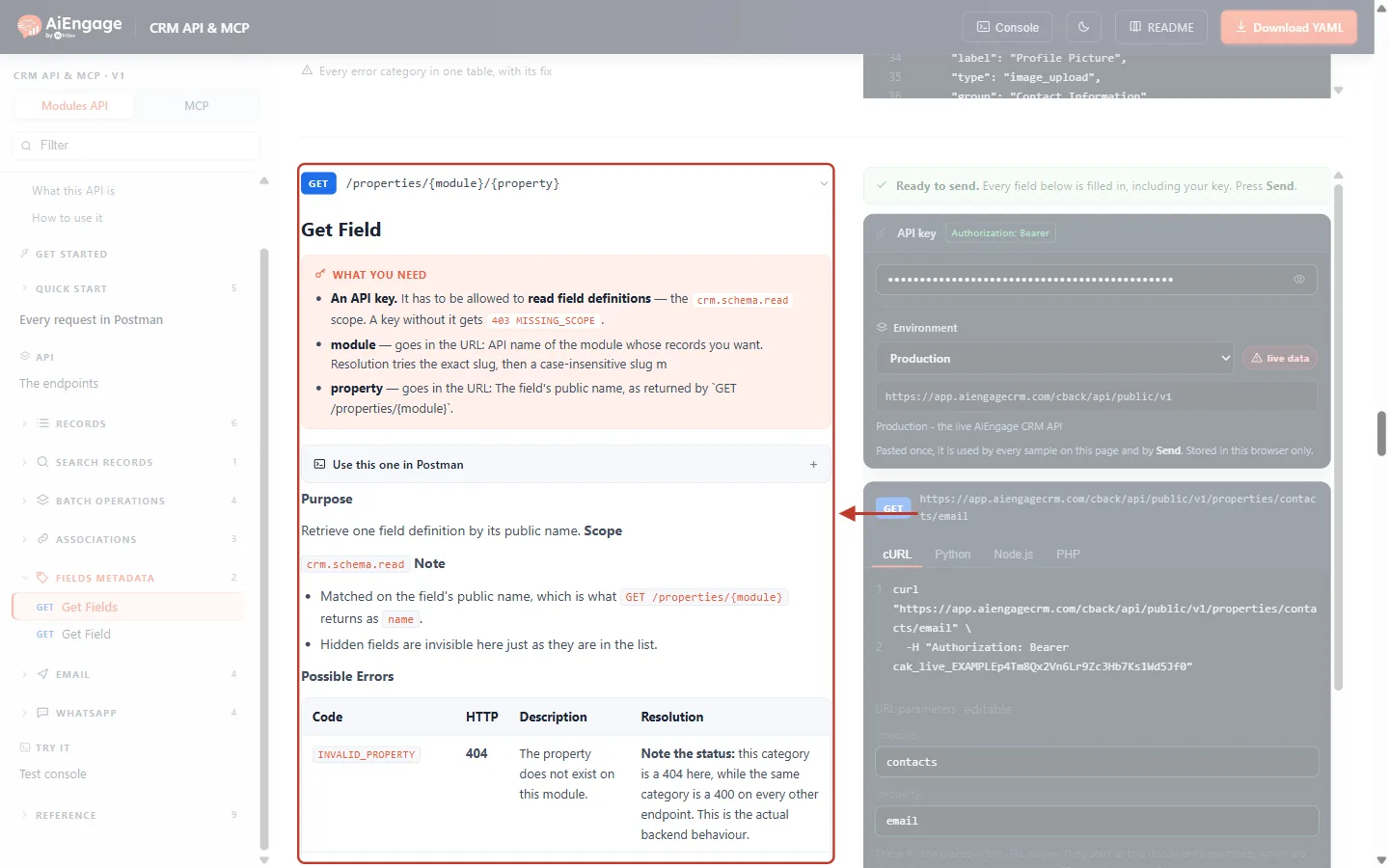
What this screenshot shows. The top of the Get Field section (GET /properties/{module}/{property}), ringed.
What you need: the
crm.schema.readscope, the module, and the property — “The field’s public name, as returned by GET /properties/{module}”.Purpose: “Retrieve one field definition by its public name.”
Notes: the property is matched on its API
name, not its label; hidden fields are invisible here too.Further down, Possible Errors warns that
INVALID_PROPERTYis a 404 on this endpoint (it is a 400 everywhere else).
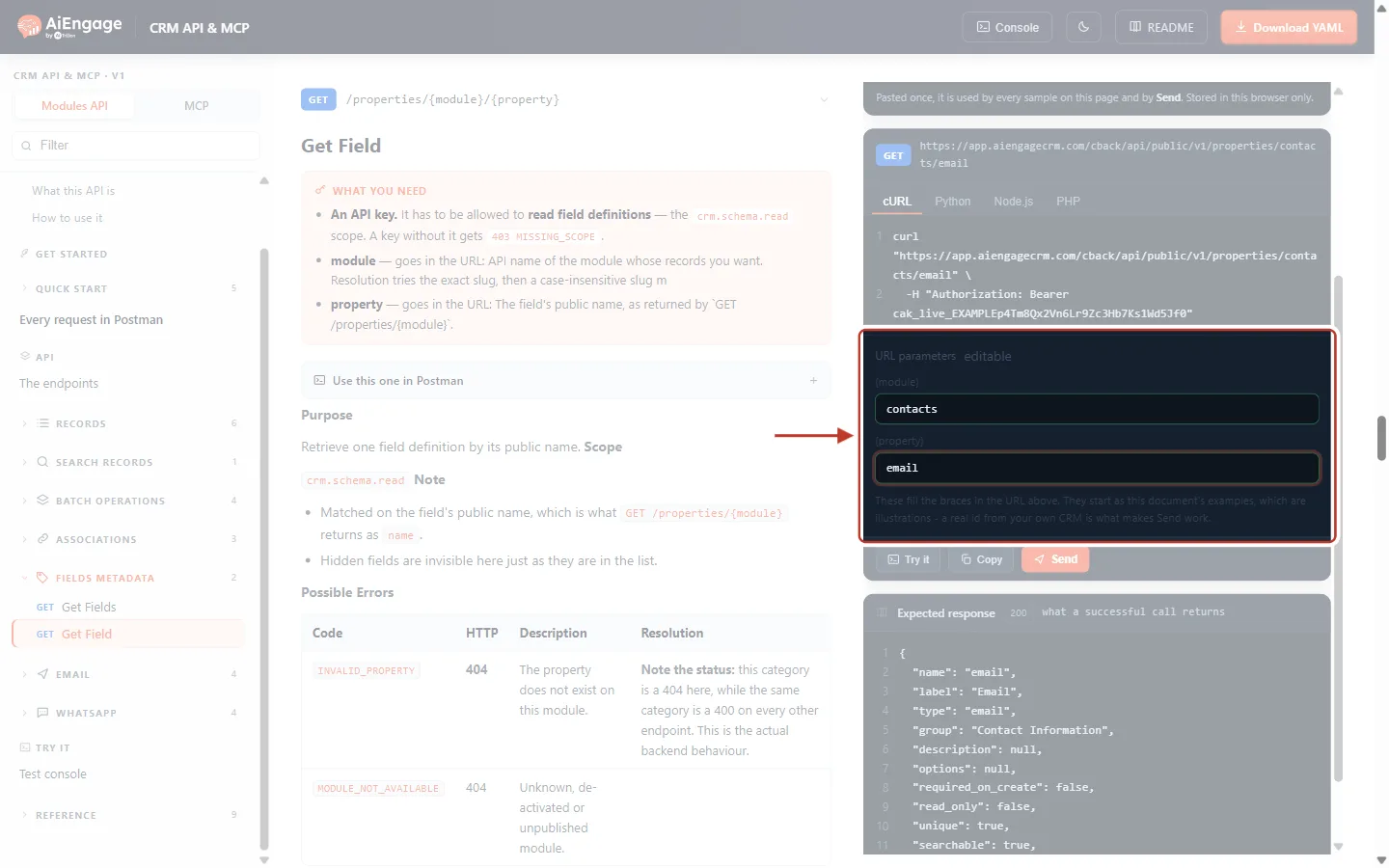
What this screenshot shows. The URL parameters of the Try it panel, ringed.
{module}:
contacts.{property}:
email— the API name, in lower case.Above, the address becomes
…/properties/contacts/email. Below are Try it, Copy and Send, and the documented Expected response.
Press Send.
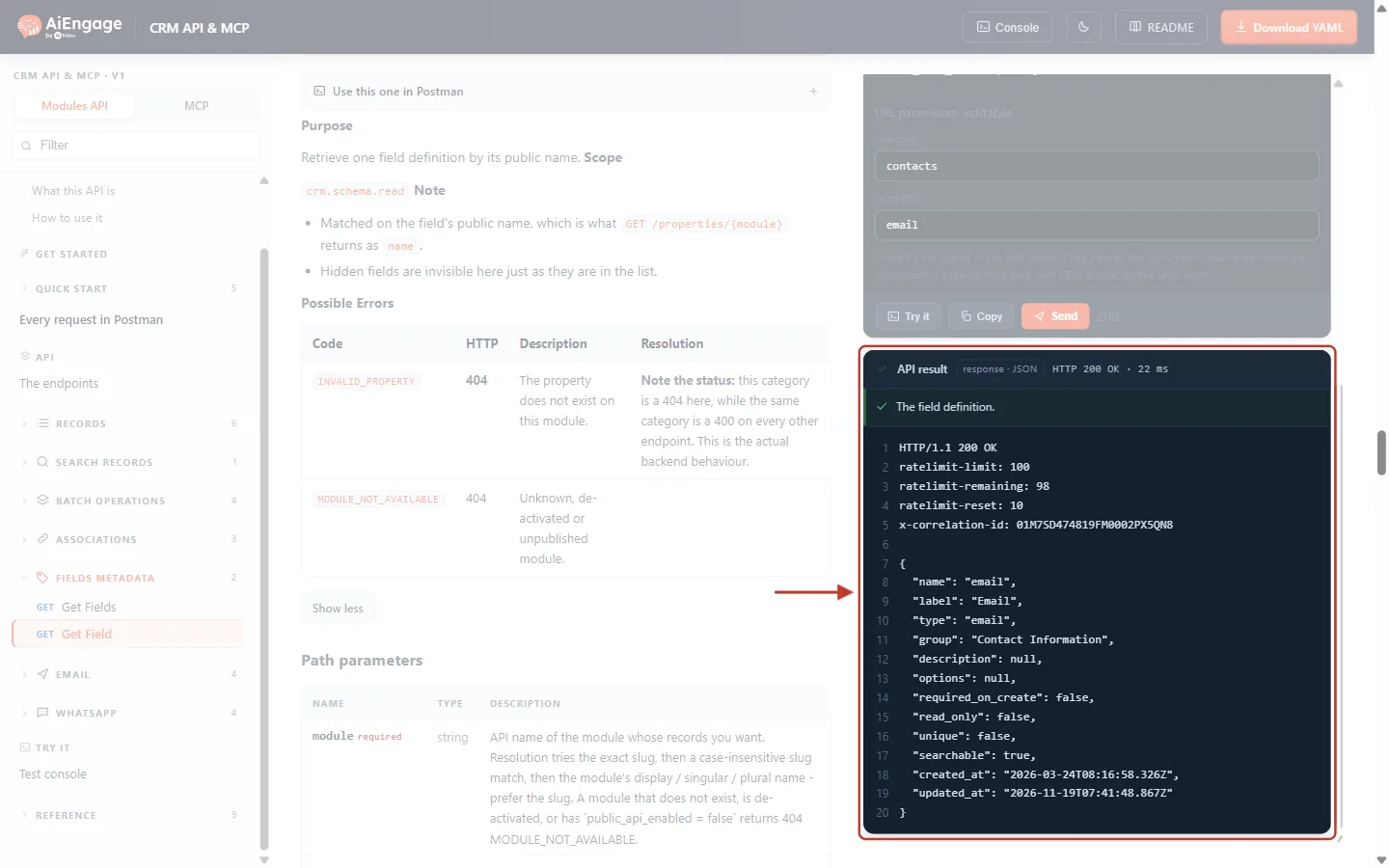
What this screenshot shows. The API result for the email field (real data).
"name": "email","label": "Email","type": "email","group": "Contact Information"."options": null— it is not a picklist."required_on_create": false— a contact can be created without an email in this CRM."unique": false— two contacts may share an email here. To use email for upsert matching, make it unique first (see Upsert Records with a Matching Property: Create or Update CRM Records in One API Call)."searchable": true, and the dates the field was created and last changed.
Step 6: Read a Picklist’s Allowed Values#
Change {property} to lifecycle_stage and press Send.
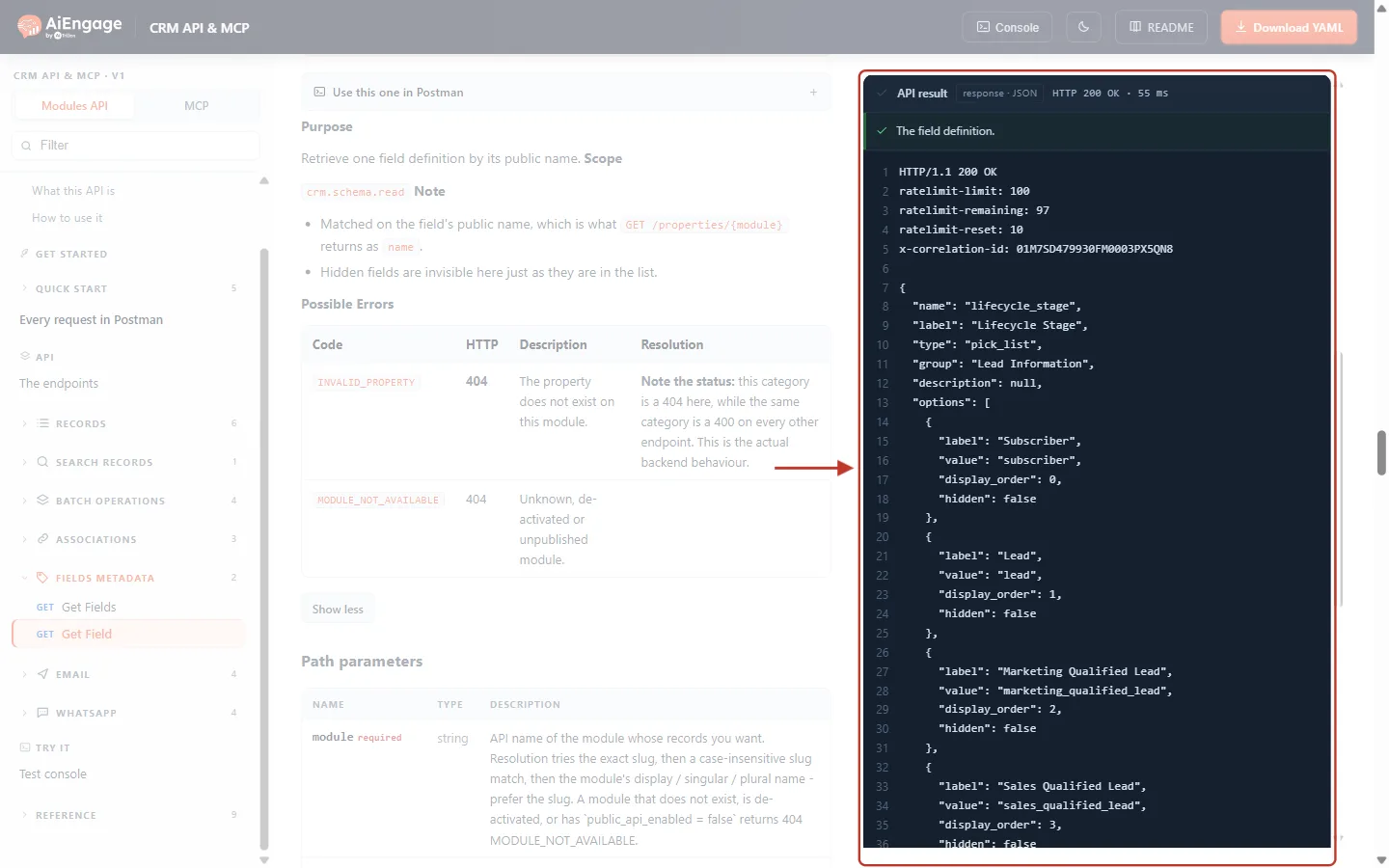
What this screenshot shows. The API result for the lifecycle_stage picklist (real data).
"type": "pick_list","group": "Lead Information".optionsis now a list. Each option has alabel(shown in the CRM), avalue(what you send and receive), adisplay_orderandhidden.The first options are Subscriber →
subscriber, Lead →lead, Marketing Qualified Lead →marketing_qualified_leadand Sales Qualified Lead →sales_qualified_lead. Scrolling down shows Opportunity, Customer, Evangelist and Other — 8 options in total.
✅
Always send the
value, not the label. To set the stage to “Marketing Qualified Lead”, send "lifecycle_stage": "marketing_qualified_lead". Labels can be renamed by your administrator at any time; values never change. Skip options where hidden is true.Step 7: Read a Lookup Field#
Change {property} to contact_owner and press Send.
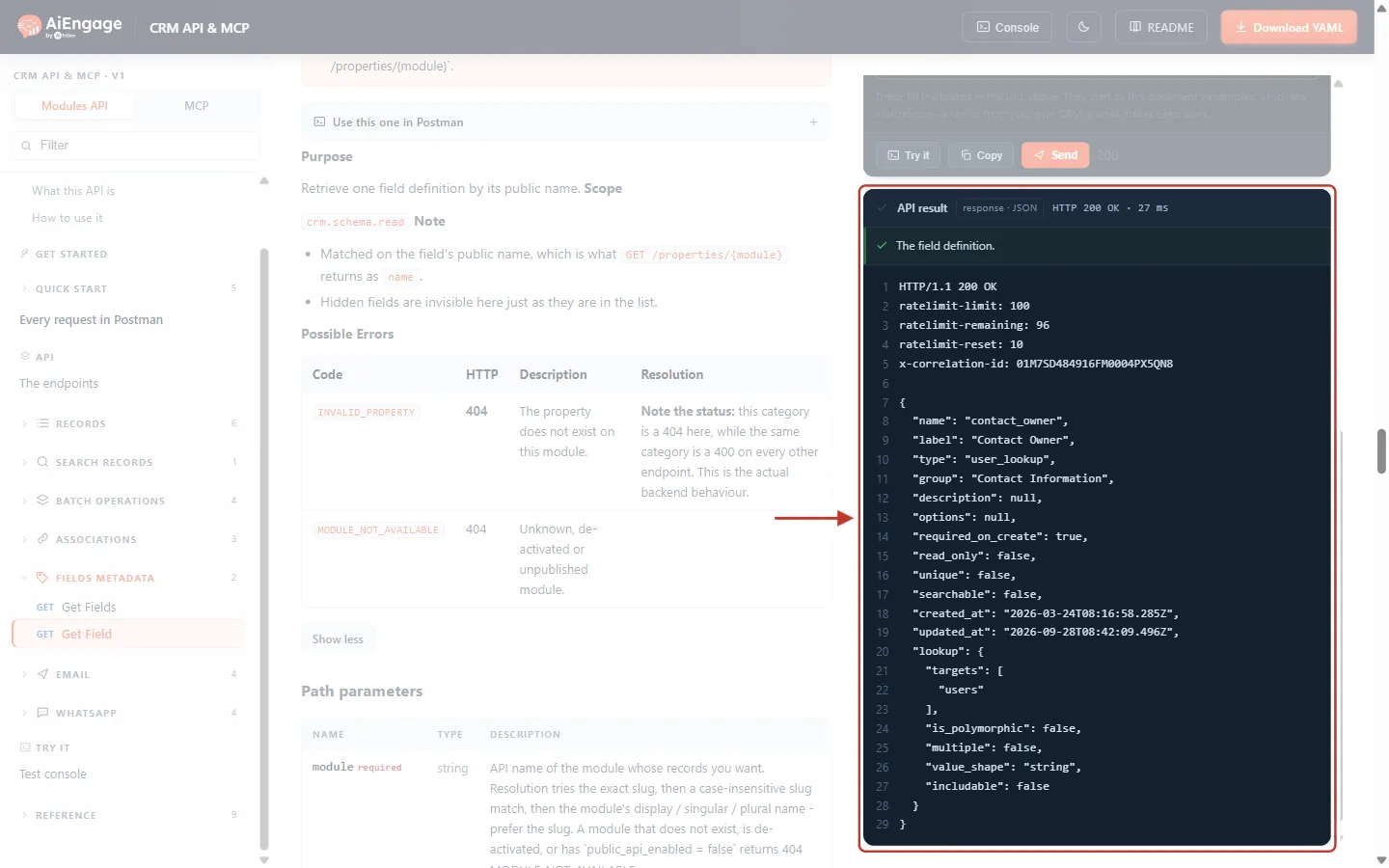
What this screenshot shows. The API result for the contact_owner field (real data).
"type": "user_lookup"— the field points to a CRM user."required_on_create": true— every new contact needs an owner.The
lookupblock explains how to fill it:targets: ["users"](it points to users),is_polymorphic: false(only one target module),multiple: false(one value),value_shape: "string"(send the user’s id as a plain string),includable: false(cannot be expanded withinclude).
Use the type to decide what to send:
type | Send | Example |
|---|---|---|
| A string |
|
| A number |
|
| true or false |
|
| An ISO date / date-time |
|
| One option |
|
| The id of the related record or user (when |
|
| Nothing — calculated by the CRM | — |
ℹ️
Currency fields can also carry a
currency block (code and source) saying which currency the amounts are in. This is being rolled out, so it may not appear on every account yet.Step 8: Fix the 404 Errors#
Change {property} to a misspelt name — here emial — and press Send.
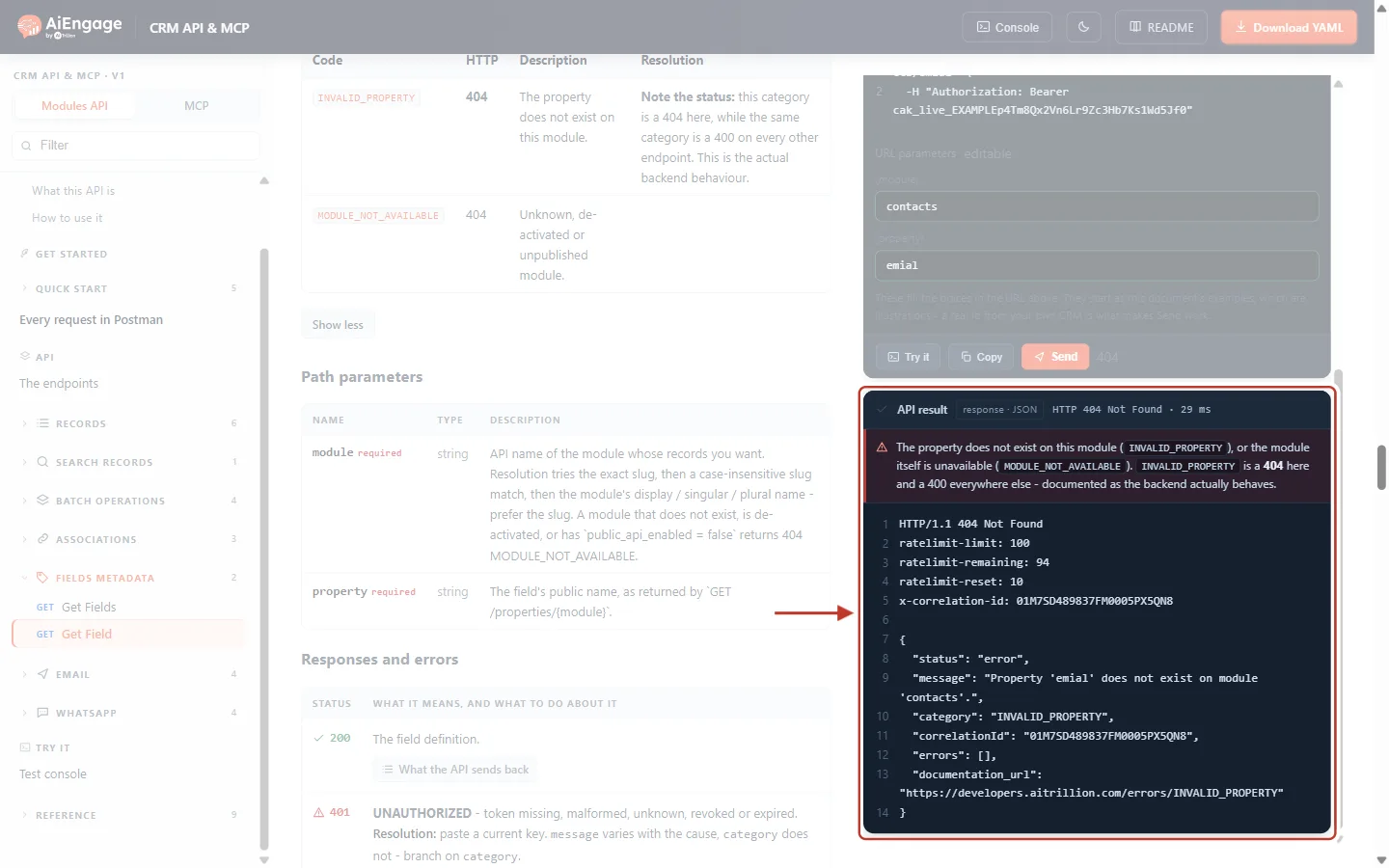
What this screenshot shows. The API result for /properties/contacts/emial (the real answer from the demo CRM).
HTTP 404 Not Found.
"message": "Property 'emial' does not exist on module 'contacts'."and"category": "INVALID_PROPERTY".The same 404 appears for a field that exists but is hidden from the API.
Fix: copy the exact
namefromGET /properties/contacts. Names are lower case and use underscores.
If the module name is wrong, you get a different 404:
HTTP/1.1 404 Not Found

{
  "status": "error",
  "message": "No module matches 'contactz'. Call GET /objects for the available modules and use the `slug` from that list.",
  "category": "MODULE_NOT_AVAILABLE"
}
Step 9: Use Field Metadata in Your Own Code#
A common pattern is to load the field list once when your integration starts, then check data against it before sending.
Node.js (18 or later)
const BASE = 'https://app.aiengagecrm.com/cback/api/public/v1';
const auth = { Authorization: `Bearer ${process.env.AIENGAGE_API_TOKEN}` };

async function loadFields(module) {
  const res = await fetch(`${BASE}/properties/${module}`, { headers: auth });
  if (!res.ok) throw new Error(`${res.status}: ${(await res.json()).message}`);
  const { results } = await res.json();
  return new Map(results.map(f => [f.name, f]));
}

function check(fields, properties) {
  const problems = [];
  for (const f of fields.values())
    if (f.required_on_create && properties[f.name] == null) problems.push(`missing required ${f.name}`);
  for (const [name, value] of Object.entries(properties)) {
    const f = fields.get(name);
    if (!f) { problems.push(`unknown field ${name}`); continue; }
    if (f.read_only) problems.push(`${name} is read-only`);
    if (f.options && !f.options.some(o => o.value === value && !o.hidden)) problems.push(`${name}: '${value}' is not an allowed value`);
  }
  return problems;
}

const fields = await loadFields('contacts');
console.log(check(fields, { first_name: 'Ada', lifecycle_stage: 'Customer' }));
// → [ "missing required contact_owner", "lifecycle_stage: 'Customer' is not an allowed value" ]
Python (requests) — map a picklist label from another system to the CRM value:
import os, requests

BASE = "https://app.aiengagecrm.com/cback/api/public/v1"
headers = {"Authorization": f"Bearer {os.environ['AIENGAGE_API_TOKEN']}"}

field = requests.get(f"{BASE}/properties/contacts/lifecycle_stage", headers=headers, timeout=15).json()
label_to_value = {o["label"].lower(): o["value"] for o in field["options"] if not o["hidden"]}

print(label_to_value["marketing qualified lead"])   # → marketing_qualified_lead
✅
Cache, but refresh. Field definitions change only when an administrator edits the module, so load them once and reuse them — for example refresh once a day, or when a call fails with
INVALID_PROPERTY.Troubleshooting#
What you see | Why it happens | How to fix it |
|---|---|---|
| The key does not have | Create a key with that scope. |
| The field name is misspelt, uses the label instead of the API name, or the field is hidden from the API. | Copy |
| Unknown module name, or the module is switched off or not published to the API. | Use a |
A field you see in the CRM is missing from the list | It is hidden from the API. | Ask an administrator; hidden fields are never returned and cannot be written. |
A picklist value is refused when you create a record | You sent the label, a hidden option, or an old value. | Send a current |
A create fails on a field with | The field is required on the module’s default layout. | Send that field, or ask an administrator to change the layout rule. |
For every other error, see API Errors & Troubleshooting: Fix 400, 401, 403, 404, 409, 429 and 500 Errors Step by Step.
Best Practices#
Call Get Fields first when you build an integration, and keep the result as your field map.
Use
nameeverywhere in the API; showlabelonly in your own user interface.Send picklist
values, never labels, and skip hidden options.Don’t send
read_only, formula or rollup fields.Pick a
uniquefield for upsert matching.Refresh your cached field list regularly — your administrator may add or change fields.
Frequently Asked Questions#
Do I need a separate scope for each module?
No. crm.schema.read lets one key read the fields of every module.
Will renaming a field in the CRM break my integration?
No. Renaming changes the label only; the API name stays the same.
Does this work for custom modules and custom fields?
Yes. Use the custom module’s slug; custom fields appear in the list like any other field.
Can I create or change fields through the API?
No. These endpoints only read. Fields are managed in the CRM under Modules and Fields.
In what order are the fields returned?
In the order they appear on the module’s layout.
Previous and Next Articles#
Previous: Batch Operations in the CRM API: Create, Read, Update and Archive Up to 100 Records in One Call
Next: API Errors & Troubleshooting: Fix 400, 401, 403, 404, 409, 429 and 500 Errors Step by Step
Related Articles#
Records, Modules & the Record Envelope: How Your CRM Data Looks in the API
Get, Create, Update and Archive Records with the CRM API: A Step-by-Step Guide
Upsert Records with a Matching Property: Create or Update CRM Records in One API Call
Search Records with the CRM API: Filter, Combine Conditions, Sort and Page Through Results
Batch Operations in the CRM API: Create, Read, Update and Archive Up to 100 Records in One Call
API Errors & Troubleshooting: Fix 400, 401, 403, 404, 409, 429 and 500 Errors Step by Step
Was this article helpful?
Ready to implement this?
OpenAI Engage and apply what you just learned to your own workspace.
Open AI Engage CRM