Loading…


KnowledgeBase
Search Records with the CRM API: Filter, Combine Conditions, Sort and Page Through Results
Introduction#
Listing records gives you everything, newest first. Most integrations need something narrower: all customers, leads created this year, contacts whose email ends in @acme.com, or the person called Lovelace. The Search Records endpoint does exactly this. You describe what you want in the request body, and the API returns only the matching records — sorted, trimmed to the fields you need, and one page at a time.
POST https://app.aiengagecrm.com/cback/api/public/v1/objects/{module}/searchAlthough it is a POST, search only reads: the body carries your filter, and nothing in the CRM is changed. It works for every module — Contacts, Deals, Companies, Tickets and your custom modules.
This guide walks you through it step by step:
Give your key permission to search.
Find the Search Records endpoint and understand its rules.
Learn the operators.
Search with one condition.
Combine conditions with AND.
Combine conditions with OR.
Search lists of values and date ranges, and sort the results.
Get the next page.
Search by free text.
Avoid the most common mistakes.
Each step is tried in the Try it panel of developer.aiengagecrm.com, with the matching request body shown so you can copy it into your own code. Each screenshot has a red ring and arrow on the part to look at, followed by a description of the whole screen. Search results in the screenshots use example data — four example contacts with example.com addresses — while the screens, request bodies and error messages are exactly what the API uses.
Before You Begin#
You have an API key, or can create one under Settings → Developer Hub → API Keys (see API Keys Step by Step: Generate, Use and Revoke a Personal Access Token).
You have pasted the key into the Paste your key here box on developer.aiengagecrm.com, so the Try-it panels can use it (see Test the AiEngage CRM API in the API Console and Postman).
You know the module slug (e.g.
contacts) and the API names of the fields you want to filter on. Get, Create, Update and Archive Records with the CRM API: A Step-by-Step Guide shows where to find both.
Step 1: Give Your Key Permission to Search#
Searching is a kind of reading, so the key needs only the Read scope of the module. In the CRM, open Settings → Developer Hub → API Keys, click Generate API key, give it a label and scroll to the module:
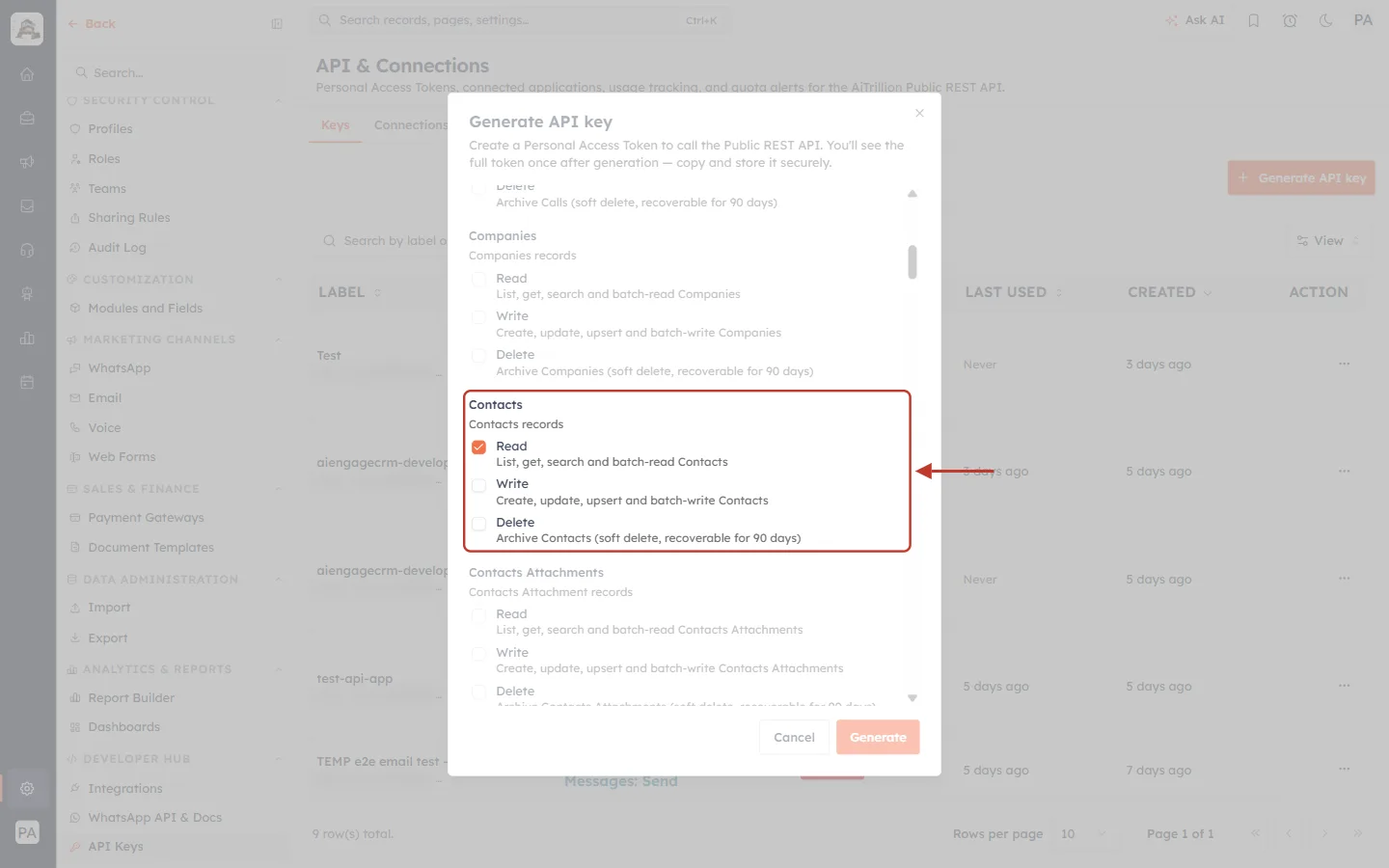
What this screenshot shows. The Generate API key dialog with only Read ticked under Contacts.
Read — List, get, search and batch-read Contacts. The word search in this description is what you need; it becomes the scope
crm.contacts.read.Write and Delete are left unticked. A key used only for searching should not be able to change or archive records.
Every module has its own Read / Write / Delete block (Companies above, Contacts Attachments below). Tick Read for each module you want to search.
Click Generate (bottom right) to create the key, and copy it — it is shown only once.
ℹ️
Search returns only records that the user who created the key can see in the CRM. Two keys created by different users can return different results for the same search.
Step 2: Open the Search Records Endpoint#
On developer.aiengagecrm.com, find Search Records in the left menu:
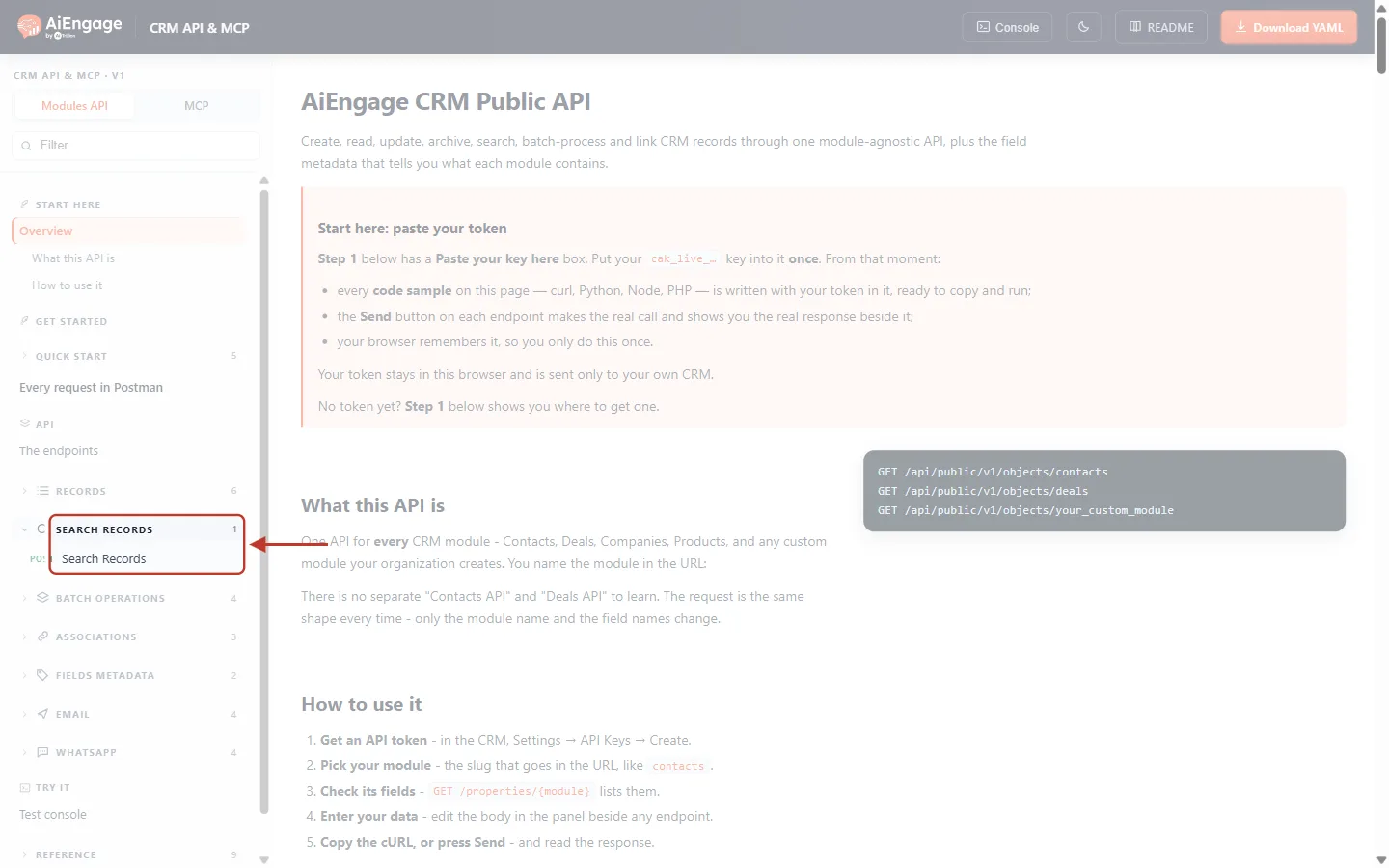
What this screenshot shows. The left menu of the developer portal with the Search Records group open.
The group SEARCH RECORDS holds one endpoint, POST Search Records.
It sits between Records (list, create, get, update, archive) and Batch Operations.
Click Search Records to jump to its description and Try-it panel.
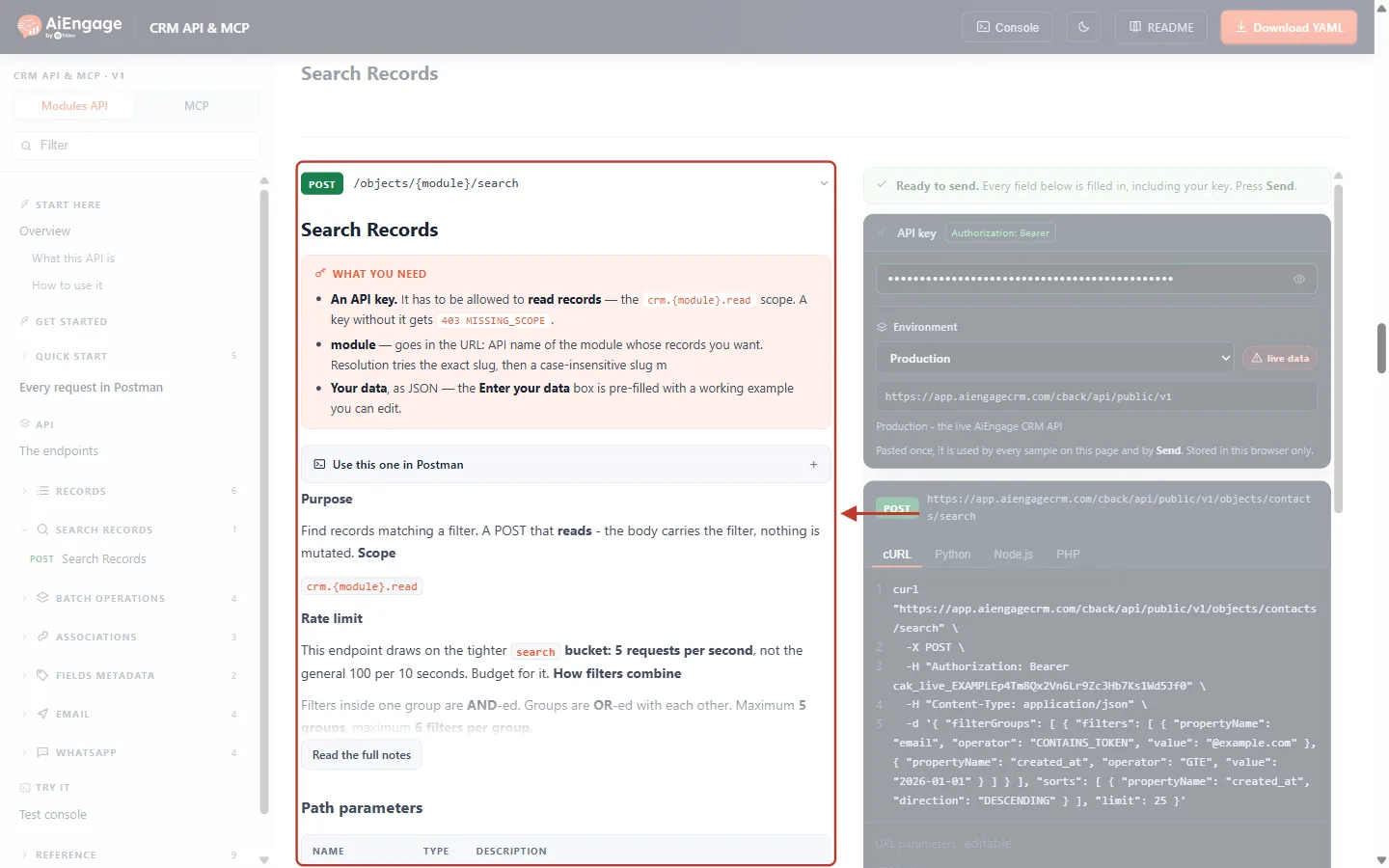
What this screenshot shows. The top of the Search Records description.
POST /objects/{module}/search — the method and path.
What you need — a key with
crm.{module}.read(otherwise403 MISSING_SCOPE), the module slug in the URL, and your search as JSON in the Enter your data box.Purpose — Find records matching a filter. A POST that reads — the body carries the filter, nothing is mutated.
Rate limit — search uses a tighter limit: 5 requests per second per key, instead of the general 100 per 10 seconds.
How filters combine — filters inside one group are AND-ed; groups are OR-ed. At most 5 groups and 6 filters per group.
On the right, the Try-it panel is ready: your key (as dots), the Production environment and a sample curl command.
The body can contain these parts — all are optional:
Part | What it does | Limits |
|---|---|---|
| The conditions a record must meet. Each group has a list of | Up to 5 groups, up to 6 filters in each. |
| A free-text word or phrase, searched across the module’s searchable fields. | — |
| The order of the results: | Up to 3 sorts. Default: |
| A list of the field names to return, to keep responses small. | — |
| How many records per page. | 1 to 100. Default 10. |
| The cursor for the next page, copied from the previous response. | Use exactly as received. |
ℹ️
An empty body
{} is allowed: it returns the first page of all records, newest first — the same as listing them.Step 3: Learn the Operators#
Each filter has three parts: the field (propertyName), how to compare (operator) and what to compare with (value or values). Scroll down in the description to the Operators table:
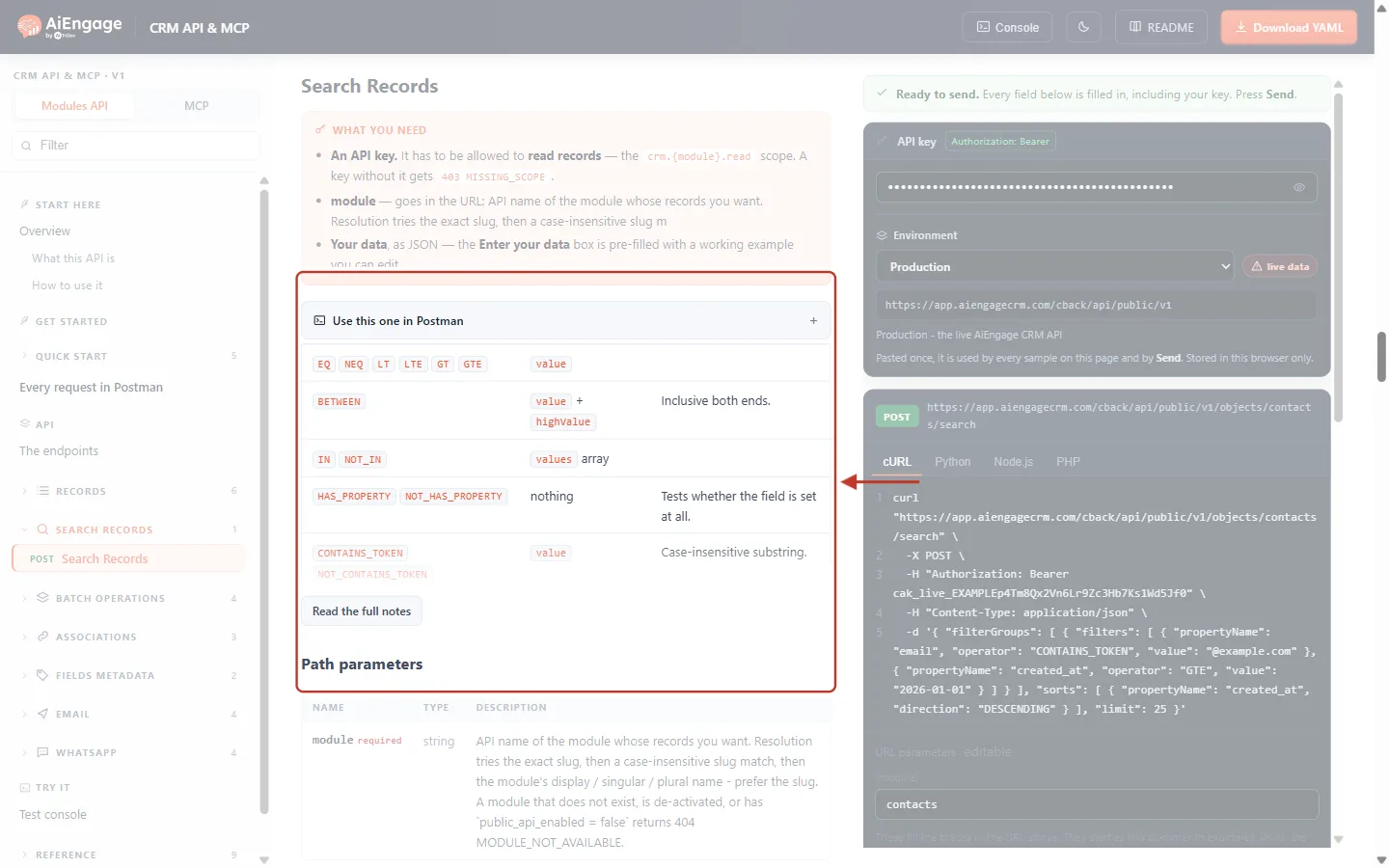
What this screenshot shows. The Operators table of Search Records.
EQ NEQ LT LTE GT GTE — equal, not equal, less than, less than or equal, greater than, greater than or equal. They take one
value.BETWEEN — a range, inclusive at both ends (see the warning below the table in this article for the exact format).
IN NOT_IN — the field is (or is not) one of a list; they take a
valuesarray.HAS_PROPERTY NOT_HAS_PROPERTY — the field is filled in (or empty). They take no value.
CONTAINS_TOKEN NOT_CONTAINS_TOKEN — the text contains (or does not contain) a piece of text, ignoring upper/lower case.
STARTS_WITH ENDS_WITH — the text starts or ends with a value, ignoring case.
The note underneath says special characters such as
.or*in text values are matched literally, so it is safe to pass in what a user typed.
Operator | Filter example | Finds |
|---|---|---|
|
| Customers |
|
| Everyone who is not a subscriber |
|
| Lead score 50 or more |
|
| Created before 2026 |
|
| Created in Q1 2026 |
|
| Leads and opportunities |
|
| Contacts with a phone number |
|
| Emails containing @example.com |
|
| Emails ending in .org |
⚠️
BETWEEN and IN take a
values array. Write "values": ["2026-01-01", "2026-12-31"] for BETWEEN (low first, then high) and "values": ["lead", "customer"] for IN. The form "value" + "highValue", which appears in some reference text, is refused with 400 INVALID_FILTER — see Step 10.For a pick-list field, compare with the option’s value, not its label. You can see both in the CRM: Settings → Customization → Modules and Fields → Configure on the module, then click the field:
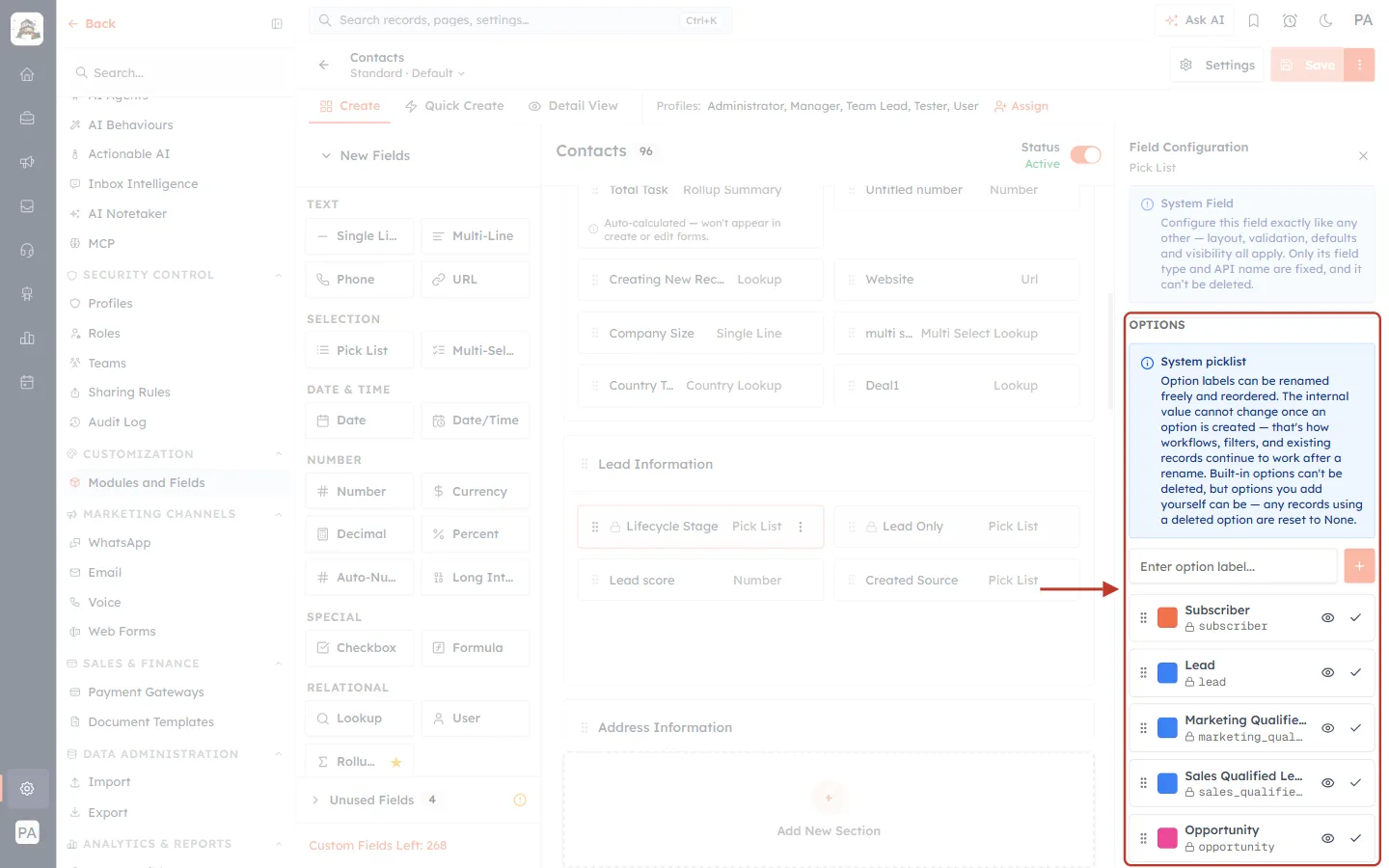
What this screenshot shows. The Options of the Lifecycle Stage pick list in the Contacts field builder.
Each option shows its label in bold (what users see, e.g. Marketing Qualified Lead) and, with a lock icon underneath, its value (what the API uses, e.g.
marketing_qualified_lead).Lifecycle Stage values:
subscriber,lead,marketing_qualified_lead,sales_qualified_lead,opportunity,customer,evangelist,other.The blue System picklist note explains that labels can be renamed and reordered but the value never changes — so a search on
"customer"keeps working even if an admin renames the label.Enter option label… and the + button add a new option; the eye and tick icons on each row control its visibility and default state.
✅
Text operators ignore upper and lower case.
EQ compares the whole value, so for pick lists always send the exact lowercase value.Step 4: Search With One Condition#
Scroll to the Try-it panel, set {module} to contacts, and replace the Enter your data box with your search. Start with one filter — all customers:
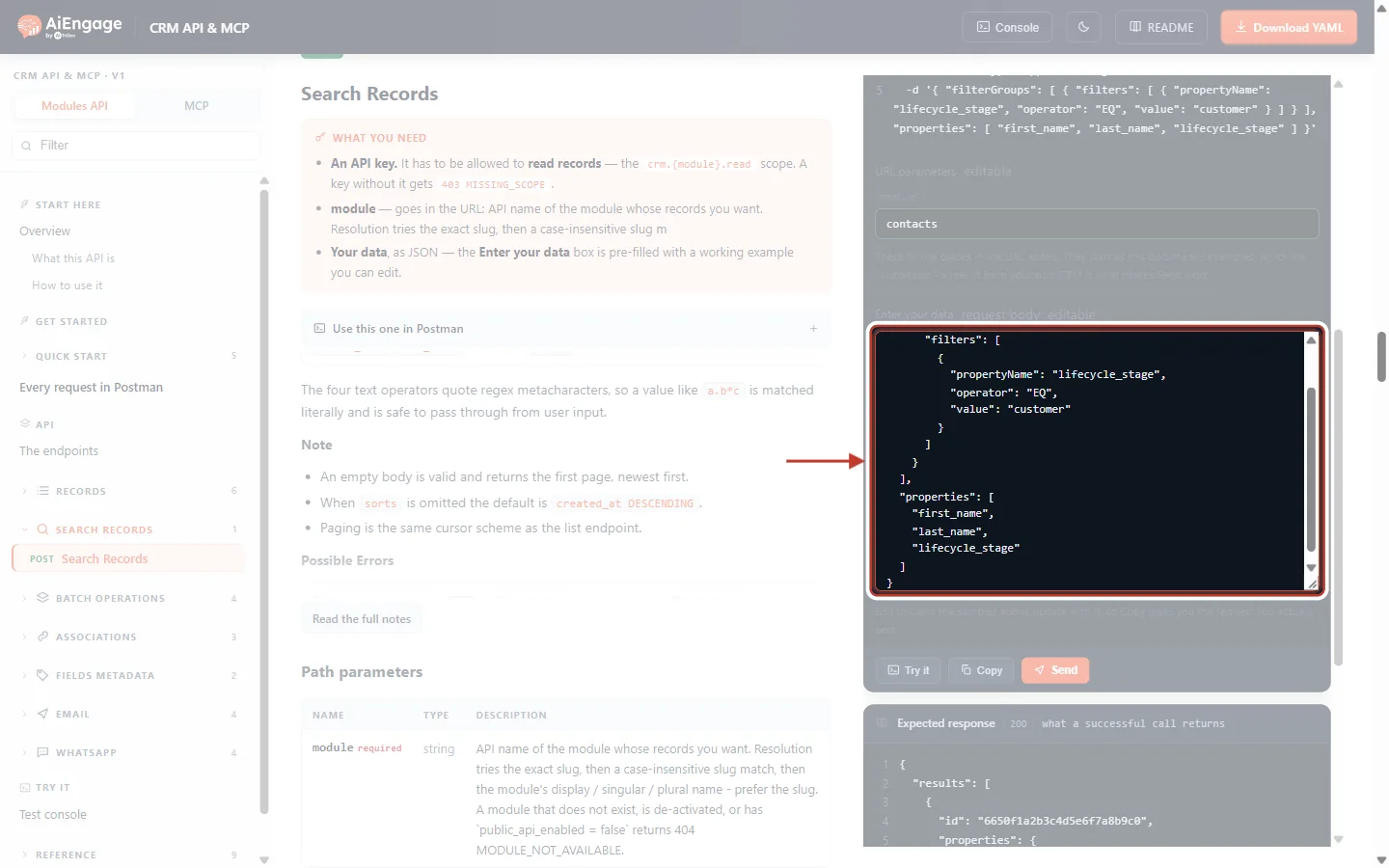
What this screenshot shows. The Enter your data box with a one-filter search.
filterGroupscontains one group, and that group contains one filter.The filter:
propertyNamelifecycle_stage,operatorEQ,valuecustomer— “Lifecycle Stage is Customer”.propertiesasks for only three fields back: first name, last name and lifecycle stage.
{
  "filterGroups": [
    {
      "filters": [
        {
          "propertyName": "lifecycle_stage",
          "operator": "EQ",
          "value": "customer"
        }
      ]
    }
  ],
  "properties": [
    "first_name",
    "last_name",
    "lifecycle_stage"
  ]
}
Click Send:
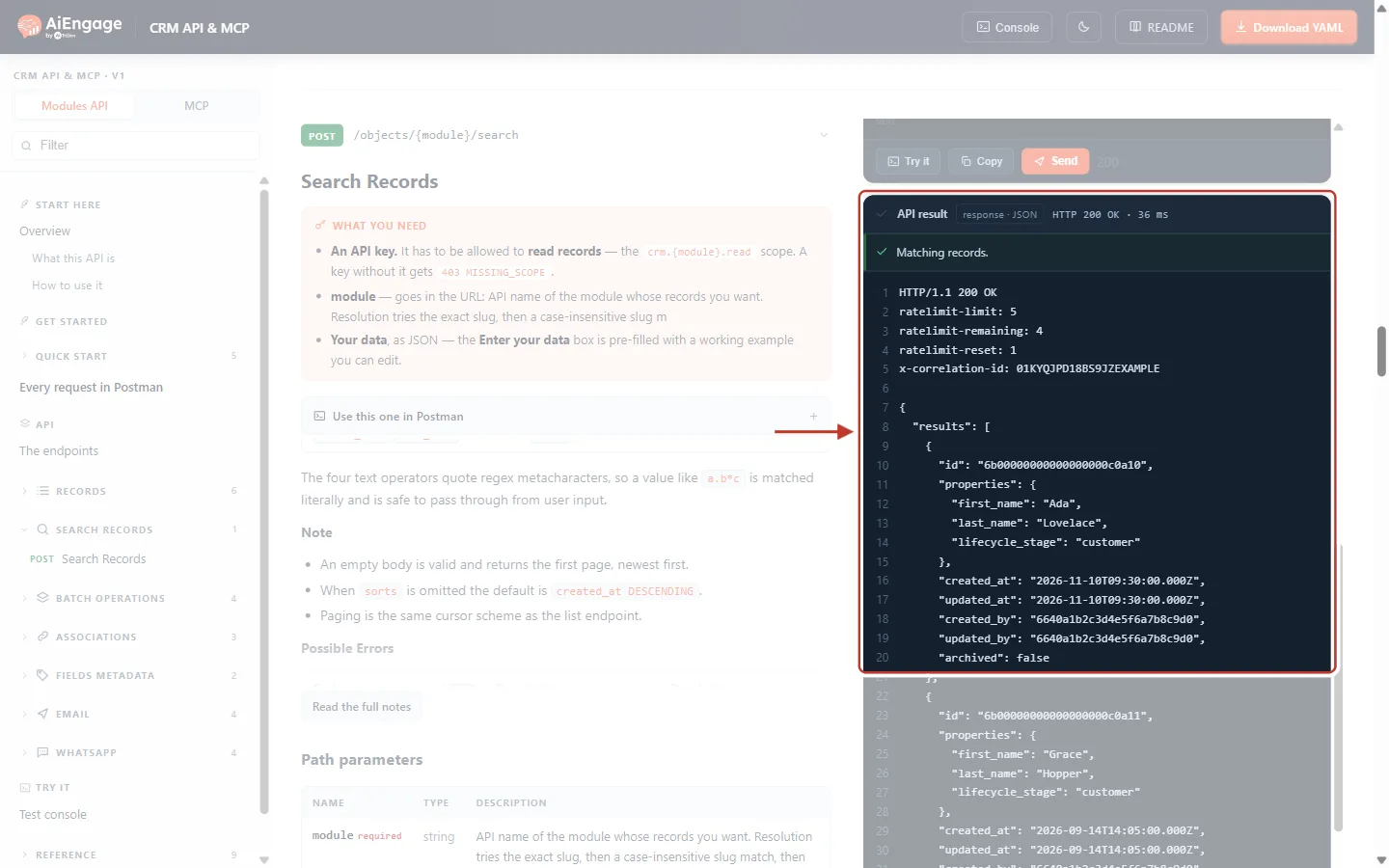
What this screenshot shows. The API result of the search (example data).
HTTP 200 OK and Matching records.
The headers show
ratelimit-limit: 5— the tighter search limit of 5 calls per second — and how many are left.The body has the same shape as a list: a
resultsarray of records. The first is Ada Lovelace,lifecycle_stage: "customer". Only the requested fields are insideproperties;id, timestamps andarchivedalways come back.Below the ring is the second customer, Grace Hopper. The two leads in the example data are not returned.
Step 5: Combine Conditions With AND#
Put several filters in the same group when a record must meet all of them. For example: contacts whose email contains @example.com and who were created on or after 1 January 2026, newest first:
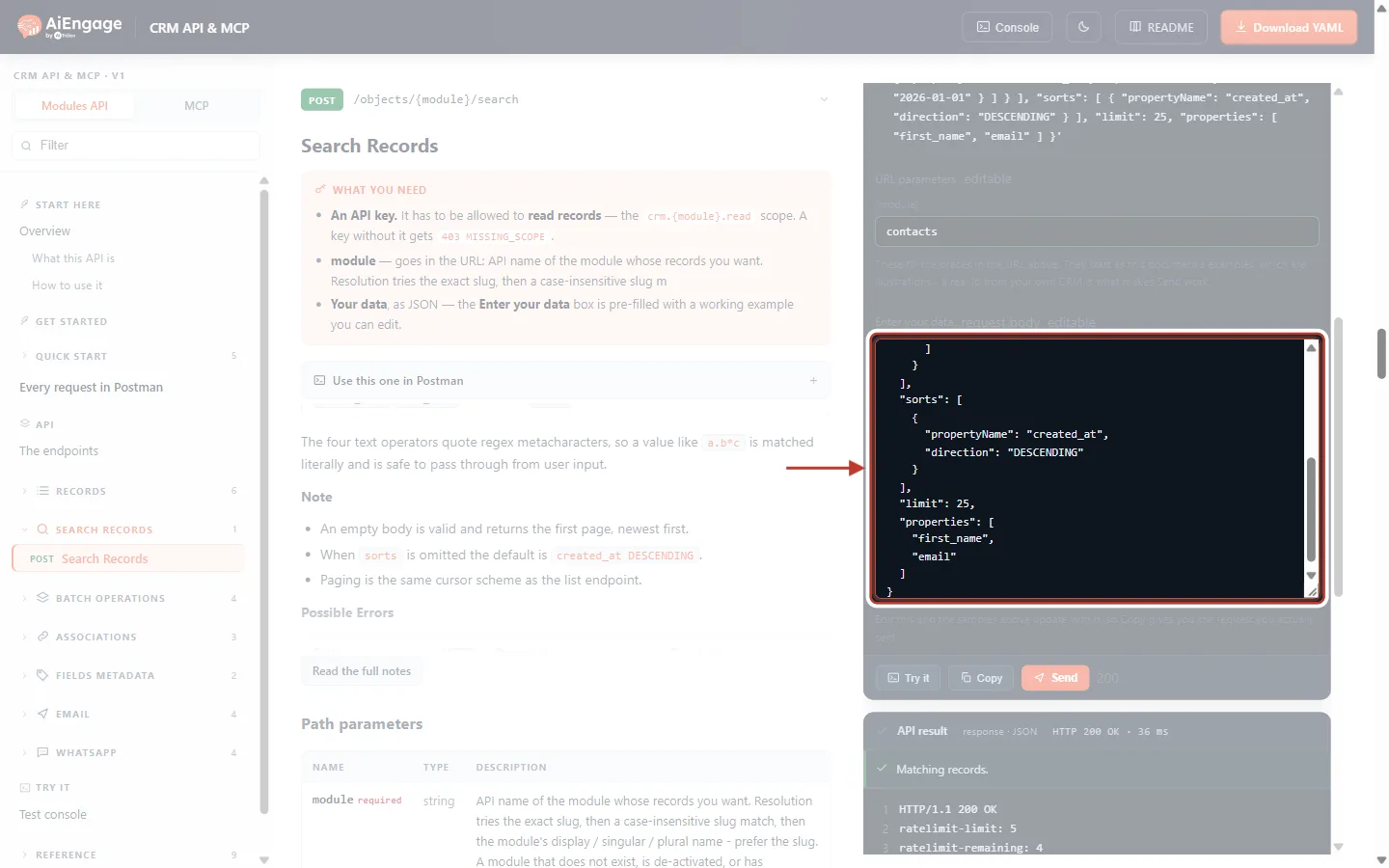
What this screenshot shows. A search with two filters in one group, plus a sort and a limit.
Both filters sit inside the same
filterslist, so both must be true (AND).Filter 1:
emailCONTAINS_TOKEN@example.com.Filter 2:
created_atGTE2026-01-01. Dates can be written asYYYY-MM-DDor as a full ISO date-time.sorts:created_atDESCENDING(newest first);limit:25per page.
{
  "filterGroups": [
    {
      "filters": [
        {
          "propertyName": "email",
          "operator": "CONTAINS_TOKEN",
          "value": "@example.com"
        },
        {
          "propertyName": "created_at",
          "operator": "GTE",
          "value": "2026-01-01"
        }
      ]
    }
  ],
  "sorts": [
    {
      "propertyName": "created_at",
      "direction": "DESCENDING"
    }
  ],
  "limit": 25,
  "properties": [
    "first_name",
    "email"
  ]
}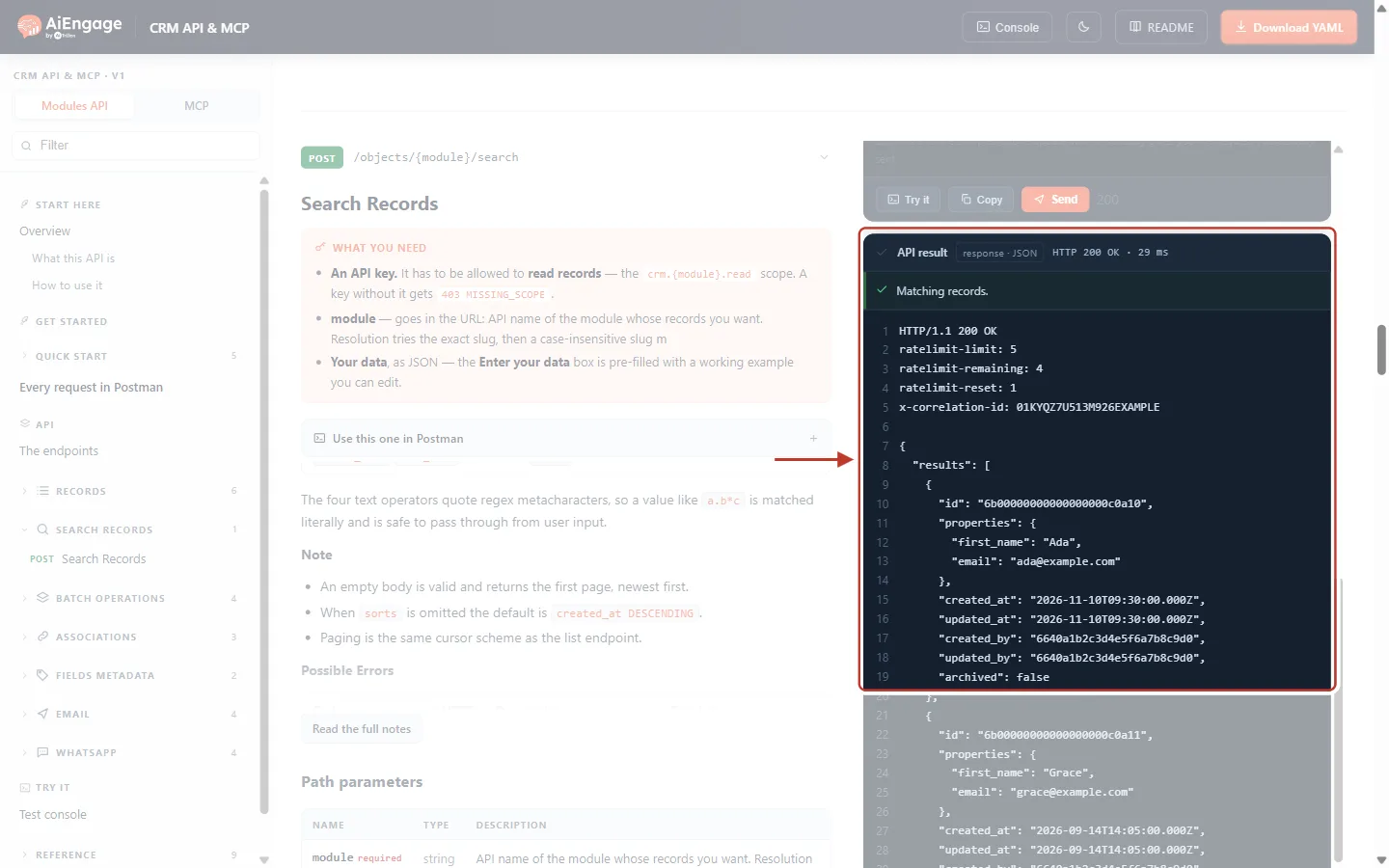
What this screenshot shows. The result of the AND search (example data).
HTTP 200 OK.
The first result is Ada (
ada@example.com, created 10 November 2026) — newest first, as requested.Grace (created September 2026) follows. Alan is left out because his email is
@example.org; Katherine is left out because she was created in 2025.
Step 6: Combine Conditions With OR#
Put conditions in separate groups when a record may meet any of them. For example: contacts who are customers or have a lead score of 50 or more:
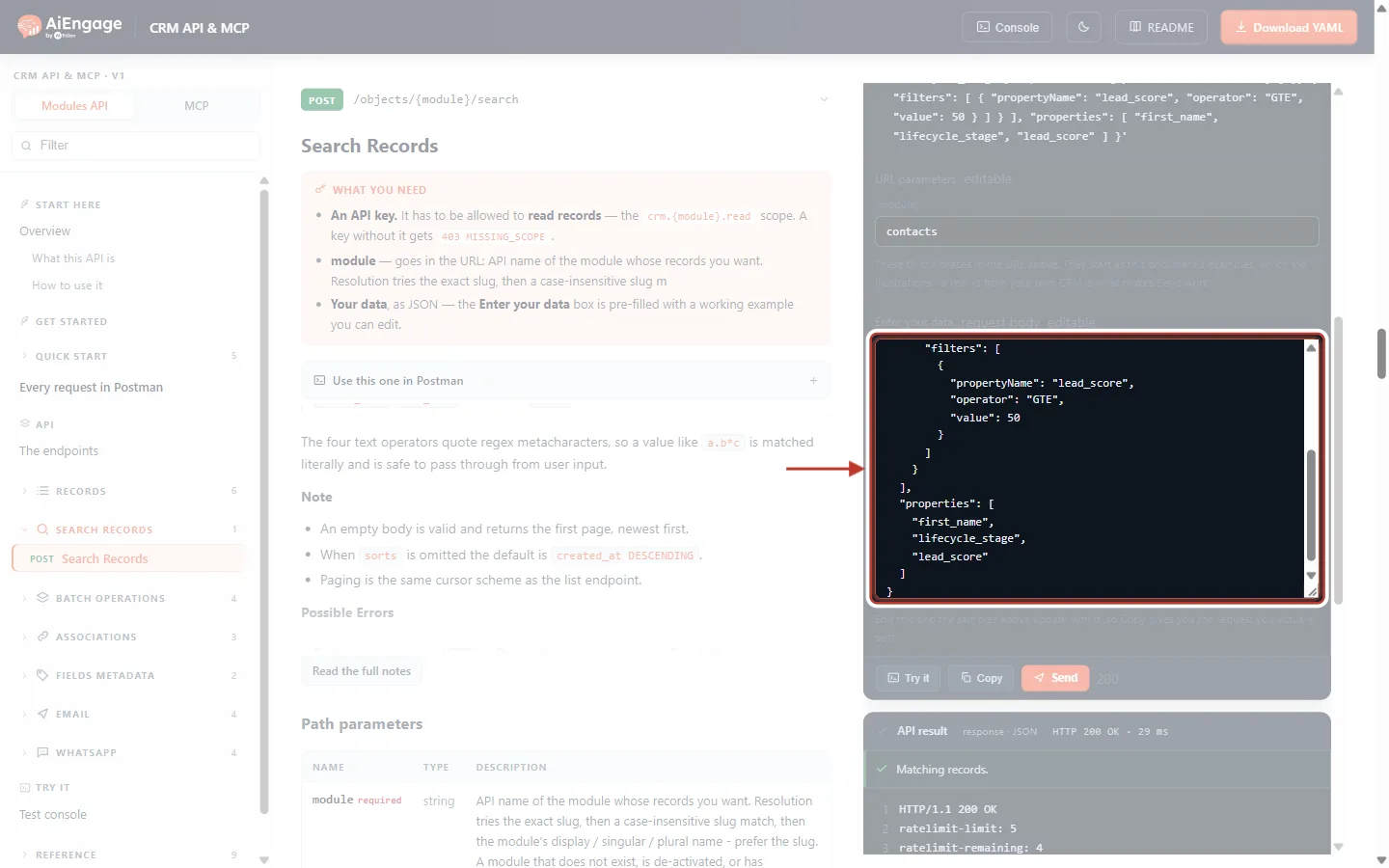
What this screenshot shows. A search with two filter groups.
filterGroupsnow has two groups, each with its ownfilterslist.Group 1:
lifecycle_stageEQcustomer.Group 2:
lead_scoreGTE50— a number, so it is written without quotes.A record is returned if it matches group 1 or group 2.
{
  "filterGroups": [
    {
      "filters": [
        {
          "propertyName": "lifecycle_stage",
          "operator": "EQ",
          "value": "customer"
        }
      ]
    },
    {
      "filters": [
        {
          "propertyName": "lead_score",
          "operator": "GTE",
          "value": 50
        }
      ]
    }
  ],
  "properties": [
    "first_name",
    "lifecycle_stage",
    "lead_score"
  ]
}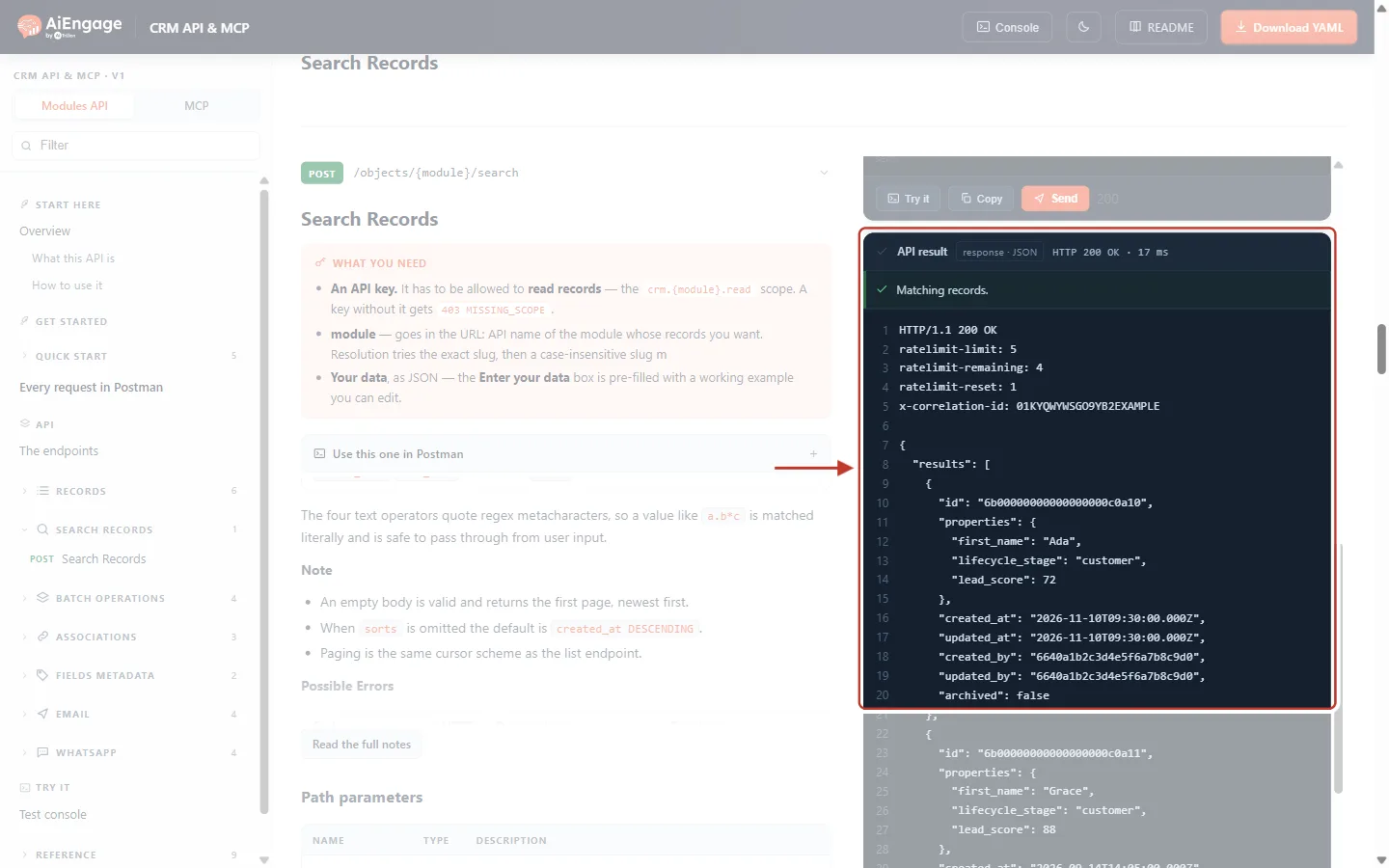
What this screenshot shows. The result of the OR search (example data).
Ada is a customer (and has a lead score of 72) — she matches.
Further down: Grace (customer, 88) and Alan — a lead, but with a lead score of 55, so he matches group 2.
Katherine (lead, score 30) matches neither group and is not returned.
✅
You can mix both: each group is an AND of its filters, and the groups are OR-ed. “(Customer AND created in 2026) OR (lead score ≥ 80)” is two groups — the first with two filters, the second with one.
Step 7: Lists of Values, Date Ranges and Sorting#
This search finds leads and customers created during 2026, oldest first, two per page:
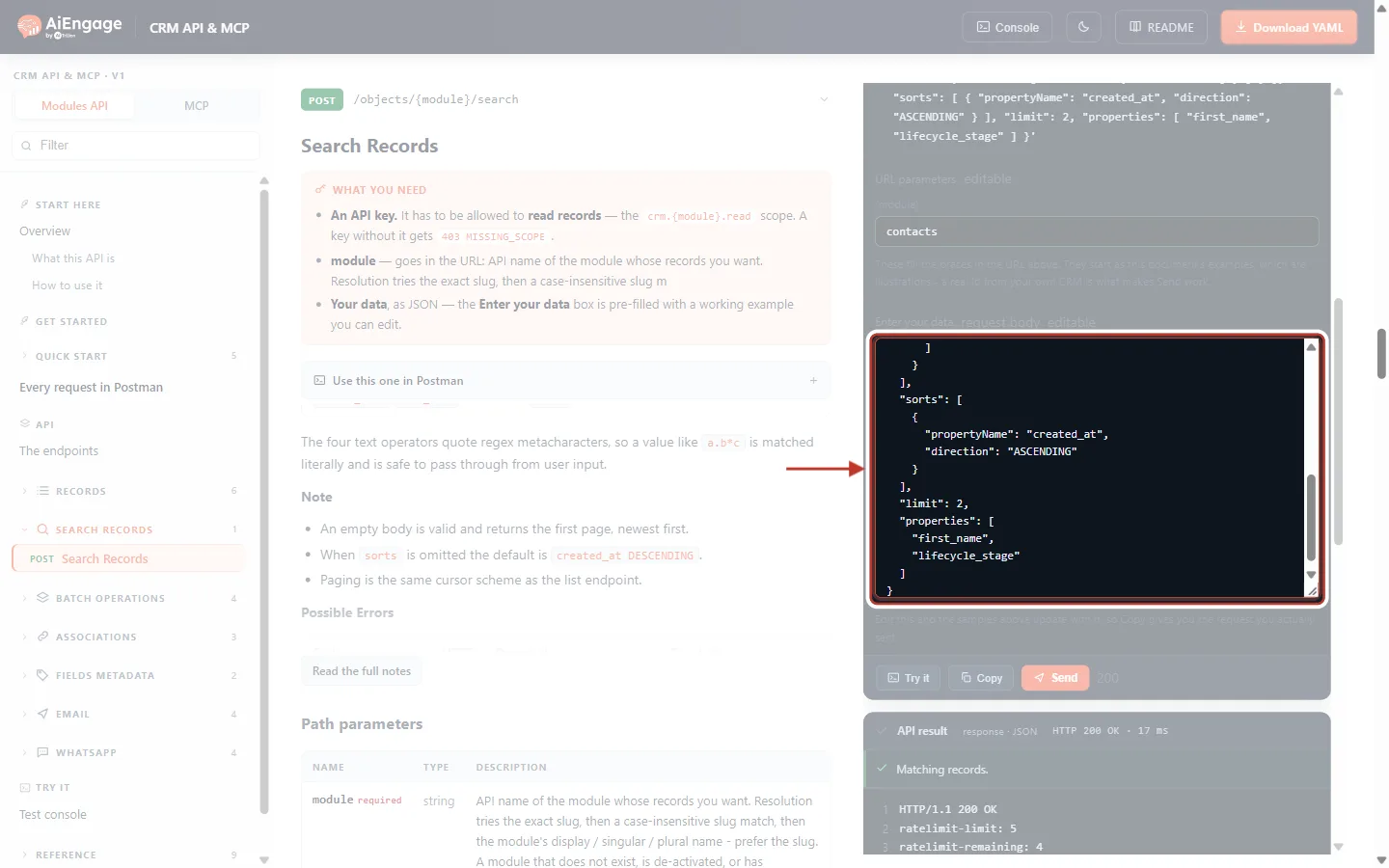
What this screenshot shows. A search using IN, BETWEEN, an ascending sort and a small page size.
INwithvalues["lead", "customer"]— lifecycle stage is either of the two.BETWEENwithvalues["2026-01-01", "2026-12-31"]— created in 2026, both dates included.sorts:created_atASCENDING— oldest first.limit:2— two records per page, so the results continue on a second page (Step 8).
{
  "filterGroups": [
    {
      "filters": [
        {
          "propertyName": "lifecycle_stage",
          "operator": "IN",
          "values": [
            "lead",
            "customer"
          ]
        },
        {
          "propertyName": "created_at",
          "operator": "BETWEEN",
          "values": [
            "2026-01-01",
            "2026-12-31"
          ]
        }
      ]
    }
  ],
  "sorts": [
    {
      "propertyName": "created_at",
      "direction": "ASCENDING"
    }
  ],
  "limit": 2,
  "properties": [
    "first_name",
    "lifecycle_stage"
  ]
}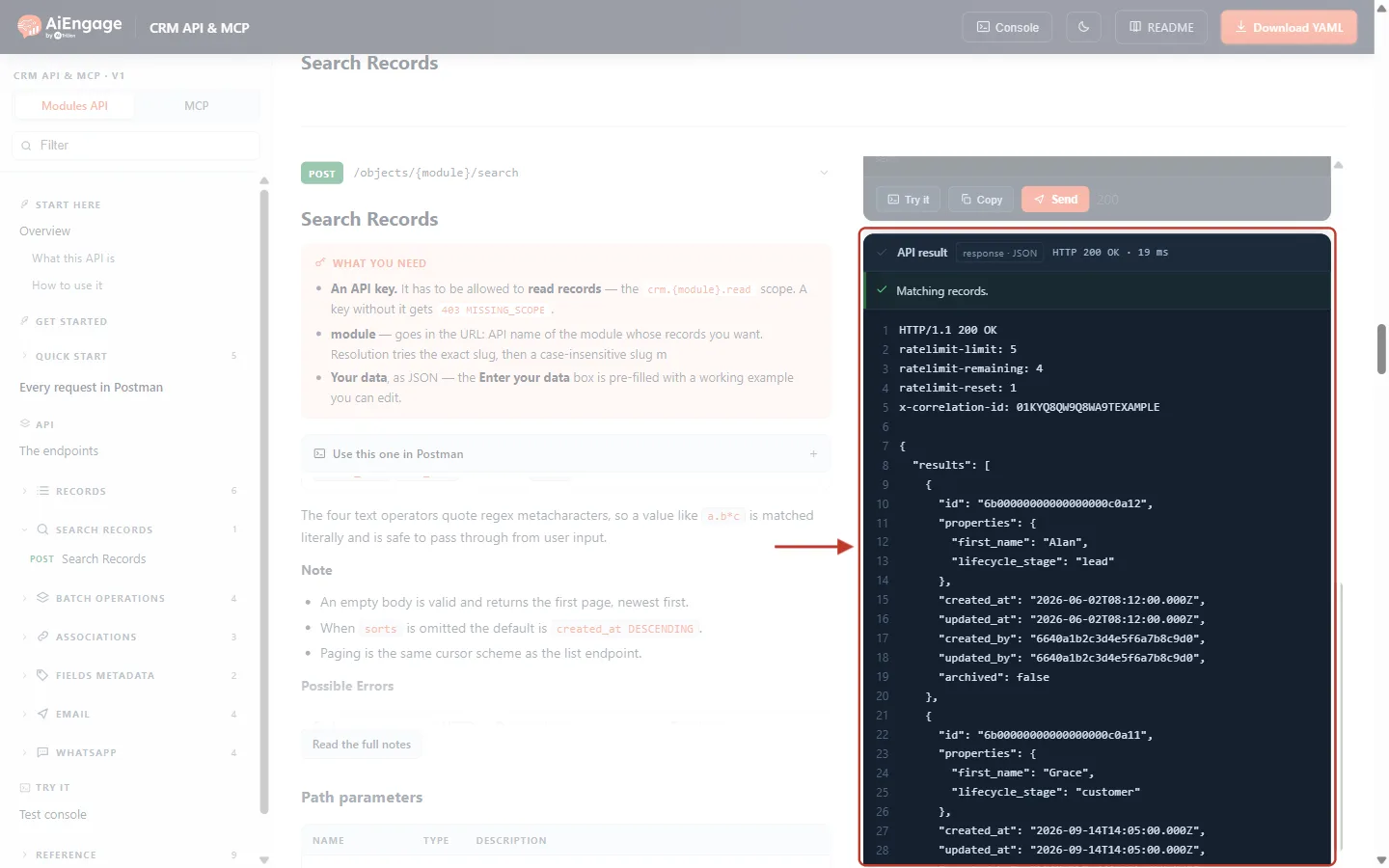
What this screenshot shows. Page 1 of the results (example data).
The oldest match comes first: Alan (lead, created 2 June 2026), then Grace (customer, 14 September 2026).
Only two records are returned because
limitis 2.Below the two records (scroll down in the result) is
"paging": { "next": { "after": "…" } }— the cursor for the next page.
Step 8: Get the Next Page#
To continue, send the same search again with one extra field, after, set to paging.next.after from the previous response:
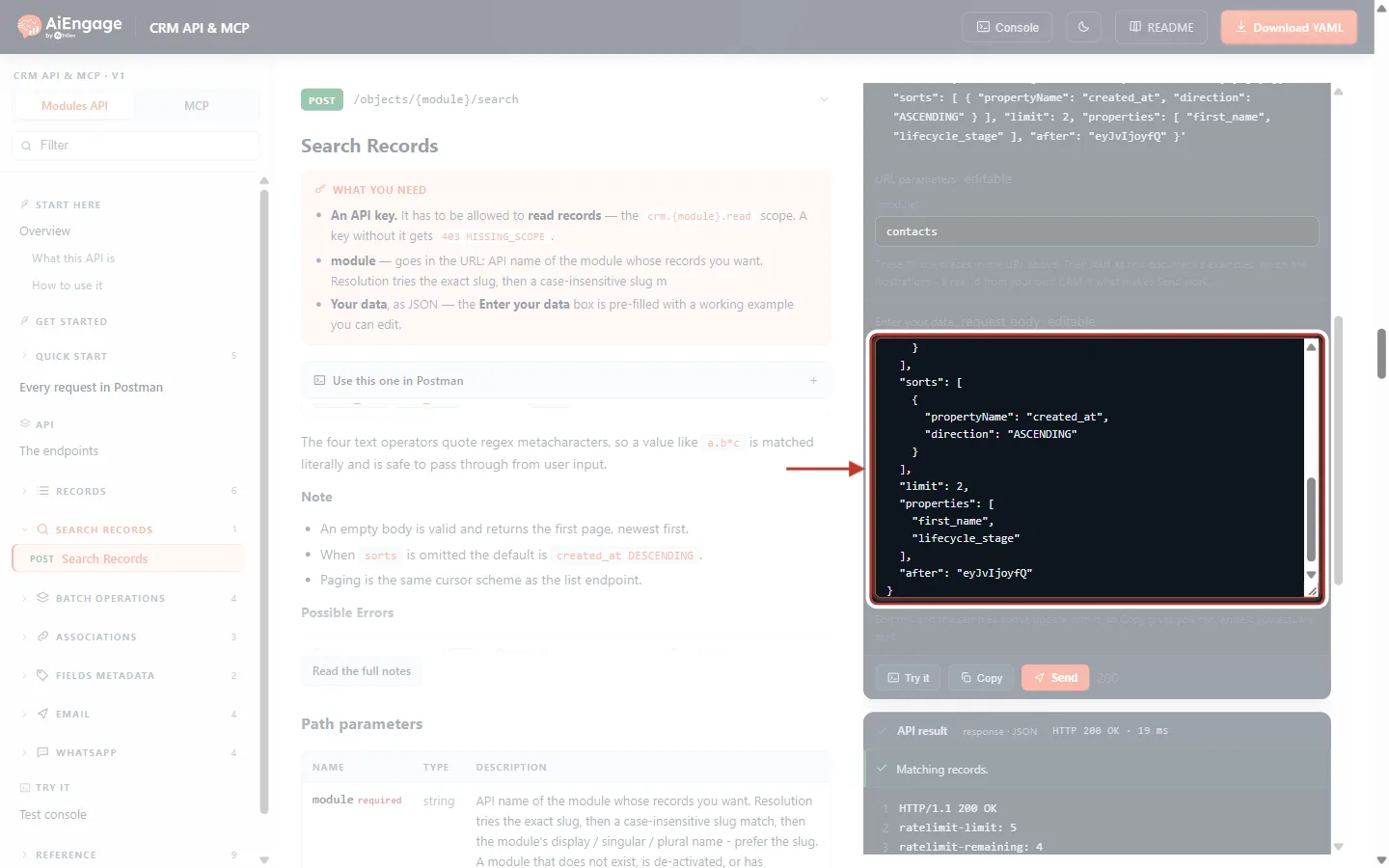
What this screenshot shows. The same search as Step 7, with after added at the end.
The filters, sort, limit and properties are unchanged — change them and the cursor no longer fits.
"after"holds the cursor copied from page 1 (an example value is shown here).In search,
aftergoes in the body, not in the URL.
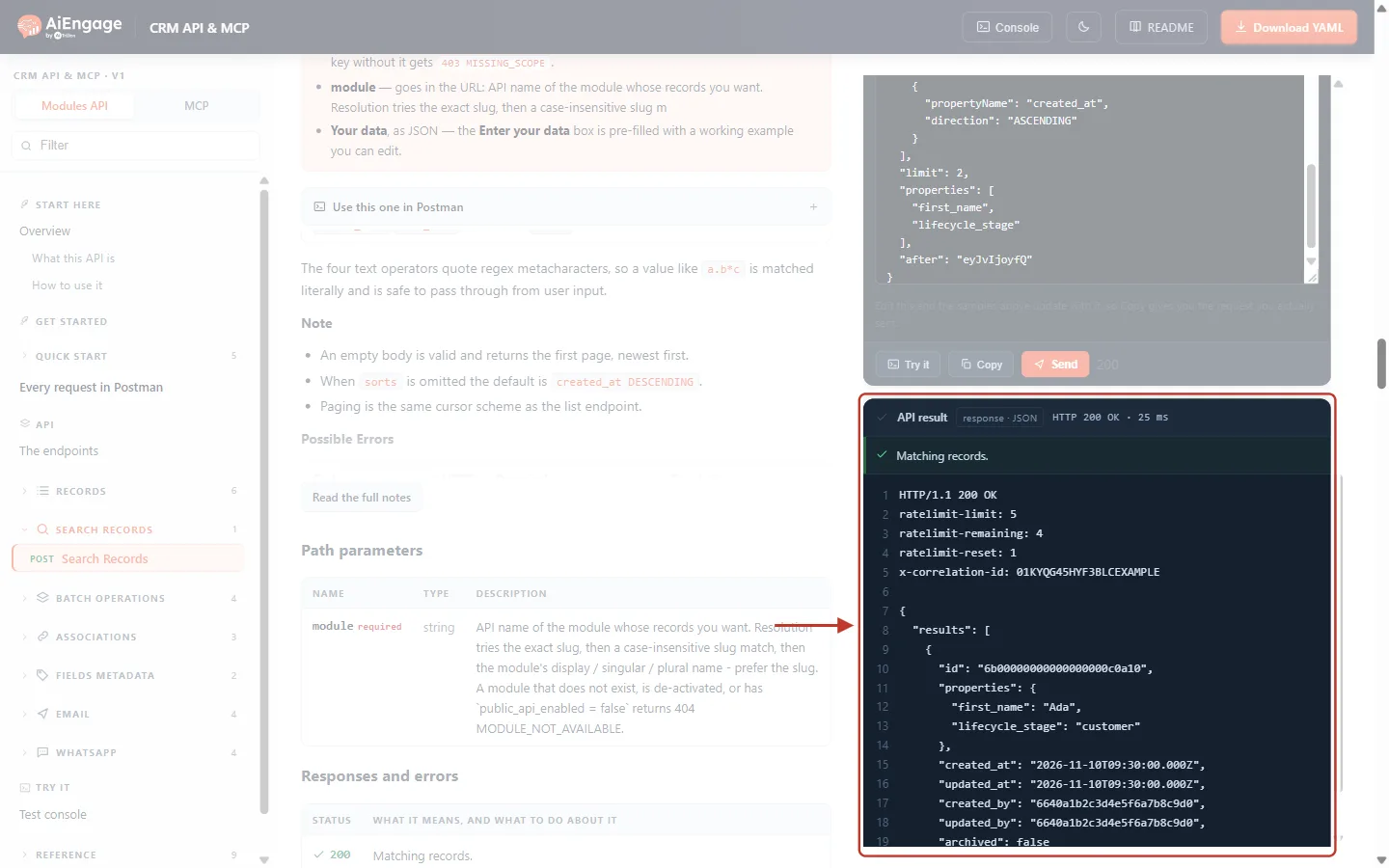
What this screenshot shows. Page 2 of the results (example data).
The next match: Ada (customer, created 10 November 2026).
This is the last page, so the response has no
pagingsection. That is how your code knows to stop.
after = null
loop:
  body.after = after            (leave it out on the first call)
  response = POST /objects/contacts/search  body
  process response.results
  if response.paging is missing → stop
  after = response.paging.next.after
ℹ️
Never edit or build a cursor yourself — a damaged one returns
400 INVALID_CURSOR (“Cursor payload is not valid JSON.”). More about paging: API Pagination & Limits.Step 9: Search by Free Text#
When you just have a word to look for — a surname, part of an email — use query instead of filters. It searches the module’s searchable fields, ignoring case:
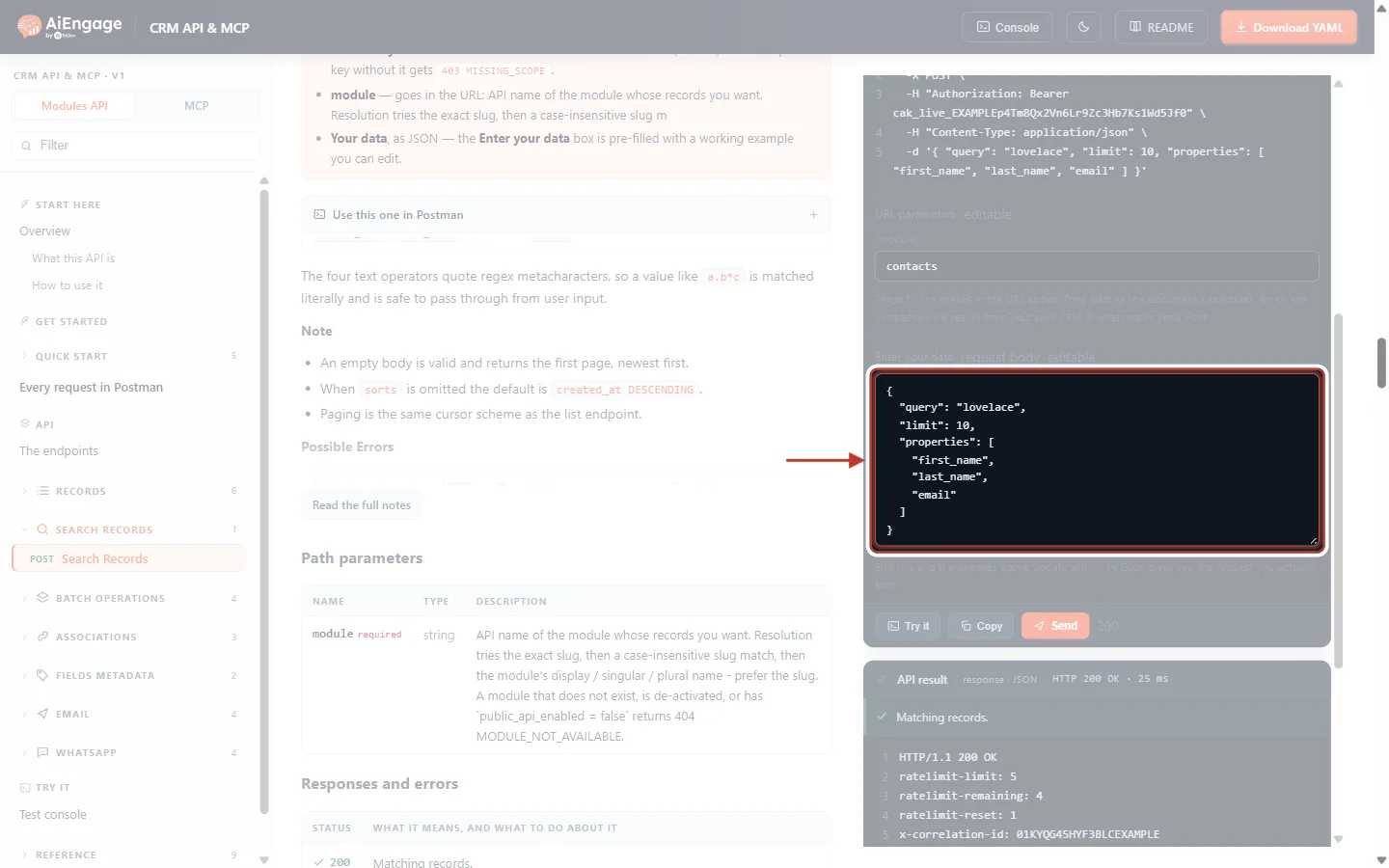
What this screenshot shows. A free-text search.
"query": "lovelace"— the text to look for. Lower case is fine.limit10and threepropertiesto return.No
filterGroupsare needed. You can add them, though, to narrow a text search further.
{
  "query": "lovelace",
  "limit": 10,
  "properties": [
    "first_name",
    "last_name",
    "email"
  ]
}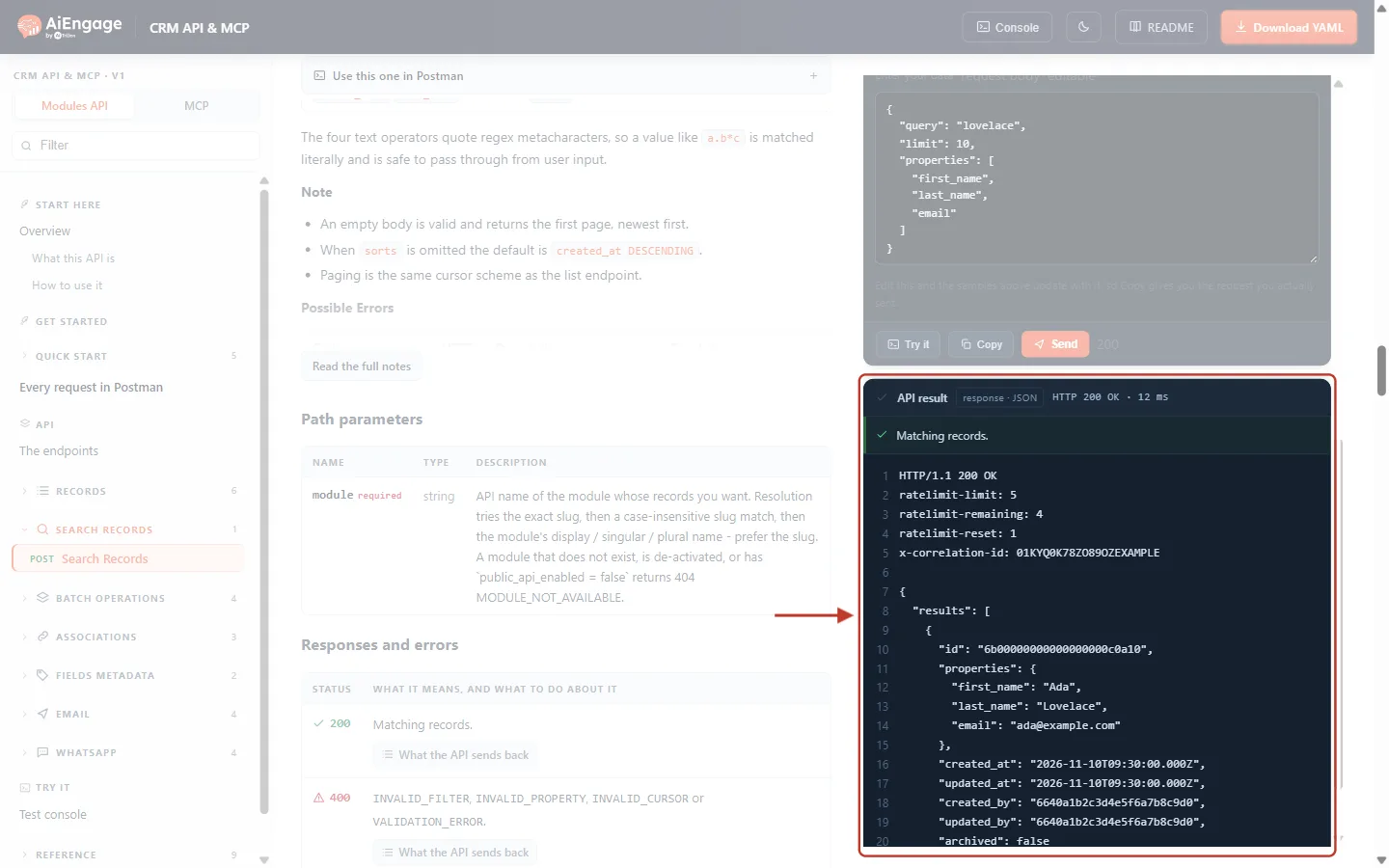
What this screenshot shows. The result of the free-text search (example data).
HTTP 200 OK with one match: Ada Lovelace,
ada@example.com.The same
resultsshape as every other search.
✅
Free text is great for search boxes in your own app. For exact rules (“stage is customer”, “created this month”) use filters — they are precise and predictable.
Step 10: Avoid the Most Common Mistakes#
If a search is wrong, nothing is returned except an error that explains the problem. The most common one is writing a range the wrong way:
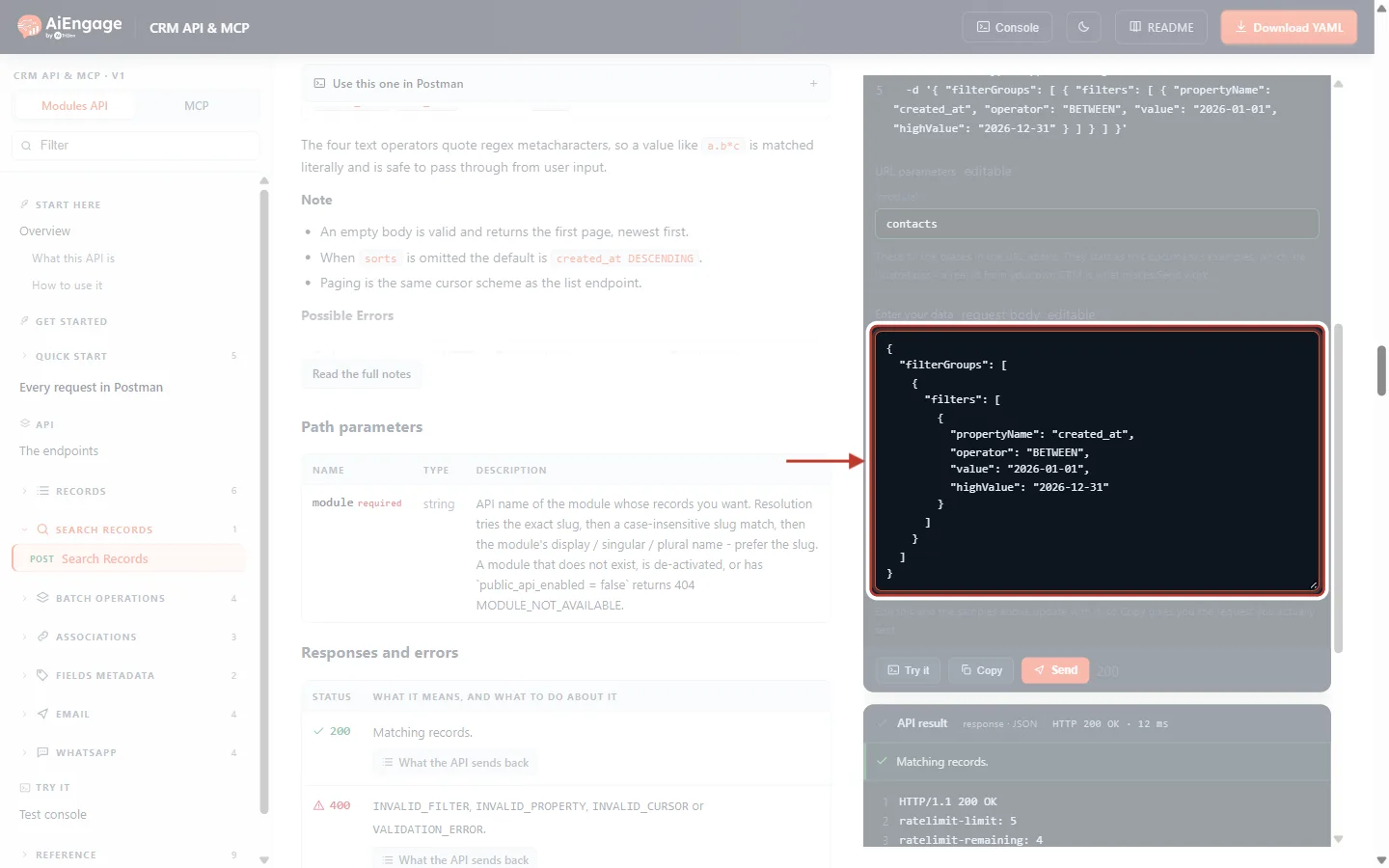
What this screenshot shows. A BETWEEN filter written with value and highValue.
"operator": "BETWEEN"with"value": "2026-01-01"and"highValue": "2026-12-31".This looks reasonable, but the API expects the two ends in a
valuesarray.
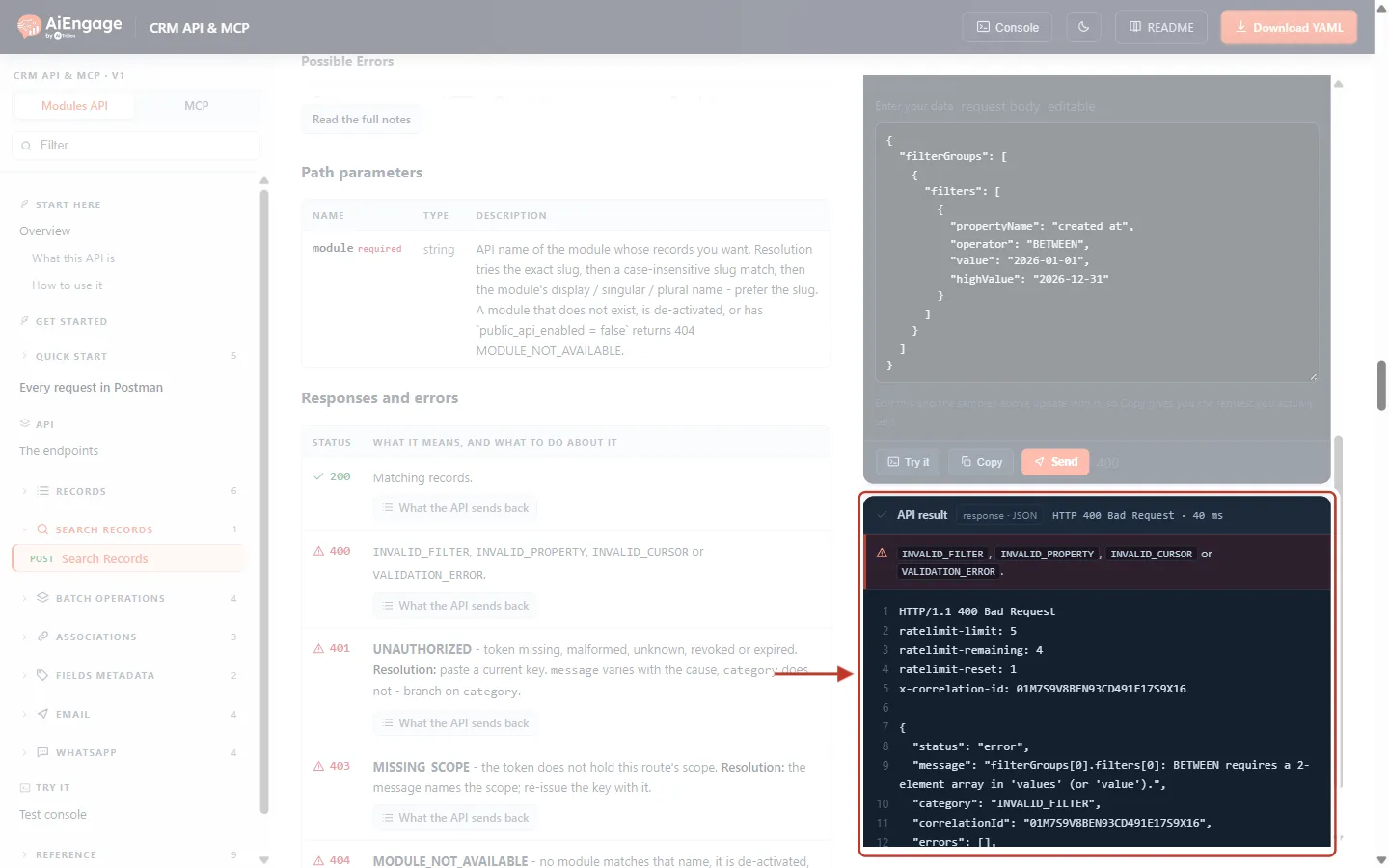
What this screenshot shows. The answer to that search.
HTTP 400 Bad Request.
The message points to the exact filter and the fix: “filterGroups[0].filters[0]: BETWEEN requires a 2-element array in ‘values’ (or ‘value’).” — group 0, filter 0 means the first filter of the first group.
The category is INVALID_FILTER. Fix:
"values": ["2026-01-01", "2026-12-31"].
Other messages you may see, checked on a live account:
You sent | Answer | Message | Fix |
|---|---|---|---|
An unknown operator, e.g. | 400 INVALID_FILTER | …uses unknown operator ‘LIKE’. | Use an operator from Step 3 (for “contains”, |
A misspelt field, e.g. | 400 INVALID_FILTER | …Property ‘emial’ does not exist on module ‘contacts’. | Use the field’s API name ( |
| 400 INVALID_FILTER | …‘values’ array required for IN/NOT_IN. | Send |
7 filters in one group | 400 INVALID_FILTER | Max 6 filters per group. | Split into fewer filters or use |
6 filter groups | 400 VALIDATION_ERROR | The filter groups field must not have more than 5 items. | Use at most 5 groups. |
4 sorts | 400 VALIDATION_ERROR | The sorts field must not have more than 3 items. | Use at most 3 sorts. |
| 400 VALIDATION_ERROR | The limit field must not be greater than 100. | Use 1–100 and page with |
A changed or made-up | 400 INVALID_CURSOR | Cursor payload is not valid JSON. | Copy |
More than 5 searches in a second | 429 RATE_LIMITED | — | Wait |
A key without Read on the module | 403 MISSING_SCOPE | Token is missing the required scope: crm.<module>.read. | Generate a key with Read (Step 1). |
⚠️
Unlike the list endpoint, which quietly lowers a too-large
limit to 100, search refuses a limit above 100 with a 400 error.The full error reference is in API Errors & Troubleshooting: Fix 400, 401, 403, 404, 409, 429 and 500 Errors Step by Step.
Ready-to-Use Search Examples#
Goal | Body |
|---|---|
Customers created this month |
|
Contacts without a phone number |
|
Everyone at one company domain |
|
Hot leads, highest score first |
|
Find a person by name |
|
Best Practices#
Ask only for the fields you need with
properties— results are smaller and faster.Keep within 5 searches per second per key. If you need many records, use one search with
limit100 and paging rather than many small searches.To check whether one known record exists (by id or a unique field), use Get Record with
id_propertyinstead of a search.Always loop on
paging.next.afteruntil it is missing; never assume one page holds everything.Use pick-list values, field API names and ISO dates (
2026-11-19).
Frequently Asked Questions#
Why is search a POST when it does not change anything?
Because the filter can be long and nested, it travels in the request body. Nothing is created or changed.
Do filters in one group mean AND or OR?
AND — all filters in a group must match. Separate groups are OR-ed.
Can I search archived records?
The search body has no option for archived records. To see archived records, use Get Records with archived=true (see Get, Create, Update and Archive Records with the CRM API: A Step-by-Step Guide).
Is the text search case-sensitive?
No. query, CONTAINS_TOKEN, STARTS_WITH and ENDS_WITH all ignore case.
How do I search on a custom field?
Exactly like any other field — use its API name, which you find in the field’s settings or in GET /properties/{module}.
Why do two keys give different results?
Each key sees only what its creator can see in the CRM (ownership, roles and sharing rules apply).
Previous and Next Articles#
Previous: Get, Create, Update and Archive Records with the CRM API: A Step-by-Step Guide
Next: API Errors & Troubleshooting: Fix 400, 401, 403, 404, 409, 429 and 500 Errors Step by Step
Related Articles#
Was this article helpful?
Ready to implement this?
OpenAI Engage and apply what you just learned to your own workspace.
Open AI Engage CRM