Loading…


KnowledgeBase
MCP Overview & Available Tools: What Claude and Other AI Assistants Can Read in Your CRM
MCP (Model Context Protocol) is an open standard that lets AI assistants such as Claude, Cursor or VS Code use outside tools. AiEngage CRM has its own MCP connector. Once you connect your assistant to it, you can ask questions about your CRM in plain English, for example “Which deals slipped this month?”, “What’s overdue for me today?” or “How did last week’s WhatsApp campaign perform?”, and the assistant looks up the answer in your CRM for you.
This article is the overview. It explains what the connector is, how it protects your data, where everything lives in the CRM, how to choose what an assistant may read, and every tool the connector offers, group by group, with example questions. Every screenshot is explained in detail so you can match it to your own screen.
What you will learn:
What the MCP connector is, and its four guarantees.
Where to find the MCP page in the CRM, and how to connect Claude, Claude Desktop, Claude Code, Cursor or VS Code.
What the authorization screen asks, and how to choose which tools and modules the assistant may use.
How to see, narrow or disconnect a connection.
All 49 tools in 16 groups, and the kind of question each one answers.
Requirements, connection lifetime, and quick troubleshooting.
ℹ️
The connector address is the same for every customer:
https://mcp-api.aiengagecrm.com/mcp. You don’t need an API key. Each person signs in with their own CRM login.What the MCP connector is, in four guarantees#
Before connecting anything to your CRM, it helps to know exactly what the connector can and cannot do. These four rules are built into it.
Guarantee | What it means for you |
|---|---|
Read-only | The connector can look things up. It can never create, update, delete or send anything. There is no “write” tool to call, and the connection only carries read permissions. |
Reads as you | The assistant sees exactly what you can see in the CRM, never more. Your profile, role hierarchy, sharing rules and field permissions all apply. Two colleagues asking the same question can get different answers. See Understanding the Role Hierarchy: How Roles Decide Whose Records Each User Can See and Sharing Rules: Share Records Across Teams, Roles & Users. |
Per person | Each person connects their own assistant with their own CRM login. There is no organization-wide connection and no shared key. |
Revocable instantly | You can narrow what a connection may read, or disconnect it, at any time. The change applies to the very next request. |
Step 1: Open the MCP page in the CRM#
Click the Settings gear at the bottom of the left rail. In the settings menu, scroll to AI Centre Hub and click MCP.
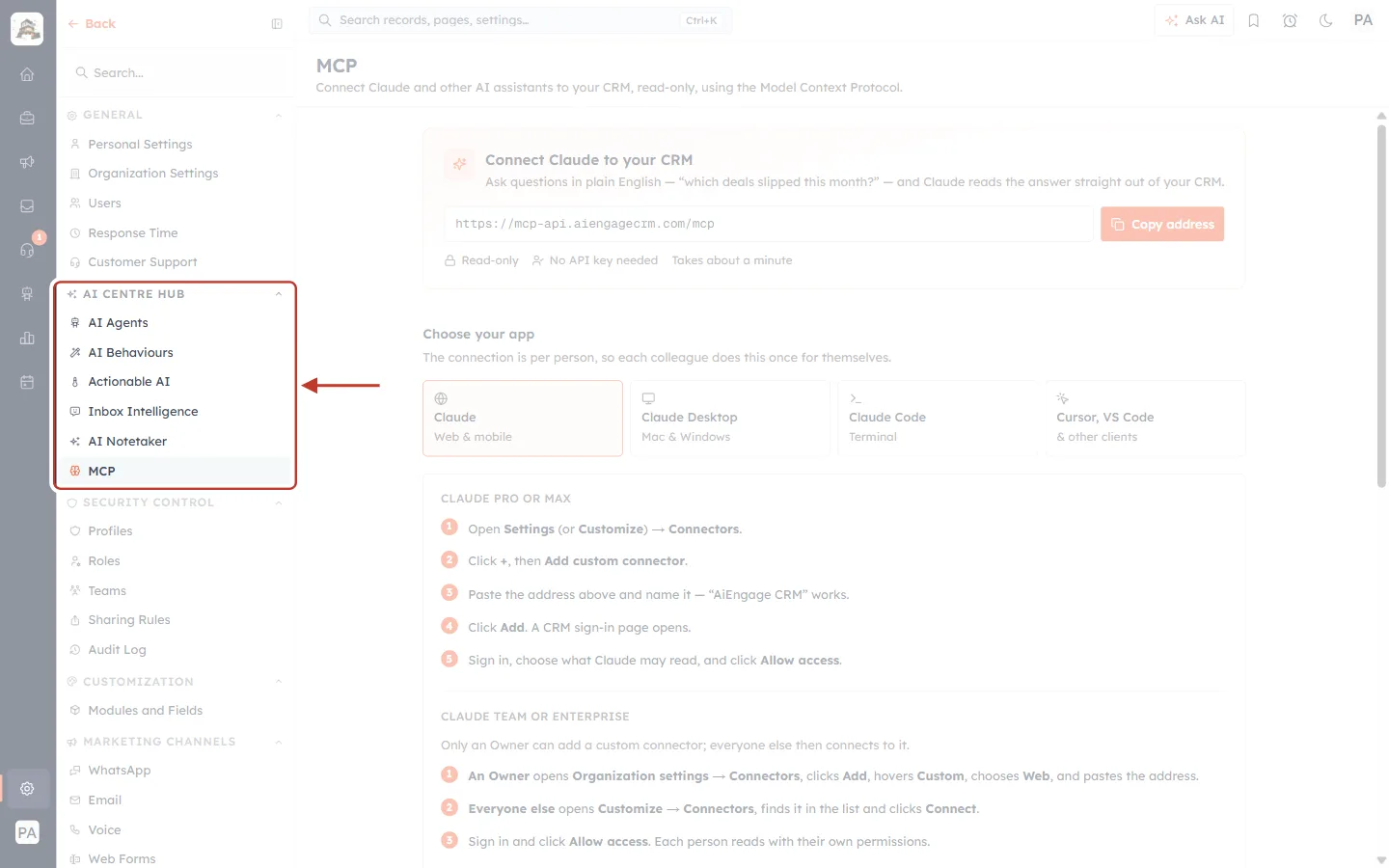
What this screenshot shows. The Settings menu. The red box marks the AI Centre Hub section, with MCP at the bottom (highlighted because it is the open page).
AI Centre Hub groups the CRM’s AI features: AI Agents, AI Behaviours, Actionable AI, Inbox Intelligence, AI Notetaker and MCP.
MCP opens the page shown on the right. Its title reads MCP, with the subtitle “Connect Claude and other AI assistants to your CRM, read-only, using the Model Context Protocol.”
Search… at the top of the menu finds any settings page by name. Type “MCP” to jump straight here.
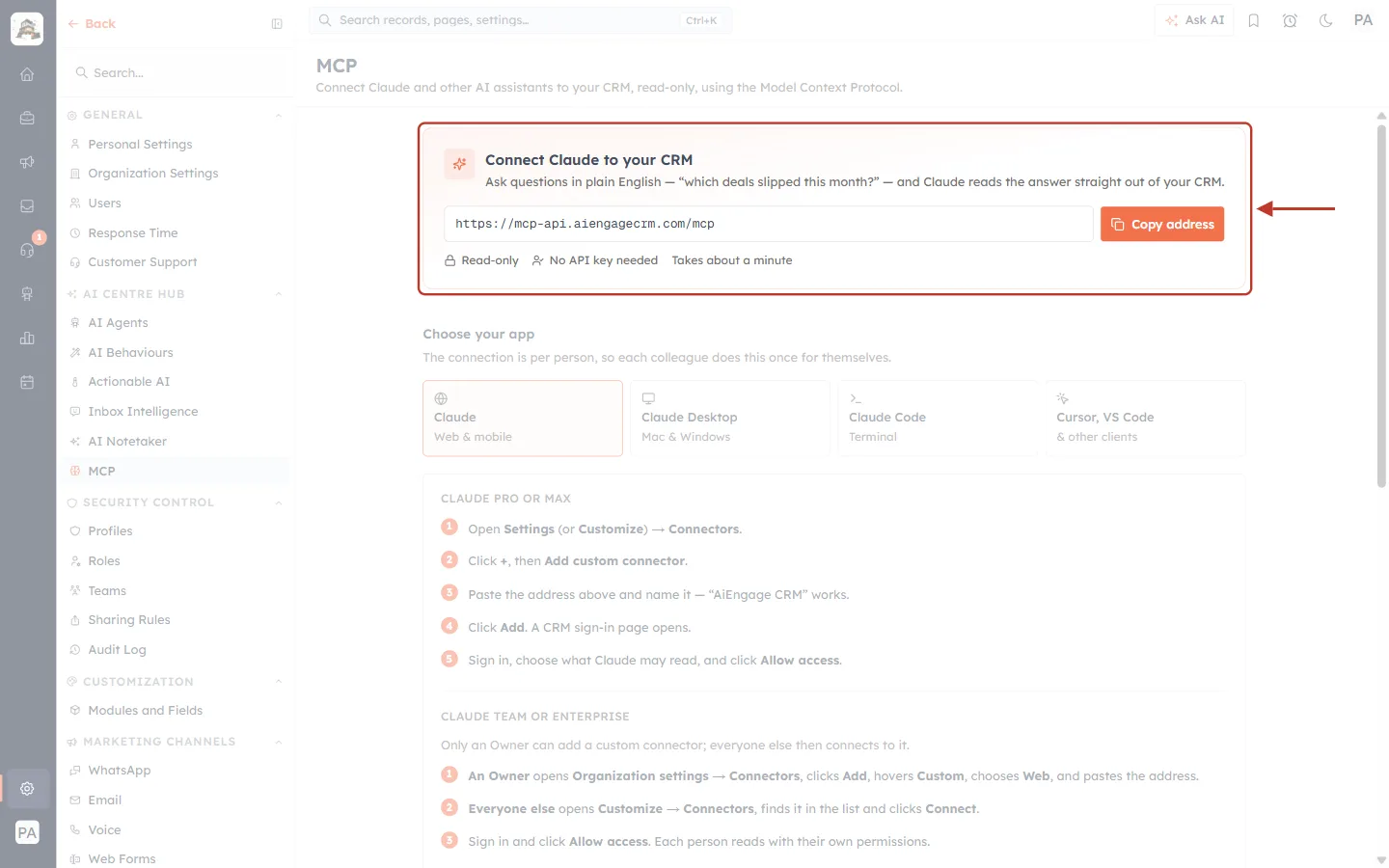
What this screenshot shows. The Connect Claude to your CRM card at the top of the MCP page, marked by the red box.
Heading and text: “Ask questions in plain English — ‘which deals slipped this month?’ — and Claude reads the answer straight out of your CRM.”
Address box:
https://mcp-api.aiengagecrm.com/mcp, the one address every MCP client uses.Copy address copies the address to your clipboard, ready to paste into your assistant.
Three badges: Read-only (nothing can be changed), No API key needed (you sign in instead) and Takes about a minute.
Step 2: Choose your app and follow its steps#
Below the address, Choose your app shows four tabs. Click the one you use; the steps underneath change to match. The connection is per person, so each colleague does this once for themselves. For the full click-by-click walkthrough inside Claude, see Connect Claude to AiEngage CRM (MCP): Ask Your CRM Questions in Plain English.
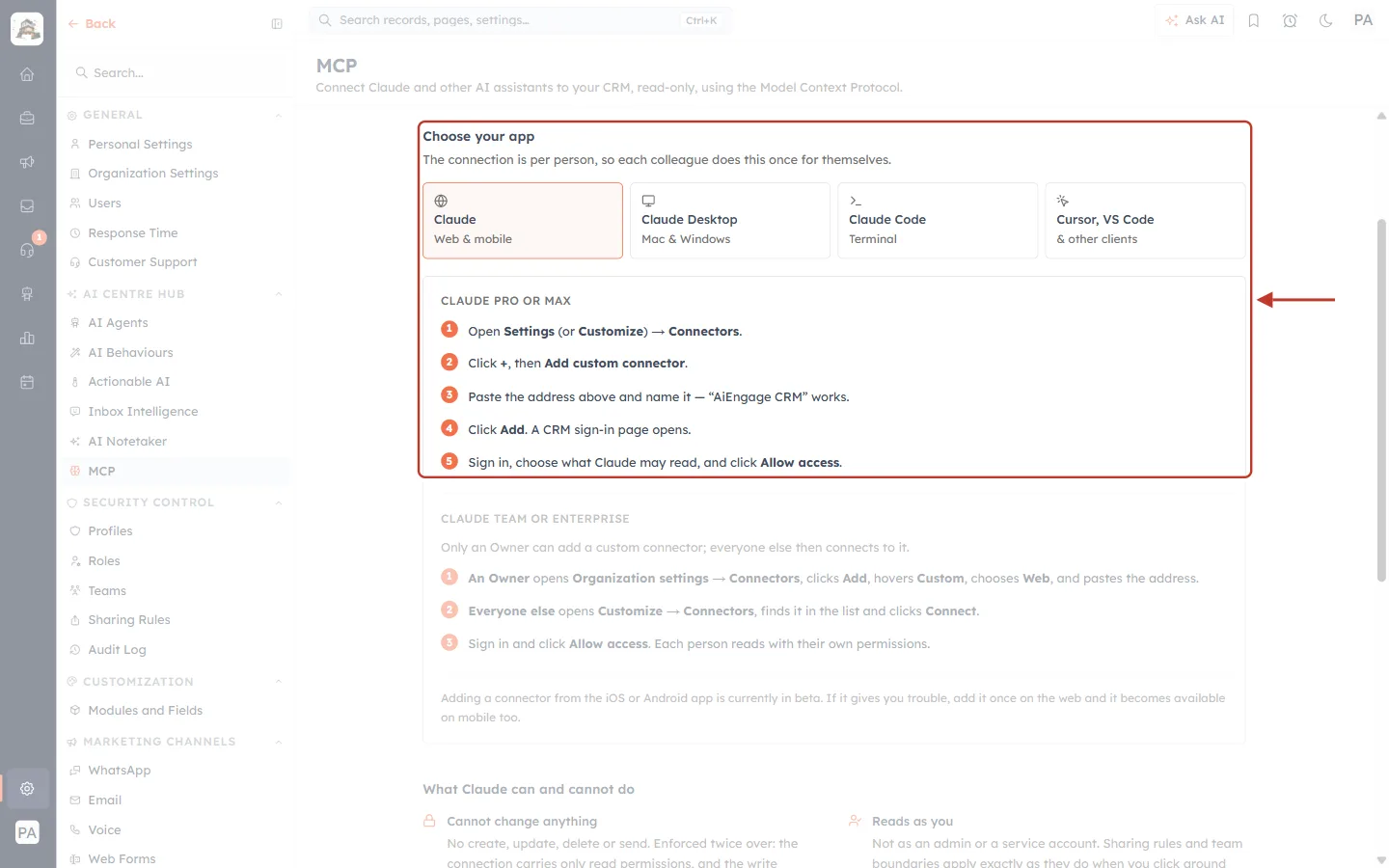
What this screenshot shows. The Claude (Web & mobile) tab, selected, with the steps for Claude Pro or Max plans. The red box covers the tabs and the five steps.
Four tabs: Claude (Web & mobile), Claude Desktop (Mac & Windows), Claude Code (Terminal), and Cursor, VS Code (& other clients). The selected tab has an orange outline.
Step 1: in Claude, open Settings (or Customize) → Connectors.
Step 2: click +, then Add custom connector.
Step 3: paste the address and give it a name. “AiEngage CRM” works well.
Step 4: click Add. A CRM sign-in page opens.
Step 5: sign in, choose what Claude may read (Step 3 of this article), and click Allow access.
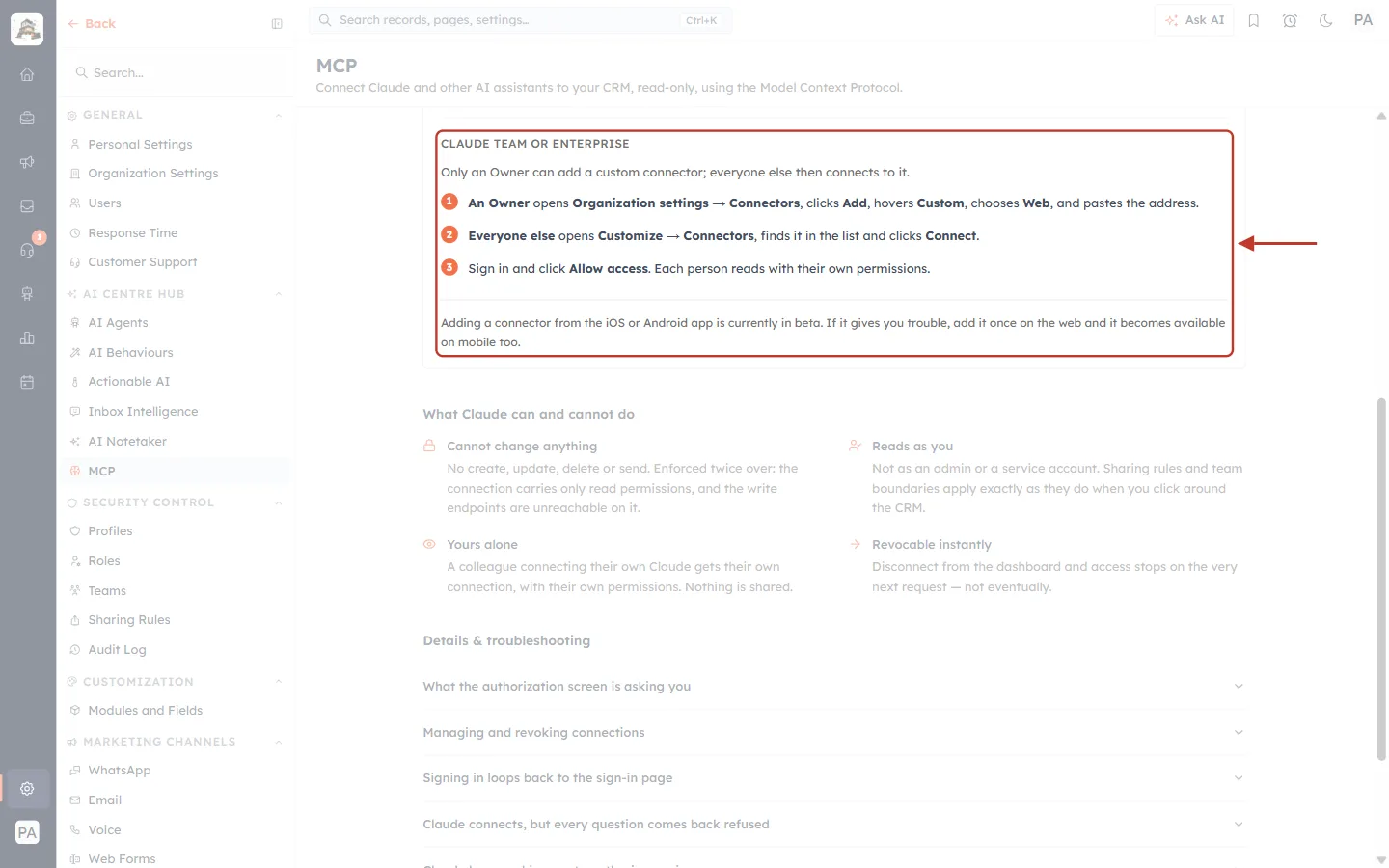
What this screenshot shows. Further down the same tab: the steps for Claude Team or Enterprise plans, and a note about the mobile apps.
“Only an Owner can add a custom connector; everyone else then connects to it.”
Step 1: an Owner opens Organization settings → Connectors, clicks Add, hovers Custom, chooses Web, and pastes the address.
Step 2: everyone else opens Customize → Connectors, finds it in the list and clicks Connect.
Step 3: sign in and click Allow access. Each person reads with their own permissions.
Mobile note: adding a connector from the iOS or Android app is in beta. If it gives you trouble, add it once on the web and it becomes available on mobile too.
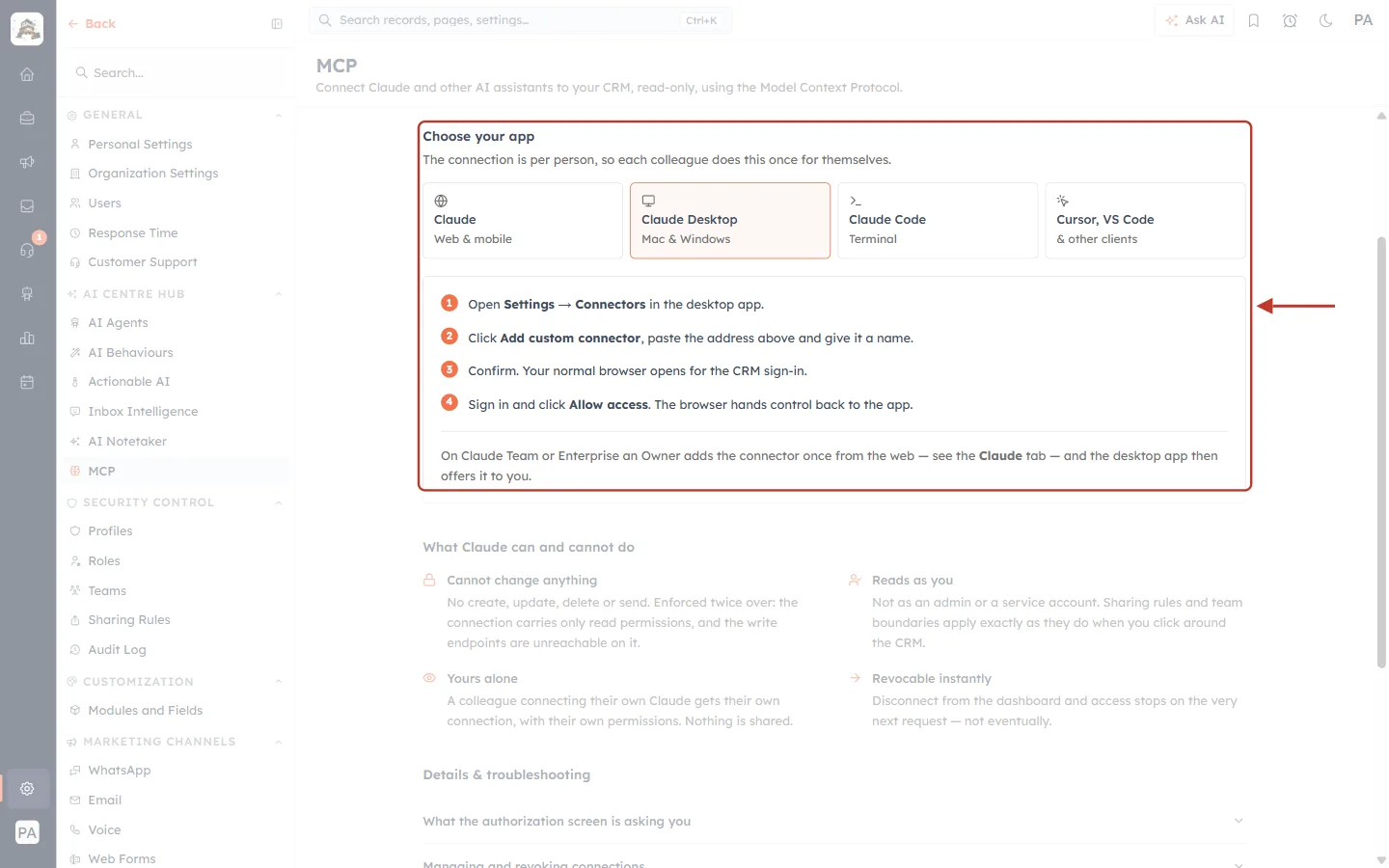
What this screenshot shows. The Claude Desktop (Mac & Windows) tab and its four steps.
Step 1: open Settings → Connectors in the desktop app.
Step 2: click Add custom connector, paste the address and give it a name.
Step 3: confirm. Your normal web browser opens for the CRM sign-in.
Step 4: sign in and click Allow access. The browser hands control back to the app.
Note: on Claude Team or Enterprise, an Owner adds the connector once from the web (see the Claude tab) and the desktop app then offers it to you.
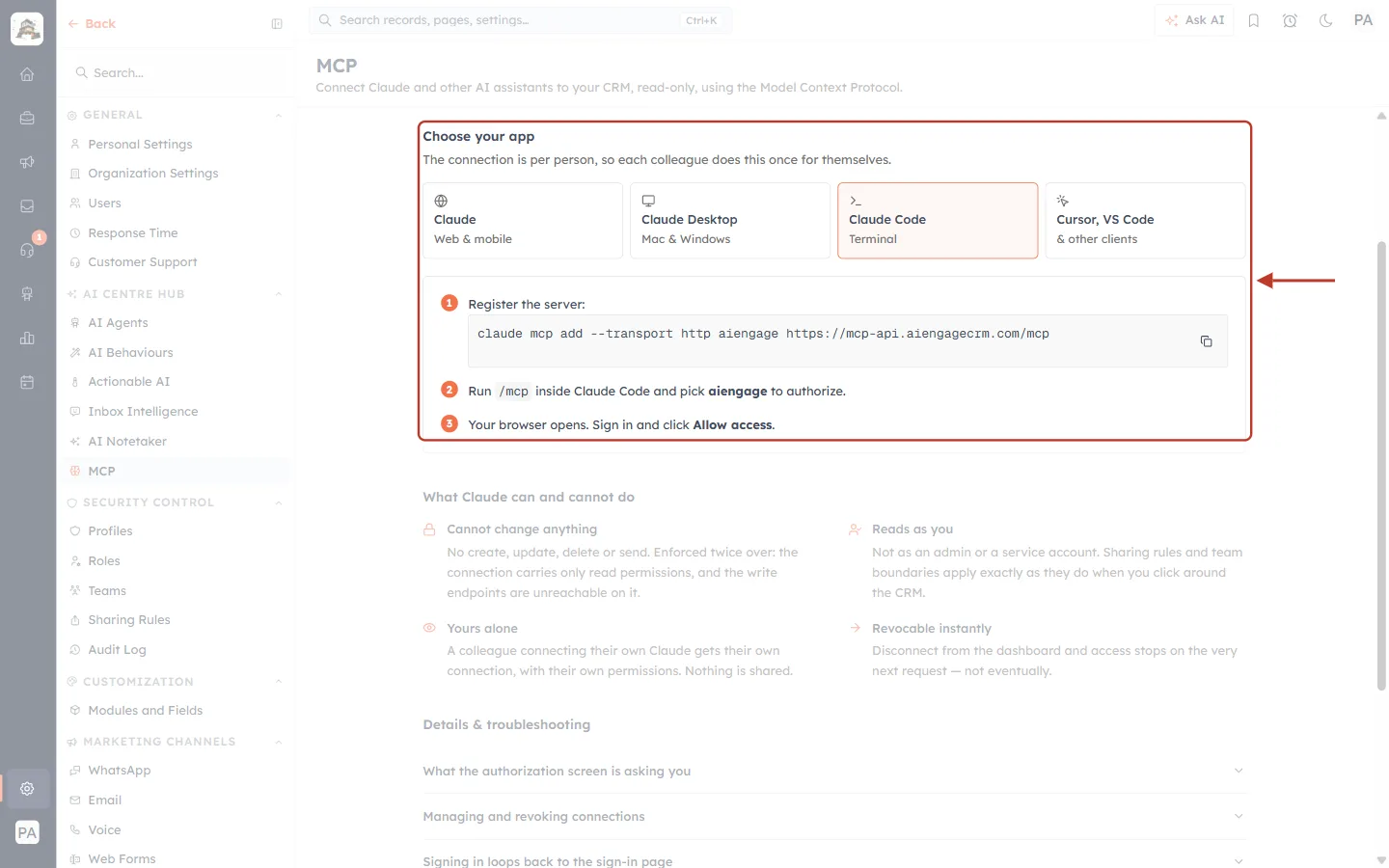
What this screenshot shows. The Claude Code (Terminal) tab. Claude Code is set up with a single command.
Step 1 — Register the server: run
claude mcp add --transport http aiengage https://mcp-api.aiengagecrm.com/mcpin your terminal. The copy icon on the right copies the command.Step 2: run
/mcpinside Claude Code and pick aiengage to authorize.Step 3: your browser opens. Sign in and click Allow access.
claude mcp add --transport http aiengage https://mcp-api.aiengagecrm.com/mcp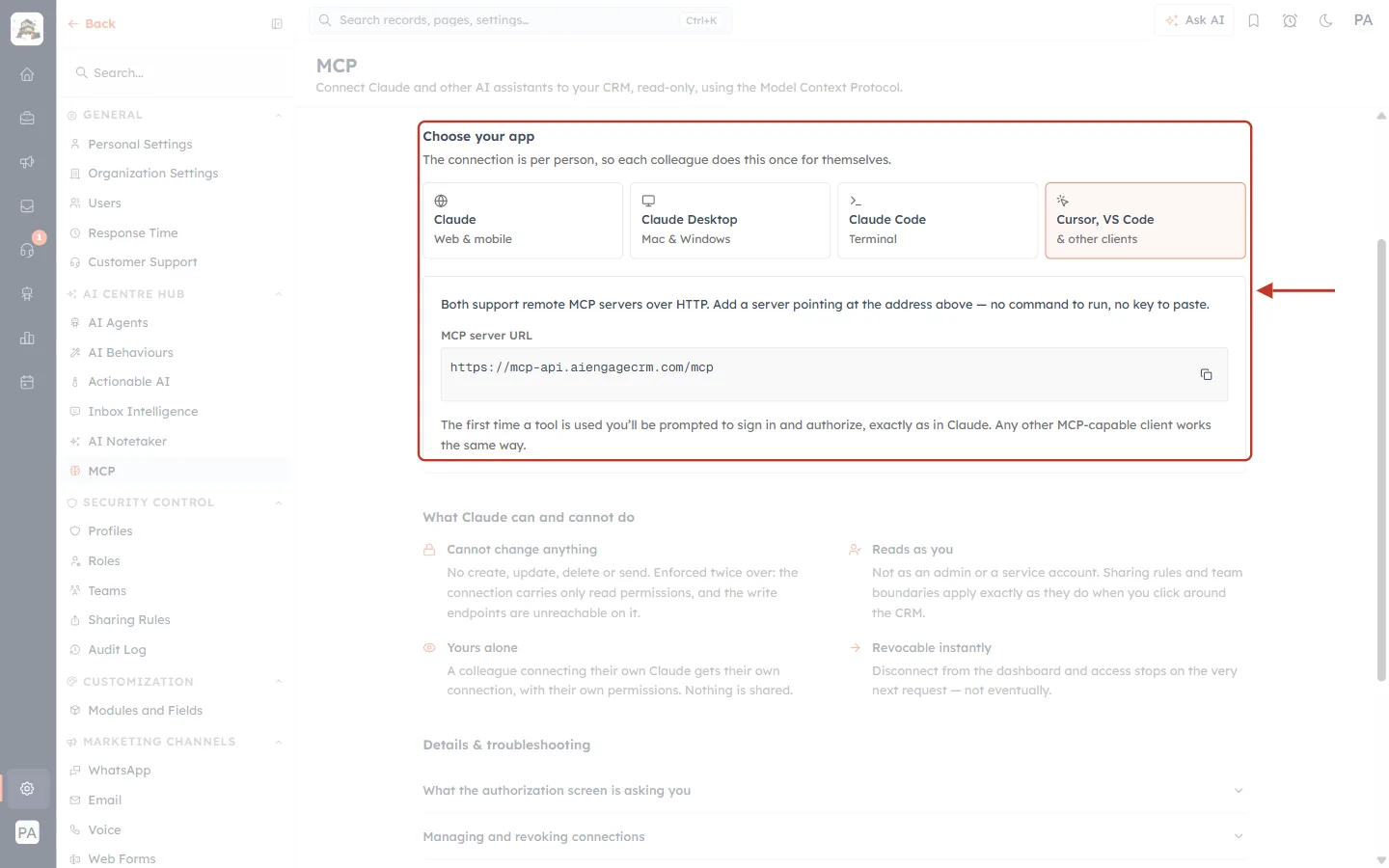
What this screenshot shows. The Cursor, VS Code (& other clients) tab.
“Both support remote MCP servers over HTTP. Add a server pointing at the address above — no command to run, no key to paste.”
MCP server URL:
https://mcp-api.aiengagecrm.com/mcp, with a copy icon.“The first time a tool is used you’ll be prompted to sign in and authorize, exactly as in Claude. Any other MCP-capable client works the same way.”
✅
In Claude’s Add custom connector form, leave the OAuth Client ID and Client Secret fields empty. The AiEngage connector doesn’t need them.
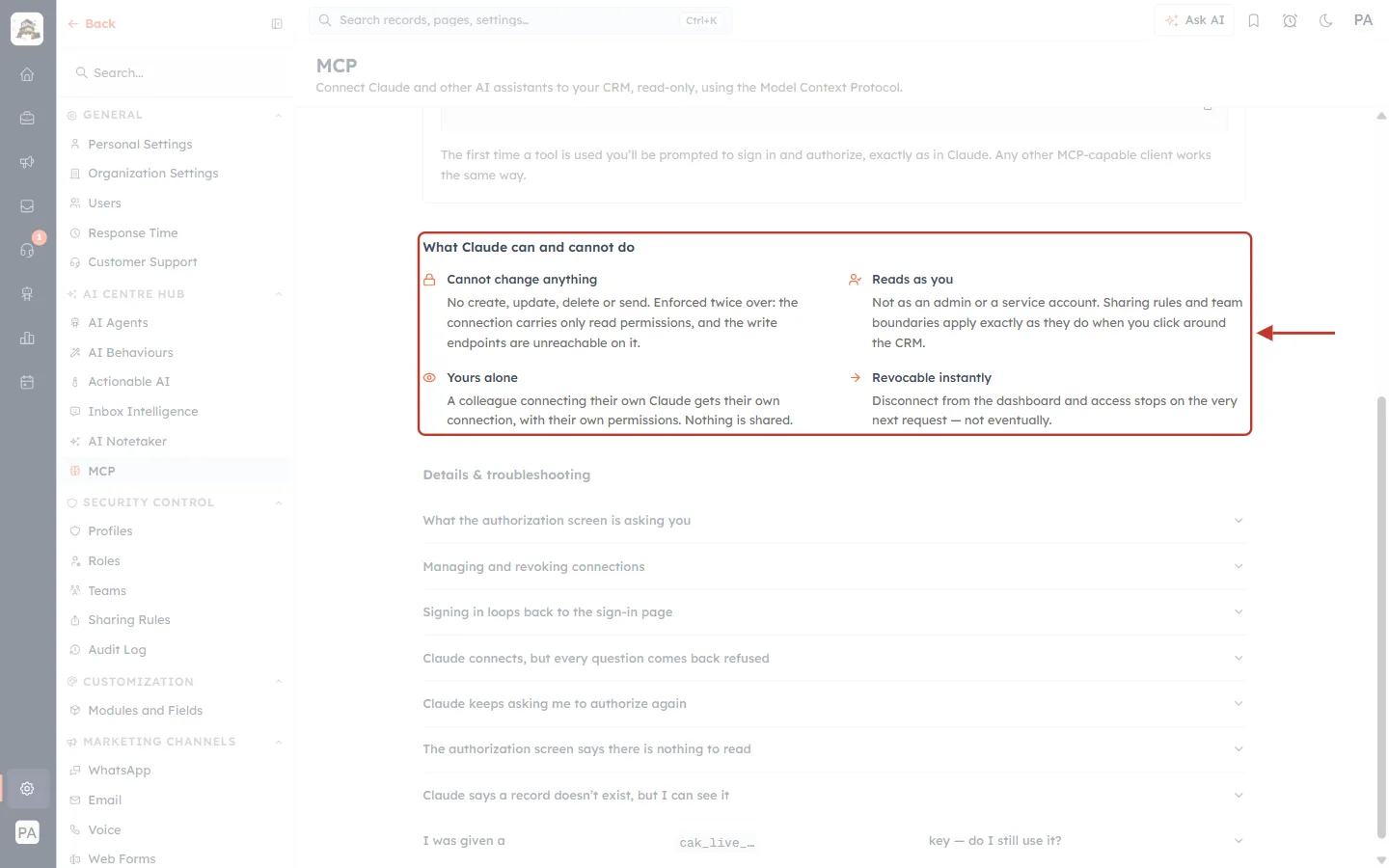
What this screenshot shows. The What Claude can and cannot do section of the MCP page, marked in red. It restates the four guarantees from the top of this article.
Cannot change anything: “No create, update, delete or send. Enforced twice over: the connection carries only read permissions, and the write endpoints are unreachable on it.”
Reads as you: “Not as an admin or a service account. Sharing rules and team boundaries apply exactly as they do when you click around the CRM.”
Yours alone: “A colleague connecting their own Claude gets their own connection, with their own permissions. Nothing is shared.”
Revocable instantly: “Disconnect from the dashboard and access stops on the very next request — not eventually.”
Step 3: Choose what the assistant may read on the authorization screen#
When you add the connector, your assistant sends you to a CRM sign-in page and then to the Authorize access to your CRM screen. This is where you decide exactly which tools, and which modules, the assistant may use.
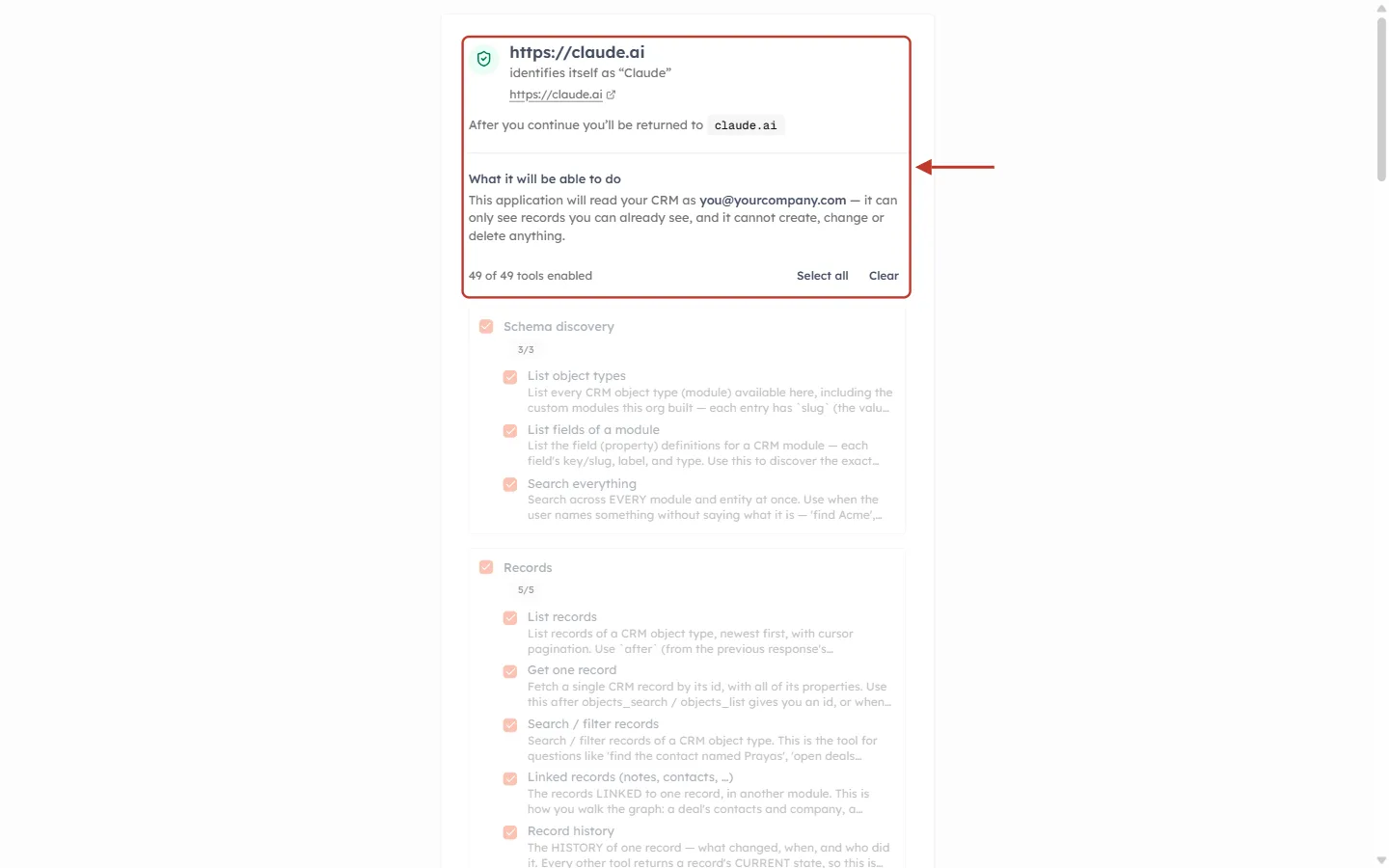
What this screenshot shows. The top of the authorization screen, marked in red.
Who is asking: the large text (https://claude.ai) is the web address the application runs on. This is the part nobody can fake. The line beneath (“identifies itself as ‘Claude’”) is the name the app gives itself, so treat it as a label rather than proof. An app nobody has vouched for gets a clear “not verified” warning.
After you continue you’ll be returned to claude.ai: where you go after clicking Allow access.
What it will be able to do: “This application will read your CRM as you@yourcompany.com — it can only see records you can already see, and it cannot create, change or delete anything.” Your own login email appears here.
49 of 49 tools enabled counts the ticked tools. Select all ticks every tool; Clear unticks them all.
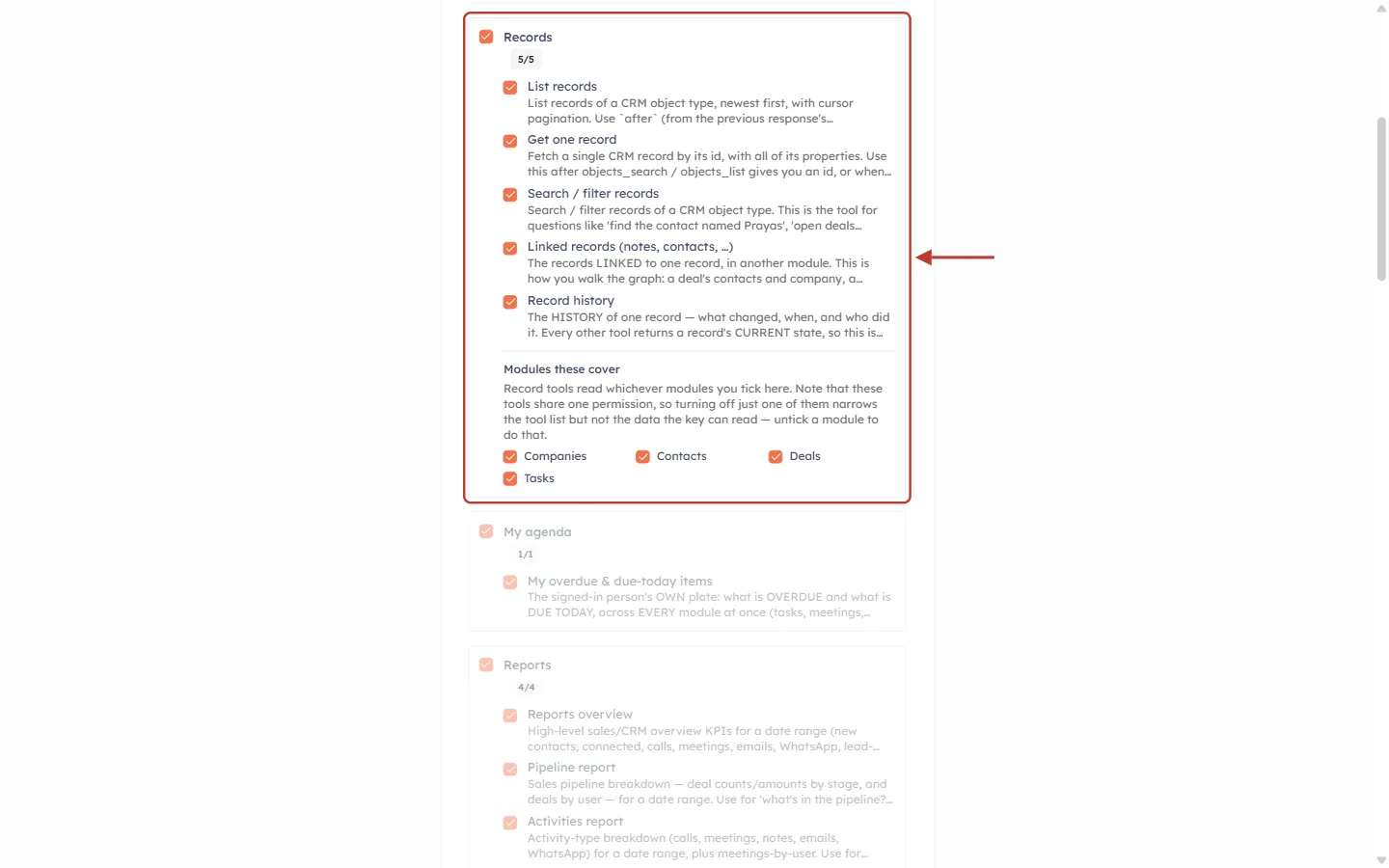
What this screenshot shows. One tool group, Records, marked in red. Every group on this screen works the same way.
Group checkbox and name (Records) with a counter (5/5) showing how many of the group’s tools are ticked. Untick the group to remove all of its tools.
Each tool has its own checkbox, a name (for example List records, Get one record, Search / filter records, Linked records (notes, contacts, …), Record history) and a short description of what it reads.
Unticked means cannot, not “won’t”. A tool you leave unticked is never granted to the connection, so the assistant cannot read that area at all.
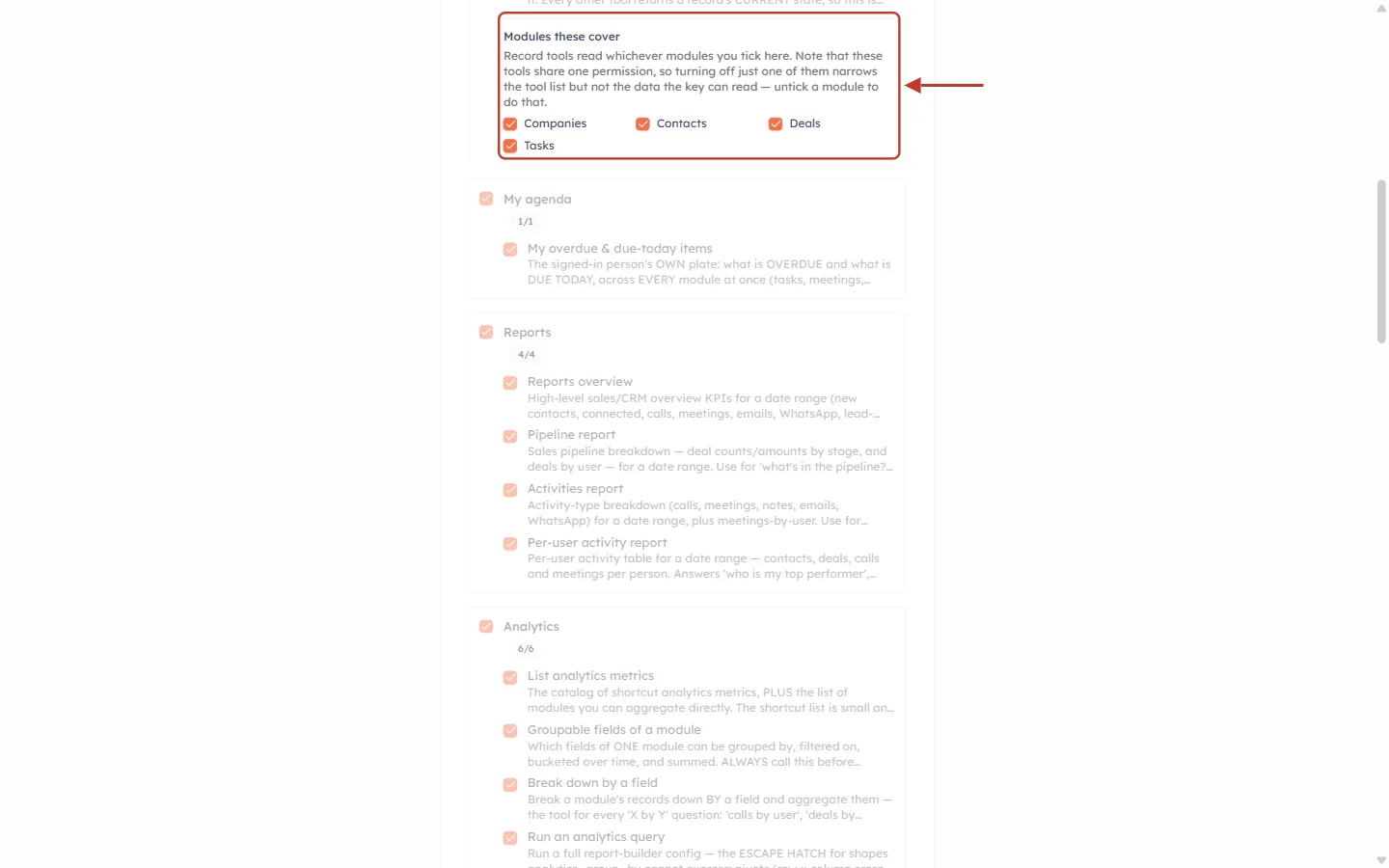
What this screenshot shows. The Modules these cover box at the bottom of the Records group, marked in red.
“Record tools read whichever modules you tick here.” The record tools (list, get, search, linked records, history) only work on the modules ticked in this box.
Module checkboxes: the modules you can read, here Companies, Contacts, Deals and Tasks. Your own list depends on your modules and your permissions.
Important: the record tools share one permission, so unticking a single record tool only shortens the tool list. To stop the assistant reading a module’s data, untick the module here.
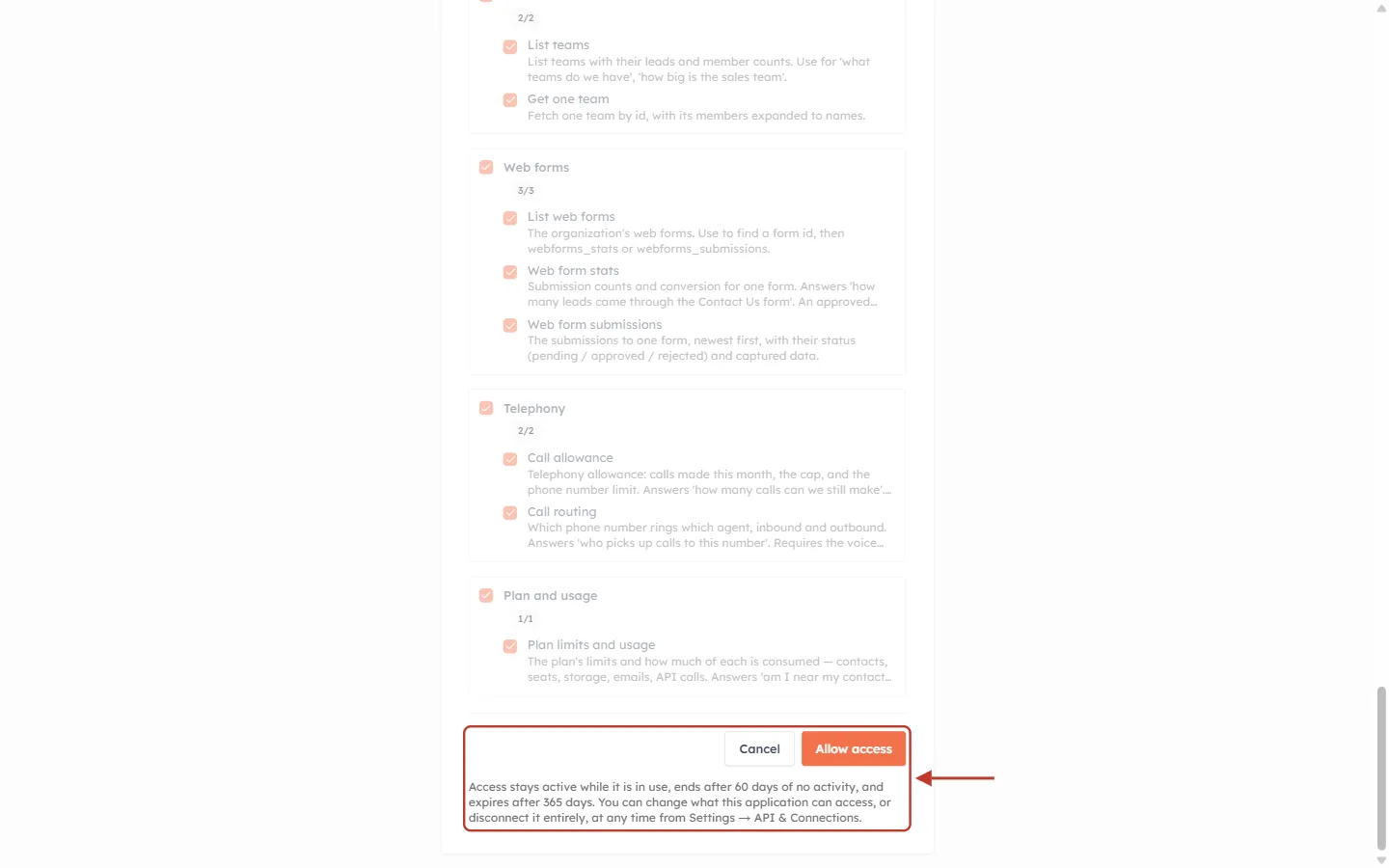
What this screenshot shows. The bottom of the authorization screen, marked in red.
Cancel stops without connecting anything.
Allow access creates the connection with the tools and modules you ticked, and returns you to your assistant.
Lifetime note: “Access stays active while it is in use, ends after 60 days of no activity, and expires after 365 days. You can change what this application can access, or disconnect it entirely, at any time from Settings → API & Connections.”
✅
Start narrow. Tick only the groups you will actually ask about, for example Records, My agenda and Reports. You can widen access later from the Connections tab without reconnecting.
Step 4: Review, narrow or disconnect a connection#
Every connection is listed under Settings → Developer Hub → API Keys, on the Connections tab of the API & Connections page. The MCP page links there too: open Details & troubleshooting → Managing and revoking connections and click View connected applications.
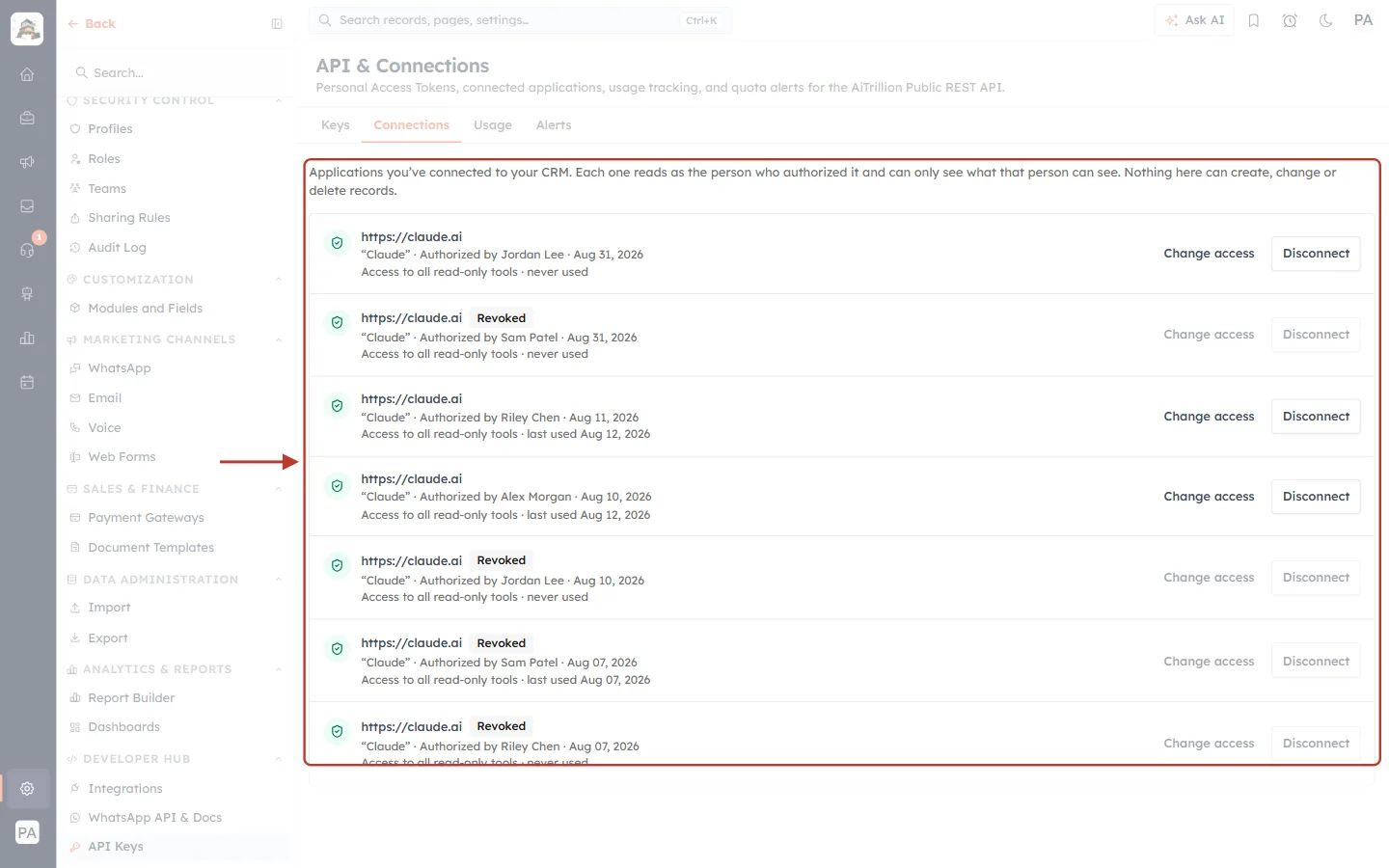
What this screenshot shows. The Connections tab of API & Connections, with the list of connected applications marked in red. (Names are examples.)
Intro text: “Applications you’ve connected to your CRM. Each one reads as the person who authorized it and can only see what that person can see. Nothing here can create, change or delete records.”
Each row shows the app’s web address (https://claude.ai), the name it gives itself (“Claude”), who authorized it and when (for example “Authorized by Jordan Lee · Aug 31, 2026”), and what it may read and when it was last used (“Access to all read-only tools · last used Aug 12, 2026”).
Change access reopens the tool and module choices for that connection. The change applies on its very next request, without reconnecting.
Disconnect ends the connection immediately. The assistant would have to be authorized again to read anything.
Revoked rows are connections that were disconnected or expired. Their buttons are greyed out.
Viewing this tab needs the API access permission. With the manage organization permission you also see everyone else’s connections, which is useful when someone leaves.
All available MCP tools#
The connector currently offers 49 read-only tools in 16 groups. The authorization screen always shows the up-to-date list, because new tools are added from time to time. Every tool only reads, and each one only returns what your own CRM permissions allow.
You never call these tools by name. You ask your question in plain English, and the assistant picks the right tools itself, often several in a row (for example: find the deal, then its contacts, then their recent notes). The developer portal lists the same catalogue under MCP → What the connector can read.
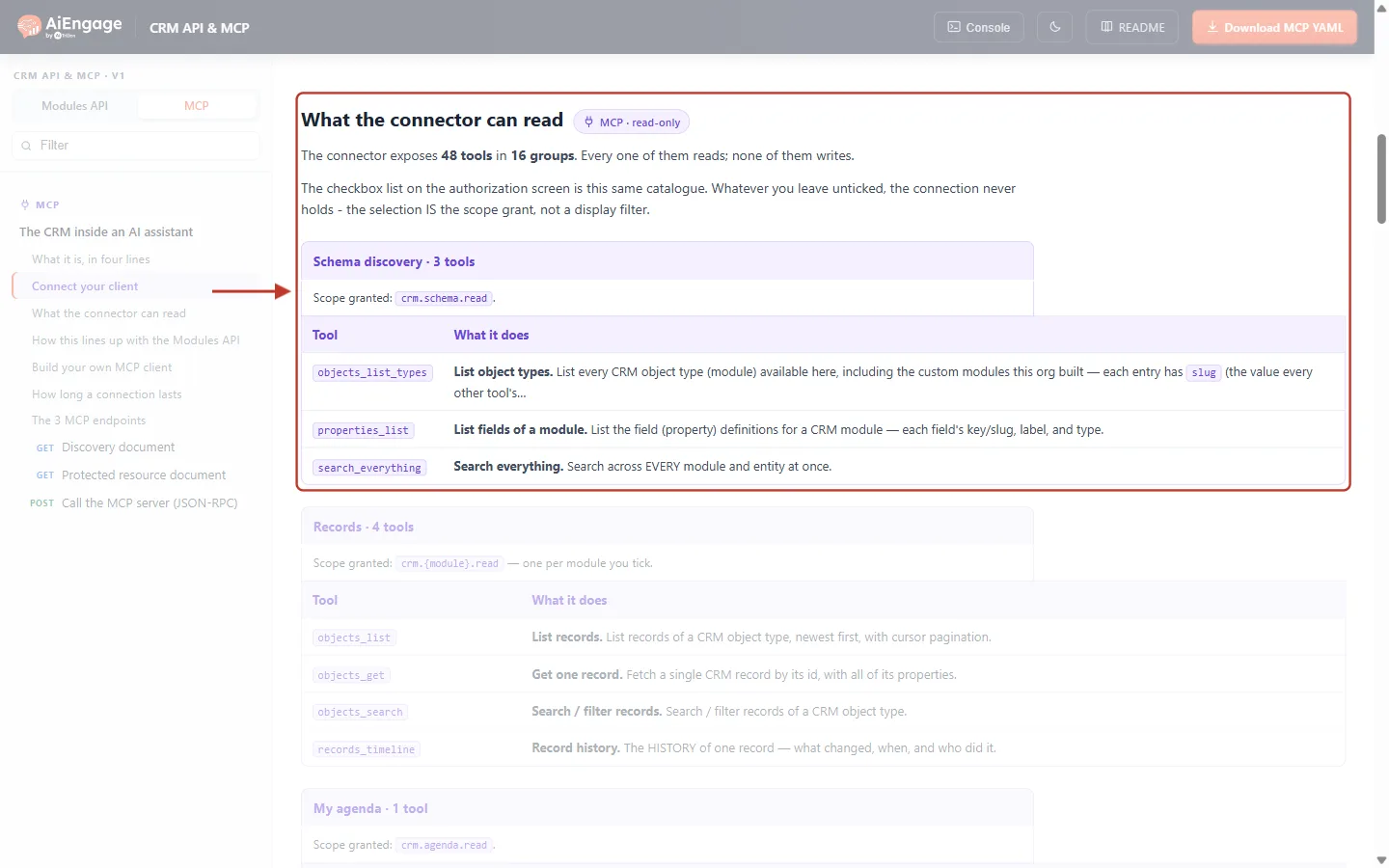
What this screenshot shows. The developer portal at developer.aiengagecrm.com, MCP tab, section What the connector can read, marked in red.
Intro: every tool reads; none of them writes. “The checkbox list on the authorization screen is this same catalogue. Whatever you leave unticked, the connection never holds.”
Group header (for example “Schema discovery · 3 tools”) and the Scope granted by that group (here crm.schema.read), the same permission names the CRM API uses.
Tool / What it does table: the tool’s technical name (for example objects_list_types) and a one-line description.
Left sidebar: the MCP sections, including Connect your client, How long a connection lasts and The 3 MCP endpoints for developers building their own MCP client.
The portal page may show a slightly lower total than the authorization screen when a newly added tool has not reached the reference yet.
Schema discovery (3 tools)#
Helps the assistant learn how your CRM is built, including your custom modules and fields. Permission: crm.schema.read.
Tool | What it reads | Ask things like |
|---|---|---|
List object types | Every module in your CRM, including custom modules, with their exact names. | “What modules do we have?” |
List fields of a module | The fields of one module: name, label and type. | “What fields does a Deal have?” |
Search everything | Searches every module at once when you don’t say what something is. | “Find Acme.” · “What do we have on john@example.com?” |
Records (5 tools)#
Reads individual records in the modules you ticked under Modules these cover. Permission: crm.{module}.read.
Tool | What it reads | Ask things like |
|---|---|---|
List records | Records of a module, newest first, page by page. | “Show the latest 20 leads.” |
Get one record | One record with all of its fields, by ID or by a unique field such as email. | “Open the contact ada@example.com.” |
Search / filter records | Records matching a name or filters such as owner, stage or created date. | “Open deals owned by Sam.” · “Contacts created this month.” |
Linked records (notes, contacts, …) | The records linked to one record: a deal’s contacts and company, a contact’s deals, a record’s notes, calls, meetings and tasks. | “Who is on the Acme deal?” · “Show the notes on this deal.” |
Record history | What changed on a record, when, and who did it. | “Who moved this deal to Won, and when?” |
My agenda (1 tool)#
Your own to-do list across the whole CRM. Permission: crm.agenda.read.
Tool | What it reads | Ask things like |
|---|---|---|
My overdue & due-today items | Everything overdue or due today for you: tasks, meetings, calls, deals and more. | “What’s overdue for me?” · “What’s on today?” |
Reports (4 tools)#
Ready-made sales and activity reports for a date range. Permission: crm.reports.read.
Tool | What it reads | Ask things like |
|---|---|---|
Reports overview | Headline KPIs: new contacts, calls, meetings, emails, WhatsApp, lead status and more. | “How did we do this month?” |
Pipeline report | Deal counts and amounts by stage, and deals by user. | “What’s in the pipeline?” |
Activities report | Calls, meetings, notes, emails and WhatsApp by type, plus meetings by user. | “Team activity this month.” |
Per-user activity report | Contacts, deals, calls and meetings per person. | “Who is my top performer?” |
Analytics (6 tools)#
Flexible breakdowns, the same engine as the Report Builder, plus your saved reports. Permission: crm.analytics.read.
Tool | What it reads | Ask things like |
|---|---|---|
List analytics metrics | Shortcut metrics and the modules you can analyse. | “What can you measure?” |
Groupable fields of a module | Which fields can be grouped, filtered or summed. | (Used by the assistant before a breakdown.) |
Break down by a field | Any “X by Y” count or total. | “Calls by user.” · “Deals by stage.” · “Contacts by source.” |
Run an analytics query | Advanced shapes such as pivots and funnels. | “Deals by stage and owner as a table.” |
List saved reports | The reports your organization has already built. | “What reports do we have?” |
Run a saved report | The current numbers of one saved report. | “Run the Monthly Revenue report.” |
Dashboards (6 tools)#
Your dashboards, productivity widgets, meetings and notifications. Permission: crm.dashboards.read.
Tool | What it reads | Ask things like |
|---|---|---|
Productivity dashboard | Open tasks, tasks due today, today’s meetings and pinned notes. | “What’s on my plate today?” |
List dashboards | The organization’s saved dashboards. | “What dashboards do we have?” |
Get one dashboard | One dashboard and its tiles, with current numbers. | “Summarise the Sales dashboard.” |
Productivity widget | One widget: my tasks, due today, events, calendar, kanban or sticky notes. | “What’s due today?” |
My meetings | Your meetings for a date (today by default). | “Am I free tomorrow afternoon?” |
My notifications | Your in-app notifications and unread count, including limit warnings. | “Anything I missed?” |
Advertising (3 tools)#
Paid ad performance across connected platforms (Meta, Google Ads, Custom Advertising). Permission: crm.ads.read.
Tool | What it reads | Ask things like |
|---|---|---|
Advertising report | Total spend, impressions, clicks, leads and more across platforms. | “How much did we spend on ads last month?” |
Advertising grid | The same metrics as ranked rows by campaign, ad set or ad. | “Which campaigns spent the most?” |
Advertising filter options | Valid platforms, ad accounts, campaigns, ad sets and ads to filter by. | (Used by the assistant to narrow a report.) |
Campaigns (3 tools)#
Your marketing campaigns and how they performed. Permission: crm.campaigns.read.
Tool | What it reads | Ask things like |
|---|---|---|
List campaigns | Campaigns, filterable by name, status and channel. | “List our WhatsApp campaigns.” |
Get one campaign | One campaign’s details. | “Show the Diwali Sale campaign.” |
Campaign analytics | Sends, delivered, opens, clicks, conversions and rates. | “How did campaign X perform?” |
Segments (3 tools)#
Your dynamic audience segments. Permission: crm.segments.read.
Tool | What it reads | Ask things like |
|---|---|---|
List segments | Segments, filterable by name, module and type. | “What segments do we have?” |
Get one segment | One segment and its definition. | “What rules make up the VIP segment?” |
Segment KPIs | Total members, added and removed today, last processed. | “How big is the VIP segment?” |
Contact lists (2 tools)#
Your static contact lists. Permission: crm.lists.read.
Tool | What it reads | Ask things like |
|---|---|---|
List contact lists | Your static lists. | “What contact lists do we have?” |
Get one contact list | One list’s details. | “Show the Webinar Attendees list.” |
Workflows (3 tools)#
Your automation workflows and how they are performing. Permission: crm.workflows.read.
Tool | What it reads | Ask things like |
|---|---|---|
List workflows | Workflows, filterable by name, status, module and trigger. | “Which workflows are active?” |
Get one workflow | One workflow and its steps. | “What does the New Lead workflow do?” |
Workflow report | Sent, delivered, read, clicked and failed counts and rates. | “How is the follow-up workflow performing?” |
People (2 tools)#
The users in your CRM. Permission: crm.users.read.
Tool | What it reads | Ask things like |
|---|---|---|
List people | Users with names, IDs, active state and teams. | “Who is on our CRM?” |
Get one person | One user, for example to turn an owner ID into a name. | (Used by the assistant to name record owners.) |
Teams (2 tools)#
Your teams. Permission: crm.teams.read.
Tool | What it reads | Ask things like |
|---|---|---|
List teams | Teams with their leads and member counts. | “How big is the sales team?” |
Get one team | One team with its members by name. | “Who is in the Support team?” |
Web forms (3 tools)#
Your web forms and what they captured. Permission: crm.webforms.read.
Tool | What it reads | Ask things like |
|---|---|---|
List web forms | Your organization’s forms. | “What forms do we have?” |
Web form stats | Submission counts and conversion for one form. | “How many leads came through the Contact Us form?” |
Web form submissions | One form’s submissions, newest first, with status (pending / approved / rejected). | “Show this week’s pending submissions.” |
Telephony (2 tools)#
Your calling allowance and number routing. Permission: crm.voice.read.
Tool | What it reads | Ask things like |
|---|---|---|
Call allowance | Calls made this month, the cap, and the phone number limit. | “How many calls can we still make?” |
Call routing | Which number rings which agent, inbound and outbound. Needs the voice configuration permission. | “Who picks up calls to this number?” |
Plan and usage (1 tool)#
Your plan limits and consumption. Permission: crm.billing.read.
Tool | What it reads | Ask things like |
|---|---|---|
Plan limits and usage | Limits and usage for contacts, seats, storage, emails and API calls. | “Am I near my contact limit?” · “How many seats are left?” |
ℹ️
Even with every tool ticked, a tool only returns what you are allowed to see. If your profile can’t open Deals, the assistant can’t read Deals either, whatever you ticked.
Requirements and how long a connection lasts#
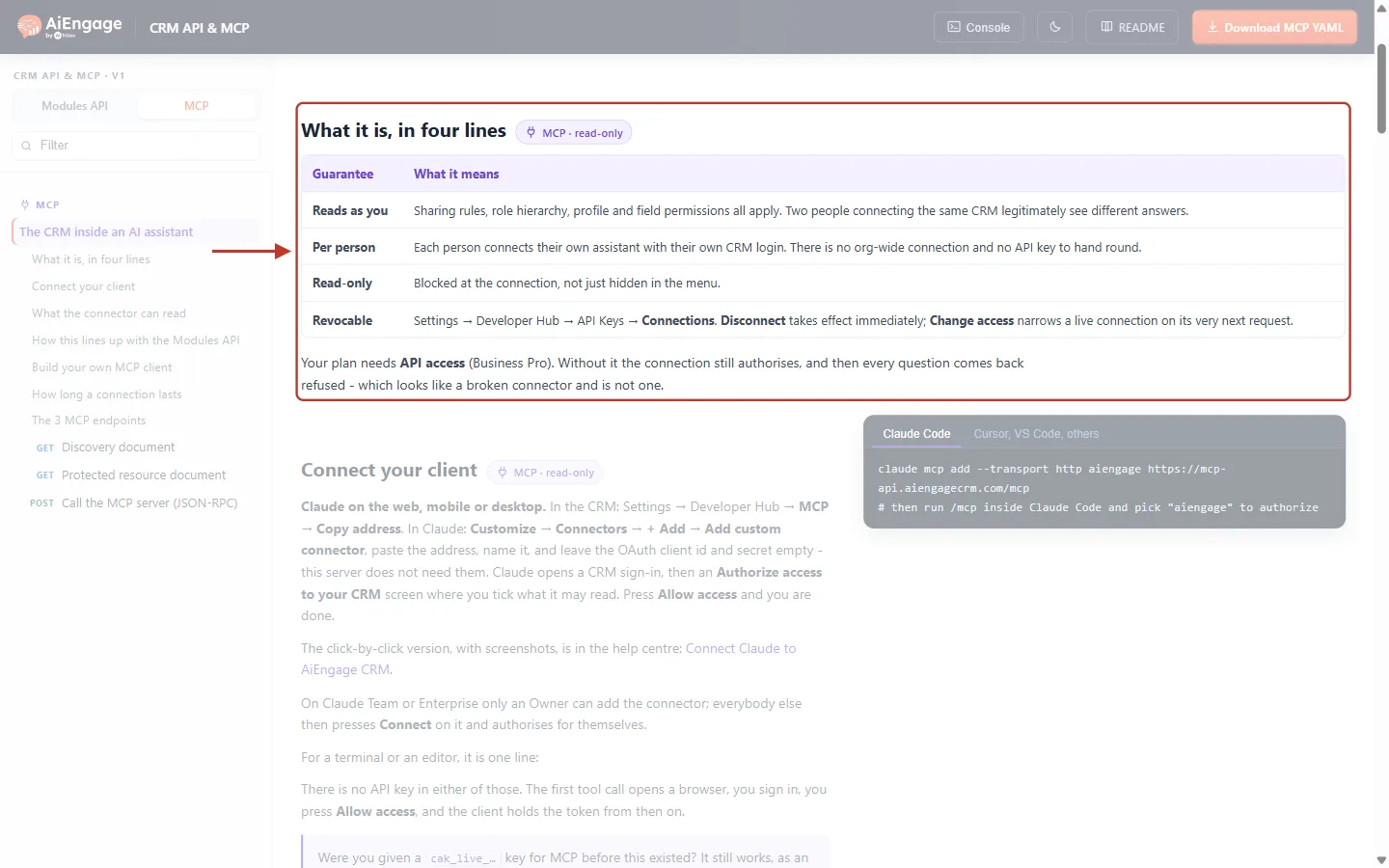
What this screenshot shows. The developer portal’s MCP tab, section What it is, in four lines, marked in red.
Guarantee / What it means table: Reads as you, Per person, Read-only and Revocable, the same four rules described above.
Revocable names the exact path: Settings → Developer Hub → API Keys → Connections, where Disconnect takes effect immediately and Change access narrows a live connection on its very next request.
Plan note: “Your plan needs API access (Business Pro). Without it the connection still authorises, and then every question comes back refused — which looks like a broken connector and is not one.”
Item | Detail |
|---|---|
Plan | API access must be included in your plan (Business Pro). |
Login | Your own CRM login. Each person connects separately. |
API key | Not needed. You sign in and click Allow access. |
Assistant | Claude (web, mobile, desktop), Claude Code, Cursor, VS Code, or any MCP client that supports remote servers over HTTP. |
Claude plan | Claude Pro or Max: add the connector yourself. Claude Team or Enterprise: an Owner adds it once, then everyone connects. |
Lifetime | Stays active while in use; ends after 60 days with no activity; expires after 365 days. Then simply authorize again. |
Troubleshooting#
The MCP page has a Details & troubleshooting section with answers to the most common problems.
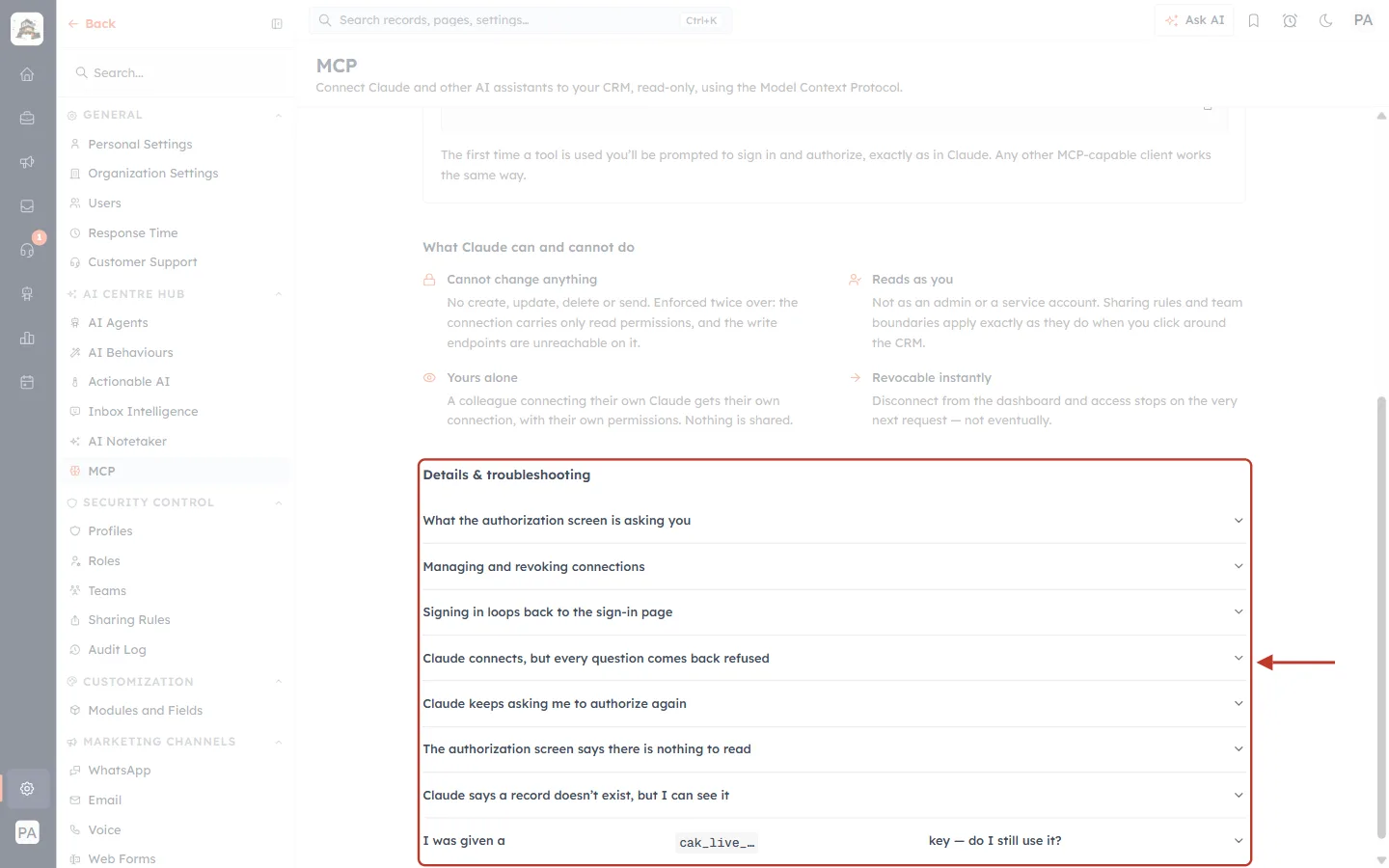
What this screenshot shows. The Details & troubleshooting list at the bottom of the MCP page, marked in red. Click any question to open its answer.
What the authorization screen is asking you
Managing and revoking connections
Signing in loops back to the sign-in page
Claude connects, but every question comes back refused
Claude keeps asking me to authorize again
The authorization screen says there is nothing to read
Claude says a record doesn’t exist, but I can see it
I was given a cak_live_… key — do I still use it?
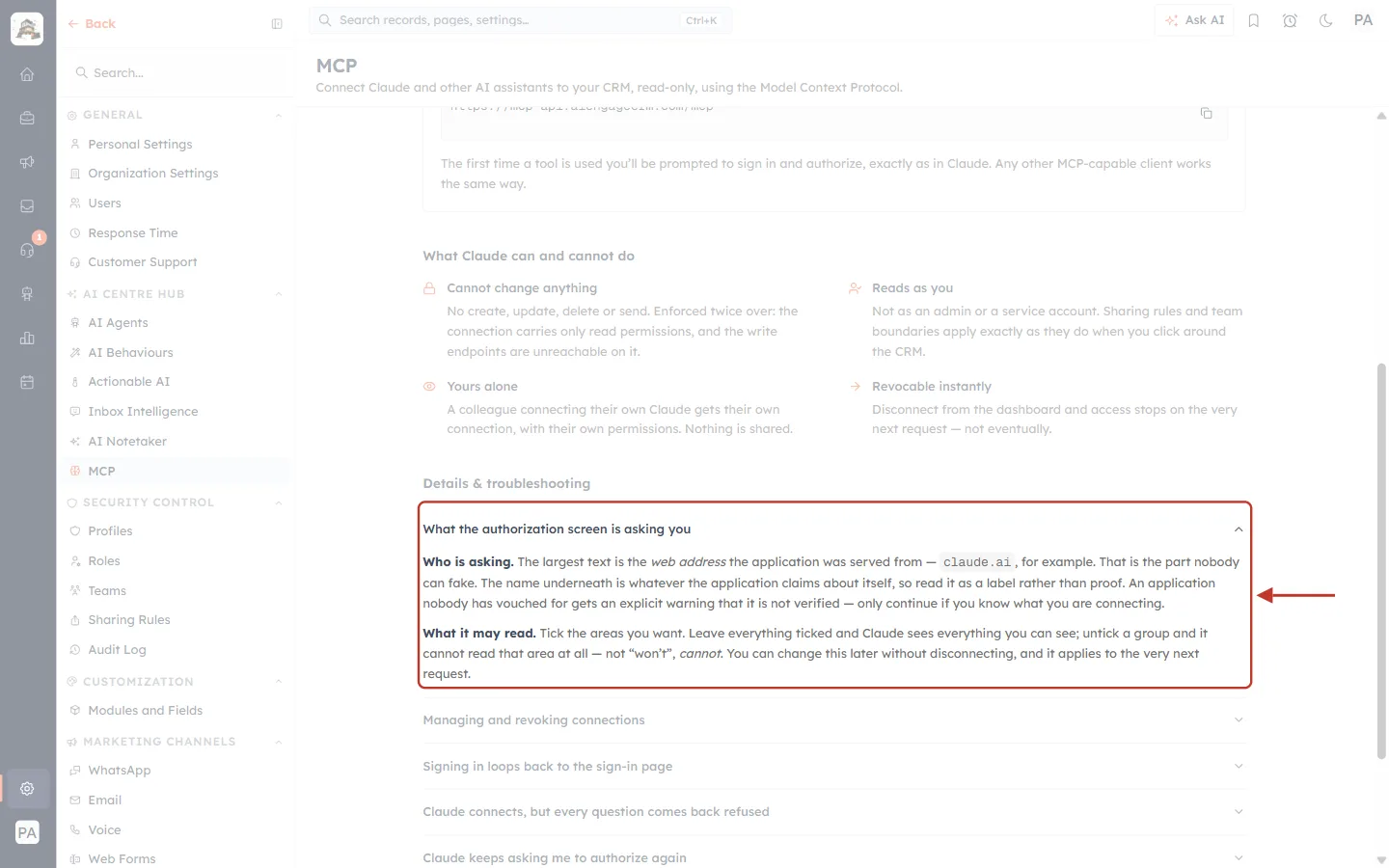
What this screenshot shows. The first question opened, marked in red: What the authorization screen is asking you.
Who is asking: the web address in large text is the part nobody can fake; the name underneath is just what the app claims. Unverified apps get an explicit warning, so only continue if you know what you are connecting.
What it may read: tick the areas you want. Leave everything ticked and Claude sees everything you can see; untick a group and it cannot read that area at all. You can change this later without disconnecting.
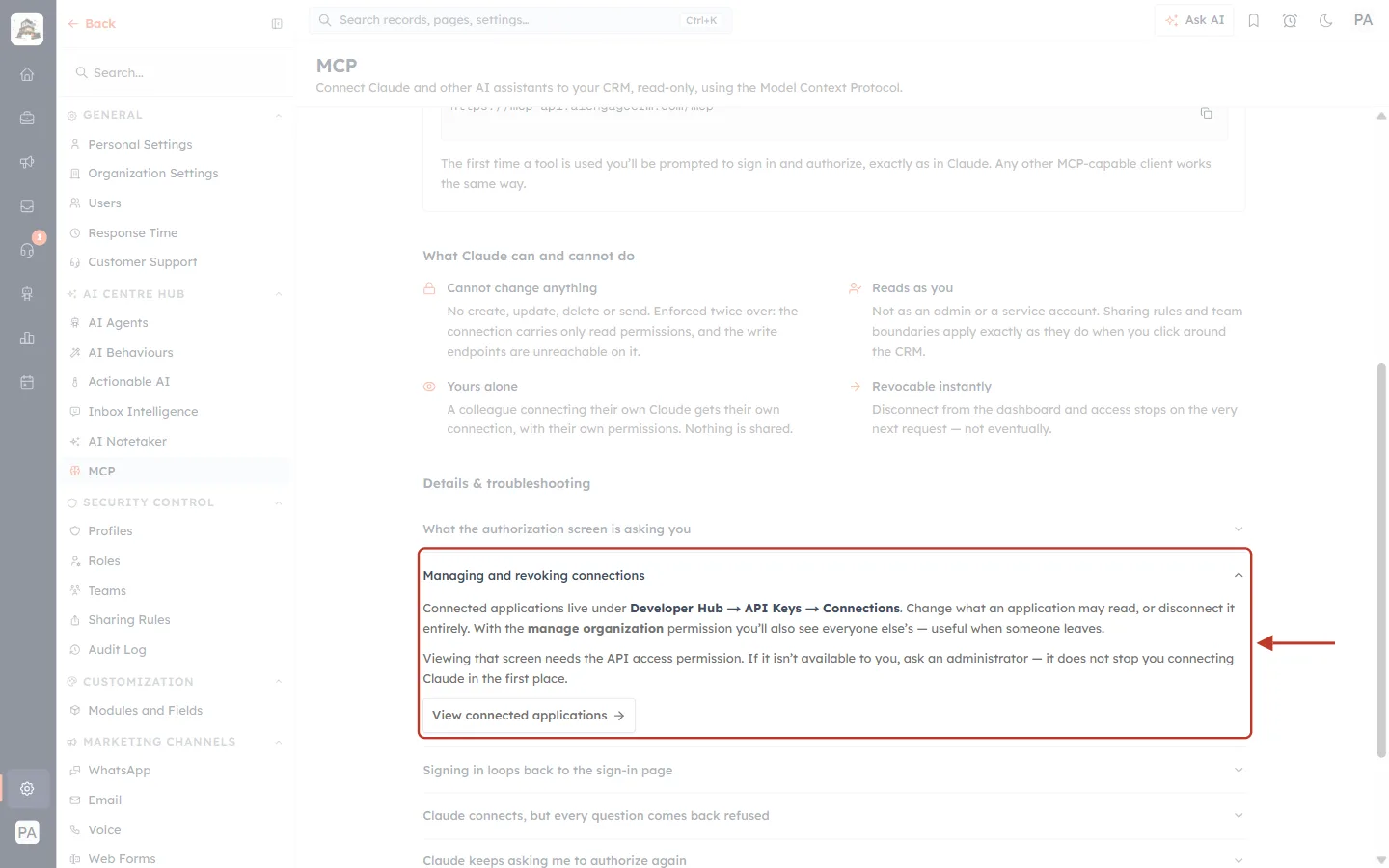
What this screenshot shows. The second question opened, marked in red: Managing and revoking connections.
Connected applications live under Developer Hub → API Keys → Connections, where you can change what an app may read or disconnect it.
With the manage organization permission you also see everyone else’s connections.
Viewing that screen needs the API access permission. If you don’t have it, ask an administrator; it does not stop you connecting Claude.
View connected applications opens the Connections tab (Step 4).
Problem | Likely cause and fix |
|---|---|
Every question comes back refused | Usually your plan does not include API access, or the organization has used up its API allowance for the period. An administrator can check both under Developer Hub → API Keys → Usage. The connection itself is fine. |
“There is nothing to read” on the authorization screen | No modules in your organization have been published to the API yet. An administrator publishes them in Module Settings; then connect again. |
The assistant says a record doesn’t exist, but you can see it | Check you are signed in to the same account. The assistant reads with the permissions of whoever authorized the connection, so a record a colleague can see but you cannot is the system working correctly. Also check that the record’s module is ticked under Modules these cover (Connections → Change access). |
The assistant keeps asking you to authorize again | The connection was probably disconnected from the dashboard, or it expired (60 days idle or 365 days old). Check Connections; if it is no longer listed, authorize again from your assistant. |
Signing in loops back to the sign-in page | Your session expired part-way through. Sign in to the CRM dashboard in the same browser first, then start the connection again. |
You were given a | Older keys still work as an Authorization header, but new ones are no longer issued. Connect by signing in instead. |
⚠️
The connector is read-only. If you ask the assistant to update a deal, send a message or delete a record, it will tell you it can’t. Make those changes in the CRM itself, or through the CRM API with an API key (see API Keys Step by Step: Generate, Use and Revoke a Personal Access Token).
Frequently asked questions#
Is MCP the same as the CRM API?
Both read the same data with the same permissions. The API is for developers writing their own code with an API key. MCP is for people asking questions in an AI assistant, with no code and no key. See Introduction to the AiEngage CRM API & MCP.
Can my colleague use my connection?
No. Connections are per person. Each colleague connects their own assistant and sees only what they can see.
Does the assistant see everything in the CRM?
Only what you can see, and only the tools and modules you ticked on the authorization screen.
How is this different from Ask AI inside the CRM?
Ask AI is built into the CRM. MCP brings your CRM data into an assistant you already use, such as Claude. See Ask AI Engage: Get Answers About Your CRM.
Can I limit it to just a few modules?
Yes. On the authorization screen (or later under Connections → Change access), untick the modules under Modules these cover and any tool groups you don’t want.
Previous and next#
Previous: Send Email through the API: Send an Email to a Contact Step by Step
Next: API Errors & Troubleshooting: Fix 400, 401, 403, 404, 409, 429 and 500 Errors Step by Step
Related articles#
Was this article helpful?
Ready to implement this?
OpenAI Engage and apply what you just learned to your own workspace.
Open AI Engage CRM