Loading…


KnowledgeBase
Records, Modules & the Record Envelope: How Your CRM Data Looks in the API (Step-by-Step)
Introduction#
Before you write any code against the AiEngage CRM API, it helps to know how the data you see in the CRM looks when the API sends it to you. The good news: it is the same data, organised in the same way. Only the names change slightly.
Three words come up in every API call:
Module: a type of data, such as Contacts, Deals, Companies, Tickets or a custom module your company built. In the API a module is called an object type, and you name it in the web address by its slug, for example
contacts.Record: one item in a module, for example one contact or one deal. Every record has a unique id.
Field: one piece of information on a record, such as First Name or Lifecycle Stage. In the API a field is called a property, and you refer to it by its API name, for example
first_name.
Every record the API sends or receives is wrapped in the same record envelope: the record’s id and dates on the outside, and its field values inside properties. This article shows you where each of these lives in the CRM, how to look them up through the API, and how to read the envelope, step by step.
In the CRM you see… | In the API it is called… | Example |
|---|---|---|
A module, such as Contacts | An object type, named by its slug |
|
A record (one row in the list) | A record, found by its id |
|
A field label, such as First Name | A property, named by its API name |
|
A pick list option, such as Customer | The option’s value |
|
System Information (Created Date, Created By…) | The envelope’s metadata |
|
ℹ️
The CRM screenshots come from a test account. People’s names, phone numbers and email addresses are blurred. Your modules, fields and records will be different, which is exactly why this article shows you how to look them up instead of listing them.
Before you begin#
Read Introduction to the AiEngage CRM API & MCP and make your first call with Quick Start: Make Your First AiEngage CRM API Call in 5 Minutes.
To look at modules and fields in the CRM you need access to Settings → Modules and Fields (administrators have it).
For the API examples you need an API key (see API Keys Step by Step) with these scopes:
Scope | Lets you | Shown in the Generate API key dialog as |
|---|---|---|
| List modules and read their fields ( | Schema → Read |
| Read Contacts records. Each module has its own read scope, for example | Contacts → Read |
All API addresses below start with https://app.aiengagecrm.com/cback/api/public/v1 and send the header Authorization: Bearer YOUR_API_TOKEN.
Step 1: See your modules in the CRM#
Click the gear (Settings) icon at the bottom of the left rail.
In the Settings menu, under CUSTOMIZATION, click Modules and Fields.
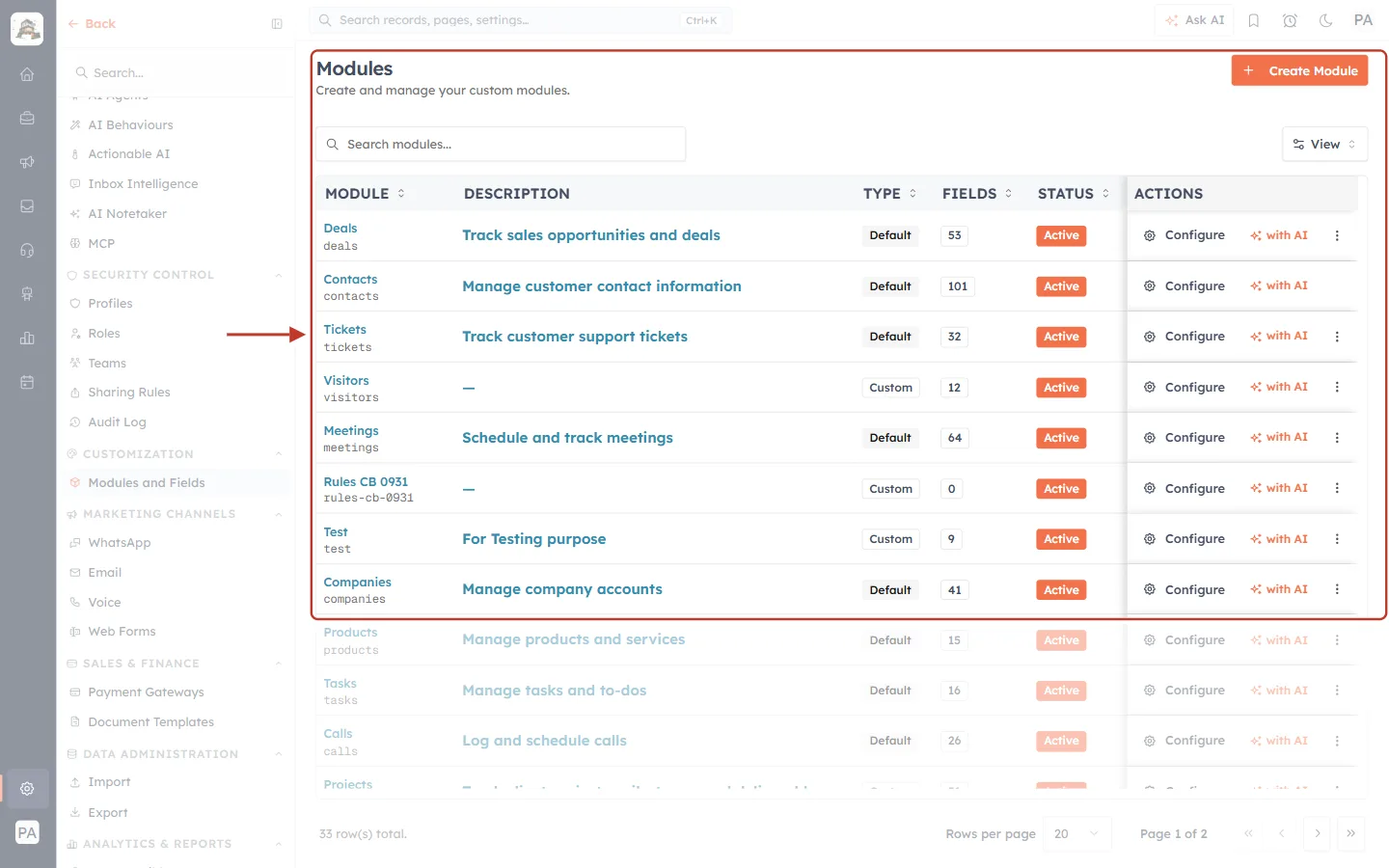
What this screenshot shows. The Modules page. The red box highlights the list of modules in your CRM.
Title: “Modules — Create and manage your custom modules.” The Create Module button (top right) adds a new custom module.
Search modules… and View: find a module and choose which columns to show.
MODULE: the module’s name in blue (for example Deals) and, under it in grey, its API name (
deals). This grey name is the slug you use in the API.DESCRIPTION: what the module is for, for example “Track sales opportunities and deals”.
TYPE: Default modules come with the CRM (Deals, Contacts, Tickets, Meetings, Companies…). Custom modules were created by your company (for example Visitors or Test). The API treats both kinds exactly the same way.
FIELDS: how many fields the module has (Deals 53, Contacts 101, Tickets 32).
STATUS: Active modules can be used. A de-activated module can’t be reached through the API.
ACTIONS: Configure opens the module’s layouts and fields (Step 6), with AI changes the module with the AI setup assistant, and ⋮ has more options.
At the bottom (washed out): “33 row(s) total”. This test account has 33 modules over two pages.
Step 2: Find a module’s API name (slug)#
Every API call about records names the module in the web address. Use the slug: the grey name under the module’s name.
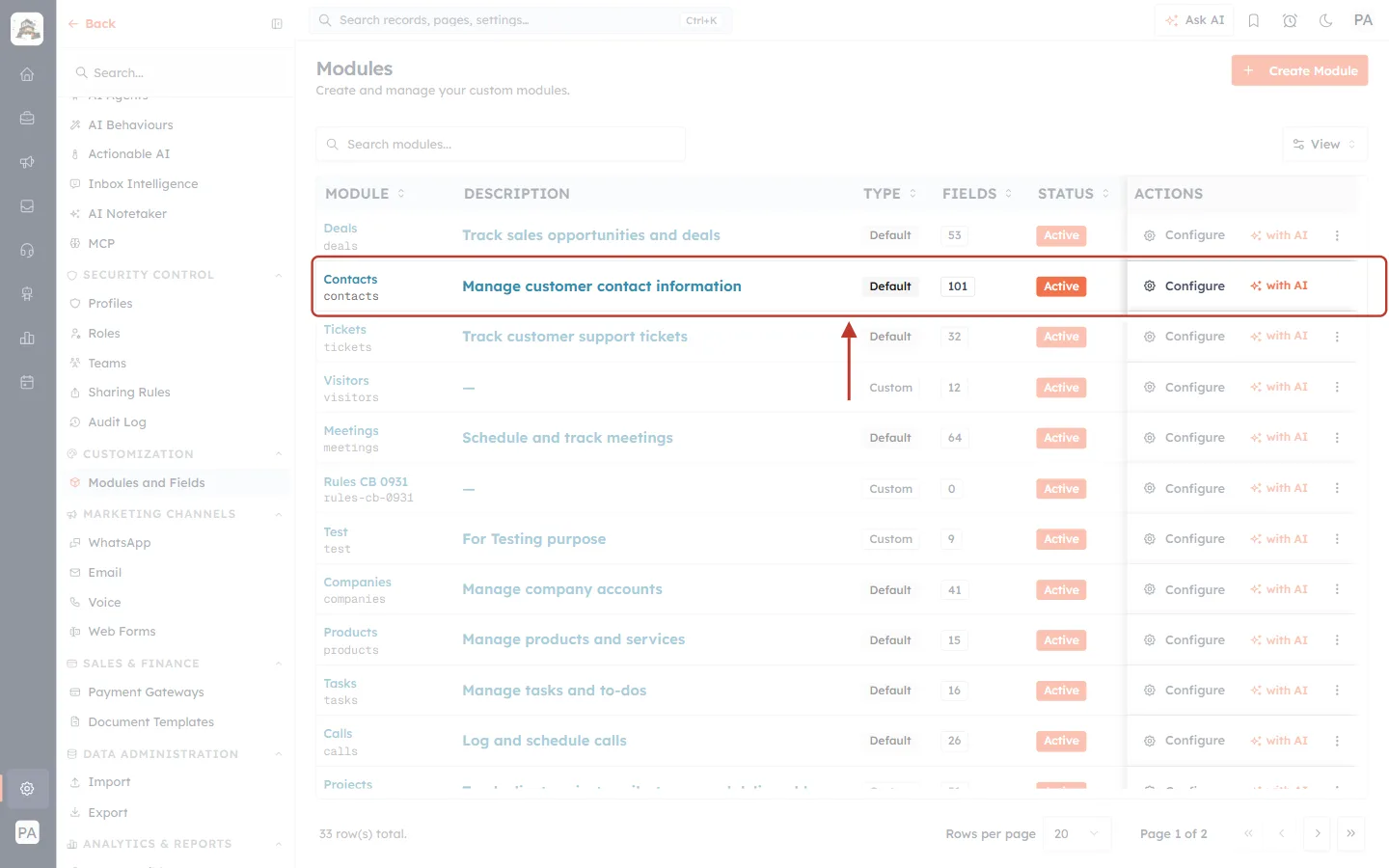
What this screenshot shows. One row of the Modules page. The red box highlights the Contacts module.
Contacts (blue) is the name people see in the CRM. contacts (grey) is the slug for the API.
The rest of the row: “Manage customer contact information”, Default type, 101 fields, Active, and the Configure and with AI actions.
So the Contacts records live at
/objects/contacts, and its fields at/properties/contacts.
You can also get the full list of modules through the API. This is the easiest way for a program to discover them:
curl "https://app.aiengagecrm.com/cback/api/public/v1/objects" \
  -H "Authorization: Bearer YOUR_API_TOKEN"
{
"results": [
{ "slug": "contacts", "label": "Contacts", "singular": null, "plural": null, "icon": "users" },
{ "slug": "deals", "label": "Deals", "singular": null, "plural": null, "icon": "handshake" },
{ "slug": "course-enquiries", "label": "Course Enquiries", "singular": "Course Enquiry", "plural": "Course Enquiries", "icon": "school" }
]
}Key | What it means |
|---|---|
| The module’s API name. Put this in the web address, for example |
| The name shown in the CRM. |
| How the CRM names one record and many records (custom modules). |
| The name of the module’s icon in the CRM menu. |
✅
Custom module slugs use lowercase letters and hyphens. Course Enquiries becomes
course-enquiries, and Rules CB 0931 becomes rules-cb-0931. Always copy the slug from the Modules page or from GET /objects instead of guessing it.Step 3: Open a module’s records#
A record is one item in a module. In the CRM, open a module from the left menu (for example Sales → Contacts) to see its records.
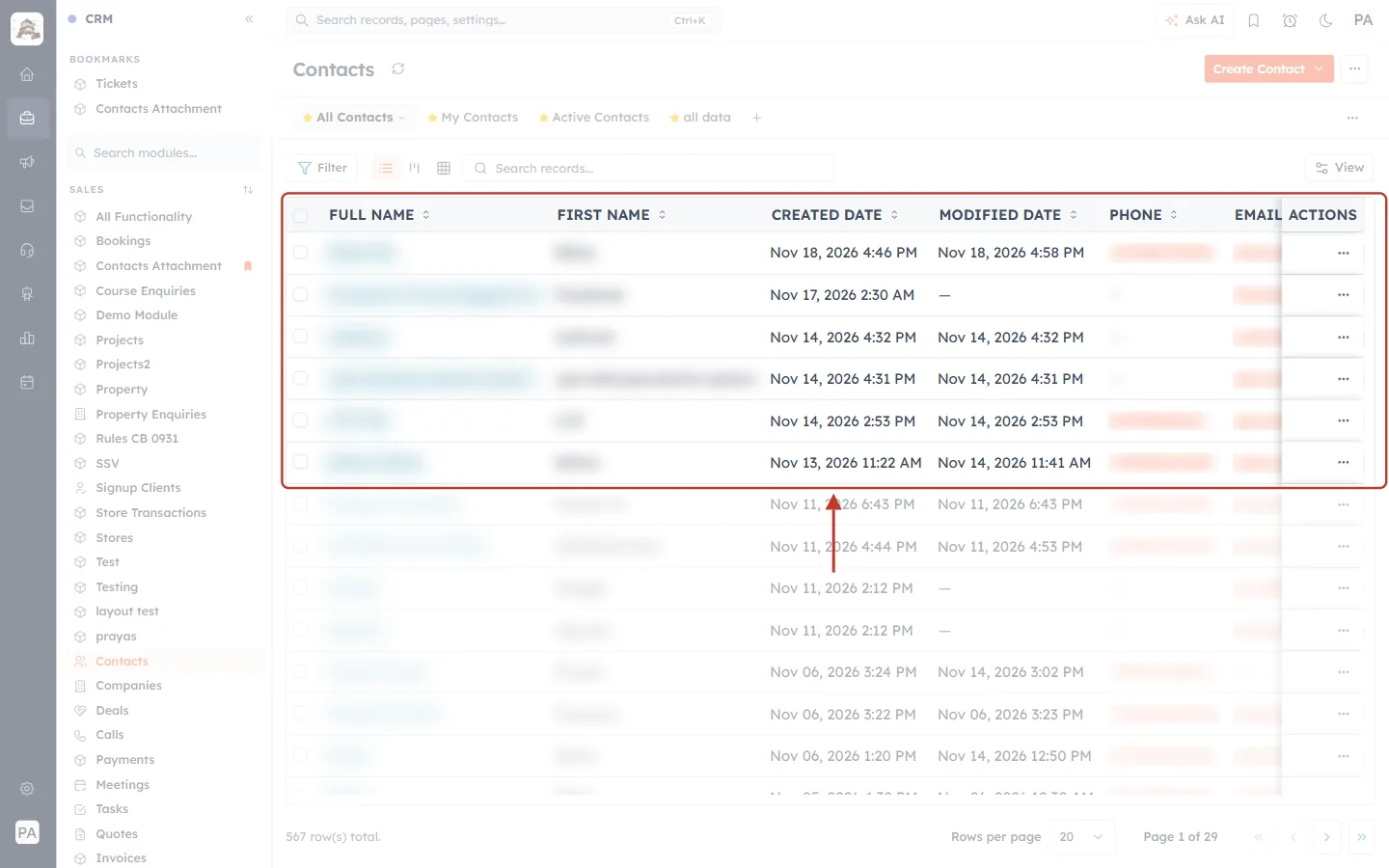
What this screenshot shows. The Contacts list. The red box highlights the column headings and the first six records.
Each row is one record. Through the API you get exactly these records with
GET /objects/contacts, one page at a time.Columns: FULL NAME, FIRST NAME, CREATED DATE, MODIFIED DATE, PHONE, EMAIL and ACTIONS (⋯). Each column is a field. In the API, Full Name is
full_name, First Name isfirst_name, and so on.CREATED DATE and MODIFIED DATE appear in the API envelope as
created_atandupdated_at(Step 9).A dash (—) means the field is empty. In the API an empty field is either missing from the record or set to
null.At the bottom: 567 row(s) total, 20 per page. The API also returns records page by page.
The views above the table (All Contacts, My Contacts…) and the Filter are CRM features. In the API you filter with the search call instead (see Working with records).
Click a record’s name to open it. Its address ends with the record’s id, for example …/dashboard/modules/contacts/records/6afd8923a8e9a1ef430bd978. That same id is what the API uses for this record.
Step 4: Look at a record’s fields#
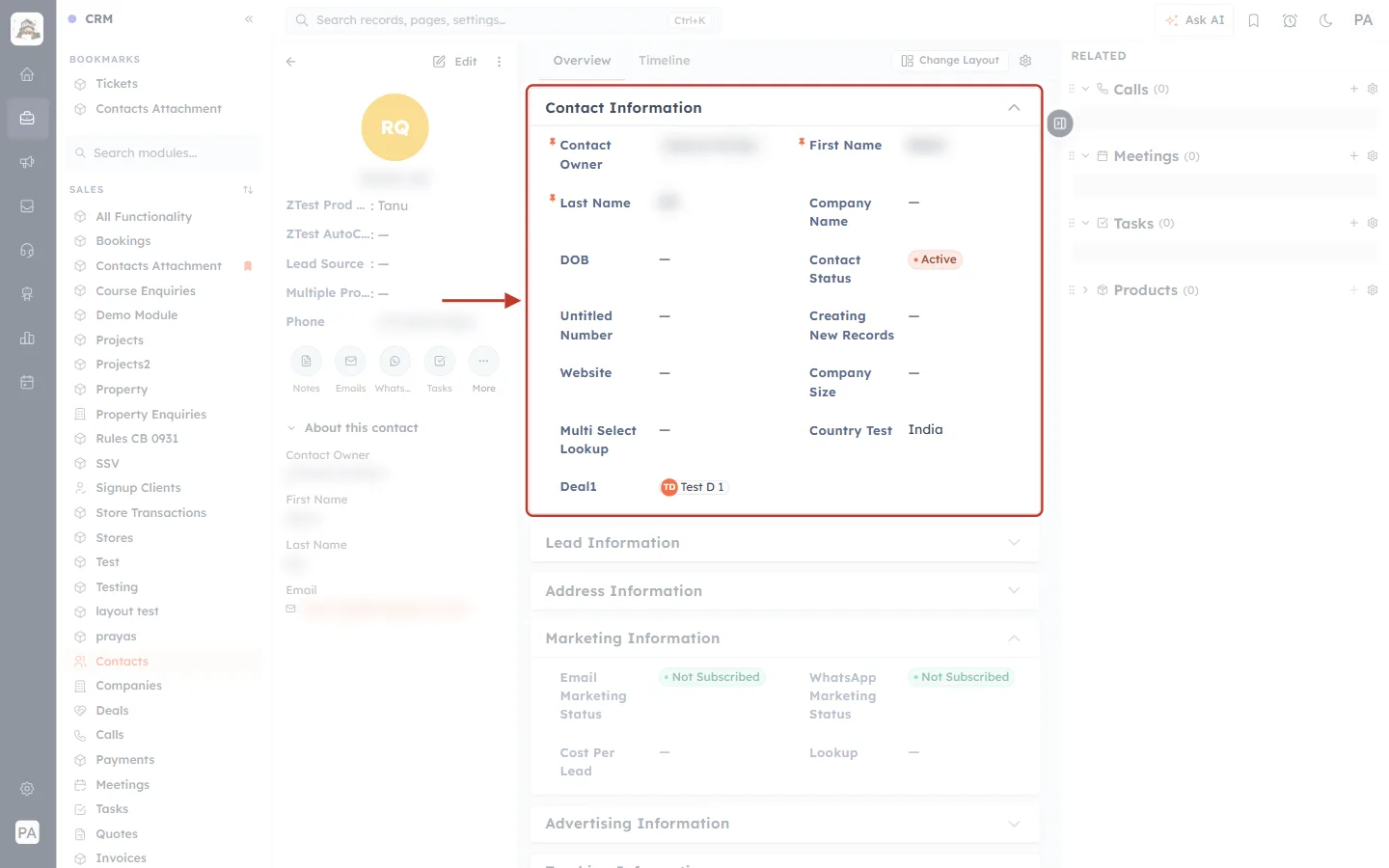
What this screenshot shows. An open contact record. The red box highlights the Contact Information section, a group of fields.
Section name: fields are grouped into sections such as Contact Information, Lead Information, Address Information and Marketing Information. In the API, the section is each field’s
group.Red star (*): a required field, here Contact Owner, First Name and Last Name (the values are blurred).
Contact Status → Active: a pick list. The CRM shows the option label (Active), and the API sends its value (
active).Deal1 → Test D 1: a lookup that links this contact to a deal. The CRM shows the deal’s name, and the API sends the linked deal’s record id.
Country Test → India, and empty fields (—) such as DOB and Website.
Left panel (washed out): the contact’s avatar and key fields. Right panel: related records (Calls, Meetings, Tasks, Products). Related records are separate records in their own modules.
Step 5: System Information is the record’s envelope#
Scroll down the record to the System Information section. These details are set by the CRM, not typed by people, and most of them appear in the API’s envelope.
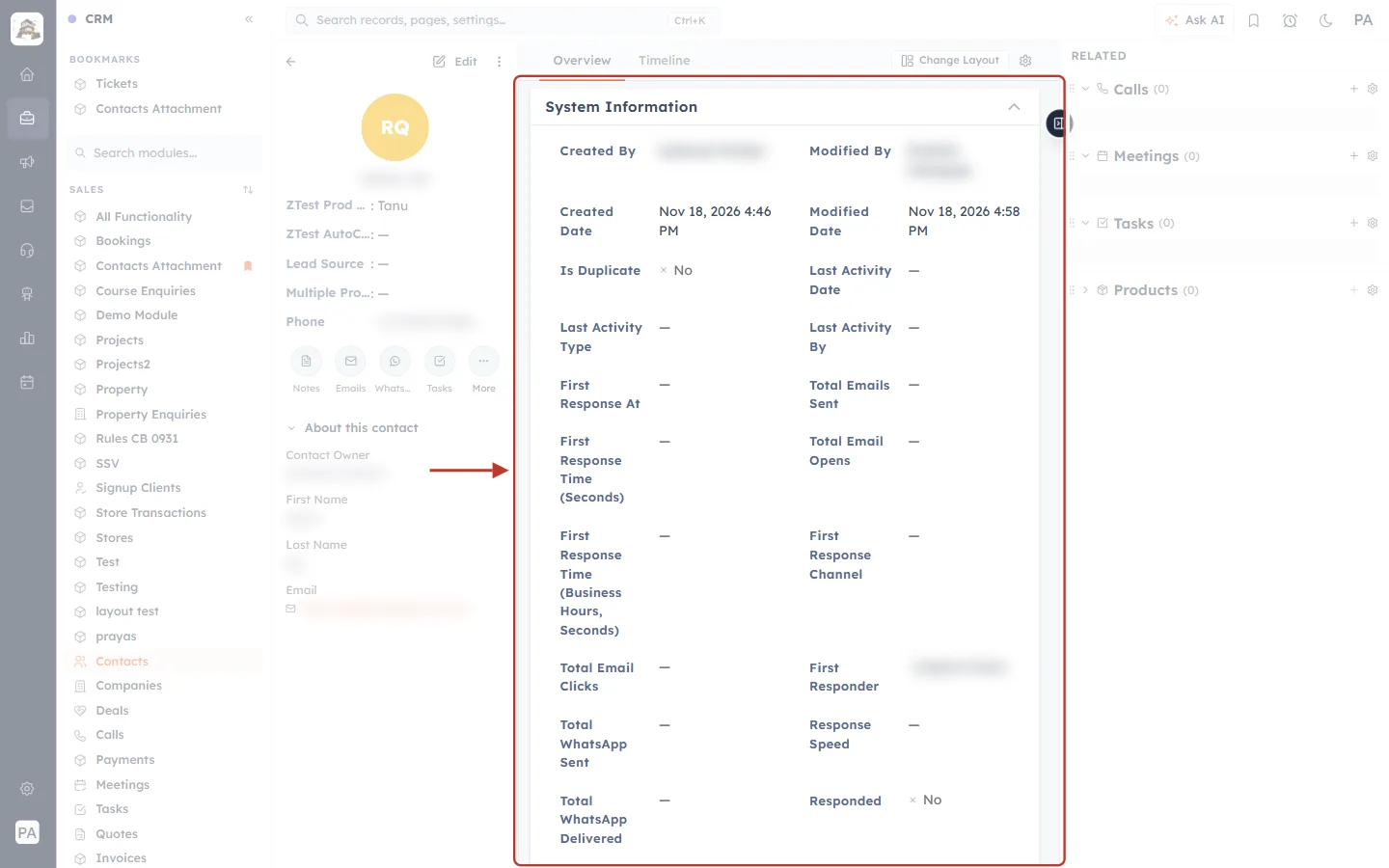
What this screenshot shows. The System Information section of the same record. The red box highlights it.
Created By and Modified By (names blurred): who created and who last changed the record. In the API envelope these are
created_byandupdated_by, sent as the user’s id, not their name.Created Date (Nov 18, 2026 4:46 PM) and Modified Date (Nov 18, 2026 4:58 PM): sent as
created_atandupdated_at, in UTC (see Step 9).Is Duplicate, Last Activity Date / Type / By, First Response At, Total Emails Sent, Total Email Opens, Total WhatsApp Sent and the others are fields calculated by the CRM. The API sends them inside
properties, and marks most of themread_only, so you can read them but not change them.
Step 6: Find a field’s API name#
The name you see on a field (its label) can be renamed at any time. The API never uses the label. It uses the field’s API name, which never changes.
Go to Settings → Modules and Fields.
In the module’s row (for example Contacts), click Configure, then open the Standard layout.
In the layout builder, click a field, for example First Name. The Field Configuration panel opens on the right.
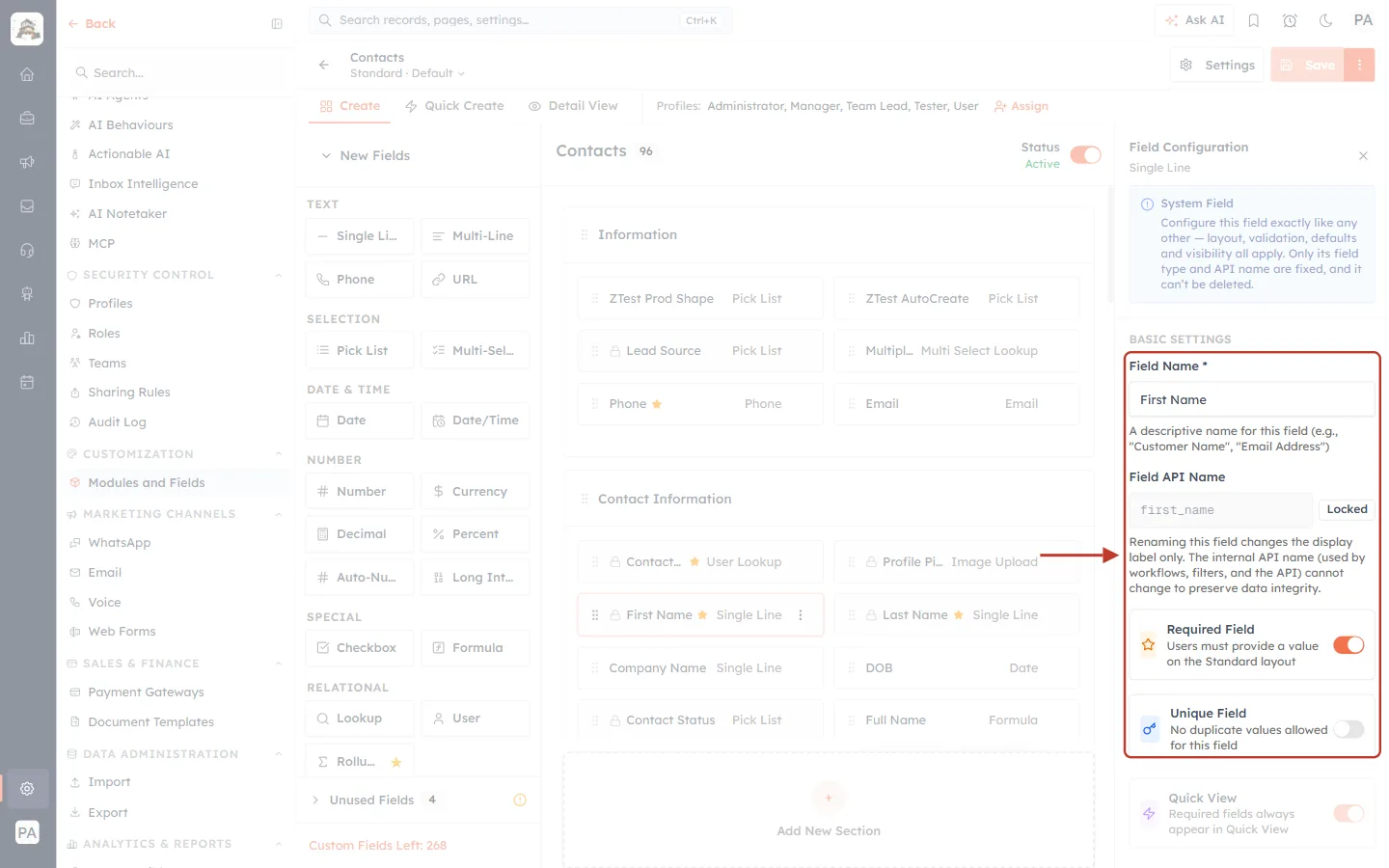
What this screenshot shows. The layout builder for Contacts with First Name selected. The red box highlights its settings in the Field Configuration panel.
Field Name *: the label people see, First Name. Changing it changes only what people see.
Field API Name:
first_name, marked Locked. This is the name to use in the API.The note under it: “Renaming this field changes the display label only. The internal API name (used by workflows, filters, and the API) cannot change to preserve data integrity.”
Required Field (on): “Users must provide a value on the Standard layout.” In the API this shows as
required_on_create: true, so a new contact must includefirst_name.Unique Field (off): “No duplicate values allowed for this field.” In the API this is
unique. Only a unique field can be used to find a record by value (Step 11).Above the box: the blue System Field note says the field’s type and API name are fixed and it can’t be deleted. The middle of the screen shows the layout with every field and its type (Single Line, Pick List, Lookup, Email…), and the left side lists the field types you can add.
⚠️
Labels and API names can look very different. On our test account the field labelled Deal1 has the API name
deal. If your code uses labels, it breaks the day someone renames a field. Always use API names.Step 7: Pick list labels and values#
A pick list field has a list of options. Each option has a label (what people see) and a value (what the API sends and expects).
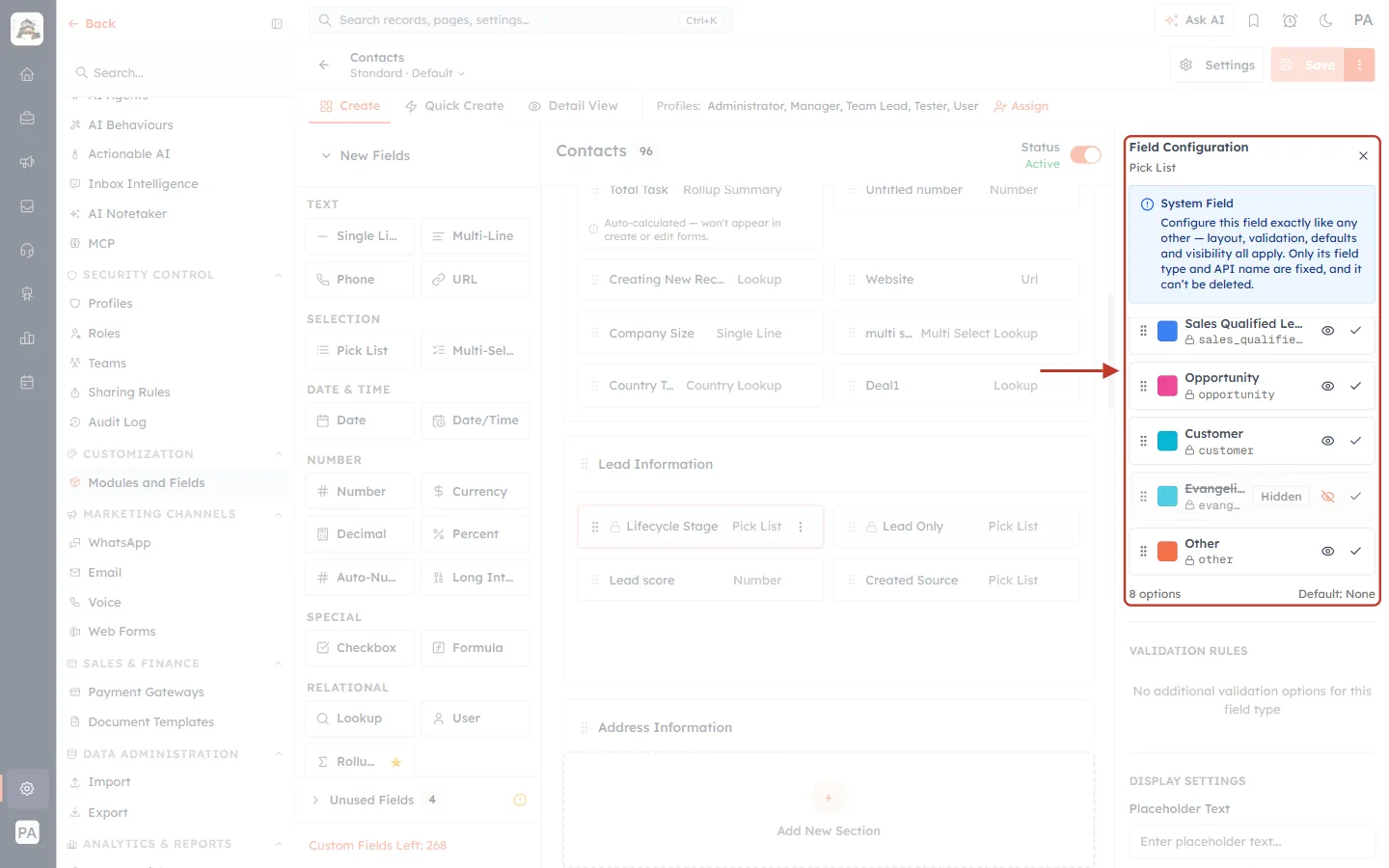
What this screenshot shows. The Field Configuration panel for the Lifecycle Stage pick list. The red box highlights its options.
Each option has a colour, a label in bold (for example Opportunity) and, under it with a padlock, its API value (
opportunity).The eye icon shows or hides an option, and the tick sets the default. Evangelist is marked Hidden.
At the bottom: 8 options and Default: None.
Label in the CRM | Value in the API |
|---|---|
Subscriber |
|
Lead |
|
Marketing Qualified Lead |
|
Sales Qualified Lead |
|
Opportunity |
|
Customer |
|
Evangelist |
|
Other |
|
✅
When you create or update a record, send the value (
"lifecycle_stage": "customer"), not the label. The API lists every option’s label and value for you (Step 8).Step 8: Read a module’s fields through the API#
This is the most important call to make before you write data: it tells you the exact API name, type and rules of every field in your CRM, right now.
curl "https://app.aiengagecrm.com/cback/api/public/v1/properties/contacts" \
  -H "Authorization: Bearer YOUR_API_TOKEN"
The answer lists the fields in layout order. Here are two of them, as the API returned them:
{
  "results": [
    {
      "name": "first_name",
      "label": "First Name",
      "type": "single_line",
      "group": "Contact Information",
      "description": null,
      "options": null,
      "required_on_create": true,
      "read_only": false,
      "unique": false,
      "searchable": true
    },
    {
      "name": "lifecycle_stage",
      "label": "Lifecycle Stage",
      "type": "pick_list",
      "group": "Lead Information",
      "options": [
        { "label": "Subscriber", "value": "subscriber", "display_order": 0, "hidden": false },
        { "label": "Lead", "value": "lead", "display_order": 1, "hidden": false }
      ],
      "required_on_create": false,
      "read_only": false,
      "unique": false
    }
  ]
}
Key | What it means | Where you see it in the CRM |
|---|---|---|
| The API name. Use it in | Field API Name (Step 6) |
| The name people see. | Field Name |
| The kind of field, for example | The type next to the field in the layout builder |
| The section the field sits in. | The section heading on the record (Step 4) |
| For pick lists: every option’s | The options list (Step 7) |
|
| Required Field and the red star |
|
| Fields in System Information |
|
| Unique Field |
| Whether you can search and filter on it. | — |
| Only on link fields: which module(s) it links to ( | Lookup and User fields |
ℹ️
Need just one field? Use
GET /properties/contacts/lifecycle_stage. A field your administrator has hidden from the API never appears here, and never appears in a record either.Step 9: Understand the record envelope#
Every record the API sends you, and every record it sends back after you create or update one, has the same shape for every module. The developer documentation calls it the record envelope.
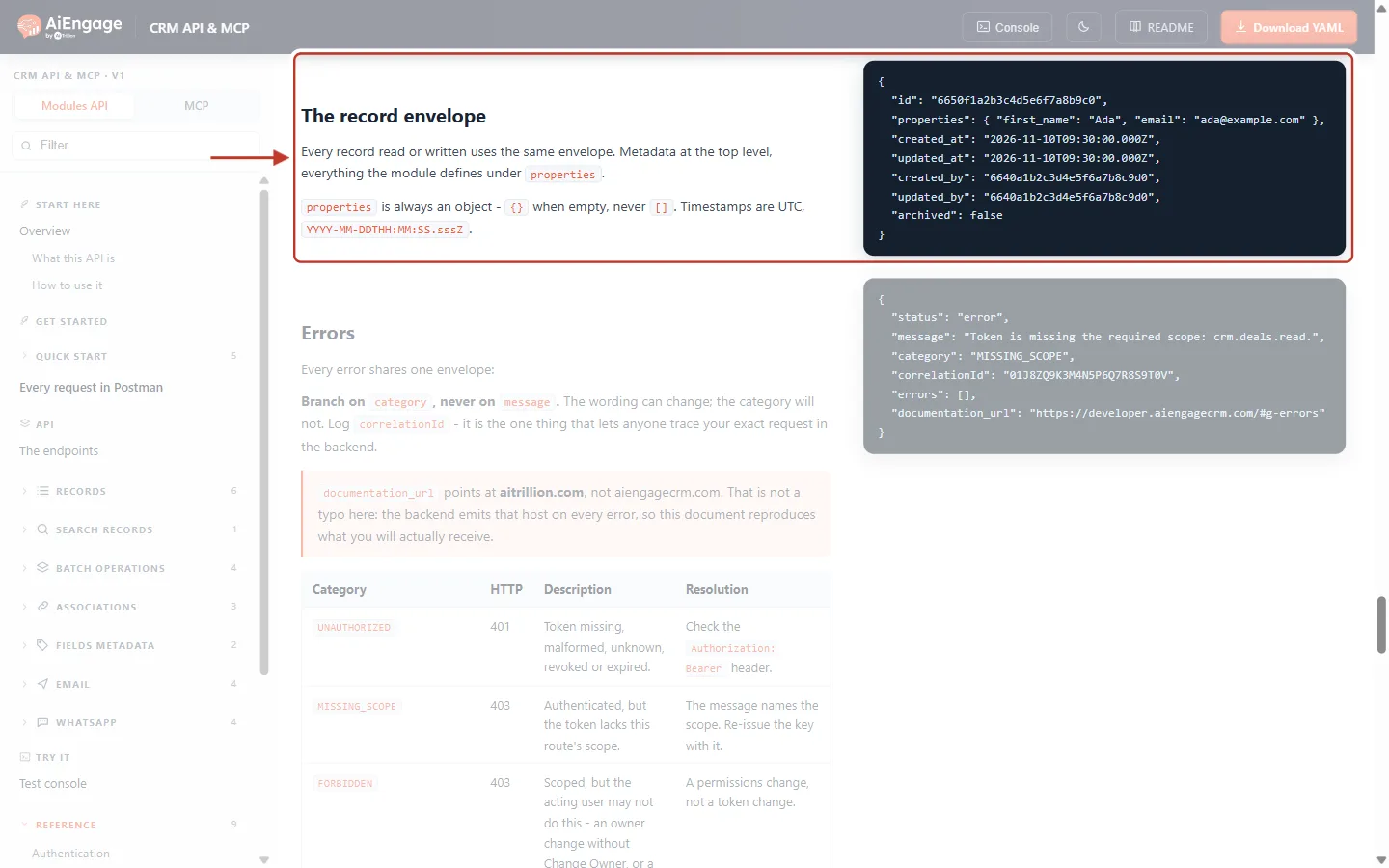
What this screenshot shows. The The record envelope section on developer.aiengagecrm.com. The red box highlights the explanation and the example.
“Every record read or written uses the same envelope. Metadata at the top level, everything the module defines under
properties.”“
propertiesis always an object —{}when empty, never[]. Timestamps are UTC,YYYY-MM-DDTHH:MM:SS.sssZ.”The example on the right: a contact with
id, its fields insideproperties(first name and email), thencreated_at,updated_at,created_by,updated_byandarchived.Further down (washed out) is the Errors section, which also has one shape for every error.
Here is a real contact from our test account, reading two fields with GET /objects/contacts/{id}?properties=first_name,email (values replaced with examples):
{
  "id": "6afd8923a8e9a1ef430bd978",
  "properties": {
    "first_name": "Ada",
    "email": "ada@example.com"
  },
  "created_at": "2026-11-18T11:16:51.233Z",
  "updated_at": "2026-11-18T11:28:25.646Z",
  "created_by": "6ae4a37af4d714dcff0895f4",
  "updated_by": "6a79b3b2742d94d7ed08a20a",
  "archived": false
}
Part | What it is | Can you set it? |
|---|---|---|
| The record’s unique id. The same id is at the end of the record’s address in the CRM. | No, the CRM creates it. |
| The record’s field values, by API name. The keys depend on the module and on your CRM’s fields. | Yes, this is what you send when you create or update. |
| When the record was created, in UTC. Shown as Created Date in the CRM. | No. |
| When it was last changed, in UTC. | No. |
| The user id of who created or last changed it. | No. |
|
| Only by archiving or restoring. |
⚠️
Times are in UTC. The CRM shows them in your own time zone, so
2026-11-18T11:16:51Z appears as Nov 18, 2026 4:46 PM in India (UTC+5:30). Convert to UTC before you compare or filter by date.Step 10: How each field type appears inside properties#
Inside properties, each field’s value has a shape that depends on its type. These are the shapes the API returned on our test account:
Field type ( | Value in | Example |
|---|---|---|
Single line, multi line, email, phone, URL | Text |
|
Pick list ( | The option’s value |
|
Number, currency, rollup summary | A number |
|
Checkbox |
|
|
Date and date/time | A UTC timestamp |
|
Lookup (link to one record) | The linked record’s id |
|
User ( | The user’s id |
|
Multi-select lookup (several links) | A list of links |
|
Image, file and video upload | A list (empty when nothing is uploaded) |
|
Formula | The calculated result (read it, don’t send it) |
|
ℹ️
An empty field can be missing from
properties or present as null. Treat both as “no value”. That is also why two records from the same module can carry a different number of keys.Step 11: Choose what comes back#
These options work on the record calls (GET /objects/{module} and GET /objects/{module}/{id}):
Add to the address | What it does | Example |
|---|---|---|
| Return only these fields inside |
|
| Expand up to 5 lookup fields, so you get the linked record instead of only its id. The field’s |
|
| Find one record by a unique field instead of its id. If the field isn’t unique and several records match, you get 409 CONFLICT. |
|
| List archived records instead of live ones. |
|
| Page size (1–100, default 10) and the bookmark for the next page, taken from |
|
curl "https://app.aiengagecrm.com/cback/api/public/v1/objects/contacts?limit=2&properties=first_name,email" \
  -H "Authorization: Bearer YOUR_API_TOKEN"
{
"results": [
{ "id": "6afd8923a8e9a1ef430bd978", "properties": { "first_name": "Ada", "email": "ada@example.com" }, "created_at": "…", "updated_at": "…", "created_by": "…", "updated_by": "…", "archived": false },
{ "id": "6afb6edf78c98f33830b6c27", "properties": { "first_name": "Grace", "email": "grace@example.com" }, "created_at": "…", "updated_at": null, "created_by": null, "updated_by": null, "archived": false }
],
"paging": { "next": { "after": "eyJpZCI6IjZh…", "link": "…/objects/contacts?after=eyJpZCI6IjZh…&limit=2" } }
}A list wraps the envelopes in results and adds paging. On the last page there is no paging. Lists come newest first.
Step 12: Which modules the API can reach#
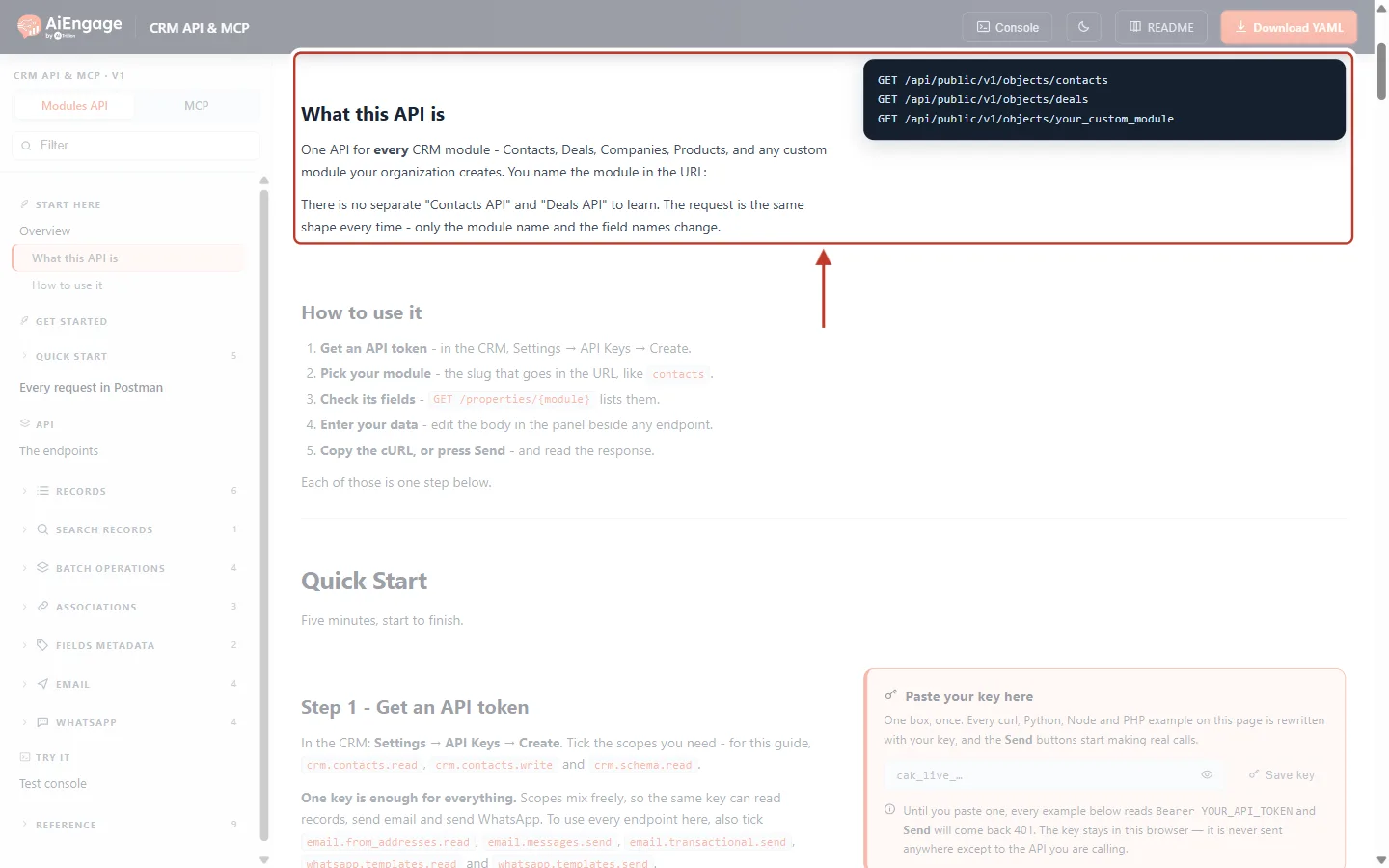
What this screenshot shows. The What this API is section of the developer documentation. The red box highlights it.
“One API for every CRM module — Contacts, Deals, Companies, Products, and any custom module your organization creates. You name the module in the URL.”
“There is no separate ‘Contacts API’ and ‘Deals API’ to learn. The request is the same shape every time — only the module name and the field names change.”
The code box:
GET /api/public/v1/objects/contacts,…/objects/dealsand…/objects/your_custom_module.
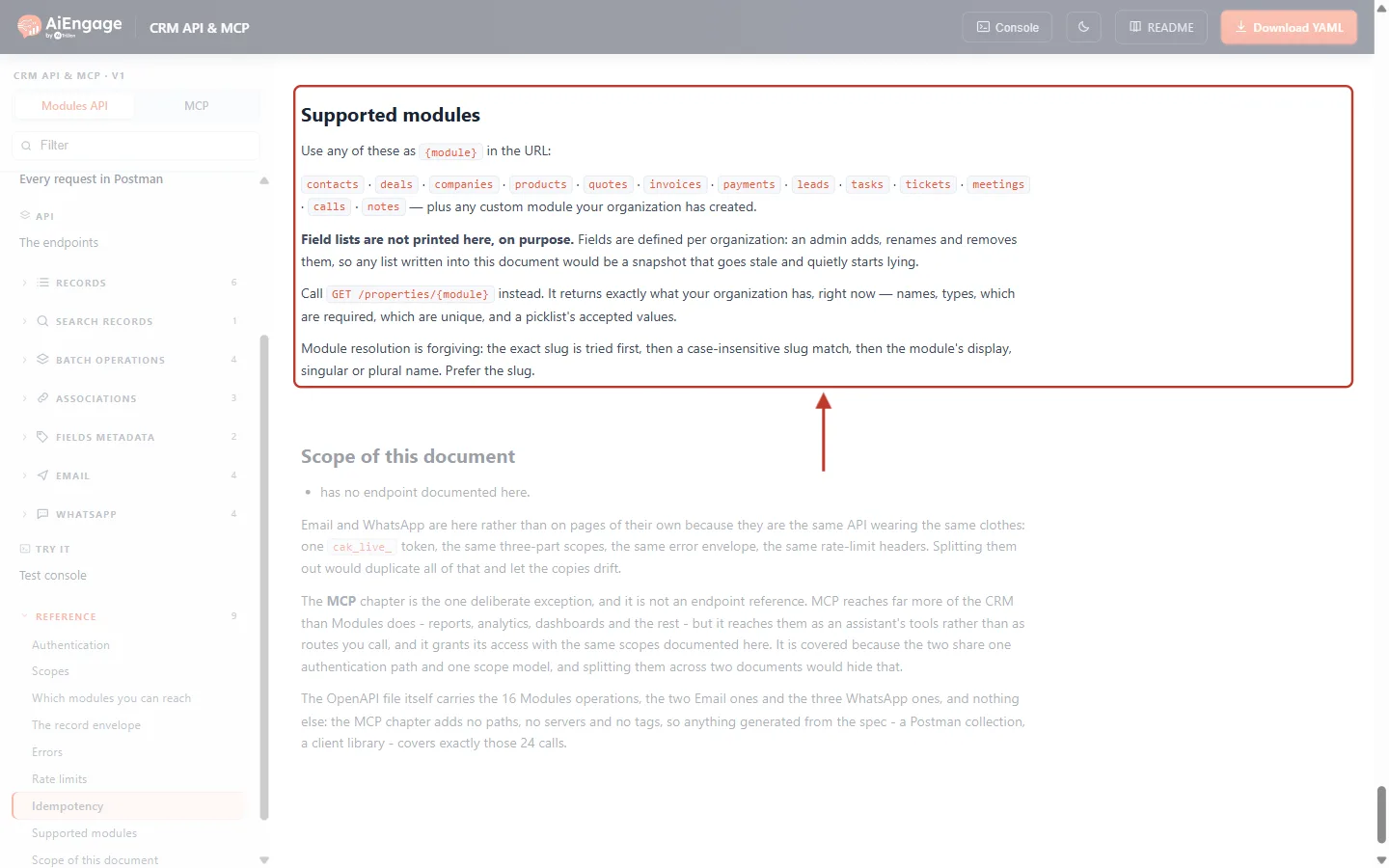
What this screenshot shows. The Supported modules section. The red box highlights the list and the notes under it.
Standard slugs:
contacts,deals,companies,products,quotes,invoices,payments,leads,tasks,tickets,meetings,calls,notes, “plus any custom module your organization has created.”“Field lists are not printed here, on purpose.” Every company’s fields are different, so read them with
GET /properties/{module}(Step 8).“Module resolution is forgiving”: the API tries the exact slug, then the slug ignoring capital letters, then the module’s display, singular or plural name. “Prefer the slug.”
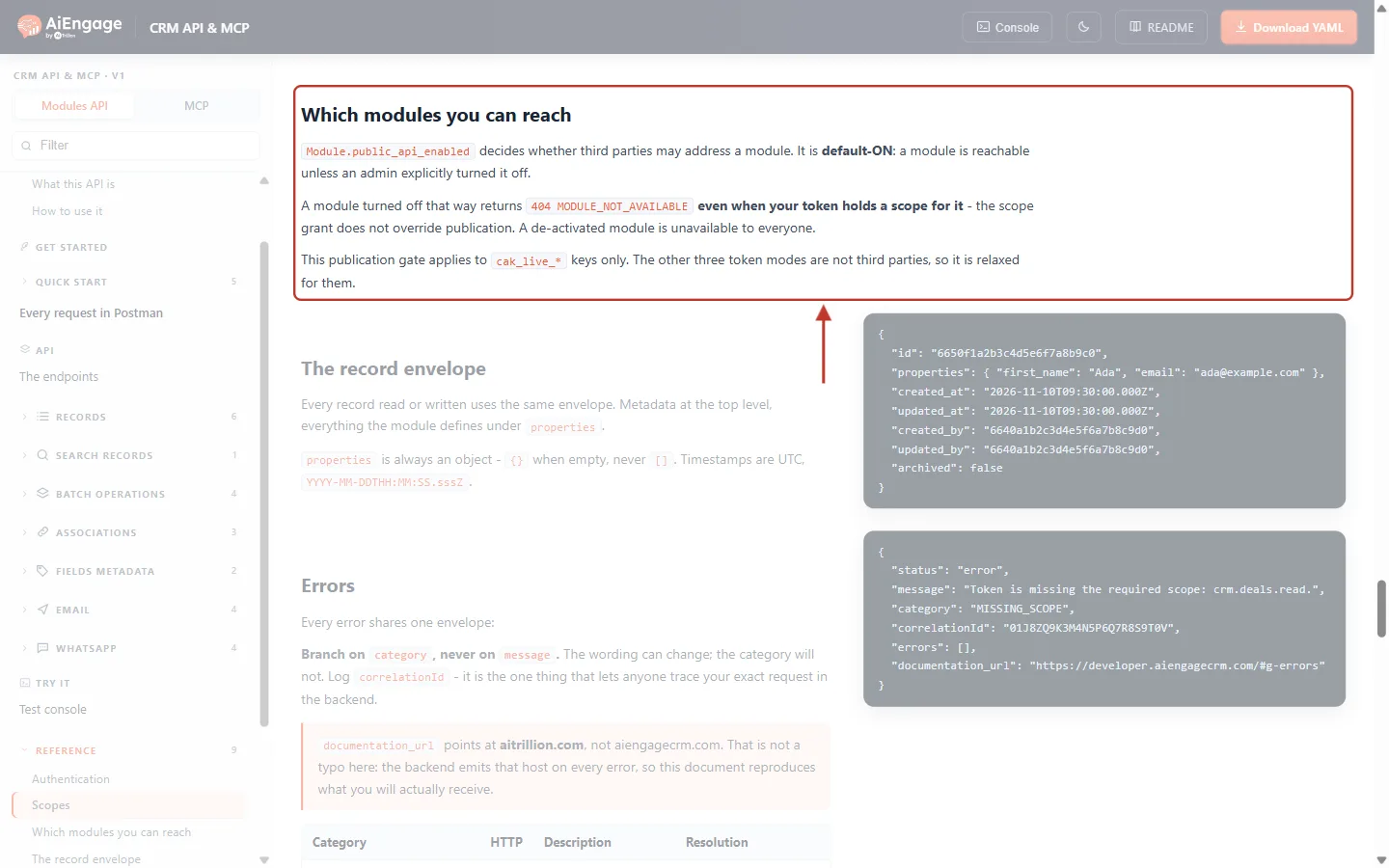
What this screenshot shows. The Which modules you can reach section. The red box highlights the rule.
Every module is open to the API by default. An administrator can turn a module off for the API.
A module that is turned off answers 404 MODULE_NOT_AVAILABLE, “even when your token holds a scope for it”. A de-activated module is unavailable to everyone.
This rule applies to API keys (
cak_live_…) only.
Good to know#
One shape for every module. Once your code can read a contact, it can read a deal, a ticket or a custom module record. Only the slug and the field names change.
Never hard-code field lists. Administrators add, rename and hide fields. Read them from
GET /properties/{module}when your integration starts, or once a day.Labels change, API names don’t. Renaming First Name to Given Name in the CRM doesn’t affect
first_name.You only see what the key’s owner can see. A record outside that person’s access answers 404 OBJECT_NOT_FOUND, exactly like a record that doesn’t exist.
Users are ids. Owner, Created By and Modified By come back as user ids. To show a name, look the id up in your CRM’s user list.
Archived isn’t gone. Archived records stay restorable for 90 days and can be listed with
archived=true.
Troubleshooting#
404 MODULE_NOT_AVAILABLE#
Why it happens: the slug is wrong (for example contact instead of contacts), the module is de-activated, or an administrator turned it off for the API. How to fix it: copy the slug from the Modules page or from GET /objects. If it is right, ask your administrator whether the module is available to the API.
403 MISSING_SCOPE on a module that should exist#
Why it happens: your key doesn’t have that module’s read scope, or the slug is misspelt (the message then names the misspelt scope, for example crm.contakt.read). How to fix it: check the spelling first; if it is right, create a key with that module’s Read scope.
400 INVALID_PROPERTY#
Why it happens: a field name in properties=, include= or your data isn’t an API name on this module, often because a label was used instead. How to fix it: look the field up with GET /properties/{module} and use its name. (On GET /properties/{module}/{property} the same problem answers 404.)
404 OBJECT_NOT_FOUND for a record I can see in the CRM#
Why it happens: the id is wrong or belongs to another module, or the key was created by someone who can’t see that record. How to fix it: copy the id from the record’s address and check the module slug. Then check who created the key and their sharing rules.
A field I expected is missing from the record#
Why it happens: the field is empty, hidden from the API, or not in your properties= list. How to fix it: treat a missing field as empty; check it appears in GET /properties/{module}; and add it to properties= if you use that option.
Frequently asked questions#
Is a “property” the same as a “field”?
Yes. The CRM screens say field, the API says property. Both mean one piece of information on a record.
Do custom modules work the same as Contacts or Deals?
Yes. Use the custom module’s slug in the address and its own field API names. Everything else is identical.
Can I change a field’s API name?
No. It is fixed when the field is created, so integrations keep working when labels change.
Why does the API send ids instead of names for owners and lookups?
Names can change and aren’t unique; ids never change. Use include= to expand a lookup into the linked record.
Why do the times differ from what I see in the CRM?
The API always uses UTC; the CRM shows your local time zone.
Previous and next#
Related#
Introduction to the AiEngage CRM API & MCP: Connect Your Own Apps and AI Assistants to Your CRM
Quick Start: Make Your First AiEngage CRM API Call in 5 Minutes
API Keys Step by Step: Generate, Use and Revoke a Personal Access Token to Build Custom Integrations
Customize Your CRM: Add Custom Fields and Configure Module Layouts
Was this article helpful?
Ready to implement this?
OpenAI Engage and apply what you just learned to your own workspace.
Open AI Engage CRM