Loading…


KnowledgeBase
MCP Authorization (OAuth), Connections & Revoking Access: Approve, Review, Narrow and Disconnect AI Assistant Access
When you connect Claude or another AI assistant to AiEngage CRM through MCP, you don’t paste a password or an API key into the assistant. Instead you sign in to the CRM and approve the connection on an Authorize access to your CRM screen. This is the standard, secure OAuth sign-in that many apps use when one service asks for access to another.
This article explains that process from start to finish: what happens when you connect, what every part of the authorization screen means, how long a connection lasts, and how you (or an administrator) can review, narrow or disconnect a connection at any time. Every screenshot is explained in detail. For what MCP is and the tools it offers, see MCP Overview & Available Tools: What Claude and Other AI Assistants Can Read in Your CRM.
What you will learn:
What happens, step by step, when you connect an AI assistant.
How to read the authorization screen and choose what the assistant may read.
How long a connection lasts, and why you may be asked to authorize again.
Where to find your connections and what each row tells you.
How to narrow a connection with Change access.
How to cut a connection off immediately with Disconnect.
What administrators can see and do, for example when someone leaves.
How MCP authorization works#
Here is what happens behind the scenes when you add the AiEngage connector to your assistant. Your assistant handles the technical parts automatically; you only do steps 2 to 4.
Your assistant contacts the connector at
https://mcp-api.aiengagecrm.com/mcpand learns that it needs your permission.A CRM sign-in page opens (in the assistant or in your browser). Sign in with your normal CRM email and password. If you are already signed in to the CRM in that browser, this step may be skipped.
The Authorize access to your CRM screen appears. It shows which app is asking, and lists every tool it could use. You tick the tools and modules you want to allow.
You click Allow access. The CRM gives the assistant a secure, time-limited pass (an access token) that only works for what you ticked, and sends you back to the assistant.
The assistant asks your questions using that pass. The pass renews itself every hour in the background, so you don’t have to sign in again while you keep using it.
ℹ️
Your password never reaches the assistant. You type it only on the CRM’s own sign-in page. The assistant only ever holds the pass, which is read-only, limited to what you ticked, and can be cancelled from the CRM at any moment.
Step 1: Read the authorization screen carefully#
The authorization screen is the most important moment in the whole process, because it decides what the assistant may read. Take a few seconds to check it.
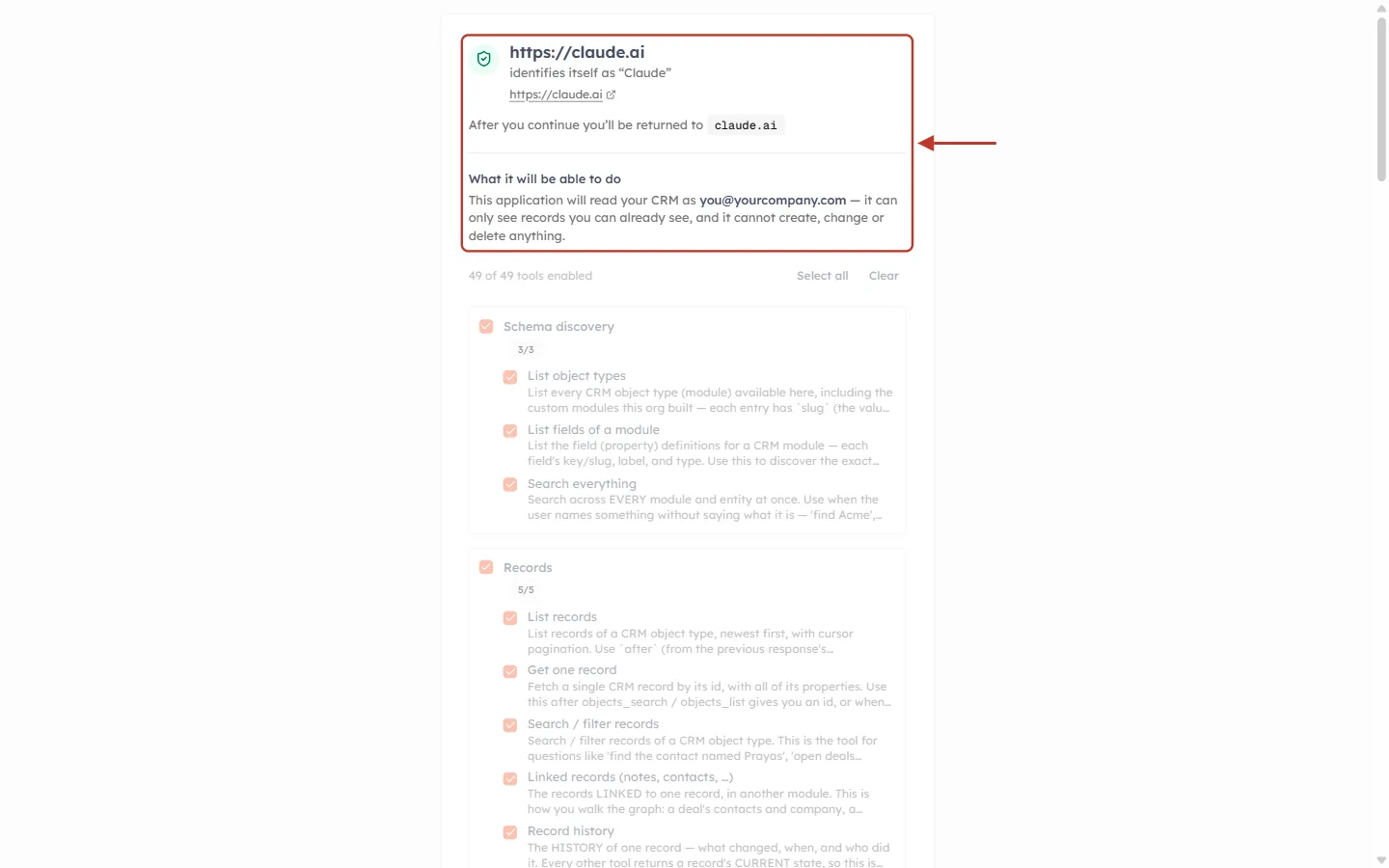
What this screenshot shows. The top of the Authorize access to your CRM screen, marked by the red box and arrow.
https://claude.ai (the large text): the web address the app runs on. This is the part nobody can fake, so check it matches the app you meant to connect.
identifies itself as “Claude”: the name the app gives itself. Treat this as a label, not proof. An app that nobody has vouched for is shown with an explicit not verified warning; only continue if you know exactly what you are connecting.
https://claude.ai (small link): opens the app’s website in a new tab if you want to check it.
After you continue you’ll be returned to claude.ai: where your browser goes once you click Allow access.
What it will be able to do: “This application will read your CRM as you@yourcompany.com — it can only see records you can already see, and it cannot create, change or delete anything.” The email shown is your own login, which is whose permissions the assistant will use.
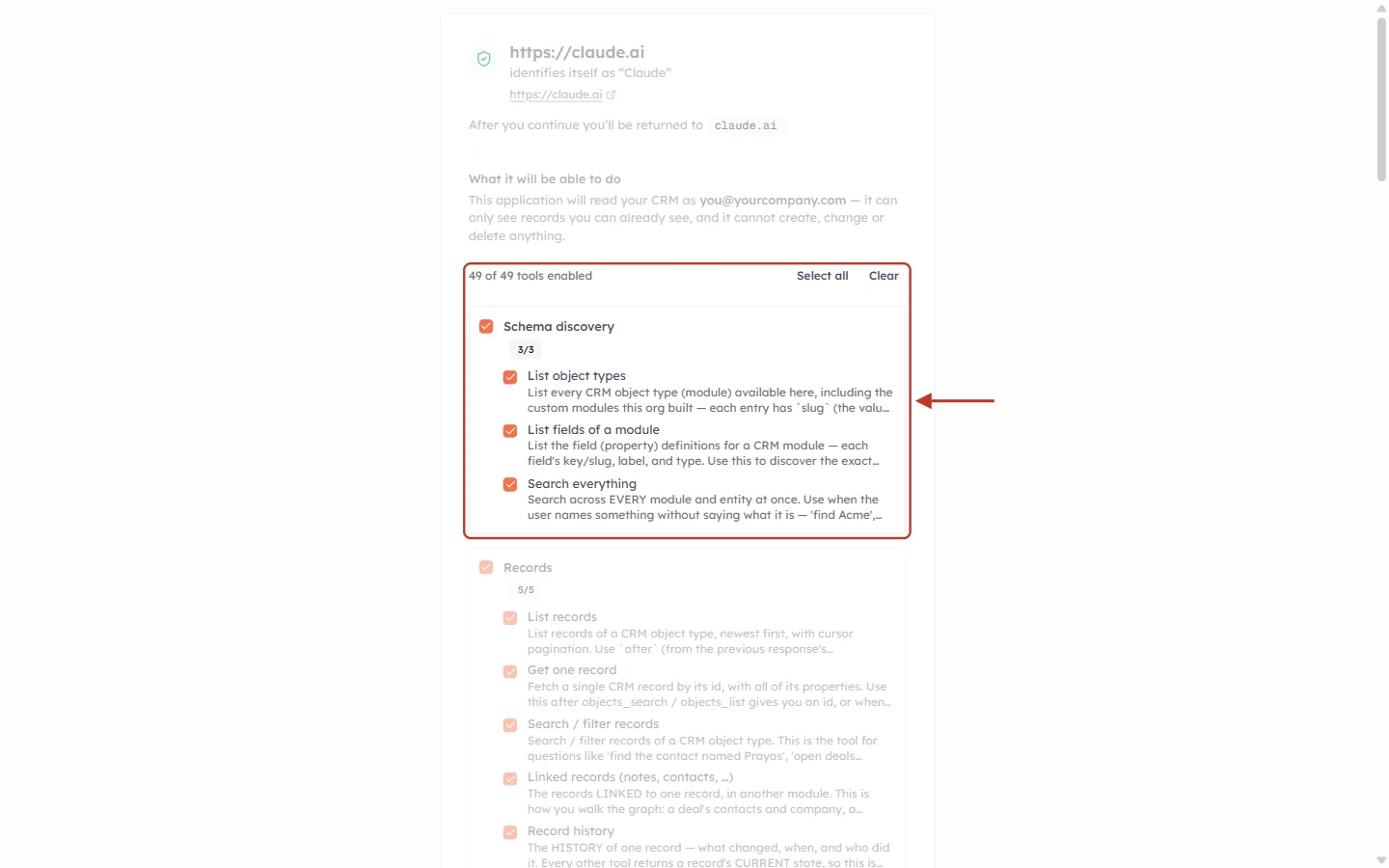
What this screenshot shows. The tool picker on the authorization screen. The red box covers the counter and the first tool group, Schema discovery.
49 of 49 tools enabled: how many tools are ticked out of the total. By default every tool is ticked.
Select all ticks every tool; Clear unticks all of them so you can tick only the ones you want.
Group checkbox (Schema discovery) with its counter (3/3). Untick the group to remove all of its tools at once.
Tool checkboxes (List object types, List fields of a module, Search everything), each with a short description of what it reads.
Further down, the Records group has a Modules these cover box. Untick a module there to stop the assistant reading that module’s records at all.
✅
Anything you leave unticked is never granted to the connection. It isn’t hidden; it is simply not part of the pass. You can widen or narrow the choice later with Change access (Step 4), without reconnecting.
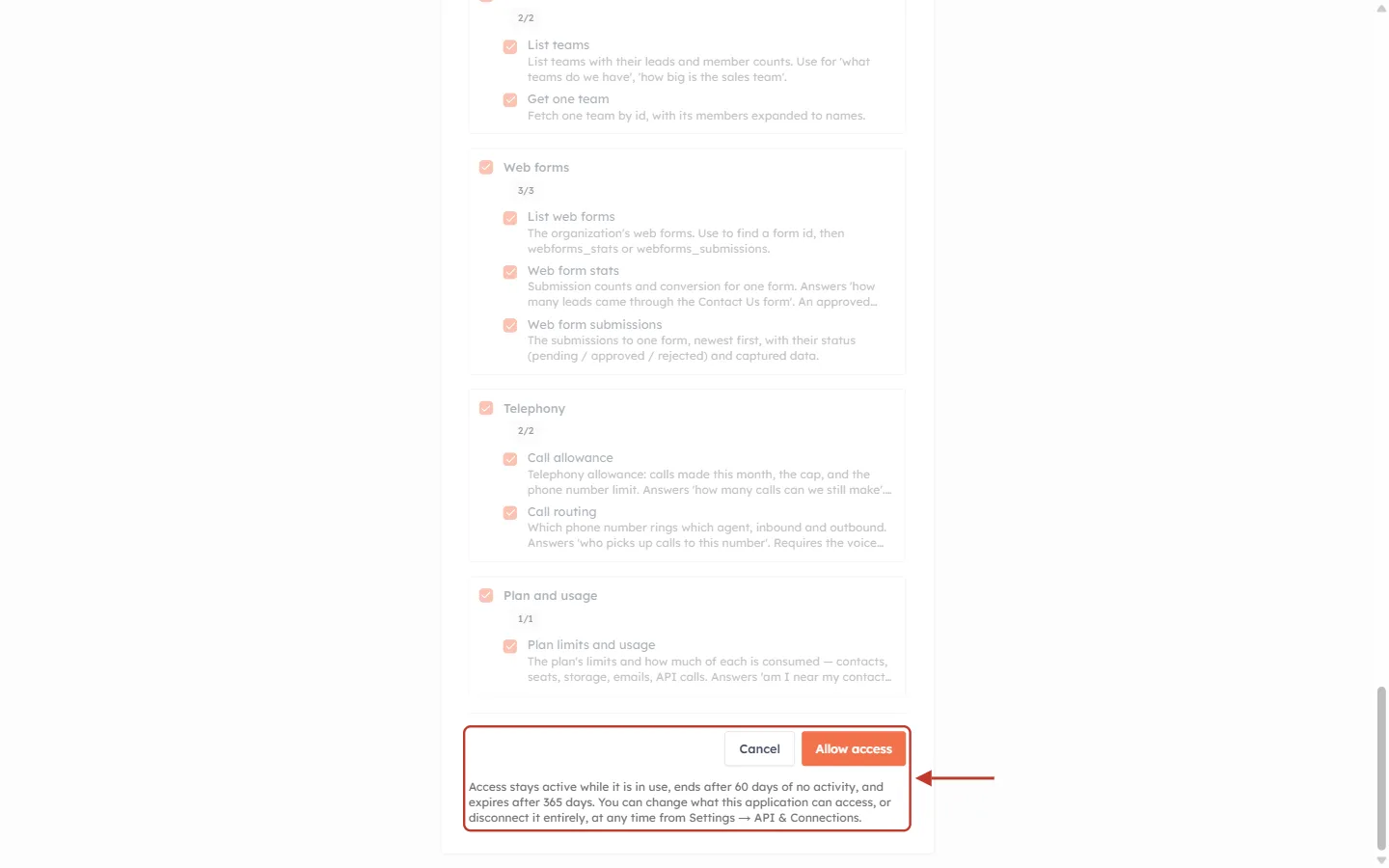
What this screenshot shows. The bottom of the authorization screen, marked in red.
Cancel: stops here. Nothing is connected and the assistant gets no access.
Allow access: creates the connection with exactly the tools and modules you ticked, and returns you to the assistant.
Lifetime note: “Access stays active while it is in use, ends after 60 days of no activity, and expires after 365 days. You can change what this application can access, or disconnect it entirely, at any time from Settings → API & Connections.”
⚠️
The authorization screen must be completed within 10 minutes. If you leave it open longer, start the connection again from your assistant.
How long a connection lasts#
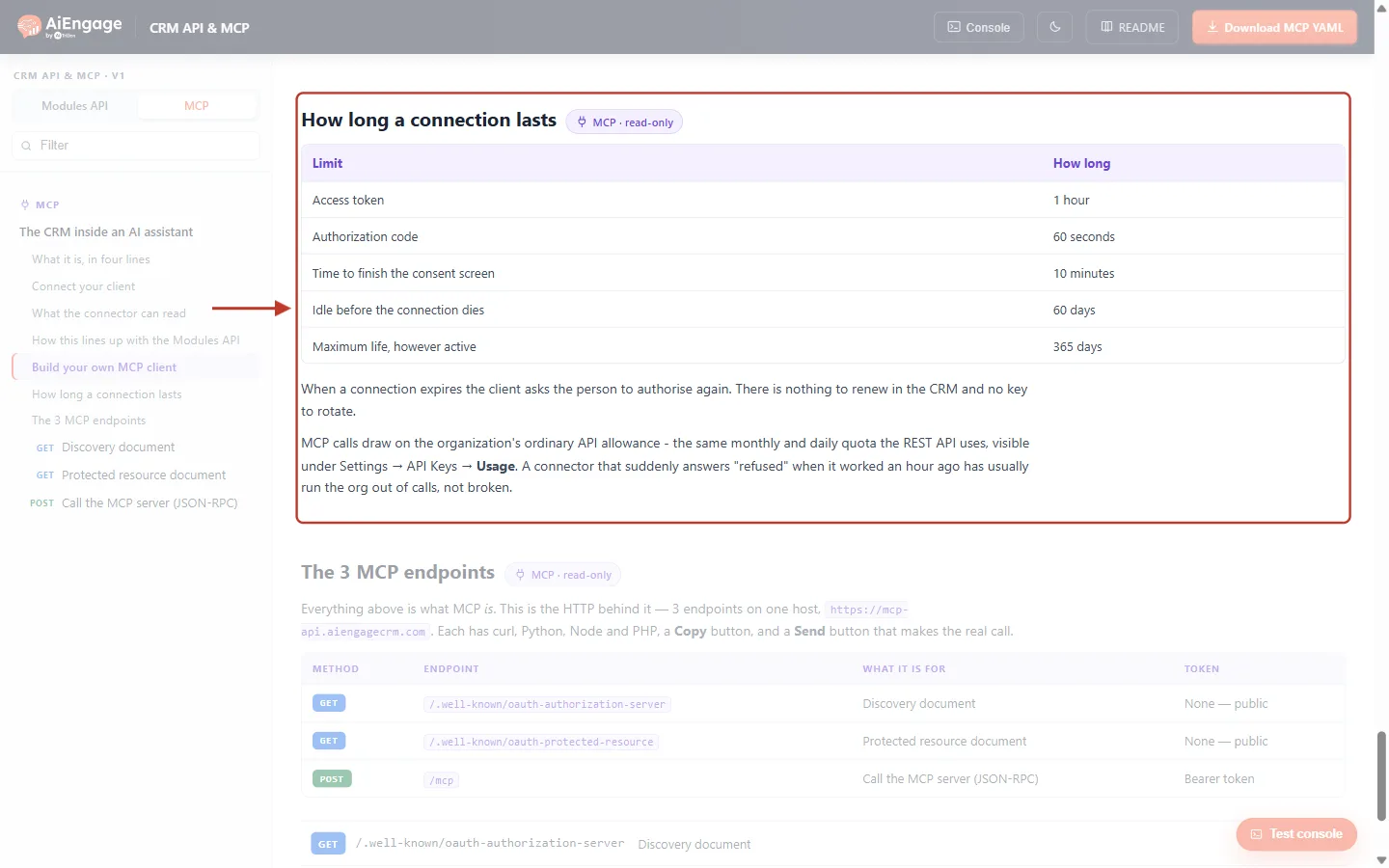
What this screenshot shows. The developer portal (developer.aiengagecrm.com), MCP tab, section How long a connection lasts, marked in red.
Access token — 1 hour: the pass the assistant uses. It renews automatically while the connection is active, so you won’t notice.
Authorization code — 60 seconds: a one-time code the assistant swaps for the pass straight after you click Allow access.
Time to finish the consent screen — 10 minutes.
Idle before the connection dies — 60 days: if the assistant doesn’t use the connection for 60 days, it ends.
Maximum life, however active — 365 days: every connection ends after a year, even if used daily.
“When a connection expires the client asks the person to authorise again. There is nothing to renew in the CRM and no key to rotate.”
MCP questions use your organization’s ordinary API allowance, the same quota as the REST API, shown under Settings → API Keys → Usage. If the assistant suddenly answers “refused” when it worked an hour ago, the organization has usually run out of calls; the connection isn’t broken.
What you see | Why | What to do |
|---|---|---|
The assistant asks you to authorize again | The connection was disconnected, was idle for 60 days, or reached 365 days. | Go through the sign-in and Allow access again. A new connection appears in the list. |
Every question is refused | The plan has no API access, or the API allowance for the period is used up. | An administrator checks API Keys → Usage. See Monitor API Usage & Set Quota Alerts Step by Step. |
The sign-in keeps looping back | Your CRM session expired part-way through. | Sign in to the CRM dashboard in the same browser first, then connect again. |
Step 2: Open your connections#
Every connection you approve is listed in the CRM. Click the Settings gear at the bottom of the left rail, scroll to Developer Hub and click API Keys.
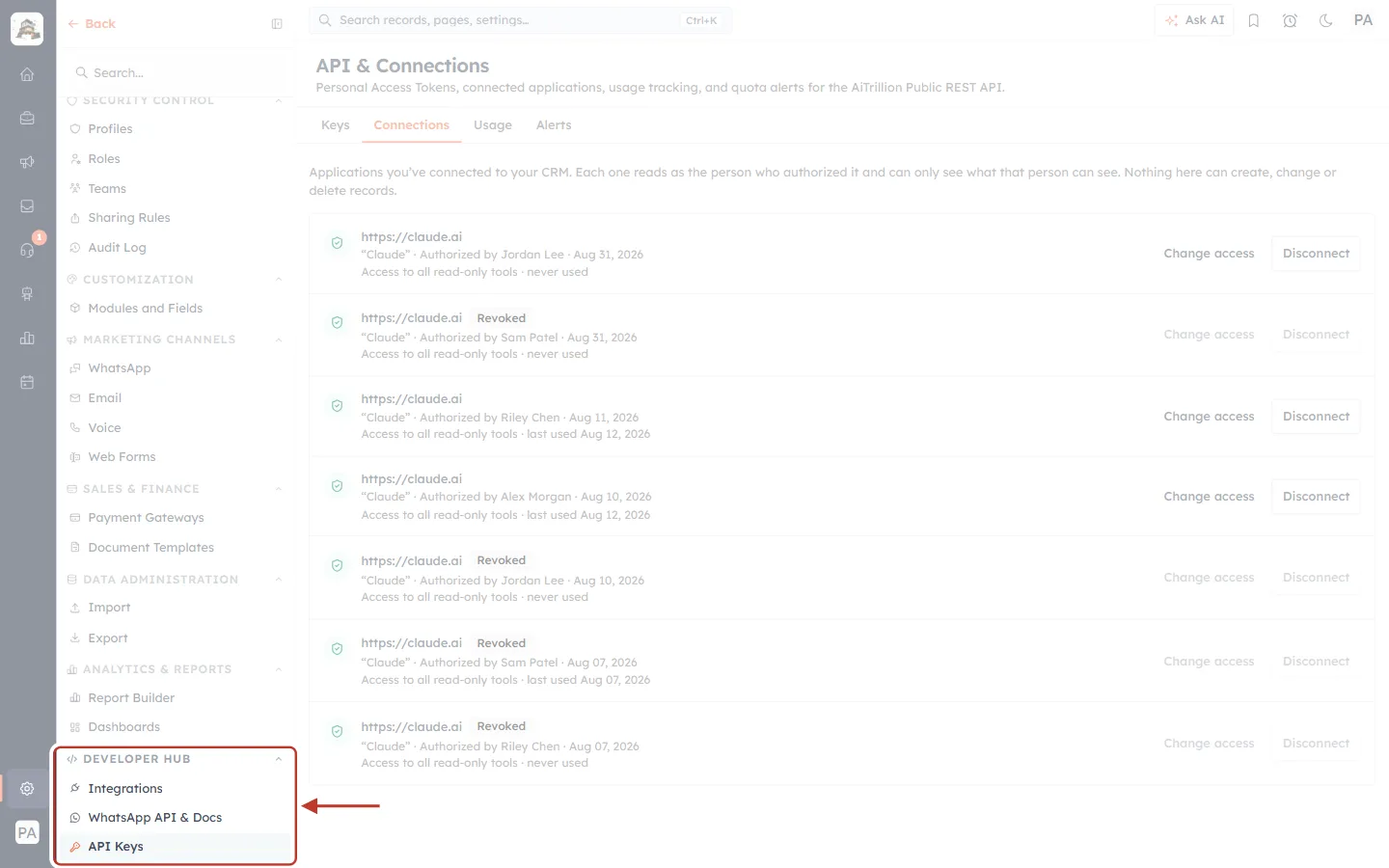
What this screenshot shows. The Settings menu. The red box marks the Developer Hub section, with API Keys selected.
Developer Hub holds the developer tools: Integrations, WhatsApp API & Docs and API Keys.
API Keys opens the API & Connections page shown on the right.
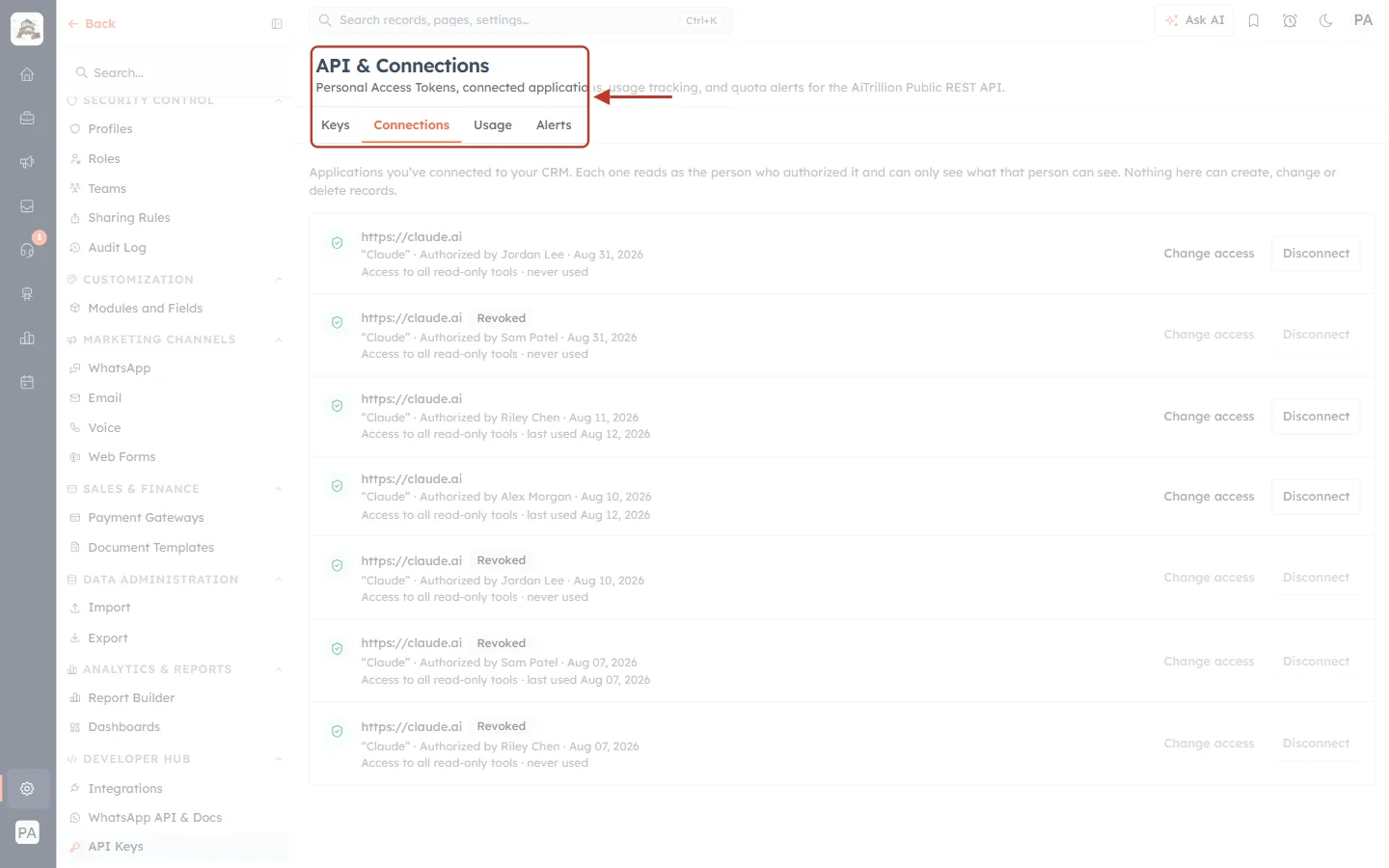
What this screenshot shows. The API & Connections page header and its tabs, marked in red. The Connections tab is selected.
Keys: personal access tokens (API keys) for developers. See API Keys Step by Step: Generate, Use and Revoke a Personal Access Token.
Connections: the AI assistants and other apps connected through MCP sign-in. This is the tab this article is about.
Usage: how much of the API allowance has been used, including MCP questions.
Alerts: notifications when usage nears its limit.
✅
Shortcut: on the MCP page (Settings → AI Centre Hub → MCP), open Details & troubleshooting → Managing and revoking connections and click View connected applications.
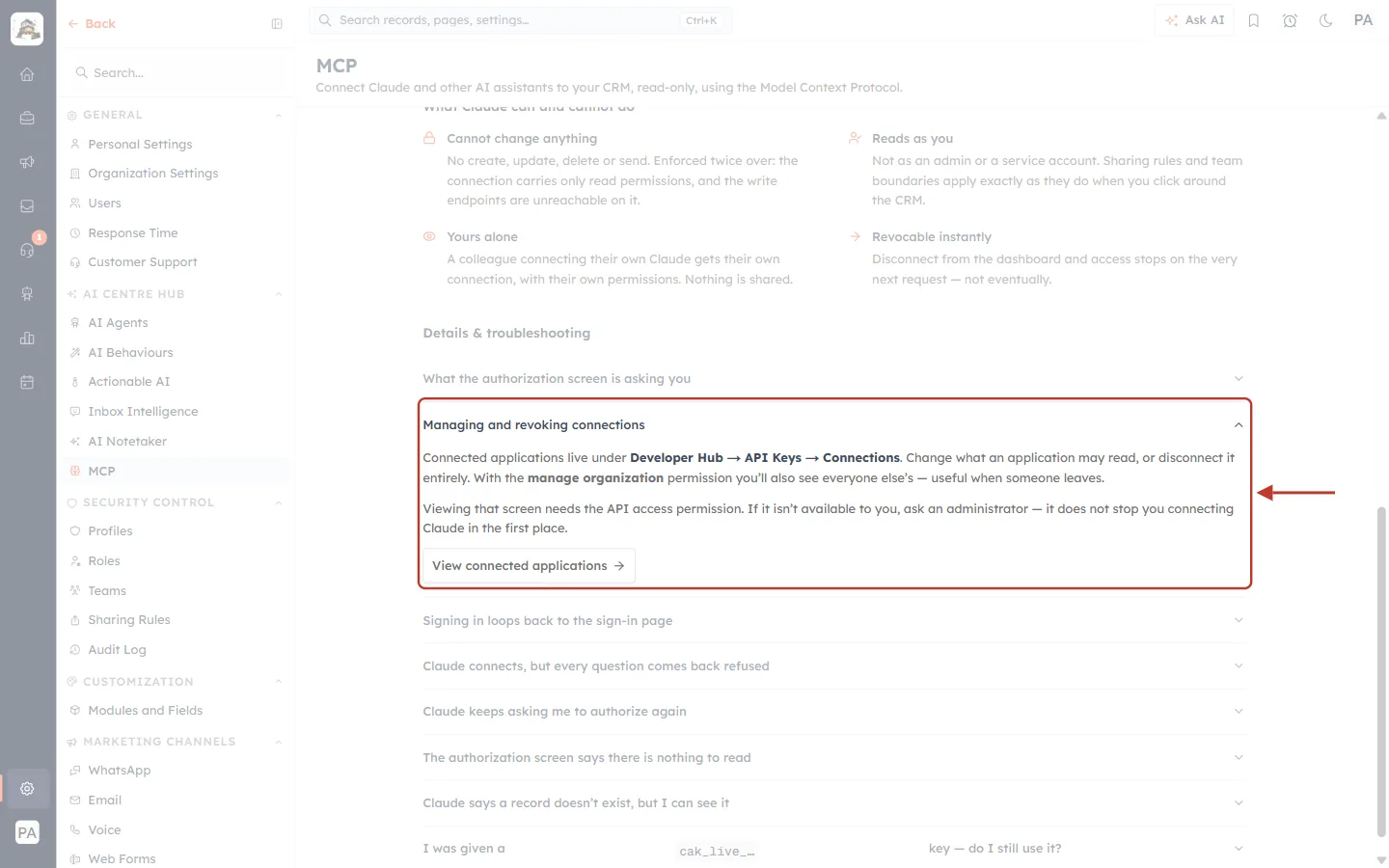
What this screenshot shows. The Managing and revoking connections answer on the MCP page, marked in red.
“Connected applications live under Developer Hub → API Keys → Connections. Change what an application may read, or disconnect it entirely.”
“With the manage organization permission you’ll also see everyone else’s — useful when someone leaves.”
“Viewing that screen needs the API access permission. If it isn’t available to you, ask an administrator — it does not stop you connecting Claude in the first place.”
View connected applications jumps straight to the Connections tab.
Step 3: Understand the Connections list#
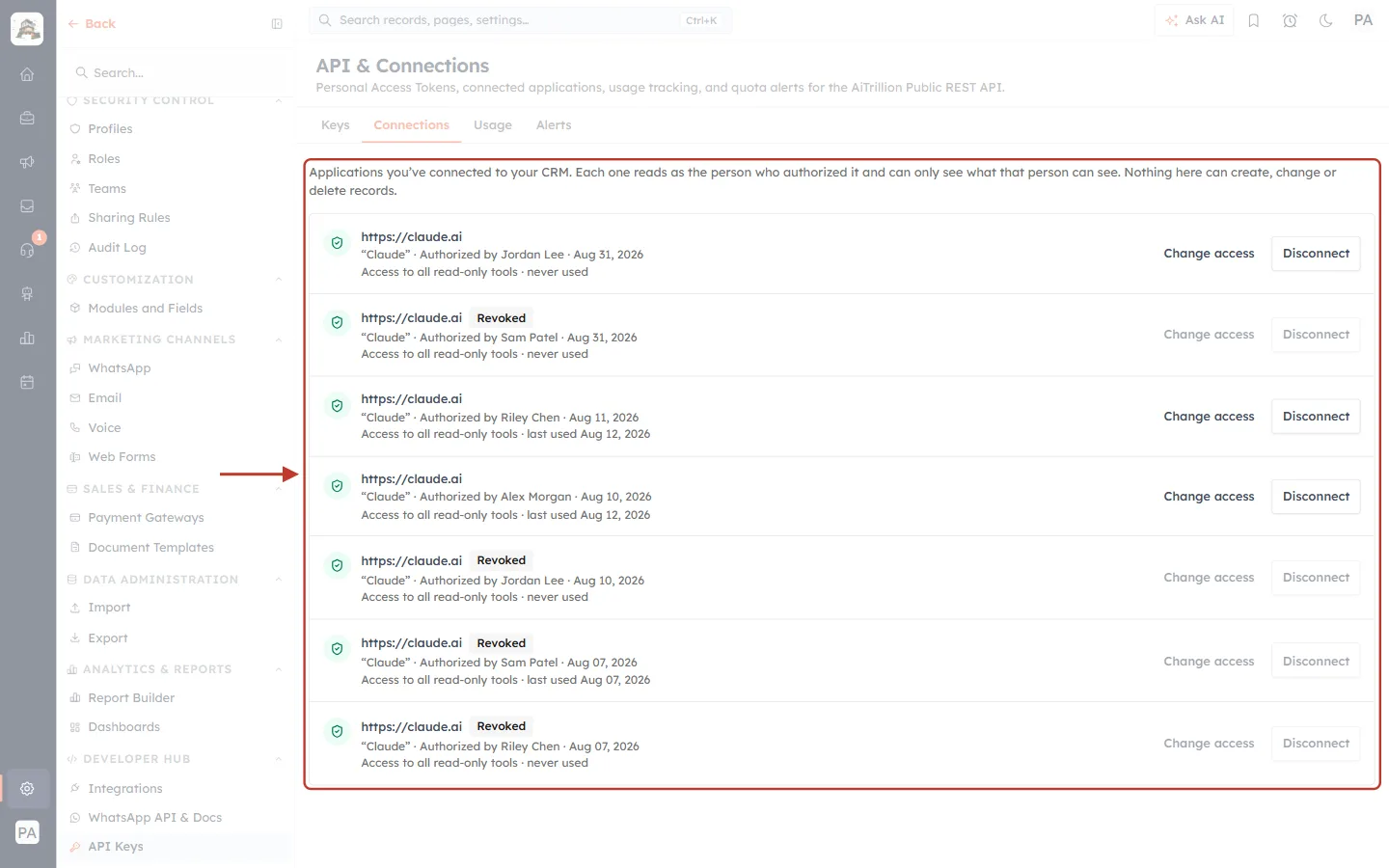
What this screenshot shows. The Connections tab, with the whole list of connected applications marked in red. (Names in the screenshots are examples.)
Intro text: “Applications you’ve connected to your CRM. Each one reads as the person who authorized it and can only see what that person can see. Nothing here can create, change or delete records.”
One row per connection. Every time someone approves an assistant, a new row appears, so one person may have several rows (for example Claude on the web and Claude Code).
Active rows have dark Change access and Disconnect buttons. Revoked rows carry a Revoked label and greyed-out buttons.
You always see your own connections. Users with the manage organization permission see everyone’s, as in this screenshot.
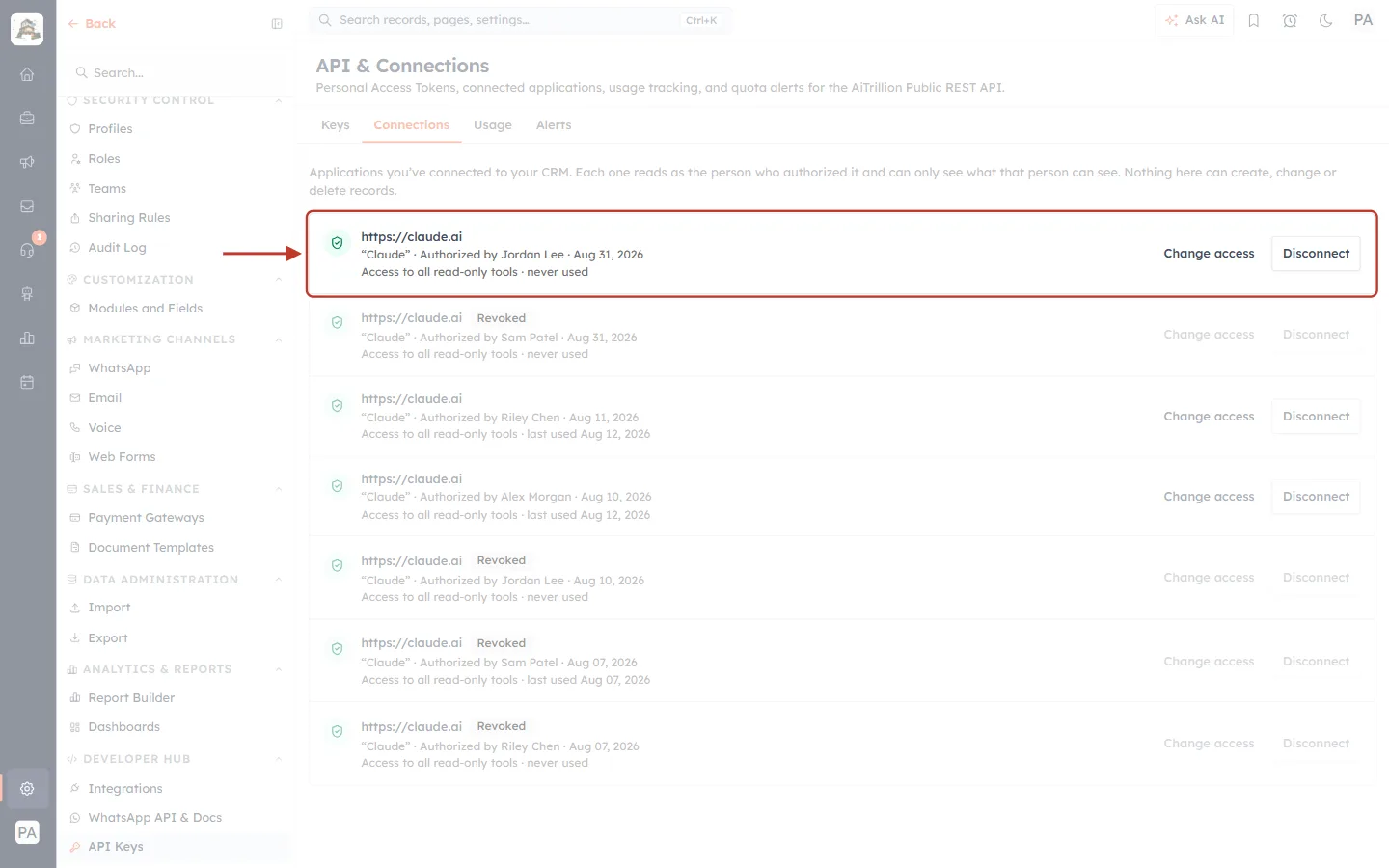
What this screenshot shows. A single active connection, marked in red.
Shield icon and https://claude.ai: the web address of the connected app, the same trustworthy field as on the authorization screen.
“Claude”: the name the app gives itself.
Authorized by Jordan Lee · Aug 31, 2026: who approved it and when. The connection reads with this person’s permissions.
Access to all read-only tools: a summary of what it may read (it changes if the access was narrowed).
never used / last used Aug 12, 2026: when the assistant last asked a question. A connection not used for 60 days ends by itself.
Change access (Step 4) and Disconnect (Step 5) on the right.
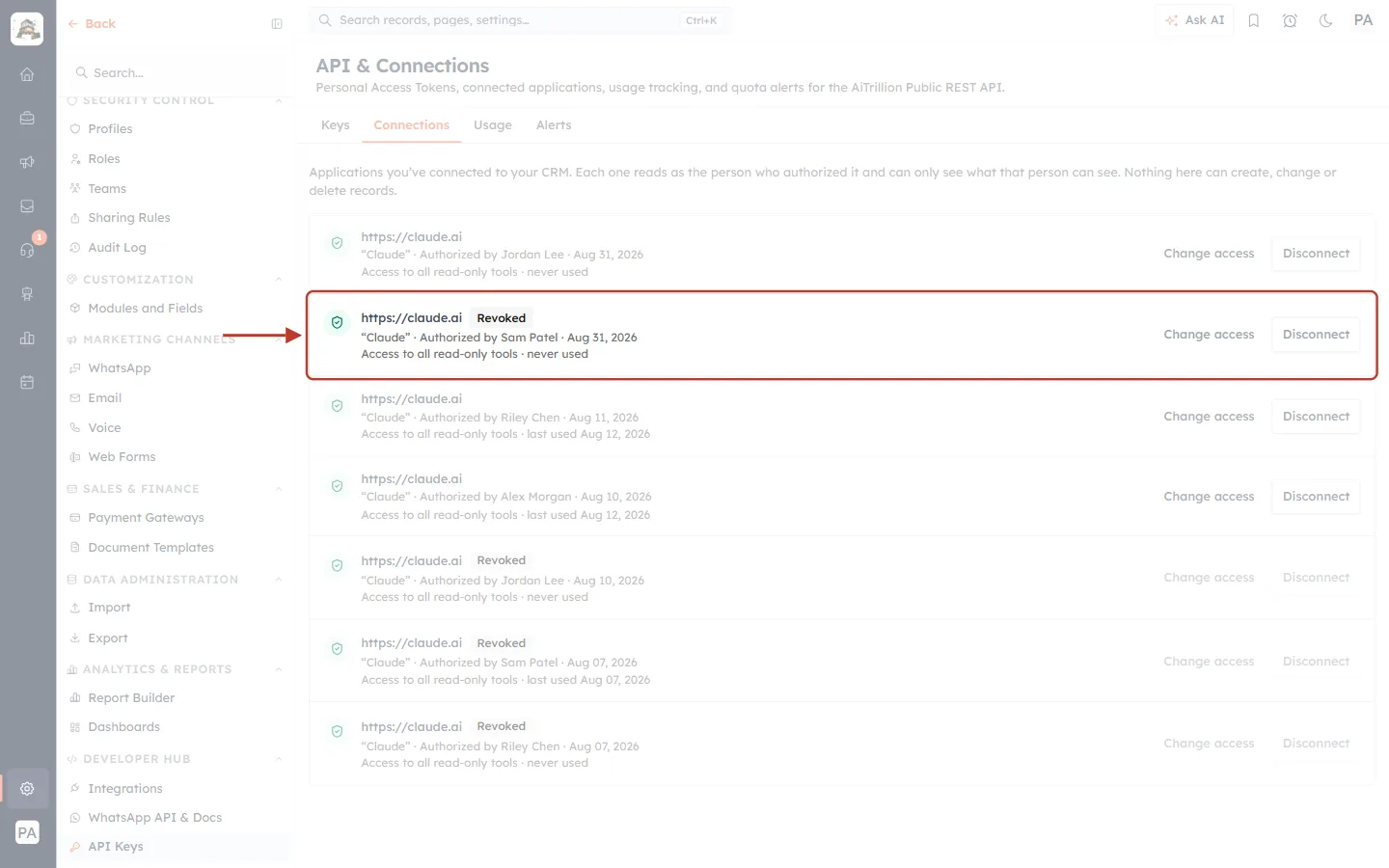
What this screenshot shows. A revoked connection, marked in red.
Revoked label next to the address: this connection was disconnected (or ended) and can no longer read anything.
Change access and Disconnect are greyed out, because there is nothing left to change.
The row stays in the list as a record of who connected what, and when. To use the assistant again, simply authorize it again; a new row appears.
Step 4: Narrow (or widen) a connection with Change access#
Use Change access when you want the assistant to keep working but read less (or more). Click Change access on an active row.
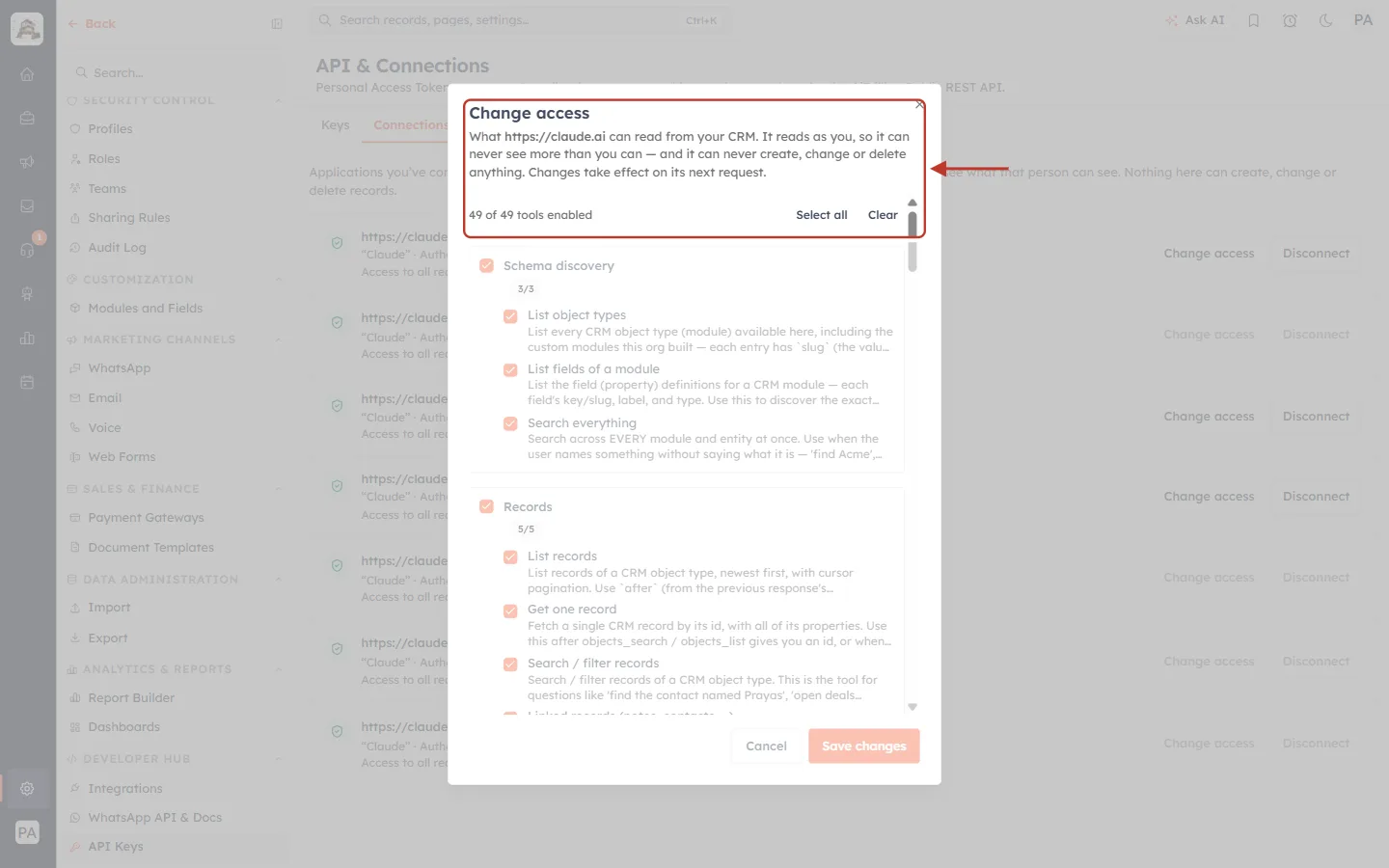
What this screenshot shows. The Change access dialog. The red box marks its header and the tool counter.
“What https://claude.ai can read from your CRM. It reads as you, so it can never see more than you can — and it can never create, change or delete anything. Changes take effect on its next request.”
49 of 49 tools enabled, Select all and Clear work exactly as on the authorization screen.
Below are the same tool groups as the authorization screen, with the current choices ticked.
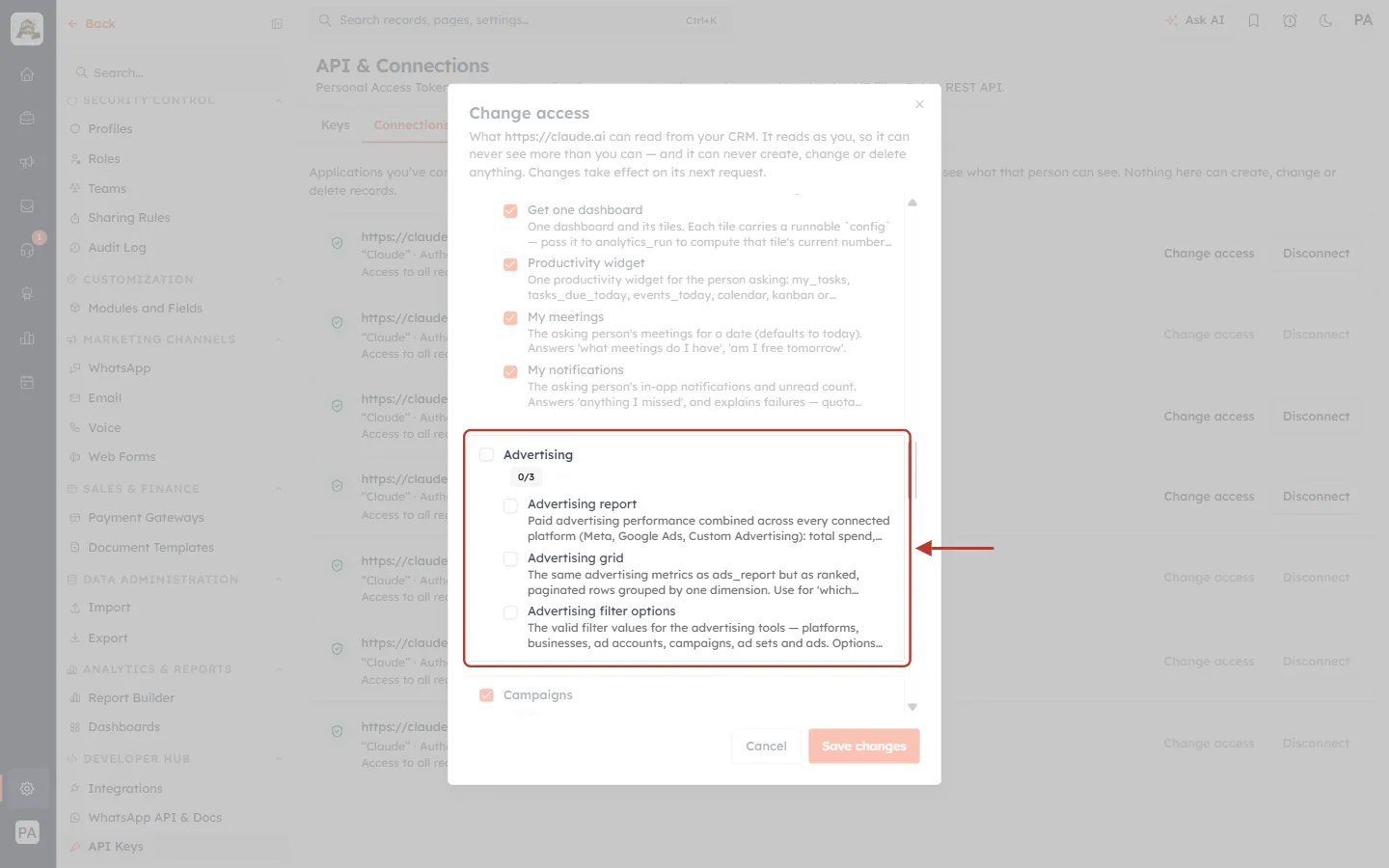
What this screenshot shows. The Advertising group after unticking it, marked in red.
The group checkbox is now empty and its counter reads 0/3.
Its three tools (Advertising report, Advertising grid, Advertising filter options) are unticked, so after saving the assistant can no longer read ad spend or campaigns from the ad platforms.
The counter at the top changes to 46 of 49 tools enabled.
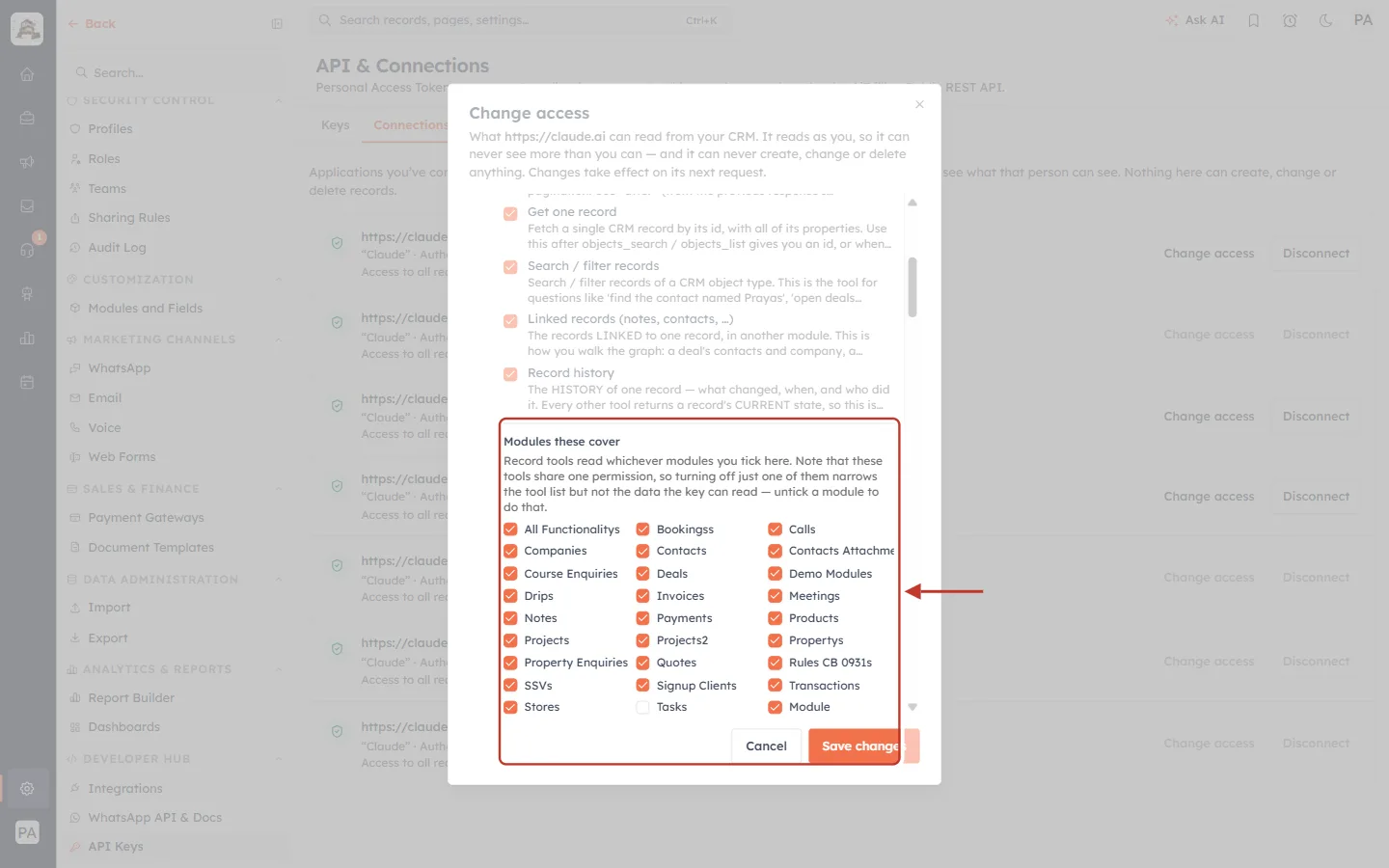
What this screenshot shows. The Modules these cover box in the Records group, marked in red, with Tasks unticked.
“Record tools read whichever modules you tick here. Note that these tools share one permission, so turning off just one of them narrows the tool list but not the data the key can read — untick a module to do that.”
Module checkboxes: every module the connection’s owner can read (yours will differ). Here everything is ticked except Tasks, so after saving the assistant can’t read any task records.
This is the right place to keep a module private from the assistant, for example Payments or Invoices.
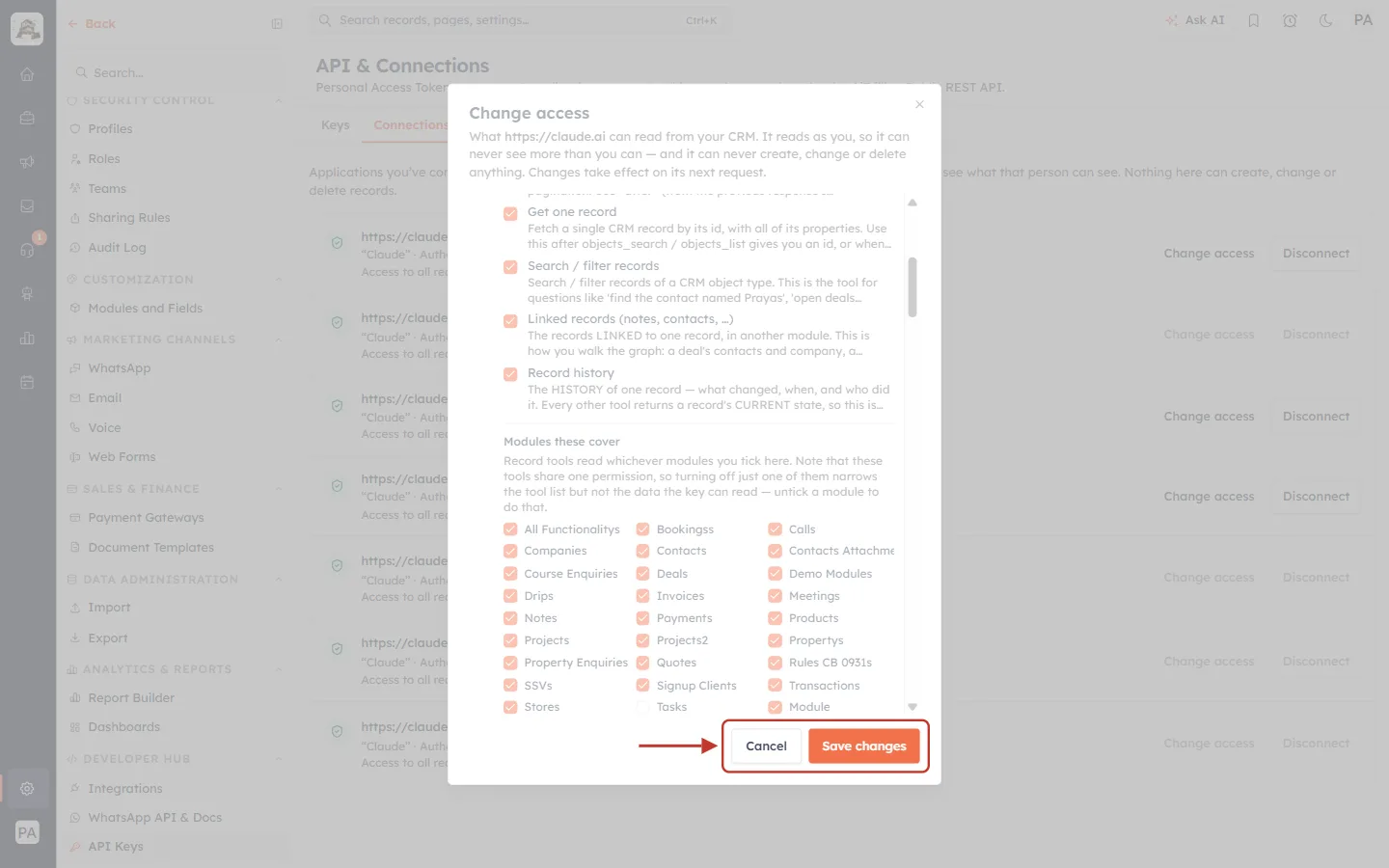
What this screenshot shows. The dialog’s buttons, marked by the red box and arrow.
Save changes applies the new choices. They take effect on the assistant’s very next request; you don’t need to reconnect and the assistant doesn’t need to sign in again.
Cancel (or the × in the corner) closes the dialog without changing anything.
ℹ️
The owner’s permissions are the ceiling. A connection always reads as the person who authorized it, so Change access only ever offers modules that person can read. An administrator narrowing a colleague’s connection can’t widen it beyond what that colleague can see.
Step 5: Revoke access with Disconnect#
Use Disconnect when the assistant should stop reading your CRM completely, for example if you stop using it, lose a device, or connected the wrong app.
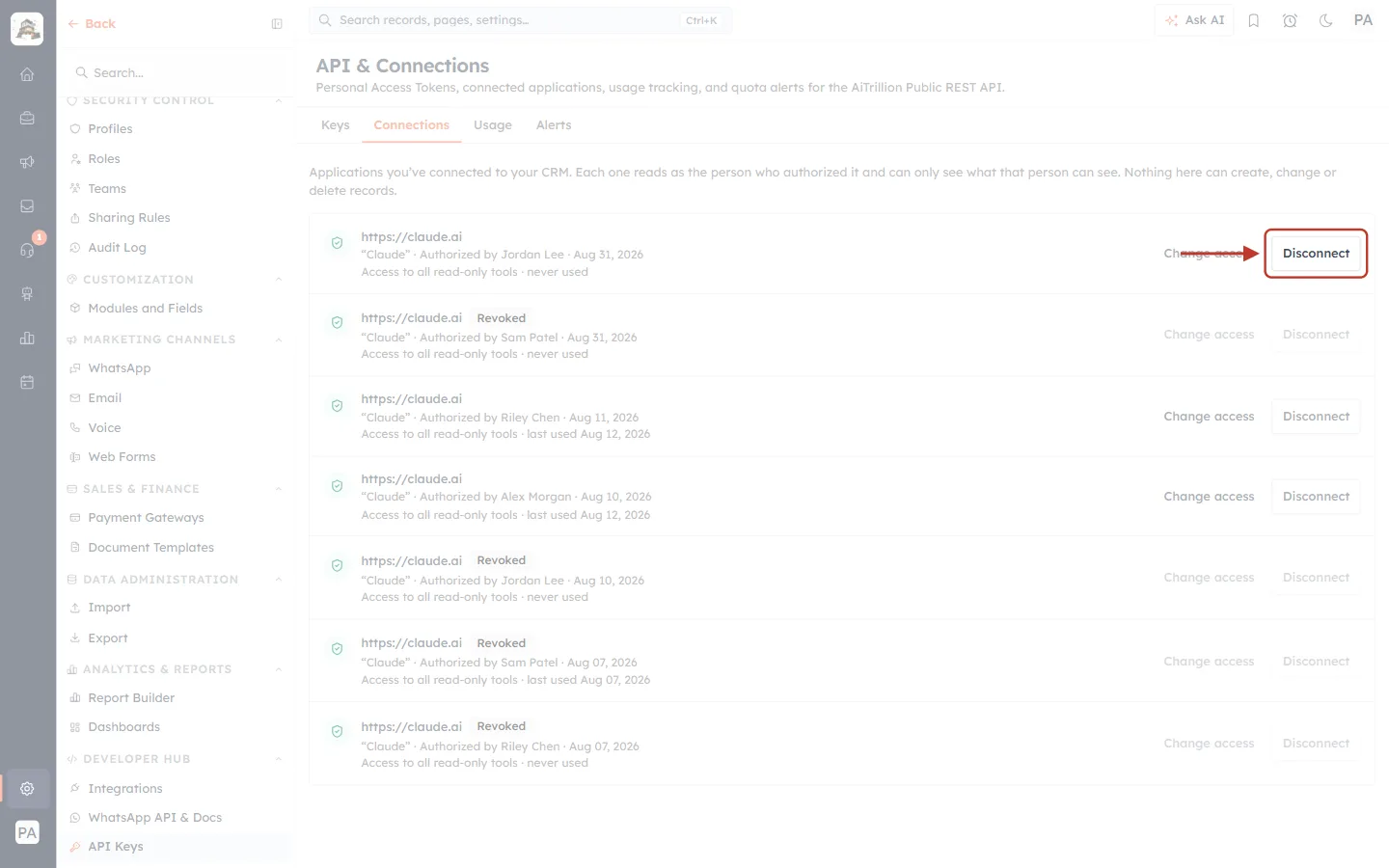
What this screenshot shows. The Disconnect button on an active connection, marked by the red box and arrow.
Click Disconnect on the row of the connection you want to end. A confirmation appears first, so nothing happens yet.
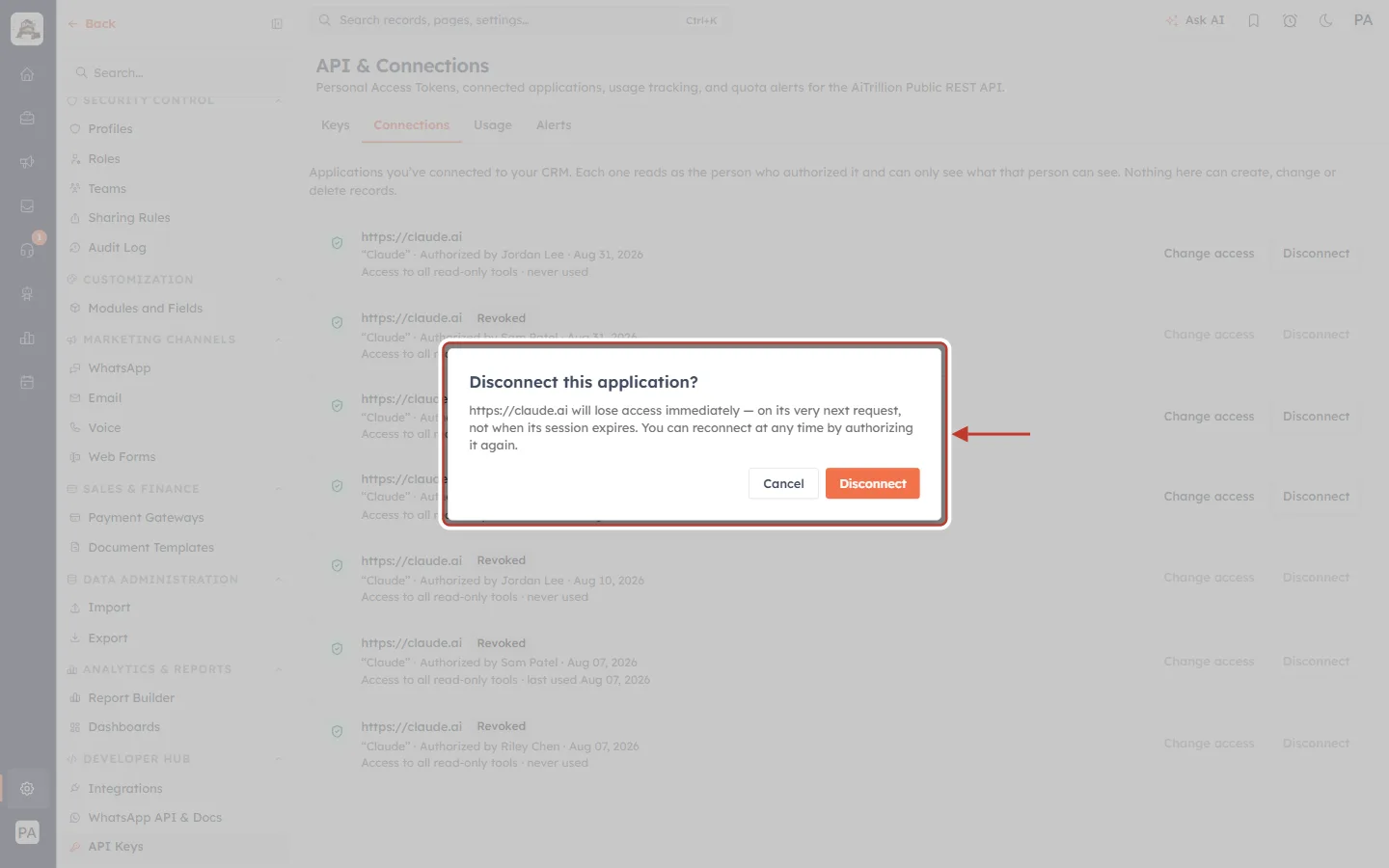
What this screenshot shows. The Disconnect this application? confirmation, marked in red.
“https://claude.ai will lose access immediately — on its very next request, not when its session expires. You can reconnect at any time by authorizing it again.”
Disconnect (orange) ends the connection. The row then shows Revoked and its buttons grey out.
Cancel closes the dialog and keeps the connection.
⚠️
Disconnect can’t be undone. To use the assistant again, connect it again from the assistant and click Allow access; this creates a new connection.
For administrators: managing everyone’s connections#
Who | What they see | What they can do |
|---|---|---|
Any user (with the API access permission to open the tab) | Their own connections. | Change access or Disconnect their own connections. |
A user with the manage organization permission | Every connection in the organization, with who authorized it. | Change access (up to the owner’s permissions) or Disconnect anyone’s connection. |
When someone leaves the company: open API Keys → Connections, find the rows Authorized by that person, and click Disconnect on each one. Access stops on the next request. Also revoke any API keys they created on the Keys tab.
If an unknown app appears: check the web address on the row. If nobody recognises it, disconnect it straight away and ask the person shown under Authorized by what they connected.
Best practices#
Check the web address on the authorization screen every time. Never approve an app you don’t recognise, especially one marked not verified.
Tick only what you need. You can always widen access later with Change access.
Keep sensitive modules (for example Payments or Invoices) unticked unless you really need the assistant to read them.
Review the Connections tab now and then, and disconnect anything you no longer use.
Remember the assistant reads as you: if you can see it in the CRM, it can too. Profiles, roles and sharing rules control that. See Understanding the Role Hierarchy: How Roles Decide Whose Records Each User Can See and Sharing Rules: Share Records Across Teams, Roles & Users.
Frequently asked questions#
Do I need an API key to connect an assistant?
No. MCP uses sign-in and Allow access. Older MCP keys (cak_live_…) still work, but new ones are no longer issued.
Does changing access disconnect the assistant?
No. It keeps working, with the new choices applied on its next request.
How quickly does Disconnect take effect?
Immediately, on the assistant’s next request, not when its one-hour pass would have expired.
Can an administrator read my data through my connection?
No. An administrator can narrow or disconnect your connection, but they can’t use it. Only your assistant holds its pass.
Why do I see several rows for myself?
Each approval creates its own connection, for example Claude on the web, Claude Desktop and Claude Code. Old ones show Revoked once disconnected or ended.
I can’t see the Connections tab.
Viewing it needs the API access permission. Ask an administrator. You can still connect an assistant without it.
Previous and next#
Previous: MCP Overview & Available Tools: What Claude and Other AI Assistants Can Read in Your CRM
Next: API Errors & Troubleshooting: Fix 400, 401, 403, 404, 409, 429 and 500 Errors Step by Step
Related articles#
MCP Overview & Available Tools: What Claude and Other AI Assistants Can Read in Your CRM
Connect Claude to AiEngage CRM (MCP): Ask Your CRM Questions in Plain English
API Keys Step by Step: Generate, Use and Revoke a Personal Access Token
Understanding the Role Hierarchy: How Roles Decide Whose Records Each User Can See
Was this article helpful?
Ready to implement this?
OpenAI Engage and apply what you just learned to your own workspace.
Open AI Engage CRM