Loading…


KnowledgeBase
Batch Operations in the CRM API: Create, Read, Update and Archive Up to 100 Records in One Call
Introduction#
When you work with many records — importing 500 contacts from a spreadsheet, moving 80 deals to a new stage, or reading the details of 60 customers — sending one API call per record is slow and quickly uses up your rate limit. The AiEngage CRM API has four batch endpoints that handle up to 100 records in a single call:
Endpoint | What it does | Scope the API key needs |
|---|---|---|
| Insert Records (batch) — creates up to 100 new records. |
|
| Get Records (batch) — fetches up to 100 records by id or by a field such as email. |
|
| Update Records (batch) — changes up to 100 existing records. |
|
| Archive Records (batch) — archives (soft-deletes) up to 100 records. |
|
All four work the same way. You send a list called inputs, with one entry per record. The CRM handles each entry on its own: if one record fails, the others are still processed. The answer is always HTTP 207 Multi-Status, with the successful records in results and the failed ones in errors.
In this guide you will learn, step by step:
Where the batch endpoints are in the developer portal.
How to create several records in one call, and how to read a 207 answer.
How to find which record failed (the
index) and retry only that one.How to read many records by id or by email.
How to update and archive many records — and why your profile’s Mass Update and Mass Delete permissions matter.
How to fix the 400 and 403 batch errors, and how to process more than 100 records in your own code.
Most screenshots come from the AiEngage developer portal, developer.aiengagecrm.com; one comes from the CRM (Profiles). Each screenshot has a red ring and arrow on the part to look at, followed by a description of the whole screen. The API answers in the portal screenshots use example data (sample contacts with @example.com addresses).
Before You Begin#
An API key (
cak_live_…) with the scopes in the table above. The CRM runs every batch call as the user who created the key, with that user’s permissions.Basic knowledge of single-record calls. See Get, Create, Update and Archive Records with the CRM API: A Step-by-Step Guide.
To try the calls in your browser, open developer.aiengagecrm.com and paste your key once in Paste your key here. See Test the AiEngage CRM API in the API Console and Postman.
⚠️
The Send button in the developer portal is real. Batch create, update and archive change up to 100 records at once. Practise on test records with
@example.com addresses.How a Batch Answer Looks#
Every batch call that is processed answers 207, whether everything worked or nothing did. Always read the status field in the body:
status | Meaning | What to do |
|---|---|---|
| Every entry worked. | Nothing. |
| Some entries worked, some failed. | Fix and resend only the entries listed in |
| Every entry failed. | Read the errors; usually one mistake affects all entries. |
{
  "status": "partially_completed",
  "results": [ { "id": "…", "properties": { … }, … } ],
  "errors": [
    { "index": 1, "category": "INVALID_PROPERTY", "message": "Property 'emial' does not exist on module 'contacts'." }
  ]
}
ℹ️
How to match errors to your records: each error carries
index, the position of the entry in your inputs list, counting from 0. The entries in results do not carry an index; they are the successful entries in the same order you sent them, with the failed ones left out.Step 1: Find the Batch Endpoints#
Open developer.aiengagecrm.com. In the left menu, click Batch operations.
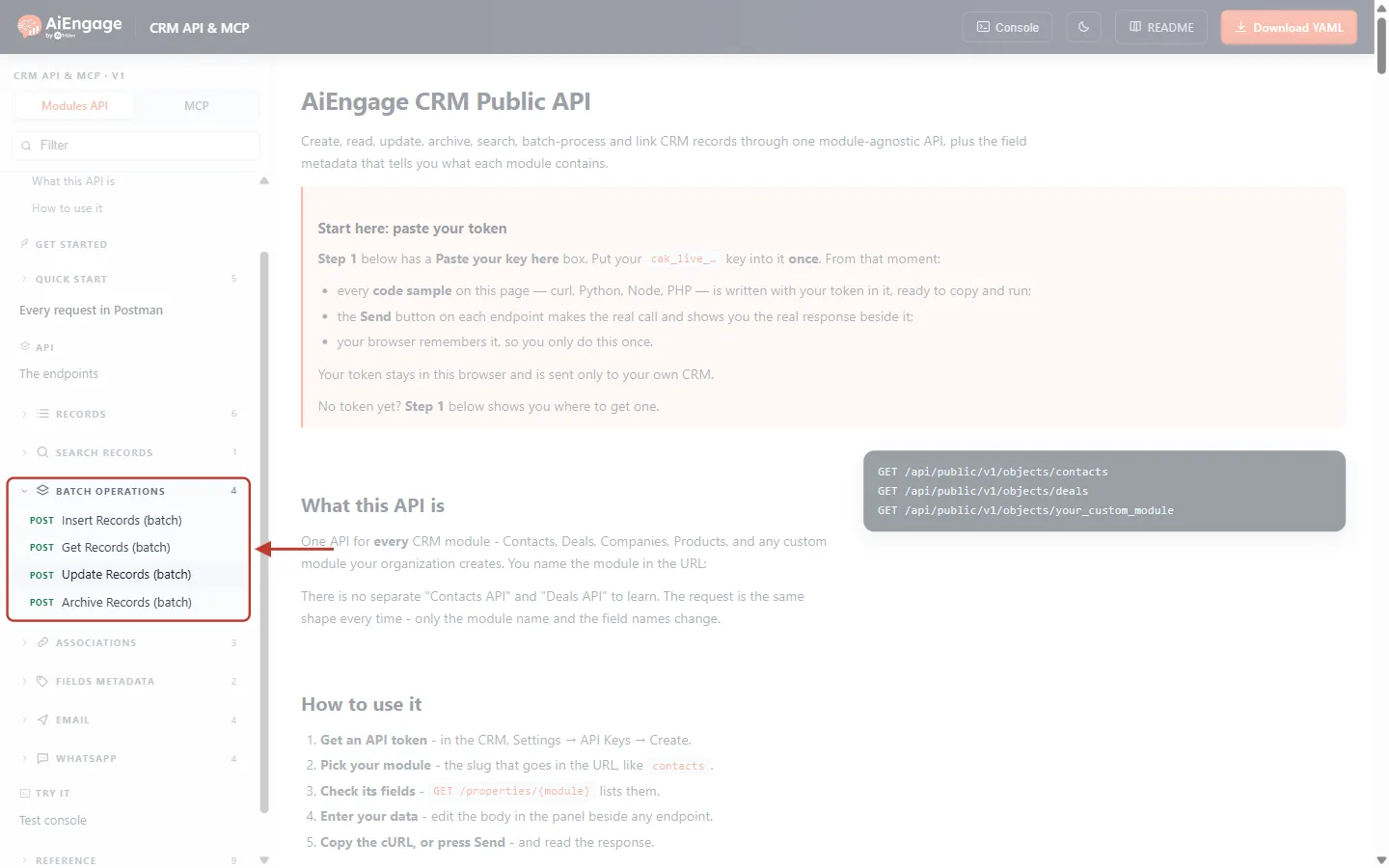
What this screenshot shows. The left menu of the developer portal with the Batch operations group opened and ringed.
The number 4 next to the group is the number of endpoints in it.
POST Insert Records (batch), POST Get Records (batch), POST Update Records (batch) and POST Archive Records (batch). All four use POST, even the read, because the list of records travels in the request body.
Above are Records (single-record calls) and Search records; below are Associations, Fields metadata, Email and WhatsApp.
On the right is the start of the guide (“AiEngage CRM Public API”), faded.
Step 2: Read the Batch Rules#
Click Insert Records (batch), then Read the full notes. The notes list the rules that apply to every batch endpoint.
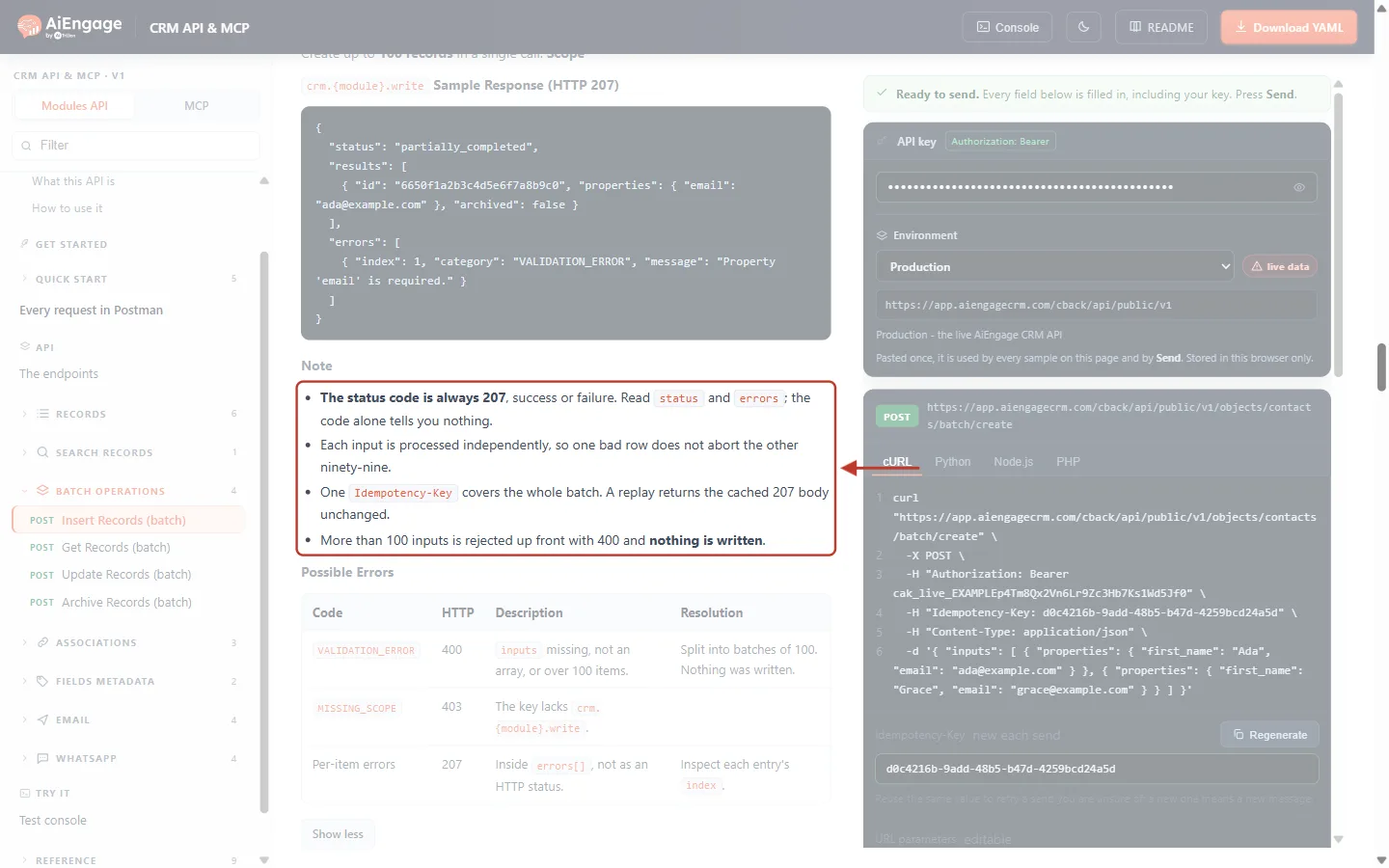
What this screenshot shows. The Note list of Insert Records (batch), ringed.
The status code is always 207, success or failure. Read
statusanderrors; the code alone tells you nothing.Each input is processed independently, so one bad row does not stop the other ninety-nine.
One Idempotency-Key covers the whole batch. A retry with the same key returns the stored 207 answer unchanged. See Idempotency Keys & Safe Retries: Prevent Duplicate Records and Double Sends in the CRM API.
More than 100 inputs is rejected up front with 400, and nothing is written.
Above the notes are Purpose (“Create up to 100 records in a single call”), the scope and a Sample Response (HTTP 207). Below is Possible Errors.
⚠️
About the sample response: it shows a per-record
VALIDATION_ERROR (“Property 'email' is required.”). Today, a record that breaks a field rule inside a batch — a missing required field or a badly formatted value — is reported as INTERNAL_ERROR with the message “Internal error processing this item. Reference correlationId for support.” If you see that, send that one record with the single Insert Record or Update Record call: the error there names the field at fault.Step 3: Create Several Records in One Call#
In the Try it panel, {module} is contacts. In Enter your data, type one entry per contact inside inputs. Each entry has its own properties, exactly as in a single Insert Record call.
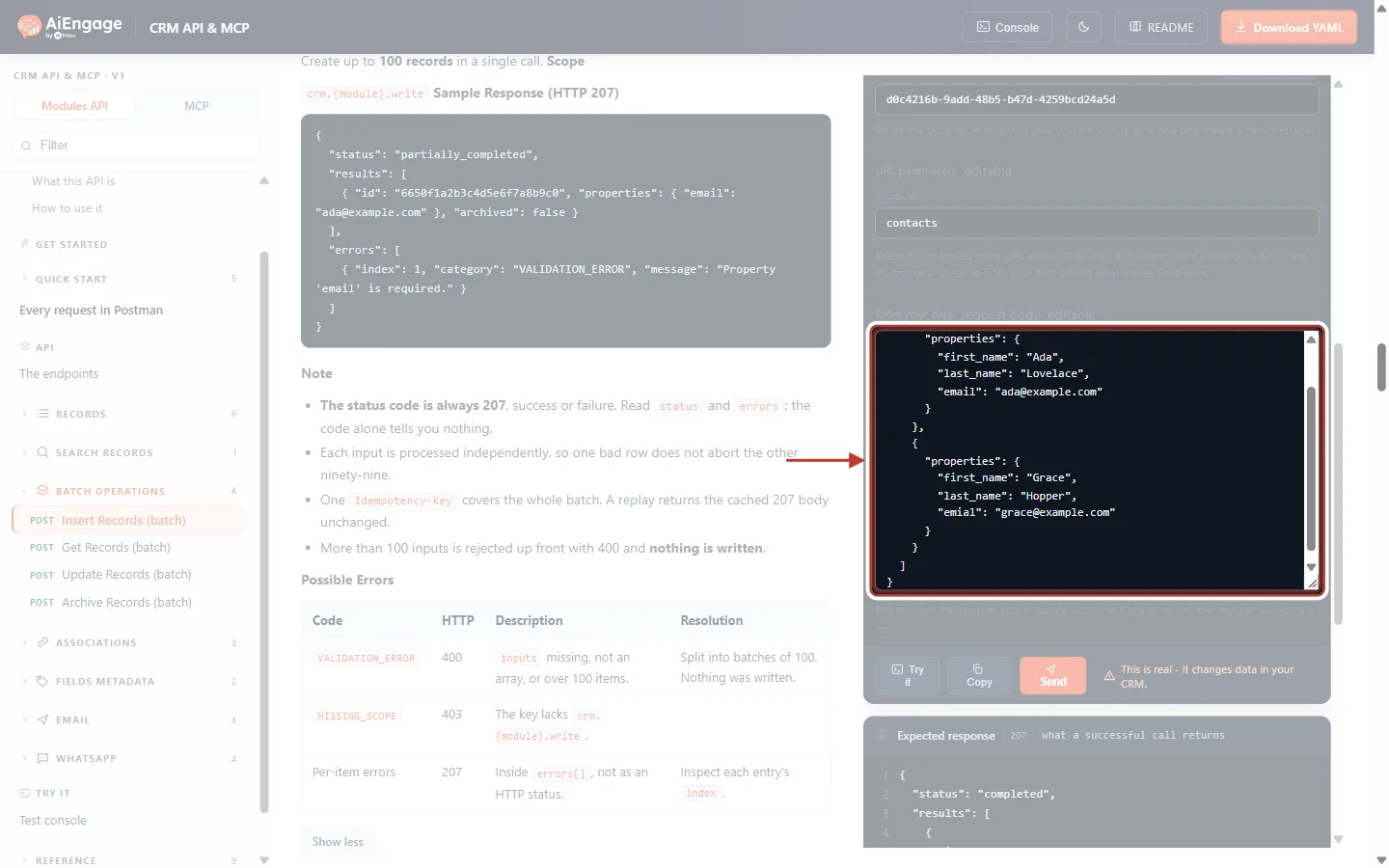
What this screenshot shows. The Enter your data box with two entries, ringed.
Entry 0: Ada Lovelace, with
emailspelt correctly.Entry 1: Grace Hopper, with a deliberate typo —
emialinstead ofemail— to show what a failed entry looks like.You can put up to 100 entries in
inputs.
Press Send.
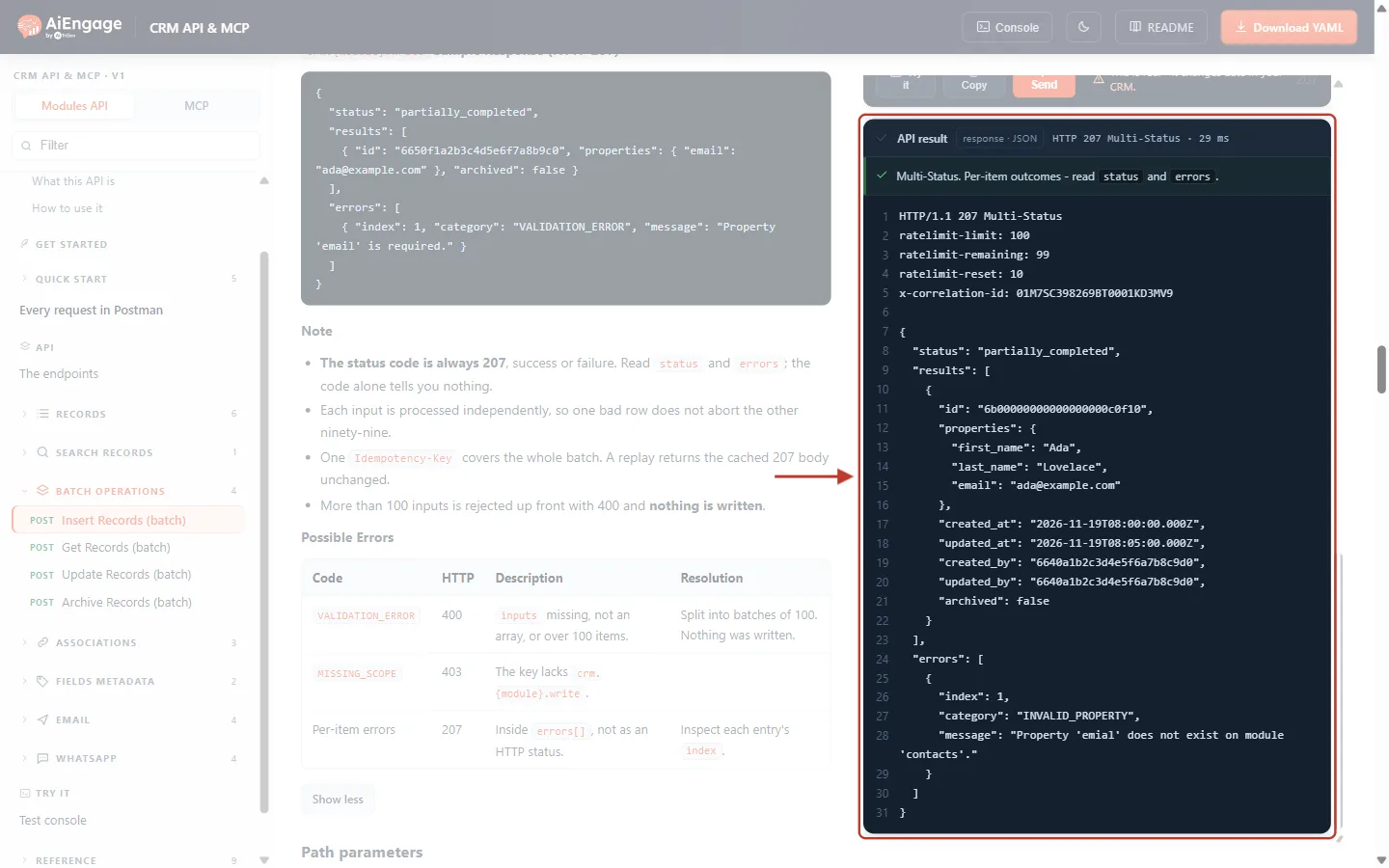
What this screenshot shows. The API result card (example data).
The bar says HTTP 207 Multi-Status, and the green line reminds you to read
statusanderrors."status": "partially_completed"— some entries worked and some did not.resultsholds one new contact: Ada, with her newid, the properties and the dates.errorsholds one entry:"index": 1(Grace, the second entry),"category": "INVALID_PROPERTY","message": "Property 'emial' does not exist on module 'contacts'."Grace was not created, but Ada was. One bad entry did not stop the rest.
Fix the failed entry and send only that entry again. Don’t resend Ada, or she would be created twice.
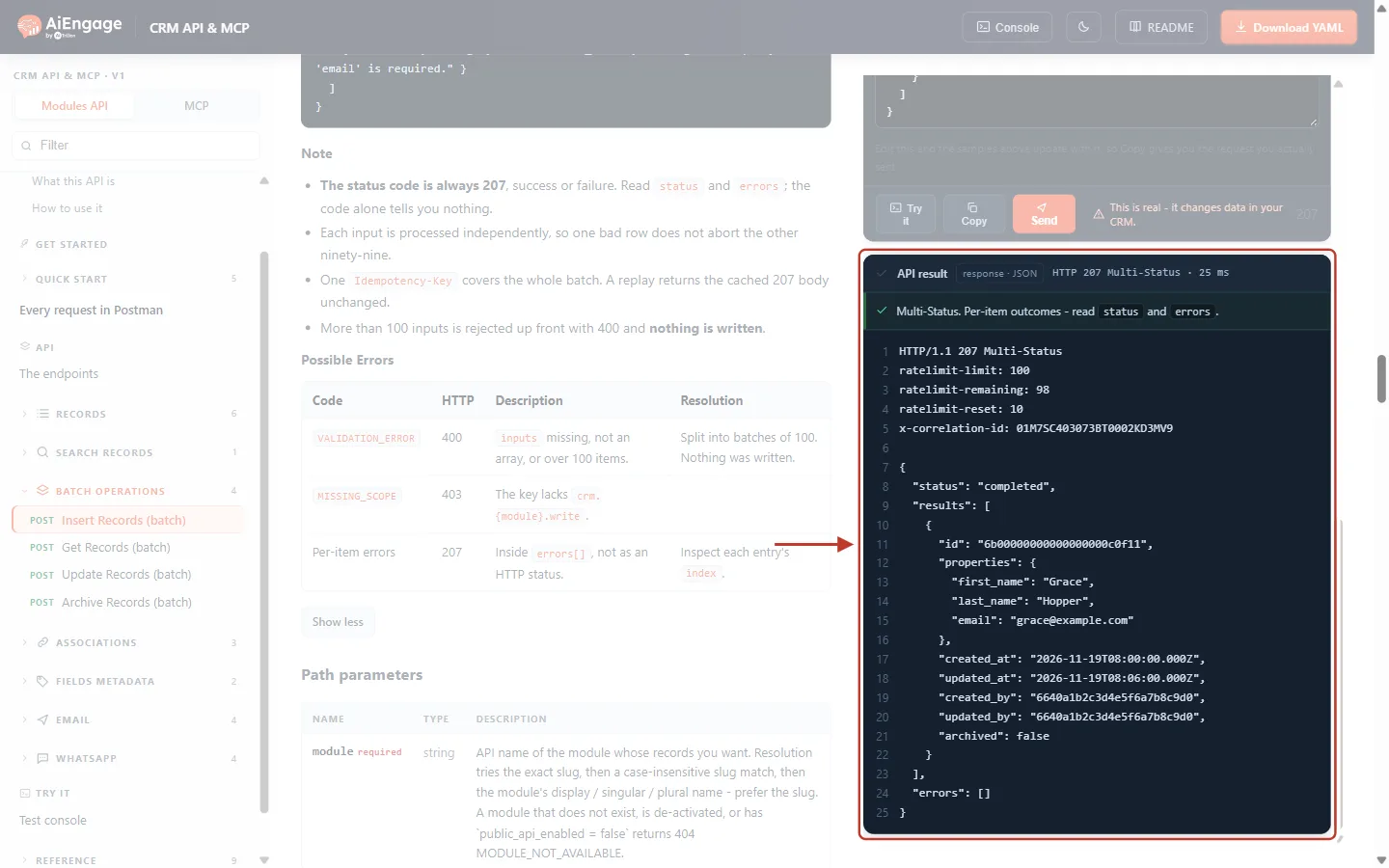
What this screenshot shows. The API result after resending only Grace with the corrected email field (example data).
"status": "completed"— the one entry in this call worked.resultsholds Grace Hopper with her newid;errorsis empty.Remember that indexes restart at 0 in every call: in this retry Grace is entry 0.
Step 4: Read Many Records at Once#
Click Get Records (batch) in the left menu.
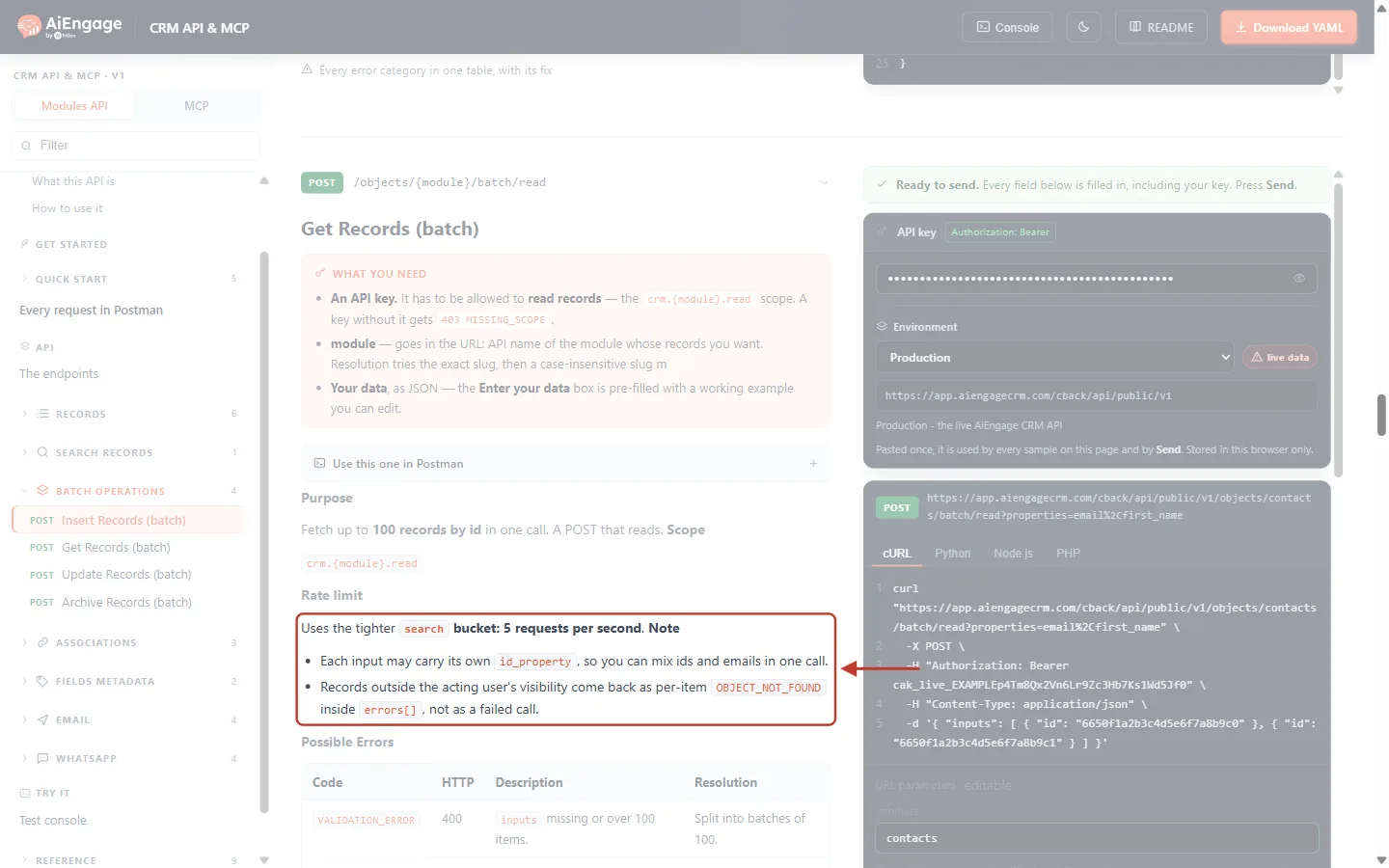
What this screenshot shows. The rate-limit line and the Note list of Get Records (batch), ringed.
Rate limit: batch read uses the tighter
searchbucket — 5 requests per second per key. See API Rate Limits & Quotas: Understand the Limits, Read the Headers and Handle 429 Errors.Each input may carry its own
id_property, so you can mix CRM ids and emails in one call.Records the user is not allowed to see come back as
OBJECT_NOT_FOUNDinerrors, not as a failed call.Above: Purpose (“Fetch up to 100 records by id in one call. A POST that reads.”) and the scope
crm.{module}.read. Below: Possible Errors.
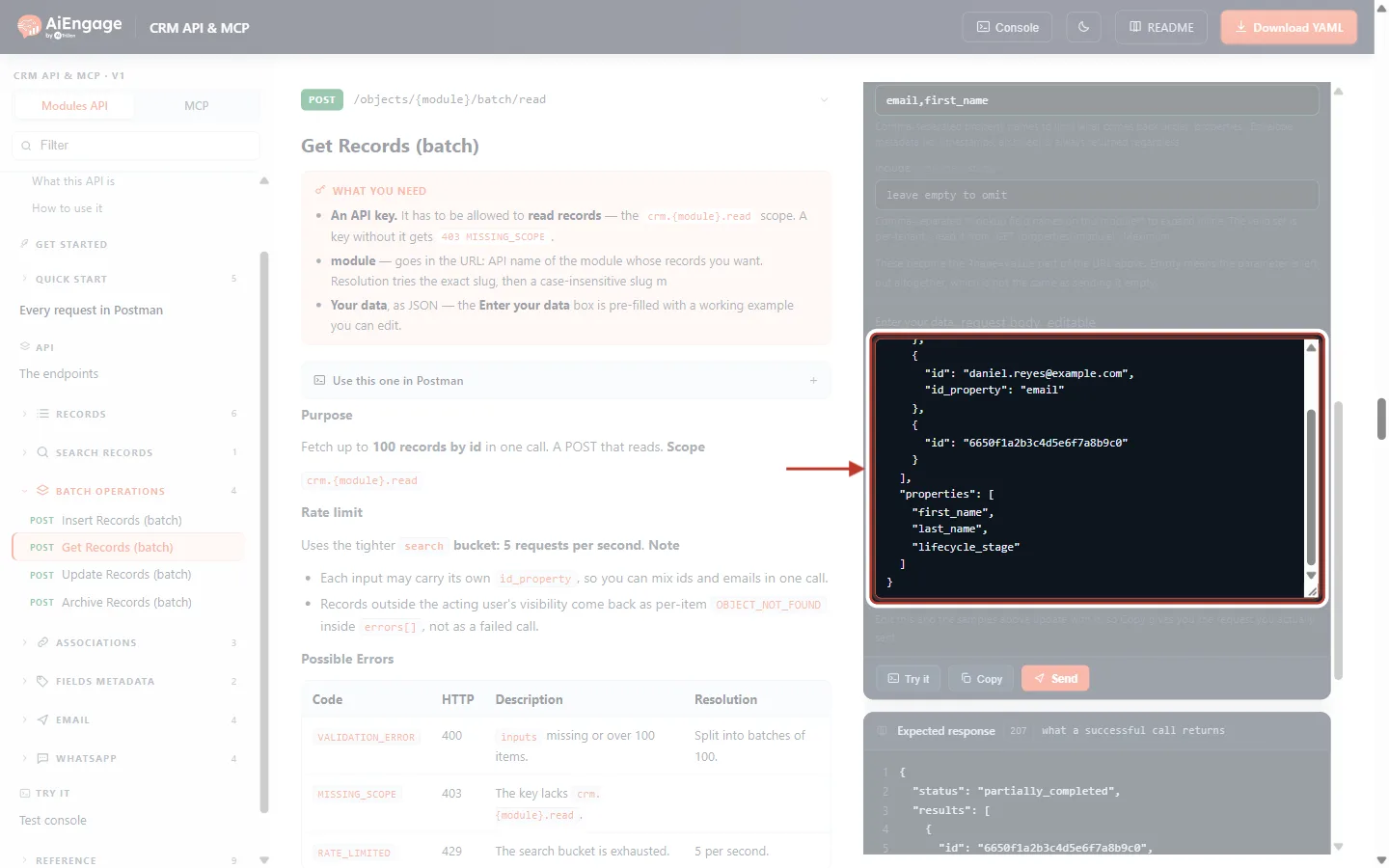
What this screenshot shows. The Enter your data box for a batch read, ringed.
Entry 0: a record by its CRM
id.Entry 1: a record by email —
"id": "daniel.reyes@example.com", "id_property": "email".Entry 2: an id that does not exist, to show a not-found entry.
"properties": ["first_name", "last_name", "lifecycle_stage"]limits which fields come back, which keeps the answer small. Leave it out to get every field.
Press Send.
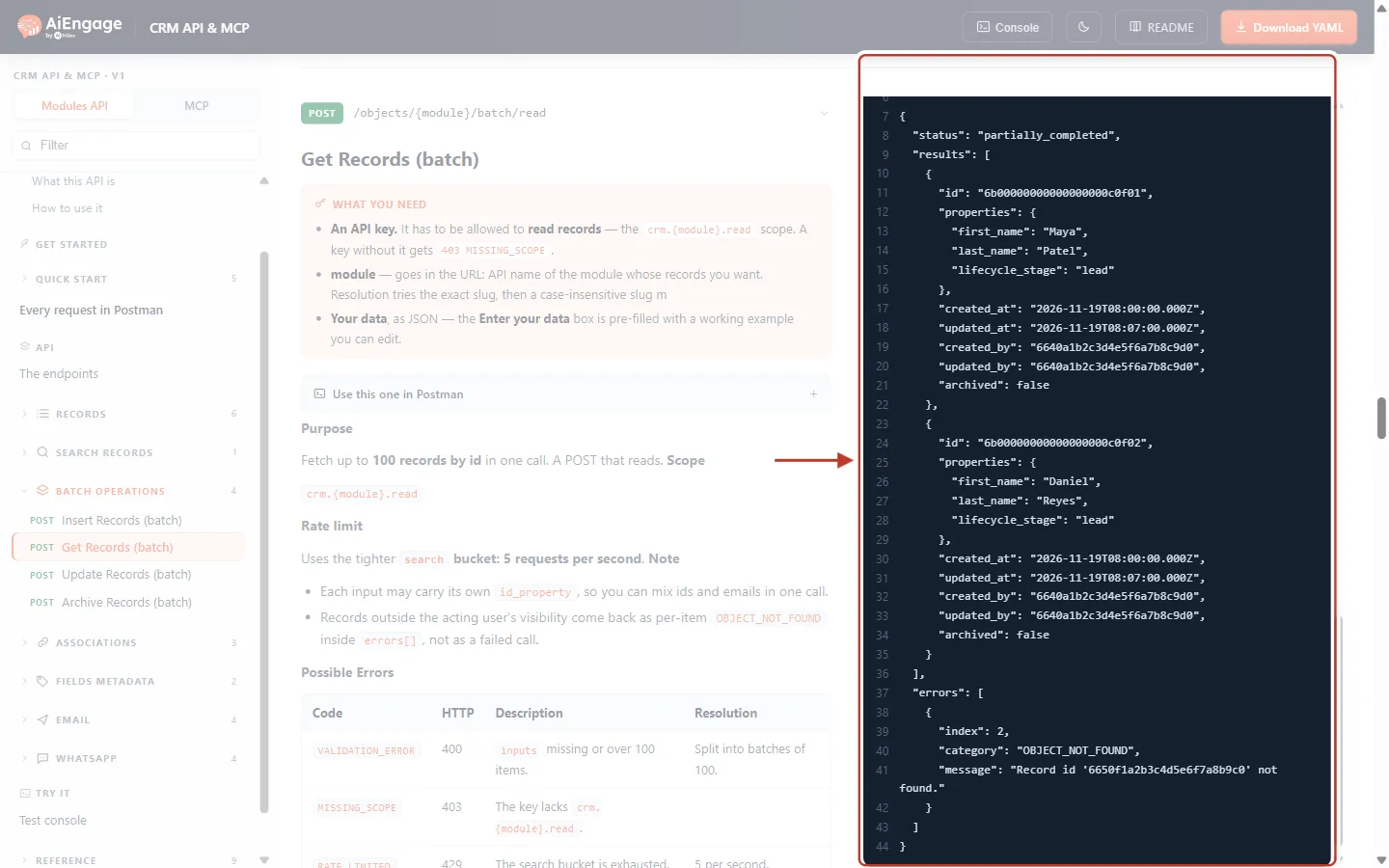
What this screenshot shows. The end of the API result for the batch read (example data).
"status": "partially_completed".resultsholds two records — Maya Patel (by id) and Daniel Reyes (by email) — each with only the three requested fields plus the record’sid, dates andarchived.errorsholds"index": 2,"category": "OBJECT_NOT_FOUND", “Record id '6650f1a2b3c4d5e6f7a8b9c0' not found.”A not-found record never makes the whole call fail; it is simply listed in
errors.
Step 5: Check the Profile Permissions for Batch Update and Archive#
A batch update or archive of two or more records is the API version of the CRM’s Mass Update and Mass Delete tools. So the CRM checks the profile of the user who created the API key before it changes anything. An administrator can see these settings in the CRM:
Click the Setup (gear) icon at the bottom of the left rail.
Under Security Control, click Profiles.
On the profile of the key’s user (here User), click ⋮ → Edit.
In the profile menu, click Module Permissions → Tools.
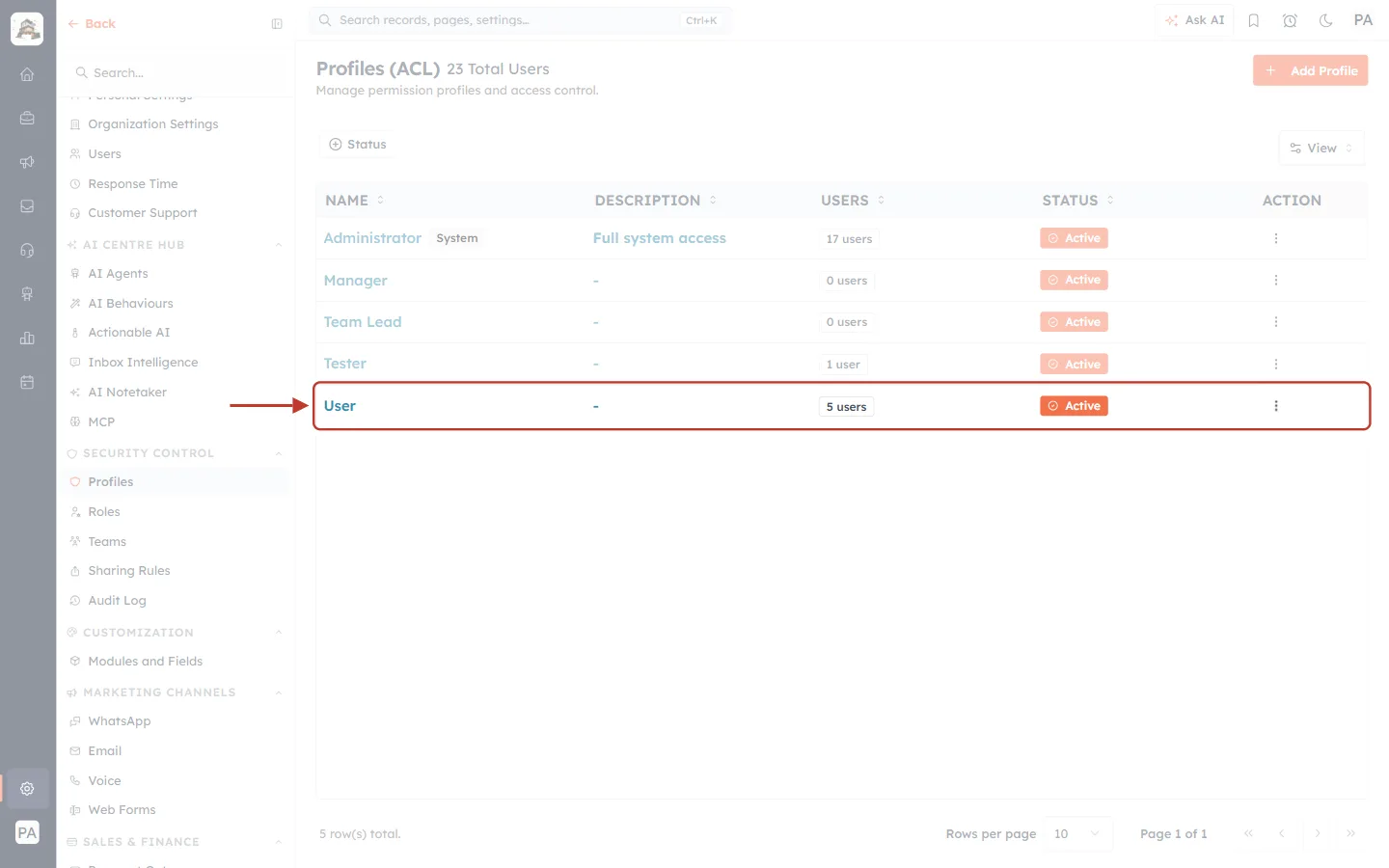
What this screenshot shows. The Profiles (ACL) page, with the User profile row ringed.
Each row is one profile: NAME, DESCRIPTION, USERS (how many users have it — 5 here) and STATUS (Active).
The ⋮ button in the ACTION column opens Edit and the other profile actions.
The other profiles (Administrator, Manager, Team Lead, Tester) are faded. Add Profile is at the top right.
In the Setup menu on the left, Profiles is highlighted under Security Control.
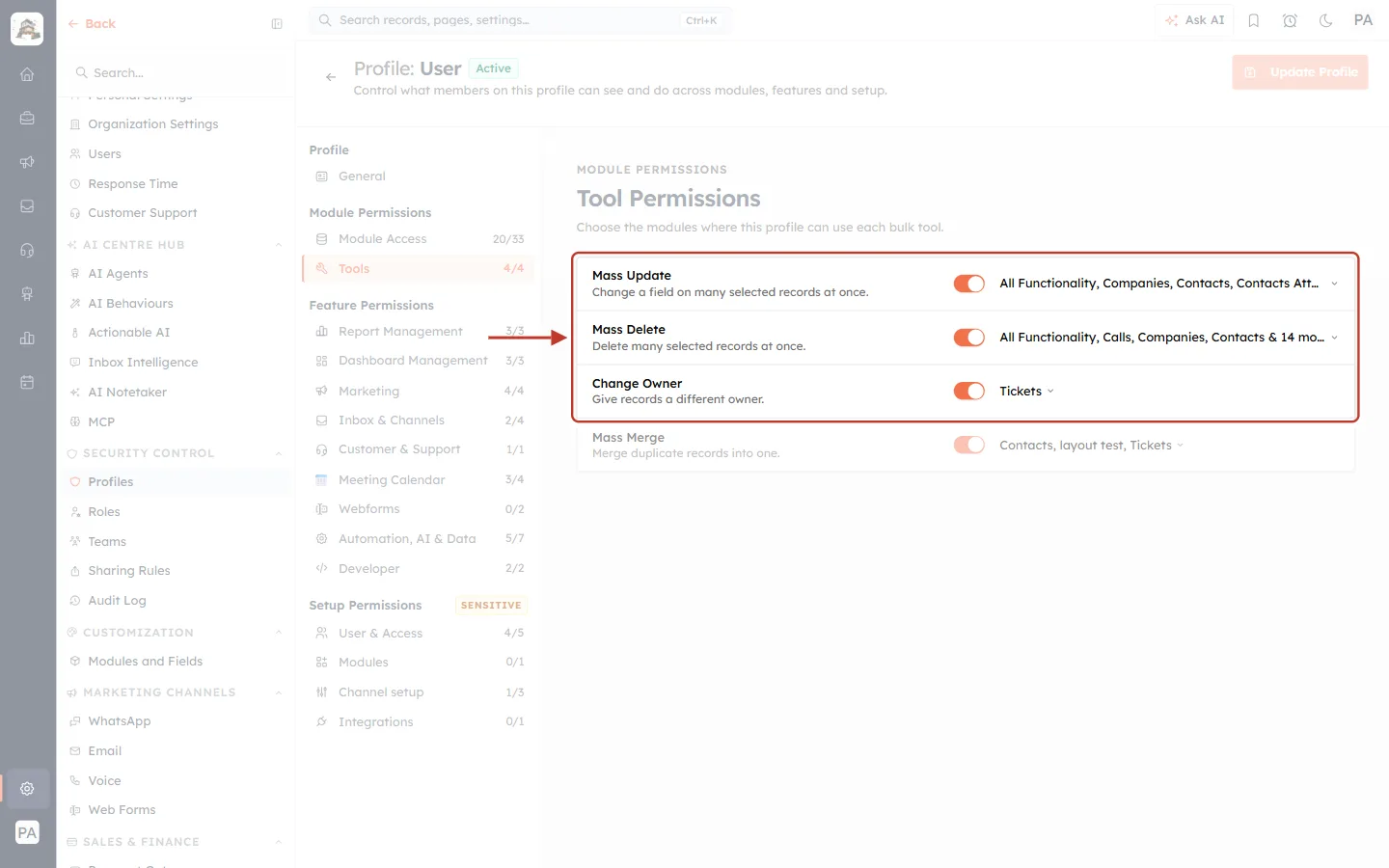
What this screenshot shows. The Tool Permissions page of the User profile, with Mass Update, Mass Delete and Change Owner ringed.
Mass Update — “Change a field on many selected records at once.” Needed for a batch update of 2 or more records. The list on the right shows the modules where it is allowed.
Mass Delete — “Delete many selected records at once.” Needed for a batch archive of 2 or more records.
Change Owner — “Give records a different owner.” Needed when a batch only changes owner fields, and for any owner change inside a batch. Here it is allowed only on Tickets.
Mass Merge (faded) is not used by the API.
On the left, the profile menu shows Tools 4/4 under Module Permissions. Update Profile at the top right saves changes.
For details on changing these settings, see Tool Permissions Step by Step: Control Who Can Mass Update, Mass Delete, Change Owner and Merge Records.
Step 6: Update Many Records at Once#
Click Update Records (batch). The section starts with a warning box.
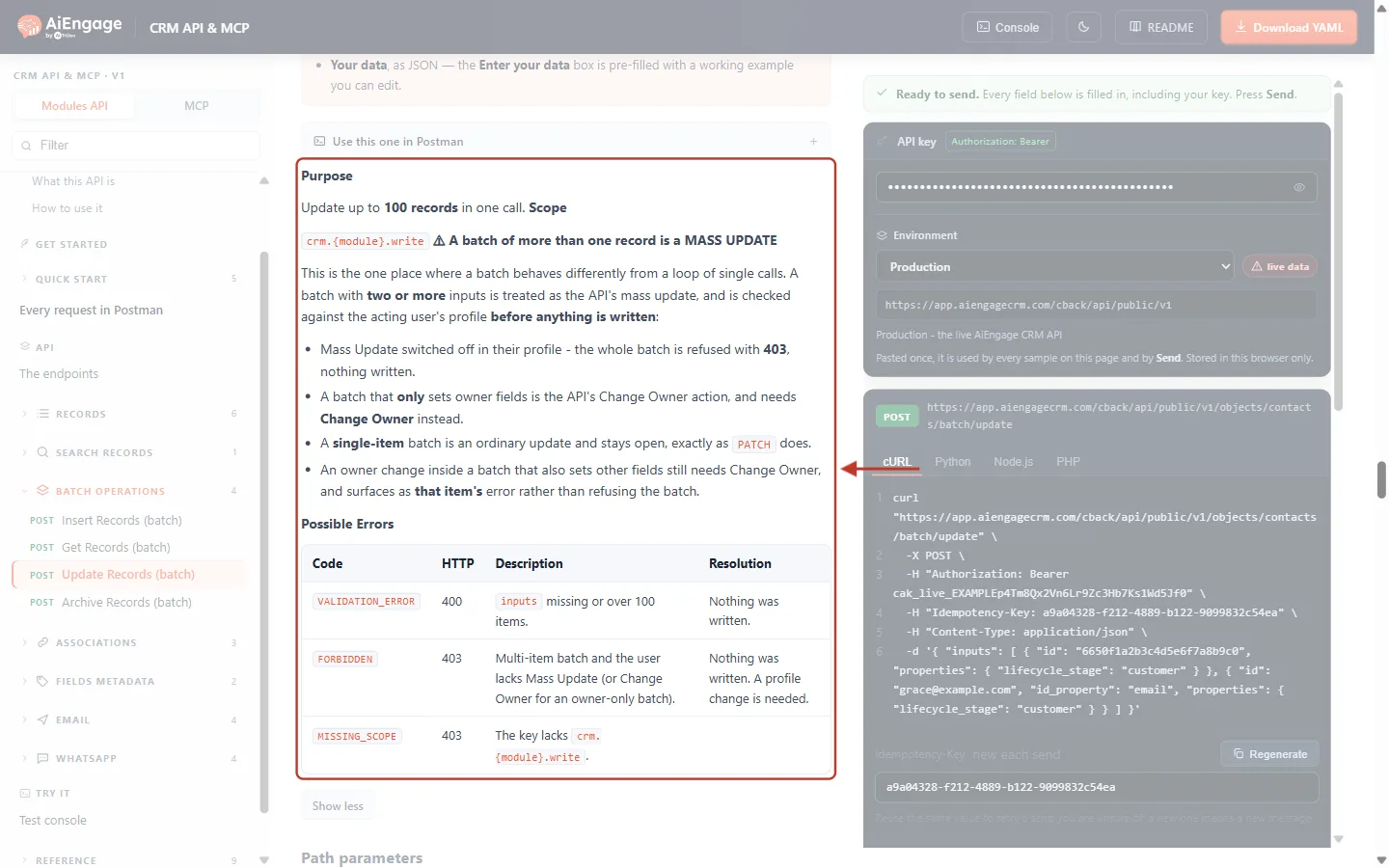
What this screenshot shows. The orange warning box of Update Records (batch), ringed.
Mass Update switched off in the profile — the whole batch is refused with 403, and nothing is written.
A batch that only sets owner fields is the Change Owner action and needs Change Owner instead.
A single-item batch is an ordinary update, exactly like PATCH, and is always allowed.
An owner change inside a batch that also sets other fields still needs Change Owner, and appears as that entry’s error instead of refusing the whole batch.
In Enter your data, each entry needs the record’s id (or a value plus id_property) and the properties to change.
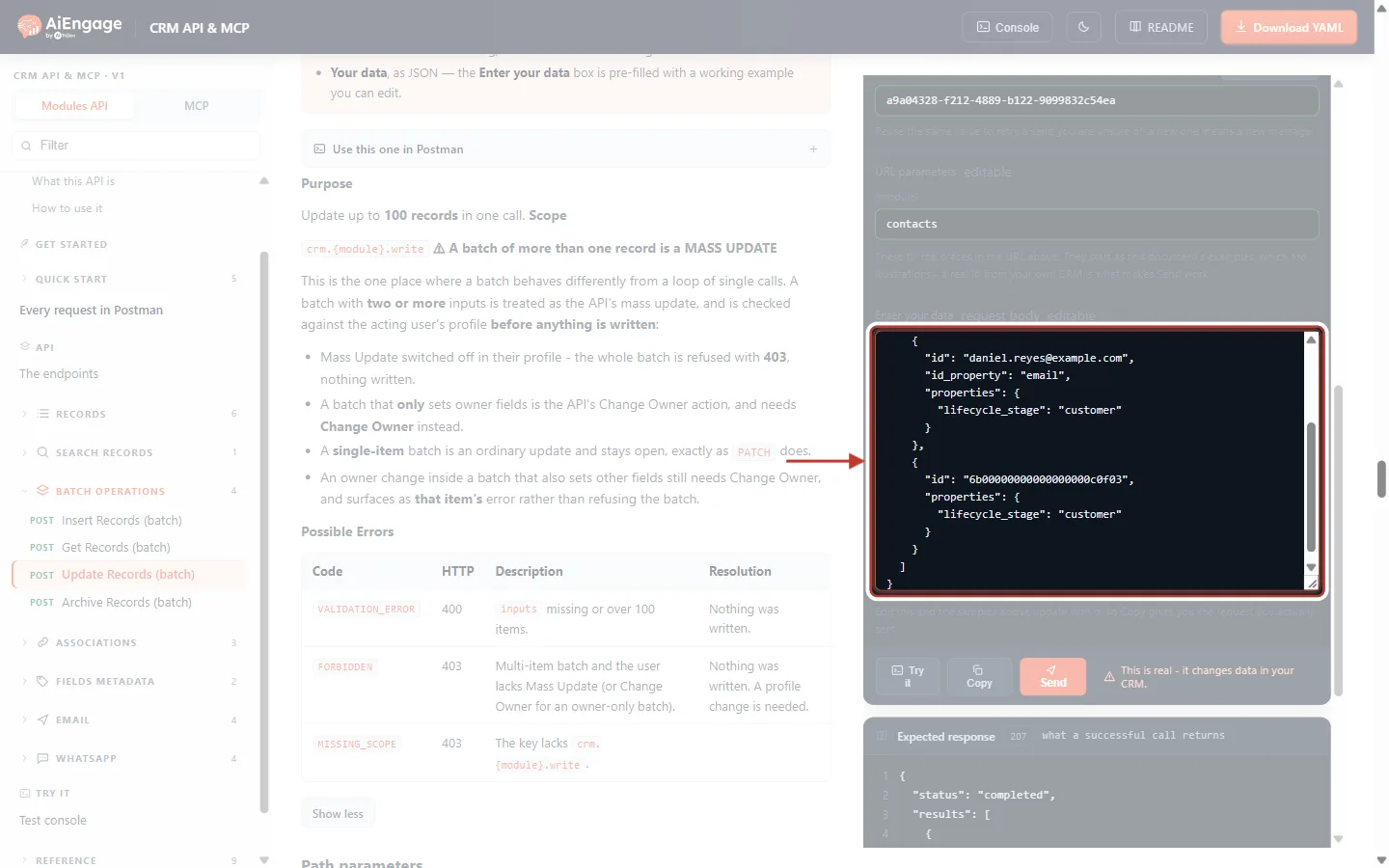
What this screenshot shows. The Enter your data box for a batch update, ringed.
Three entries, each setting
lifecycle_stagetocustomer.Entries 0 and 2 use the CRM
id; entry 1 finds the contact by email with"id_property": "email".Only the fields you send change. Send
nullto empty a field.
Press Send.
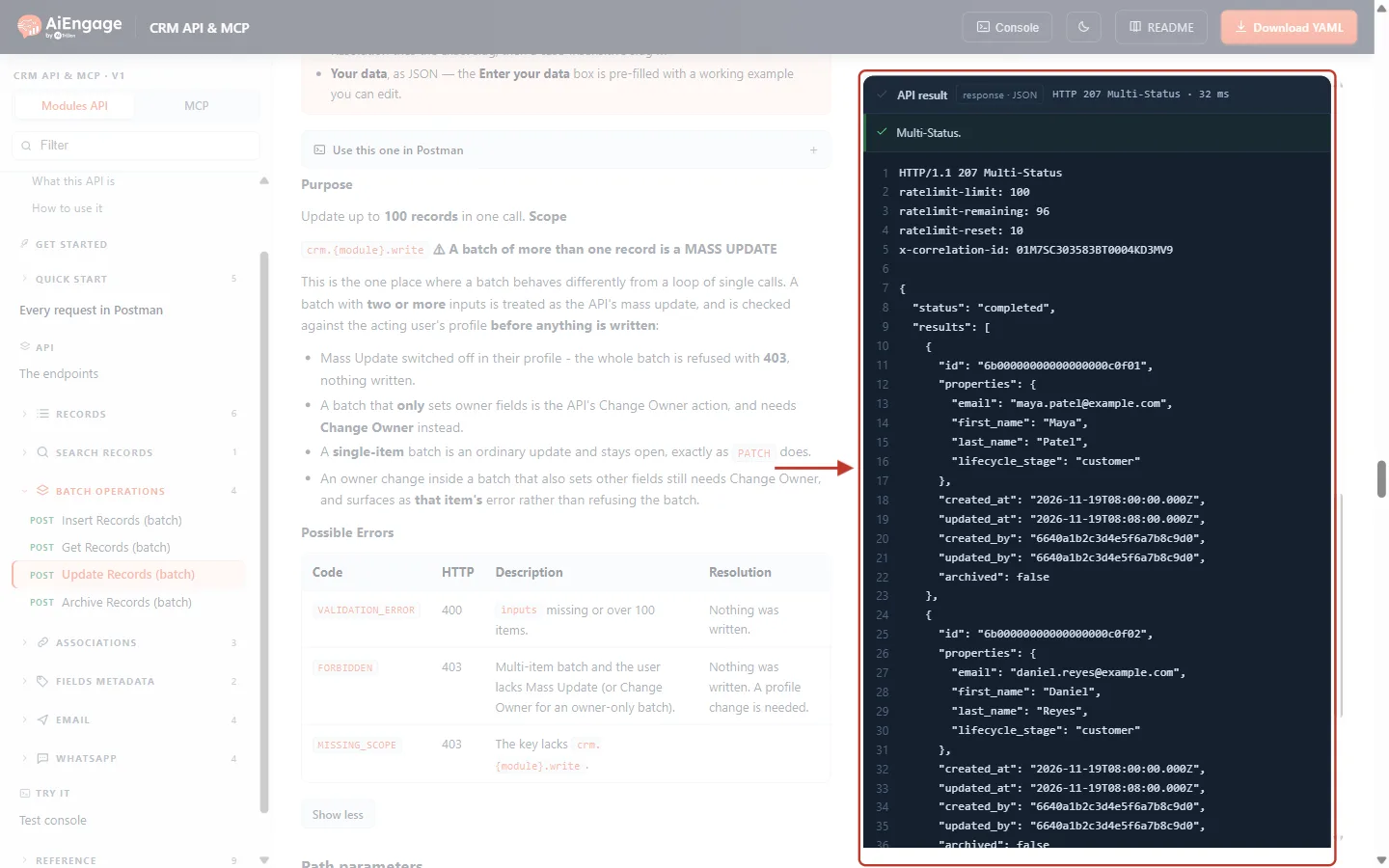
What this screenshot shows. The API result for the batch update (example data).
"status": "completed"— all three contacts were updated.resultsholds the three updated records, each with"lifecycle_stage": "customer"and a newupdated_at.errors(further down) is empty.
If the key’s user does not have Mass Update on Contacts, the same request is refused as a whole:
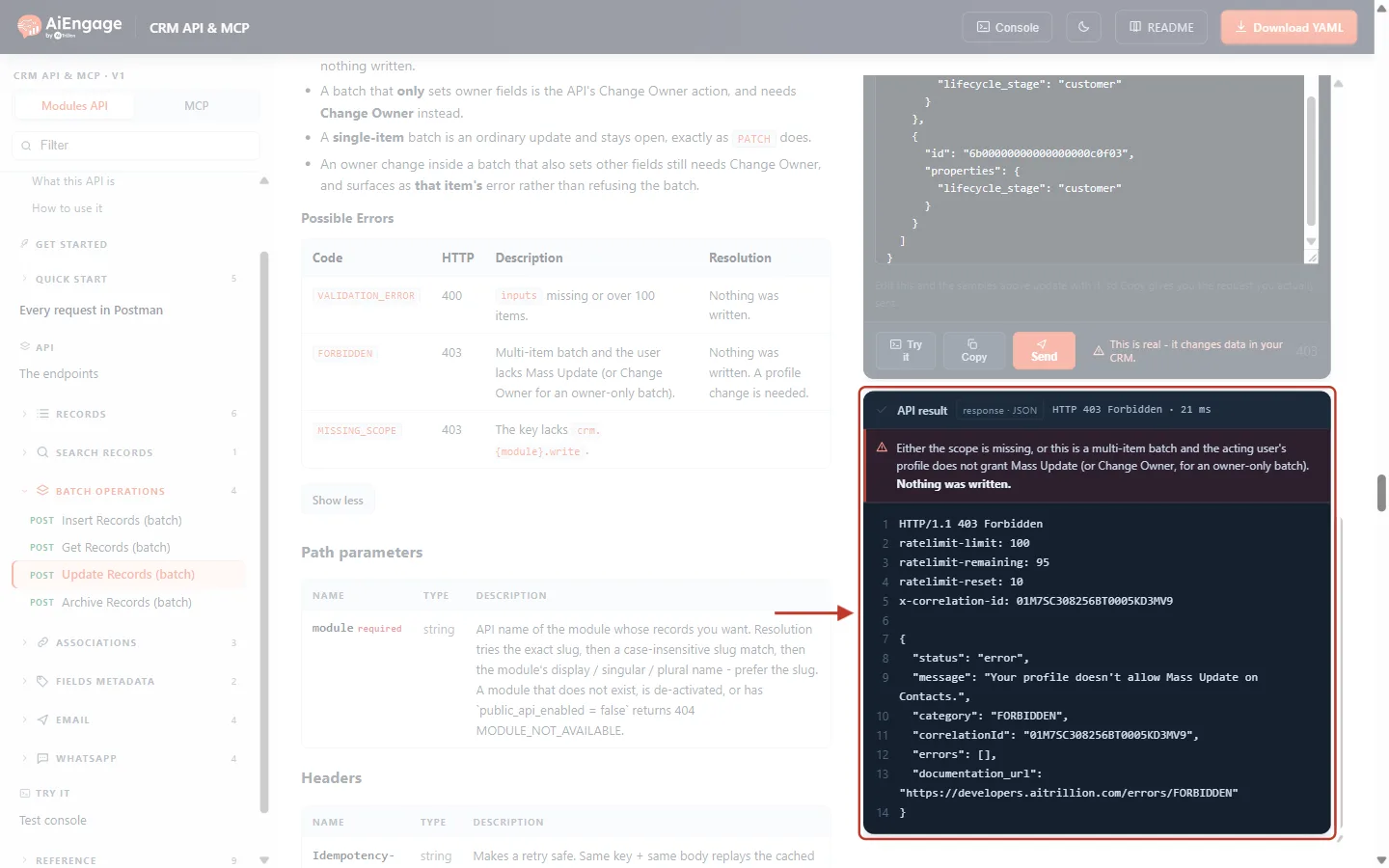
What this screenshot shows. The API result when Mass Update is switched off for the key’s user (example data).
HTTP 403 Forbidden — this is a normal error answer, not a 207.
"message": "Your profile doesn't allow Mass Update on Contacts."and"category": "FORBIDDEN".The red banner explains the two possible causes (missing scope, or the profile tool) and confirms that nothing was written.
Fix: ask an administrator to turn on Mass Update for the module in the user’s profile (Step 5), or send the records one at a time with PATCH.
Step 7: Archive Many Records at Once#
Click Archive Records (batch).
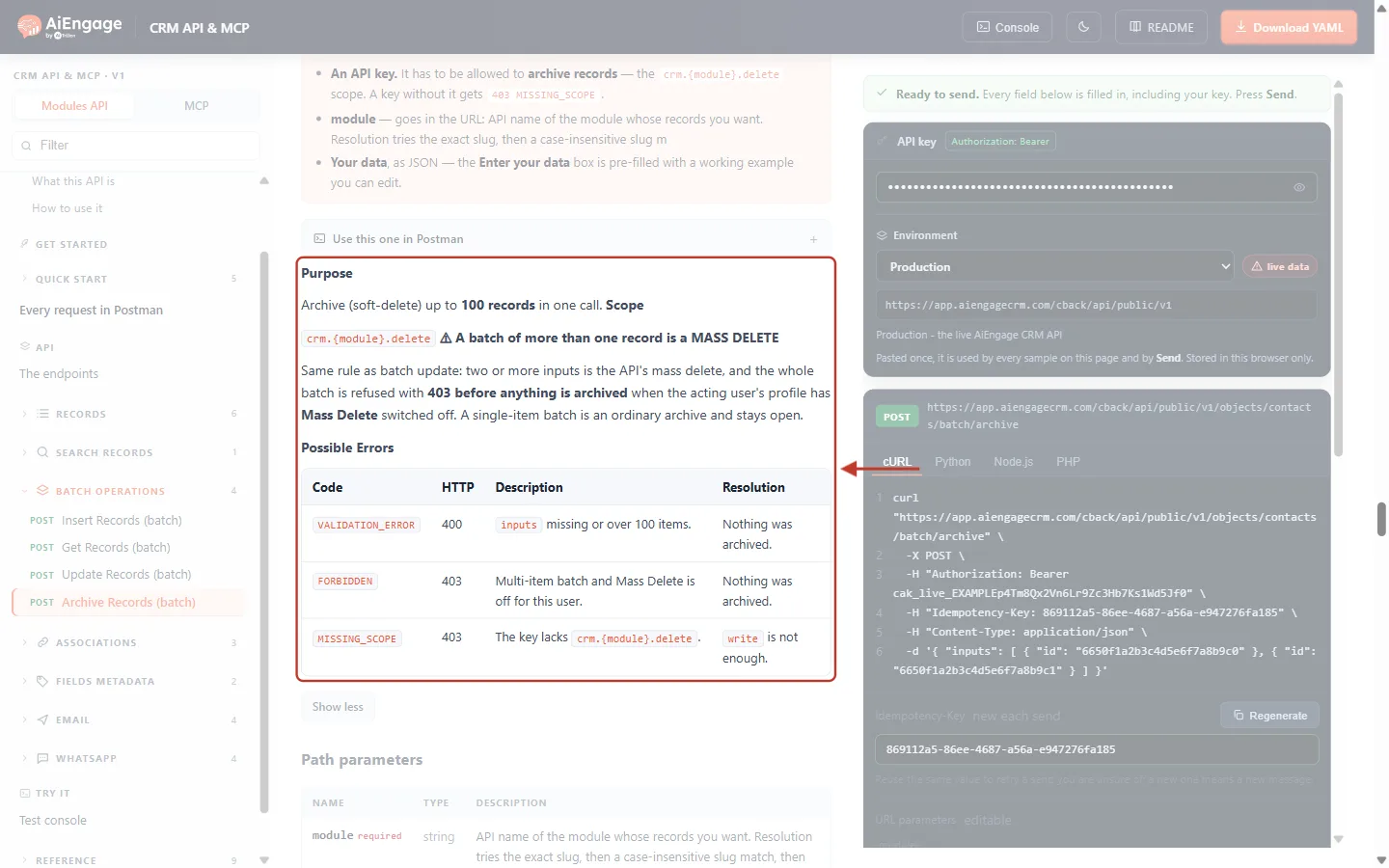
What this screenshot shows. The orange warning box of Archive Records (batch), ringed.
Two or more entries is the API’s Mass Delete. If the profile has Mass Delete switched off, the whole batch is refused with 403 (“Your profile doesn't allow Mass Delete on Contacts.”) before anything is archived.
A single-item batch is an ordinary archive and is always allowed.
This endpoint needs the
crm.{module}.deletescope —writeis not enough.
Each entry only needs the record’s id (or a value plus id_property). Press Send.
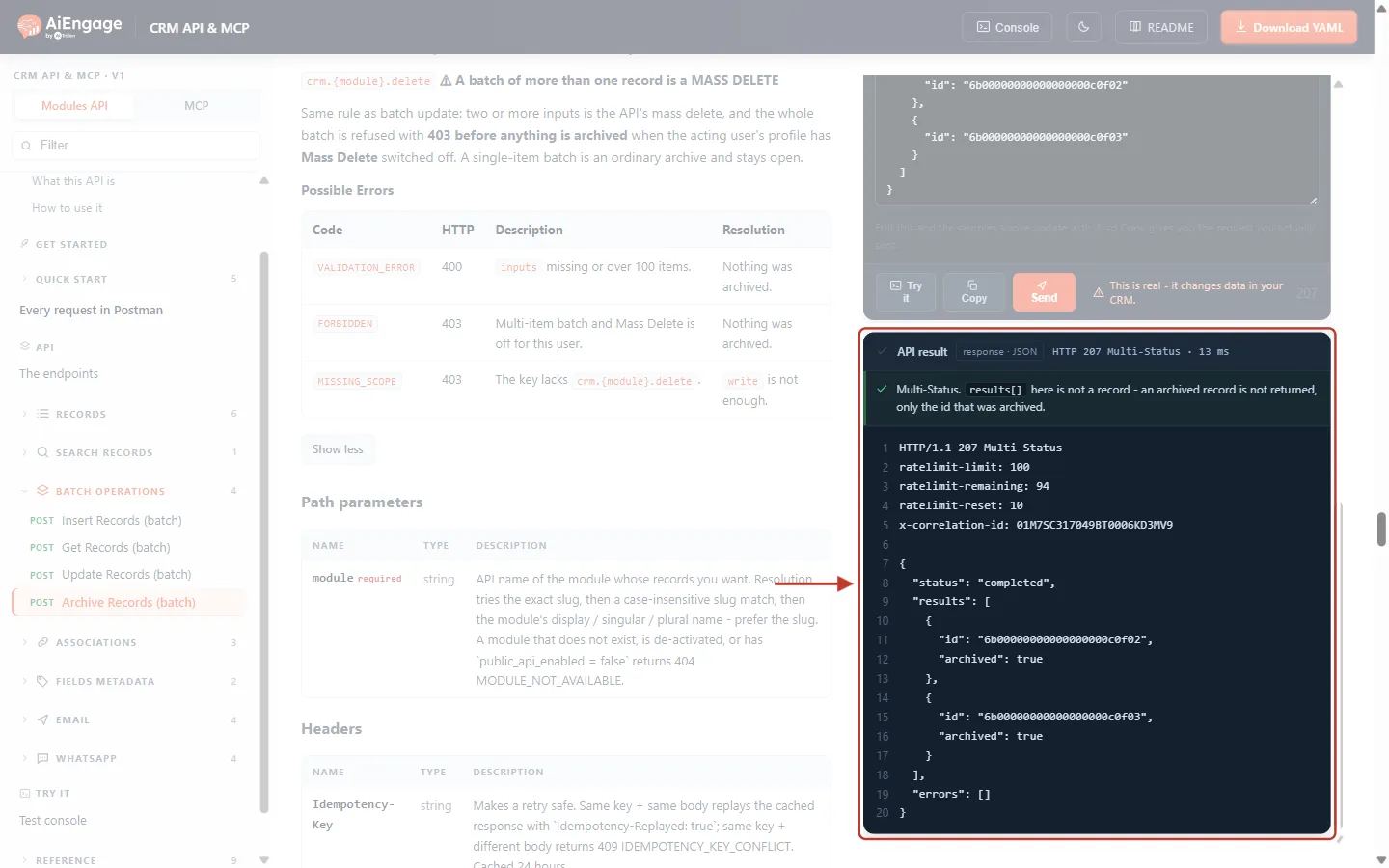
What this screenshot shows. The API result for archiving two contacts (example data).
"status": "completed".resultsdoes not hold full records — only{ "id": "…", "archived": true }for each archived record.Archiving is a soft delete: the record leaves your lists, and a later batch read of that id returns
OBJECT_NOT_FOUND.
Step 8: Stay Within 100 Records per Call#
If inputs has more than 100 entries, or is missing, the whole call is refused before anything is processed. Here 101 entries were sent:
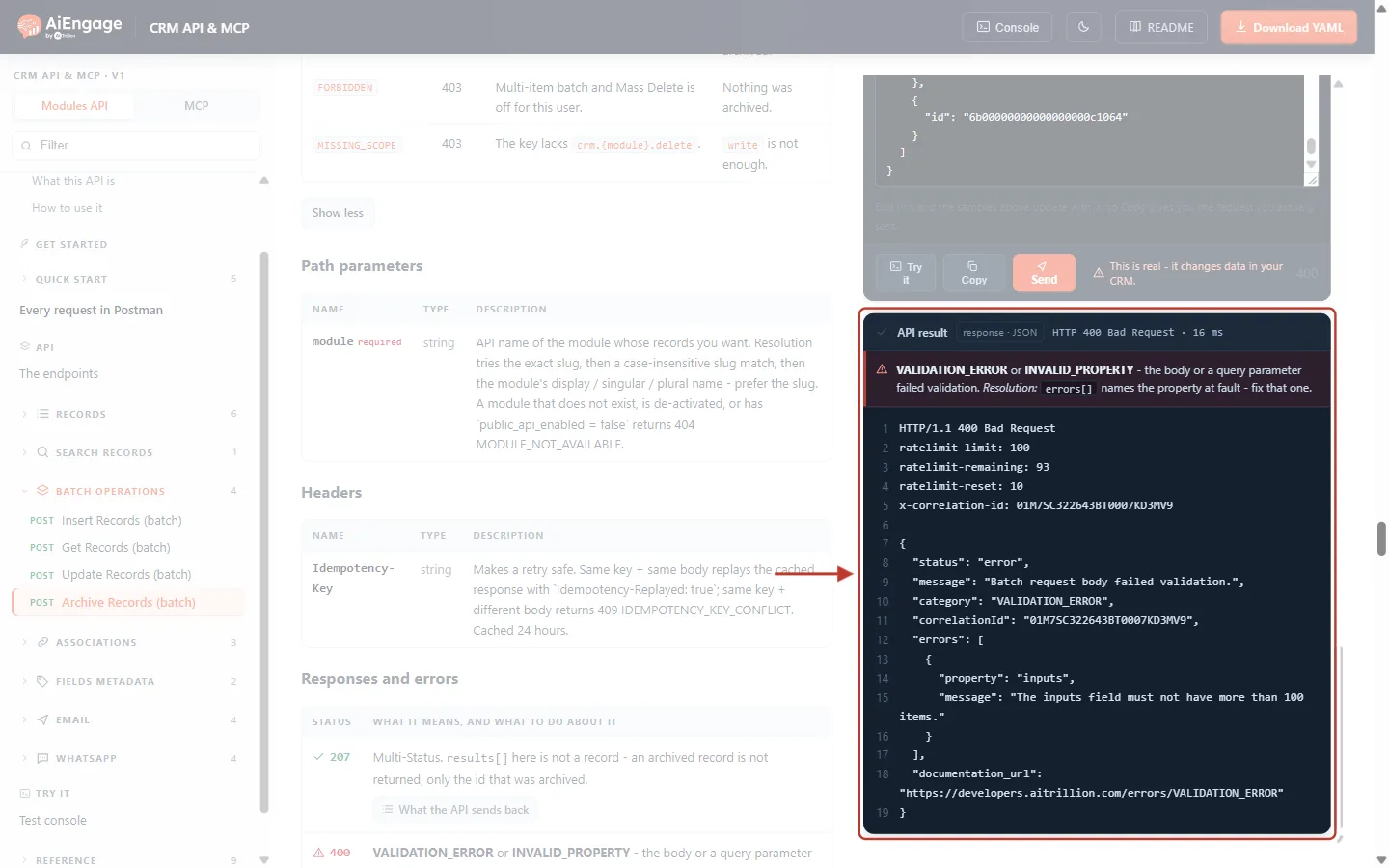
What this screenshot shows. The API result for a batch with 101 entries (the message is the real one from the API).
HTTP 400 Bad Request — no 207, because nothing was processed.
"message": "Batch request body failed validation.","category": "VALIDATION_ERROR".errorsnames the problem:"property": "inputs", “The inputs field must not have more than 100 items.” (Ifinputsis missing, the message is “The inputs field is required.”)Fix: split your records into groups of 100 (see the code below).
Step 9: Process Large Lists in Your Own Code#
The pattern: split the list into groups of 100, send each group, collect the successes, and keep the failed records (found by index) to fix and resend.
Node.js (18 or later)
import { randomUUID } from 'node:crypto';

const BASE = 'https://app.aiengagecrm.com/cback/api/public/v1';
const headers = () => ({
  Authorization: `Bearer ${process.env.AIENGAGE_API_TOKEN}`,
  'Content-Type': 'application/json',
  'Idempotency-Key': randomUUID(),            // one key per batch call
});

async function batchCreate(module, records) {   // records = [{ first_name, email, … }, …]
  const created = [], failed = [];
  for (let start = 0; start < records.length; start += 100) {
    const chunk = records.slice(start, start + 100);
    const res = await fetch(`${BASE}/objects/${module}/batch/create`, {
      method: 'POST', headers: headers(),
      body: JSON.stringify({ inputs: chunk.map(properties => ({ properties })) }),
    });
    const body = await res.json();
    if (res.status !== 207) throw new Error(`${res.status} ${body.category}: ${body.message}`);
    created.push(...body.results);
    for (const e of body.errors) failed.push({ record: chunk[e.index], ...e }); // index → your record
  }
  return { created, failed };
}

const { created, failed } = await batchCreate('contacts', [
  { first_name: 'Ada', email: 'ada@example.com' },
  { first_name: 'Grace', email: 'grace@example.com' },
]);
console.log(`${created.length} created, ${failed.length} failed`, failed);
Python (requests)
import os, uuid, requests

BASE = "https://app.aiengagecrm.com/cback/api/public/v1"

def batch_update(module, updates):  # updates = [{"id": "...", "properties": {...}}, ...]
    done, failed = [], []
    for start in range(0, len(updates), 100):
        chunk = updates[start:start + 100]
        res = requests.post(
            f"{BASE}/objects/{module}/batch/update",
            json={"inputs": chunk},
            headers={
                "Authorization": f"Bearer {os.environ['AIENGAGE_API_TOKEN']}",
                "Idempotency-Key": str(uuid.uuid4()),
            },
            timeout=60,
        )
        body = res.json()
        if res.status_code != 207:
            raise RuntimeError(f"{res.status_code} {body.get('category')}: {body.get('message')}")
        done += body["results"]
        failed += [{**chunk[e["index"]], **e} for e in body["errors"]]
    return done, failed
✅
Keep the original list. Because
index points into the inputs you sent, keep each chunk until you have read its answer — that is the only way to know which record an error belongs to.Troubleshooting#
What you see | Why it happens | How to fix it |
|---|---|---|
| More than 100 entries in one call. | Split into groups of 100. |
| The body has no | Send |
| Batch of 2+ records and the key’s user lacks the tool. | Enable the tool on the profile (Step 5), or send one record per call. |
| The batch only changes owners, and Change Owner is off. | Enable Change Owner for the module, or leave owner fields out. |
| The key lacks the scope (archive needs | Create a key with the right scope. |
Per-entry | A field name in that entry does not exist on the module. | Use the API names from |
Per-entry | No record with that id or value, or the user may not see it, or it is archived. | Check the id; use |
Per-entry | Usually a field rule: a required field is missing or a value has the wrong format. | Send that record alone with Insert Record / Update Record to see which field is wrong. |
Per-entry | That entry changes the owner, and Change Owner is off. | Remove the owner field from that entry or enable Change Owner. |
| Batch read shares the 5-per-second search limit. | Wait for |
For every other error, see API Errors & Troubleshooting: Fix 400, 401, 403, 404, 409, 429 and 500 Errors Step by Step.
Best Practices#
Always check
statusanderrors— never assume a 207 means success.Resend only the failed entries after fixing them, never the whole batch (or successful creates are duplicated).
Add an
Idempotency-Keyto every batch create, update and archive, so a retried call returns the first answer instead of running again.Use
propertiesin batch reads to fetch only the fields you need.For syncs where you don’t know whether a record exists yet, use upsert per record instead. There is no batch upsert. See Upsert Records with a Matching Property: Create or Update CRM Records in One API Call.
Give the API key’s user exactly the tools the integration needs (Mass Update, Mass Delete, Change Owner) on the right modules.
Frequently Asked Questions#
Is a batch “all or nothing”?
No. Each entry is processed on its own. The exceptions are the checks done before processing — too many entries, missing inputs, or a missing Mass Update / Mass Delete permission — which refuse the whole call and change nothing.
Does a batch of 100 records count as 100 API calls?
No, it counts as one call against your rate limit and quota. That is the main reason to use batches.
Can I mix modules in one batch?
No. The module is part of the address, so one batch works on one module. Send a separate batch per module.
Why does a single-entry update work when a 3-entry update gets 403?
One entry is an ordinary update. Two or more are a Mass Update, which needs the Mass Update tool on the user’s profile.
Previous and Next Articles#
Previous: Search Records with the CRM API: Filter, Combine Conditions, Sort and Page Through Results
Next: API Errors & Troubleshooting: Fix 400, 401, 403, 404, 409, 429 and 500 Errors Step by Step
Related Articles#
Get, Create, Update and Archive Records with the CRM API: A Step-by-Step Guide
Search Records with the CRM API: Filter, Combine Conditions, Sort and Page Through Results
Upsert Records with a Matching Property: Create or Update CRM Records in One API Call
Idempotency Keys & Safe Retries: Prevent Duplicate Records and Double Sends in the CRM API
API Rate Limits & Quotas: Understand the Limits, Read the Headers and Handle 429 Errors
API Errors & Troubleshooting: Fix 400, 401, 403, 404, 409, 429 and 500 Errors Step by Step
Was this article helpful?
Ready to implement this?
OpenAI Engage and apply what you just learned to your own workspace.
Open AI Engage CRM