Loading…


KnowledgeBase
Monitor API Usage & Set Quota Alerts Step by Step: Track Calls, Find What Uses Your Quota and Get Warned Before the Limit
Introduction#
Every plan with API access includes a daily and a monthly allowance of API calls. When either is used up, further calls are refused until it resets, and your integrations stop syncing until then.
The Usage and Alerts tabs on the API Keys page help you avoid that. This guide shows how to:
Read your daily and monthly usage, and the month-end projection.
Find out which key, endpoint or server is using your quota.
Check individual recent calls when debugging.
Set email alerts so you are warned before the limit.
Each screenshot has a red ring and arrow on the part to look at, followed by a description of the whole screen.
ℹ️
The usage figures in these screenshots (calls, key names, IP addresses) are examples, so every panel has something to show. Your own numbers and allowance will differ. Real email addresses are blurred.
How Your API Quota Works#
Rule | What it means for you |
|---|---|
Two allowances | A daily allowance (resets at the end of each day) and a monthly one (resets at the end of the month). The exact numbers for your plan are shown on the Usage tab. |
Hard stop at 100% | Once either allowance is used up, every further call gets HTTP 429 until that allowance resets. There is no overage: calls are refused, not charged extra. |
What counts | Each successful call with an API key counts as one call. Calls refused for a missing scope don’t count, and calls that fail because of an error on our side are given back. |
Plans | Plans without API access show an upgrade screen instead of these tabs. On a Custom plan with unlimited calls, the Usage tab shows Unlimited (Custom plan) instead of progress bars. |
✅
Your integration can check its remaining allowance on every response. Each API response includes the headers
RateLimit-Daily-Limit, RateLimit-Daily-Remaining, RateLimit-Monthly-Limit and RateLimit-Monthly-Remaining.Before You Begin#
Open Settings → Developer Hub → API Keys. The page is called API & Connections and has four tabs: Keys, Connections, Usage and Alerts.
Viewing usage and managing alerts requires administrator-level access to organisation settings.
No API key yet? Start with API Keys: Build Custom Integrations.
Part 1: Check How Much Quota Is Left#
Step 1: Open the Usage tab#
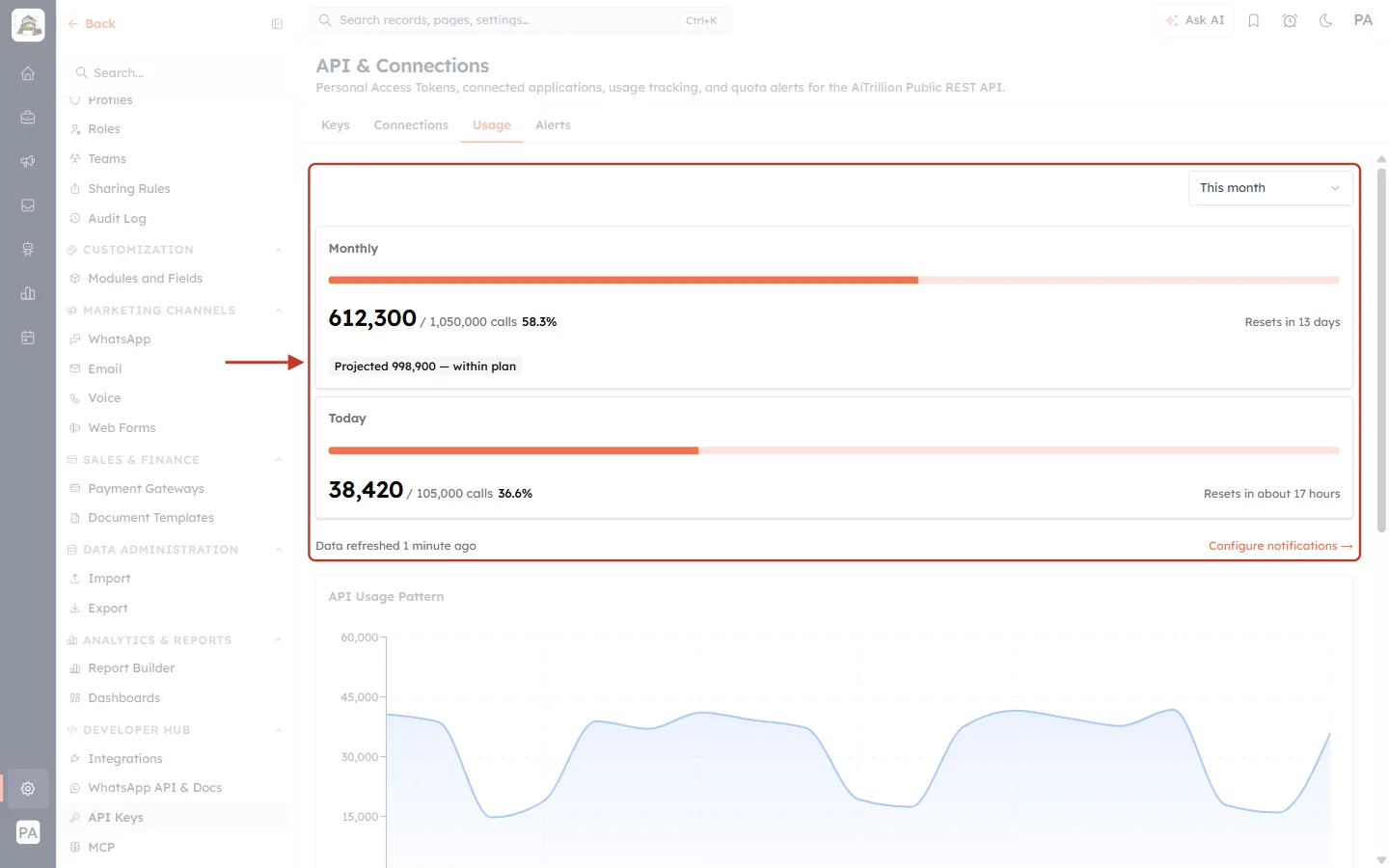
What this screenshot shows. On the Usage tab, the ringed area at the top summarises your quota.
The period selector (top right, This month) controls the chart and breakdowns further down (Step 4).
Two cards, Monthly and Today, show calls used against each allowance.
Under them: when the figures were refreshed, and Configure notifications →, which jumps to the Alerts tab.
The figures refresh on their own every 30 seconds while the tab is open.
Step 2: Read the Monthly and Today cards#
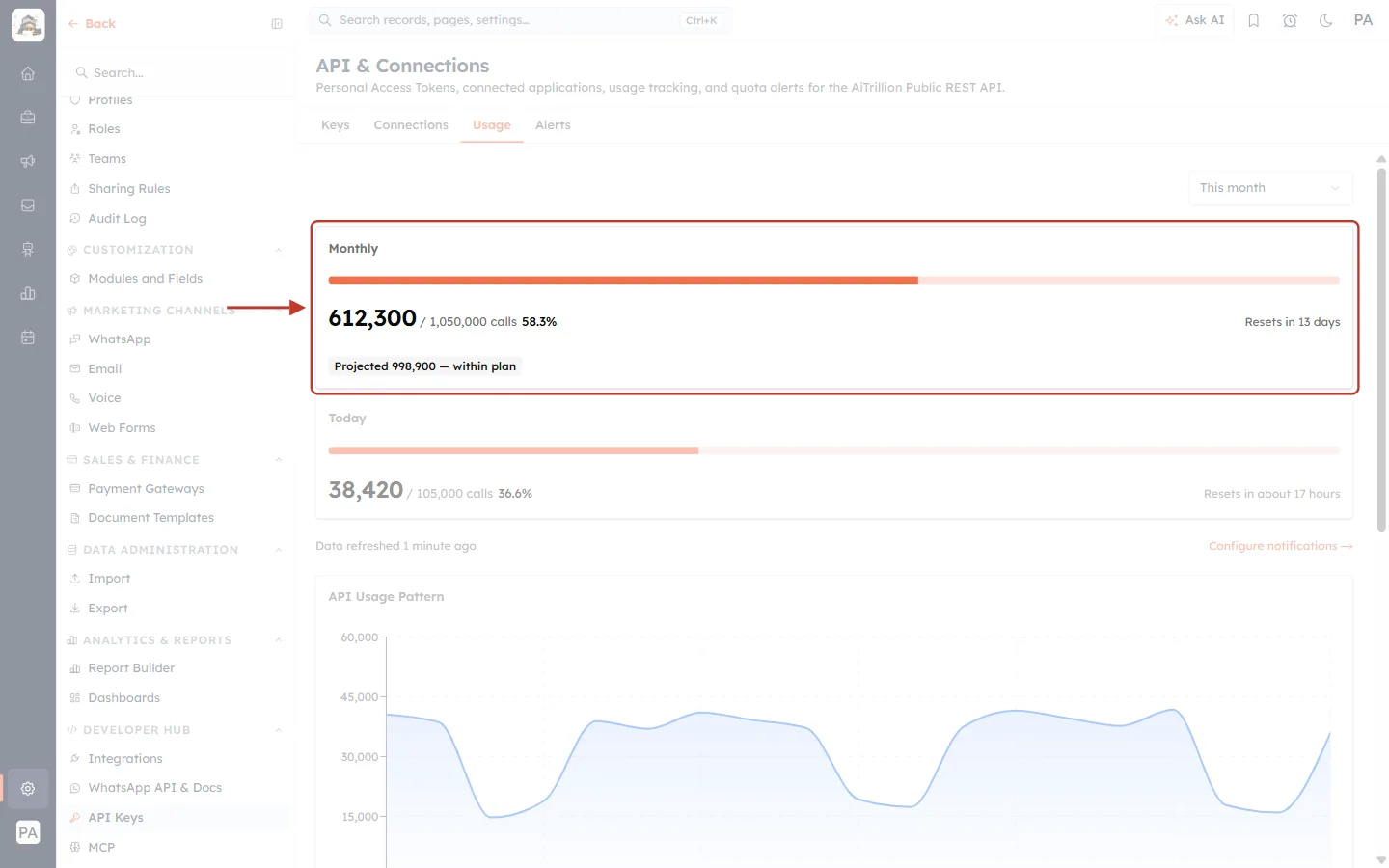
What this screenshot shows. The ringed Monthly card shows this month’s usage.
612,300 / 1,050,000 calls, 58.3% of the monthly allowance. The bar fills as you use it.
Resets in 13 days: when the monthly count starts again from zero.
The chip underneath is the projection: Projected 998,900 — within plan. It is AiEngage’s estimate of where you will finish the month at your current pace.
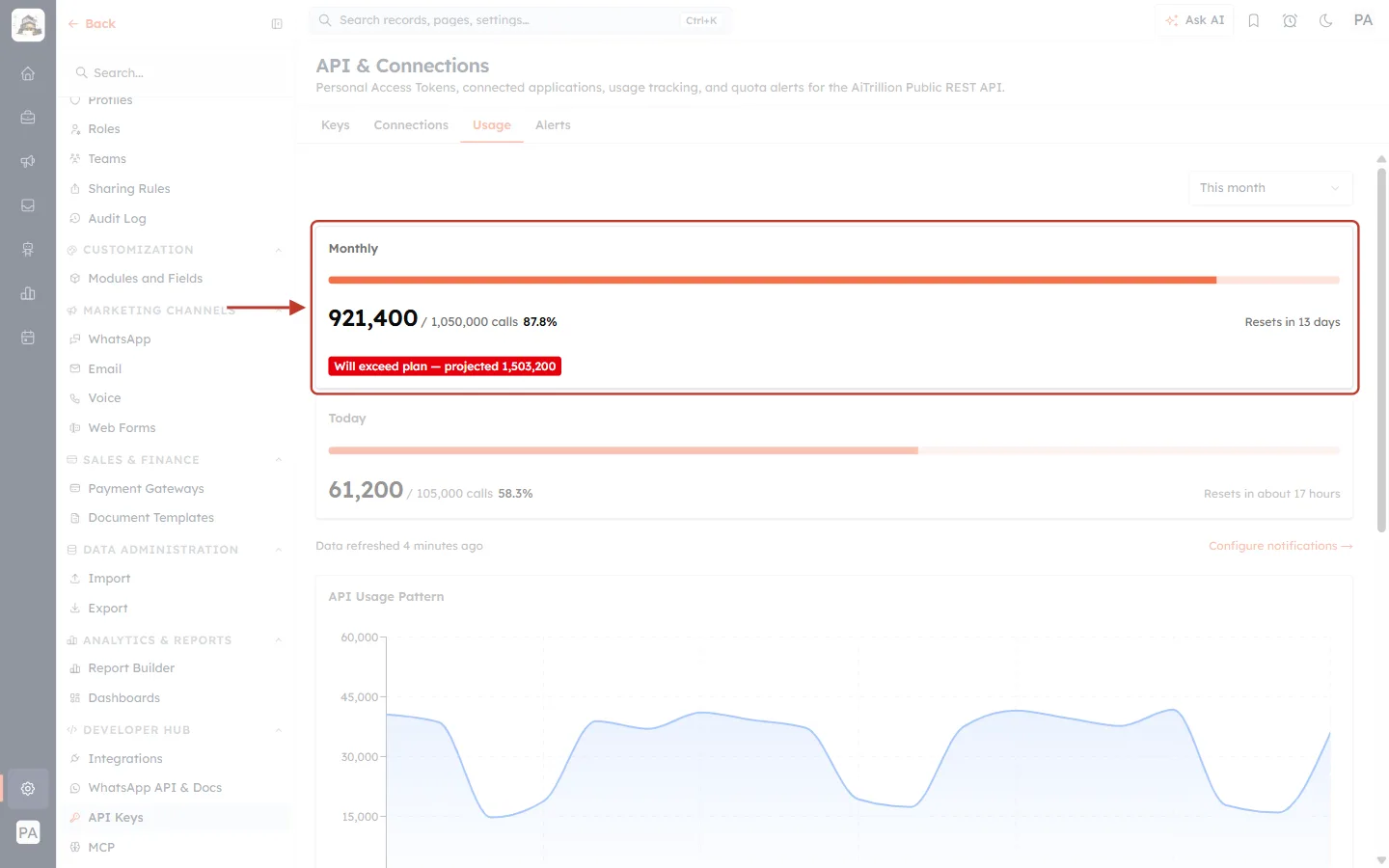
What this screenshot shows. The same card when usage is running high. The projection chip has turned red.
921,400 calls used (87.8%), and the chip reads Will exceed plan — projected 1,503,200.
At this pace the monthly allowance runs out before the month ends, and calls will then be refused until it resets.
Act now: find what is using the most calls (Part 2) and reduce it, or contact us about a higher plan.
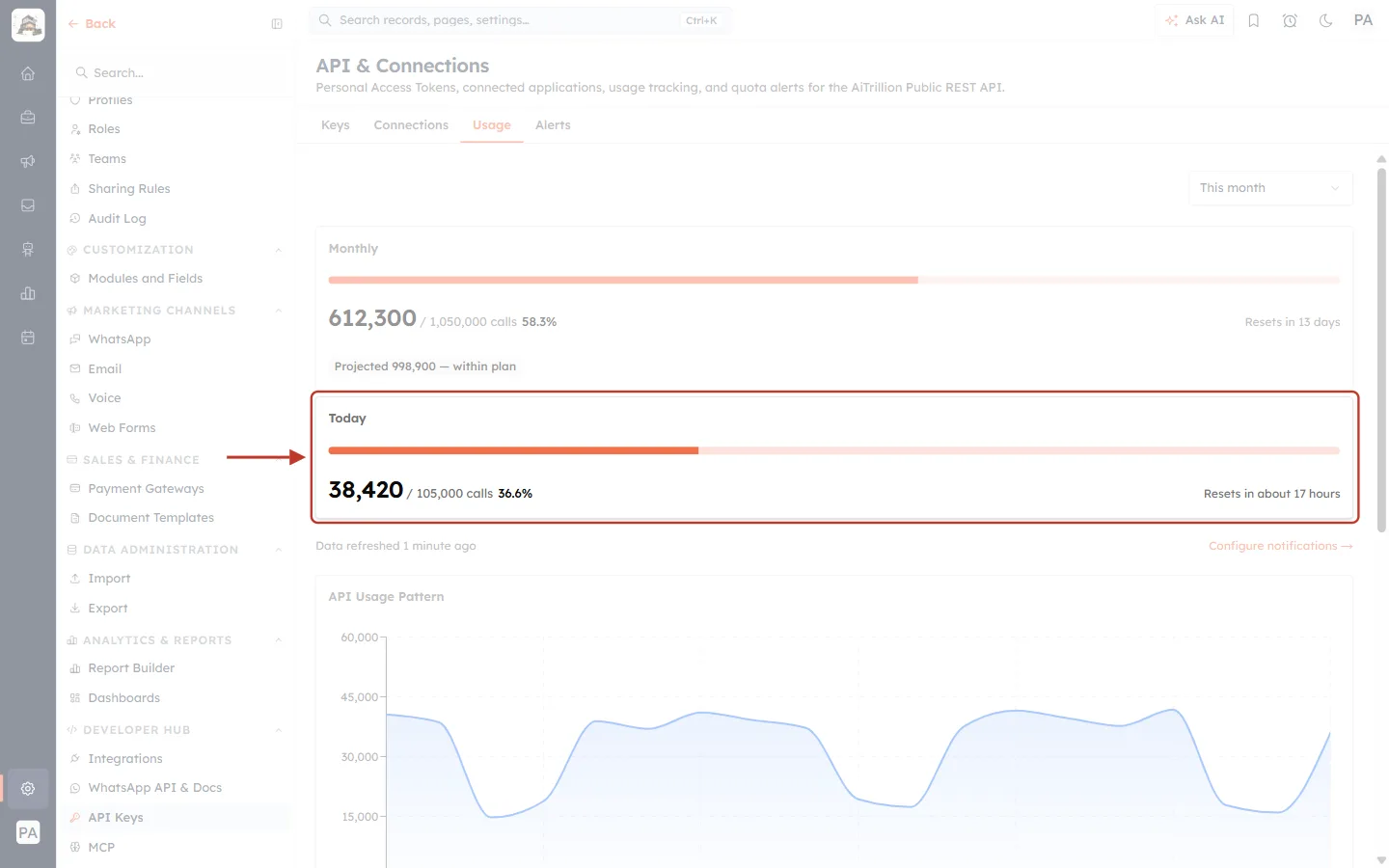
What this screenshot shows. The ringed Today card shows today’s usage against the daily allowance.
38,420 / 105,000 calls (36.6%). Resets in about 17 hours.
If today’s card reaches 100%, calls are refused until the daily reset, even when plenty of the monthly allowance is left.
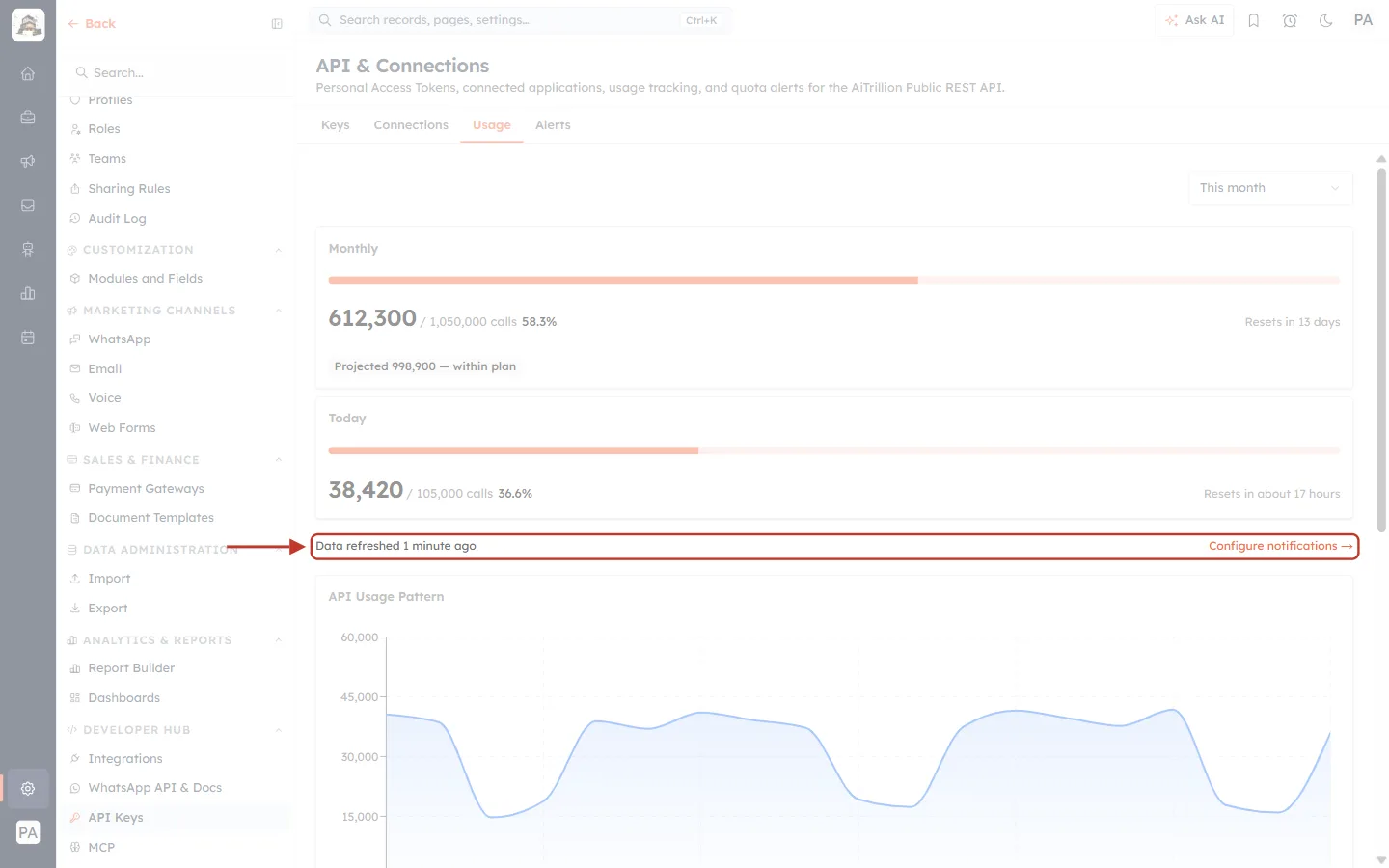
What this screenshot shows. The ringed line shows how current the numbers are.
Data refreshed 1 minute ago. Very recent calls can take a moment to appear, so treat the latest figures as approximate.
Configure notifications → (right) opens the Alerts tab (Part 4).
Part 2: See Usage Over Time#
Step 3: Read the usage chart#
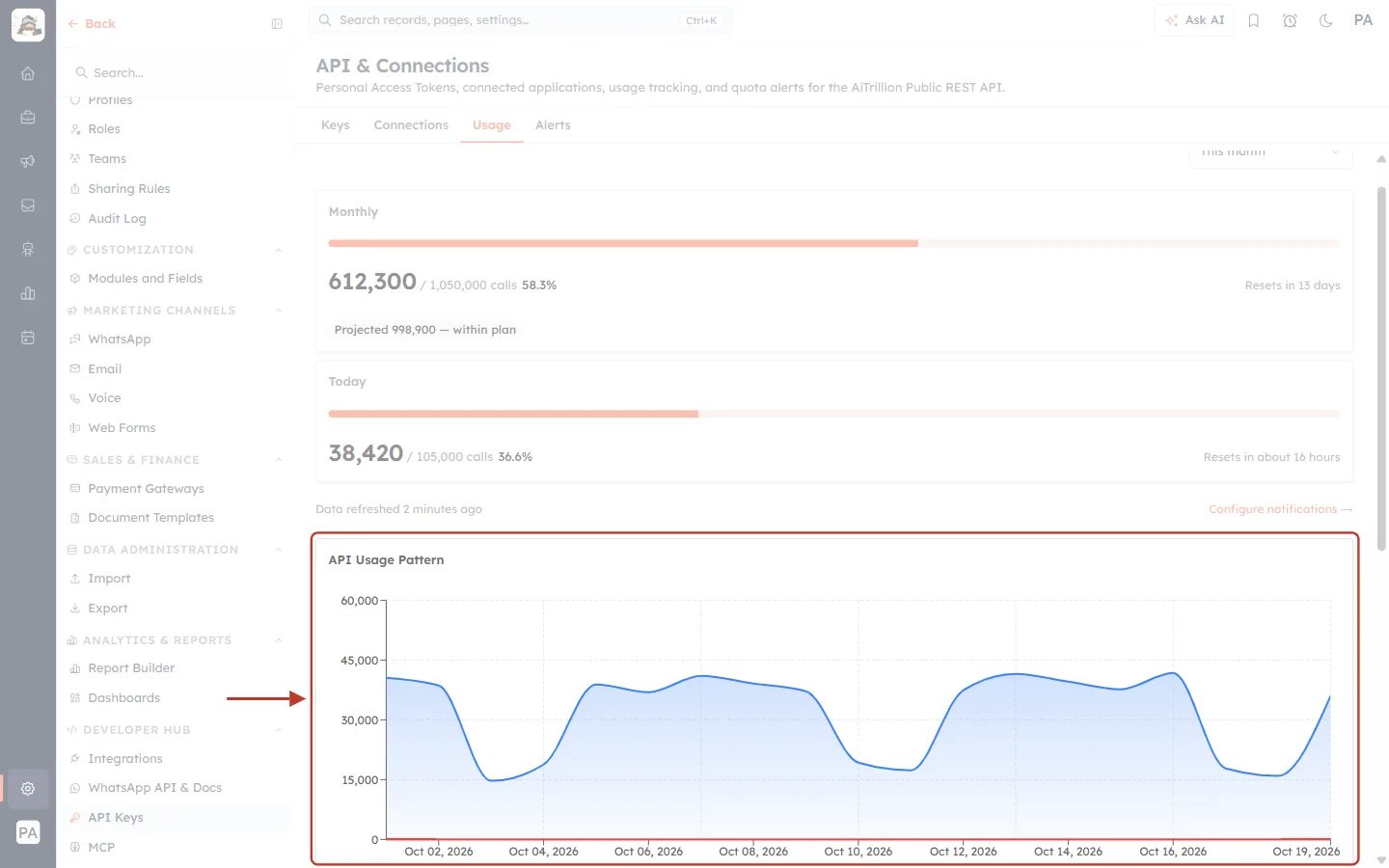
What this screenshot shows. The ringed API Usage Pattern chart plots your calls over the selected period, one point per day.
The left axis is the number of calls. The bottom axis is the date.
Here weekdays run at around 35,000–40,000 calls and weekends drop lower, a typical pattern for a business integration.
Hover over a point to see that day’s exact total. A sudden spike usually means a script stuck in a loop or a large import.
Step 4: Change the period#
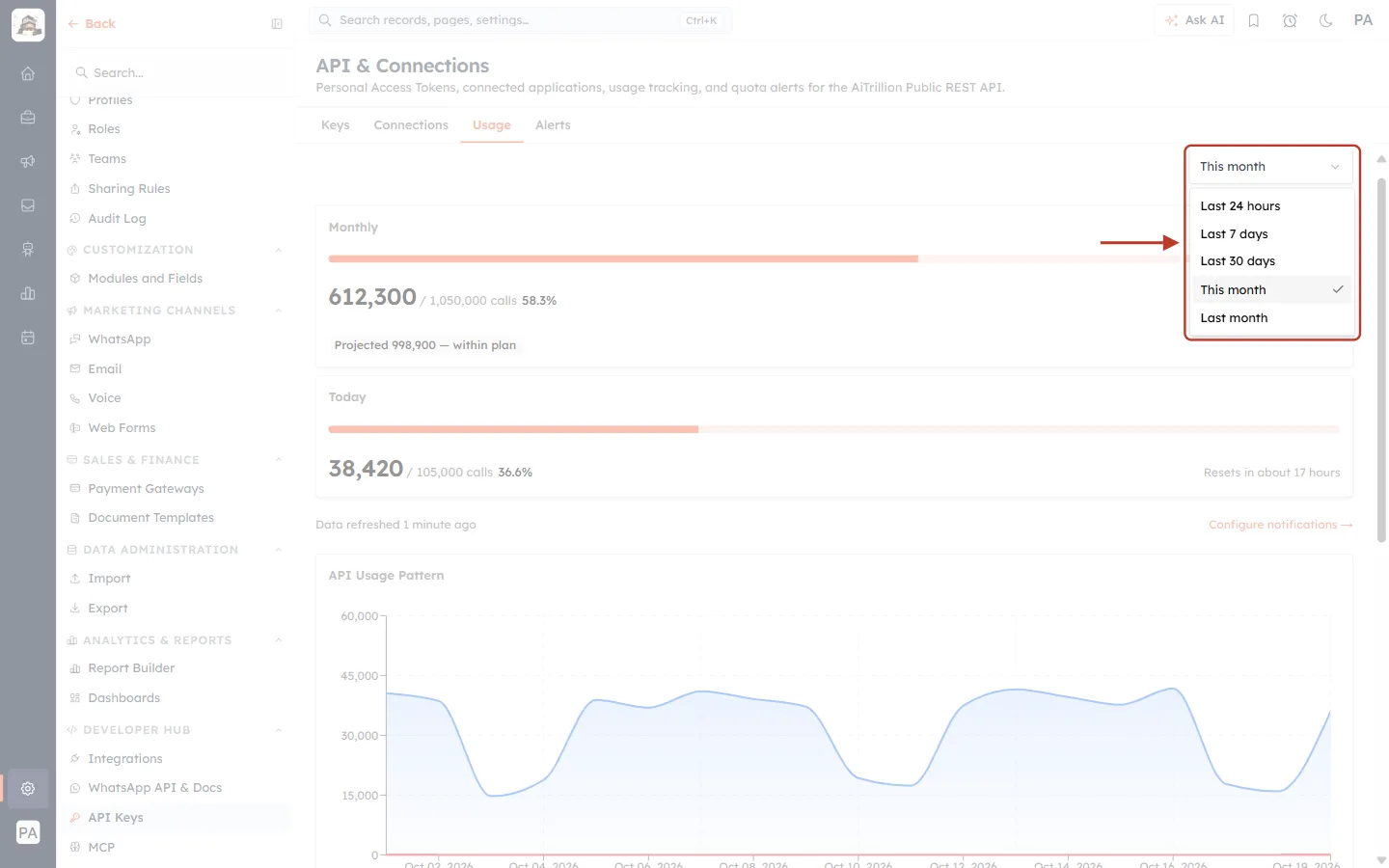
What this screenshot shows. The period list (top right of the tab) is open.
Last 24 hours (shown hour by hour), Last 7 days, Last 30 days, This month (the default) and Last month.
The period changes the chart and the breakdowns. The Monthly and Today cards always show the current month and day.
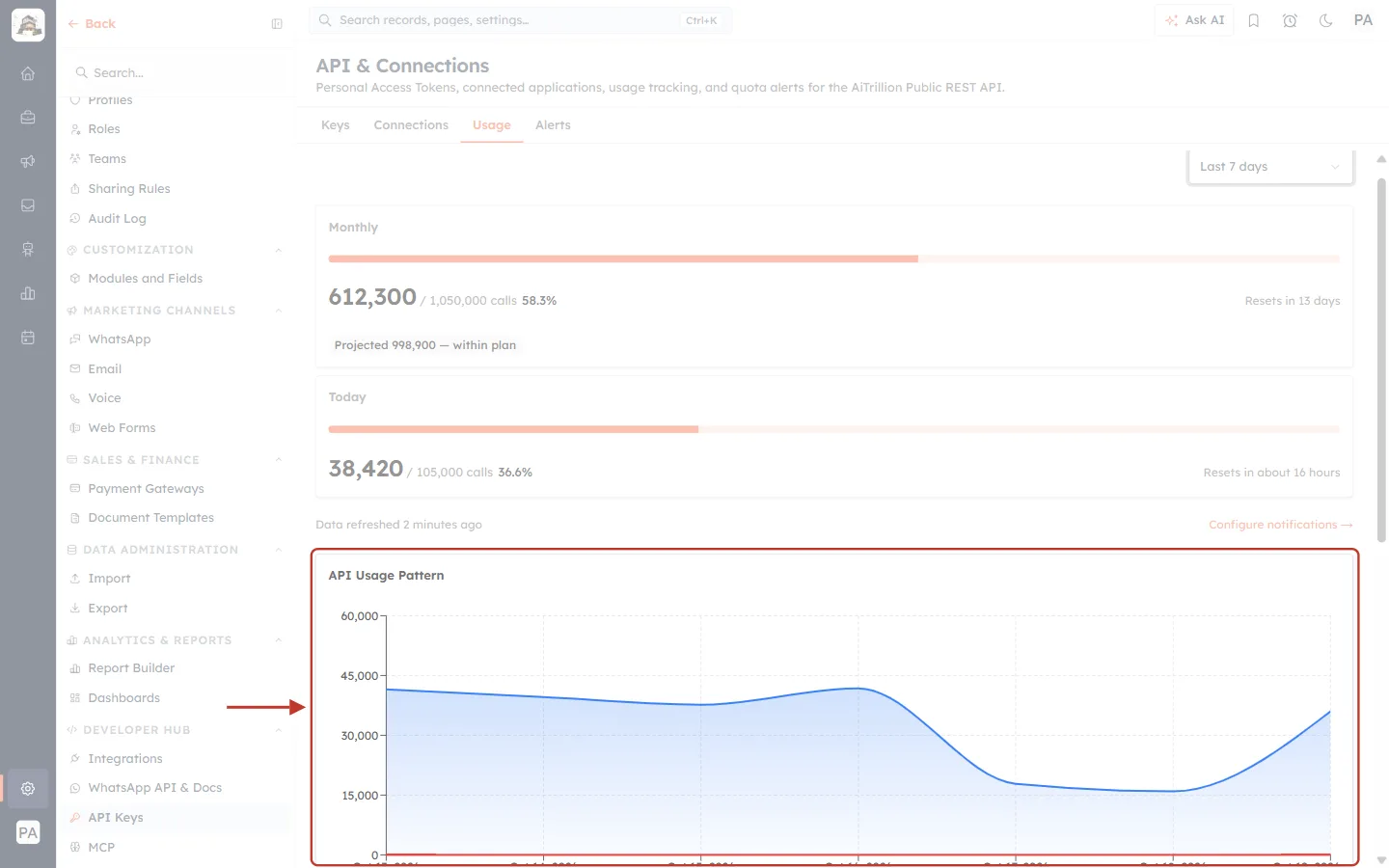
What this screenshot shows. With Last 7 days selected, the ringed chart covers just the past week.
Use a short period to look closely at a recent spike, and Last month to compare with the previous month.
Part 3: Find What Is Using Your Quota#
The Breakdown panel, below the chart, splits the period’s calls four ways. Each tab lists items from most calls to fewest, with their CALLS and % OF TOTAL.
Step 5: By Token: which key#
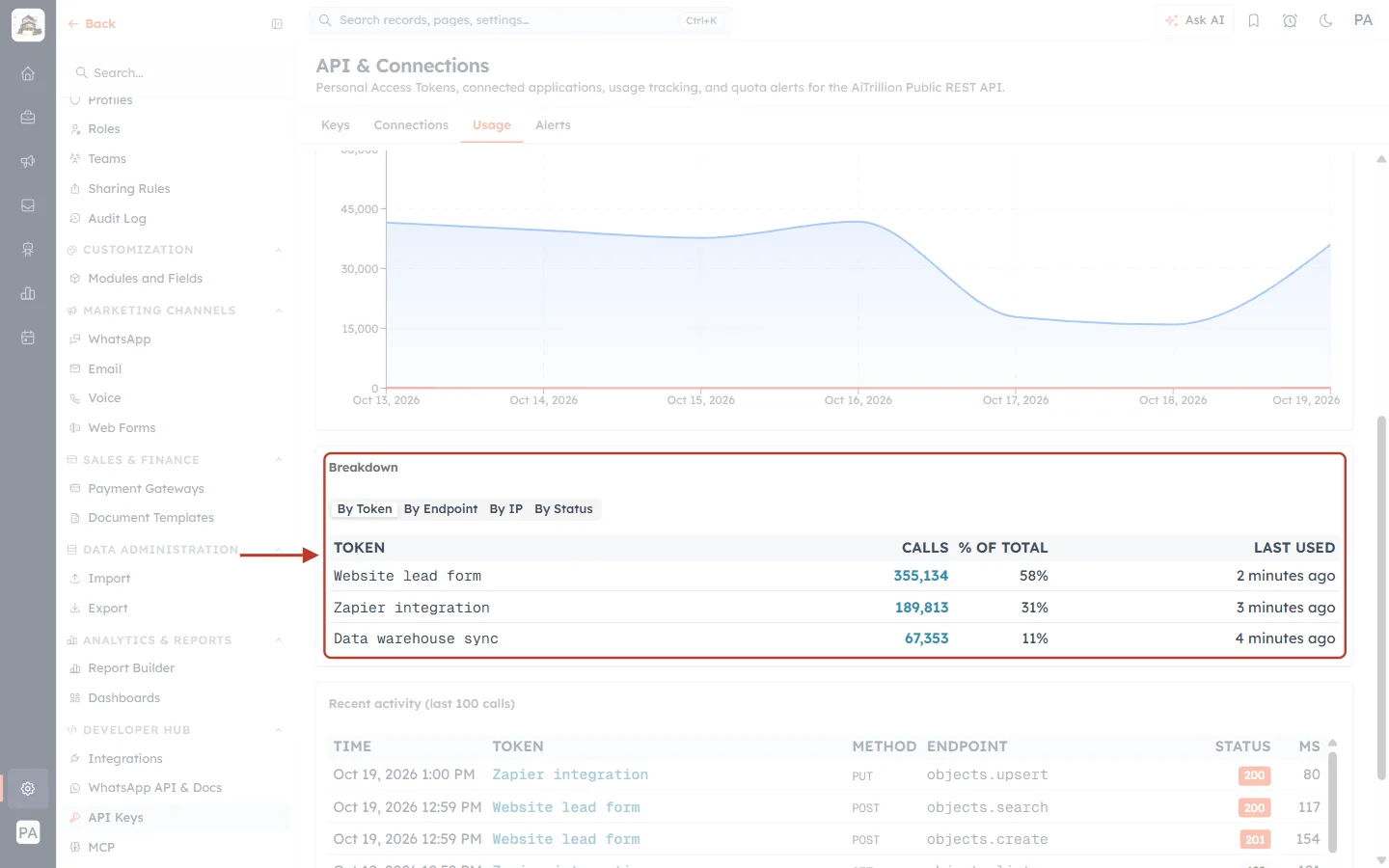
What this screenshot shows. The ringed Breakdown panel on By Token shows calls per API key.
Website lead form: 355,134 calls (58%). Zapier integration: 189,813 (31%). Data warehouse sync: 67,353 (11%).
LAST USED (right) shows when each key last made a call.
Keys are listed by their label, which is why a clear label per integration helps (see API Keys: Build Custom Integrations).
Step 6: By Endpoint: which kind of call#
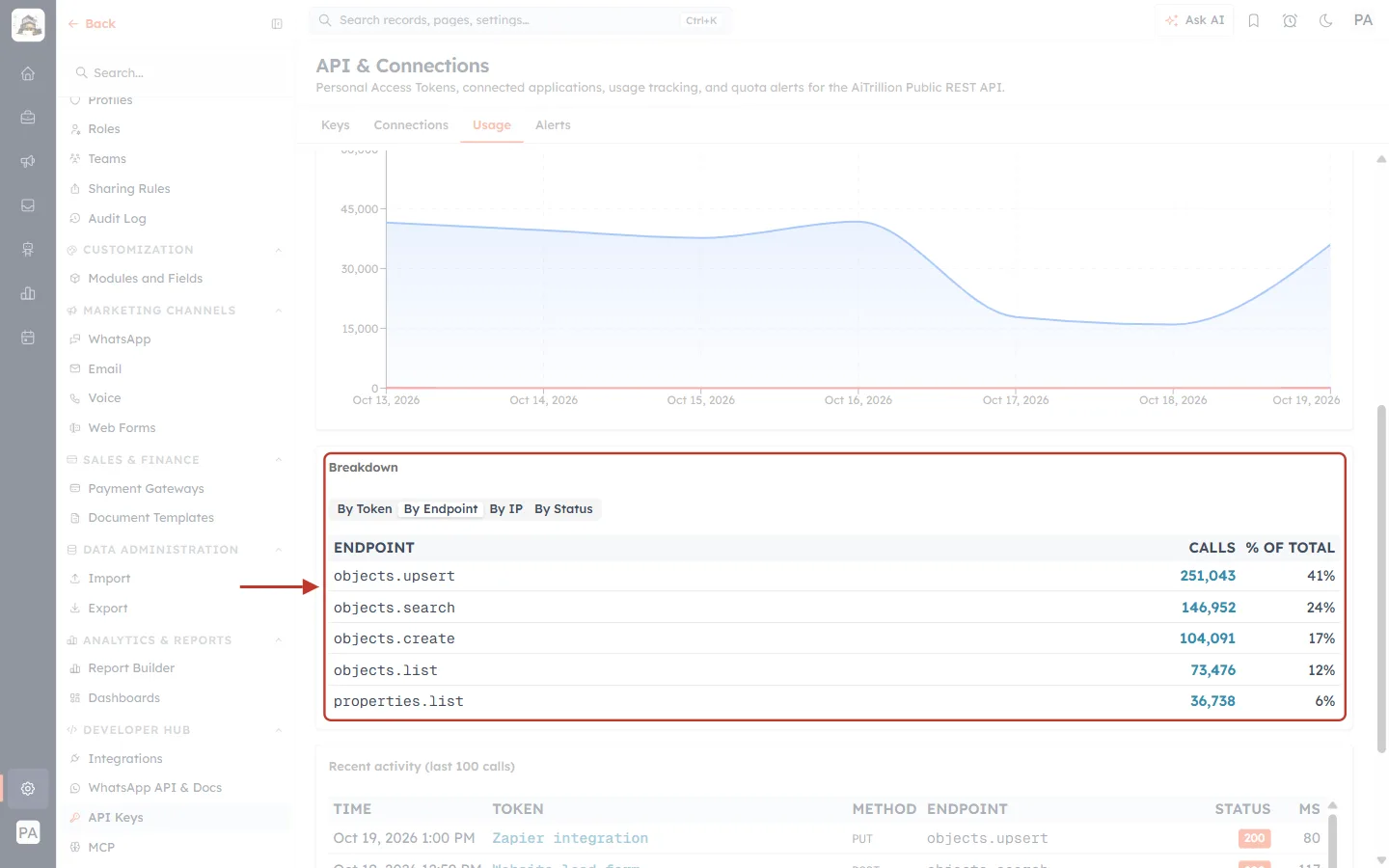
What this screenshot shows. On By Endpoint, the panel shows which API operations are called most.
objects.upsert (41%), objects.search (24%), objects.create (17%), objects.list (12%), properties.list (6%).
For example, a high share of properties.list means an integration keeps re-reading the field list. It only needs to do that once.
Using batch operations (up to 100 records per call) instead of one call per record cuts usage sharply.
Step 7: By IP: which server#
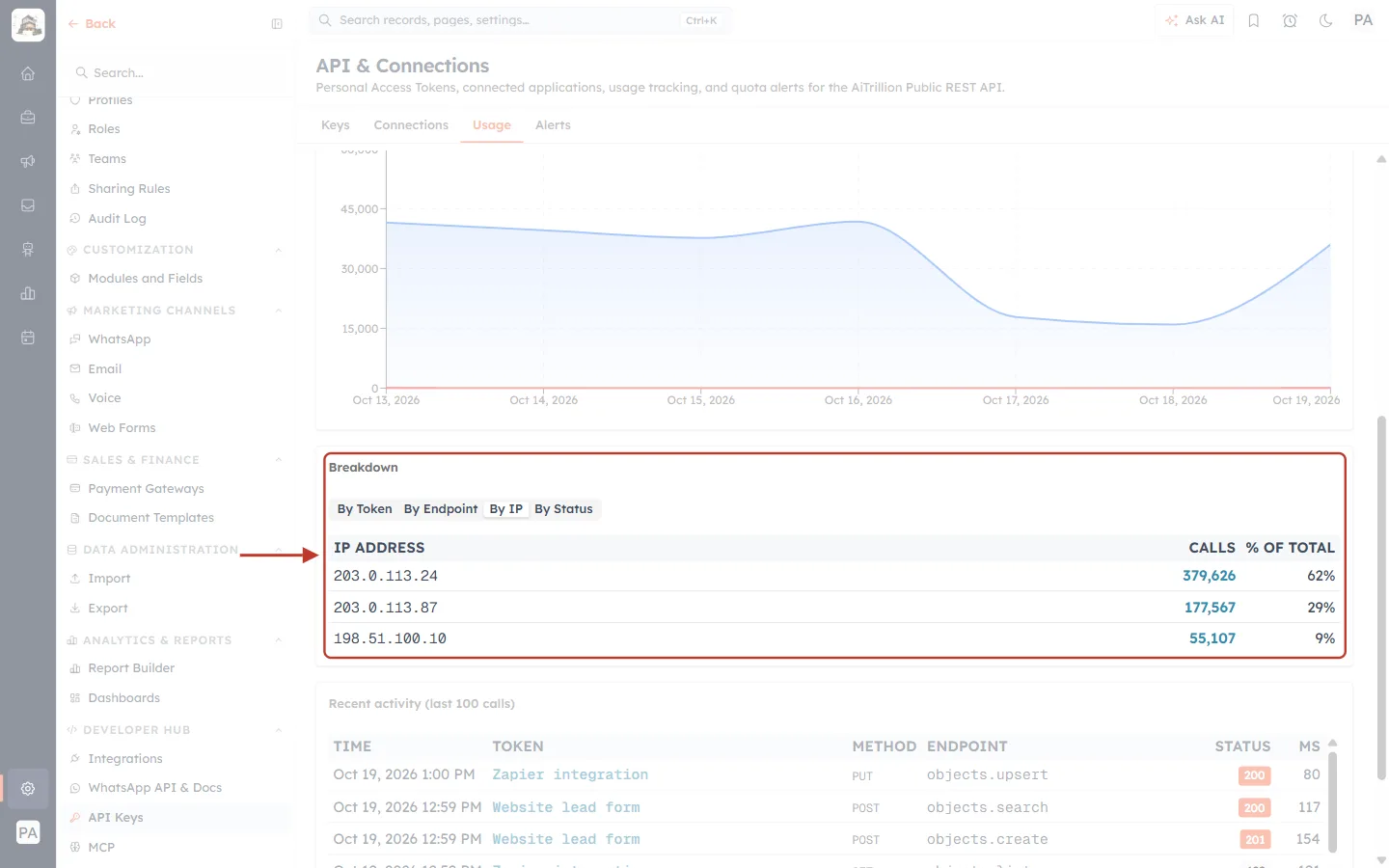
What this screenshot shows. On By IP, the panel shows which addresses the calls come from.
Each row is a server or network calling the API with your keys: 203.0.113.24 (62%), 203.0.113.87 (29%), 198.51.100.10 (9%).
An address you don’t recognise may mean a key is being used somewhere it shouldn’t be. Revoke that key and issue a new one.
Step 8: By Status: how many calls fail#
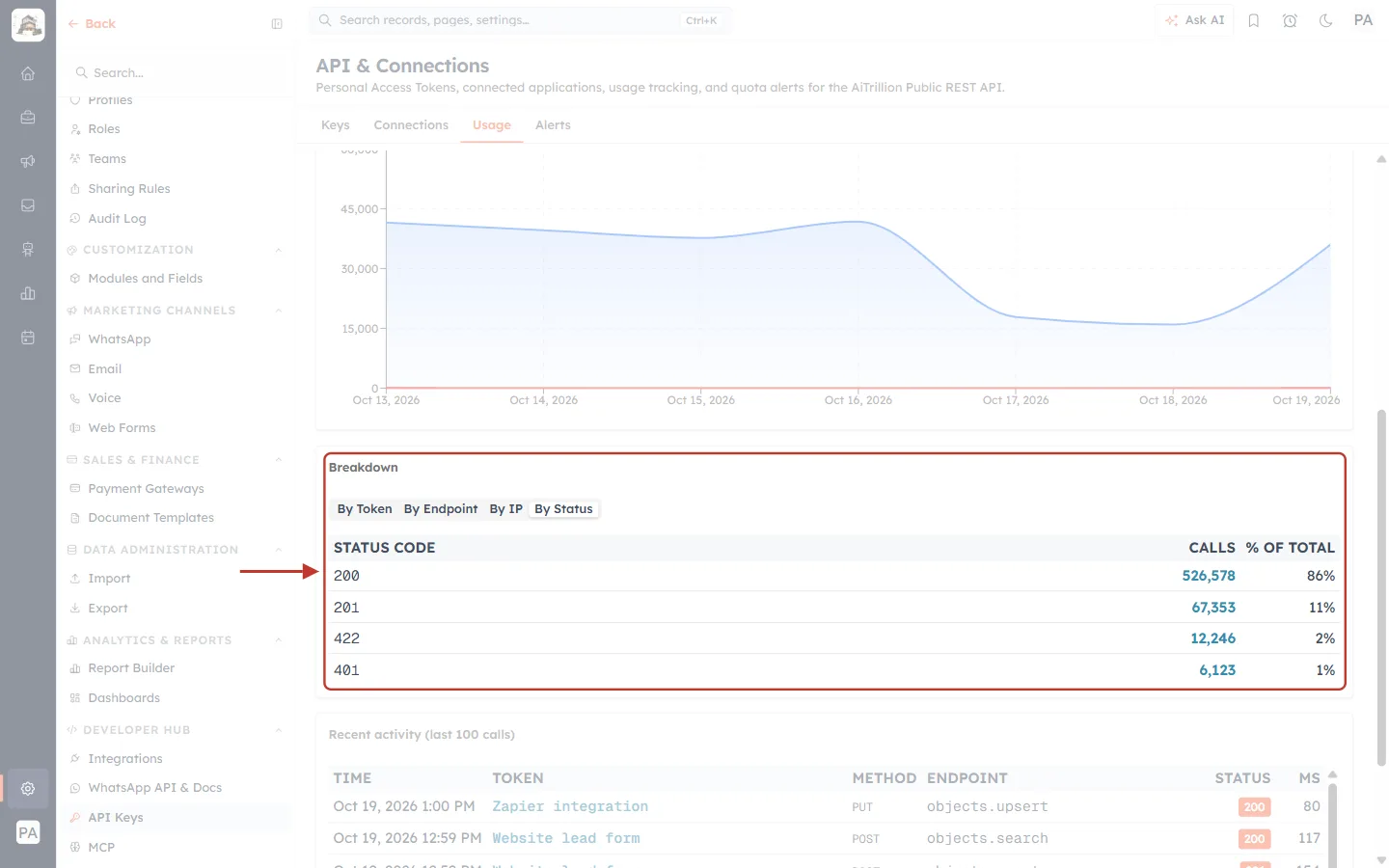
What this screenshot shows. On By Status, the panel groups calls by the response they got.
200 (86%) and 201 (11%) are successes. 422 (2%) means the request was invalid (for example, a wrong field value). 401 (1%) means the key was missing or no longer valid.
A growing share of 4xx codes points to an integration sending bad requests. Fix it, because failed calls can still use your allowance.
Any 429 rows mean calls were refused because a limit was reached.
Step 9: Check recent calls#
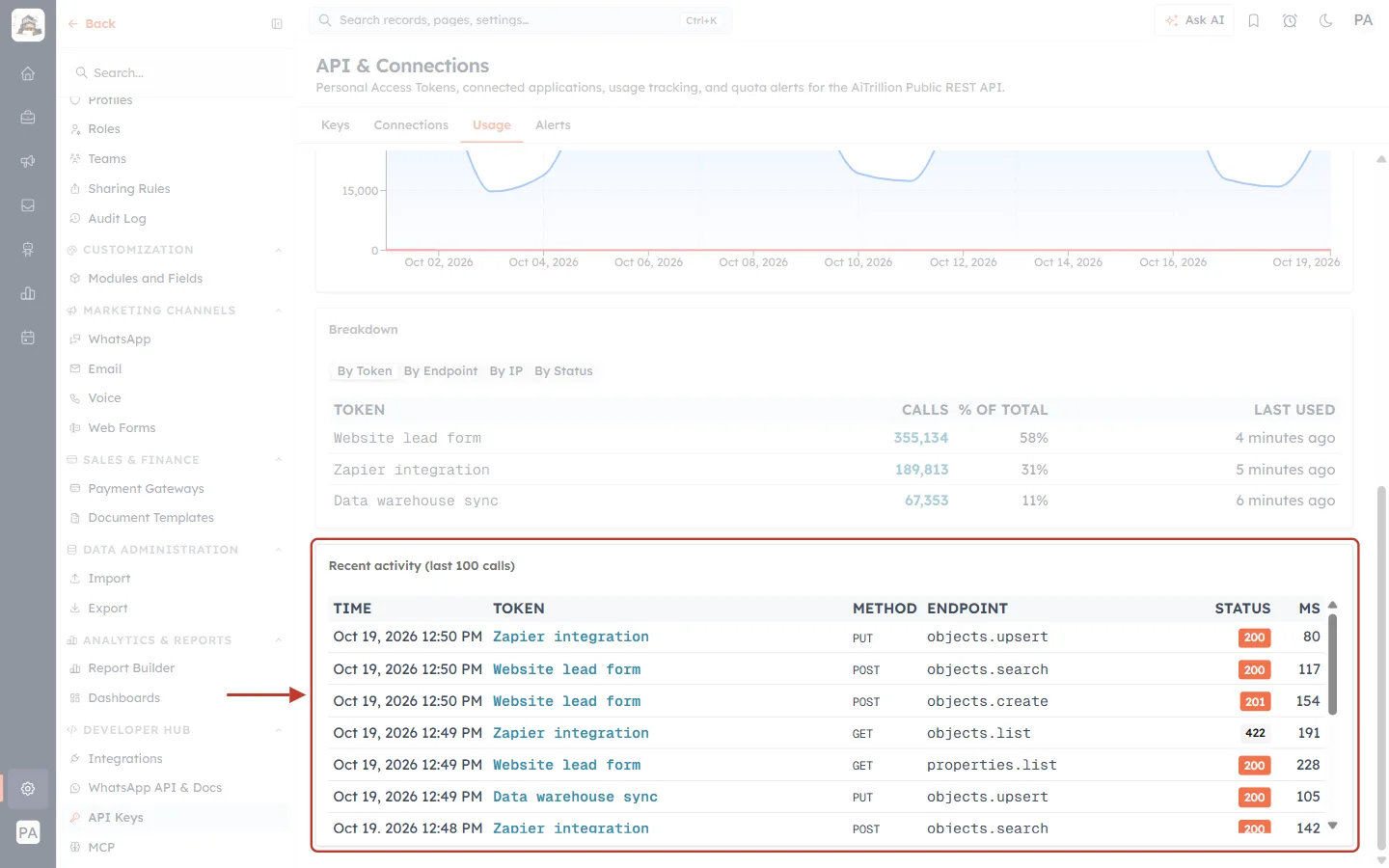
What this screenshot shows. The ringed Recent activity (last 100 calls) table lists individual calls, newest first.
TIME, TOKEN (the key’s label), METHOD (GET, POST, PUT), ENDPOINT, STATUS (green for success, other colours for errors) and MS (how long the call took, in milliseconds).
Use it while testing: make a call from your integration and watch it appear here within a minute. The list refreshes every 30 seconds.
Part 4: Get Warned Before the Limit#
Step 10: Open the Alerts tab#
Click the Alerts tab, or Configure notifications → on the Usage tab.
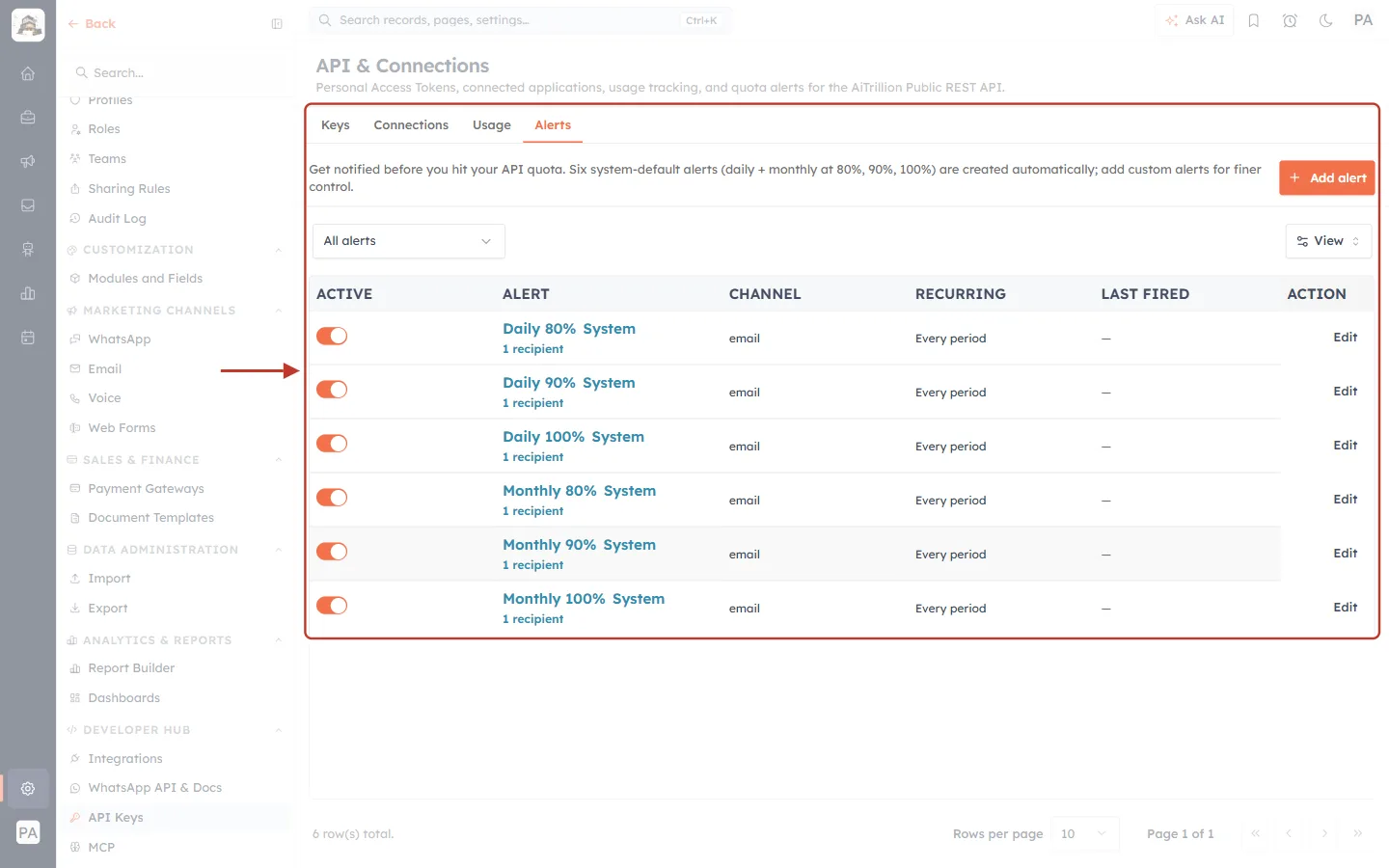
What this screenshot shows. The ringed Alerts tab lists your quota alerts.
Get notified before you hit your API quota. Six system-default alerts (daily + monthly at 80%, 90%, 100%) are created automatically; add custom alerts for finer control.
Columns: ACTIVE (switch), ALERT (name, System label and recipient count), CHANNEL (email), RECURRING, LAST FIRED and ACTION (Edit).
Add alert (top right) creates your own. All alerts filters the list, and View chooses columns.
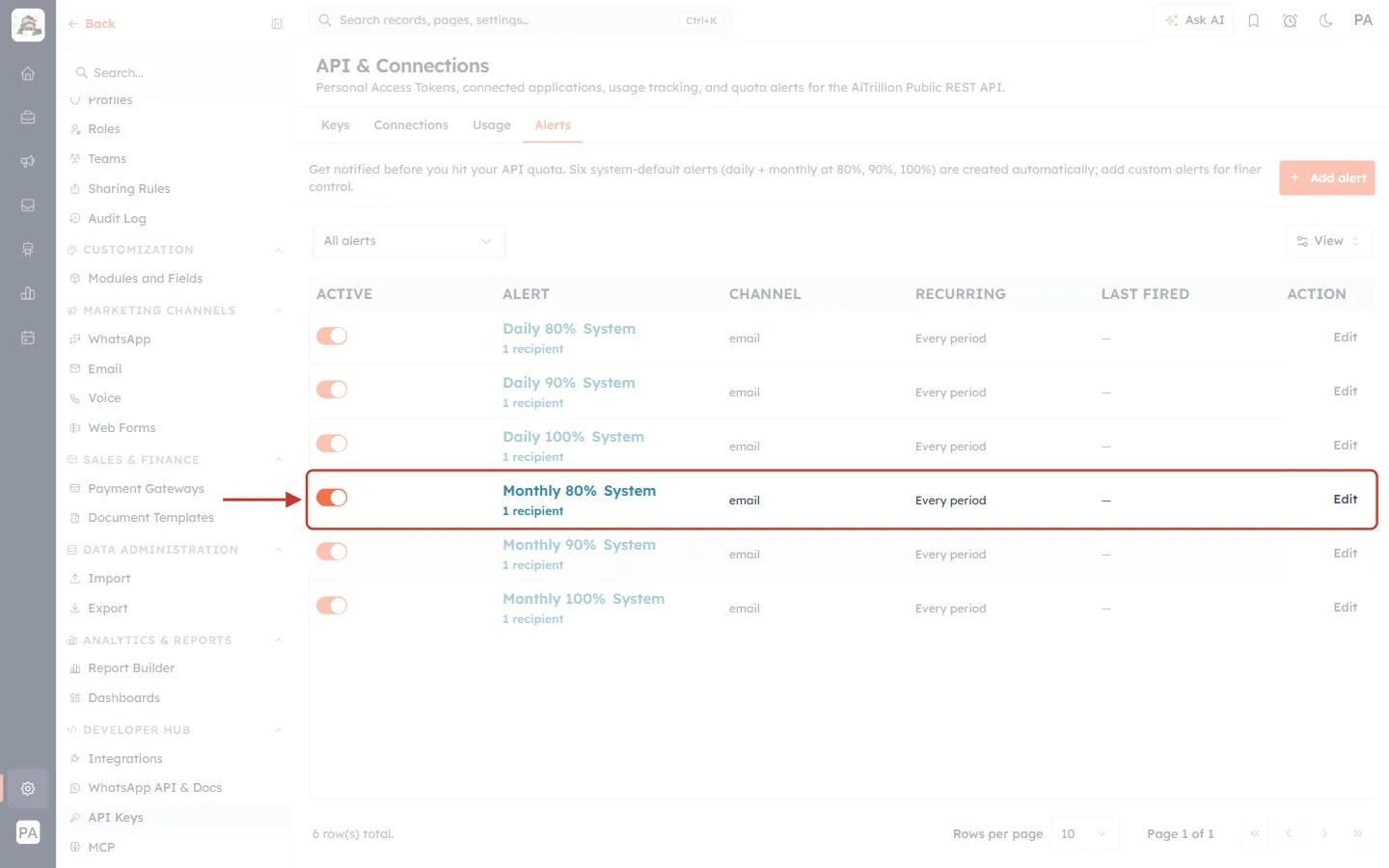
What this screenshot shows. The ringed row is the Monthly 80% system alert.
It emails its recipient when monthly usage passes 80%, and re-arms Every period, so it can fire again next month. LAST FIRED shows — because it hasn’t fired yet.
Turn the ACTIVE switch off to pause an alert without deleting it.
Step 11: Change who receives a system alert#
Click Edit on a system alert.
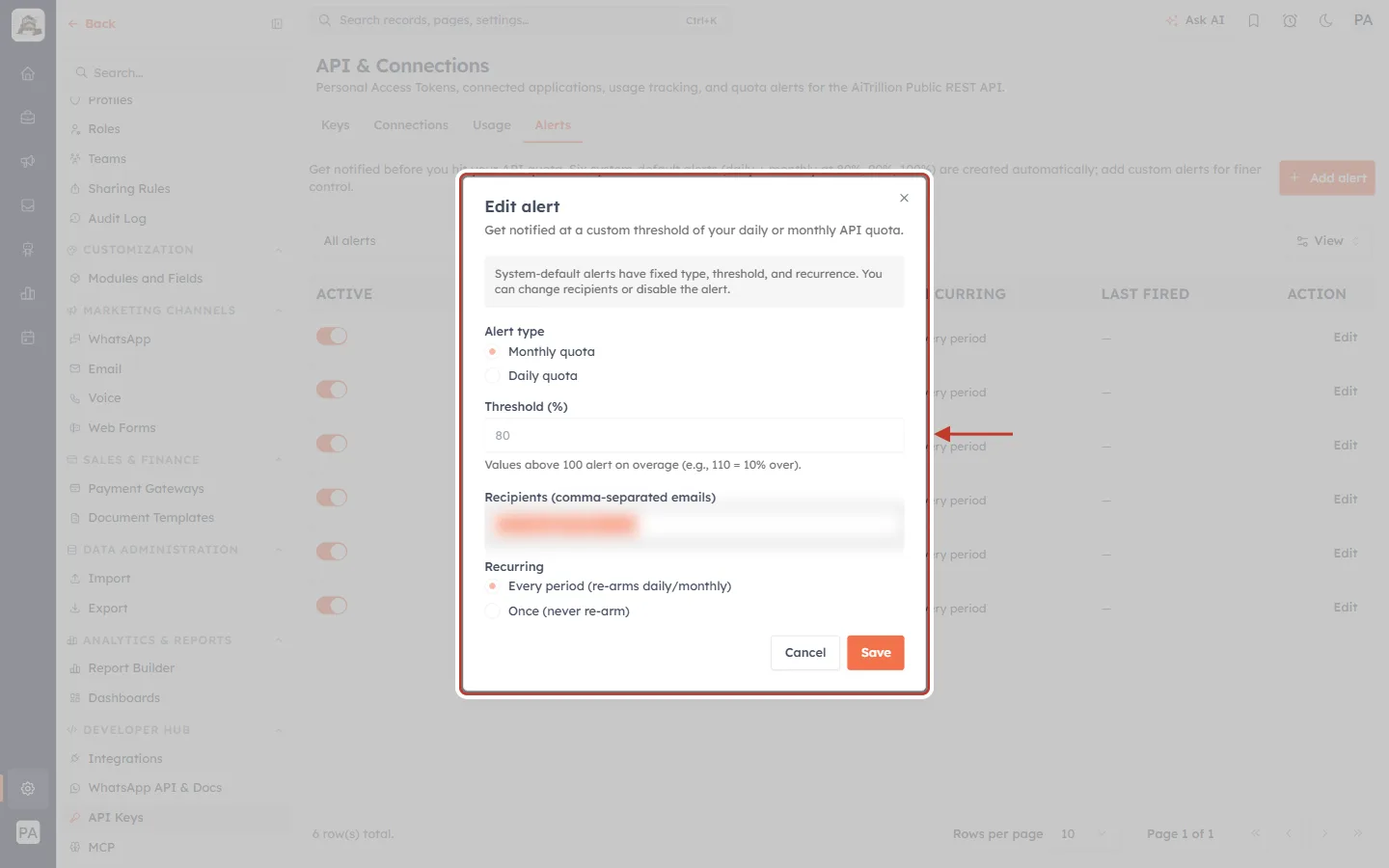
What this screenshot shows. The Edit alert window for a system alert.
The note explains: System-default alerts have fixed type, threshold, and recurrence. You can change recipients or disable the alert.
Alert type (Monthly quota), Threshold (%) (80) and Recurring are greyed out.
Recipients (comma-separated emails) can be changed (blurred here). Add your developers or a shared ops inbox, then click Save.
Step 12: Add your own alert#
Click Add alert.
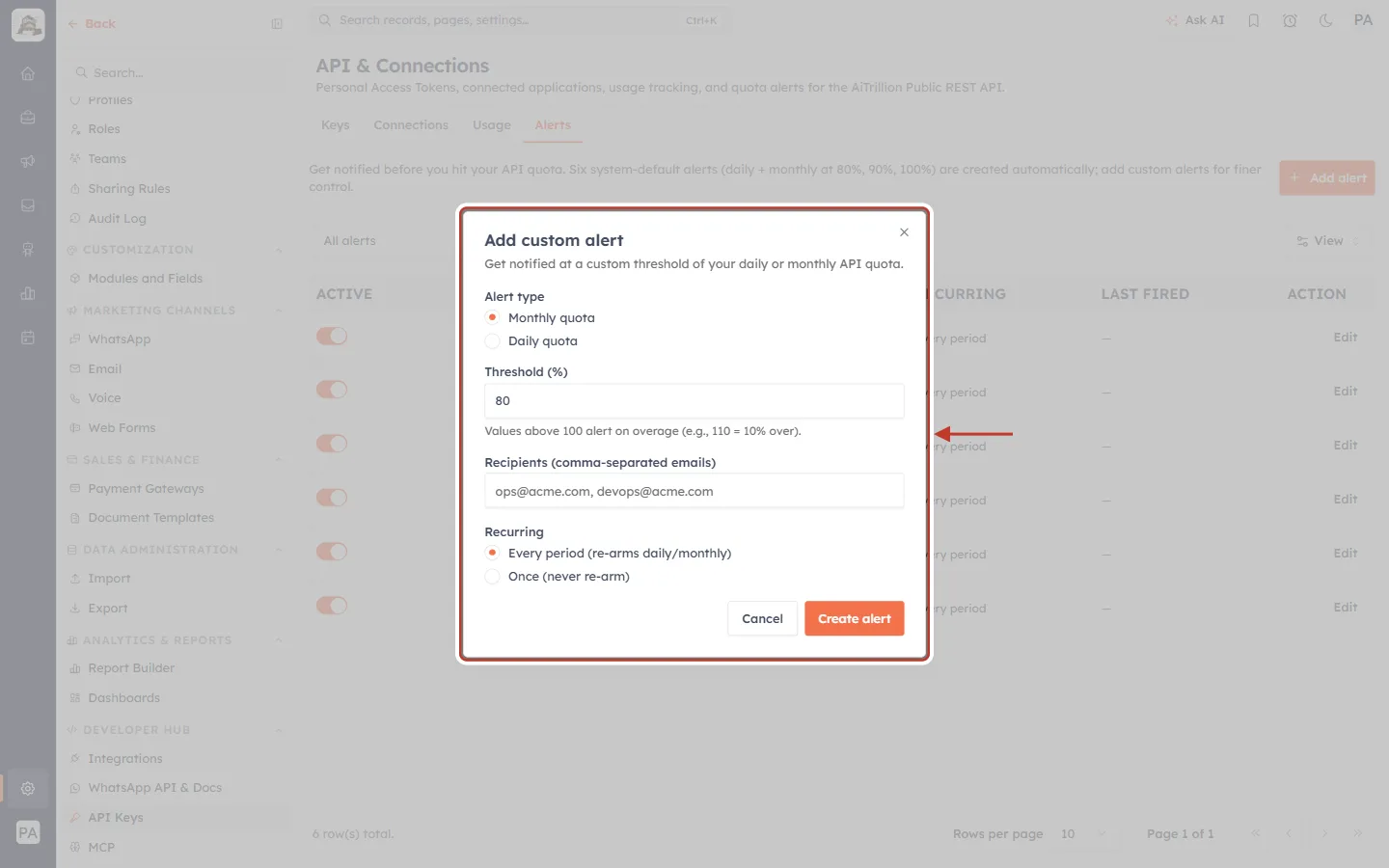
What this screenshot shows. The Add custom alert window: Get notified at a custom threshold of your daily or monthly API quota.
Alert type: Monthly quota or Daily quota.
Threshold (%): the percentage of the allowance at which to email.
Recipients: one or more email addresses, separated by commas.
Recurring: Every period (re-arms daily/monthly) or Once (never re-arm).
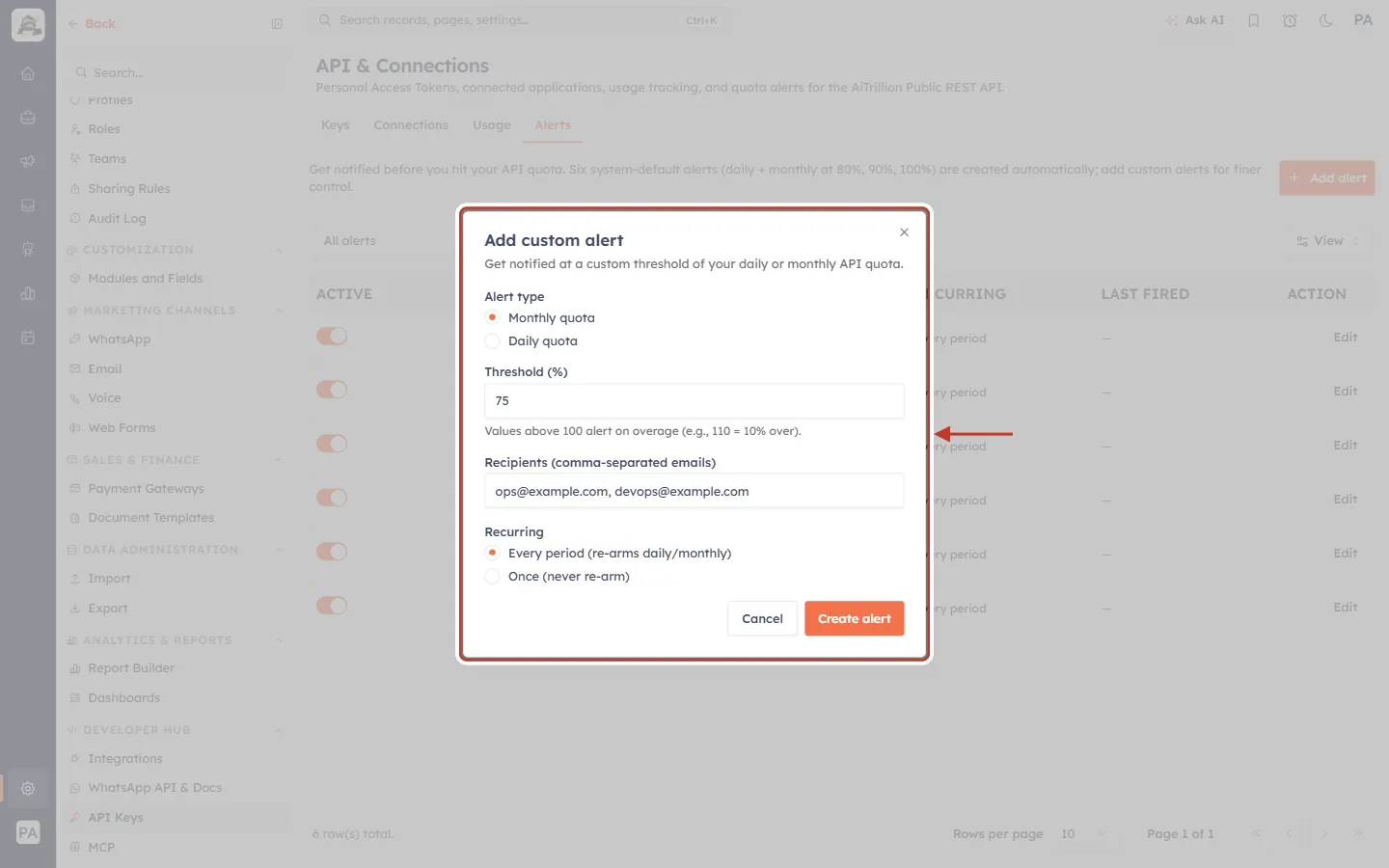
What this screenshot shows. The form is filled in for an early warning.
Monthly quota at 75%, sent to ops@example.com, devops@example.com, recurring Every period.
Click Create alert. Cancel closes without saving.
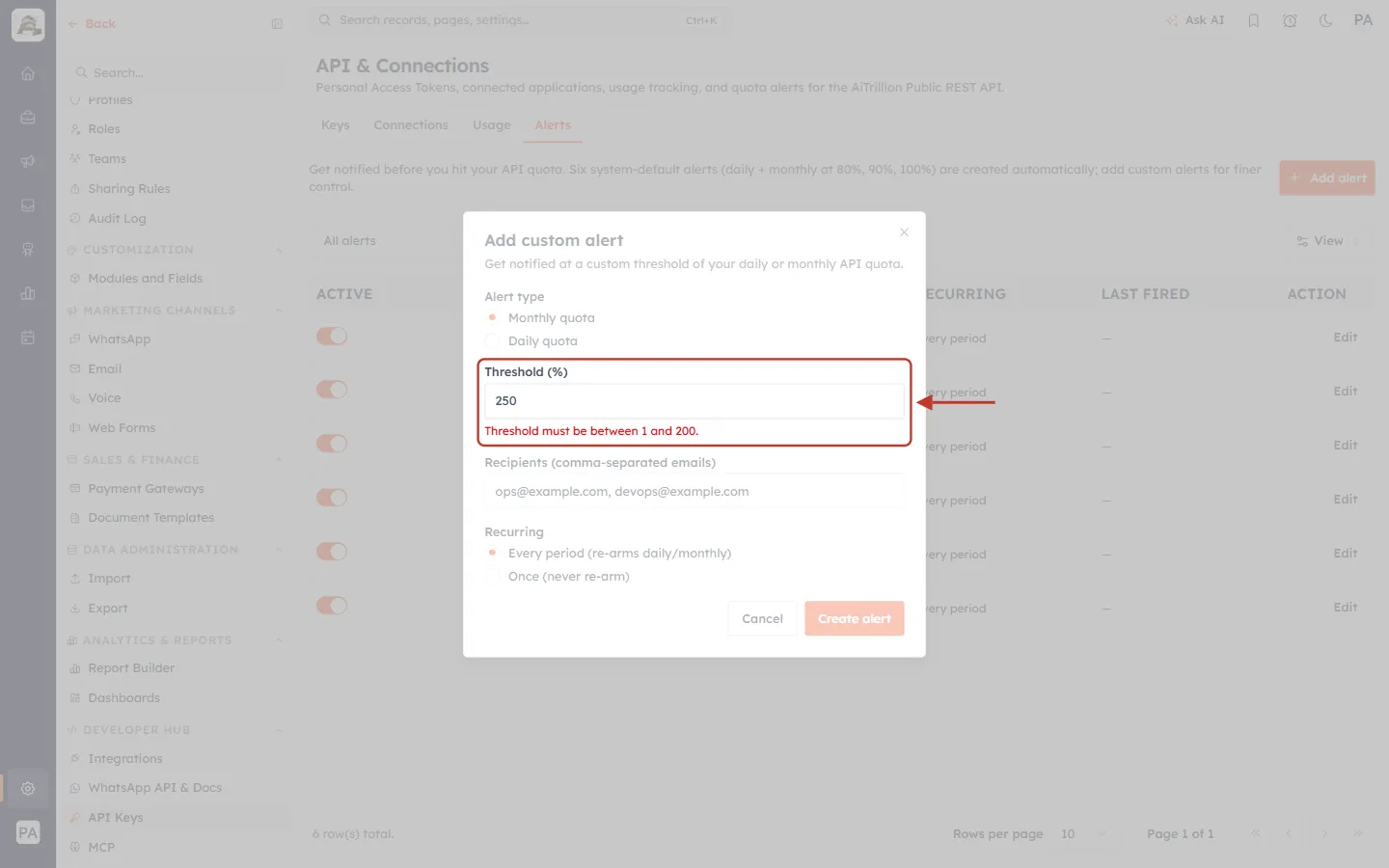
What this screenshot shows. With a threshold of 250, the form shows Threshold must be between 1 and 200. in red.
Enter a whole number from 1 to 200. At least one recipient is also required (At least one recipient is required.).
The hint under the field says values above 100 alert on overage. Because calls are now refused at 100%, usage can’t go past 100%, so thresholds of 100 or below are the ones that will fire.
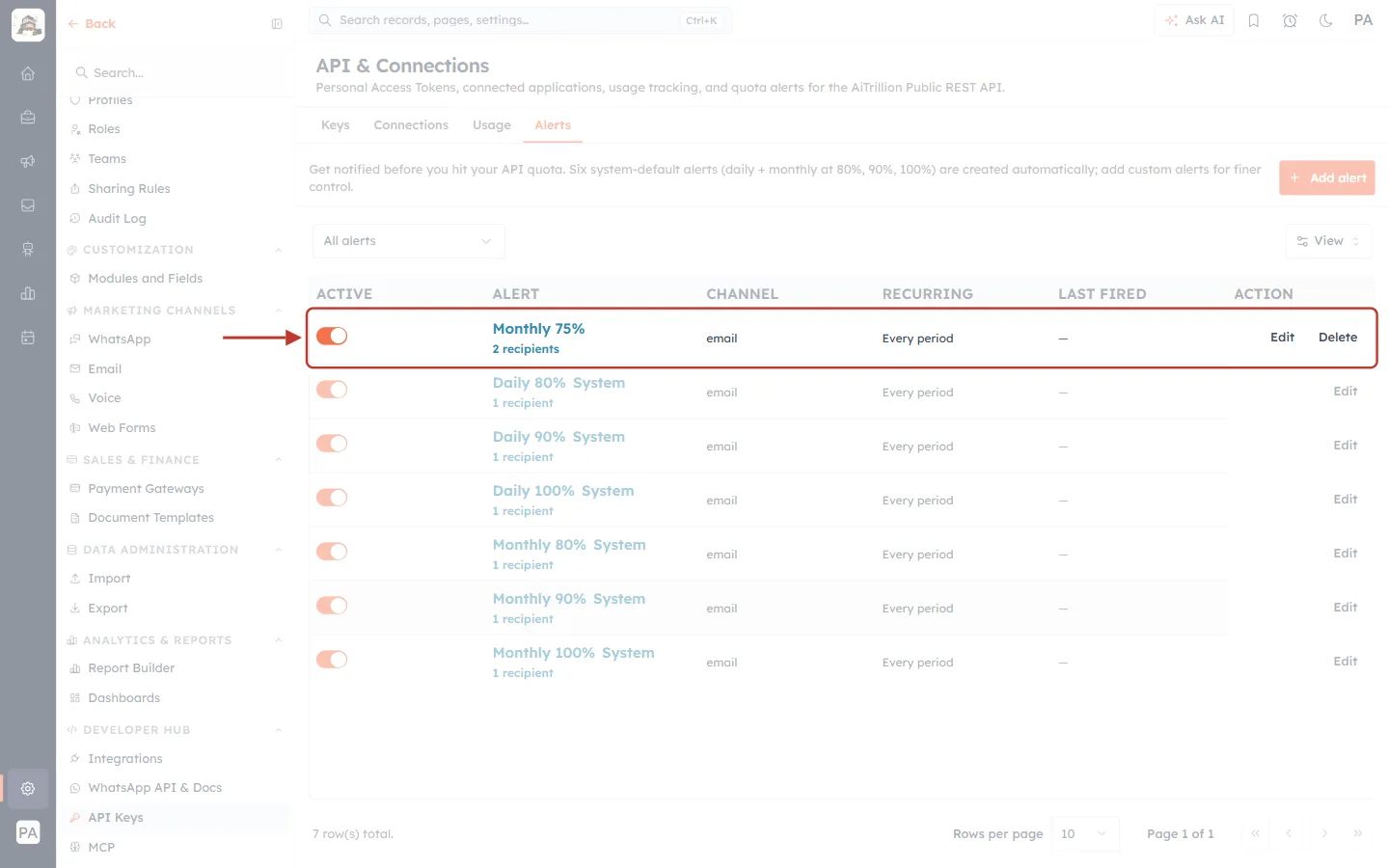
What this screenshot shows. Your new alert is at the top of the list (ringed).
Monthly 75%, 2 recipients, email, Every period, and ACTIVE switched on.
Unlike system alerts, custom alerts have a Delete button next to Edit. Your browser asks Delete this alert? before it is removed.
Recommended Setup#
Situation | What to set |
|---|---|
Everyone | Keep the six system alerts active, and add your developers or ops inbox as recipients. |
Steady monthly usage near the limit | Add a Monthly 70–75% alert (Every period) as an earlier warning. |
Bursty daily jobs (imports, nightly syncs) | Add a Daily 60% alert so a runaway job is caught the same day. |
A one-off migration | Add a Once alert at the level you care about, so it doesn’t keep firing afterwards. |
Troubleshooting#
What you see | What to do |
|---|---|
Calls return 429 | A limit is reached or calls are too fast. Check the Monthly and Today cards. Wait for the reset shown on the card, slow the integration down, or contact us about your plan. |
Will exceed plan on the Monthly card | Use the breakdowns to find the busiest key and endpoint. Switch to batch calls, cache field lists, or sync less often. |
Usage is higher than expected | Check By IP for unknown sources and By Endpoint for repeated reads. Revoke any key you don’t recognise. |
An alert never arrived | Check it is ACTIVE, the recipient addresses are correct, and (for Once alerts) that it hasn’t already fired. Check spam folders too. |
The Usage tab shows an upgrade screen | Your plan doesn’t include API access. |
No API calls this month yet | No key has made a call this month. Check your integration is using an Active key. |
Frequently Asked Questions#
Can a key keep working past the limit if we pay extra?
No. All paid plans stop at 100%. For a higher allowance, contact us about your plan.
Does Ask AI use my API quota?
No. The in-app assistant doesn’t count toward your API allowance. Calls made with an API key do.
Do failed calls count?
Calls refused for a missing scope don’t count, and our own server errors are given back. Other failed requests (for example 422 for invalid data) can count, so fix integrations that send bad requests.
Can I set a limit per key?
Not currently. The daily and monthly allowance applies to your whole organisation. Use the By Token breakdown to see each key’s share.
Previous and Next#
Previous: API Token Scopes & Permissions
Next: Connect Claude to AiEngage CRM (MCP): Ask Your CRM Questions in Plain English
Related Articles#
Was this article helpful?
Ready to implement this?
OpenAI Engage and apply what you just learned to your own workspace.
Open AI Engage CRM