Loading…


KnowledgeBase
Using the Template Library: Prebuilt Templates for Email & WhatsApp
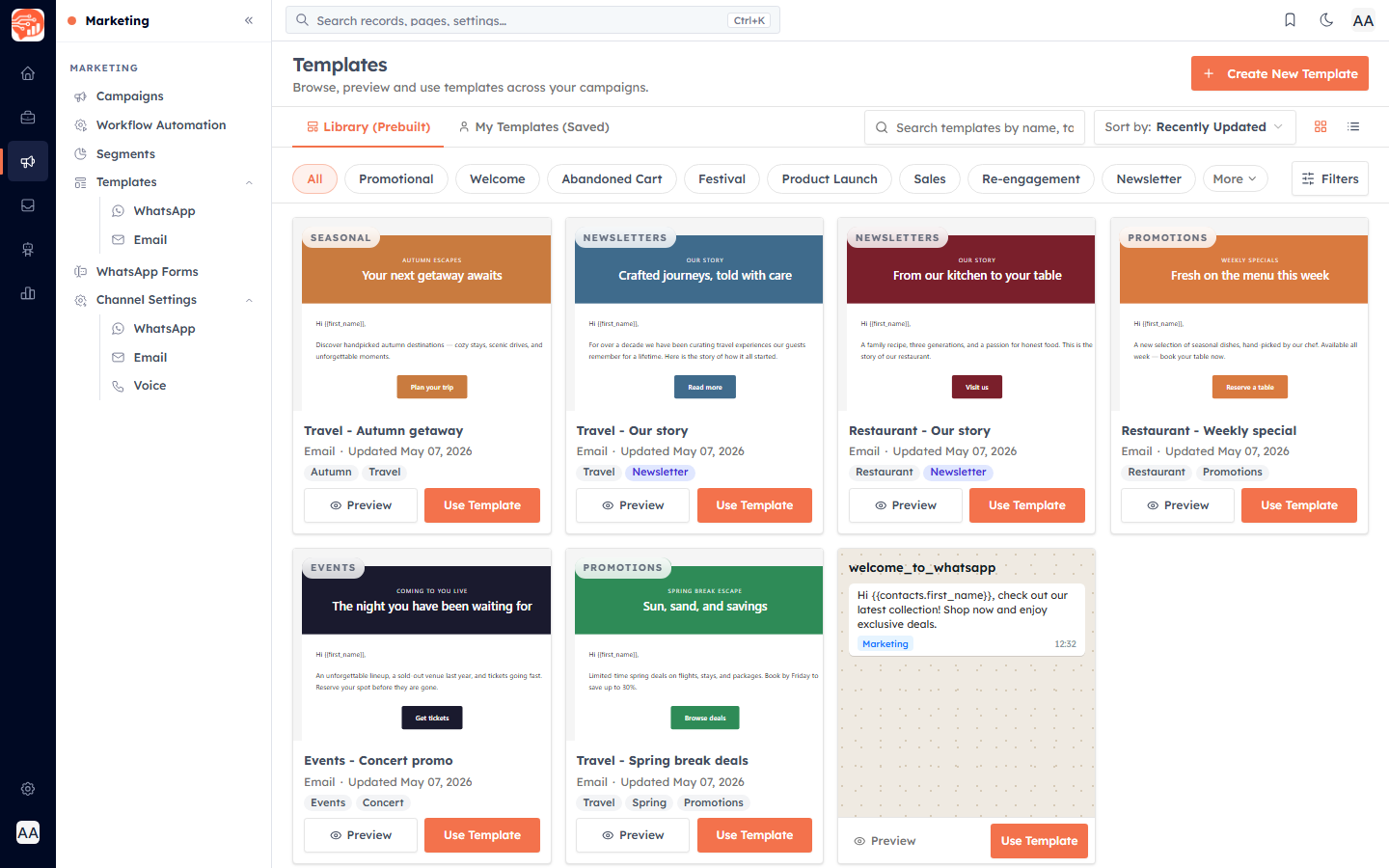
The Templates screen is one workspace for two things: a platform-curated Library (Prebuilt) gallery of ready-made email and WhatsApp templates, and My Templates (Saved), everything your own team has created. From either tab you can preview a template and drop it straight into a campaign editor.
Before you start#
Creating templates is governed by your plan. The Create New Template button is gated by a plan limit on templates, so if you have reached your allowance, the button will surface an upgrade prompt instead of opening the editor. Using and previewing prebuilt Library templates is not limited in the same way — the cap applies when a new saved template is created (including when you clone a Library template into your collection).
💡
Open the screen from Templates. It loads on the Library (Prebuilt) tab by default.
Browse and use a template#
Pick a tab: Library (Prebuilt) for the curated gallery, or My Templates (Saved) for your own.
Use the category chips above the grid to narrow the list, and the search box to find a template by name, tags or purpose.
Switch between Grid view and List view, and change Sort by if you want a different order.
Click Preview on any card to open the full preview modal.
Click Use Template. On a Library card, this clones the template into your collection and opens it in the editor; on a saved card it opens your template in the editor directly.
The two tabs#
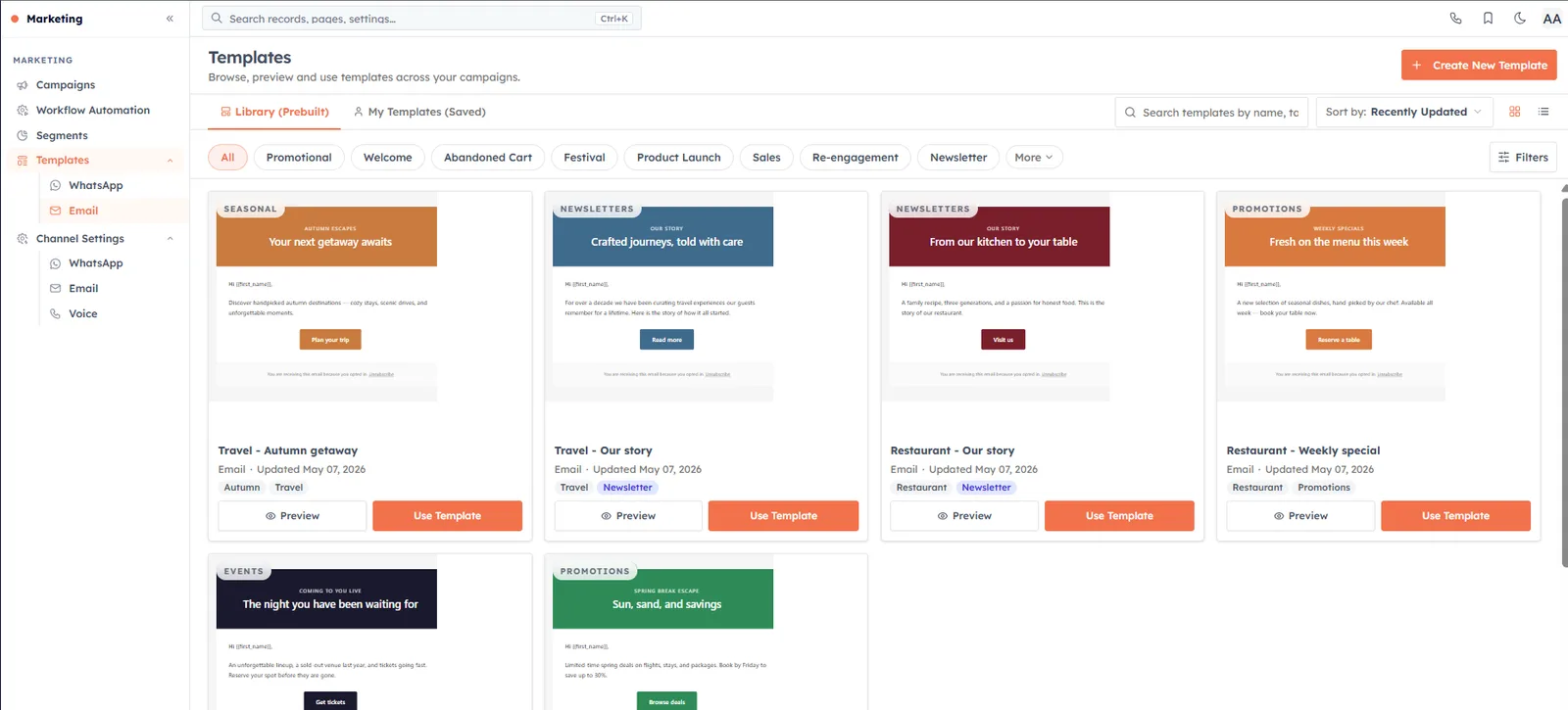
Library (Prebuilt) — the system-curated gallery. Every item here is prebuilt and cross-channel, so you can browse email and WhatsApp templates side by side. Library cards only offer Preview and Use Template; ownership, status and date filters do not apply.
My Templates (Saved) — templates your team has created or cloned. These cards add per-template actions (edit, clone, send test, delete and more) and support favourites and the full filter sidebar.
Category, type and sender filters#
The chip bar directly above the grid changes with the channel you are viewing.
Email categories — All, Promotional, Welcome, Abandoned Cart, Festival, Product Launch, Sales, Re-engagement, Newsletter, with the remaining categories (Seasonal, Transactional) tucked under a More dropdown.
WhatsApp categories — All templates, Marketing, Utility, Authentication (the official Meta classification).
Type (WhatsApp, shown for Marketing or All only) — All types, Standard, Carousel, Limited time offer. Choosing Utility or Authentication clears any subtype filter automatically.
Per-number dropdown — on the saved tab, when your organisation has more than one WhatsApp sender, a number filter appears (defaulting to All numbers) so you can see templates bound to a specific sender.
The Filters sidebar#
Click Filters to slide out the left sidebar. On My Templates (Saved) it offers:
Status — multi-select checkboxes. For email: Published, Draft, Archived. For WhatsApp: Approved, Pending, Rejected, Draft. Leaving all unchecked shows every status.
Created by — All, Me, Team, or Cloned from Library.
Template type — Custom and Prebuilt (origin of the template). Both selected means no filter.
Date range — All time, Today, This week, This month, This year.
Adjust the fields, then click Apply Filters; a You have unsaved filter changes note reminds you when a change has not been applied yet, and Clear All resets everything. On the Library (Prebuilt) tab these controls are intentionally hidden — a note explains that Library templates are platform-curated, so you browse them with the category chips instead.
Search, sort and view#
Search — matches template name and category; results update as you type.
Sort by — Recently Updated (default), Name A–Z, Name Z–A, or Category.
Grid view / List view — toggle between the visual card grid and a compact list.
Favourites#
On saved email cards, a star in the top-right corner marks a template as a favourite. The state is saved on the server, so your favourites persist across sessions and devices.
The preview modal#
Clicking Preview opens a side-by-side modal: a left rail with the reminder After you select a template, you can change the images, colors, and text plus the template's tag pills, and a large preview pane on the right. Email previews include a Desktop / Mobile device toggle; WhatsApp templates render inside a phone mockup. The footer button reads Use Template for Library items and Edit Template for saved ones.
What “Use Template” does#
For a Library template, Use Template clones it into your collection (the button briefly shows Adding…), confirms with a Template added to your collection message, and opens the new copy in the editor. Email clones are pinned to a module for merge-tag resolution — the system defaults to Contacts, then Leads, then the first available module, and you can change this inside the editor's module selector.
💡
If your organisation has no modules, an email clone cannot be created and you will be told to create a module first.
Creating a new template#
Click Create New Template. If you are already filtered to a single channel you go straight to that channel's builder; otherwise a panel opens with two choices: Email Template (design rich HTML emails with the Stripo editor — merge tags, images and CTAs) and WhatsApp Template (approved WhatsApp message templates with buttons, carousels and media). See Email Templates and WhatsApp Templates for the full builders.
Keeping WhatsApp statuses fresh#
On the saved tab, while viewing WhatsApp (or all channels), a Sync All button pulls the latest Meta-side status for every submitted WhatsApp template at once, reporting how many were synced or that everything is already up to date. While any WhatsApp template is still Pending approval, the list also refreshes automatically about every 30 seconds.
💡
Once your template is in your collection, head to the campaign builder to send it — see Send an Email Campaign or Send a WhatsApp Campaign.
Good to know#
The grid is paginated at 12 templates per page by default.
If nothing matches, the grid shows No templates found with a prompt to adjust your filters or search term.
Filtering and sorting happen instantly on the templates already loaded, so results refine as fast as you can click.
Was this article helpful?
Ready to implement this?
OpenAI Engage and apply what you just learned to your own workspace.
Open AI Engage CRM