Loading…


KnowledgeBase
Retarget a Campaign: Follow Up on Who Opened, Clicked or Missed It
What this article covers#
You send a campaign to 500 people. 120 open it. So what happens to the other 380?
Retargeting is the answer. It takes one number from a campaign's results — the people who did not open, the people who clicked, the ones whose message bounced — and builds you a new campaign aimed at exactly those people. You do not export a list, you do not build a segment by hand, and you do not risk emailing the wrong group. Two clicks and the follow-up is sitting in your drafts.
This article walks through the whole thing:
Where to start from, and which numbers you are allowed to retarget.
The two things you can do with a number — send a campaign, or save a segment.
What the new campaign is called and how it is put together.
How to see everything that came out of a campaign later.
Which metric to choose, and which one you should leave well alone.
Step 1: Open the campaign you want to follow up on#
Retargeting always starts from a campaign that has already been sent — it needs results to work from. Go to Marketing >> Campaigns in the left sidebar.
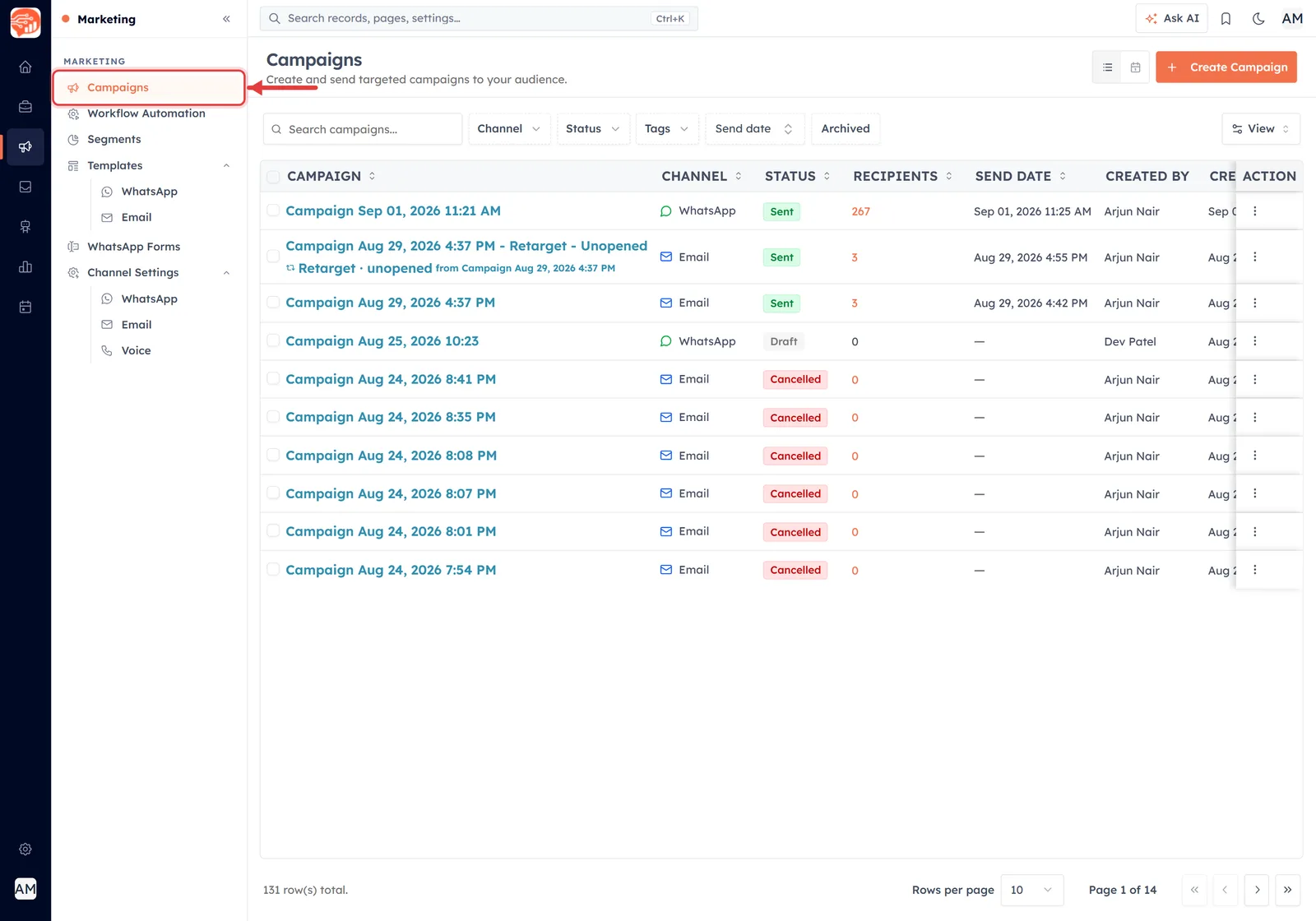
Everything starts here: Marketing → Campaigns.
What the red arrow is pointing at, part by part:
Campaigns — the list of every campaign you have created, on every channel. This is where you start.
Workflow Automation — a different tool. Workflows react to what a contact does; retargeting reacts to how a campaign performed.
Segments — where saved audiences live — including any segment you create from a campaign result in Step 3.
Templates — the message designs your campaigns are built from.
Find a campaign whose status is Sent and open it. A draft or a cancelled campaign has no results, so there is nothing to retarget.
Step 2: Find the numbers you can retarget#
Opening a sent campaign takes you to Campaign Analytics. Across the top is a row of tiles — one per outcome. Look closely: some of them carry a small Retarget button, and some do not.
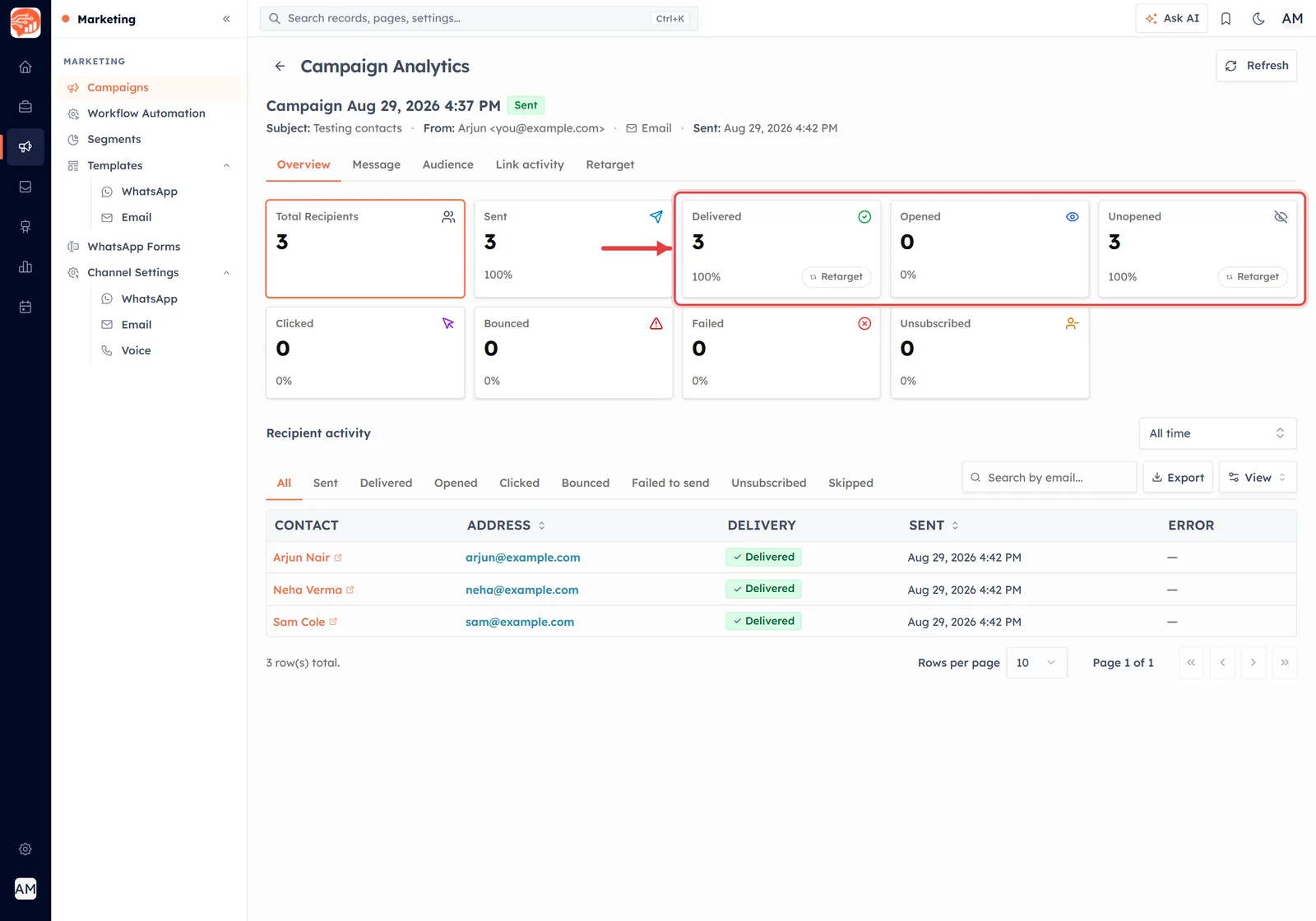
Every outcome with at least one person in it offers a Retarget button.
What the red arrow is pointing at, part by part:
Total Recipients — how many people the campaign went to. No Retarget button — it is a total, not an outcome.
Sent — how many messages actually left. Also no button, for the same reason.
Delivered — arrived successfully. Has a Retarget button.
Opened — opened the email. Retargetable — but only once at least one person has opened.
Unopened — delivered but never opened. This is the classic follow-up audience, and here it has the button.
Clicked — clicked a link inside. Your warmest group.
Bounced / Failed — never arrived. Worth retargeting on a different channel, or worth cleaning out.
Unsubscribed — asked to stop hearing from you.
ℹ️
The rule is simple: a tile offers Retarget when it has at least one person in it. A tile showing 0 has nobody to follow up with, so the button is not there. Total Recipients and Sent never offer it — they describe what you did, not how people reacted.
Step 3: Click the number and choose what to do#
Click the tile. A small window opens asking what you want to do with those people.
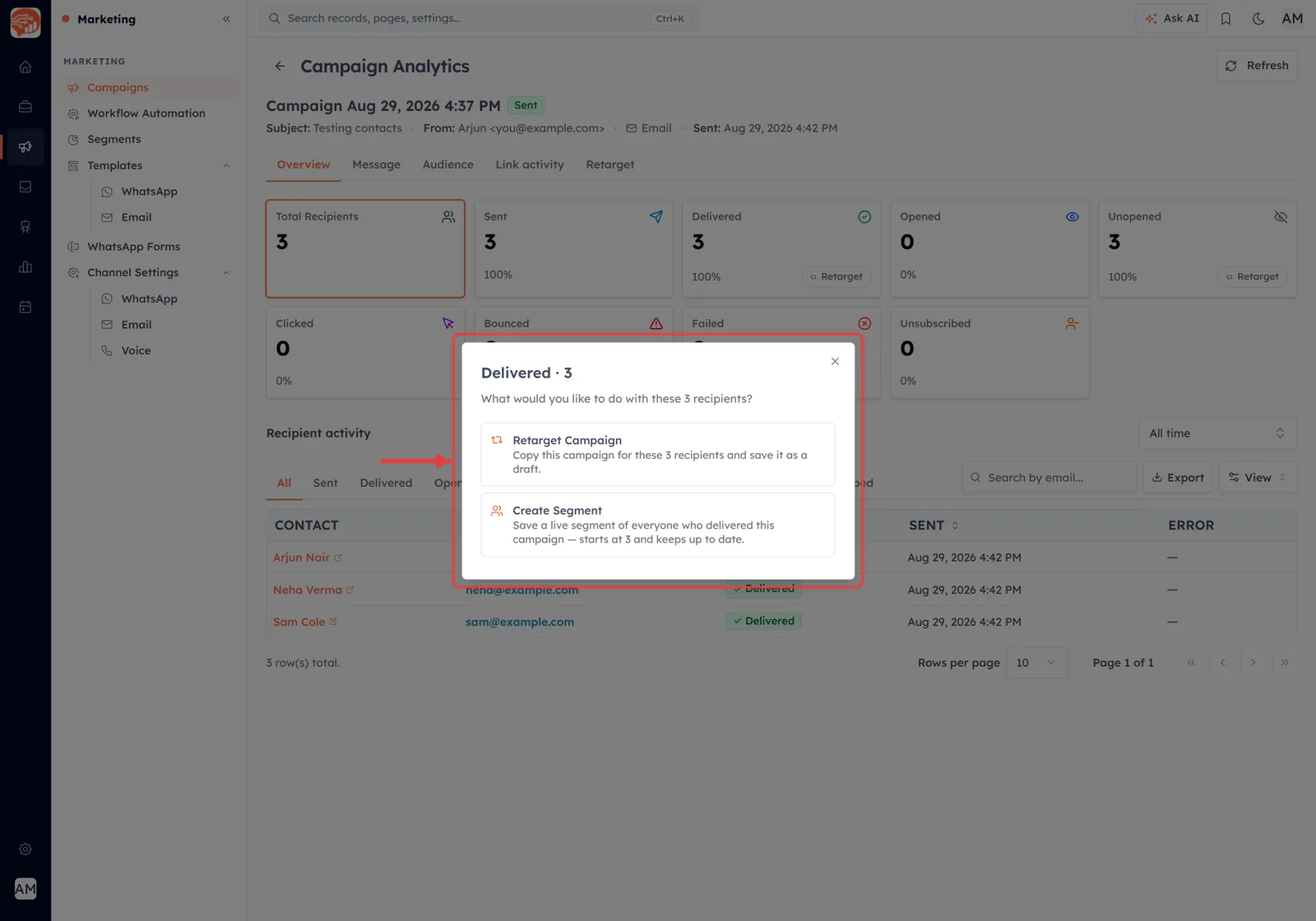
One click on a number, and you are offered the two useful things you can do with it.
What the red arrow is pointing at, part by part:
The heading — “Delivered · 3” — the metric you clicked and how many people are in it. Always check this line before going further: it is your confirmation that you clicked the tile you meant to.
“What would you like to do with these 3 recipients?” — the question. Both options below act on exactly this group.
Retarget Campaign — “Copy this campaign for these 3 recipients and save it as a draft.” It duplicates the original message and points the copy at just these people. Nothing is sent — you get a draft.
Create Segment — “Save a live segment of everyone who delivered this campaign — starts at 3 and keeps up to date.” This makes a reusable, self-updating audience instead of a one-off campaign.
The × in the corner — closes the window. Nothing happens until you pick one of the two options.
Which of the two should you pick?#
| Retarget Campaign | Create Segment | |
|---|---|---|
| You get | A draft campaign | A saved audience |
| The audience | Fixed — the people in that number now | Live — it keeps updating |
| Best for | “Send this again to whoever missed it” | “I want to use this group repeatedly” |
| Reusable | One campaign | Yes, in any future campaign |
💡
If you only want the follow-up now, choose Retarget Campaign. If you can imagine wanting “everyone who clicked our pricing email” again next month, choose Create Segment — then you can use it in any campaign later.
Step 4: Review the draft, then send it#
Choosing Retarget Campaign creates a new campaign and saves it as a draft. Nothing goes out until you open it and send it yourself — which is deliberate, because the copy almost always needs a change.
Three things worth doing before you send:
Rewrite the subject line. These people ignored your first subject. Sending the identical one again mostly buys you a second helping of being ignored.
Acknowledge the follow-up. “In case you missed it” works because it is honest.
Wait a few days. A follow-up an hour later reads as pestering. Use scheduling to place it sensibly.
✅
The draft is a full copy of the original campaign, so everything you would normally set is still available — subject, content, sender, schedule. Change what you need, then send it like any other campaign.
Step 5: Spot a retarget campaign in the list#
Back in Marketing >> Campaigns, retarget campaigns are labelled so you never have to guess where one came from.
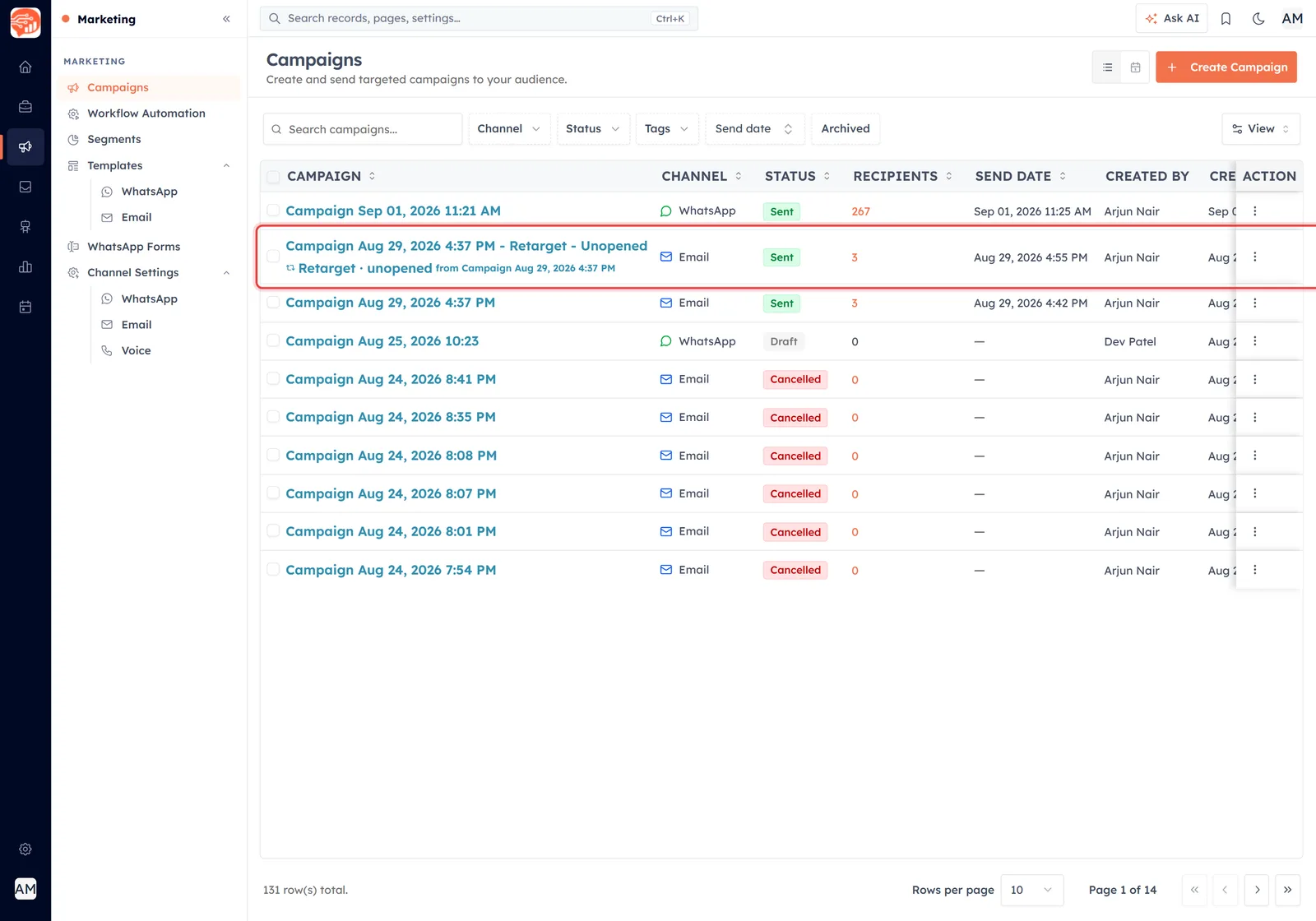
A retarget campaign carries its origin with it, right there in the list.
What the red arrow is pointing at, part by part:
The campaign name — generated for you as “{original campaign} - Retarget - {Metric}”, so it is obvious at a glance what it is.
“Retarget · unopened” — a small badge naming the metric this campaign was built from — here, the people who did not open the original.
“from {original campaign}” — the parent it came out of. This is the breadcrumb back to the campaign you started from.
Channel, Status, Recipients — exactly as any other campaign — a retarget campaign is a normal campaign in every other respect.
Step 6: See everything a campaign produced#
Open the original campaign's analytics again and click the Retarget tab, next to Link activity. This is the family tree.
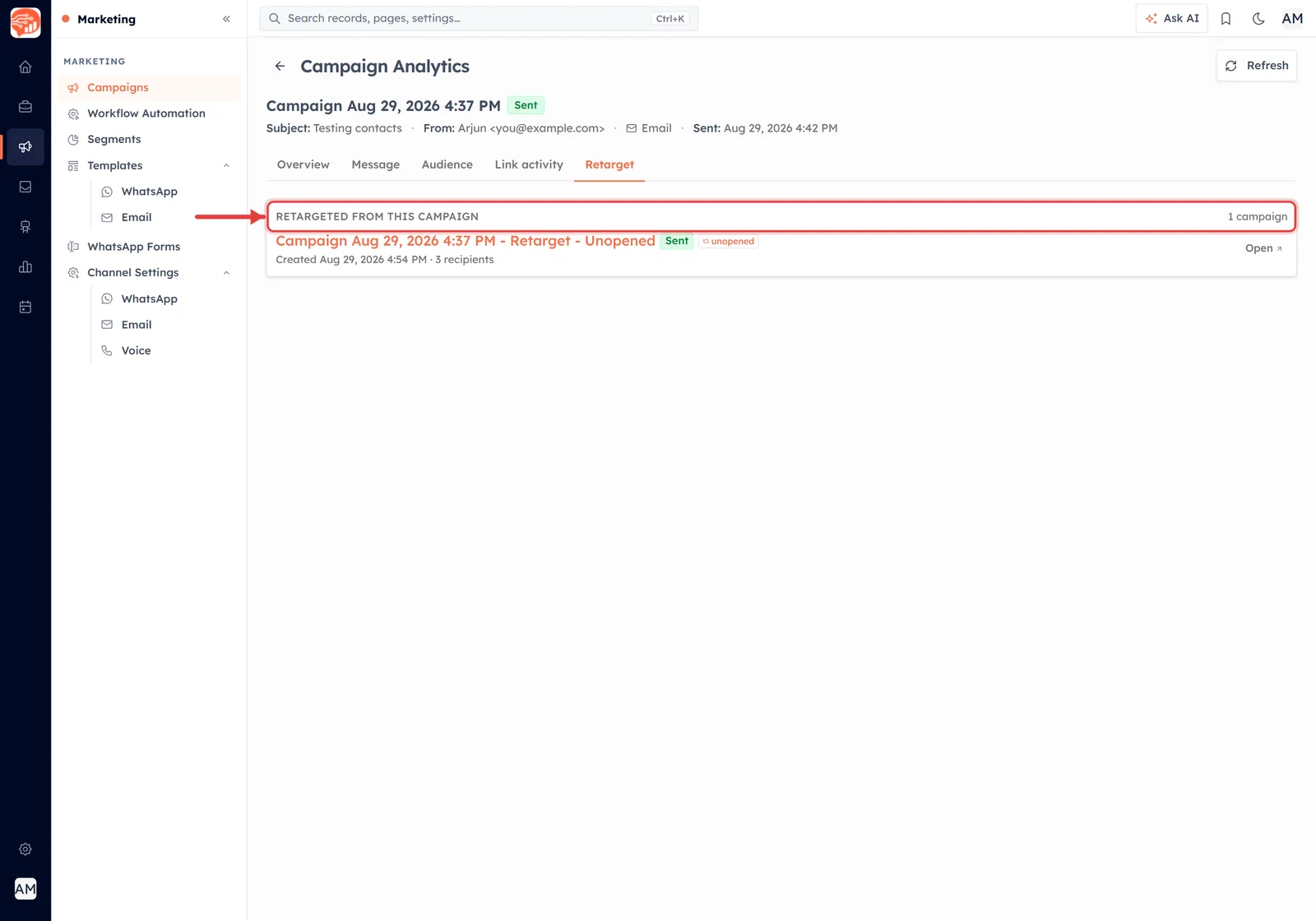
The Retarget tab lists every campaign that grew out of this one.
What the red arrow is pointing at, part by part:
“Retargeted from this campaign” — the heading, with a count — “1 campaign”.
The campaign name — the follow-up that was created.
The status badge — whether that follow-up is still a draft, or has been sent.
The metric — which number it was built from — “unopened” here.
“Created … · 3 recipients” — when it was made and how many people it went to.
Open — jumps straight to that follow-up campaign.
ℹ️
You can retarget a retarget. Follow up on the non-openers of your follow-up, and the system tracks how deep the chain goes. Useful once or twice — but if someone has ignored you three times, that is an answer.
Retargeting a WhatsApp campaign#
This is not an email-only feature. WhatsApp campaigns work the same way; only the names of the outcomes change.
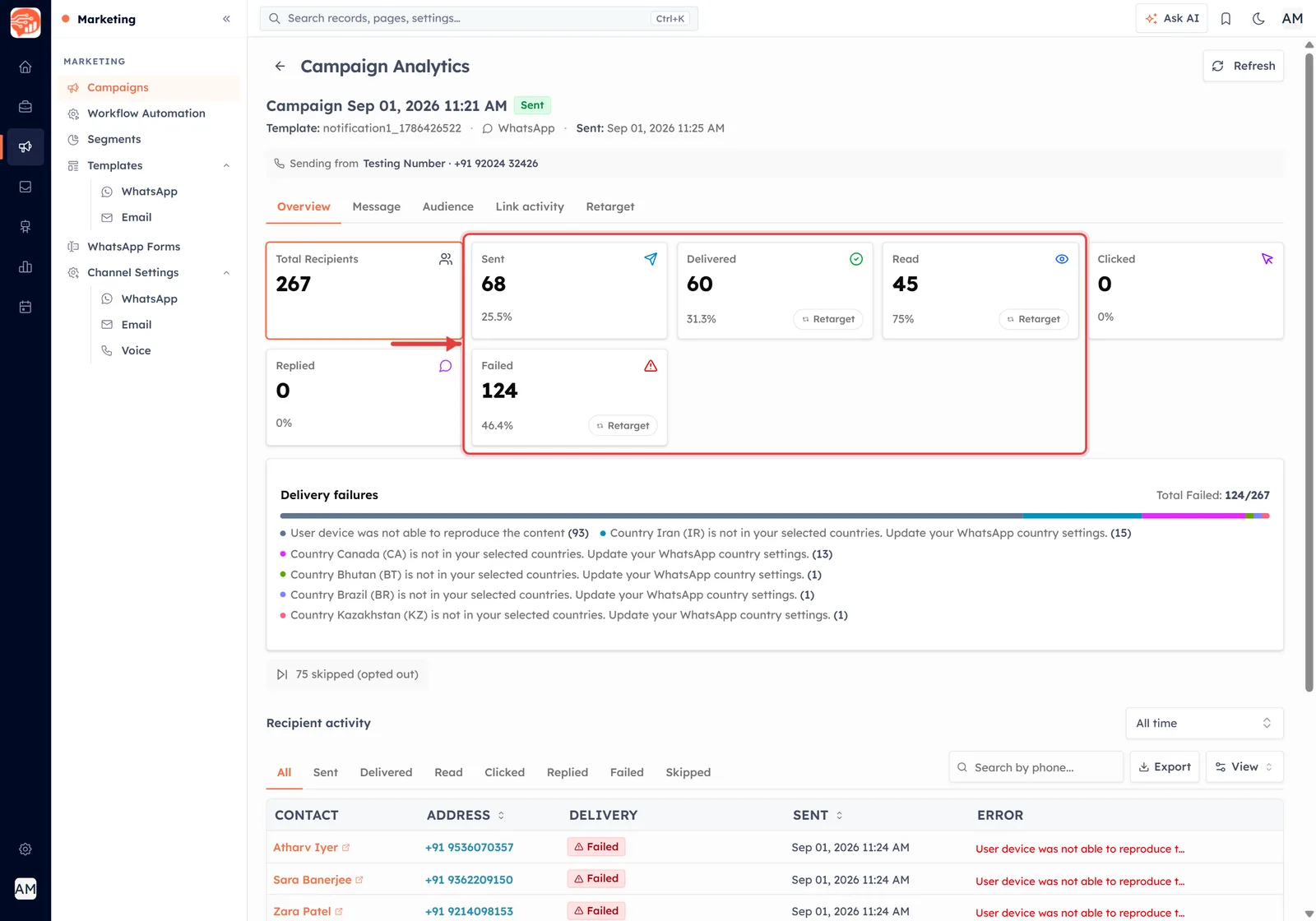
A WhatsApp campaign: same idea, different outcome names.
What the red arrow is pointing at, part by part:
Read — WhatsApp’s equivalent of “Opened” — the blue ticks. Retargetable.
Replied — people who wrote back. There is no better audience in the whole system.
Delivered — reached the handset.
Failed — did not arrive — often for a fixable reason. In the example above, most failures were countries not enabled in the WhatsApp settings.
💡
A Failed tile with a large number is usually telling you about a configuration problem, not an audience problem. Read the failure reasons underneath the tiles before you retarget them — retargeting will not help if the country is still blocked.
Which metric should you actually choose?#
| Retarget this | When you want to | What to send |
|---|---|---|
| Unopened | Give the message a second chance | The same offer, a different subject line |
| Opened but not clicked | Convert interest into action | A shorter message with one clear button |
| Clicked | Push your warmest group over the line | A demo invite, a discount, a call booking |
| Bounced / Failed | Reach people whose address is broken | Try WhatsApp or SMS instead — and clean the record |
| Delivered | Reach everyone who received it | A reminder before a deadline |
⚠️
Never build a campaign from Unsubscribed. Those people asked you to stop, and messaging them anyway breaks both your compliance obligations and their trust. If you click that tile at all, use Create Segment — as a list to exclude, never one to send to.
Good practice#
Wait for the results to settle. Retargeting non-openers an hour after sending will scoop up people who simply have not checked their inbox yet. Give it two or three days.
Change the message. The audience is defined by having ignored your first attempt. Repeating it exactly is the one approach guaranteed not to work.
Watch the frequency. A retarget campaign is another message to someone who has already had one. Smart Sending caps how often a contact can be messaged and will protect you here.
Stop after one or two rounds. Repeated silence is a reply.
Where to go next#
If you would rather not do this by hand every time, Automatic Follow-up Emails to Non-Openers sets the same idea up to run on its own at send time.
To understand the numbers you are retargeting from in the first place, see Understanding Campaign Performance. And to reuse an audience you saved with Create Segment, see Using Segments in Campaigns.
Was this article helpful?
Ready to implement this?
OpenAI Engage and apply what you just learned to your own workspace.
Open AI Engage CRM