Loading…


KnowledgeBase
Set Up Your Organisation Email Address in AI Engage CRM
What is an Organisation Email?#
An Organisation Email is the sender address your contacts see in the From field when they receive a campaign or automated email from your CRM. You can add multiple addresses — for example, marketing@company.com, sales@company.com, and support@company.com — and team members choose which one to send from when building a campaign.
💡
Before an address can send, its domain must be authenticated under Sender Authentication (DKIM). You add the address here — there is no per-address verification email to click.
Step 1 — Open Organisation Emails#
Navigate to Settings → Marketing Channel → Email → Organisation Emails. The page lists all sender addresses currently configured, along with their display name, reply-to address, and verification status.
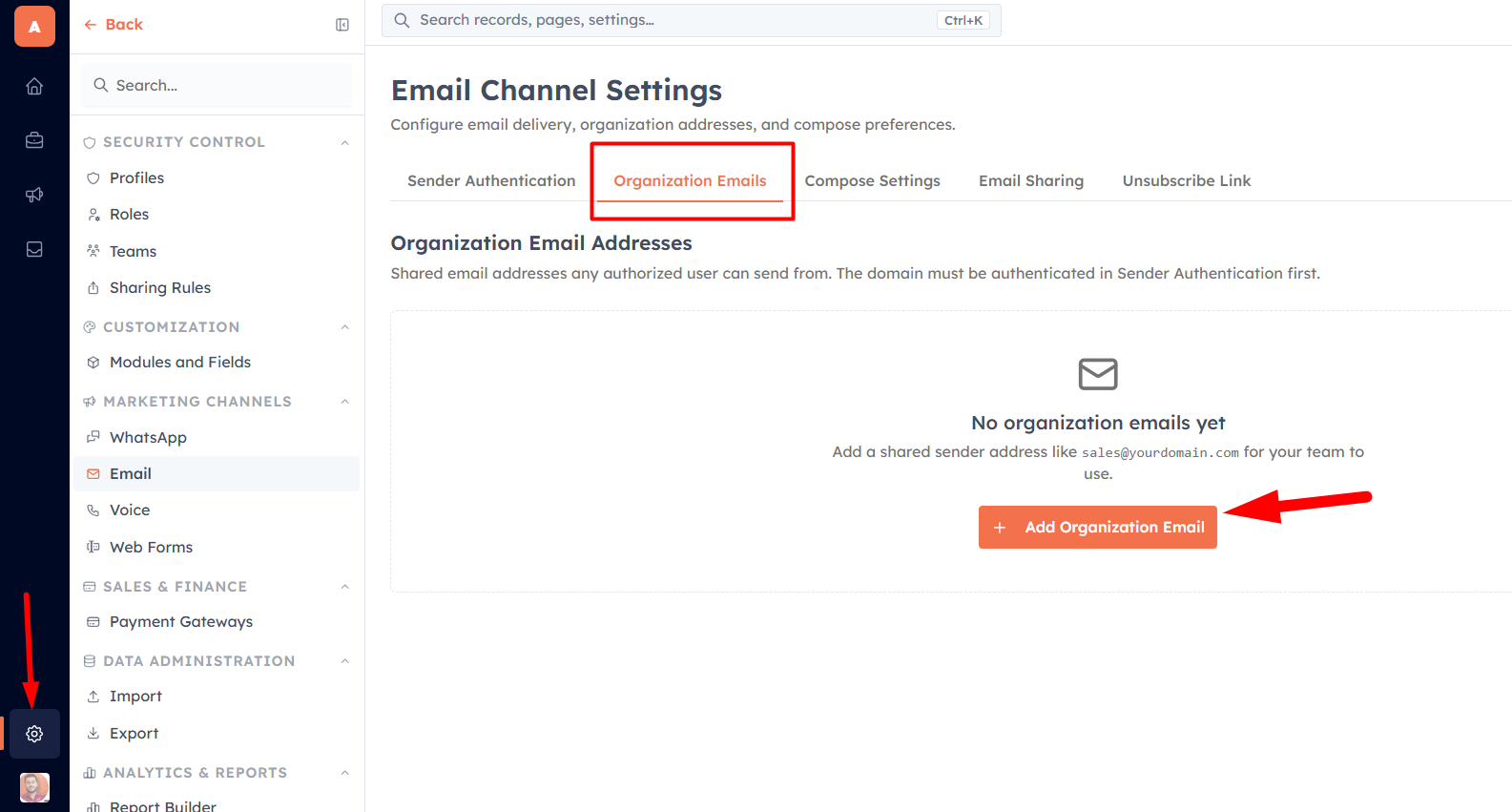
Step 2 — Add a new email address#
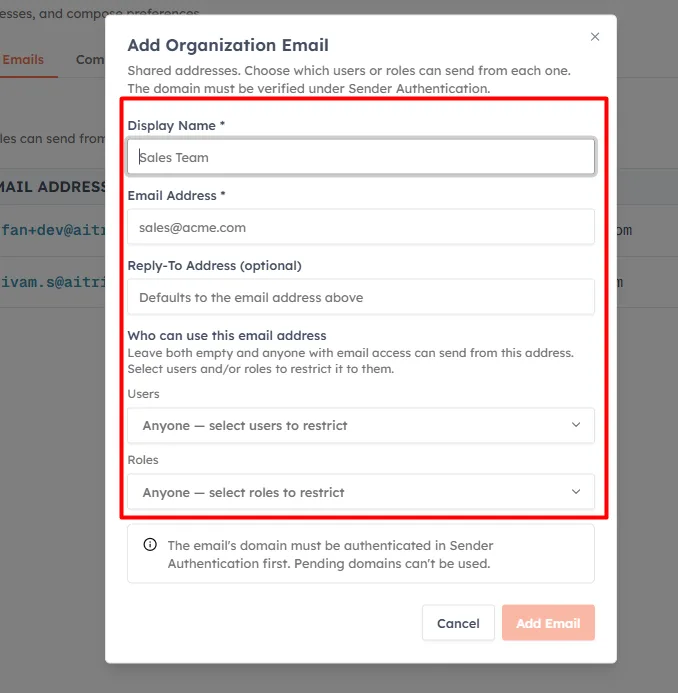
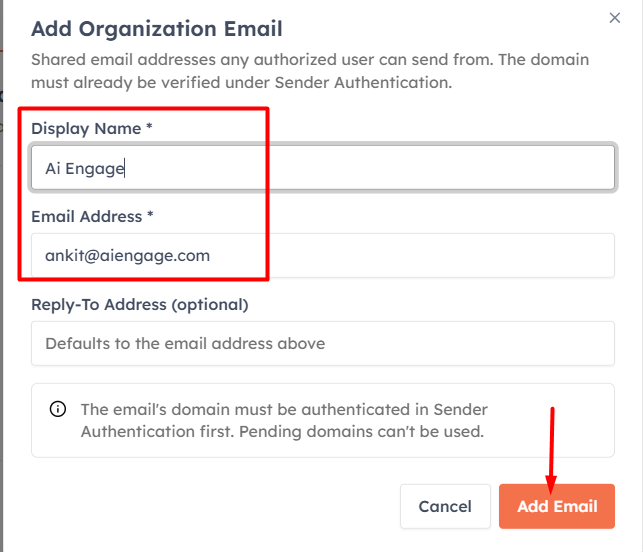
Click Add Email. Fill in the following fields:
Display Name — the name shown as the sender (e.g., Acme Corp Marketing or Sarah from Acme)
Email Address — the sender address (e.g., marketing@acme.com)
Reply-To — optional. If set, replies from contacts go to this address instead of the sender address. Useful when sending from a no-reply address.
💡
Use a real mailbox as your sender address, not a no-reply. Emails sent from a no-reply address have lower engagement and higher spam rates — contacts can't write back to ask questions or opt out naturally.
Step 3 — The address activates via your authenticated domain#
There is no verification email to click. An address becomes Active automatically once its domain is authenticated under Sender Authentication (DKIM). If the domain still shows Pending, complete its DNS verification there first — then the address on the Organisation Emails page shows Active.
💡
Verification emails sometimes land in spam or promotions folders. If the email does not arrive within 5 minutes, check those folders. You can also delete the address and re-add it to trigger a new verification email.
💡
Once verified, the email address appears in the Sender Email dropdown when your team builds a campaign. Add as many sender addresses as your organisation needs.
Managing existing addresses#
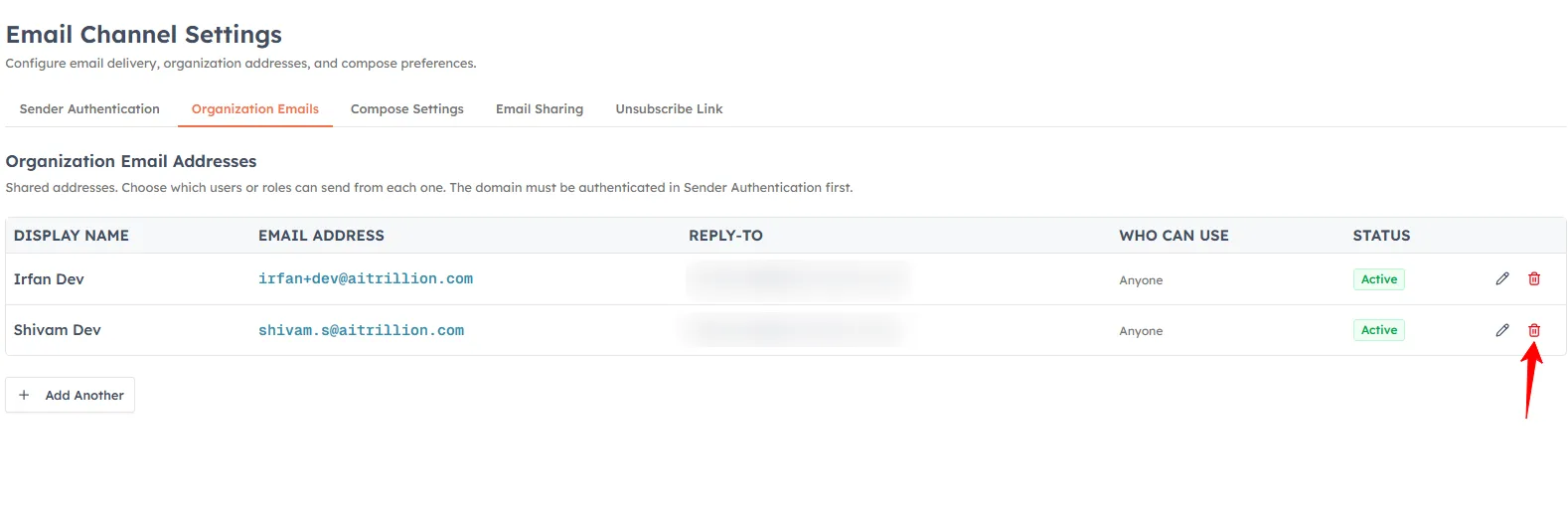
From the Organisation Emails list, you can:
Delete an address — it will no longer be available as a sender in new campaigns. Existing sent campaigns are not affected.
Was this article helpful?
Ready to implement this?
OpenAI Engage and apply what you just learned to your own workspace.
Open AI Engage CRM