Loading…


KnowledgeBase
Email Credits: Purchase and Manage Your Sending Balance
What are Email Credits?#
Email Credits are a pre-paid balance used to send marketing emails from AI Engage CRM — campaign broadcasts and automated emails alike. Credits are deducted automatically as each email is sent. Email is billed per email sent, at a small fraction of a cent each, which makes it one of the most cost-effective channels in the CRM.
💡
Email Credits are separate from your CRM subscription. They are a pay-as-you-go balance you top up as needed, and they sit alongside your WhatsApp and other channel balances under Billing → Marketing Channel Credits.
How email billing works#
Unlike WhatsApp — which is billed per 24-hour conversation — email is billed per individual message. Every email that leaves the CRM deducts one send's worth of credit from your balance. There are no conversation windows and no message categories to worry about; it is simply one charge per email delivered.
💡
Because email is billed per send, your cost for a campaign is easy to predict: it is roughly your recipient count multiplied by the per-email rate. Send to 5,000 contacts, and you spend 5,000 emails' worth of credit.
Checking your balance#
Navigate to Profile → Billing → Marketing Channel Credits.
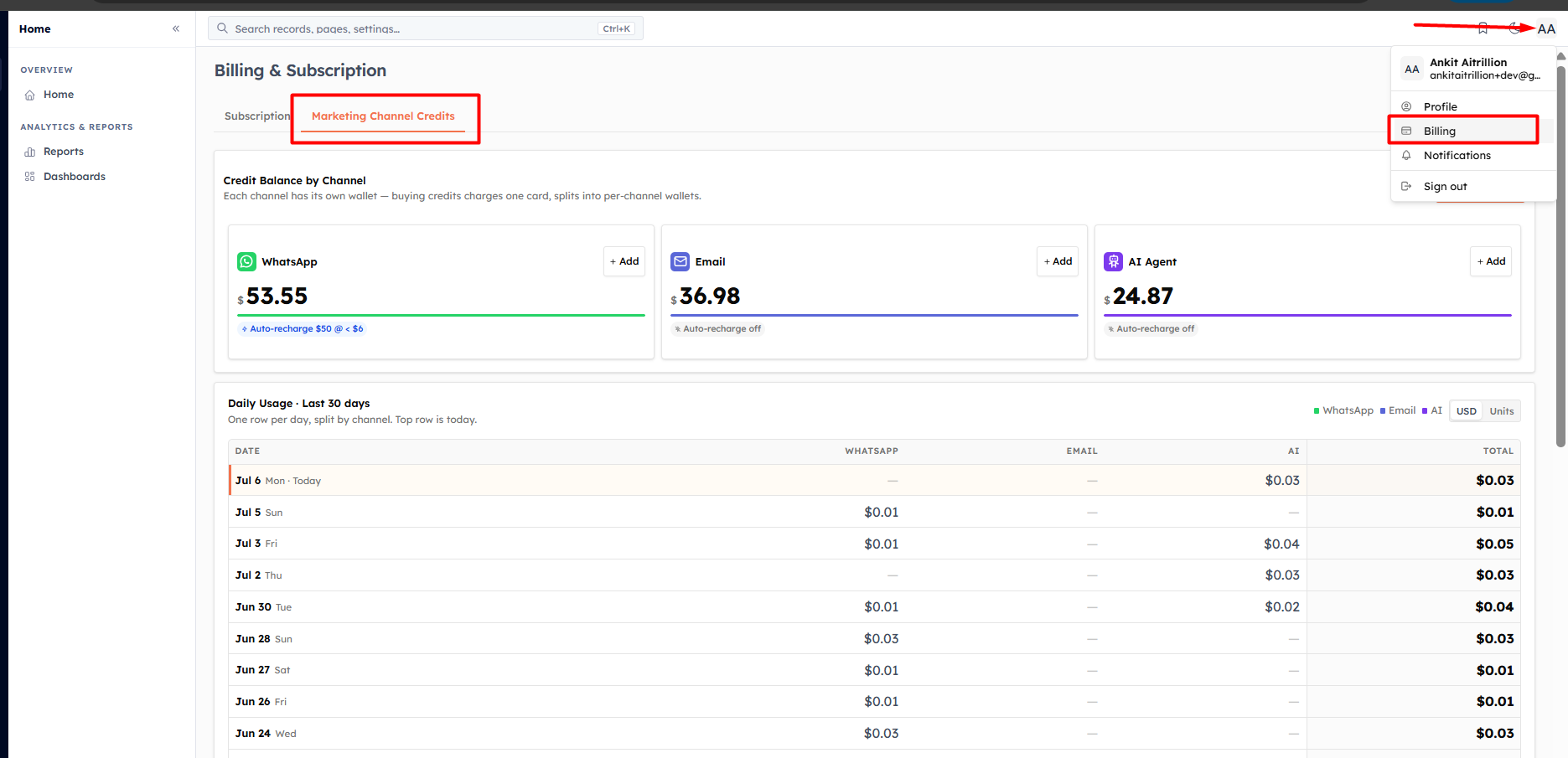
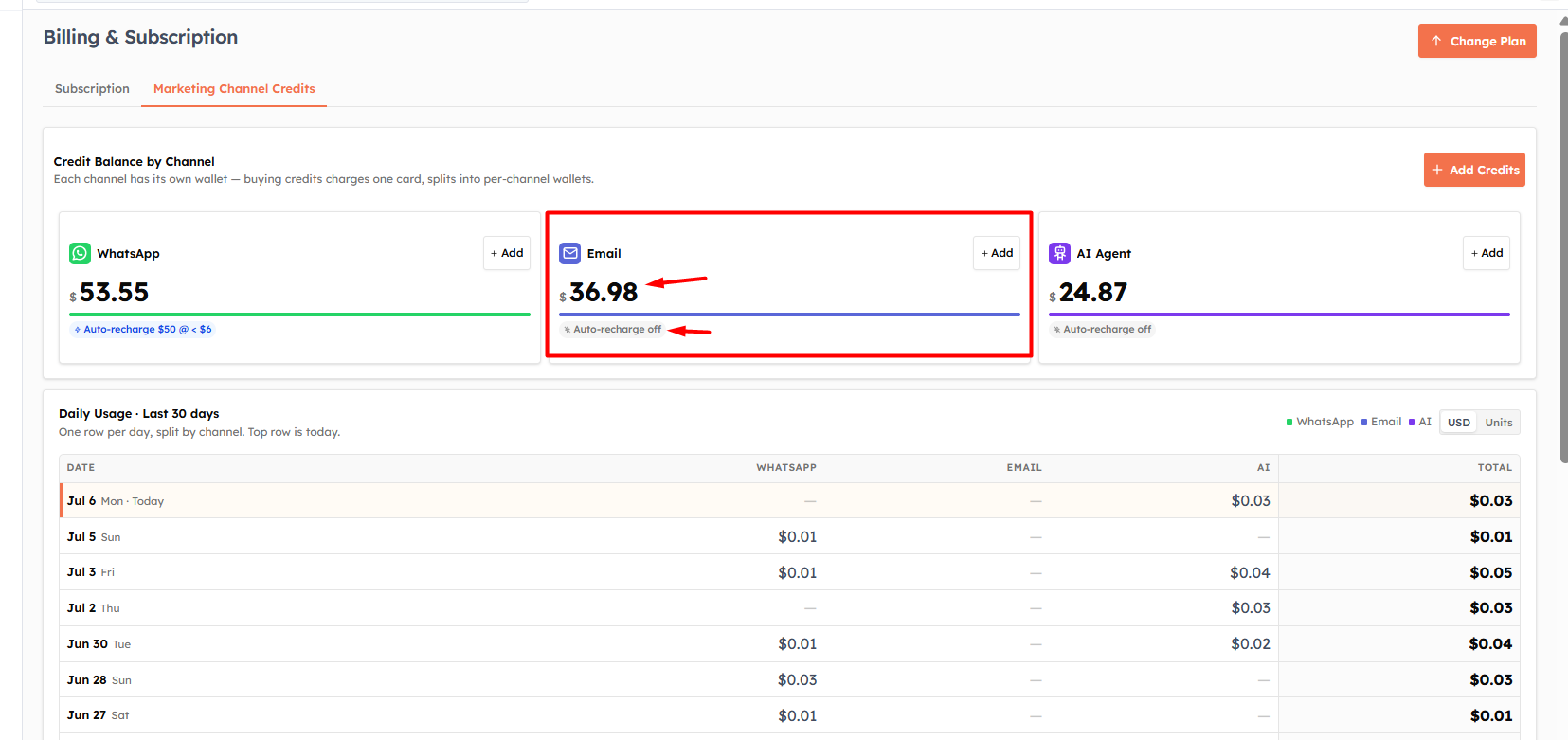
Each connected channel has its own card — find the Email card to see:
Available balance — credits remaining for email sending
Used (30 days) — how much you have spent on email in the last 30 days
Auto-recharge status — whether automatic top-up is enabled, and at what threshold
💡
A low balance warning appears when your available balance drops below $5. If it reaches zero, all outbound emails — including scheduled campaigns and workflow automations — will stop sending until you add credits. Top up before a large send.
Purchasing Email Credits#
Click Add on the Email channel card.
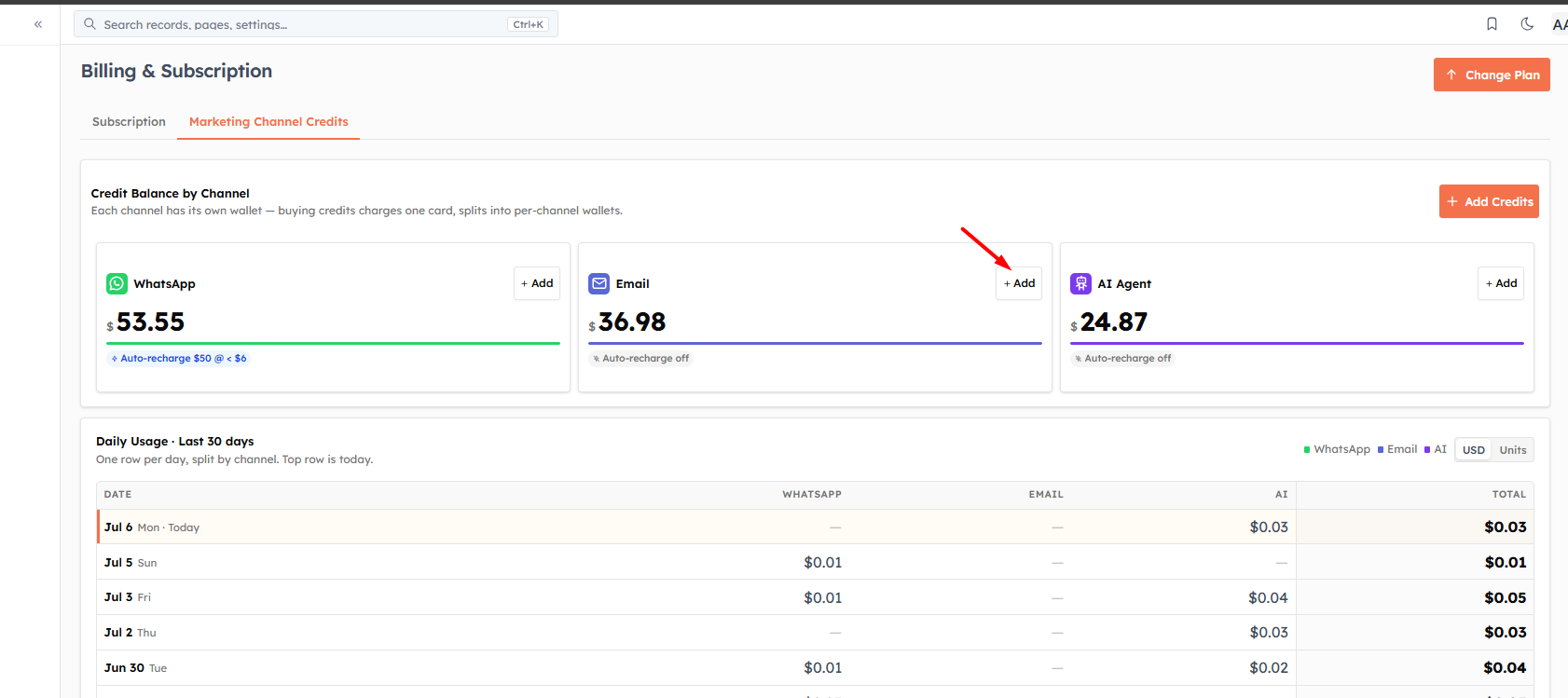
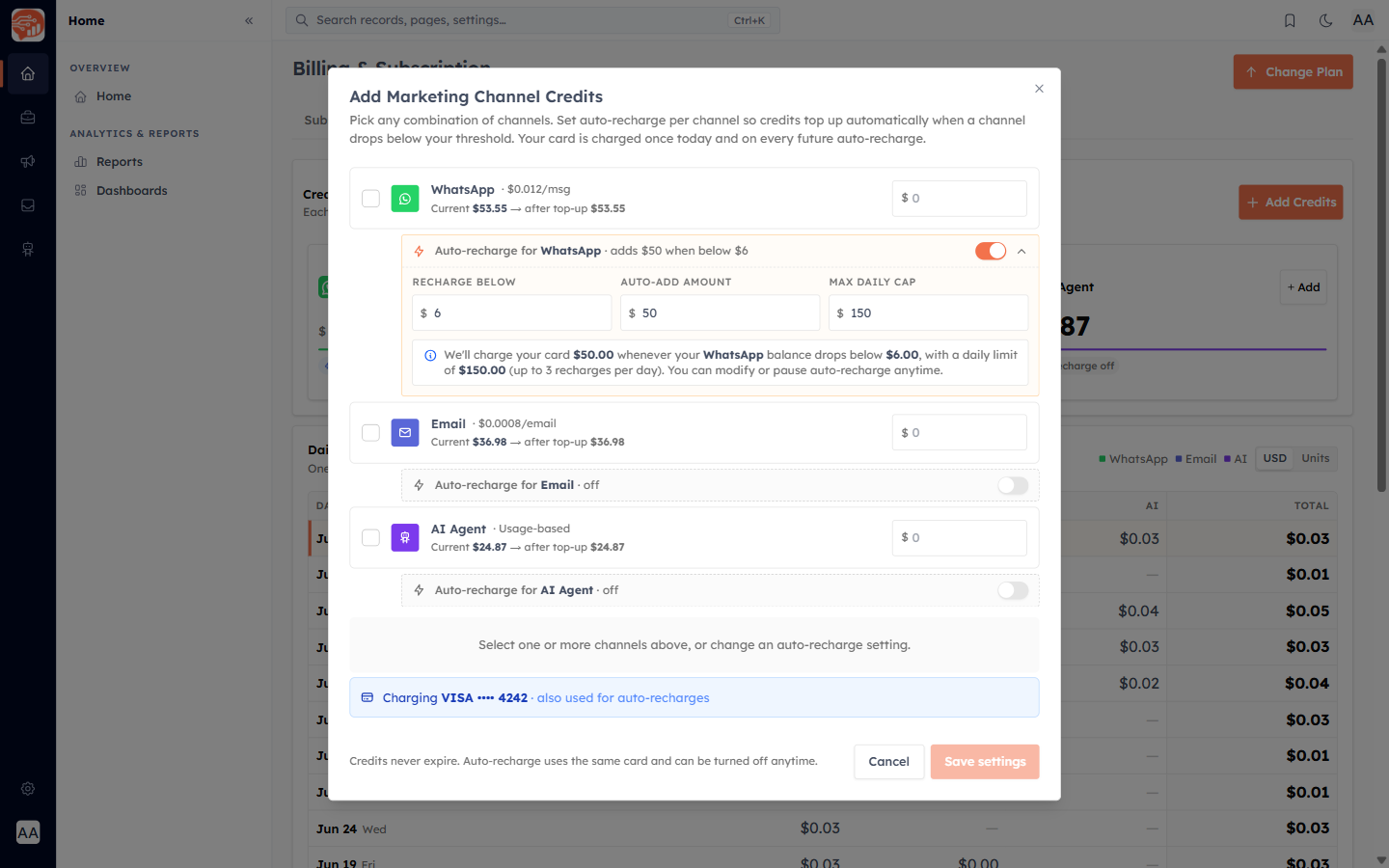
The purchase dialog opens where you can:
Quick-select a preset amount — $10, $25, $50, $100, or $250
Enter a custom amount — between $1 minimum and $1,000 maximum per top-up
You can top up multiple channels (Email, WhatsApp) in a single transaction — just enter an amount against each channel you want to fund. Click Charge and Save and pay securely using your card.
💡
If your bank requires 3D Secure (3DS) verification, you will be redirected to authenticate after clicking Purchase. Credits are added to your balance immediately after a successful payment.
Setting up Auto-Recharge#
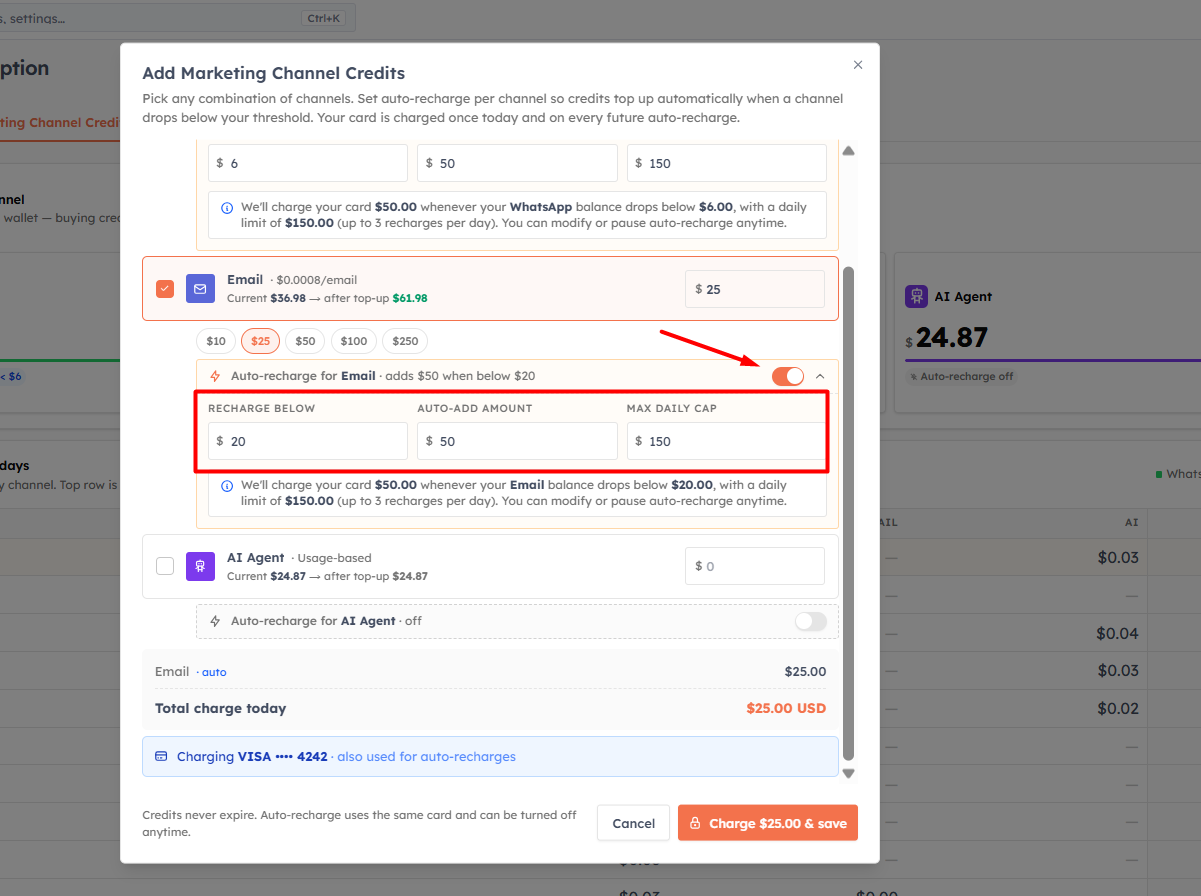
Auto-Recharge keeps your email sending uninterrupted by automatically topping up when your balance runs low — so a big campaign never stalls halfway through. Enable it on the Email channel card and set:
Threshold — when your email balance falls below this amount, a recharge is triggered automatically (between $1 and $500).
Recharge Amount — how much to add each time the threshold is hit (between $5 and $1,000).
Daily Cap — the maximum that can be auto-charged in a single day (between $5 and $5,000), protecting you from unexpected charges if send volume spikes.
💡
Auto-Recharge is strongly recommended if you run scheduled or automated email campaigns. Set the threshold high enough to cover your largest routine send, so a recharge always completes before your balance affects delivery.
💡
Auto-Recharge uses the card saved in your Billing settings. If that card expires or is declined, the recharge fails and your balance will not top up. Keep your payment method current under Billing → Subscription.
Viewing usage and history#
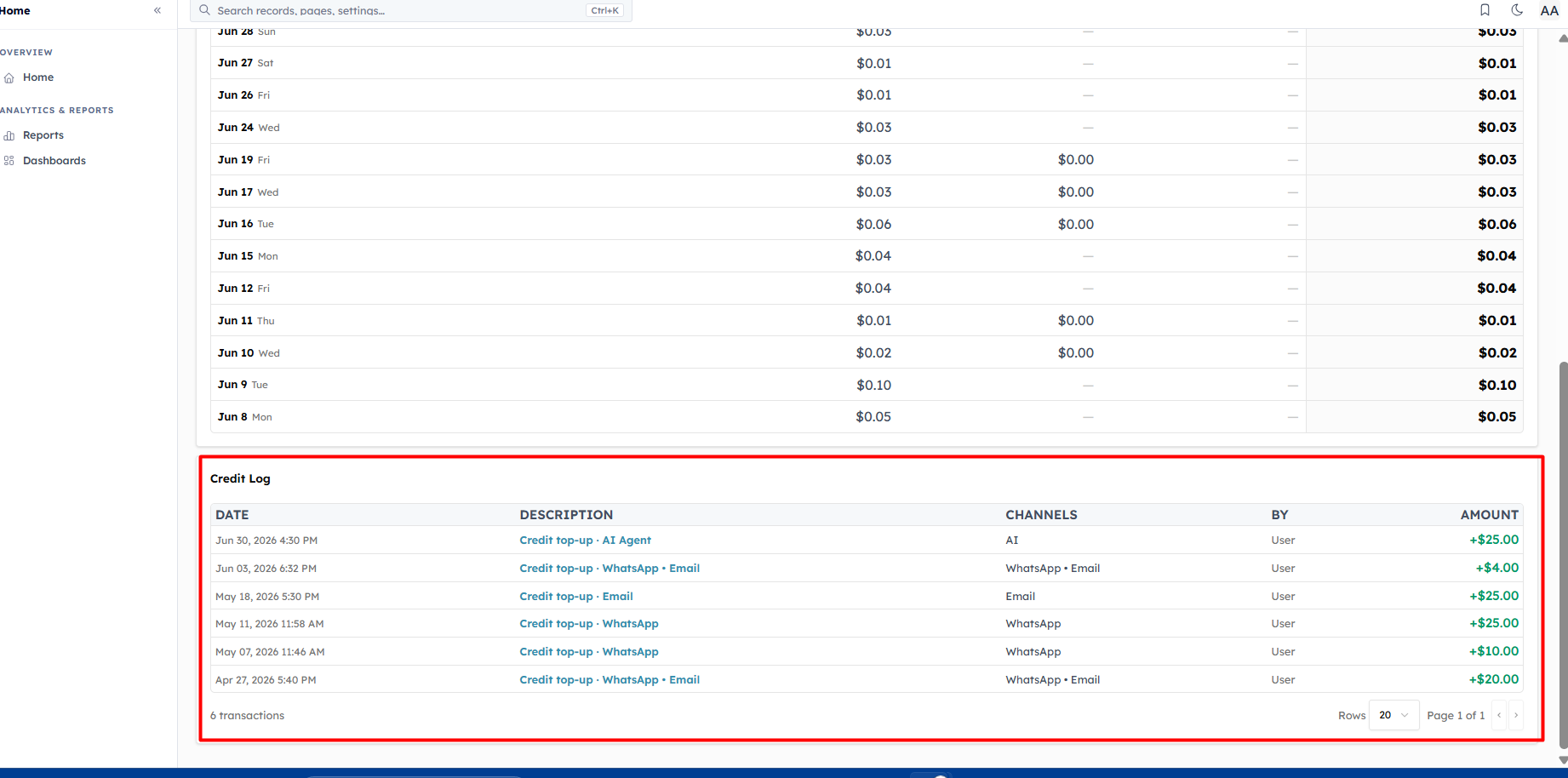
The Credit Log at the bottom of the Marketing Channel Credits tab records every transaction:
Top-up — credits you purchased manually
Auto-reload — credits added automatically by Auto-Recharge
Refund — credits returned to your balance, for example for emails that failed to send
The Daily Usage Matrix breaks your spending down by day over the last 30 days. Toggle between USD spend and message count to see exactly how many emails you sent each day.
💡
Check the daily usage view after each big campaign to reconcile your spend against your recipient count. It is the quickest way to confirm a campaign sent to the audience size you expected.
Tips to control email spend#
Clean your list — remove hard-bounced and invalid addresses. Every send costs credit, so emailing dead addresses is wasted spend as well as a deliverability risk.
Segment before you send — target a segment of engaged contacts instead of blasting your whole database. Fewer, better-targeted sends cost less and perform better.
Suppress unsubscribes automatically — the CRM already excludes unsubscribed contacts from campaigns, so you never spend credit messaging people who opted out.
Use Smart Sending — it skips contacts messaged very recently, avoiding duplicate sends when your segments overlap.
💡
Next: Send an Email Campaign — put your credits to work and broadcast to a contact segment.
Was this article helpful?
Ready to implement this?
OpenAI Engage and apply what you just learned to your own workspace.
Open AI Engage CRM