Loading…


KnowledgeBase
Email Compose Defaults: Font, Default From & Reply-To
Compose Settings let you pre-set how a new email starts — the default font, the address it's sent from, and where replies should go — so you're not re-choosing them on every send. These defaults apply when you compose from a contact page and when you build an email campaign.
Before you start#
The Default From and Default Reply-To menus are populated from your organisation's connected sending addresses. If none are set up yet, the page shows “Add an email address in the Organization Emails tab first.” and those menus stay empty. Add a sending address first — see Set Up Org Email.
Open Compose Settings#
Go to Settings → Email → Compose.
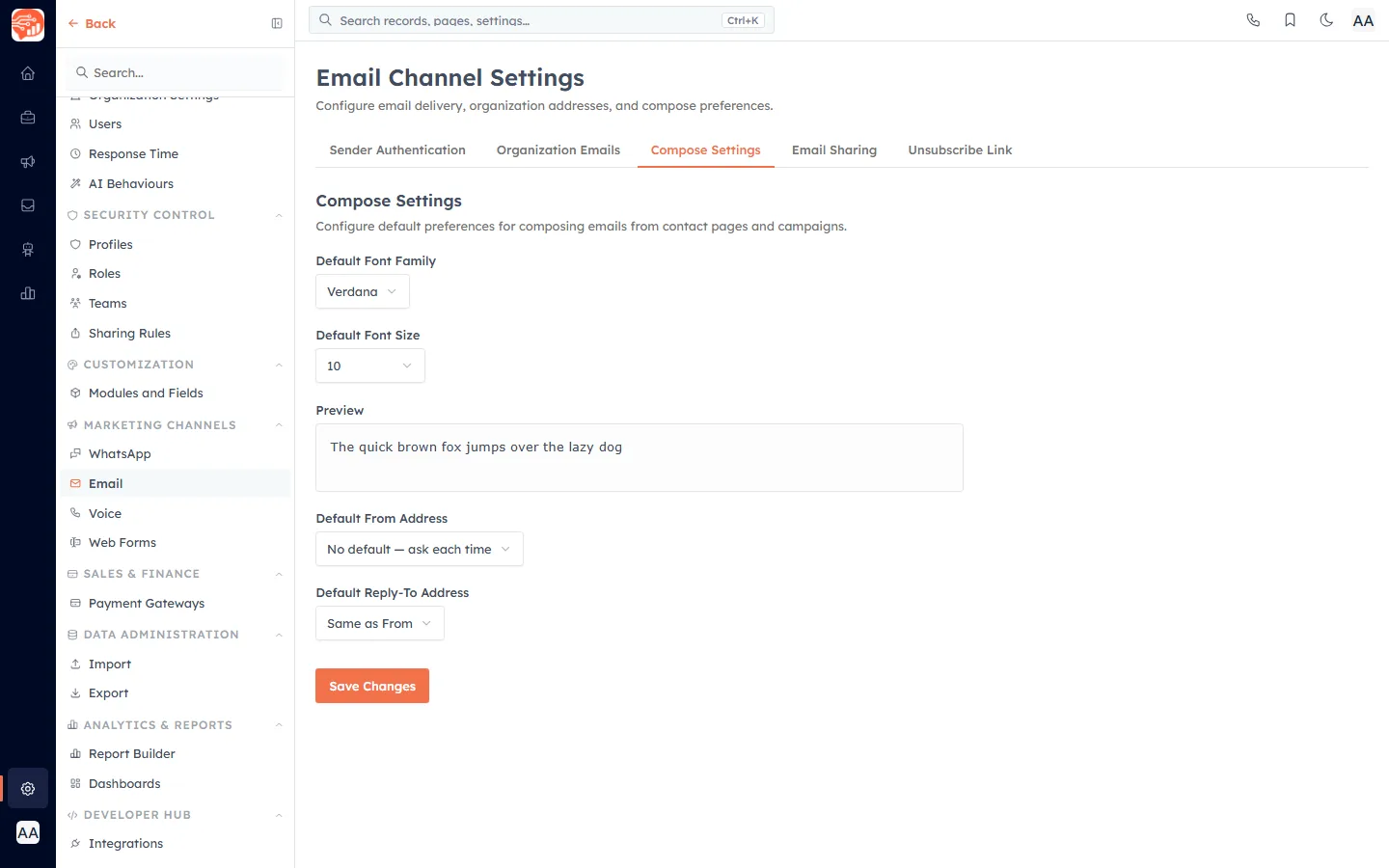
You'll see the Compose Settings screen, described as “Configure default preferences for composing emails from contact pages and campaigns.”
Set the default font#
Two controls define the look of a fresh email body, with a live Preview (“The quick brown fox jumps over the lazy dog”) updating as you change them:
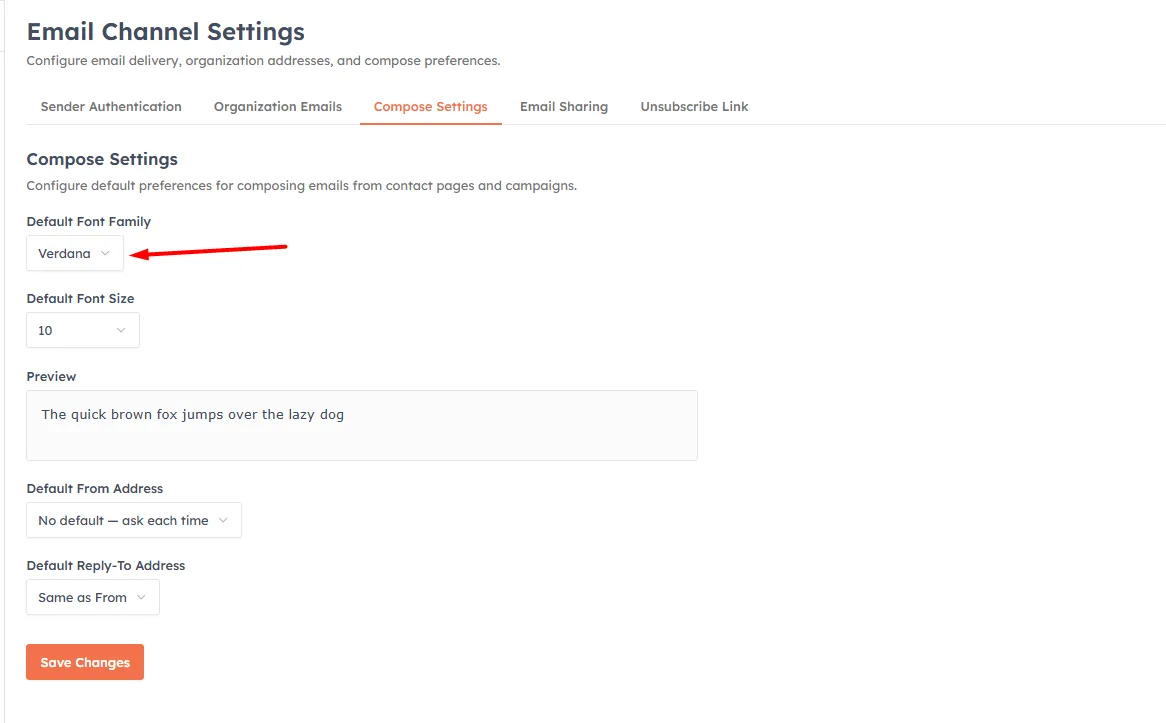
Default Font Family — choose from Verdana (the default), Arial, Helvetica, Georgia, Times New Roman, Courier New, Tahoma or Trebuchet MS.
Default Font Size — choose a point size: 8, 9, 10, 11, 12, 13, 14, 16, 18 or 20. The default is 10.
Set the default From address#
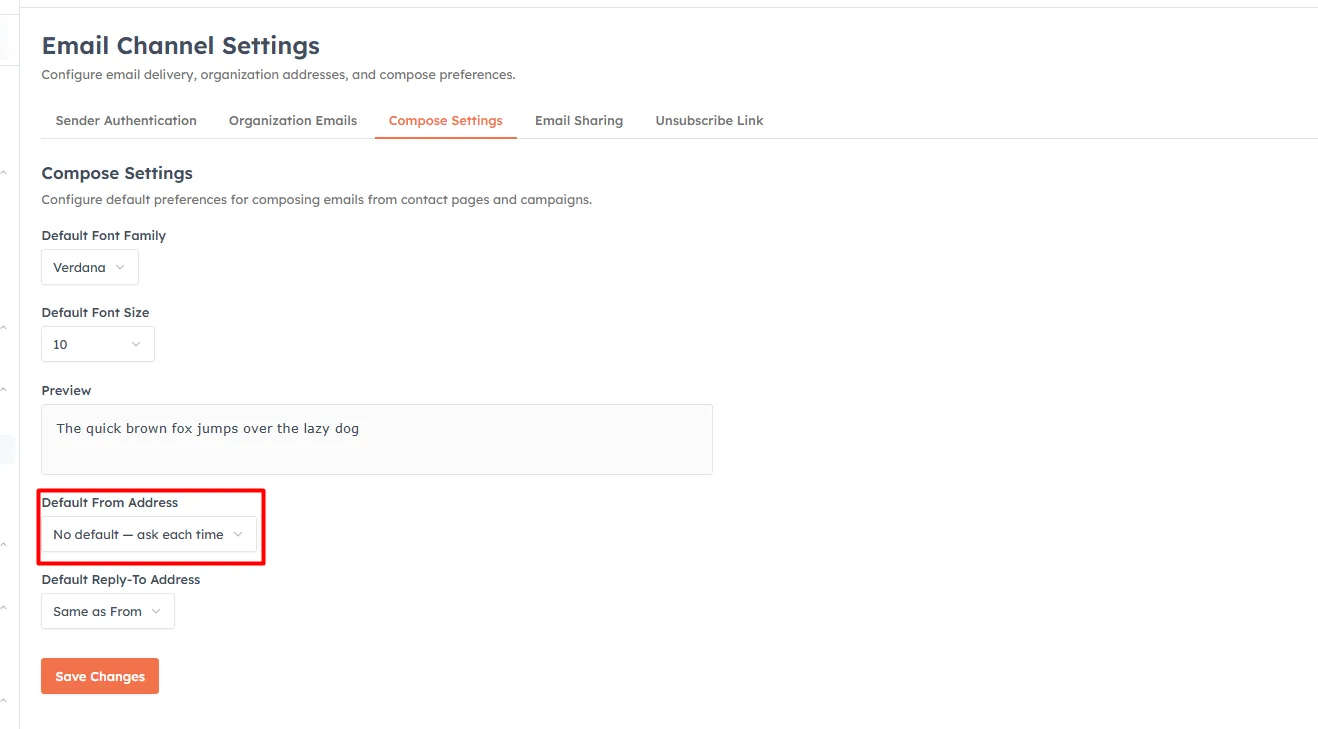
Under Default From Address, pick which connected address new emails are sent from by default. Each option shows its display name and email; personal addresses are marked (personal).
No default — ask each time — the composer won't preselect a sender, so you choose one per email. (When left this way, the composer falls back to the first available address.)
A specific address — that address is preselected every time you open the composer, as long as you're still allowed to send from it.
💡
The chosen default is what the record composer preselects in its From menu. If your access to that address is later restricted, the composer quietly falls back to another address you can send from — it never preselects one you're not allowed to use.
Set the default Reply-To address#
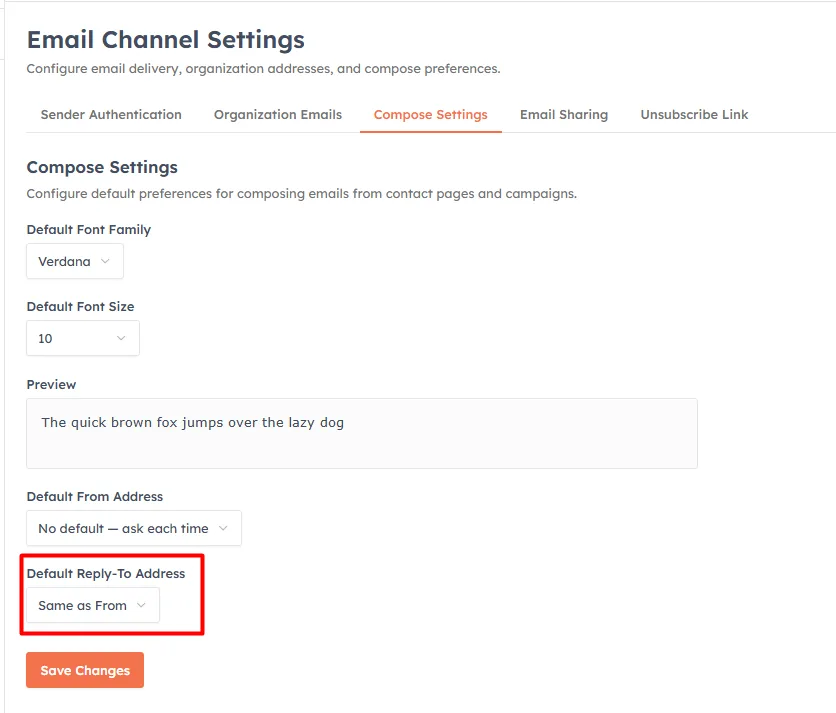
Under Default Reply-To Address, decide where replies land:
Same as From — replies go back to whichever address the email was sent from. This is the default behaviour.
A specific address — replies are always routed to that address, regardless of the From address used.
Save#
Click Save Changes. The button shows Saving. while it stores your preferences, and your new defaults take effect on the next email you compose.
Where these defaults apply#
The settings on this page are account-wide compose preferences, not per-contact ones. They apply in two places:
Contact pages — when you open the composer from a contact record's Emails section, the From menu opens on your Default From address and the body starts in your chosen font and size.
Campaigns — the email campaign builder starts from the same defaults, keeping outbound mail consistent across your team.
Because these are only starting points, they never lock you in: the From address, reply routing and text styling can all be changed on any individual email before it's sent.
💡
These defaults flow into every one-to-one email you write from a record — see Send an Email from a Contact or Lead Record — and into the email campaign builder, so your team's mail looks consistent by default.
💡
Setting a Default From here doesn't remove your ability to switch senders on any individual email — it only decides the starting selection. You can always override it before sending.
Good to know#
Choosing “No default” is useful for shared inboxes where the right sender genuinely varies from message to message.
The font defaults apply to the compose editor's starting style; you can still restyle text within any individual email.
Was this article helpful?
Ready to implement this?
OpenAI Engage and apply what you just learned to your own workspace.
Open AI Engage CRM