Loading…


KnowledgeBase
Email Sharing Settings: Control Who Sees Team Emails
What are Email Sharing Settings?#
When a team member sends an email to a contact directly from a contact record, that email is logged in the contact's activity timeline. Email Sharing Settings control who else on the team can read those logged emails.
This matters when you have:
Account managers who should only see emails they personally sent
Team leads who need visibility across their team's communications
Support agents where full transparency is required for handoff continuity
💡
Email sharing settings apply to individual emails sent from contact records, not to campaign emails. Campaign analytics are always visible to users with the appropriate permissions.
The sharing options#
Navigate to Settings → Marketing Channel → Email → Sharing. The page shows your team's current email sharing permissions.
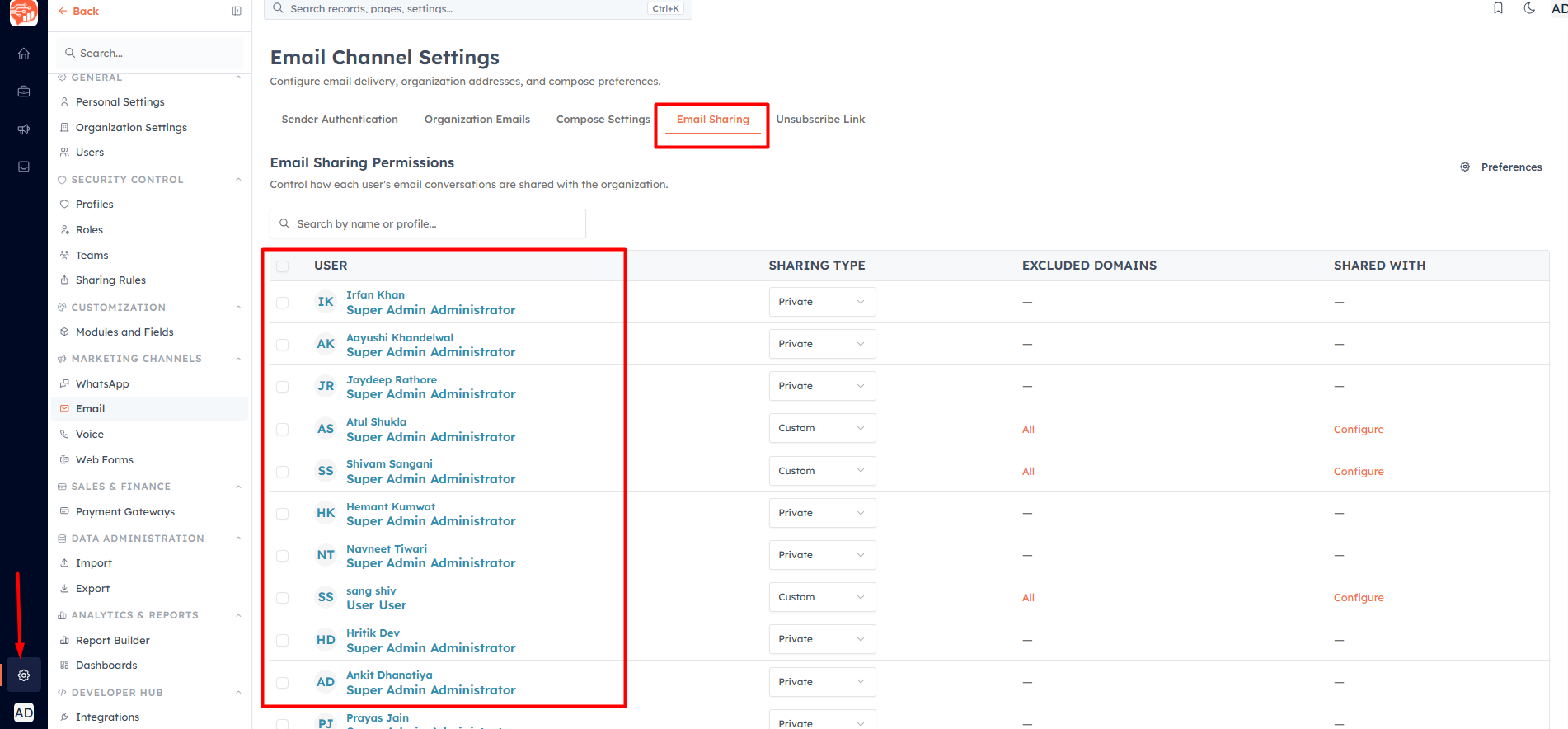
Configure sharing at two levels:
Organisation-level default — click Preferences to set the default sharing behaviour for new users. The sharing types are: Private (no one else sees them), Public (everyone, with a Read / Read-Write / Read-Write-Delete access level), Custom (only the roles and users you pick), and User's Choice.
Per-user override — adjust sharing permissions for individual team members where the organisation default is not appropriate
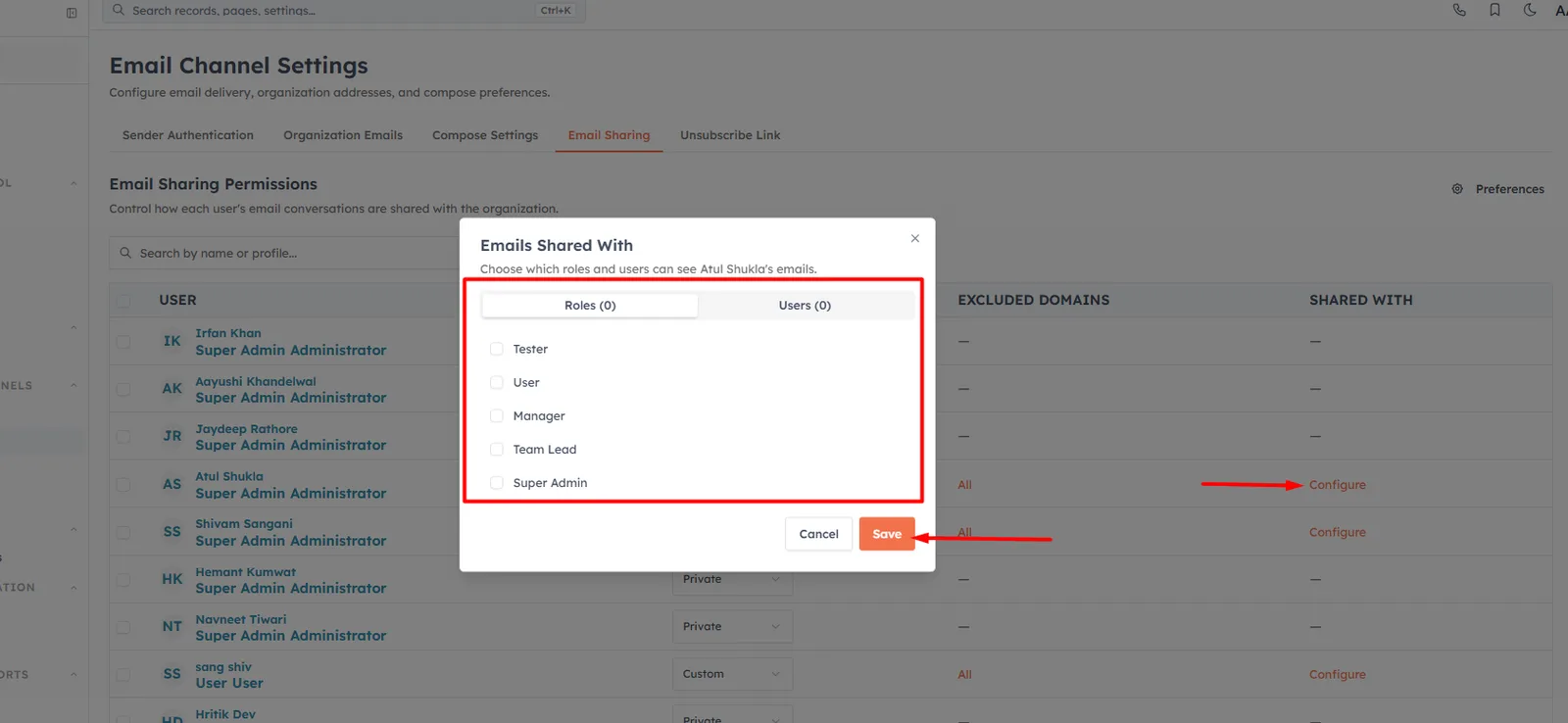
💡
Set a sensible organisation default first, then override for exceptions. Many teams keep the default at Private and switch specific users to Public or Custom where shared visibility is needed. (Note: User's Choice currently behaves as Private until the user sets a preference.)
💡
Email sharing settings take effect immediately. No restart or re-login is needed. Existing logged emails follow the new permissions from the moment you save.
Was this article helpful?
Ready to implement this?
OpenAI Engage and apply what you just learned to your own workspace.
Open AI Engage CRM