Loading…


KnowledgeBase
“Your First Campaign Is Under Review”: How First-Send Approval Works and What Happens Next (Step-by-Step)
Introduction#
When your organisation sends its very first email campaign, AiEngage CRM does not send it straight away. Our team checks it first. While that happens, the campaign shows the status Under review, and you see this message:
“Your first campaign is under review by our team and will send once approved.”
This is normal and nothing is wrong with your account. It is a one-time safety check called first-send approval. It protects the sending reputation shared by every AiEngage customer, so that your emails, and everyone else’s, keep landing in the inbox rather than in spam.
This guide has five parts:
Part | What you’ll learn |
|---|---|
Part 1 | What first-send approval is, and when it applies |
Part 2 | Send your first campaign and see the review message |
Part 3 | Schedule your first campaign for later |
Part 4 | What you can see and do while it is under review |
Part 5 | What happens after approval, and how to get approved quickly |
The screenshots use a sample shop called Brightline Studio and a sample campaign called November Newsletter – New Collection, sent to 1,240 newsletter subscribers. Your names and numbers will be different.
Part 1: What first-send approval is#
Question | Answer |
|---|---|
Which campaigns are reviewed? | The first email campaign your organisation sends. The message says “Your first campaign”. |
Who reviews it? | The AiEngage team. You do not need to ask for a review; it starts by itself when you click Send Now or Schedule Campaign. |
What do I need to do? | Nothing. Leave the campaign as it is. Once it is approved it sends without you doing anything else. |
Is anything sent during the review? | No. No contact receives the email until it is approved. |
Do later campaigns need approval? | The review is for your first campaign. Afterwards you see the usual messages, Campaign is being sent. or Campaign scheduled. |
ℹ️
WhatsApp works differently. WhatsApp campaigns use message templates that Meta approves before they can be used. That is a separate check, made by Meta for each template, and is not covered here.
Part 2: Send your first campaign#
You build the campaign exactly as normal (see Send an Email Campaign: Broadcast Emails to Your Contacts). The review only shows up at the very last click.
Step 1: Open Campaigns#
Open the Marketing menu from the left-hand rail and click Campaigns.
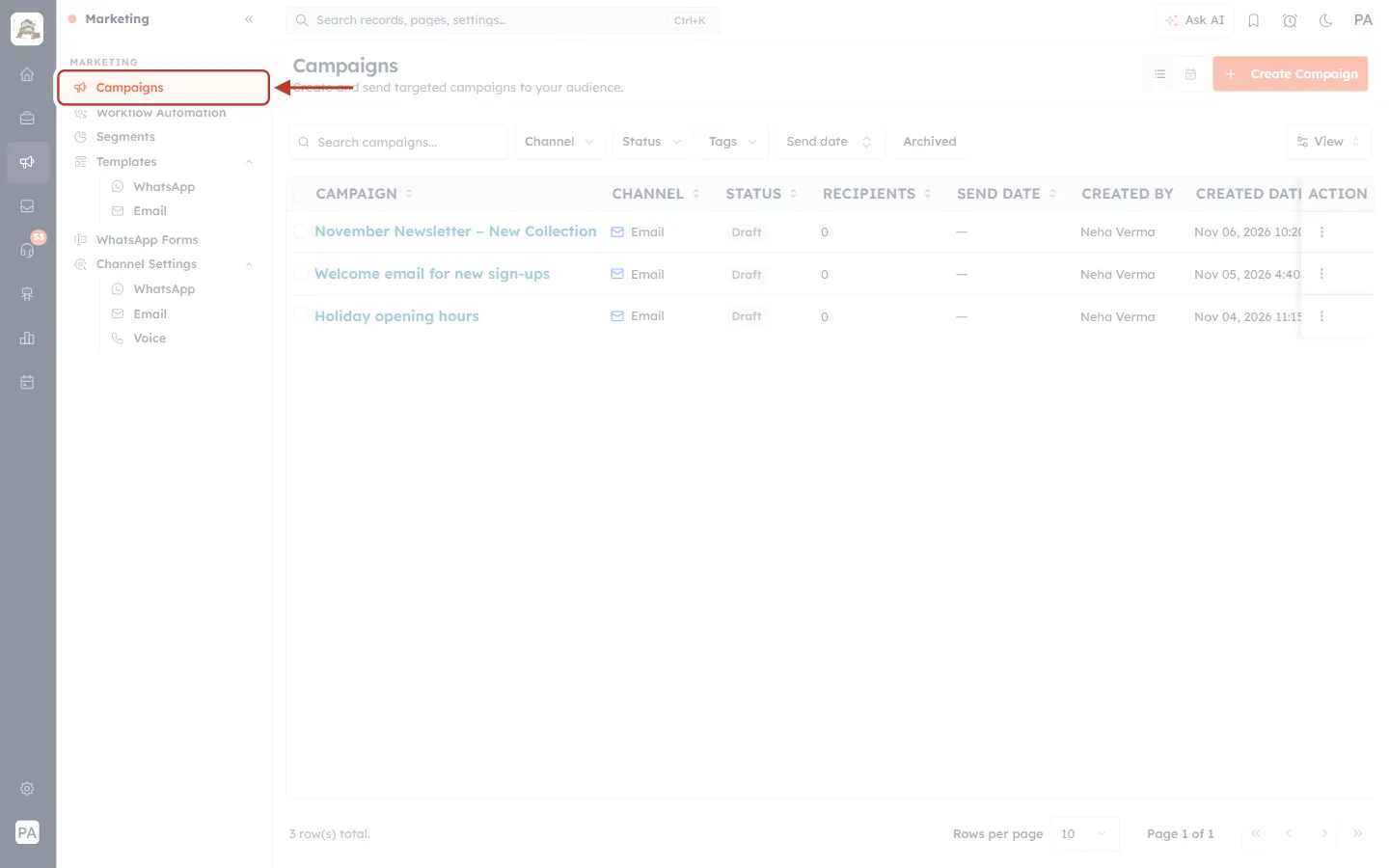
What this screenshot shows. The Marketing menu on the left. Campaigns is ringed in red.
Campaigns is the first item under MARKETING, above Workflow Automation, Segments and Templates.
The page title on the right reads Campaigns, with the line “Create and send targeted campaigns to your audience.”
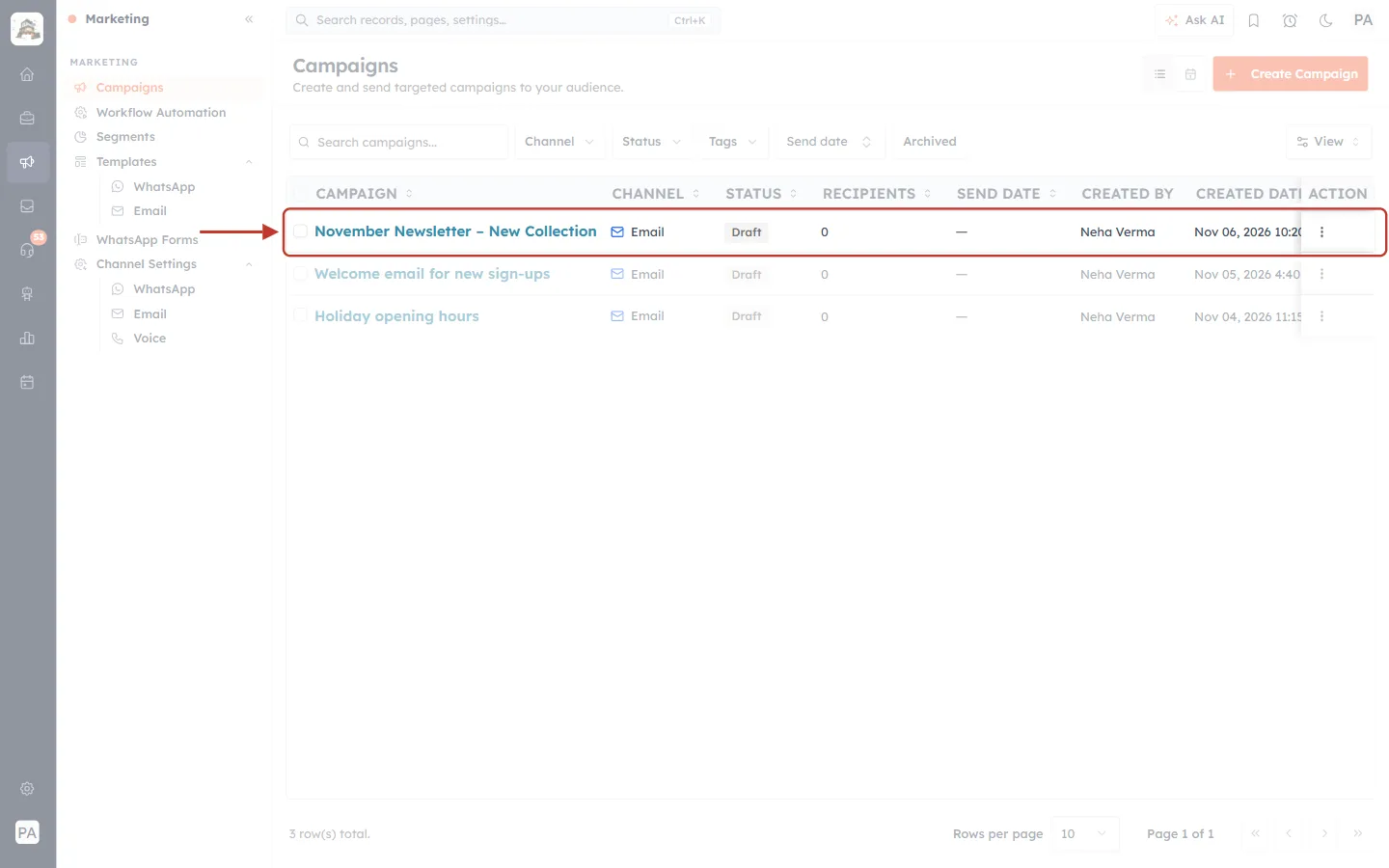
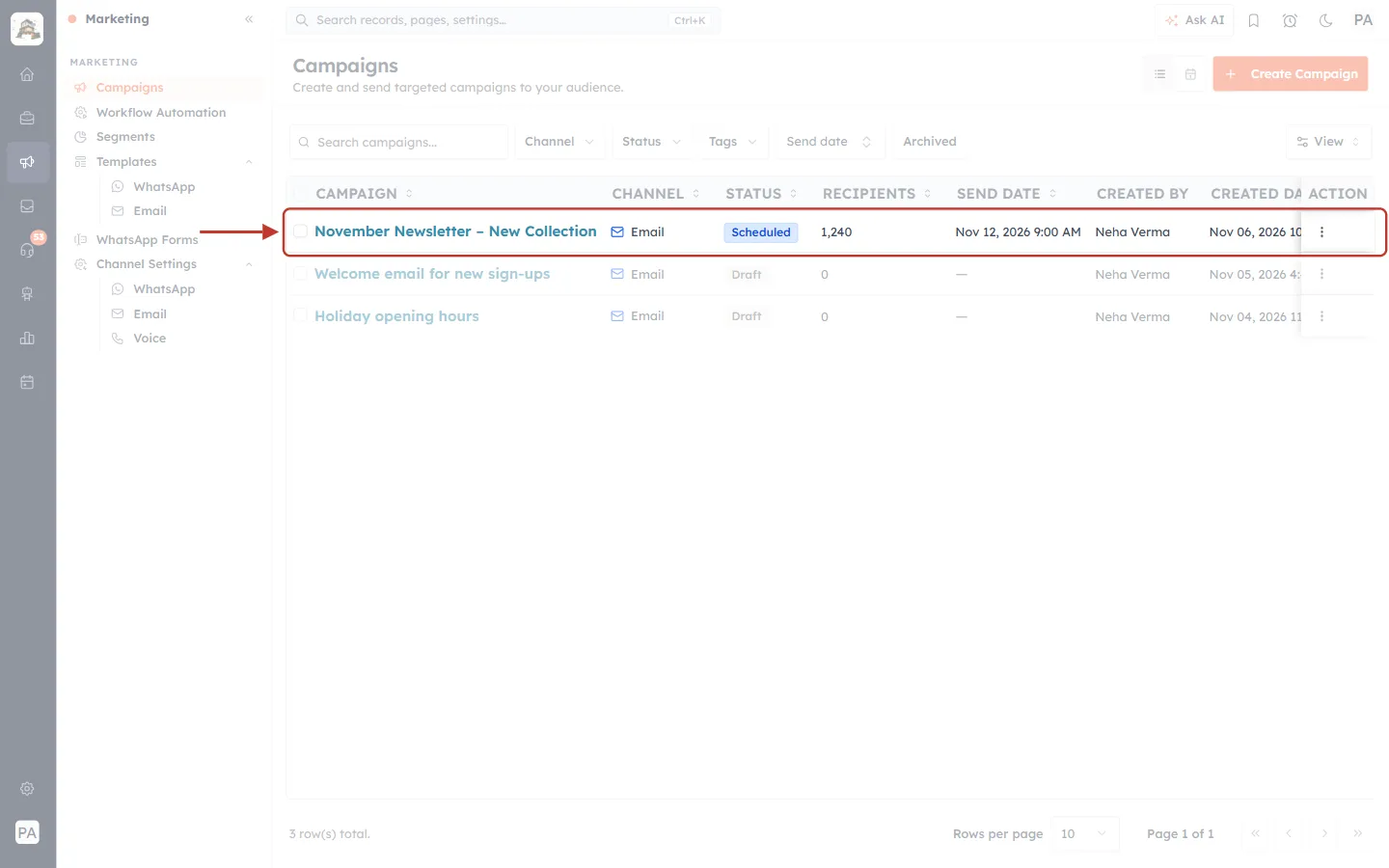
What this screenshot shows. The Campaigns list. The row for November Newsletter – New Collection is ringed.
The columns are CAMPAIGN, CHANNEL, STATUS, RECIPIENTS, SEND DATE, CREATED BY, CREATED DATE and ACTION.
The campaign is still a Draft: a grey badge in the STATUS column, 0 recipients and no send date.
Click the campaign name to open it in the editor.
Step 2: Go to Review & Send#
The editor has three steps along the top: 1 Audience → 2 Message → 3 Review & Send. Work through Audience and Message, then click Continue to Review.
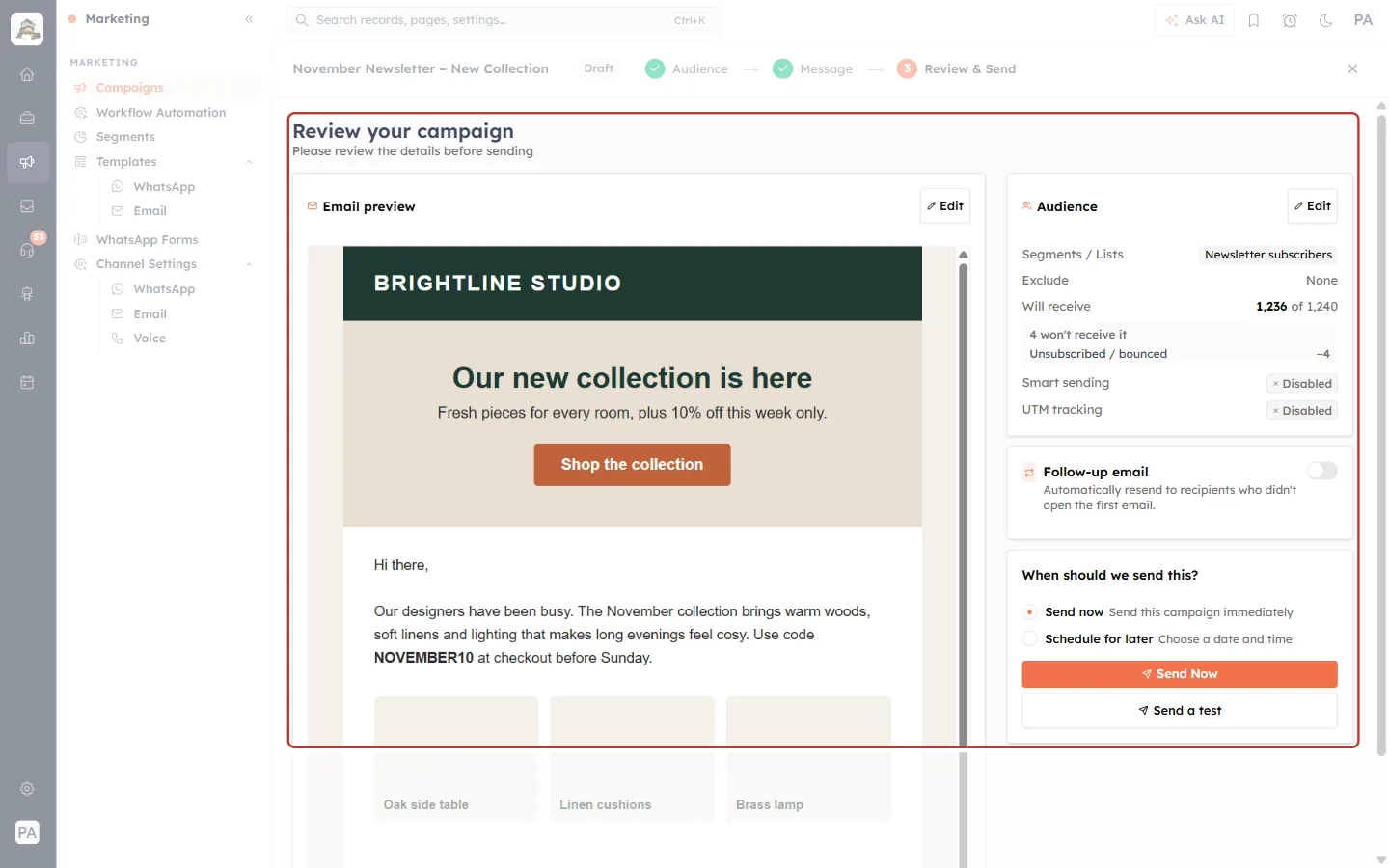
What this screenshot shows. The Review your campaign page, ringed from the title down to the send options.
The left side shows the Email preview, exactly as your contacts will see it. Click Edit to change it.
The Audience box on the right lists the segment (Newsletter subscribers) and Will receive 1,236 of 1,240. The 4 people who won’t receive it are unsubscribed or have bounced before.
Smart sending and UTM tracking show whether those options are on.
Follow-up email can resend to people who didn’t open the first email.
When should we send this? at the bottom right is where you send or schedule.
✅
Send yourself a test first. Use Send a test under the send button to check the email in your own inbox. A campaign that has been tested is less likely to need changes later. See Preview & Send Test Emails Before Launching.
Step 3: Choose Send now and click Send Now#
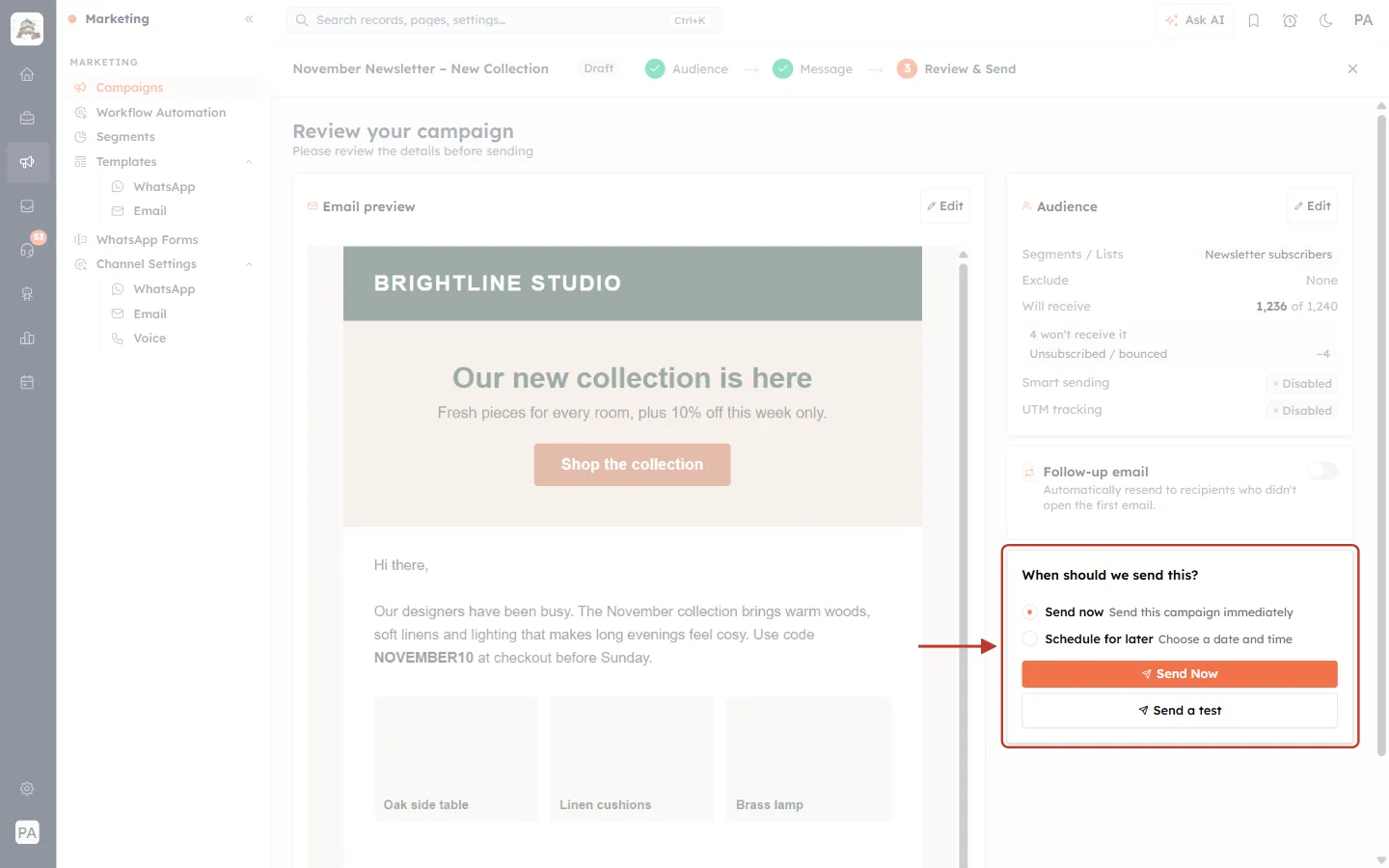
What this screenshot shows. The When should we send this? box, ringed.
Send now: “Send this campaign immediately”. It is selected here.
Schedule for later: “Choose a date and time”. See Part 3.
The orange Send Now button and the Send a test button are underneath.
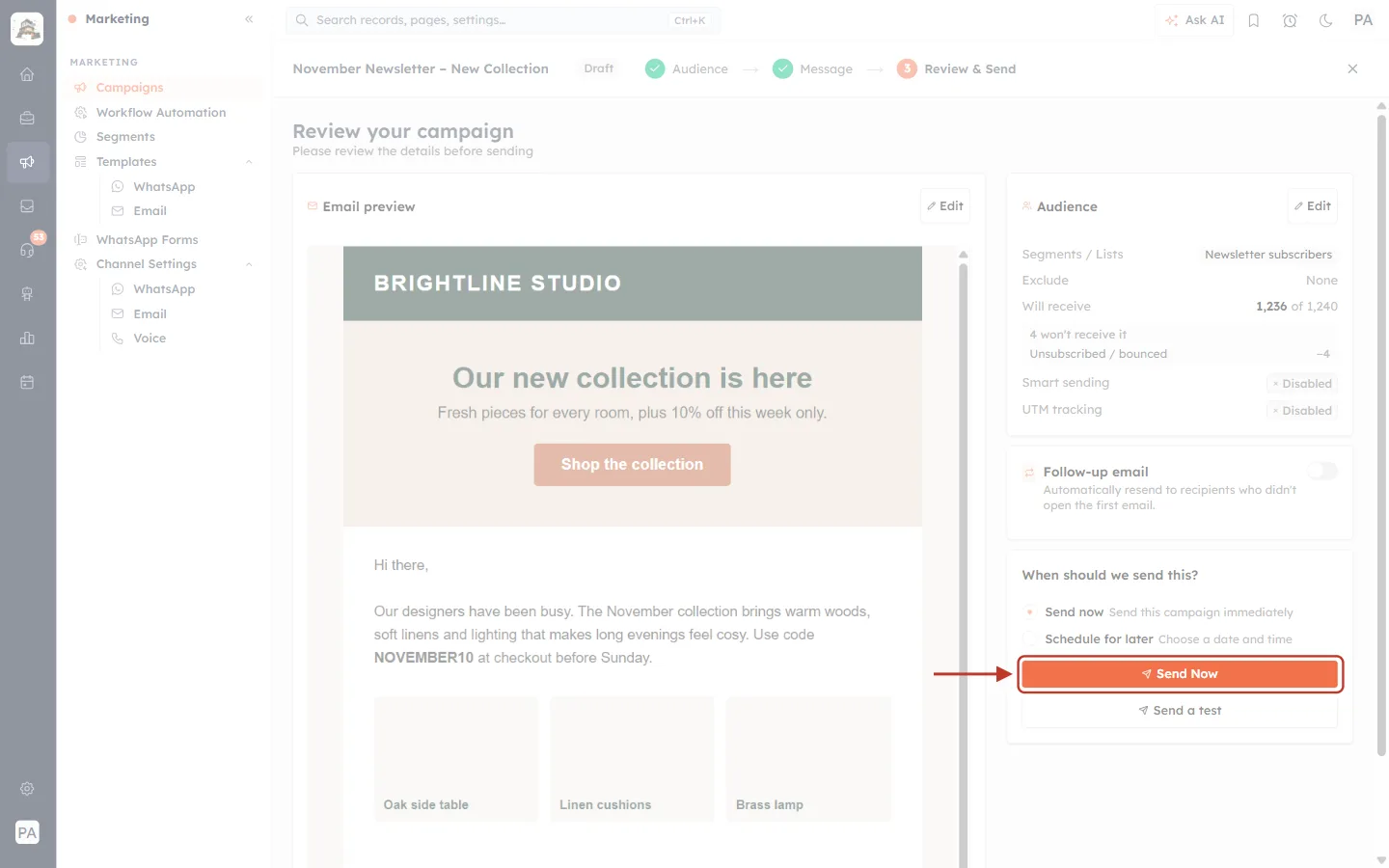
What this screenshot shows. The orange Send Now button, ringed.
Clicking it does not send anything yet. It first asks you to confirm.
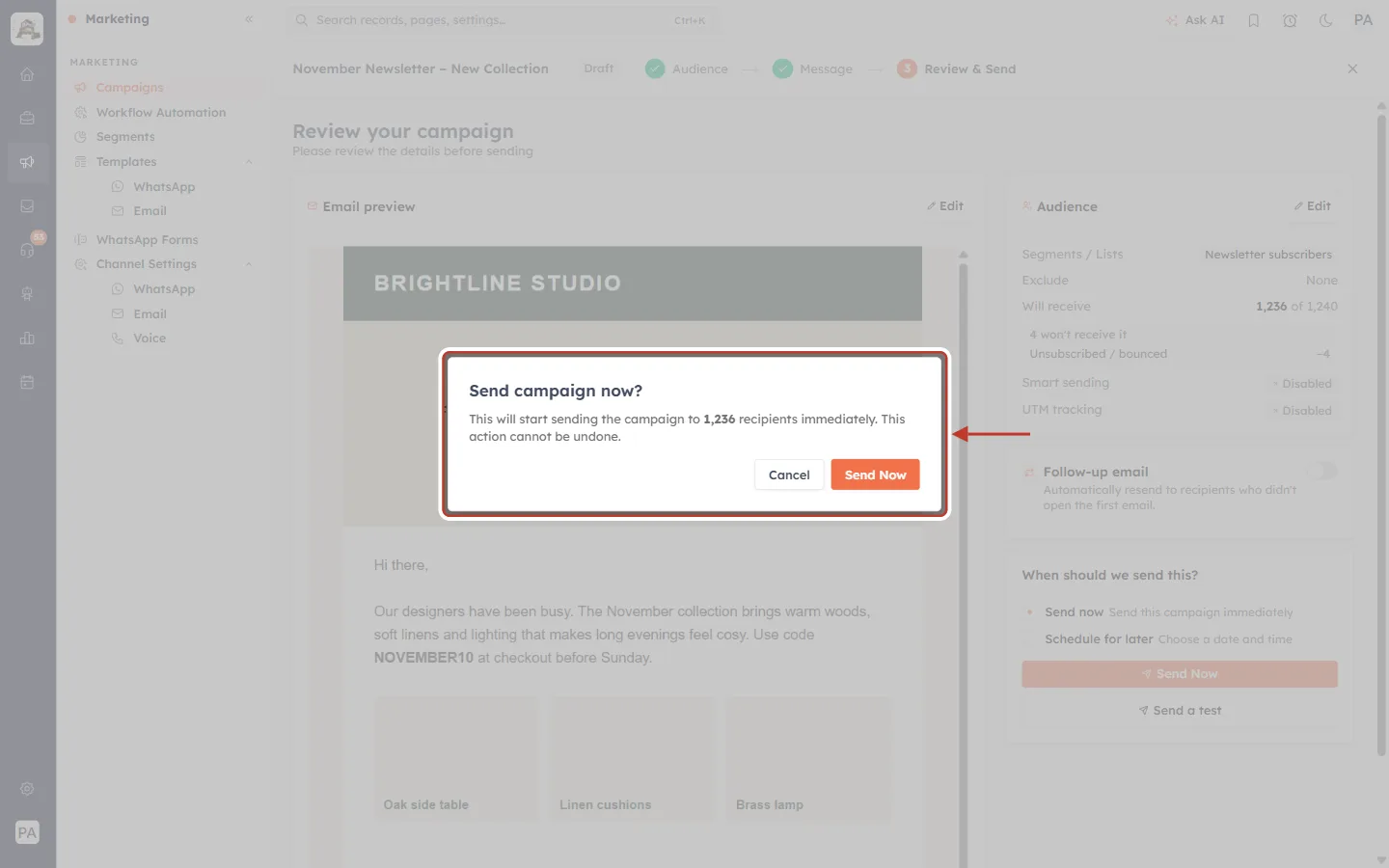
What this screenshot shows. The confirmation window, ringed.
The title reads Send campaign now?
It says This will start sending the campaign to 1,236 recipients immediately. This action cannot be undone.
Because this is your first campaign, it is held for review instead of sending immediately (next step).
Click Send Now to go ahead, or Cancel to go back.
Step 4: Read the review message#
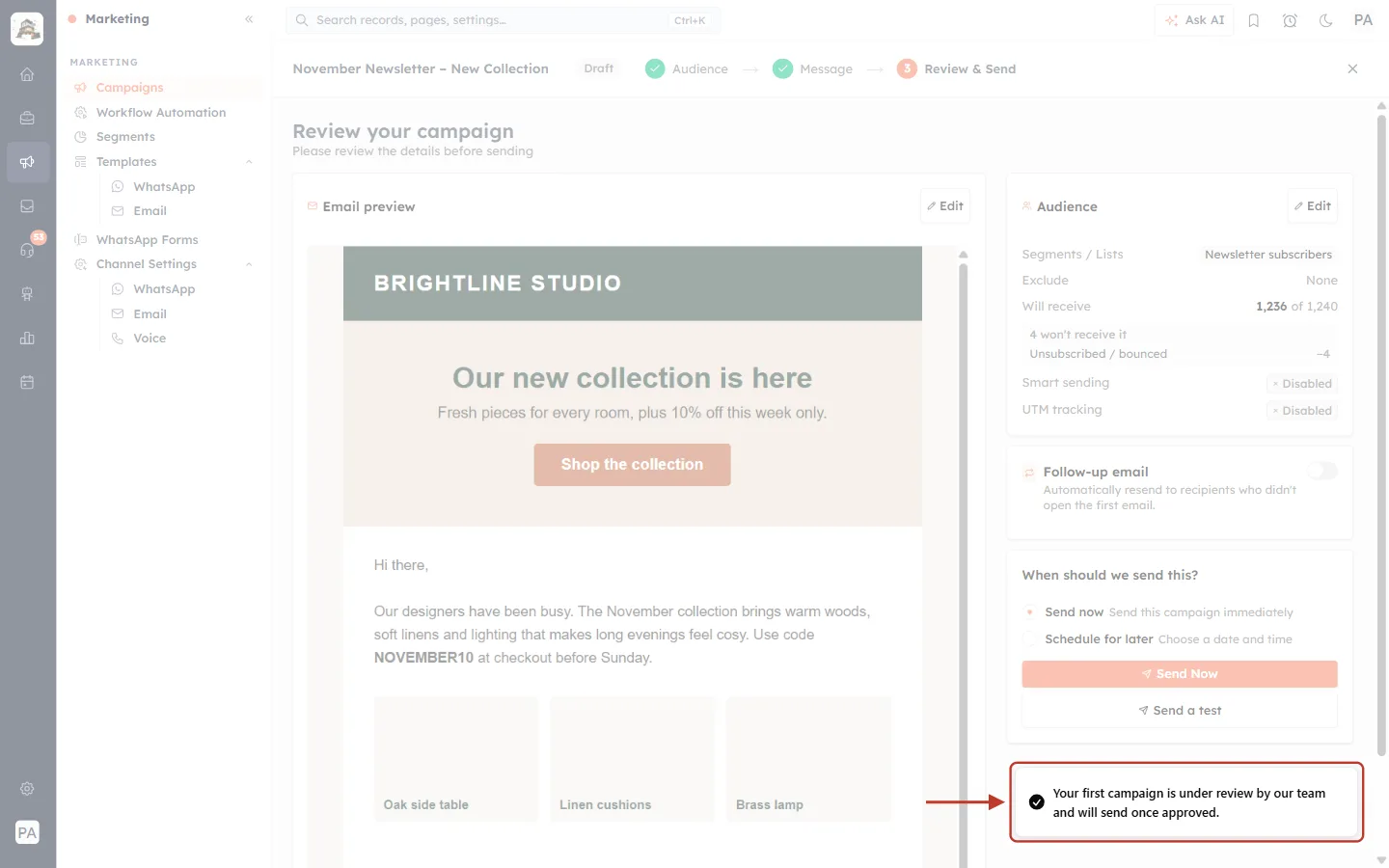
What this screenshot shows. The message at the bottom right of the screen, ringed.
It reads Your first campaign is under review by our team and will send once approved.
It means the campaign was accepted and is waiting in our team’s review queue. You do not need to click Send again.
A moment later the CRM takes you back to the Campaigns list.
⚠️
Don’t create a copy and send that instead. The review of the first one is already under way. Wait for it to be approved.
Part 3: Schedule your first campaign for later#
Scheduling works the same way. The campaign is reviewed first, and then sends at the time you picked.
Step 5: Pick a date and time, then click Schedule Campaign#
In When should we send this?, click Schedule for later. Pick a Date from the calendar and a Time, then click Schedule Campaign.
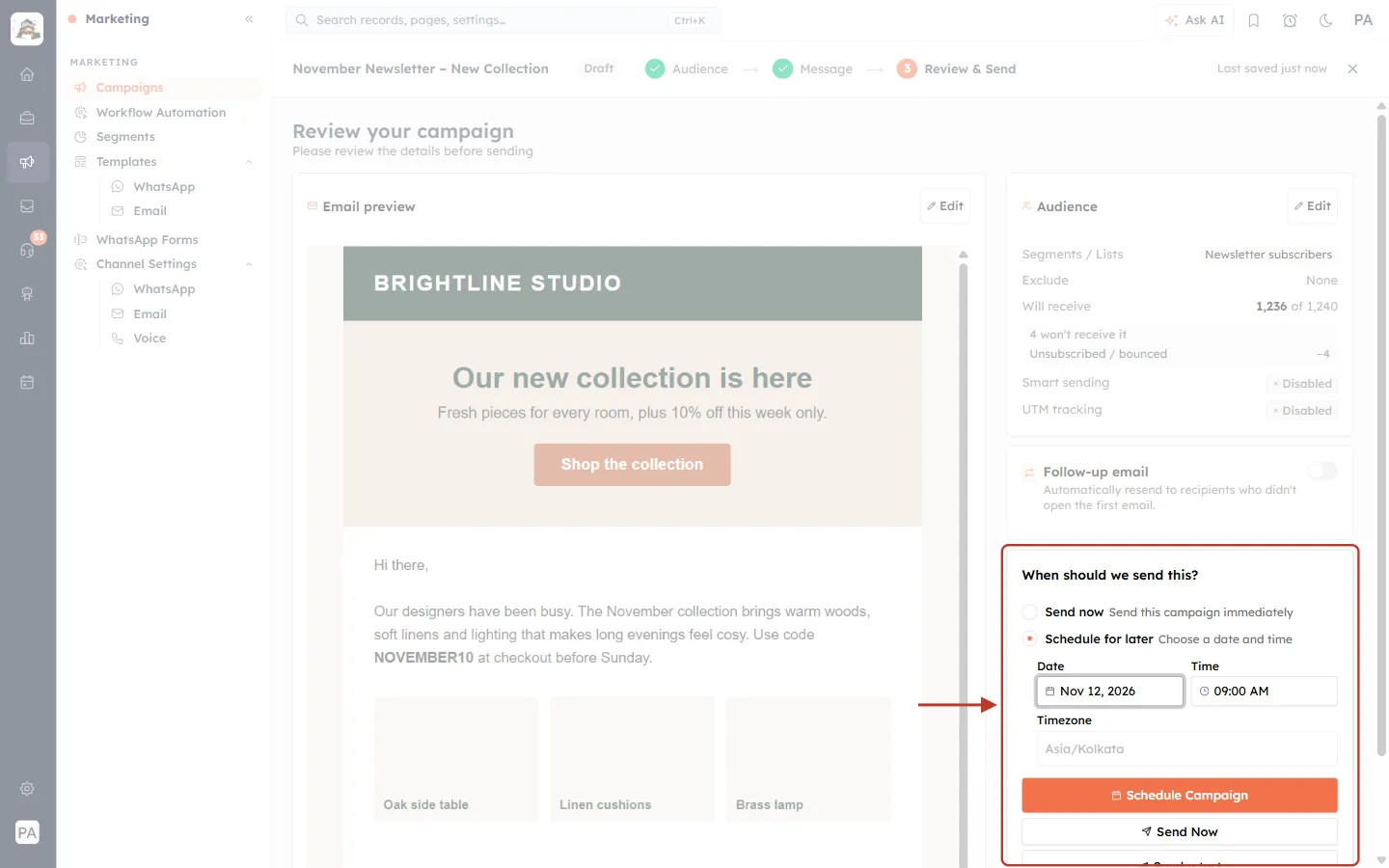
What this screenshot shows. The When should we send this? box with Schedule for later selected, ringed.
Date shows the day you picked: Nov 12, 2026.
Time shows 09:00 AM.
Timezone is filled in from your settings (Asia/Kolkata here) and cannot be changed in this box.
The orange button now reads Schedule Campaign. It stays greyed out until you pick a date.
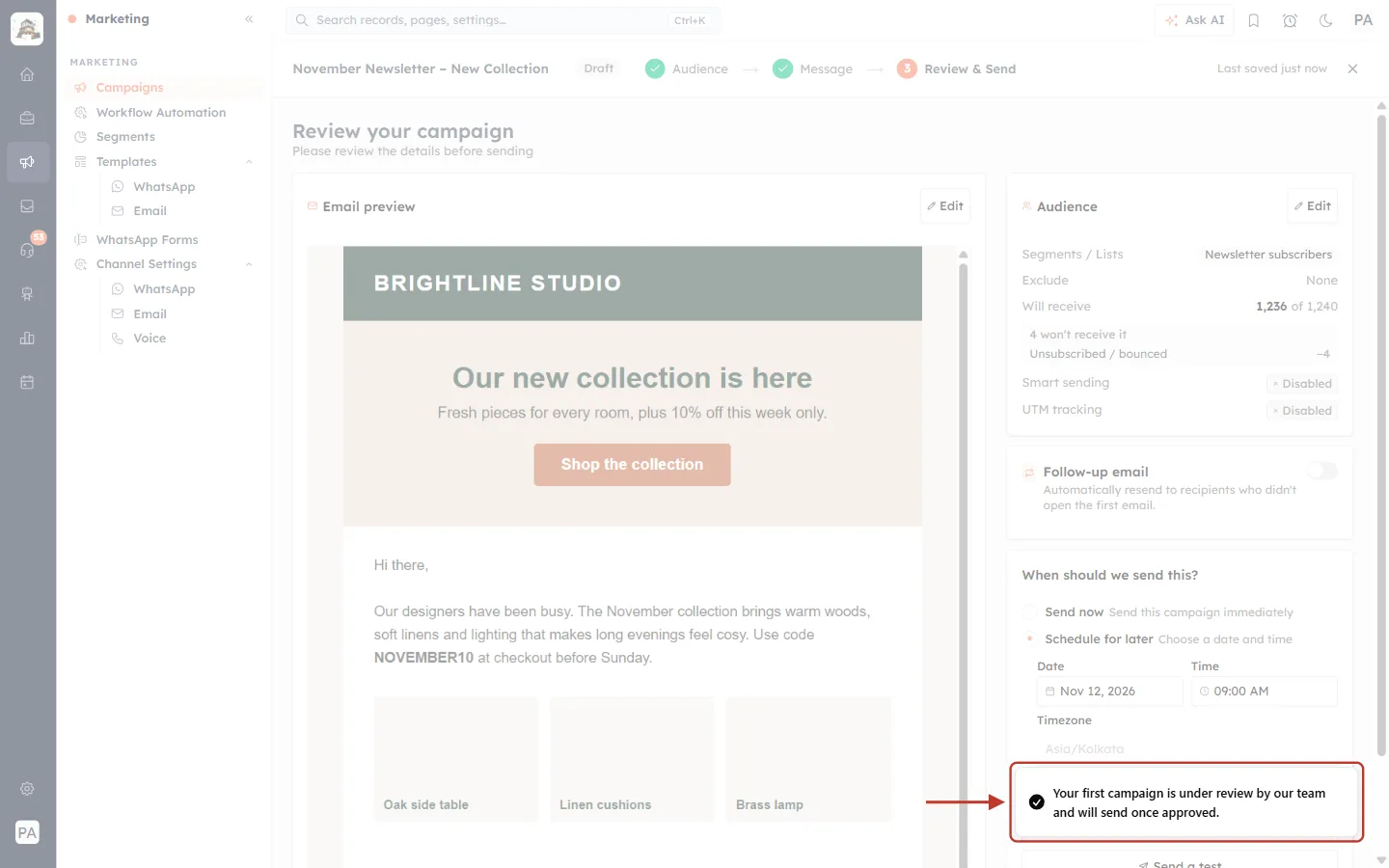
What this screenshot shows. The message after clicking Schedule Campaign, ringed.
It is the same message: Your first campaign is under review by our team and will send once approved.
For later campaigns this message reads Campaign scheduled. instead.
✅
Schedule with some room to spare. Give the review time to finish before your chosen send time, for example by scheduling your first campaign for the next working day rather than the next few minutes.
Part 4: While your campaign is under review#
Step 6: Find it in the Campaigns list#
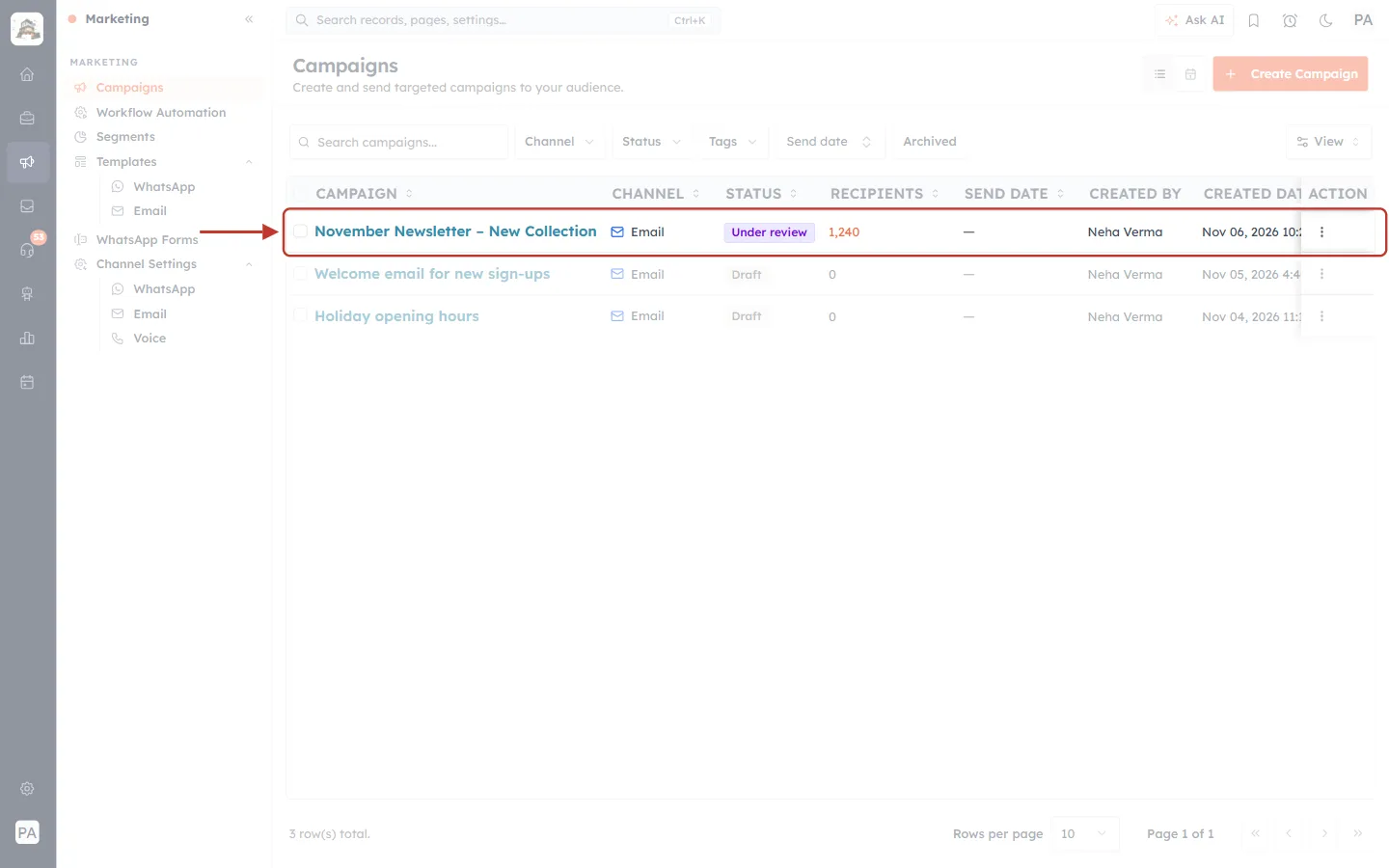
What this screenshot shows. The November Newsletter – New Collection row after clicking Send Now, ringed.
The STATUS column shows a purple Under review badge.
RECIPIENTS shows 1,240, the size of the audience you chose.
SEND DATE is empty (—) because nothing has been sent yet.
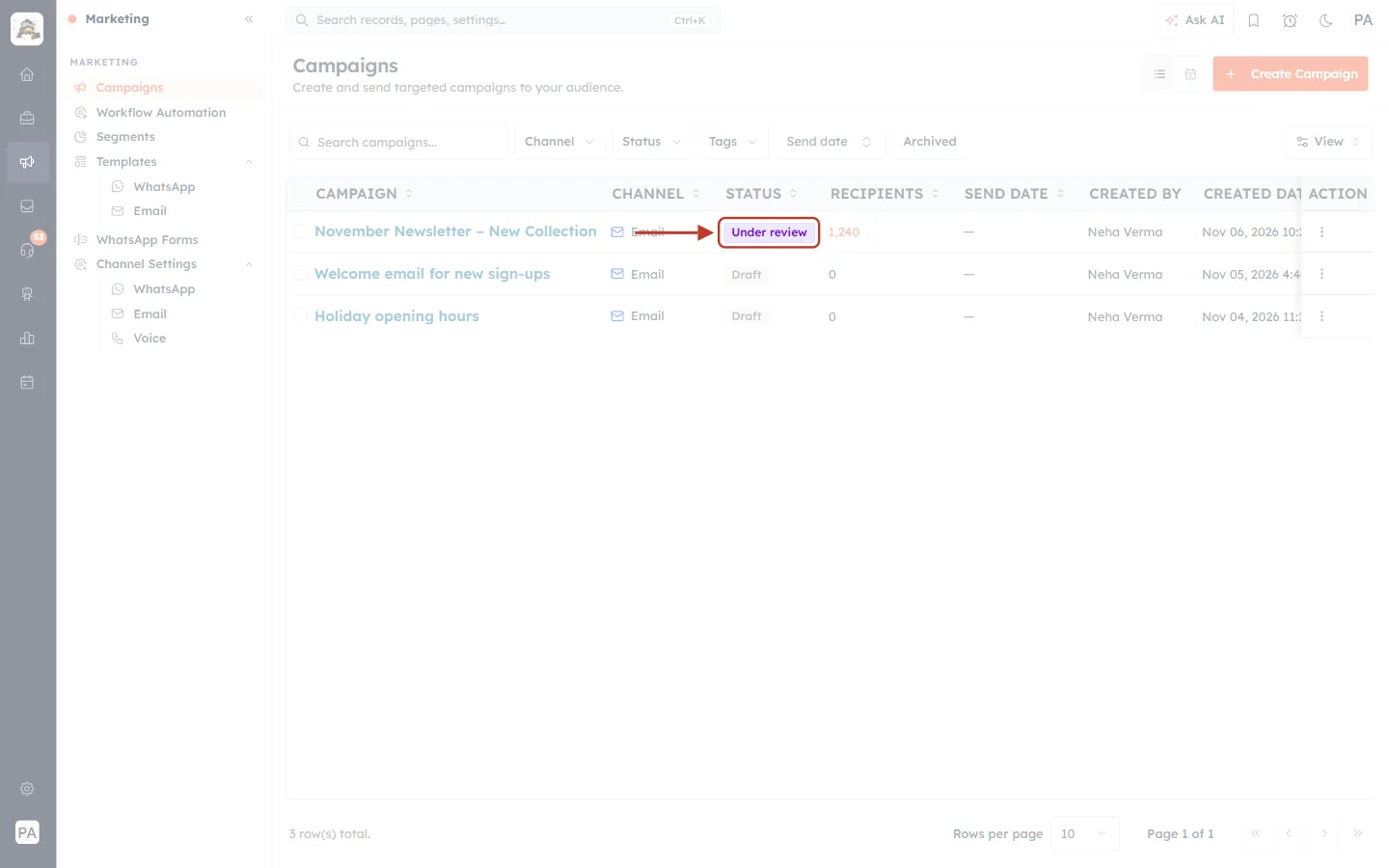
What this screenshot shows. A close look at the Under review badge.
Purple means “waiting for our team”. Other statuses: grey Draft, blue Scheduled, amber Sending, green Sent, red Cancelled.
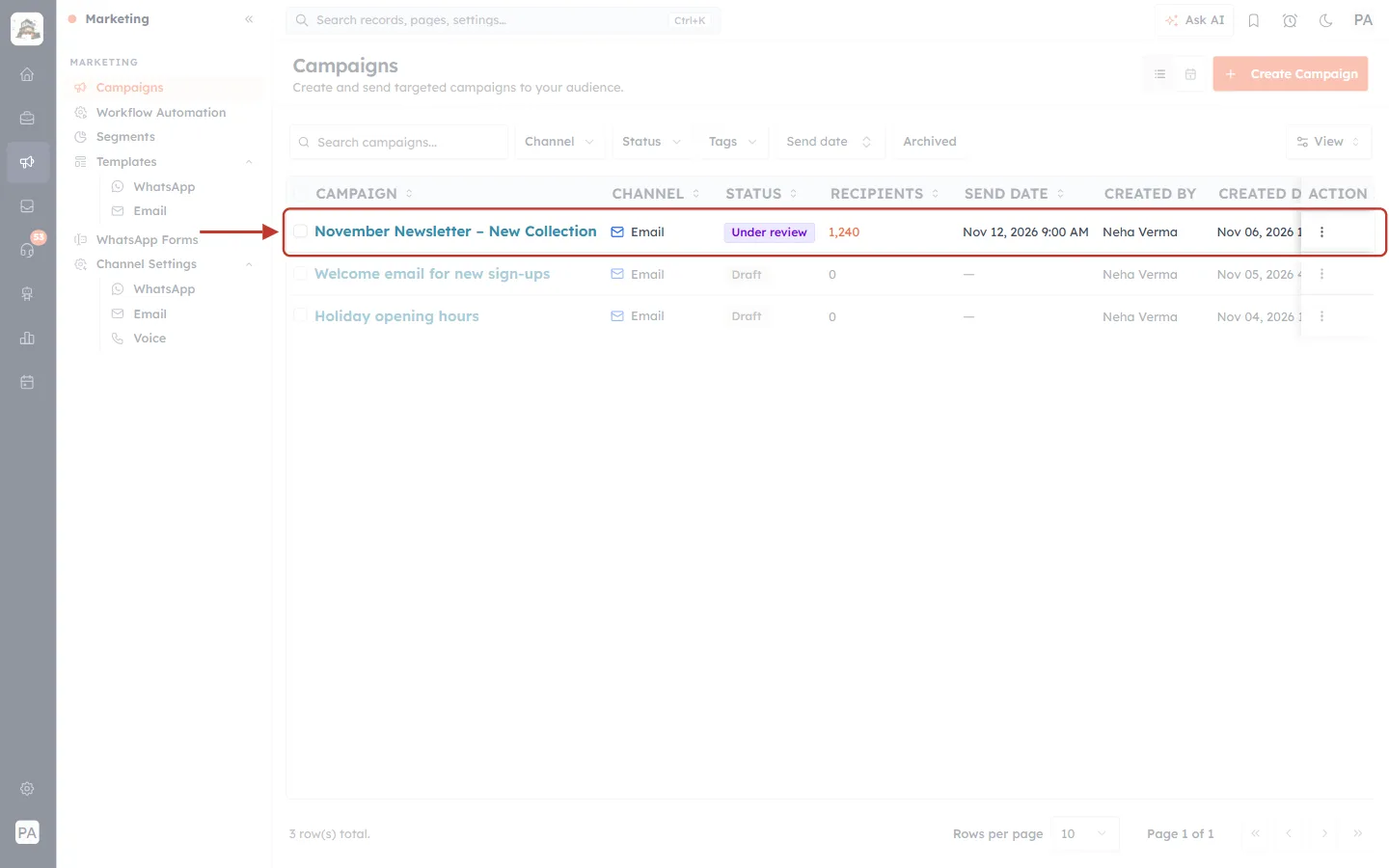
What this screenshot shows. If you scheduled the campaign (Part 3), the row looks like this, ringed.
The STATUS is still Under review.
SEND DATE shows the time you picked: Nov 12, 2026 9:00 AM.
Step 7: Know what you can and can’t do#
While a campaign is under review it is locked, so that what our team approves is exactly what gets sent.
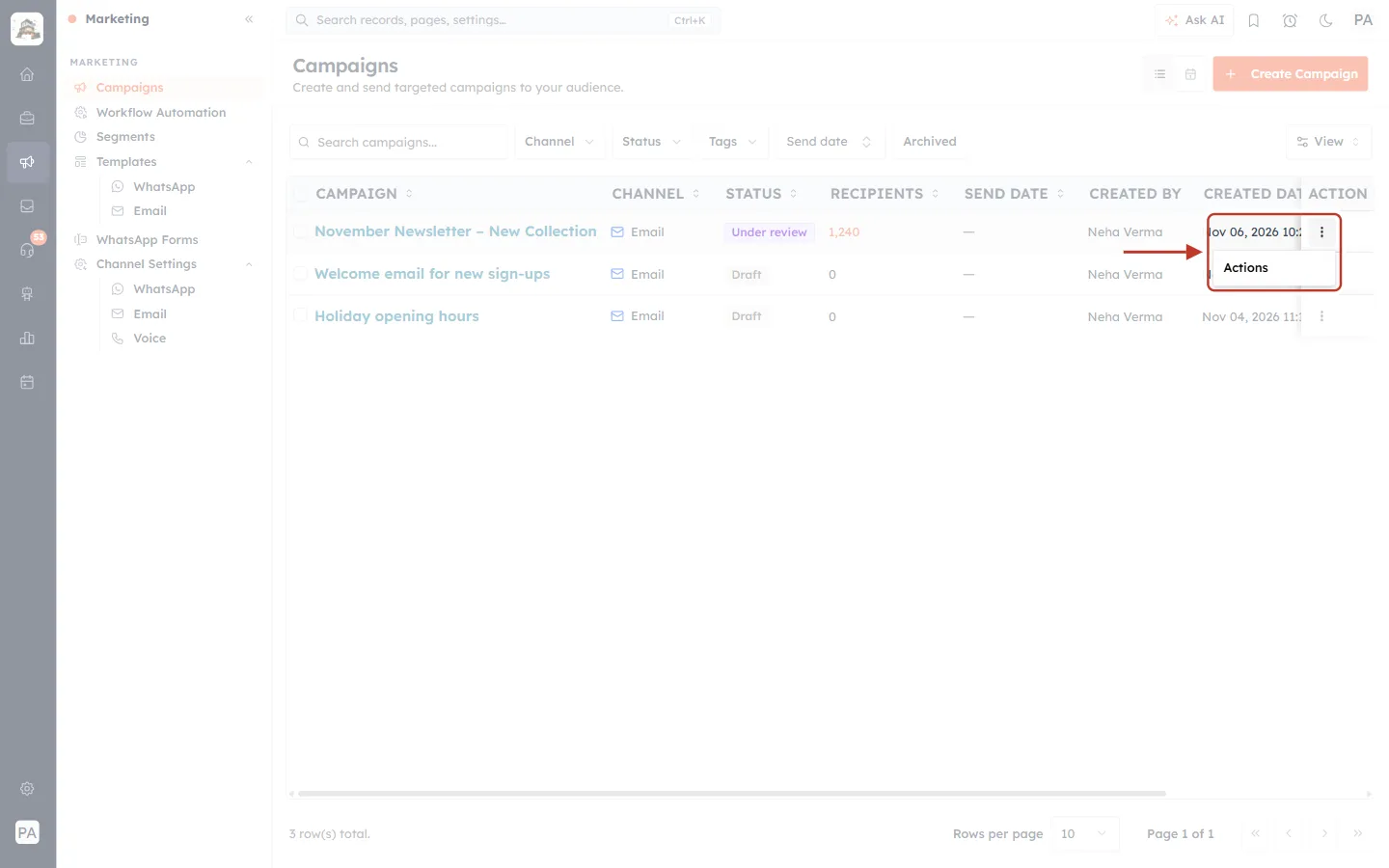
What this screenshot shows. The ⋮ menu for the campaign, ringed.
The menu only shows the heading Actions. There are no options for an Under review campaign: no Edit, Duplicate, Cancel or Delete.
Draft campaigns, by comparison, have Edit, Duplicate and Delete.
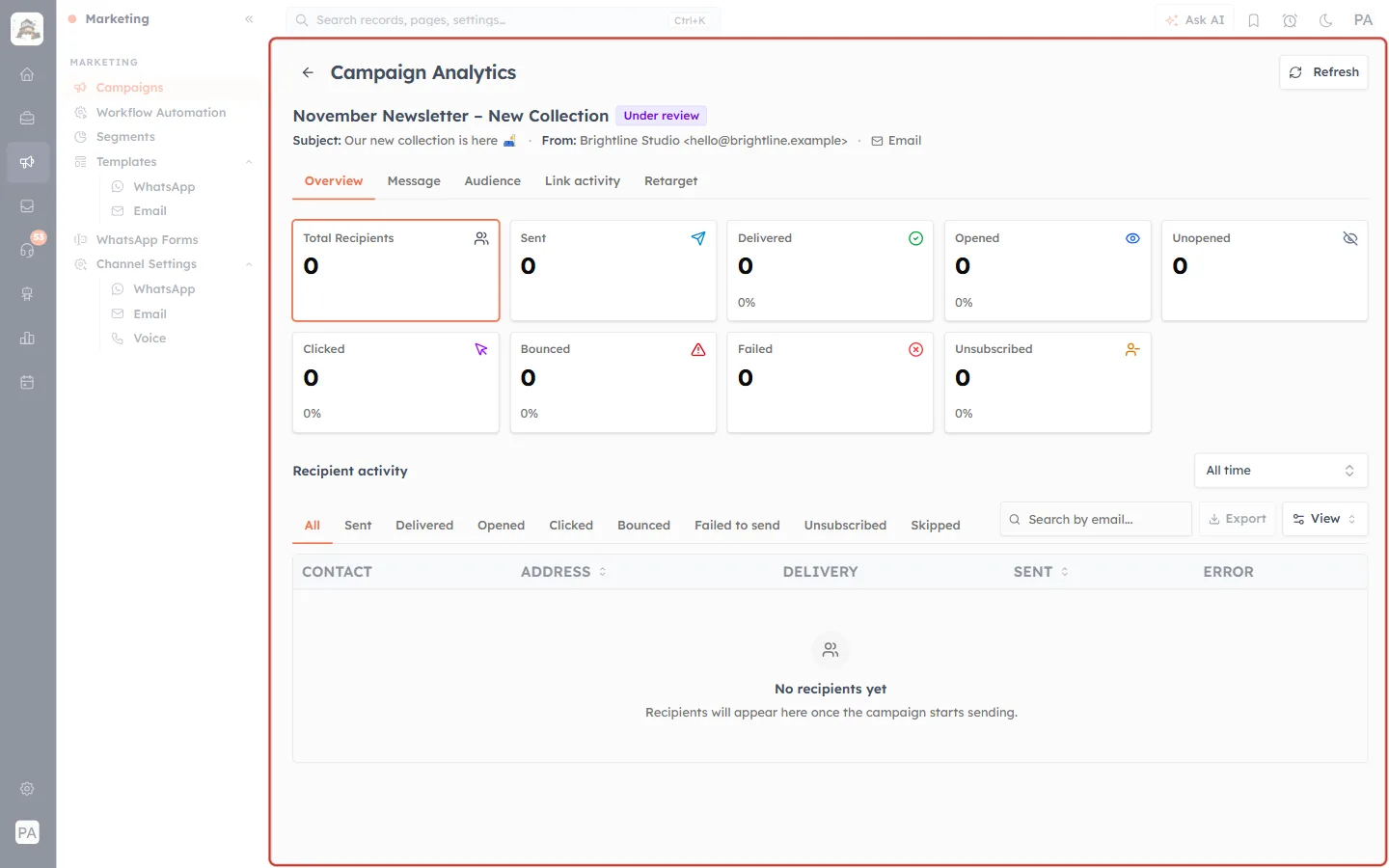
What this screenshot shows. Clicking the campaign’s name opens its Campaign Analytics page, ringed.
The name has the purple Under review badge next to it.
Under the name you see the Subject and From address, so you can check what was submitted.
All the counts (Total Recipients, Sent, Delivered, Opened, Clicked and so on) are 0.
Recipient activity says No recipients yet. Recipients will appear here once the campaign starts sending.
Use the arrow at the top left to go back to the list.
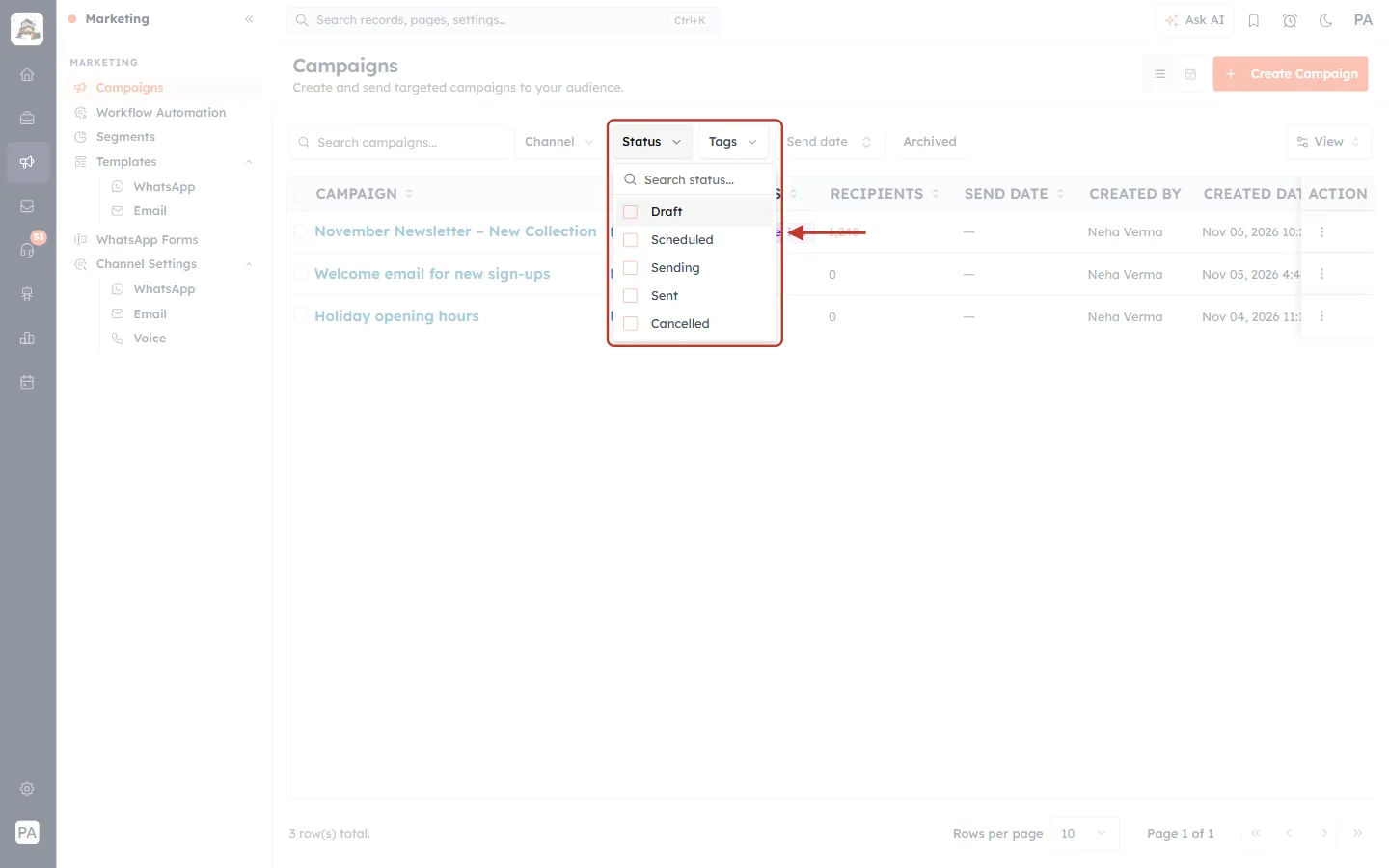
What this screenshot shows. The Status filter above the list, opened and ringed.
It offers Draft, Scheduled, Sending, Sent and Cancelled.
There is no “Under review” choice. To find the campaign, type its name in Search campaigns… or clear the filters.
While it is under review, you can… | You can’t… |
|---|---|
See it in the list and open its Campaign Analytics page | Edit the email, audience or send time |
Create and edit other draft campaigns | Cancel, duplicate or delete it from the list |
Send yourself tests from other drafts | Speed it up by clicking Send again |
ℹ️
Need to change something urgently? If you spot a mistake after sending for review, for example a wrong link, contact AiEngage support and give them the campaign name. Don’t send a second copy.
Part 5: After approval#
Step 8: Check the status#
When our team approves the campaign, its status changes by itself. Refresh the Campaigns list to see the latest.
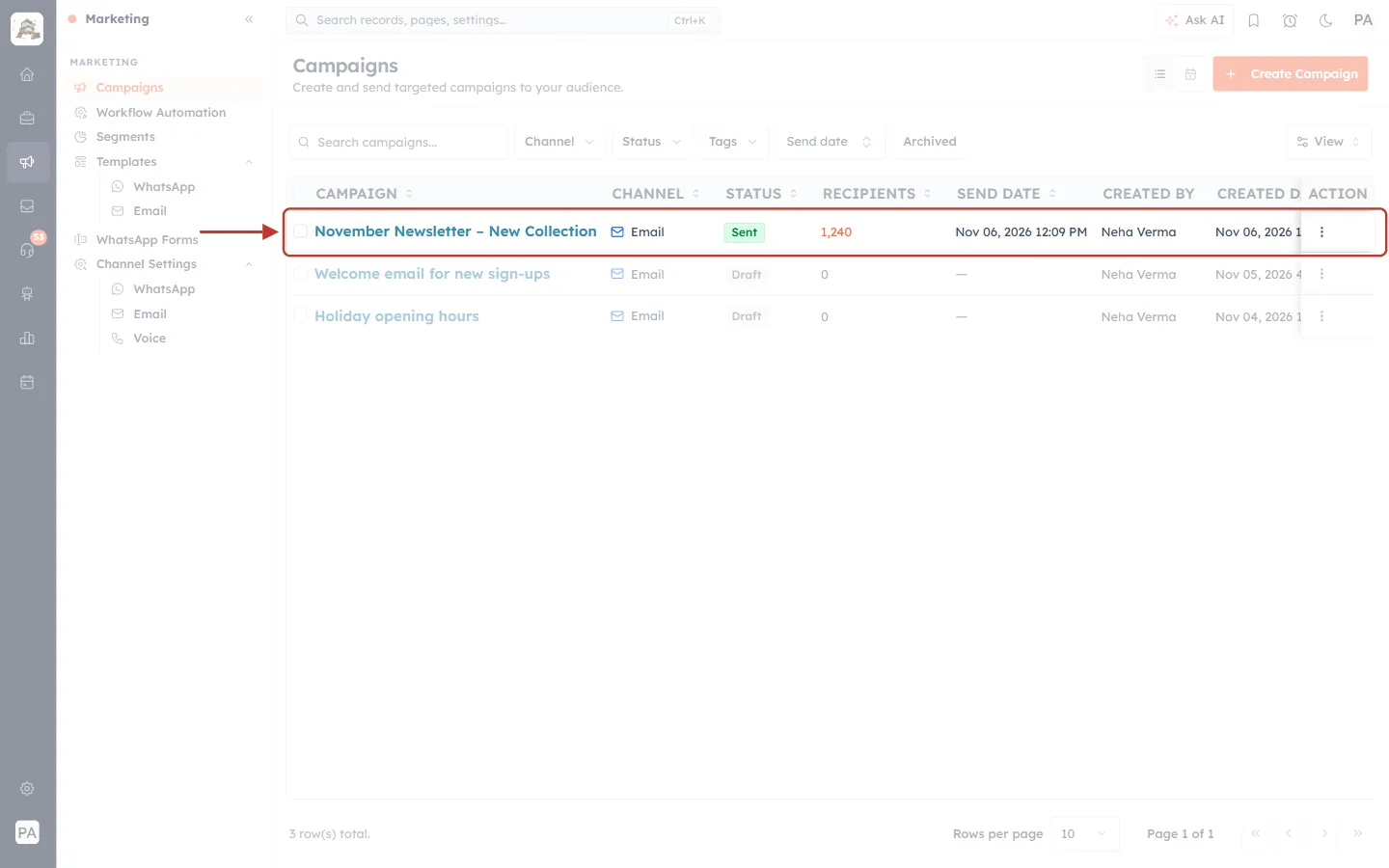
What this screenshot shows. A Send now campaign after approval, ringed.
The STATUS goes to Sending while emails go out, then to a green Sent.
SEND DATE shows when it went out: Nov 06, 2026 12:09 PM.
Open rate and click rate columns fill in as contacts open the email. See Understanding Campaign Performance.
The ⋮ menu now offers View Analytics, Duplicate and Archive.
What this screenshot shows. A scheduled campaign after approval, ringed.
The STATUS changes to a blue Scheduled, with the send date you chose.
It sends at that time. Until then the ⋮ menu offers View, Duplicate, Cancel and Archive.
How to get approved quickly#
To give your first campaign the best chance of a quick approval, check these before you click Send Now. They are also good habits for every campaign.
Send from your own verified domain. Use a sender address on your business domain and authenticate it. See Set Up Your Organisation Email Address and Authenticate Your Email Domain (DKIM).
Send to people who opted in. Use your own customers, subscribers or leads. Avoid bought or scraped lists.
Keep the unsubscribe link. Every campaign needs a working way to unsubscribe. See Manage Unsubscribes and Email Compliance.
Use a clear subject and sender name. Readers (and our team) should know straight away who the email is from.
Check every link and image. Send yourself a test first. See Preview & Send Test Emails Before Launching.
Have enough email credits. If your balance is too low, the CRM shows an error with an Add credits button instead of the review message. See Email Credits: Purchase and Manage Your Sending Balance.
Frequently asked questions#
Did something go wrong with my account?
No. Every organisation’s first email campaign is reviewed. The message is a normal part of getting started.
How long does the review take?
It depends on how many campaigns are waiting. You don’t need to do anything in the meantime. If your campaign has been Under review for longer than you expected, contact AiEngage support with the campaign name.
Will my scheduled time still be used?
The date and time you picked are saved with the campaign and shown in the SEND DATE column while it is under review. To make sure the review is finished in time, schedule your first campaign well ahead, for example for the next working day.
Can I cancel a campaign that is under review?
Not from the Campaigns list; the menu has no actions while it is under review. Contact support if it must not go out.
Why can’t I filter the list by “Under review”?
The Status filter does not include it. Search for the campaign by name instead.
Do I need approval for every campaign?
No. The review is for your first campaign. After that you see “Campaign is being sent.” or “Campaign scheduled.” as normal.
Does this apply to WhatsApp campaigns?
WhatsApp has its own check: Meta approves each message template before you can use it.
Previous and next#
Related articles#
Was this article helpful?
Ready to implement this?
OpenAI Engage and apply what you just learned to your own workspace.
Open AI Engage CRM