Loading…


KnowledgeBase
Voice Conversation with Your AI Agent: Let Website Visitors Talk to Your Agent Out Loud in the Chat Widget (Step-by-Step)
Some visitors would rather talk than type, especially on a phone. With Voice conversation switched on, your AI agent’s website chat widget shows a Speak now button. The visitor taps it, allows the microphone, and has a spoken, back-and-forth conversation with your agent, in real time:
The agent greets the visitor out loud, listens, and answers in a natural voice from the knowledge you gave it.
There is no button to hold. The visitor just talks; the agent knows when they have finished, and the visitor can interrupt the agent mid-sentence, like on a phone call.
Everything said is written into the chat as text as it happens, so the visitor can read along, and switch back to typing at any moment.
If the visitor asks for a person, the agent hands the chat to your team, the same way a typed chat does.
Your team sees the whole spoken conversation, word for word, under AI Agents → Conversations.
This guide shows you how to switch it on, every setting on the card, what your visitors see from the first tap to the end of the conversation, and where the conversation lands in your CRM. The screenshots use a sample agent, BrightPath Admissions Assistant (“Maya”), built for an IT training institute. The conversation shown is a real spoken one with that agent.
ℹ️
Where voice works. Voice conversation runs only in the website chat widget. WhatsApp chats stay text, and the Test Chat on the agent’s own page has no microphone, so to try voice, open the widget on your website (or any web page where the widget is installed).
What the agent can and can’t do by voice#
Voice is built to feel instant, so in a spoken conversation the agent sticks to the two things it can do without making the visitor wait:
Task | By voice? | Notes |
|---|---|---|
Answer questions about your business | ✅ Yes | From the agent’s Behavior instructions and knowledge sources, the same as in typed chat. |
Connect the visitor to a person | ✅ Yes | Voice ends and the normal live-agent handover starts in the same chat. |
Book a meeting / request a callback | ❌ No | These capabilities work in typed chat. The visitor can switch to typing to use them. |
Ask your initial questions and save answers (Data Mapping) | ❌ No | Works in typed chat only. |
Visitor chooses the voice or language | ❌ No | You choose the voice. The spoken language is set for your account (shown on the agent summary). |
The spoken answer is composed live, so its wording can differ a little from what the agent would type for the same question. The facts come from the same instructions and knowledge.
Before you start#
You need permission to manage AI agents (the AI Agents menu with Edit agent).
You need an AI agent with good instructions or knowledge sources, because that is what it will say out loud. See Build Your First AI Agent and Train Your Agent with Knowledge Sources.
The agent must be live on your website. See Publish to Your Website. You do not need to re-paste the widget code: existing installs pick up voice automatically.
Your website must open over https://. Browsers never allow a microphone on a plain http:// page.
Your account needs AI credits. Spoken conversations use credits like typed ones (see Credits, limits and what stops a conversation).
Part 1: Switch on voice for your agent#
Step 1: Open your agent#
Click the AI Agents icon in the left-hand rail and choose My Agents. Click the name of the agent visitors chat with on your website.
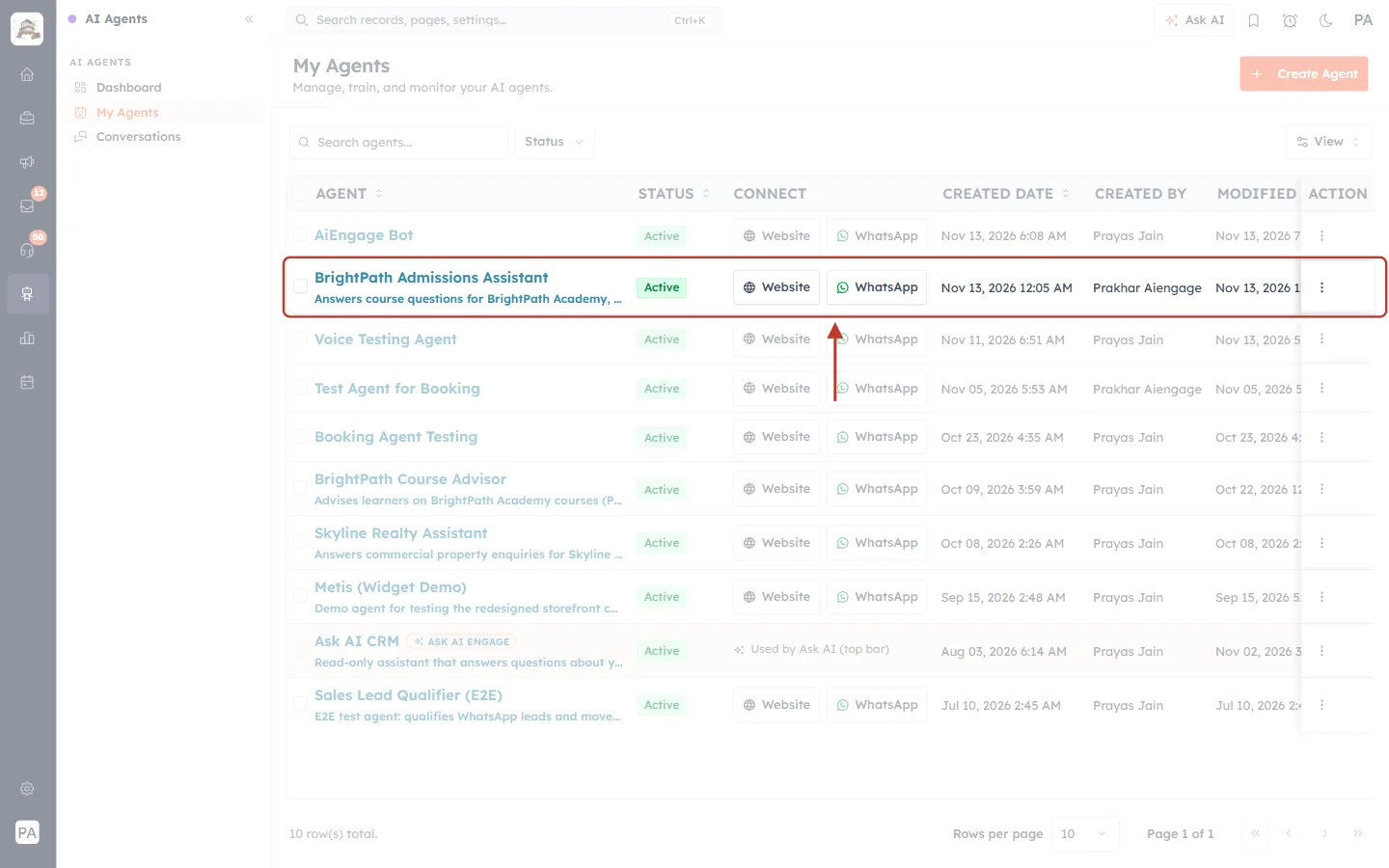
What this screenshot shows. The My Agents page, which lists every AI agent in your organization. The row for the sample agent is ringed.
Agent: the agent’s name and short description. Click the name to open it.
Status: Active means the agent is answering chats. Voice only works for an active agent.
Connect: where the agent is used. Voice applies to the Website widget only.
The remaining columns show who created and last changed the agent, and when it was last trained.
The agent’s page opens. Scroll the left column to the Voice Conversation card. This is the quickest way to check whether voice is on for an agent.
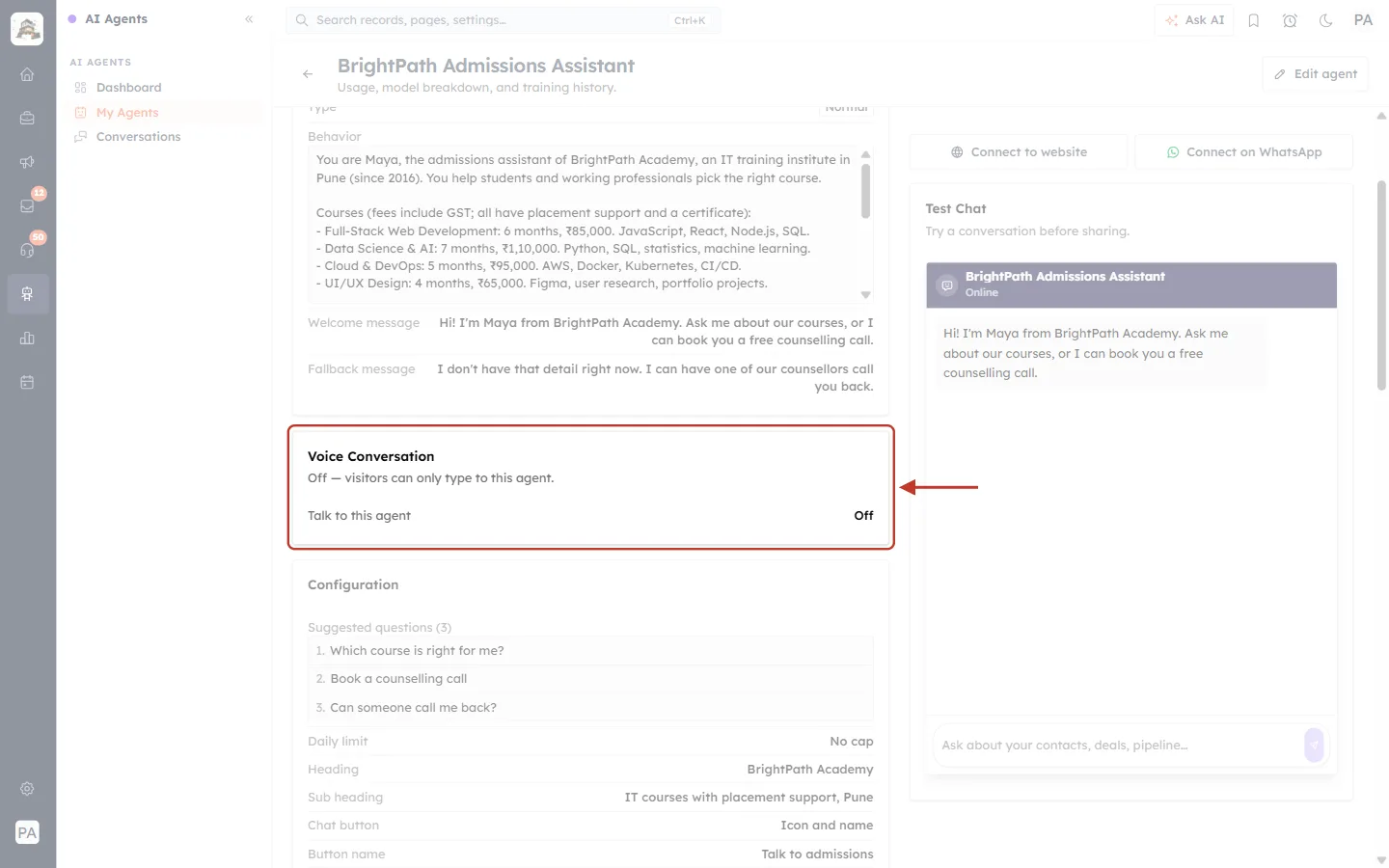
What this screenshot shows. The agent’s detail page with the Voice Conversation card ringed, before voice is switched on.
Off — visitors can only type to this agent.: voice is not switched on yet.
Talk to this agent: Off: the same setting as a single line.
Above the card are the agent’s Behavior, Welcome message and Fallback message; below it, the Configuration summary.
Click Edit agent in the top-right corner.
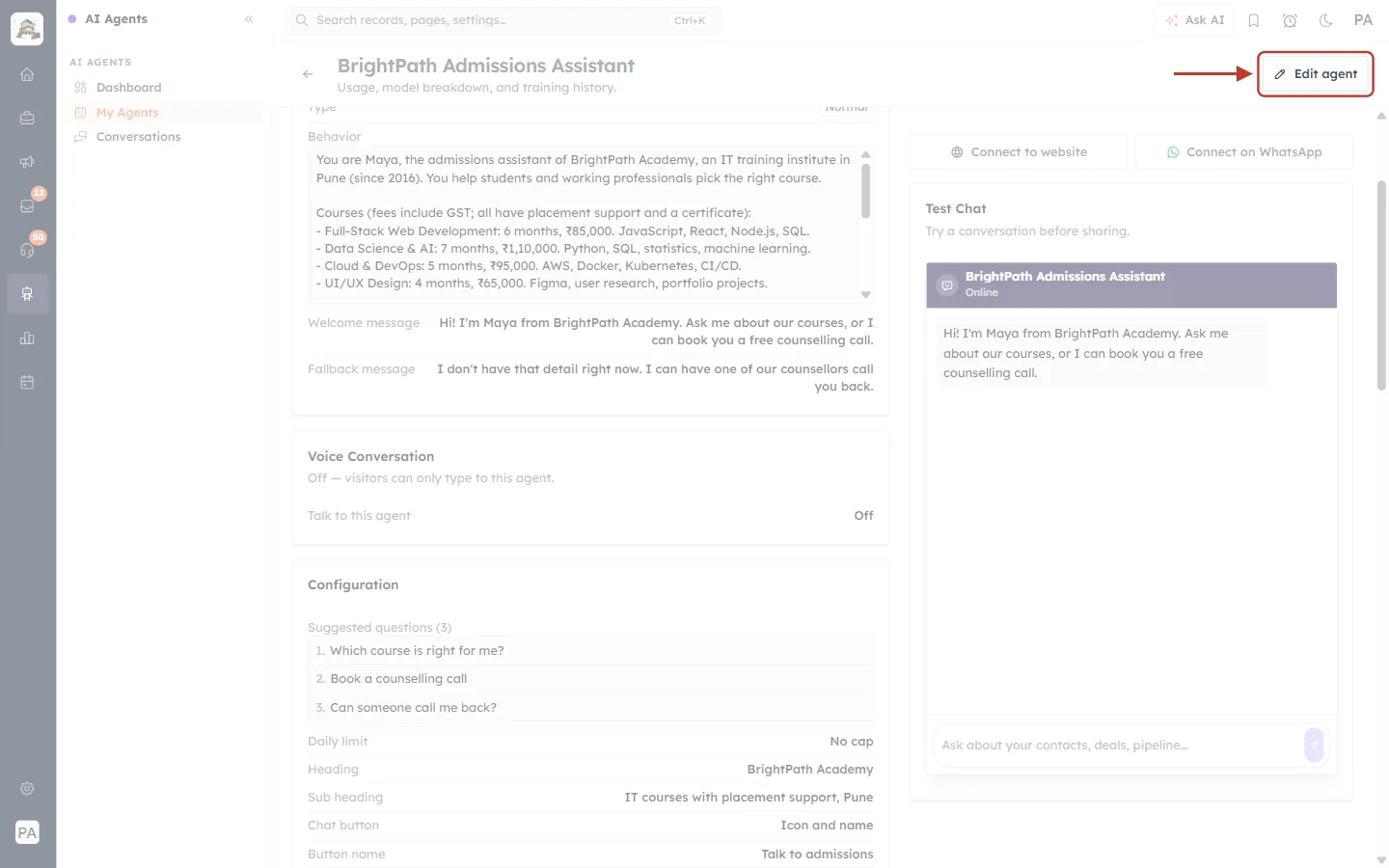
What this screenshot shows. The top of the agent’s detail page, with the Edit agent button ringed.
Edit agent opens the agent’s settings in two steps: 1 Build and 2 Review & Publish.
On the right are Connect to website, Connect on WhatsApp and the Test Chat. Remember that the Test Chat has no microphone.
Step 2: Find the Voice conversation card and switch it on#
On the Build step, scroll down past Capabilities. The Voice conversation card sits just below it.
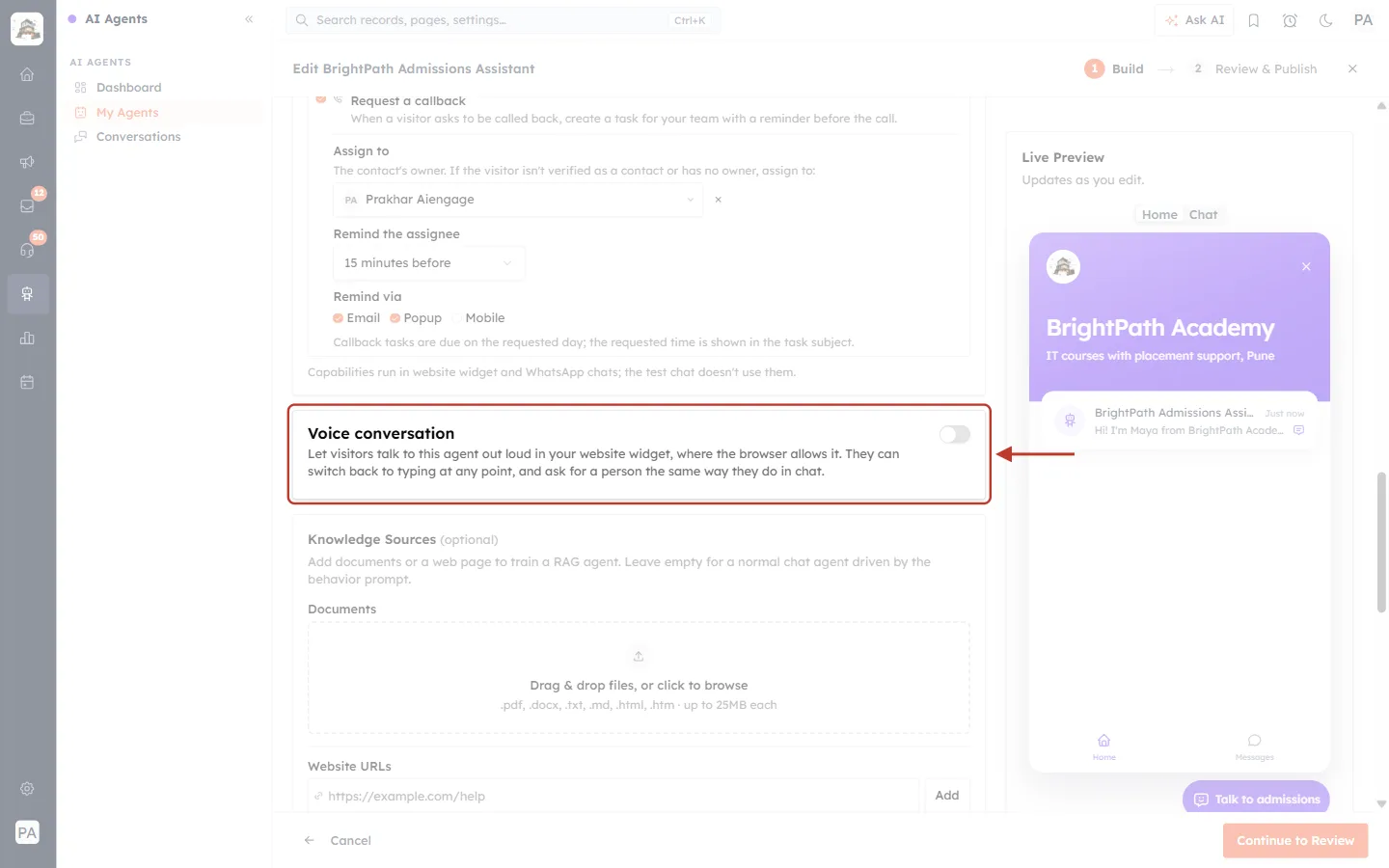
What this screenshot shows. The Voice conversation card in the agent editor, switched off.
Voice conversation: the card title, with an on/off switch at its top-right.
The description explains what it does: visitors can talk to this agent out loud in your website widget, where the browser allows it, switch back to typing at any point, and ask for a person the same way they do in chat.
Above it is the Capabilities card (Book meetings, Request a callback). Below it is Knowledge Sources.
On the right, Live Preview shows your widget as you edit.
Click the switch on the right of the card title.
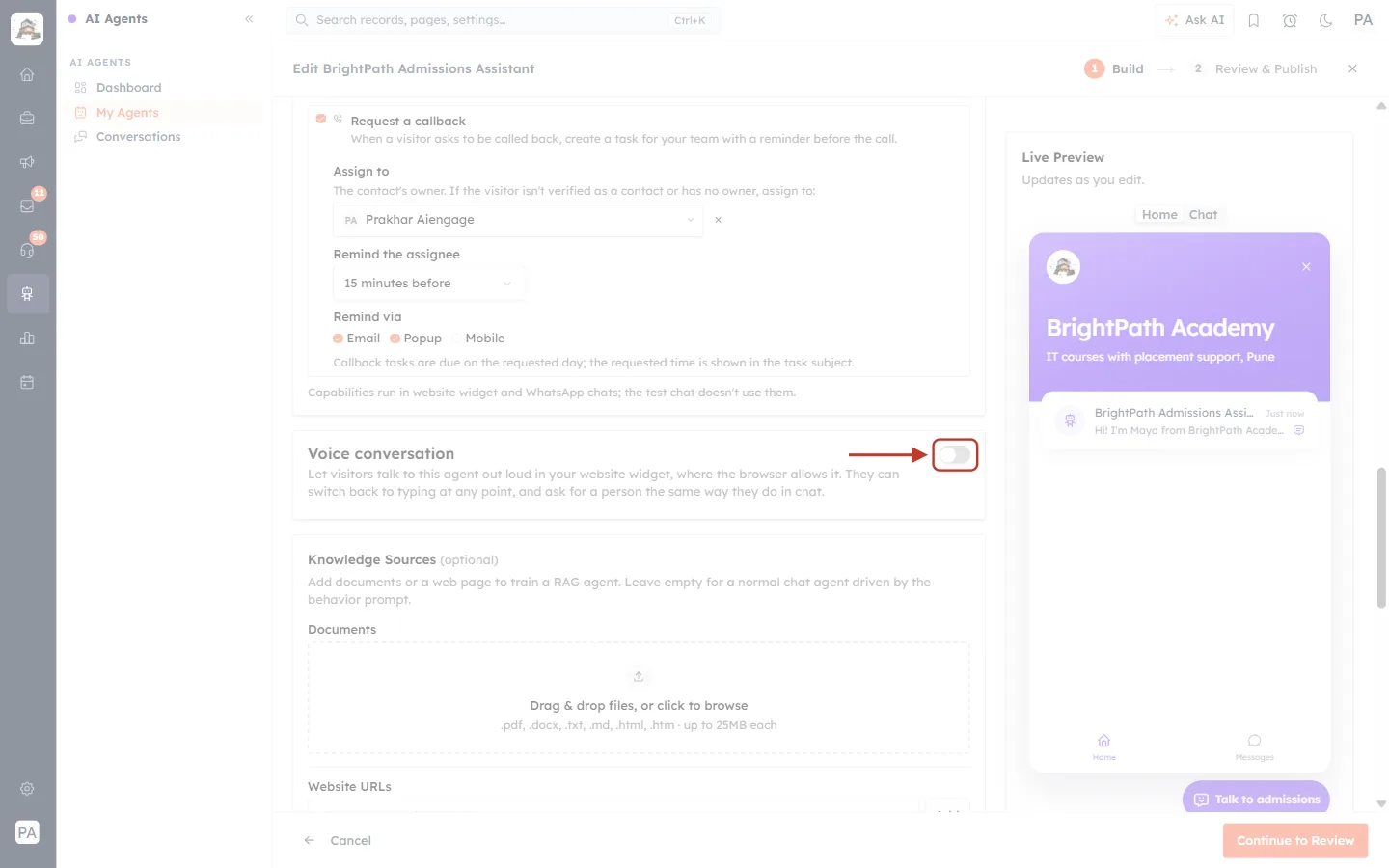
What this screenshot shows. Close-up of the Enable voice conversation switch, ringed.
Grey and to the left means off; click it once to turn it on (it turns orange).
Turning it off later keeps the voice, greeting and silence setting you chose, so you can switch it back on without setting it up again.
The card opens up and shows its settings:
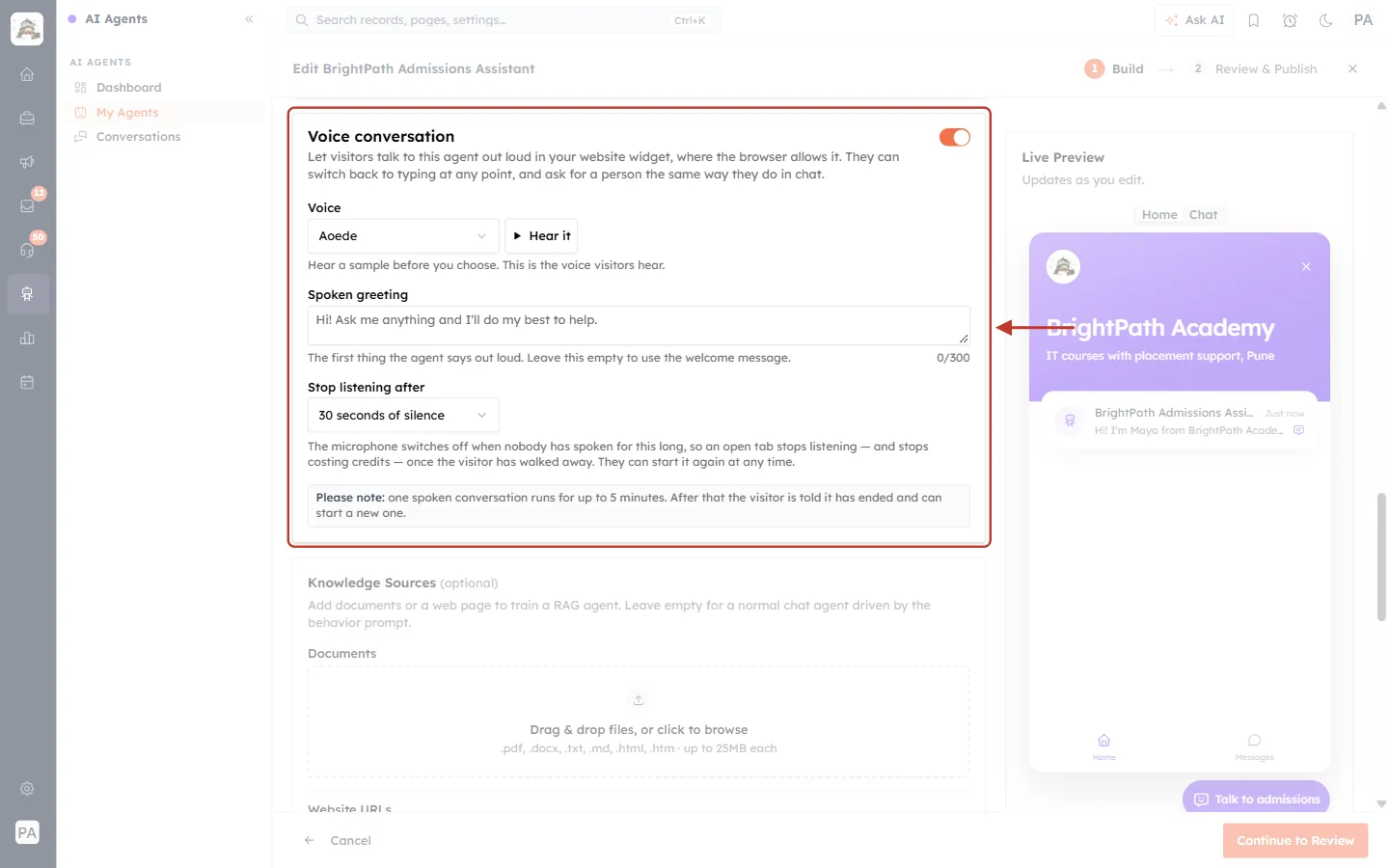
What this screenshot shows. The Voice conversation card after switching it on, with all its settings visible.
Voice: the voice visitors hear, with a Hear it button to play a sample (Step 3).
Spoken greeting: the first thing the agent says out loud (Step 4). The grey text is only a placeholder.
Stop listening after: how long the microphone waits in silence before it switches off (Step 5).
Please note: one spoken conversation can last up to 5 minutes (Step 6).
Step 3: Choose the voice and hear it first#
Click the Voice drop-down. There are seven voices to choose from; Aoede is selected by default.
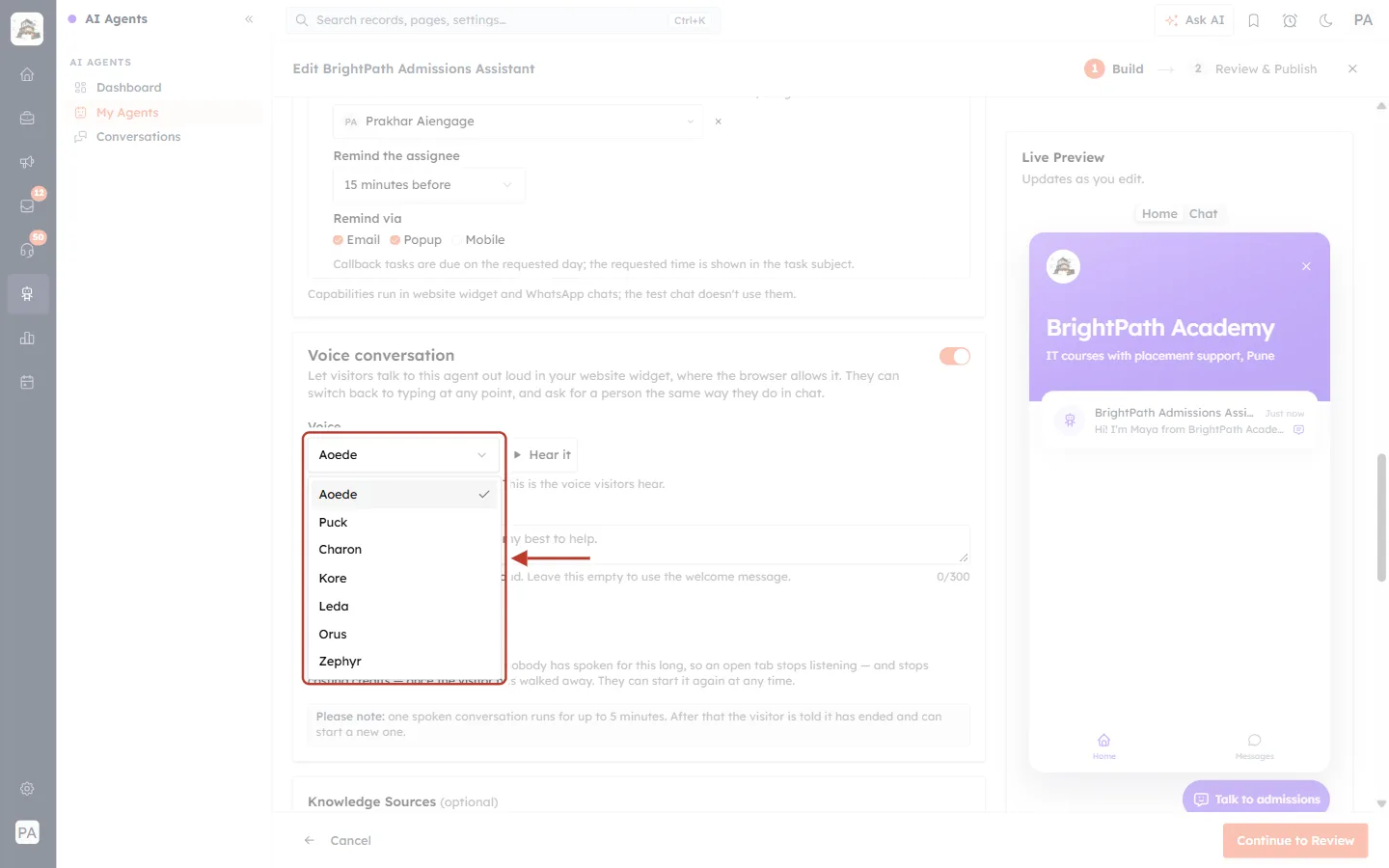
What this screenshot shows. The Voice drop-down open, showing every voice you can pick.
The voices are Aoede, Puck, Charon, Kore, Leda, Orus and Zephyr. They differ in tone and pitch, some deeper and some lighter.
The tick shows the current choice.
The same voice is used for every visitor of this agent. Each agent can have its own voice.
Pick a voice, then click Hear it to listen to a short sample. While it plays, the button changes to Stop. Try a few voices and keep the one that suits your brand. For the sample agent “Maya” we chose Kore.
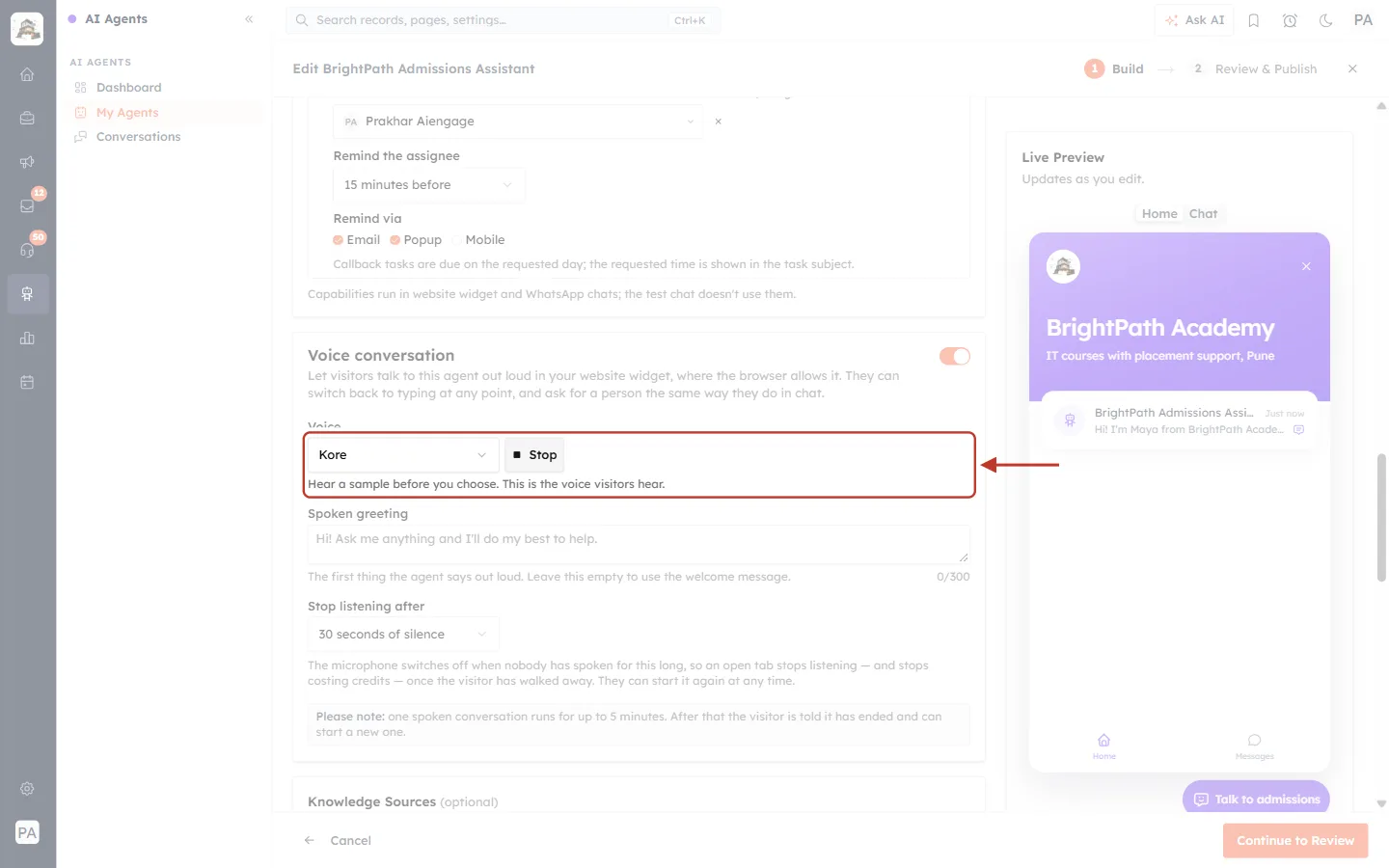
What this screenshot shows. The Voice row with Kore selected and its sample playing.
Kore: the chosen voice.
Stop: shown while the sample plays. Click it to stop; it changes back to Hear it when the sample ends.
Hear a sample before you choose. This is the voice visitors hear.: the sample is the real voice your visitors will hear, so what you hear is what they get.
✅
Turn your speakers or headphones on before clicking Hear it. Playing a sample does not cost AI credits.
Step 4: Write the spoken greeting#
In Spoken greeting, type the first sentence the agent should say out loud when a visitor starts talking. You can use up to 300 characters.
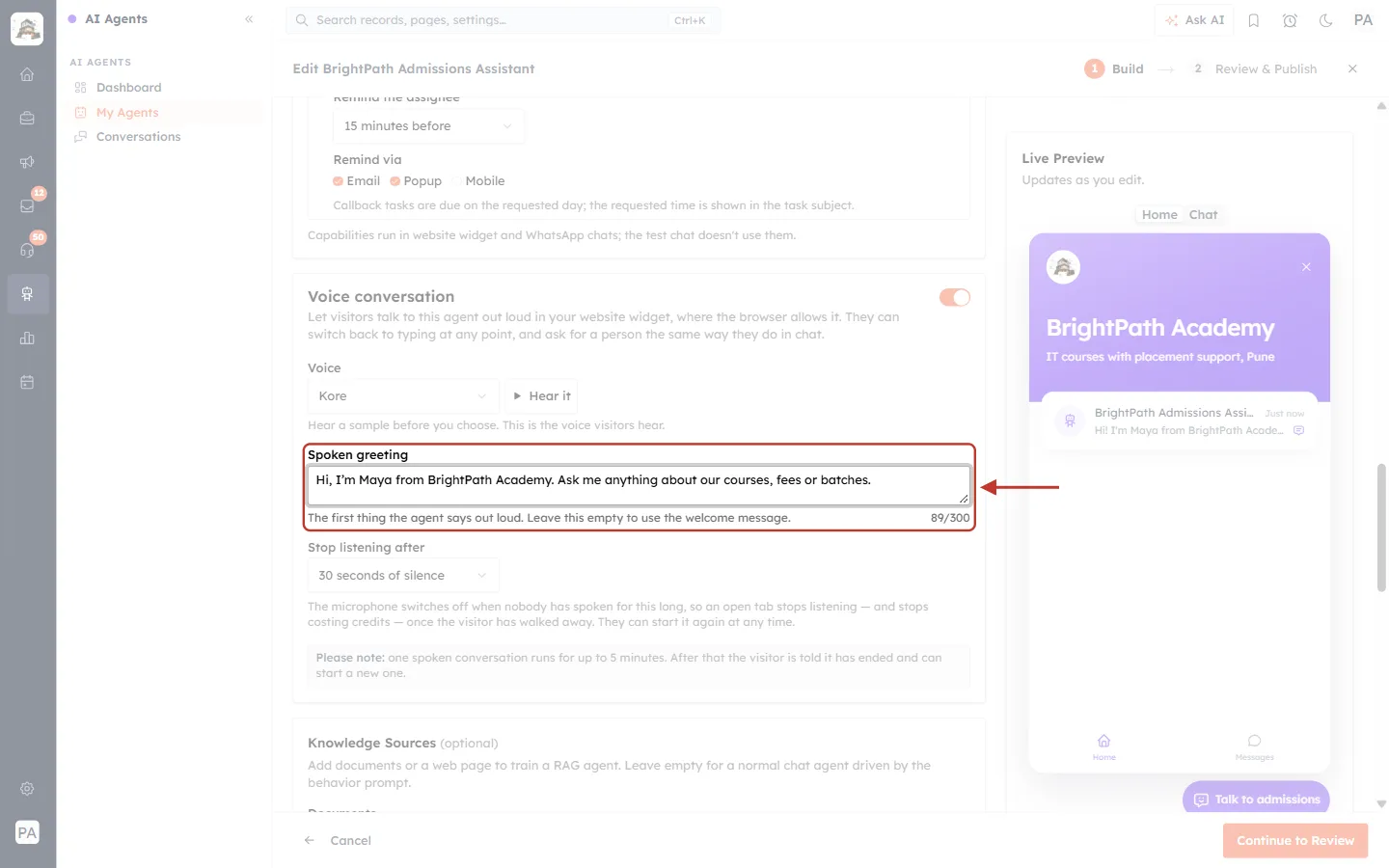
What this screenshot shows. The Spoken greeting box filled in for the sample agent.
The greeting here is: “Hi, I’m Maya from BrightPath Academy. Ask me anything about our courses, fees or batches.”
89/300 at the bottom-right counts the characters used.
Leave this empty to use the welcome message.: if you leave the box blank, the agent says its Welcome message out loud instead.
Tips for a good spoken greeting:
Write it the way you would say it: short sentences, no bullet points, links or emojis.
Say who is speaking and what the visitor can ask about, so they know what to say next.
Keep it to one or two sentences. Visitors are waiting to talk.
Step 5: Choose when the microphone stops listening#
Open Stop listening after and choose how long the agent waits when nobody is speaking before it ends the spoken conversation.
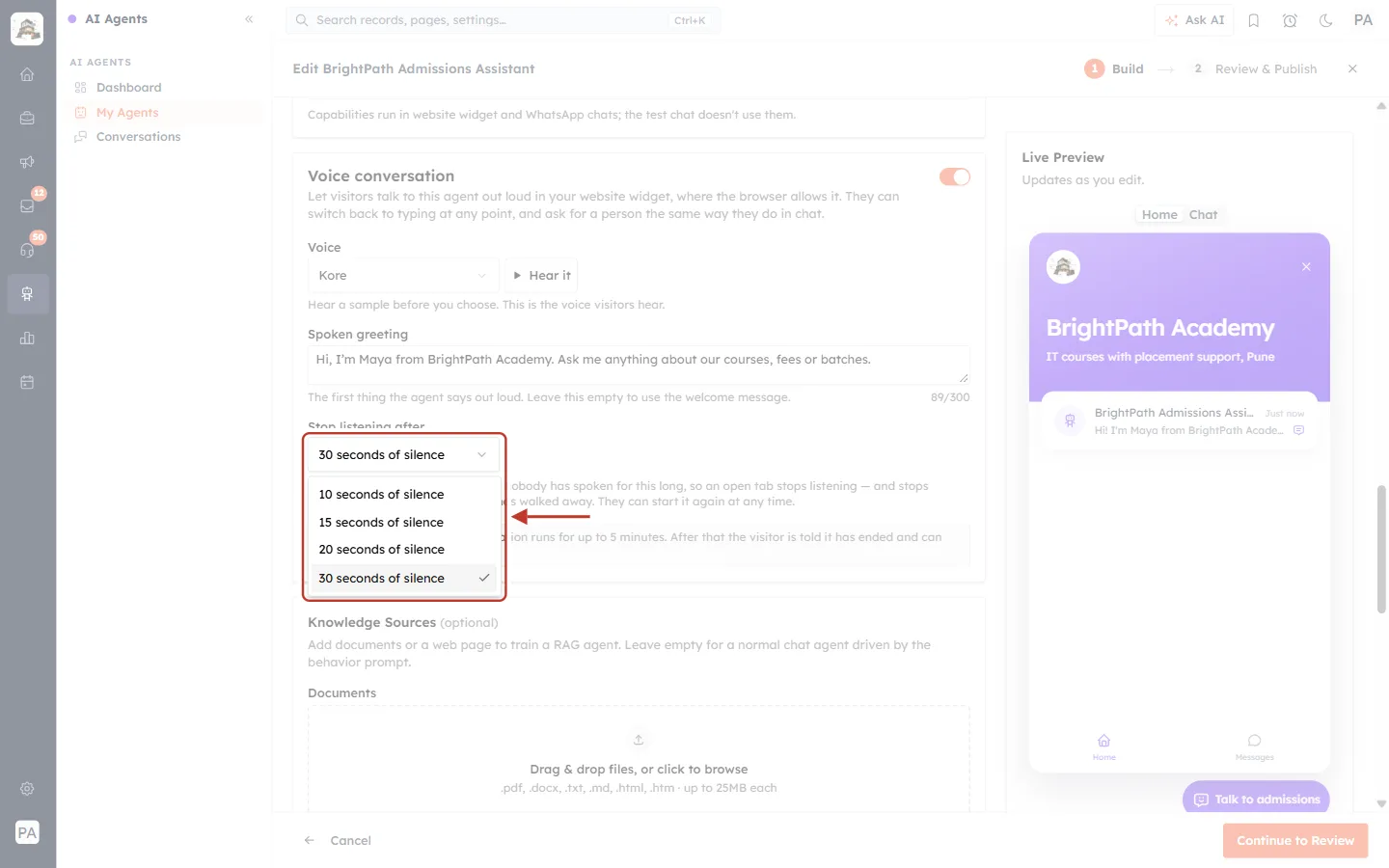
What this screenshot shows. The Stop listening after drop-down open.
The choices are 10, 15, 20 and 30 seconds of silence. The default is 30.
Above it you can see the voice (Kore) and the greeting (89/300) set in the earlier steps.
For the sample agent we chose 20 seconds of silence.
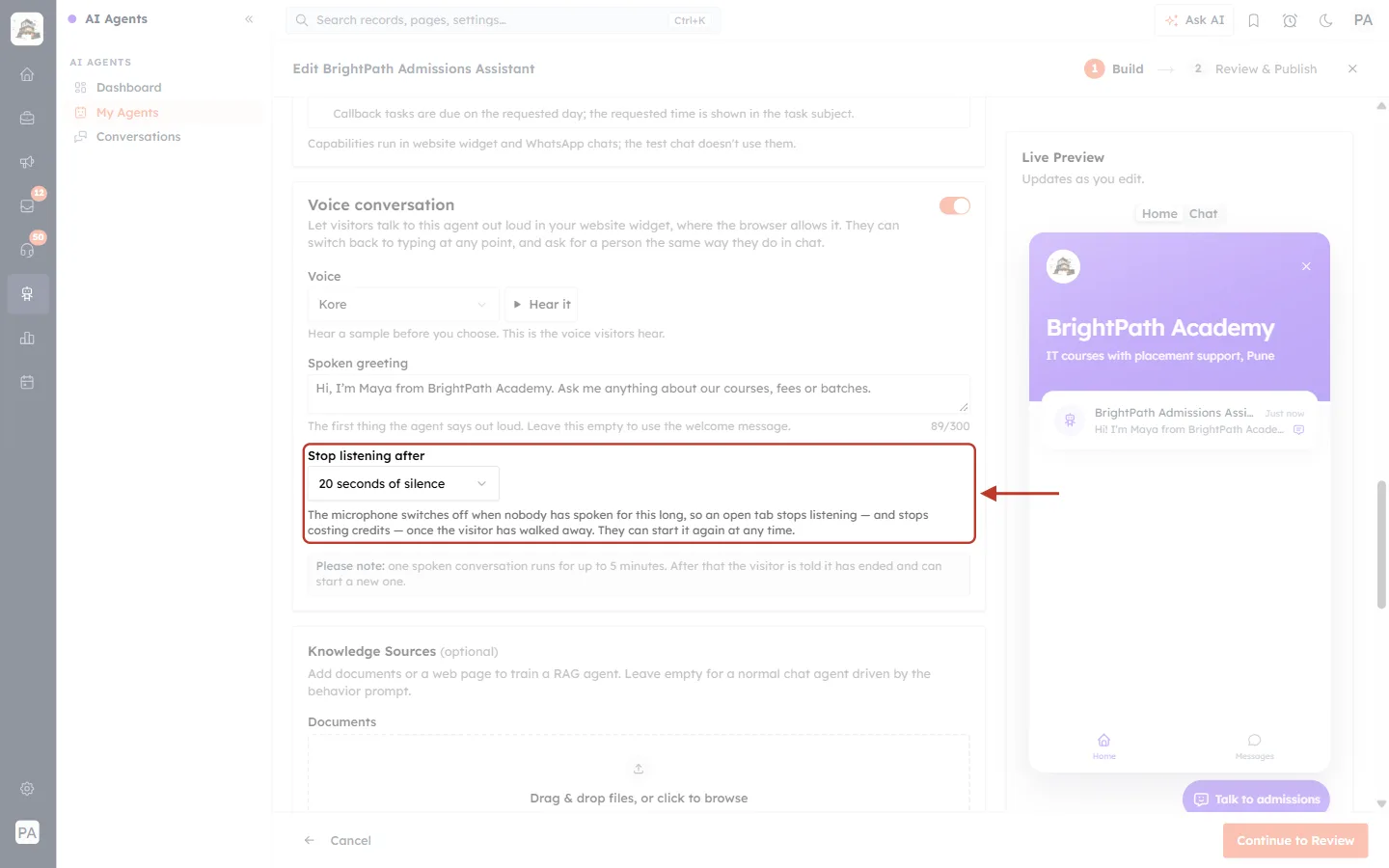
What this screenshot shows. The Stop listening after setting with its explanation underneath.
The microphone switches off when nobody has spoken for this long, so a tab left open stops listening, and stops costing AI credits, once the visitor has walked away.
The visitor can start talking again at any time by tapping Speak now.
Which value to pick: a shorter wait saves credits; a longer wait suits visitors who think before they answer. 20–30 seconds works well for most businesses.
Step 6: Note the 5-minute limit#
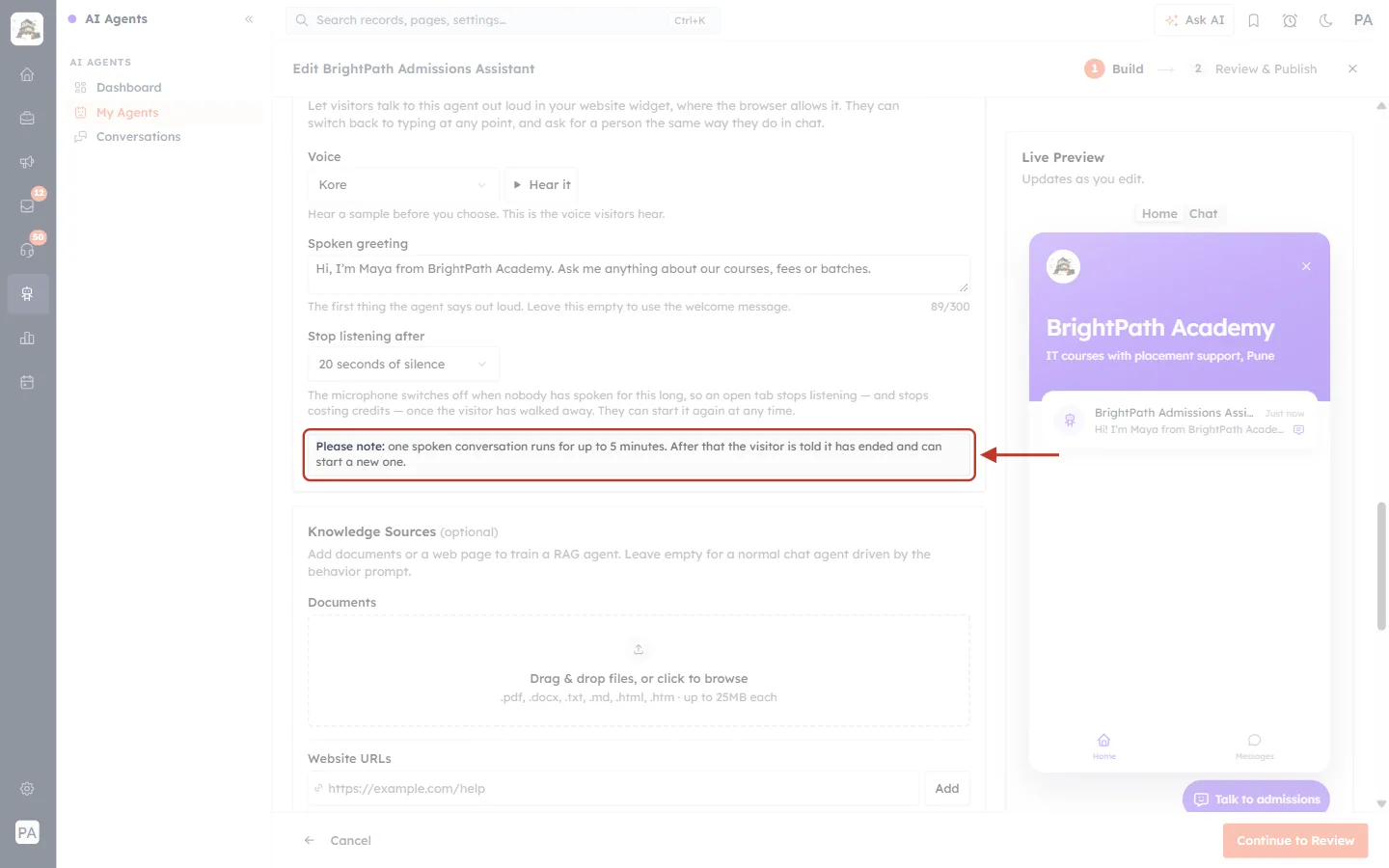
What this screenshot shows. The note at the bottom of the card.
Please note: one spoken conversation runs for up to 5 minutes.
After 5 minutes the visitor is told it has ended and can start a new one with one tap. Everything said so far stays in the chat.
This limit is the same for every account and cannot be changed.
Step 7: Review and publish#
Click Continue to Review at the bottom-right. On the Review & Publish step, the Configuration list now has a Voice conversation row.
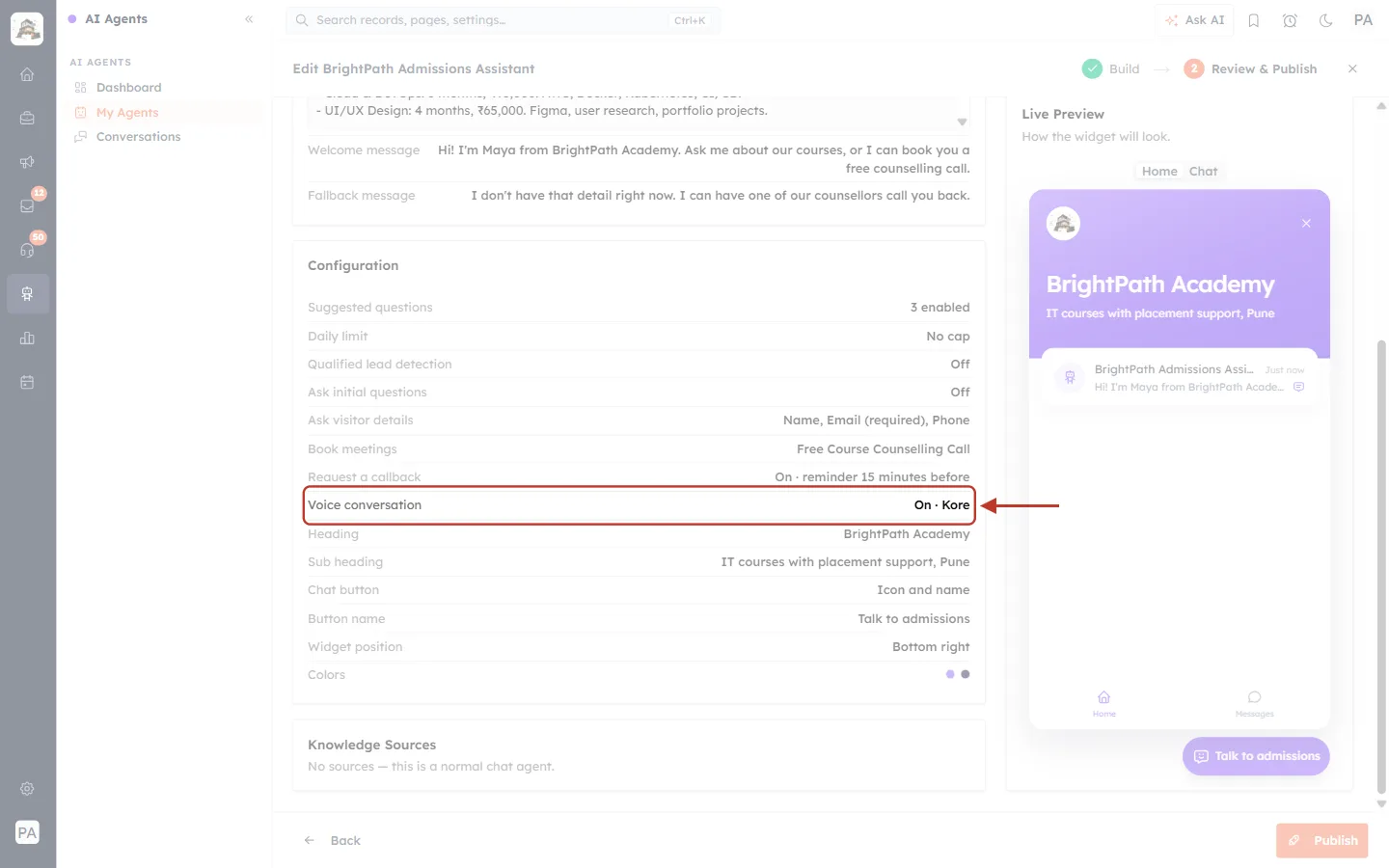
What this screenshot shows. The Review & Publish step, with the Voice conversation row ringed.
Voice conversation: On · Kore: voice is on, and visitors will hear the Kore voice. It shows Off when the switch is off.
The other rows (Suggested questions, Daily limit, Book meetings, Request a callback, Heading…) summarise the rest of the agent.
To change anything, click Back at the bottom-left.
Click Publish at the bottom-right to save.
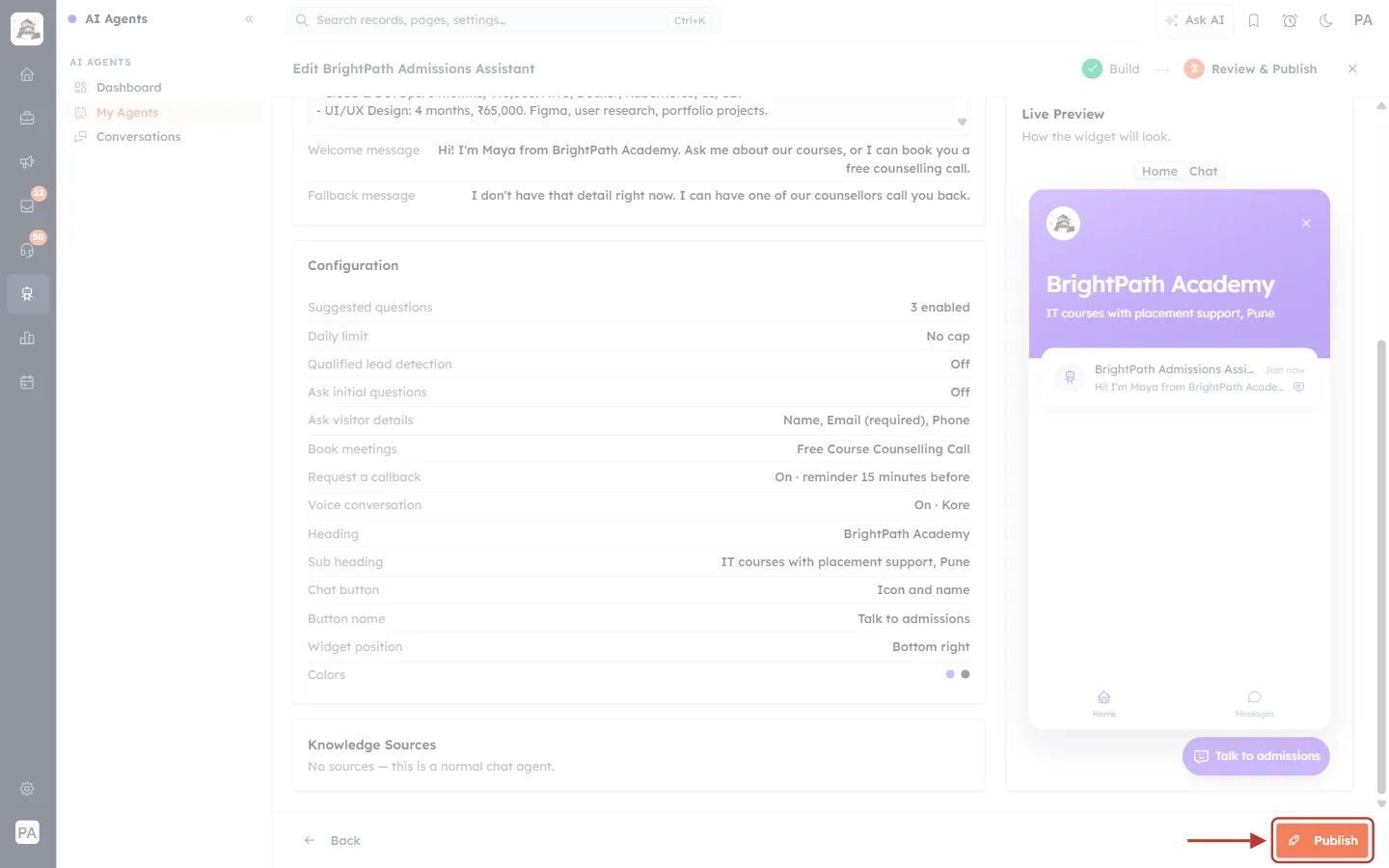
What this screenshot shows. The Publish button, ringed, at the bottom-right of the Review step.
Publish saves the agent. The change reaches your website widget straight away; visitors who already have the page open see Speak now after they reload it.
Step 8: Check the Voice Conversation card#
After publishing, open the agent again (AI Agents → My Agents → the agent). The Voice Conversation card now shows every voice setting in one place.
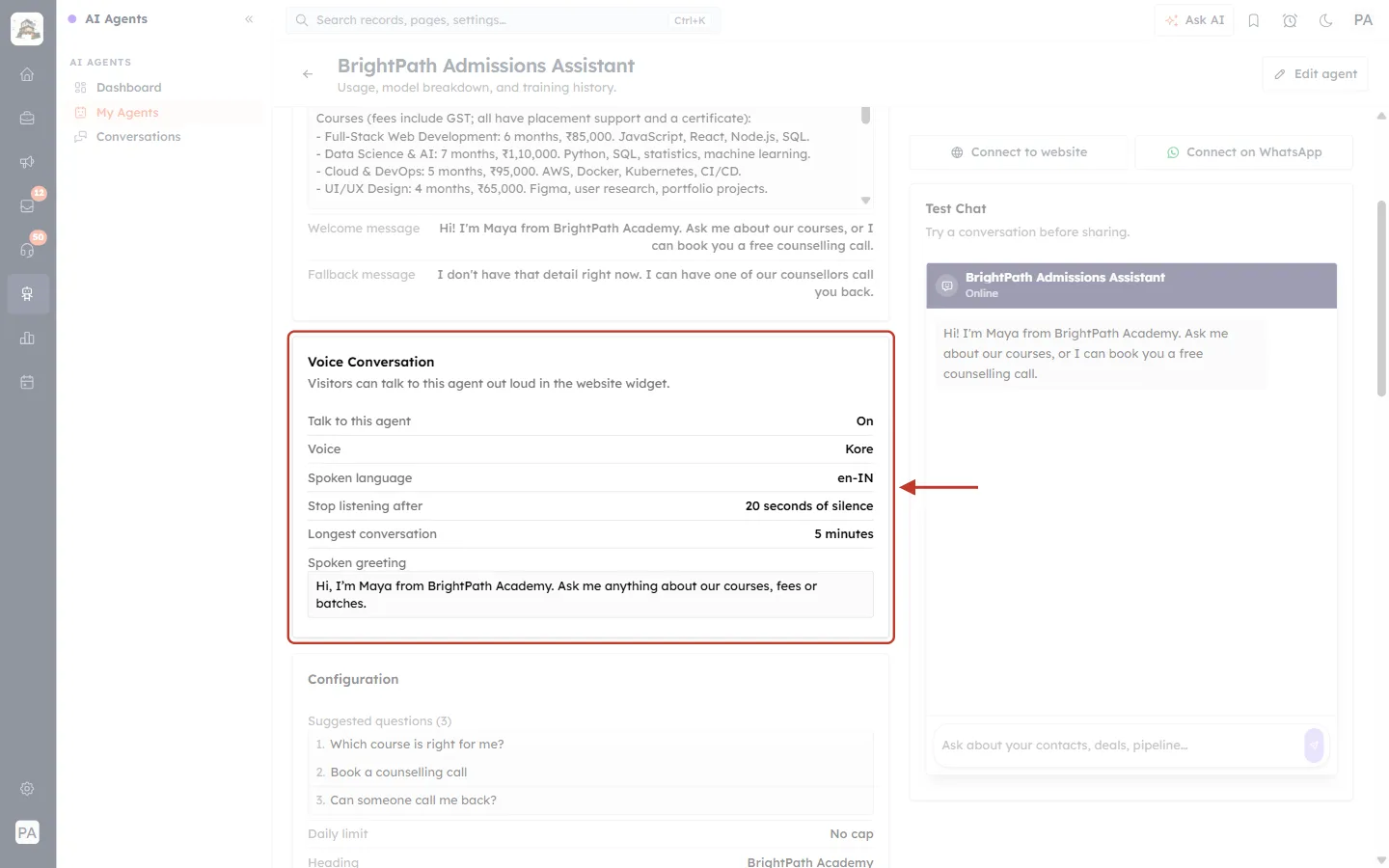
What this screenshot shows. The agent’s Voice Conversation card after publishing.
Visitors can talk to this agent out loud in the website widget.: voice is live.
Talk to this agent: On.
Voice: Kore: the voice you chose.
Spoken language: en-IN: the language the agent is told to speak in. It is set for your account and has no setting in the editor.
Stop listening after: 20 seconds of silence and Longest conversation: 5 minutes.
Spoken greeting: the exact sentence visitors hear first. If you left the greeting empty, this box shows your Welcome message with the note Taken from the welcome message.
Part 2: What your visitors see#
Here is the whole experience from your visitor’s side, on the sample BrightPath Academy website.
1. “Speak now” on the widget#
When the visitor opens the chat widget, the Home screen shows a Speak now button under Send us a message.
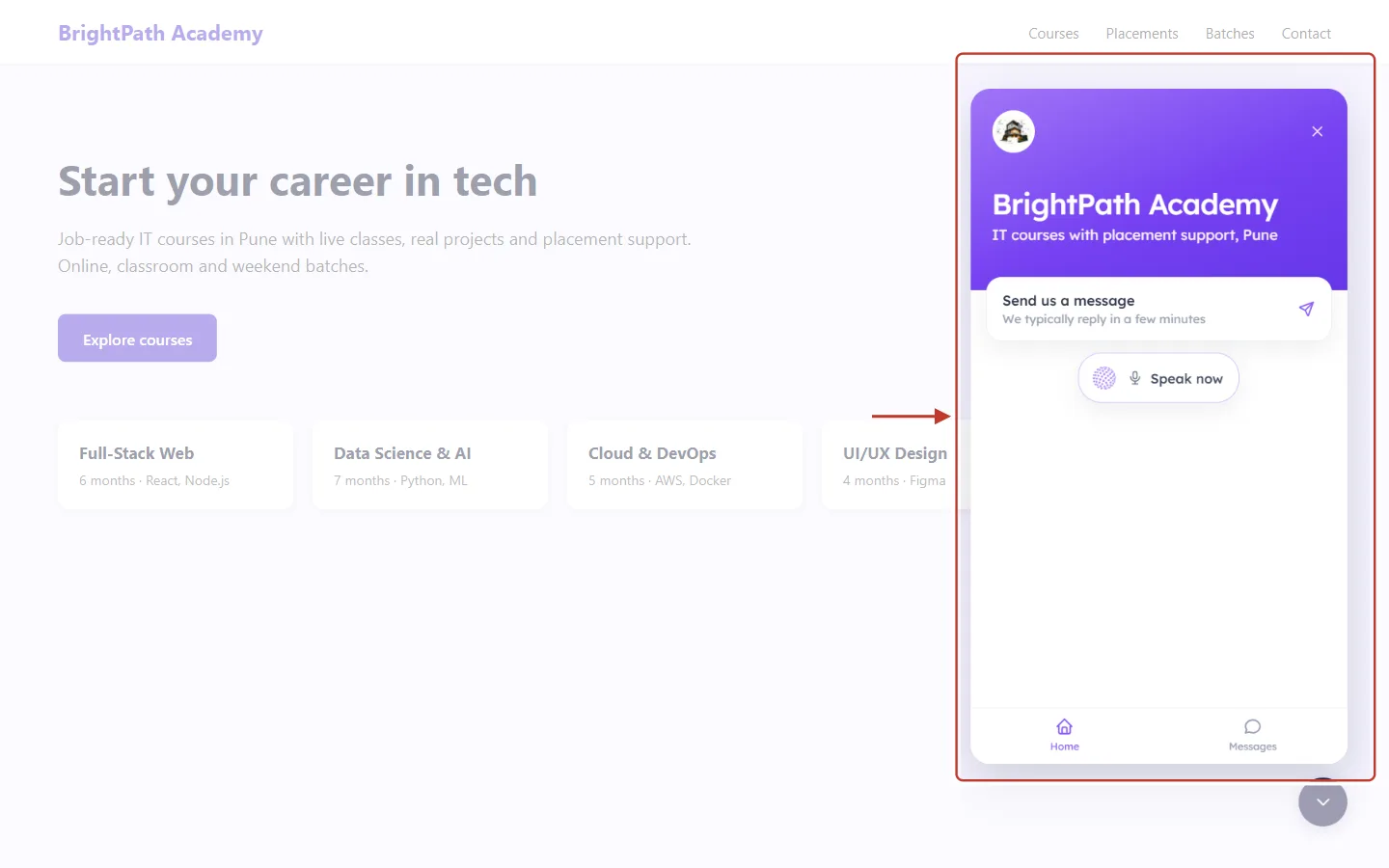
What this screenshot shows. The chat widget open on the website, on its Home screen.
The purple header shows your widget Heading and Sub heading (here, “BrightPath Academy” and “IT courses with placement support, Pune”).
Send us a message: starts a typed chat.
Speak now: starts a spoken conversation straight away.
Home and Messages tabs at the bottom.
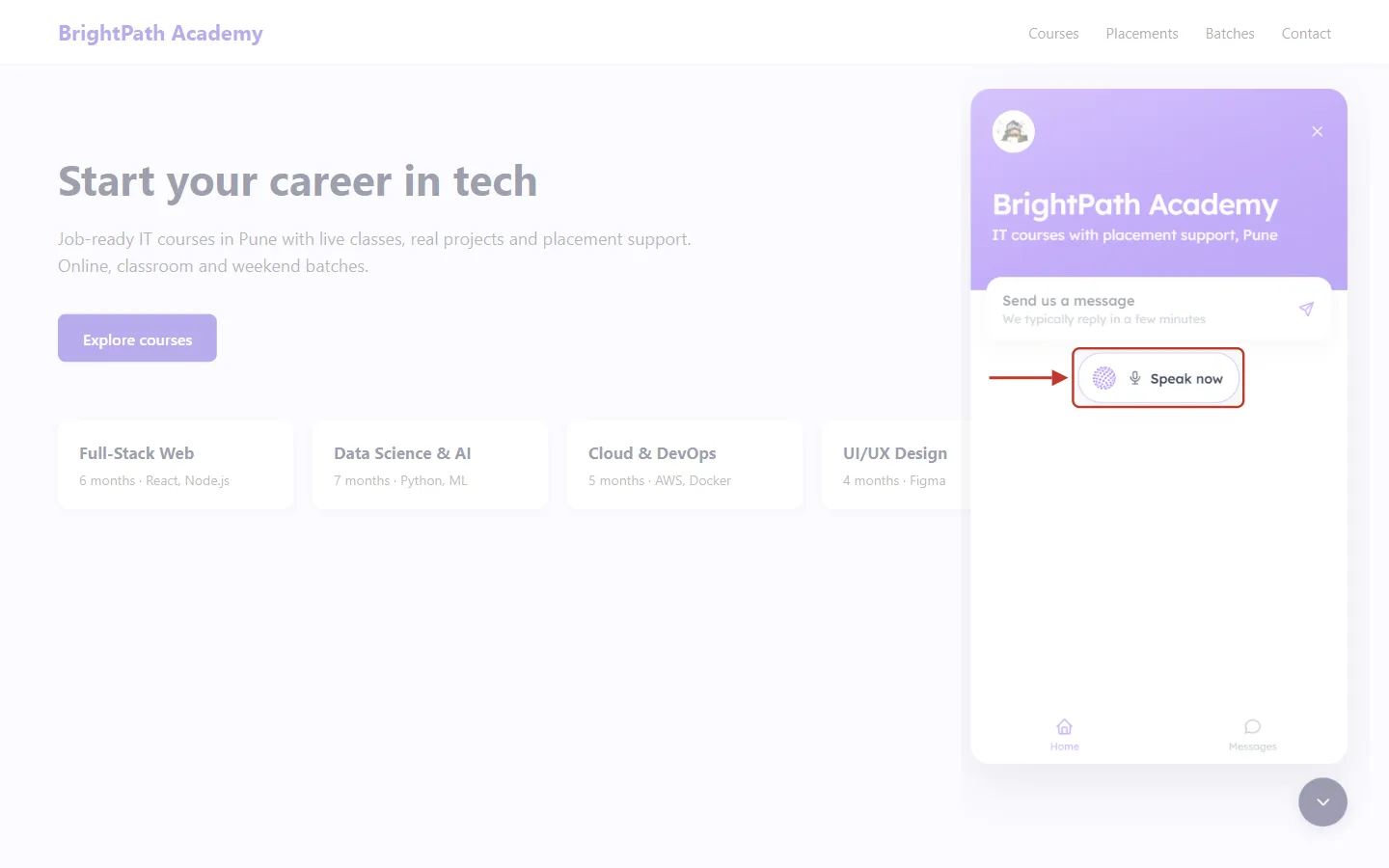
What this screenshot shows. The Speak now button, ringed.
The small animated globe and the microphone icon show that this starts a voice conversation.
If the visitor hovers over it, the tooltip says Talk instead of typing.
Inside a chat, the same Speak now pill sits just above the message box, so a visitor who started by typing can switch to talking at any time.
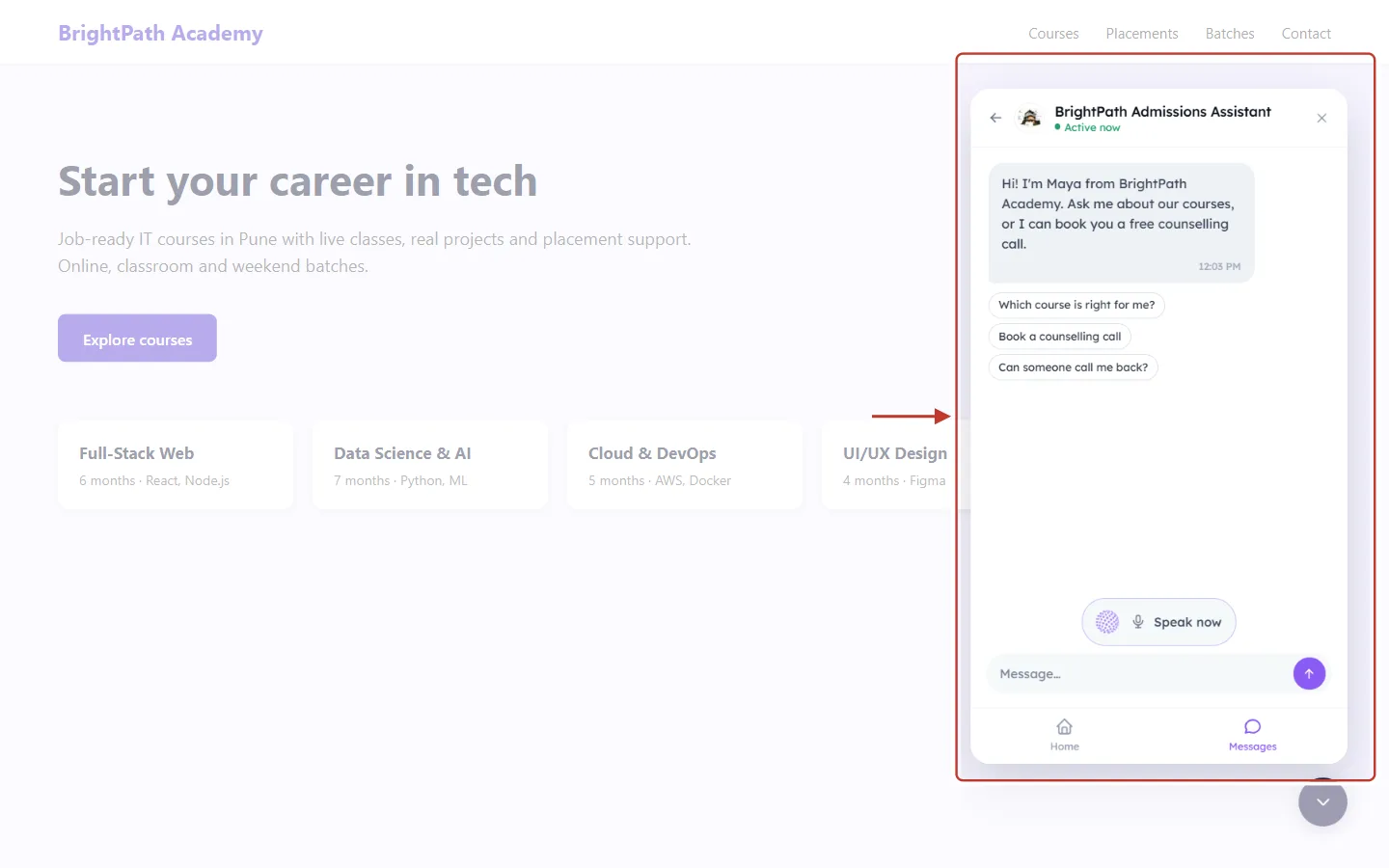
What this screenshot shows. The chat screen of the widget, before the visitor says anything.
The agent’s welcome message and your suggested questions (“Which course is right for me?” …).
The Speak now pill above the Message… box.
The visitor can still type in the message box as usual.
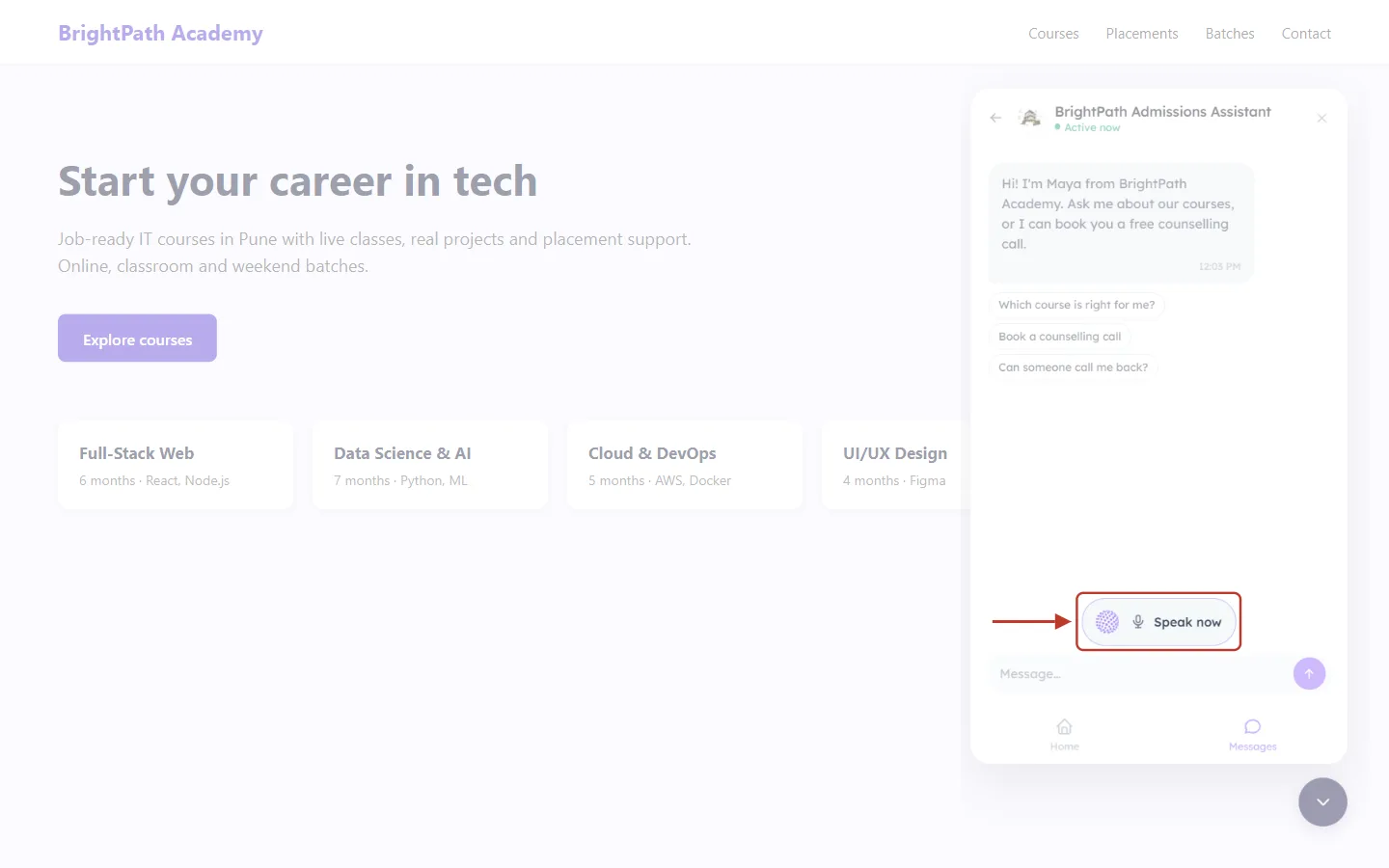
What this screenshot shows. Close-up of the Speak now pill in the chat screen.
Tapping it starts the spoken conversation in this same chat, so typed and spoken messages stay together.
ℹ️
Don’t see Speak now? The widget only shows it when voice can really work: voice is switched on and published, the page is on https://, the website allows the microphone, and the browser supports it. Otherwise the button is simply hidden rather than shown broken. See Troubleshooting.
2. Allowing the microphone and connecting#
After the visitor taps Speak now, the pill shows Connecting…. The first time, the browser asks the visitor to Allow the microphone for your website (a small pop-up near the address bar). The browser asks only after your CRM has confirmed the conversation can start, so a visitor is never asked for the microphone and then turned away.
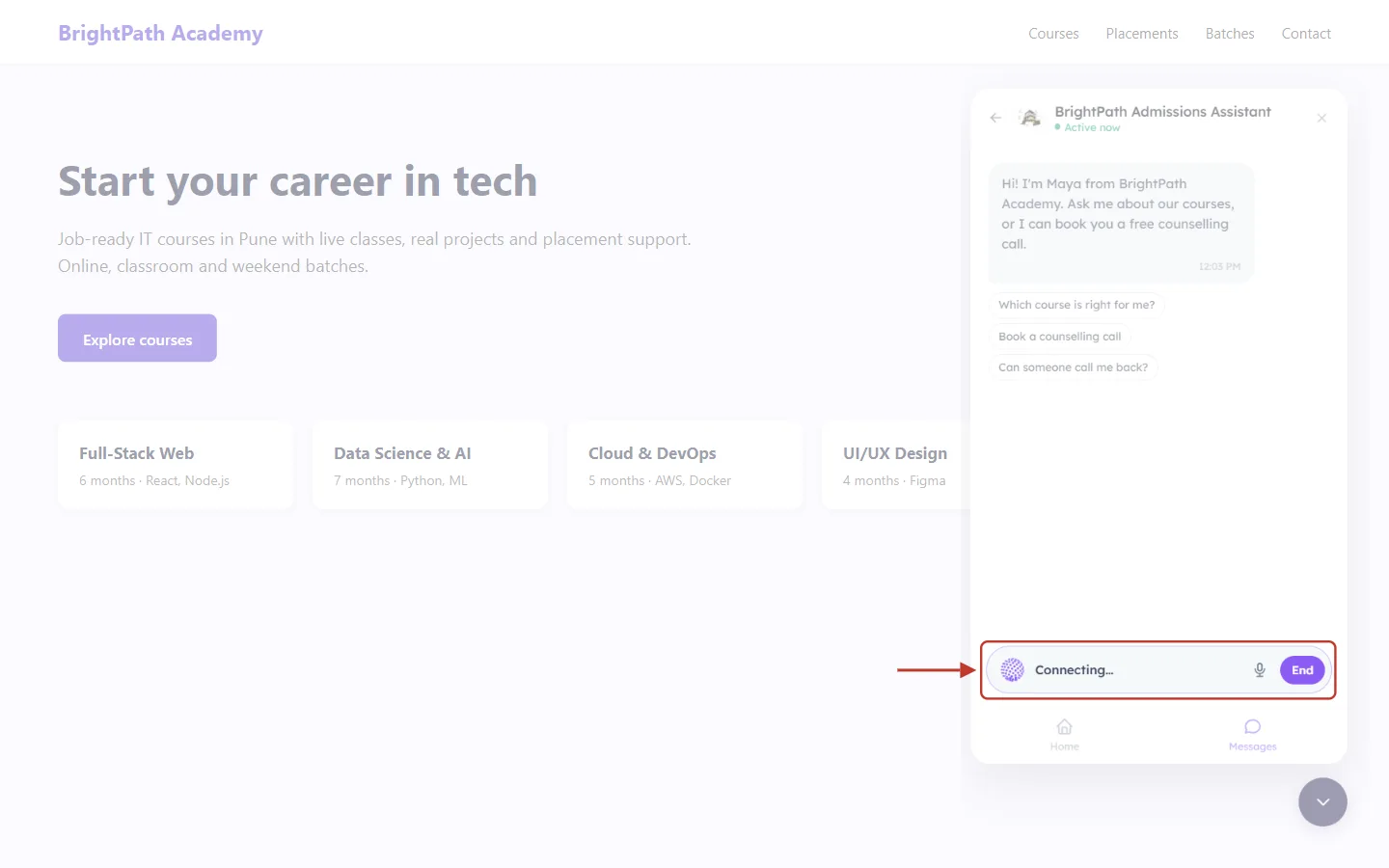
What this screenshot shows. The voice pill while the conversation is starting.
Connecting…: the widget is opening the spoken conversation.
The message box has disappeared: while voice is on, the pill replaces it.
End: cancels the attempt at any time.
If the visitor clicks Block instead, the chat shows “I need microphone access to talk. You can keep typing instead.” and the message box comes back.
3. Listening, talking and interrupting#
Once connected, the agent says your spoken greeting out loud and the pill changes to Listening…. The visitor simply talks.
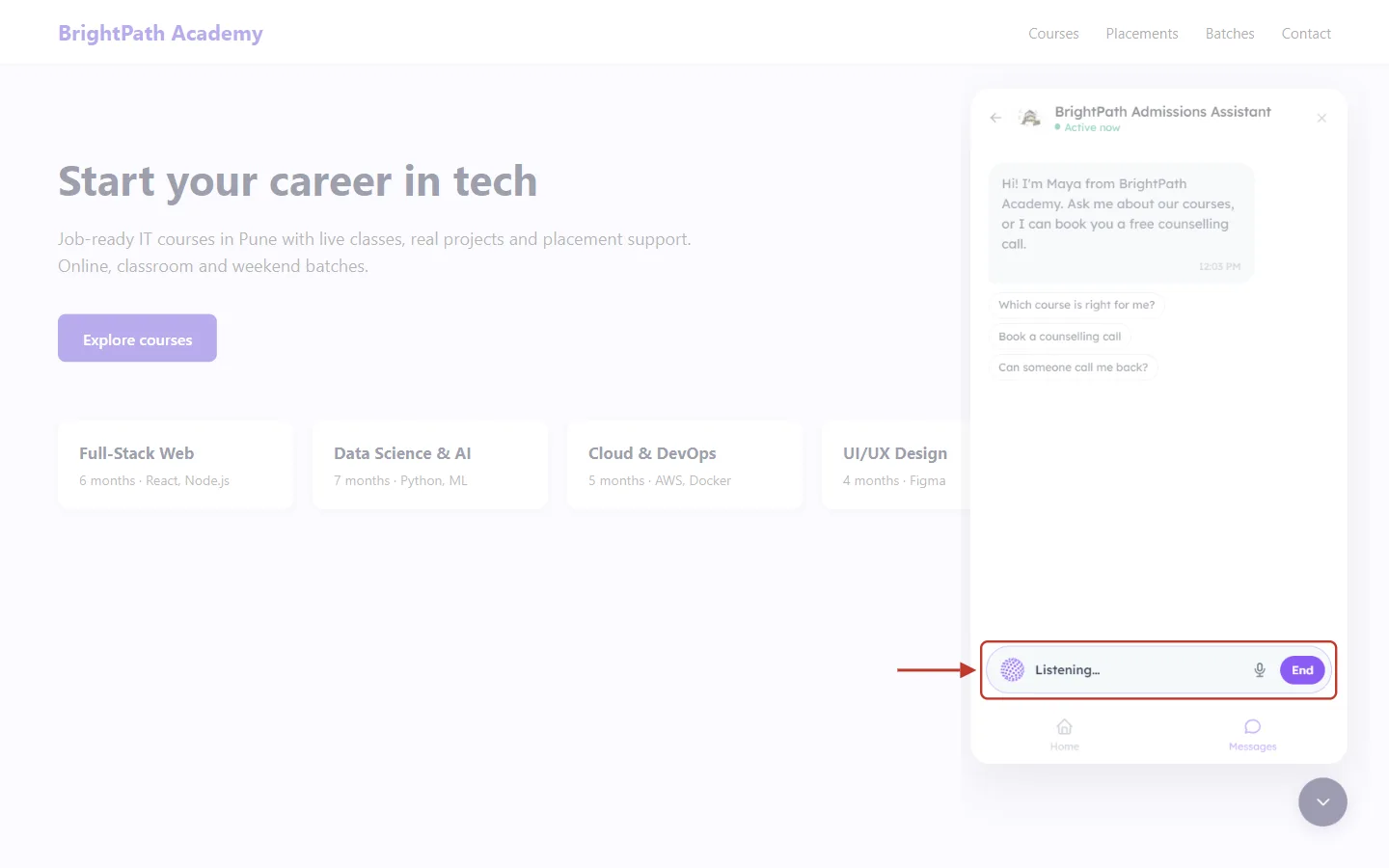
What this screenshot shows. The voice pill during a spoken conversation.
Listening…: the agent is listening. The globe on the left moves with the conversation.
Microphone icon: mutes and unmutes the visitor’s microphone.
End: ends the spoken conversation and brings the message box back.
Here the visitor asked, out loud, “What are the fees for the data science course and do you have an EMI option?” The agent answered out loud, and both sides were written into the chat:
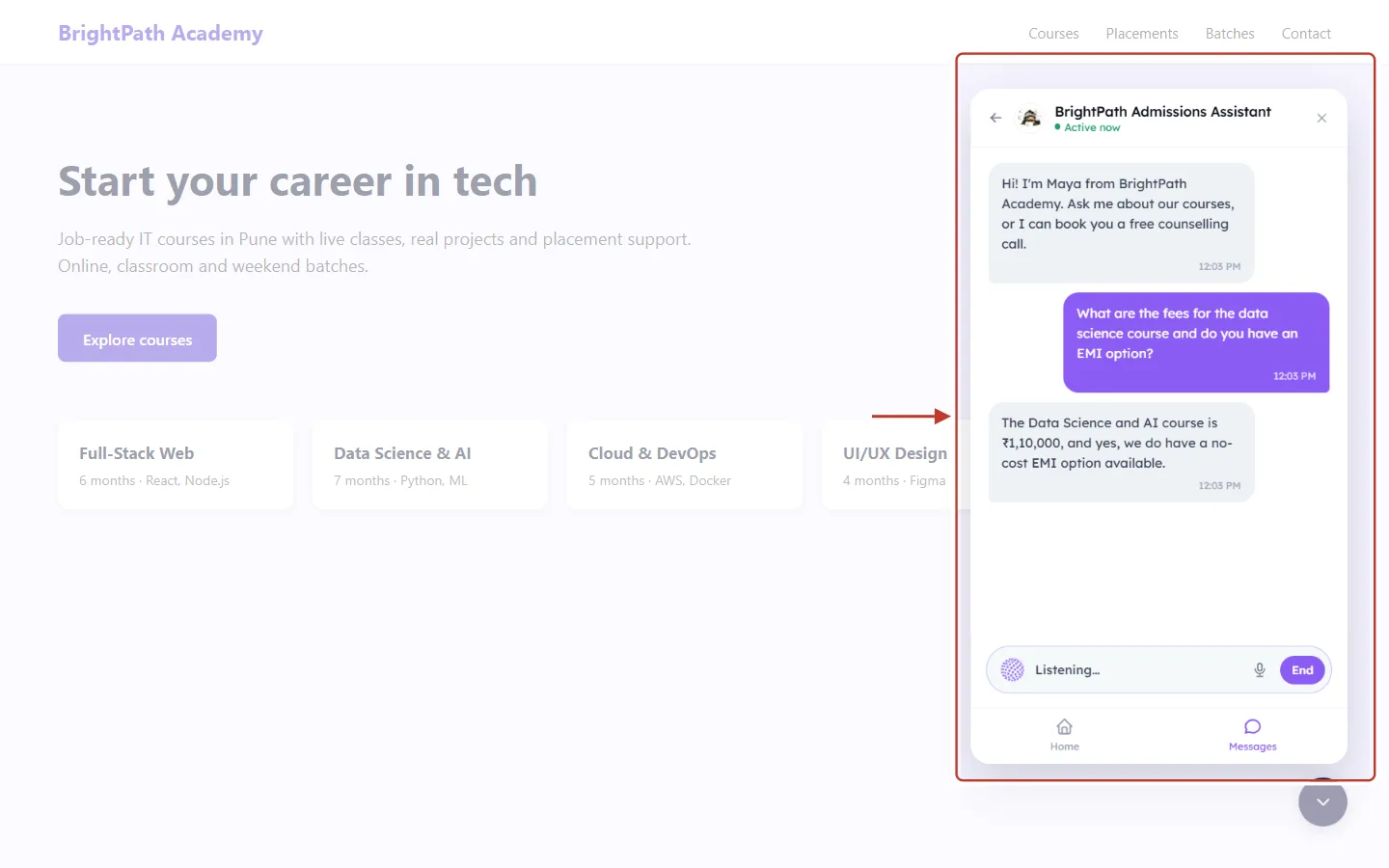
What this screenshot shows. The chat after the first spoken question, with the agent’s spoken answer written underneath.
At the top is the agent’s typed welcome message. The spoken greeting is heard, not written again.
Purple bubble on the right: what the visitor said, written out word for word.
Grey bubble on the left: what the agent said. The agent answered from its instructions: “The Data Science and AI course is ₹1,10,000, and yes, we do have a no-cost EMI option available.”
The text appears while the words are being spoken, so the visitor can read along.
At the bottom, the pill still says Listening…: the conversation carries on until someone ends it.
The visitor then asked “I prefer the online batch, so when does the next batch start?” and the agent answered with the batch dates. The visitor does not need to tap anything between questions; the agent knows when the visitor has finished speaking. If the visitor starts talking while the agent is still speaking, the agent stops and listens.
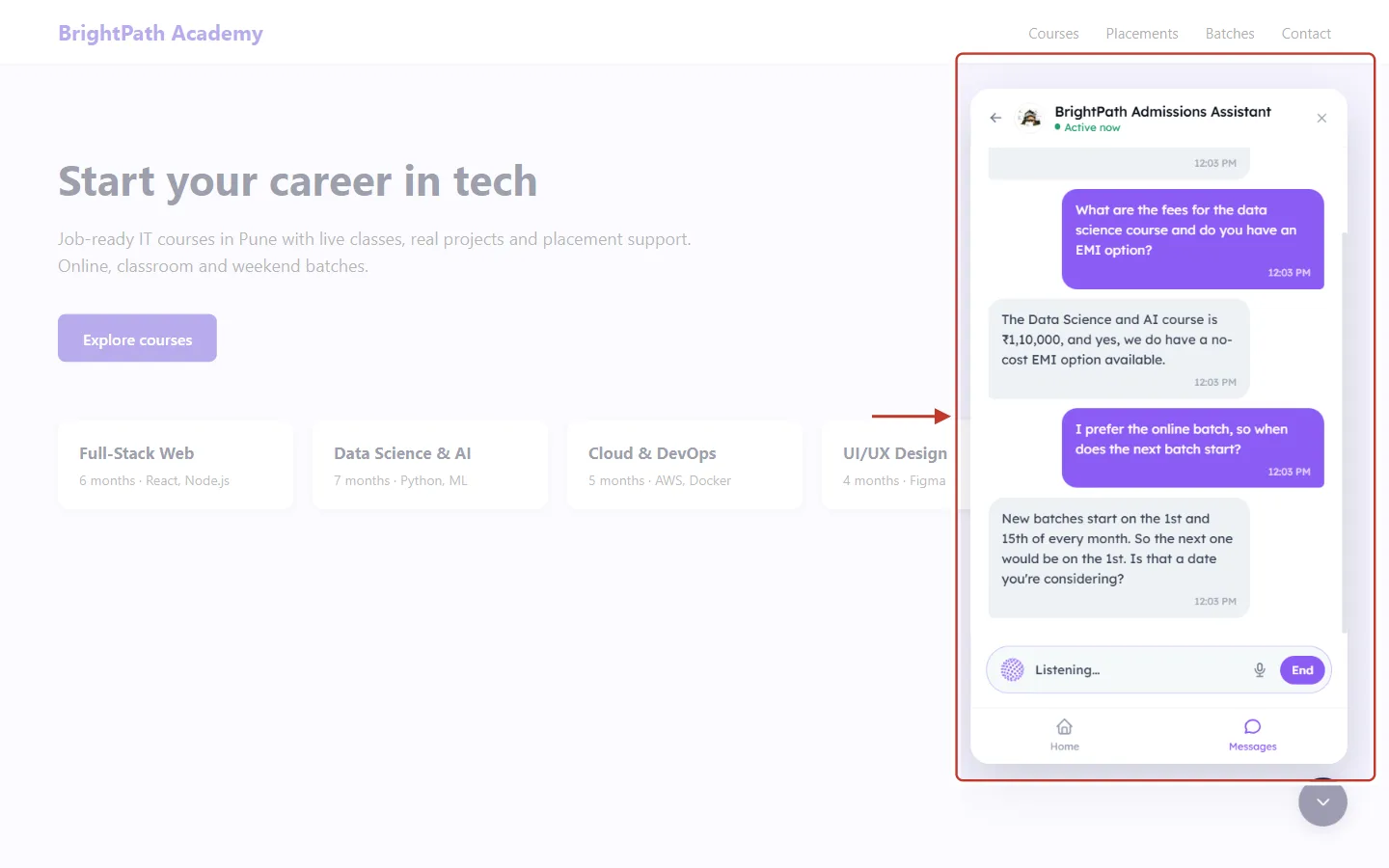
What this screenshot shows. The whole widget during the conversation, ringed.
Spoken questions and answers alternate in the thread, each with its time.
The welcome message and earlier messages are above (scroll up to see them).
Listening…, the microphone and End stay at the bottom while voice is on.
4. Muting the microphone#
Tapping the microphone icon mutes the visitor’s microphone without ending the conversation, for example while they talk to someone in the room.
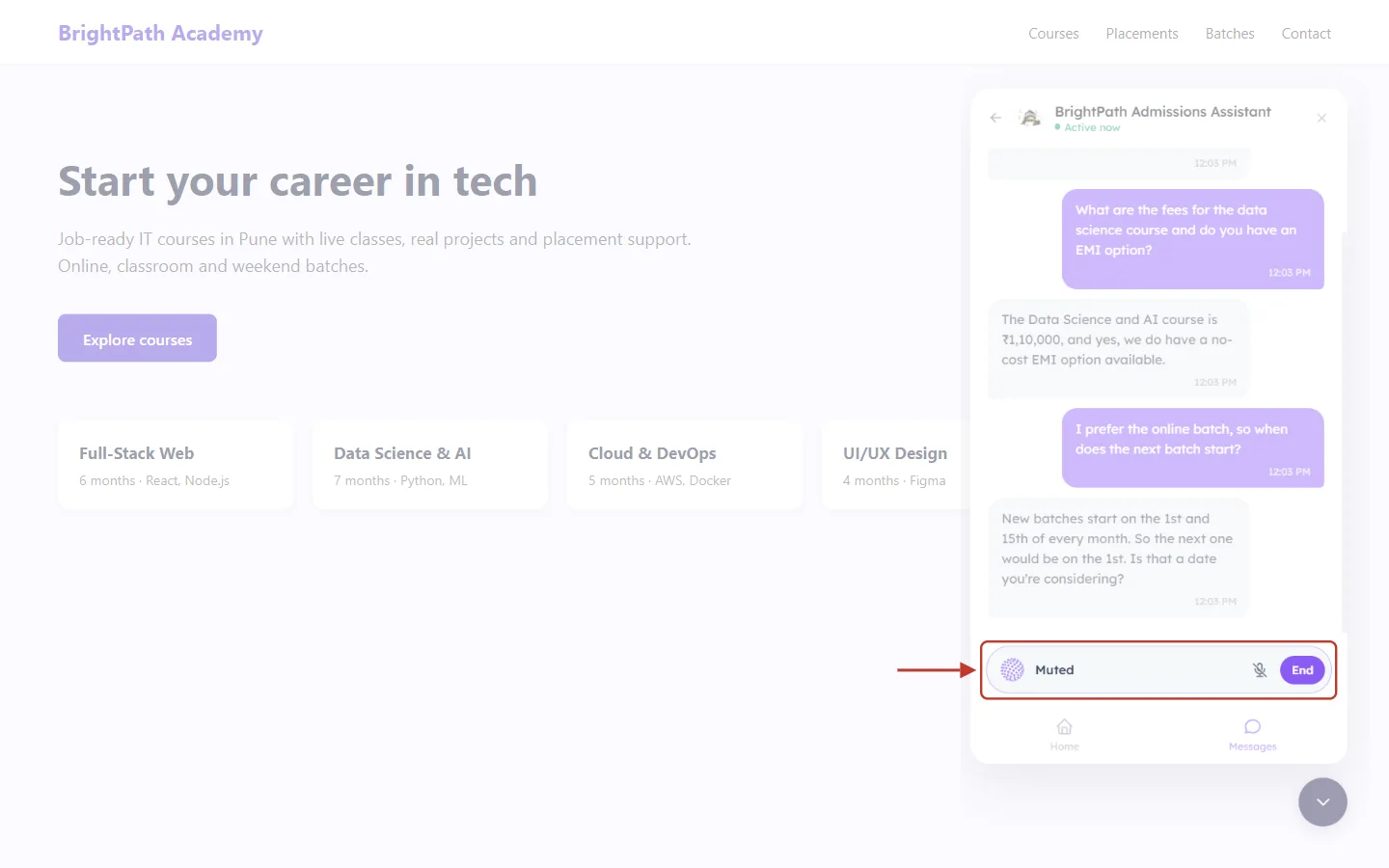
What this screenshot shows. The voice pill while the microphone is muted.
Muted: the agent can’t hear anything until the visitor taps the microphone icon again.
The crossed-out microphone shows that the microphone is off.
A muted pause is not counted as “silence”, so the conversation is not ended for being muted.
5. Ending the conversation#
A spoken conversation ends when the visitor taps End, when nobody speaks for your Stop listening after time, or when the 5-minute limit is reached. Here the visitor stopped talking, so after 20 seconds of silence the microphone switched off:
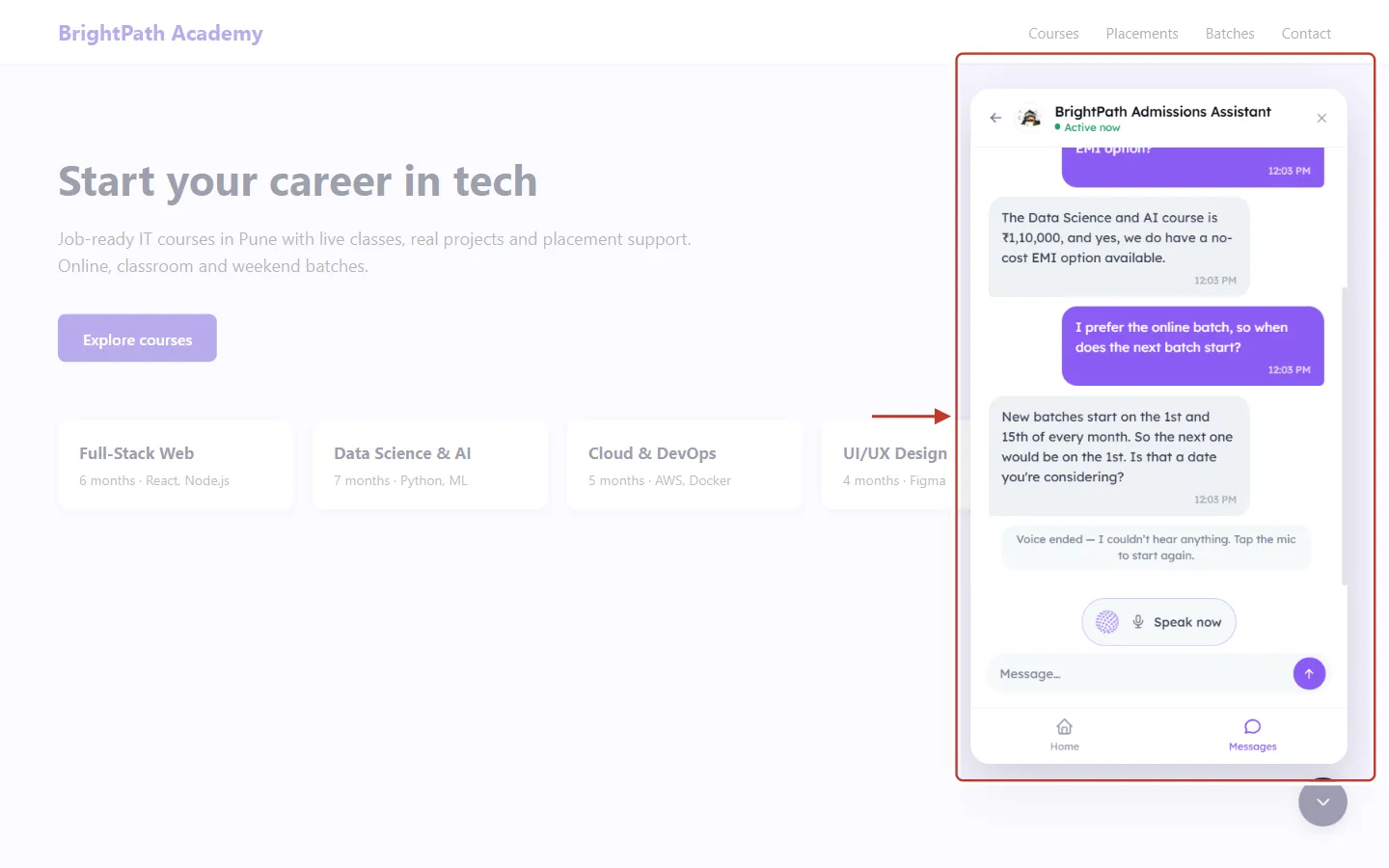
What this screenshot shows. The widget after the spoken conversation ended.
“Voice ended — I couldn’t hear anything. Tap the mic to start again.”: a short note in the chat explains why voice stopped.
The whole conversation stays in the chat as text.
The Speak now pill and the Message… box are back, so the visitor can talk again or type.
The messages a visitor can see when voice ends or can’t start:
The visitor sees | Why |
|---|---|
Voice ended — I couldn’t hear anything. Tap the mic to start again. | Nobody spoke for your Stop listening after time. |
Voice ended. Tap the mic to start again. | The conversation reached the 5-minute limit. |
I need microphone access to talk. You can keep typing instead. | The visitor (or your website) blocked the microphone. |
Tap the mic again to start voice. | The browser didn’t start the audio (common on iPhone/Safari). A second tap usually works. |
A lot of people are talking to us right now. Please try again in a moment. | Too many spoken conversations are running on your account at the same moment. |
Daily message limit reached. Please try again tomorrow. | Your AI credits or the agent’s daily limit ran out. |
Voice isn’t available right now. You can keep typing. | Any other problem (for example, the connection dropped). Typing still works. |
6. Asking for a person#
If the visitor says something like “Can I talk to a real person?”, the agent tells them it is connecting them, the spoken conversation ends, and the widget starts the same live-agent handover as a typed chat. If the widget doesn’t yet know the visitor’s email or phone, it asks for it in the chat so your team can reply. Your teammate receives the whole thread, including everything that was said out loud.
When the agent doesn’t know an answer, it says so and offers to connect the visitor with a colleague, so set up your live-agent handover before switching voice on (see Configure Your Agent).
Part 3: Find spoken conversations in your CRM#
Every spoken exchange is saved as soon as it finishes, in the same conversation as any typed messages from that visitor. Go to AI Agents → Conversations.
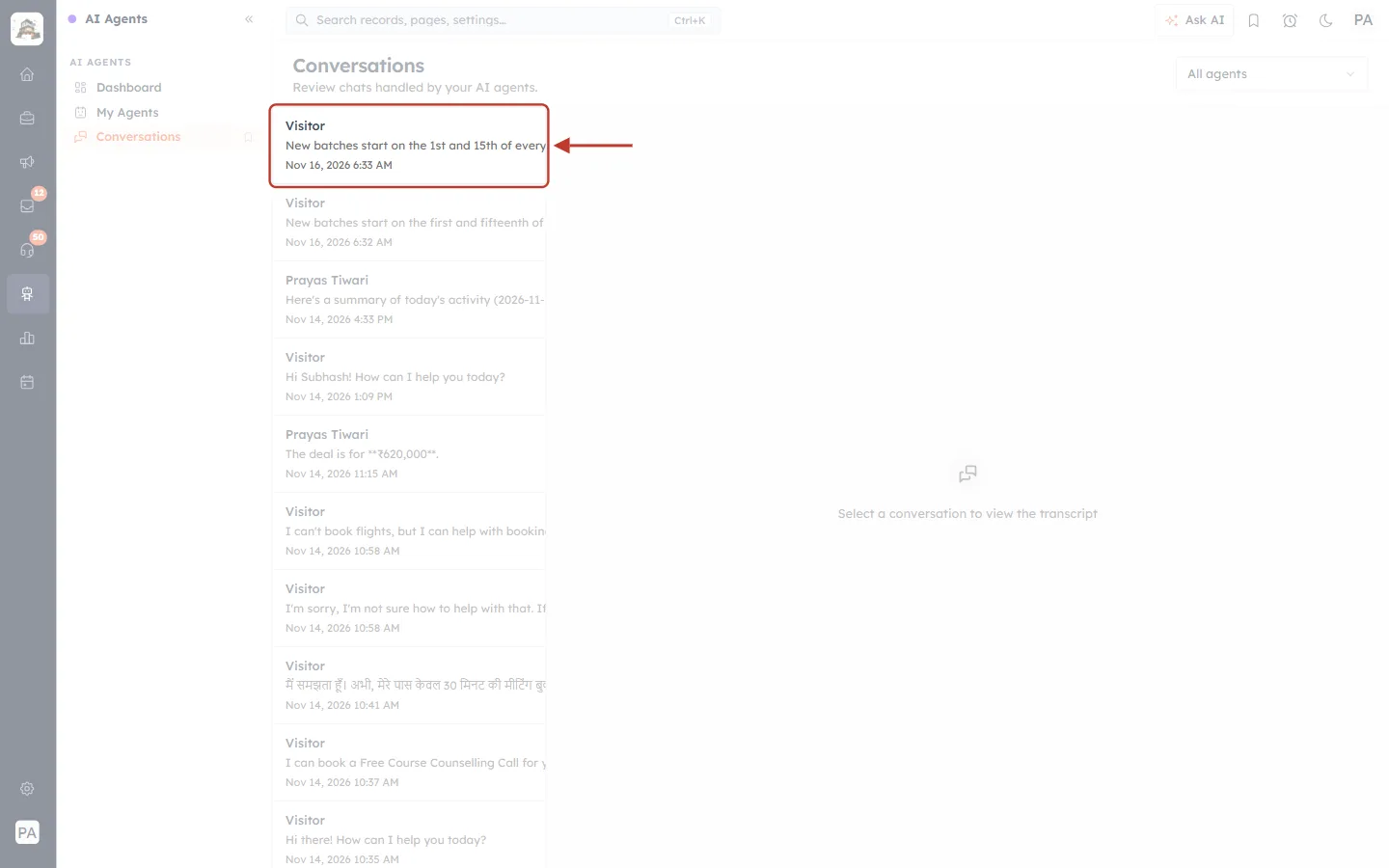
What this screenshot shows. The Conversations page, with the sample spoken conversation ringed at the top of the list.
Visitor: the person’s name, or “Visitor” when the chat hasn’t been linked to a contact.
The second line is the last message: here, the agent’s spoken answer about batch dates.
The date and time of the last message.
All agents (top-right) filters the list to one agent.
Click the conversation to read the transcript on the right.
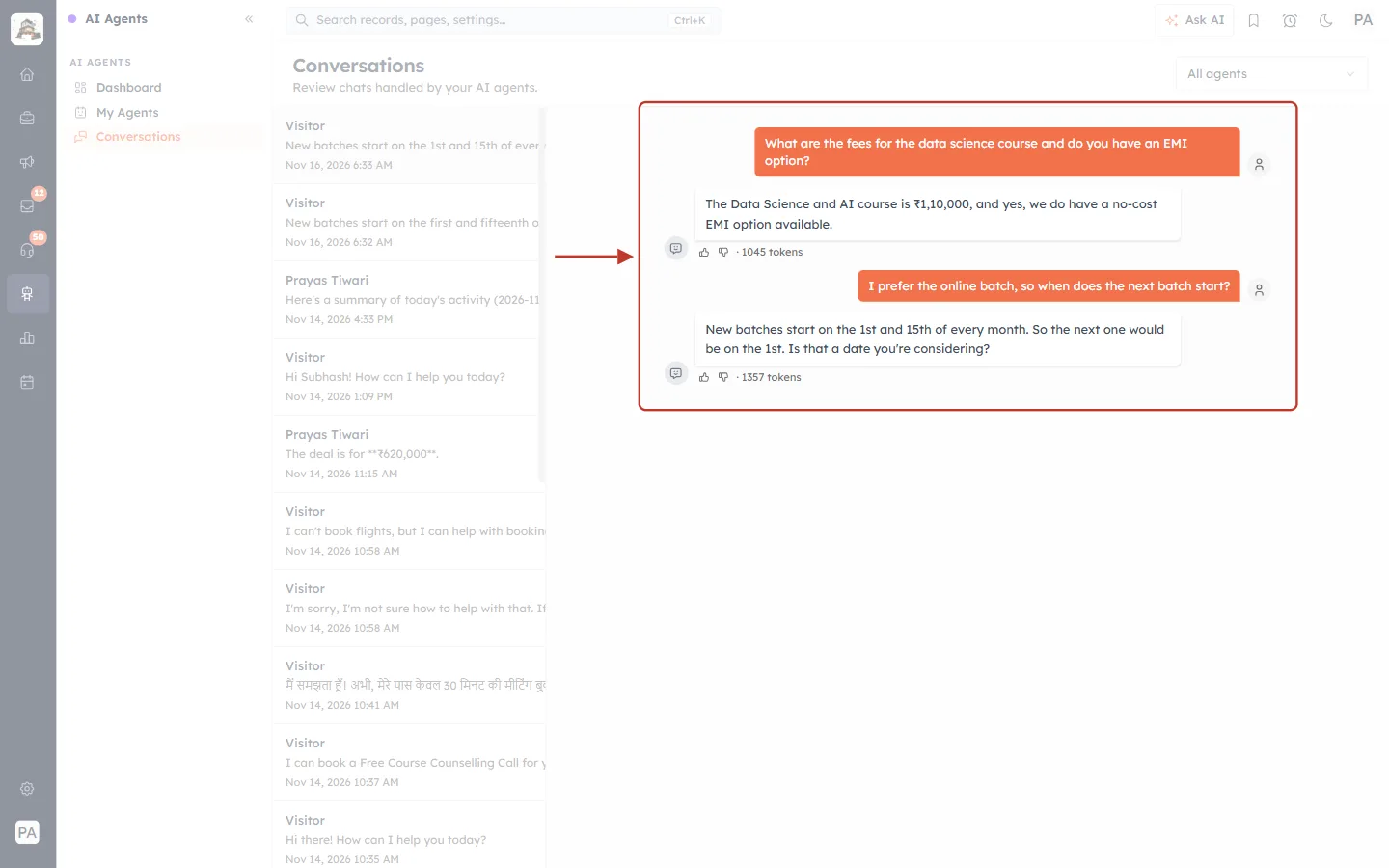
What this screenshot shows. The transcript of the spoken conversation.
Orange bubbles: what the visitor said, transcribed.
White bubbles: the agent’s spoken answers, as text.
Thumbs up / down under each answer: rate the answer, to keep track of where the agent needs better instructions or knowledge.
Tokens (for example 1045 tokens): how much AI each answer used, which is what your AI credits are charged for.
Spoken and typed messages look the same here. For usage totals per agent, see Conversations & Usage.
Credits, limits and what stops a conversation#
AI credits: each finished exchange (one question and its answer) uses AI credits, like a typed reply. The opening turn, where the agent prepares its knowledge and says the greeting, is charged too, even if the visitor then says nothing. Details: AI Credits & Pricing: How AI Usage Is Billed.
Silence costs credits: an open microphone is billed while it listens, which is why Stop listening after exists. Pick the shortest wait that suits your visitors.
Your daily limit applies: the agent’s Conversations per day cap (Build step → Settings) and your credit balance are checked before voice starts and again after every exchange.
Running out mid-conversation: the agent finishes its sentence, then the conversation stops and the visitor sees “Daily message limit reached. Please try again tomorrow.” Nothing said so far is lost.
Switching voice off is immediate: if you switch voice off, deactivate the agent or delete it, any spoken conversation that is still running stops after its current exchange.
5 minutes per conversation, and only a limited number of spoken conversations at the same time per account.
⚠️
What the agent knows when speaking. At the start of each spoken conversation, the agent gathers the most relevant parts of its instructions and knowledge sources. For questions far outside that, it says it doesn’t know and offers to connect the visitor with a person. Clear Behavior instructions with your key facts (prices, timings, policies) give the best spoken answers.
Troubleshooting#
Problem | What to check |
|---|---|
Speak now doesn’t appear in the widget | Is Voice conversation switched on and the agent published and Active? Reload the website page after publishing. |
Still no Speak now | Your website must open on https://. Also ask your web developer whether the site sends a Permissions-Policy header that blocks the microphone; if it does, the browser never allows the widget to use it. |
Speak now disappeared for one visitor | They blocked the microphone. They can allow it in the browser’s site settings (the padlock icon next to the address); the button comes back. |
No microphone in the agent’s Test Chat | Expected. Voice works only in the website widget. Test it on your website. |
The visitor hears nothing on iPhone | They see Tap the mic again to start voice. A second tap starts the audio. |
The agent gives a short or vague answer | Add the facts to the agent’s Behavior or knowledge sources, and check the conversation in AI Agents → Conversations. |
The agent can’t book a meeting by voice | Booking and callbacks work in typed chat only. The visitor can tap End and type. |
Frequently asked questions#
Do I need to update the widget code on my website?
No. The widget loads from AiEngage, so existing installs get voice as soon as you switch it on and publish.
Does voice work on WhatsApp?
No. WhatsApp chats with your agent stay text. Voice is for the website chat widget.
Can visitors choose the voice or language?
No. You choose the voice for each agent. The spoken language is set for your account and is shown on the agent’s Voice Conversation card.
Is the conversation recorded as audio?
The conversation is saved as text (a transcript) in AI Agents → Conversations, in the same thread as typed messages.
Can a visitor switch between talking and typing?
Yes. Tapping End brings the message box back, and Speak now starts talking again, all in the same conversation.
Will the visitor be asked for their name and email before talking?
Voice starts straight away. If the visitor asks for a person, the widget asks for an email or phone so your team can follow up.
Is voice the same as the voice in Ask AI Engage?
No. Ask AI Engage: Get Answers About Your CRM is your team’s internal assistant. Voice conversation is for your website visitors talking to your AI agent.
Previous and next#
Previous: AI Agent Capabilities: Let Your Agent Book Meetings and Request Callbacks Right in the Chat
Next: Conversations & Usage
Related#
Was this article helpful?
Ready to implement this?
OpenAI Engage and apply what you just learned to your own workspace.
Open AI Engage CRM