Loading…


KnowledgeBase
Using Segments in Campaigns
Segments as your campaign audience#
The main reason to build a segment is to target it with a campaign. When you create an email or WhatsApp campaign, the Audience step lets you pick who receives it — and who to leave out.
Send to#
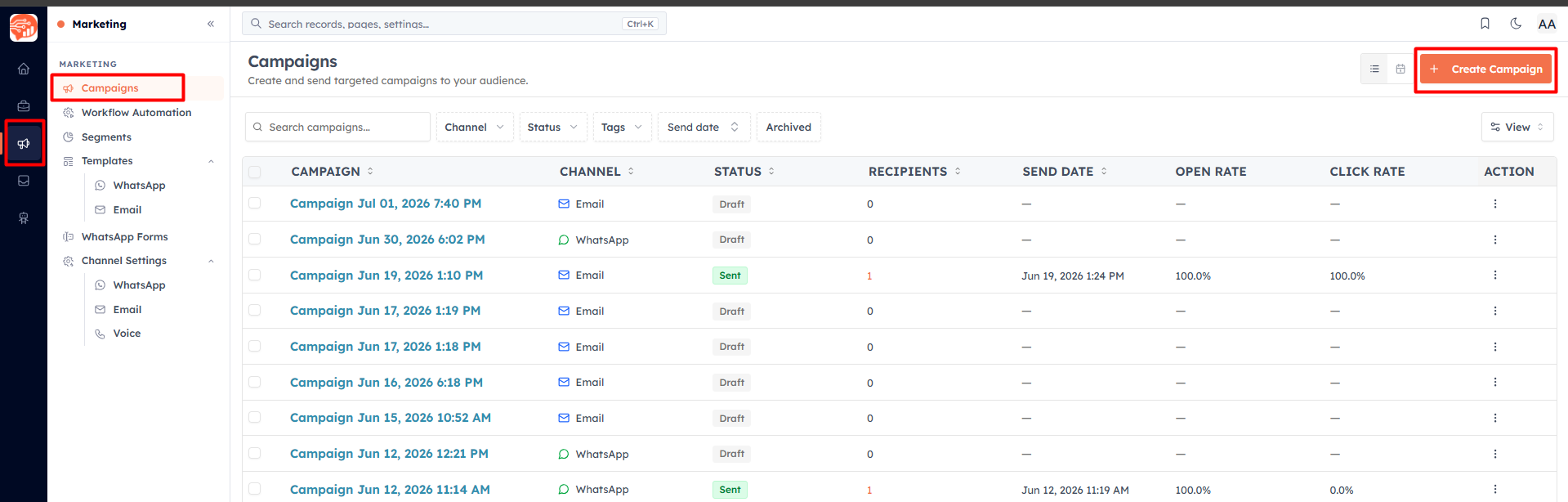
First, go to Marketing → Campaign → Create Campaign
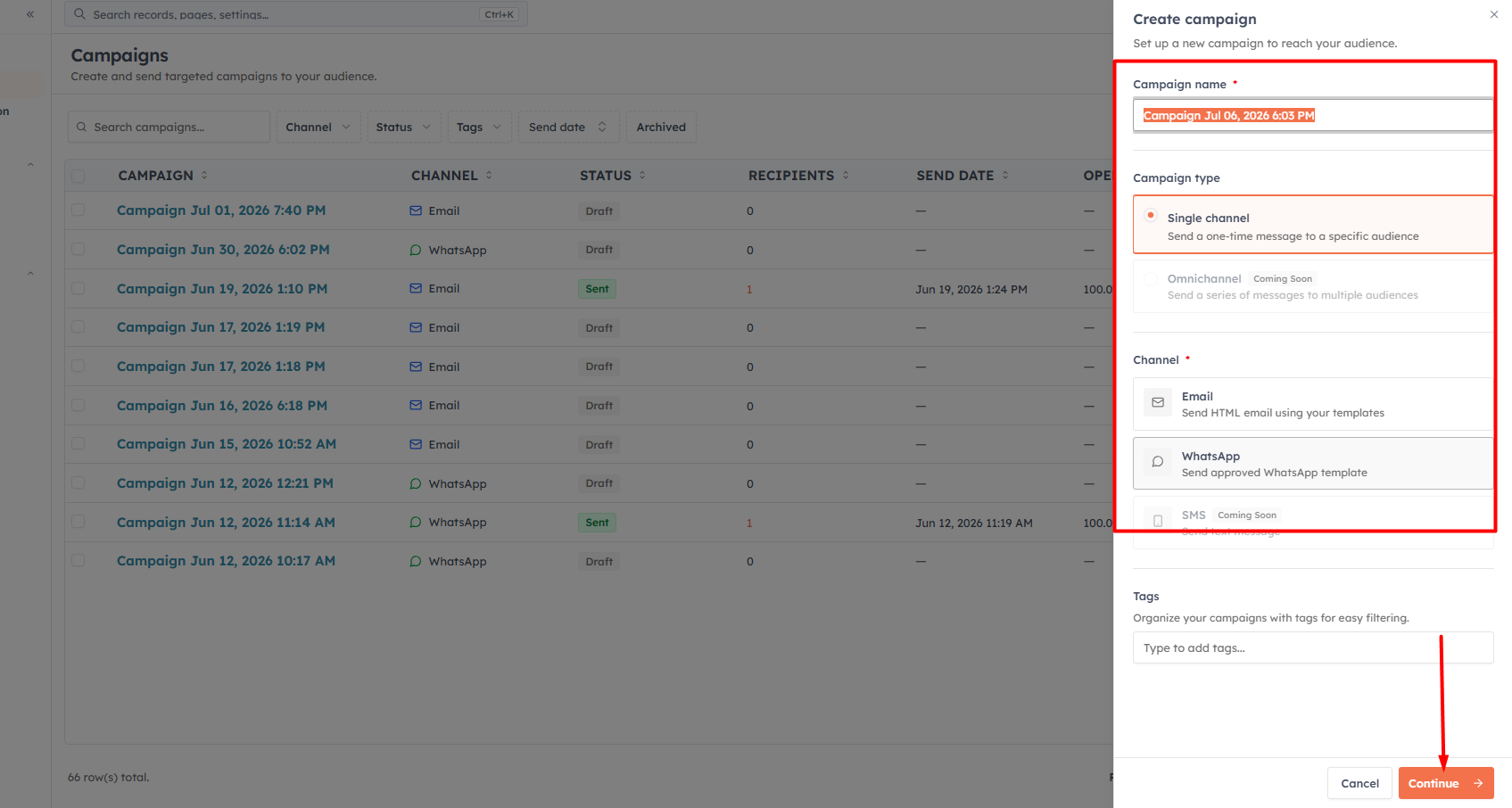
Add the campaign name, campaign type, select the channel, and click Continue.
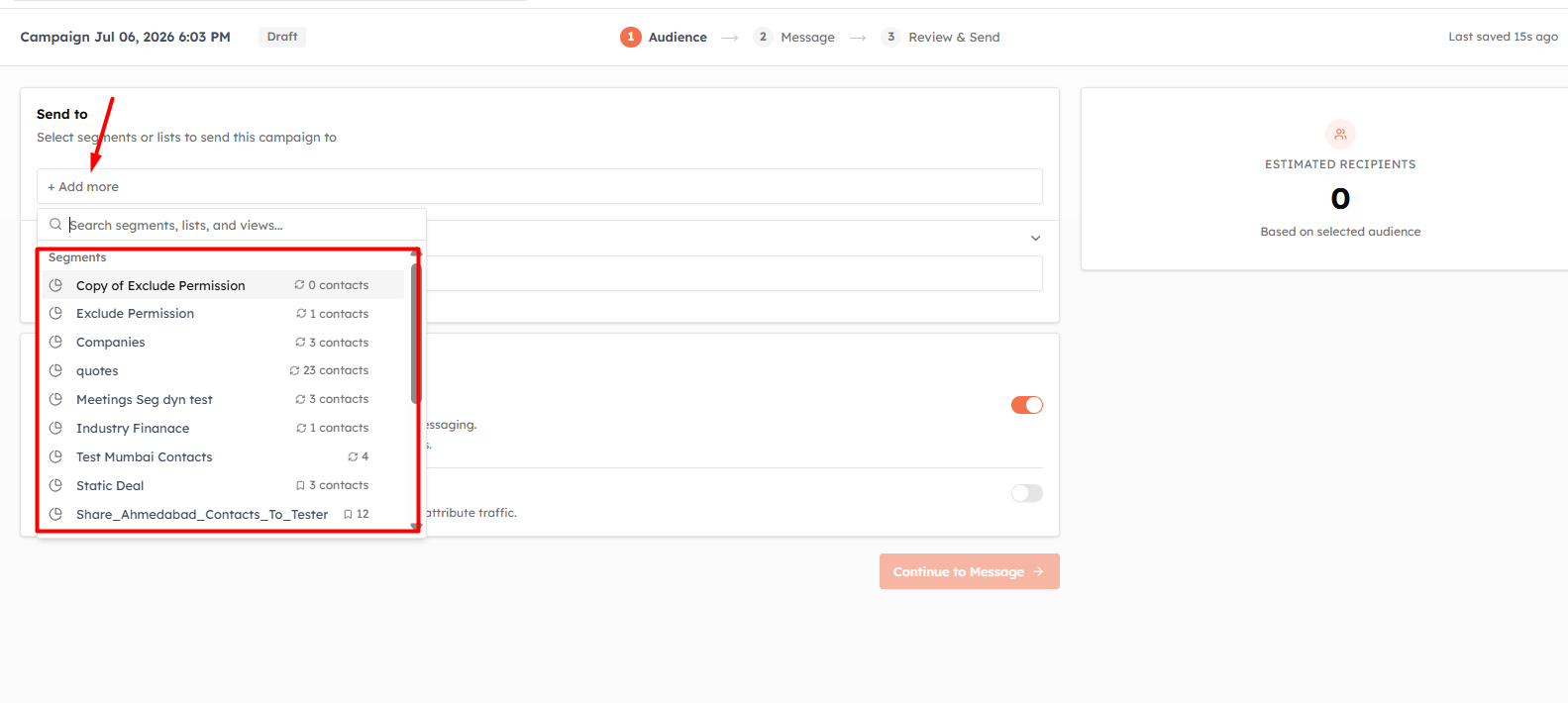
In the campaign's audience step, use the Send to picker to choose your recipients. The picker groups your options under three headings:
Segments — your filter-based audiences (dynamic or static)
Lists — contact lists
Pick one or more. As you select, the CRM shows the current count of matching contacts so you know your reach before continuing.
Exclude audience#
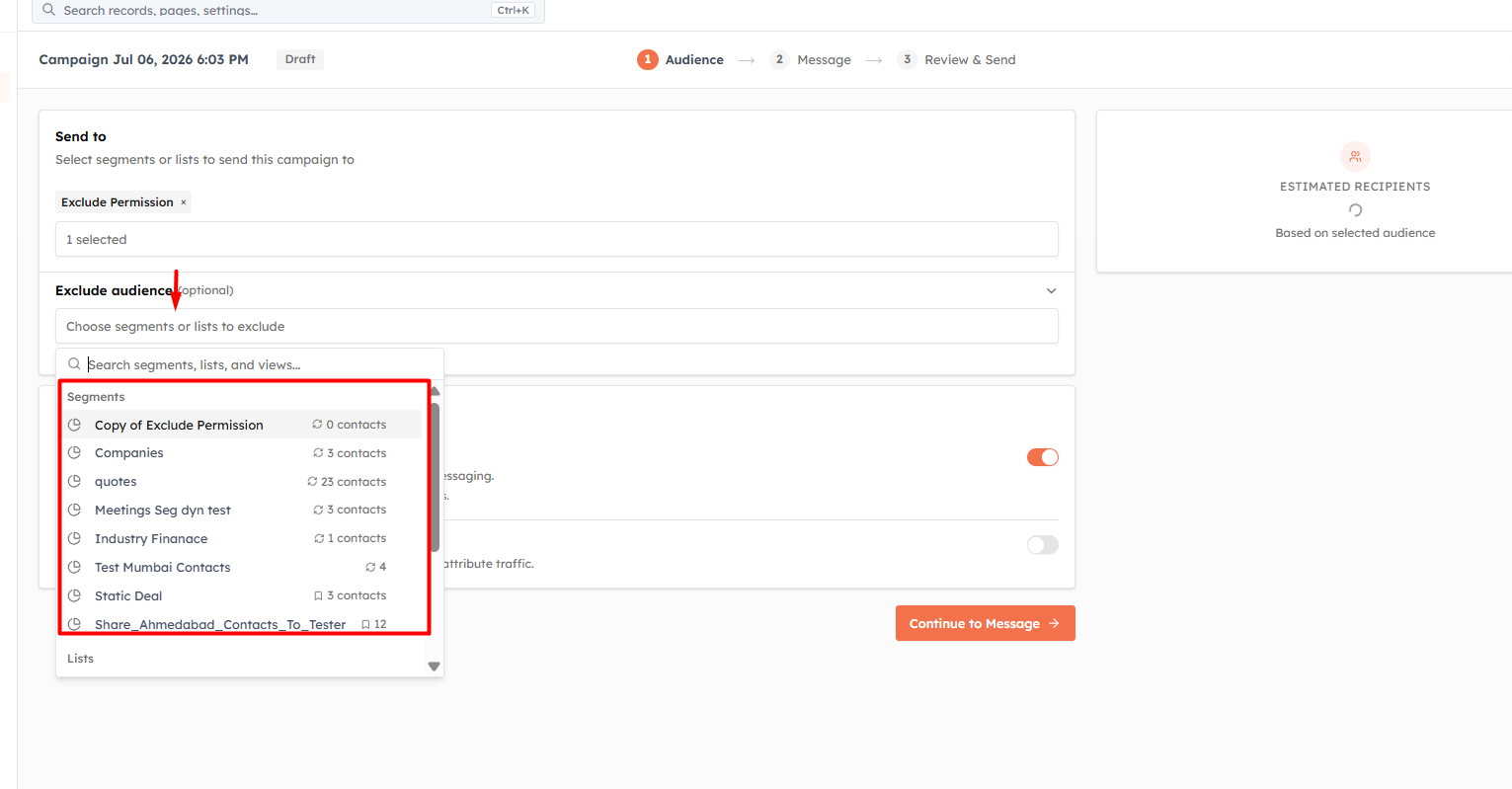
Below "Send to" is an optional Exclude audience picker. Anyone in an excluded segment or list is removed from the send — even if they are in your "Send to" audience. Use it to suppress groups like recent buyers, unsubscribed contacts, or people who already got a similar message.
💡
Exclusions are perfect for "everyone in Segment A except Segment B". For example: send to "All active customers" but exclude "Purchased in last 7 days" to avoid over-messaging recent buyers.
Dynamic segments and send time#
The recipient count you see when selecting a dynamic segment is its count at that moment. If you schedule the campaign for later, the actual recipients are whoever is in the segment at send time — not the people who were in it when you built the campaign.
💡
This is a feature, not a quirk. A scheduled campaign to "New leads this week" will reach the leads who are new when it actually sends — the audience stays current automatically.
Smart Sending#
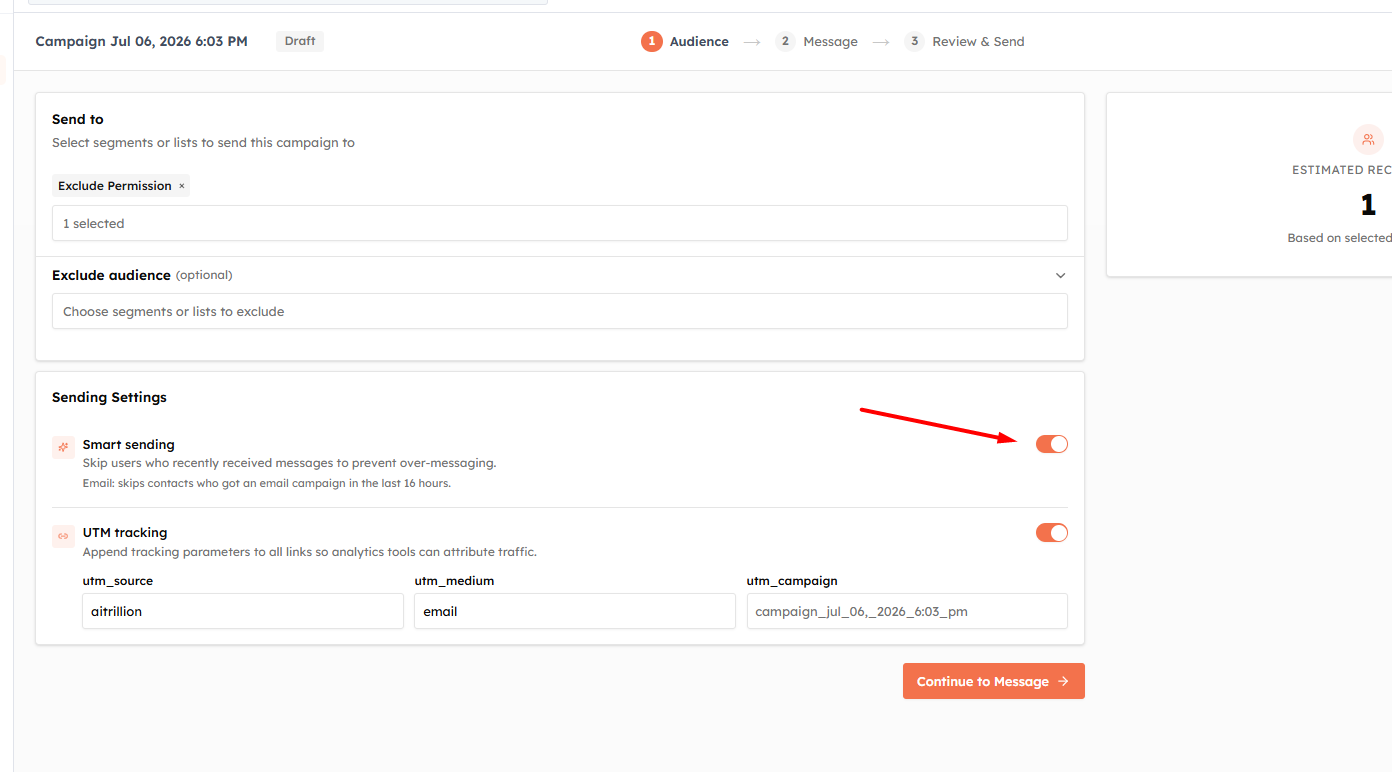
Campaigns include a Smart Sending option that skips contacts who were messaged very recently — within roughly 16 hours for email and 24 hours for WhatsApp. This prevents the same person being hit twice in quick succession when your segments overlap.
💡
Keep Smart Sending on for routine broadcasts. It protects your contacts from message fatigue and protects your sender reputation from spam complaints.
Continue, add required details, review and send#
Once everything is set up, click Continue. You can then choose an existing template or create a new one. Add the email subject and the required details, review the audience, and send the campaign.
Reusing segments across campaigns#
Because a segment is defined once and stored centrally, you can reuse the same audience across many campaigns. Update the segment's filters and every future campaign that targets it automatically uses the new definition — no need to rebuild your audience each time.
💡
Related: Managing Segments to edit, clone, or share the audiences you use in campaigns · Introduction to Segments to review the basics.
Records vs. recipients: why the numbers differ#
The count you see while building a segment is "records match your filters" — the number of records. The number of people who actually receive a campaign can be different:
- Contacts segments — records are recipients, so the two numbers match.
- Segments on other modules (Deals, for example) — each record is expanded to its linked contacts and then de-duplicated. A deal linked to two contacts adds two recipients; a deal with no linked contact adds none. That's why the builder also shows "N related contacts will receive the campaign."
At send time the list is trimmed further:
- Contacts with no email address (email) or no WhatsApp number (WhatsApp) are skipped.
- Unsubscribed, opted-out, or inactive contacts are blocked from the send.
- With Smart Sending on, anyone messaged very recently is skipped.
So it's normal for the final send count to be lower than the segment's record count. Very large audiences are shown as an approximate figure with a "~" in front.
Editing a segment while a campaign is sending#
When a campaign starts sending, its recipient list is snapshotted — frozen for that run. If you edit the segment (its filters or its members) while the campaign is still going out, the in-flight send doesn't change. The segment shows a banner: "Currently sending in N campaign(s). Edits to this segment won't change who receives the in-flight send — the recipient list was snapshotted when sending started. New members will be included in future campaigns only."
In short, your edits always apply to the next campaign, never one already in progress.
💡
A dynamic segment is evaluated at the moment sending begins — so a contact who qualifies just before the send is caught, while one added after the snapshot simply waits for the next campaign.
Was this article helpful?
Ready to implement this?
OpenAI Engage and apply what you just learned to your own workspace.
Open AI Engage CRM