Loading…


KnowledgeBase
Connect Shopify Partner Step by Step: Sync App Installs, Uninstalls, Plans & Charges into AiEngage CRM
Introduction#
If you build apps for the Shopify App Store, the Shopify Partner integration brings your app’s merchants into AiEngage CRM. Every store that installs your app becomes a record. Its install and uninstall dates, plan, billing and every charge it pays are kept up to date automatically, about every 5 minutes.
With the merchants in your CRM, you can attach them to Contacts, assign them to your team, follow up on uninstalls, and report on MRR and revenue in the same place as the rest of your sales work.
This guide covers the whole setup and every screen you will use afterwards:
Open the Shopify Partner integration.
Connect your Partner organization with its org ID and a Partner API token.
Add your apps and choose who owns new stores.
Create the Stores and Store Transactions modules.
Monitor the sync (Overview, Apps, Sync History and Settings).
Work with the synced stores and charges.
Each screenshot has a red ring and arrow on the part to look at, followed by a description of the whole screen. Staff names, email addresses, merchant store names and domains are blurred.
What Gets Synced#
The integration reads your app’s events from the Shopify Partner API and keeps two CRM modules up to date:
Shopify event | What happens in AiEngage CRM |
|---|---|
A store installs your app | A Store record is created (or updated) with Status Installed and the Install Date. |
A store uninstalls your app | The Store’s Status changes to Uninstalled and the Uninstall Date is filled in. The record is kept. |
A store comes back | Is Reinstalled is ticked and the Reinstalled Date is set. |
A store subscribes or changes plan | Billing Period, Plan Amount, MRR, Trial Status and Trial End Date on the Store are updated. |
Shopify charges the store | A new Store Transaction row is added (one-time, recurring or usage), linked to the Store. The Store’s Total Amount Received and First and Last Payment Dates are updated. |
ℹ️
Each store–app pair is one record. If the same merchant installs two of your apps, they appear as two Store records, one per app, each with its own status, plan and dates.
Amounts are gross: what the merchant pays, before Shopify’s revenue share. They are not your net payout.
Before You Begin#
You need access to the Shopify Partner Dashboard (partners.shopify.com) for the organization that owns your apps.
You need access to Settings → Developer Hub → Integrations in AiEngage CRM. The account owner and administrators have it.
Have three things ready from Shopify: your Partner organization ID, a Partner API access token, and the App ID of each app you want to sync. The next section shows where to find them.
You can connect up to 2 Shopify Partner organizations to one AiEngage CRM account.
Where to find your Shopify details#
What you need | Where to find it in Shopify |
|---|---|
Partner organization ID | The number in your Partner Dashboard address. In partners.shopify.com/1234567/… it is 1234567. It contains only digits. |
Partner API access token | In the Partner Dashboard, go to Settings → Partner API clients (shown in AiEngage as Settings → API) and create an API client. Give it the Manage apps permission, then copy its access token. |
App ID (one per app) | Open the app in the Partner Dashboard. The App ID is the number at the end of the address: partners.shopify.com/<org>/apps/<app-id>. |
⚠️
Without the Manage apps permission, the connection itself succeeds but your App IDs won’t validate. You will see: No Shopify app with that ID was found in this Partner organization. Check the ID, and that your Partner API token has the “Manage apps” permission.
Treat the token like a password. AiEngage stores it encrypted and only uses it to read your installed merchants.
Part 1: Open the Shopify Partner Integration#
Step 1: Go to Integrations#
Click the Settings gear at the bottom of the left rail. In the Settings menu, scroll to DEVELOPER HUB and click Integrations.
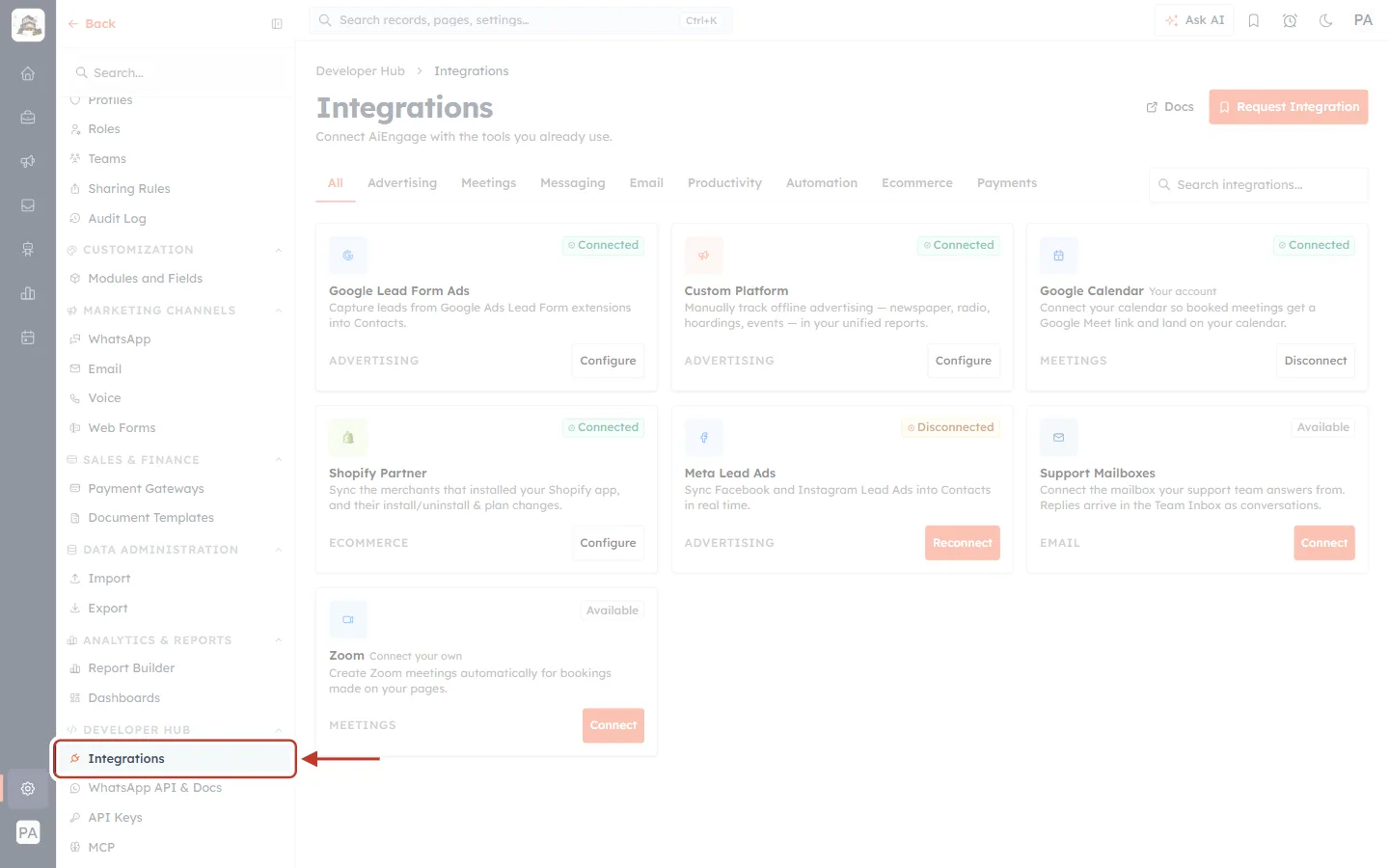
What this screenshot shows. Integrations is ringed under DEVELOPER HUB in the Settings menu.
The other Developer Hub pages are WhatsApp API & Docs, API Keys and MCP.
The Integrations page lists every integration as a card, with tabs along the top: All, Advertising, Meetings, Messaging, Email, Productivity, Automation, Ecommerce and Payments.
Step 2: Open the Shopify Partner card#
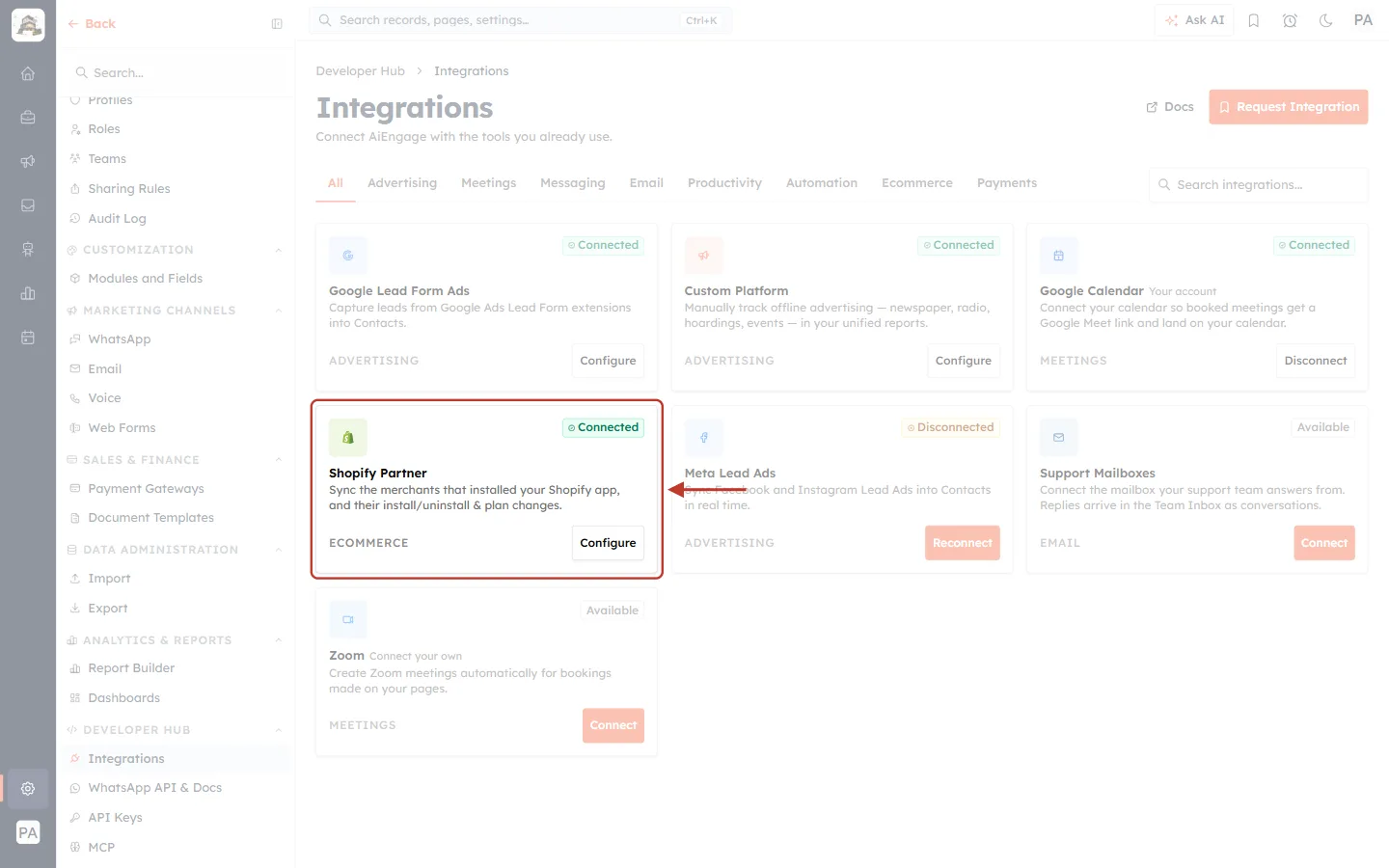
What this screenshot shows. The ringed card is Shopify Partner.
Its description reads: Sync the merchants that installed your Shopify app, and their install/uninstall & plan changes.
The label at the bottom left is ECOMMERCE. You can also find the card under the Ecommerce tab, or by typing “Shopify” in Search integrations….
The badge at the top right shows the state. Before you connect it reads Available. After you connect it reads Connected (as here).
Click Configure (or Connect) to open the integration page.
Part 2: Connect Your Shopify Partner Account#
Until you connect, the Shopify Partner page shows Not Connected next to the title, with the connect form and some guidance.
Step 3: Review how it works#
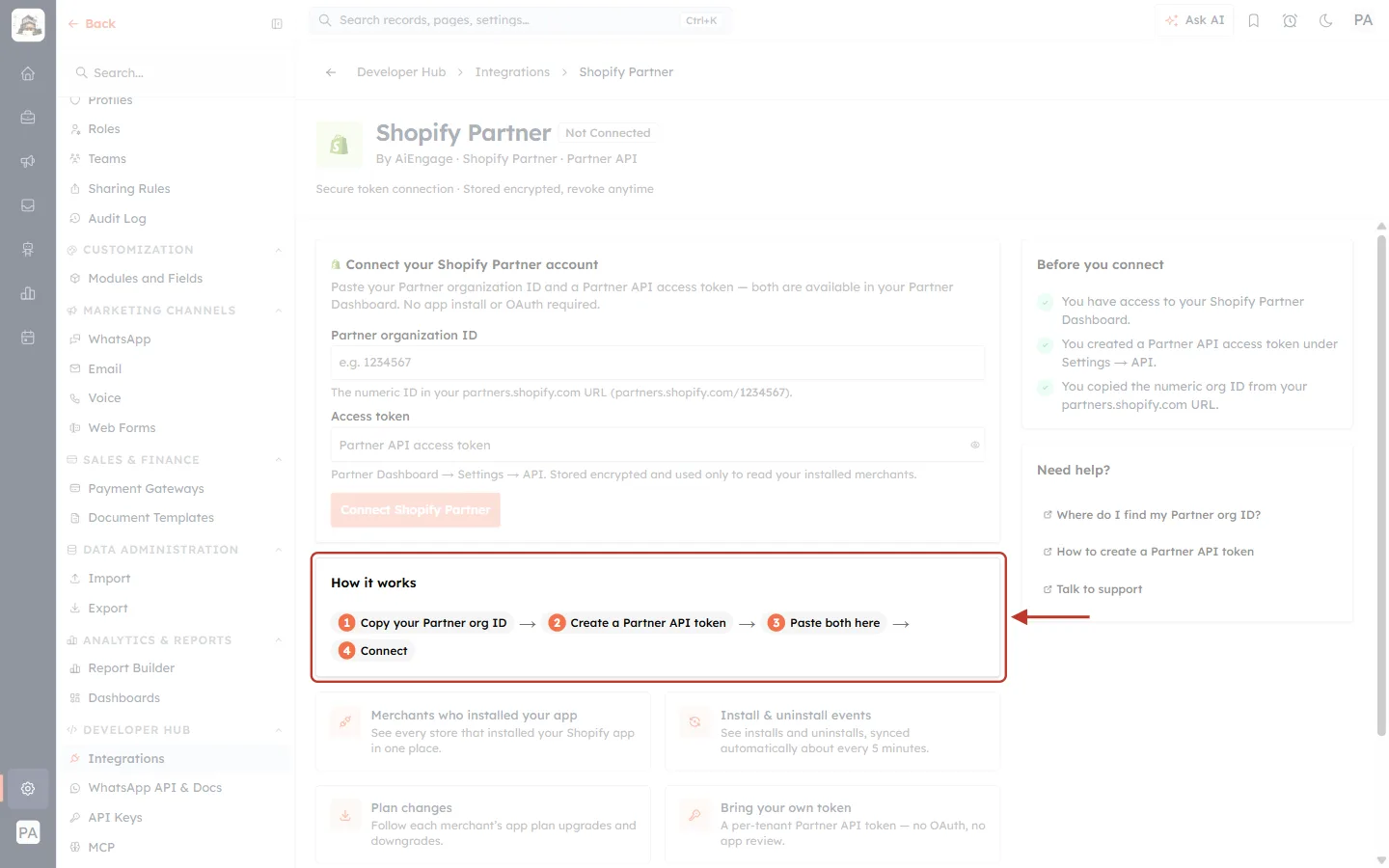
What this screenshot shows. The ringed How it works panel sums up the connection in four steps.
1 Copy your Partner org ID → 2 Create a Partner API token → 3 Paste both here → 4 Connect.
Below it, four cards list what you get: Merchants who installed your app, Install & uninstall events (synced about every 5 minutes), Plan changes, and Bring your own token (a Partner API token, so there is no OAuth and no app review).
At the top, Secure token connection · Stored encrypted, revoke anytime confirms how the token is kept.
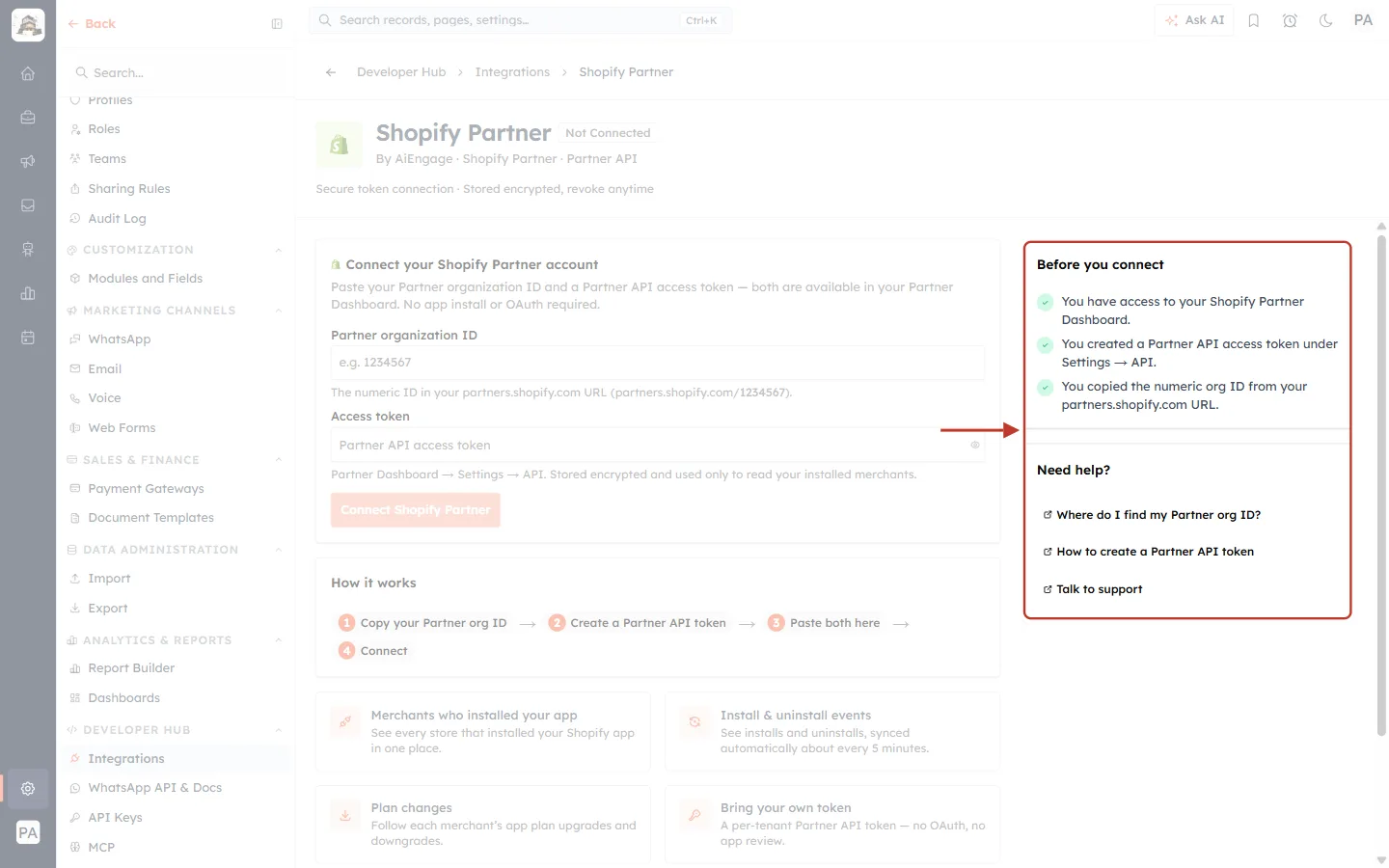
What this screenshot shows. The ringed right-hand column has a checklist and help links.
Before you connect: you have access to your Shopify Partner Dashboard, you created a Partner API access token under Settings → API, and you copied the numeric org ID from your partners.shopify.com URL.
Need help?: Where do I find my Partner org ID? and How to create a Partner API token open Shopify’s Partner API documentation. Talk to support emails the AiEngage support team.
Further down the page, Permissions requested lists the two values you provide: partner_org_id and access_token.
Step 4: Find the connect form#
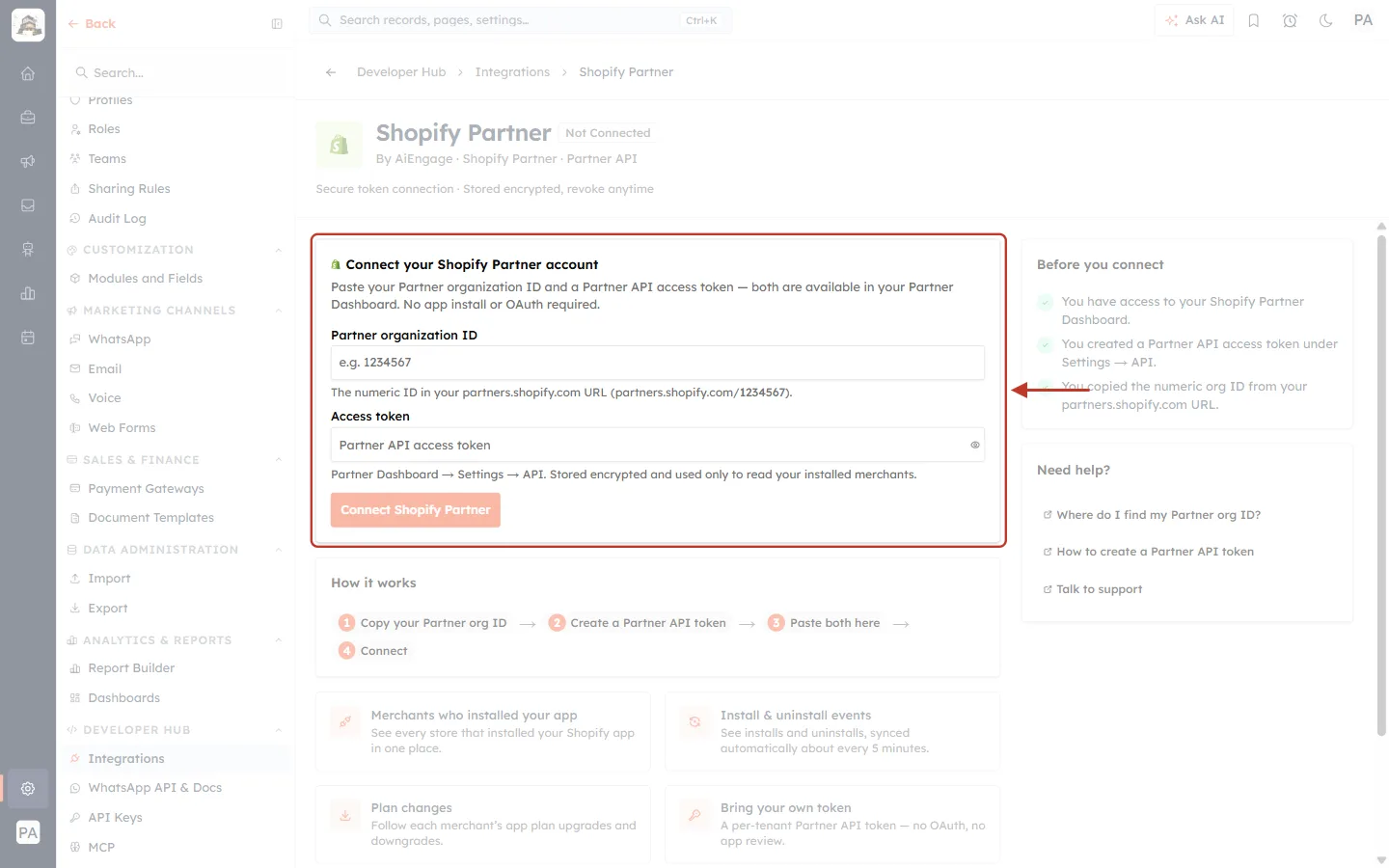
What this screenshot shows. The ringed card is the Connect your Shopify Partner account form.
It reads: Paste your Partner organization ID and a Partner API access token — both are available in your Partner Dashboard. No app install or OAuth required.
Partner organization ID: the numeric ID from your partners.shopify.com address (example: 1234567).
Access token: the Partner API access token (Partner Dashboard → Settings → API). It is stored encrypted and used only to read your installed merchants.
Connect Shopify Partner stays greyed out until both fields are filled in.
Step 5: Paste your org ID and token, then connect#
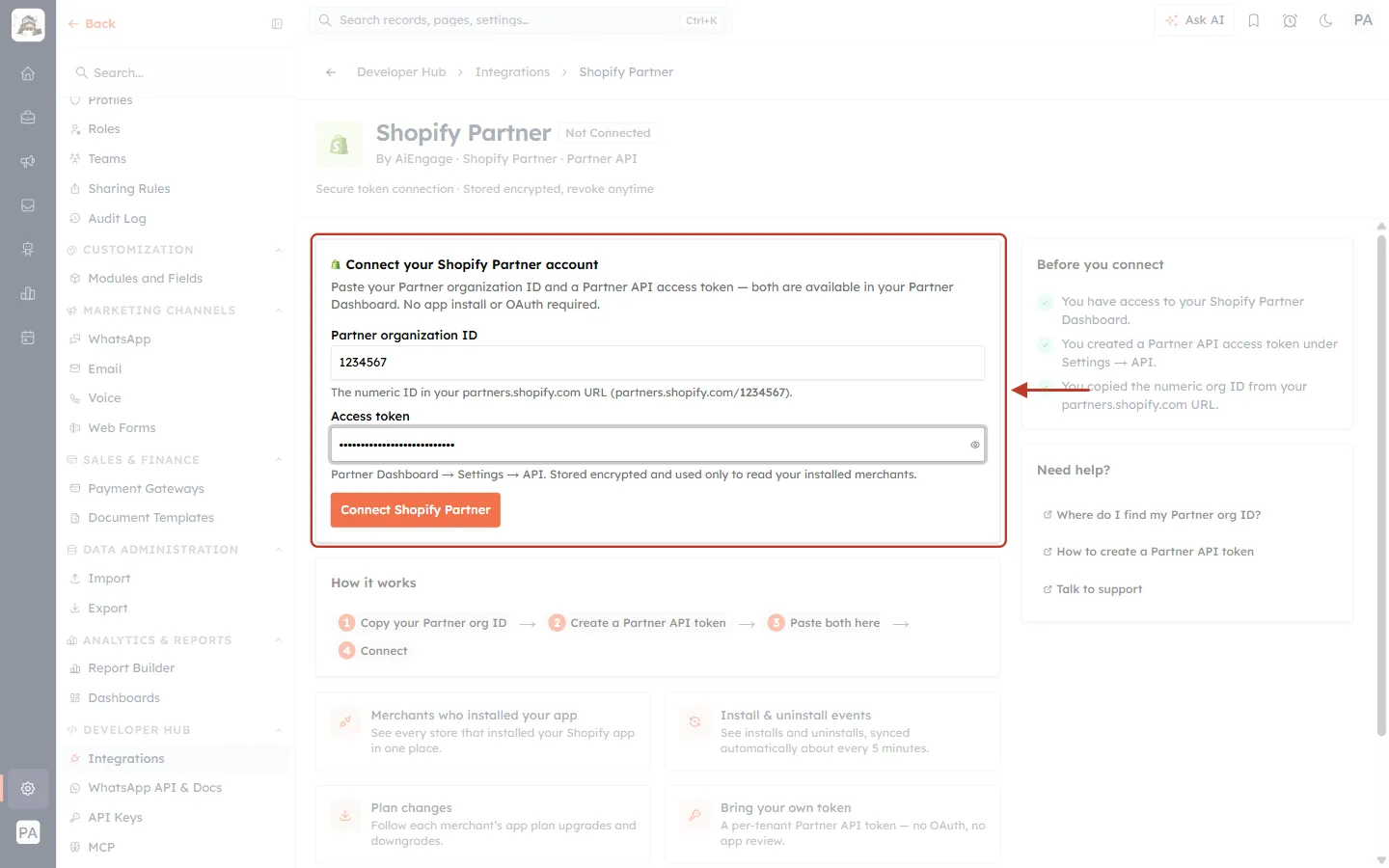
What this screenshot shows. Both fields are filled in and Connect Shopify Partner is now active.
The org ID field accepts digits only. Any other characters you paste (for example part of a URL) are removed automatically.
The token is hidden as dots. Click the eye icon at the end of the field to check what you pasted.
Click Connect Shopify Partner. AiEngage checks the ID and token with Shopify before saving them. When they are accepted, you see Shopify Partner connected and the page moves on to setup.
⚠️
If Shopify rejects the details, you see Shopify rejected these credentials — check the Partner organization ID and access token. The form stays filled in, so you can correct it and click Connect again.
Part 3: Add Your Apps#
Once connected, the page shows your connection details and a two-step setup: 1 Add apps → 2 Create modules.
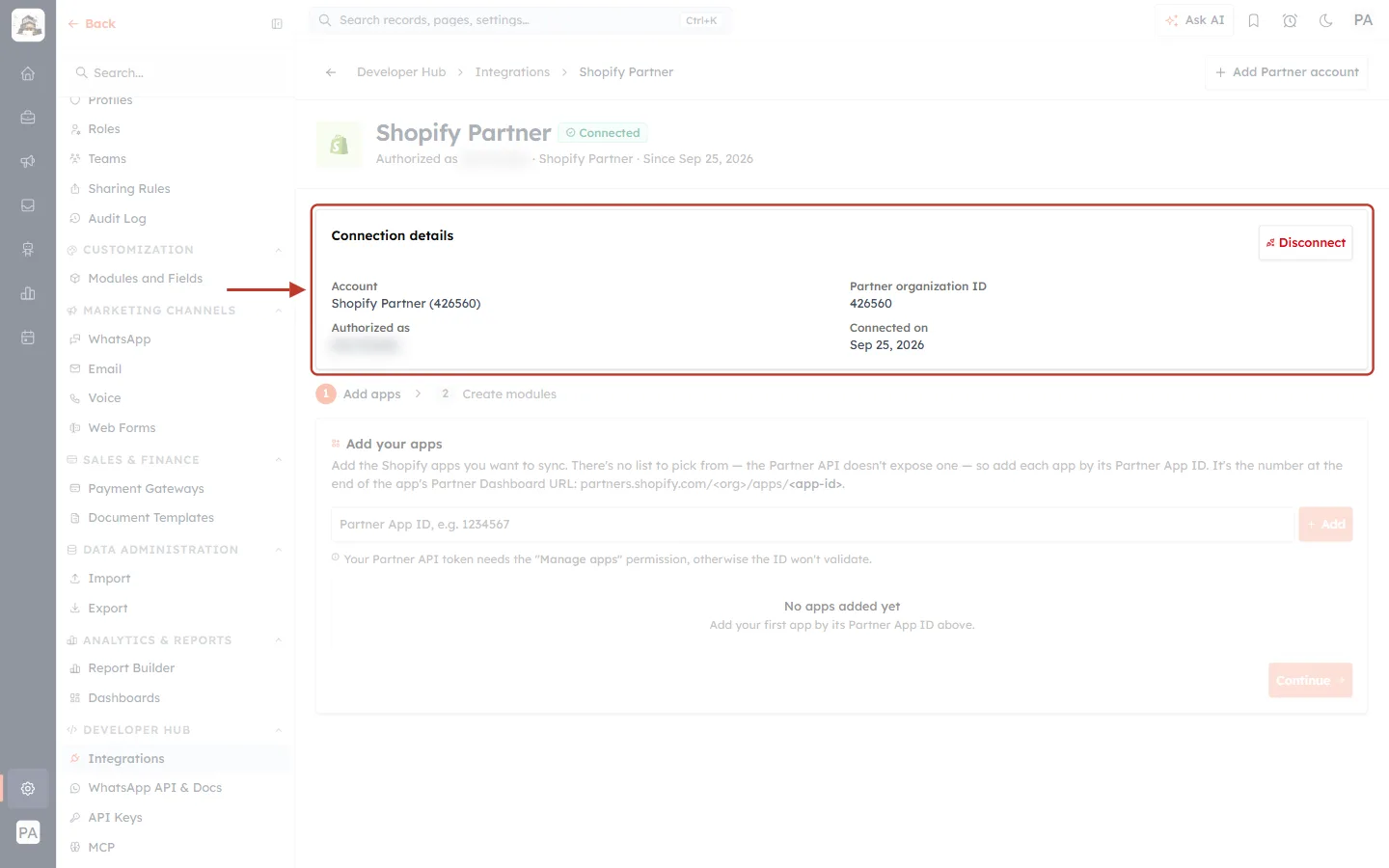
What this screenshot shows. The ringed Connection details card confirms which Partner organization is connected.
Account: Shopify Partner (426560), named after the org ID.
Partner organization ID: 426560. Authorized as: the person who connected it (blurred). Connected on: Sep 25, 2026.
Disconnect (top right, red) removes the connection. See Part 7.
The header now shows a green Connected badge, and Add Partner account appears at the top right.
Step 6: Open Add your apps#
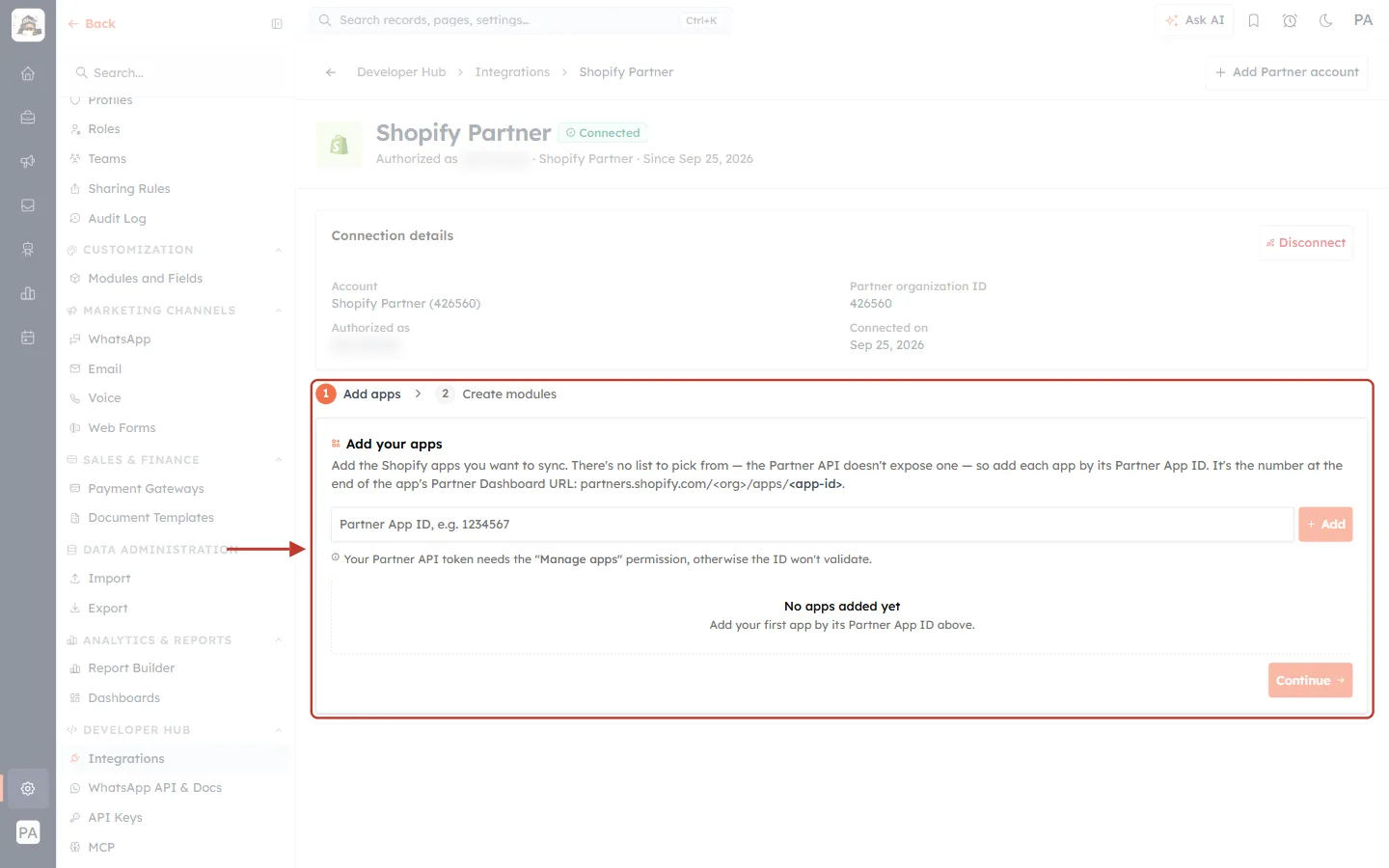
What this screenshot shows. The ringed area is step 1 Add apps with the Add your apps card.
The card explains that the Partner API has no list of your apps to pick from, so you add each app by its Partner App ID, the number at the end of partners.shopify.com/<org>/apps/<app-id>.
Below the input: Your Partner API token needs the “Manage apps” permission, otherwise the ID won’t validate.
With no apps yet, the list says No apps added yet, and Continue (bottom right) stays greyed out until you add at least one app.
Step 7: Enter the App ID#
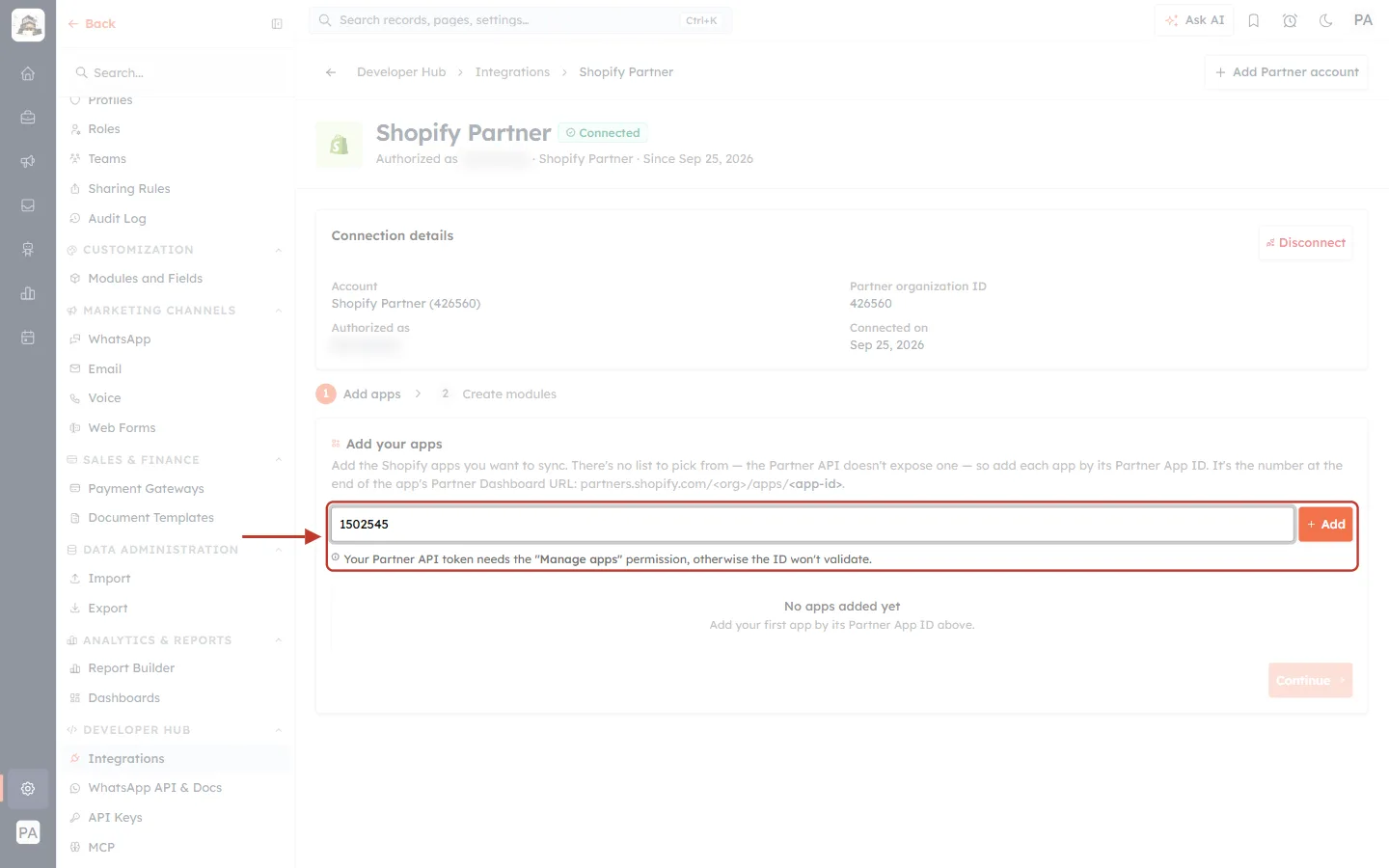
What this screenshot shows. An App ID (1502545) has been typed in, and the Add button is ringed.
You can paste the bare number, the full ID (gid://partners/App/1502545) or the app’s whole Partner Dashboard address. AiEngage reads the ID from any of them.
Click Add. The button shows Validating… while AiEngage looks the app up in your Partner organization. Nothing is saved yet.
Step 8: Confirm the app#
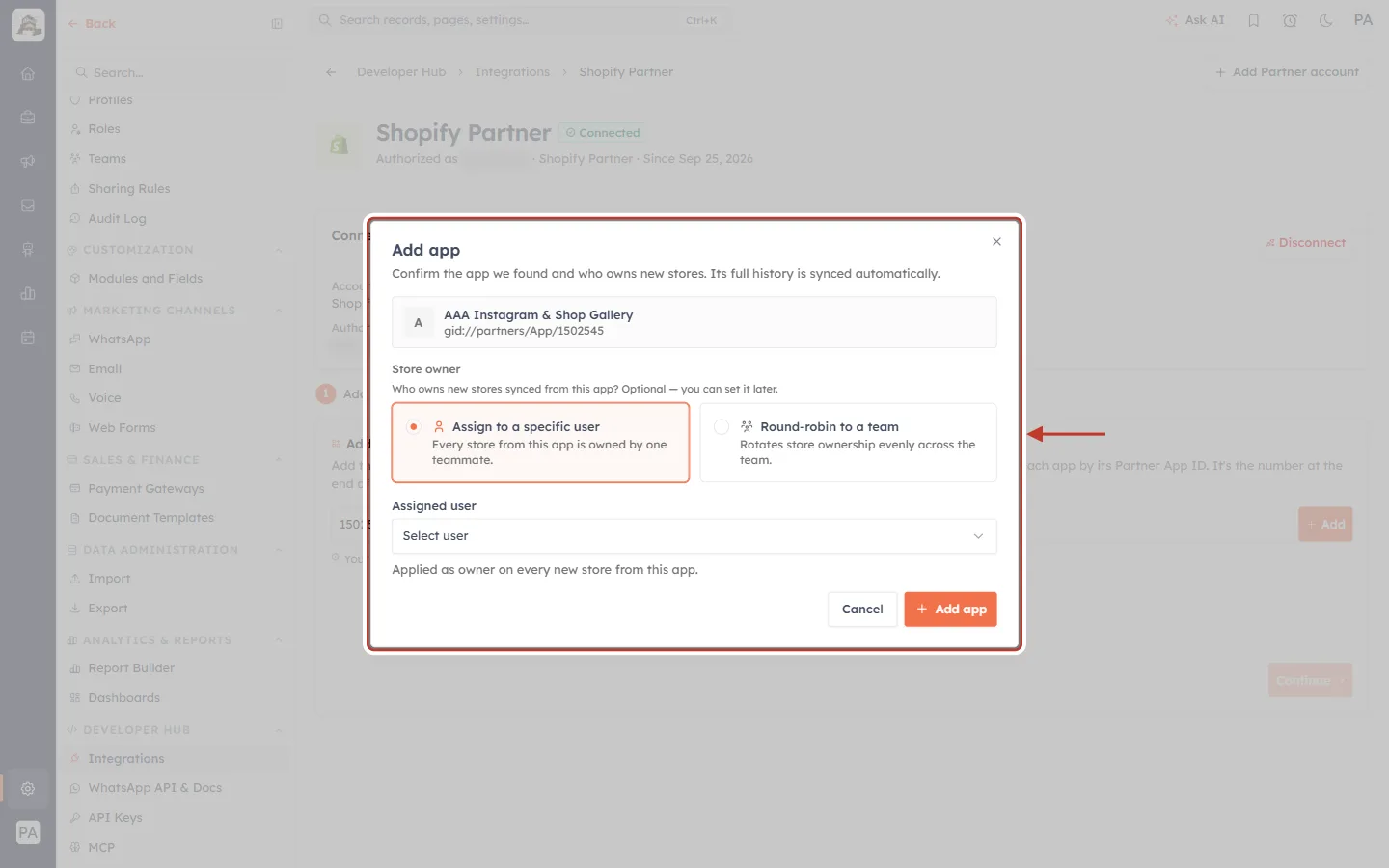
What this screenshot shows. When the ID is found, the Add app window opens.
Confirm the app we found and who owns new stores. Its full history is synced automatically.
The grey box shows the app that was found: AAA Instagram & Shop Gallery and its ID gid://partners/App/1502545. Check this is the right app.
Store owner (optional, can be set later) decides who owns the Store records this app creates. There are two options, covered in the next step.
Cancel closes the window without adding anything. Add app adds it.
If the app was already added, you see Already added — re-adding refreshes it.
ℹ️
Full history, every time. There is no date range to choose. Every app syncs all of its events back to each store’s first install, so older installs, uninstalls and charges appear too.
Step 9: Choose who owns new stores#
Option A: assign every store to one person. Select Assign to a specific user, then open the Assigned user list.
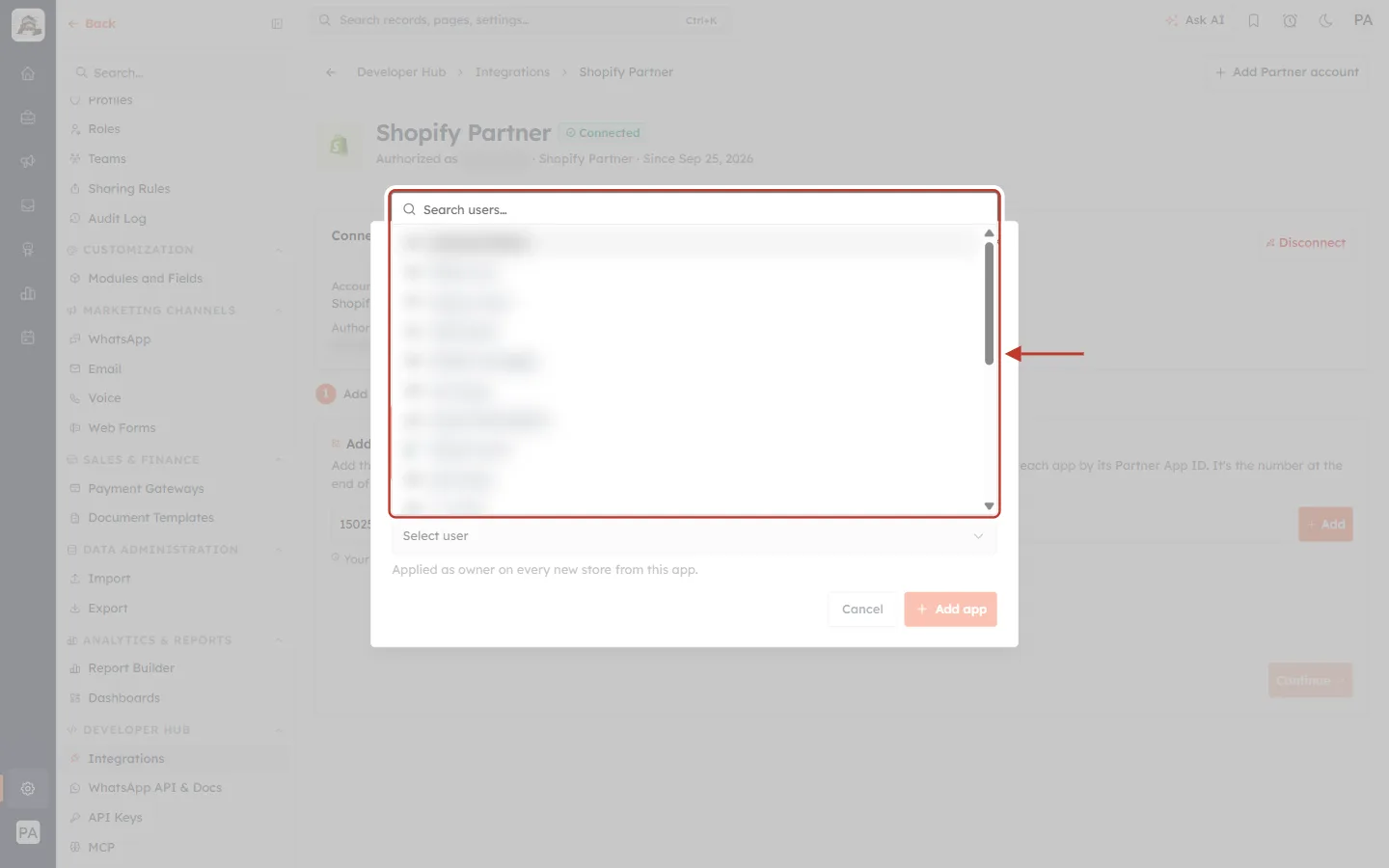
What this screenshot shows. The Assigned user list is open and ringed. The names are blurred.
Type in Search users… to find a teammate, then click their name.
Below the list: Applied as owner on every new store from this app.
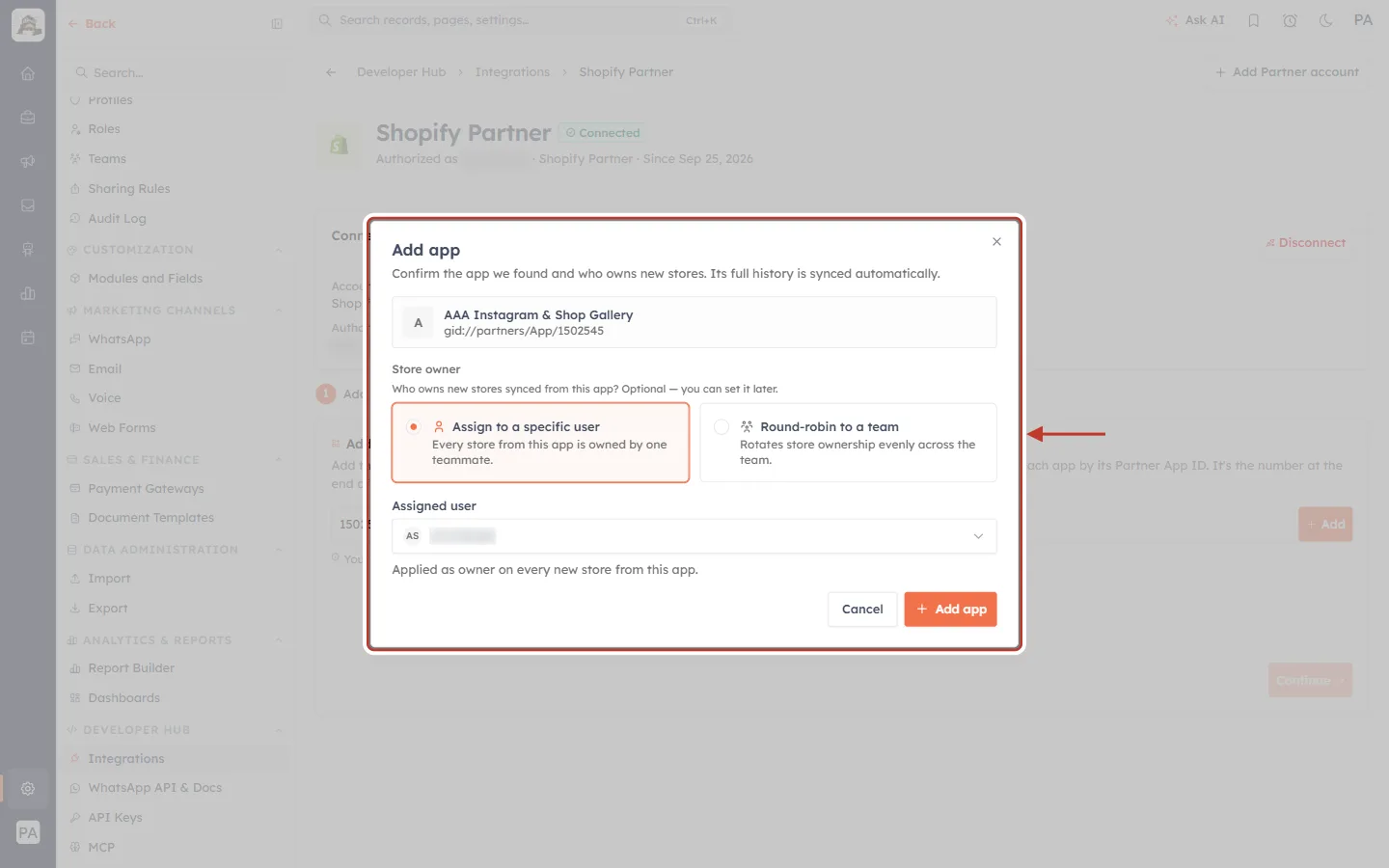
What this screenshot shows. A teammate is now selected under Assigned user, and Assign to a specific user is highlighted.
Every new Store record from this app will be owned by this person.
Click Add app to finish, or set up a team rotation instead (Option B).
Option B: share stores across a team. Select Round-robin to a team.
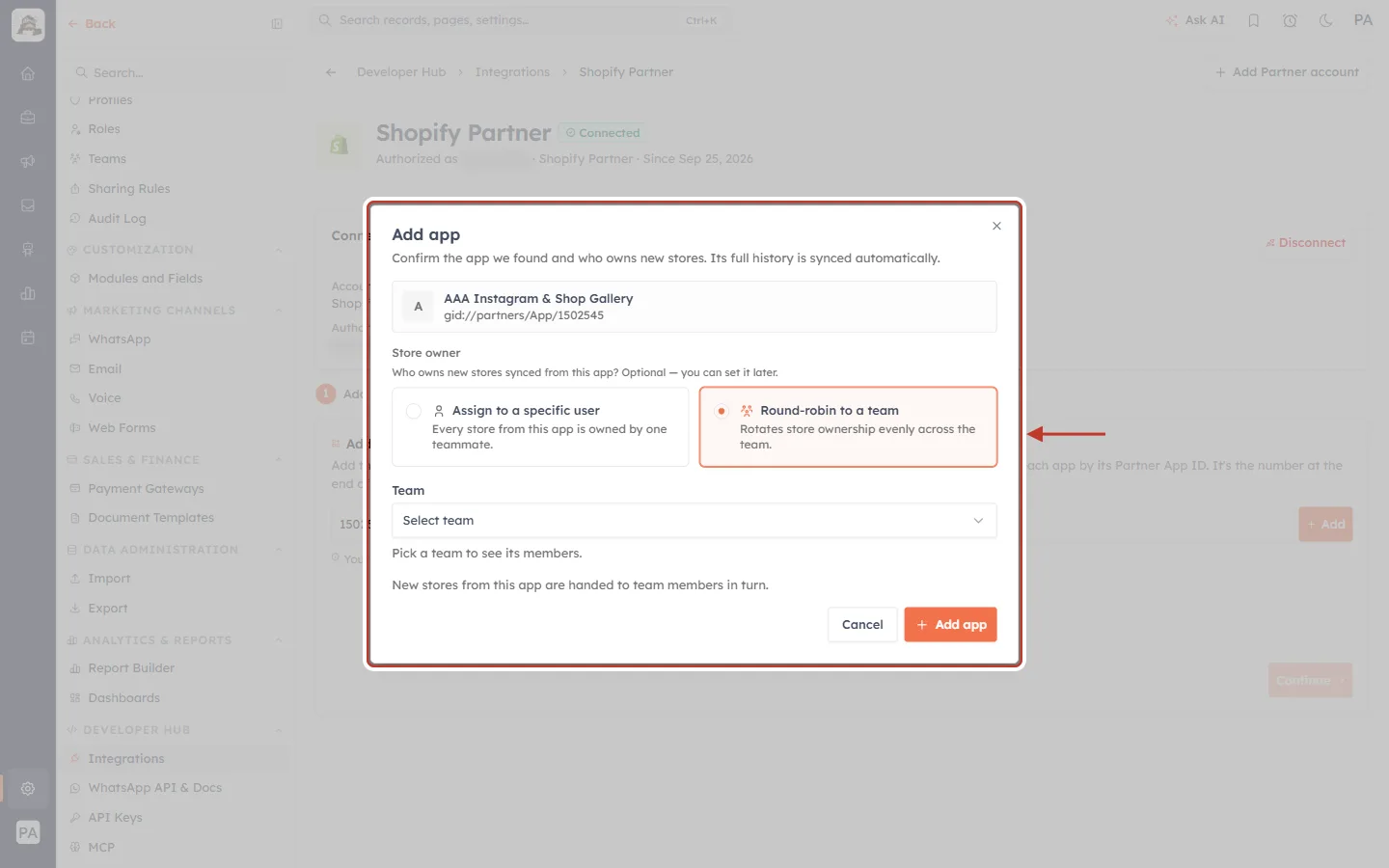
What this screenshot shows. Round-robin to a team is selected. It rotates store ownership evenly across the team.
Team: pick one of your teams. Until you do, it reads Pick a team to see its members.
Once you pick a team, it shows the member count and names, and Team members · rotation order lists them as chips. The member marked Next receives the next new store.
New stores from this app are handed to team members in turn.
Teams are set up under Settings → Teams. See Create Teams: Group Users for Lead Routing, Reporting & Sharing.
Step 10: Add the app and continue#
Click Add app. You see App added and the app appears in the list.
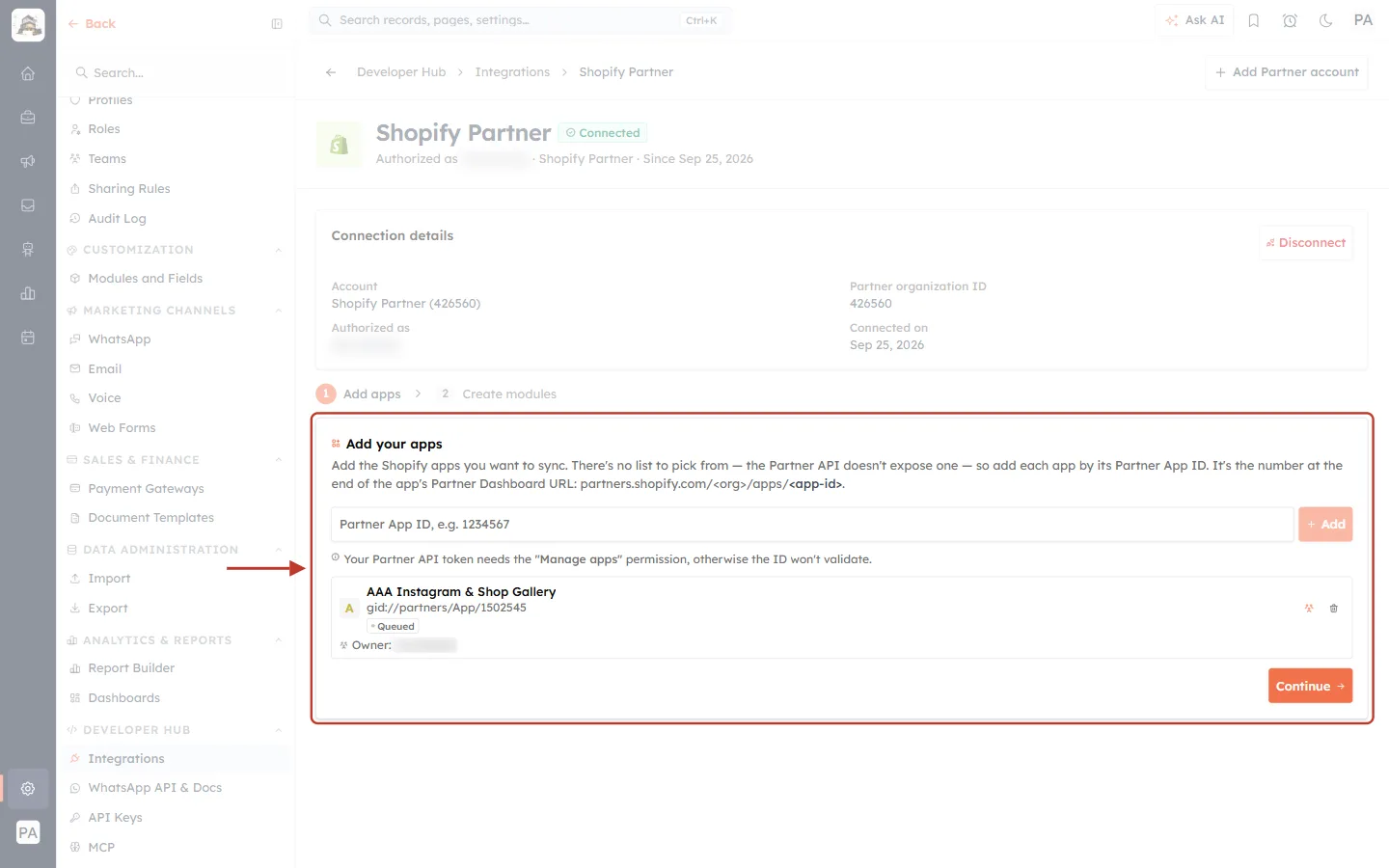
What this screenshot shows. The ringed card now lists the added app.
The row shows the app’s first letter, its name AAA Instagram & Shop Gallery and its ID.
The sync badge starts as Queued (waiting for the first sync). It changes to Initial sync in progress, then Up to date once the app’s history has been read.
Owner: shows the store owner you chose (blurred).
The two icons on the right are Store assignment (change the owner later) and the bin (remove the app).
To sync more apps, type the next App ID and click Add again. When you are done, click Continue.
✅
If you skipped the owner, or the owner couldn’t be saved, you see App added, but the owner couldn’t be saved — set it from the Store-assignment button. The app is still added. Set the owner later from the Apps tab (Part 5).
Part 4: Create the Stores and Store Transactions Modules#
Step 11: Review the modules to be created#
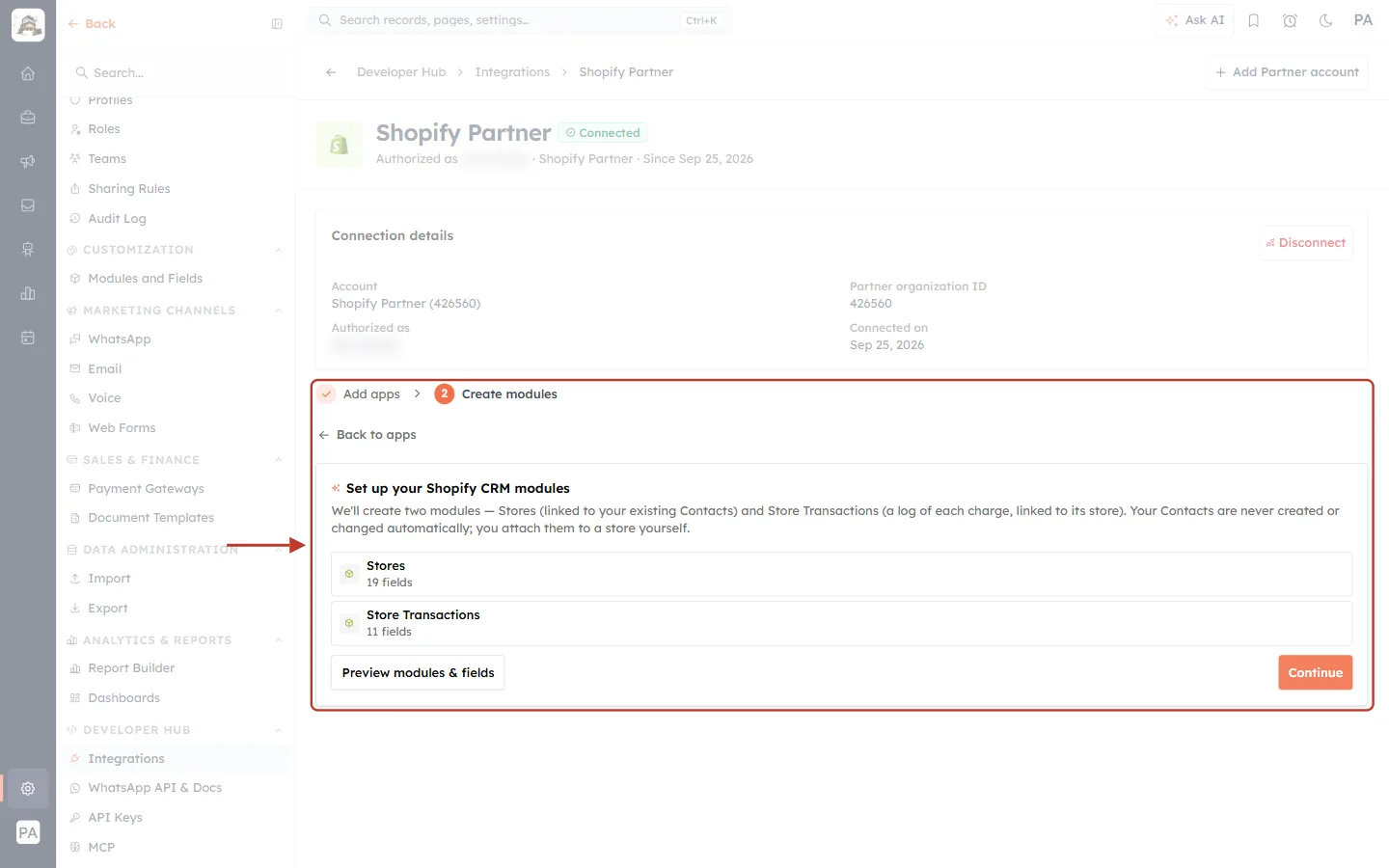
What this screenshot shows. Step 2 Create modules is active, and the ringed card is Set up your Shopify CRM modules.
We’ll create two modules — Stores (linked to your existing Contacts) and Store Transactions (a log of each charge, linked to its store). Your Contacts are never created or changed automatically; you attach them to a store yourself.
Stores: 19 fields. Store Transactions: 11 fields.
Back to apps (above the card) returns to step 1. You can also click either step name at the top.
Preview modules & fields shows every field before anything is created. Continue creates the modules.
Step 12: Preview the fields (optional)#
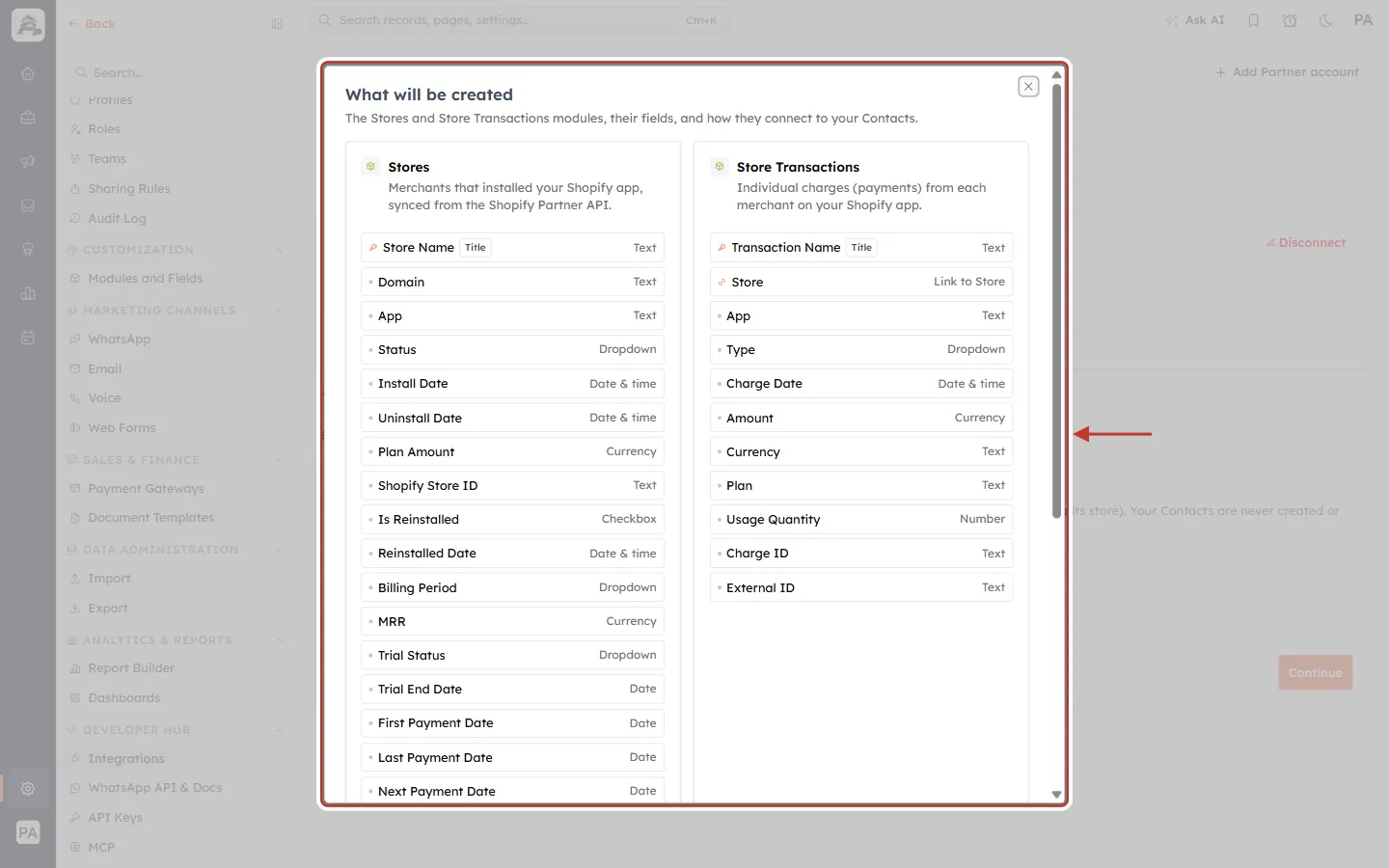
What this screenshot shows. The What will be created window lists both modules and their fields, with each field’s type on the right.
Stores (Merchants that installed your Shopify app, synced from the Shopify Partner API): Store Name (title), Domain, App, Status, Install Date, Uninstall Date, Plan Amount, Shopify Store ID, Is Reinstalled, Reinstalled Date, Billing Period, MRR, Trial Status, Trial End Date, First Payment Date, Last Payment Date, Next Payment Date, Total Amount Received and Contacts.
Store Transactions (Individual charges (payments) from each merchant on your Shopify app): Transaction Name (title), Store (link to Store), App, Type, Charge Date, Amount, Currency, Plan, Usage Quantity, Charge ID and External ID.
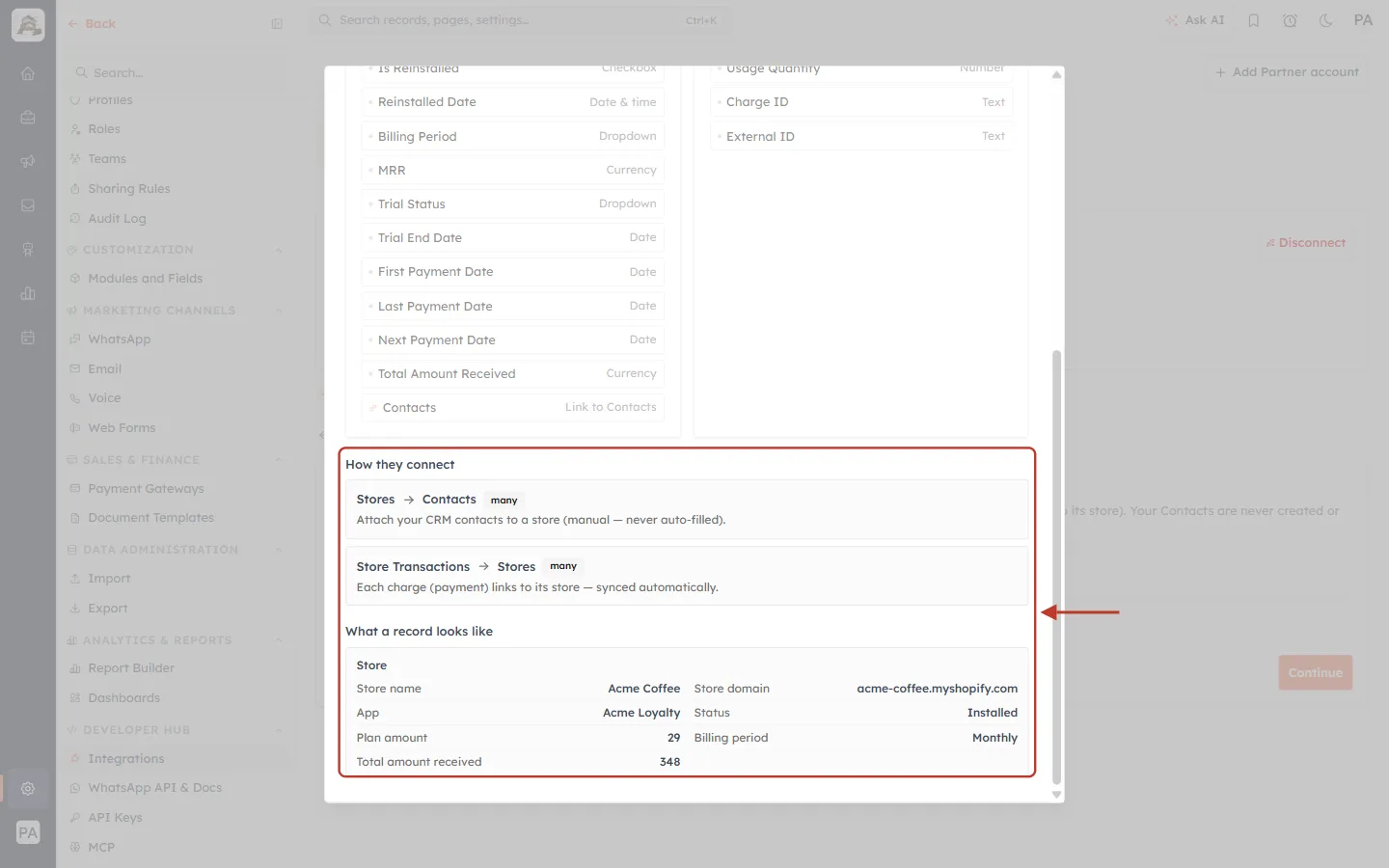
What this screenshot shows. Scrolling down the same window shows how the modules link together and what a record looks like.
Stores → Contacts (many): Attach your CRM contacts to a store (manual — never auto-filled).
Store Transactions → Stores (many): Each charge (payment) links to its store — synced automatically.
What a record looks like: an example Store (Acme Coffee, acme-coffee.myshopify.com, Acme Loyalty, Installed, plan 29, Monthly, 348 received). It is only an example and is never saved.
Close the window with the × at its top right.
Step 13: Create the modules#
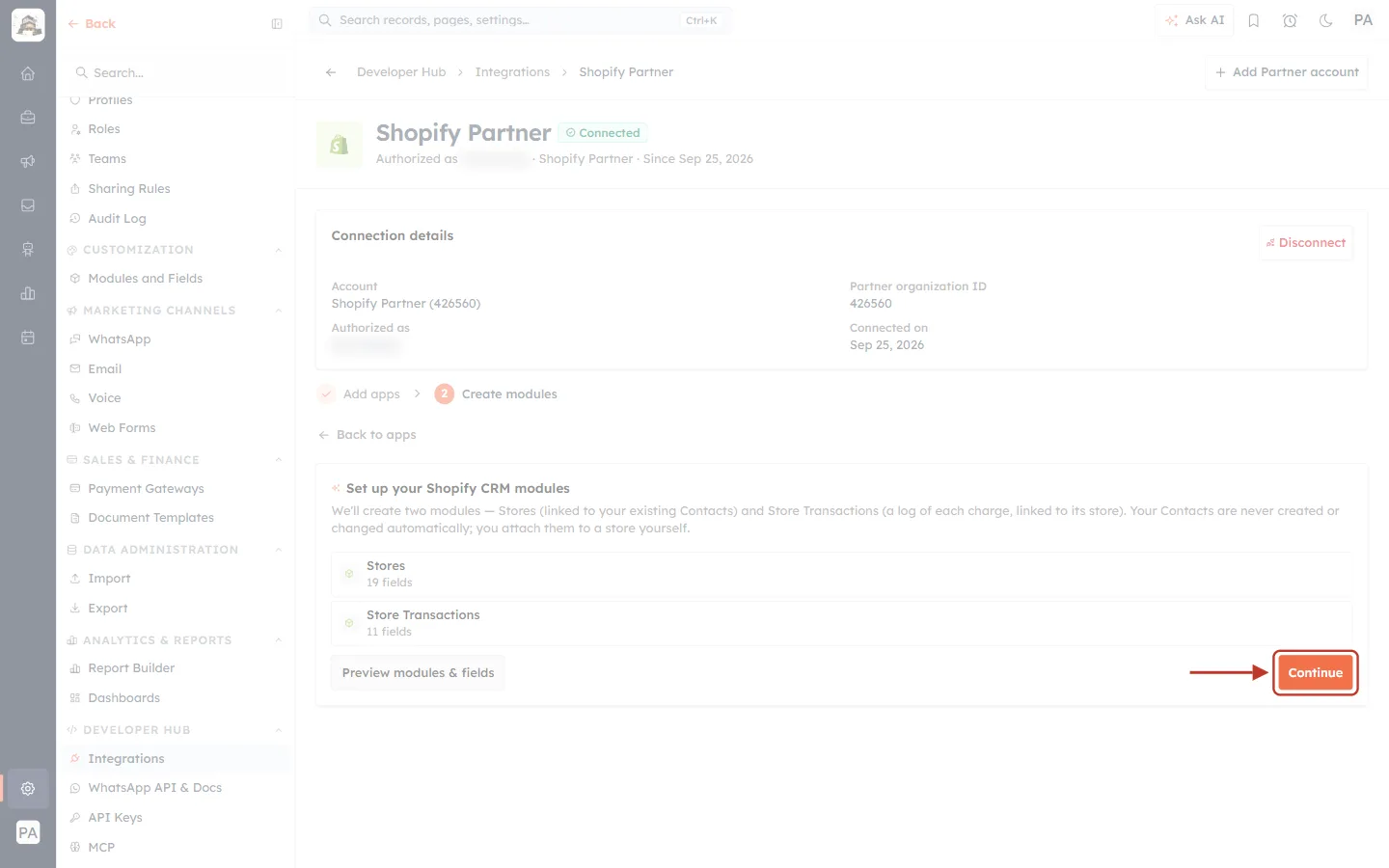
What this screenshot shows. The ringed Continue button creates both modules.
It shows Creating… for a moment, then Shopify modules created.
The new modules appear straight away in your module menu (in this account, under SALES).
⚠️
Name already in use? If your account already has a module called “Stores” or “Store Transactions”, the card shows a name box instead: A module named “Stores” already exists — pick a different name. A suggested name is filled in. Change it if you like, then click Continue.
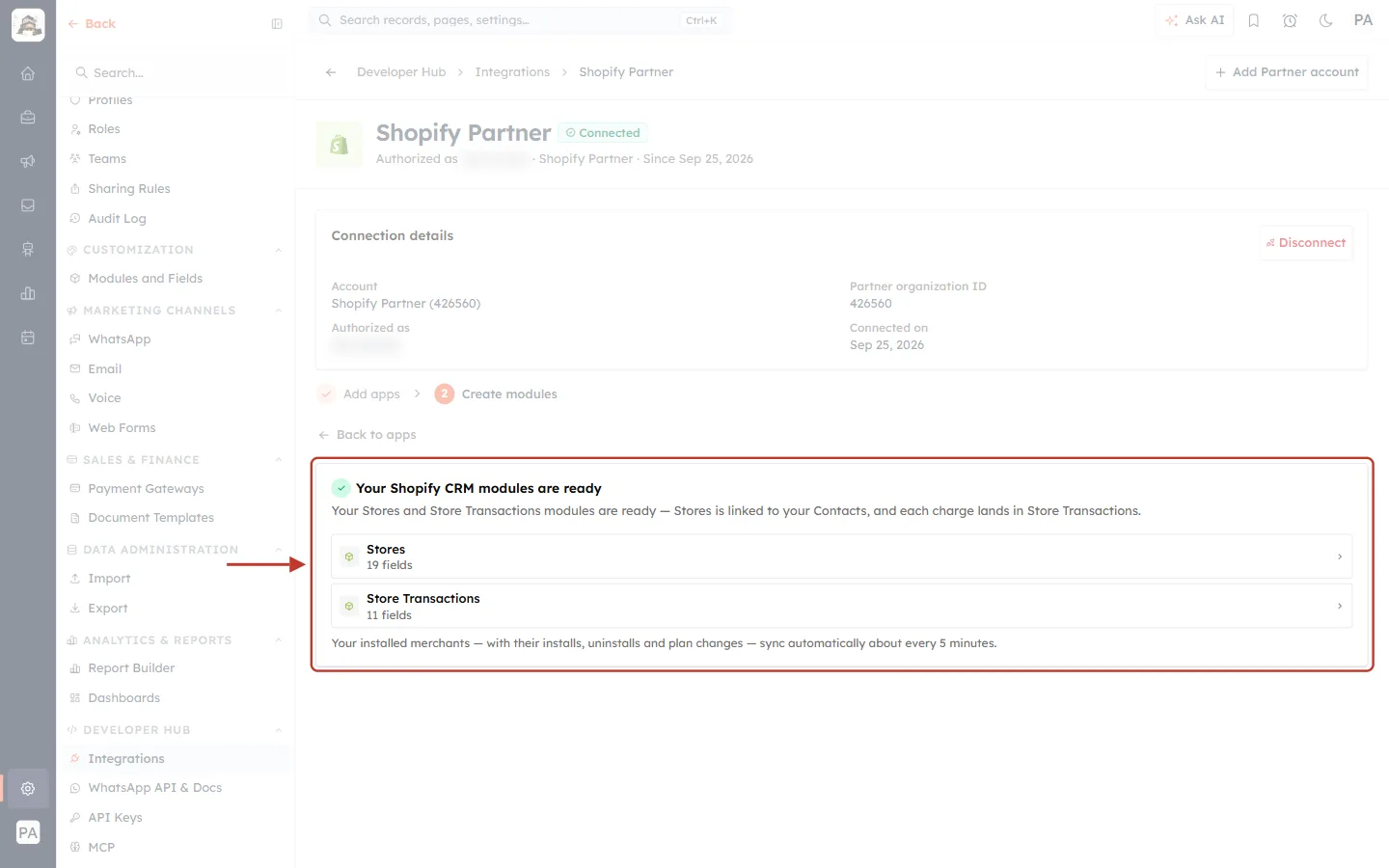
What this screenshot shows. The ringed card confirms Your Shopify CRM modules are ready.
Stores is linked to your Contacts, and each charge lands in Store Transactions.
Click Stores or Store Transactions to open that module’s list.
Your installed merchants — with their installs, uninstalls and plan changes — sync automatically about every 5 minutes.
Setup is complete. Reopen the integration page to see the connected dashboard (Part 5).
Part 5: Monitor the Connection#
After setup, the Shopify Partner page opens on a dashboard with four tabs: Overview, Apps, Sync History and Settings.
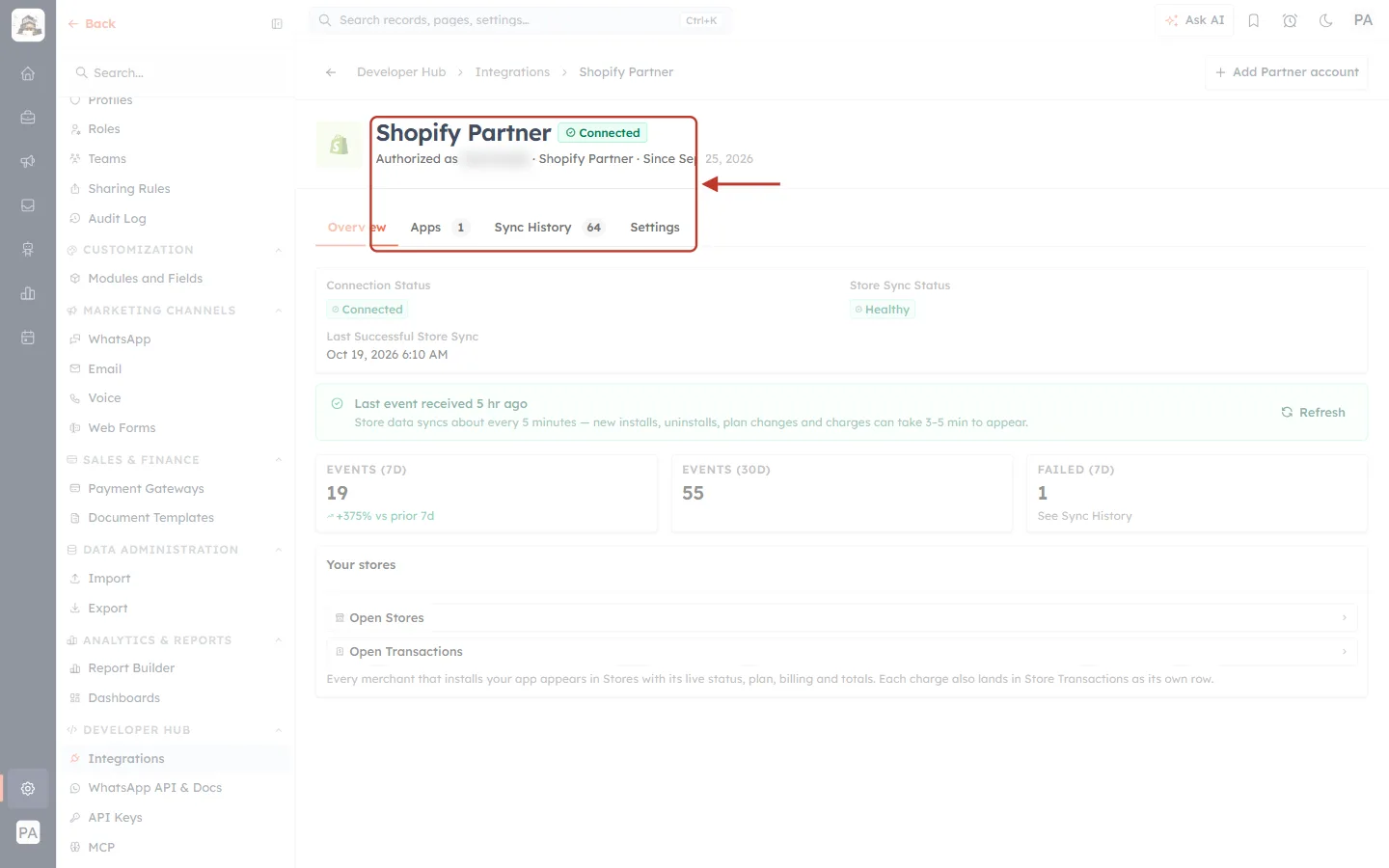
What this screenshot shows. The ringed header shows the connection at a glance.
Shopify Partner with a green Connected badge.
Authorized as [name] · Shopify Partner · Since Sep 25, 2026: who connected it and when.
The tabs: Overview, Apps (with the number of apps, here 1), Sync History (with the number of sync events, here 64) and Settings.
Overview tab#
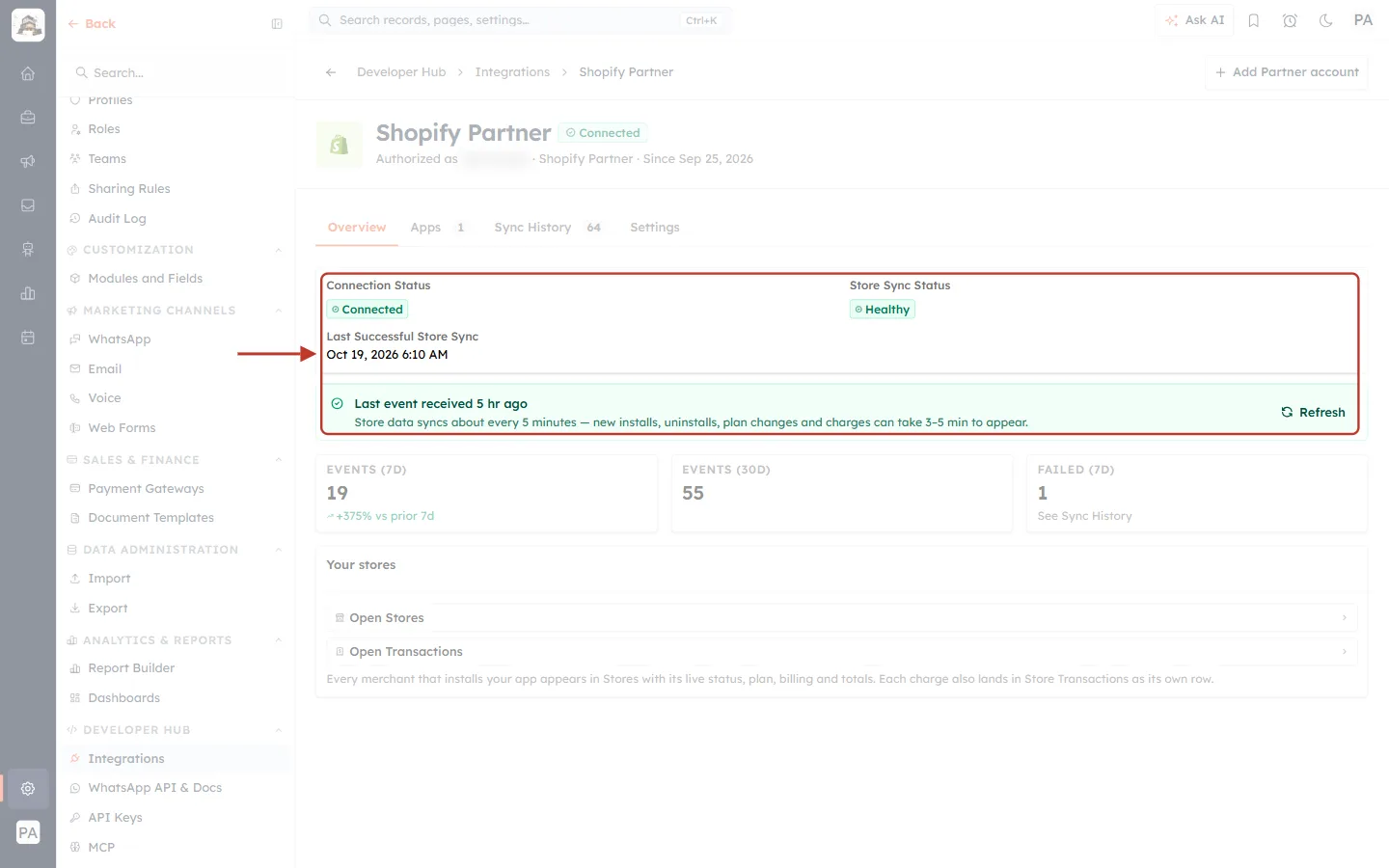
What this screenshot shows. The ringed top of the Overview tab shows whether the sync is healthy.
Connection Status: Connected. Store Sync Status: Healthy.
Last Successful Store Sync: the date and time Shopify was last read successfully.
The green bar shows Last event received (here, 5 hours ago) and explains: Store data syncs about every 5 minutes — new installs, uninstalls, plan changes and charges can take 3–5 min to appear.
Refresh (right) reloads these figures.
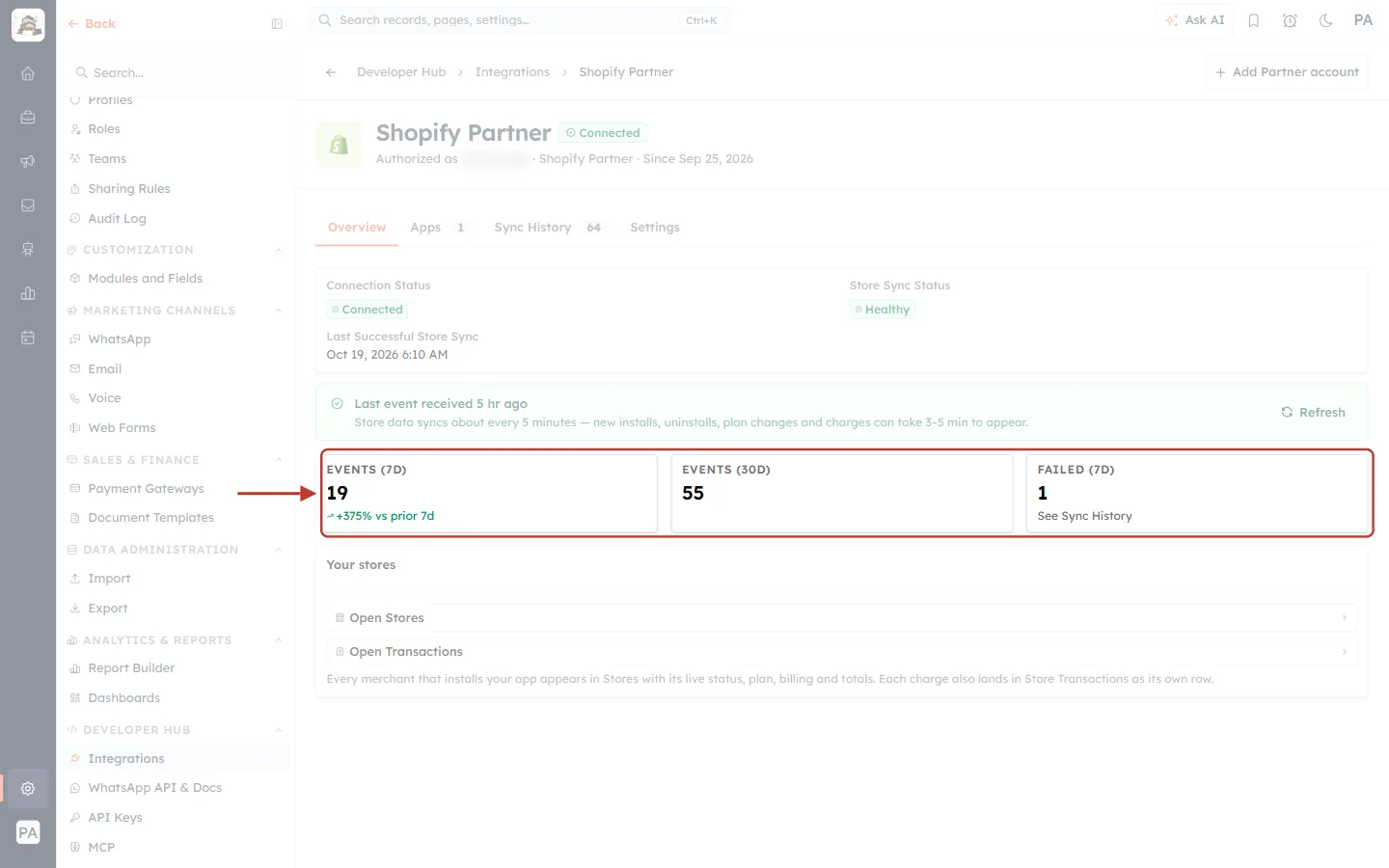
What this screenshot shows. The ringed tiles count the sync events processed.
EVENTS (7D): 19, with the change against the previous 7 days (+375% vs prior 7d).
EVENTS (30D): 55.
FAILED (7D): 1. Click See Sync History to find out which sync failed and why.
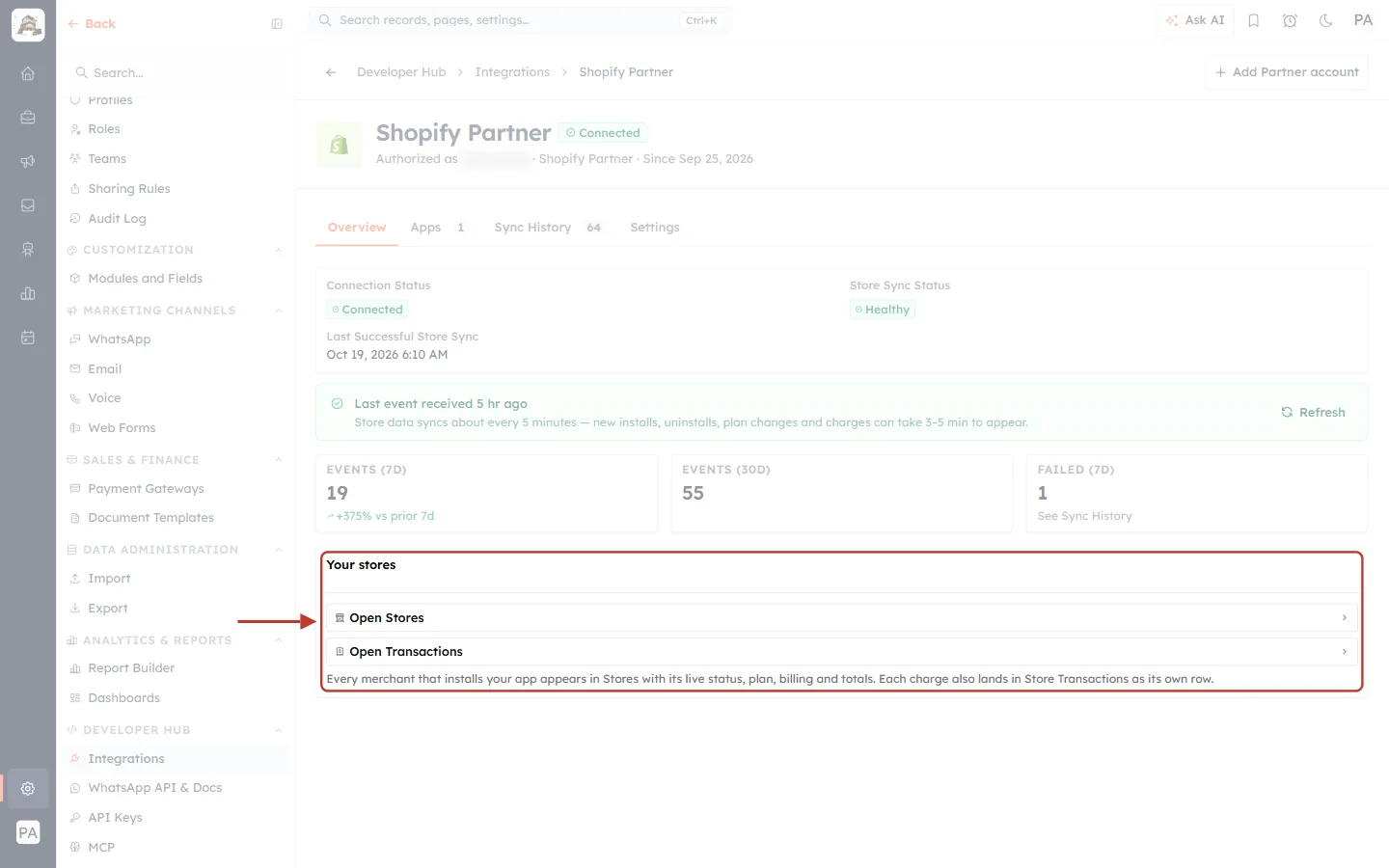
What this screenshot shows. The ringed Your stores panel links straight to your synced data.
Open Stores opens the Stores module. Open Transactions opens Store Transactions.
Every merchant that installs your app appears in Stores with its live status, plan, billing and totals. Each charge also lands in Store Transactions as its own row.
Apps tab#
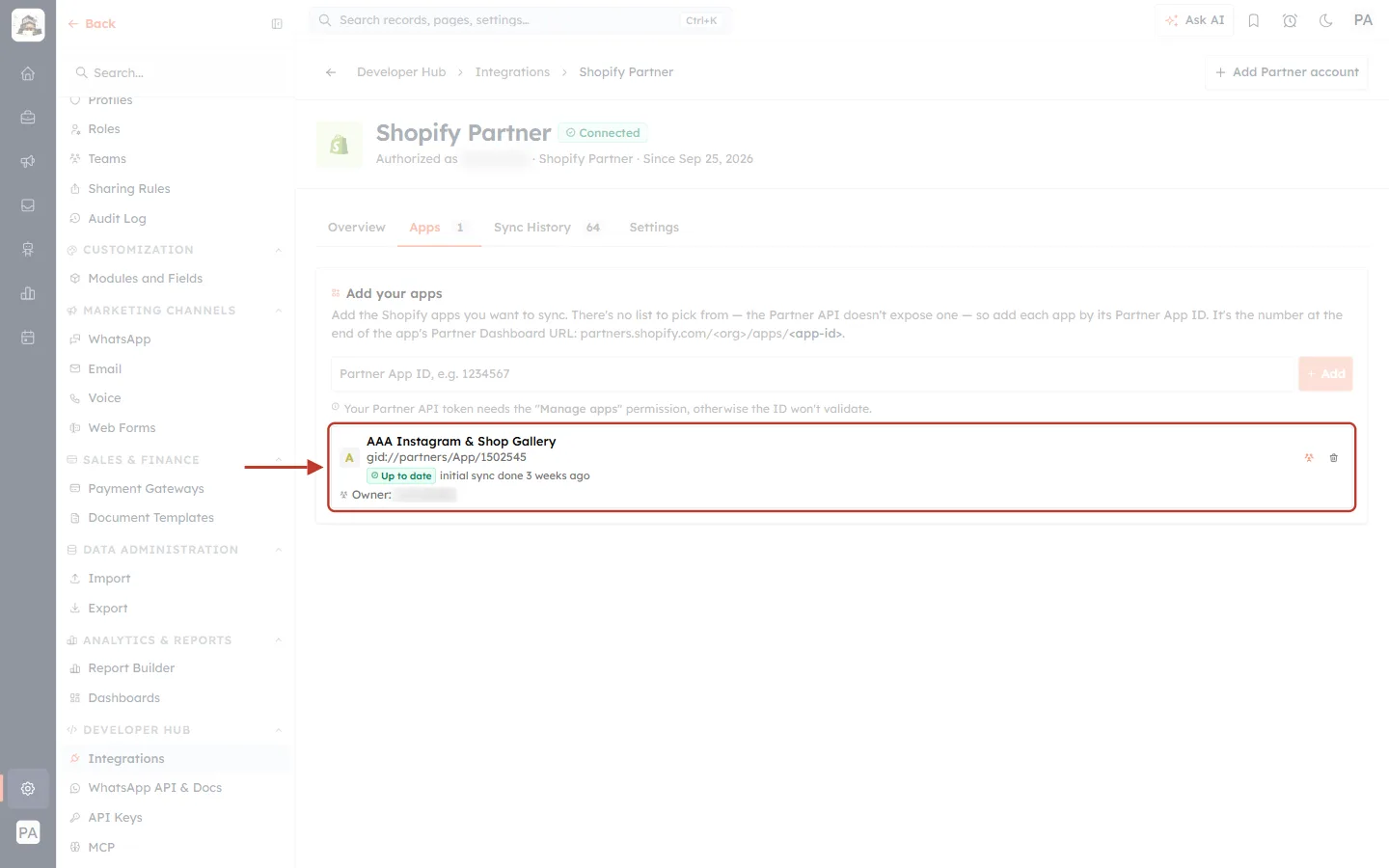
What this screenshot shows. The Apps tab shows the same Add your apps card as setup. The ringed row is a synced app.
AAA Instagram & Shop Gallery, ID gid://partners/App/1502545.
Its badge reads Up to date, initial sync done 3 weeks ago: its full history has been read and it is now kept current.
Owner: the person who owns its new stores (blurred).
Add more apps with the App ID box above. Remove an app with its bin icon.
Change who owns new stores#
Click the people icon (Store assignment) on the app’s row.
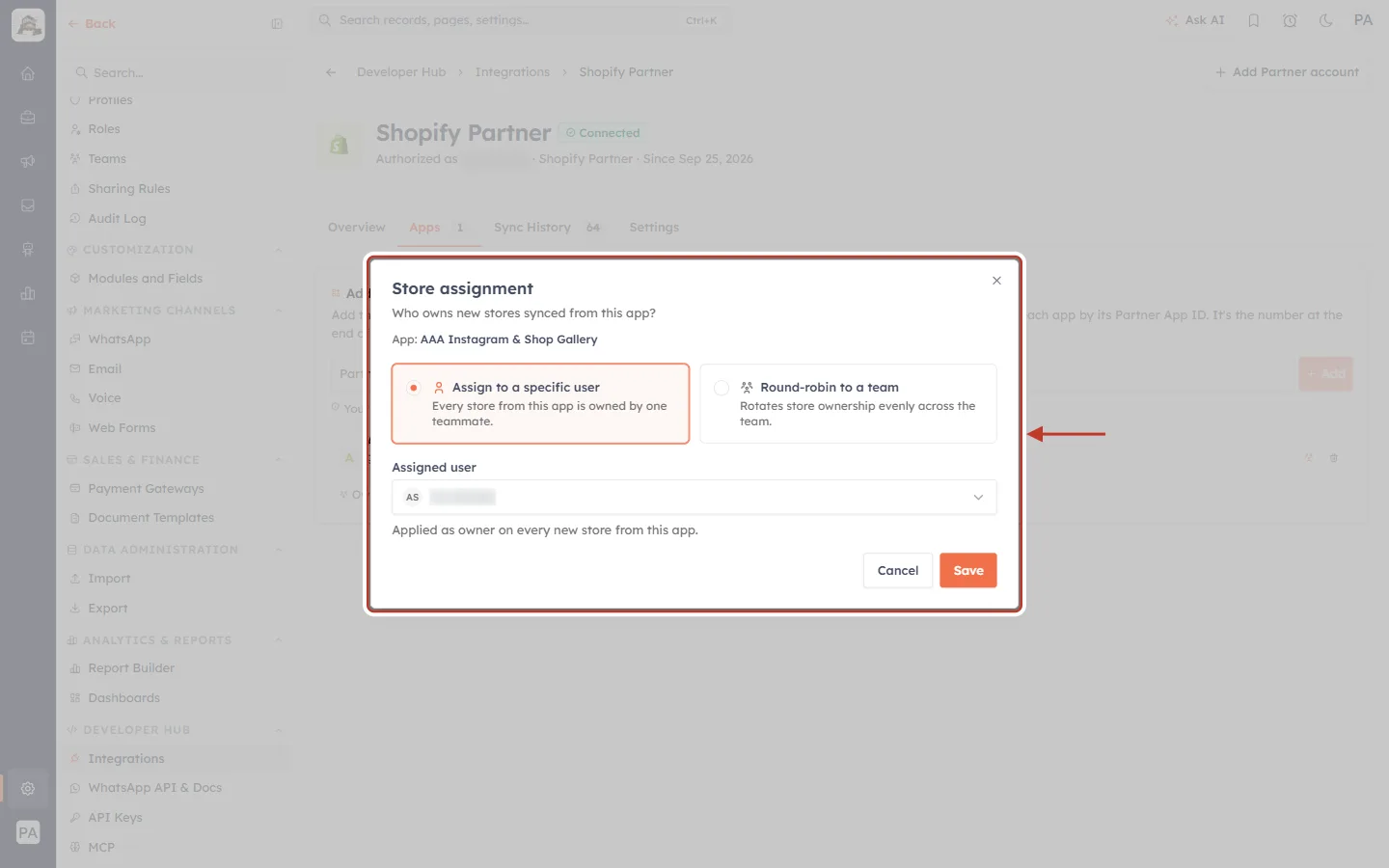
What this screenshot shows. The Store assignment window opens: Who owns new stores synced from this app?
App: the app you are changing.
The same two options as when you added the app: Assign to a specific user or Round-robin to a team.
Assigned user shows the current owner (blurred). Pick a different user or switch to a team.
Click Save. You see Store assignment saved. The change applies to new stores. Existing Store records keep their owner, which you can change on the records themselves.
Sync History tab#
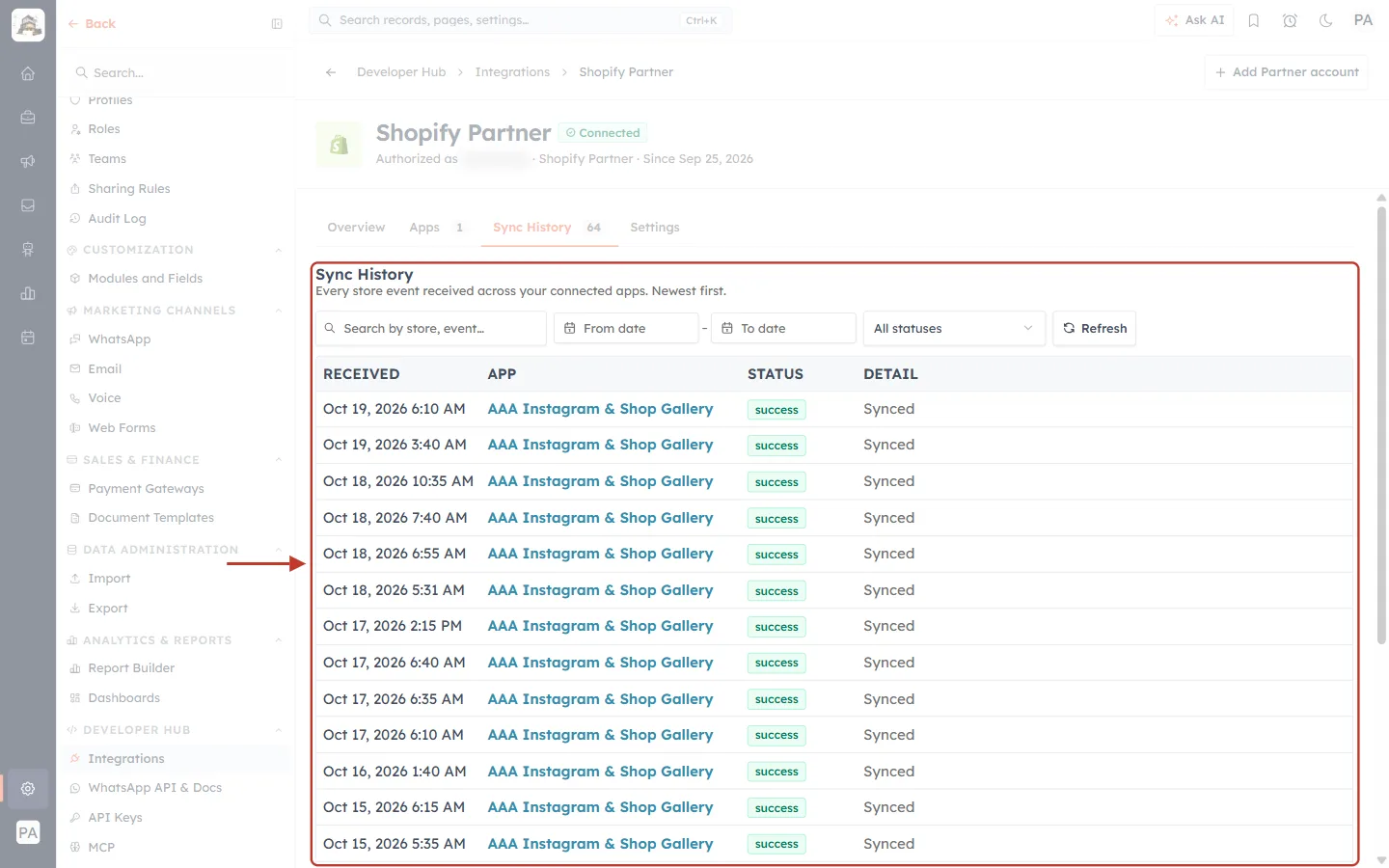
What this screenshot shows. The ringed Sync History lists every store event received across your connected apps. Newest first.
RECEIVED: when the sync ran. APP: which app it was for. STATUS: success or failed. DETAIL: Synced, or the error.
Below the list, Page 1 of 4 · 64 events total with Previous and Next to page through.
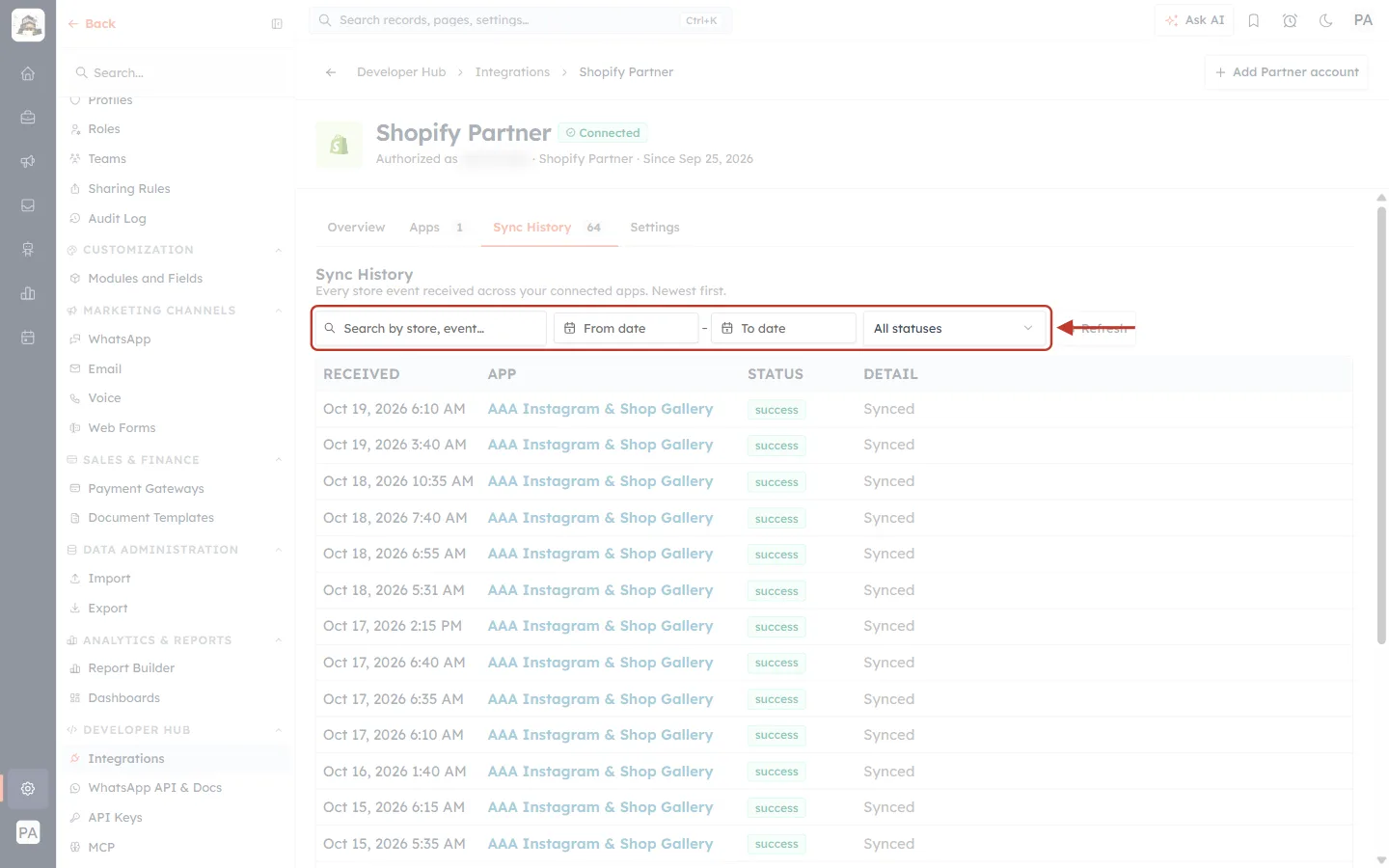
What this screenshot shows. The ringed bar narrows the list.
Search by store, event…: type a store or event to find.
From date – To date: limit the list to a date range.
All statuses: show only one status, such as Success or Failed.
Refresh reloads the list.
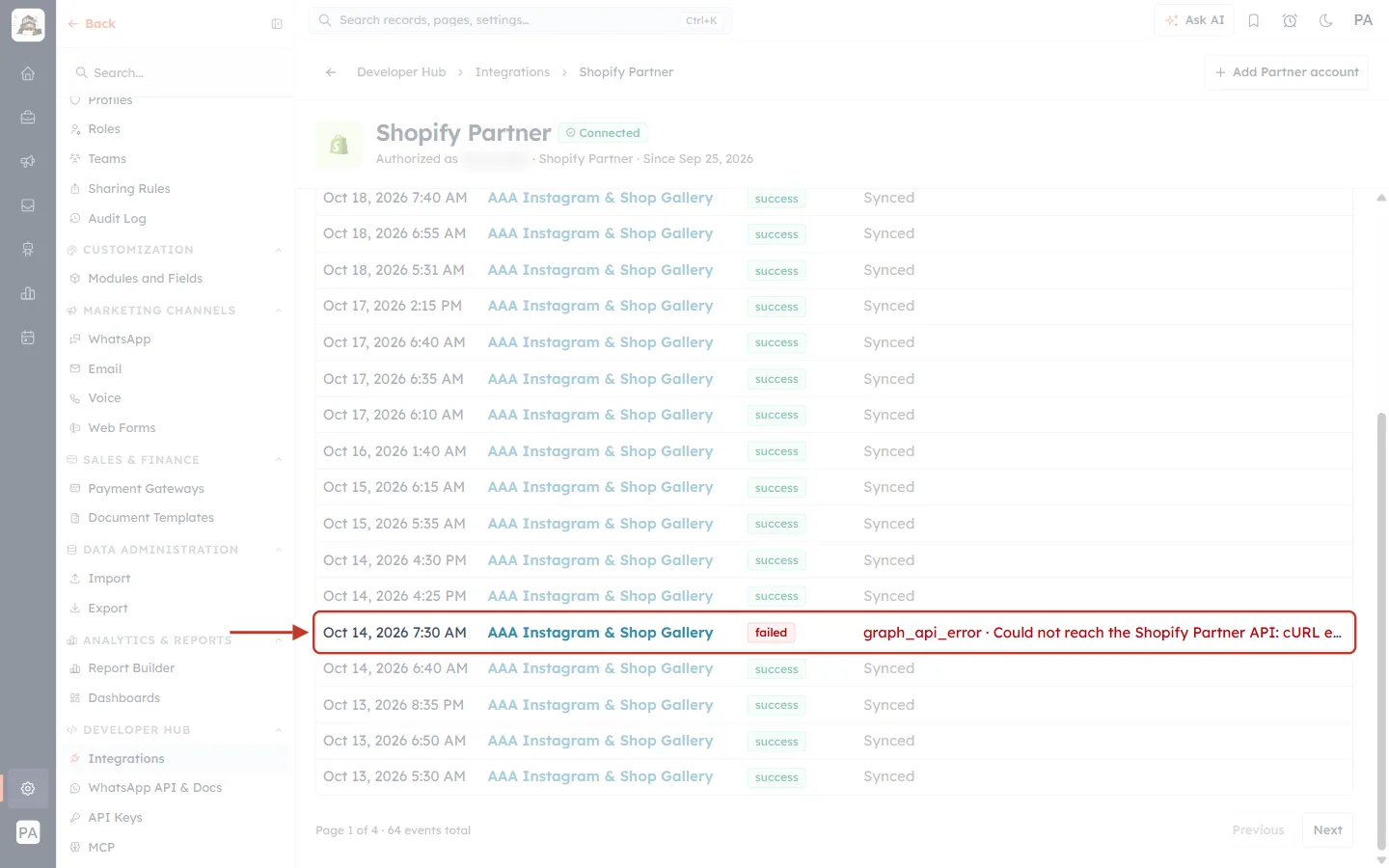
What this screenshot shows. The ringed row is a sync that failed.
DETAIL gives the reason. Here it is graph_api_error · Could not reach the Shopify Partner API (Shopify did not answer in time).
A failure like this is temporary. Nothing is lost: the next sync picks up where the last successful one stopped, and every row after it in this example reads success.
If failures keep repeating, check the Settings tab and the token (see Troubleshooting).
Settings tab#
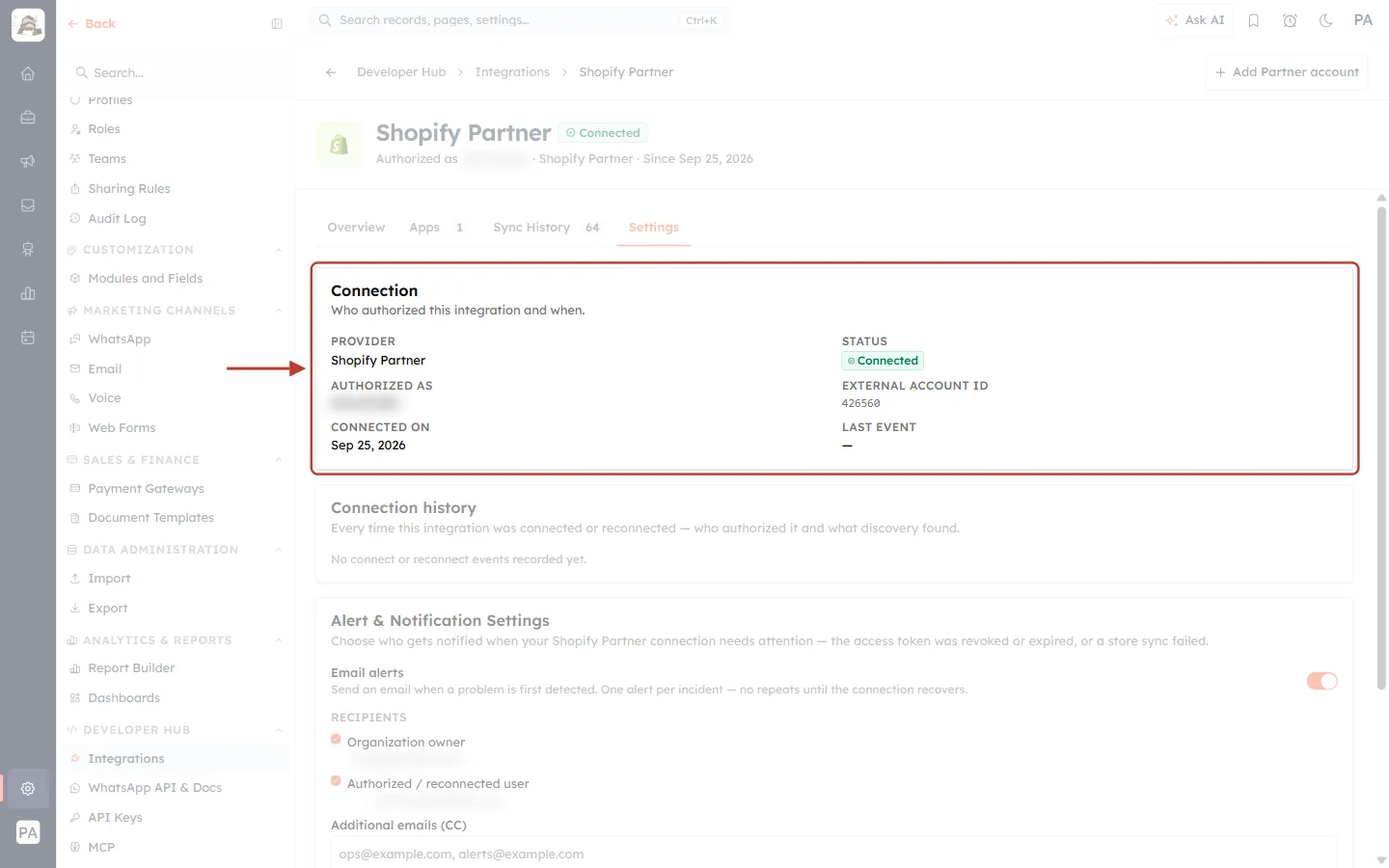
What this screenshot shows. The ringed Connection card shows who authorized this integration and when.
PROVIDER: Shopify Partner. STATUS: Connected.
AUTHORIZED AS: the person who connected it (blurred). EXTERNAL ACCOUNT ID: your Partner organization ID (426560).
CONNECTED ON: Sep 25, 2026. LAST EVENT: the last event received.
Below it, Connection history lists every time the integration was connected or reconnected, and by whom.
Step 14: Set up failure alerts#
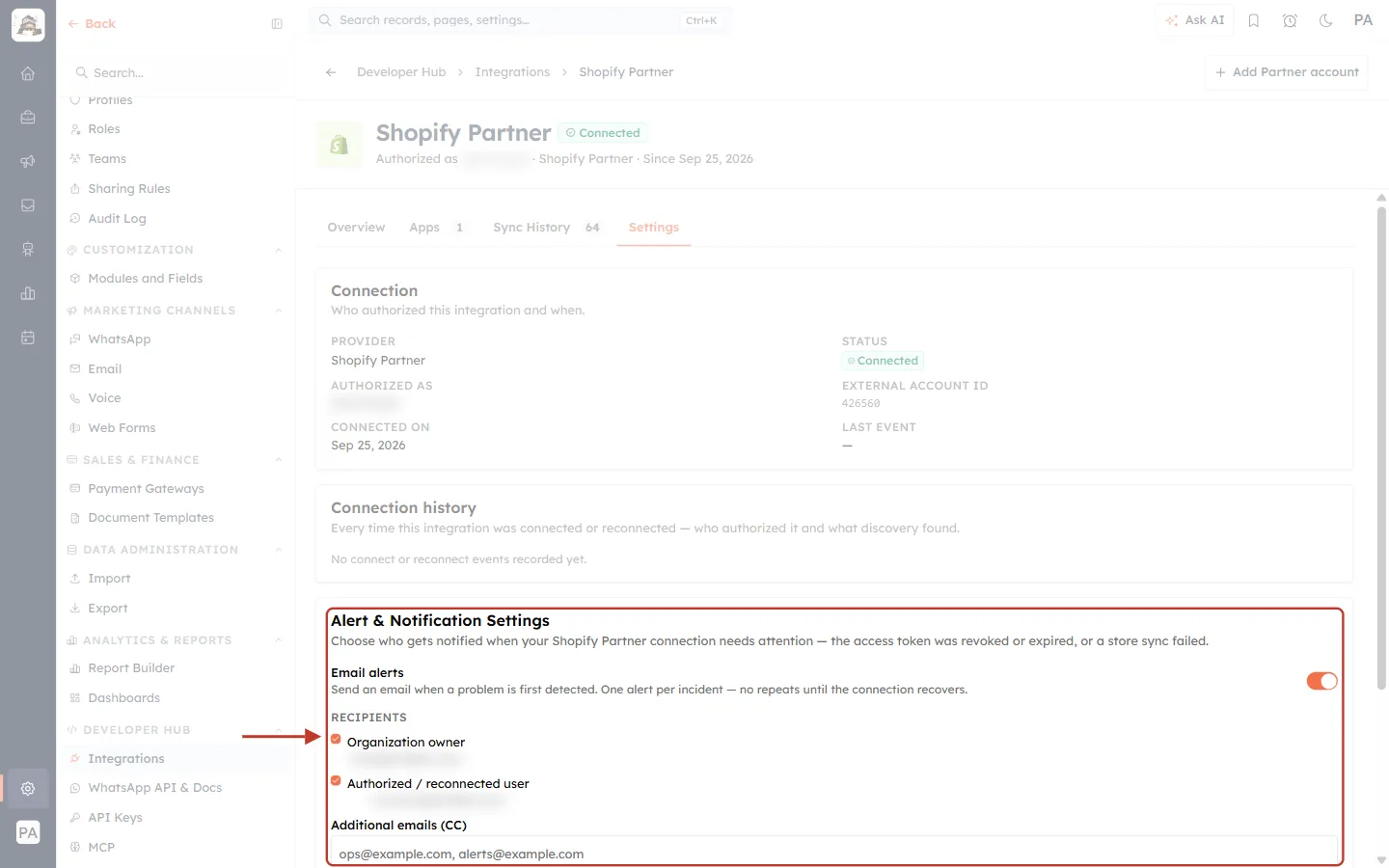
What this screenshot shows. The ringed Alert & Notification Settings decide who hears about problems: the access token was revoked or expired, or a store sync failed.
Email alerts (switch on the right): Send an email when a problem is first detected. One alert per incident — no repeats until the connection recovers.
RECIPIENTS: tick Organization owner and/or Authorized / reconnected user. Each shows the address the alert goes to (blurred).
Additional emails (CC): extra addresses, separated by commas, for example a shared ops or support inbox.
Click Save settings (below the box) to keep your changes.
Part 6: Work With Your Synced Stores and Charges#
Step 15: Open the Stores module#
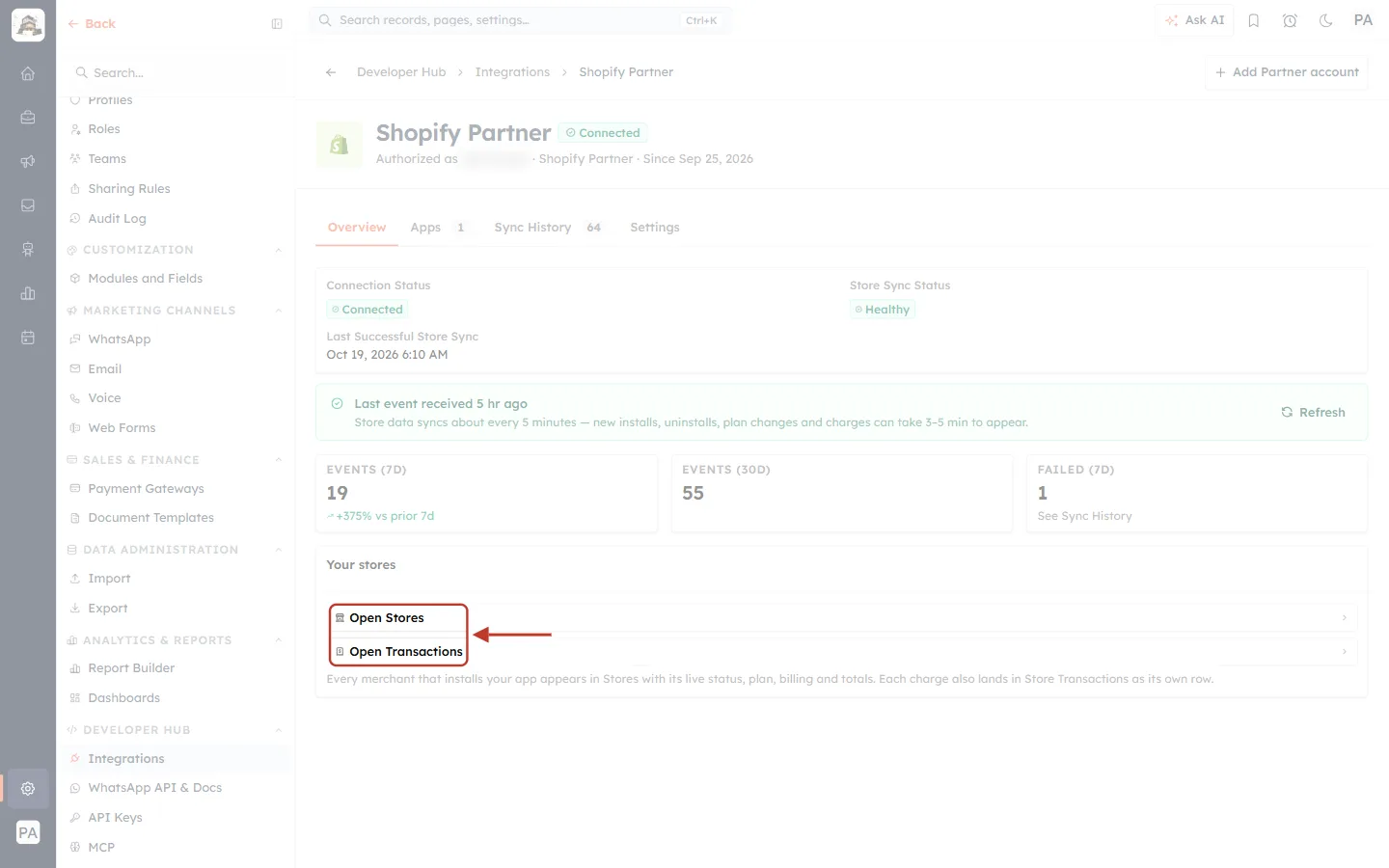
What this screenshot shows. The quickest way in is Open Stores or Open Transactions on the Overview tab (ringed).
Both modules are also in your module menu, like any other module: Stores and Store Transactions.
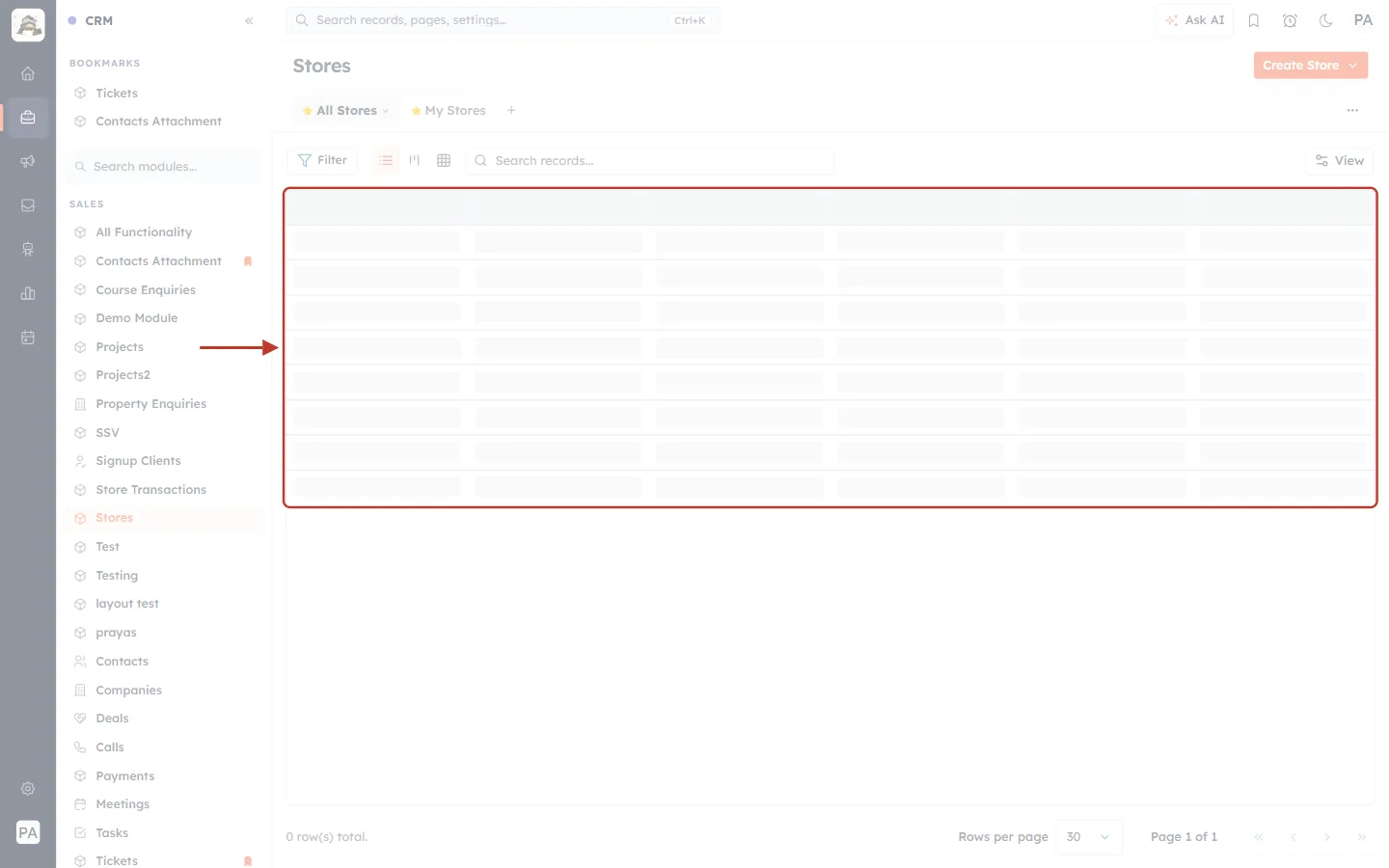
What this screenshot shows. The ringed Stores list has one row per store that installed your app. Store names and domains are blurred.
Columns: STORE NAME, DOMAIN (the store’s .myshopify.com address), APP, STATUS (Installed or Uninstalled), then further right BILLING PERIOD, PLAN AMOUNT, MRR, TOTAL AMOUNT RECEIVED, STORE OWNER and INSTALL DATE.
This account has 283 stores (283 row(s) total, bottom left). Uninstalled stores stay in the list with their history.
Use Filter, Search records…, list or Kanban view, and saved views (All Stores, My Stores) as in any module. For example, filter Status = Uninstalled to follow up on churned merchants. See Create, Share & Manage Custom Views (List & Kanban).
Step 16: Open a store’s record#
Click a store’s name. This example is a paying store that uninstalled the app and later came back.
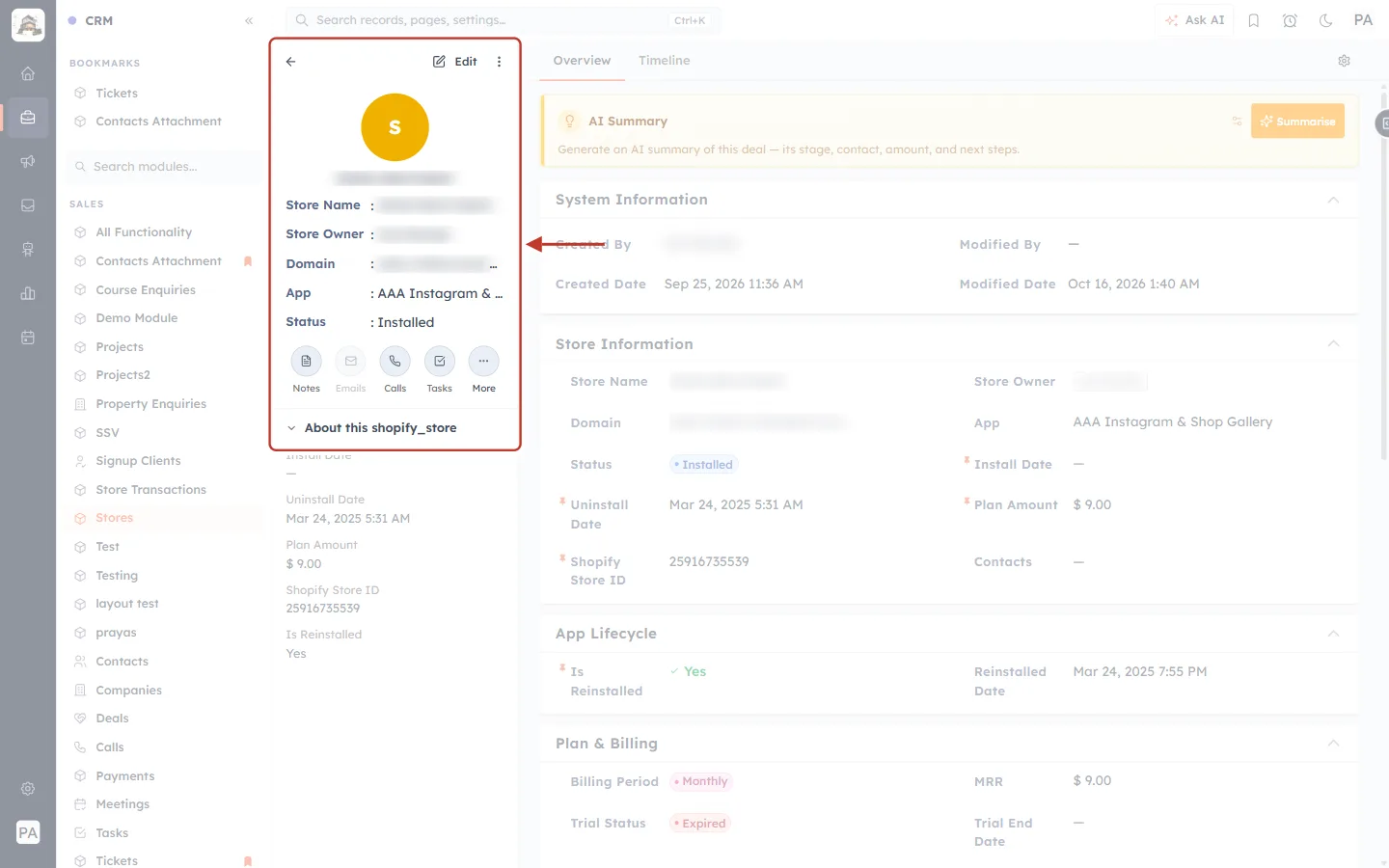
What this screenshot shows. The ringed left panel summarises the store.
Store Name, Store Owner and Domain (blurred), App: AAA Instagram & Shop Gallery, Status: Installed.
The action buttons are Notes, Emails, Calls, Tasks and More, the same as on other records.
About this shopify_store repeats the key dates and amounts.
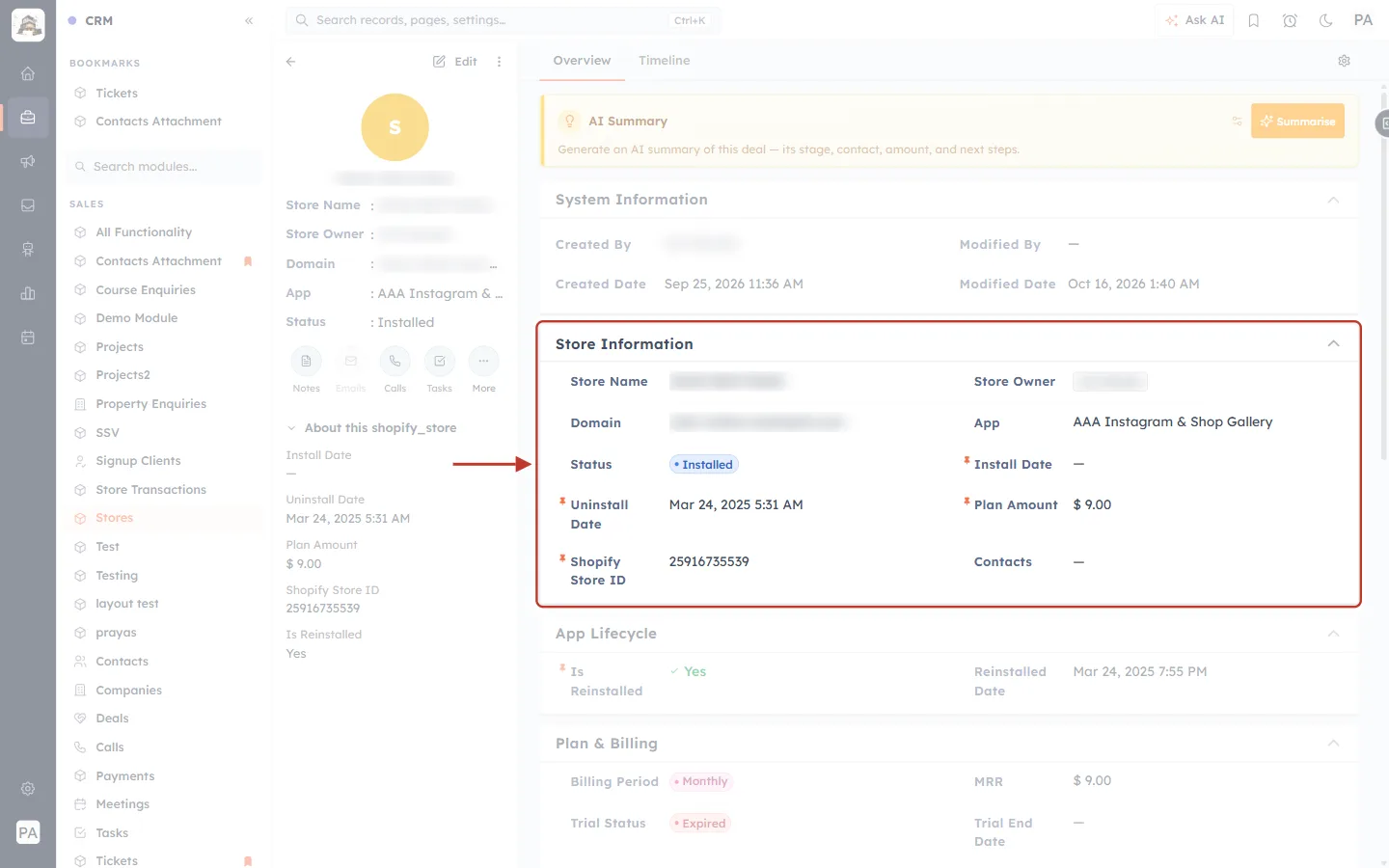
What this screenshot shows. The ringed Store Information section holds the store’s identity and install state.
Store Name and Domain (blurred), Store Owner (blurred), App.
Status: Installed. Install Date / Uninstall Date: when the store installed and uninstalled the app. Here the Uninstall Date (Mar 24, 2025) is kept from before the store came back, and the return is recorded under App Lifecycle.
Plan Amount: $ 9.00. Shopify Store ID: Shopify’s own number for the store.
Contacts: empty until you link contacts yourself. Use Edit on the record to attach the merchant’s people. Contacts are never created or linked automatically.
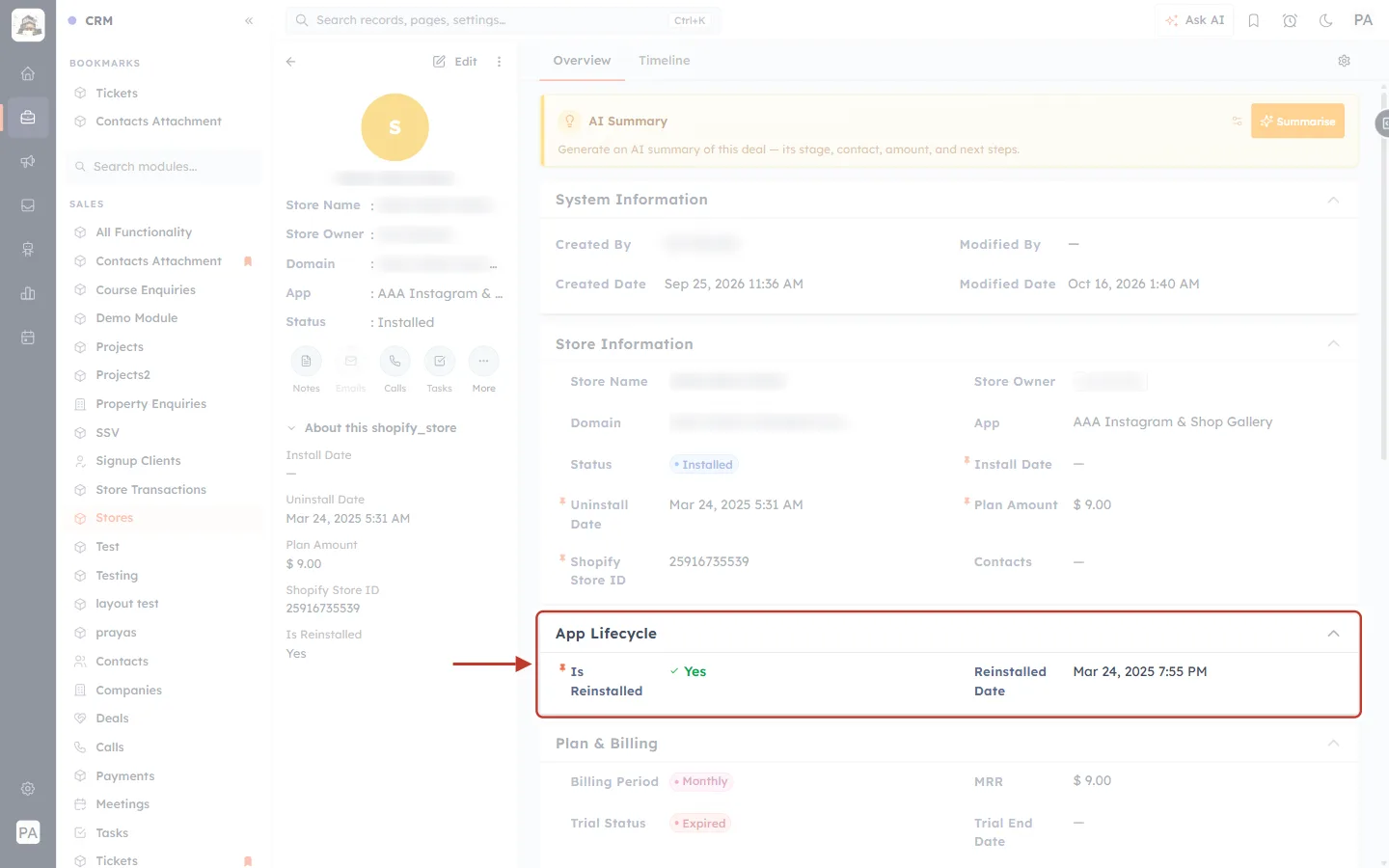
What this screenshot shows. The ringed App Lifecycle section records whether the store came back.
Is Reinstalled: Yes, because this store uninstalled and then installed the app again.
Reinstalled Date: Mar 24, 2025, 7:55 PM, when it came back.
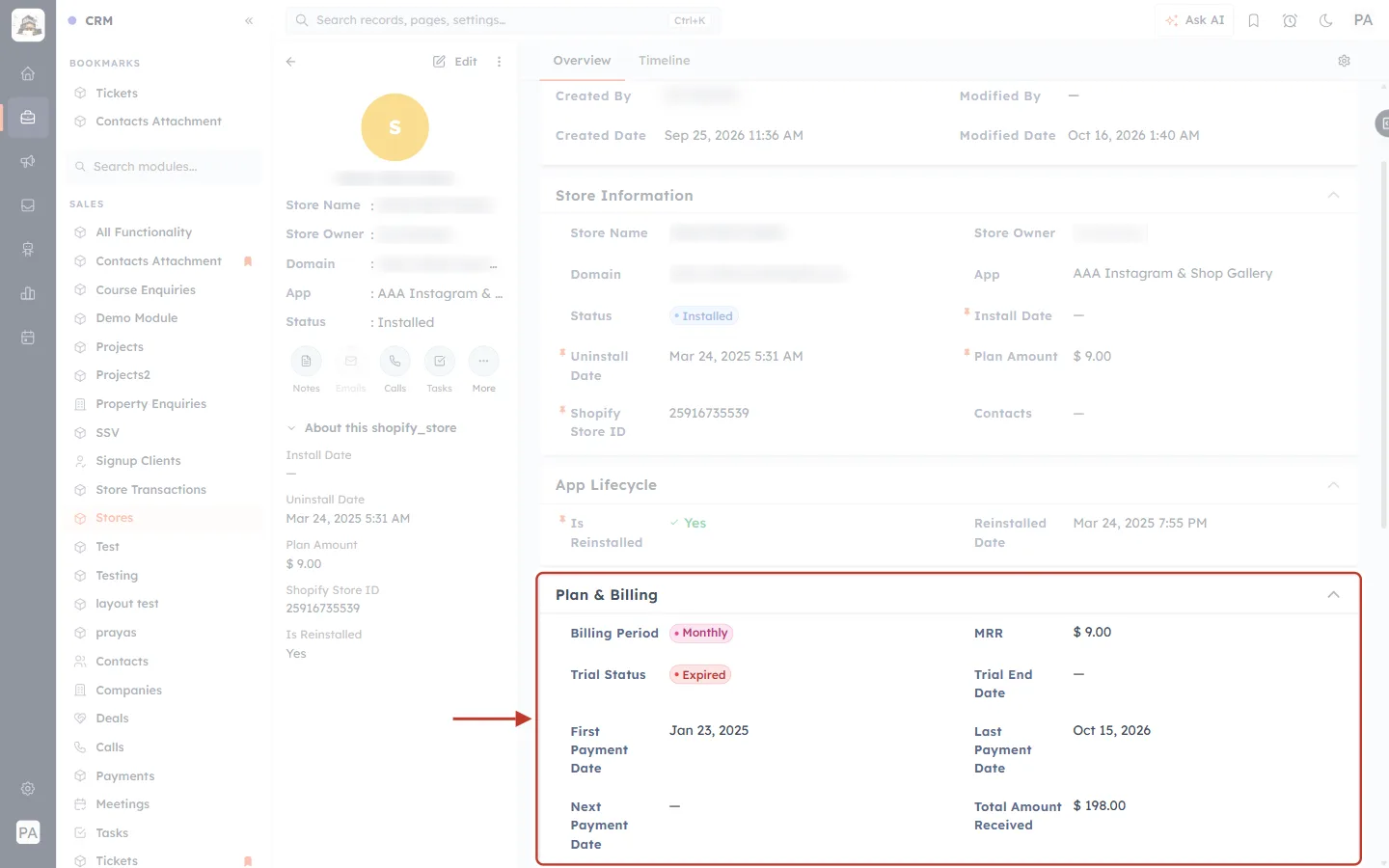
What this screenshot shows. The ringed Plan & Billing section shows what the store pays.
Billing Period: Monthly (or Yearly). MRR: $ 9.00, the plan price per month. A yearly plan is divided by 12.
Trial Status: Expired (or Running, or None). Trial End Date: when a running trial ends.
First Payment Date: Jan 23, 2025. Last Payment Date: Oct 15, 2026. Next Payment Date: the next expected charge, when known.
Total Amount Received: $ 198.00, the sum of every charge synced for this store.
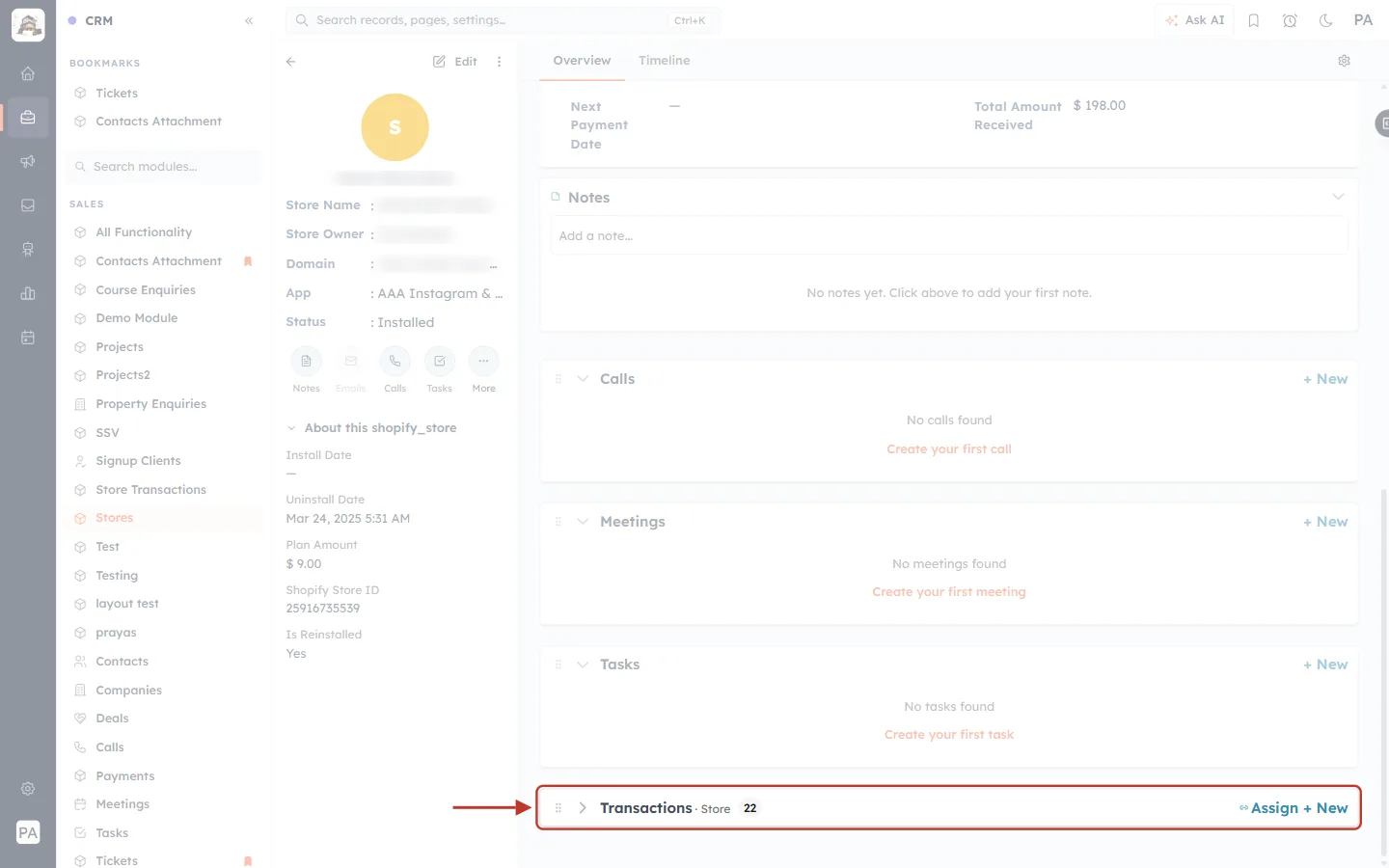
What this screenshot shows. At the bottom of the record, the ringed Transactions · Store list holds this store’s charges.
The count shows 22 charges for this store. Click the arrow at the left to expand the list.
This is the store’s payment history, one row per charge, linked automatically by the sync.
Step 17: Review every charge in Store Transactions#
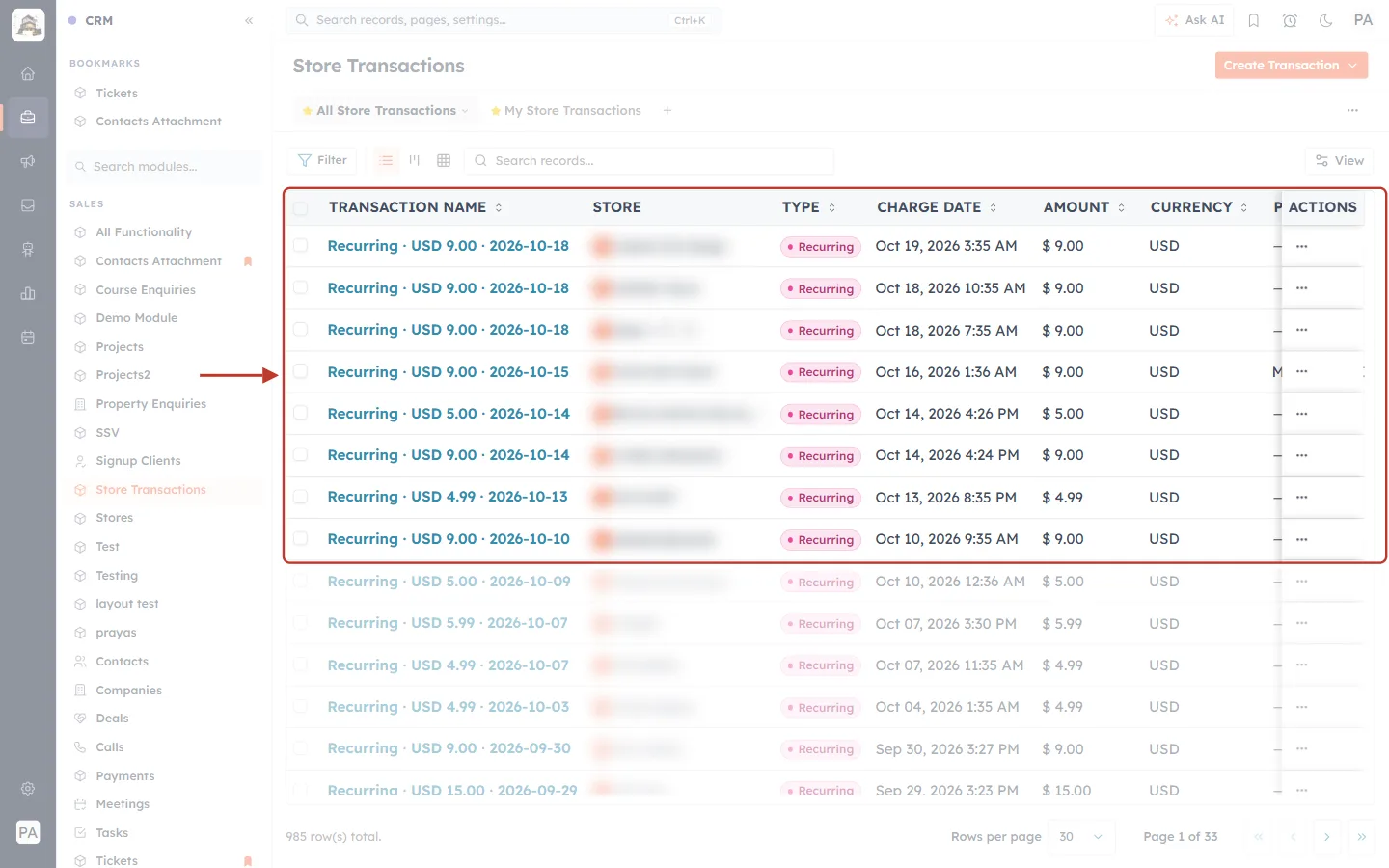
What this screenshot shows. The ringed Store Transactions list has one row per charge across all your stores, newest first. Store names are blurred.
TRANSACTION NAME: a readable summary, for example Recurring · USD 9.00 · 2026-10-18 (type · amount · date).
STORE: the store that paid (click it to open the Store). TYPE: Recurring, One-time or Usage.
CHARGE DATE, AMOUNT (in USD, gross) and CURRENCY. Further right: PLAN and the record owner.
This account has 985 charges (985 row(s) total).
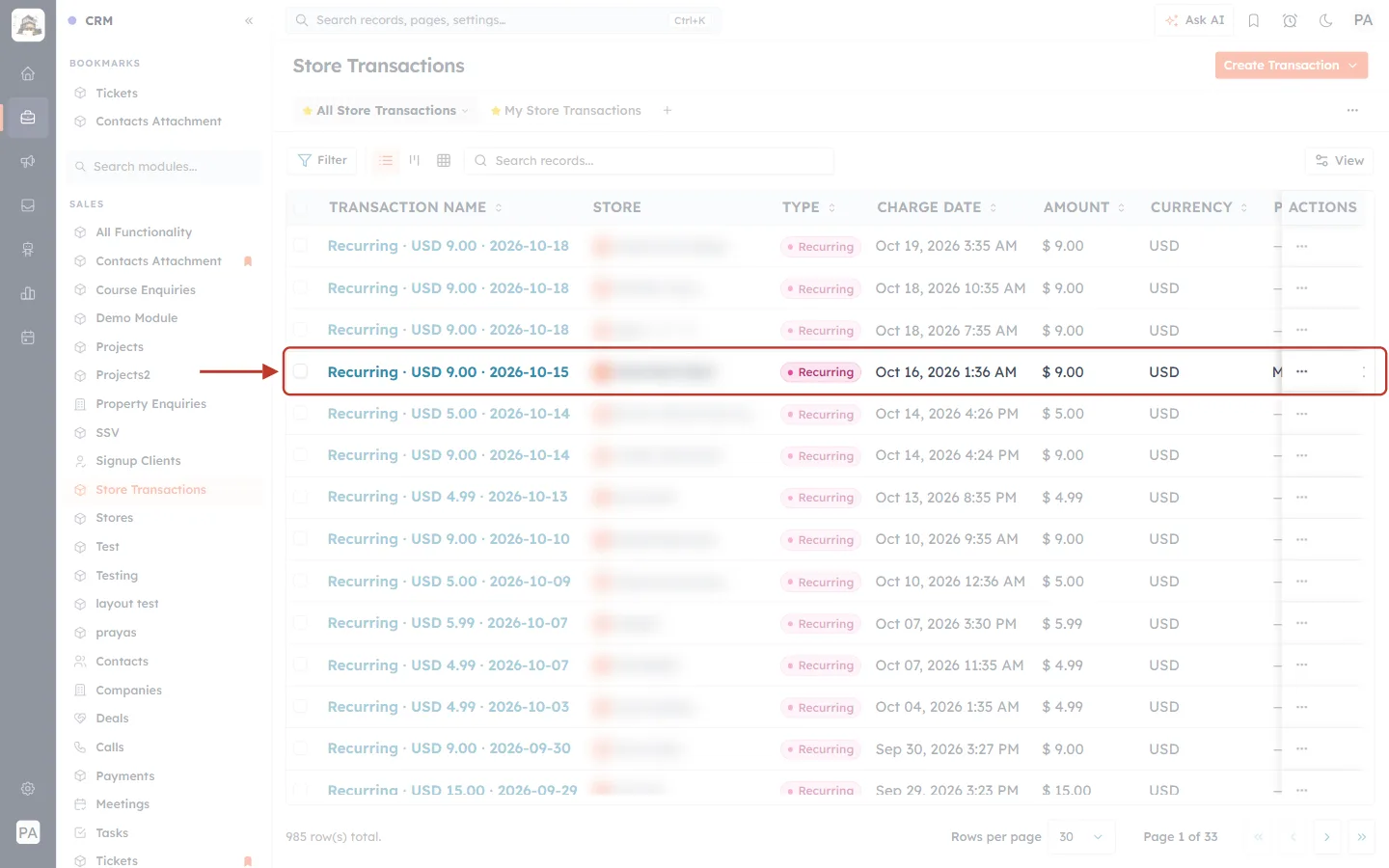
What this screenshot shows. The ringed row is a single monthly charge.
Recurring · USD 9.00 · 2026-10-15, Type Recurring, charged Oct 16, 2026 1:36 AM, $ 9.00 USD.
Its PLAN column (cut off at the right) shows the plan at the time of the charge, for example Monthly · USD 9.00.
Each charge is recorded once. If the same charge is read again, it is not duplicated and the store’s total is not counted twice.
✅
Stores and Store Transactions are ordinary CRM modules. You can build reports on them, for example MRR by app or charges by month, with Report Builder: Build a Tabular Report. You can also use them in workflows: How to Create a Workflow.
Part 7: Add a Second Account, or Disconnect#
Connect a second Partner organization#
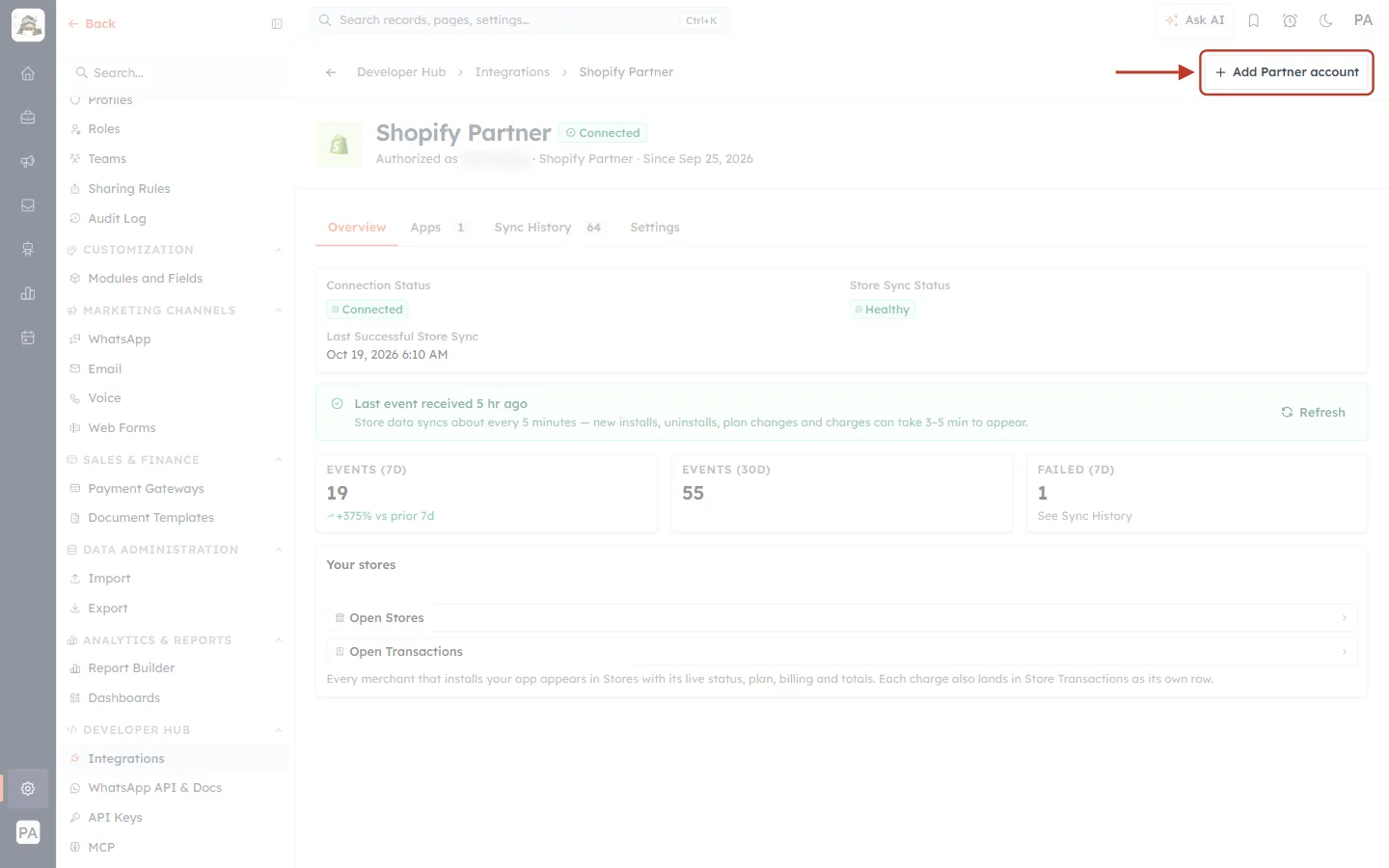
What this screenshot shows. Add Partner account is ringed at the top right of the Shopify Partner page.
It appears while you have fewer than 2 Partner organizations connected. Once 2 are connected, it disappears.
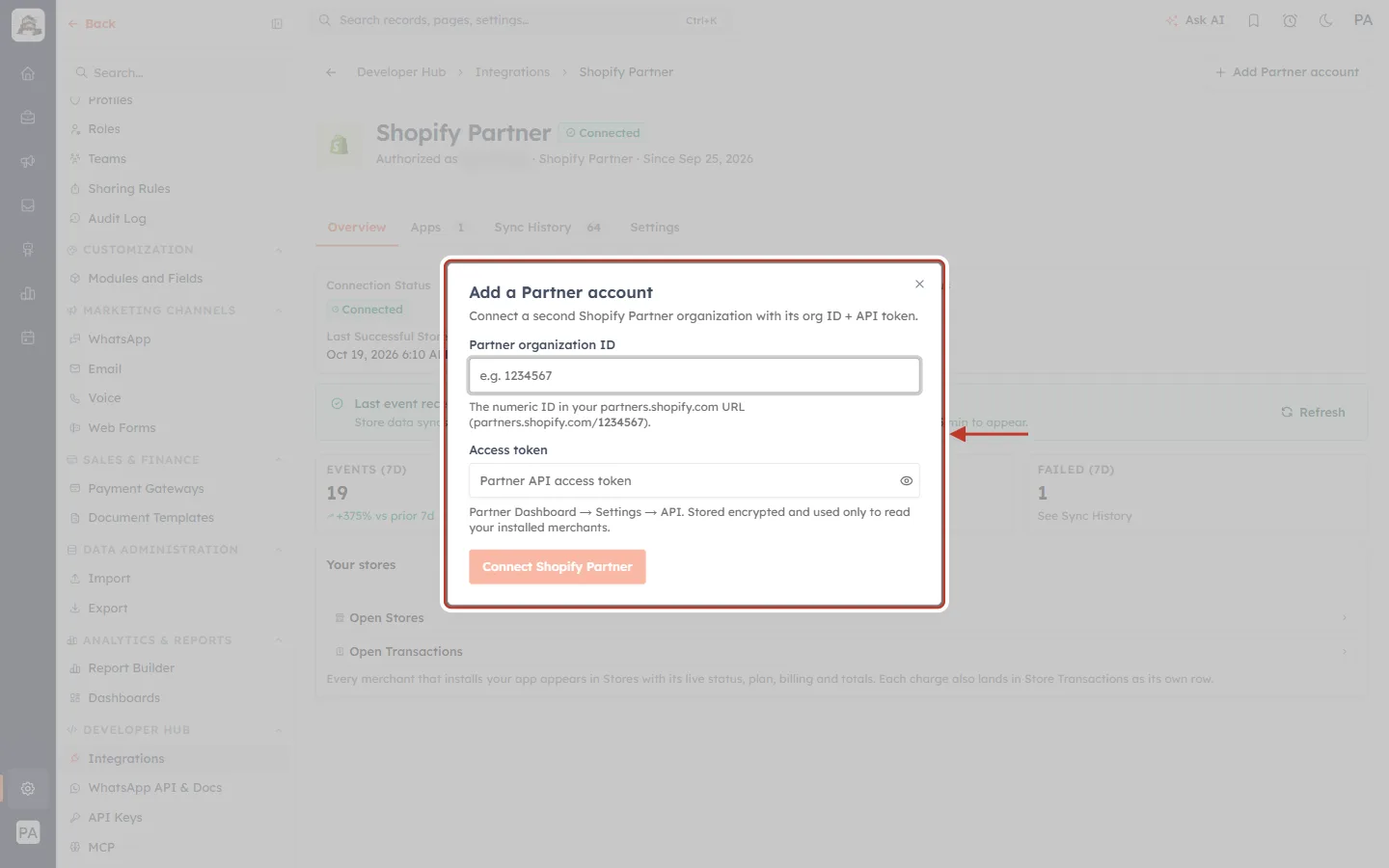
What this screenshot shows. The Add a Partner account window opens: Connect a second Shopify Partner organization with its org ID + API token.
Fill in the second organization’s Partner organization ID and Access token, then click Connect Shopify Partner.
With two accounts, the page shows a numbered section for each one, each with its own Overview, Apps, Sync History and Settings. Both accounts’ stores go into the same Stores module.
Disconnect#
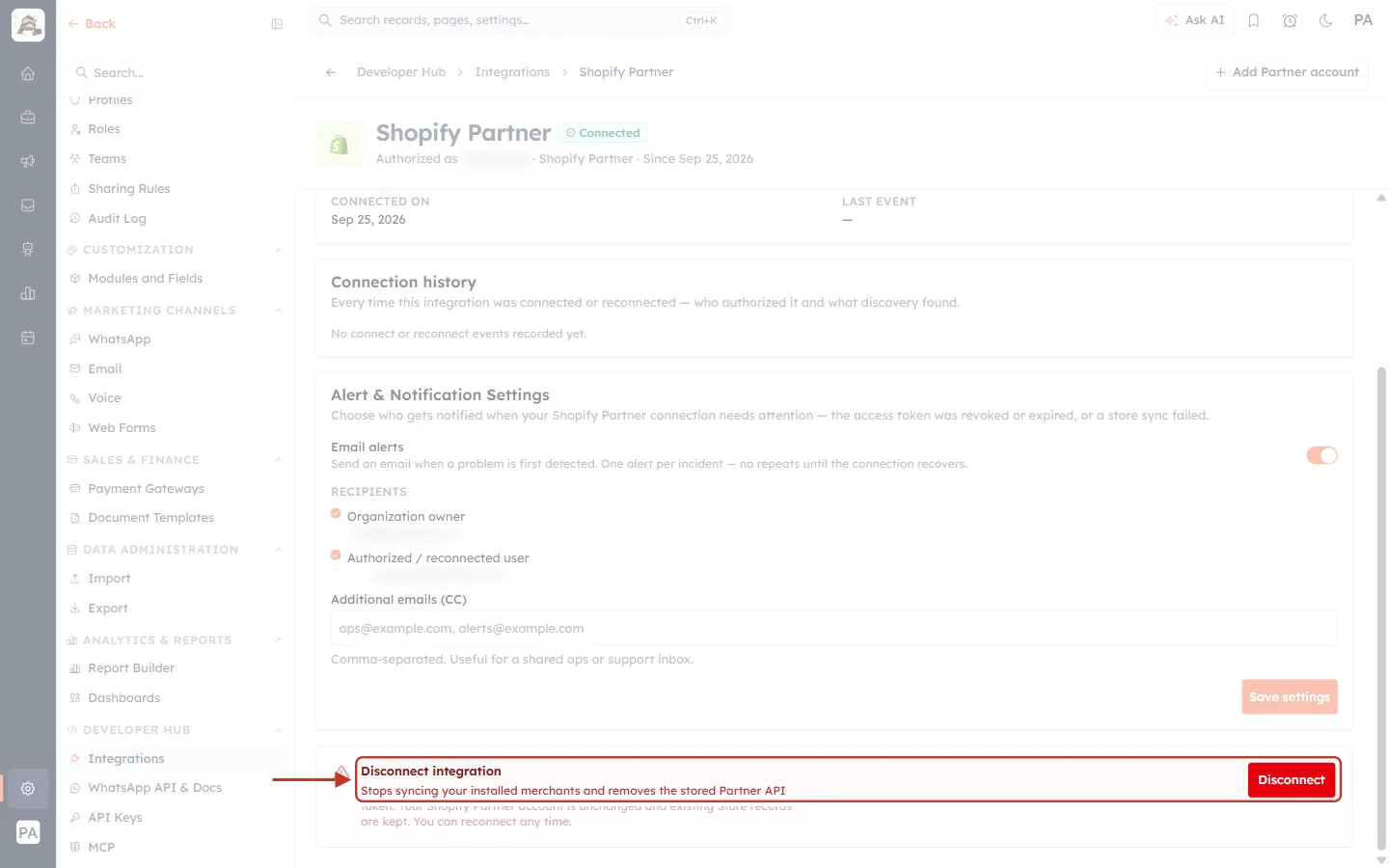
What this screenshot shows. The ringed Disconnect integration section is at the bottom of the Settings tab.
Stops syncing your installed merchants and removes the stored Partner API token. Your Shopify Partner account is unchanged and existing Store records are kept. You can reconnect any time.
Click the red Disconnect button.
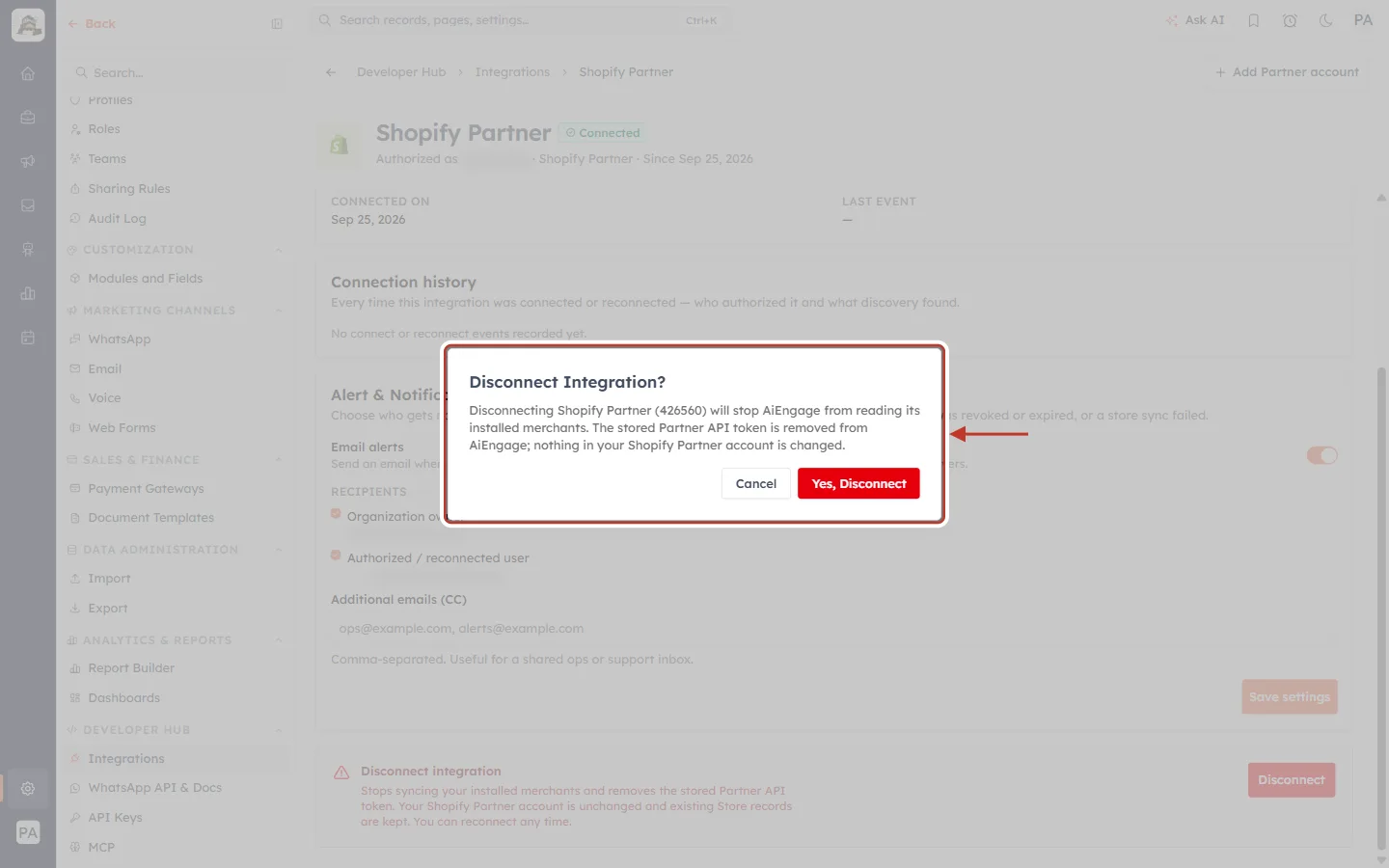
What this screenshot shows. A confirmation asks Disconnect Integration?
Disconnecting Shopify Partner (426560) will stop AiEngage from reading its installed merchants. The stored Partner API token is removed from AiEngage; nothing in your Shopify Partner account is changed.
Cancel keeps the connection. Yes, Disconnect disconnects it.
After disconnecting, the page shows Disconnected — your data is safe. To reconnect, enter your org ID and token again and click Reconnect Shopify Partner.
Troubleshooting#
What you see | What to do |
|---|---|
Shopify rejected these credentials — check the Partner organization ID and access token. | Check that the org ID is the number from your Partner Dashboard address, and copy the token again. If the API client was deleted in Shopify, create a new one. |
No Shopify app with that ID was found in this Partner organization… | Check the App ID belongs to the organization you connected, and that the API client has the Manage apps permission. |
You can connect at most 2 … | One AiEngage account holds up to 2 Partner organizations. Disconnect one before adding another. |
A new install or charge isn’t showing yet | Wait 3–5 minutes: the sync runs about every 5 minutes. Then check Last event received on the Overview tab. |
FAILED (7D) is above 0 | Open Sync History, filter by Failed, and read the DETAIL column. A one-off Could not reach the Shopify Partner API fixes itself on the next sync. |
An app stays on Queued | It is waiting for its first sync. A large app with many stores can take longer to read its full history. |
Amounts differ from your Shopify payouts | AiEngage records gross charges (what the merchant pays). Payouts are net of Shopify’s share. |
A module name is already taken during setup | Type a different name in the box shown and click Continue. |
Frequently Asked Questions#
Does connecting change anything in my Shopify Partner account?
No. AiEngage only reads from the Partner API. Disconnecting removes the token from AiEngage and changes nothing in Shopify.
Are Contacts created for merchants automatically?
No. Stores are created automatically, but Contacts never are. Link a store to the right Contacts yourself, using the Store’s Contacts field.
Will I get stores from before I connected?
Yes. Each app syncs its full history, so stores that installed (and uninstalled) earlier appear too.
Can I add my own fields to Stores?
Yes. The synced fields are system fields: you can hide or reorder them but not rename or delete them. You can add your own fields alongside them.
What happens when a merchant uninstalls?
The Store record stays, with Status Uninstalled and the Uninstall Date. If the merchant installs again, Status returns to Installed and Is Reinstalled is ticked.
Previous and Next#
Related Articles#
Was this article helpful?
Ready to implement this?
OpenAI Engage and apply what you just learned to your own workspace.
Open AI Engage CRM