Loading…


KnowledgeBase
Connect Meta Lead Ads (Facebook & Instagram)
Before you connect#
The Meta integration syncs Facebook and Instagram Lead Ads into Contacts the moment a lead submits. Start from Settings → Developer Hub → Integrations and open the Meta Lead Ads card. Before you click connect, make sure:
You are an admin of the Facebook Page you want to connect.
Your Meta Business account has at least one active Lead Ad form.
You have permission to create Contacts in AI Engage.
💡
The connect screen lists the exact permissions Meta will request (page list, lead retrieval, page engagement, ads management, and so on) in plain language, and shows a four-step summary: Authorize → Pick Pages & Forms → Map fields per form → Start Syncing.
Step 1 — Authorize with Meta#
Click Connect with Meta.
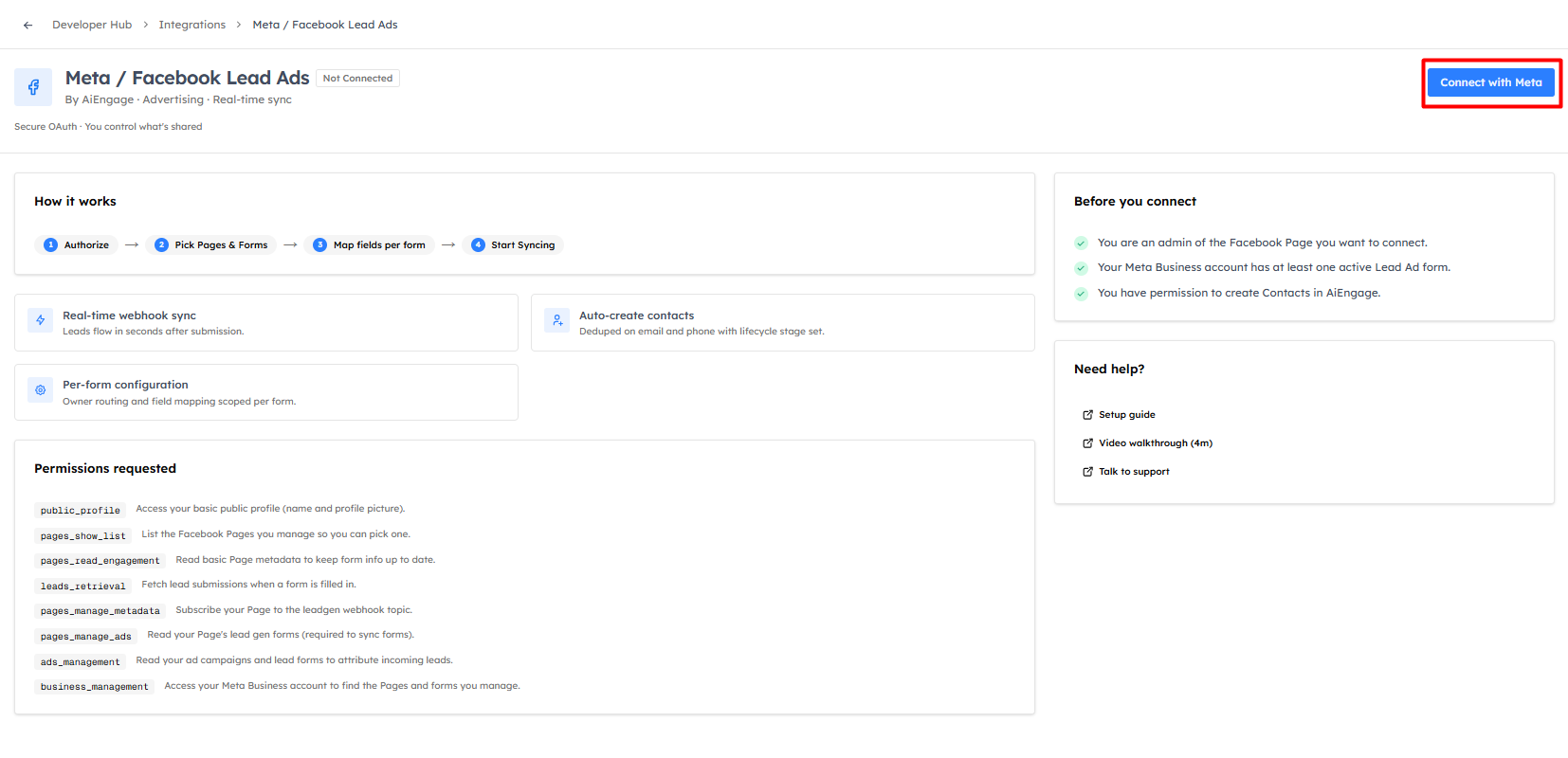
A secure Facebook Login for Business window opens (Meta Embedded Signup). AI Engage never sees your Facebook password — you simply grant access, and you control exactly what is shared. Complete the authorization step by step:
Open the connect flow. On the Meta Lead Ads card in Integrations, click Connect with Meta. A Facebook pop-up window opens. (If nothing appears, allow pop-ups for the site in your browser and click the button again.)
Log in to Facebook. If you are not already signed in, log in with a Facebook account that is an admin of the Page(s) you want to connect. Then click Continue / Get Started.
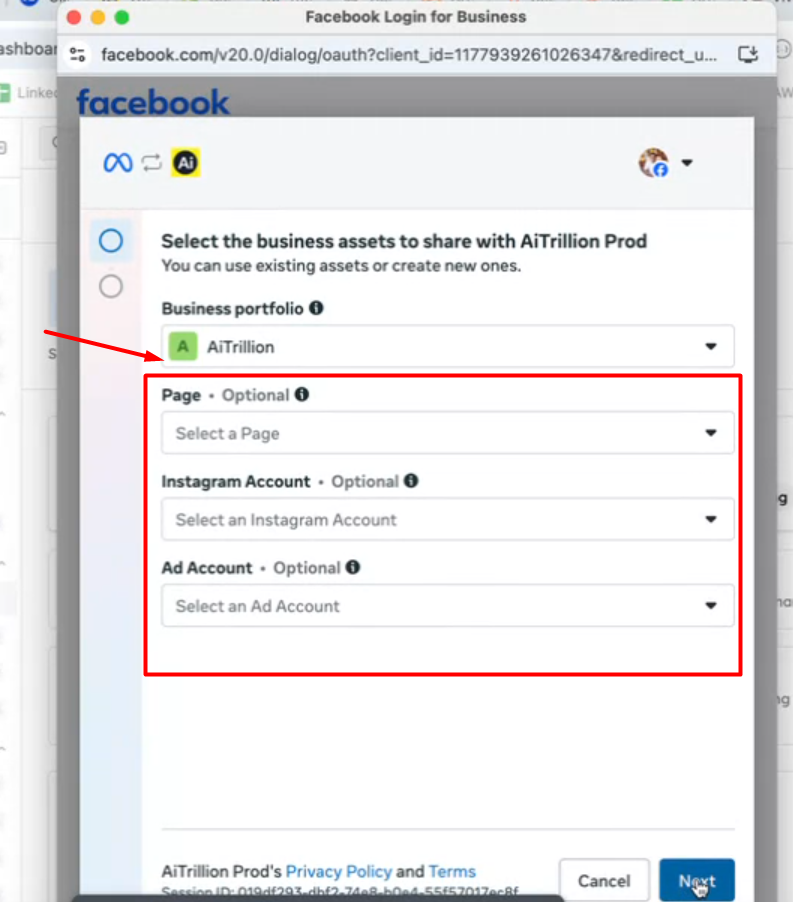
Choose your business. Select the Meta Business account (business portfolio) that owns your Facebook Pages and ad account.
Select the Facebook Page(s). Tick the Page(s) whose Lead Ads you want to sync into AI Engage. You can grant your current Pages only, or opt in to future Pages as well. Instagram lead ads that run through a connected Page are included automatically.
Select the ad account. Choose the ad account running your Lead Ad campaigns so AI Engage can read their lead forms.
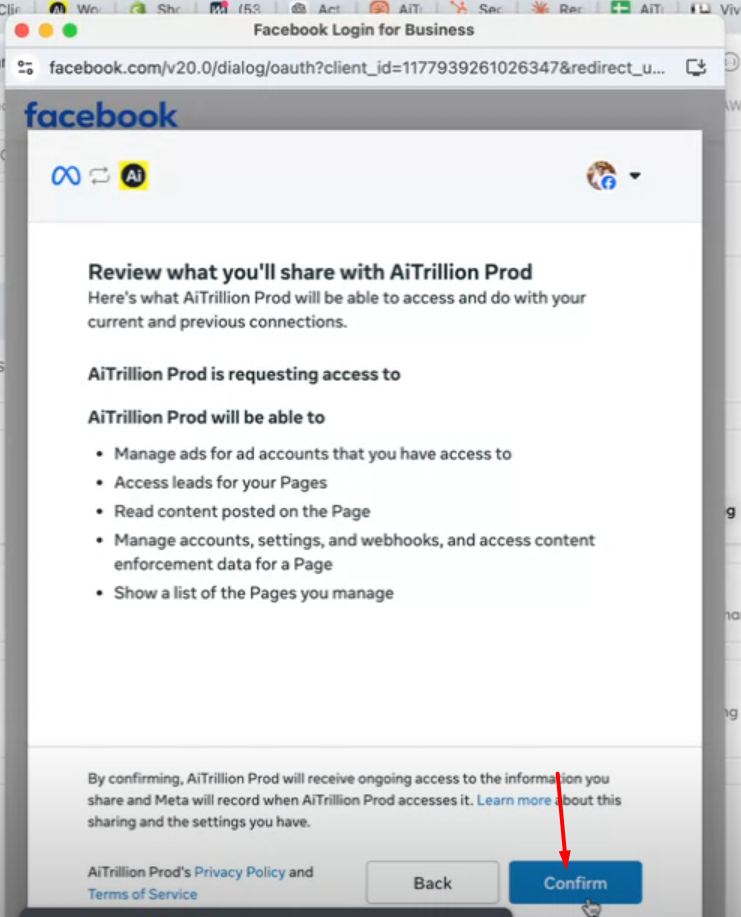
Grant the requested permissions. Meta shows a list of permissions, click on Confirm.
Confirm and finish. Review the summary and click Save / Done. The pop-up closes and returns you to AI Engage.
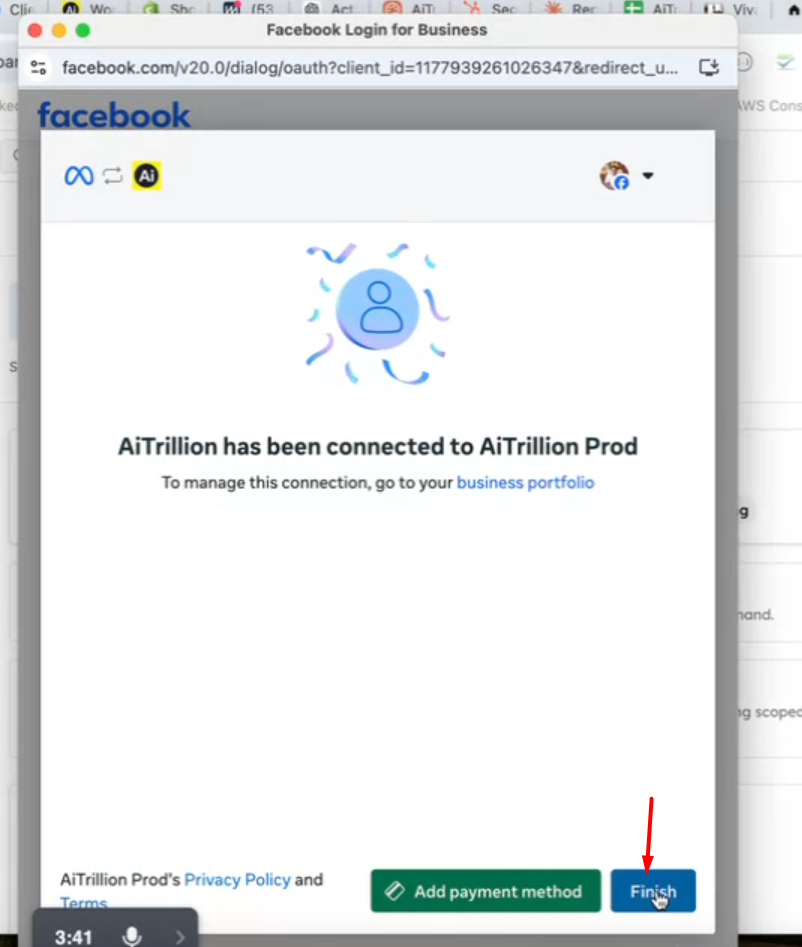
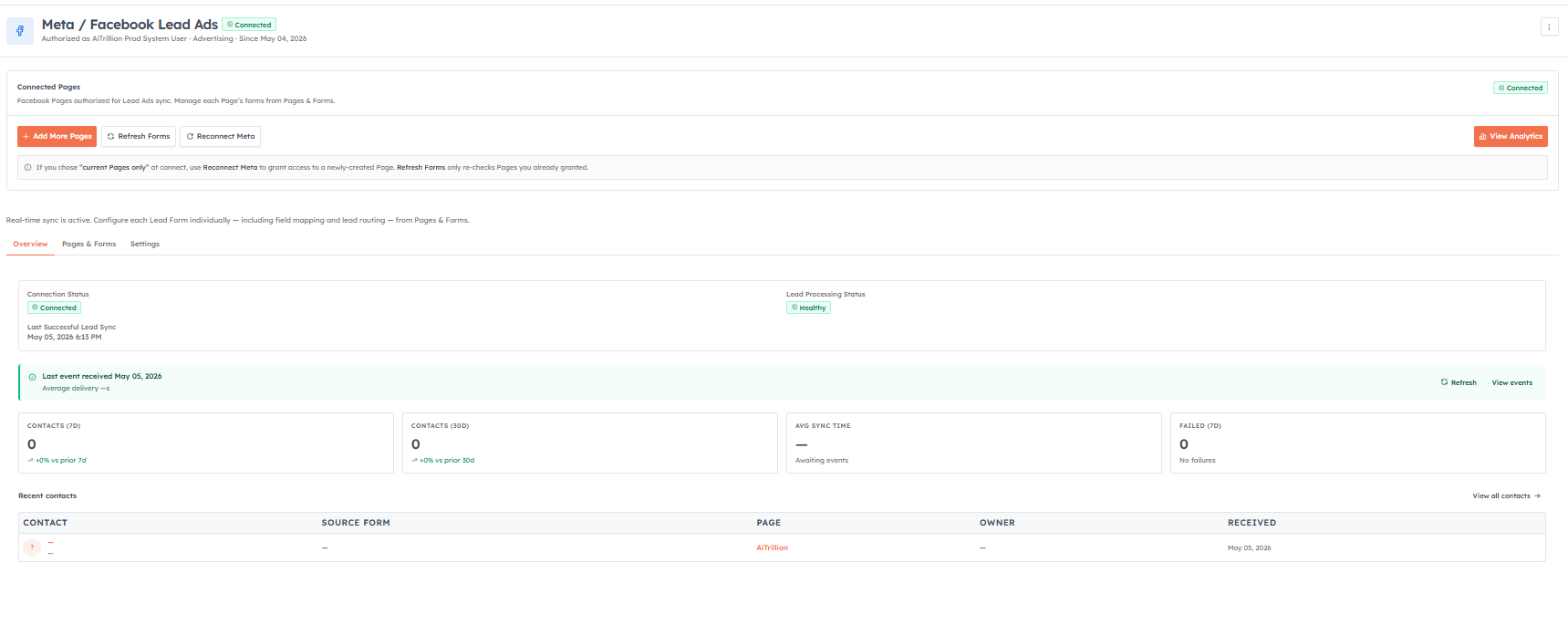
Connection confirmed. AI Engage shows Connected and immediately begins discovering your Pages and Lead Forms (Step 2 below).
💡
Permissions Meta will request — each has a plain-language description on the Meta screen:
• pages_show_list — see the list of Pages you manage
• leads_retrieval — fetch a lead’s answers when a form is submitted
• pages_read_engagement & pages_manage_metadata — read your Page and its lead forms, and subscribe to new leads
• pages_manage_ads, ads_management & business_management — link the ad account behind your Lead Ads
• public_profile — your basic Facebook identity
• pages_show_list — see the list of Pages you manage
• leads_retrieval — fetch a lead’s answers when a form is submitted
• pages_read_engagement & pages_manage_metadata — read your Page and its lead forms, and subscribe to new leads
• pages_manage_ads, ads_management & business_management — link the ad account behind your Lead Ads
• public_profile — your basic Facebook identity
💡
Don’t see a Page you expected? You must be an admin of that Page — ask the Page owner to add you, then reconnect. Created a new Page after connecting? Use Reconnect Meta (on the connected screen) to grant it — this never duplicates forms or loses history.
Step 2 — Pages & Forms are discovered#
After you authorize, AI Engage discovers your Pages and their Lead Forms automatically. You will see a short banner: "Discovering your Pages & Form. This usually takes 30–60 seconds." The page refreshes itself when discovery is done.
Once connected, the detail page shows a Connected Pages panel with three controls:
Add More Pages — grant access to additional Facebook Pages.
Refresh Forms — re-check the Pages you already granted for new Lead Forms.
Reconnect Meta — re-run authorization (use this to grant a newly-created Page, or to refresh an expired token). Reconnecting never changes your setup, duplicates forms, or loses history.
💡
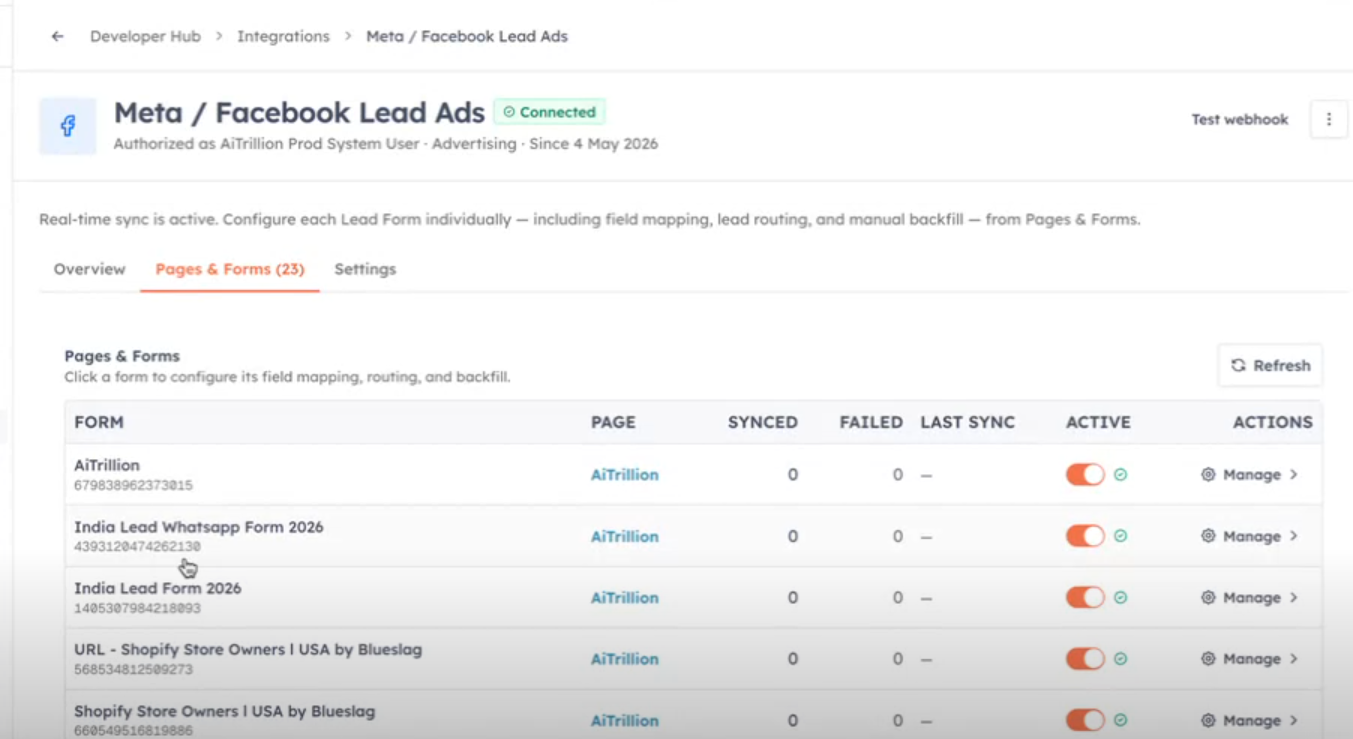
Leads only start flowing after you map each form’s fields and confirm its routing. Continue to Manage Pages, Forms & Field Mapping.
💡
Related: Per-Form Settings and Sync Past Leads & Monitoring.
Was this article helpful?
Ready to implement this?
OpenAI Engage and apply what you just learned to your own workspace.
Open AI Engage CRM