Loading…


KnowledgeBase
Track Offline Advertising Step by Step: Create Platforms, Campaigns and Spend Records in Custom Platform
Introduction#
Not every lead comes from a click. Newspaper ads, radio spots, hoardings, flyers and events bring in customers too, but with no ad platform to connect, their cost usually stays in a spreadsheet.
Custom Platform brings that spend into AiEngage CRM. You record what you spent and when, and AiEngage counts the leads that came from it, so offline media appears in the same Advertising Analytics report as your Meta and Google ads, with cost per lead calculated automatically.
This guide shows how to:
Open Custom Platform.
Create a platform (for example Newspaper or Local Radio) and a campaign.
Add spend records to the campaign.
Read the leads, cost per lead and ROAS for each spend.
Edit or delete spend and campaigns.
Each screenshot has a red ring and arrow on the part to look at, followed by a description of the whole screen.
ℹ️
The platforms, campaigns and amounts in these screenshots are examples, so every screen has something to show.
How It Fits Together#
Level | What it is | Example |
|---|---|---|
Platform | The type of media. Reports group by platform. | Newspaper, Local Radio, Hoardings, Magazine |
Campaign | One advertising push on a platform, with its own currency. Its totals are calculated from its spend. | “Diwali Newspaper Ads” on Newspaper, in INR |
Spend record | One dated payment within the campaign, linked to one or more lead sources. | ₹50,000 from Sep 11 to Sep 25, lead source Newspaper |
How leads are counted#
For each spend record, AiEngage counts the Contacts that:
have a Lead Source matching one of the spend’s lead sources, and
were created between the spend’s start and end dates,
excluding leads that came in through an ad integration such as Meta or Google, which are counted under their own platform.
From that count and the amount spent, it works out the cost per lead (CPL) and, when revenue is tracked, the ROAS.
⚠️
This only works if your offline leads have the right Lead Source. When a caller says “I saw your newspaper ad”, set the Contact’s Lead Source to Newspaper, whether on the contact form, in a web form, or on import. See Managing Leads: Lifecycle Stage, Lead Status & Source.
Before You Begin#
You need access to Settings → Developer Hub → Integrations, or the Ads & Analytics module.
Custom Platform is turned on once for the whole organisation. If it is off, its page shows Enable Custom Platform. Click it to turn it on. There is nothing to sign in to.
Make sure the Lead Source field on Contacts has options for your offline channels (for example Newspaper, Radio, Hoarding). The spend form offers the same list.
Part 1: Open Custom Platform#
Step 1: Go to Ad Channels (or Integrations)#
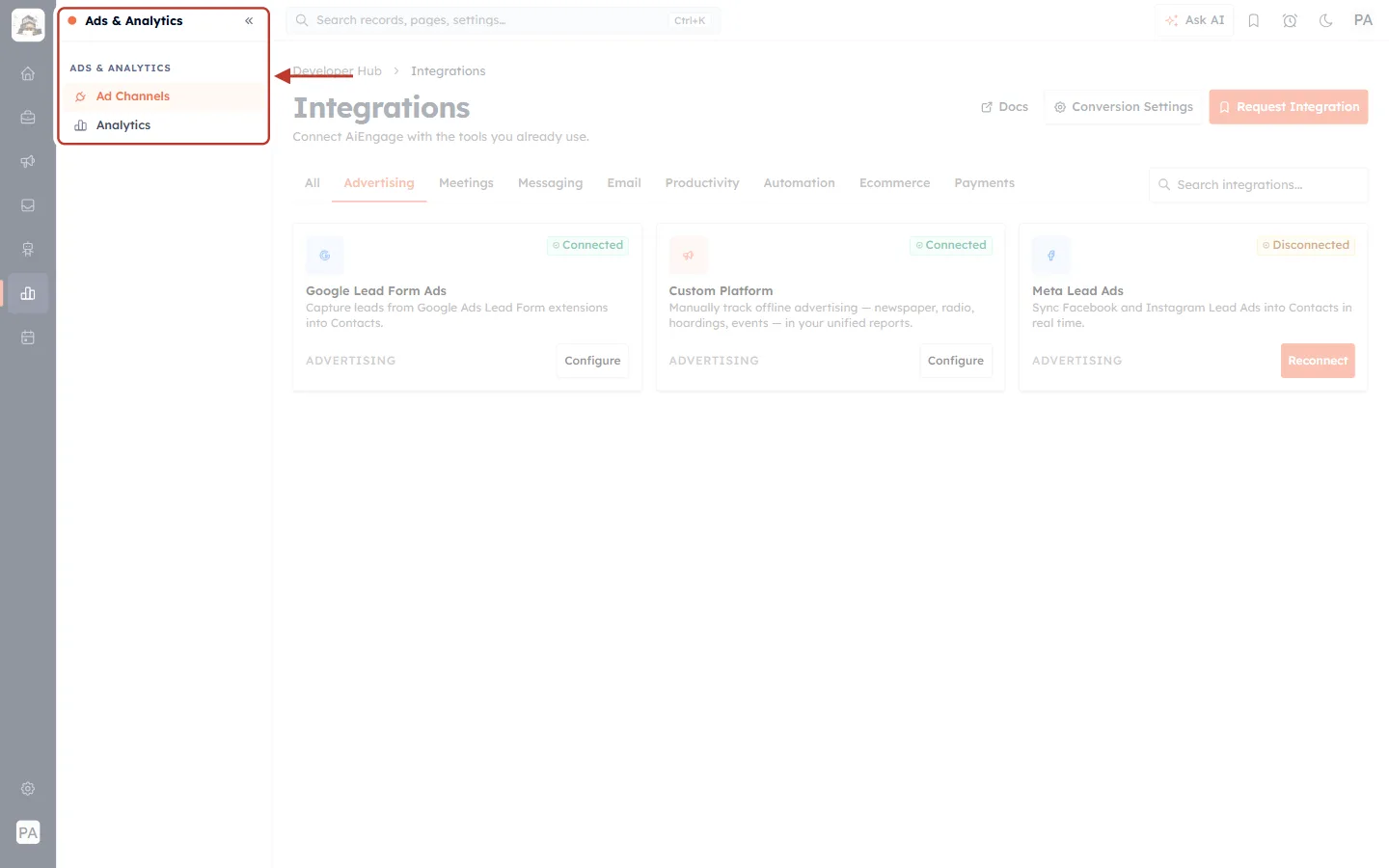
What this screenshot shows. In the Ads & Analytics module (the chart icon in the left rail), the ringed menu has Ad Channels and Analytics.
Ad Channels (selected) shows the advertising integrations. Analytics opens the unified advertising report.
You can also reach the same cards from Settings → Developer Hub → Integrations, on the Advertising tab.
Step 2: Open the Custom Platform card#
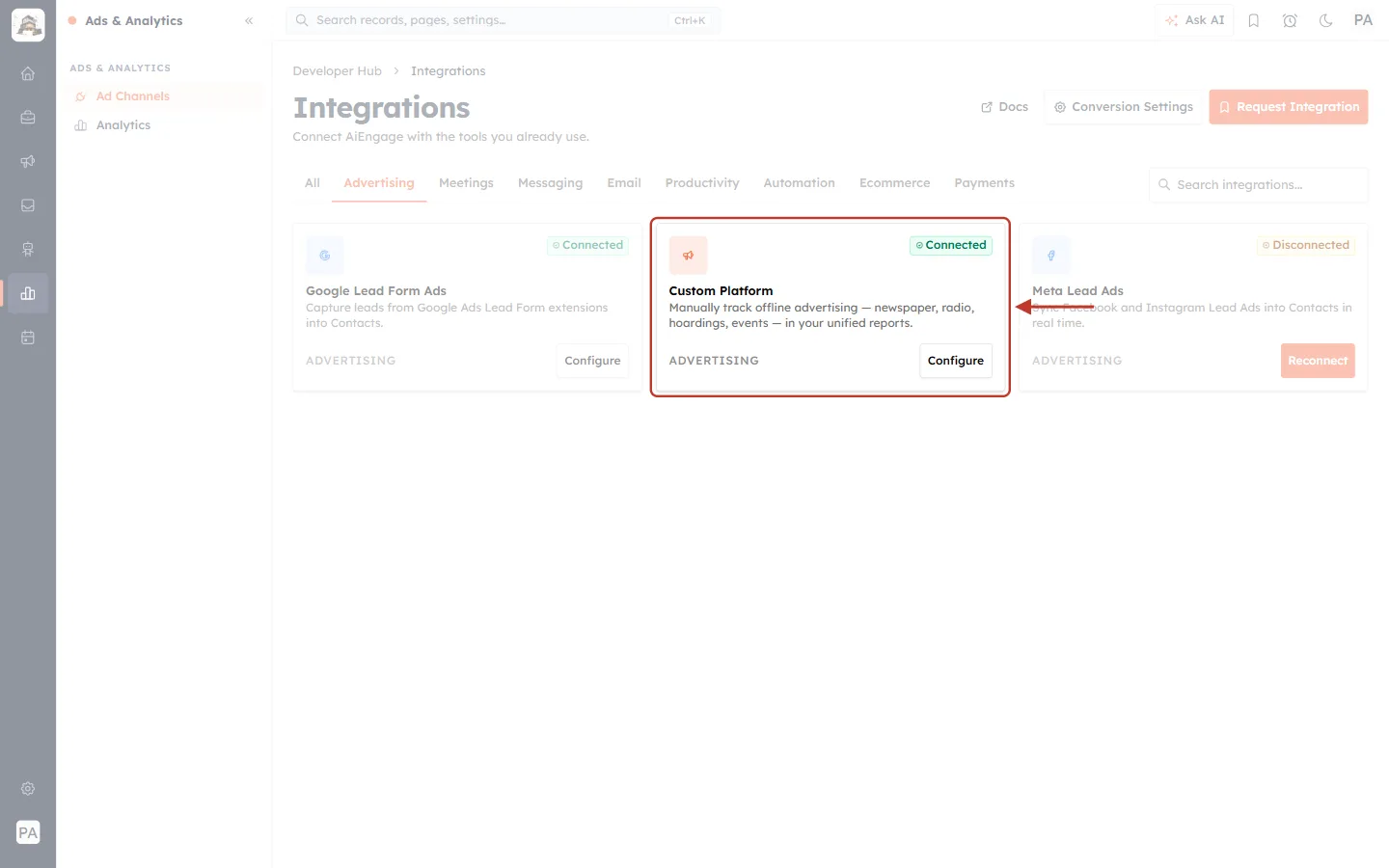
What this screenshot shows. The ringed card is Custom Platform.
Manually track offline advertising — newspaper, radio, hoardings, events — in your unified reports. Category: ADVERTISING.
The green Connected badge means it is turned on. Click Configure to open it.
Next to it are your other ad channels: Google Lead Form Ads and Meta Lead Ads.
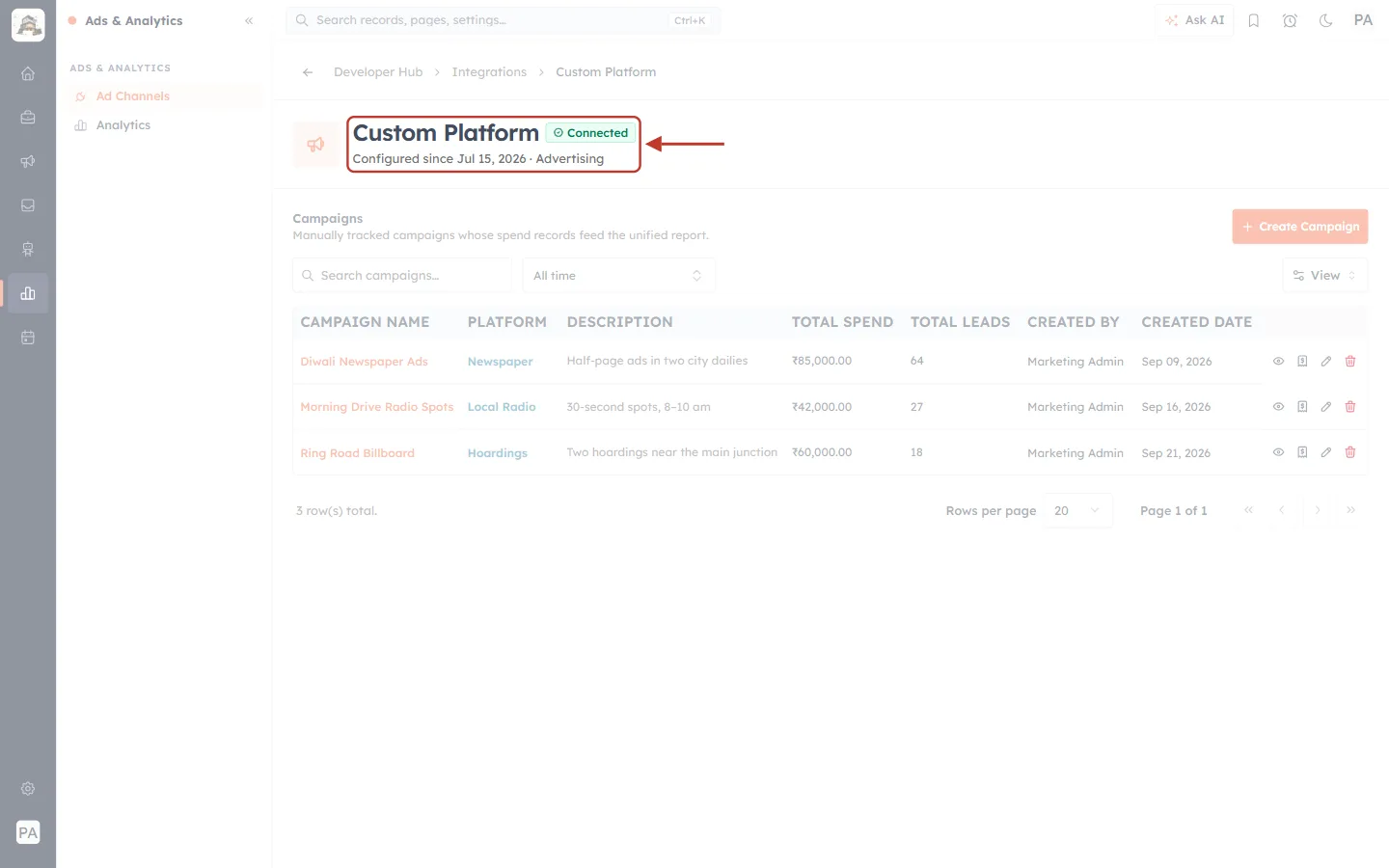
What this screenshot shows. The ringed header confirms you are on Custom Platform.
The green Connected badge, and Configured since Jul 15, 2026 · Advertising: when it was turned on.
The breadcrumb above reads Developer Hub › Integrations › Custom Platform. The ← arrow goes back to the integrations list.
Part 2: Read the Campaign List#
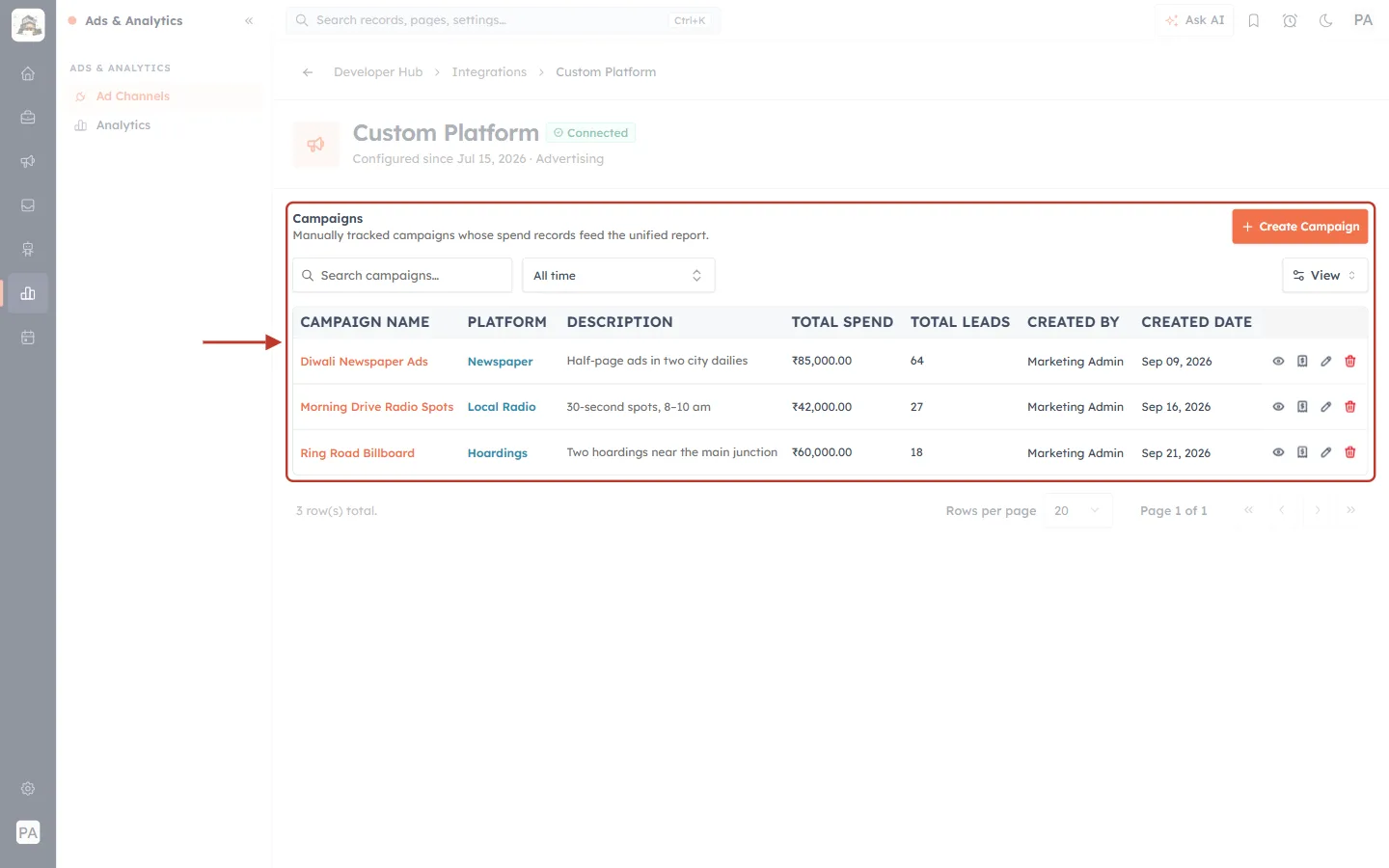
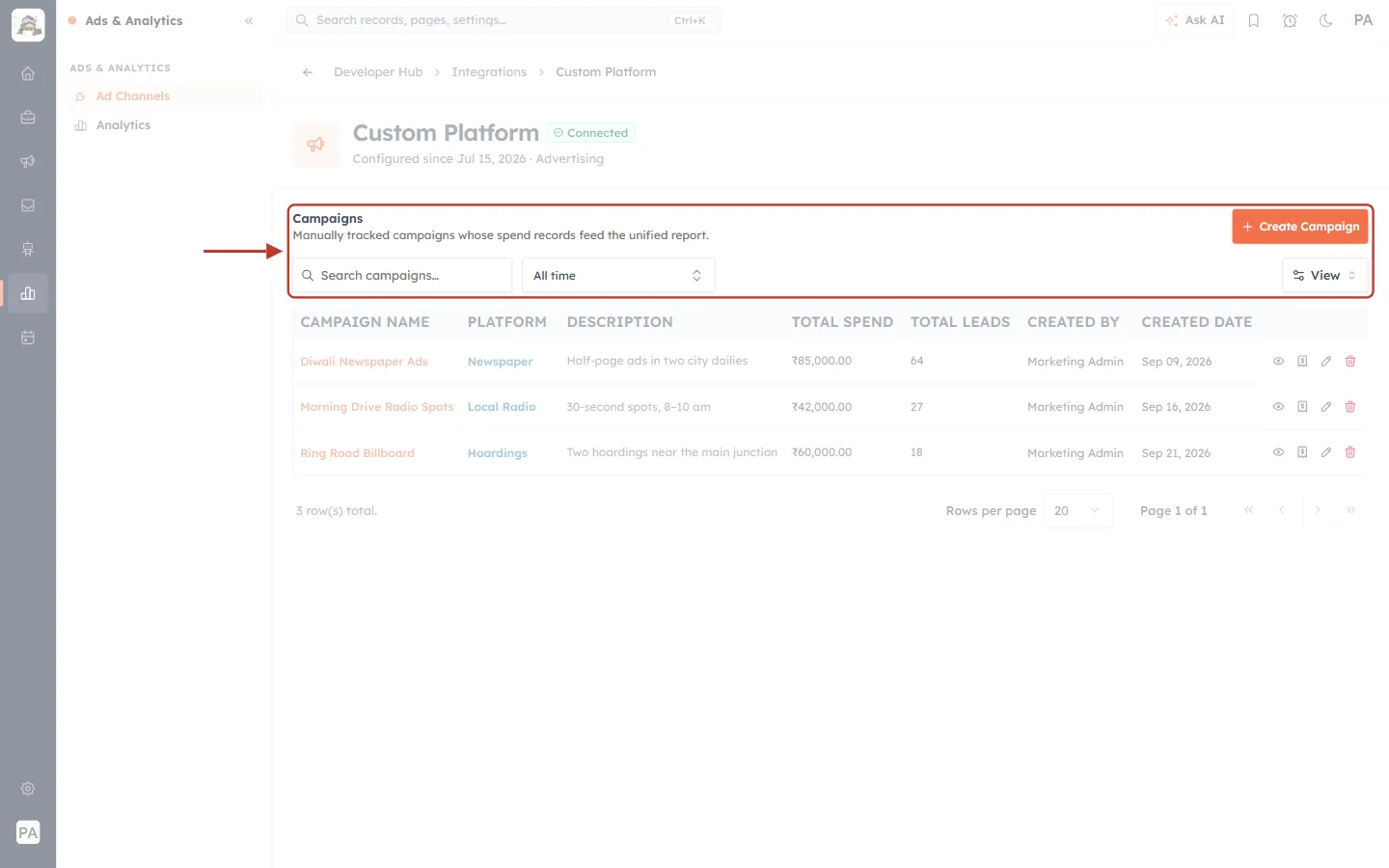
What this screenshot shows. The ringed Campaigns section lists every offline campaign: Manually tracked campaigns whose spend records feed the unified report.
Columns: CAMPAIGN NAME, PLATFORM, DESCRIPTION, TOTAL SPEND, TOTAL LEADS, CREATED BY, CREATED DATE, and action icons on the right.
Totals are calculated from each campaign’s spend records. You never type them in.
Create Campaign (orange, top right) adds a new one (Part 3).
What this screenshot shows. The ringed toolbar narrows the list.
Search campaigns…: find a campaign by name.
All time: filter by the date campaigns were created, with ready-made ranges or a custom range.
View: show or hide columns.
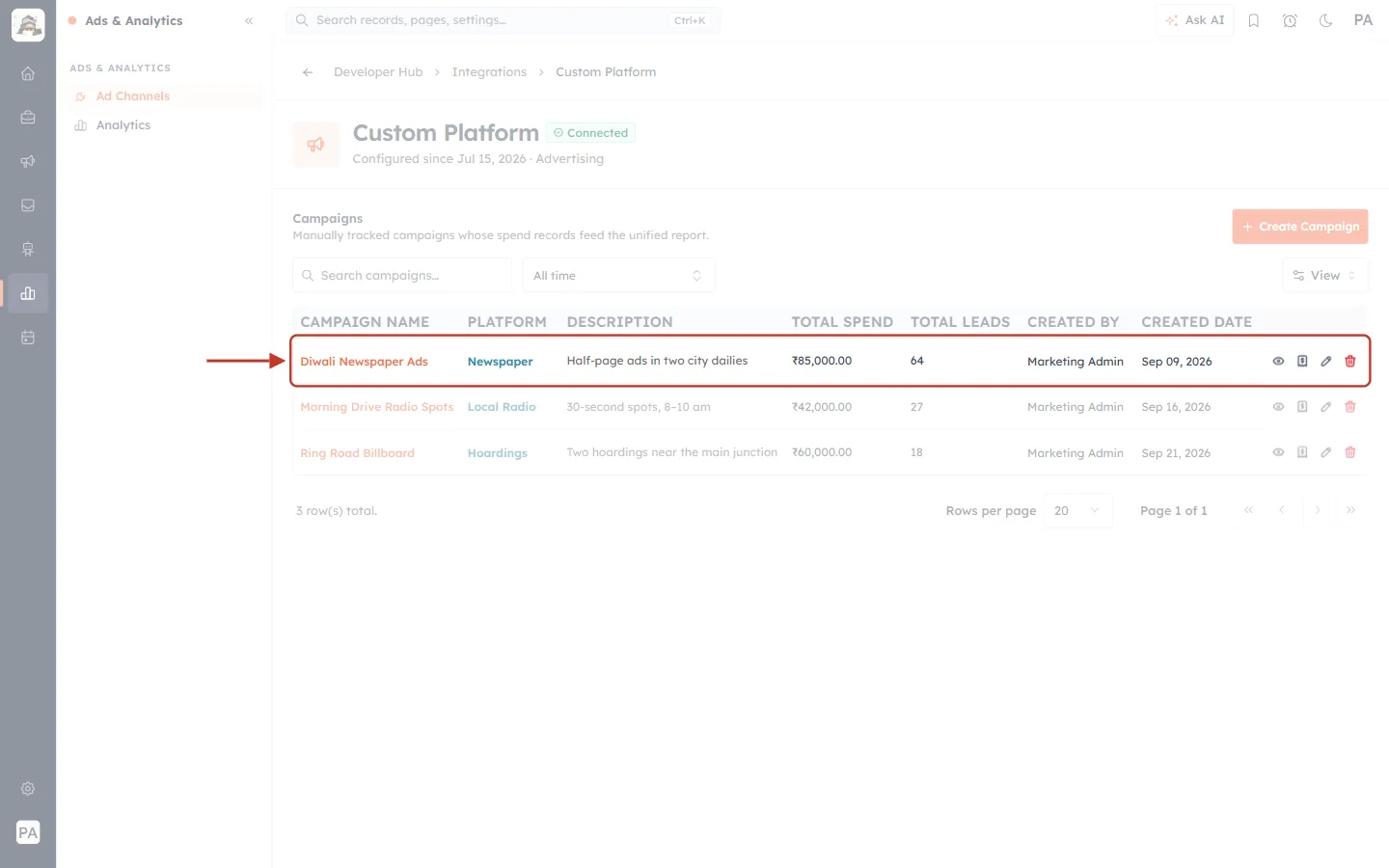
What this screenshot shows. The ringed row is one campaign.
Diwali Newspaper Ads on the Newspaper platform: Half-page ads in two city dailies.
Total spend ₹85,000.00 and 64 leads so far.
Click the campaign name to open it (Part 4).
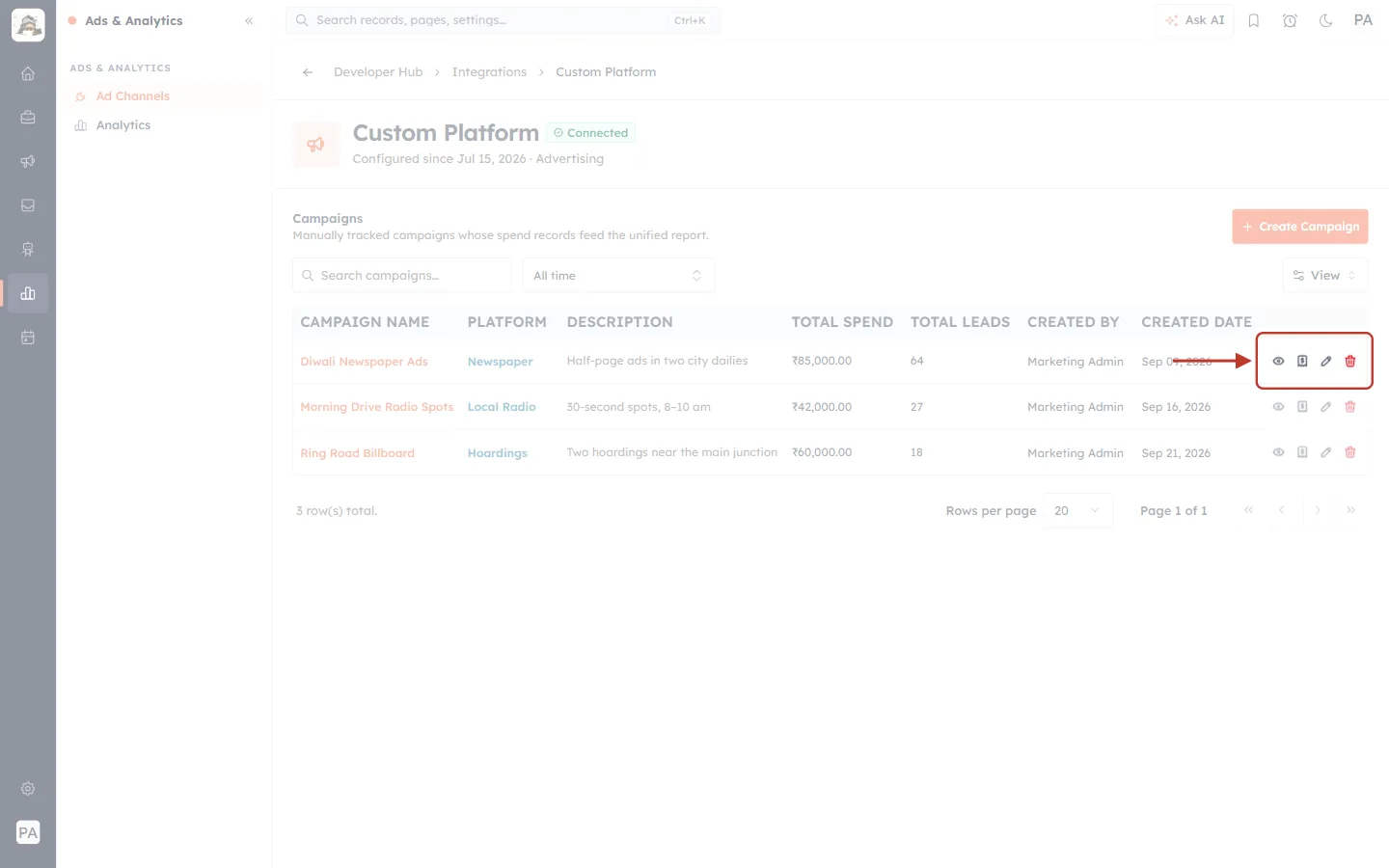
What this screenshot shows. The ringed icons are the row’s actions.
👁 View details: open the campaign and its spend history.
🧾 Add spend: open the campaign with the Add Spend form ready.
✏️ Edit: change the campaign’s platform, currency, name or description.
🗑 Delete (red): remove the campaign (Part 6).
Part 3: Create a Platform and a Campaign#
Step 3: Click Create Campaign#
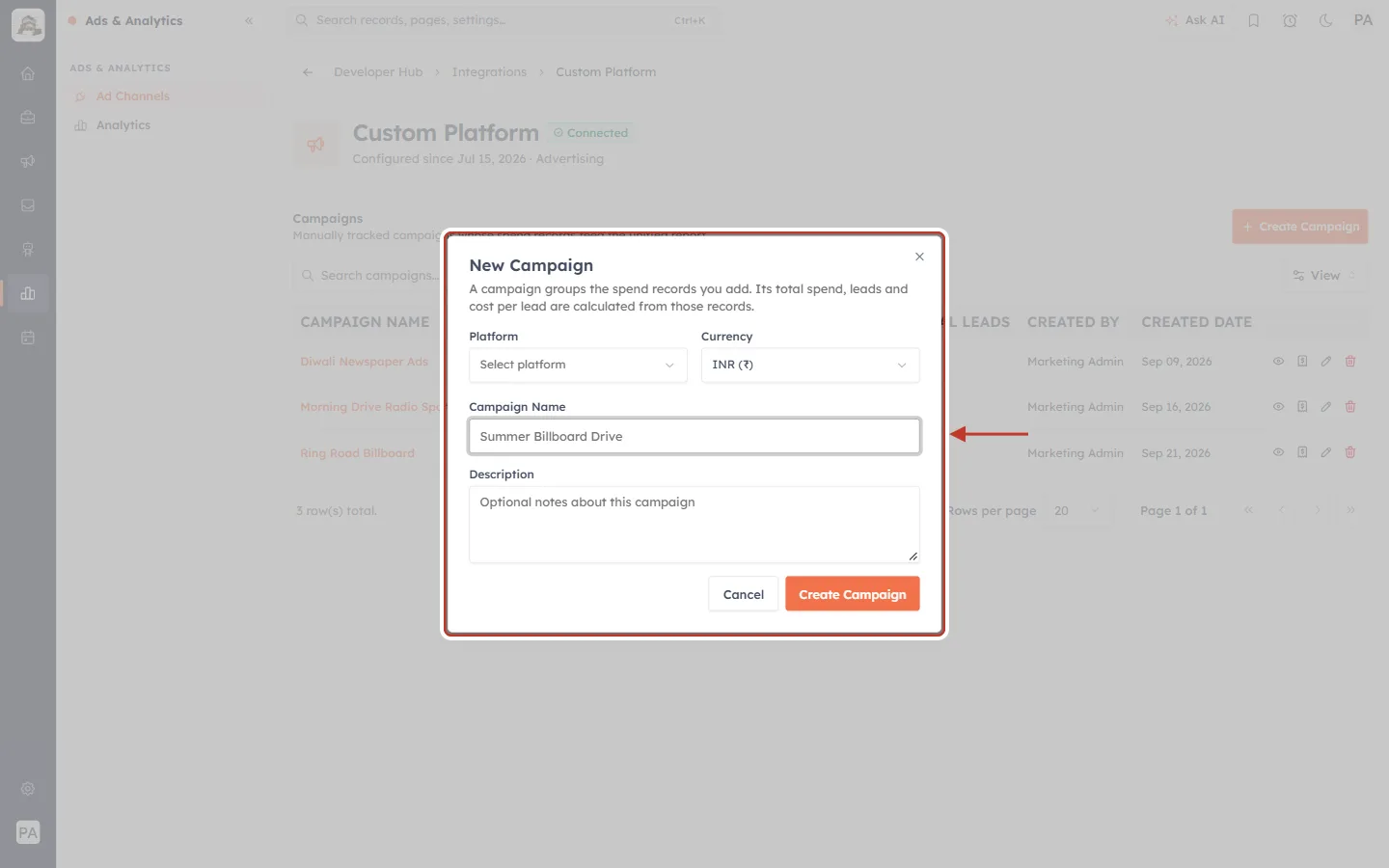
What this screenshot shows. The New Campaign window: A campaign groups the spend records you add. Its total spend, leads and cost per lead are calculated from those records.
Platform: the type of media this campaign runs on.
Currency (required): defaults to your organisation’s currency. All spend in this campaign uses it.
Campaign Name (required), for example Summer Billboard Drive. Description: optional notes.
Step 4: Choose a platform, or create one#
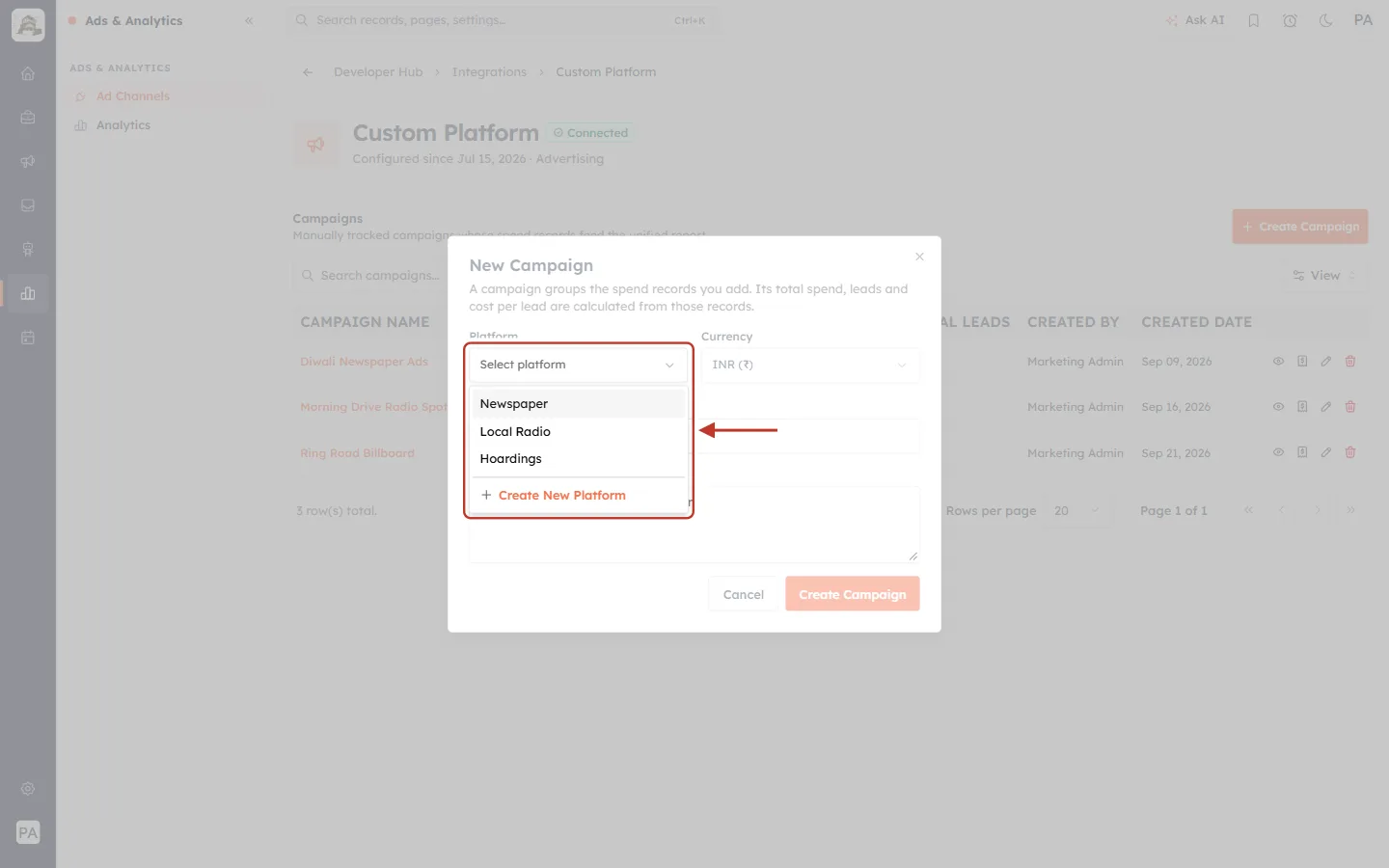
What this screenshot shows. The Platform list is open.
Your existing platforms are listed: Newspaper, Local Radio and Hoardings.
+ Create New Platform (orange, at the bottom) adds a new one without leaving this window.
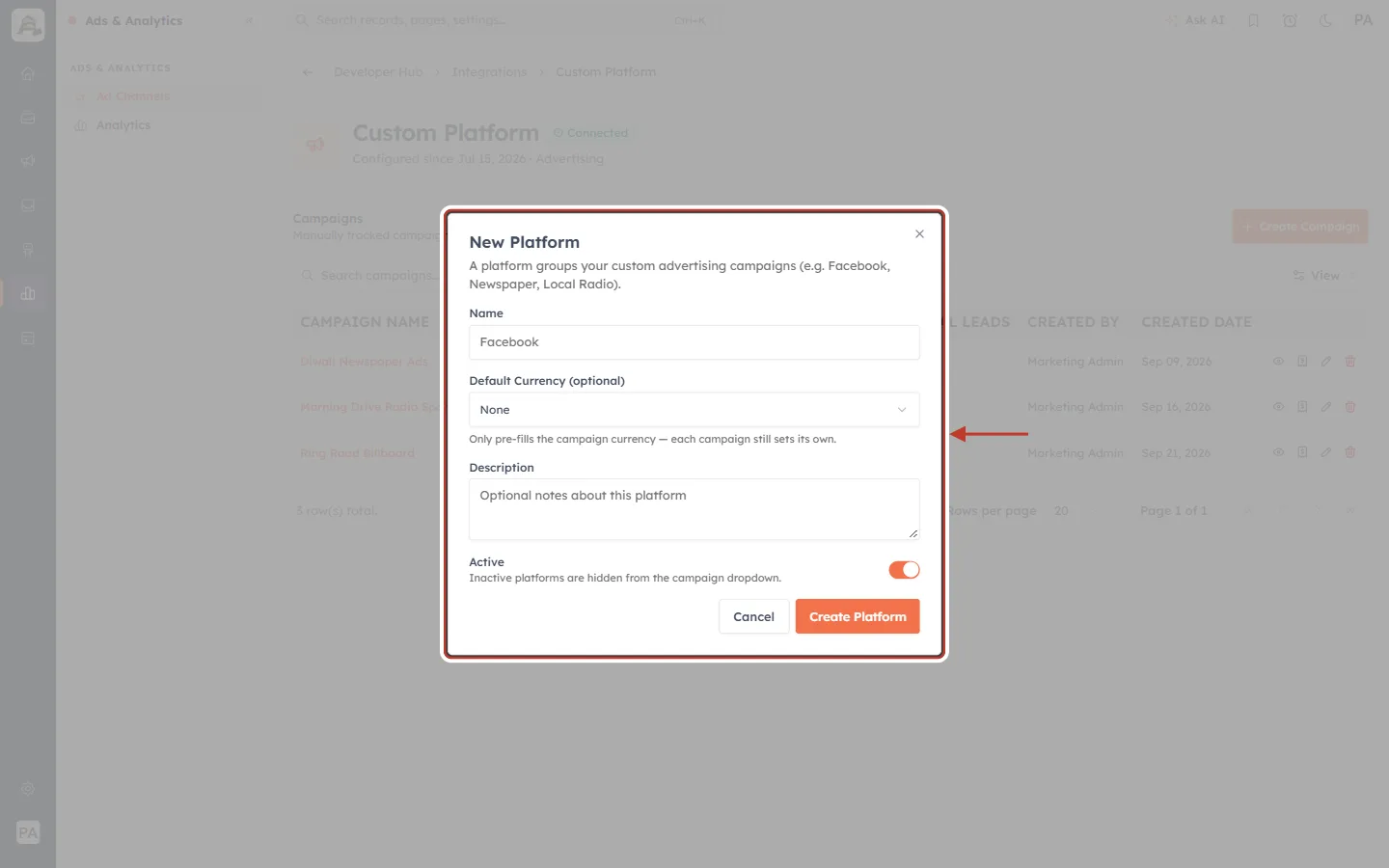
What this screenshot shows. Clicking Create New Platform opens New Platform: A platform groups your custom advertising campaigns (e.g. Facebook, Newspaper, Local Radio).
Name (required).
Default Currency (optional): Only pre-fills the campaign currency — each campaign still sets its own.
Description: optional notes.
Active (switch, on by default): Inactive platforms are hidden from the campaign dropdown. Switch a platform off when you stop using that medium.
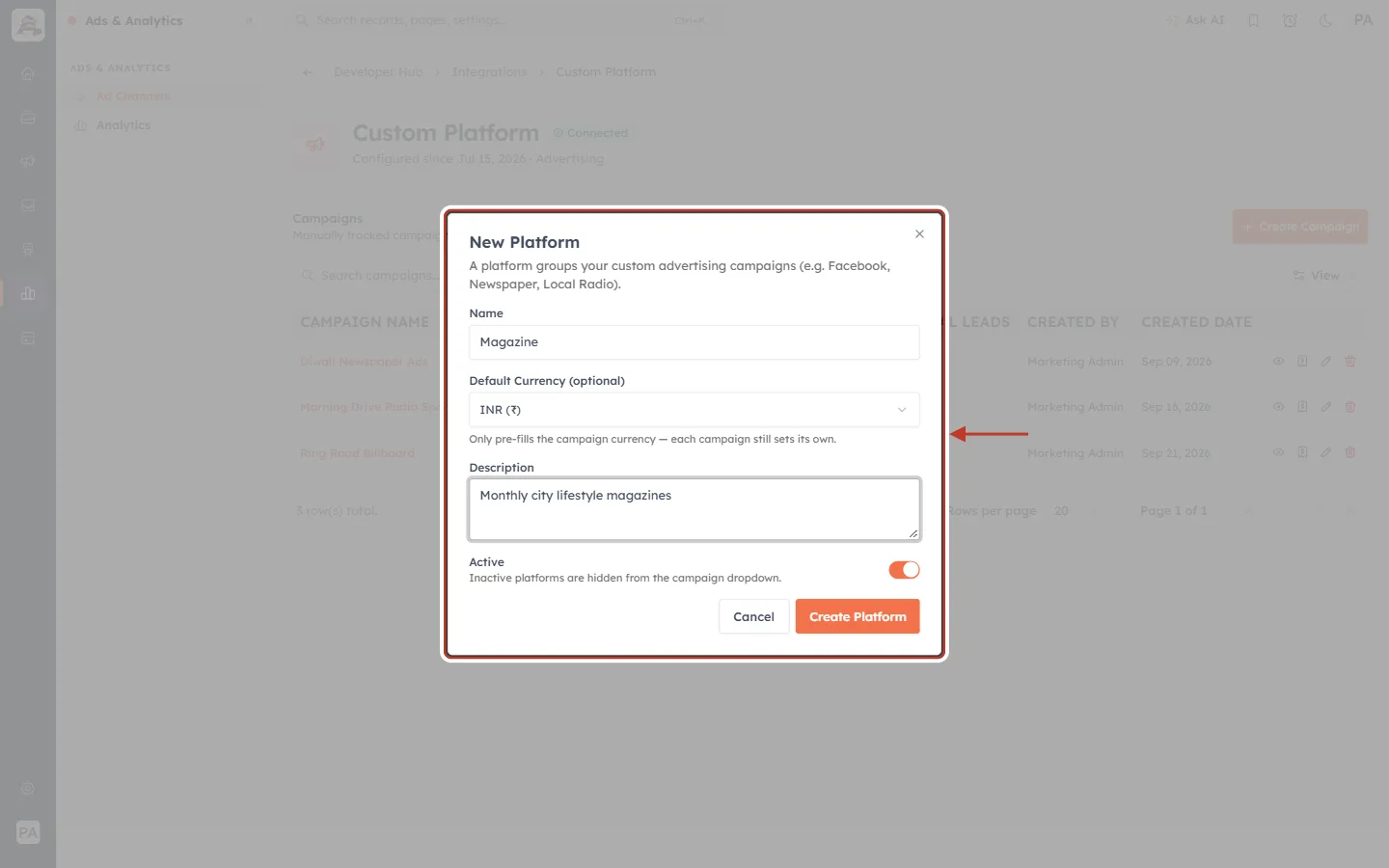
What this screenshot shows. The form is filled in for a new Magazine platform, with default currency INR and the description Monthly city lifestyle magazines.
Click Create Platform. You see Platform created.
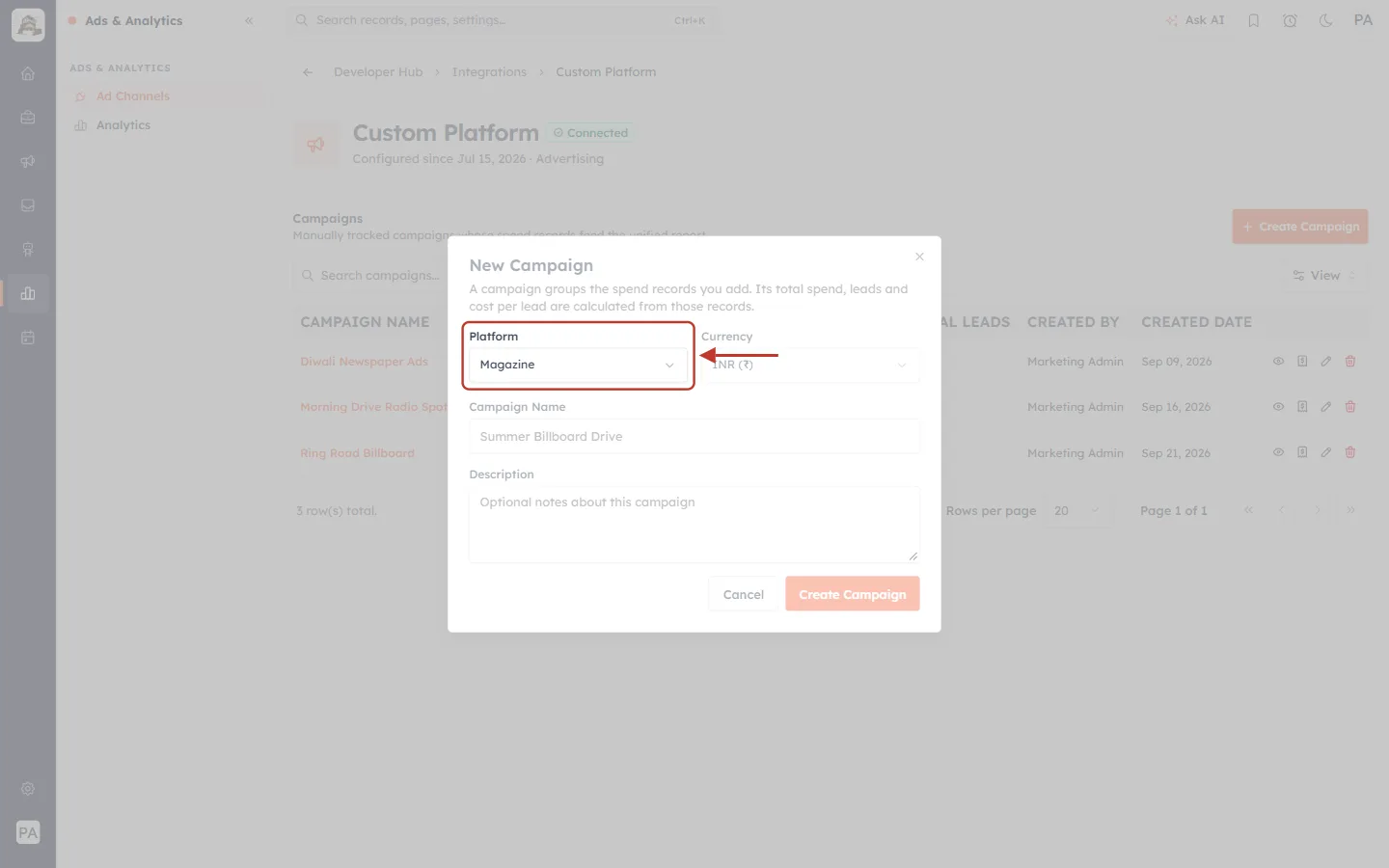
What this screenshot shows. Back in New Campaign, Platform now shows Magazine.
The new platform is available for every future campaign too.
Step 5: Name the campaign and create it#
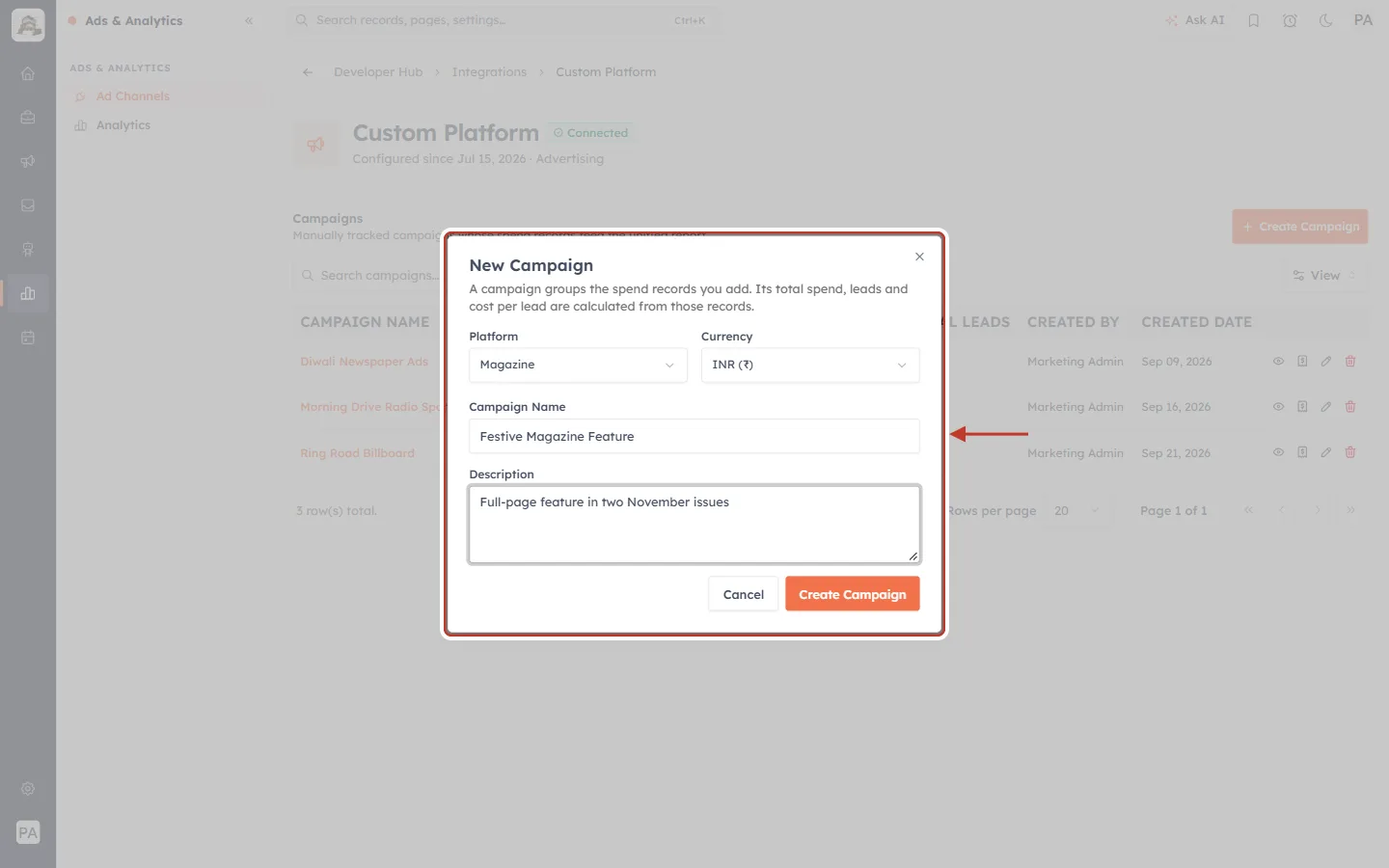
What this screenshot shows. The campaign is ready to create.
Platform Magazine, currency INR (₹), name Festive Magazine Feature, description Full-page feature in two November issues.
The currency list includes INR, USD, EUR, GBP, AUD, CAD, JPY, CNY, AED and SGD.
Click Create Campaign. You see Campaign created.
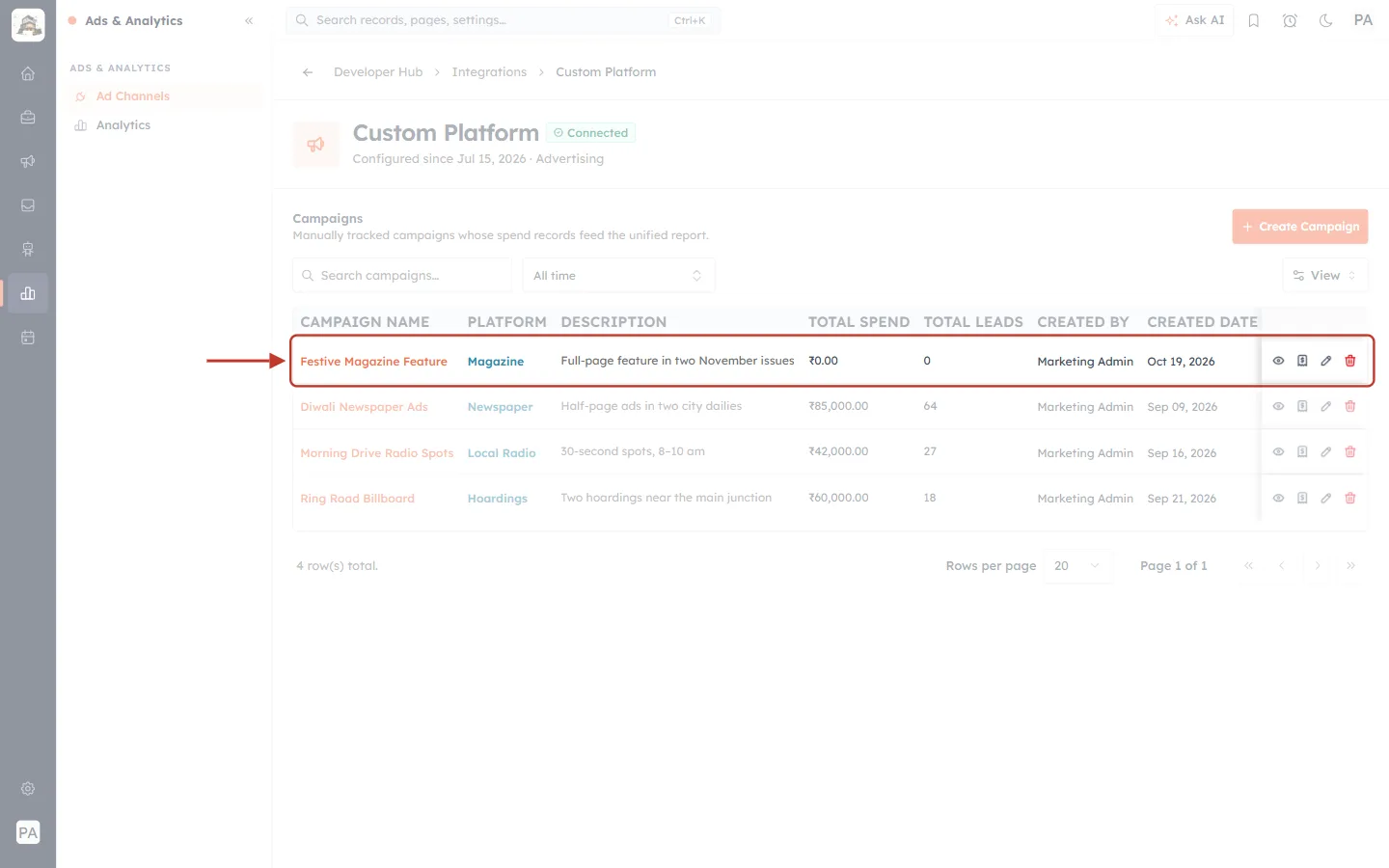
What this screenshot shows. The new campaign is at the top of the list (ringed).
Festive Magazine Feature, platform Magazine, total spend ₹0.00 and 0 leads.
A new campaign shows zero until you add its first spend record.
✅
Buying media in more than one currency? Create a separate campaign for each currency, because every spend in a campaign uses that campaign’s currency.
Part 4: Add Spend to a Campaign#
Step 6: Open the campaign#
Click the campaign’s name (or 👁 View details).
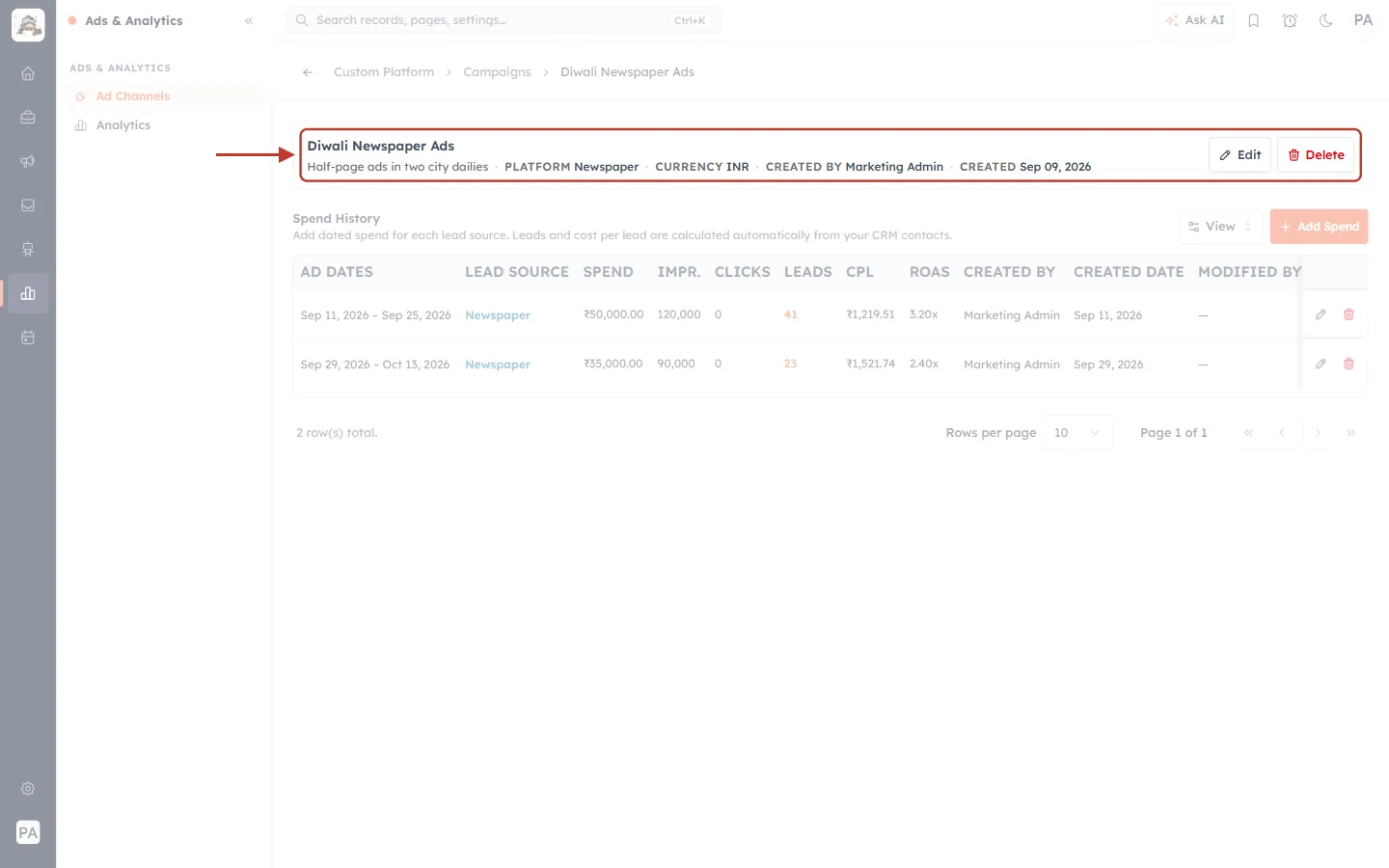
What this screenshot shows. The ringed line summarises the campaign.
Diwali Newspaper Ads — Half-page ads in two city dailies · PLATFORM Newspaper · CURRENCY INR · CREATED BY · CREATED date.
Edit and Delete (right) change or remove the whole campaign.
The breadcrumb reads Custom Platform › Campaigns › Diwali Newspaper Ads. Click Campaigns to go back to the list.
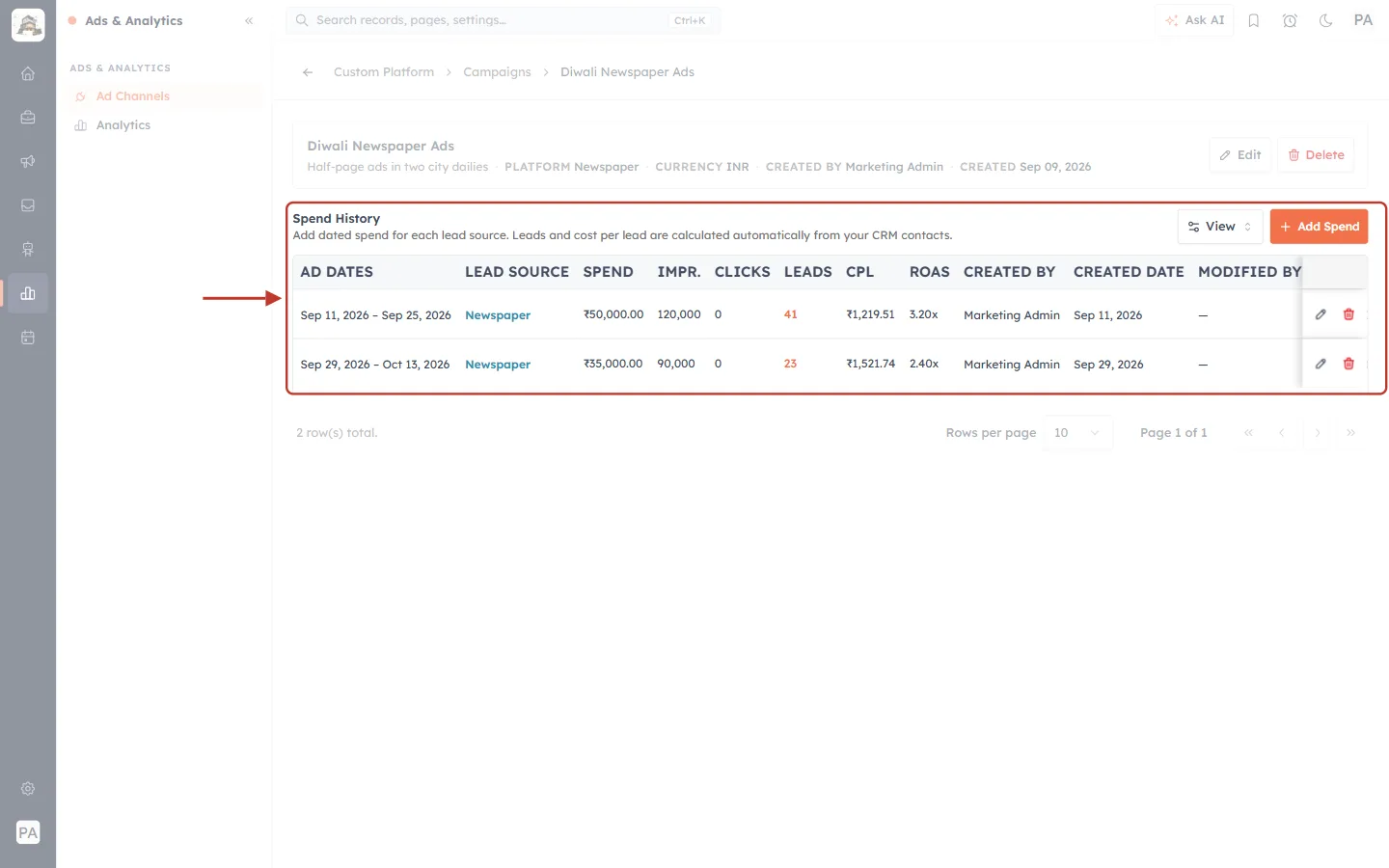
What this screenshot shows. The ringed Spend History lists every spend record in this campaign: Add dated spend for each lead source. Leads and cost per lead are calculated automatically from your CRM contacts.
Columns: AD DATES, LEAD SOURCE, SPEND, IMPR. (impressions), CLICKS, LEADS, CPL, ROAS, CREATED BY, CREATED DATE, MODIFIED BY and MODIFIED DATE.
Add Spend (orange, top right) records a new payment. View shows or hides columns.
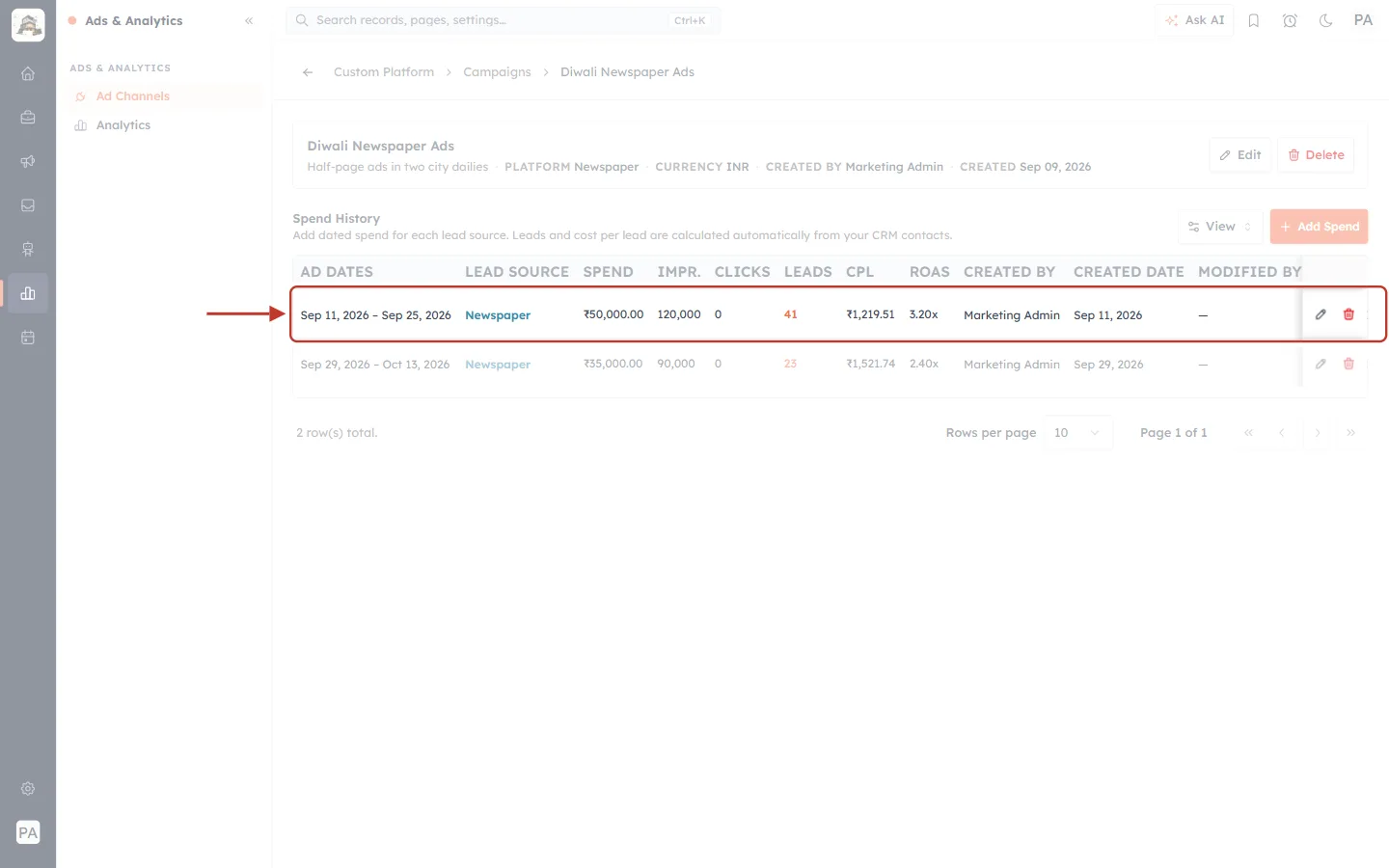
What this screenshot shows. The ringed row is one spend record.
Sep 11 – Sep 25, 2026, lead source Newspaper, spend ₹50,000.00, 120,000 impressions.
41 leads came in: Contacts with Lead Source Newspaper created between those dates. So the CPL is ₹1,219.51 (₹50,000 ÷ 41). ROAS 3.20x means revenue was 3.2 times the spend.
Click the leads number to see exactly which Contacts were counted.
The pencil and bin icons on the right edit or delete this record (Part 5).
Step 7: Click Add Spend#
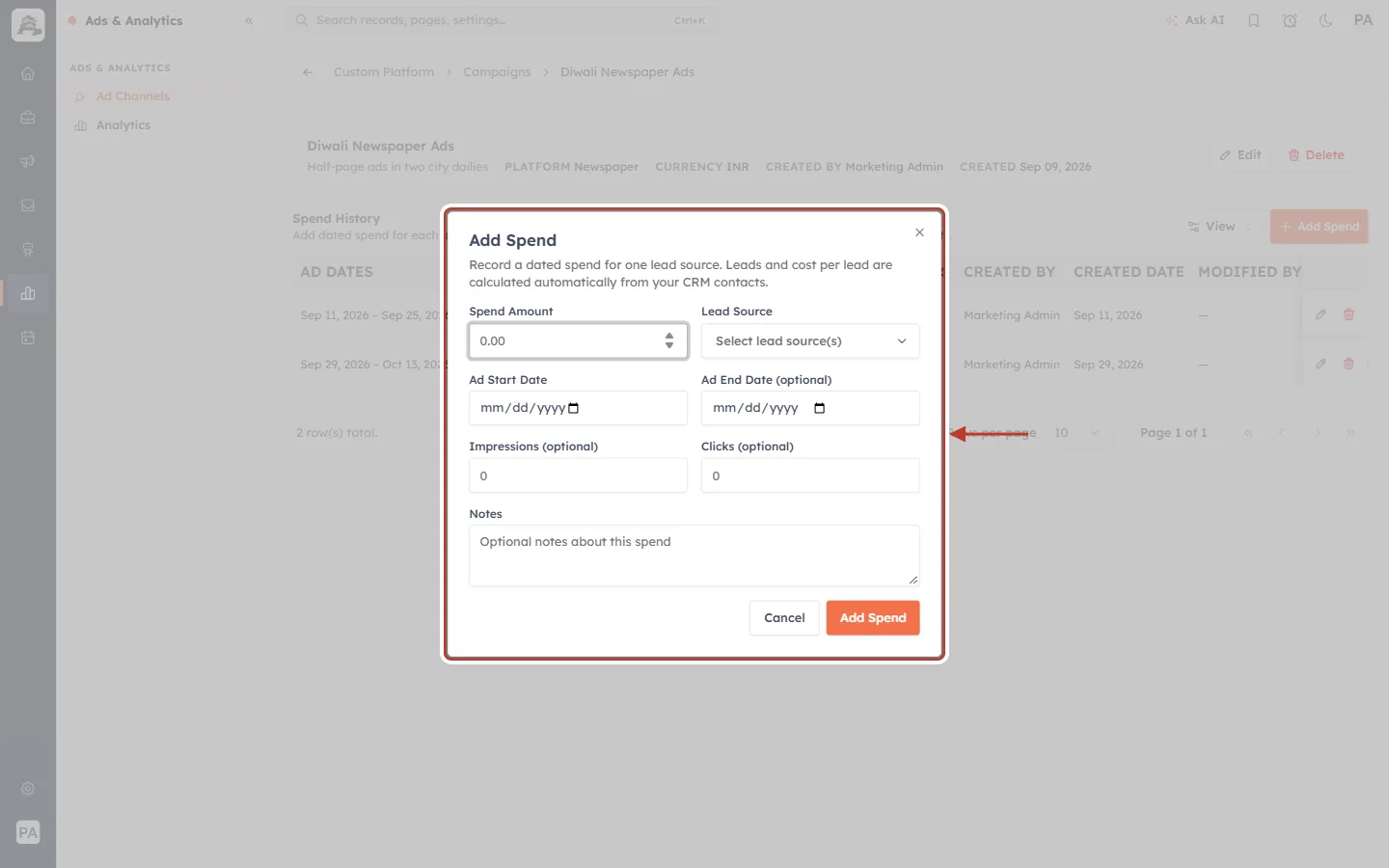
What this screenshot shows. The Add Spend window: Record a dated spend for one lead source. Leads and cost per lead are calculated automatically from your CRM contacts.
Spend Amount (required): more than 0, in the campaign’s currency.
Lead Source (required): pick one or more from your Contacts’ Lead Source options. You can search the list.
Ad Start Date (required) and Ad End Date (optional): when the ad ran. These dates decide which leads count.
Impressions (optional) and Clicks (optional): reach figures from the publisher, if you have them. Left blank, they count as 0.
Notes: anything worth remembering, such as the edition or slot.
Rule | Message if broken |
|---|---|
Spend Amount is more than 0 | Spend amount must be greater than 0. |
At least one lead source | Select at least one lead source. |
A start date is given | Ad start date is required. |
The start date isn’t in the future | Ad start date cannot be in the future. |
The start date is within the last 90 days | Ad start date cannot be older than 90 days. |
The end date isn’t before the start date | Ad end date cannot be before the start date. |
Step 8: Fill in the spend and save#
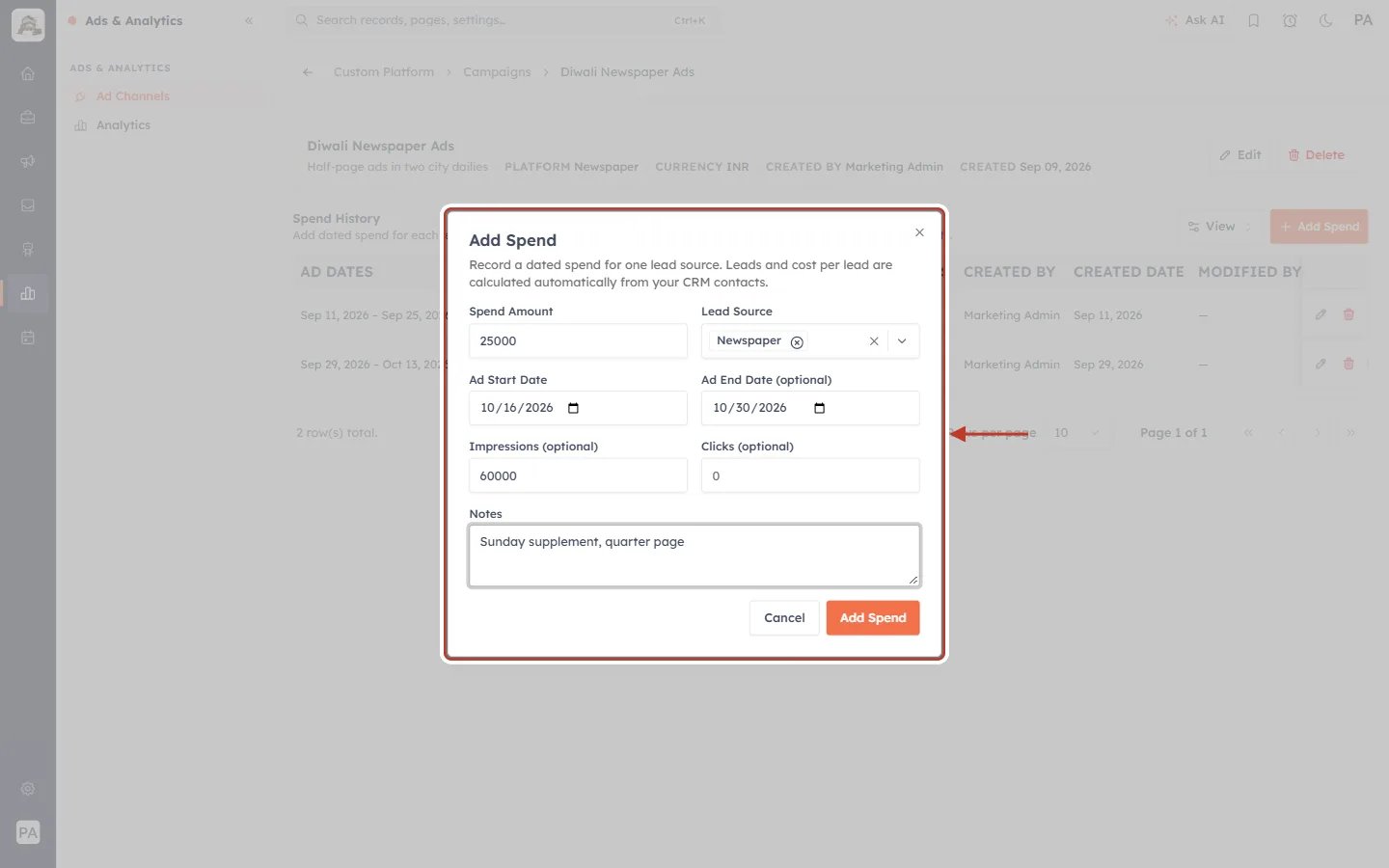
What this screenshot shows. The form is filled in for a newspaper supplement.
Spend 25000, lead source Newspaper (shown as a chip, × removes it).
Ad Start Date 3 days ago, Ad End Date about two weeks ahead. An end date can be in the future for an ad that is still running.
Impressions 60000, Clicks 0, Notes Sunday supplement, quarter page.
Click Add Spend. You see Spend added.
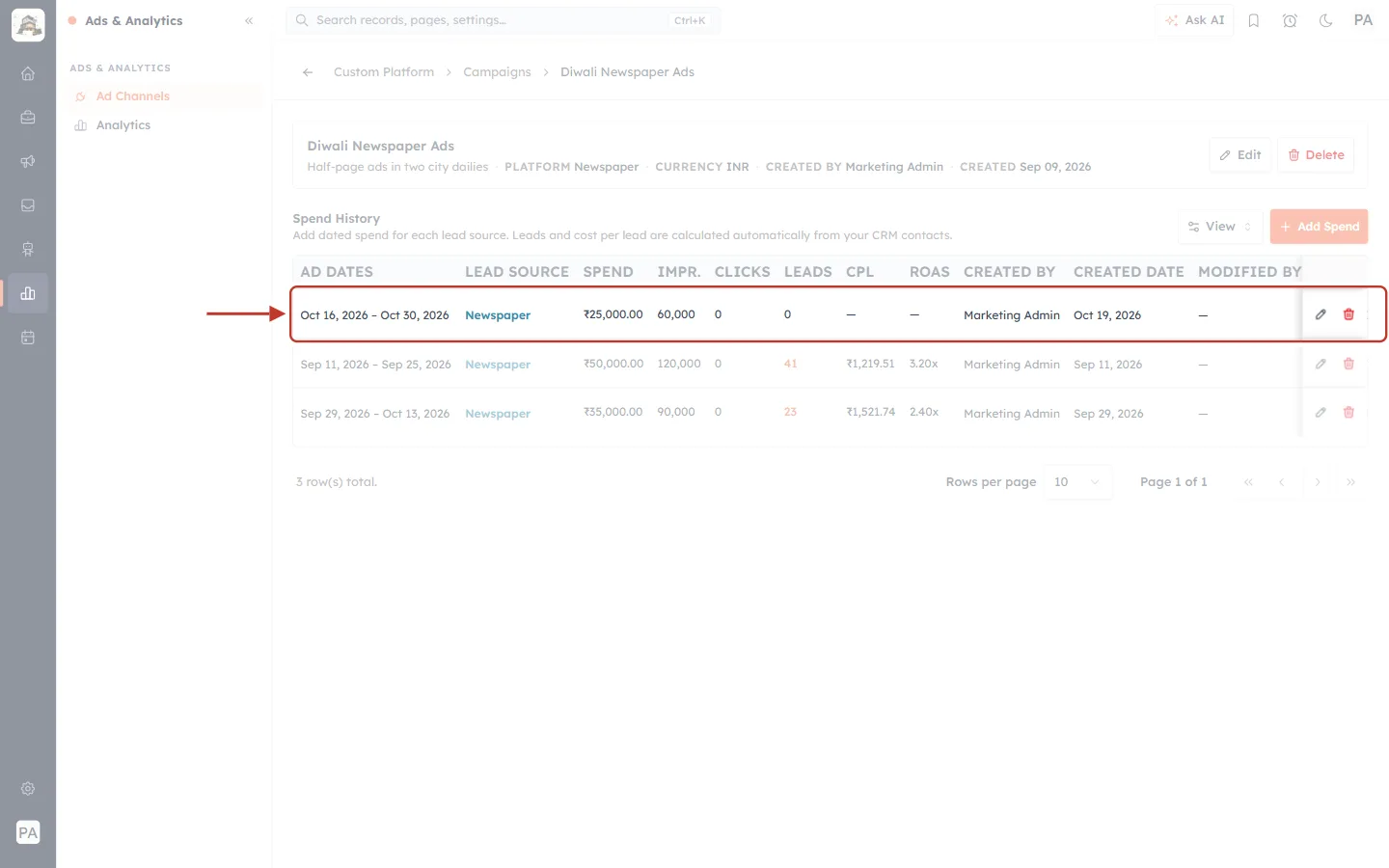
What this screenshot shows. The new record is at the top of Spend History (ringed).
Oct 16 – Oct 30, 2026, Newspaper, ₹25,000.00, 60,000 impressions.
Leads, CPL and ROAS show 0 or — at first and fill in as Contacts with that lead source are created during the ad’s dates.
The campaign’s total spend and leads in the list update to match.
Part 5: Edit or Delete a Spend Record#
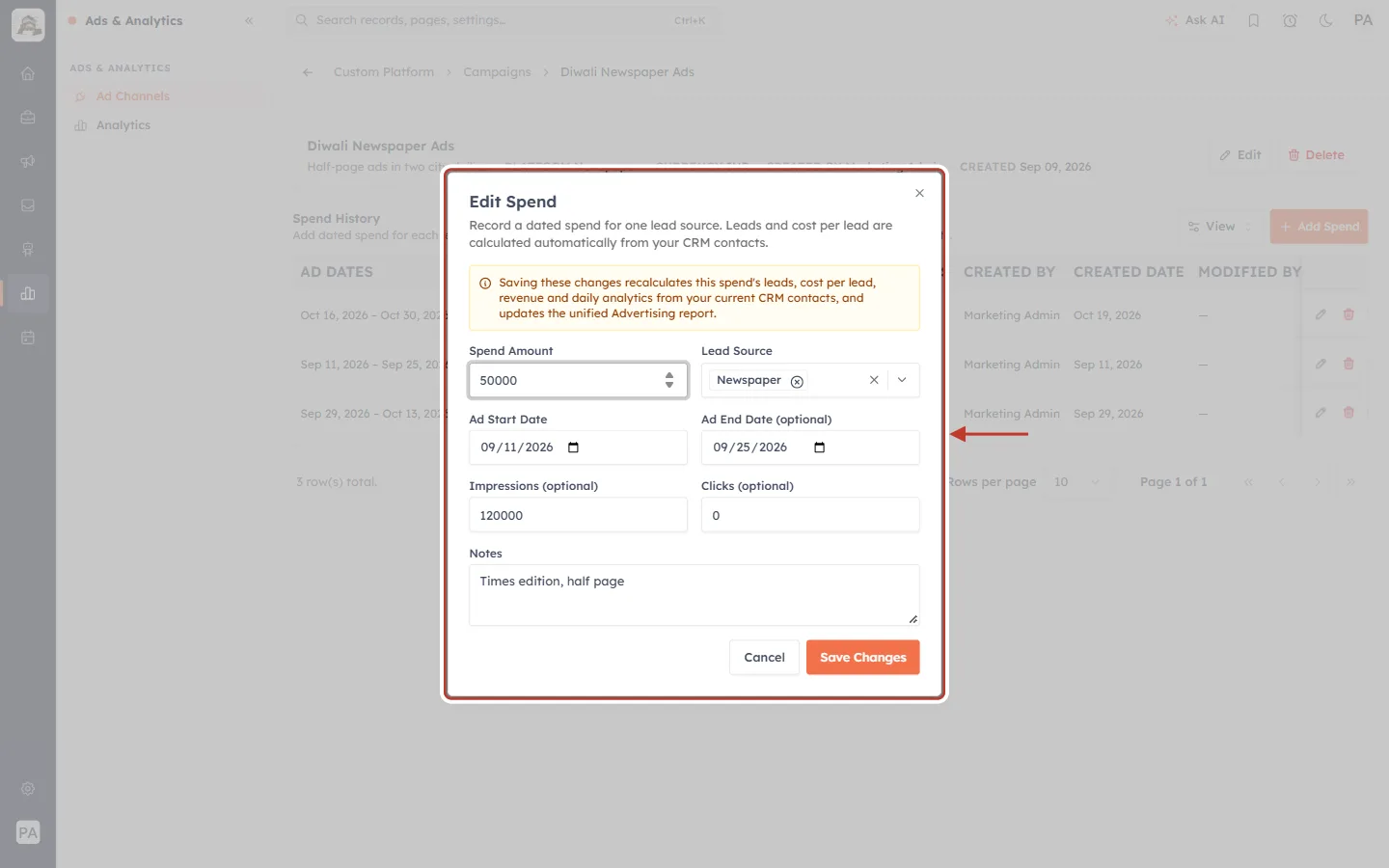
What this screenshot shows. The pencil icon opens Edit Spend, filled with the record’s details.
The orange note warns: Saving these changes recalculates this spend’s leads, cost per lead, revenue and daily analytics from your current CRM contacts, and updates the unified Advertising report.
Correct the amount, lead sources, dates, impressions, clicks or notes, then click Save Changes. You see Spend updated.
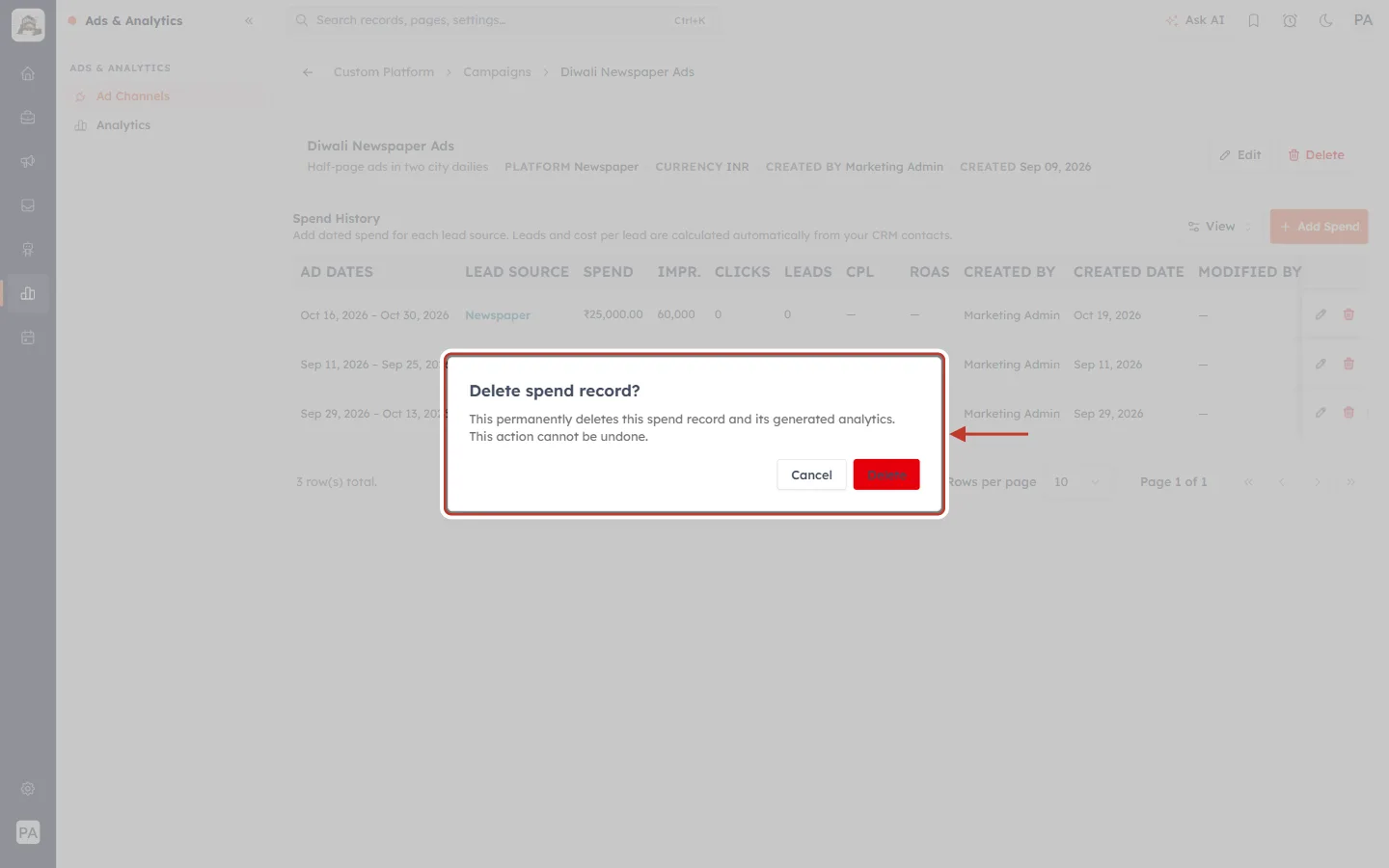
What this screenshot shows. The bin icon asks Delete spend record?
This permanently deletes this spend record and its generated analytics. This action cannot be undone.
Cancel keeps it. Delete (red) removes it. You see Spend deleted.
Part 6: Delete a Campaign#
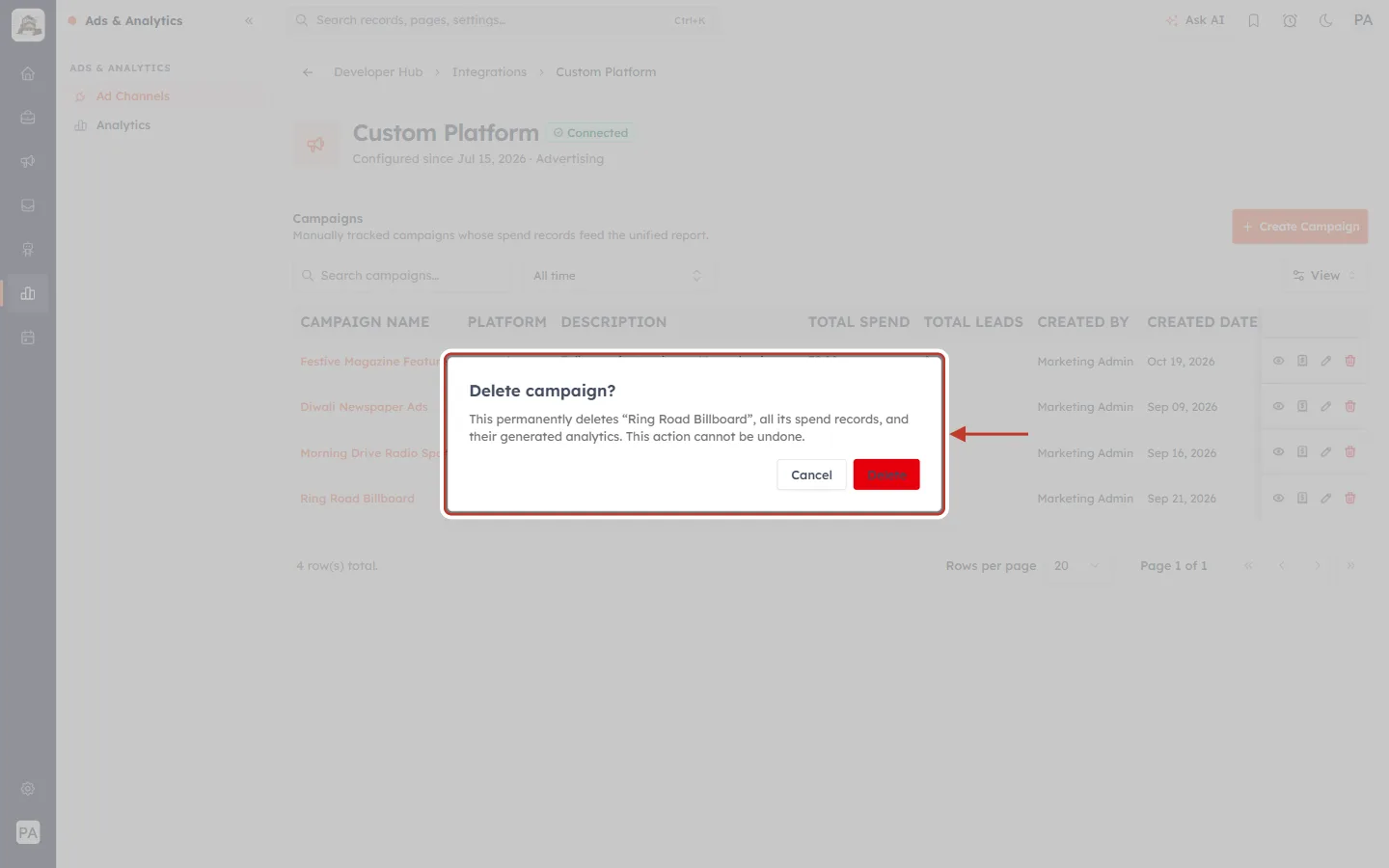
What this screenshot shows. The 🗑 icon on a campaign row (or Delete on the campaign page) asks Delete campaign?
This permanently deletes “Ring Road Billboard”, all its spend records, and their generated analytics. This action cannot be undone.
Cancel keeps it. Delete (red) removes it. You see Campaign deleted.
Only want to correct a mistake? Edit or delete the individual spend record instead.
See Offline Media in Your Reports#
Every spend record also feeds the unified Advertising Analytics report (Ads & Analytics → Analytics). There, offline campaigns appear under Custom Platform, next to Meta and Google ads, with the same Spend, Leads and CPL columns. To refresh the report on demand, use Sync Now on that page and pick the platform. See Advertising Analytics: Unified Ad Performance & Cost Per Lead.
✅
Compare cost per lead across channels. If a ₹50,000 newspaper ad brings 41 leads (₹1,219 each) and Meta brings leads at ₹400 each, you know where your next rupee works hardest.
Troubleshooting#
What you see | What to do |
|---|---|
A spend shows 0 leads | Check that Contacts created during the ad’s dates have the same Lead Source you chose on the spend. Leads from Meta or Google aren’t counted here. |
Ad start date cannot be older than 90 days. | Spend can only be recorded for ads that started in the last 90 days. Enter older campaigns as soon as possible after they start. |
The lead source you need isn’t in the list | Add it as an option to the Contacts Lead Source field, then reopen Add Spend. |
A platform is missing from the Platform list | It is probably inactive. Inactive platforms are hidden from the campaign dropdown. |
The page shows Enable Custom Platform | Custom Platform is off for your organisation. Click the button to turn it on. Existing data is kept. |
Totals look out of date | Totals update when spend is added or edited. In the Analytics report, use Sync Now. |
Frequently Asked Questions#
Do I enter the number of leads myself?
No. Leads, CPL and ROAS are always calculated from your Contacts.
Can one spend cover several lead sources?
Yes. Pick more than one, for example Newspaper and Walk-in for a print ad that drives store visits.
Can I use Custom Platform for online ads too?
Yes. Any channel without its own integration can be tracked as a platform (for example a local listings site), as long as its leads get their own Lead Source.
What happens if I edit a spend’s dates?
Its leads, CPL, revenue and daily figures are recalculated from your current Contacts, and the Advertising report is updated.
Previous and Next#
Previous: Advertising Analytics: Unified Ad Performance & Cost Per Lead
Next: Configure Conversion Tracking: Revenue, ROAS & Converted Leads
Related Articles#
Was this article helpful?
Ready to implement this?
OpenAI Engage and apply what you just learned to your own workspace.
Open AI Engage CRM