Loading…


KnowledgeBase
Connect Google Lead Form Ads
What this connects#
💡
This integration captures leads from Google Ads Lead Form extensions. It is not Gmail, Google Calendar, Google Drive, or Google Forms (forms.google.com) — those are separate and not part of this feature.
Because Google Ads has no API to subscribe to webhooks, setup is a quick copy-and-paste rather than an OAuth pop-up. Start from Settings → Developer Hub → Integrations and open the Google Lead Form Ads card.
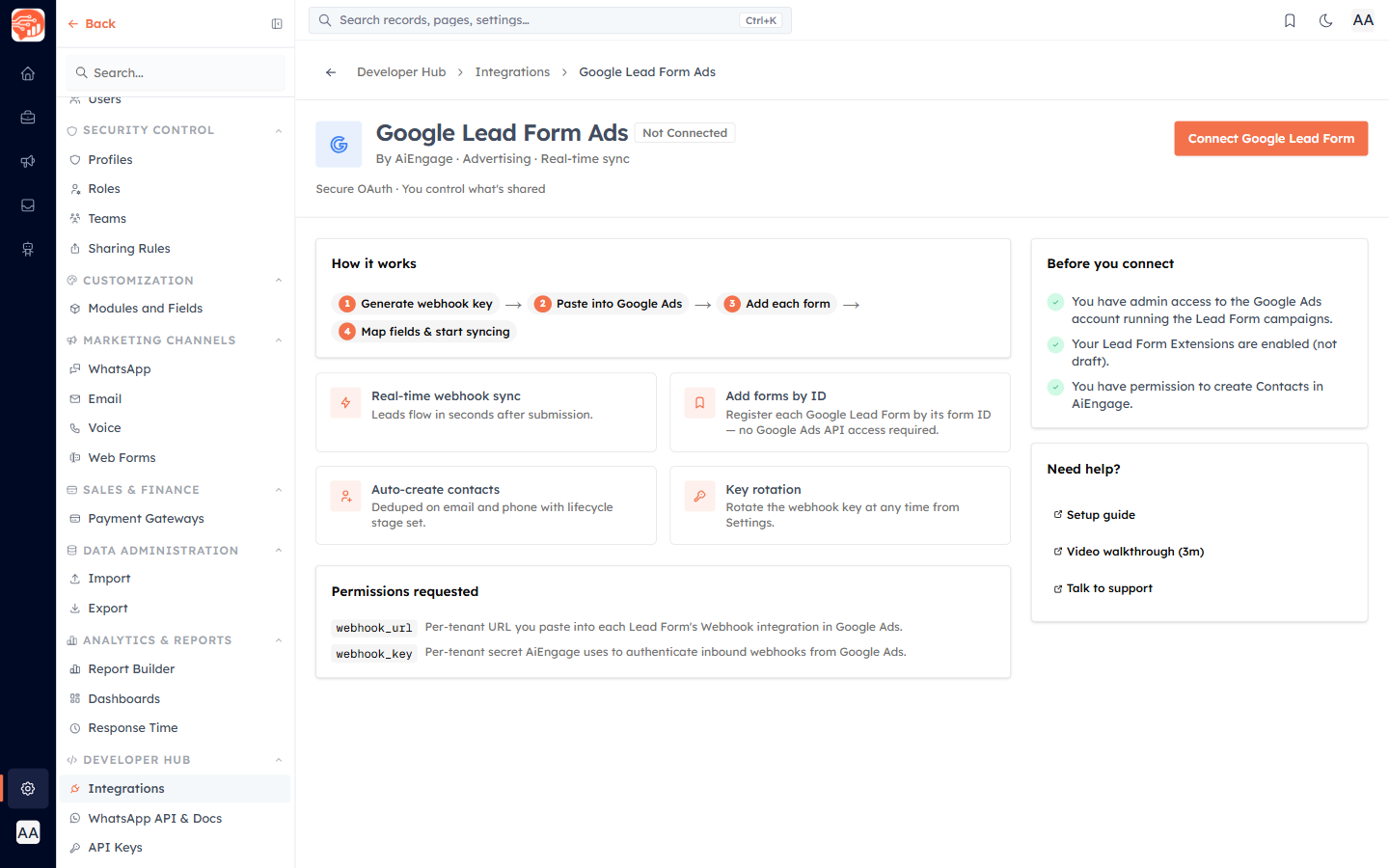
Before you connect#
You have admin access to the Google Ads account running the Lead Form campaigns.
Your Lead Form extensions are enabled (not draft).
You have permission to create Contacts in AI Engage.
Setup in four steps#
Generate webhook key — click Connect Google Lead Form. AI Engage creates a per-tenant Webhook URL and Key and opens the setup instructions.
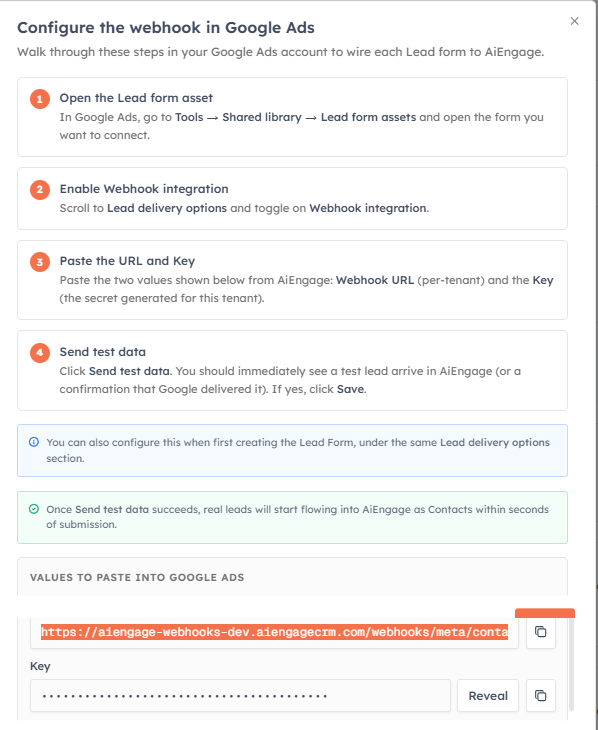
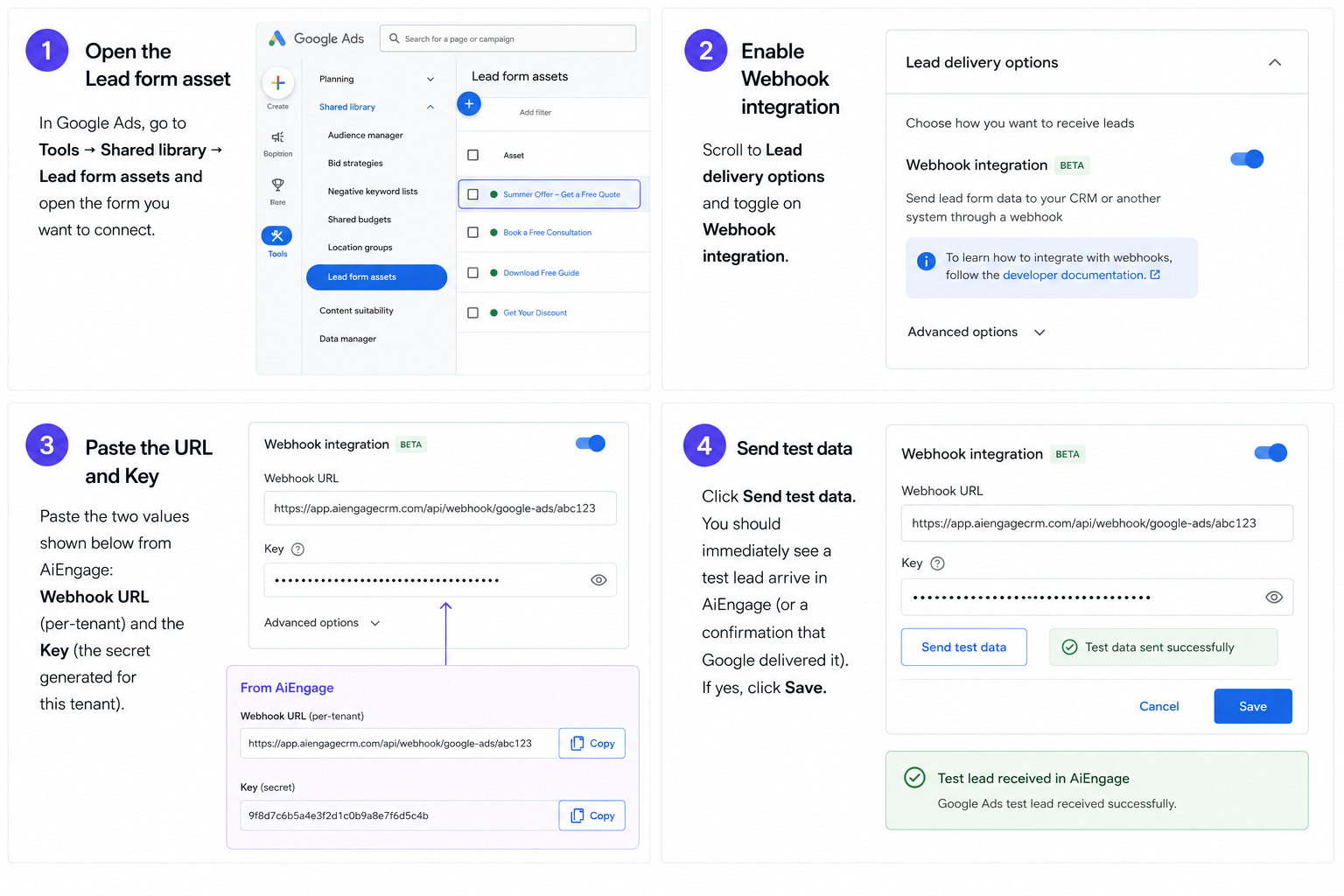
Paste into Google Ads — in Google Ads go to Tools → Shared library → Lead form assets, open your form’s Lead delivery options, turn on Webhook integration, paste the Webhook URL and Key, click Send test data, and save.
Add each form — register every Lead Form via Add a Google Lead form. You can auto-detect it from a test webhook, or add it manually by pasting its Form ID and a display name.
Map fields & start syncing — map each Google column to a Contact field (exactly like Meta), then leads flow in real time.
💡
You can Rotate key at any time from Settings (then update the value in Google Ads), and Test webhook to confirm delivery. Field mapping, per-form settings, and history work the same as the Meta integration.
Was this article helpful?
Ready to implement this?
OpenAI Engage and apply what you just learned to your own workspace.
Open AI Engage CRM