Loading…


KnowledgeBase
Meta: Manage Pages, Forms & Field Mapping
The Pages & Forms tab#
On the connected Meta integration, open the Pages & Forms tab to see every Lead Form discovered across your connected Pages. If you connected more than one Page, use Filter by Page to narrow the list.
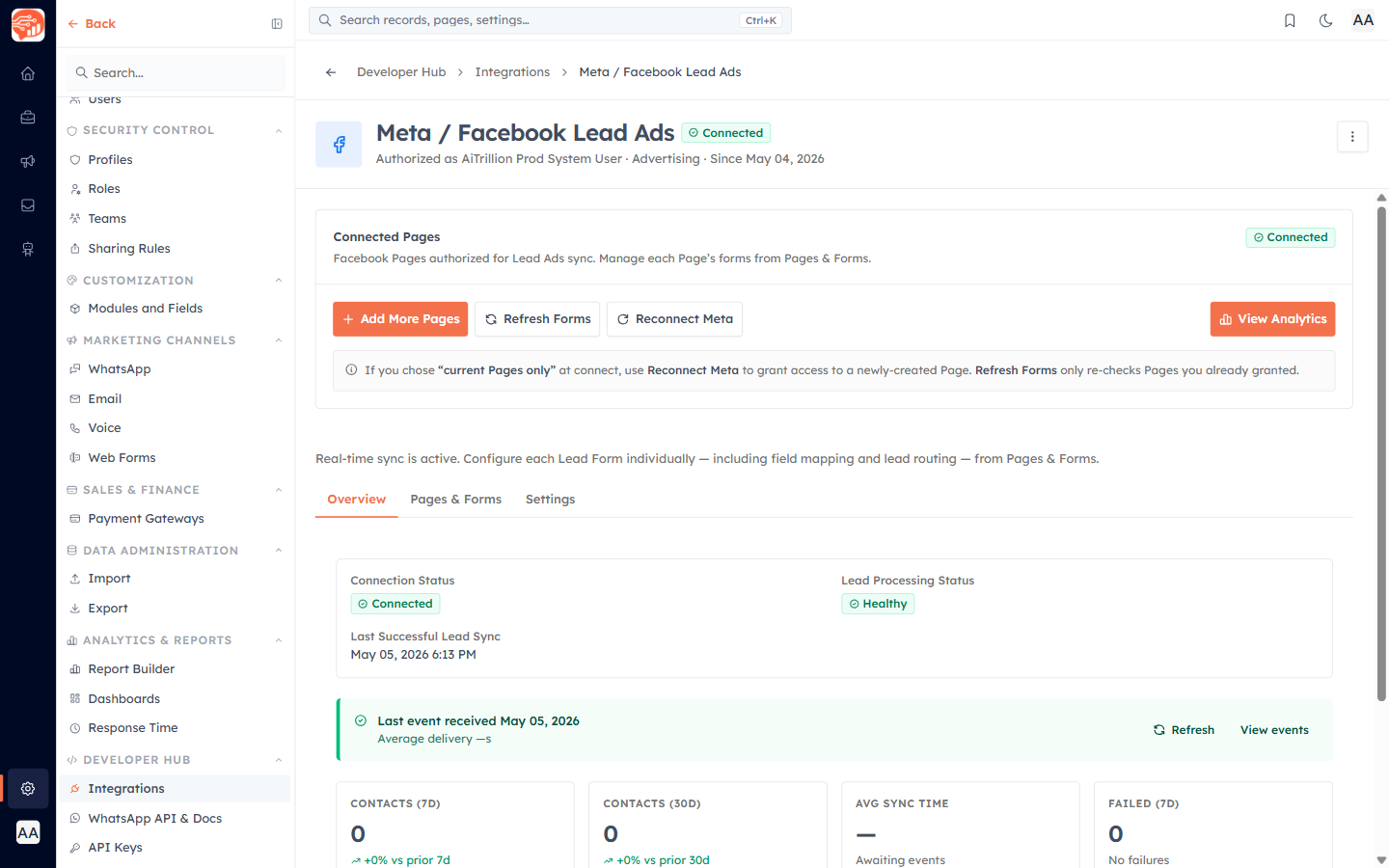
Each row shows the form name and ID, its Page, how many leads have synced, any failures, and an Active switch. Toggle a form off to pause it — incoming leads are dropped silently while paused, and existing data is kept. Click Manage on any form to open its detail page, where you configure field mapping, routing, and backfill.
Map form fields to Contact fields#
On a form’s detail page, the Field Mapping tab is where you decide how each Meta Lead Form question lands on the Contact record.
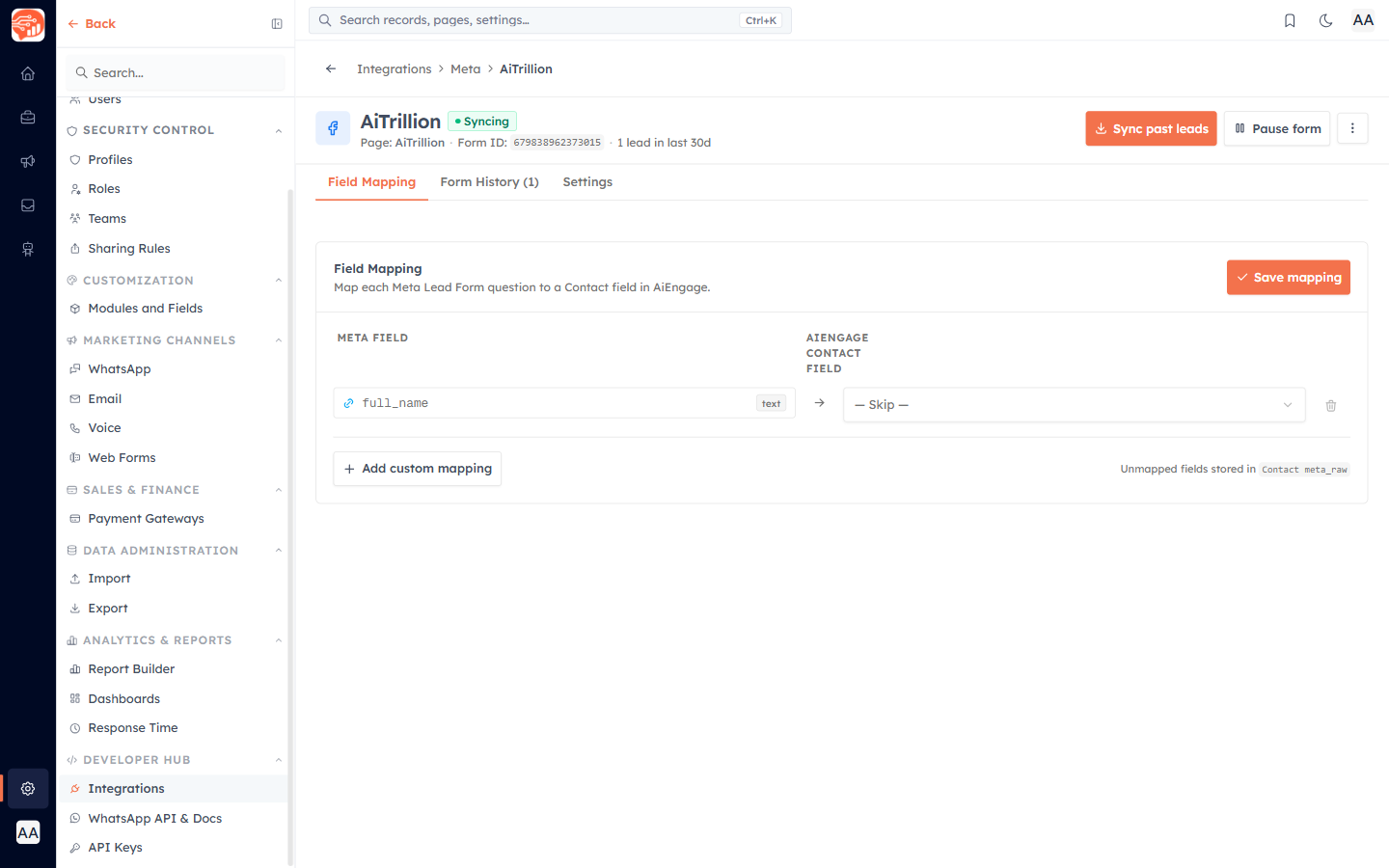
- Each Meta Field (left) is matched to an AI Engage Contact field (right). Choose — Skip — to ignore a field.
- Full Name is handled for you — map it once and AI Engage splits it into First name and Last name automatically.
- Common fields are auto-detected on first load (email, phone, name, city, company, job title…), and values are cleaned as they arrive — emails lower-cased, phone numbers normalized to international format.
- Use Add custom mapping for extra questions, and Refresh fields to re-read the form’s questions from Meta after you change the ad.
ℹ️
Anything you leave unmapped is still preserved on the Contact (in
meta_raw), so no submitted data is ever lost. Click Save mapping when you are done.🔗
Next: set routing and notifications in Per-Form Settings.
Was this article helpful?
Ready to implement this?
OpenAI Engage and apply what you just learned to your own workspace.
Open AI Engage CRM