Loading…


KnowledgeBase
Configure Conversion Tracking: Revenue, ROAS & Converted Leads
Spend and cost per lead tell you what advertising costs; Conversion Tracking tells you what it earns. It is a single, global rule that defines when an ad lead counts as converted and which field its revenue comes from. That one rule powers the Converted Leads, Revenue, Conversion Rate and ROAS figures across every advertising platform in your unified report.
Before you start#
Open the dialog from the Advertising Analytics page via the Conversion Settings button (or the Configure Now button on the first-time banner). Until it is configured, that banner reads "Conversion Tracking is not configured." and Revenue/ROAS columns stay blank.
One rule, every platform — the same rule is applied to Meta, Custom Advertising and any future platform; you do not configure conversions per channel.
It is module-driven — nothing is hardcoded to Deals or Amount. You pick which CRM related module a conversion is judged on, and the revenue and condition fields load from that module.
Configure the rule#
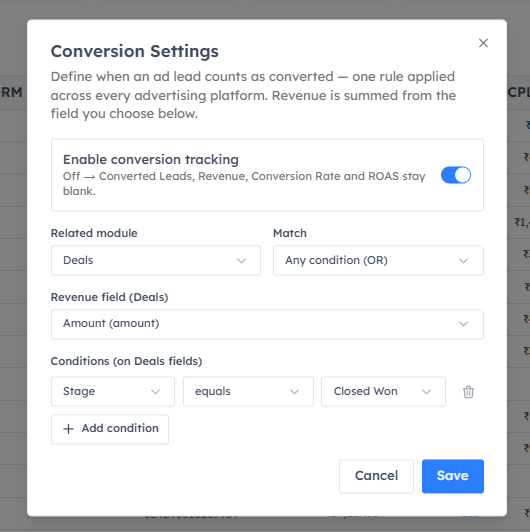
Turn on Enable conversion tracking. While it is off, Converted Leads, Revenue, Conversion Rate and ROAS all stay blank, and the configuration below is hidden.
Choose the Related module a conversion is evaluated on — for example Deals, Invoices or a custom module. Changing the module clears the revenue field and conditions so no stale field from the previous module is saved.
Set Match to decide how multiple conditions combine.
Pick the Revenue field whose value is summed into Revenue.
Add one or more Conditions that a lead's related record must satisfy to count as converted.
Press Save. On success you'll see "Conversion settings saved." and the report metrics recalculate.
Each field explained#
Enable conversion tracking — the master switch. Off means all four conversion metrics stay blank.
Related module — the CRM module the rule runs against; its fields feed both the revenue selector and the condition builder.
Match — Any condition (OR) counts a lead as converted if it meets at least one condition; All conditions (AND) requires every condition to be met.
Revenue field — only currency fields from the chosen module are selectable, because revenue is a money value. If the module has none, you'll see "No currency fields in this module."
Conditions — each is a field, an operator and a value. Supported operators are equals, does not equal, is one of (comma-sep) and contains. When the chosen field has a picklist, the value becomes a dropdown; otherwise it is free text (for "is one of", enter comma-separated values). At least one condition is always kept.
💡
A common setup is Related module = Deals, Match = All conditions (AND), Revenue field = your deal amount field, and a condition like Stage equals Won — so only won deals count as conversions and their amounts roll up as Revenue.
Validation and errors#
When conversion tracking is enabled, the dialog enforces a complete rule before it will save:
Without a related module: "Select a related module."
Without a revenue field: "Select a revenue field for the chosen module." — the system never silently falls back to a default field, which would quietly zero out Revenue and ROAS.
Without any condition: "Add at least one condition, or turn conversions off."
💡
Switching the Related module resets the revenue field and all conditions. This is deliberate — field names differ between modules — so re-select the revenue field and rebuild conditions after changing modules.
How the numbers are derived#
Once saved, the rule is evaluated against each attributed lead's related record. A lead that matches becomes a Converted Lead; the Revenue field is summed into Revenue; ROAS is Revenue relative to spend; and Conversion Rate is converted leads over total leads. All of this appears back in the Advertising Analytics grid, refreshed after you save.
💡
After saving, return to Advertising Analytics — the Revenue and ROAS columns that showed a dash will now populate for rows that have attributed, converting leads.
Good to know#
The rule is global and provider-agnostic: change it once and every ad platform's conversion metrics update together.
If Revenue stays at a dash for a row, it usually means that scope had no converting leads in the window — not that the rule is broken.
Turning conversion tracking off blanks the four metrics but keeps your rule, so you can re-enable it later without reconfiguring.
Was this article helpful?
Ready to implement this?
OpenAI Engage and apply what you just learned to your own workspace.
Open AI Engage CRM