Loading…


KnowledgeBase
Quotes, Invoices & Payments Permissions and Plan Limits: Who Can Create, Edit and Record Payments, and Invoices per Plan (Step-by-Step)
Introduction#
Quotes, invoices and payments carry prices, discounts and money owed, so most teams want to control who can see and change them. In AiEngage CRM there are two layers of control:
Permissions: what each person may do. You set this in their permission profile, under Module Access.
Plan limits: what your whole account may do. This is set by your subscription plan (Free, Growth, Advance or Custom).
This guide covers both, step by step. Every screenshot is explained so you can match it against your own screen.
ℹ️
Who can follow this guide? You need to be the account Owner or an Admin, or have a profile that can manage profiles. The Billing and Payment Gateway pages are for Owners and Admins only.
At a glance#
You want to… | Where it is controlled |
|---|---|
Let someone see, create, change or delete quotes | Profile → Module Access → Quotes row |
Let someone see, create, change or delete invoices | Profile → Module Access → Invoices row |
Let someone record payments or mark invoices paid | Edit on Invoices and Create on Payments |
Let someone pick products in line items | Profile → Module Access → Products row |
Connect Stripe or Razorpay | Owner / Admin only (Setup → Sales & Finance → Payment Gateways) |
Design the quote, invoice and receipt PDFs | Setup → Sales & Finance → Document Templates |
Check or raise your monthly invoice allowance | Billing & Subscription → Change Plan |
Part 1: Set quote, invoice and payment permissions#
Step 1: Open Profiles#
Click the gear icon at the bottom of the left rail to open Setup. In the settings menu, under SECURITY CONTROL, click Profiles.
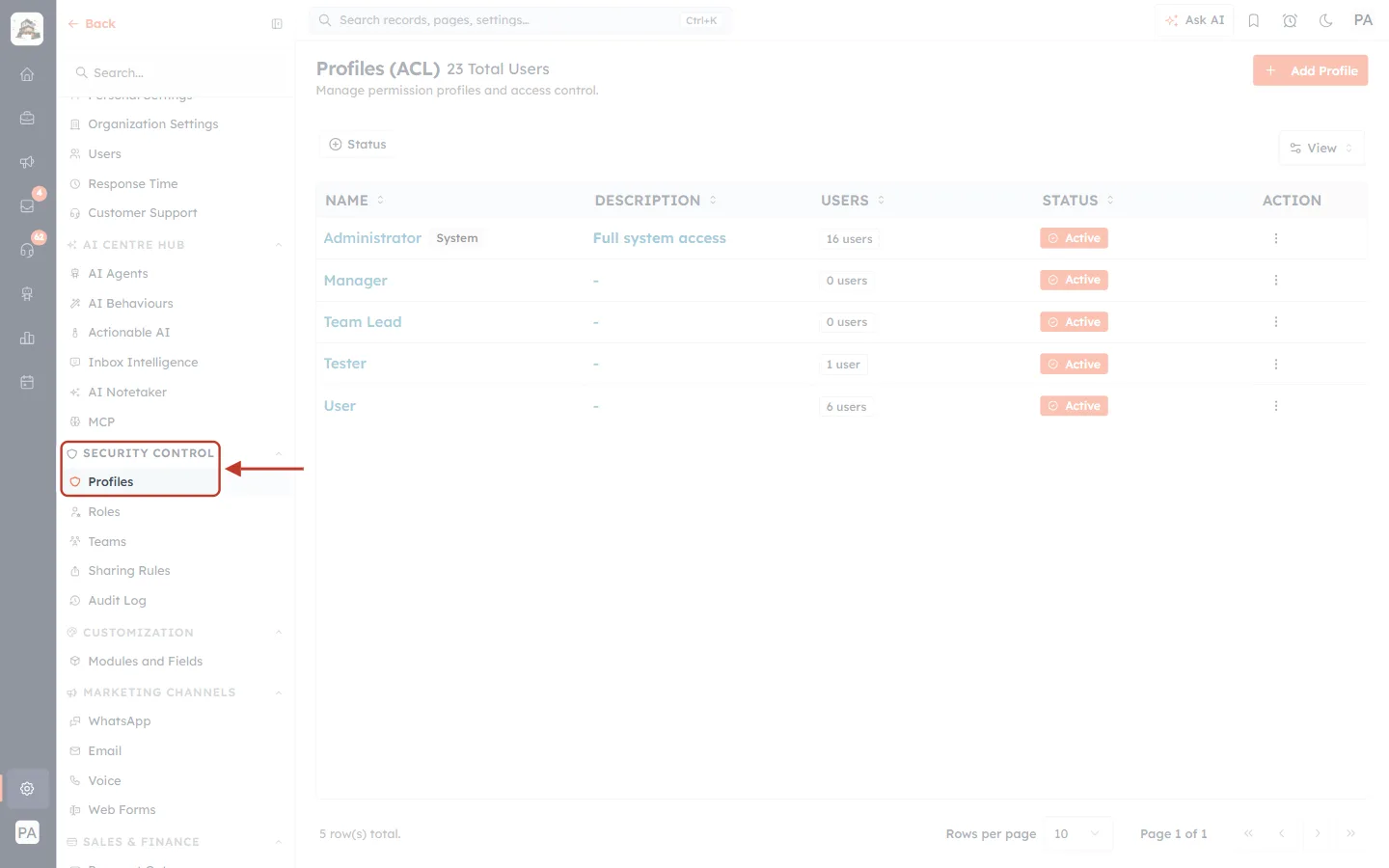
What this screenshot shows. The Setup menu on the left, with Security Control → Profiles ringed and the arrow pointing at it.
The left column is the Setup menu. Its groups include General, AI Centre Hub, Security Control (Profiles, Roles, Teams, Sharing Rules, Audit Log), Customization, Marketing Channels and Sales & Finance.
Profiles is highlighted because it is the page that is open.
The main area shows the Profiles (ACL) page with the total number of users in your account.
The Profiles page lists every permission profile in your account.
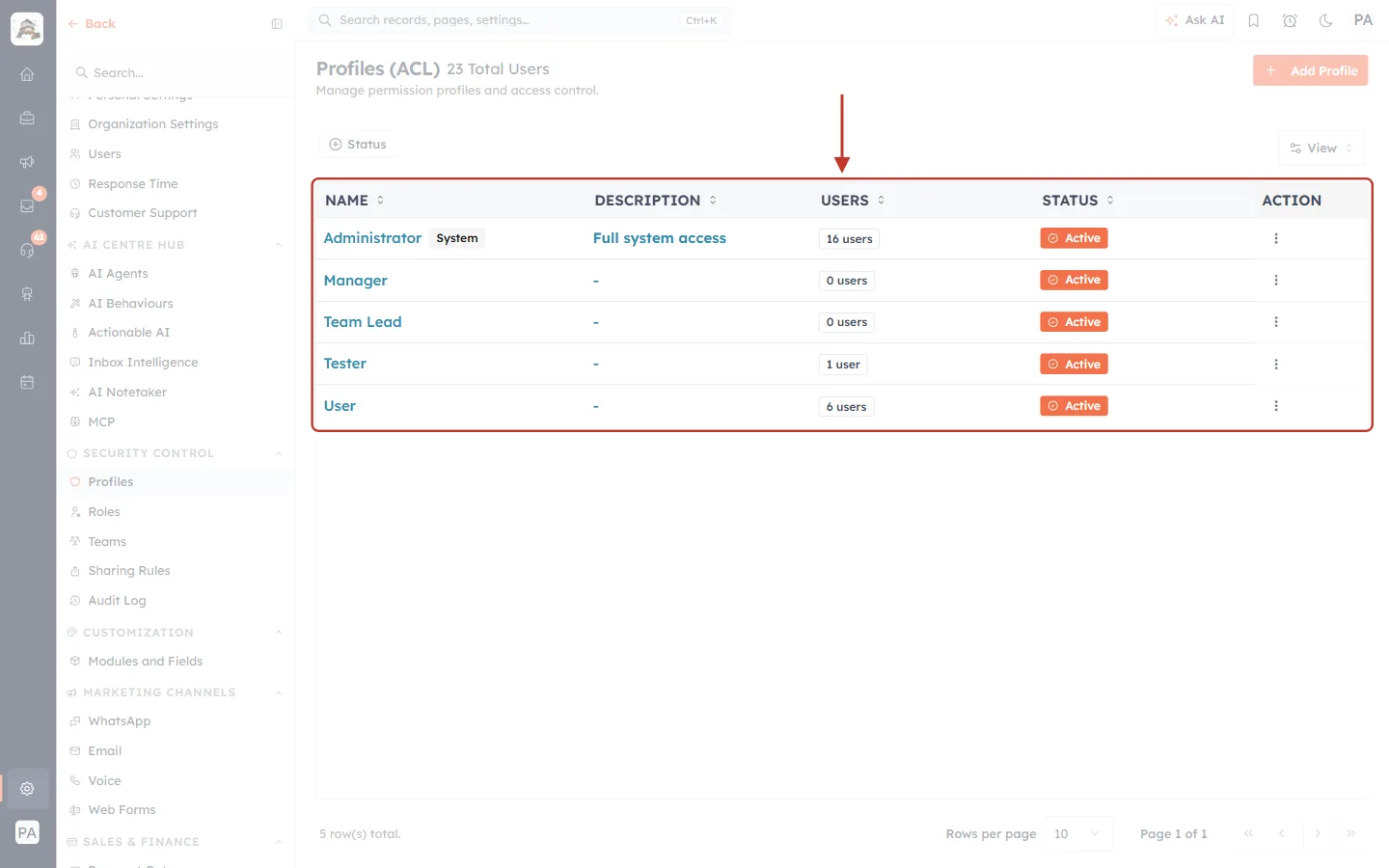
What this screenshot shows. The list of permission profiles, ringed.
NAME: the profile name. Administrator has a System tag. Its permissions are fixed and give full access, so you can’t edit it.
DESCRIPTION: an optional note about who the profile is for.
USERS: how many people use the profile. A change to a profile applies to all of them at once.
STATUS: Active or Inactive.
ACTION: the ⋮ menu for each profile.
Above the list are + Add Profile (top right), a Status filter and a View menu for columns.
Step 2: Edit the profile your sales team uses#
Find the profile you want to change (here, User). Click its ⋮ menu, then click Edit.
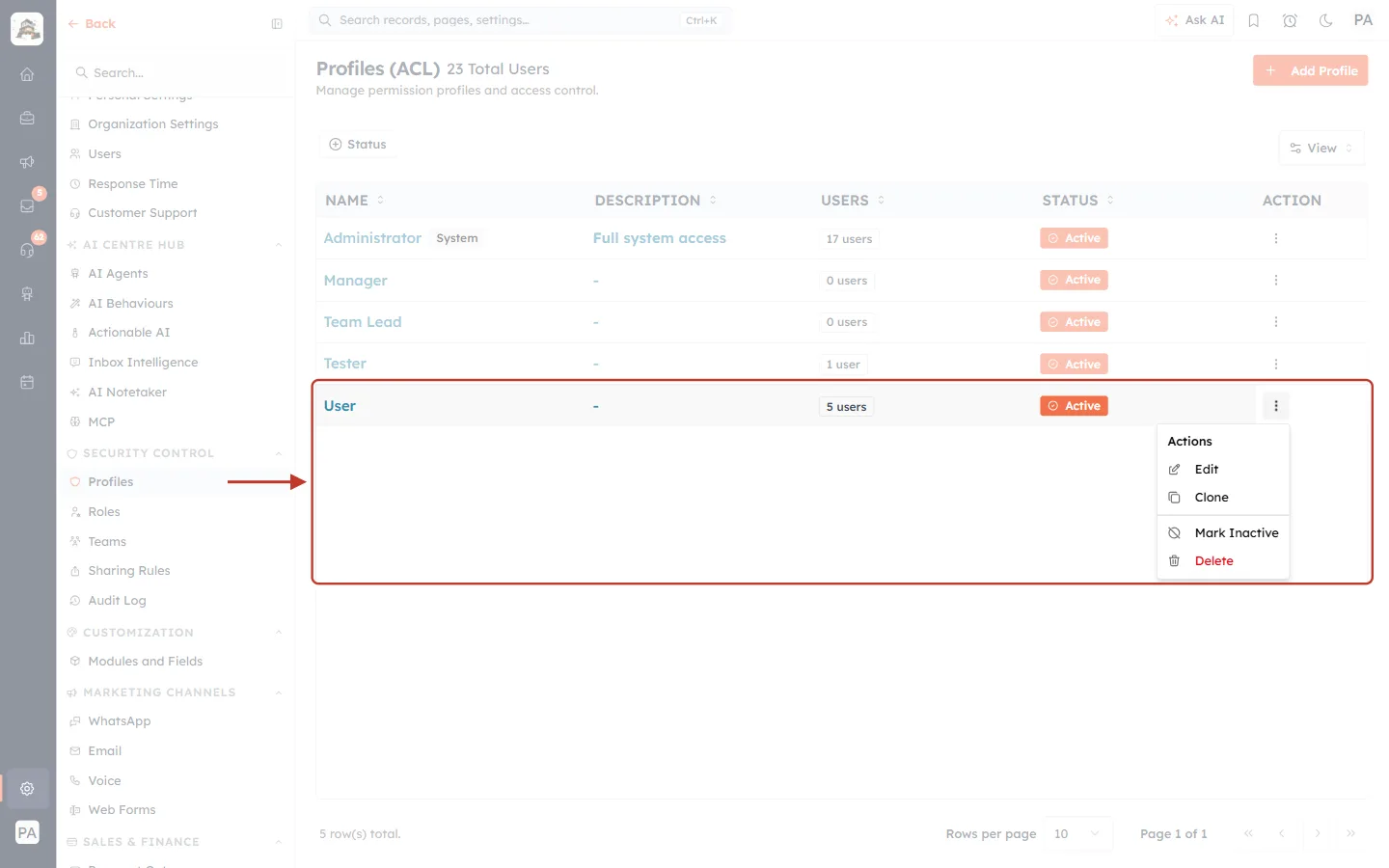
What this screenshot shows. The ⋮ menu of the User profile, open, with the profile row and the whole menu ringed.
The menu is headed Actions and offers Edit, Clone, Mark Inactive and Delete.
Edit opens the profile’s permission form. Use it here.
To try the changes on a copy first, use Clone, then edit the copy.
The row shows this profile has 5 users, so the changes in the next steps affect all five.
✅
Want different rules for sales reps and accounts staff? Create one profile for each, for example “Sales Rep” and “Accounts”. See Create a Permission Profile Step by Step: Build, Edit, Clone, Deactivate & Delete.
Step 3: Open Module Access#
In the section list on the left of the form, click Module Access (under Module Permissions).
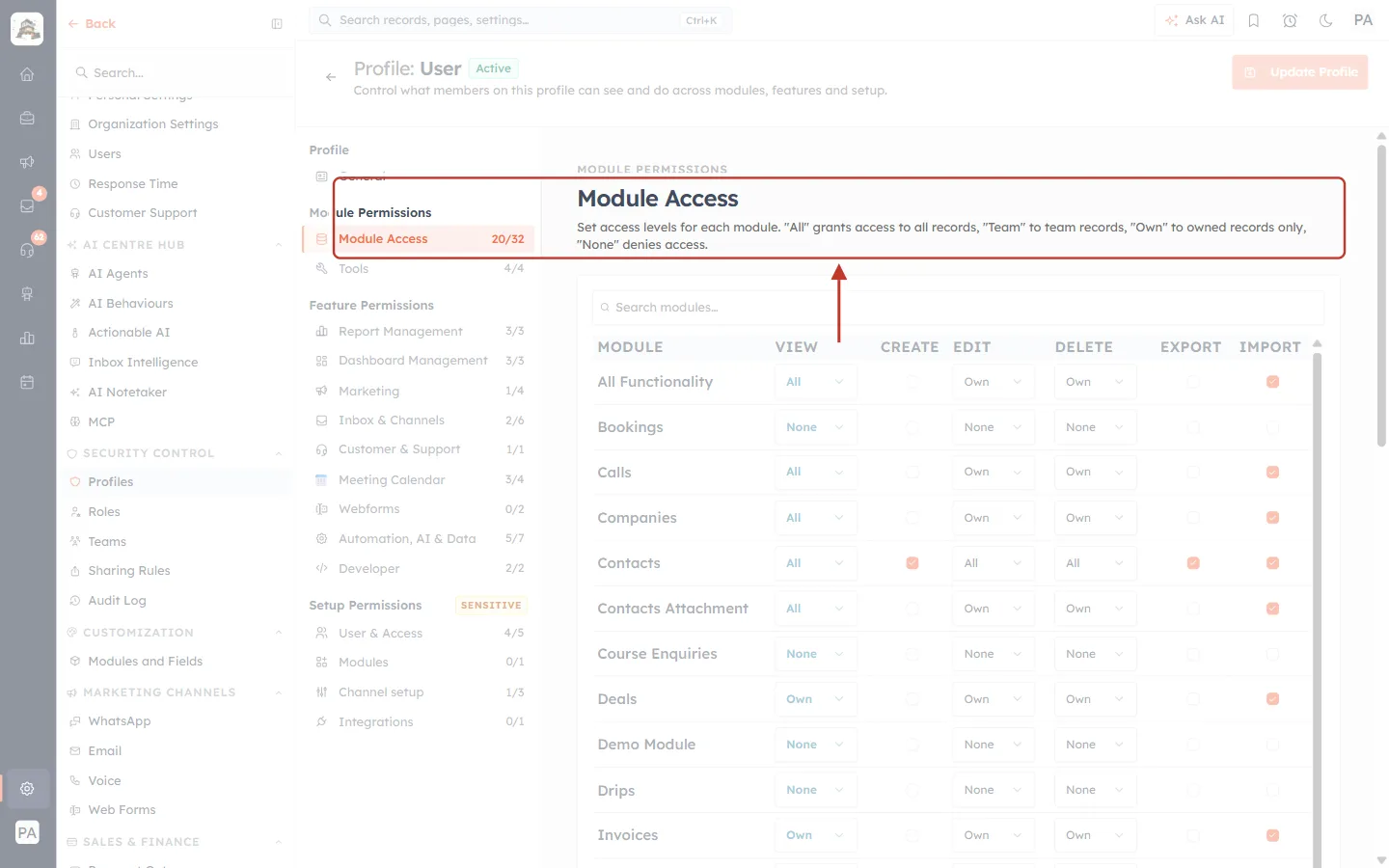
What this screenshot shows. The profile edit page, with the Module Access section link and its heading ringed.
At the top: Profile: User, an Active badge and the Update Profile button. The button stays faded until you change something.
The middle column lists the sections of the form: Profile (General), Module Permissions (Module Access, Tools), Feature Permissions and Setup Permissions (marked SENSITIVE).
The counter next to Module Access, for example 20/32, shows how many modules this profile can reach.
The description explains the access levels: All means every record, Team means records owned by the user’s team, Own means only records the user owns, and None means no access.
Step 4: Set the Quotes row#
Type Quotes in the Search modules… box to show only that row.
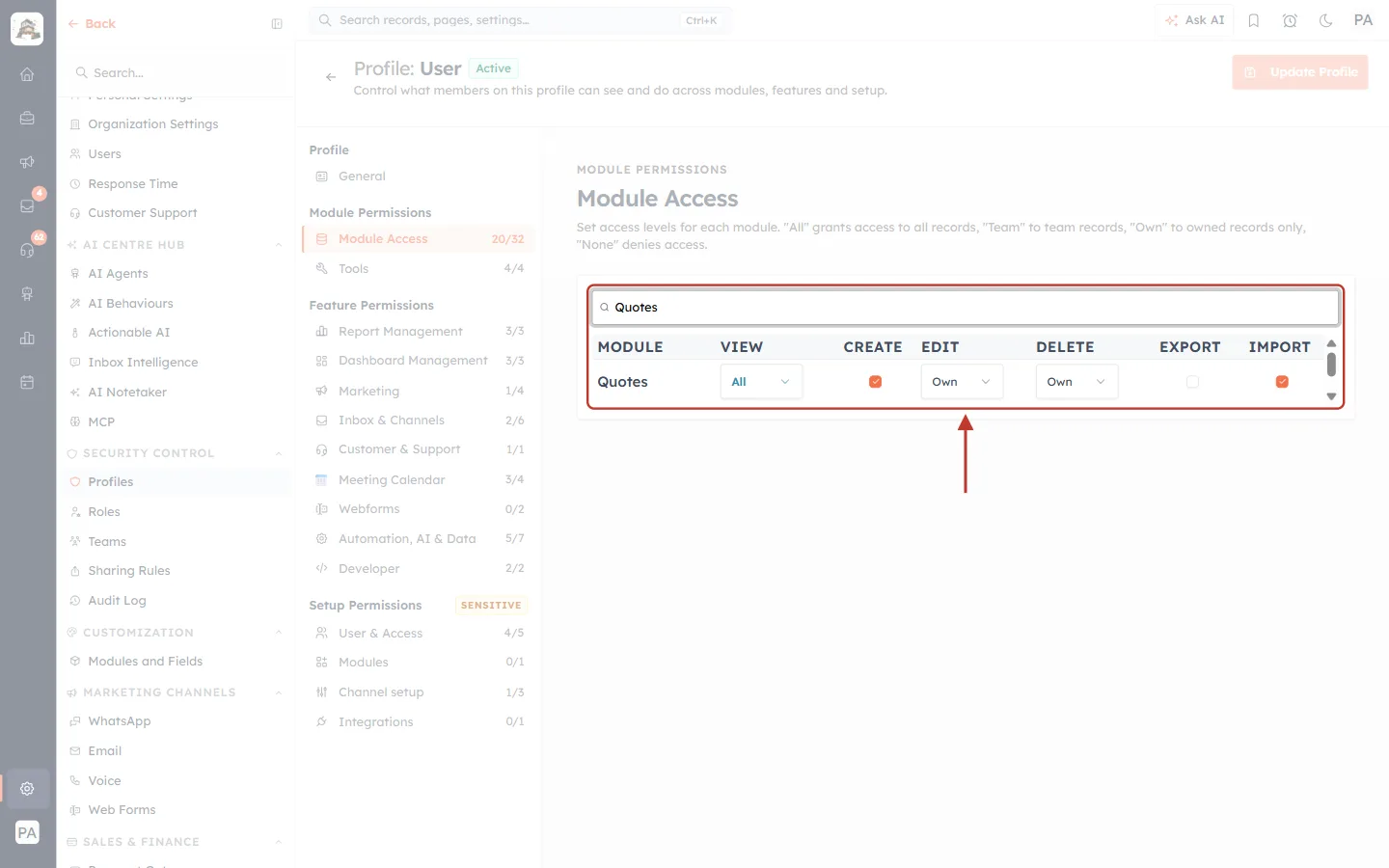
What this screenshot shows. The Module Access table filtered to Quotes, with the search box, the column headings and the row ringed.
VIEW (here All): which quotes the user can open and see in the list.
CREATE (ticked): whether the user can make new quotes.
EDIT (here Own): which quotes the user can change. That includes line items, discounts, status and Accept / Reject.
DELETE (here Own): which quotes the user can delete.
EXPORT (not ticked): whether the user can download quotes as a CSV or Excel file.
IMPORT (ticked): whether the user can bring quotes in from a file.
Click the VIEW box to choose the level. The EDIT and DELETE boxes offer the same four choices.
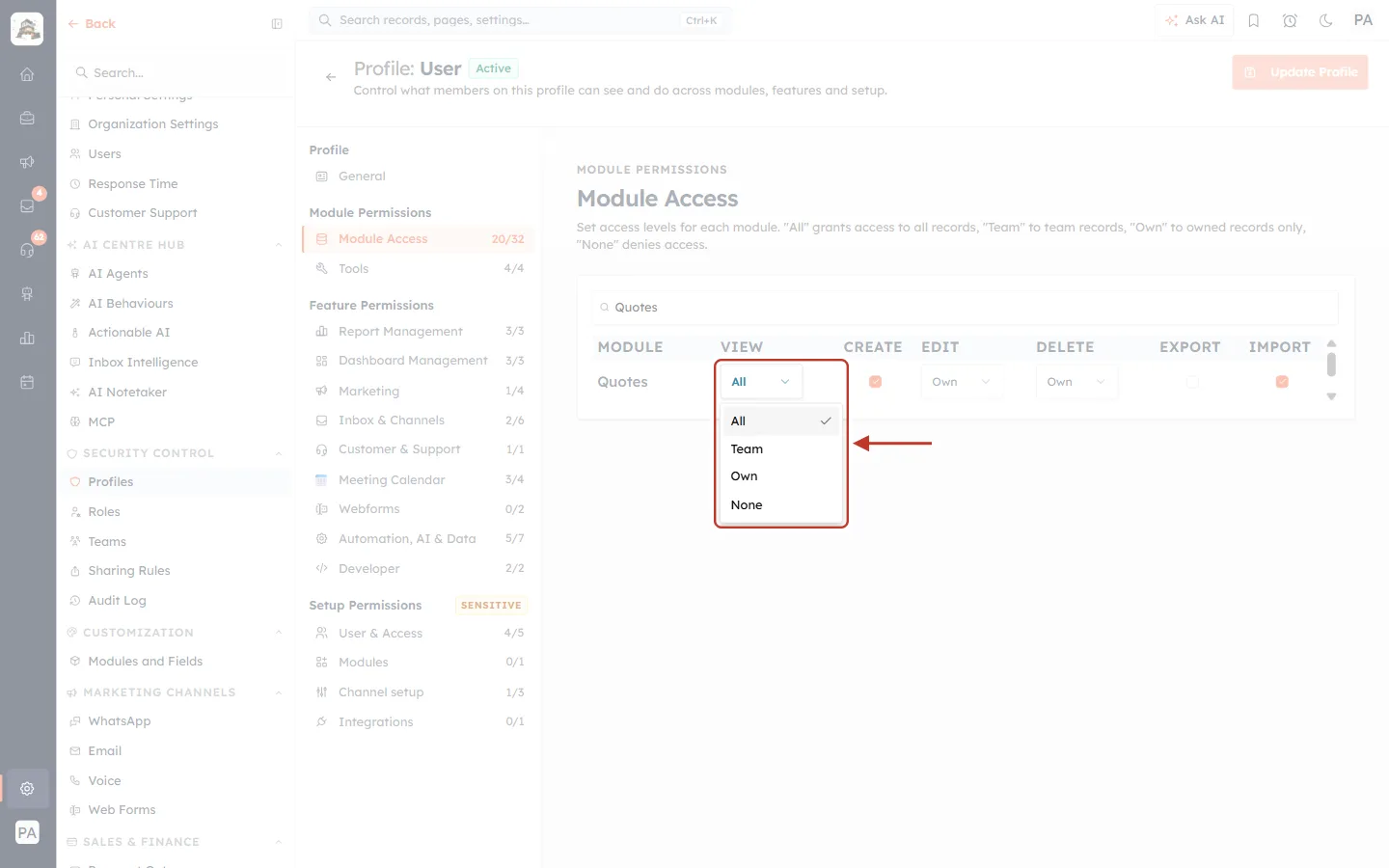
What this screenshot shows. The VIEW drop-down for Quotes, open, with the four access levels ringed.
All (ticked now): the user sees every quote in the account.
Team: the user sees quotes owned by anyone in their team.
Own: the user sees only quotes where they are the Quote Owner.
None: the Quotes module is hidden from the user completely.
⚠️
Keep the levels consistent. A user can only work on records they can see, so set VIEW at least as wide as EDIT and DELETE. For example, VIEW Own with EDIT All doesn’t make sense.
Step 5: Set the Invoices row#
Search for Invoices and set the row the same way.
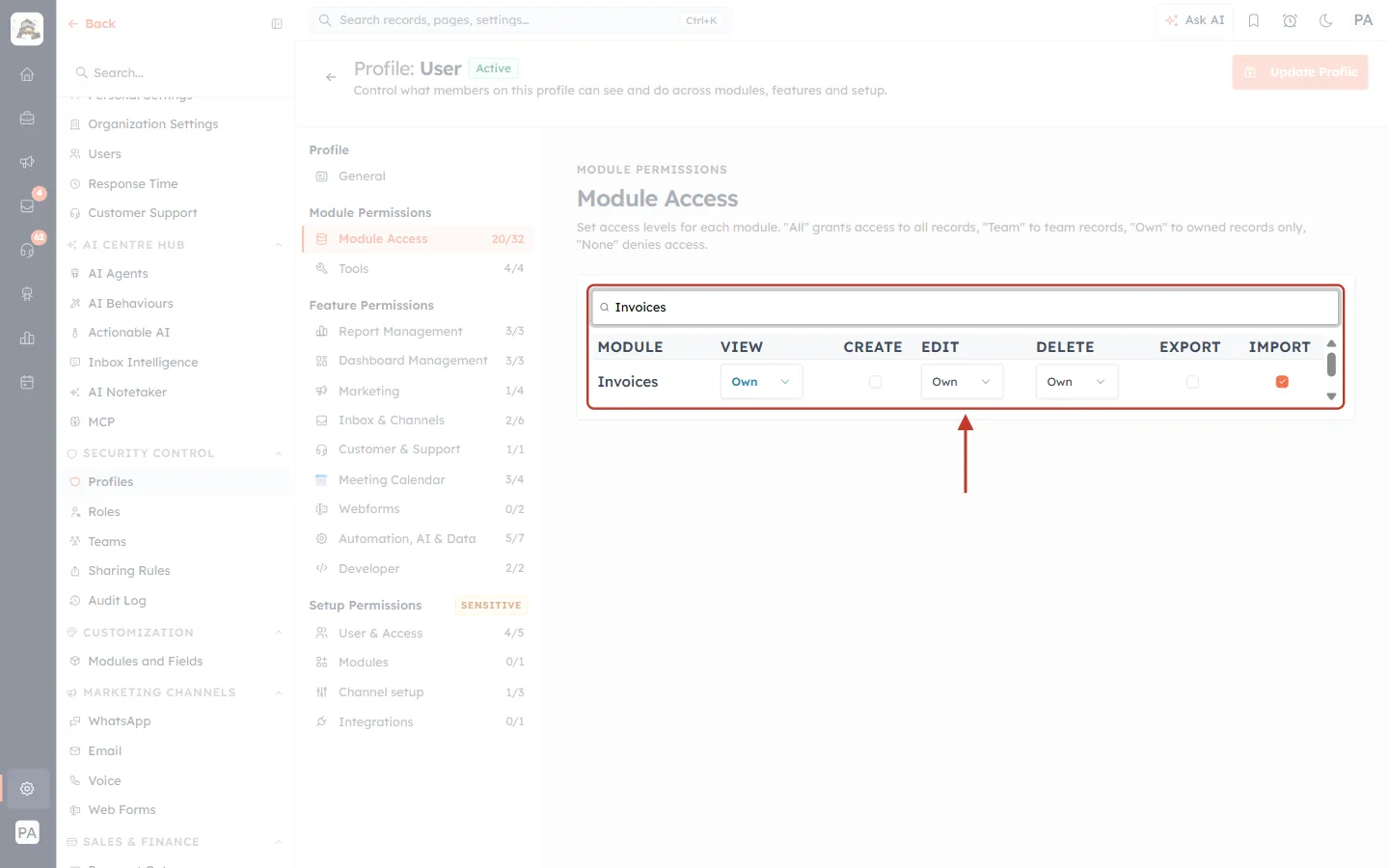
What this screenshot shows. The Invoices row of the same profile, ringed.
VIEW is Own, so these users see only invoices they own.
CREATE is not ticked, so they can’t raise new invoices. That includes converting a quote into an invoice.
EDIT and DELETE are Own, so they can change or delete only their own invoices.
EXPORT is off and IMPORT is on.
Many businesses let only the accounts team create invoices, while sales reps can view their own.
Step 6: Set the Payments row#
Payments are records too: each payment taken against an invoice is saved in the Payments module. Search for Payments.
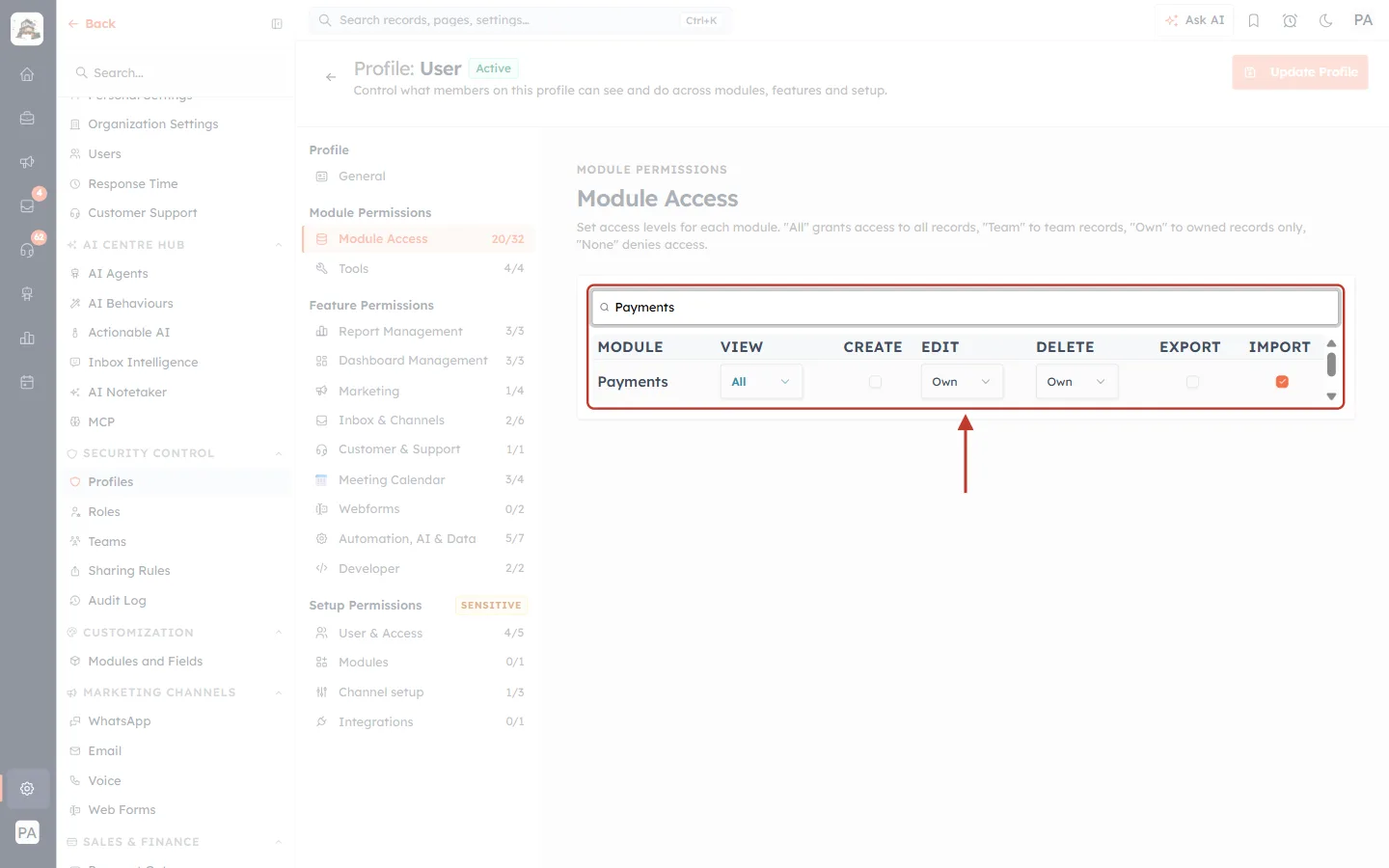
What this screenshot shows. The Payments row before any change, ringed.
VIEW is All, so the user can see every payment, for example in an invoice’s Payments · Invoice list.
CREATE is not ticked, so the user can’t record a payment.
EDIT and DELETE are Own.
EXPORT is off and IMPORT is on.
To let this profile record payments, tick CREATE in the Payments row.
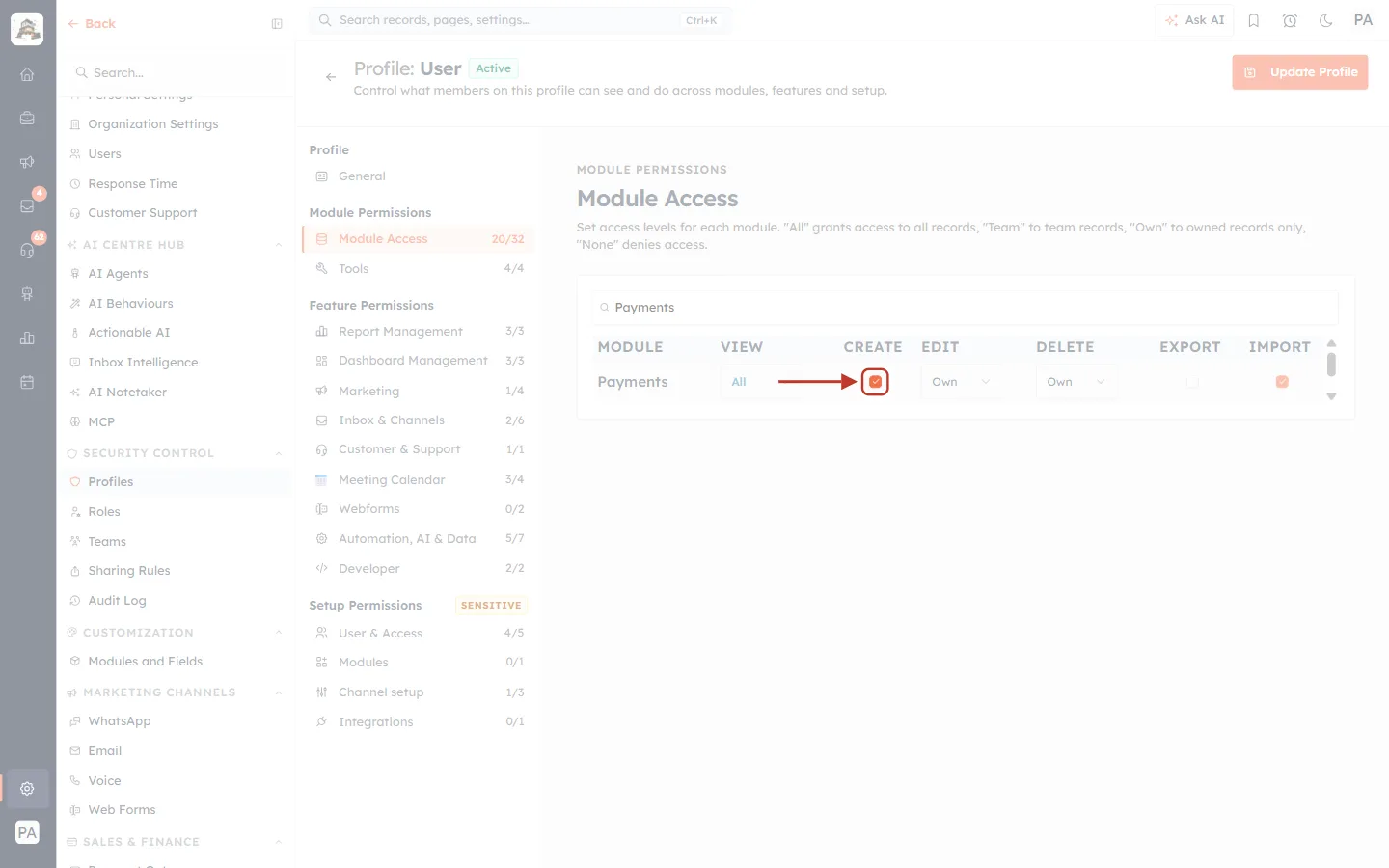
What this screenshot shows. The CREATE tick in the Payments row, now switched on, with the arrow pointing at it.
A filled orange tick means the permission is on. Click it again to turn it off.
Nothing is saved yet. The change is kept on the page until you click Update Profile (Step 8).
ℹ️
The Record Payment rule. On an invoice, Record Payment and Mark Paid appear only when all three of these are true:
1. The user has EDIT on Invoices (anything except None).
2. The user has CREATE on Payments.
3. The invoice still has money owing. It is not fully paid.
Step 7: Check the Products row#
Quote and invoice line items are picked from your Products catalogue. Search for Products and check the row.
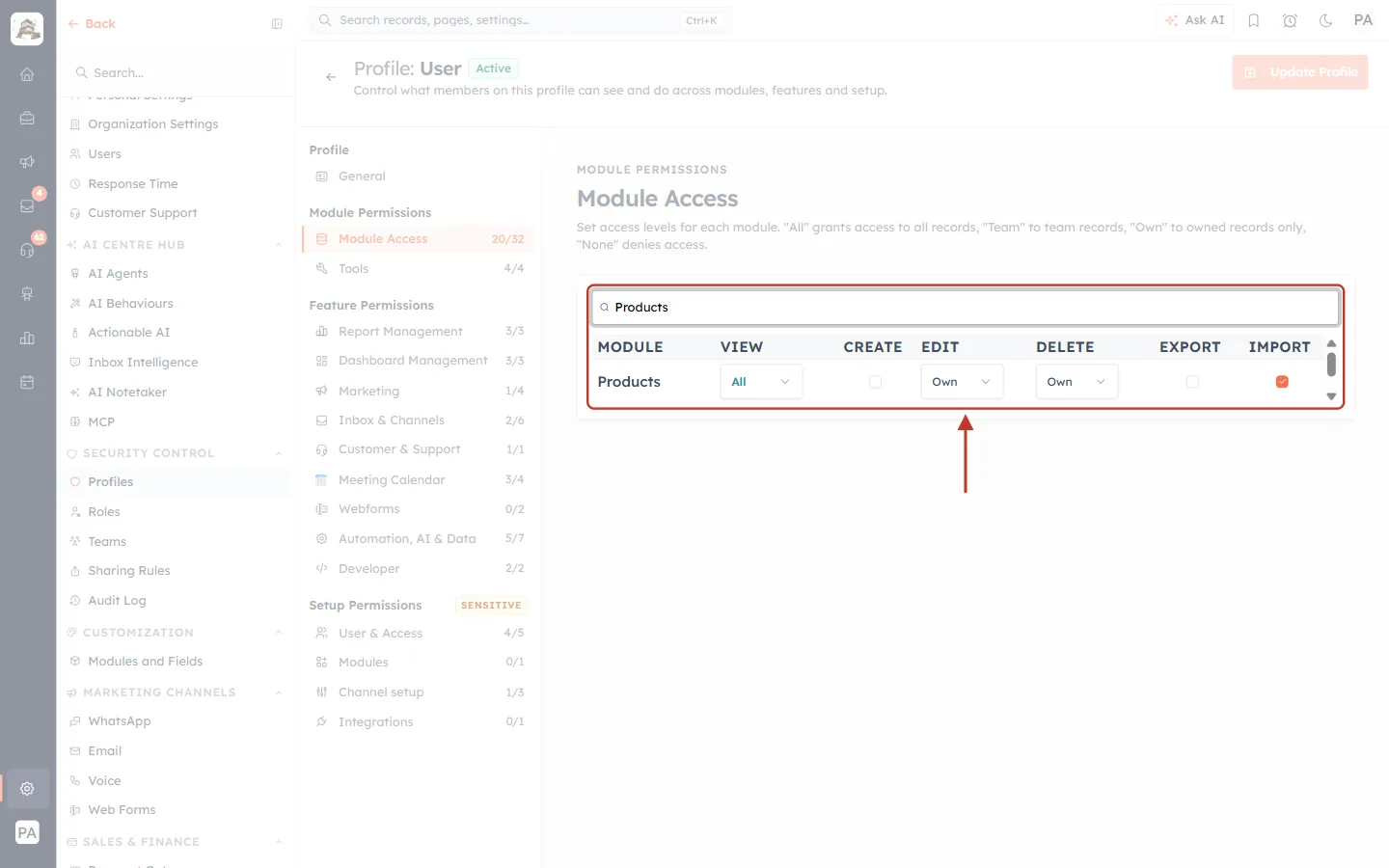
What this screenshot shows. The Products row, ringed.
VIEW is All. Sales users usually need this, because the product picker in line items reads from the catalogue.
CREATE is ticked, so these users can add new products. Untick it if only managers should add products or set prices.
EDIT and DELETE are Own, so users can change or delete only products they own.
Step 8: Save with Update Profile#
Click Update Profile at the top right.
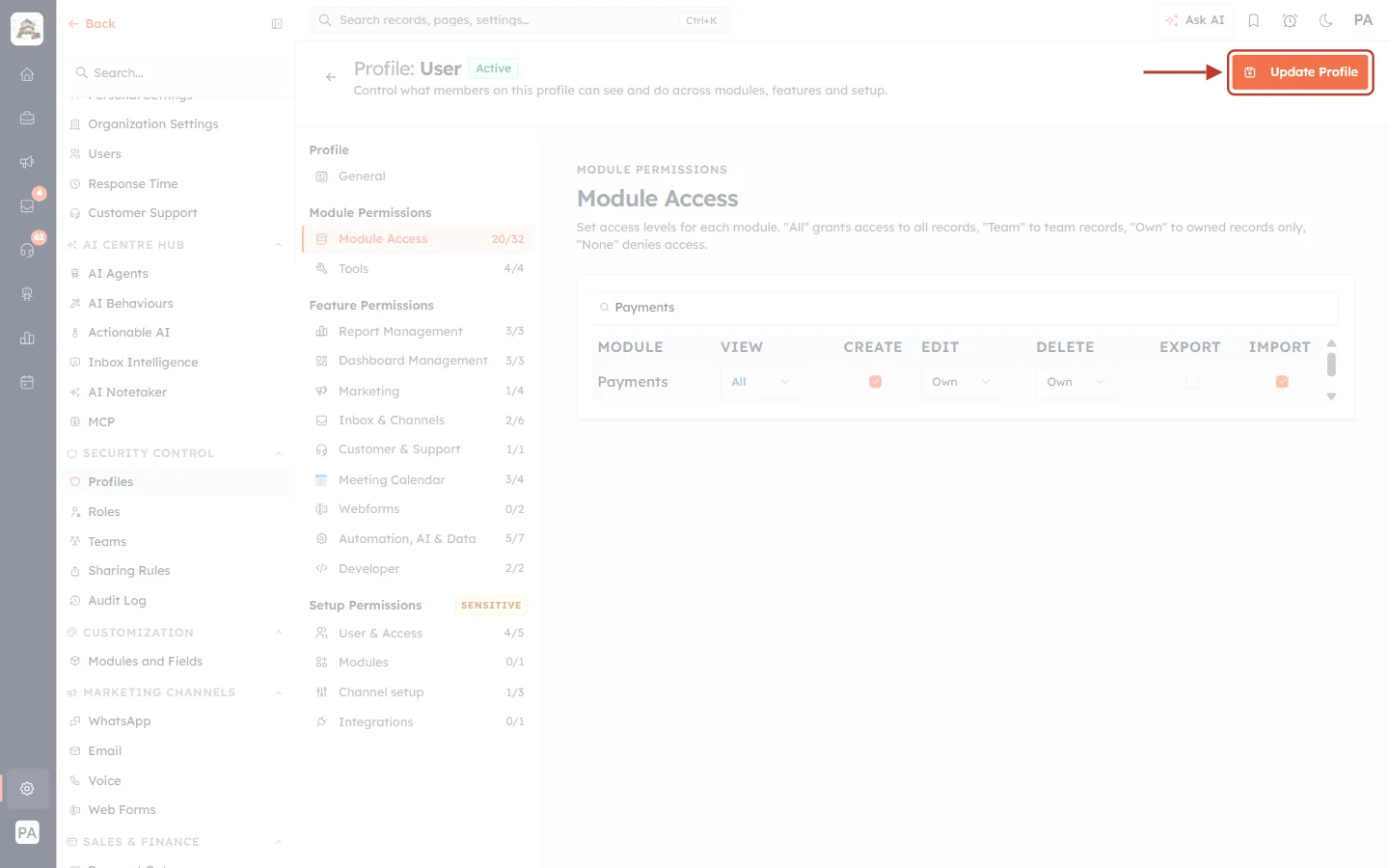
What this screenshot shows. The Update Profile button. It is now bright orange because something has changed.
Before any change the button is faded and can’t be clicked.
After saving, the message “Profile updated successfully” appears.
The new permissions apply to everyone on this profile. Users may need to refresh the page to see new menus and buttons.
Part 2: See the result on an invoice#
Step 9: Open an unpaid invoice#
Open any invoice that is not fully paid. The buttons at the top depend on the permissions above.
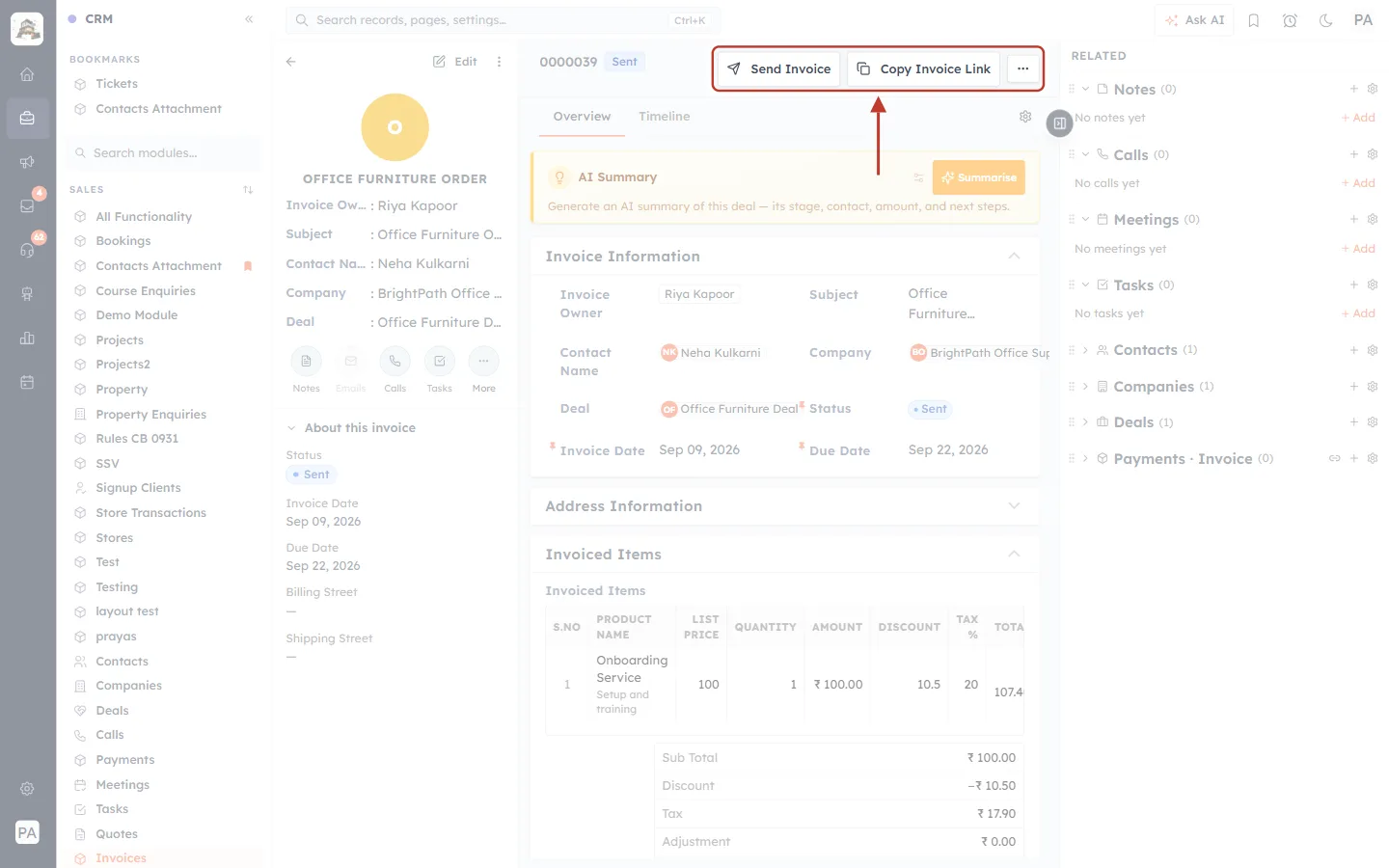
What this screenshot shows. An invoice (number 0000039, status Sent) with its action buttons ringed.
Send Invoice: emails the invoice with the PDF attached.
Copy Invoice Link: copies the customer’s online payment link.
⋯ (more): opens the rest of the actions. See the next screenshot.
The left panel shows the invoice summary: owner, subject, contact, company and deal. The Invoice Information card shows the same details with the status, invoice date and due date.
Click ⋯ to see the payment actions.
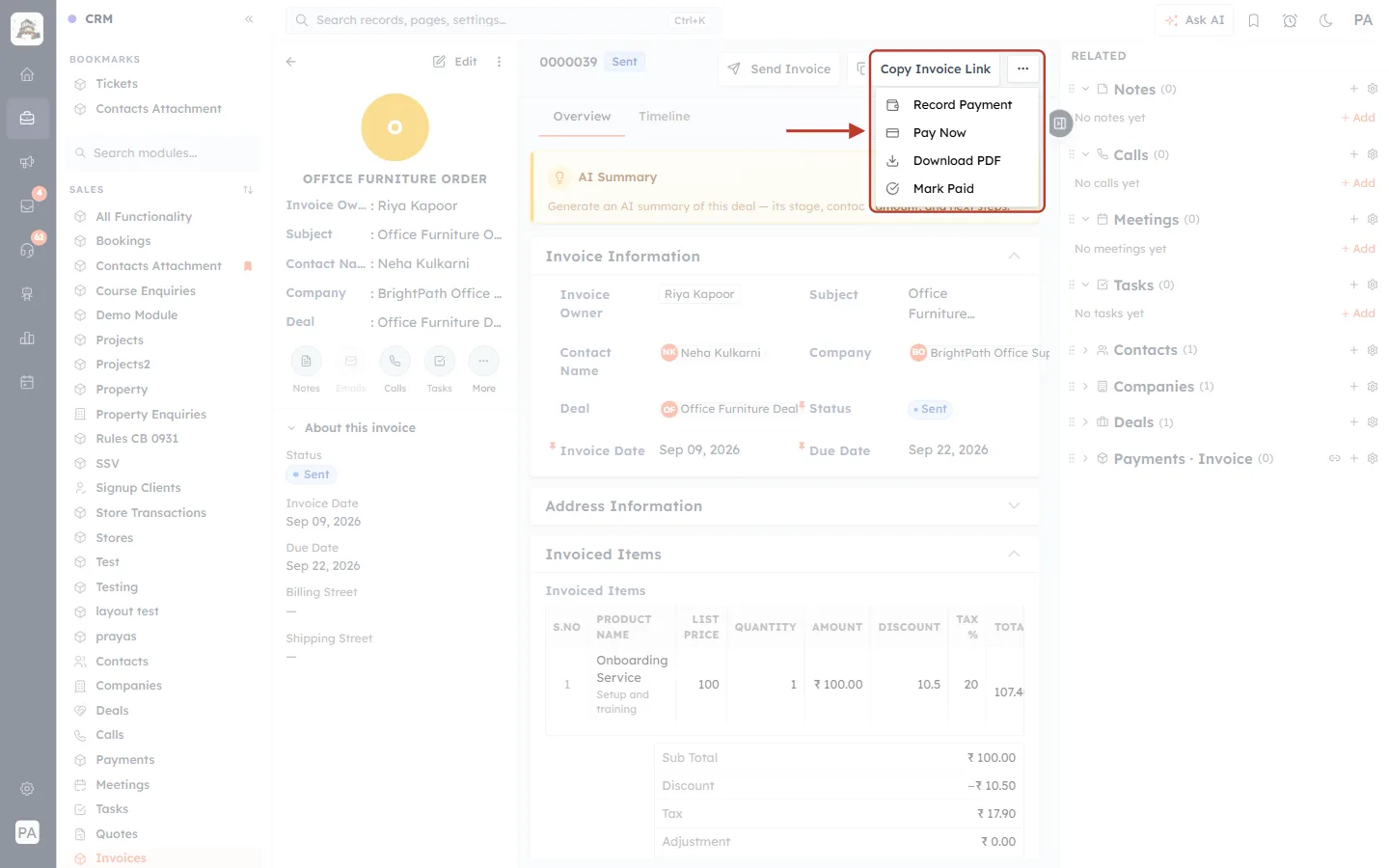
What this screenshot shows. The ⋯ menu of the invoice, open and ringed.
Record Payment: logs a payment you received, such as a bank transfer or cash. Shown only when the Record Payment rule is met.
Pay Now: opens the online payment page for the invoice (needs a connected payment gateway).
Download PDF: downloads the invoice PDF.
Mark Paid: marks the whole balance as paid. It follows the same rule as Record Payment.
If someone’s profile is missing Edit on Invoices or Create on Payments, Record Payment and Mark Paid simply don’t appear for them. Once the invoice is fully paid, they disappear for everyone.
Step 10: Compare with a user who can’t record payments#
Here is the same menu for a user whose profile does not have CREATE on Payments (everything else is the same):
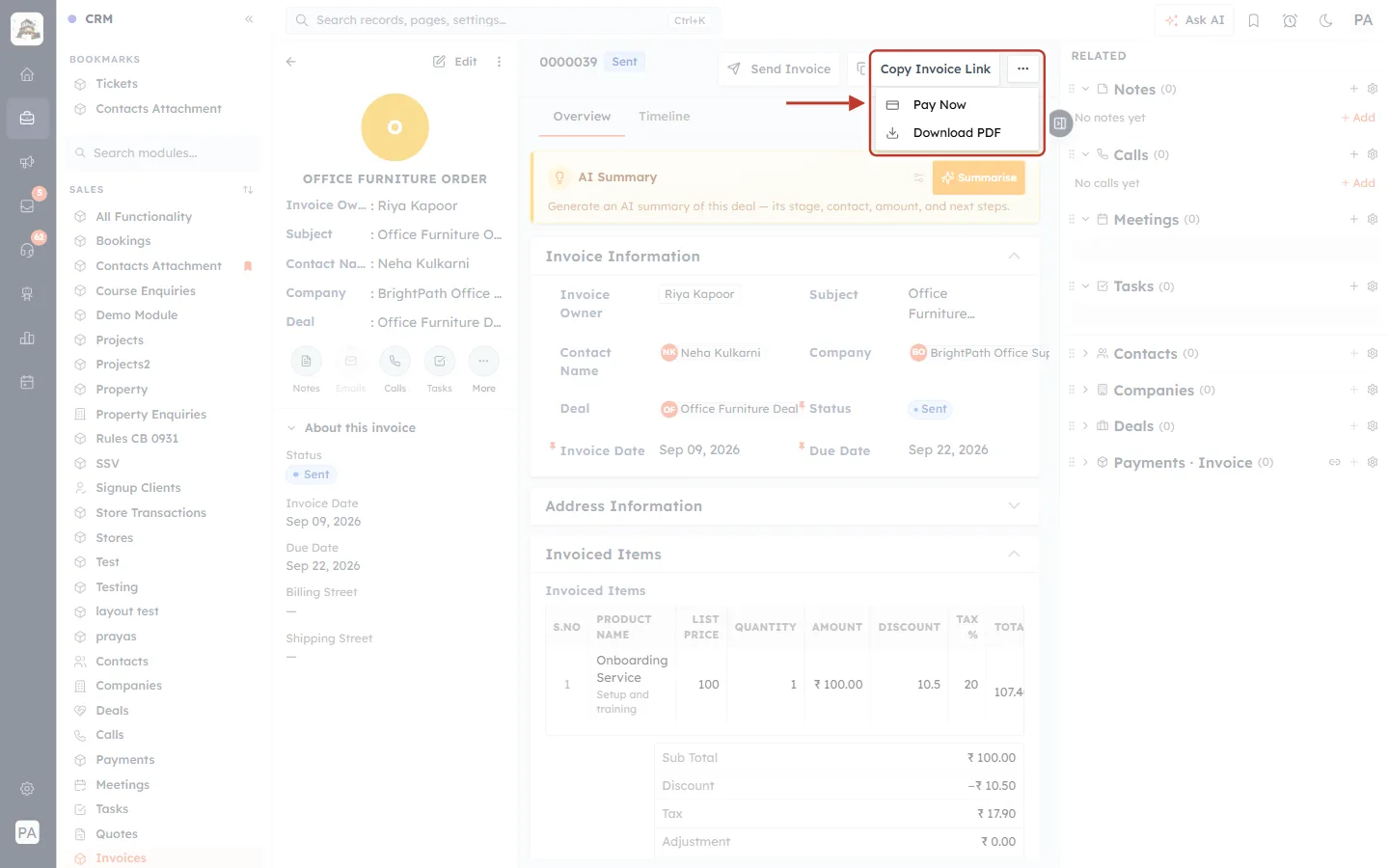
What this screenshot shows. The ⋯ menu of the same invoice, as seen by a user without Create on Payments.
Only Pay Now and Download PDF are left.
Record Payment and Mark Paid are gone, because the user isn’t allowed to create payment records.
The user can still share the online payment link (Copy Invoice Link, Pay Now). The customer can then pay online through your payment gateway.
Use this to check a profile: sign in as (or ask) a user on that profile and open an unpaid invoice.
For a full walk-through of these actions, see Getting Paid: Record & Collect Payments and Invoice Actions: Mark Paid, Refund Payments & Share Payment Links.
Part 3: Payment Gateways and Document Templates#
Step 11: Find Payment Gateways and Document Templates#
Two Setup pages belong to this area. Find them under SALES & FINANCE in the Setup menu.
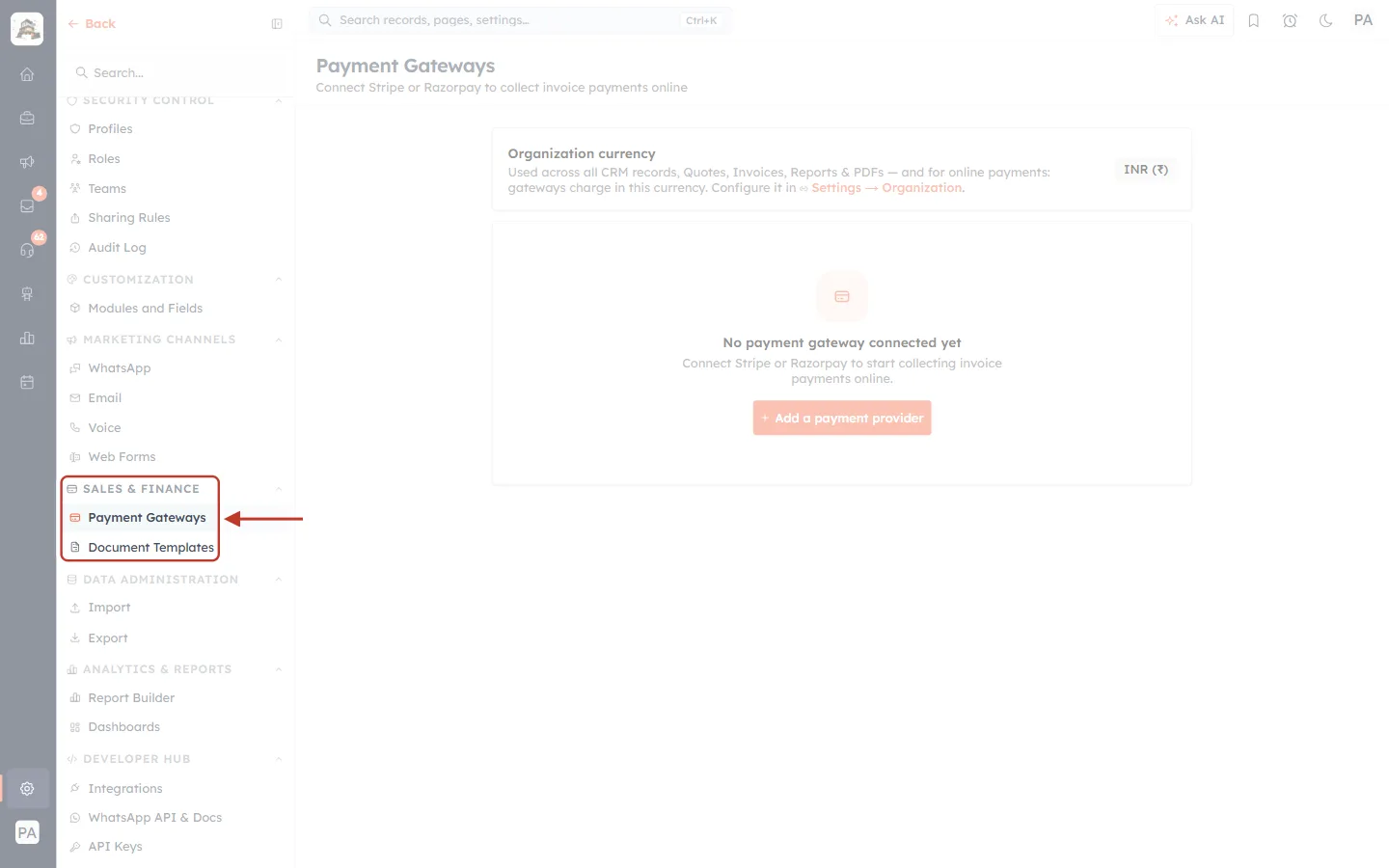
What this screenshot shows. The Sales & Finance group in the Setup menu, ringed, with the arrow on Payment Gateways.
Payment Gateways: connect Stripe or Razorpay so customers can pay invoices online.
Document Templates: design the PDFs for quotes, invoices and payments.
If a link is missing from someone’s menu, they don’t have access to it (see the table below).
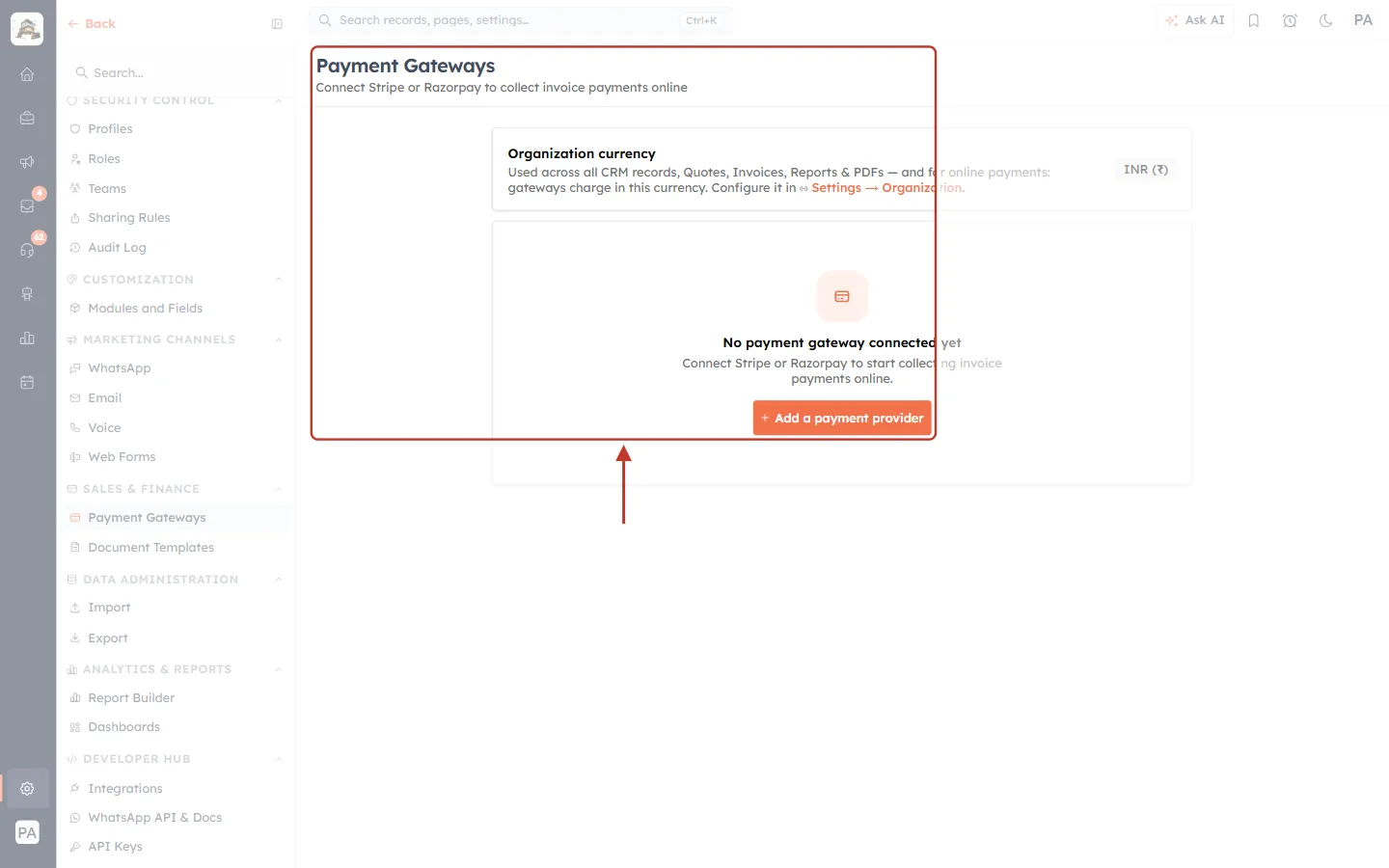
What this screenshot shows. The Payment Gateways page, with the heading and the Add a payment provider button ringed.
Organization currency (here INR ₹): the currency used on quotes, invoices, reports and PDFs. Gateways charge in this currency. You change it in Settings → Organization.
No payment gateway connected yet: no online payments can be taken until a gateway is added.
+ Add a payment provider: starts connecting Stripe or Razorpay. See Set Up Online Payments: Stripe & Razorpay.
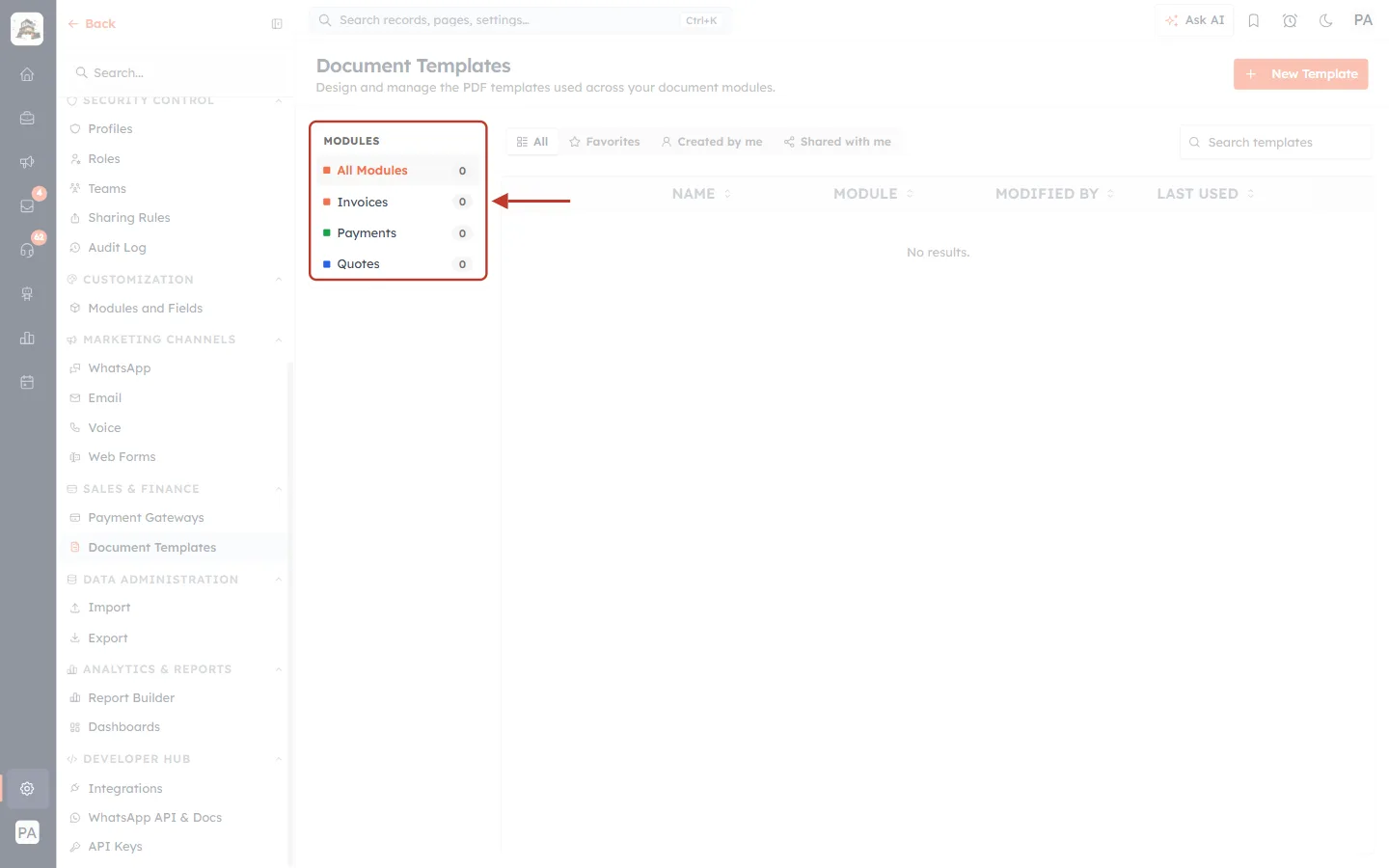
What this screenshot shows. The Document Templates page, with the MODULES list ringed.
The Modules list shows which modules have PDF templates: Invoices, Payments and Quotes, each with a count.
The tabs All, Favorites, Created by me and Shared with me filter the template list on the right.
+ New Template (top right) starts a new PDF design. For the full design walk-through, see Customize Quote & Invoice PDF Templates.
Page | Who can open it |
|---|---|
Payment Gateways | Only the account Owner and Admins. You can’t grant this through a profile, because it changes where your money goes. |
Document Templates | The Owner and Admins, plus anyone whose profile has VIEW on Quotes, Invoices or Payments (anything except None). |
Billing & Subscription | Only the account Owner and Admins. |
Part 4: Check your plan limits#
Step 12: Open Billing & Subscription#
Open Billing & Subscription (Owners and Admins). The Subscription tab shows your current plan.
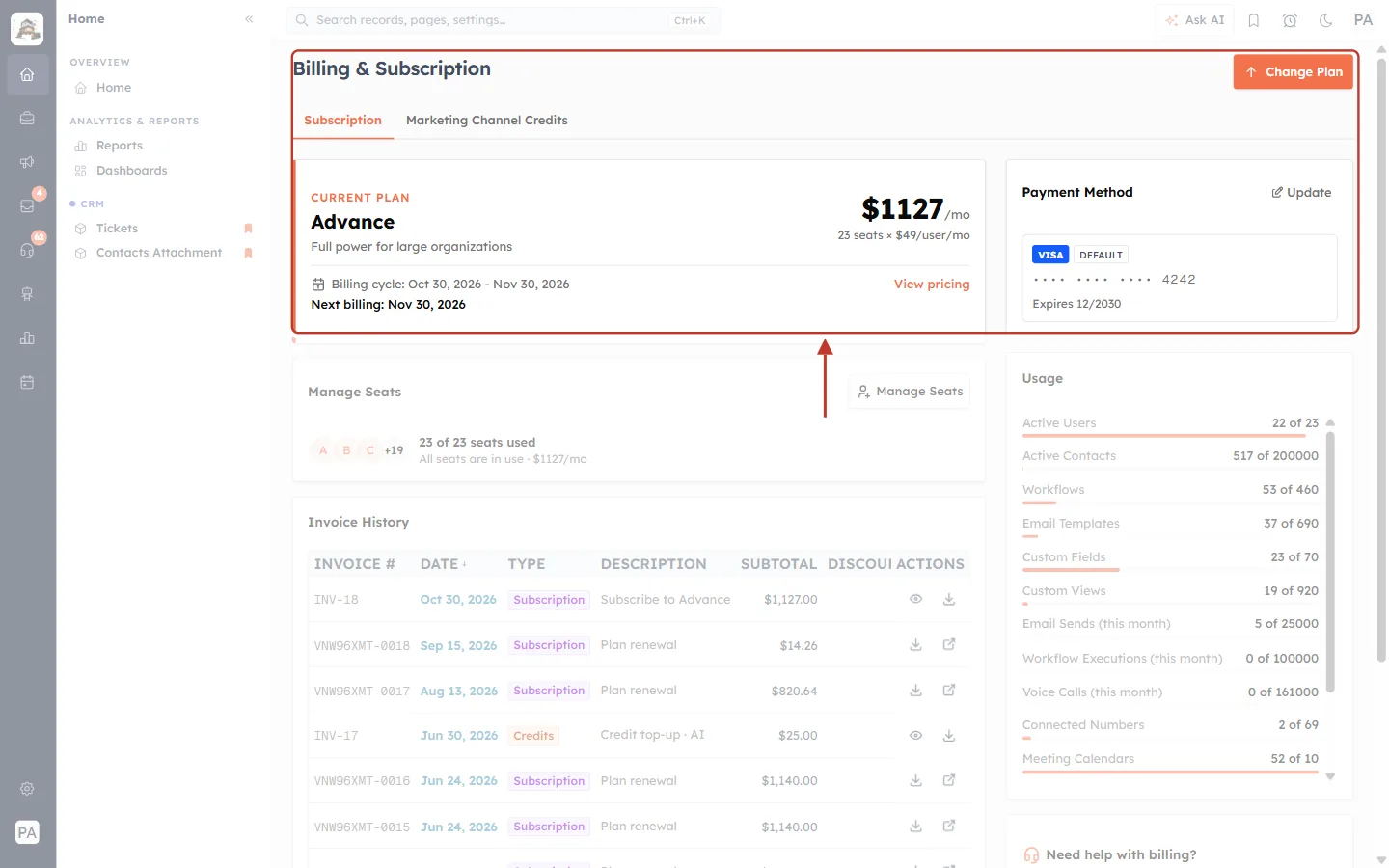
What this screenshot shows. The top of the Billing & Subscription page, with the plan card and the Change Plan button ringed.
CURRENT PLAN: the plan name (here Advance), the monthly price, the number of seats and the price per seat.
Billing cycle and Next billing: when the current period ends and you are next charged.
View pricing and Change Plan: both open the plan comparison.
Payment Method (right): the card used for your AiEngage subscription. This is separate from the payment gateway your customers use.
Further down are Manage Seats, Invoice History (your AiEngage bills) and a Usage card for limits such as contacts and email sends.
ℹ️
The Usage card doesn’t show an invoice counter. To see how many invoices you’ve raised this month, open the Invoices list and filter by created date.
Step 13: Compare plans#
Click Change Plan. The Compare Plans page opens.
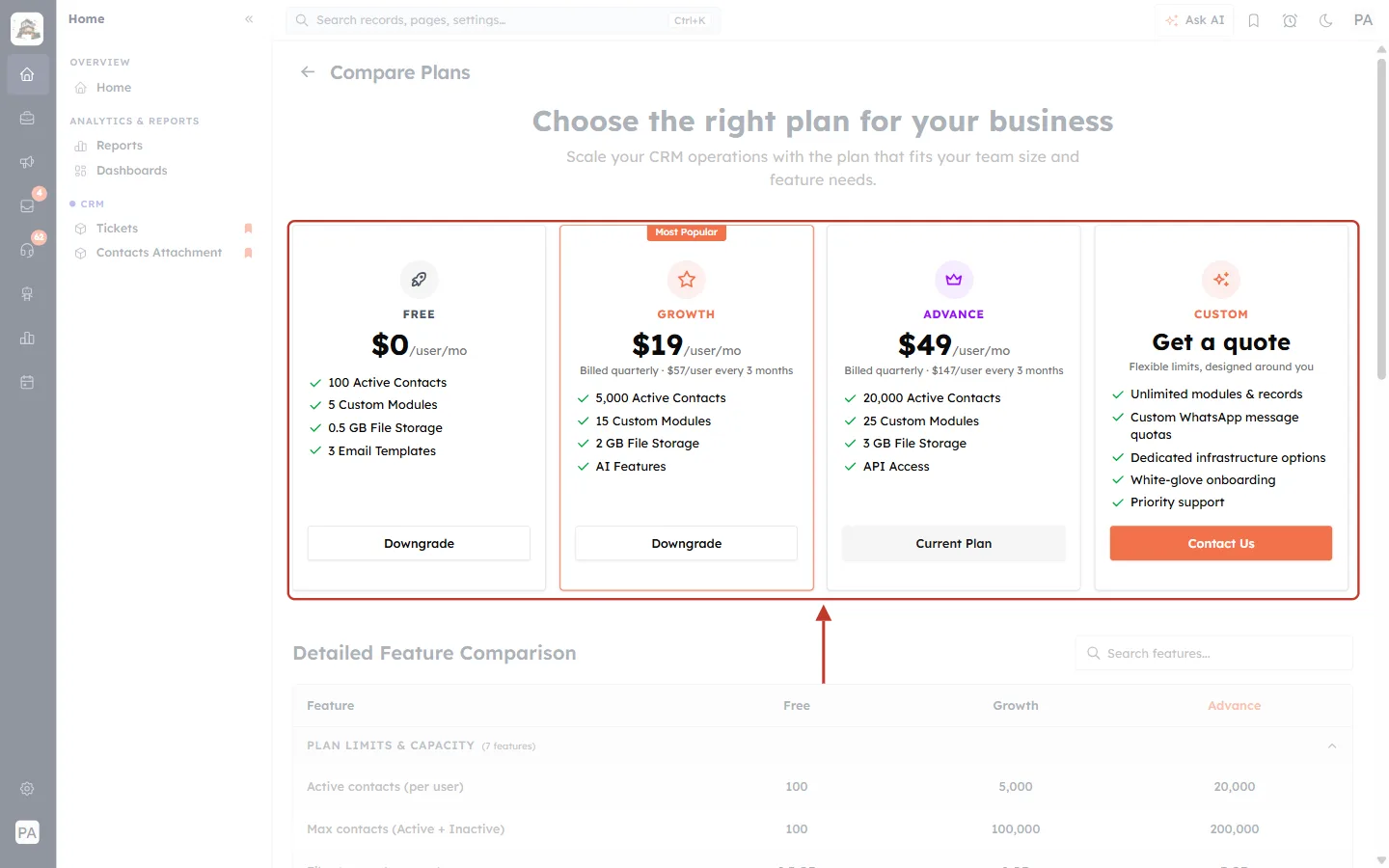
What this screenshot shows. The four plan cards, ringed.
FREE, GROWTH (marked Most Popular), ADVANCE and CUSTOM, each with its price per user and its main limits.
Your current plan’s button reads Current Plan. Other plans show Upgrade or Downgrade.
CUSTOM has Get a quote and Contact Us for flexible limits.
Below the cards is the Detailed Feature Comparison table, with a Search features… box.
Step 14: Open the Quotes & Invoices section#
Scroll down to Detailed Feature Comparison and click QUOTES & INVOICES to expand it. The three columns are, from left to right, Free, Growth and Advance.
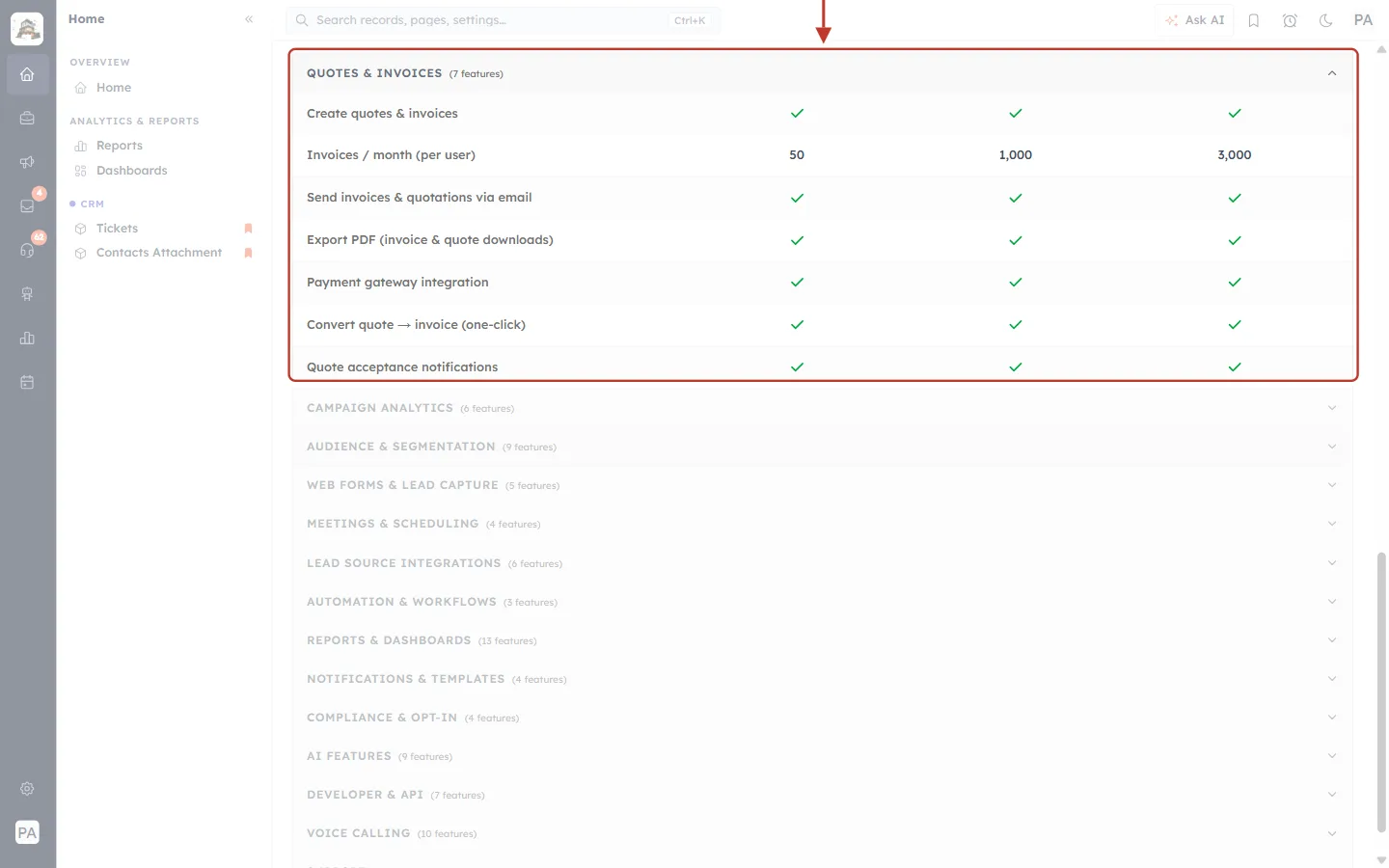
What this screenshot shows. The expanded QUOTES & INVOICES (7 features) section, ringed.
Create quotes & invoices: ✓ on every plan.
Invoices / month (per user): the only number that changes between plans (see the next screenshot).
Send invoices & quotations via email: ✓ on every plan.
Export PDF (invoice & quote downloads): ✓ on every plan.
Payment gateway integration (Stripe / Razorpay): ✓ on every plan.
Convert quote → invoice (one-click): ✓ on every plan.
Quote acceptance notifications: ✓ on every plan.
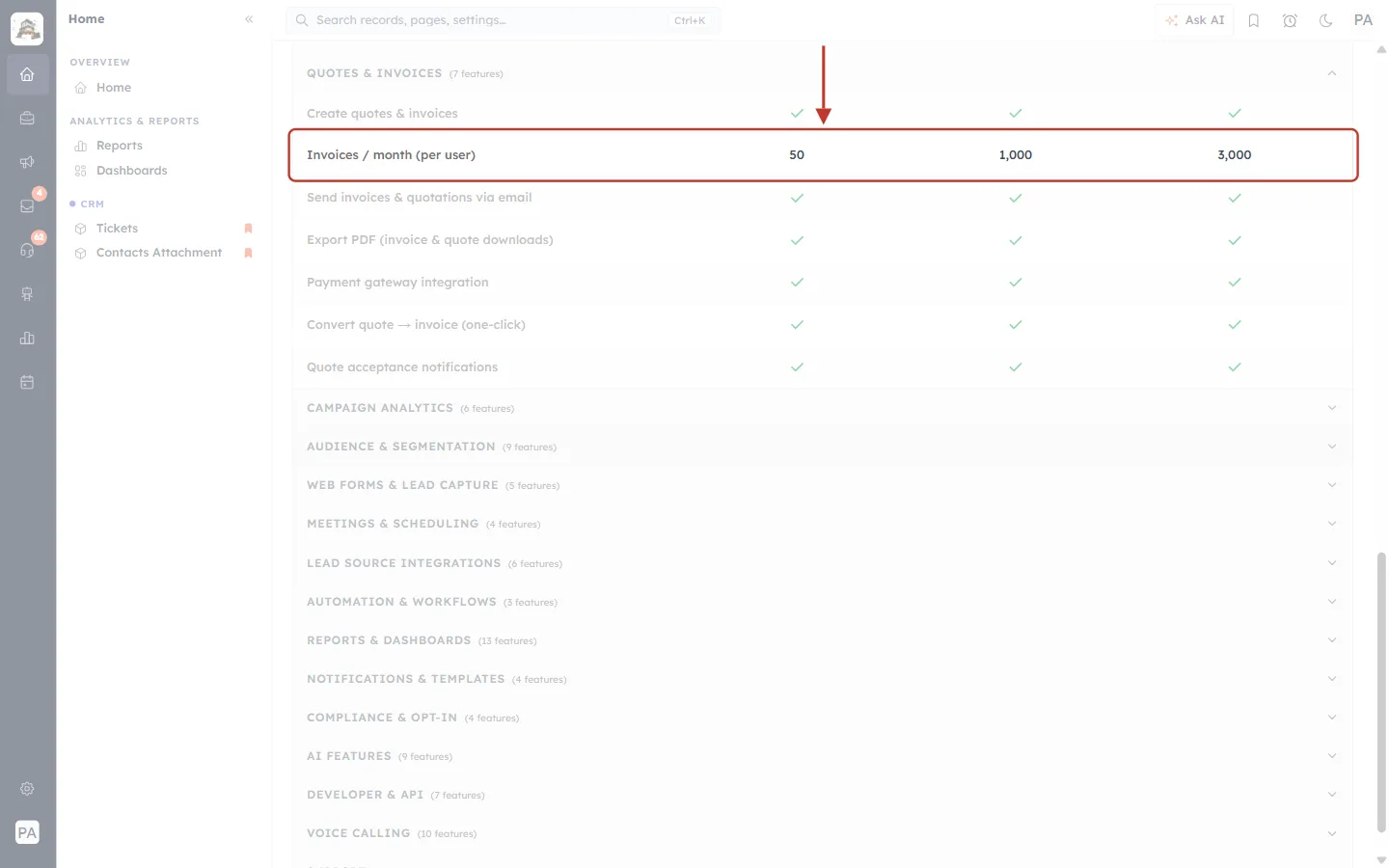
What this screenshot shows. The Invoices / month (per user) row, ringed.
Free: 50 invoices a month per user.
Growth: 1,000 invoices a month per user.
Advance: 3,000 invoices a month per user.
The Custom plan has no fixed cap. The limit is agreed with you.
Plan | Invoices / month (per user) | Quotes | Email, PDF, gateway, convert, acceptance alerts |
|---|---|---|---|
Free | 50 | No monthly cap | Included |
Growth | 1,000 | No monthly cap | Included |
Advance | 3,000 | No monthly cap | Included |
Custom | Agreed with you | No monthly cap | Included |
How the invoice limit works:
The allowance is counted per user (seat). A team with more paid seats gets a larger monthly allowance.
Only invoices have a monthly number. Quotes aren’t capped in the comparison.
When the account reaches its limit, new invoices can’t be saved until the next monthly period or an upgrade. Invoices you already have are not affected, and you can still open, send, download and take payments on them.
On the Create Invoice form there is currently no on-screen message when this happens: clicking Save simply doesn’t create the invoice. If Save does nothing, check your plan limit (Step 14).
To raise the limit, an Owner or Admin can upgrade from Billing & Subscription → Change Plan. Otherwise, wait for the next monthly period.
⚠️
The limits and prices above are the ones shown at the time of writing. Your Compare Plans page always shows the current figures for your account.
Recommended setups#
Role | Quotes | Invoices | Payments | Products |
|---|---|---|---|---|
Sales rep | View Own · Create ✓ · Edit Own · Delete None | View Own · Create ✗ · Edit None | View Own · Create ✗ | View All · Create ✗ |
Sales manager | View Team · Create ✓ · Edit Team · Delete Team | View Team · Create ✓ · Edit Team | View Team · Create ✗ | View All · Create ✓ |
Accounts / finance | View All · Create ✗ · Edit None | View All · Create ✓ · Edit All · Export ✓ | View All · Create ✓ · Edit All · Export ✓ | View All |
Read-only auditor | View All | View All | View All | View All |
With this setup, sales reps can quote but can’t raise invoices or record money. Accounts staff can record payments, because they have Edit on Invoices and Create on Payments.
Troubleshooting#
Problem | What to check |
|---|---|
Record Payment or Mark Paid is missing from the ⋯ menu. | The user needs EDIT on Invoices (not None) and CREATE on Payments. Also check the invoice still has a balance; fully paid invoices don’t show these options. |
The Quotes or Invoices module isn’t in someone’s menu. | Their VIEW for that module is None. Set it to Own, Team or All and click Update Profile. |
A user can’t convert a quote into an invoice. | Converting creates a new invoice, so the user needs CREATE on Invoices. |
A user can open a quote but can’t change it. | Their EDIT for Quotes is None, or it is Own and someone else owns the quote. |
The product picker in line items is empty. | Check VIEW on Products in the user’s profile. |
Payment Gateways isn’t in the Setup menu. | Only the Owner and Admins can see it. Ask one of them to connect the gateway. |
Clicking Save on a new invoice does nothing and no error appears. | First check the form for required fields and a linked contact, company or deal. If everything is filled in, the account may have used its monthly invoice allowance: an Owner or Admin can upgrade under Billing & Subscription → Change Plan, or wait for the next month. |
The Update Profile button is faded. | Nothing has changed on the form yet. Make a change first. |
The Administrator profile can’t be edited. | It is a System profile with fixed full access. Clone it if you need a similar profile. |
Frequently asked questions#
Do permissions change what customers see on the public quote or invoice page?
No. Profiles control your team inside the CRM. Customers use the public link or PDF you send them.
If I take away a permission, is any data deleted?
No. Quotes, invoices and payments stay as they are. The user just can’t see or change them any more.
Does the invoice limit count invoices made by converting a quote?
Converting a quote creates a new invoice, so expect it to count toward the monthly allowance like any other invoice.
Can a user record a payment for an invoice they can’t see?
No. Record Payment is an action on the invoice itself, so the user must be able to open the invoice first.
Previous and next#
Previous: Invoice Actions: Mark Paid, Refund Payments & Share Payment Links
Next: Create a Permission Profile Step by Step: Build, Edit, Clone, Deactivate & Delete
Related#
Was this article helpful?
Ready to implement this?
OpenAI Engage and apply what you just learned to your own workspace.
Open AI Engage CRM