Loading…


KnowledgeBase
Troubleshooting Payments and Webhooks: Fix Failed Payments, Stuck Processing and Invoices That Don’t Update (Step-by-Step)
Introduction#
When a customer pays an invoice online, three systems work together. Knowing the chain makes it much easier to see where a problem is:
The pay page. The customer opens your invoice’s link and chooses Stripe or Razorpay.
The gateway. Stripe or Razorpay takes the money and puts it in your own gateway account.
The webhook. The gateway sends an automatic message to AiEngage CRM saying what happened. The CRM then updates the payment and the invoice’s balance.
So a webhook is simply how the gateway tells the CRM about a payment. If it is missing or wrong, the customer can pay successfully and the money still arrives, but the CRM never hears about it.
Start here: find your problem#
What you or your customer see | Most likely cause | Go to |
|---|---|---|
“Online payment isn’t available for this invoice” | No gateway is connected and switched on | Part 1 and Step 3 |
“This amount is below the minimum for online payment” | The balance is under the gateway’s minimum | Step 4 |
“Invoice unavailable” | The link is broken or no longer valid | Step 5 |
“Payment Failed” | The bank or gateway declined the payment | Step 6 |
“Payment Processing” that never finishes | The gateway’s confirmation hasn’t reached the CRM | Step 7, then Part 3 |
The customer paid, but the invoice still shows a balance | The webhook is missing or wrong | Part 3 |
A test payment worked, but real ones don’t update | Test and Live settings are mixed up | Step 11 |
You refunded in the gateway, but the CRM doesn’t show it | Refund events, or the status needs updating | Part 5 |
This guide uses a sample invoice, 0000041 for ₹2,12,500, and sample gateways. The webhook addresses are blurred because each organisation has its own.
ℹ️
Before you start: gateway settings are in Setup, so you need admin access. See Quotes, Invoices & Payments Permissions and Plan Limits. You also need to be able to sign in to your Stripe or Razorpay account, because part of the fix is there. This guide is about payment webhooks. For webhooks that your workflows send, see Authenticate Your Webhooks with API Key or Basic Auth.
Part 1: Check your gateway in two minutes#
Do this first. Most payment problems show up on this one page.
Step 1: Open Payment Gateways#
Click the Setup (gear) icon at the bottom of the left rail. Under Sales & Finance, click Payment Gateways.
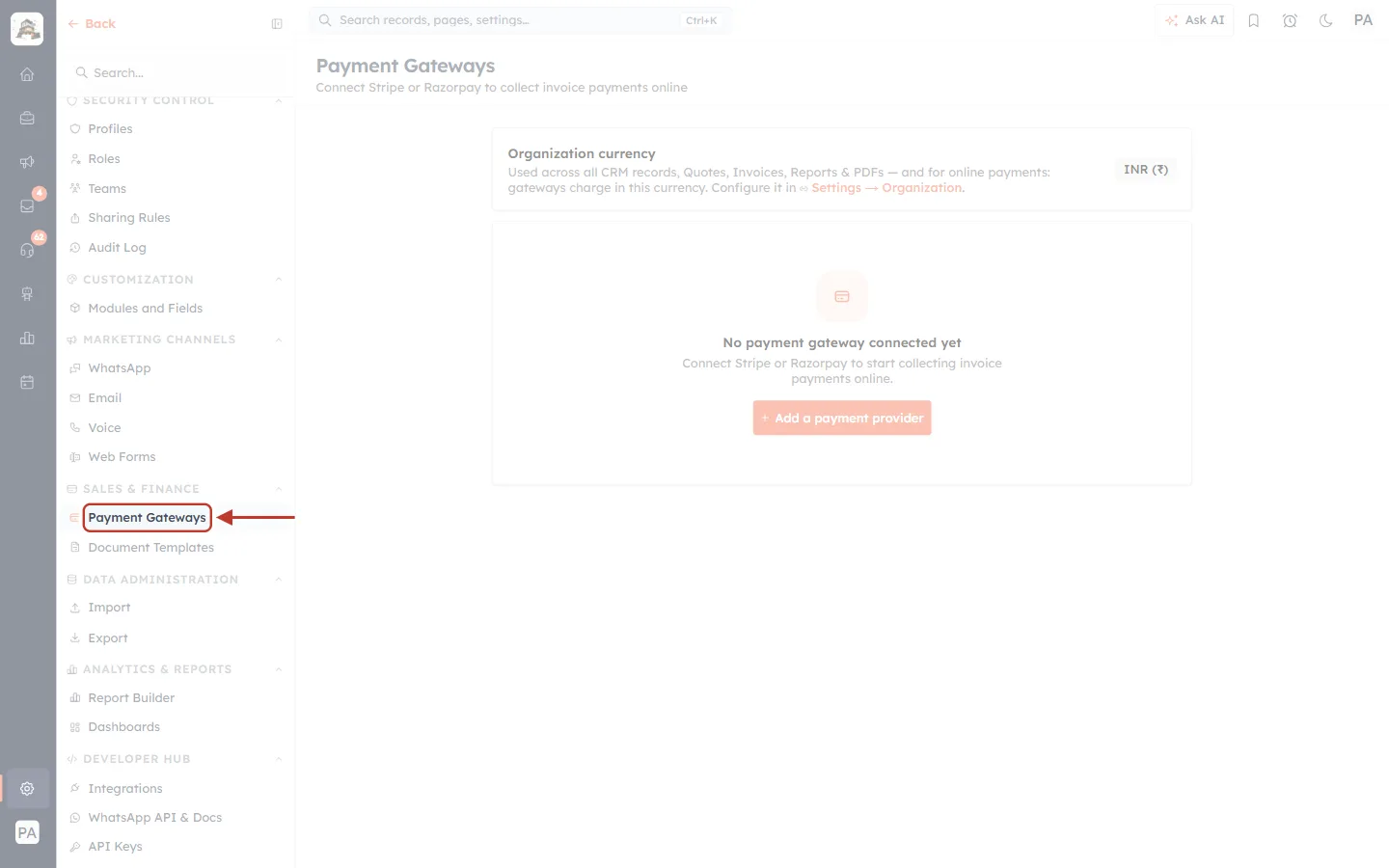
What this screenshot shows. The Setup menu, with Payment Gateways ringed.
Payment Gateways is under Sales & Finance.
If you can’t find it, your profile may not have access to Setup. Ask an admin.
Step 2: Read the status of each gateway#
Each connected gateway has one row. Everything you need to check at a glance is on that row.
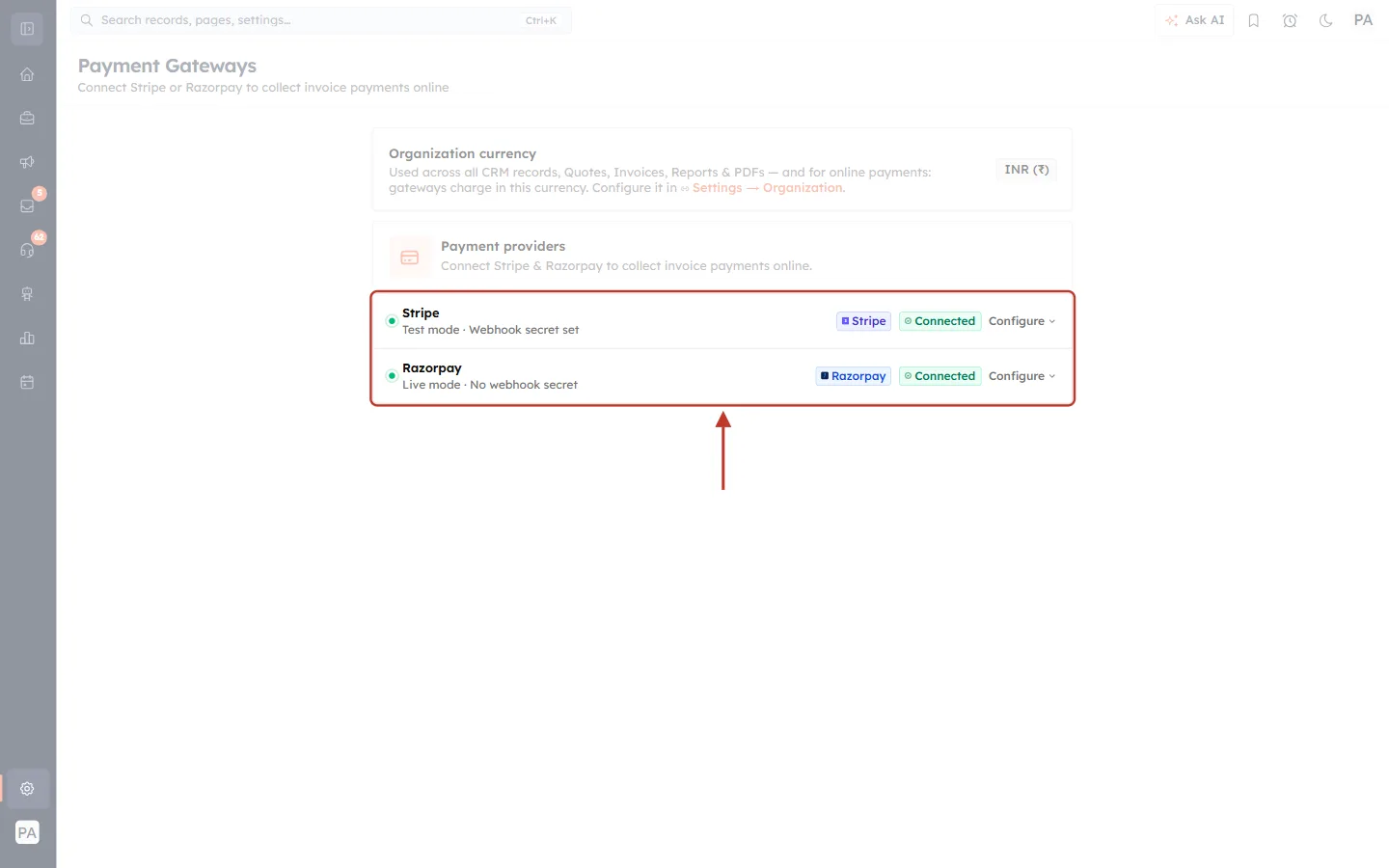
What this screenshot shows. The list of gateways, ringed. Razorpay has a problem here: can you spot it?
Green dot and Connected: the gateway is set up and switched on, on both rows.
Test mode or Live mode: Test mode doesn’t take real money. Real customers need Live mode.
Stripe · Webhook secret set: the CRM has a secret for checking Stripe’s messages. This is what you want to see.
Razorpay · No webhook secret: this is the problem. The row says Connected, so customers can pay, but payments won’t update in the CRM until the secret is added. See Step 10.
Configure opens that gateway’s settings.
⚠️
“Connected” doesn’t mean the webhook works. It means the keys are saved. Always read the second line of the row as well. The CRM can tell you that a secret is saved, but not whether it is the right one, so a row can look healthy and still have a wrong secret (Step 10).
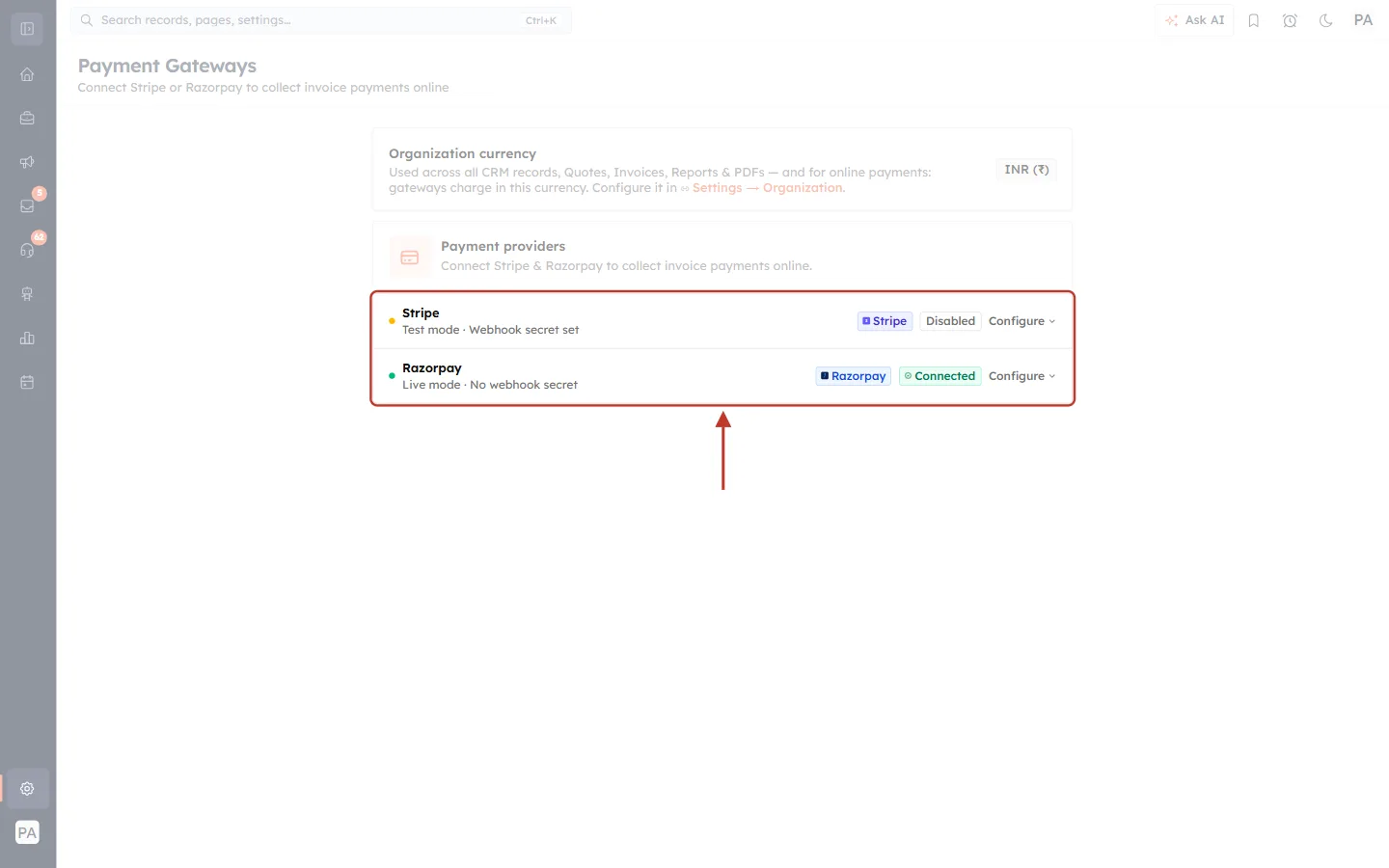
What this screenshot shows. The same list with Stripe switched off.
Amber dot and Disabled: Stripe’s keys are still saved, but it is switched off.
To switch it on, click Configure and use the switch shown in the next screenshot.
Razorpay on the row below is still Connected, so customers can still pay through it.
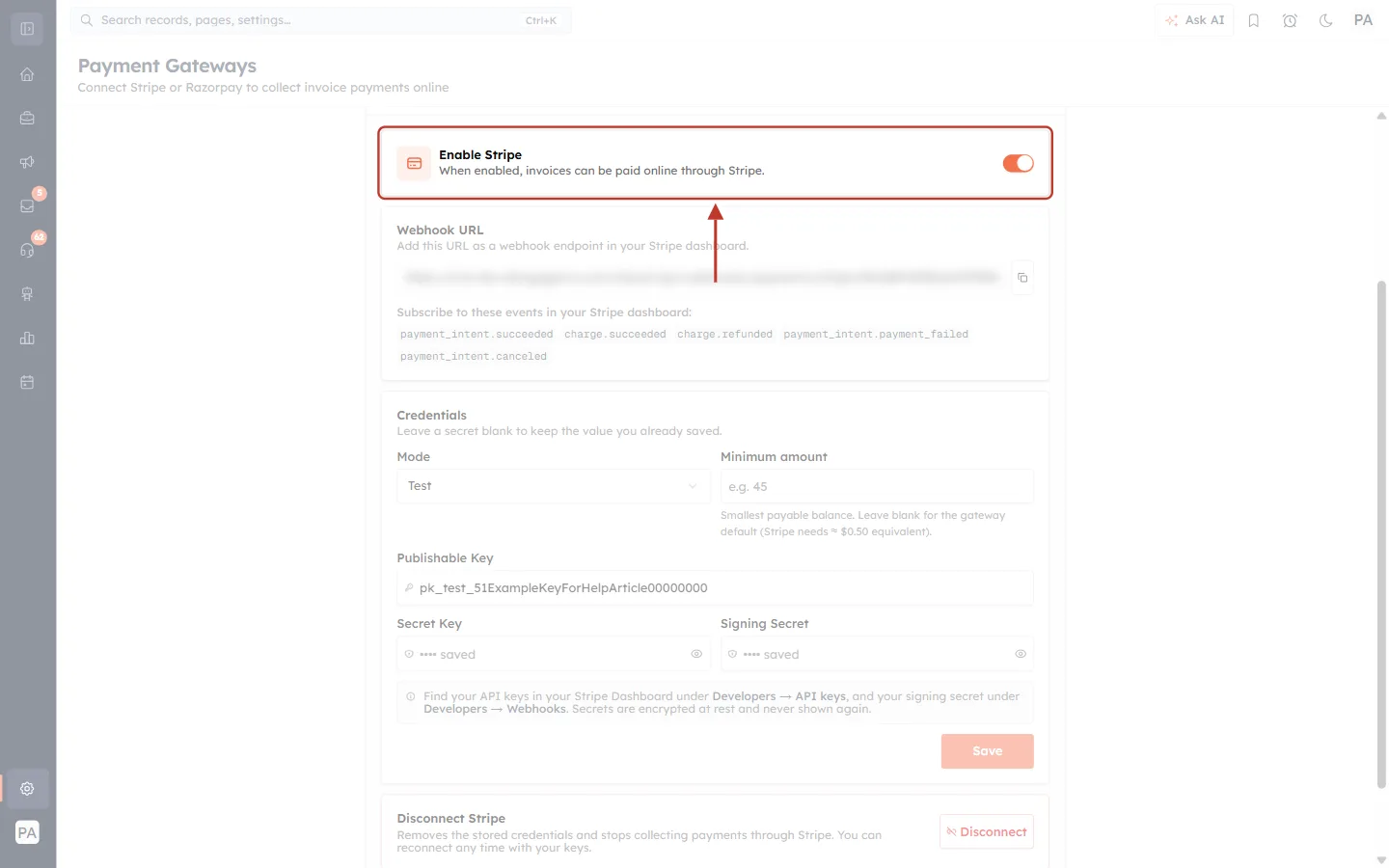
What this screenshot shows. The Enable Stripe switch at the top of Configure, ringed.
The note explains it: “When enabled, invoices can be paid online through Stripe.”
Orange means on. Click it to change it. You’ll see “Stripe enabled” or “Stripe disabled” briefly, and the change applies straight away.
Below it are the Webhook URL, Credentials and Disconnect Stripe sections. Part 3 uses them.
Part 2: Understand what the customer sees#
Ask your customer for the exact words on their screen, or open the link yourself. To get the link, open the invoice and click Copy Invoice Link, or open ⋯ → Pay Now. Each message has its own cause and fix.
Step 3: “Online payment isn’t available for this invoice”#
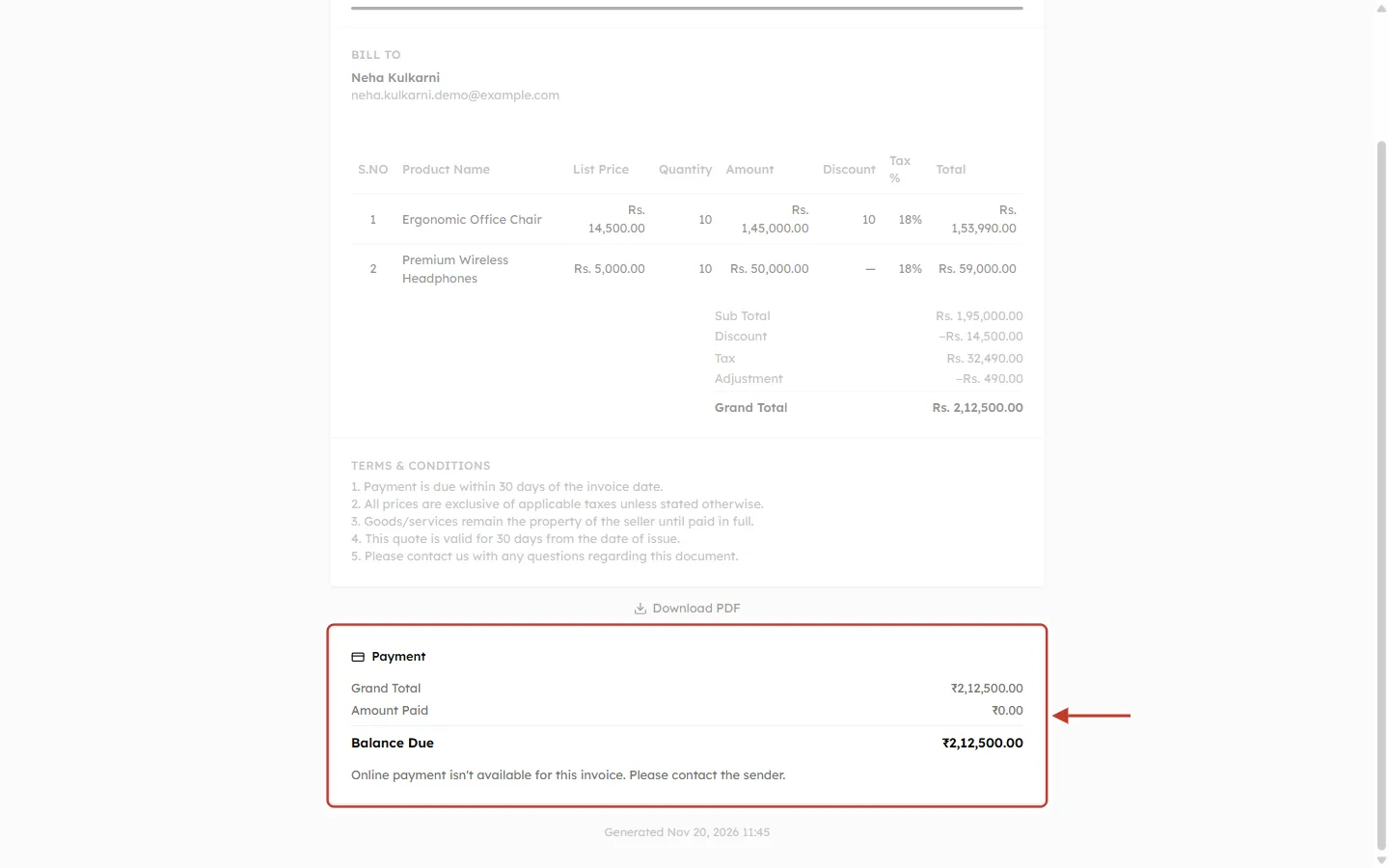
What this screenshot shows. The Payment card on the customer’s pay page, ringed.
Grand Total, Amount Paid and Balance Due show what is owed, and the invoice itself is above them.
There are no payment buttons. The message takes their place: “Online payment isn’t available for this invoice. Please contact the sender.”
The customer can’t fix this. It’s for you to fix.
How to fix it:
Open Payment Gateways (Step 1).
If no gateway is listed, connect one by following Set Up Online Payments with Stripe or Razorpay.
If a gateway shows Disabled, switch it on (Step 2).
Refresh the pay page. The payment methods should now appear.
If you don’t use online payments, this message is normal. Give the customer your bank details instead, and use Record Payment when the money arrives (Step 13).
Step 4: “This amount is below the minimum for online payment”#
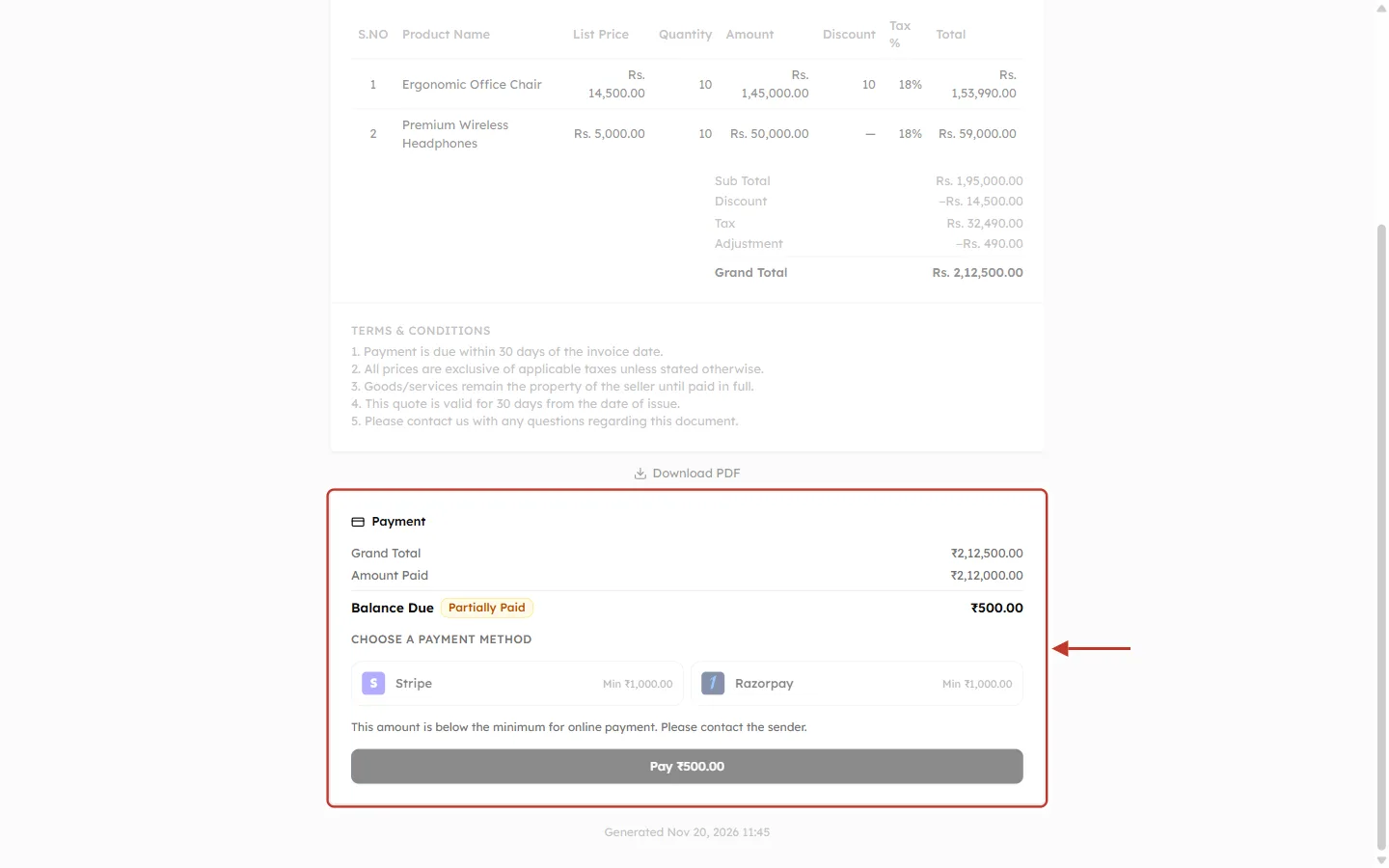
What this screenshot shows. The Payment card, ringed, when only ₹500 is left to pay.
Balance Due · ₹500.00 with a Partially Paid badge: most of this invoice is already paid.
Stripe · Min ₹1,000.00 and Razorpay · Min ₹1,000.00: both are greyed out, because the balance is less than their minimum.
The message below them explains why, and the Pay ₹500.00 button can’t be clicked.
If only one gateway has a higher minimum, only that one is greyed out, and the customer can still use the other.
How to fix it: open Configure → Credentials for the gateway and lower or clear Minimum amount (shown in Step 10), then click Save. Left blank, the gateway’s own default applies, and Stripe’s is about US$0.50 in your currency. If that doesn’t solve it, take the small balance another way and use Record Payment.
Step 5: “Invoice unavailable”#
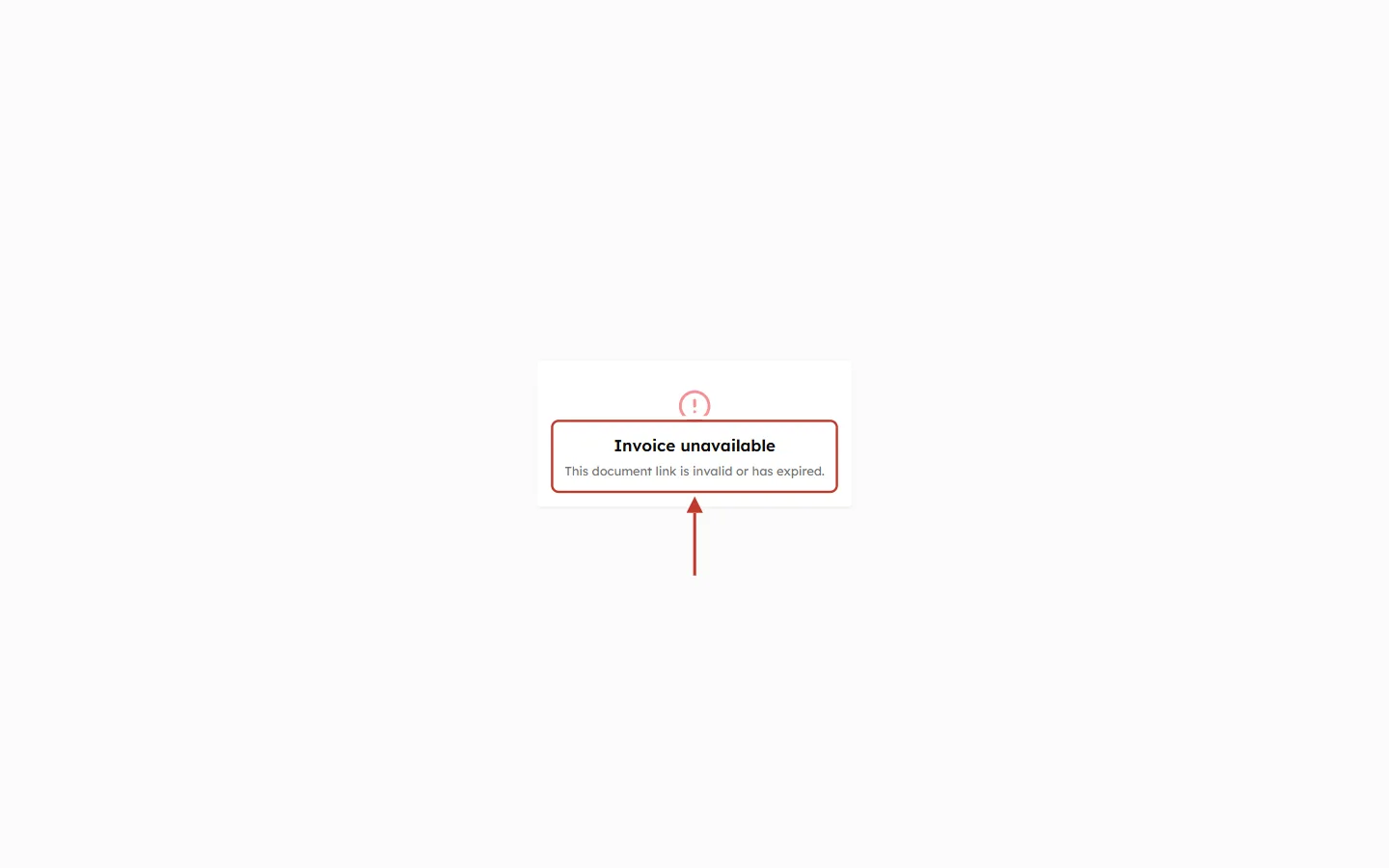
What this screenshot shows. What the customer sees instead of the invoice, ringed.
Invoice unavailable with the note “This document link is invalid or has expired.”
The whole page is replaced by this message, so the customer doesn’t see the invoice at all.
How to fix it: a common cause is an address that was cut off or changed when it was pasted into another message. Open the invoice in the CRM, click Copy Invoice Link, and send the fresh link. If the invoice has been deleted, create a new one.
Step 6: “Payment Failed”#
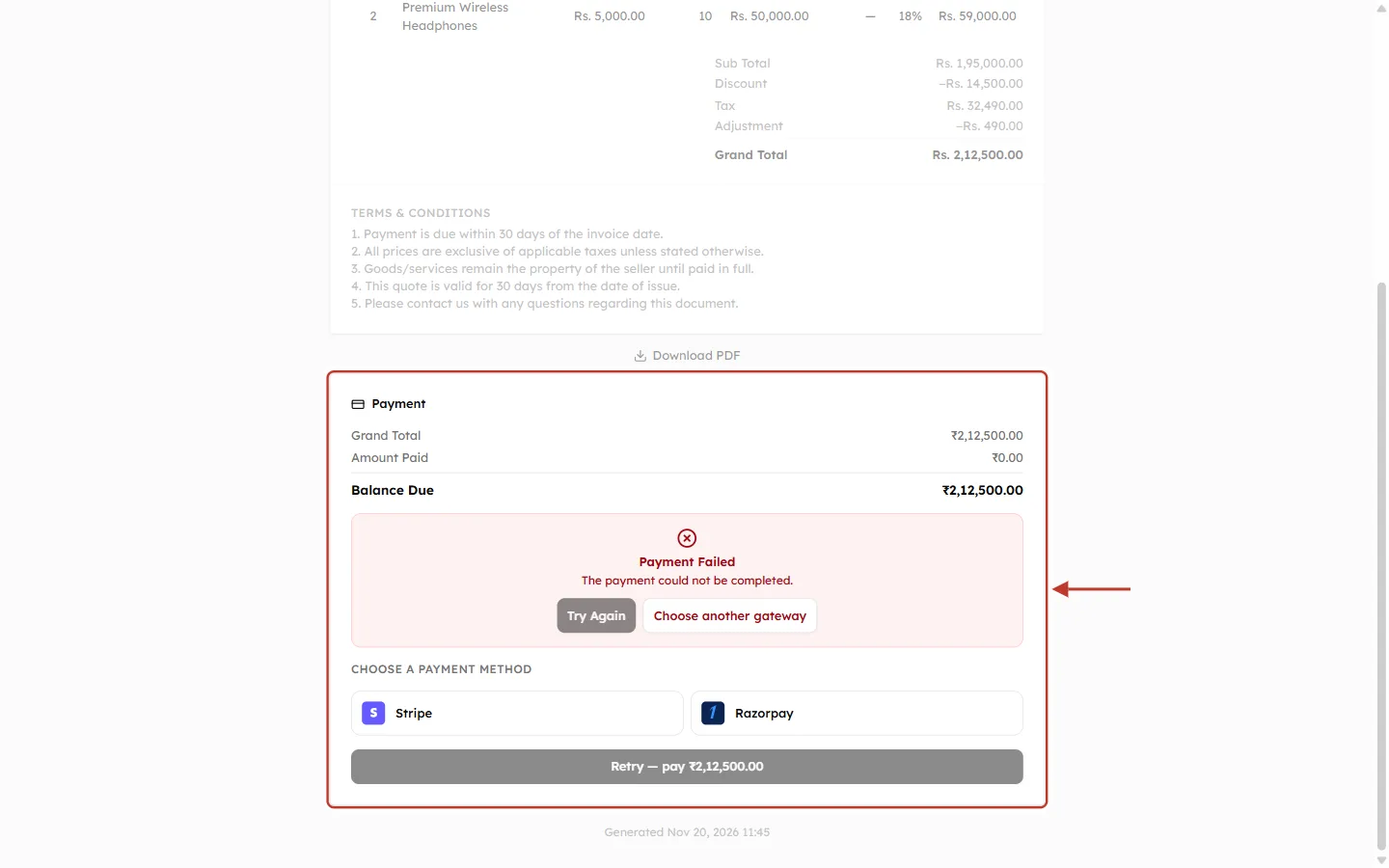
What this screenshot shows. The Payment card after an unsuccessful attempt, ringed.
Payment Failed / “The payment could not be completed.”
Balance Due hasn’t changed, because no money was collected through this attempt.
Try Again repeats the attempt. If it is greyed out, click a payment method below it first.
Choose another gateway lets the customer switch, for example from Razorpay to Stripe.
Retry — pay ₹2,12,500.00 at the bottom starts a new attempt with the method they chose.
How to fix it: this is usually about the customer’s card, bank or UPI app, for example a decline, insufficient funds, or a one-time password that wasn’t entered. Ask them to try again or use another method. To see the exact reason, find the attempt in your Stripe or Razorpay dashboard. The reason is listed there, not in the CRM.
✅
If every customer fails, the problem is probably your setup and not their banks. Check that your keys match your mode (Step 11) and that your gateway account is active and approved to take payments.
Step 7: “Payment Processing” that doesn’t finish#
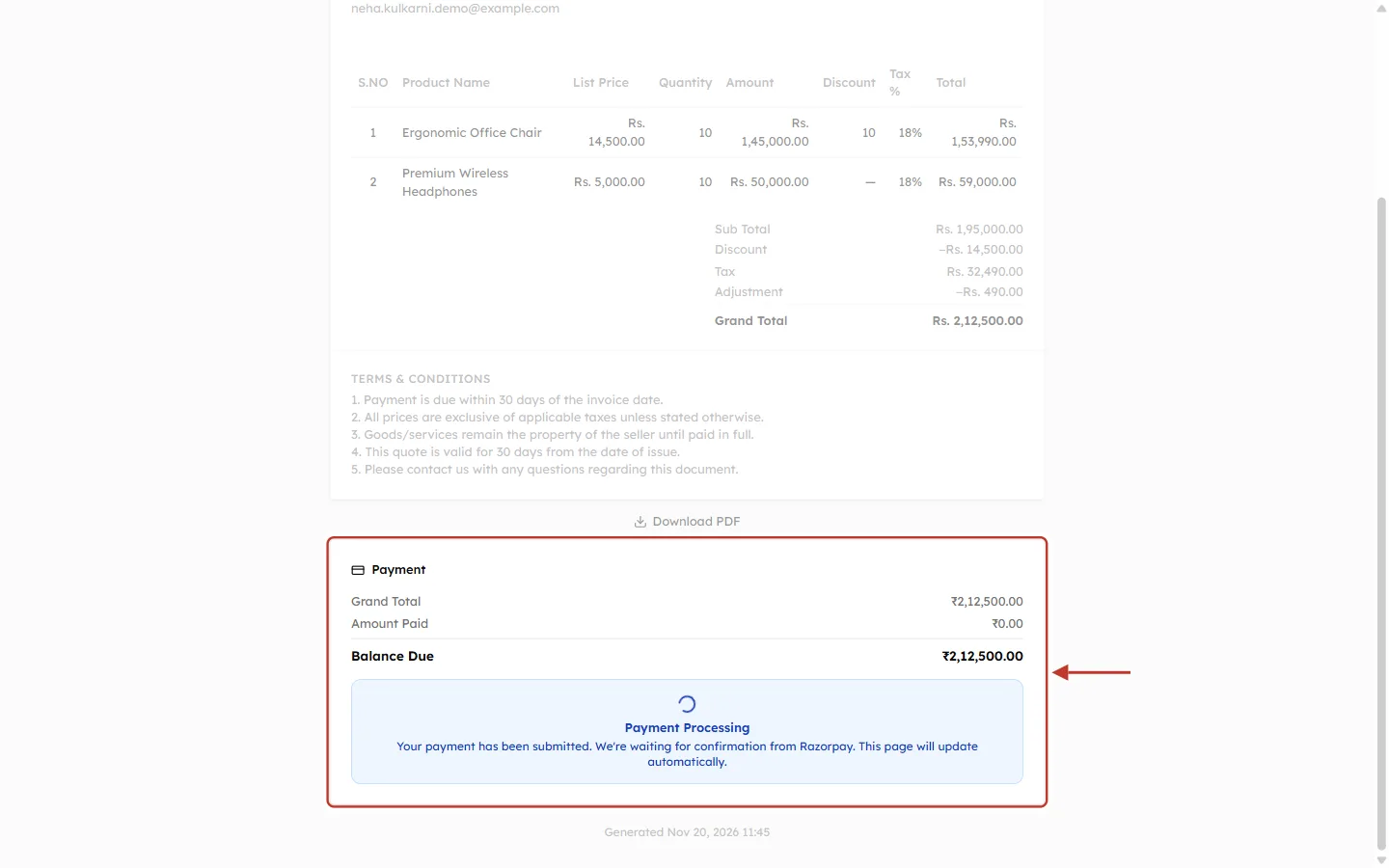
What this screenshot shows. The Payment card while the CRM waits for the gateway, ringed.
Payment Processing: “Your payment has been submitted. We’re waiting for confirmation from Razorpay. This page will update automatically.”
Amount Paid still reads ₹0.00, because the CRM hasn’t had the confirmation yet.
There are no payment buttons, which helps prevent the customer from paying twice.
How to fix it:
Wait a few minutes, as this is normally short. Tell the customer not to pay again.
Find the payment in your Stripe or Razorpay dashboard.
If it succeeded there but the CRM still says Processing, the confirmation isn’t arriving. Go to Part 3.
If it failed there, or there’s no sign of it, the customer can try again once the page updates. If the page stays stuck, check the webhook in Part 3, because failures also reach the CRM through the webhook.
Part 3: Fix a webhook when the invoice doesn’t update#
Use this part when the money is in your gateway account but the CRM doesn’t show it. Check these in order. The CRM has no webhook log of its own, so you’ll compare what the CRM says with what your gateway dashboard says.
Step 8: Check the webhook address#
In Payment Gateways, click Configure on the gateway. In Webhook URL, click the copy icon.
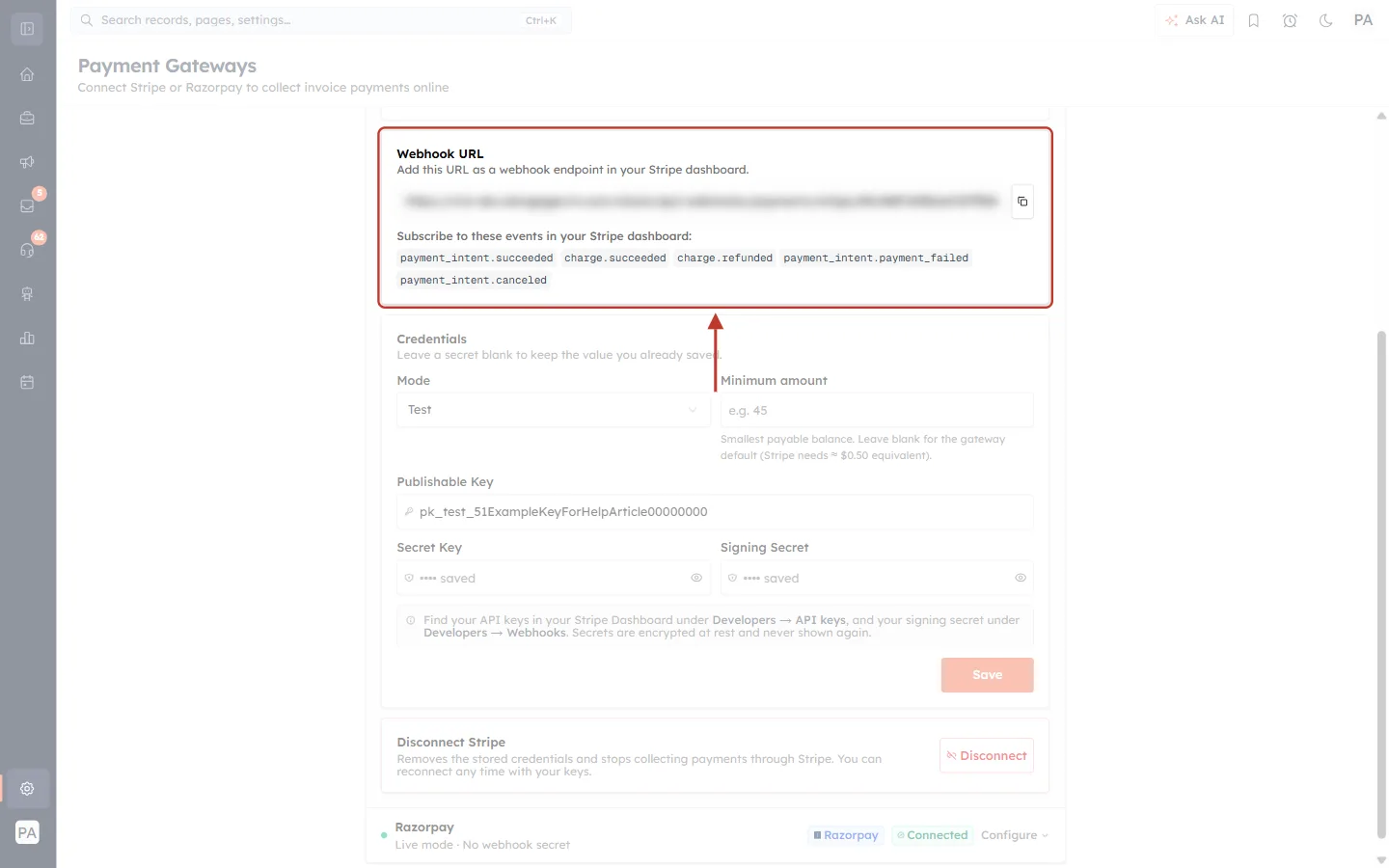
What this screenshot shows. The Webhook URL card for Stripe, ringed.
The address (blurred here) is your organisation’s own. It must be used exactly as shown.
The copy icon on its right copies it, and you’ll see “Webhook URL copied to clipboard.” If you see “Could not copy”, select the address and copy it by hand.
Subscribe to these events lists Stripe’s events, which Step 9 uses.
Now open your gateway’s dashboard and compare the addresses:
Gateway | Where the webhook is |
|---|---|
Stripe | Developers → Webhooks. Open your endpoint and compare its URL. |
Razorpay | Settings → Webhooks. Open your webhook and compare its URL. |
Check these points:
Is there a webhook at all? If not, create one: Set Up Online Payments with Stripe or Razorpay.
Is it character-for-character the same? Don’t type it by hand. Paste the copied address over the old one.
Is it the right gateway’s address? Stripe and Razorpay each have their own address, with the gateway’s name in it. Stripe’s address won’t work in Razorpay.
Is it switched on? It should show as active or enabled. A gateway may stop sending to an address that has been failing for a while.
Step 9: Check the events#
A webhook only sends what it is subscribed to. If an event is missing, the CRM never hears about that kind of payment. Open the webhook’s event list in your gateway dashboard and compare it with the list below.
Event | What it tells the CRM |
|---|---|
Stripe | |
| A payment succeeded |
| A charge succeeded |
| A payment was refunded |
| A payment failed |
| A payment was cancelled |
Razorpay | |
| A payment was captured |
| A payment failed |
| A refund was processed |
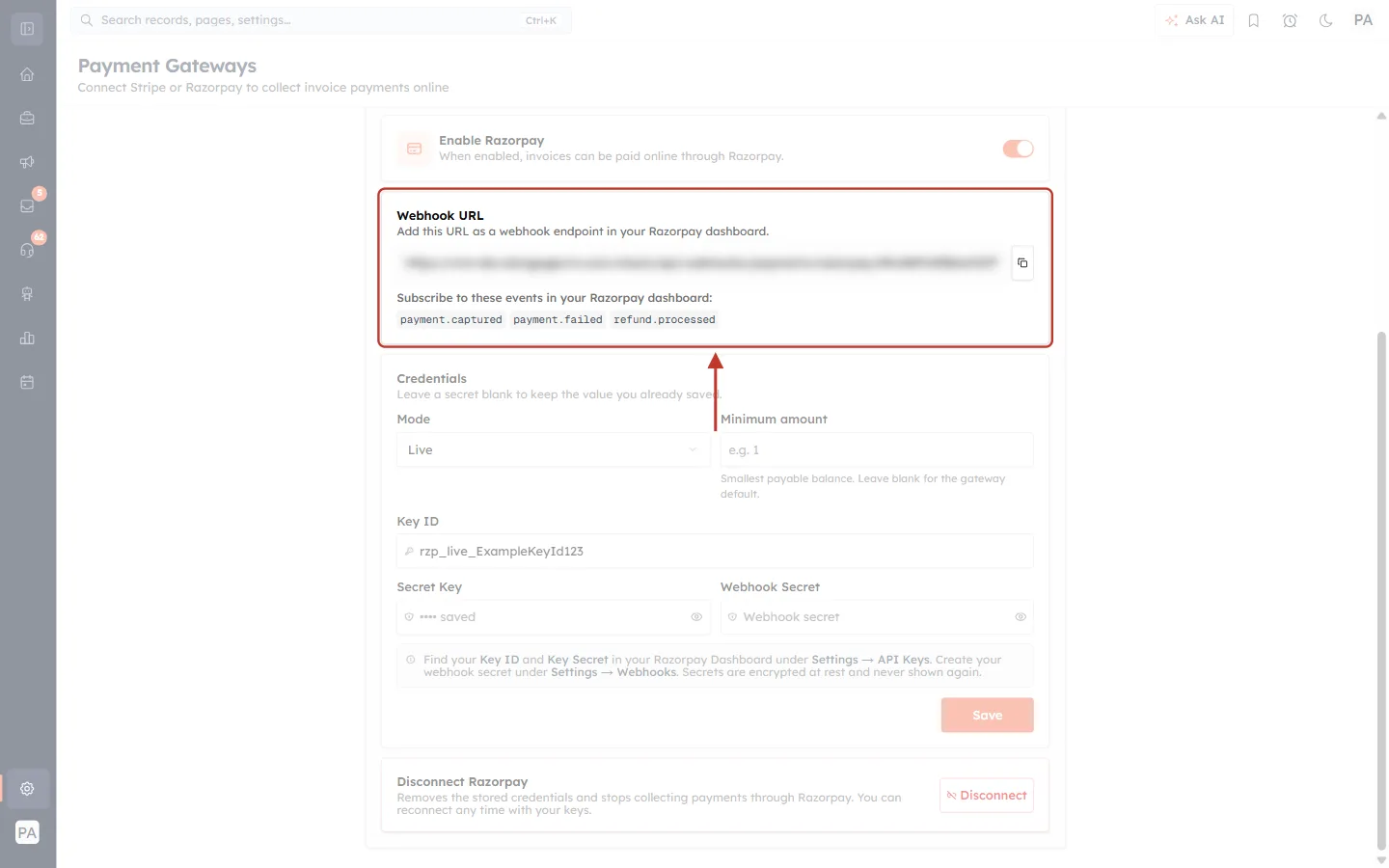
What this screenshot shows. The same card for Razorpay, ringed. The list is shorter, and the event names are different.
Add this URL as a webhook endpoint in your Razorpay dashboard: the address here is different from Stripe’s.
Subscribe to these events: payment.captured, payment.failed and refund.processed.
Keep this card open while you tick the events in your gateway dashboard, so you can check each name.
Step 10: Check the secret#
The secret lets the CRM confirm that a message really came from your gateway. If the two don’t match, the message can’t be trusted, so the payment doesn’t update.
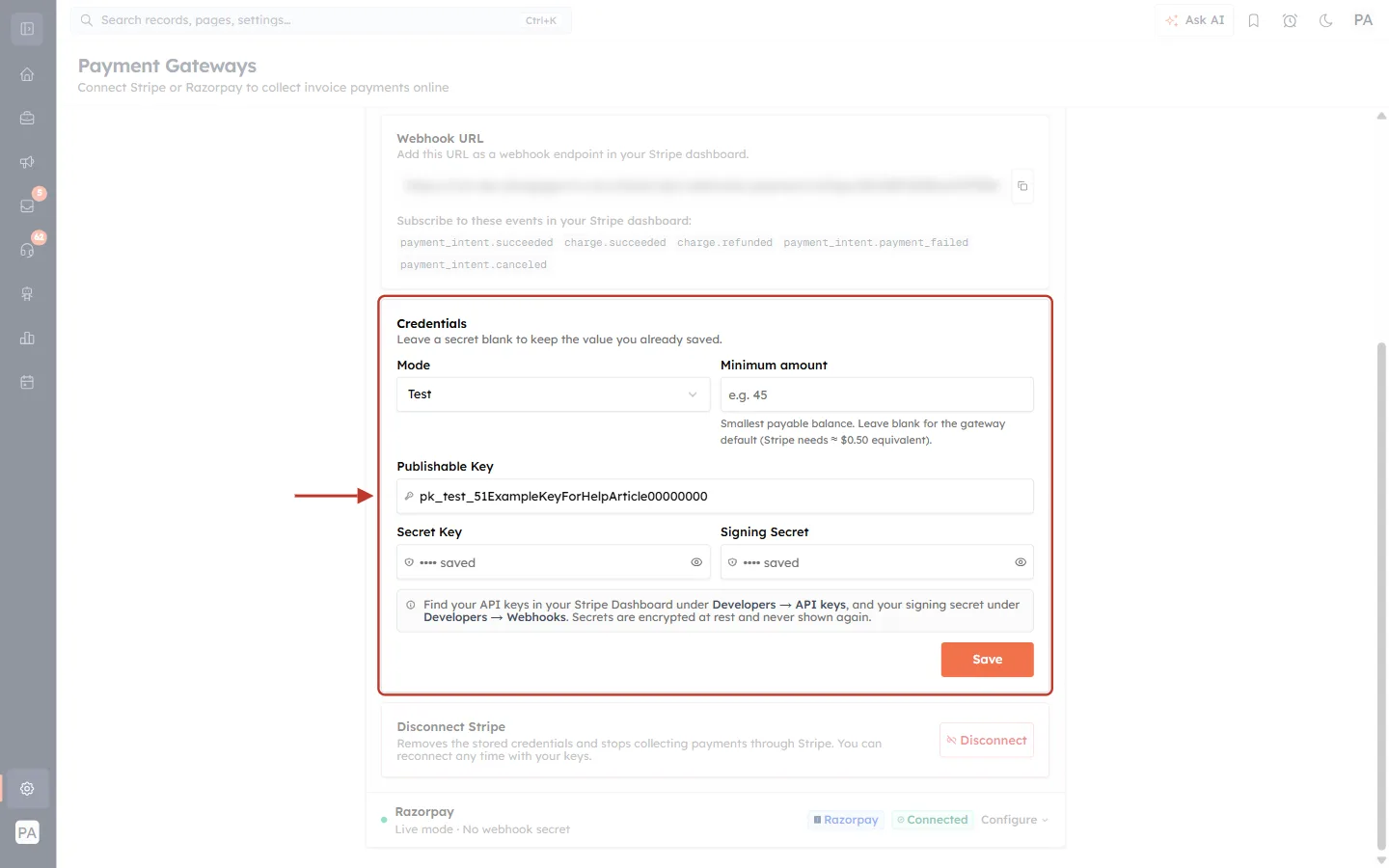
What this screenshot shows. The Credentials section, ringed.
Mode: Test or Live. See Step 11.
Minimum amount: “Smallest payable balance”. See Step 4.
Publishable Key (Key ID on Razorpay): shown in full, so you can check it.
Secret Key and Signing Secret (Webhook Secret on Razorpay): these show “saved”, but not the value. The note says they’re “encrypted at rest and never shown again”, so you can’t read them to compare.
The line at the top says: “Leave a secret blank to keep the value you already saved.”
Save applies your changes. You’ll see “Stripe settings saved”.
You can’t see the saved secret, so if in doubt, paste it in again:
Stripe: in Developers → Webhooks, open your endpoint, click Reveal beside Signing secret, and copy the value starting with
whsec_. Each endpoint has its own secret.Razorpay: you created this text yourself when you set up the webhook, and Razorpay won’t show it again. Edit the webhook in Settings → Webhooks, type a new strong secret, and save it. Use exactly the same text in the CRM.
Paste it into Signing Secret or Webhook Secret in the CRM and click Save. Watch for extra spaces at the start or end of what you paste. The row should now read Webhook secret set.
Step 11: Check that Test and Live match#
Stripe and Razorpay keep Test and Live completely separate, each with its own keys and webhook. This is the most common cause of “it worked in testing, but not now”.
Setting | Test | Live |
|---|---|---|
Mode in the CRM | Test | Live |
Stripe keys |
|
|
Razorpay Key ID |
|
|
Webhook in the gateway | Created in the gateway’s test mode | Created in the gateway’s live mode |
Secret | The test webhook’s | The live webhook’s |
All five must be on the same side. When you go Live, you need to create a new live webhook and paste its secret. The test one doesn’t carry over.
Step 12: Look at the deliveries and test again#
In your gateway dashboard, open the webhook and look at its recent deliveries or events, if it lists them.
A failed delivery means the gateway tried, and the CRM didn’t accept it. Re-check the address and the secret (Steps 8 and 10).
No delivery at all for your payment usually means the event isn’t subscribed (Step 9), or the webhook is in the wrong mode (Step 11).
Stripe lets you resend an event after you’ve fixed the problem, which can update the CRM for the payment you missed.
Then make a test payment in Test mode, as described in Set Up Online Payments with Stripe or Razorpay, and check that the invoice updates.
⚠️
Fixing a webhook may not update past payments. A payment the CRM missed stays missing unless the gateway resends it. If you can’t resend it, record it by hand (Step 13).
Part 4: Bring the invoice up to date#
Once the webhook is fixed, future payments update themselves. For a payment that was missed, first check whether the CRM already has it.
Step 13: Find the payment, or record it by hand#
Open Payments in the Sales menu and search for the gateway’s payment ID, such as a Razorpay ID starting with pay_.
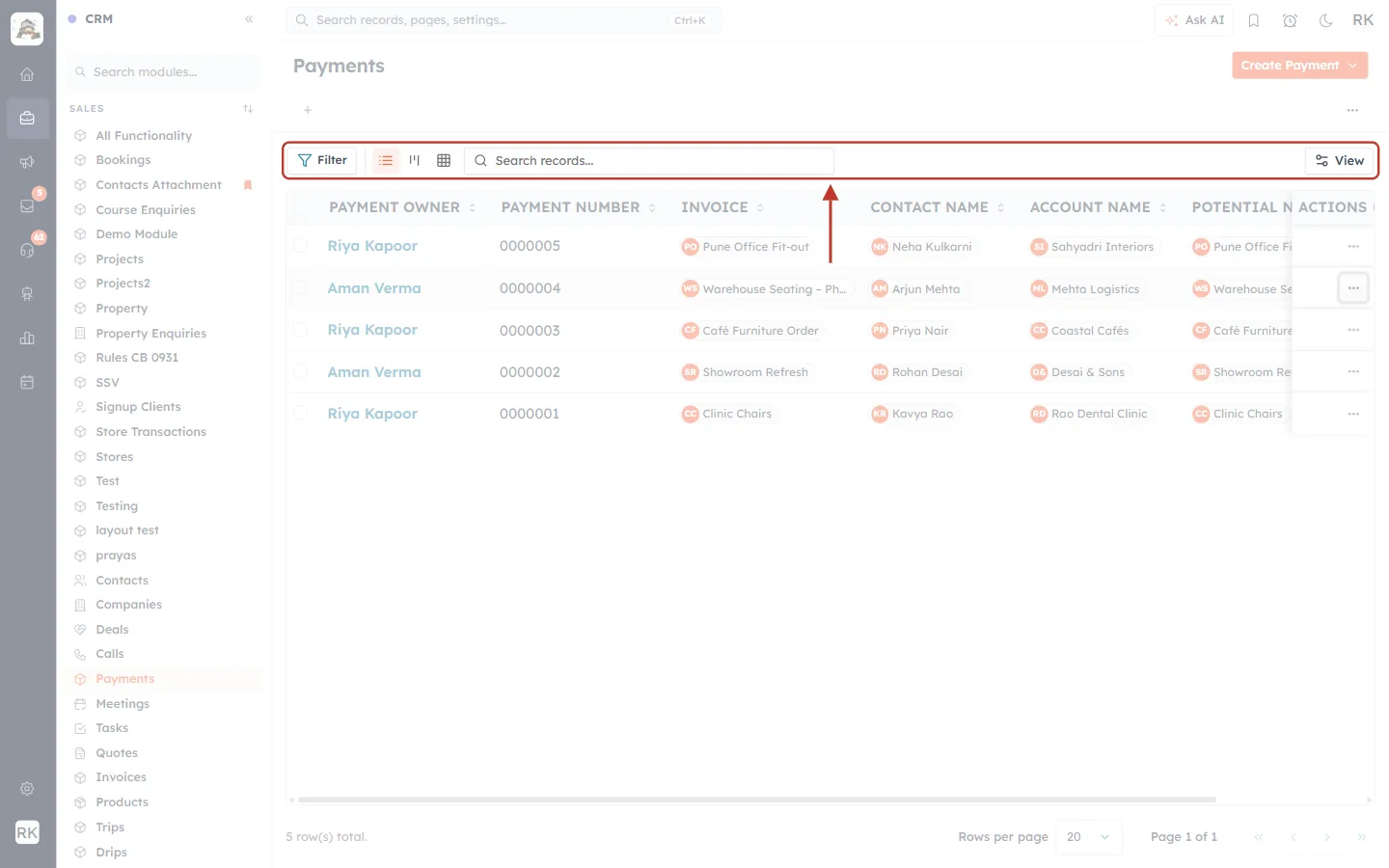
What this screenshot shows. The toolbar of the Payments list, ringed.
Search records…: type the payment ID, payment number or a name.
Filter: narrow the list, for example by Invoice or Status.
View: add columns such as Status and Transaction ID to the list.
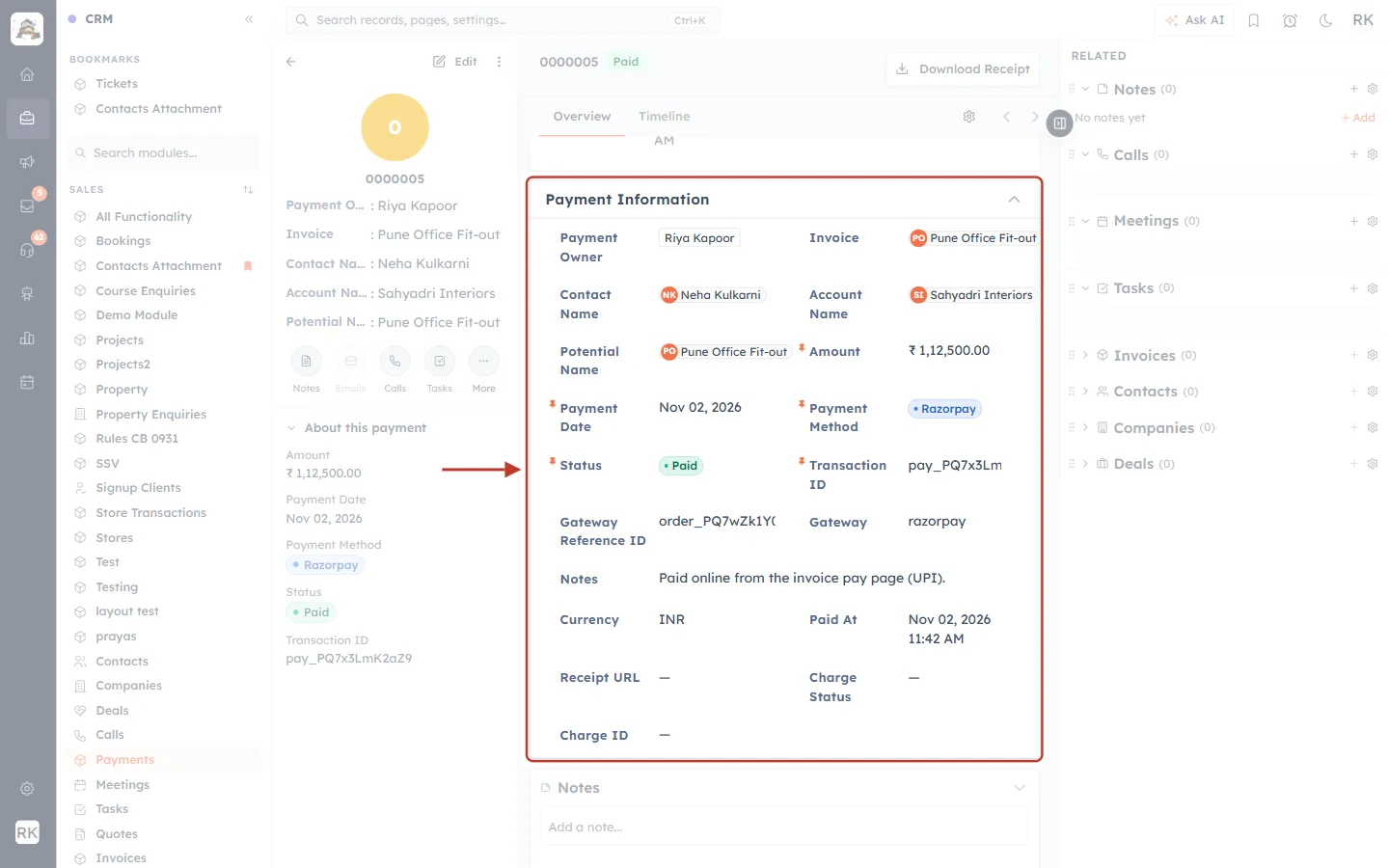
What this screenshot shows. A payment that arrived through the webhook, with Payment Information ringed. Use it to confirm that everything matches.
Amount and Invoice: how much, and for which invoice.
Payment Method · Razorpay and Status · Paid: how it was paid, and the result.
Transaction ID (pay_…): the same ID as in your gateway dashboard, so you can match the two.
Gateway Reference ID and Gateway: further details from the gateway.
Paid At: when the payment went through.
If the payment isn’t there, record it from the invoice. Click ⋯ at the top of the invoice.
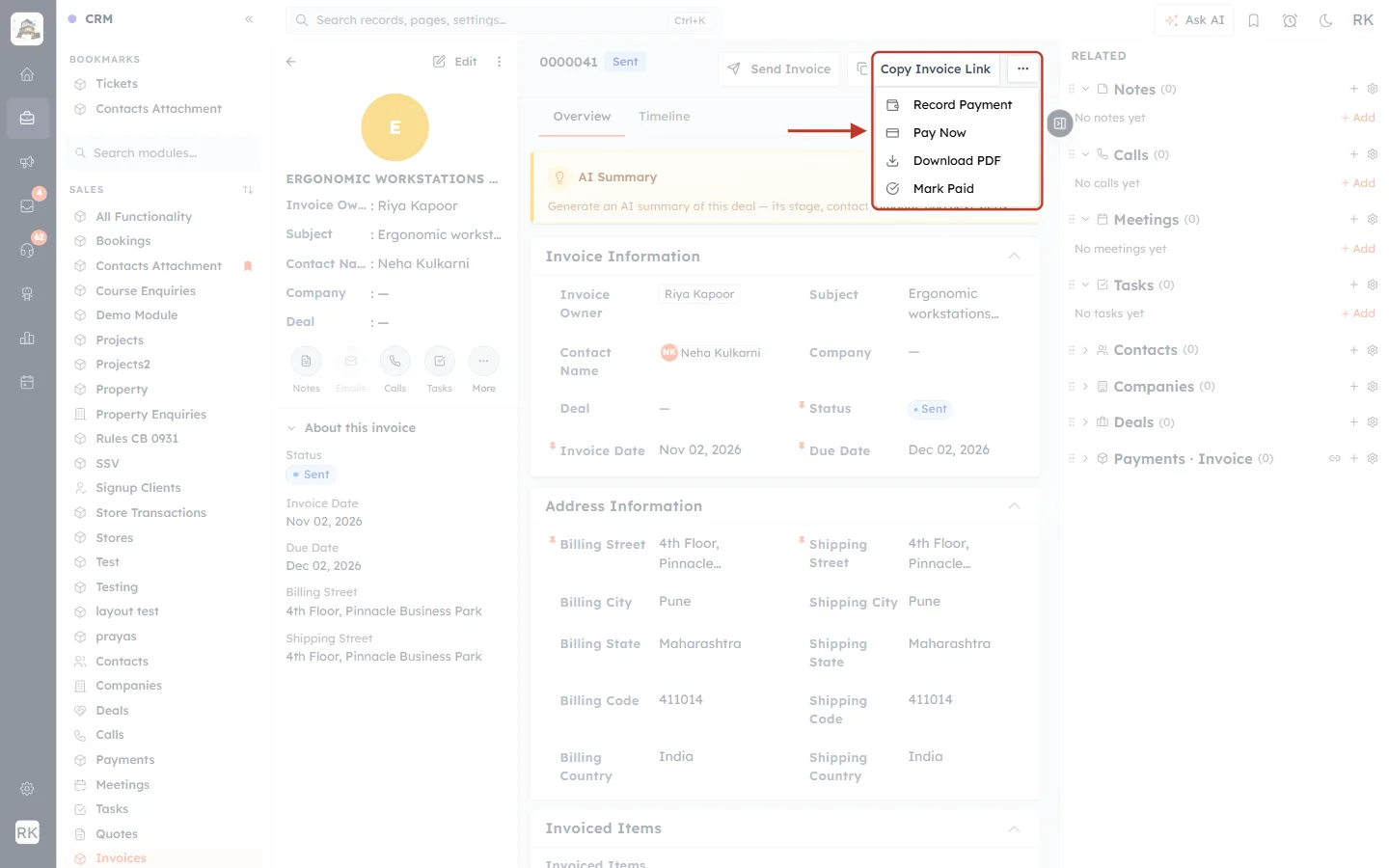
What this screenshot shows. The invoice’s ⋯ menu, ringed.
Record Payment: adds a payment and updates the balance. Use this one.
Pay Now: opens the customer’s pay page, so you can see exactly what they see.
Download PDF: downloads the invoice.
Mark Paid: records a payment for the whole outstanding balance and marks the invoice as paid.
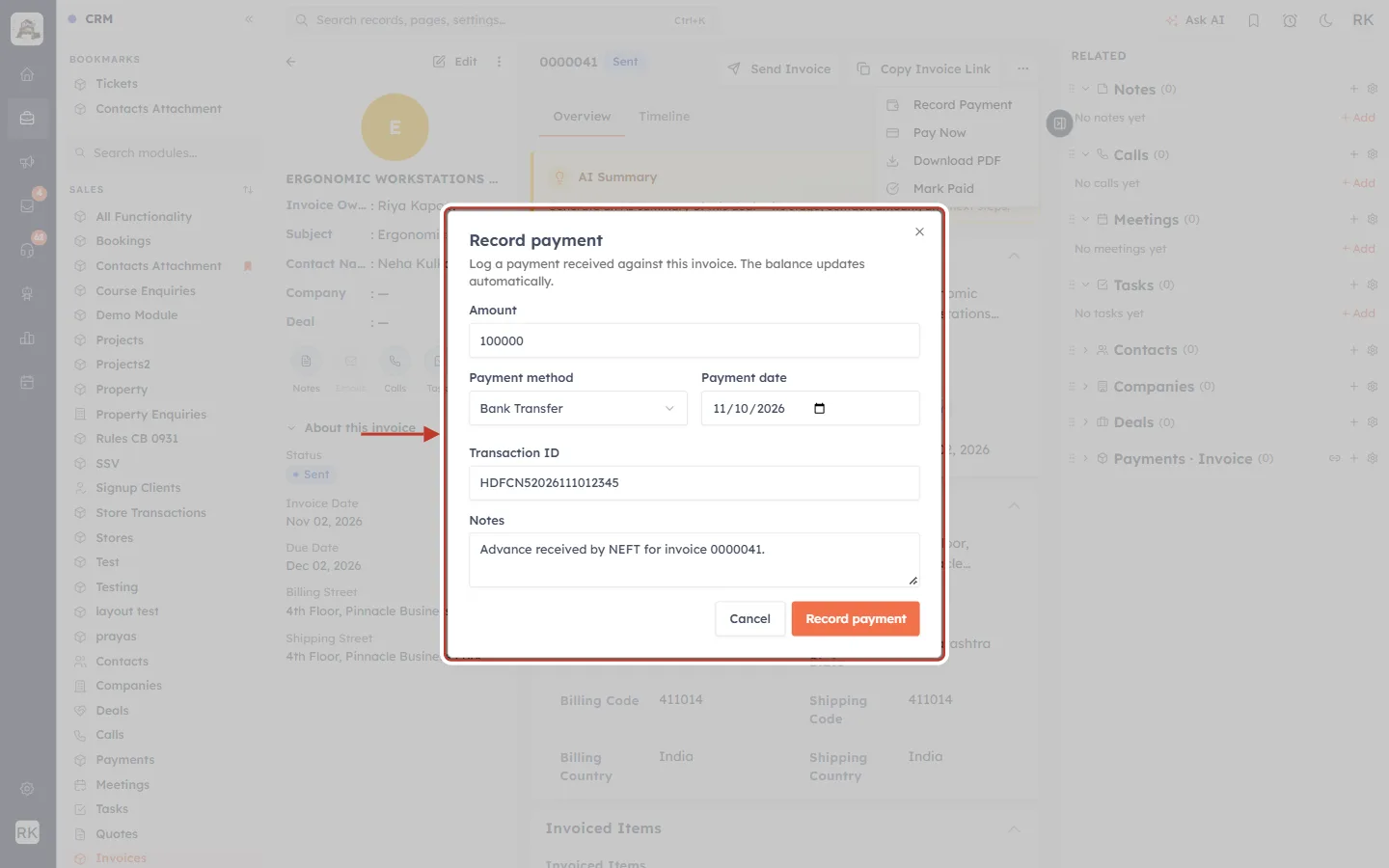
What this screenshot shows. The Record payment window, ringed.
Amount: the amount the gateway received. It starts on the balance, so change it for a part payment.
Payment method and Payment date: the method, and the date the customer really paid. Choose the gateway here for an online payment.
Transaction ID: paste the gateway’s payment ID, so that you can find it later.
Notes: say why it was added by hand, for example “Webhook missed, added by hand”.
Record payment saves it. The note at the top confirms: “The balance updates automatically.”
⚠️
Avoid counting a payment twice. If you’re going to resend the event from your gateway, do that first and wait for the result. Record by hand only if the payment still doesn’t appear. Afterwards, check the invoice’s Amount Paid against what the gateway received.
Part 5: Refunds#
Step 14: Refund in the gateway and update the CRM#
AiEngage CRM has no Refund button, so refunds always start outside the CRM:
Make the refund in your Stripe or Razorpay dashboard, or through your bank.
Check that the webhook has the refund event:
charge.refundedon Stripe, orrefund.processedon Razorpay (Step 9).Open the payment in Payments and check its Status. If it doesn’t read Refunded, click Edit and set it.
Open the invoice and set its Status to Refunded too, so your team doesn’t chase it.
More detail is in Invoice Actions Explained and The Payments Module.
Part 6: Prevent problems next time#
Test every change. After changing a key, a secret or the mode, run one small payment and check that the invoice updates.
Watch the webhook after going Live. Check the first real payment from start to finish in both the gateway and the CRM.
Compare once a month. Set your gateway’s list of payments beside the CRM’s Payments list. A gap is an early sign of a webhook problem.
Rotating a key? Update it in the CRM straight away, in Configure → Credentials. Leave the other secrets blank to keep them.
Check your currency. The page notes that “gateways charge in this currency”. Make sure your gateway account accepts your organisation’s currency: Set Your Home Currency.
All messages at a glance#
Message | Where | What to do |
|---|---|---|
Online payment isn’t available for this invoice. Please contact the sender. | Pay page | Connect or enable a gateway (Step 3) |
This amount is below the minimum for online payment. Please contact the sender. | Pay page | Lower the Minimum amount or take payment another way (Step 4) |
Invoice unavailable. This document link is invalid or has expired. | Pay page | Send a fresh link (Step 5) |
Payment Failed. The payment could not be completed. | Pay page | Try again or use another method (Step 6) |
Payment Processing. We’re waiting for confirmation from… | Pay page | Wait, then check the gateway and webhook (Step 7) |
No webhook secret | Payment Gateways row | Add the secret (Step 10) |
Disabled | Payment Gateways row | Switch the gateway on (Step 2) |
Could not copy. Select the URL and copy manually. | Webhook URL card | Copy the address by hand (Step 8) |
Failed to load payment gateways | Payment Gateways page | Refresh the page. If it continues, contact support |
Frequently asked questions#
Has my customer lost their money if the invoice didn’t update?
No. If the gateway shows the payment as successful, the money went to your gateway account. The CRM simply hasn’t heard about it yet.
Does AiEngage CRM hold the money?
No. Payments go straight to your own Stripe or Razorpay account. Payouts and bank settlement are handled there.
Can I see webhook errors in the CRM?
No, the CRM has no webhook log. Use the delivery history in your gateway’s dashboard.
Why can’t I see my saved secret?
Secrets are encrypted and never shown again, for security. To change one, paste a new value and click Save.
Will disconnecting and reconnecting fix it?
Usually it isn’t needed, and it removes your stored credentials. Invoices can’t be paid through that gateway until you reconnect. Try re-pasting the secret first.
Who do I contact if nothing works?
Contact AiEngage support with the invoice number, the gateway’s payment ID, the time of the payment and what the delivery history shows. Never send your secret key or webhook secret by email or chat.
Previous and next#
Previous: Invoice Actions Explained
Related#
Was this article helpful?
Ready to implement this?
OpenAI Engage and apply what you just learned to your own workspace.
Open AI Engage CRM