Loading…


KnowledgeBase
Getting Paid: Record & Collect Payments
How payments work#
Every payment against an invoice is stored as a Payment record, and the invoice's Amount Paid, Balance Due, and status are always calculated from those payments. You can collect money two ways: online, or by recording it manually.
Collect payment online#
When you Send Invoice (or share the Copy Invoice Link), the customer lands on a secure pay page. They can also reach it from the invoice's Pay Now action.
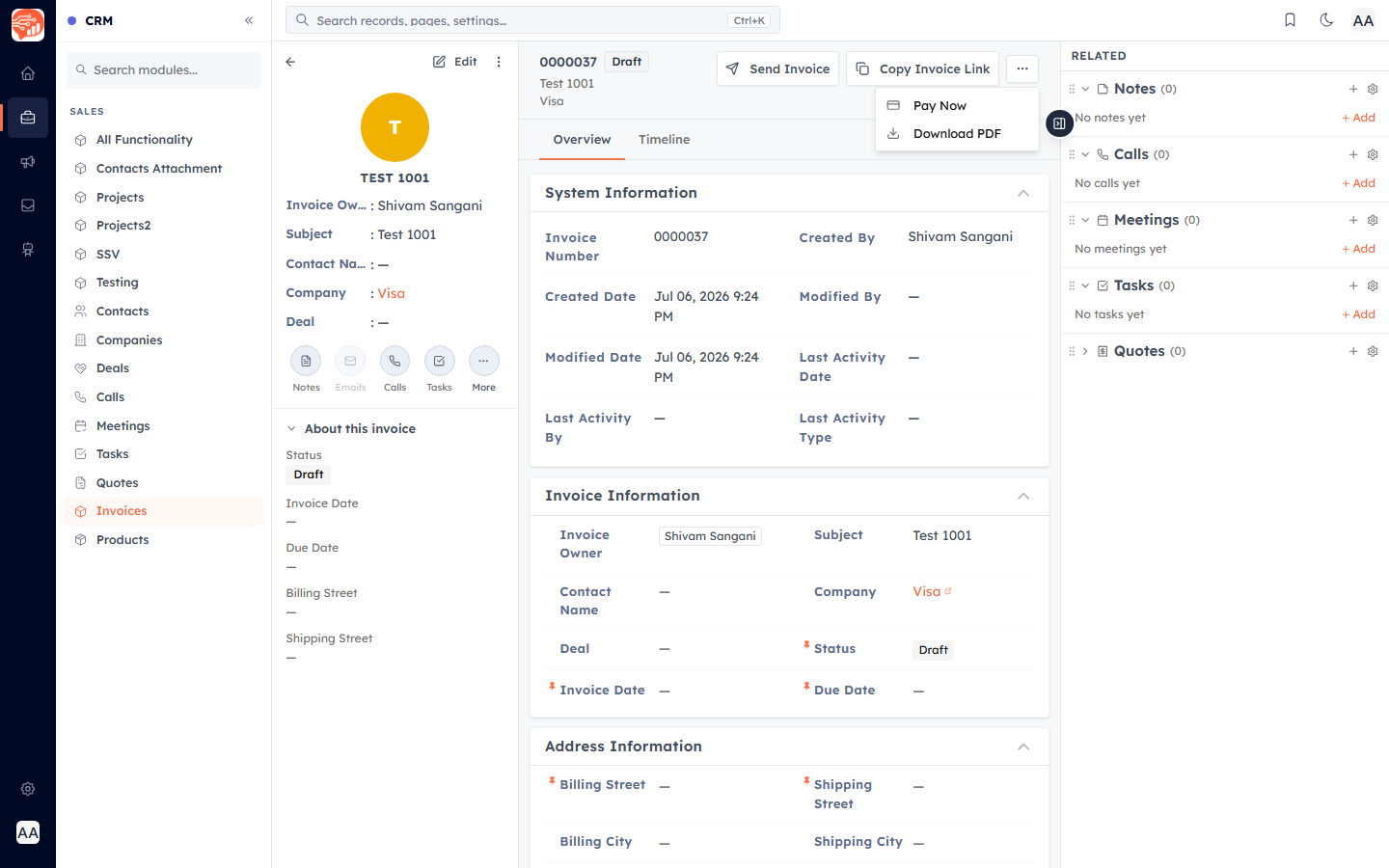
On that page the customer pays by card (Stripe) or via Razorpay. When the gateway confirms the payment, the CRM automatically records it, updates the invoice to Paid (or Partially Paid), and emails a confirmation with the paid PDF. The page reflects the real payment state, so a customer can't accidentally pay twice.
💡
Online collection requires a connected payment gateway. See Set Up Online Payments: Stripe & Razorpay.
Record a manual or offline payment#
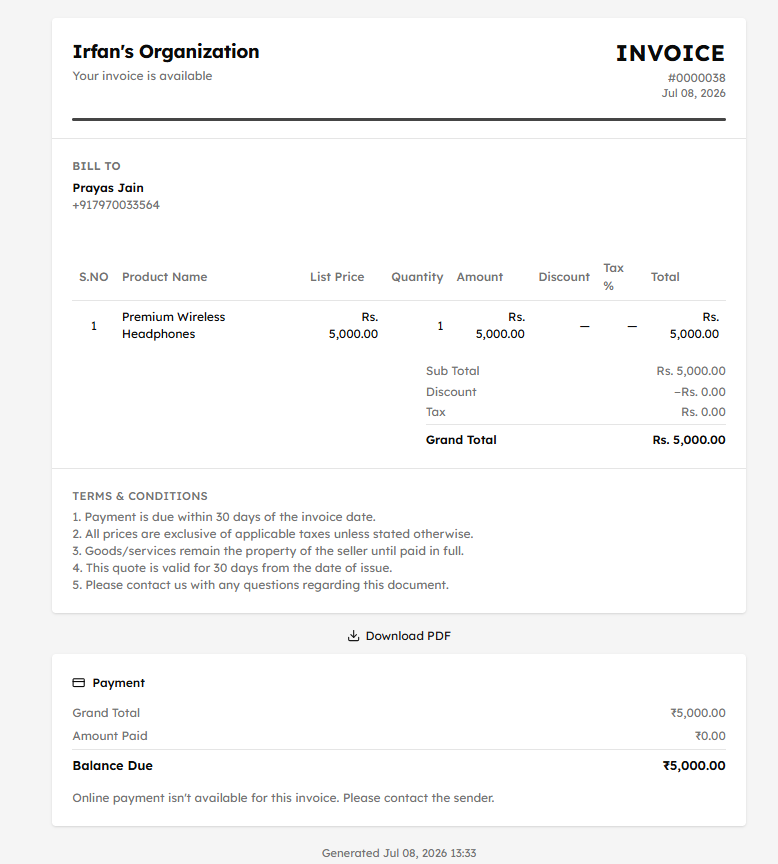
Received a bank transfer, cash, or cheque? Record it on the invoice with the Record Payment action and enter:
Amount and Payment Date.
Payment Method — Bank Transfer, Cash, Manual, Other, or a connected gateway.
An optional transaction reference and note.
The invoice recalculates immediately. Use Mark as Paid to settle the full outstanding balance in one step.
Partial payments & refunds#
Partial payments are fully supported — record several payments over time and the invoice shows Partially Paid with a running Balance Due until it's settled.
Refunds — a payment can be refunded; the invoice recalculates and shows Refunded when fully reversed.
💡
Because the invoice total, amount paid, and balance always come from the Payment records, your books stay correct no matter how the money arrived.
Was this article helpful?
Ready to implement this?
OpenAI Engage and apply what you just learned to your own workspace.
Open AI Engage CRM