Loading…


KnowledgeBase
How to Create and Manage Invoices
What is an invoice?#
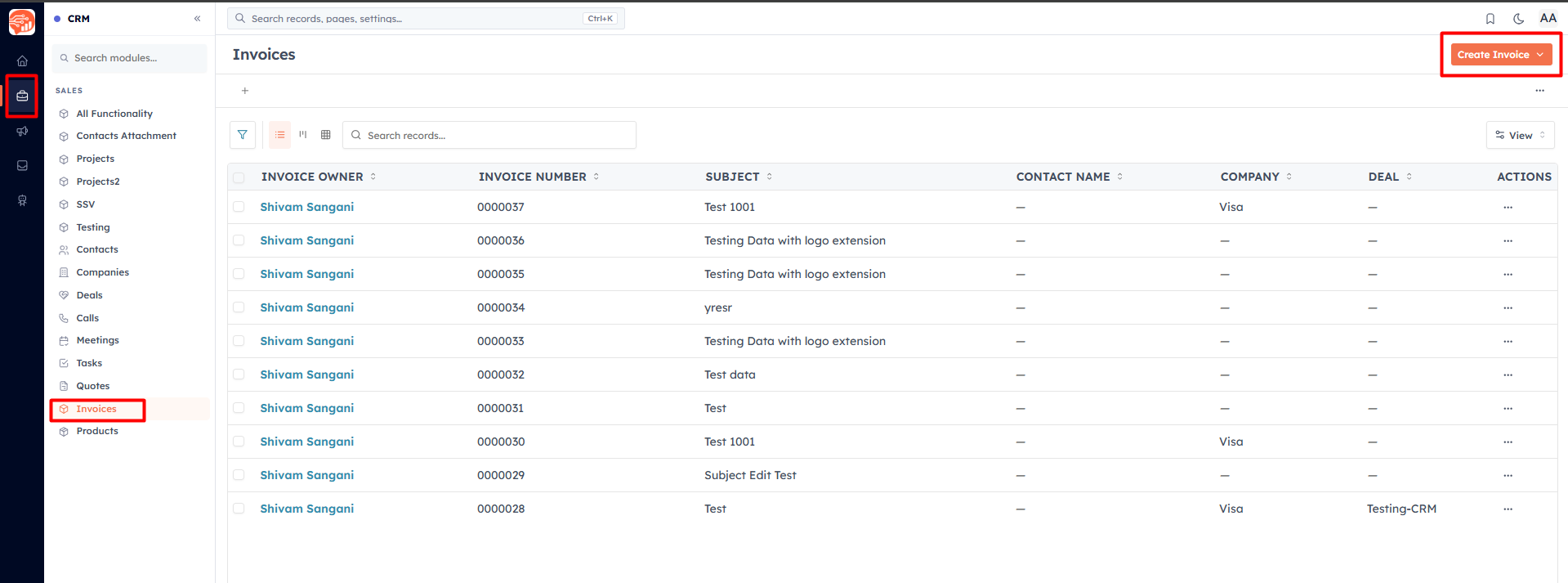
An invoice is a formal request for payment. It states exactly what's owed and by when. You'll find your invoices under Invoices in the CRM section.
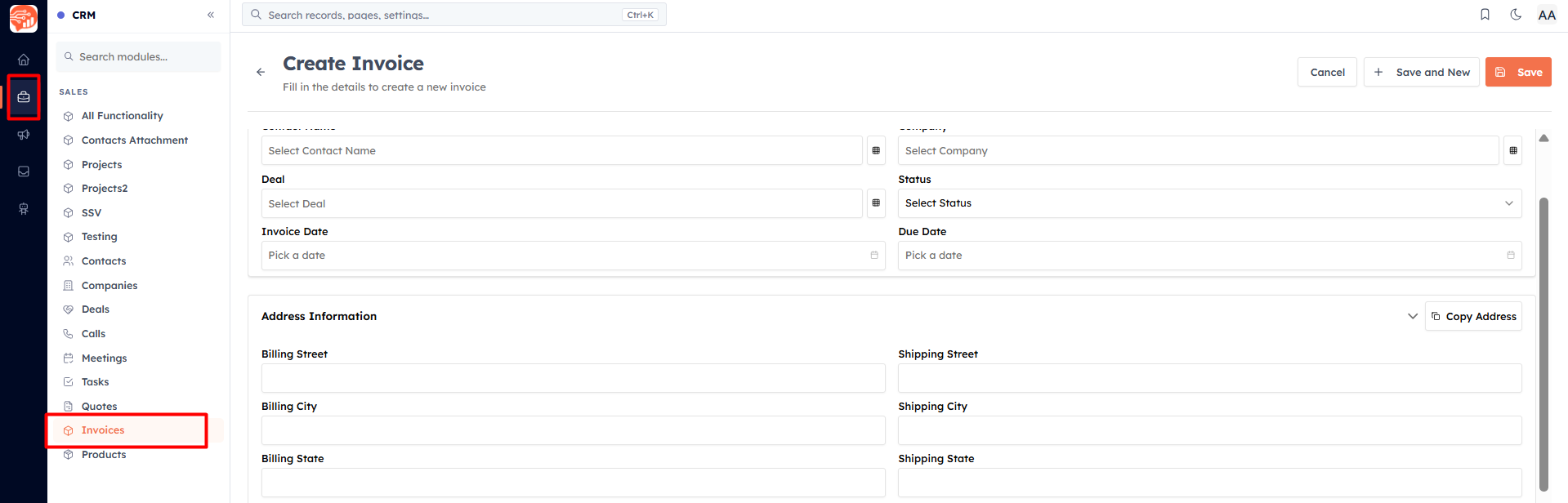
Two ways to create one#
From a quote (recommended) — convert an accepted quote and everything is filled in for you. See Convert a Quote to an Invoice.
From scratch — click Create Invoice and fill in the customer, line items, and dates, just like a quote, plus a Due Date.
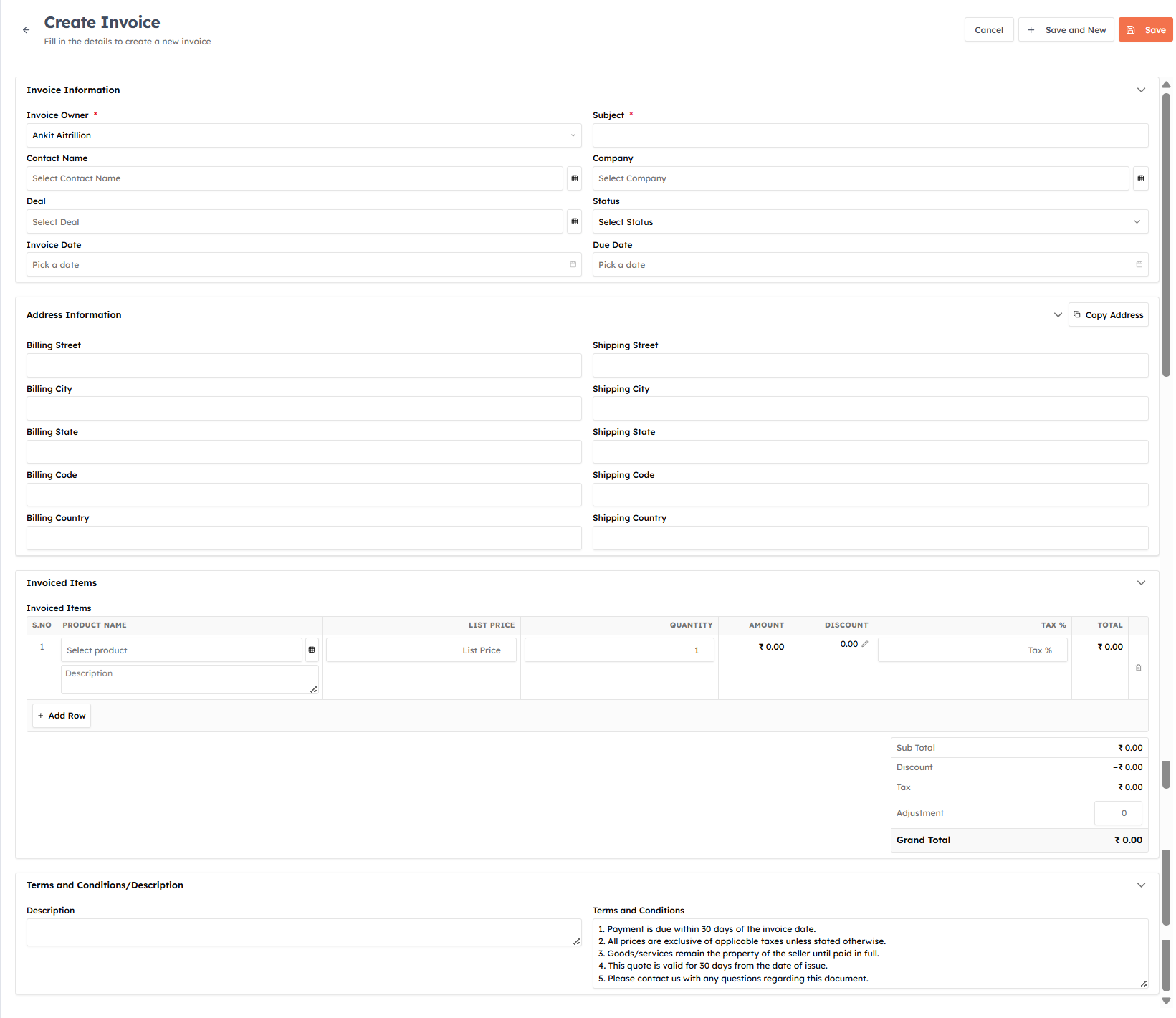
Here are the settings available for invoices:#
1. Invoice Information#
This section contains the basic details required to create an invoice.
Setting | Description |
|---|---|
Invoice Owner | Select the user responsible for managing the invoice. |
Subject | Enter a title or subject for the invoice. |
Contact Name | Select the customer contact associated with the invoice. |
Company | Select the company related to the invoice. |
Deal | Link the invoice to an existing deal, if applicable. |
Status | Choose the current invoice status (for example: Draft, Sent, Paid, etc.). |
Invoice Date | Select the date the invoice is issued. |
Due Date | Select the payment due date for the invoice. |
2. Address Information#
This section stores the billing and shipping addresses used on the invoice.
Billing Address#
Billing Street
Billing City
Billing State
Billing Code (Postal/ZIP Code)
Billing Country
Shipping Address#
Shipping Street
Shipping City
Shipping State
Shipping Code (Postal/ZIP Code)
Shipping Country
Copy Address#
Click Copy Address to automatically copy the billing address into the shipping address fields.
3. Invoiced Items#
This section allows you to add the products or services included in the invoice.
For each item, you can specify:
Setting | Description |
|---|---|
Product Name | Select the product or service. |
Description | Add additional details about the product or service. |
List Price | Enter or select the product's unit price. |
Quantity | Specify the quantity being billed. |
Amount | Displays the calculated amount before discounts and taxes. |
Discount | Apply a discount to the item. |
Tax % | Select the applicable tax percentage. |
Total | Displays the final amount for the line item. |
Add Row#
Click Add Row to include additional products or services in the invoice.
4. Invoice Summary#
The summary panel automatically calculates the invoice totals based on the items added.
Setting | Description |
|---|---|
Sub Total | Total value of all products before discounts and taxes. |
Discount | Total discount applied to the invoice. |
Tax | Total tax amount calculated for the invoice. |
Adjustment | Add a manual positive or negative adjustment to the invoice total. |
Grand Total | Displays the final payable amount. |
5. Terms and Conditions / Description#
Use this section to provide additional information related to the invoice.
Description#
Add notes or comments that will appear on the invoice.
Examples include:
Payment instructions
Project details
Additional remarks
Terms and Conditions#
Specify the payment terms and legal conditions for the invoice.
Examples include:
Payment due within 30 days
Taxes are extra where applicable
Late payment policies
Return or refund policies
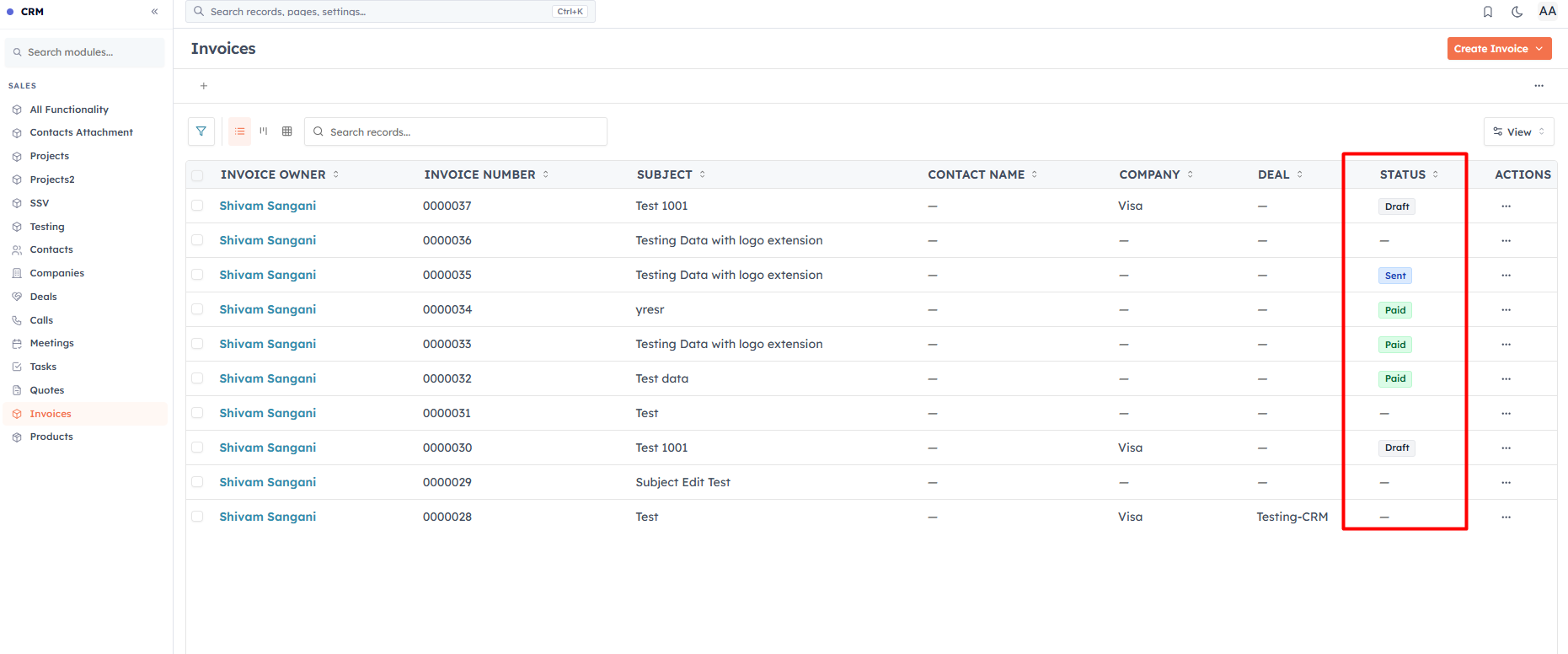
Invoice statuses#
An invoice's status reflects payment automatically:
Draft — created, not sent.
Sent — emailed to the customer.
Partially Paid — some, but not all, has been paid.
Paid — settled in full.
Overdue — the due date has passed and it isn't fully paid.
Refunded / Cancelled — reversed or voided.
💡
Status is derived from the payments recorded against the invoice — you don't set "Paid" by hand. A fully paid invoice is locked from editing so the record stays accurate.
Send it and get the pay link#
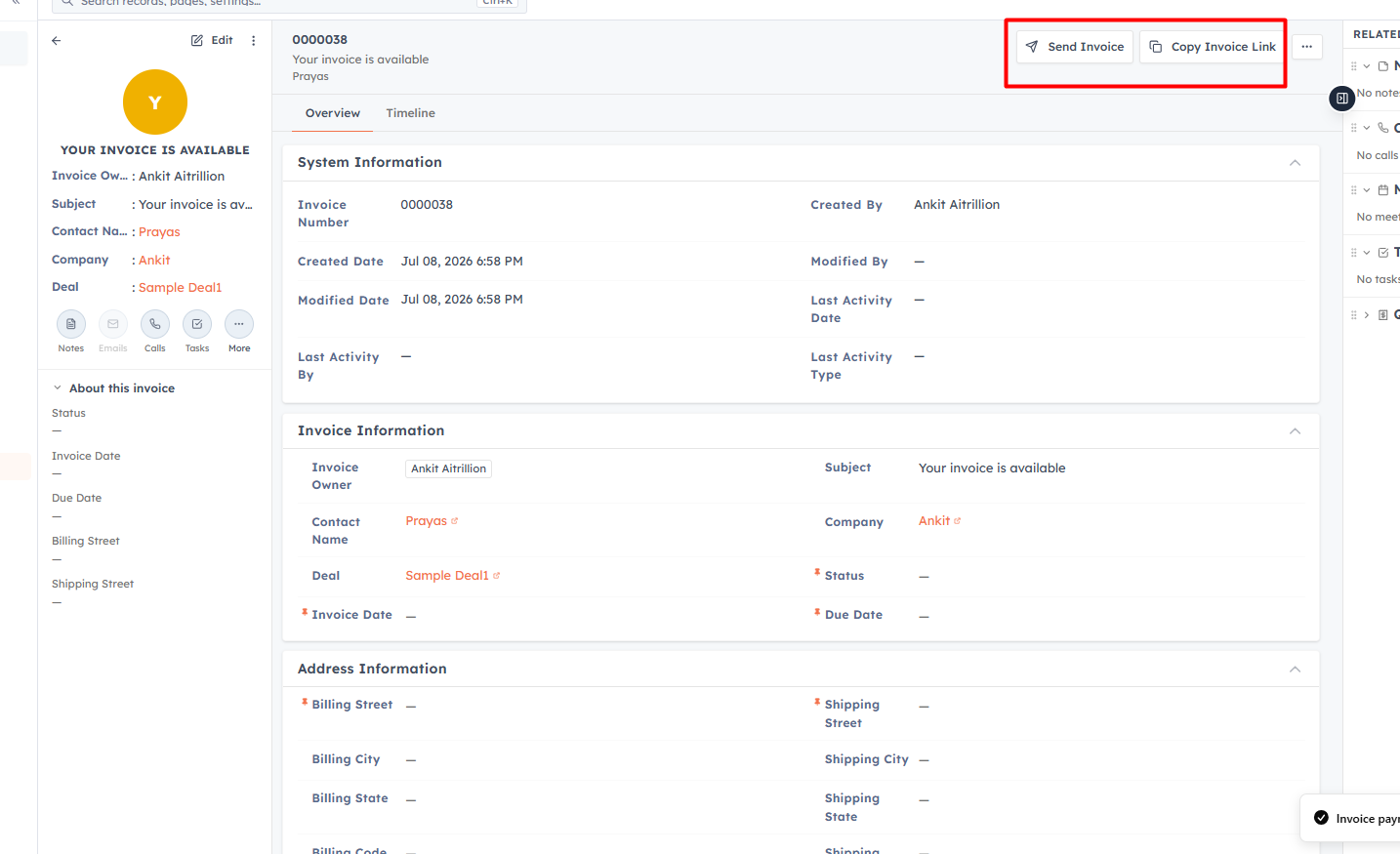
From the invoice, click Send Invoice to email it with a PDF and a "View & Pay Invoice" button, or Copy Invoice Link to grab the secure payment page URL to share yourself. The invoice PDF shows a payment summary (amount, paid, balance due) and transaction history.
💡
Overdue invoices need follow-up. Check the Invoices list regularly and chase anything past its due date.
Was this article helpful?
Ready to implement this?
OpenAI Engage and apply what you just learned to your own workspace.
Open AI Engage CRM