Loading…


KnowledgeBase
Quote and Invoice Numbering: How Numbers Work and How to Set a Prefix, Starting Number and Digits (Step-by-Step)
Introduction#
AiEngage CRM gives every new quote and invoice its own number automatically, so nobody has to remember the last one used or type it in. Your customers see these numbers on their documents, and your team uses them when talking about a quote or invoice.
Out of the box, numbers are plain digits such as 0000041. You can change the format to suit your business, for example INV-01001 for invoices and QT-01001 for quotes.
This guide has four parts:
Part | What you’ll learn |
|---|---|
Part 1 | How numbering works, and where the numbers appear |
Part 2 | How to set a prefix, starting number and number of digits |
Part 3 | How to find a quote or invoice when you only know its number |
Part 4 | How to choose a good format |
We use a sample furniture business throughout. Your names and numbers will be different.
ℹ️
Before you start: anyone who can create quotes and invoices gets numbers automatically. Changing the format happens in Modules and Fields in Setup, which needs admin access. See Quotes, Invoices & Payments Permissions and Plan Limits.
⚠️
Best time to set this: before your first real quote or invoice. If you already have records, read the note in Step 11 before you save a change.
Part 1: How numbering works#
The rules at a glance#
Rule | What it means for you |
|---|---|
Numbers are automatic | A new record takes the next number when it is saved. |
Nobody can edit a number | The panel says: “Users cannot edit these values.” This keeps your sequence reliable. |
Each module counts separately | Quotes, Invoices and Payments each have their own sequence. Quote 0000014 and invoice 0000014 are unrelated. |
Converting a quote gives a new number | The invoice takes the next invoice number, and the quote keeps its own. See Convert a Quote to an Invoice. |
A clone is a new record | Cloning an invoice creates a new record, so the copy has its own number. |
Deleting can leave a gap | A deleted number isn’t given out again. For example, you may see 0000022 followed by 0000025. |
Step 1: See the numbers in your lists#
Click the CRM icon in the left rail, then Invoices in the Sales menu.
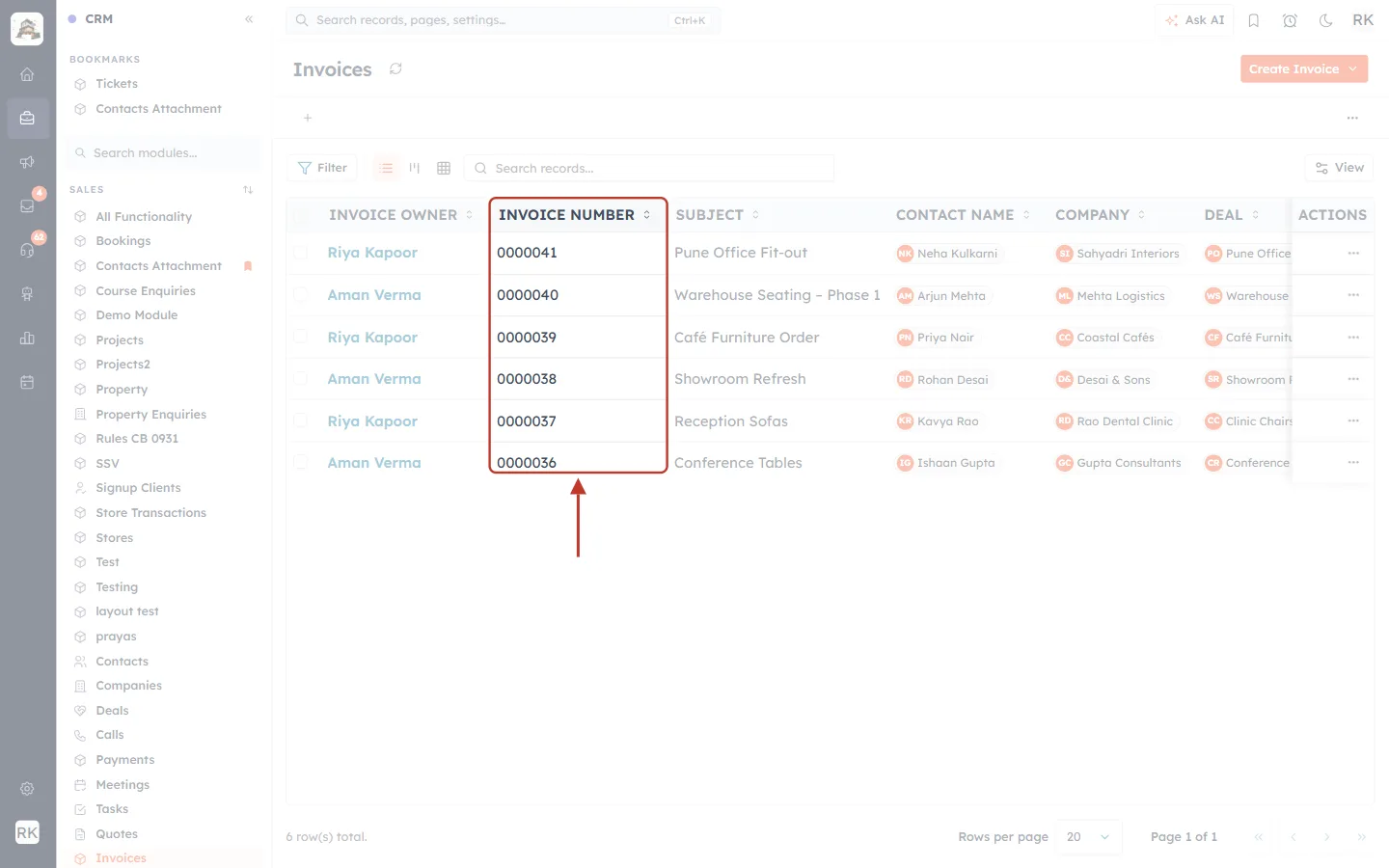
What this screenshot shows. The INVOICE NUMBER column, ringed.
Each invoice has one number, and the newest is at the top.
These use the standard format: seven digits, with leading zeros, and no prefix.
The small arrows beside the heading sort the column. Part 3 uses this.
If you don’t see this column, click View on the right of the toolbar and tick Invoice Number.
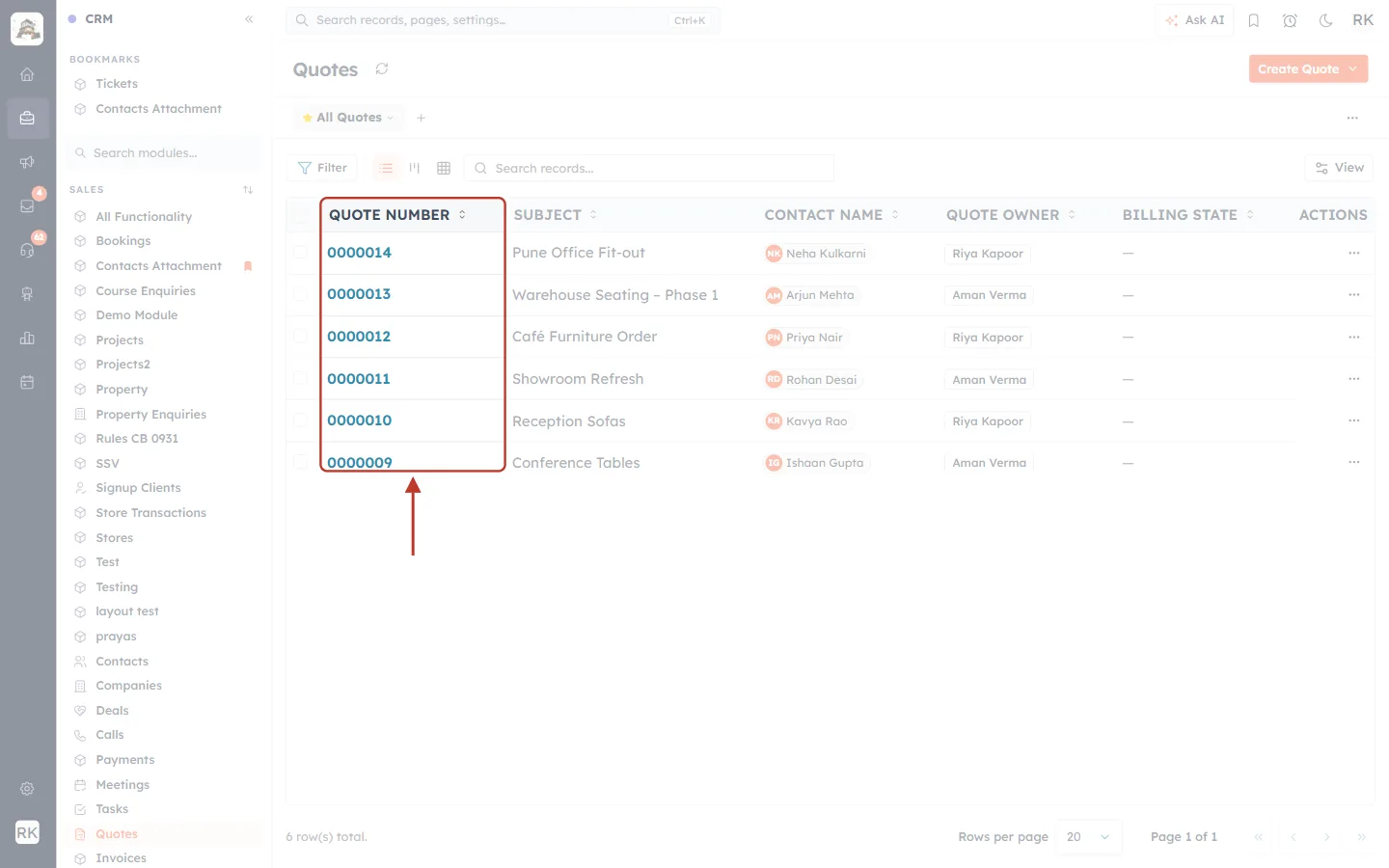
What this screenshot shows. The same idea in Quotes: the QUOTE NUMBER column, ringed.
Quotes have their own sequence, separate from invoices. This list ends at 0000014 while the invoices are already at 0000041.
Click a number to open the quote.
Step 2: Find the number on a record#
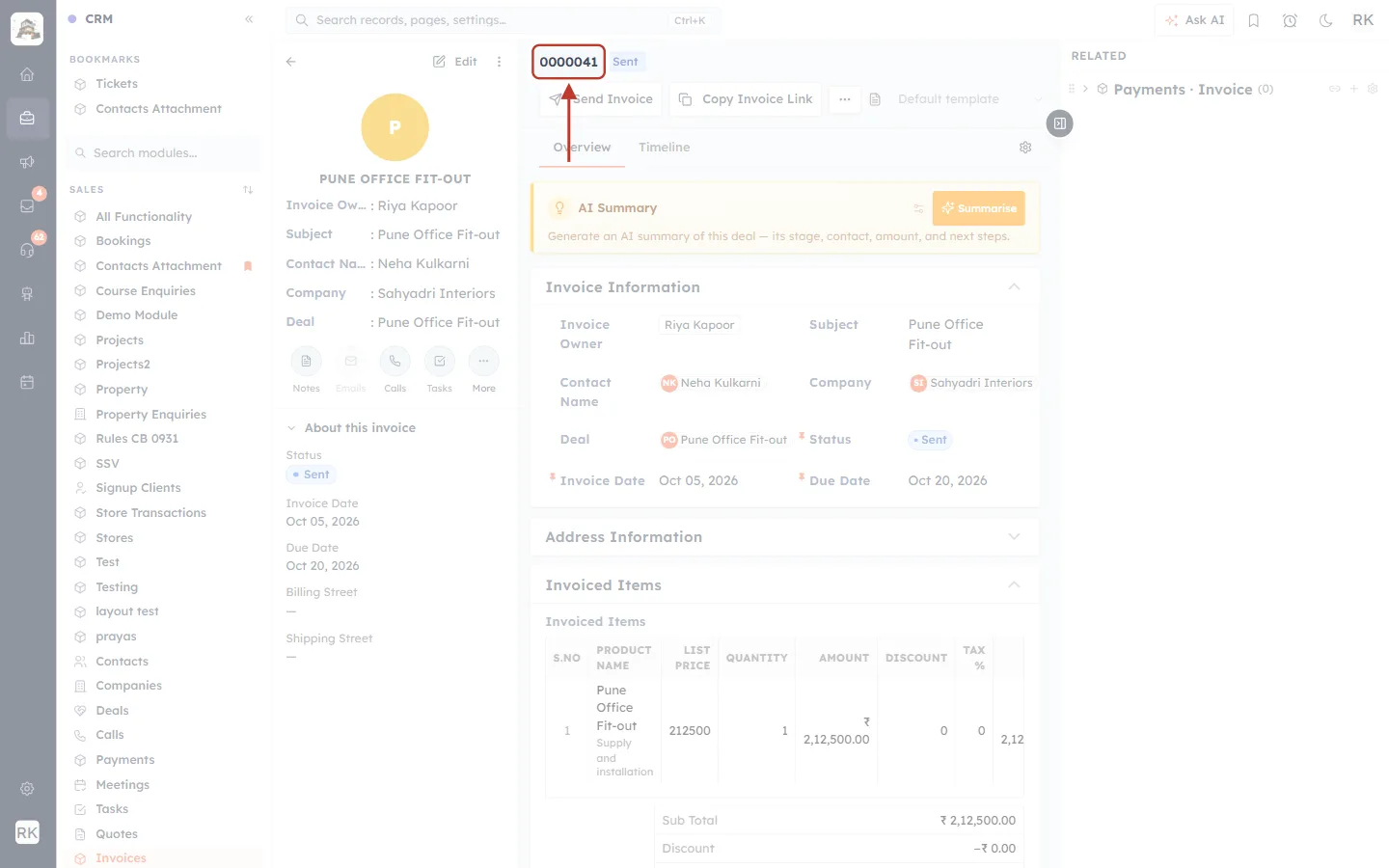
What this screenshot shows. An open invoice, with its number ringed.
The number is at the top of the record, with the status badge (Sent) beside it.
Use this number when you talk to a customer or a colleague about this invoice.
Step 3: Notice that you never type a number#
Open Create Invoice ▾ → Create Single.
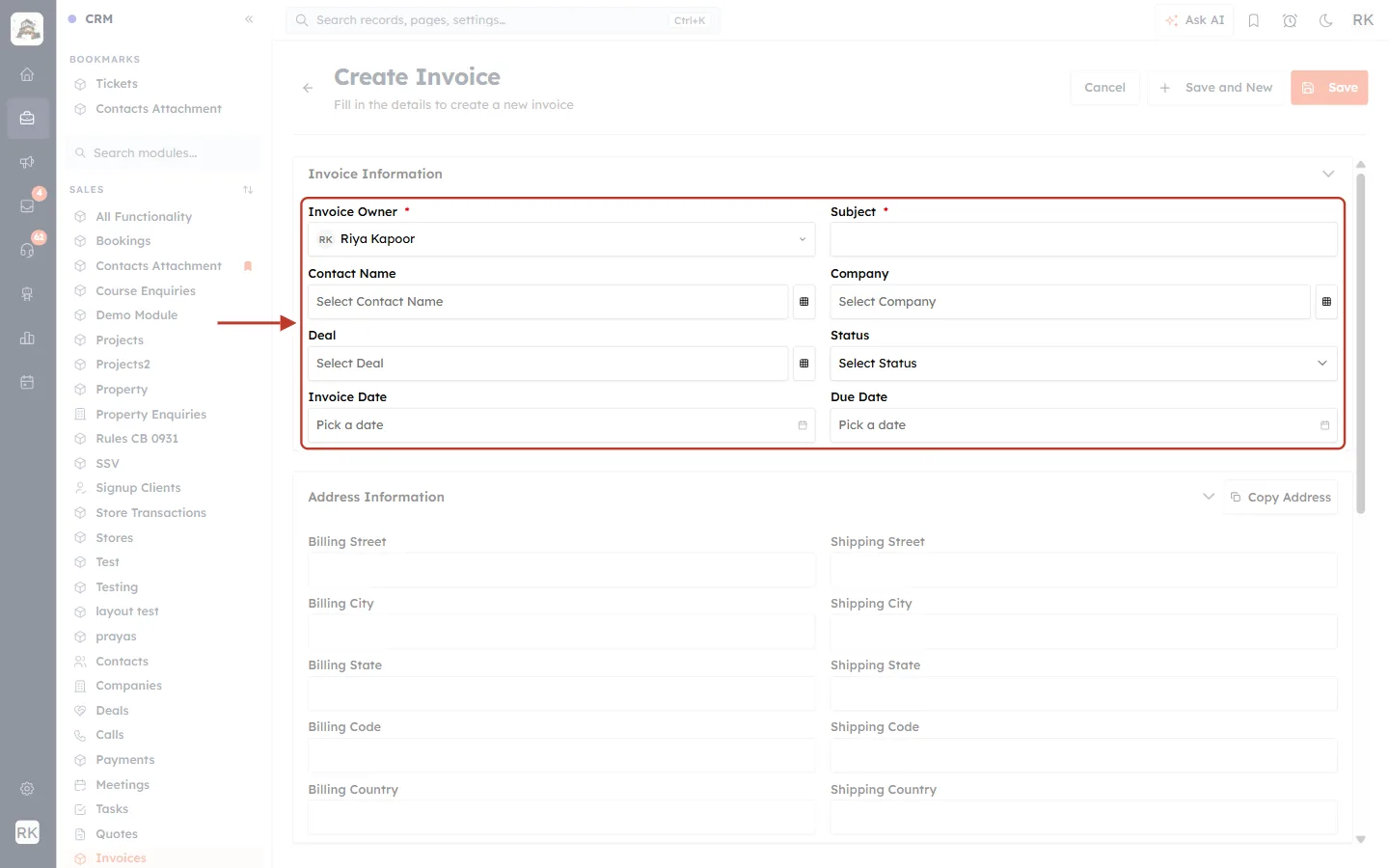
What this screenshot shows. The top section of the Create Invoice form, ringed.
The fields are Invoice Owner, Subject, Contact Name, Company, Deal, Status, Invoice Date and Due Date.
There is no Invoice Number field here. The number is created when you click Save.
So you can’t see the next number until the record has been saved.
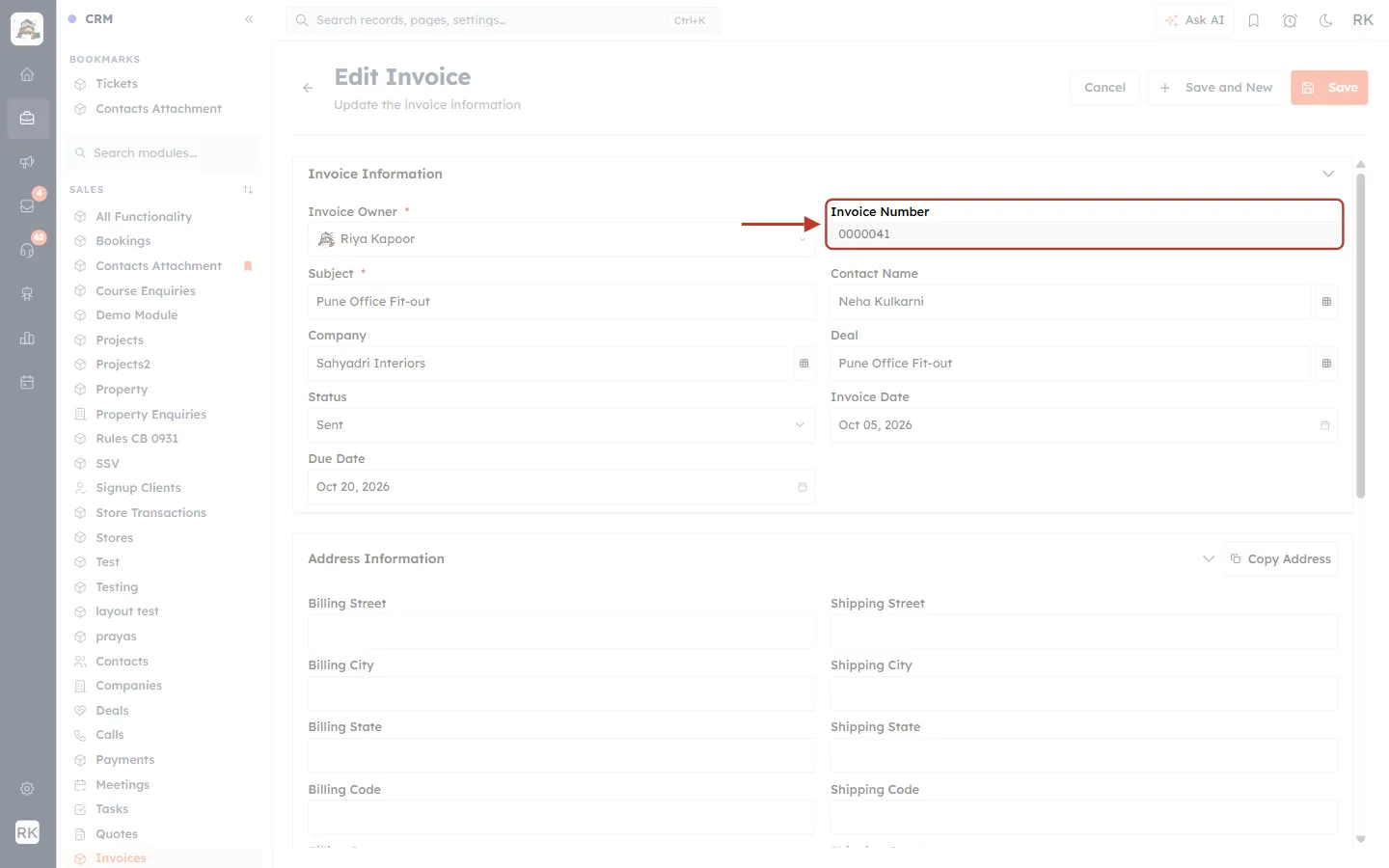
What this screenshot shows. The Edit Invoice form, with Invoice Number ringed.
Once a record is saved, the number appears on this form, greyed out.
You can’t click into it or change it, but you can change the other fields.
Need a different number on one invoice? That isn’t possible. If your record needs to reference an old number, put it in the Subject or the description.
Step 4: See what your customer sees#
The number travels with the document, so customers can quote it back to you.
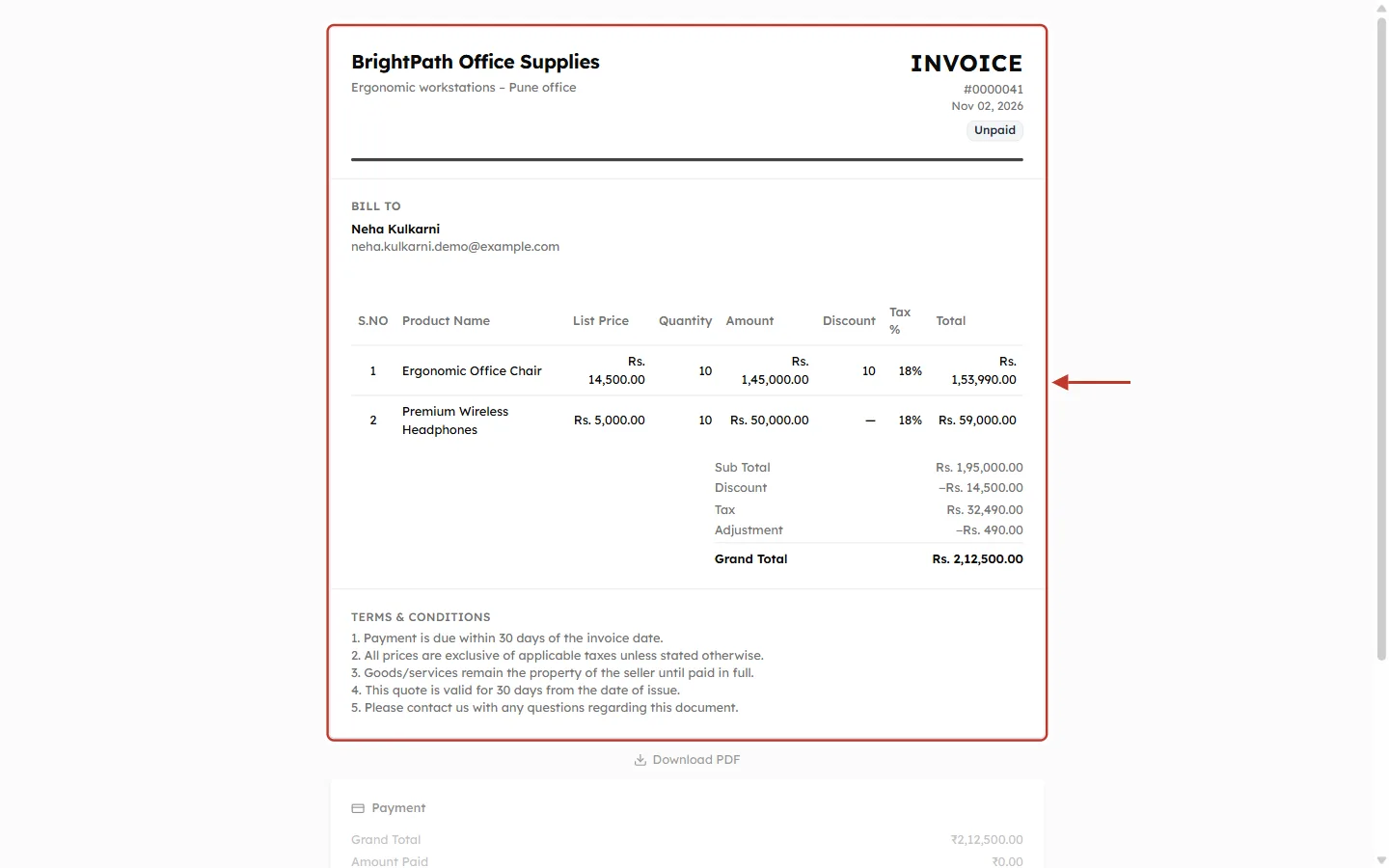
What this screenshot shows. The invoice as the customer sees it after opening its link, ringed.
#0000041 is under the word INVOICE at the top right, with the date and status below it.
The same number is used on the PDF when the invoice is downloaded.
Emails use it too. The default subject of the invoice email is Invoice followed by the number.
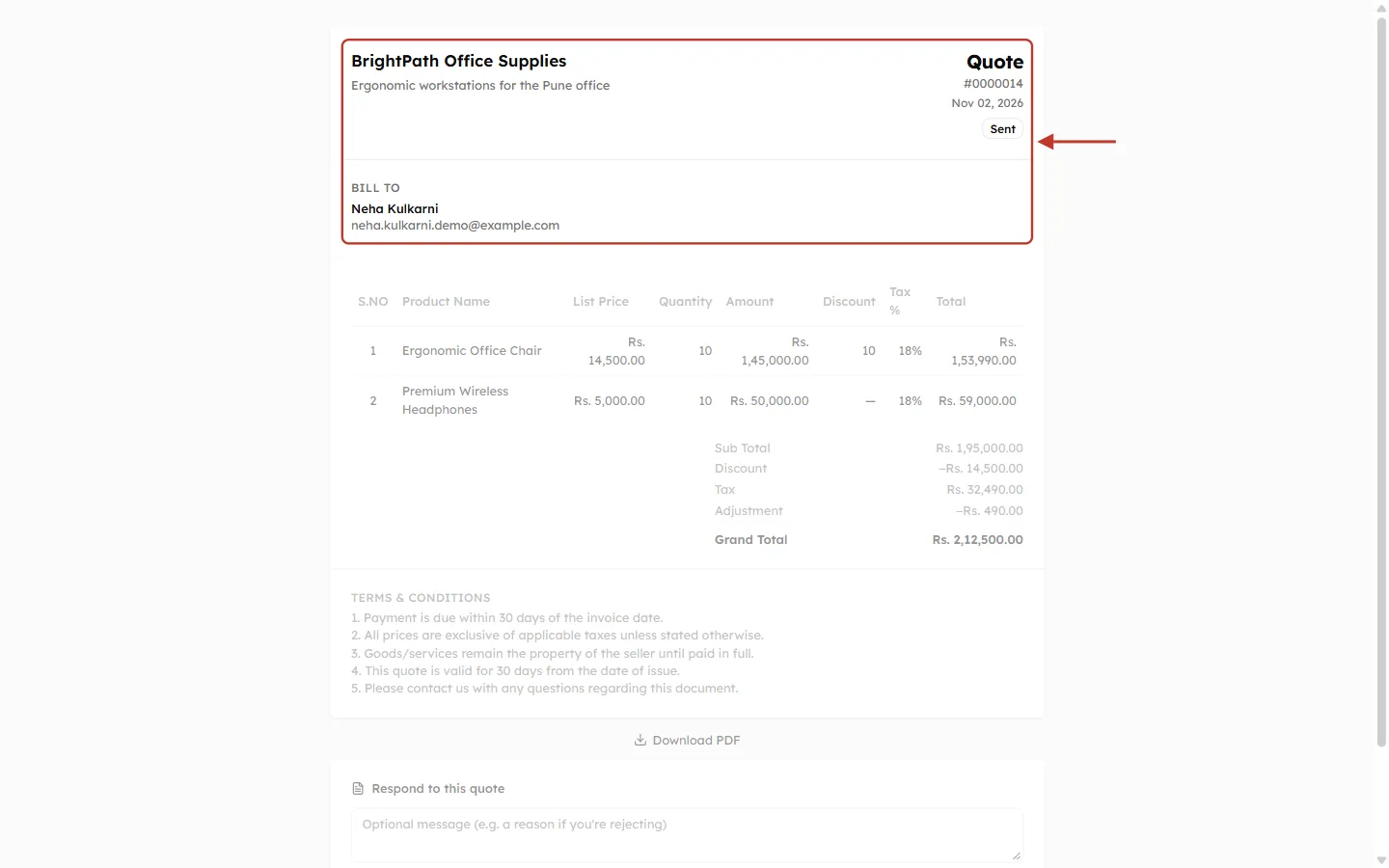
What this screenshot shows. The top of a quote as the customer sees it, ringed.
#0000014 is under the word Quote at the top right.
Below it is the date, and then who the quote is for, under BILL TO.
✅
To use the number in an email template, add the shortcode
{{invoices.invoice_number}}. For a different layout on the PDF, see Customize Quote & Invoice PDF Templates.Part 2: Change the number format#
The format is set on the number field itself, one module at a time. We’ll set invoices to the format INV-01001, then do the same for quotes.
Step 5: Open Modules and Fields#
Click the Setup (gear) icon at the bottom of the left rail.
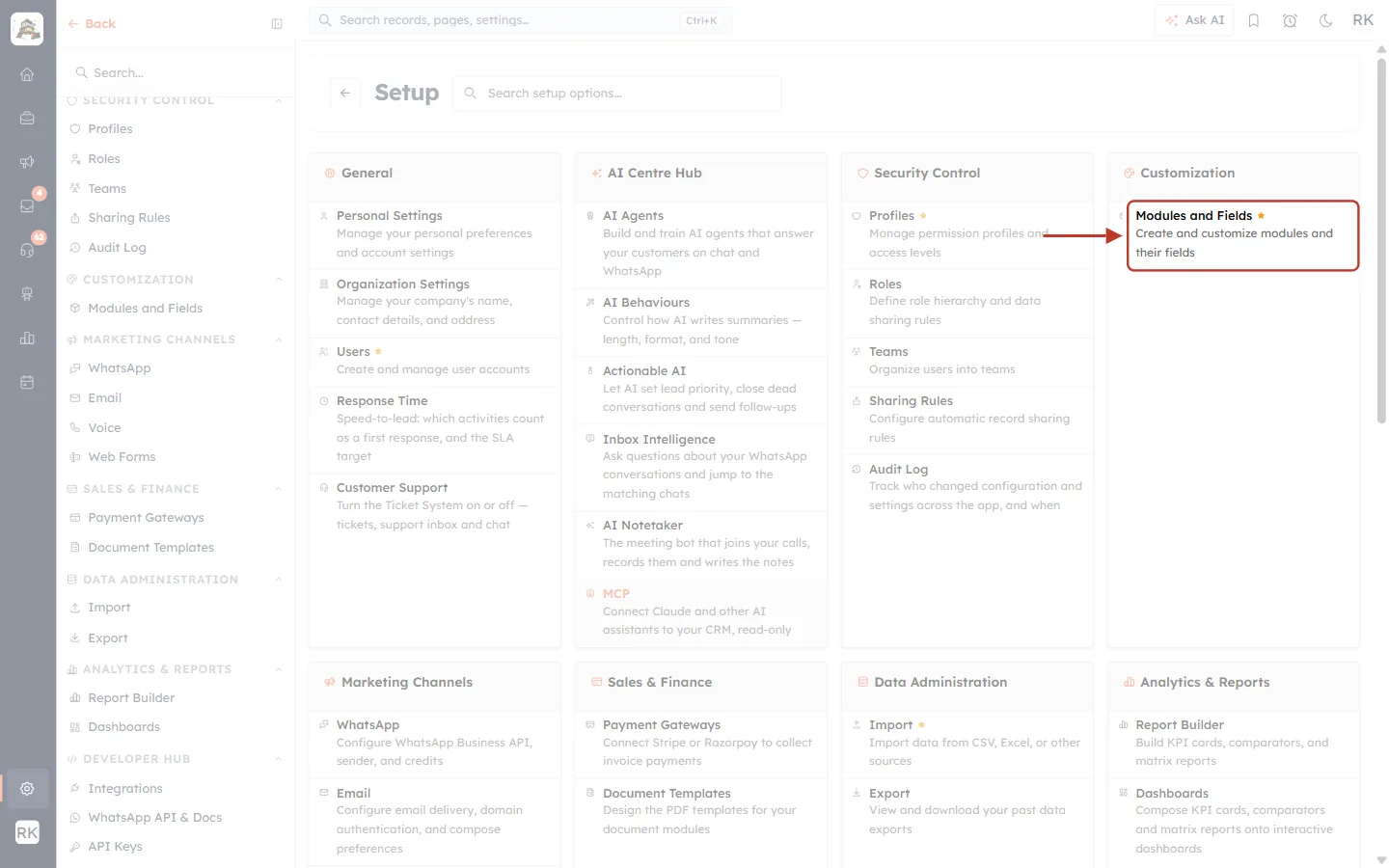
What this screenshot shows. The Setup page, with Modules and Fields ringed.
It is in the Customization group, at the top right of the page.
The description reads “Create and customize modules and their fields”.
If you can’t see it, you need admin access. Ask your administrator.
Step 6: Find Invoices and click Configure#
Type Invoices in the search box above the list.
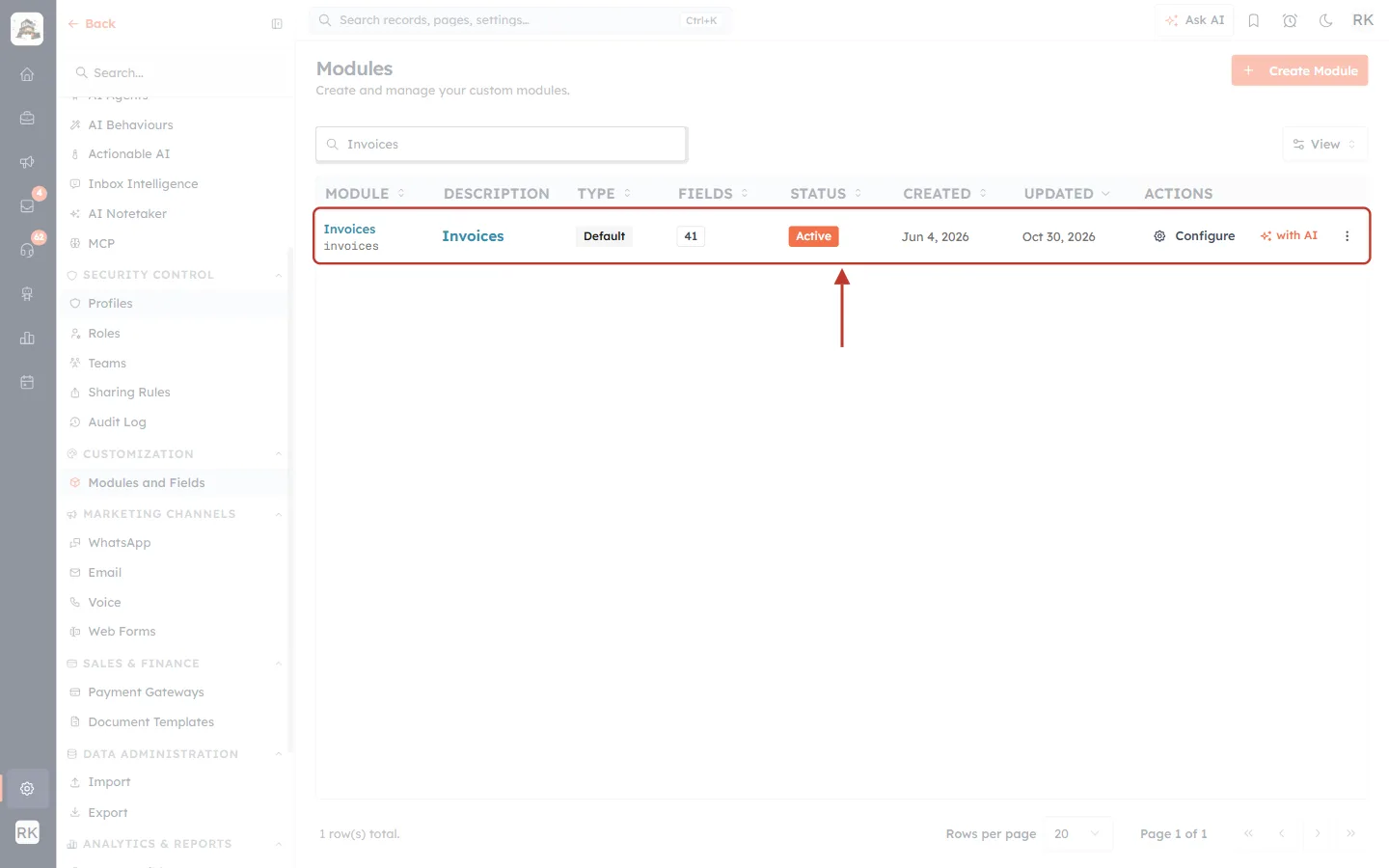
What this screenshot shows. The Invoices row in the list of modules, ringed.
MODULE: the module’s name, Invoices.
TYPE · Default: it is a built-in module.
FIELDS: how many fields it has. STATUS: whether it is active.
Configure, near the right, is the button to click. with AI beside it is a different tool that you don’t need here.
Step 7: Open the layout#
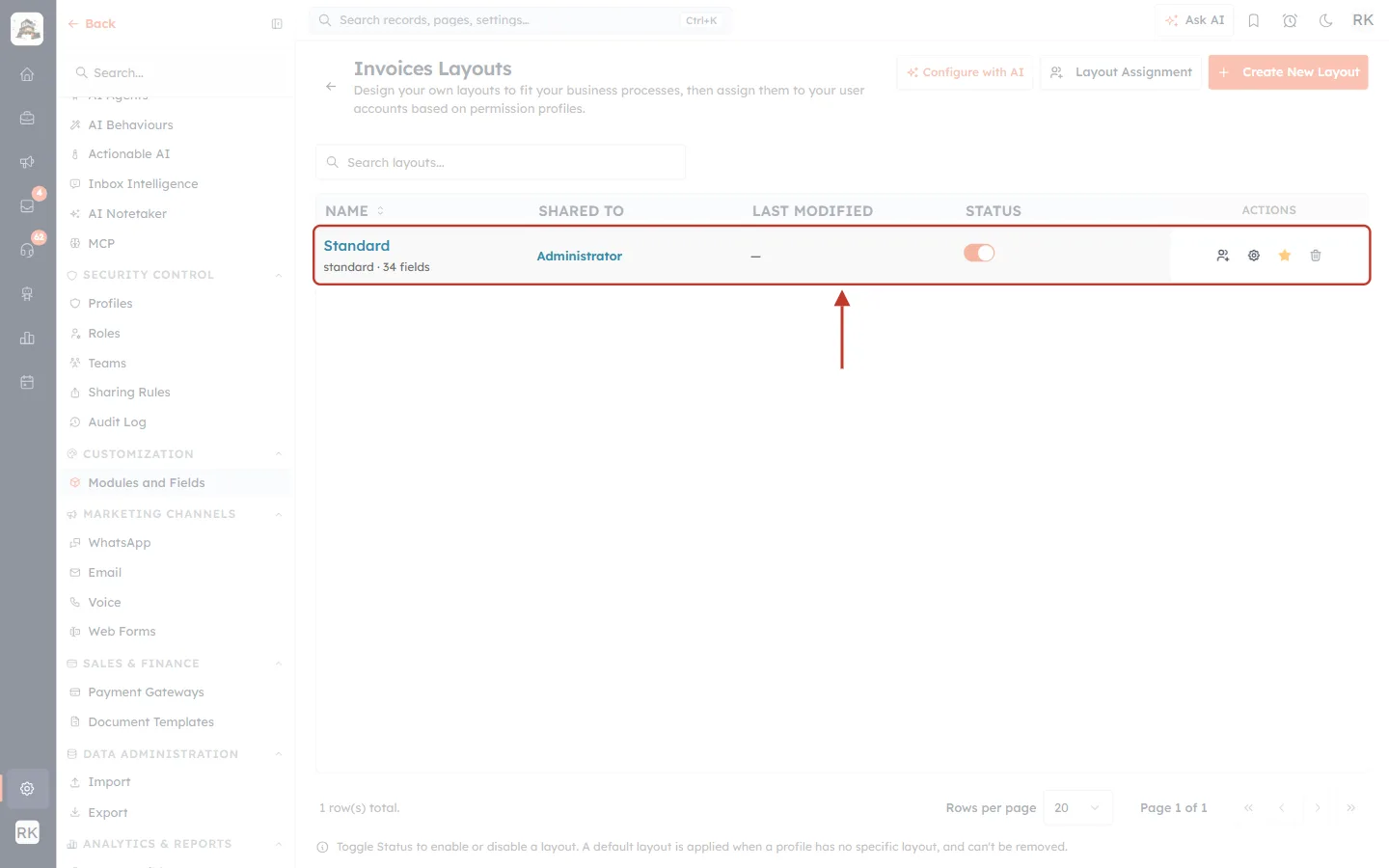
What this screenshot shows. The Invoices Layouts page, with the Standard layout ringed.
Standard is the name of the layout. Click it to open the form builder.
Shared to shows which profiles use this layout.
The switch shows whether the layout is on. The icons on the right are for other layout tasks, and you don’t need them here.
Step 8: Click the Invoice Number field#
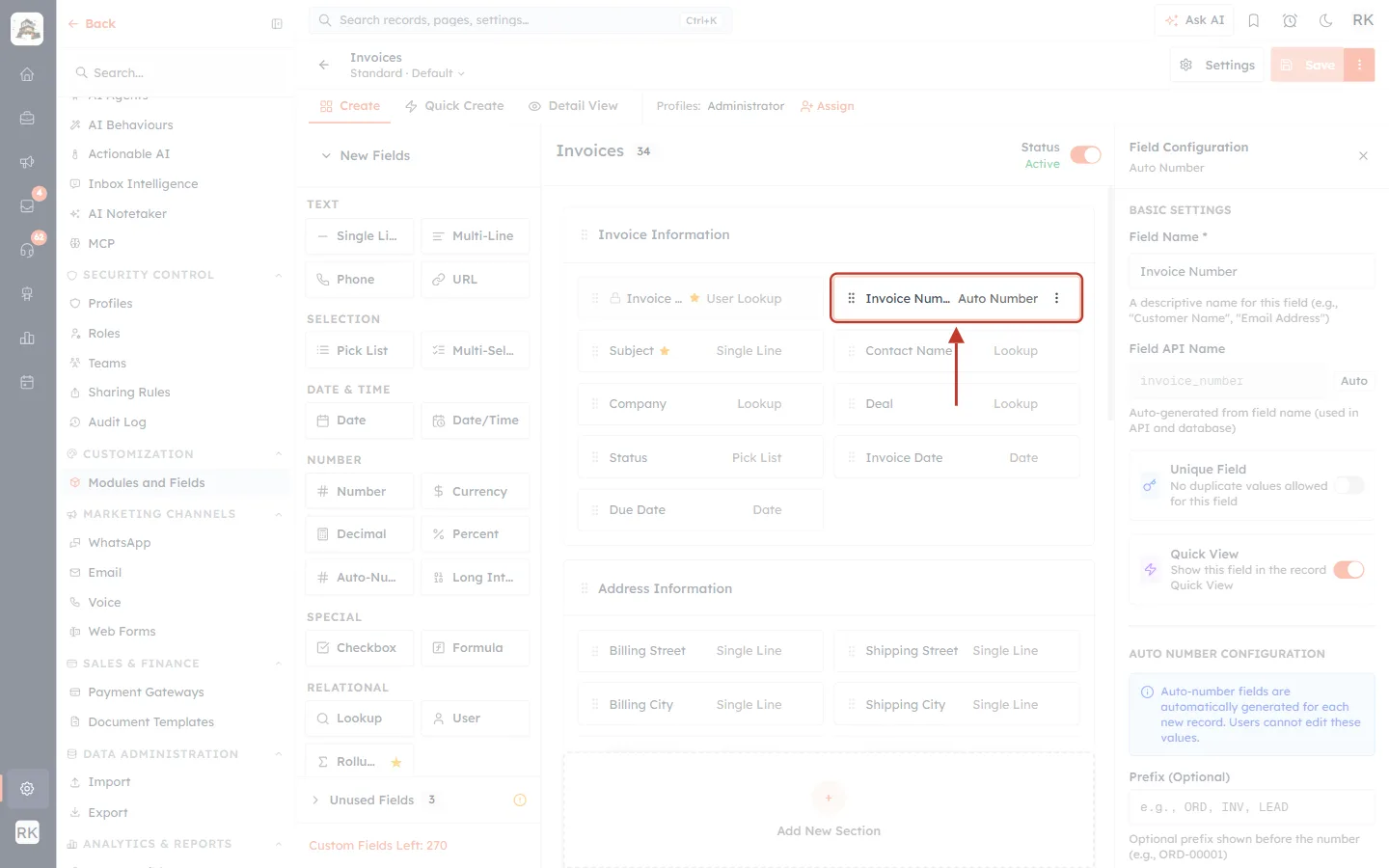
What this screenshot shows. The form builder, with the Invoice Number field ringed.
The middle of the page shows your form. The card reads Invoice Number · Auto Number. Auto Number is the type of field that creates numbers.
Click the card, not the three dots. Its settings open in the Field Configuration panel on the right.
The left side lists the field types you can add. You don’t need it here.
Step 9: Read the current settings#
Scroll down the right-hand panel to AUTO NUMBER CONFIGURATION.
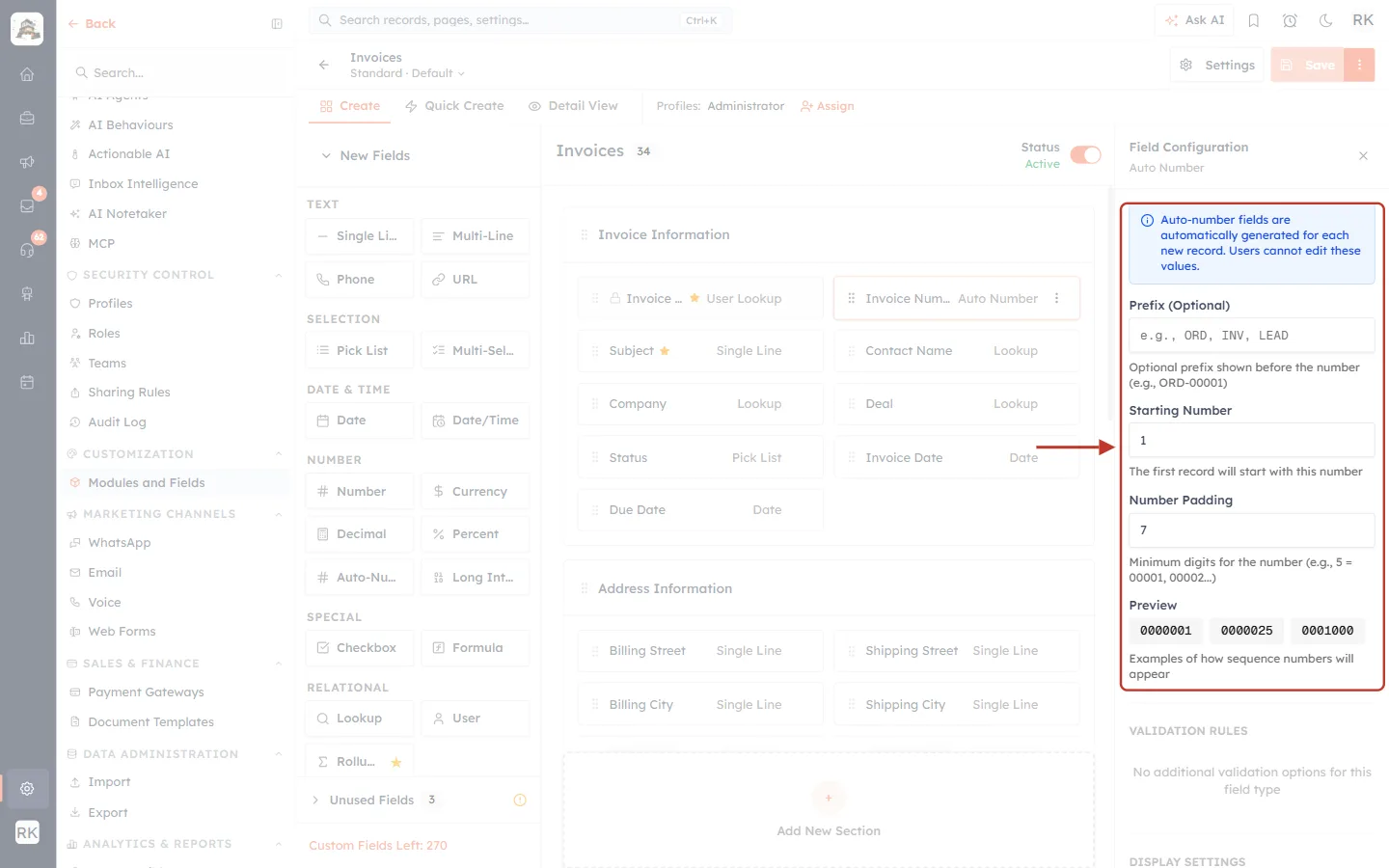
What this screenshot shows. The number settings, ringed, before any changes.
The blue note: “Auto-number fields are automatically generated for each new record. Users cannot edit these values.”
Prefix (Optional): empty, so numbers have no letters in front.
Starting Number: 1.
Number Padding: 7, which is why numbers have seven digits.
Preview: three examples of the format, updated as you type.
Step 10: Set the prefix, starting number and digits#
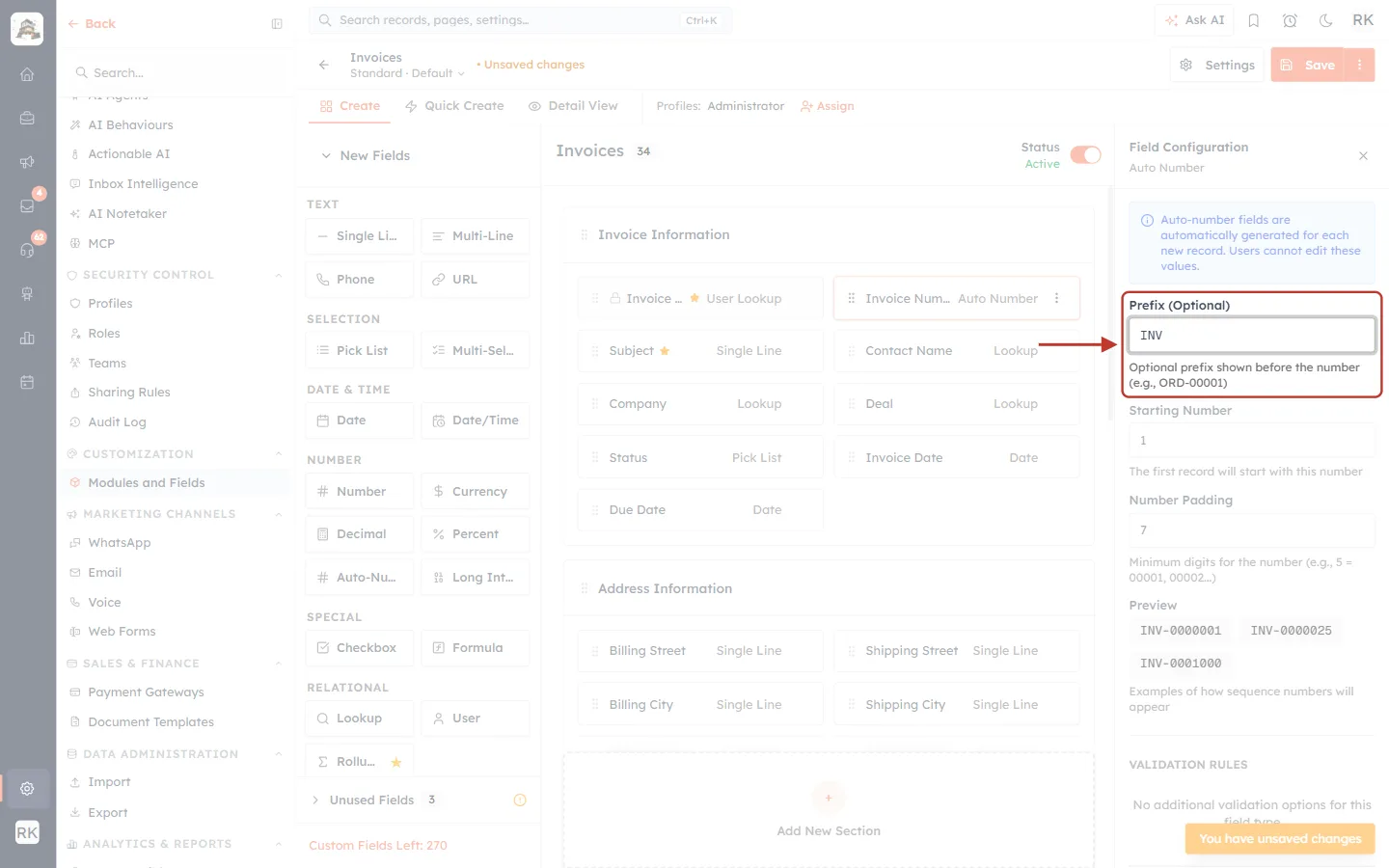
What this screenshot shows. The Prefix (Optional) field, ringed, set to INV.
Type up to 10 characters. Letters become capitals automatically: we typed inv and got INV.
Don’t type a hyphen at the end. The CRM adds one between the prefix and the number, as in the Preview.
An orange Unsaved changes note appears at the top. Nothing changes until you save (Step 12).
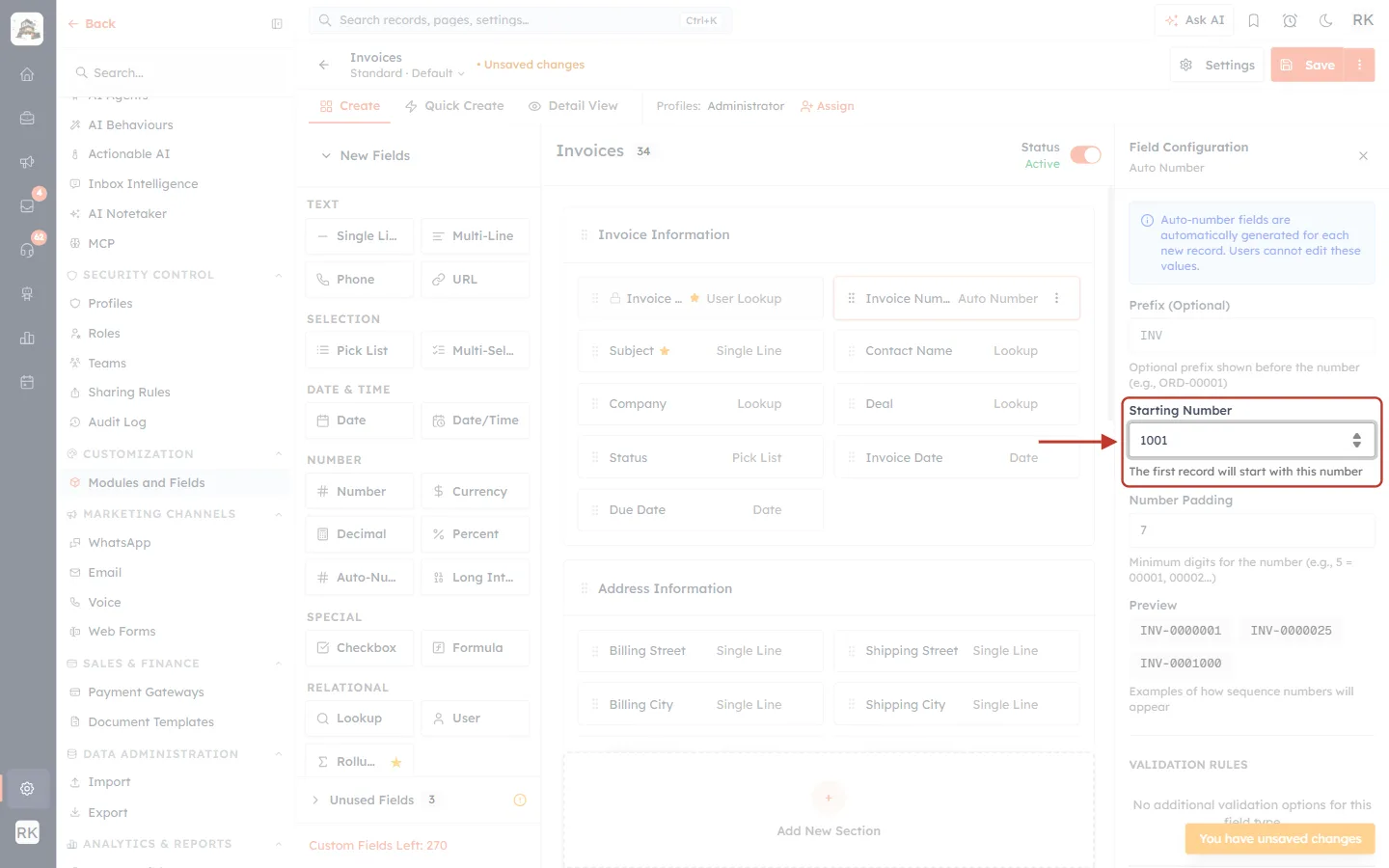
What this screenshot shows. The Starting Number field, ringed, set to 1001.
The note reads: “The first record will start with this number.”
The smallest value is 1. A higher start, like 1001, is useful if you’re moving from another system and want to carry on from where you left off.
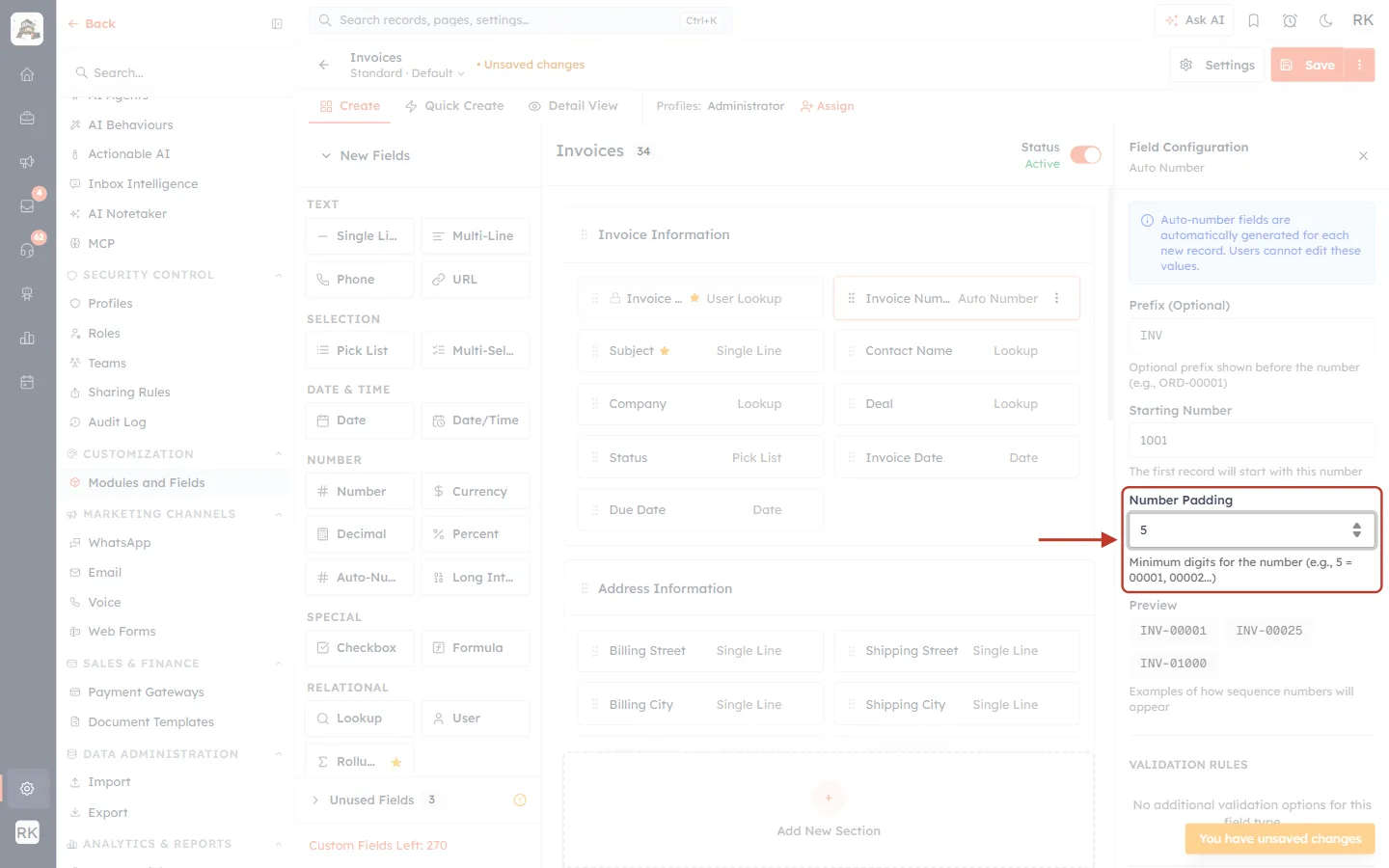
What this screenshot shows. The Number Padding field, ringed, set to 5.
This is the minimum number of digits. Shorter numbers get zeros in front: with 5, the number 25 shows as 00025.
You can choose from 3 to 10.
It is a minimum, not a limit. With 3 digits, the number after 999 is 1000.
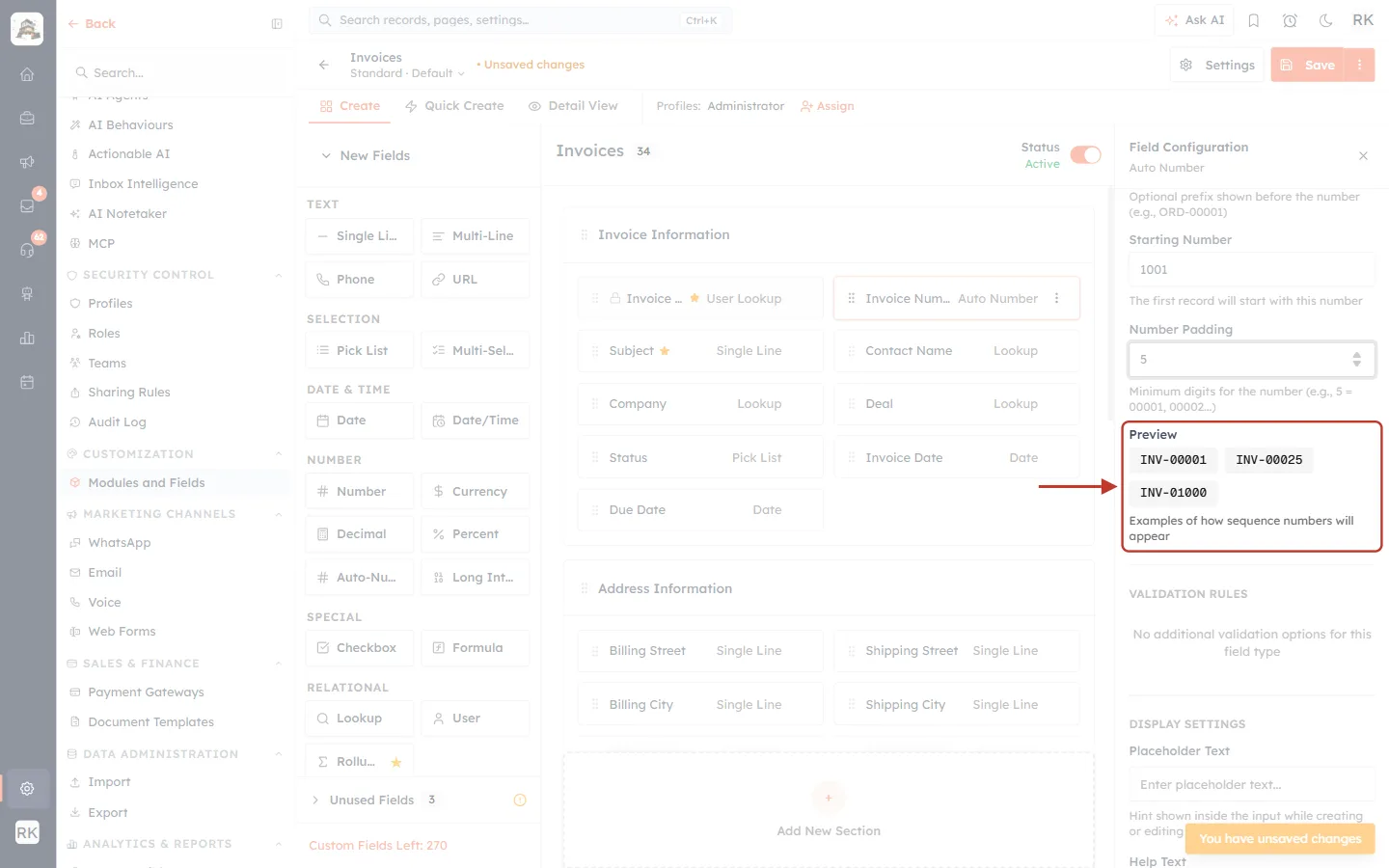
What this screenshot shows. The Preview, ringed.
INV-00001, INV-00025 and INV-01000 show how numbers 1, 25 and 1000 will look.
These three are always format examples. They don’t show your next number, and they don’t use your Starting Number.
Check here that the format looks right before you save.
Step 11: Check before you save if you already have records#
⚠️
Your customers already have your old numbers. The screen gives no warning about what a change does to records that already exist. The note says Starting Number applies to “the first record”, so it may have no effect once a module has records. After saving, follow Step 13 and check both an old record and a new one. If the result isn’t what you expected, contact AiEngage support before you send any more documents.
Step 12: Save#
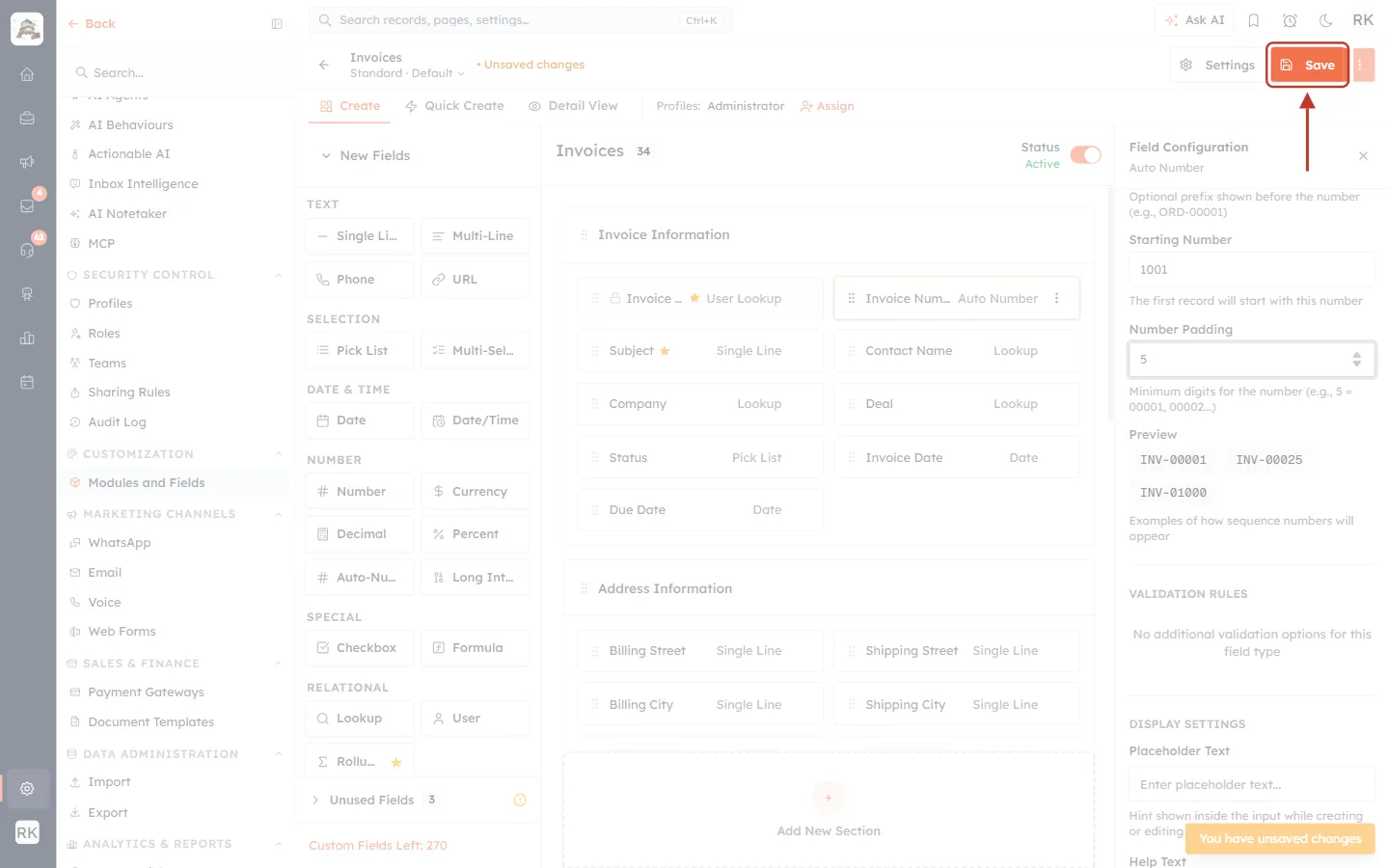
What this screenshot shows. The top of the form builder, with Save ringed.
Save applies your changes. You’ll see “Module saved” briefly.
Unsaved changes at the top means you haven’t saved yet. If you leave now, your changes are lost.
You don’t need to change anything else on this page.
Step 13: Test it with one record#
Open Invoices and create one test invoice. Add a clear subject like “Numbering test”.
Save it and look at the number at the top of the record.
Open an older invoice and check that its number looks the way you expect.
Download the PDF of the test invoice to see it as your customers will.
Delete the test invoice when you’re done. Remember that its number won’t be given out again, so your first real invoice follows on from it.
Step 14: Do the same for quotes#
Go back to Modules and Fields, search for Quotes, and repeat Steps 6 to 13 with the Quote Number field.
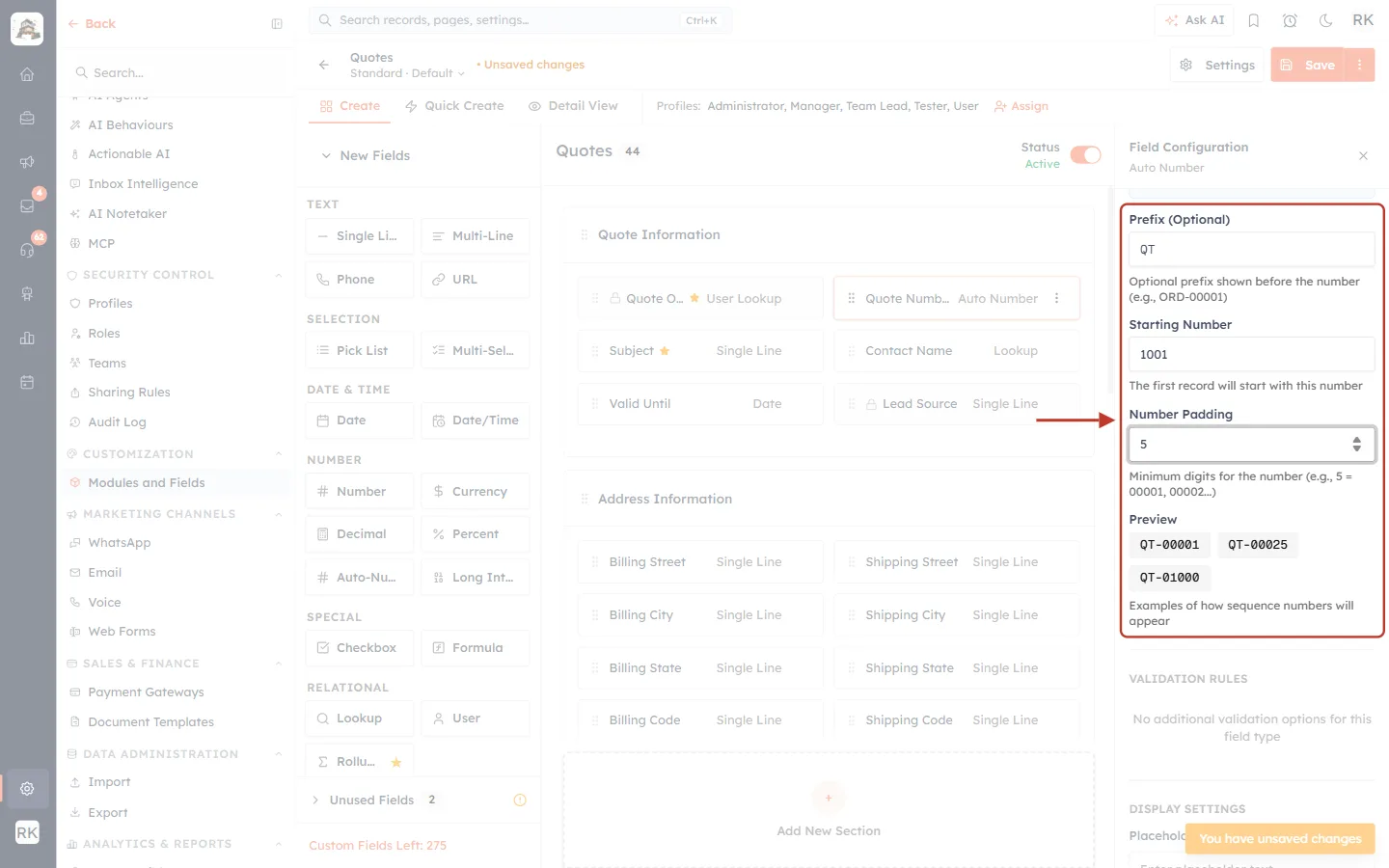
What this screenshot shows. The same settings for Quote Number, ringed.
Prefix · QT: quotes and invoices are easy to tell apart when their prefixes differ.
Starting Number · 1001 and Number Padding · 5: the same pattern as invoices.
Preview: QT-00001, QT-00025 and QT-01000.
The heading at the top left of the page reads Quotes, so you can confirm you’re in the right module.
ℹ️
The Payments module has a Payment Number field with the same settings. You can give it a prefix such as PAY in the same way. See The Payments Module.
Part 3: Find a record by its number#
A customer calls about “invoice 0000039”. Here is the catch: the search boxes don’t look in the number field.
Step 15: Know what search can’t do#
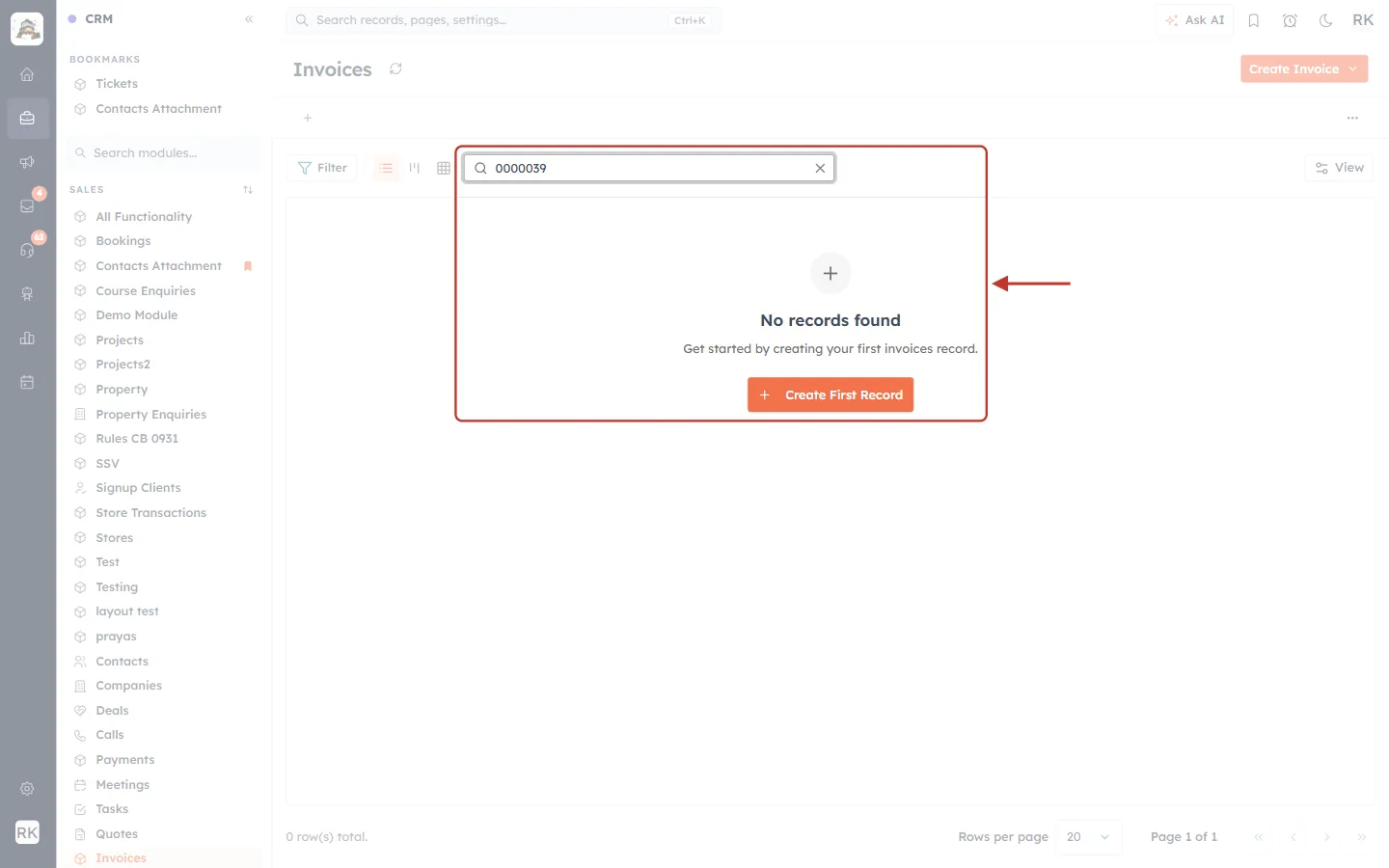
What this screenshot shows. The Invoices list after searching for a number that exists, ringed.
We typed 0000039, and that invoice does exist, but the list shows No records found.
This doesn’t mean the invoice is gone. Search just doesn’t check this field. Ignore the Create First Record button and clear the search box.
The search bar at the top of the page behaves the same way, and answers “No records or pages match”.
The Filter panel doesn’t offer Invoice Number either.
Step 16: Use one of these instead#
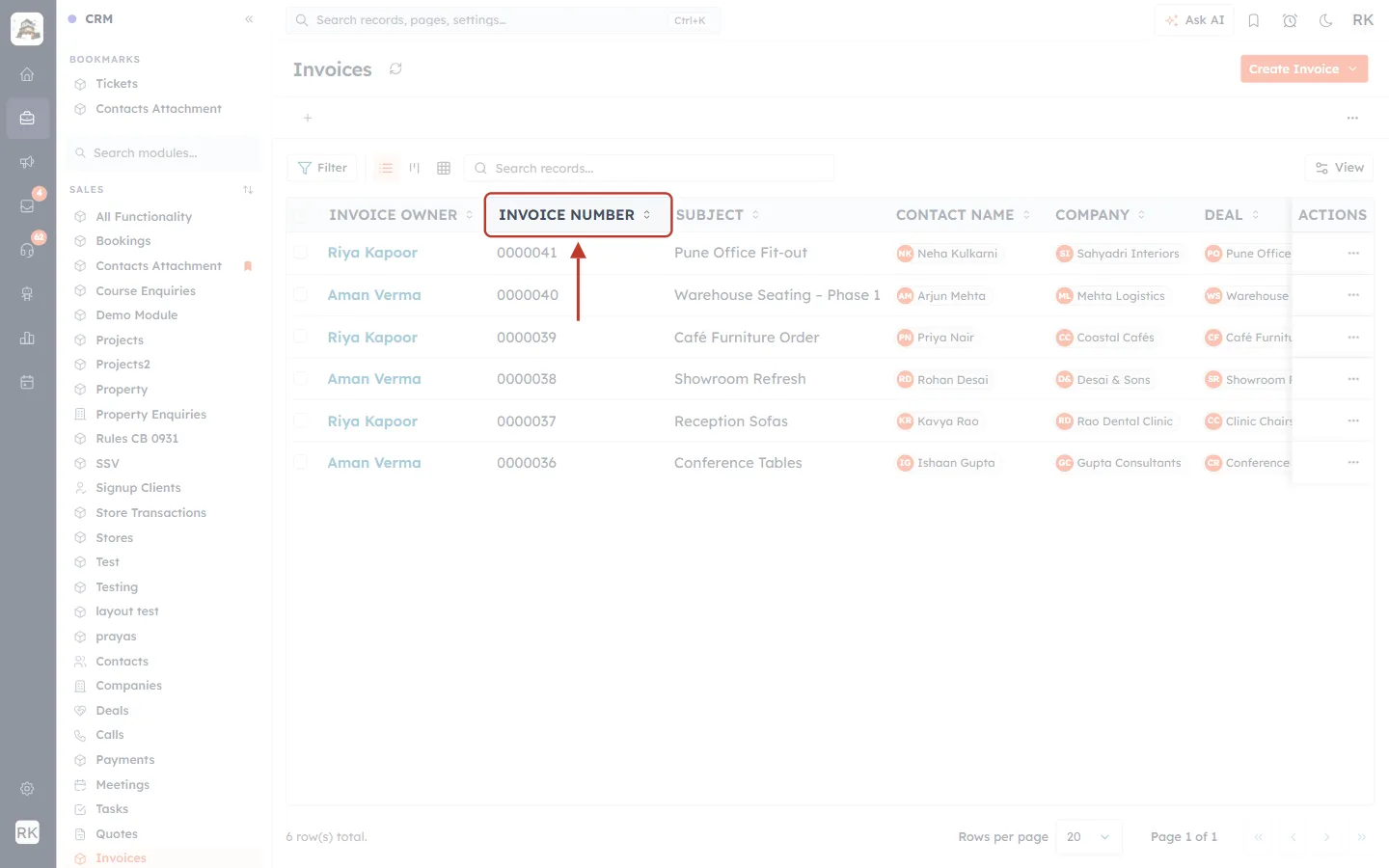
What this screenshot shows. The INVOICE NUMBER column heading, ringed.
Click the heading to sort by number, then go through the pages until you reach the one you want. The controls at the bottom set Rows per page.
Newest invoices have the highest numbers, so recent ones are near the top.
Often it’s quicker to search by something else you know:
The subject. Type a word from the invoice’s subject into Search records…. This works, and it is the fastest option.
The customer. Click Filter and tick Contact Name or Company, then look through their invoices.
The date. Filter by Invoice Date to narrow down the list.
✅
Include the customer or the job in each invoice’s Subject, such as “Sahyadri Interiors – Pune Fit-out”. That makes invoices easy to find, because the subject is searchable.
Part 4: Choose a good format#
Format you want | Prefix | Starting Number | Padding | First number |
|---|---|---|---|---|
Plain digits (the standard) | empty | 1 | 7 | 0000001 |
Short and simple | INV | 1 | 5 | INV-00001 |
Carrying on from an old system | INV | 1001 | 5 | INV-01001 |
Showing the financial year | INV2627 | 1 | 4 | INV2627-0001 |
Separate branch | PUNE | 1 | 5 | PUNE-00001 |
The year doesn’t change by itself. Prefix is fixed text, and there’s no automatic date or yearly reset. If you use a year, you need to update the prefix when the year changes, and check the result as in Step 13.
There’s one sequence for each module. You can’t have separate invoice sequences for different branches or teams at the same time.
Keep it short. Long numbers are harder to read on a PDF and over the phone.
Check your tax rules. Many countries have rules about invoice numbers. In India, for example, GST invoice numbers must be consecutive and no longer than 16 characters. A prefix, hyphen and padding all count, so ask your accountant before you decide.
Troubleshooting#
Problem | What to check |
|---|---|
Search says “No records found” for a number I know exists. | Search doesn’t check the number field. Use the subject, customer or date, or sort the column (Part 3). |
I can’t change the number on an invoice. | Numbers can’t be edited, by design. Put any reference you need in the Subject or description. |
There’s a gap in my numbers. | A record was probably deleted. Deleted numbers aren’t reused. Check with your accountant if you need to record why. |
My prefix shows in capitals. | Letters are always converted to capitals. |
The Preview doesn’t show my starting number. | That is normal. The Preview always shows the format using 1, 25 and 1000. |
The format didn’t change after I edited it. | Click Save at the top of the builder. Unsaved changes means it isn’t saved yet. |
The new Starting Number isn’t being used. | The note says it applies to the first record, so it may have no effect once records exist. Contact AiEngage support. |
Modules and Fields is missing from Setup. | You need admin access. Ask your administrator. |
Frequently asked questions#
Can the invoice use the same number as its quote?
No. They’re separate sequences. The invoice gets the next invoice number, and the quote keeps its own.
Can I reset the numbers at the start of a new year?
There’s no automatic reset. Check with AiEngage support before trying to restart a sequence, because invoice numbers must stay unique.
Can two invoices ever have the same number?
Each new record takes the next number in its sequence, and nobody can type one in, so numbers don’t get duplicated by hand.
Can I keep my old numbers when importing invoices?
Numbers are created automatically, so test with a very small file first and see what your imported invoices get before you import everything.
Can I rename the “Invoice Number” field?
Yes. Field Name is at the top of the same panel. This only changes the label, not the numbers.
Previous and next#
Previous: Set Your Home Currency
Related#
Was this article helpful?
Ready to implement this?
OpenAI Engage and apply what you just learned to your own workspace.
Open AI Engage CRM