Loading…


KnowledgeBase
Lookup Columns in Quote & Invoice Line Items: Auto-Fill Product Details like SKU and Print Them on the PDF (Step-by-Step)
Introduction#
The line-item table on a quote or invoice (Quoted Items on Quotes, Invoiced Items on Invoices) used to have a fixed set of columns: product, list price, quantity, amount, discount, tax and total. Many businesses need more on the document their customer receives, for example the product’s SKU or model number, an HSN code, a warranty period or a unit of measure.
The line-item table now supports dynamic lookup columns. In the field builder you can add a column that is pulled from the looked-up record, usually the selected product. When someone picks a product on a quote, those columns fill themselves from the product record, are locked against typing mistakes, show on the saved quote, and are printed on the PDF you download and send.
This guide walks through a real example: we add the product’s SKU as a column of Quoted Items, create a quote for an office fit-out, and download its PDF. We also cover a related improvement: a quote or invoice must now be linked to at least one related record (a contact, company or deal) before it can be saved.
What changed | Where you see it |
|---|---|
Line-item columns can be pulled from the lookup module (e.g. the product’s SKU) | Field builder → Quoted Items / Invoiced Items → + Add Field → Fields of Lookup Module |
A lookup column can point at any module, with Price / Tax / Description taken from fields you choose | Field builder → the Lookup column’s settings |
Pulled columns fill in automatically and are read-only | Create / Edit Quote or Invoice → the line-item table |
The extra columns are printed | Quote / Invoice → Download PDF |
Every quote and invoice must link a Contact, Company or Deal | Saving a quote or invoice |
ℹ️
Before you start: you need permission to customise modules (Setup → Modules and Fields). The field you want to pull in must exist on the lookup module and be filled in on its records; for products, see Managing Your Products Catalogue. The example uses Quotes; the Invoiced Items field on Invoices is the same Line Items field, so the steps are identical there.
Part 1: Add a lookup column to the line items#
Step 1: Open the Quotes module in the field builder#
Go to Setup → Customization → Modules and Fields. Search for Quotes and click Configure on its row.
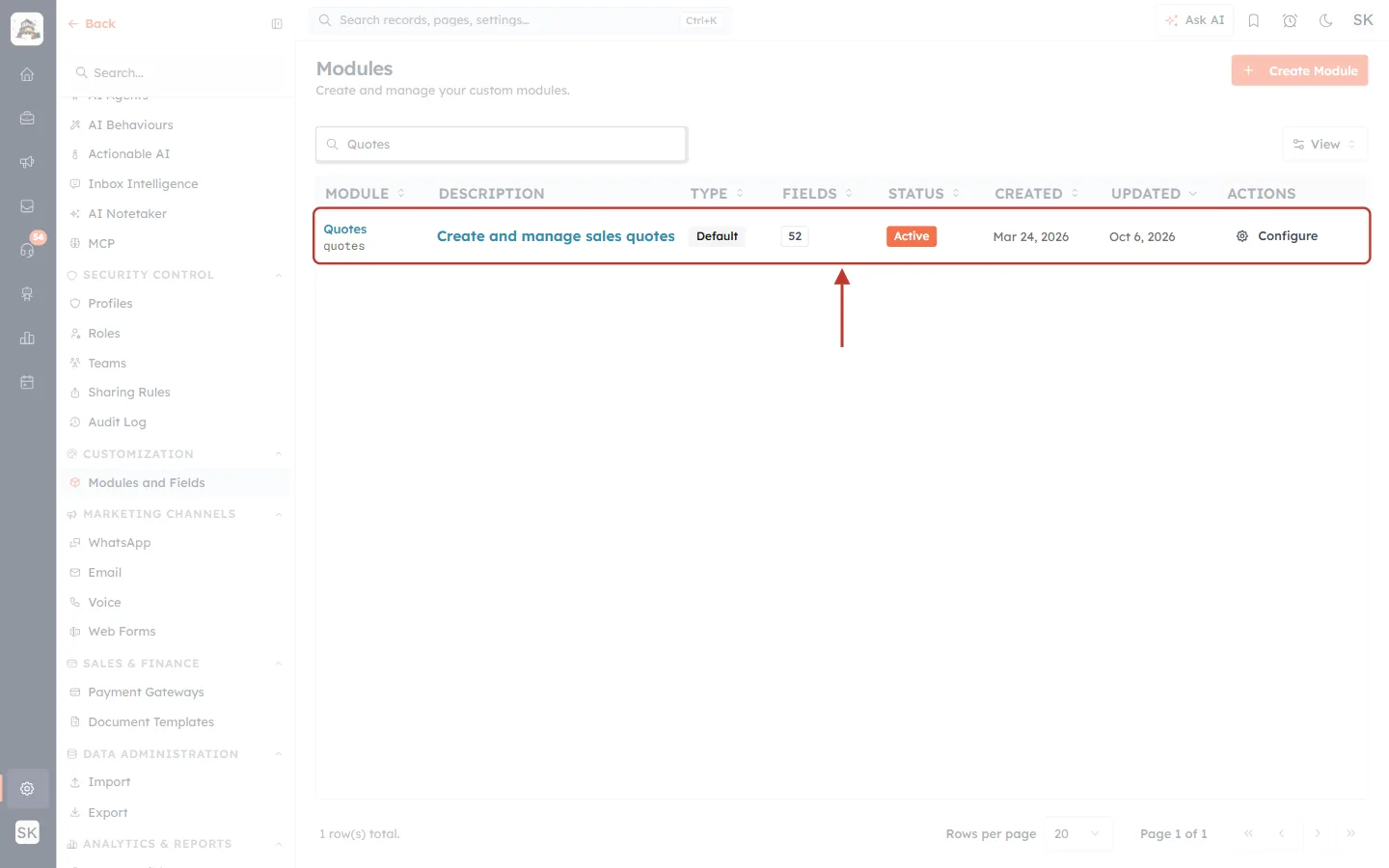
What this screenshot shows. The Modules page, searched for Quotes.
Module: Quotes (slug quotes), a Default module with 52 fields, Active.
Configure (right) opens the module’s field builder. For invoices, open Invoices the same way.
Step 2: Select the Quoted Items field#
In the builder, scroll to the Quoted Items section and click the Quoted Items field (type Line Items). Its settings open in the Field Configuration panel on the right.
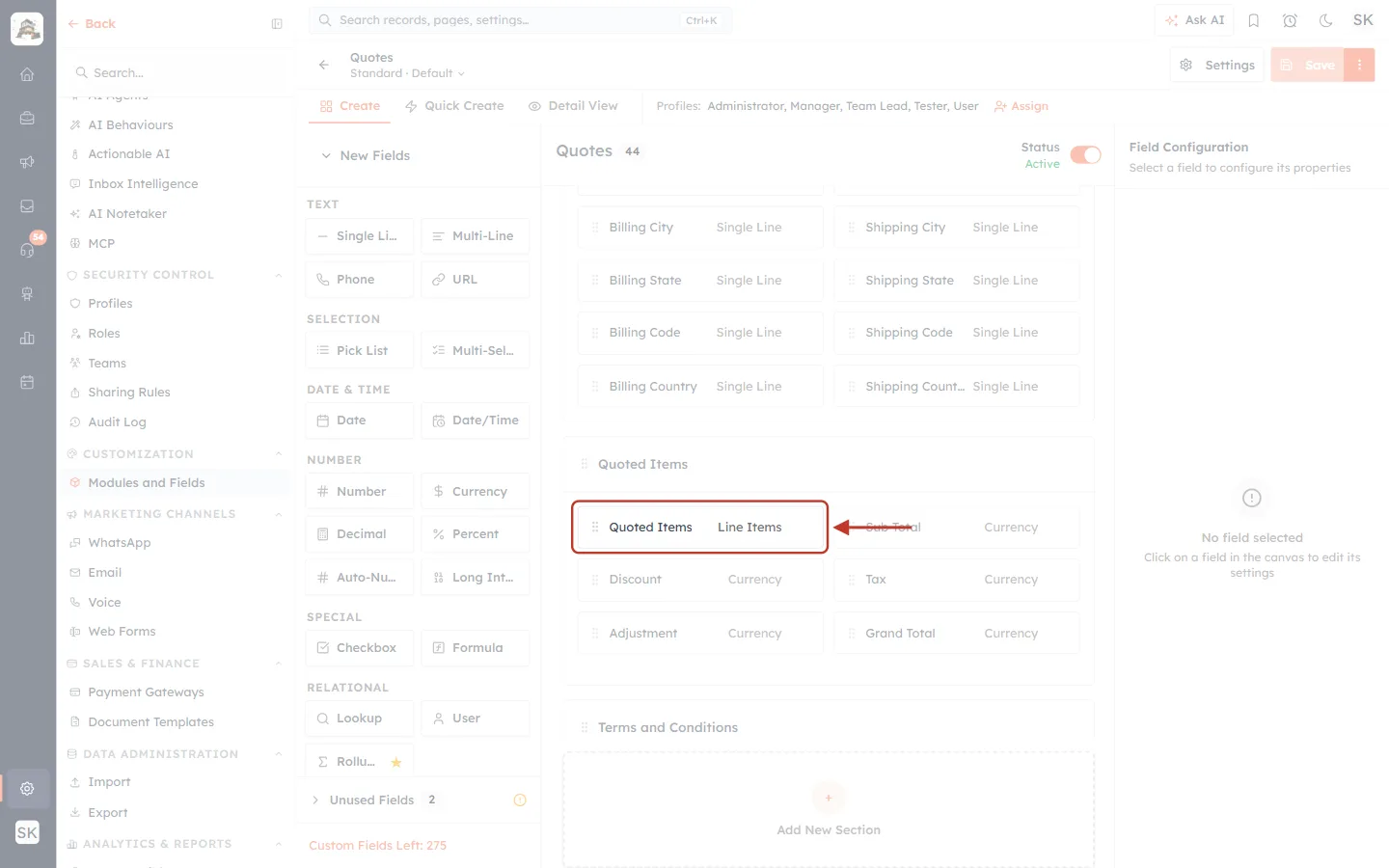
What this screenshot shows. The Quoted Items field (type Line Items) in the builder canvas.
Next to it are the totals fields that the table feeds: Sub Total, Discount, Tax, Adjustment and Grand Total.
The left panel lists field types you can add to the module; you don’t need it for this guide.
Step 3: Check the product behaviour and the columns#
At the top of the panel, Product behavior controls how a picked product fills the row. Below it, Columns lists every column of the table in order.
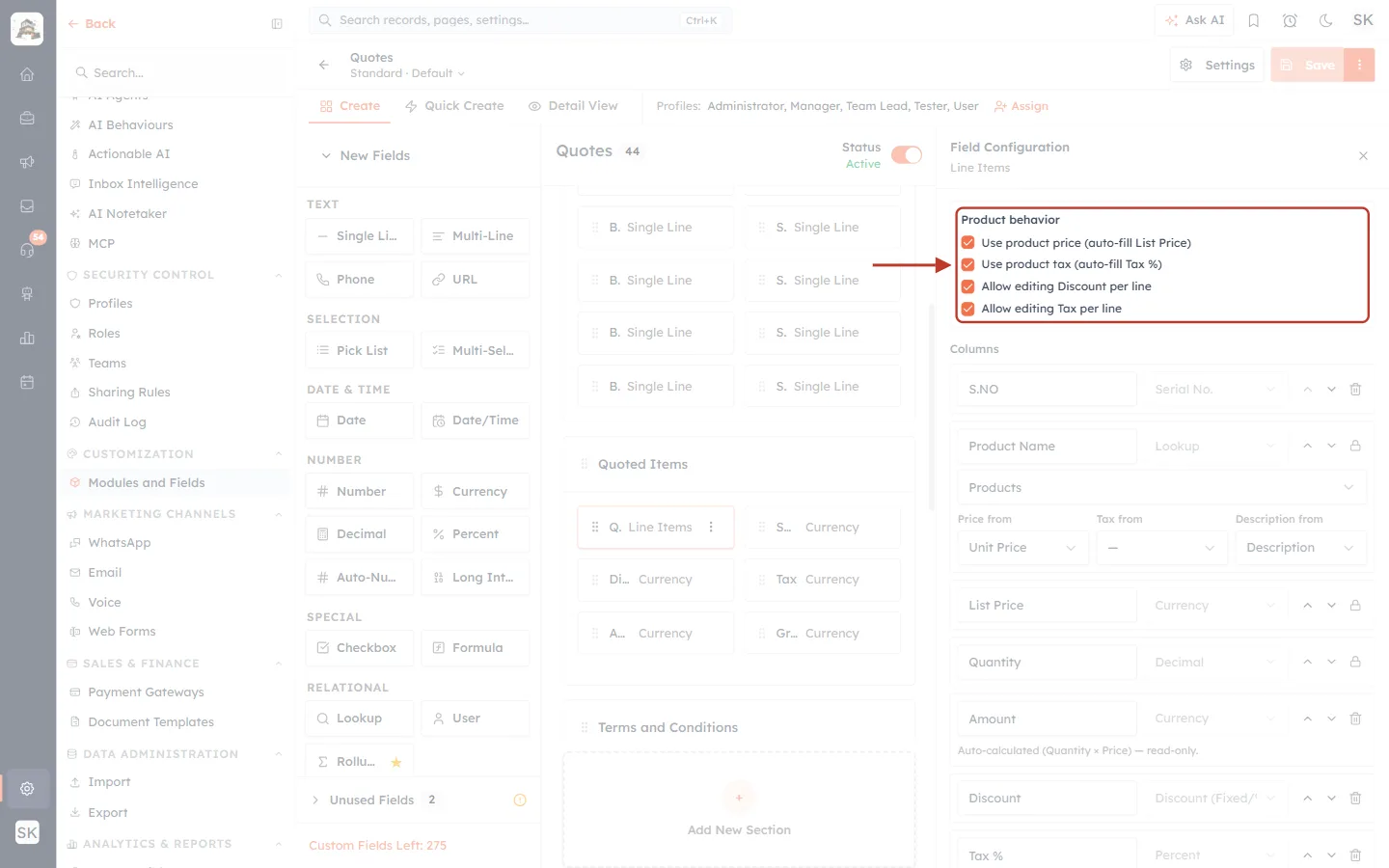
What this screenshot shows. The Product behavior options.
Use product price (auto-fill List Price): the product’s price fills the List Price column.
Use product tax (auto-fill Tax %): the product’s tax rate fills Tax %.
Allow editing Discount per line and Allow editing Tax per line: let users change these on each row.
Under Columns, each column has a label box, a type, ↑ / ↓ to reorder and a bin to remove it. Core columns show a lock instead of a bin.
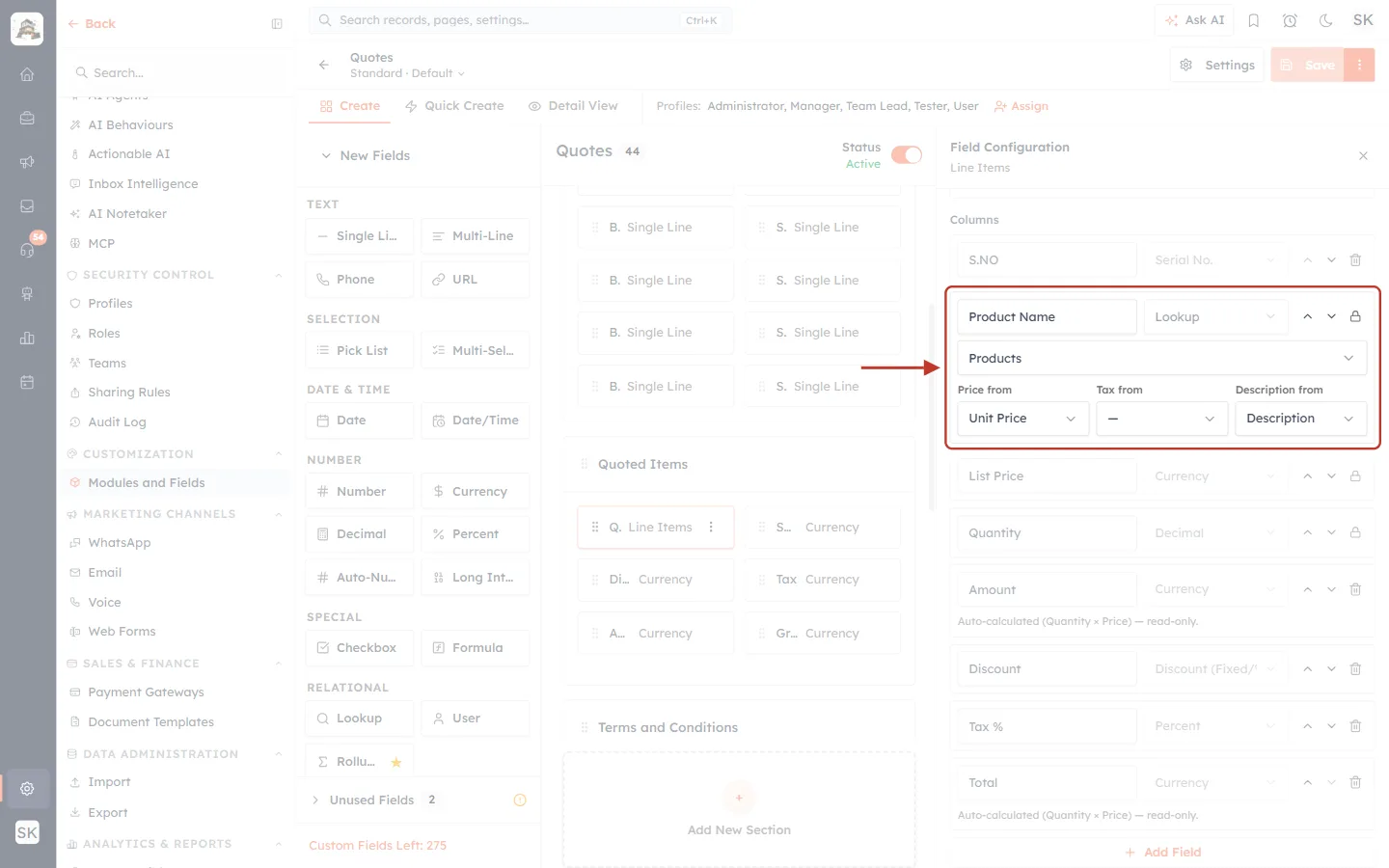
What this screenshot shows. The Product Name column, which is a Lookup column.
The module it looks up is Products. A lookup column can point at another module too, which is what makes the columns “dynamic”.
Price from (Unit Price), Tax from and Description from (Description) choose which fields of the looked-up record fill the price, tax and description of the row.
Step 4: Add a column from the product’s fields#
Scroll to the end of the column list and click + Add Field.
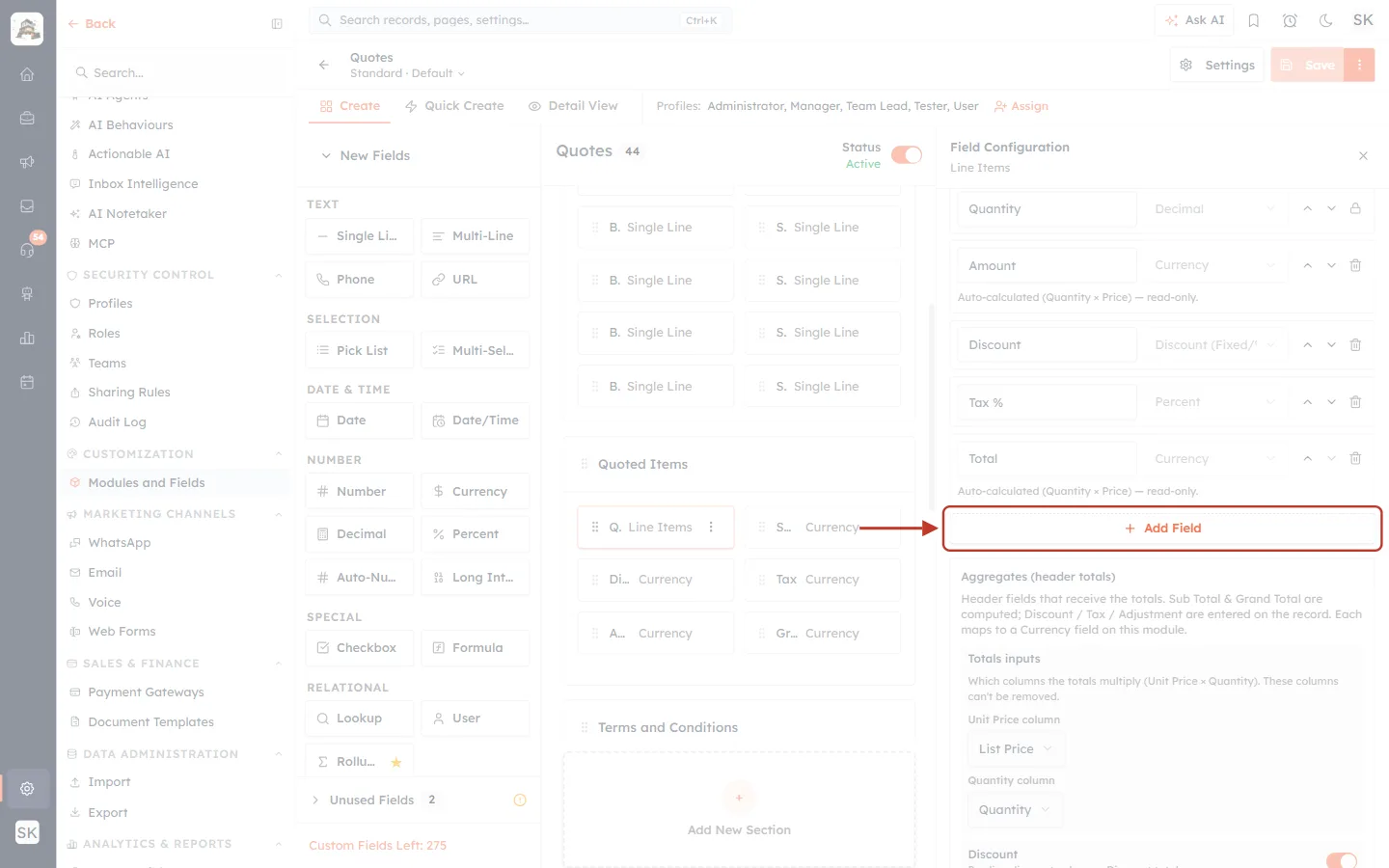
What this screenshot shows. The + Add Field button below the last column.
A table can have up to 25 columns; the button is disabled when you reach that.
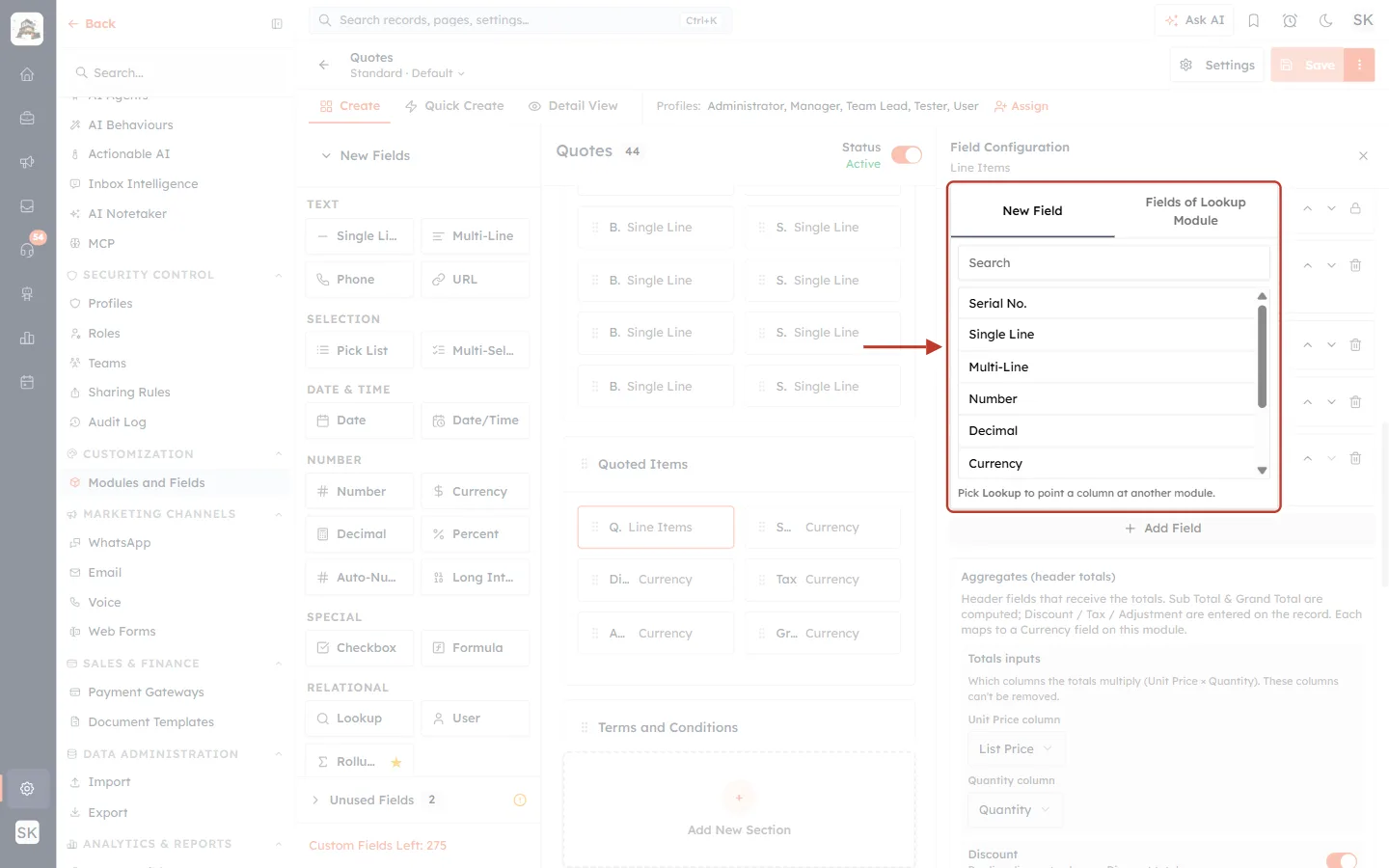
What this screenshot shows. The New Field tab.
It adds an ordinary column you type into: Serial No., Single Line, Multi-Line, Number, Decimal, Currency, Percent, Discount (Fixed/%) or Lookup.
As the hint says, “Pick Lookup to point a column at another module.”
Click the Fields of Lookup Module tab. It lists the fields of the module your lookup column points at, here Products. Click SKU.
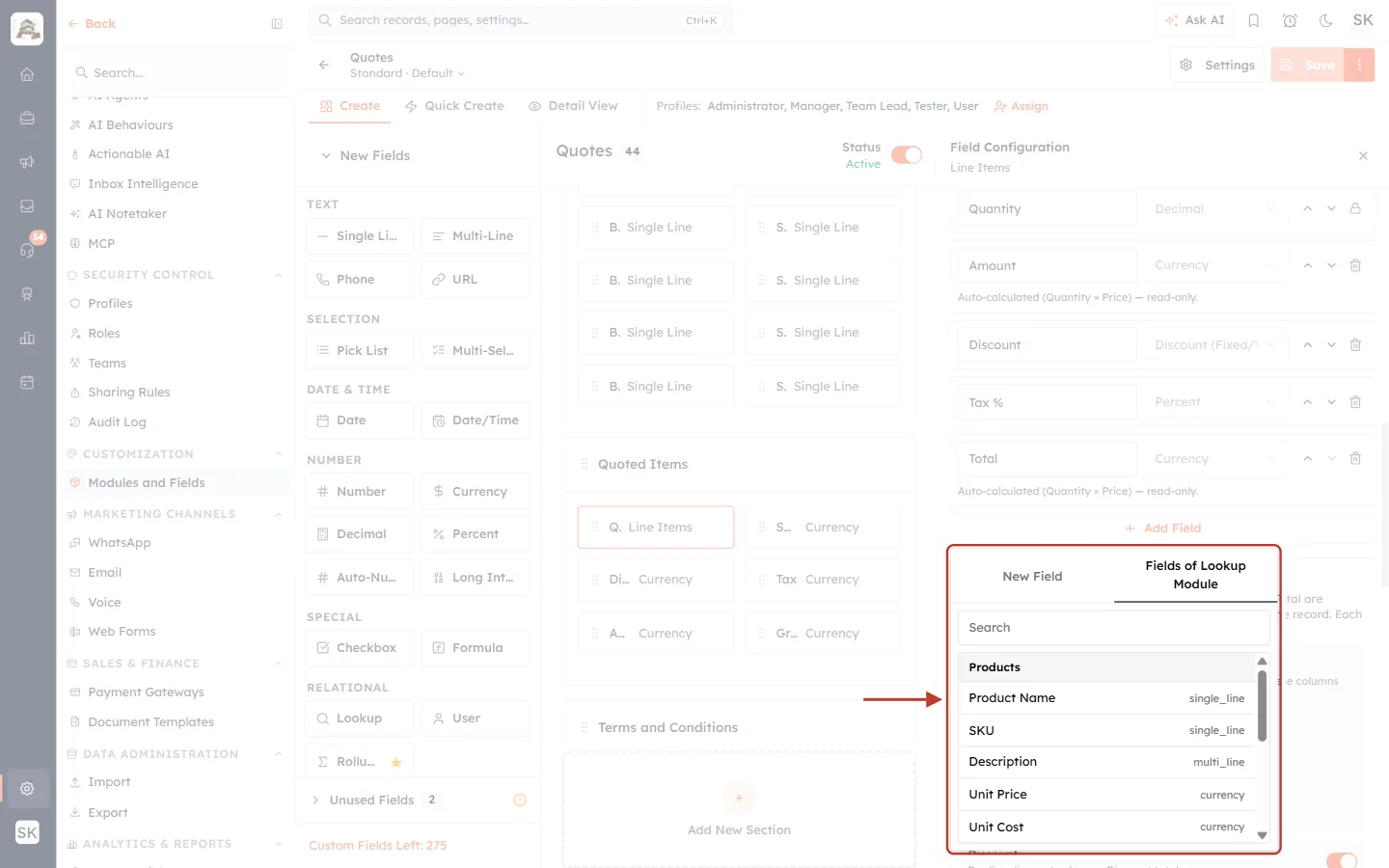
What this screenshot shows. The Fields of Lookup Module tab.
The heading Products is the lookup module.
Each field shows its name and type: Product Name (single_line), SKU (single_line), Description, Unit Price, Unit Cost and more. Custom fields you add to Products appear here too.
Use the Search box to find a field quickly.
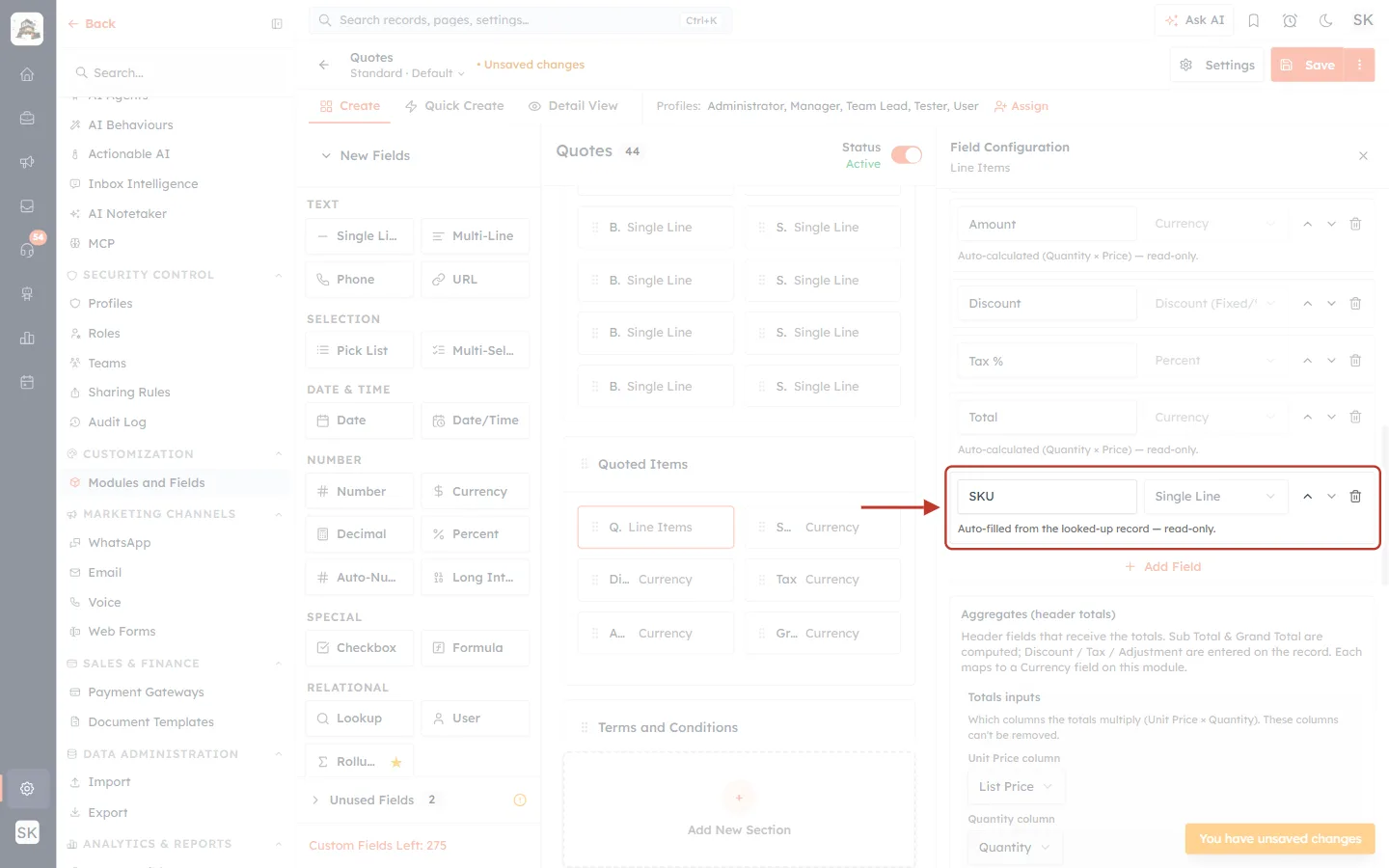
What this screenshot shows. The new column at the end of the list.
Label SKU, type Single Line.
The note “Auto-filled from the looked-up record — read-only.” means users can’t type in it: it always shows the product’s own SKU.
Step 5: Put the column where you want it and save#
New columns are added at the end. Use the ↑ arrow to move the column up; we place SKU straight after Product Name.
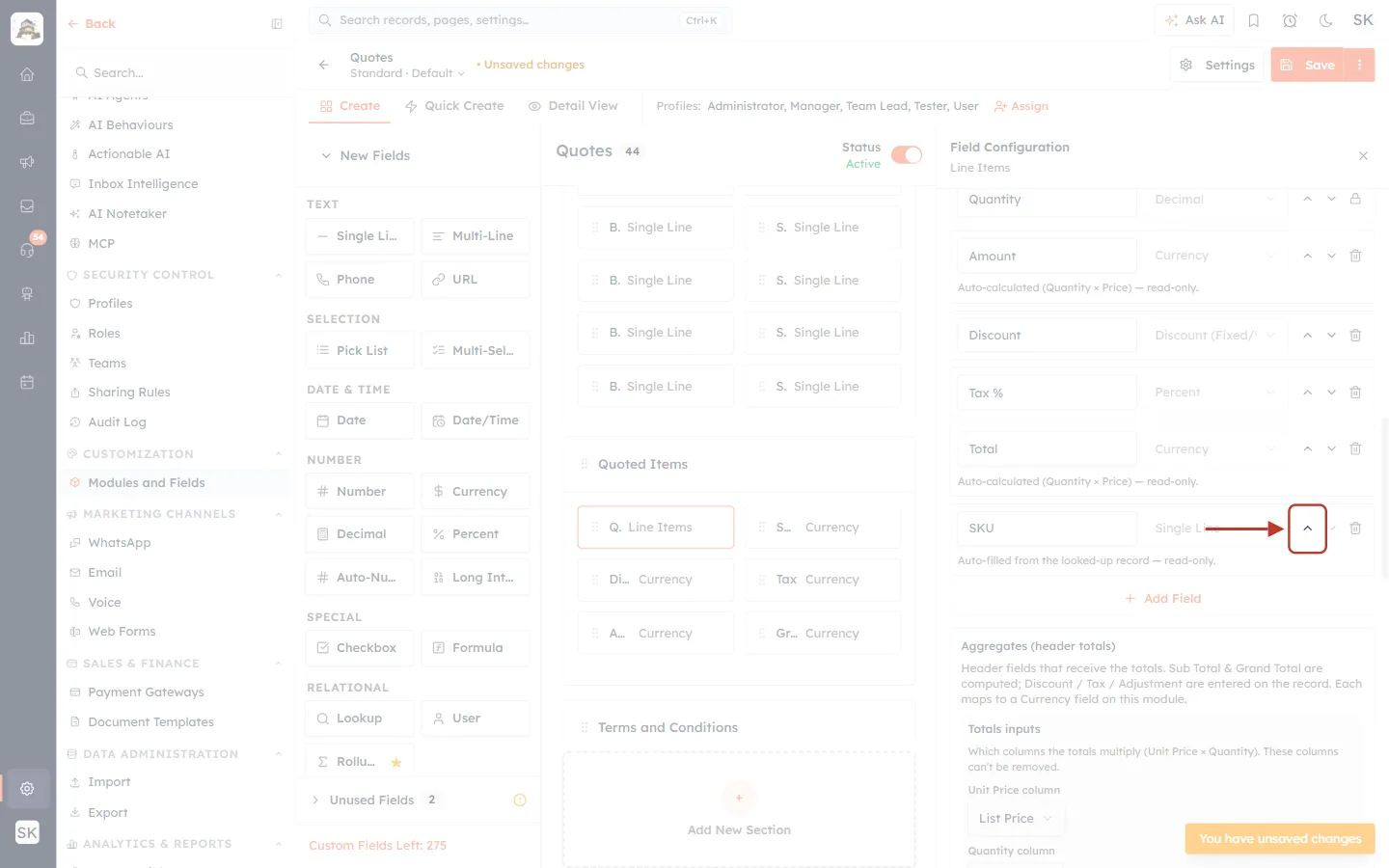
What this screenshot shows. The ↑ (Move up) arrow on the SKU column. Each click moves it one place.
The column order here is the order of the columns on the quote and on the PDF.
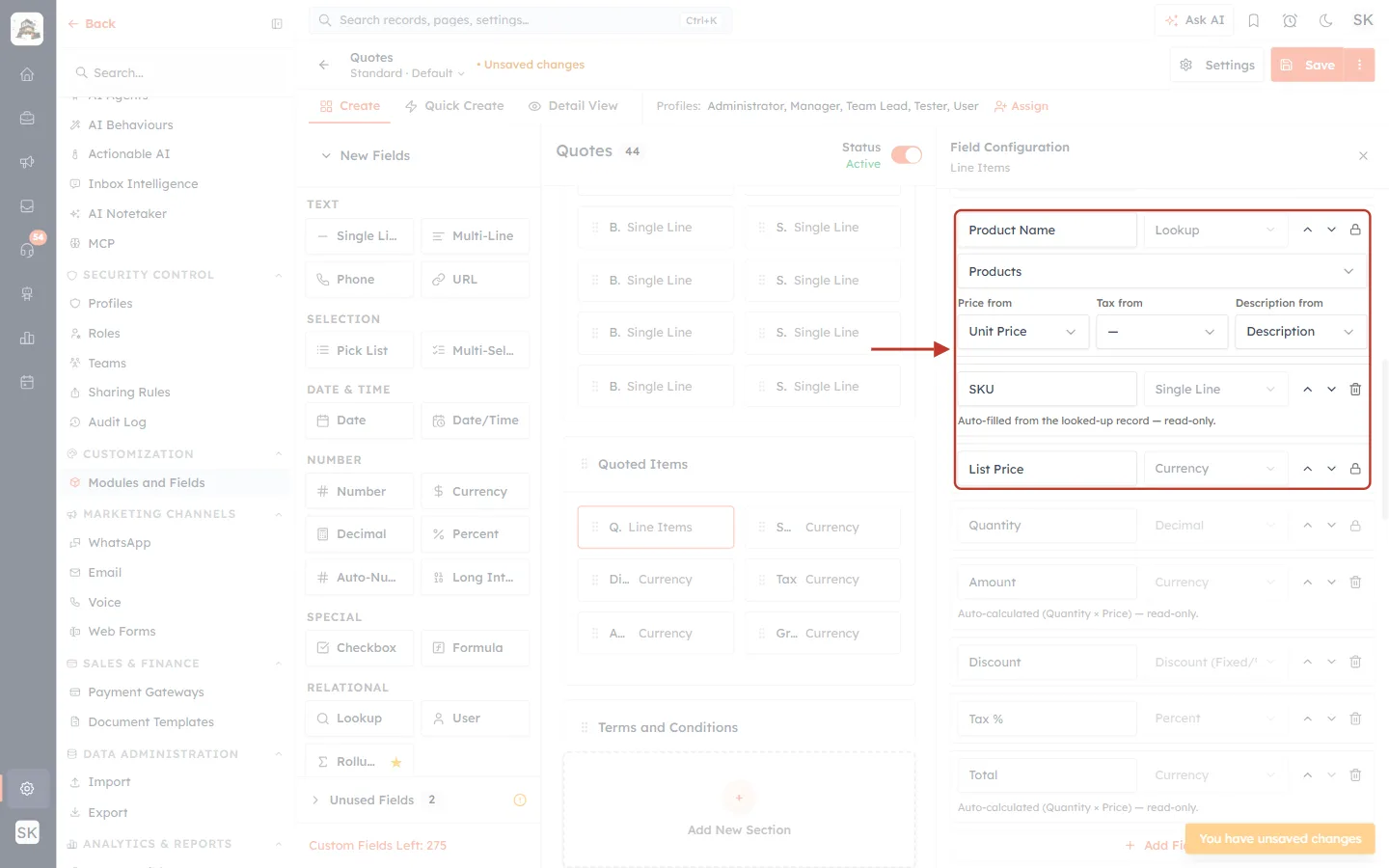
What this screenshot shows. The new order: Product Name → SKU → List Price.
The SKU row still carries the read-only note, so you can tell pulled columns apart at a glance.
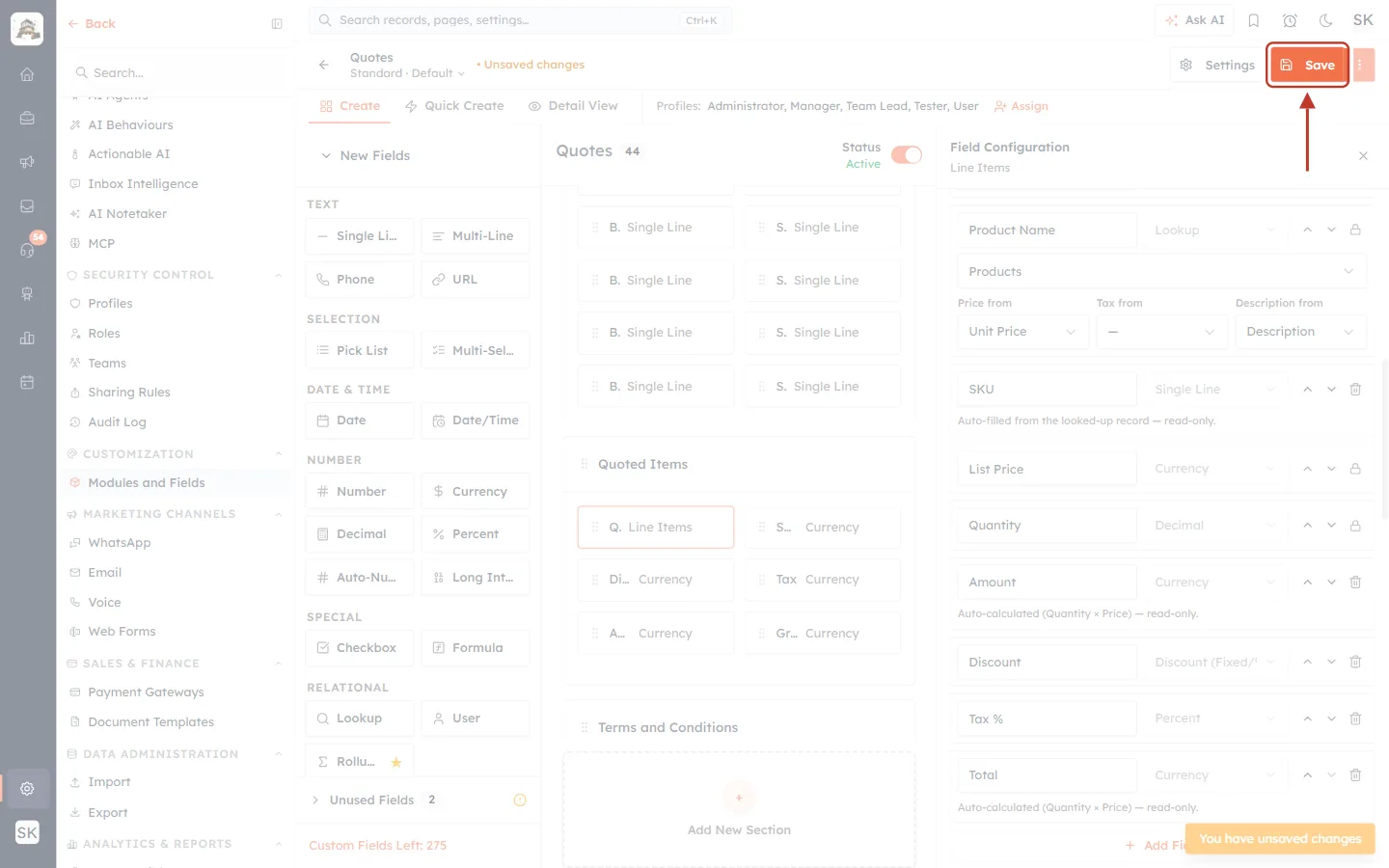
What this screenshot shows. The Save button at the top right of the builder.
Click it to apply the change. You see the message “Module saved”. New and existing quotes now show the SKU column.
⚠️
Once a column is saved, its type is locked to protect existing rows. To change the type, remove the column and add it again. Core columns (Product Name, List Price, Quantity and so on) can’t be removed.
Part 2: Use the new column on a quote#
Step 6: Create a quote and pick the products#
Open Quotes, click the arrow on Create Quote and choose Create Single. Fill in the Subject (we use Ergonomic workstations for the Pune office). In Quoted Items you can see the new SKU column.
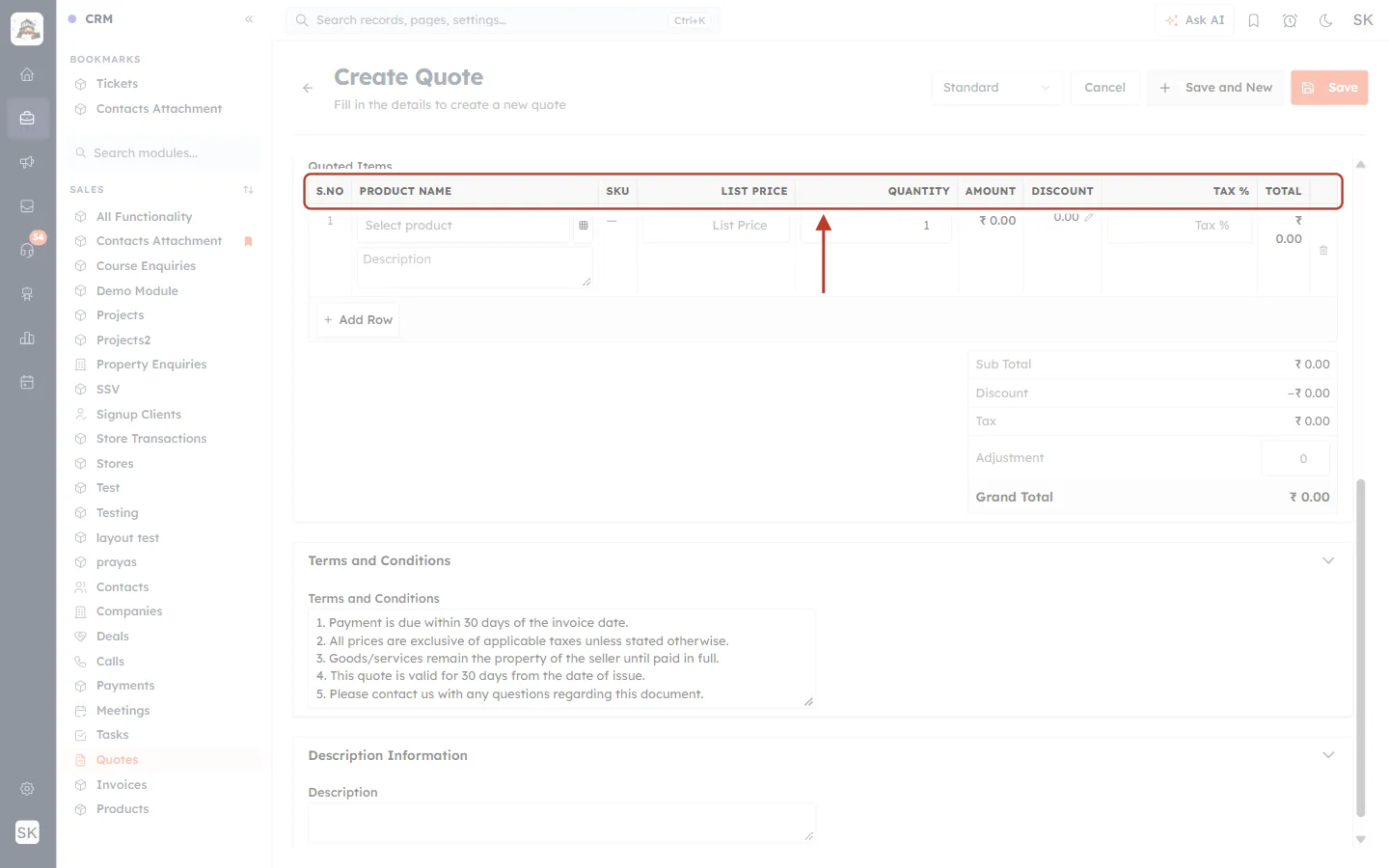
What this screenshot shows. The column headers of Quoted Items: S.NO, PRODUCT NAME, SKU, LIST PRICE, QUANTITY, AMOUNT, DISCOUNT, TAX %, TOTAL.
The SKU column sits exactly where you placed it in the builder.
Click the grid icon next to Select product on the first row to open the product list.
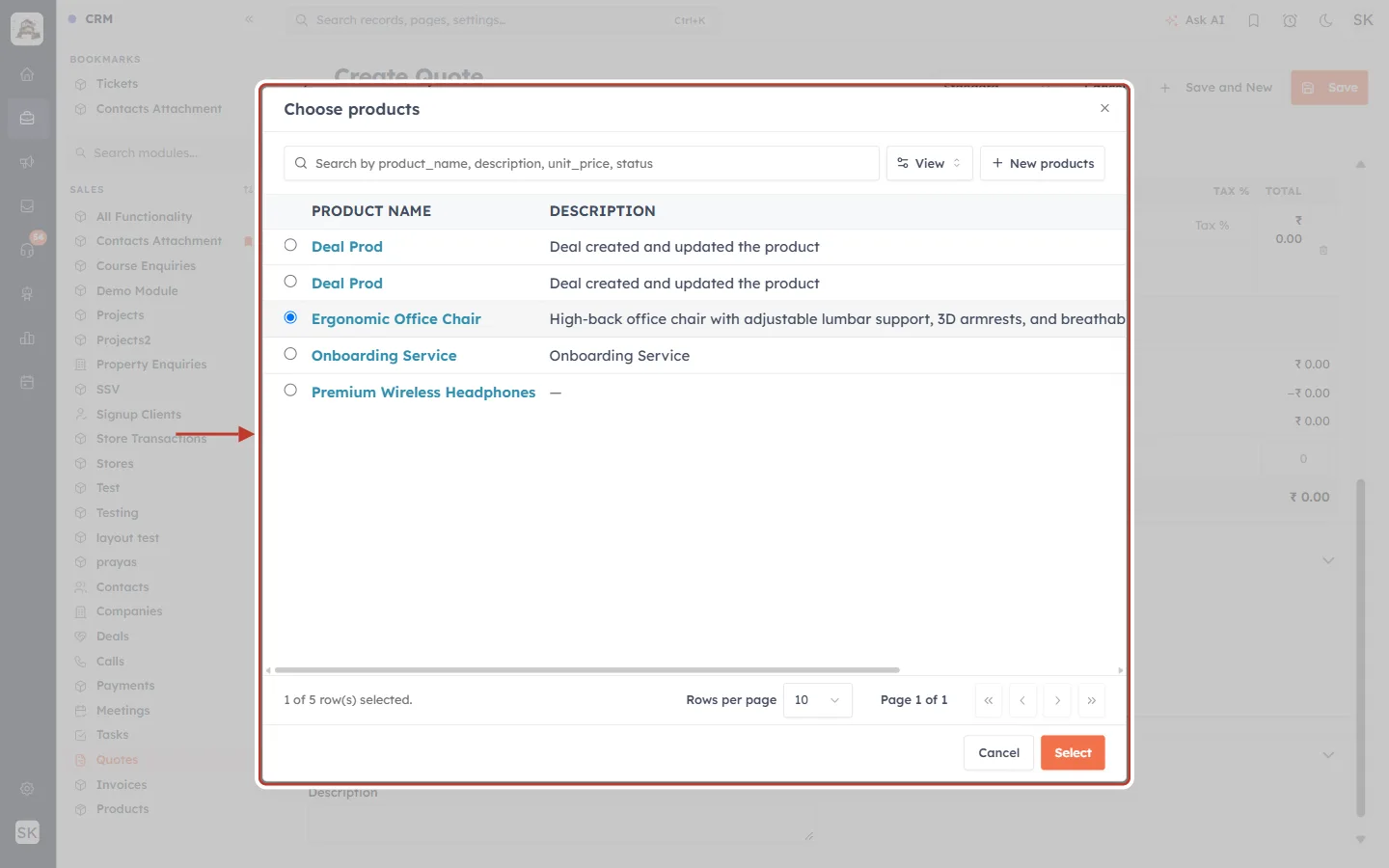
What this screenshot shows. The Choose products dialog.
Search by name, description, price or status, or page through your products.
Select a product with the radio button (here Ergonomic Office Chair) and click Select. New products lets you create a product without leaving the quote.
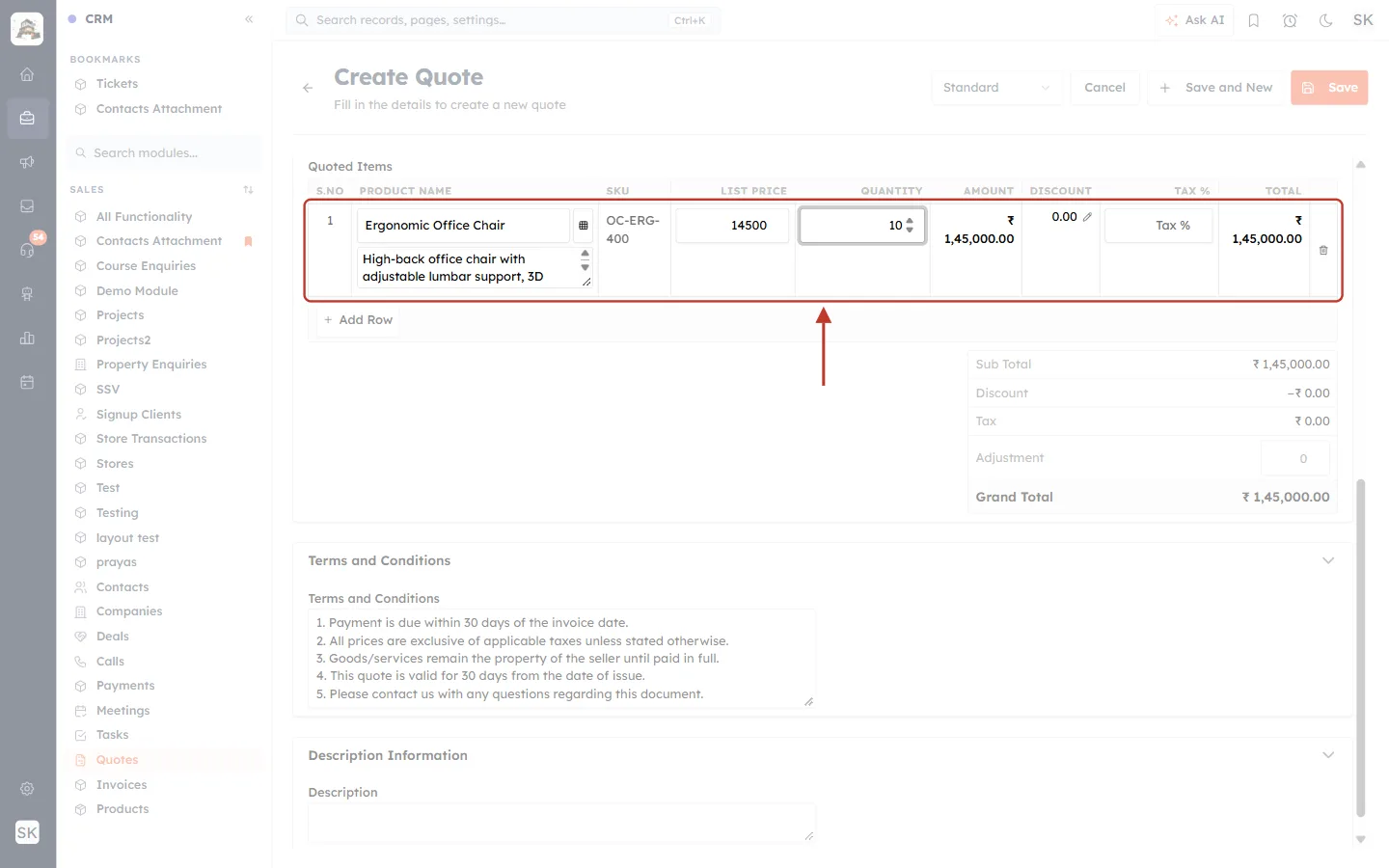
What this screenshot shows. The first line after choosing the product and entering a quantity of 10.
Product Name: Ergonomic Office Chair, with its description underneath.
SKU: OC-ERG-400, filled from the product record. It isn’t an input box, so it can’t be changed here.
List Price: 14500 (from Unit Price), Quantity: 10, Amount and Total: ₹1,45,000.00.
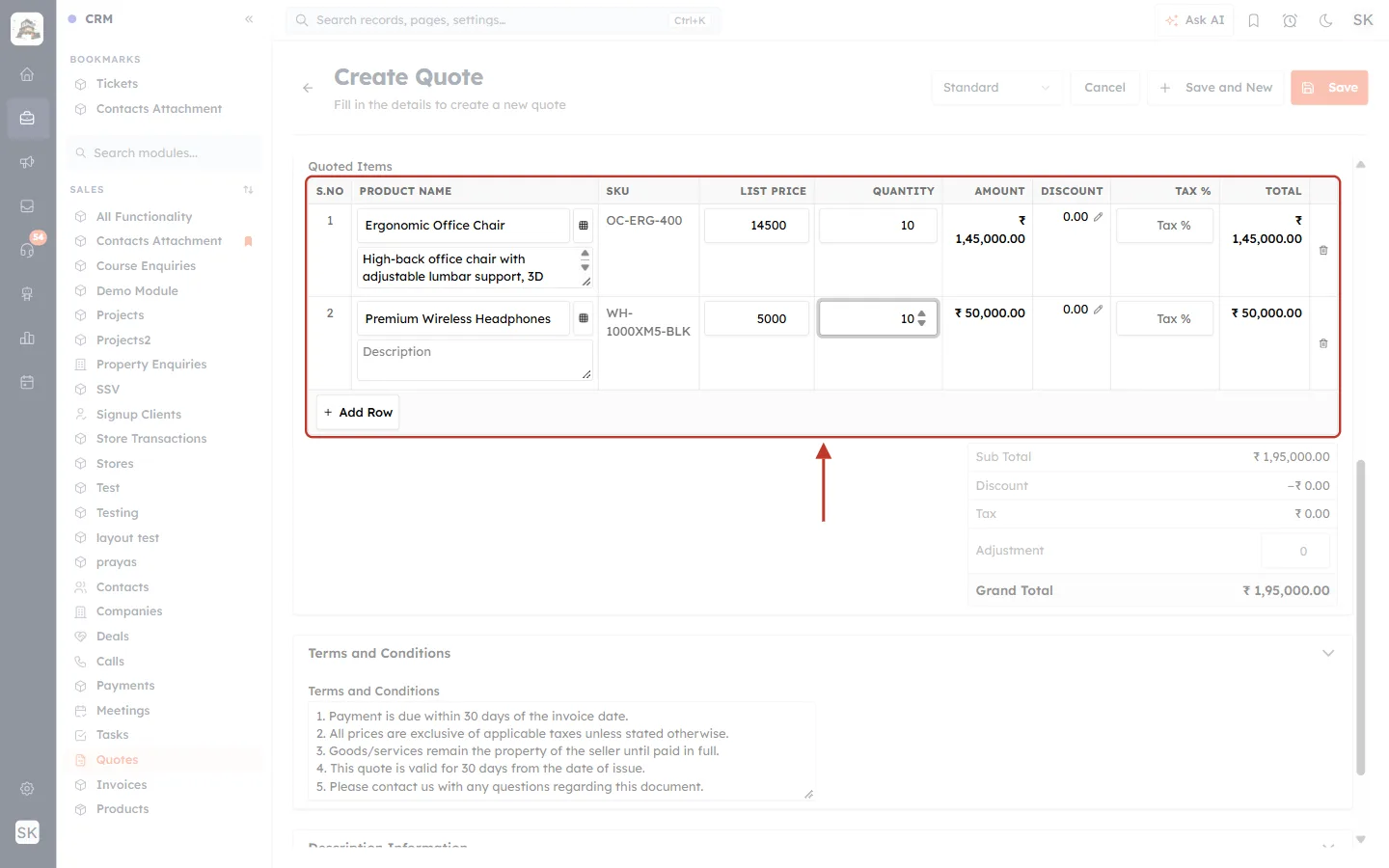
What this screenshot shows. The table after + Add Row and a second product, Premium Wireless Headphones (quantity 10).
Row 2’s SKU, WH-1000XM5-BLK, came from that product automatically.
If you change the product on a row, its SKU changes with it.
Step 7: Link the quote to a contact, company or deal#
Quotes and invoices must now belong to someone. If you click Save without linking any related record, the quote isn’t saved and a message appears at the top.
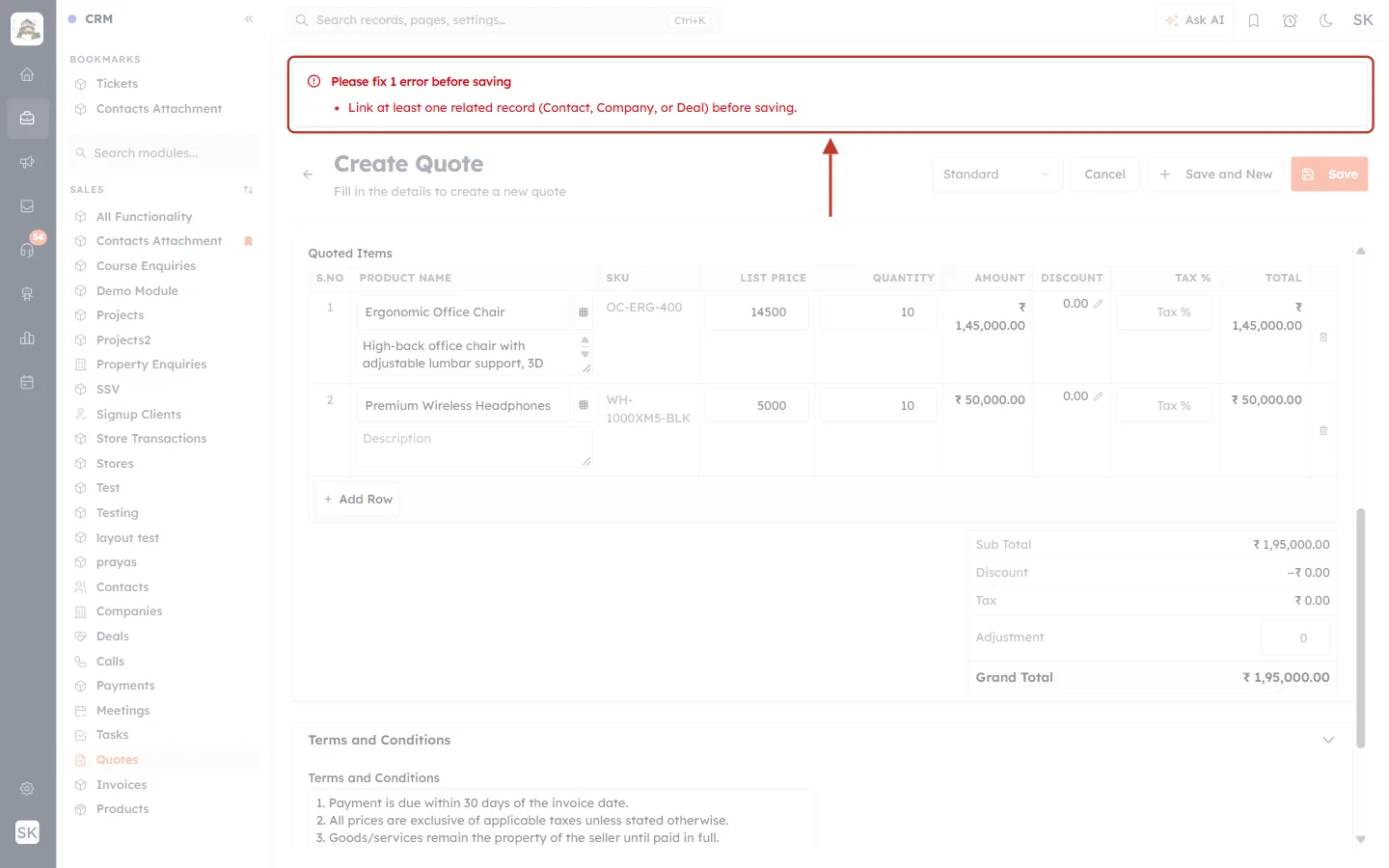
What this screenshot shows. The message “Please fix 1 error before saving — Link at least one related record (Contact, Company, or Deal) before saving.”
Click the message to jump to the related-record fields.
Fill in at least one of the quote’s relationship lookups, such as Contact Name, a deal or a company lookup. One is enough.
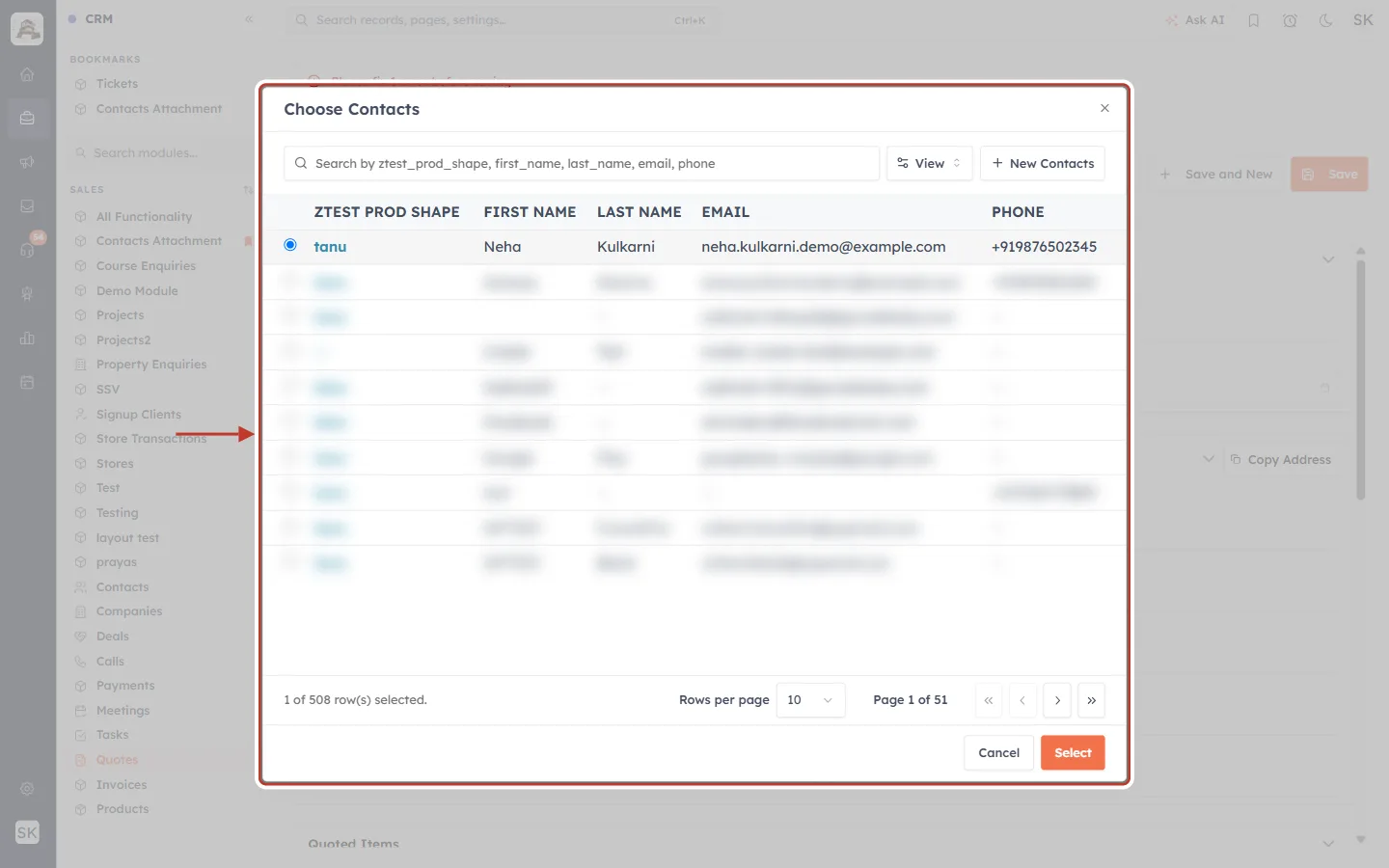
What this screenshot shows. The Choose Contacts dialog opened from Contact Name.
Pick the customer (here Neha Kulkarni) and click Select. Other contacts in the list are blurred for privacy.
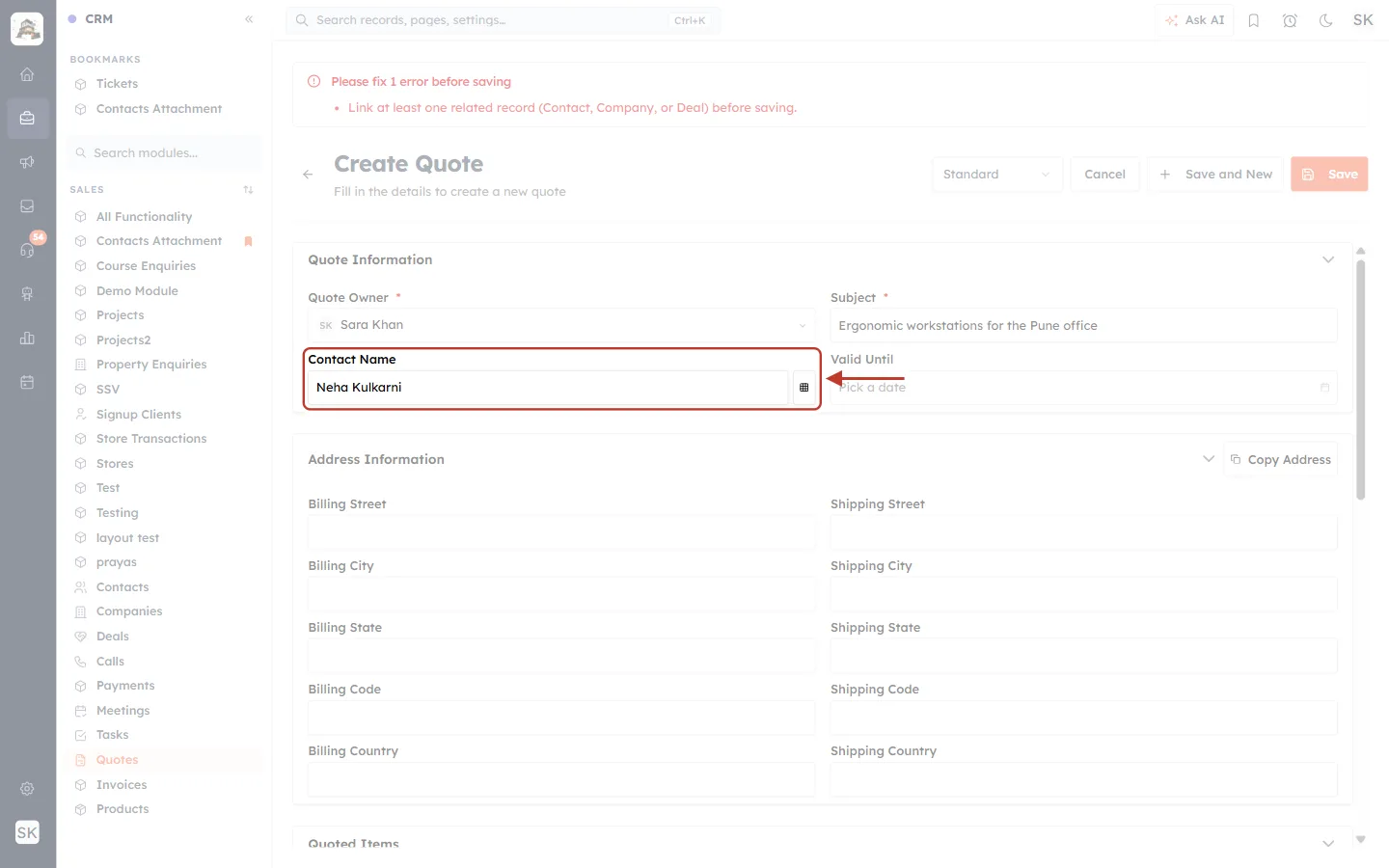
What this screenshot shows. Contact Name now shows Neha Kulkarni.
Click Save again; this time the quote is created.
Step 8: Check the saved quote#
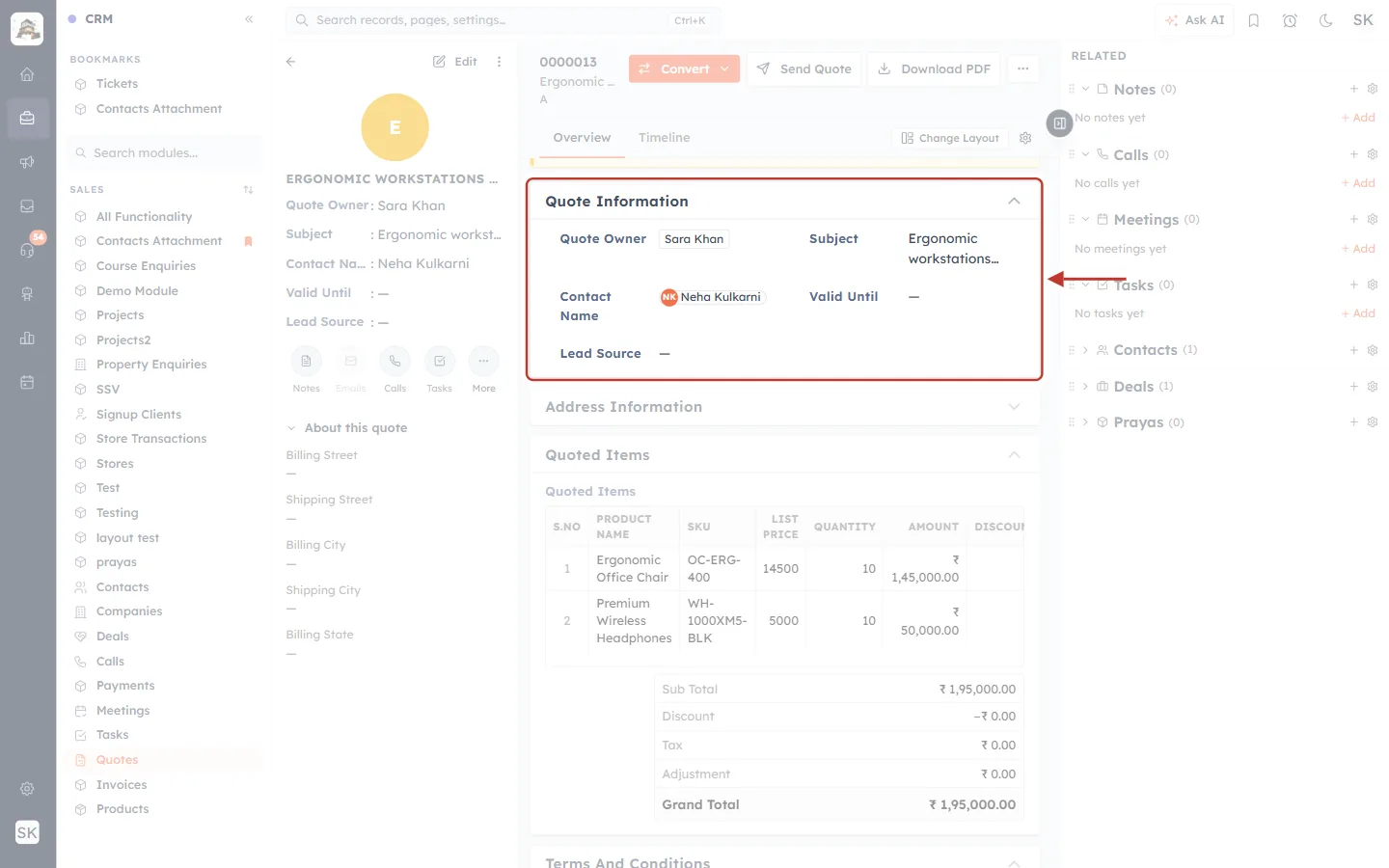
What this screenshot shows. The Quote Information section of the saved quote.
Quote Owner, Subject and Contact Name (Neha Kulkarni) as entered.
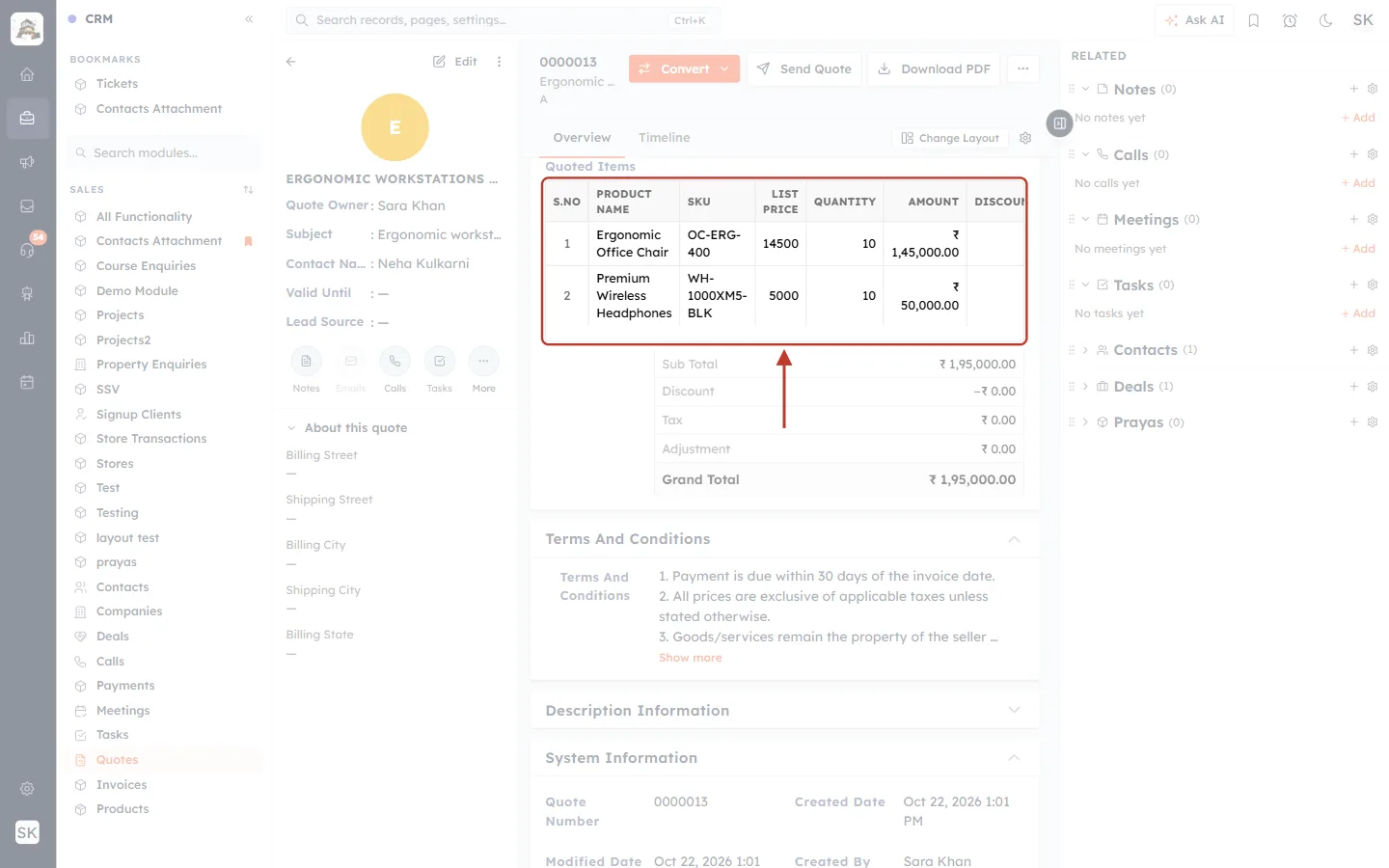
What this screenshot shows. The Quoted Items table on the saved quote.
Each line shows its SKU next to the product name: OC-ERG-400 and WH-1000XM5-BLK.
The value is stored with the quote, so it is kept even if someone edits the product later.
Part 3: Print the column on the PDF#
Step 9: Download the PDF#
On the quote, click Download PDF.
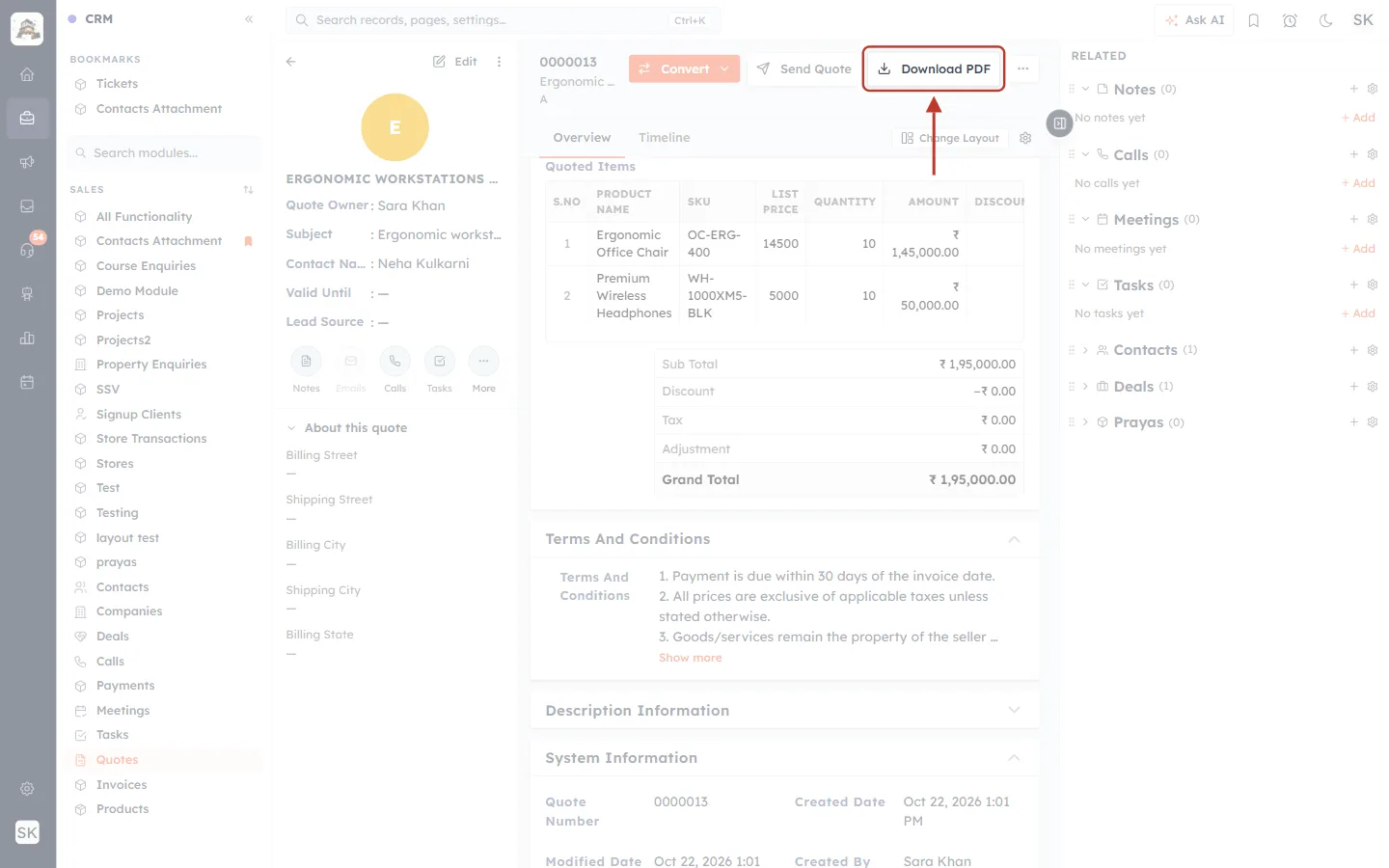
What this screenshot shows. The Download PDF button in the quote’s header, next to Convert and Send Quote.
The PDF is the same document your customer receives when you send the quote.
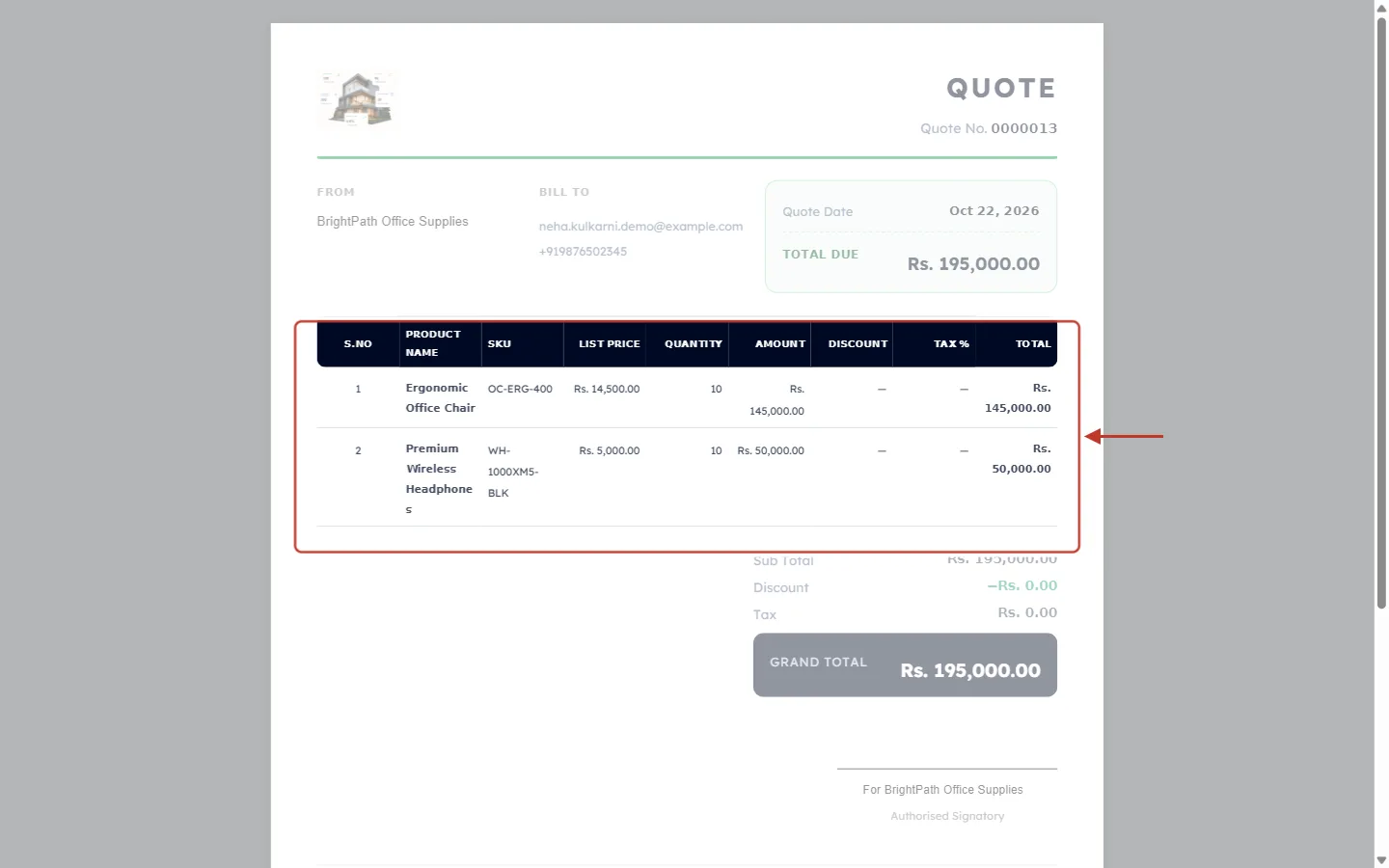
What this screenshot shows. The downloaded PDF, with the line-item table ringed.
The printed table has the same columns in the same order: S.NO, PRODUCT NAME, SKU, LIST PRICE, QUANTITY, AMOUNT, DISCOUNT, TAX %, TOTAL.
Each line prints its SKU: OC-ERG-400 for the chair and WH-1000XM5-BLK for the headphones. Long values wrap onto several lines.
Below the table: Sub Total, Discount, Tax and the Grand Total of Rs. 195,000.00.
The look of the PDF (logo, colours, titles, sections) is set in Setup → Sales & Finance → Document Templates.
✅
Keep it readable. Every extra column makes the printed table narrower. Two or three extra columns usually print well; for long text, consider showing it in the product description instead.
Ideas for lookup columns#
Business | Column to pull from the product | Why |
|---|---|---|
Retail & distribution | SKU / Model number | Customers and warehouses match the line to the exact item. |
India GST invoicing | HSN / SAC code | Tax invoices often need the code for each line. |
Electronics | Warranty period | Shows the warranty right on the quote. |
Manufacturing | Unit of measure | Makes quantities clear (pcs, kg, m). |
Services | Delivery time | Sets expectations per line item. |
Troubleshooting#
Problem | What to check |
|---|---|
Fields of Lookup Module says “Add a lookup column first…”. | The table has no Lookup column yet. The default Product Name column is one; if you removed or changed it, add a Lookup column first. |
The field I want isn’t in Fields of Lookup Module. | Add it to the lookup module (e.g. Products) in Modules and Fields first, then reopen the line-items settings. |
The new column is empty on a quote line. | That product has no value in the field. Fill it in on the product, then pick the product again on the line. |
I can’t type in the column. | Pulled columns are read-only by design; change the value on the product record instead. |
“Link at least one related record (Contact, Company, or Deal) before saving.” | Fill in Contact Name or another relationship lookup on the quote or invoice. |
+ Add Field is disabled. | The table already has 25 columns. |
I can’t change a column’s type. | Saved column types are locked. Remove the column and add it again. |
Frequently asked questions#
Does this work on invoices too?
Yes. Open the Invoices module in Modules and Fields and select its Invoiced Items field; the same Columns and + Add Field options are there. Set up each module’s table separately.
If I change a product’s SKU later, do old quotes change?
The value is filled when the product is picked on the line and saved with the quote, so existing quotes keep what they showed.
Can I remove the column later?
Yes. Click the bin on the column in the builder and save. It disappears from quotes and PDFs.
Why must a quote link a contact, company or deal?
So every quote and invoice belongs to a customer or an opportunity, and its PDF has someone to bill.
Previous and next#
Related#
Was this article helpful?
Ready to implement this?
OpenAI Engage and apply what you just learned to your own workspace.
Open AI Engage CRM