Loading…


KnowledgeBase
How to Create and Send a Quote
Create a new quote#
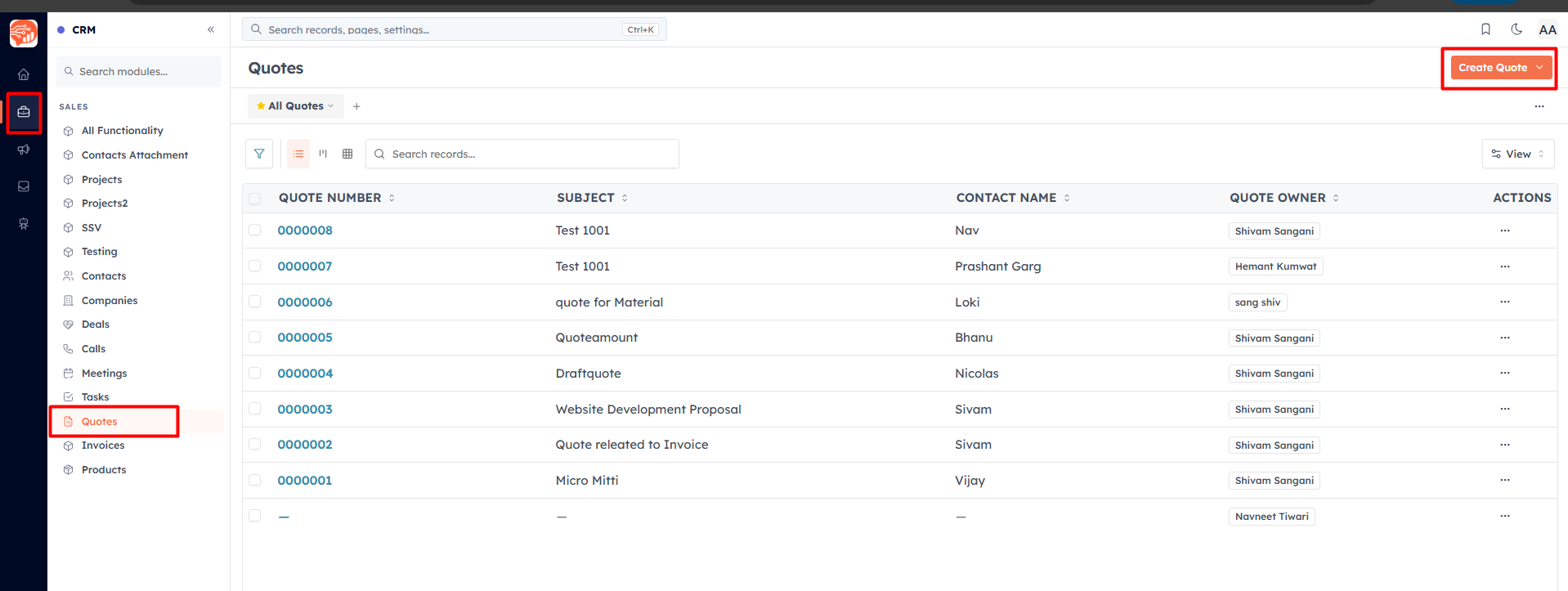
Go to CRM → Quotes under Sales and click Create Quote.
Fill in the header:
Quote Owner (required) and Subject (required) — e.g. "Website Redesign Project".
Contact Name, Company, and Deal — link the quote to who it's for. You must link at least one of these before saving.
Quote Status — starts at Draft (see statuses below).
Valid Until — the date the proposal expires (typically 14–30 days).
Address Information — billing and shipping address (use Copy Address to mirror one to the other).
Add products as line items#
In the Quoted Items section, click Add Row and choose a product. Each row has:
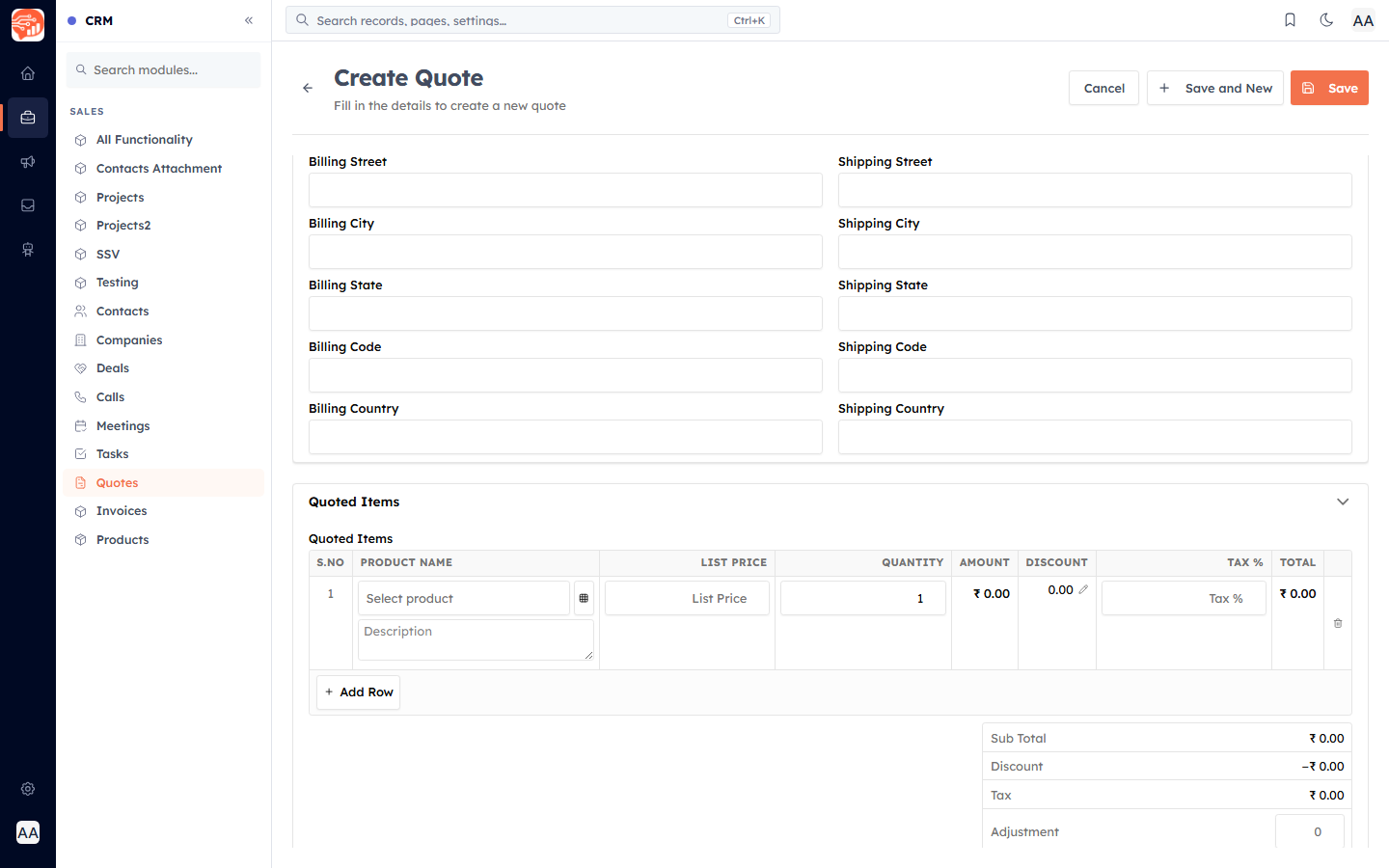
Product Name — pick from your catalogue (auto-fills List Price, Tax %, and Description), or type a free-text line.
List Price and Quantity — the price per unit and how many.
Discount — a fixed amount or a percentage, per line.
Tax % — applied to the line after discount.
Amount and Total — calculated for you.
The totals panel keeps a running Sub Total, Discount, Tax, and Grand Total. Use Adjustment for a manual rounding or extra charge/credit (it can be negative). You can add up to 50 lines.
💡
Totals are recalculated on the server when you save, so the printed quote always matches the math — line by line: price × quantity, minus discount, plus tax.
Quote statuses#
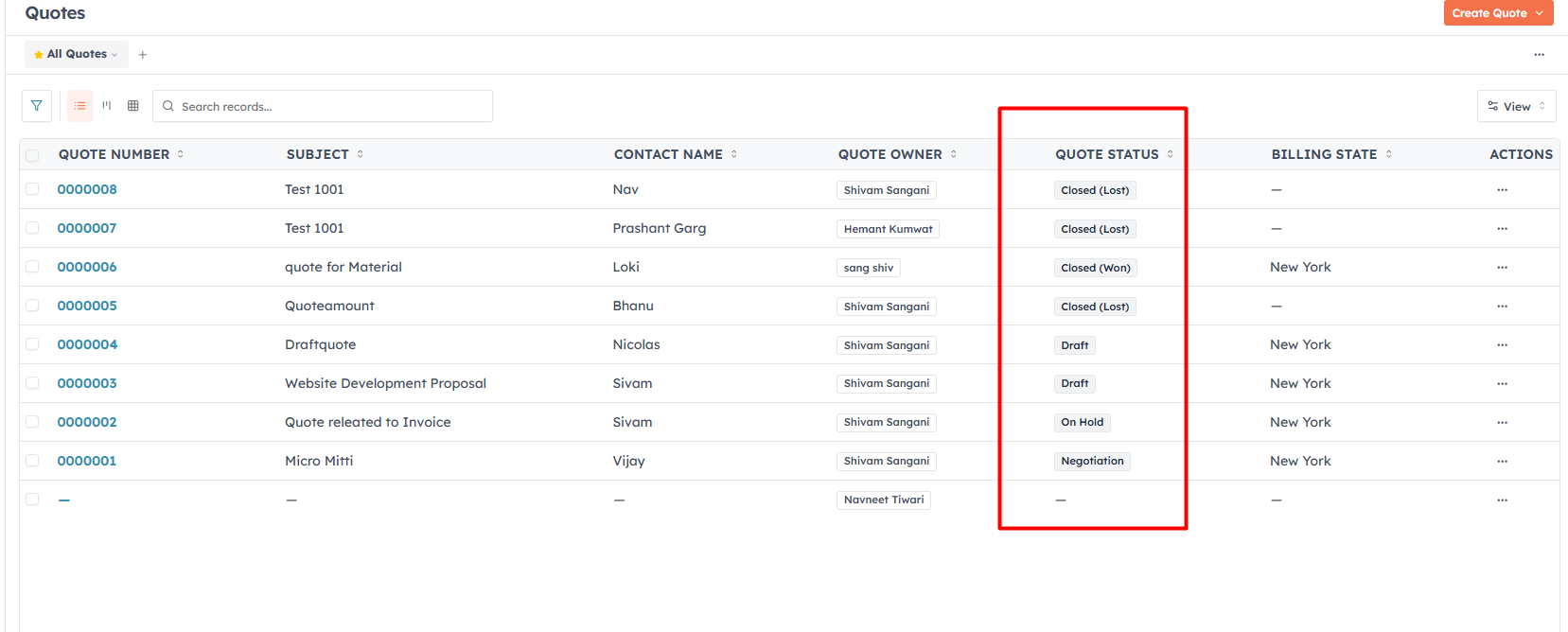
The Quote Status field moves through: Draft → Negotiation → Delivered → On Hold → Confirmed, and finally Closed (Won) or Closed (Lost). A quote in a closed stage is locked from further editing.
Convert, send & download#
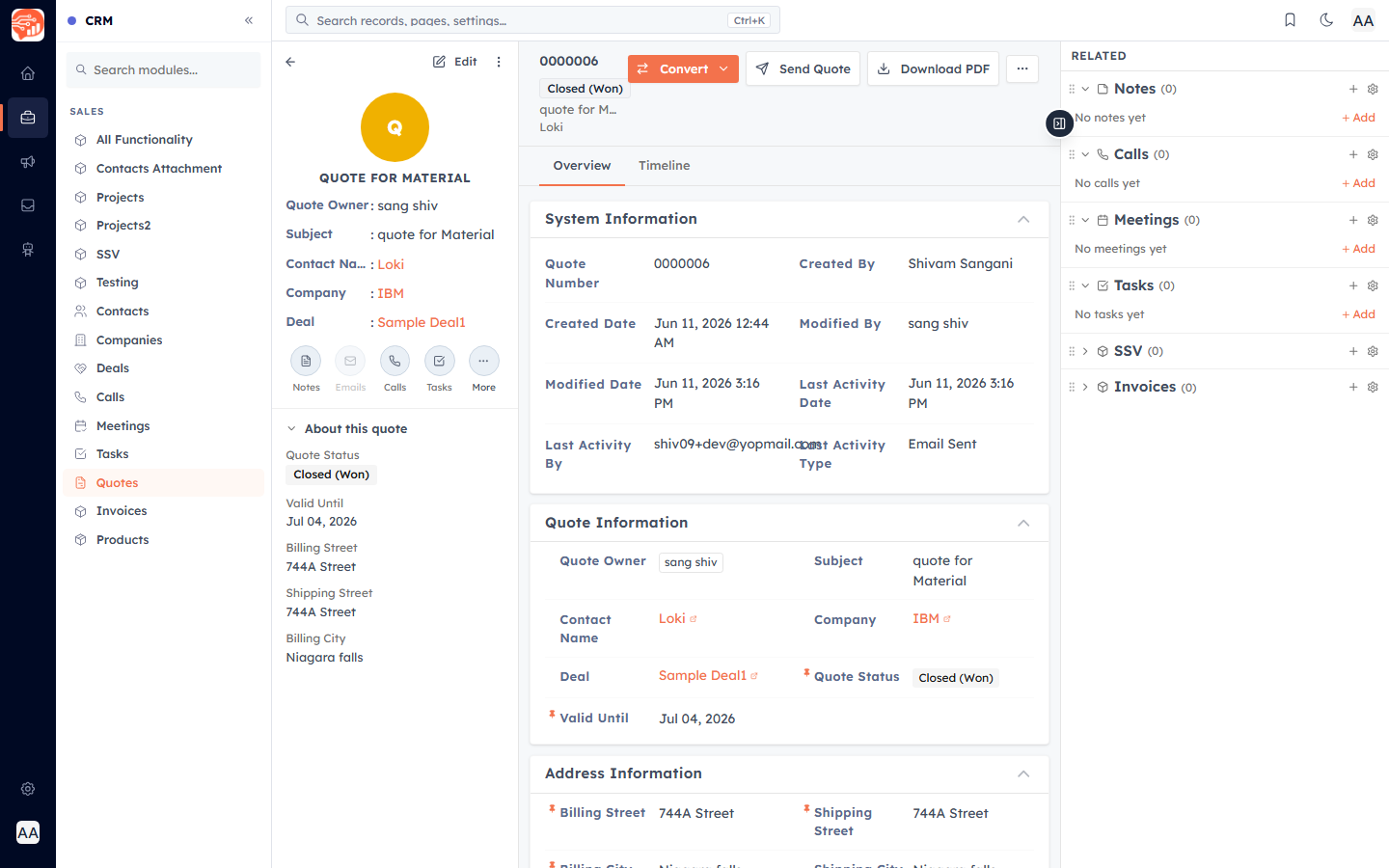
On the quote's detail page you can then Send Quote (email it to the customer with a PDF and an online view link), Download PDF, or Convert or Send quote it once it's accepted.
Was this article helpful?
Ready to implement this?
OpenAI Engage and apply what you just learned to your own workspace.
Open AI Engage CRM