Loading…


KnowledgeBase
The Customer Quote View: Accept & Reject
Sending a quote to your customer#
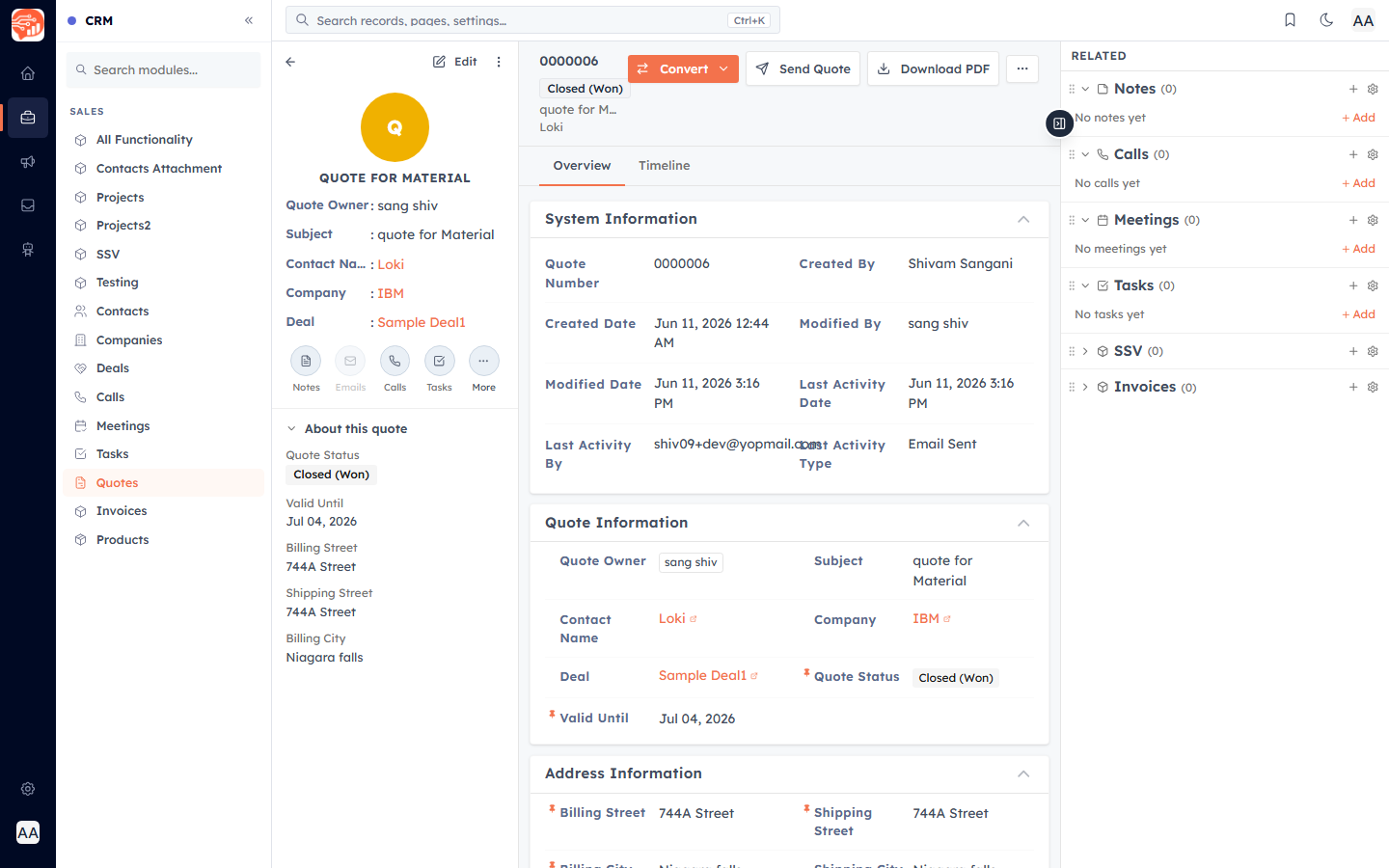
Open a saved quote and click Send Quote. The CRM emails the customer a message with the quote PDF attached and a "View Quote" button that opens a secure online version — no login required. The send is logged on the quote's timeline.
💡
The subject and greeting are pre-filled for you (e.g. "Quote 0000001"), and you can edit the message before sending. You can also schedule the send for later.
What the customer sees#
The "View Quote" link opens a clean, branded page showing your company name and logo, the line items, totals, terms, and notes. The first time they open it, the CRM records a "viewed" event so you know they've seen it.
Accepting or rejecting online#
From that same page the customer can Accept or Reject the quote (optionally leaving a note). This can be done once:
Accept → the Quote Status moves to a won stage (e.g. Confirmed / Closed (Won)).
Reject → the status moves to Closed (Lost).
Either way, the quote owner is notified by email, and the decision (with date and any note) is stored on the record.
💡
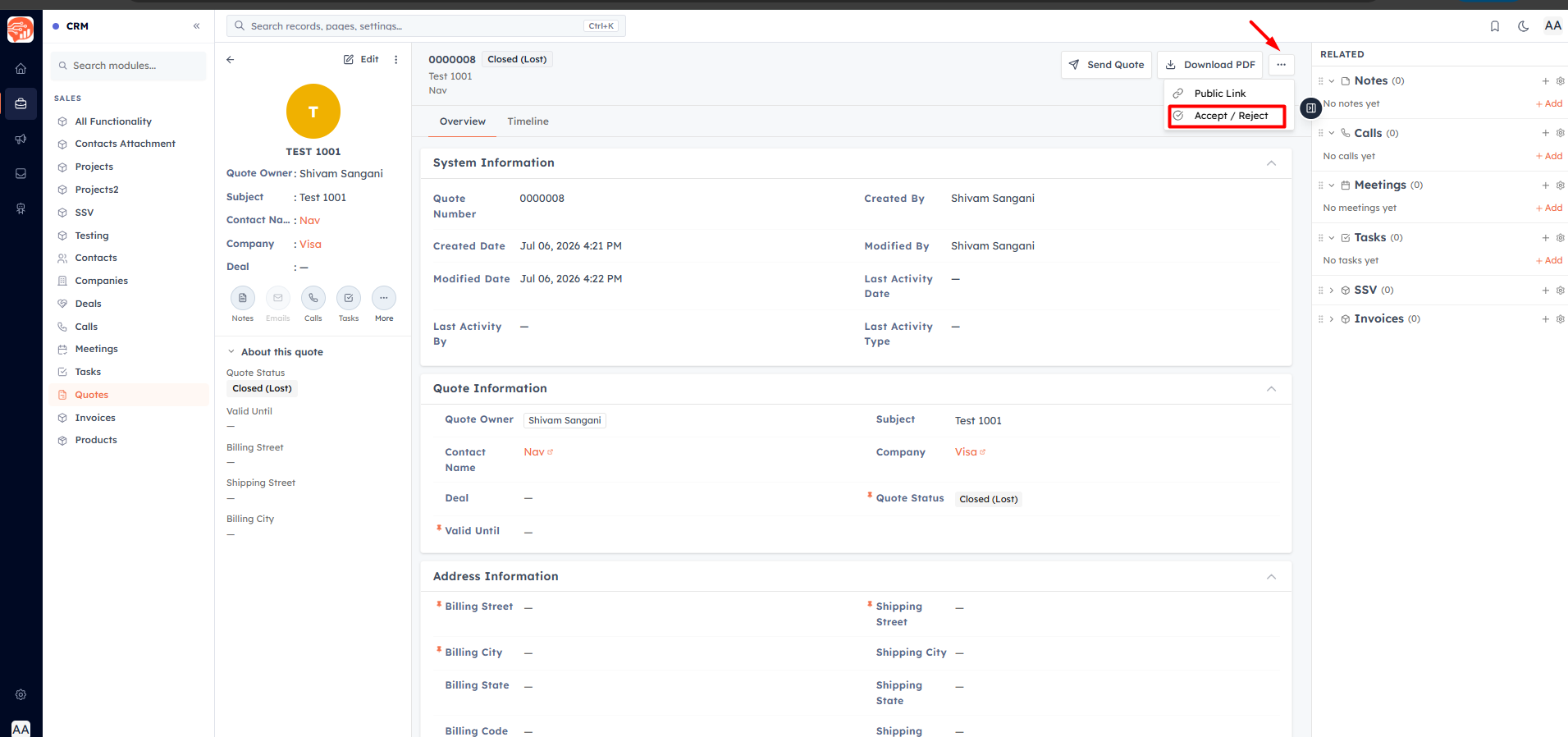
You don't have to wait for the customer to click — you can also record their decision yourself from the quote (Accept/Reject) if they reply by phone or email.
💡
Need to share the link again without re-sending the email? Use the quote's copy-link action to grab the same secure URL.
Was this article helpful?
Ready to implement this?
OpenAI Engage and apply what you just learned to your own workspace.
Open AI Engage CRM