Loading…


KnowledgeBase
Help Me Write: Draft WhatsApp Replies with the AI Reply Assistant in the Team Inbox (Step-by-Step)
Introduction#
Writing a clear, polite reply to every customer takes time, especially when your team answers dozens of WhatsApp chats a day. Help me write is an AI writing assistant built into the reply box of the WhatsApp Team Inbox. You describe what you want to say in a few words, for example “tell her the table arrives Friday 10–2 and assembly is free”, and it writes a ready-to-send WhatsApp message for you.
You stay in control the whole time. The AI only writes a draft. You can polish it, change its tone, edit it yourself, or go back to an earlier version. Nothing reaches the customer until you click Insert and then press Send yourself.
What you want to do | What to click |
|---|---|
Open the assistant | The ✨ sparkle button in the reply box (tooltip Help me write) |
Get a first draft | Describe your message (at least 3 words) → Generate |
Improve the wording | Polish |
Change the tone | ⋮ → Professional, Friendly, Casual, Formal, Persuasive, Empathetic or Direct |
Ask for your own change | Type in Describe your change (up to 50 characters) → press Enter |
Start again from your description | ↻ (Recreate) |
Go back to an earlier version | ↶ Undo / ↷ Redo |
Use the draft | Insert, check the message, then press Send |
This guide walks through every step with screenshots taken from a sample inbox, with real drafts written by the assistant. Each screenshot is followed by a description of the whole screen, so you can match it against your own.
Before You Begin#
Your WhatsApp Business number must be connected to AiEngage CRM. See Connect WhatsApp Business to AI Engage CRM.
Help me write is available in WhatsApp conversations in the Team Inbox.
It sits in the reply box, so it is available only when you can reply. The conversation’s 24-hour window must be open (see Part 7), and you need reply access to the conversation.
Each request (Generate, Polish, a tone, your own change, Recreate) uses a small amount of your workspace’s AI credits. See AI Credits & Pricing: How AI Usage Is Billed.
ℹ️
Important: the assistant doesn’t read the chat. It writes only from what you type in the box. It doesn’t see the customer’s messages, their name or their order. Put every fact you want in the reply into your description: names, dates, times, prices, order numbers.
Part 1: Open the Conversation and Find Help Me Write#
Step 1: Open the WhatsApp Team Inbox#
In the dark icon bar on the far left, click the Team Inbox icon (the tray), then click WhatsApp in the menu.
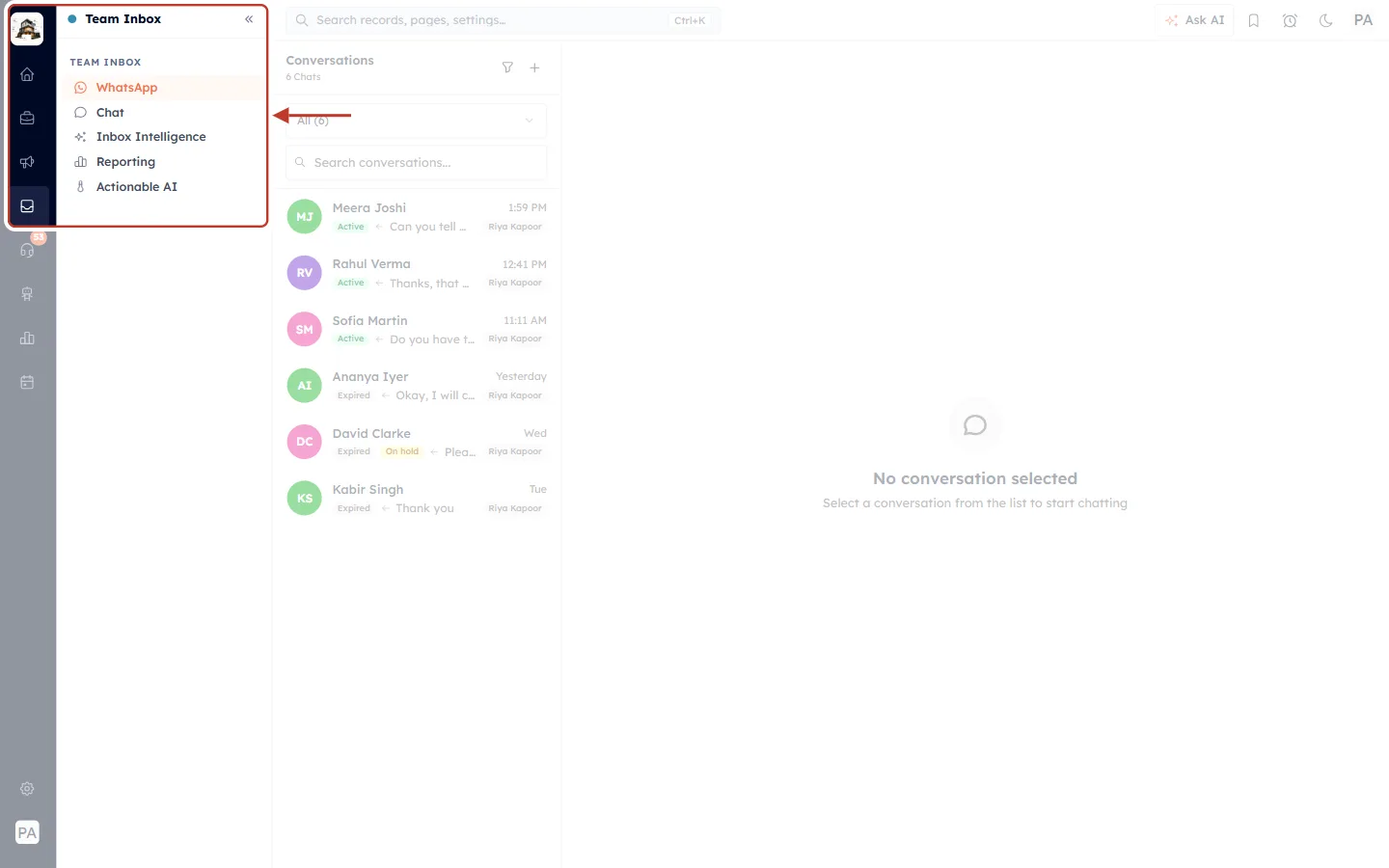
What this screenshot shows. The ringed area is the top of the left-hand menu with the Team Inbox open.
In the dark icon bar on the far left, the Team Inbox (tray) icon is highlighted.
The menu is headed Team Inbox and, below it, TEAM INBOX.
WhatsApp is selected (orange text and background). The other items are Chat, Inbox Intelligence, Reporting and Actionable AI.
Help me write works in WhatsApp conversations, so make sure WhatsApp is the item you have open.
Step 2: Open the customer’s conversation#
In the Conversations list, click the customer you want to reply to. Pick one with a green Active badge. In this example we open Meera Joshi, who has asked: “Can you tell me the delivery date? I also have a question about assembly.”
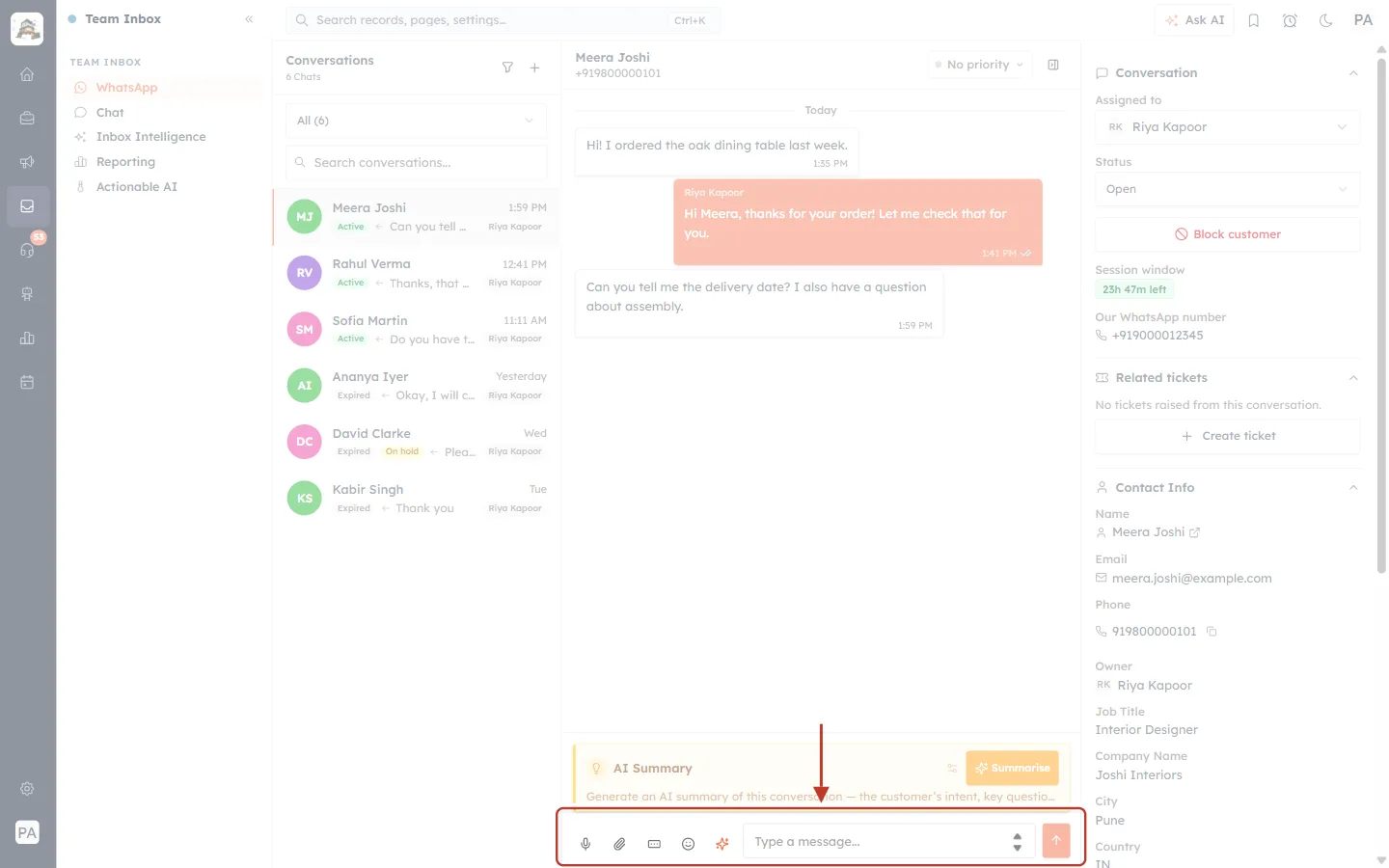
What this screenshot shows. The conversation with Meera Joshi is open, and the reply box at the bottom of the chat is ringed. The arrow points down at it.
Left column: the Conversations list (6 Chats). Meera Joshi is selected and has a green Active badge.
Middle: the chat. Meera wrote “Hi! I ordered the oak dining table last week.” The agent Riya Kapoor answered in the orange bubble, and Meera then asked about the delivery date and assembly.
Above the reply box is the yellow AI Summary card with a Summarise button. That is a different AI feature, see Get an AI Summary of a WhatsApp Conversation.
The reply box (ringed) has, from left to right: microphone (voice message), paperclip (attach a file), WhatsApp form, smiley (emoji) and the orange ✨ sparkle button, which is Help me write. Then come the Type a message… box and the orange ↑ Send button.
Right column: the conversation details. It is Assigned to Riya Kapoor with Status Open. The Session window shows a green 23h 47m left, so replies are allowed. Below are Related tickets and Contact Info.
Step 3: Point at the sparkle button#
Hover over the orange ✨ sparkle button, the last icon before the message box. A tooltip confirms it is Help me write.
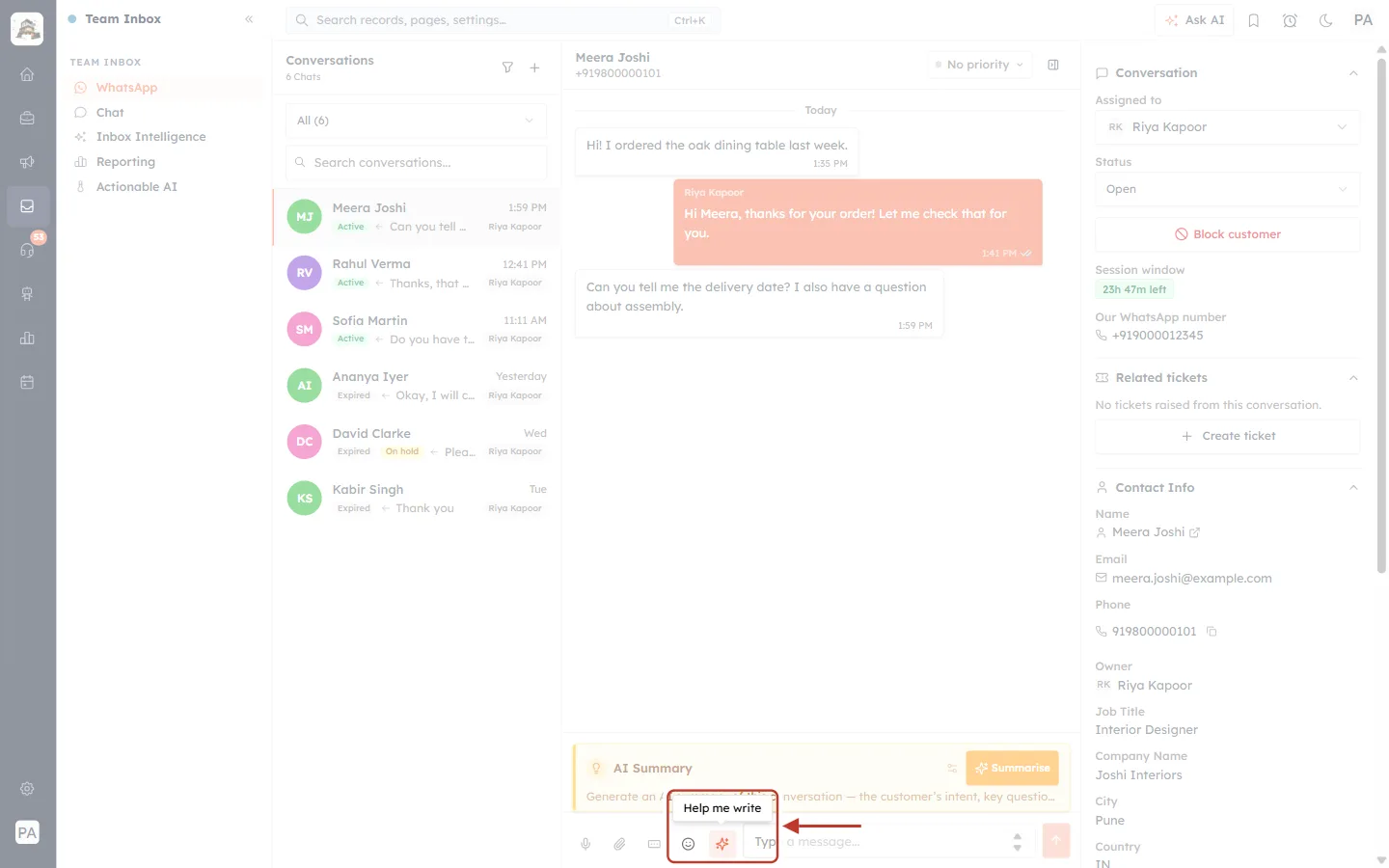
What this screenshot shows. The sparkle button and its tooltip are ringed, and the arrow points at them from the right.
The small white tooltip above the button reads Help me write.
The ring also takes in the smiley (emoji) button next to it. The sparkle is the icon directly under the tooltip.
The rest of the screen is faded, but it is the same conversation with Meera Joshi as in Step 2.
Part 2: Describe Your Message and Generate a Draft#
Step 4: Click the sparkle button to open the panel#
Click ✨. The Help me write panel opens just above the reply box, with the cursor already in the text box.
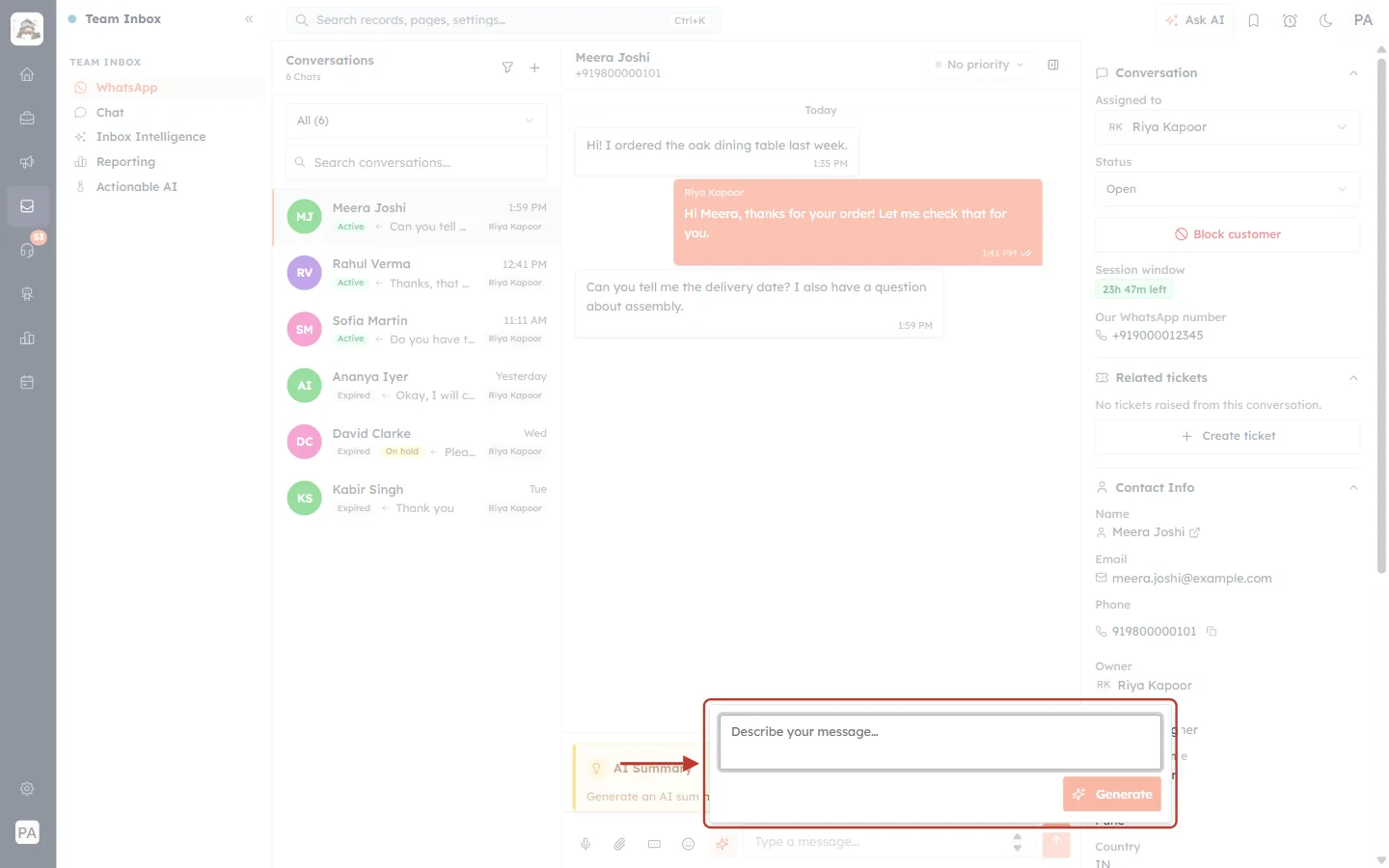
What this screenshot shows. The ringed box is the Help me write panel in its starting state.
The large text box shows the grey hint Describe your message…. This is where you tell the AI what the reply should say.
The orange ✨ Generate button at the bottom right is pale because the box is still empty.
The panel floats above the reply box. You can still see the sparkle button (now highlighted) and the Type a message… box below it.
To close the panel without doing anything, click anywhere outside it or press Esc.
Step 5: Type at least three words#
The assistant needs at least 3 words to work with. If you type fewer, a hint appears and Generate stays disabled.
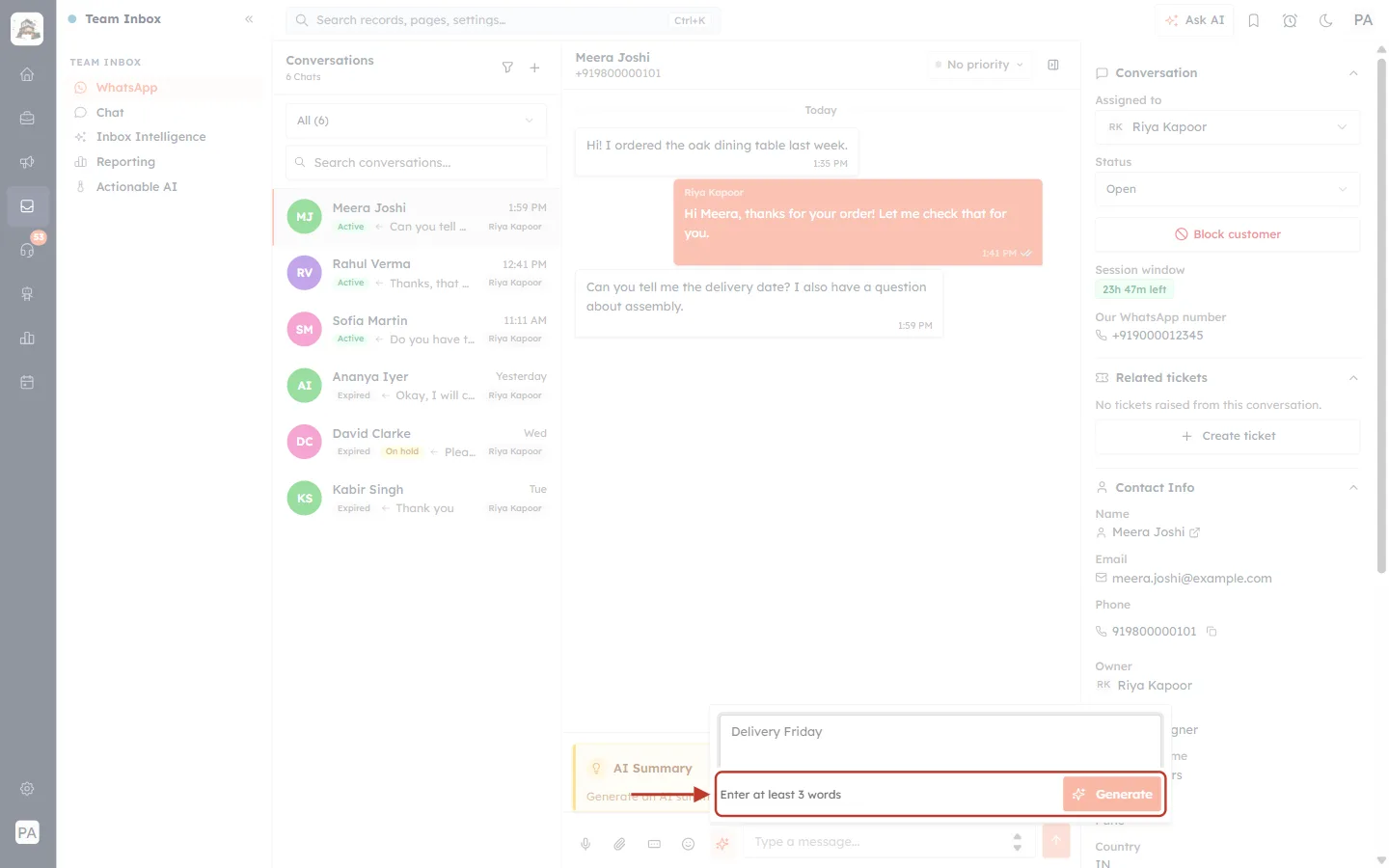
What this screenshot shows. Only two words, “Delivery Friday”, have been typed. The ringed row shows the result.
On the left, the hint Enter at least 3 words appears.
On the right, Generate is still pale and can’t be clicked.
Keep typing. As soon as you have three words, the hint disappears and Generate turns bright orange.
Step 6: Write a clear description#
Describe the reply in plain language and include every detail it needs. You can write up to 2,000 characters. Press Enter to generate, or Shift + Enter to start a new line.
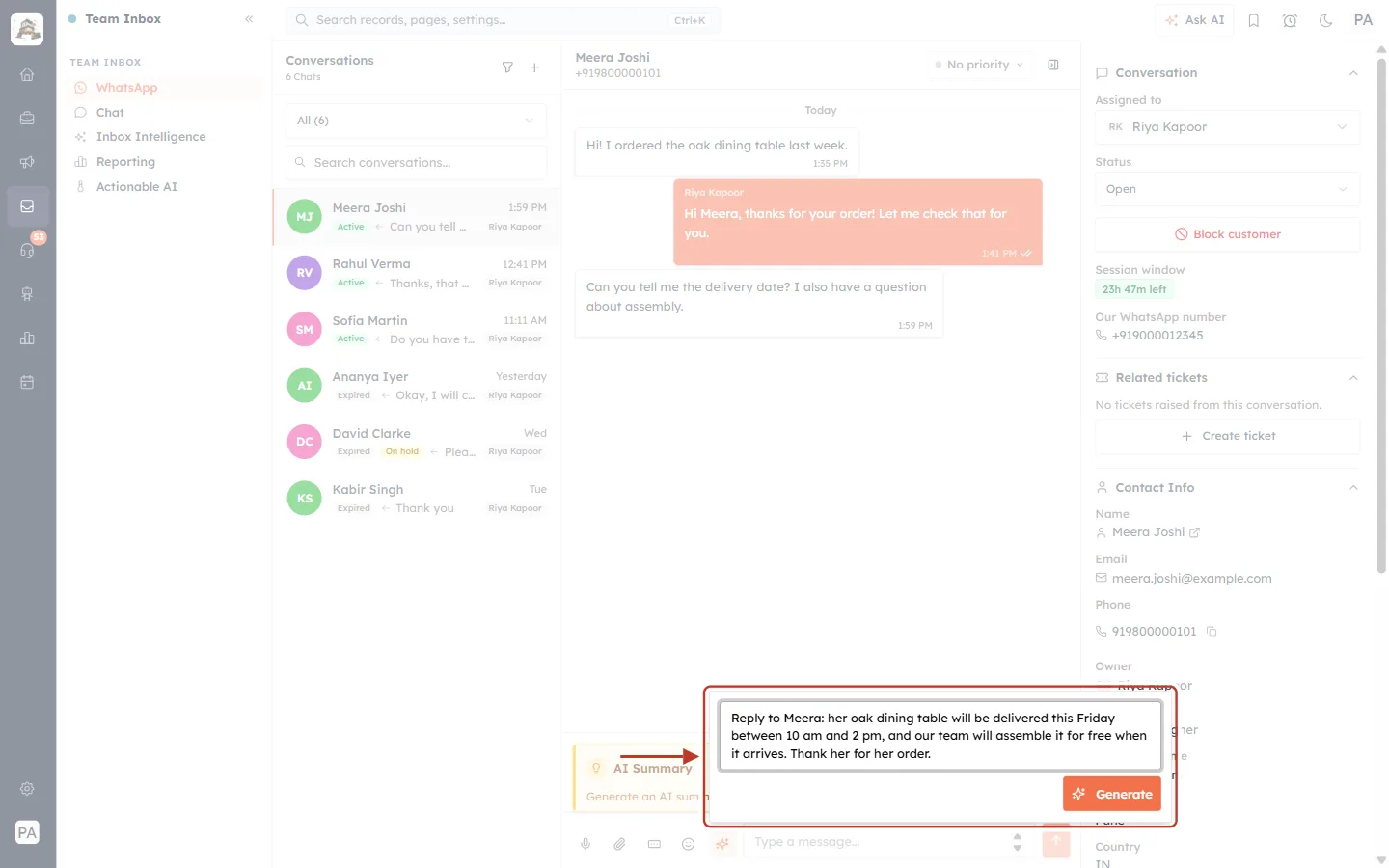
What this screenshot shows. The ringed panel now holds a complete description, ready to generate.
The text box reads: “Reply to Meera: her oak dining table will be delivered this Friday between 10 am and 2 pm, and our team will assemble it for free when it arrives. Thank her for her order.”
It contains all the facts the customer asked for: the day, the time slot and the free assembly.
The ✨ Generate button is now bright orange and ready to click.
✅
Write it like a note to a colleague. “Tell him the refund of ₹2,499 was sent today and takes 5–7 working days” gives a far better draft than “refund update”.
Step 7: Click Generate and wait a moment#
Click Generate (or press Enter). The panel shows that the AI is writing. This usually takes a few seconds.
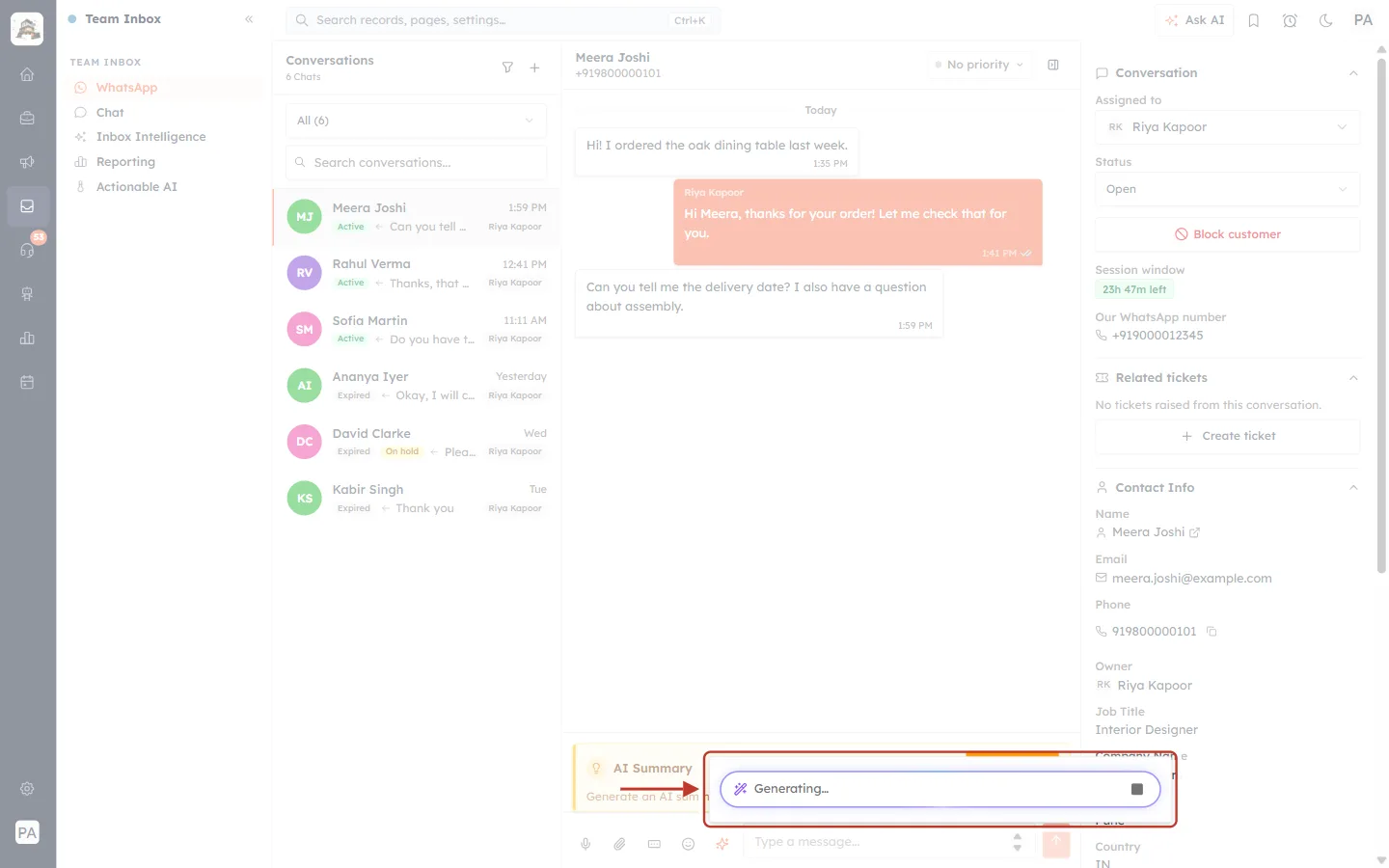
What this screenshot shows. The ringed panel has turned into a single animated bar while the draft is written.
The bar reads Generating… next to a purple magic-wand icon. Its border glows blue to violet while it works.
The small ■ square on the right is Cancel. Click it to stop. Closing the panel also stops the request.
If you cancel the first draft, you go back to your description. If you cancel a later change, you go back to the draft you had.
Step 8: Read the draft#
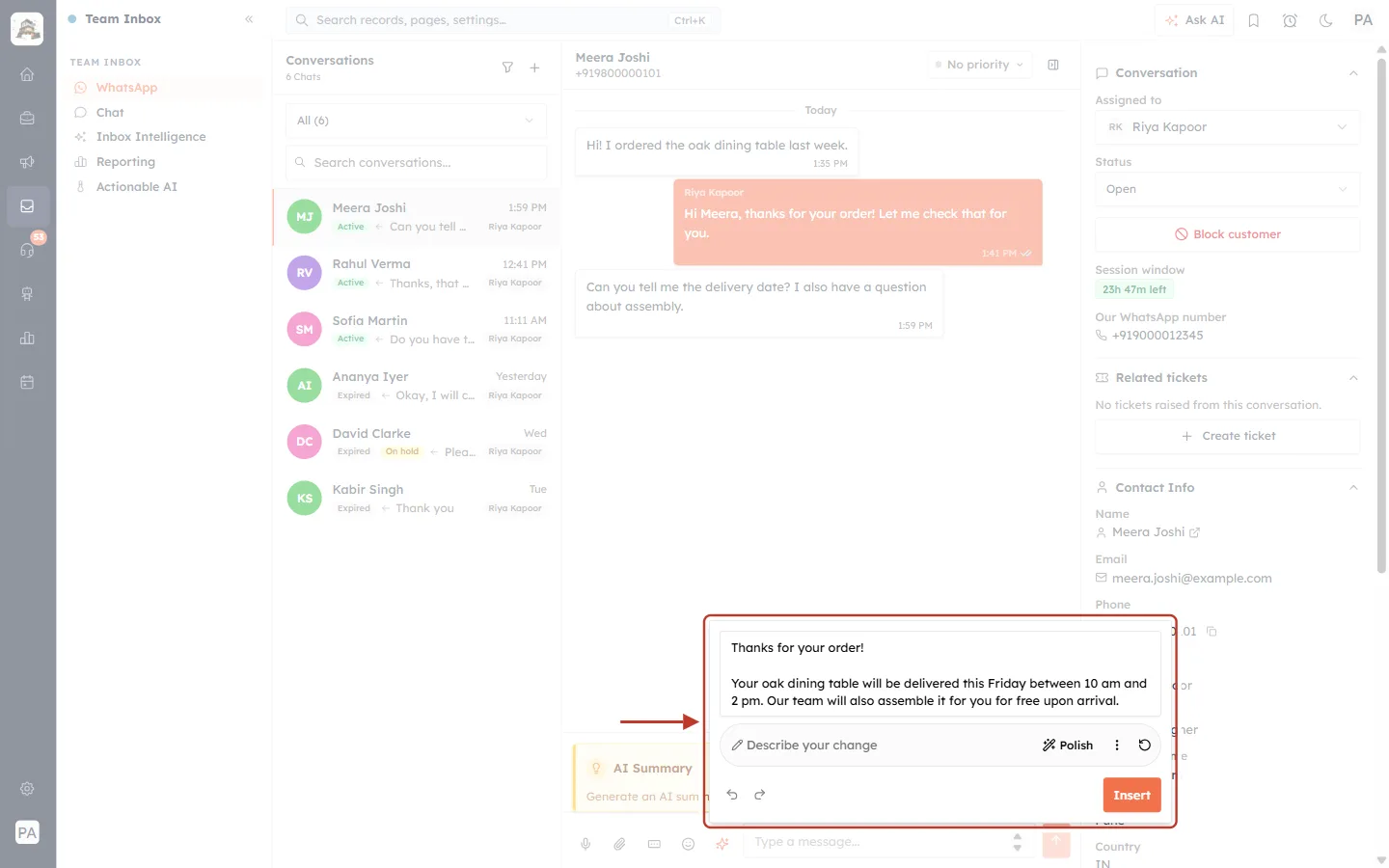
What this screenshot shows. The ringed panel shows the assistant’s first draft and all the tools for working on it.
The top box holds the draft: “Thanks for your order! Your oak dining table will be delivered this Friday between 10 am and 2 pm. Our team will also assemble it for you for free upon arrival.” This box is editable: click into it and type to fix any word yourself.
The pill-shaped bar below has, from left to right: a pencil and Describe your change (ask for your own change, Part 3), Polish (improve the wording), ⋮ (tones) and ↻ (Recreate).
Bottom left: the ↶ Undo and ↷ Redo arrows. They are grey for now because this is the only version.
Bottom right: the orange Insert button, which puts the draft into the message box (Part 5).
⚠️
Always check the facts. The AI can only use what you gave it, and it can occasionally get something wrong. Read every draft before you insert it, especially dates, amounts and promises. In our tests it also left out the customer’s name even though the description mentioned it, so add a greeting yourself if you want one.
Part 3: Improve the Draft#
You can refine the draft as many times as you like. Every change creates a new version, and you can always go back (Part 4).
Step 9: Polish the wording#
Click Polish to let the AI tidy up grammar, flow and wording without changing what the message says.
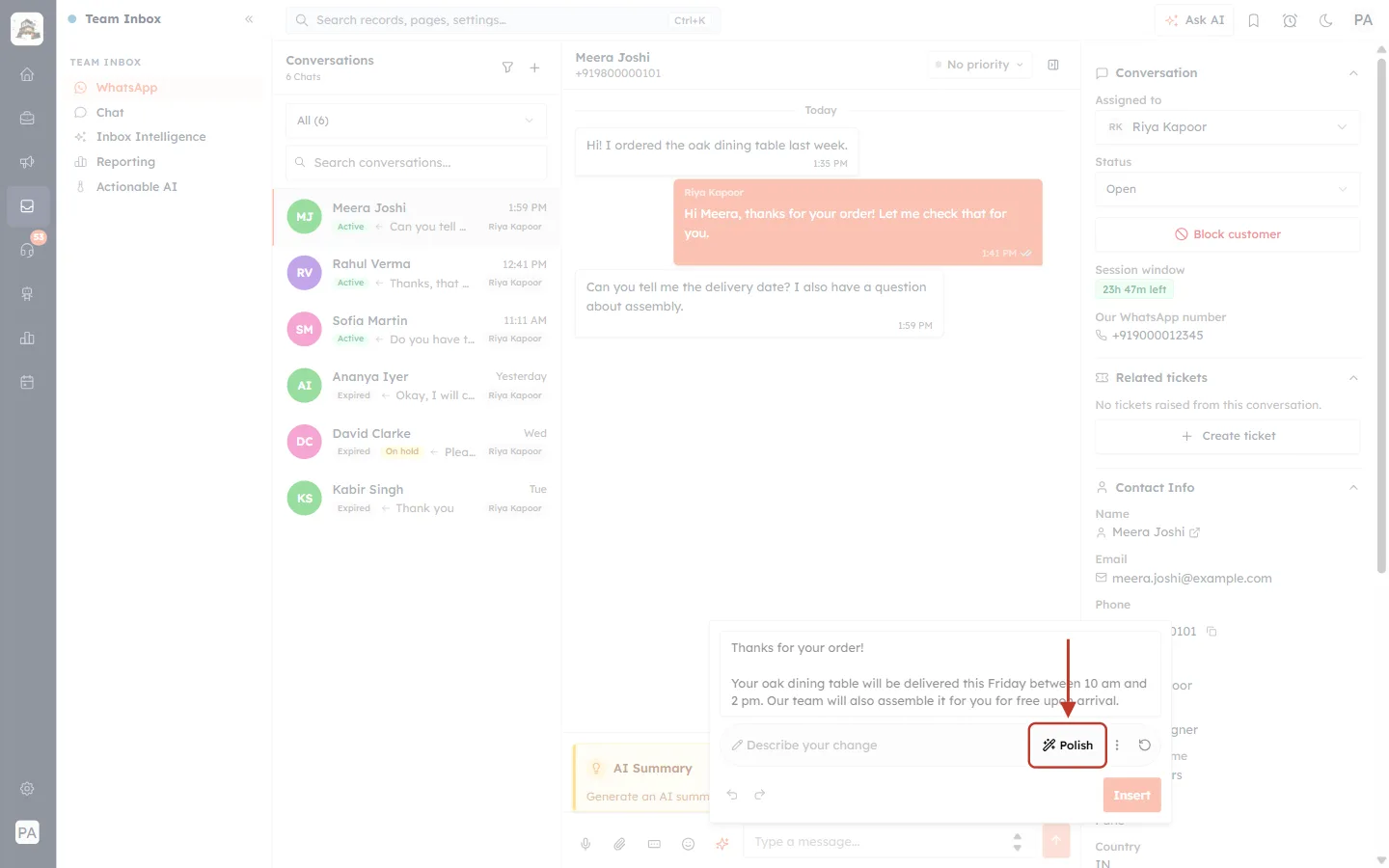
What this screenshot shows. The Polish button (magic-wand icon) in the middle of the change bar is ringed. The arrow points down at it.
Polish is next to the ⋮ tones menu and the ↻ Recreate button.
The draft from Step 8 is still in the box above.
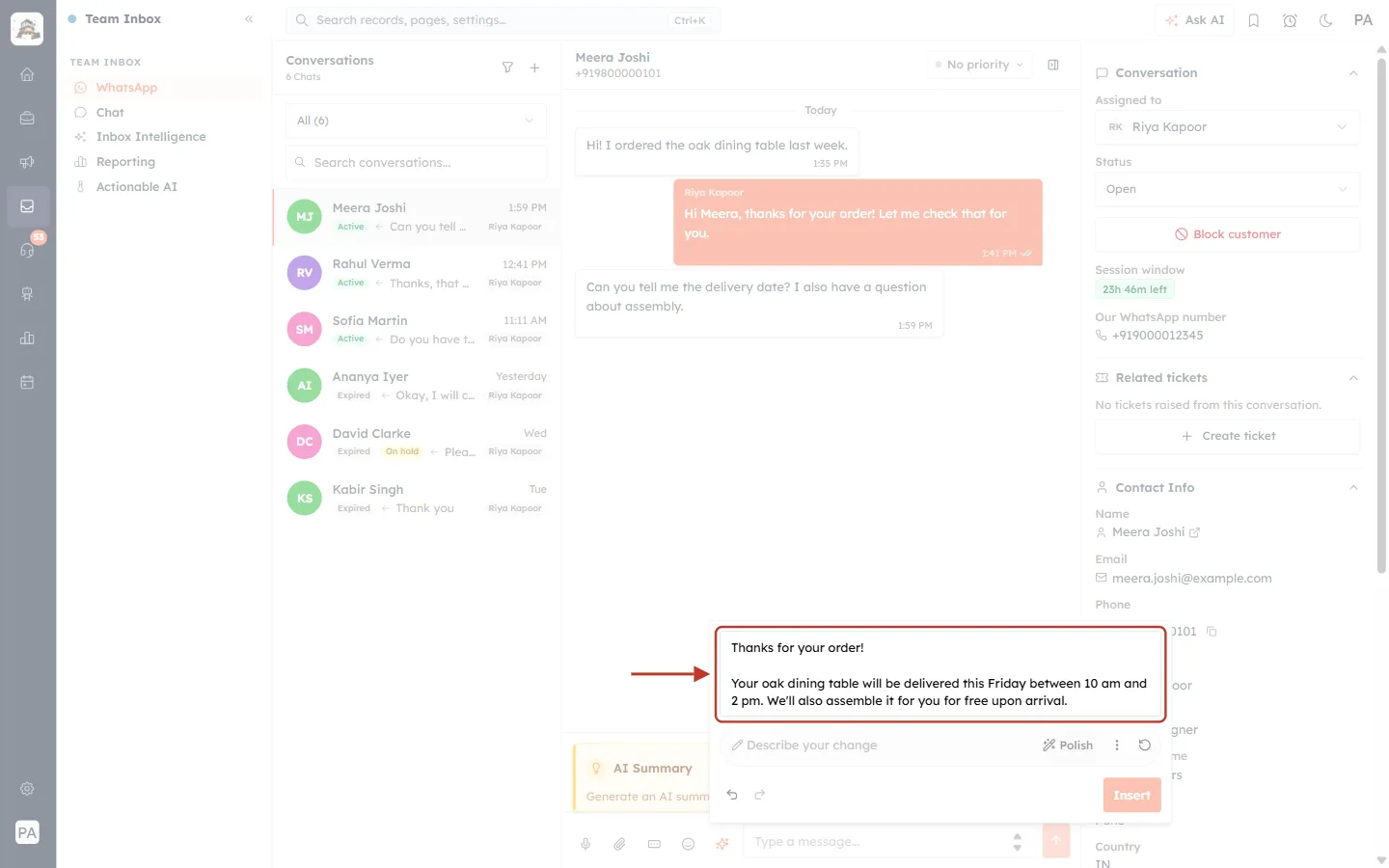
What this screenshot shows. The ringed box shows the polished version.
The new draft reads: “Thanks for your order! Your oak dining table will be delivered this Friday between 10 am and 2 pm. We’ll also assemble it for you for free upon arrival.”
Polish makes small improvements. Here “Our team will also assemble it” became the shorter, friendlier “We’ll also assemble it”. The facts didn’t change.
The ↶ Undo arrow is now active because there are two versions.
Step 10: Change the tone#
Click ⋮ (three dots) to open the list of tones, then click the one that suits the customer and the situation.
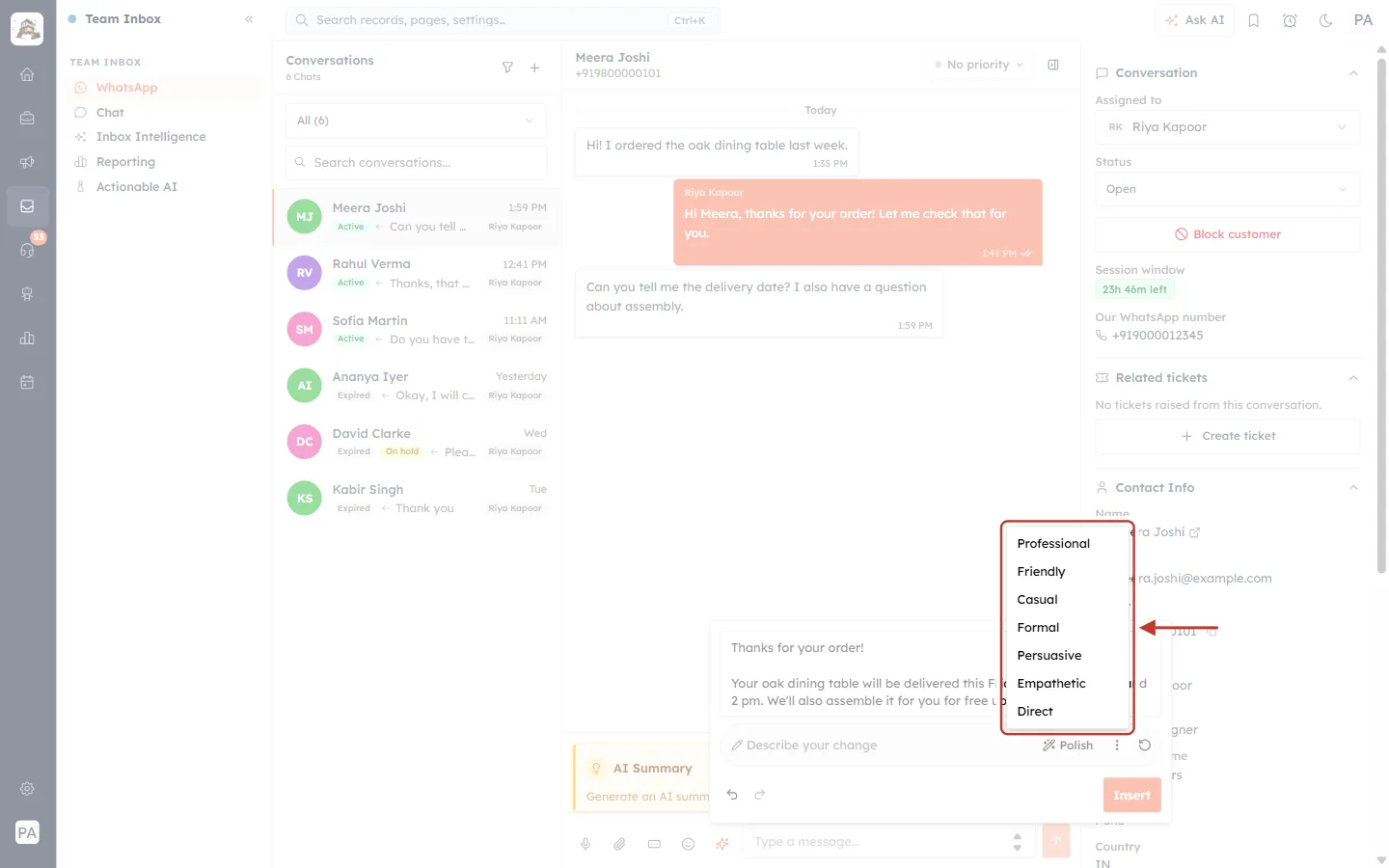
What this screenshot shows. The tone menu is open and ringed. The arrow points at it from the right.
The seven tones are Professional, Friendly, Casual, Formal, Persuasive, Empathetic and Direct.
The menu opens over the draft. The draft text is still behind it, and Polish, ⋮ and ↻ are below.
Tone | Good for |
|---|---|
Professional | Most business replies: clear and courteous |
Friendly | Warm, upbeat replies to happy customers |
Casual | Relaxed chat with regular customers |
Formal | Official notices, legal or billing topics |
Persuasive | Encouraging a customer to buy, book or upgrade |
Empathetic | Complaints, delays and apologies |
Direct | Short, to-the-point answers |
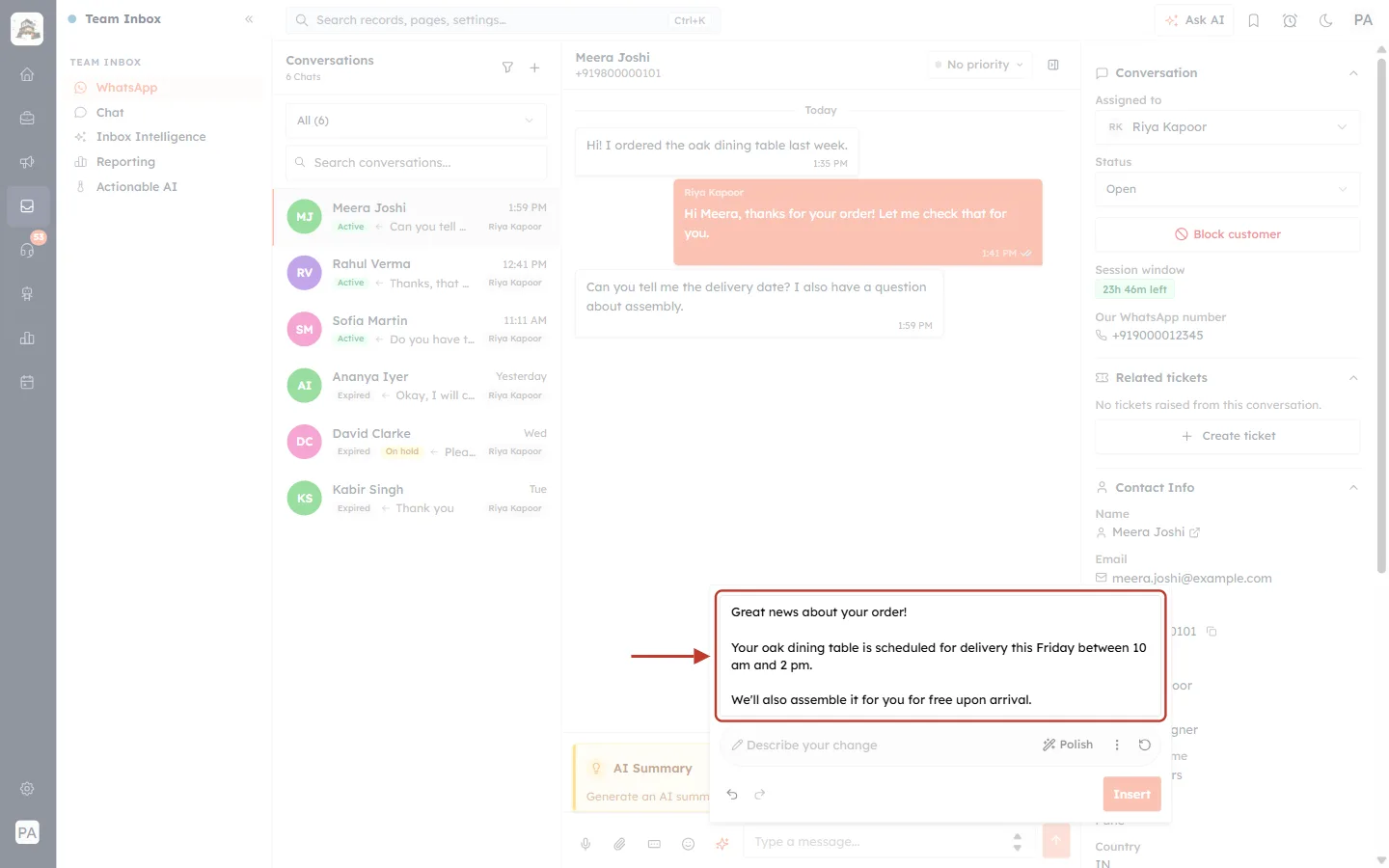
What this screenshot shows. After choosing Friendly, the ringed box shows the rewritten draft.
The draft now reads: “Great news about your order! Your oak dining table is scheduled for delivery this Friday between 10 am and 2 pm. We’ll also assemble it for you for free upon arrival.”
The opening is warmer (“Great news about your order!”) and the message is split into short paragraphs that are easy to read on a phone.
The facts are the same: Friday, 10 am to 2 pm, free assembly.
Step 11: Ask for your own change#
To ask for something that isn’t in the list, type a short instruction in Describe your change and press Enter. Keep it short. The box accepts instructions of up to 50 characters.
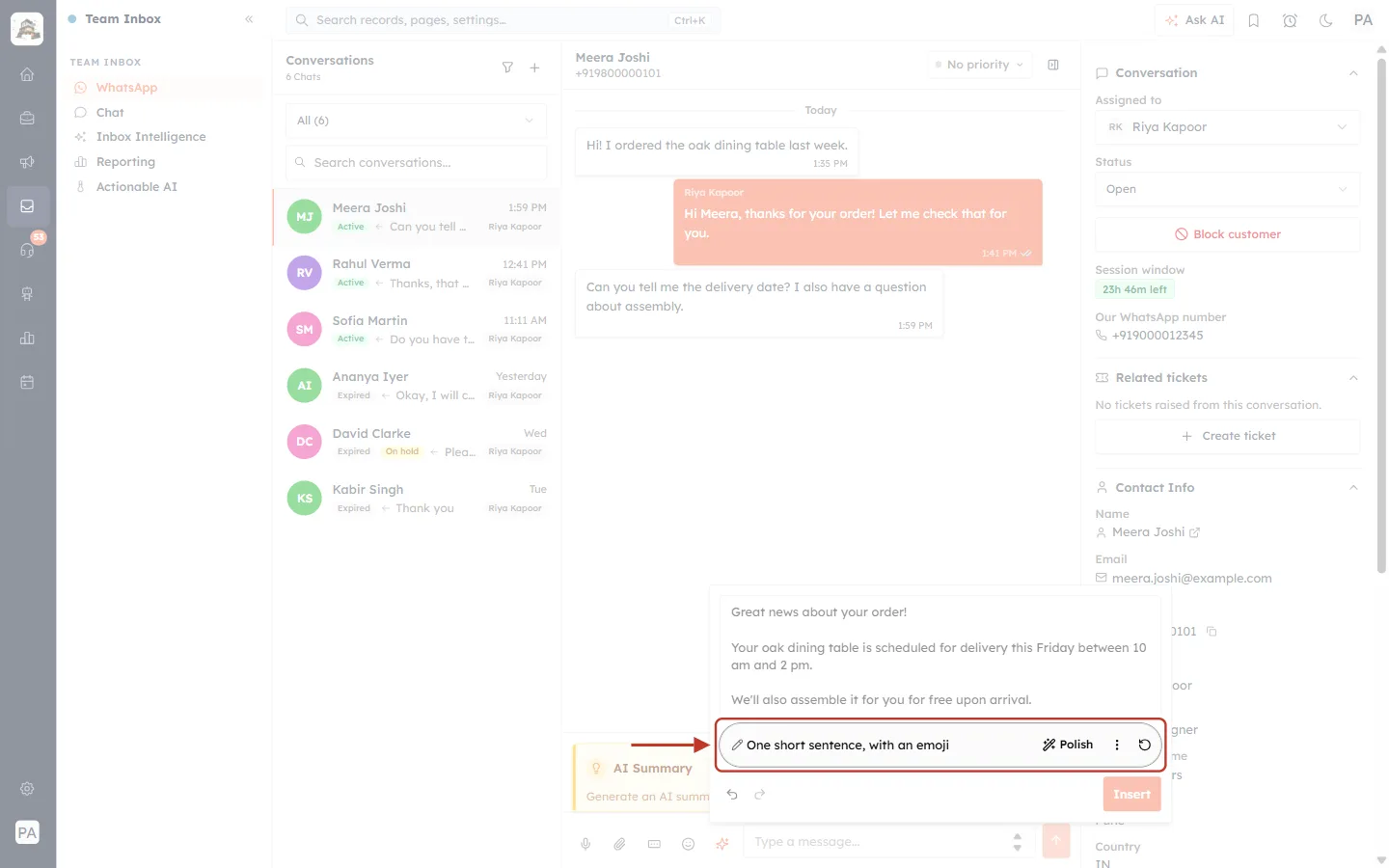
What this screenshot shows. The ringed bar is the change bar with an instruction typed in.
The box reads “One short sentence, with an emoji” (33 characters, so within the limit).
Press Enter to send it. There is no separate button for your own change.
Polish, ⋮ and ↻ remain on the right of the same bar.
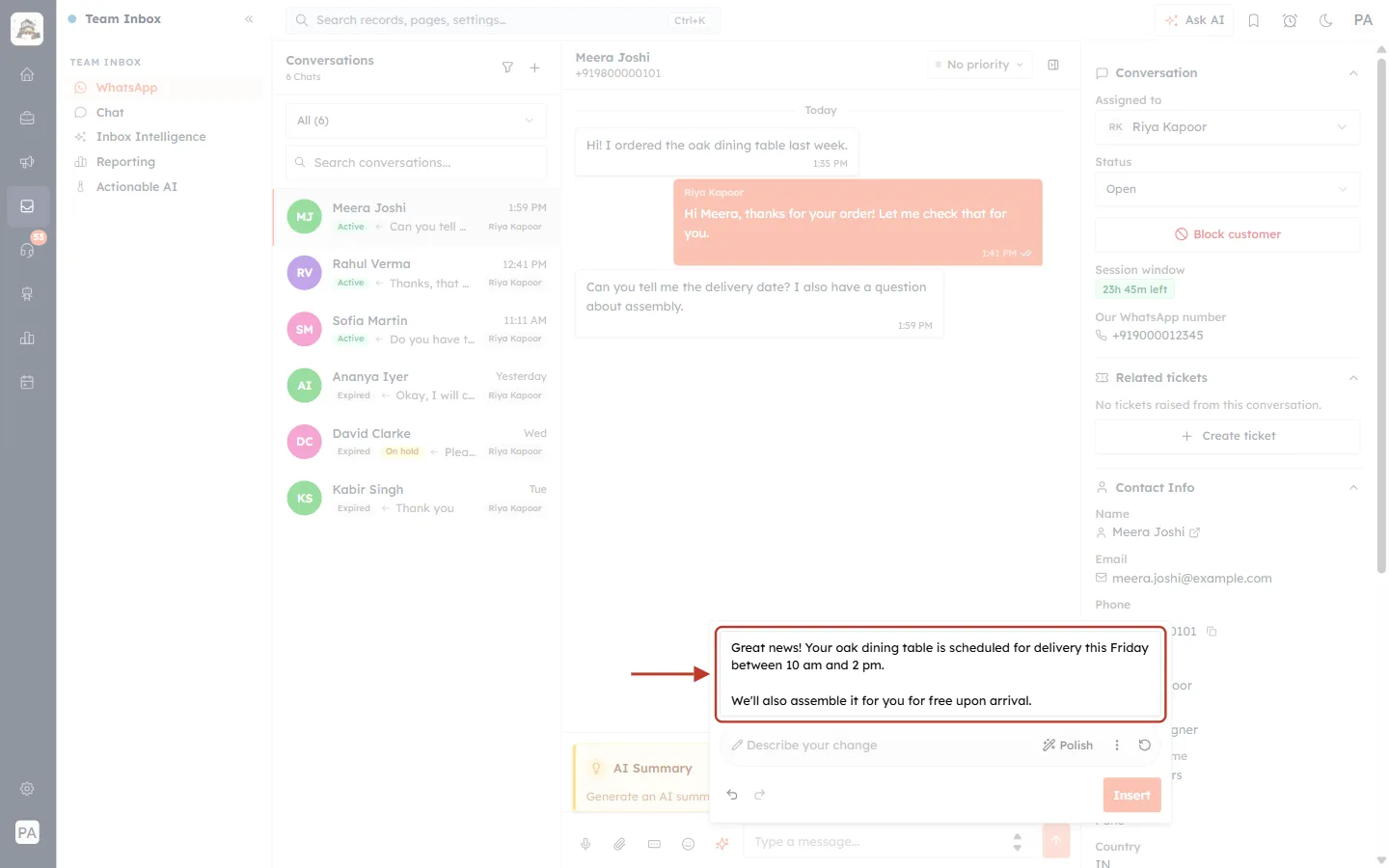
What this screenshot shows. The ringed box shows the version produced from the instruction.
The draft now reads: “Great news! Your oak dining table is scheduled for delivery this Friday between 10 am and 2 pm. We’ll also assemble it for you for free upon arrival.”
The opening became shorter (“Great news!”). The AI did not make it a single sentence or add an emoji.
This is typical. Your own instruction acts mainly as a style hint, and the AI applies it lightly. It isn’t a command it always follows exactly.
ℹ️
Getting the exact result you want. To add a new fact (for example “we’ll call 30 minutes before delivery”), don’t use Describe your change. In our tests the AI ignored instructions like that. Instead, type it into the draft yourself, or close the panel and generate again with a fuller description. For a precise length or emojis, edit the draft text directly.
If your instruction is too long#
An instruction longer than 50 characters isn’t accepted. Instead of a clear message, you see a general error. Your draft stays as it was.
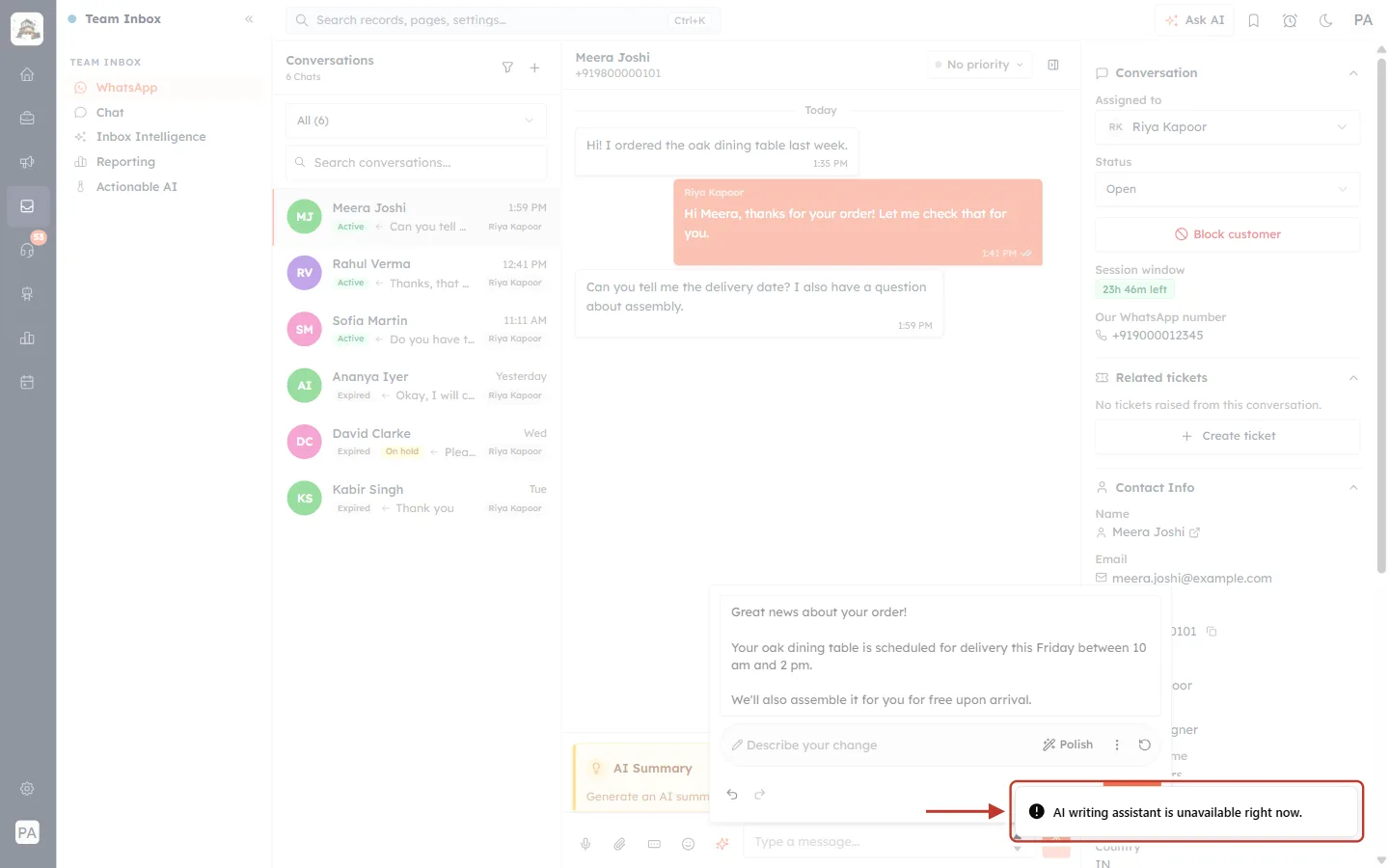
What this screenshot shows. A toast message at the bottom right of the screen is ringed.
It reads AI writing assistant is unavailable right now. Here that message appears because the instruction “Make it shorter and add that she will get a call 30 minutes before delivery” (76 characters) was too long. The assistant itself was working fine.
Behind the toast, the panel still shows the previous draft. Nothing was lost.
Shorten the instruction to 50 characters or fewer and press Enter again.
Part 4: Go Back to an Earlier Version or Start Again#
Step 12: Undo and Redo#
Every draft you create is kept as a version while the panel is in use. Use ↶ Undo to step back and ↷ Redo to step forward again.
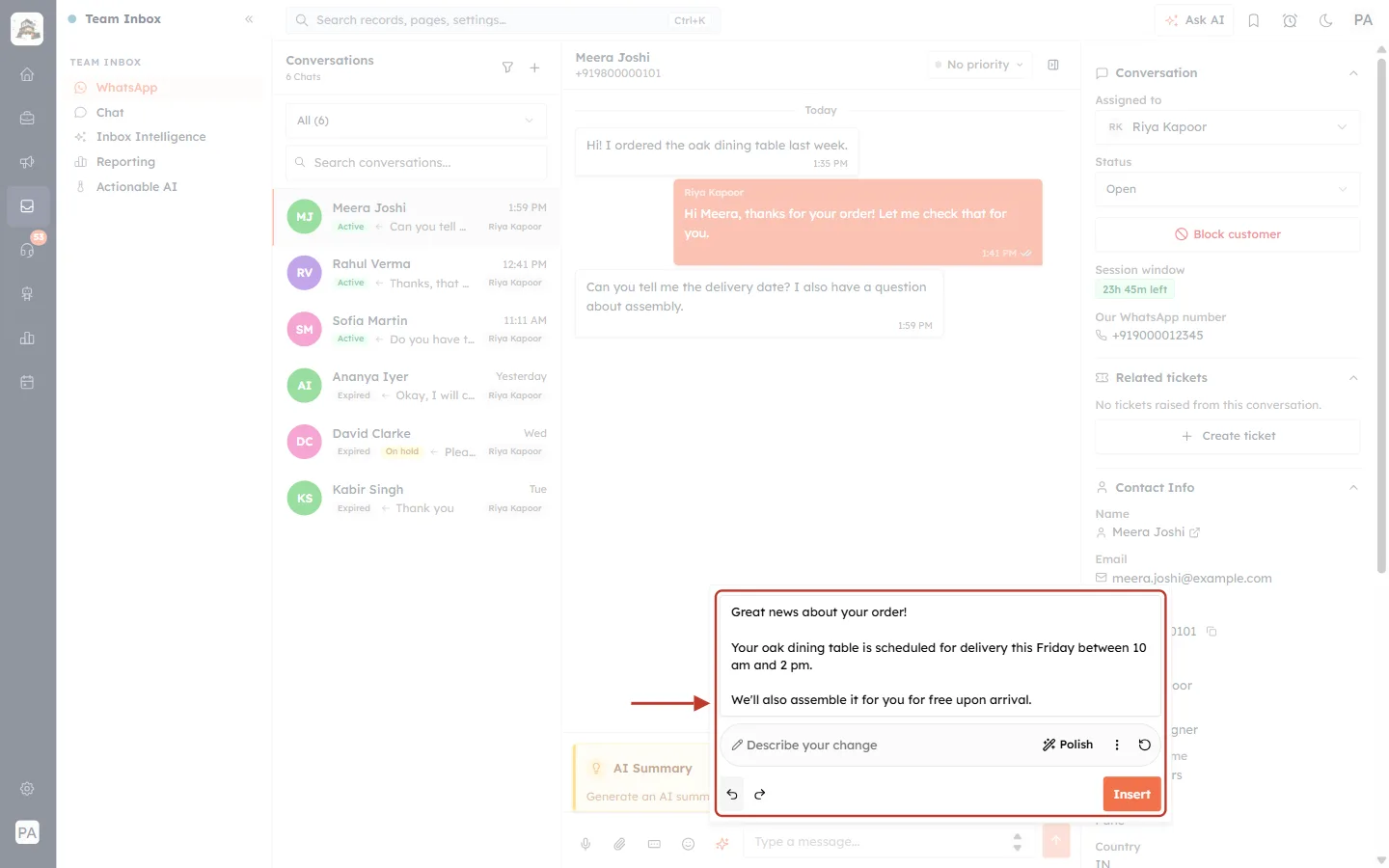
What this screenshot shows. The ringed area covers the draft box and the Undo / Redo arrows at the bottom left. The arrow points at the draft.
After one click on ↶ Undo, the box shows the earlier Friendly version again (“Great news about your order! …”) instead of the latest change.
Both arrows are now dark, so you can go back further (to the polished version and the first draft) or forward again with ↷ Redo.
If you go back and then make a new change (Polish, a tone or your own change), the versions you had stepped back from are replaced by the new one.
Step 13: Recreate from your description#
Not happy with any version? Click ↻ Recreate (the circular arrow) to write a completely new draft from your original description from Step 6. It is added as a new version, so you can still undo back to the earlier ones.
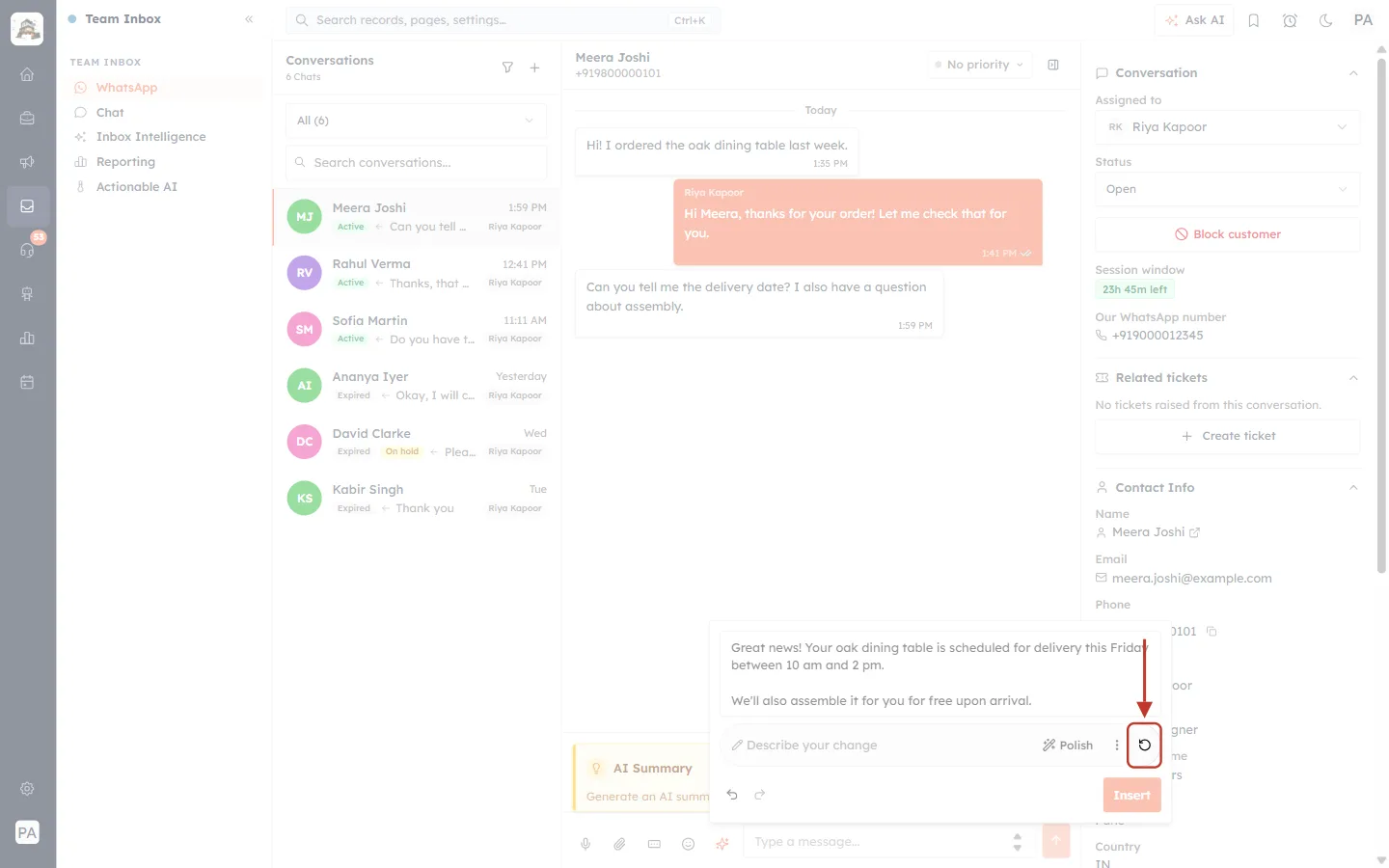
What this screenshot shows. The circular-arrow Recreate button at the right end of the change bar is ringed. The arrow points down at it.
Hovering over it shows the label Recreate.
Recreate always starts again from the description you typed in Step 6, not from the current draft.
Part 5: Insert the Draft and Send It#
Step 14: Click Insert#
When the draft in the box is the one you want, click Insert.
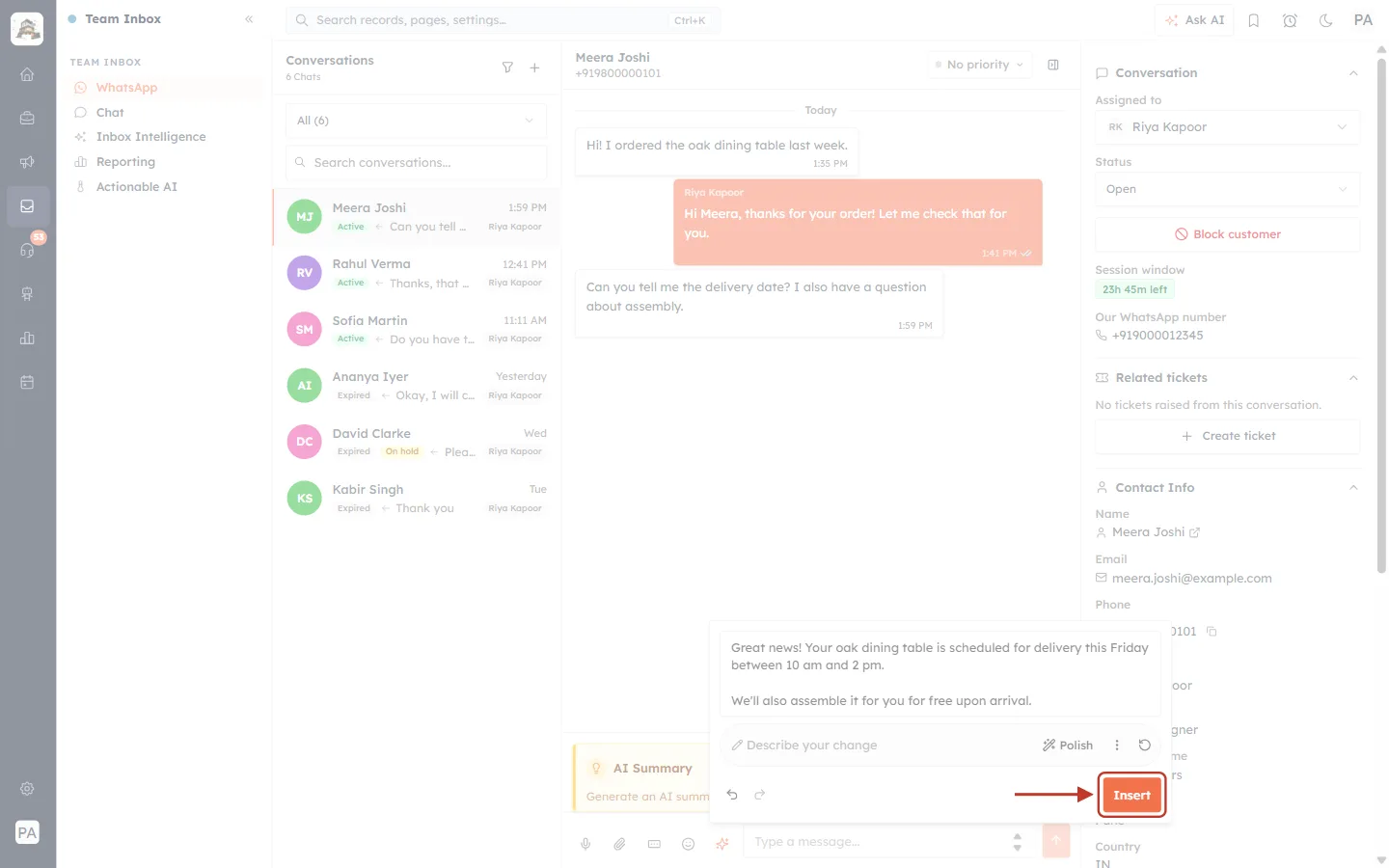
What this screenshot shows. The orange Insert button at the bottom right of the panel is ringed.
Insert copies the draft currently in the box, including any edits you typed, into the message box.
It doesn’t send anything. The panel closes and clears, ready for your next reply.
Step 15: Check the message in the reply box#
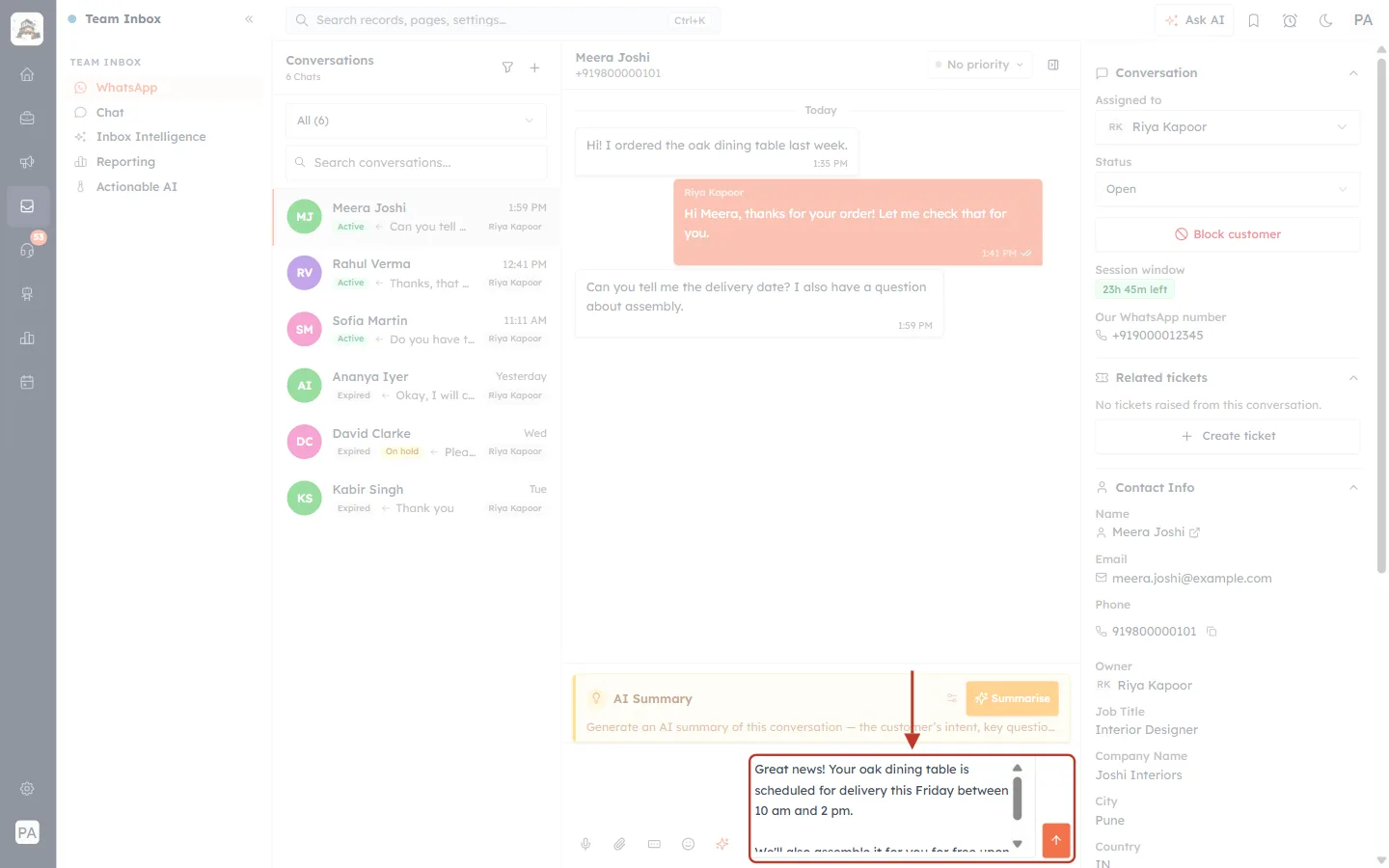
What this screenshot shows. The panel has closed and the ringed area is the message box, now holding the draft, with the Send button. The arrow points down at it.
The message box contains the draft, starting “Great news! Your oak dining table is scheduled for delivery this Friday between 10 am and 2 pm.” The box grows taller, and you can scroll it with the small arrows on its right.
You can still change anything here: click into the box and type, just as with a message you wrote yourself.
The orange ↑ on the right is Send.
If the message box already had text in it, the draft is added on a new line below your text. Nothing you typed is replaced.
Step 16: Send the reply#
Click the orange ↑ Send button. The reply goes to the customer’s WhatsApp like any other message you send.
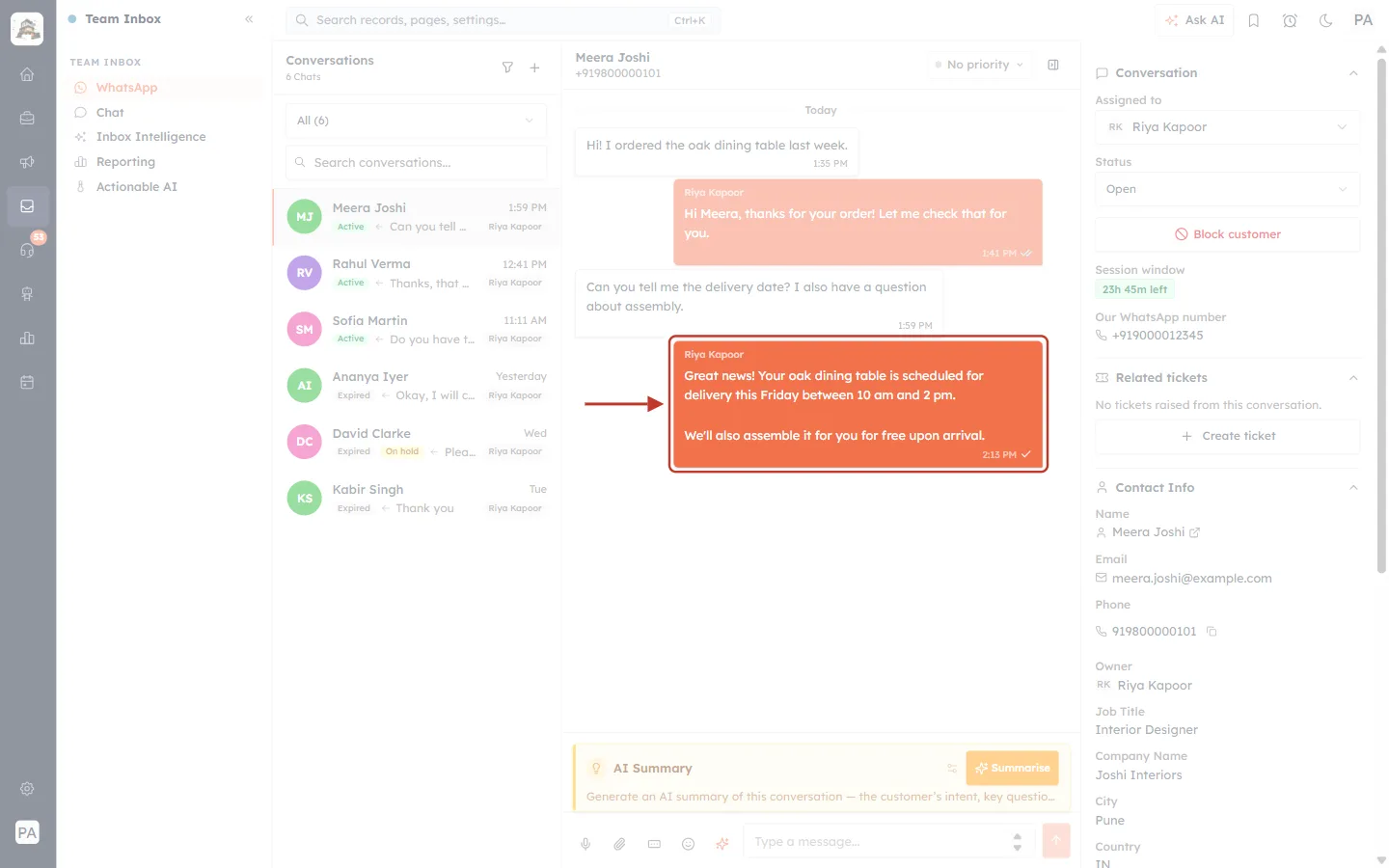
What this screenshot shows. The new orange bubble at the end of the chat is ringed. It is the reply that was just sent.
The bubble is labelled with the agent’s name, Riya Kapoor, and holds the inserted text with its two short paragraphs.
The time and a tick appear at the bottom right of the bubble, the same as for any message you send.
The customer sees a normal WhatsApp message. There is no AI label on it.
The message box below is empty again, ready for your next reply.
Part 6: Messages You May See#
Message | What it means and what to do |
|---|---|
Enter at least 3 words | Your description is too short. Add more detail. |
You’re out of AI credits. | Your workspace has used its AI credits. Ask an admin to add credits. See AI Credits & Pricing: How AI Usage Is Billed. |
AI writing assistant is unavailable right now. | Check that your Describe your change instruction is 50 characters or fewer. If it is, the AI service may be busy or turned off for your workspace. Wait a minute and try again, and contact support if it continues. |
Couldn’t generate a draft. Try again. | The AI returned an empty answer. Click Generate (or the same option) again, or reword your description. |
Too many requests — try again in a moment. | Too many requests were sent in a short time. Wait a few seconds and try again. |
Could not generate a draft. | Something else went wrong. Try again. Your previous draft is kept. |
After any of these messages, the panel returns to where you were: your description, or the last good draft.
Part 7: When Help Me Write Isn’t Available#
WhatsApp only lets businesses send free-form messages within 24 hours of the customer’s last message. After that, the reply box is replaced, so Help me write isn’t available either.
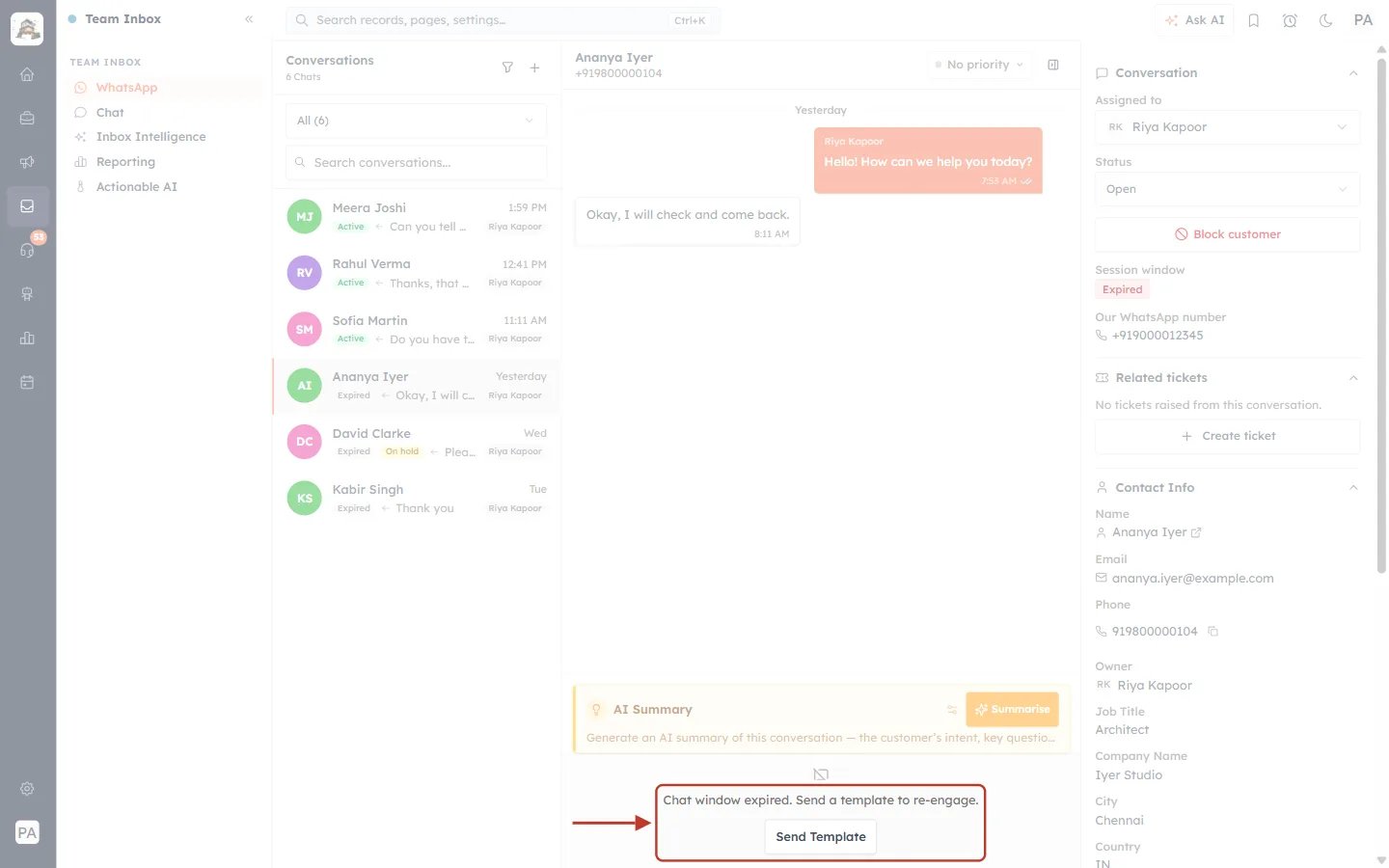
What this screenshot shows. The conversation with Ananya Iyer is open. The ringed area at the bottom is where the reply box would normally be.
It reads Chat window expired. Send a template to re-engage. with a Send Template button.
In the right column, the Session window badge is red and reads Expired. In the Conversations list, Ananya Iyer, David Clarke and Kabir Singh also show Expired.
There is no microphone, sparkle or message box here, so you can’t use Help me write in this conversation.
Click Send Template to send an approved WhatsApp template. When the customer replies, the window opens again for 24 hours and Help me write comes back. To create templates, see Create and Manage WhatsApp Message Templates.
Quick Reference#
I want to… | Do this |
|---|---|
Draft a reply with AI | Open the conversation → ✨ → describe it (3+ words) → Generate |
Make the wording better | Polish |
Make it warmer, more formal, etc. | ⋮ → pick a tone |
Ask for a small style change | Describe your change (≤ 50 characters) → Enter |
Add or fix a fact | Type it into the draft box yourself |
Get a completely new draft | ↻ Recreate |
Go back a version | ↶ Undo (and ↷ Redo) |
Stop a draft that is being written | ■ Cancel, or close the panel |
Use the draft | Insert → check → ↑ Send |
Best Practices#
Give the facts, not just the topic. The assistant can’t see the chat, the contact or your orders, so include names, dates, amounts and next steps in your description.
Read before you send. Check every date, price and promise. A sent WhatsApp message can’t be unsent.
Pick the tone for the moment. Use Empathetic for complaints and delays, Direct for quick answers and Friendly for good news.
Add a personal touch. Add the customer’s name or your own sign-off in the draft or the message box if the AI left it out.
Don’t paste sensitive data. Avoid putting passwords, full card numbers or other confidential details into the description.
Watch the session window. Reply while the badge is green. After 24 hours you’ll need a template instead.
Troubleshooting#
I can’t see the sparkle button#
Check that you are in a WhatsApp conversation in the Team Inbox, that its session window hasn’t expired, and that you can reply to it. If the conversation is assigned to someone else or your profile has no reply access, the reply box, and the sparkle button with it, isn’t shown.
Generate stays grey#
Your description has fewer than three words. Add more detail until the Enter at least 3 words hint disappears.
The draft doesn’t mention what the customer asked#
The assistant doesn’t read the conversation. Include the answer to the customer’s question in your description, then click ↻ Recreate (which uses the old description) or close the panel and generate again with the new one.
My own change was ignored#
Instructions in Describe your change are applied as a light style hint. For an exact change, edit the draft text directly, choose one of the seven tones, or regenerate with a more detailed description.
“AI writing assistant is unavailable right now”#
First shorten your change instruction to 50 characters or fewer. If the message still appears for Generate or Polish, wait a minute and try again, and contact support if it keeps happening.
Frequently Asked Questions#
Does Help me write send messages automatically?
No. It only writes a draft. You choose Insert, can still edit the message, and must press Send yourself.
Does the AI read my conversation with the customer?
No. It only uses the text you type into the Help me write panel. To have AI read the conversation, use the AI Summary card. See Get an AI Summary of a WhatsApp Conversation.
Will the customer know the reply was written with AI?
No. It arrives as an ordinary WhatsApp message from your business number.
Does it cost anything?
Each Generate, Polish, tone change, custom change and Recreate is a separate AI request that uses your workspace’s AI credits. Undo, Redo, editing the draft and Insert are free. See AI Credits & Pricing: How AI Usage Is Billed.
How long can my description be?
Up to 2,000 characters. A change instruction can be up to 50 characters.
Can I use it for expired conversations or templates?
No. It is only available in the reply box of an open (Active) WhatsApp conversation. Expired conversations need an approved template.
Can I write in another language?
You can describe your message in any language. Check the draft carefully, and edit it or regenerate if it isn’t in the language you want.
Previous and Next#
Related Articles#
Was this article helpful?
Ready to implement this?
OpenAI Engage and apply what you just learned to your own workspace.
Open AI Engage CRM