Loading…


KnowledgeBase
WhatsApp Form Submissions & Reports
Once a WhatsApp Form is out in the world, everything it produces lands in one place: the form’s Report. It answers four questions — how many people received the form, how many opened it, who submitted it, and what they actually wrote.
This article walks that surface end to end. For building a form see How to Create a WhatsApp Form; for sending one see How to Add a WhatsApp Form to a WhatsApp Template.
Getting there#
Two routes, both from Marketing → WhatsApp Forms. From the list, open a row’s ⋮ menu:
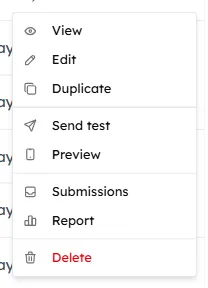
The row menu. Submissions and Report sit near the bottom, above Delete.
Or open the form and use the buttons in its header:
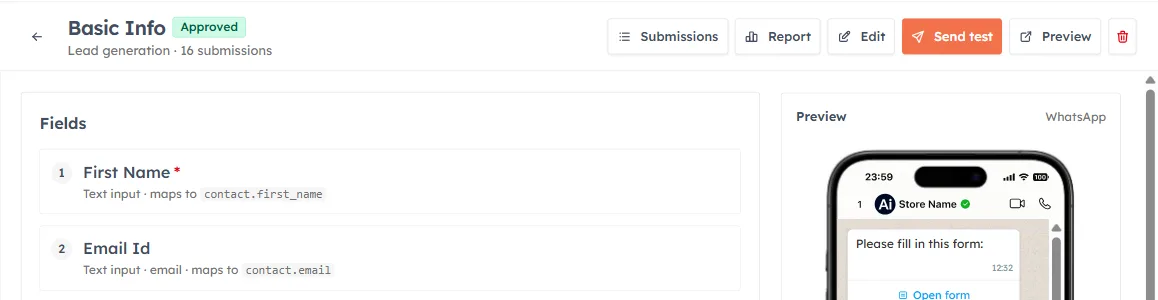
The form header. The subtitle under the name — here “Lead generation · 16 submissions” — is the quickest count you can get.
💡
Submissions and Report are the same page. There is no separate submissions screen — Submissions simply opens the report with a different tab already selected. If you follow an old bookmark to the submissions URL you will be redirected here too.
The three tabs#

The three tabs. Each answers a different question about the same set of sends.
| Tab | Answers |
|---|---|
| Overview | How is this form performing? Charts and totals. |
| Recipient activity | What happened to each send? One row per recipient, delivered through to submitted. |
| Submissions | What did people actually answer? One row per completed form. |
The filter bar#
Two filters sit above the tabs and apply to all three of them at once — the totals, the charts and both tables all move together.

The filters. Both default to everything: All Sources and All time.
| Filter | Options |
|---|---|
| Source | All Sources · Inbox (sent by an agent in a conversation) · Workflow (sent by automation) · Test (a test send) · Contact (sent from a contact record) |
| Date Range | All time by default; presets or a custom range |
💡
Filtering to Source: Test and looking at what is left is the fastest way to separate real customer activity from your team’s own testing. On a form that has been through a few rounds of QA, that difference can be most of the numbers.
A Reset button appears beside the filters as soon as either one is active, and Refresh in the top-right re-pulls the figures.
Overview — the three rate charts#
The Overview opens with three paired bar charts. Each compares one stage of the funnel with the stage before it, and prints the resulting rate underneath.
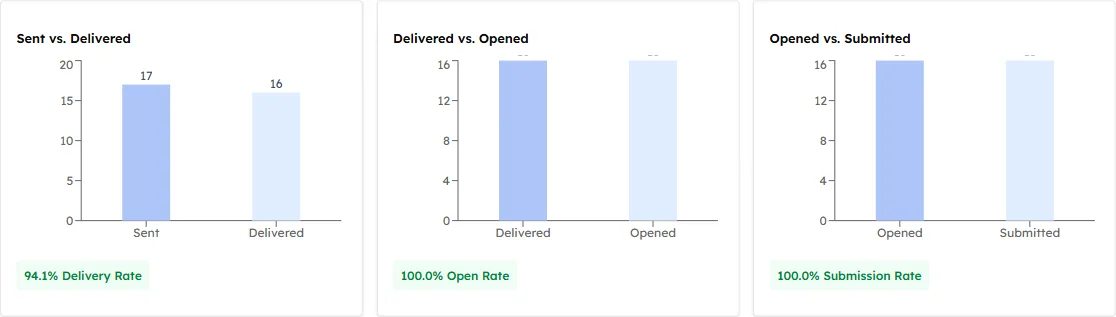
The funnel, one step at a time. Here 17 sent produced 16 delivered (94.1%), all 16 were opened, and all 16 were submitted.
| Chart | Rate | What a low number means |
|---|---|---|
| Sent vs. Delivered | Delivery Rate | Numbers are wrong, unreachable, or blocked. A delivery problem, not a content problem. |
| Delivered vs. Opened | Open Rate | The message arrived but did not interest anyone. Look at the template wording. |
| Opened vs. Submitted | Submission Rate | People opened the form and gave up. Look at the form — too many fields, or the wrong ones. |
Reading them in order tells you where you are losing people, which is usually more useful than the final total.
Overview — the Performance grid#
Below the charts, eight tiles give the raw counts. The small percentage in a tile’s corner is that metric as a share of sends — green above 50%, orange below.

The eight performance tiles. Note that Contacts (6) is well below Submitted (16) — explained below.
| Tile | Counts |
|---|---|
| Sent | Every send attempt. The denominator for the percentages. |
| Delivered | Reached the handset. |
| Opened | The recipient opened the form. |
| Submitted | The recipient completed and sent it. |
| Contacts | Contacts created or updated from those submissions. |
| Failed | Could not be delivered. Broken out below. |
| Pending | Still awaiting delivery from the carrier — not “people who have not replied”. |
| Blocked | Stopped by a plan limit rather than by WhatsApp. |
⚠️
Contacts is normally lower than Submitted, and that is correct. Repeat submissions from the same person update one record instead of creating a second, and a form with Create or update Contact switched off records answers without touching Contacts at all. Treat a gap as deduplication working, not as data going missing.
Overview — Delivery Failures#
When at least one send fails, a breakdown appears beneath the grid: a stacked bar, a legend with counts, and the ratio of failures to sends.

The failure breakdown. The count beside each reason tells you whether it is a one-off or a pattern.
This section is hidden entirely when nothing has failed, so an absent bar is good news. The reasons you may see:
| Reason | Meaning |
|---|---|
| Invalid number | Not a working WhatsApp number. Fix the contact record. |
| No phone/email | Nothing to deduplicate the submission against. |
| No mappable data | Nothing in the submission could be written to a Contact field. |
| Plan limit reached | Your plan’s allowance is exhausted — the same thing the Blocked tile counts. |
| Expired / Rejected | The message timed out, or WhatsApp declined it. |
| Network error / Other | Transient or unclassified. Worth retrying. |
Recipient activity — one row per send#
This tab starts with a row of status chips. Each shows a live count and doubles as a filter — click one to narrow the table to just those rows.

The status chips. All is selected here; clicking Failed would leave only the single failed send.
Below them, every send this form has made:
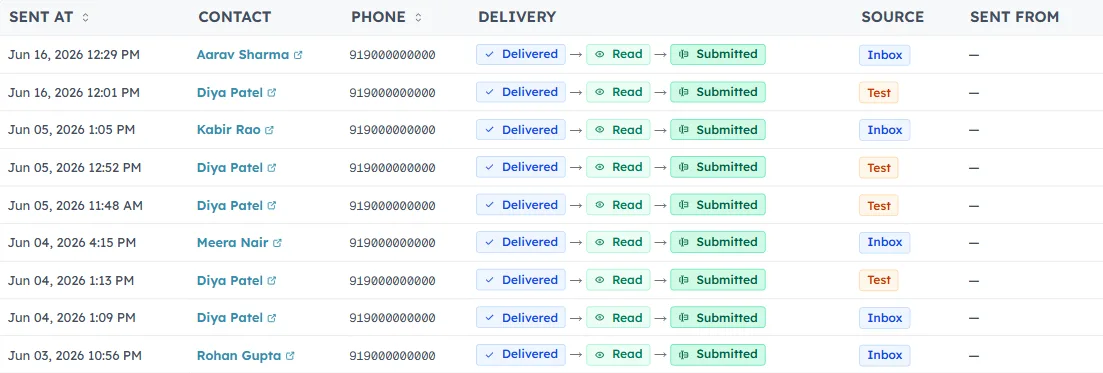
The activity table. The Delivery column shows the whole journey as a chain, so you can see where each recipient stopped. Names, numbers and emails throughout this article are sample data.
| Column | Shows |
|---|---|
| Sent at | When the form went out. Sortable. |
| Contact | The CRM record, linked — click through to open it. |
| Phone | The number it was sent to. |
| Delivery | The progression: Delivered → Read → Submitted. A chain that stops early tells you exactly where that person dropped out. |
| Source | Inbox, Workflow, Test or Contact. |
| Sent from | Which of your WhatsApp numbers was used. |
There is a Search by phone box above the table for chasing a specific person.
💡
Use this tab when someone says they never received the form. Search their number, and the Delivery chain tells you whether it failed, was delivered but never opened, or was opened and abandoned — three different problems with three different fixes.
Submissions — what people answered#
The Submissions tab drops everyone who did not complete the form and shows only the answers.
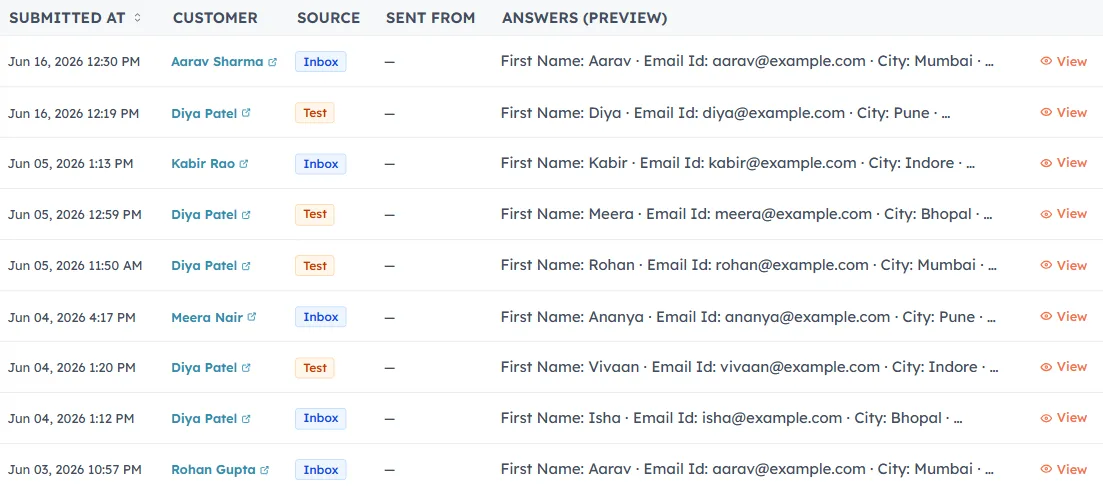
The submissions table. The Answers (preview) column shows the first few fields inline; View opens the rest.
| Column | Shows |
|---|---|
| Submitted at | When they completed it. Sortable. |
| Customer | The linked Contact record. |
| Source | How the form reached them. |
| Sent from | The sending number. |
| Answers (preview) | The first fields, truncated with an ellipsis. |
| View | Opens the full submission. |
Reading a single submission#
View on any row opens everything that submission carried.
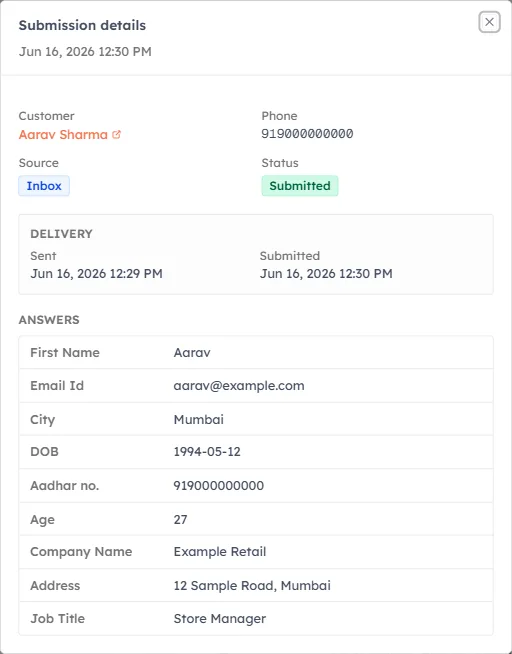
One submission in full. The Answers block lists every field with the value the customer gave, in the order the form asked.
The dialog is in three parts: who submitted it and from which source, the Delivery timestamps for sent and submitted, and then Answers — every field, including the ones that were never mapped to a Contact field. Unmapped answers are recorded here even though they are not written to the CRM record, which is exactly what “Do not map (audit only)” means when you set it in the builder.
Exporting to CSV#
Above the submissions table is an Export CSV button.

The export control, beside the phone search. It only appears when the current view actually has rows.
The important detail: the export follows what is on screen. Your Source filter, date range and phone search all carry into the file, so narrow the view first and you get exactly that slice rather than everything and a spreadsheet to clean up. The file downloads as submissions.csv.
💡
A useful habit: set Source: Inbox and last month’s date range before exporting, so the file contains genuine customer submissions and none of your team’s test sends.
Common questions#
Why is Contacts lower than Submitted?
Because repeat submissions from the same person update their existing Contact rather than creating a new one, and because a form with Create or update Contact switched off never writes to Contacts at all. Both are working as intended. If the number is zero when you expected records, check that toggle on the form and confirm at least one field maps to Contact → Email.
Does “Pending” mean people haven’t replied yet?
No. Pending counts sends still awaiting delivery confirmation from the carrier — the message has not reached the handset yet. People who received the form and simply have not filled it in are not counted here; you find them on Recipient activity as rows whose delivery chain stops at Delivered or Read.
My report is empty.
Check the filter bar first — a leftover Source or Date Range can hide everything. Press Reset. If it is still empty, the form genuinely has no sends yet: a form that has been approved but never sent has nothing to report on.
Where is the Submissions page?
It was merged into the report. Both the Submissions and Report actions open the same screen — Submissions just lands you on a different tab. Older links to the standalone submissions URL redirect here automatically.
Can I see answers that aren’t saved to the Contact?
Yes — open the submission with View. The Answers block lists every field the customer filled in, mapped or not. Fields set to Do not map (audit only) in the builder appear here and in the CSV export, but are not written to the Contact record.
Was this article helpful?
Ready to implement this?
OpenAI Engage and apply what you just learned to your own workspace.
Open AI Engage CRM