Loading…


KnowledgeBase
Manage Multiple WhatsApp Senders (Numbers)
Run several WhatsApp numbers from one CRM#
You are not limited to a single WhatsApp number. AI Engage CRM lets you connect and manage multiple WhatsApp senders — for example one number for support and another for sales — each with its own settings. Manage them in Settings → WhatsApp → Add another number.
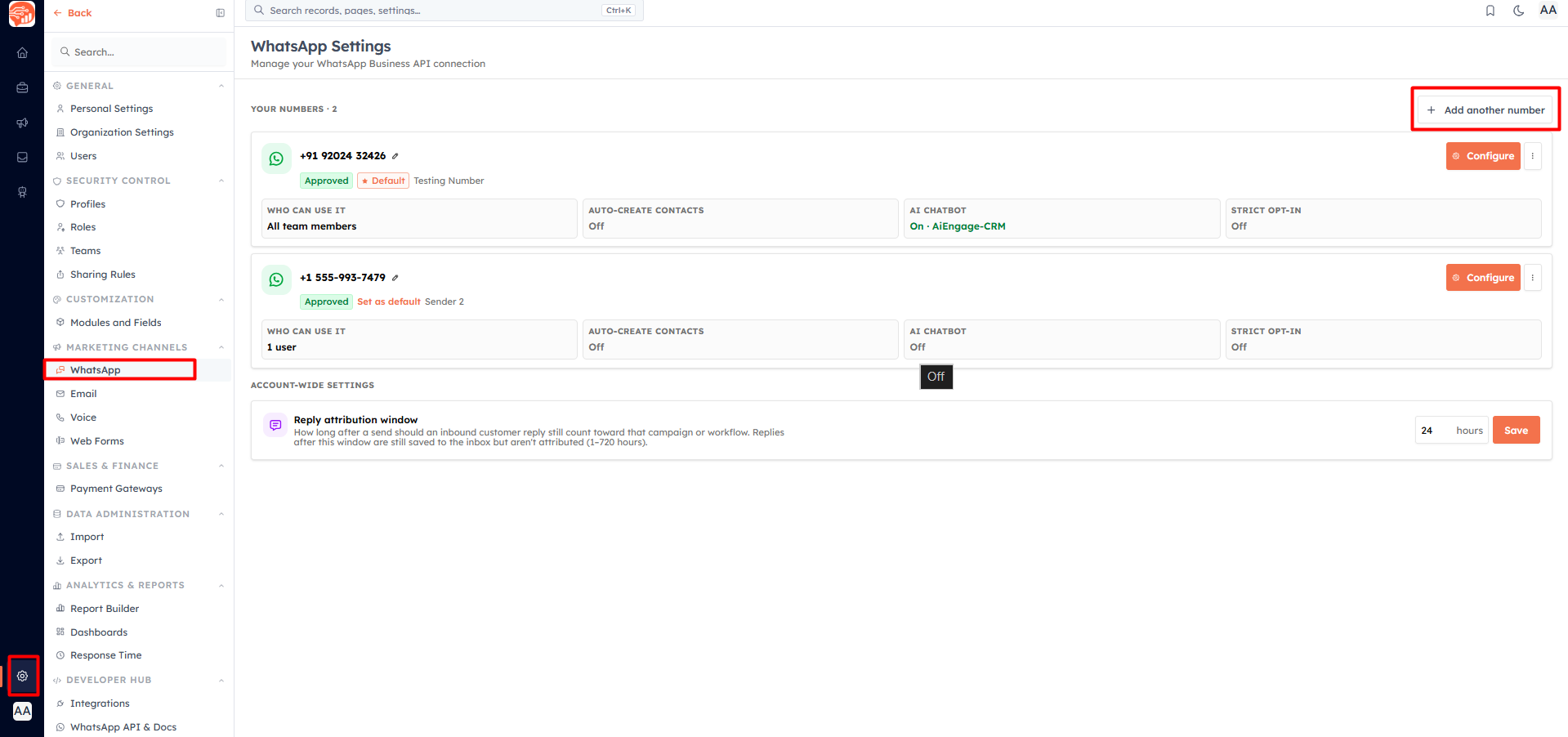
Add another number#
Click Add another number and complete the Meta signup to register the new number. Each number must be approved by Meta before it can send or receive messages — until then it shows a pending state.
💡
Every connected number appears under Your Numbers with its approval status, a label you can rename (the pencil icon), and a summary of its settings.
Set a default sender#
One number is marked Default (star). The default is used whenever a send does not specify a particular number. To change it, click Set as default on another number, or use its ⋯ menu.
Configure each sender#
Click Configure on a number to control it independently. Each card summarises four settings:
Who can use it — restrict the number to all team members, specific teams, or specific users. People who can't access a number won't see it when sending or in the inbox.
Auto-create contacts — automatically create a contact when a new person messages this number.
AI Chatbot — bind an AI agent to the number so it auto-replies (shown as "On · <agent name>").
Strict opt-in — only message people who have explicitly opted in on this number.
Disconnect, reconnect & delete#
Open a number's menu for the actions:
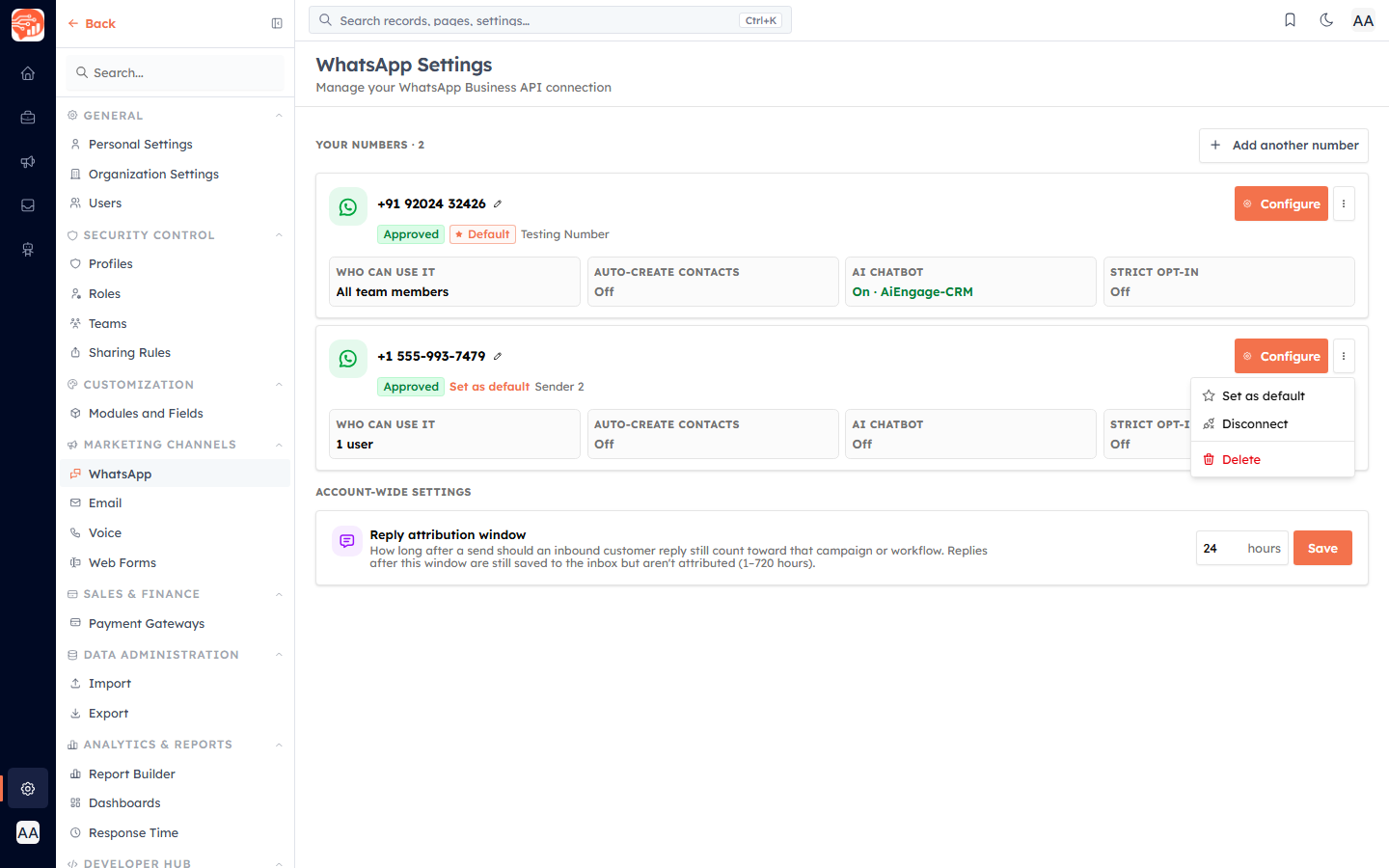
Set as default — make this the default sender.
Disconnect — temporarily stop using the number; you can reconnect it later.
Delete — remove the number entirely. The CRM first checks what depends on it (campaigns, workflows, inbox) so you know the impact.
💡
You cannot disconnect the default number while another connected number exists — set a different default first.
Account-wide: reply attribution window#
At the bottom of the page, the Reply attribution window (1–720 hours, default 24) controls how long after a send an inbound reply still counts toward that campaign or workflow. Replies after the window are still saved to the inbox but are no longer attributed.
💡
Related: Connect WhatsApp Business to add your first number, and Connect an AI Agent to WhatsApp to automate replies.
Was this article helpful?
Ready to implement this?
OpenAI Engage and apply what you just learned to your own workspace.
Open AI Engage CRM