Loading…


KnowledgeBase
WhatsApp Template Reporting & Delivery Metrics
The Template Report shows how your WhatsApp templates actually perform: how many messages were sent, delivered, read, clicked and failed, the rates between each stage, why deliveries failed, and a searchable row-by-row activity log. Unlike campaign performance, it measures a template across every way it gets sent — inbox, tests, API, contact records and workflows — not a single campaign.
Before you start#
The report is gated by the WhatsApp configuration permission — if you don't have it, the page won't open. You'll also need some sends already recorded; with no data the Overview shows “No report data” and “Send some WhatsApp templates to see analytics here.”
Open the report#
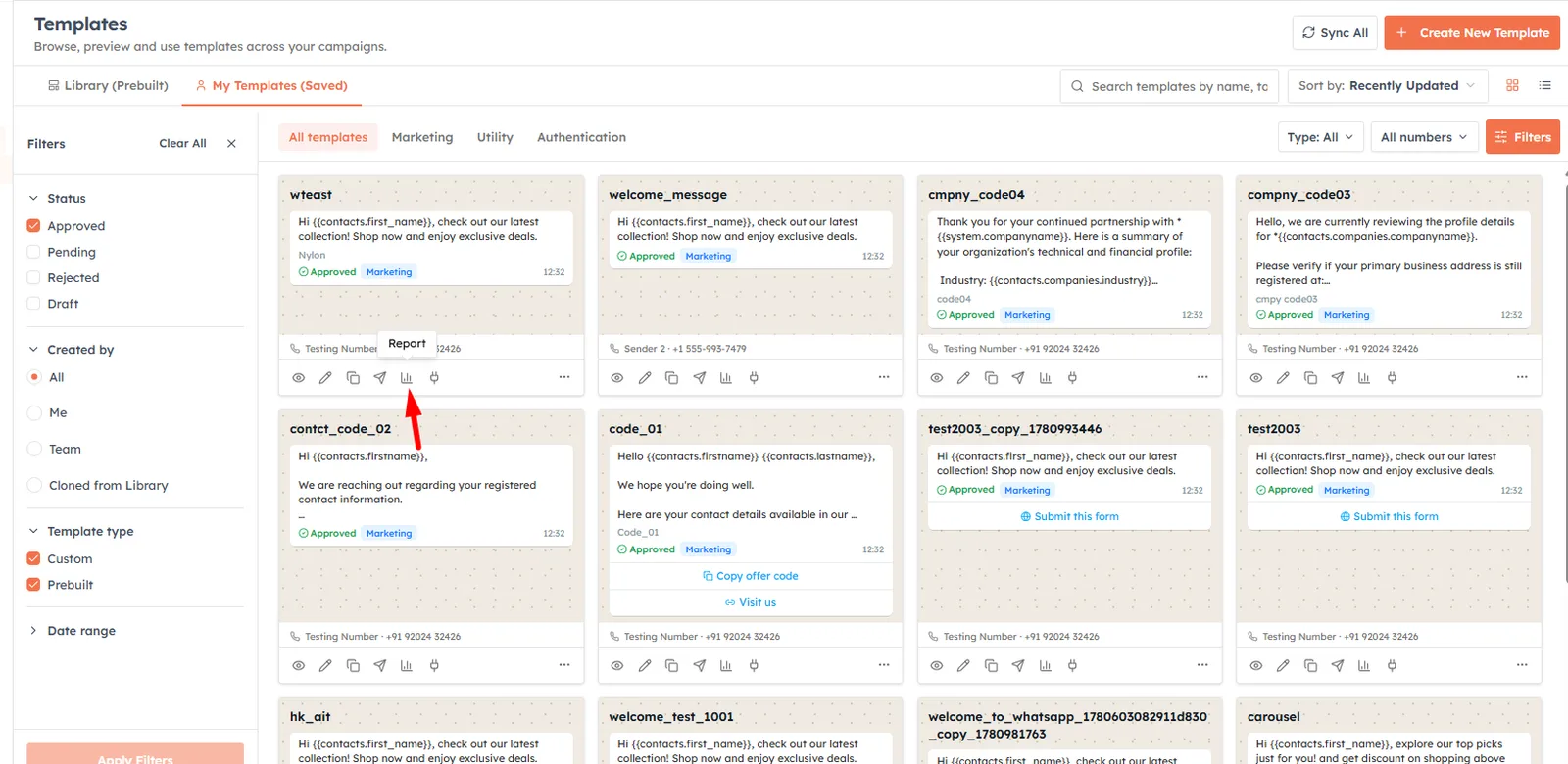
The quickest route is from a template's row menu: choose Report (available on approved templates), which opens the report pre-filtered to that template.
You can also open Settings → WhatsApp → My Template → Reports directly to see all templates, then narrow down with the filters.
Filter the data#
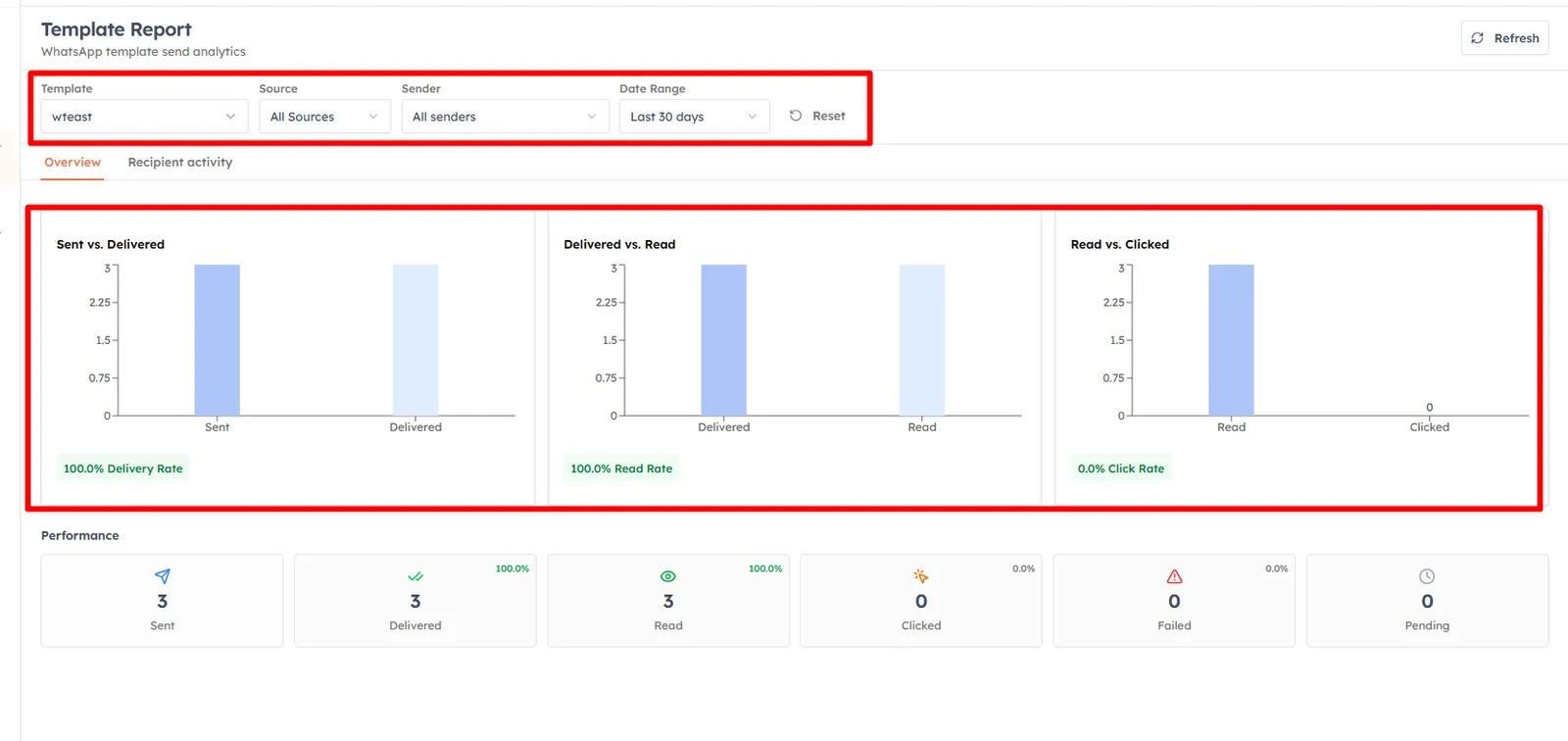
A filter bar sits above the report:
Template — a specific template or All Templates (the default).
Source — where the sends came from: All Sources (default), Inbox, Test, API, Contact or Workflow.
Sender — shown only when your organisation has more than one connected WhatsApp number; pick All senders or a specific number.
Date Range — Today, Last 7 days, Last 30 days (default), All time, or Custom range with From/To date pickers.
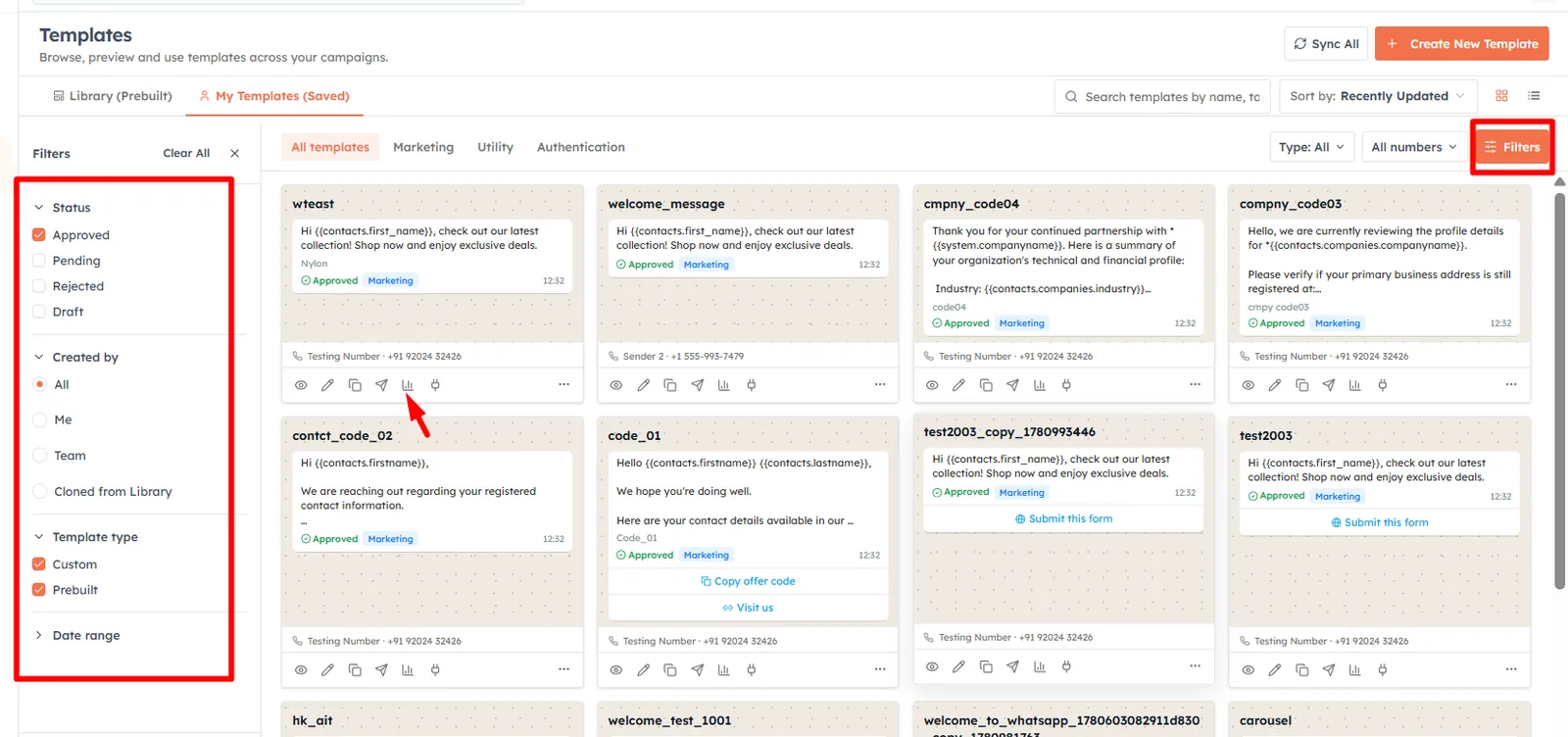
Use the Clear all button to clear any non-default filters, and Refresh to reload the numbers on demand.
The Overview tab#
Overview gives you the funnel at a glance through three bar charts, each with its headline rate:
Sent vs. Delivered — with the Delivery Rate.
Delivered vs. Read — with the Read Rate.
Read vs. Clicked — with the Click Rate.
Below the charts, a Performance grid shows the raw totals for Sent, Delivered, Read, Clicked, Failed and Pending, each with its percentage where applicable.
Delivery Failures#
When there are failures, a Delivery Failures bar breaks them down by reason, with a total shown as failed-over-sent. The reason categories are:
Invalid Number — the recipient number couldn't receive the message.
Expired — the message window lapsed before delivery.
Frequency Capped — blocked by messaging frequency limits.
Opt-out — the recipient has opted out.
Spam — flagged as spam.
Network Error — a delivery/network failure.
Rejected — rejected by the provider or Meta.
Other — anything not in the categories above.
💡
When All Templates is selected, Overview adds a Per-Template Breakdown table so you can compare templates side by side. Pick a single template to focus the whole report on it.
The Recipient activity tab#
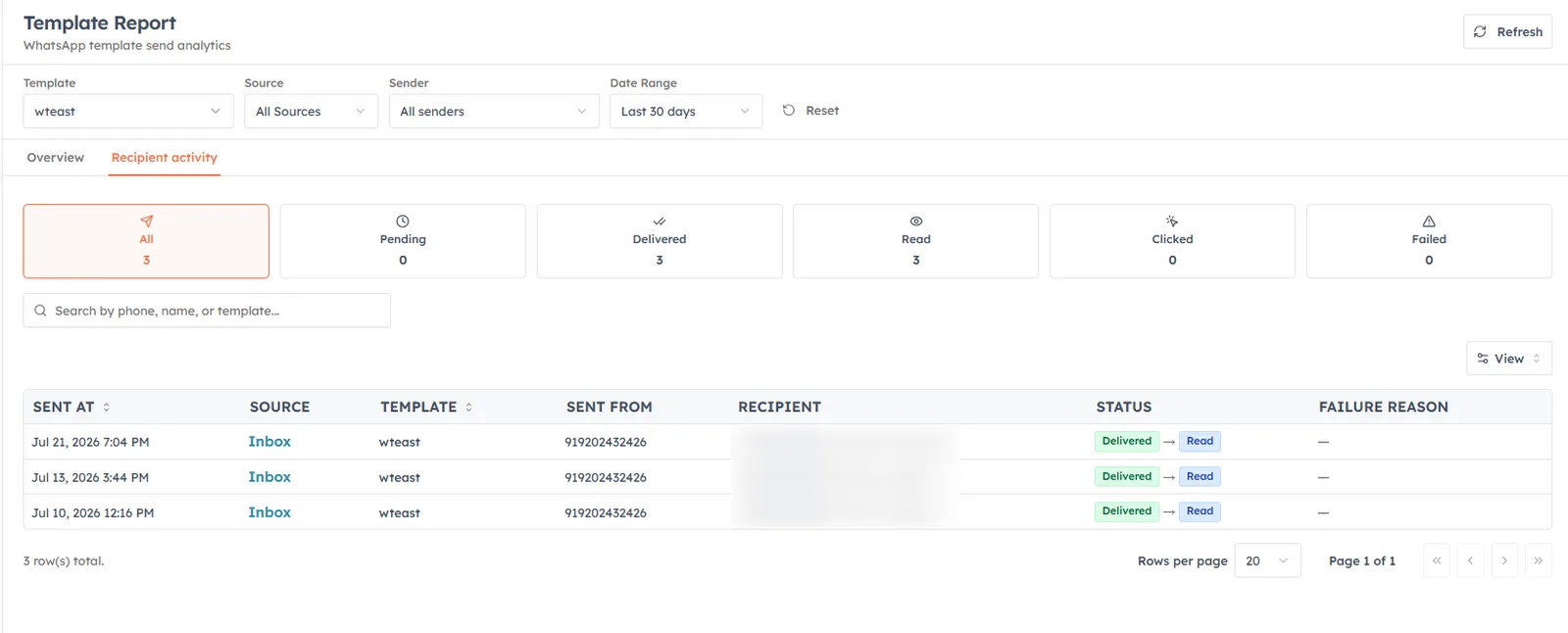
Switch to Recipient activity for the message-by-message log. A row of status cards — All, Pending, Delivered, Read, Clicked, Failed — shows counts and doubles as a filter. Use the search box (“Search by phone, name, or template...”) to find a specific recipient, and page through the table below.
💡
Statuses arrive asynchronously as the provider confirms delivery, so while any row is still Pending the activity table refreshes itself every few seconds — you'll see pending messages roll forward to delivered and read without reloading.
How this differs from campaign performance#
Template reporting answers
“how does this template perform everywhere it's used?” — aggregating sends across inbox, tests, API, contact records and workflows, filterable by source. Campaign performance answers
“how did this one campaign do?” — for a single broadcast. Use template reporting to judge template quality; use Campaign Performance to judge a specific send.
💡
A low delivery rate paired with lots of Invalid Number or Opt-out failures usually points at list quality, not the template — clean your audience before blaming the message.
Good to know#
Your filters live in the URL — so you can bookmark or share a specific filtered view of the report.
Rates are stage-to-stage — Read Rate is measured against delivered messages, not against everything sent, so read the funnel top to bottom.
Was this article helpful?
Ready to implement this?
OpenAI Engage and apply what you just learned to your own workspace.
Open AI Engage CRM