Loading…


KnowledgeBase
WhatsApp Credits: Purchase and Manage Your Messaging Balance
What are WhatsApp Credits?#
WhatsApp Credits are a prepaid balance used to send WhatsApp messages from AI Engage CRM — including campaign broadcasts, template messages sent from contact records, and automated messages triggered by workflows. Credits are deducted automatically as each message is sent based on the recipient's country and message category.
💡
WhatsApp Credits are separate from your CRM subscription. They are a pay-as-you-go balance you top up as needed. You can view your balance at any time under Billing → Marketing Channel Credits.
How WhatsApp charges work#
WhatsApp uses a conversation-based pricing model. Rather than charging per individual message, Meta charges per 24-hour conversation window. Once a window opens — either you or the contact sends the first message — all messages exchanged within that 24 hours count as a single conversation.
The rate per conversation depends on the message category and the recipient's country:
Marketing — promotional messages, campaign broadcasts, and offers. This is the most common category and has the highest rate.
Utility — transactional messages triggered by a customer action: order confirmations, appointment reminders, shipping updates. Charged at a lower rate than marketing.
Authentication — one-time passwords and verification codes.
Service — replies to a contact who messaged you first. Service conversations are free for 24 hours — you can reply as many times as needed within that window at no credit cost.
💡
When a contact messages you first, a free 24-hour service window opens. Use this window to qualify leads, answer questions, and build rapport — without spending any credits.
Checking your balance#
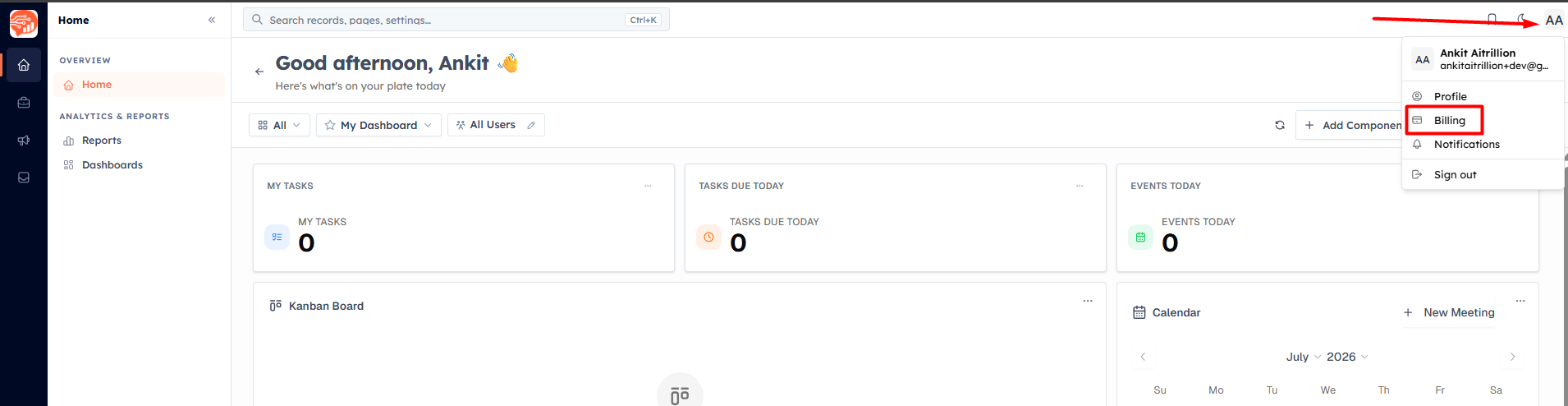
Navigate to Billing → Marketing Channel Credits.
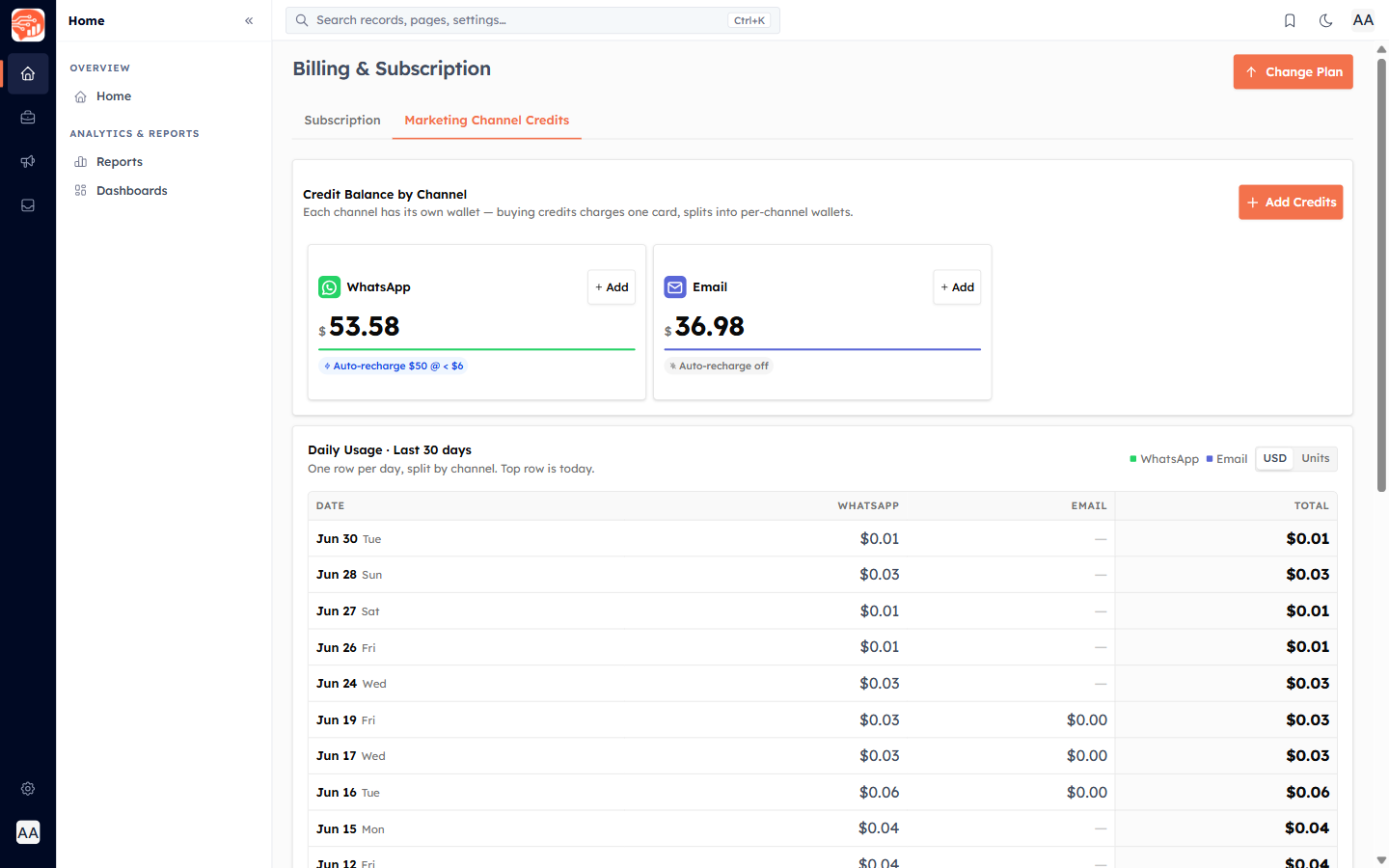
The WhatsApp channel card shows:
Available balance — credits remaining in your account
Used (30 days) — how much you have spent in the last 30 days
Auto-recharge status — whether automatic top-up is on and at what threshold it fires
💡
A low balance warning appears when your available balance drops below $5. If it reaches zero, all outbound WhatsApp messages — including scheduled campaigns and workflow automations — will stop sending until you add credits.
Purchasing credits#
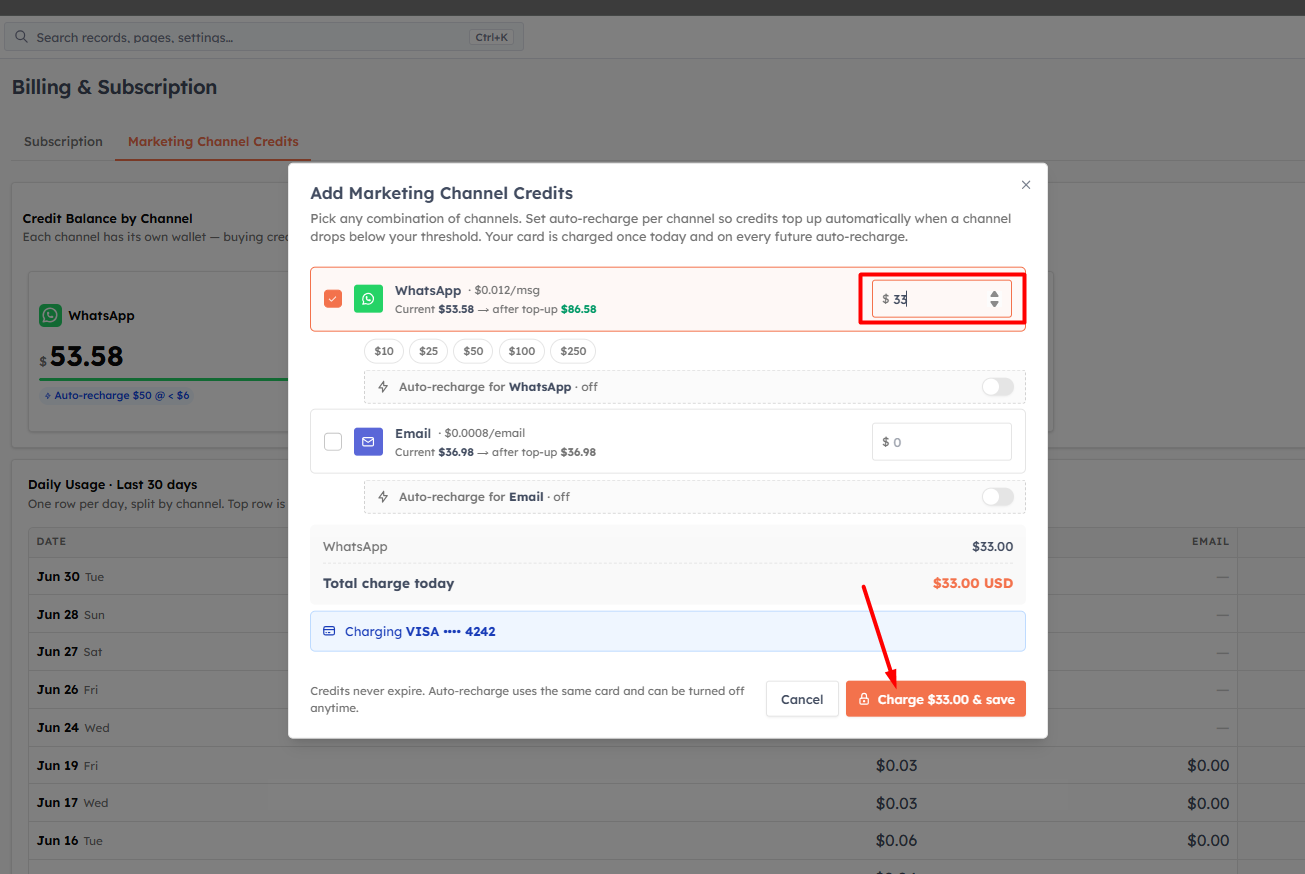
Click Buy Credits on the WhatsApp channel card. The purchase dialog opens where you can:
Quick-select a preset amount — $10, $25, $50, $100, or $250
Enter a custom amount — between $1 minimum and $1,000 maximum per top-up
You can purchase credits for multiple channels (WhatsApp, Email) in a single transaction. Select the amount for each channel and click Purchase. Payment is processed securely via Stripe using your saved card.
💡
If your bank requires 3D Secure (3DS) verification, you will be redirected to your bank's authentication page after clicking Purchase. Credits are added to your balance immediately after a successful payment.
Setting up Auto-Recharge#
Auto-Recharge automatically tops up your balance when it drops below a threshold — so campaigns and automations never pause because your wallet ran empty.
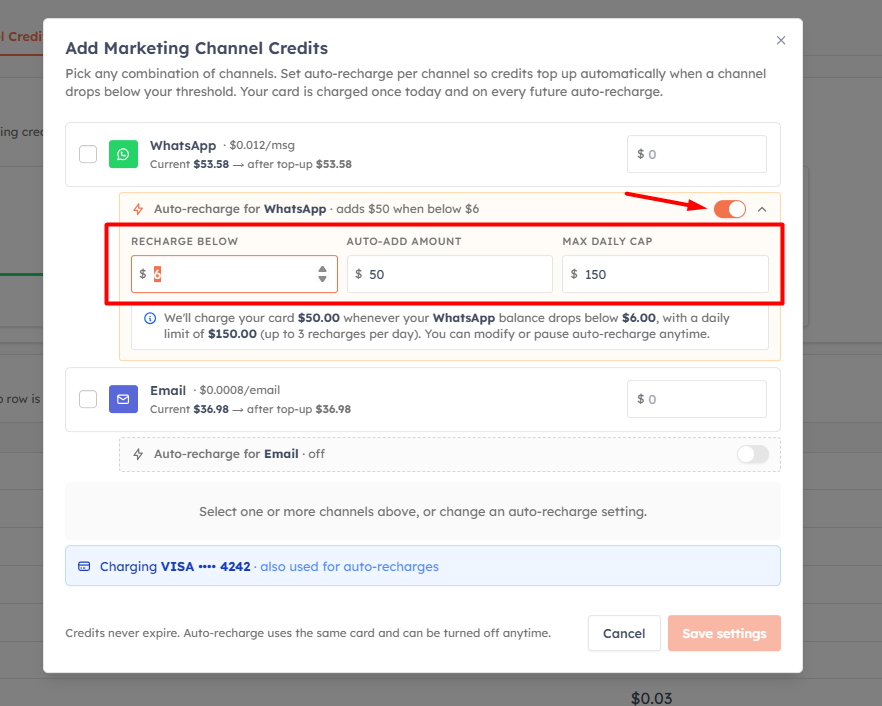
Click Configure Auto-Recharge on the WhatsApp channel card and set:
Threshold — when your balance falls below this amount, a recharge is triggered automatically (between $1 and $500).
Recharge Amount — how many credits to add each time the threshold is hit (between $5 and $1,000).
Daily Cap — the maximum total that can be auto-charged in a single day (between $5 and $5,000). This protects you from unexpected charges if message volume spikes.
💡
Auto-Recharge is the recommended setup for any team running ongoing campaigns or WhatsApp automations. Set your threshold high enough to give at least 2–3 days of buffer, so a recharge always completes before messages are affected.
💡
Auto-Recharge uses the card saved in your Billing settings. If the card expires or is declined, the recharge will fail and your balance will not top up. Keep your payment method current under Billing → Subscription.
Viewing credit history#
The Credit Log at the bottom of the page shows every credit transaction:
Top-up — credits purchased manually via the Buy Credits dialog
Auto-reload — credits added automatically by the Auto-Recharge system
Refund — credits returned to your balance (e.g. for failed deliveries)
The Daily Usage Matrix shows your spending broken down by day over the last 30 days. Toggle between USD spend and message count views to analyse your usage patterns.
Tips to make your credits last#
Reply inside service windows — when a contact messages you first, respond within 24 hours. It is free and the best moment to engage them.
Use Utility templates where possible — reminders and confirmations are charged at a lower rate than marketing messages in most countries.
Enable Smart Sending on campaigns — this skips recently contacted contacts and avoids opening duplicate conversation windows.
Segment carefully — messaging uninterested contacts wastes credits and increases block rates, which can harm your WhatsApp Business account standing with Meta.
💡
Next: Create and Manage WhatsApp Message Templates — build the approved templates you need before sending any campaign.
Was this article helpful?
Ready to implement this?
OpenAI Engage and apply what you just learned to your own workspace.
Open AI Engage CRM