Loading…


KnowledgeBase
Send a Voice Message in the WhatsApp Inbox: Record, Listen, Send and Reply with Your Voice (Step-by-Step)
Introduction#
Sometimes it is quicker, and friendlier, to say something than to type it: explaining how to assemble a product, walking a customer through a booking, or simply giving a personal touch. With voice messages in the WhatsApp Team Inbox, you record your voice straight from your computer and send it to the customer’s WhatsApp, just like a voice note from your phone.
The customer receives it on WhatsApp as a normal voice message they can play. In AiEngage CRM it stays in the conversation, so everyone on your team can listen to it later.
What you want to do | What to click |
|---|---|
Start recording | The microphone button in the reply box |
Finish recording | Stop |
Listen before sending | The ▶ play button in the preview |
Send it to the customer | Send |
Throw a recording away | The bin (Discard) button |
Answer one particular message with your voice | The message’s ⌄ menu → Reply, then record |
This guide walks through every step with screenshots taken from a sample inbox. Each screenshot is followed by a description of the whole screen, so you can match it against your own.
Before You Begin#
Your WhatsApp Business number must be connected to AiEngage CRM. See Connect WhatsApp Business to AI Engage CRM.
You need a microphone: the one built into your laptop, a headset or a USB microphone.
Use an up-to-date browser such as Chrome, Edge, Firefox or Safari. If your browser can’t record audio, the microphone button doesn’t appear.
You need permission to reply to the conversation. If it is assigned to someone else, or your profile has no reply access, the reply box is replaced by a message saying so.
Voice messages can only be sent while the conversation’s 24-hour window is open (see Step 3).
Voice messages are part of Media sharing (images, docs, voice notes), which is included in every plan.
Part 1: Open the Conversation#
Step 1: Open the WhatsApp Team Inbox#
In the dark icon bar on the far left, click the Team Inbox icon (the tray), then click WhatsApp in the menu.
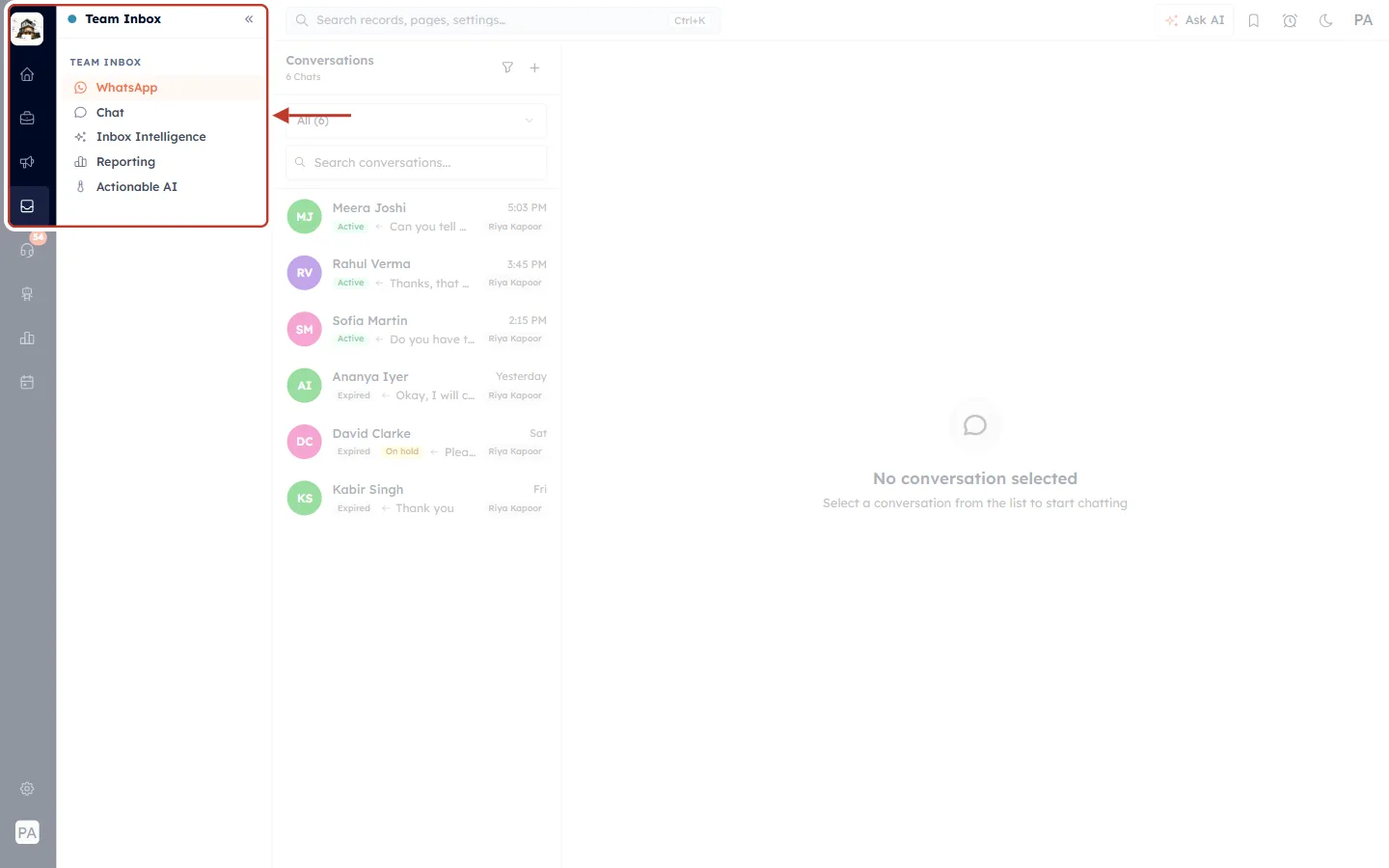
What this screenshot shows. The ringed area is the left side of the screen with the Team Inbox menu open.
In the dark icon bar, the Team Inbox icon is highlighted.
The menu is headed TEAM INBOX. WhatsApp (in orange) is selected. The other items are Chat, Inbox Intelligence, Reporting and Actionable AI.
Voice messages can be sent from WhatsApp conversations only, not from Chat conversations.
Step 2: Pick the customer’s conversation#
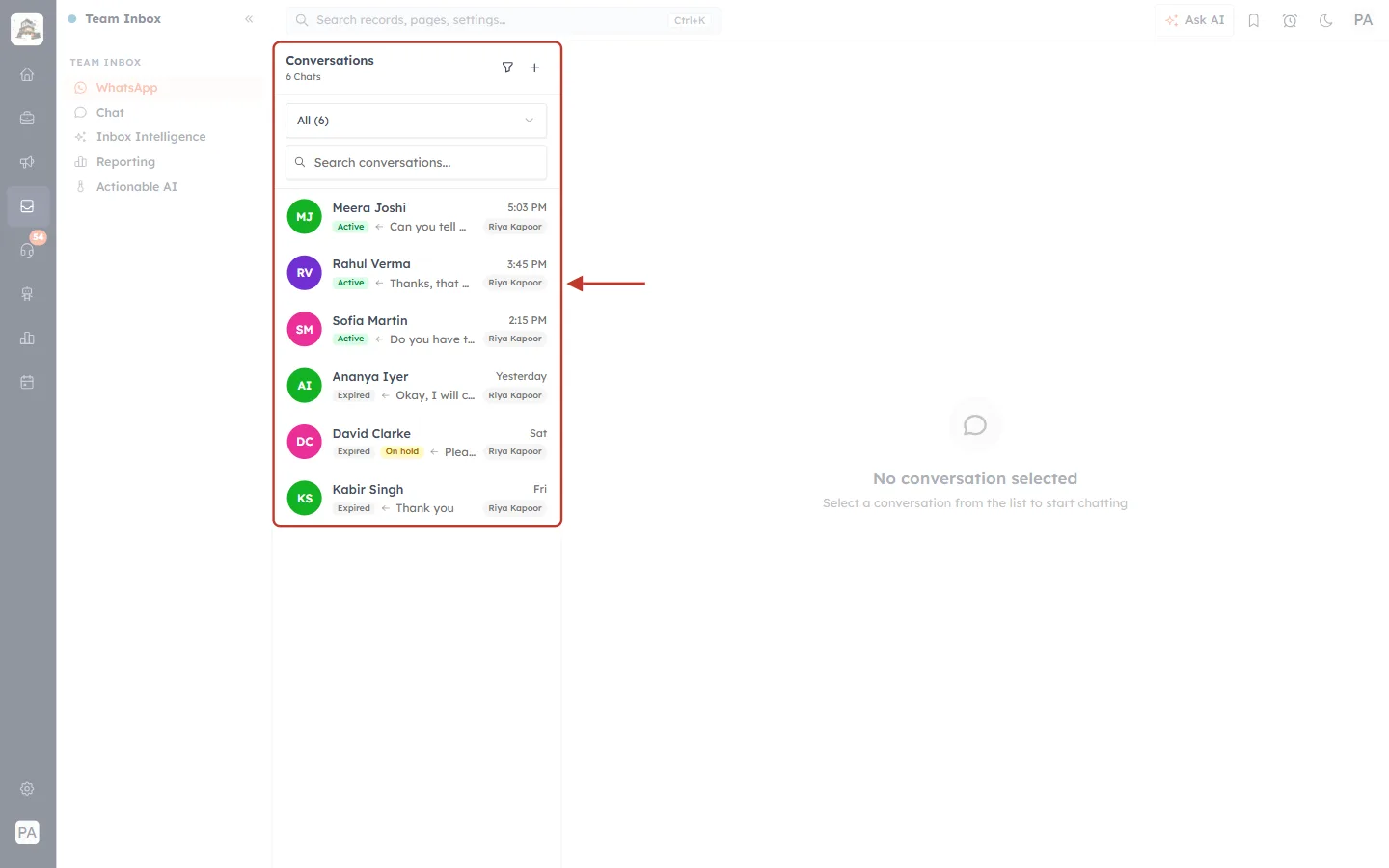
What this screenshot shows. The ringed panel is the Conversations list. This sample inbox has 6 Chats.
At the top: the filter (funnel) and + (new conversation) buttons, the All (6) view picker and Search conversations…
Each row shows the customer’s initials and name, the time of the last message, a status badge, the start of the last message and the agent it is assigned to (here Riya Kapoor).
The green Active badge (Meera Joshi, Rahul Verma, Sofia Martin) means you can reply with text or voice right now. Expired (Ananya Iyer, David Clarke, Kabir Singh) means the 24-hour window has closed (see Part 6).
Click a name to open the conversation. In this guide we open Meera Joshi.
Step 3: Check that the 24-hour window is open#
WhatsApp lets businesses send free-form messages, including voice messages, only within 24 hours of the customer’s last message. The panel on the right shows how long you have left.
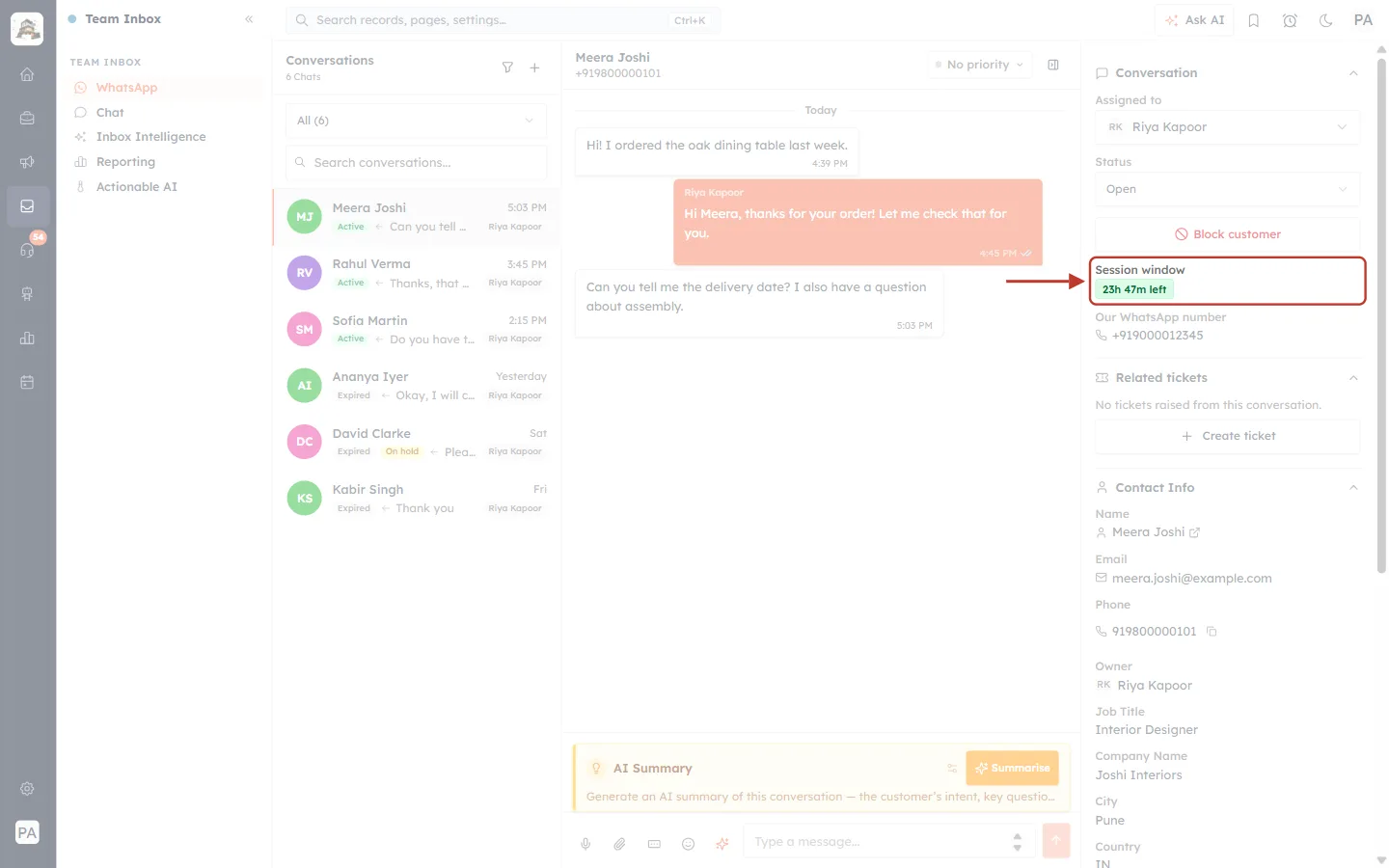
What this screenshot shows. In the Conversation panel on the right, the ringed Session window shows a green badge: 23h 47m left.
As long as the badge is green, you can send voice messages, text and files.
When the time runs out the badge turns red and reads Expired.
The same panel shows Assigned to, Status, Our WhatsApp number (the number your message is sent from), Related tickets and the customer’s Contact Info.
Part 2: Record Your Voice Message#
Step 4: Find the microphone button#
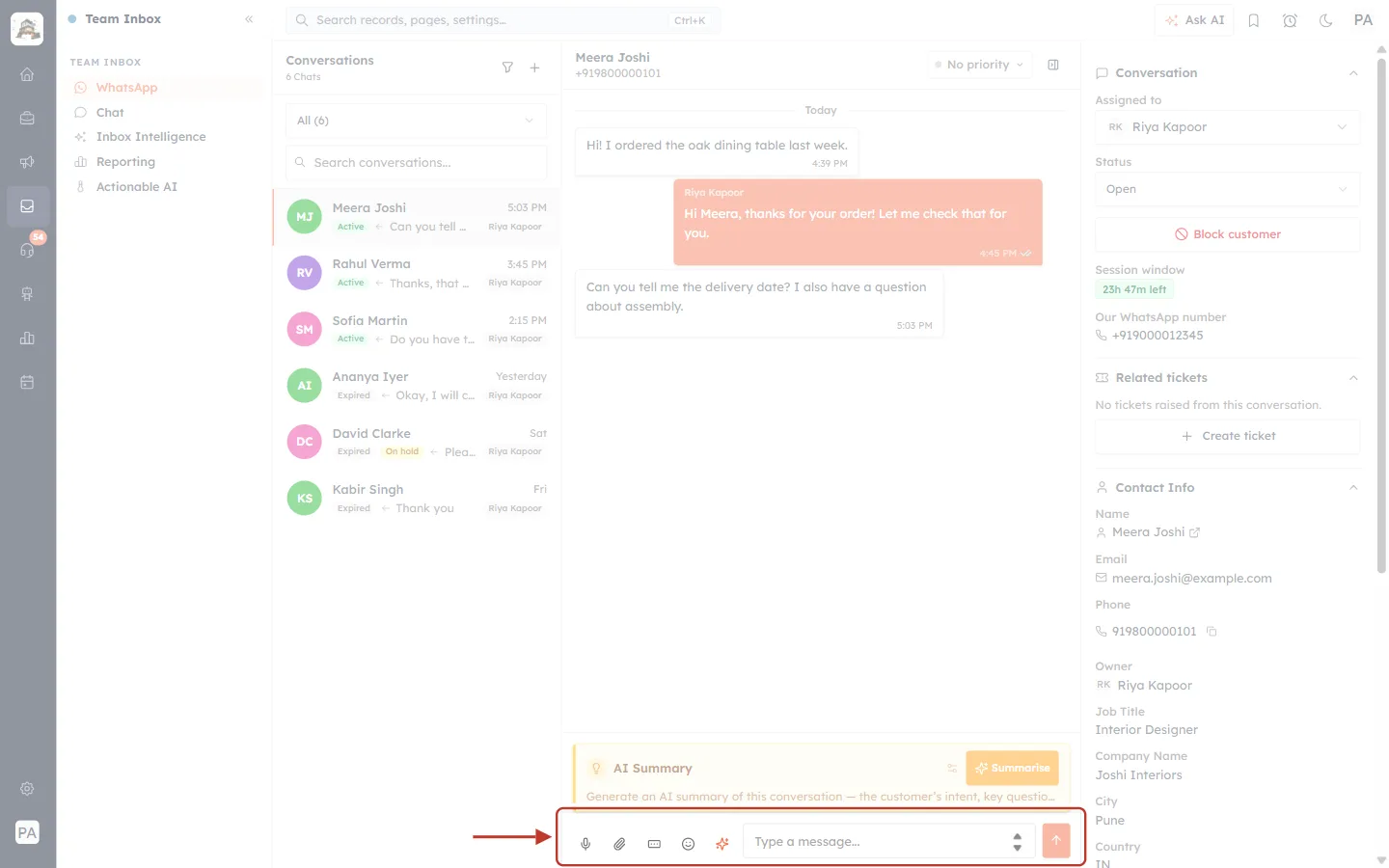
What this screenshot shows. The ringed bar at the bottom of the conversation is the reply box.
From the left: the microphone (record voice message), the paperclip (attach a file), the form icon (send a WhatsApp form), the smiley (emoji) and the AI ✦ writing helper.
Then the Type a message… box and the orange send arrow for text messages.
Above the bar is the chat itself: Meera’s two messages on the left (white) and Riya’s reply on the right (orange).
Hold your mouse over the microphone and its label appears.
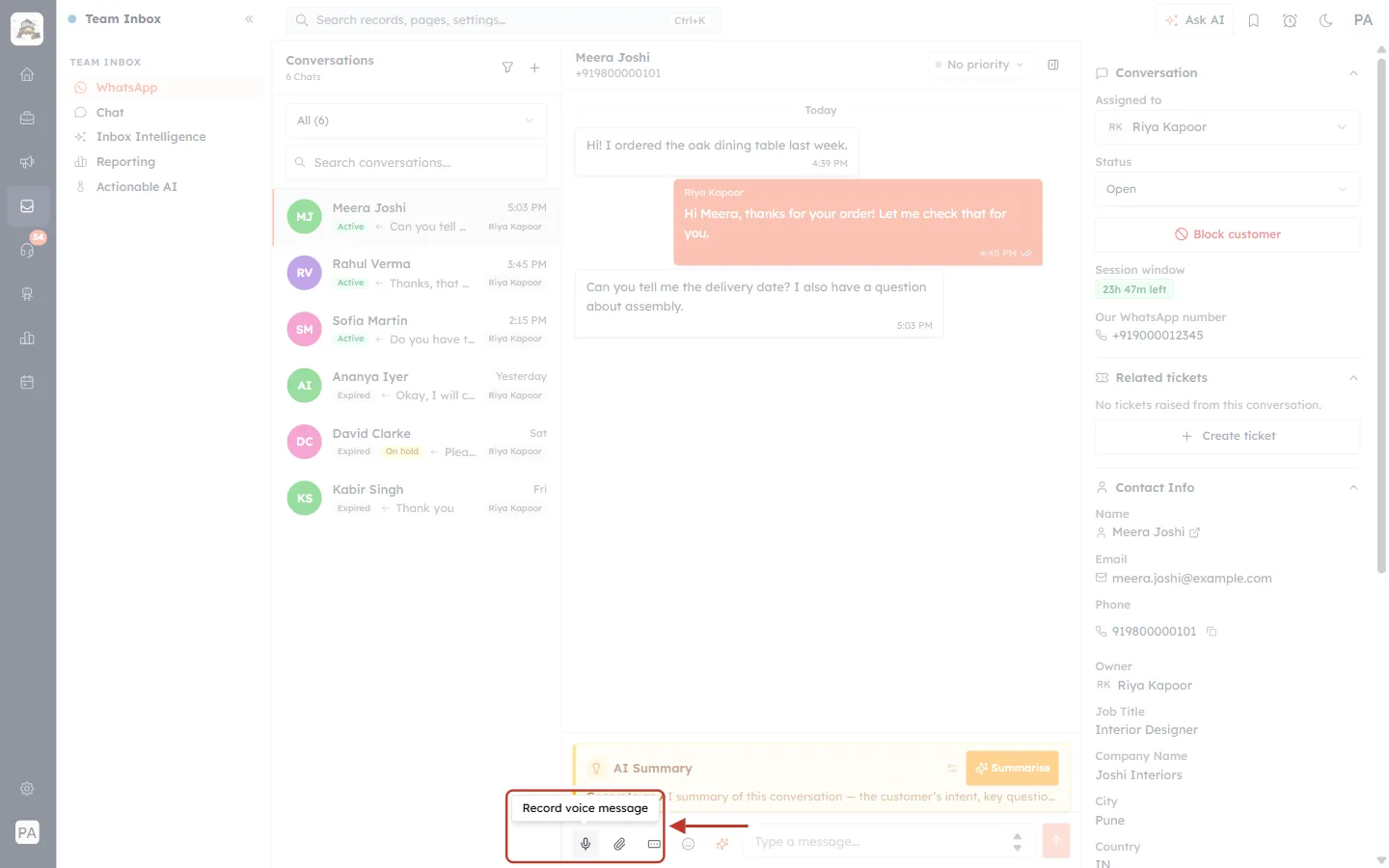
What this screenshot shows. The ringed label reads Record voice message, just above the microphone button.
This is the only button you need to start recording.
Step 5: Click the microphone and allow access the first time#
Click the microphone. The first time you do this, your browser asks whether the CRM may use your microphone. Click Allow. Your browser remembers the answer, so you are asked only once.
ℹ️
If you click Block by mistake, recording won’t start. See Part 5 to switch the microphone back on.
Step 6: Speak your message#
Recording starts as soon as you allow the microphone. Speak normally, as you would on a phone call.
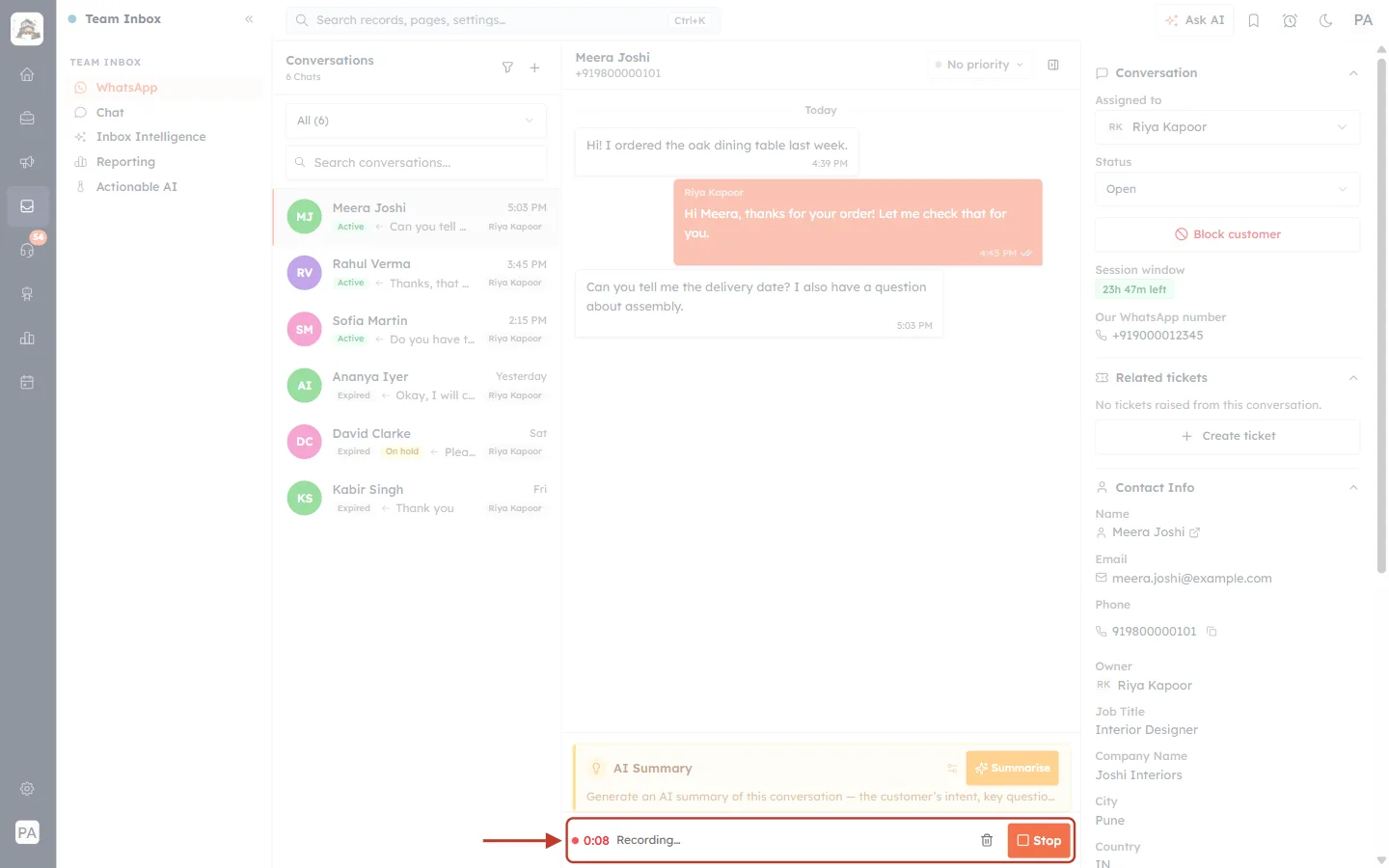
What this screenshot shows. The ringed bar replaces the reply box while you record.
On the left, a red pulsing dot and a timer (here 0:08) show how long you have been recording.
Recording… confirms the microphone is on.
On the right: the bin button throws the recording away, and Stop finishes it.
While you record, the attach, form and emoji buttons are hidden.
⚠️
A voice message can be up to 5 minutes long. At 5:00 the recording stops by itself and goes straight to the preview (Step 7). For longer explanations, send two messages.
Changed your mind? Discard the recording#
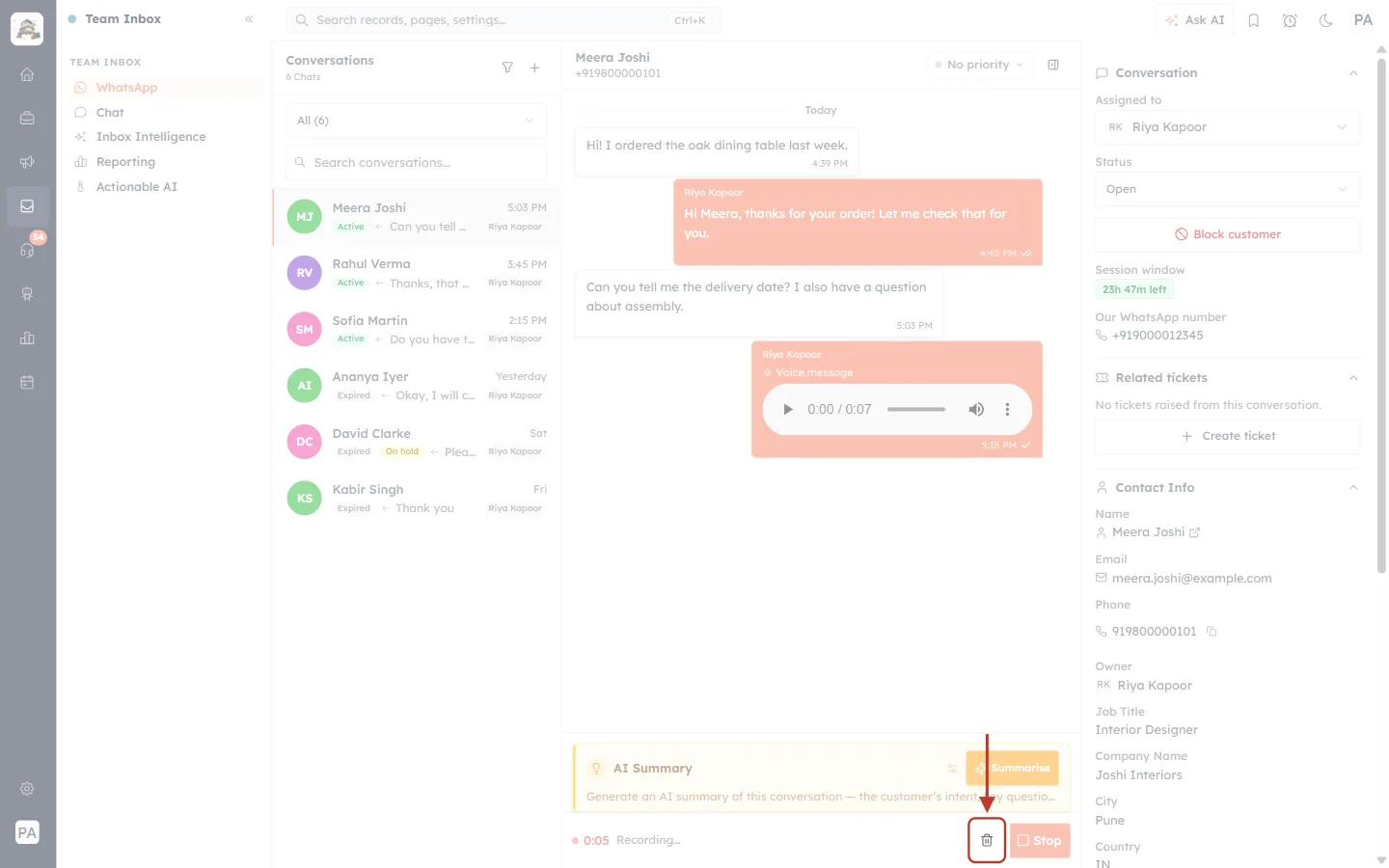
What this screenshot shows. The ringed bin button is Discard.
Click it to stop and delete the recording. Nothing is sent to the customer.
The reply box comes back, with the microphone ready for a new attempt.
Part 3: Listen and Send#
Step 7: Click Stop and listen to your recording#
Click Stop when you have finished speaking. The recording is not sent yet. You get a preview first.
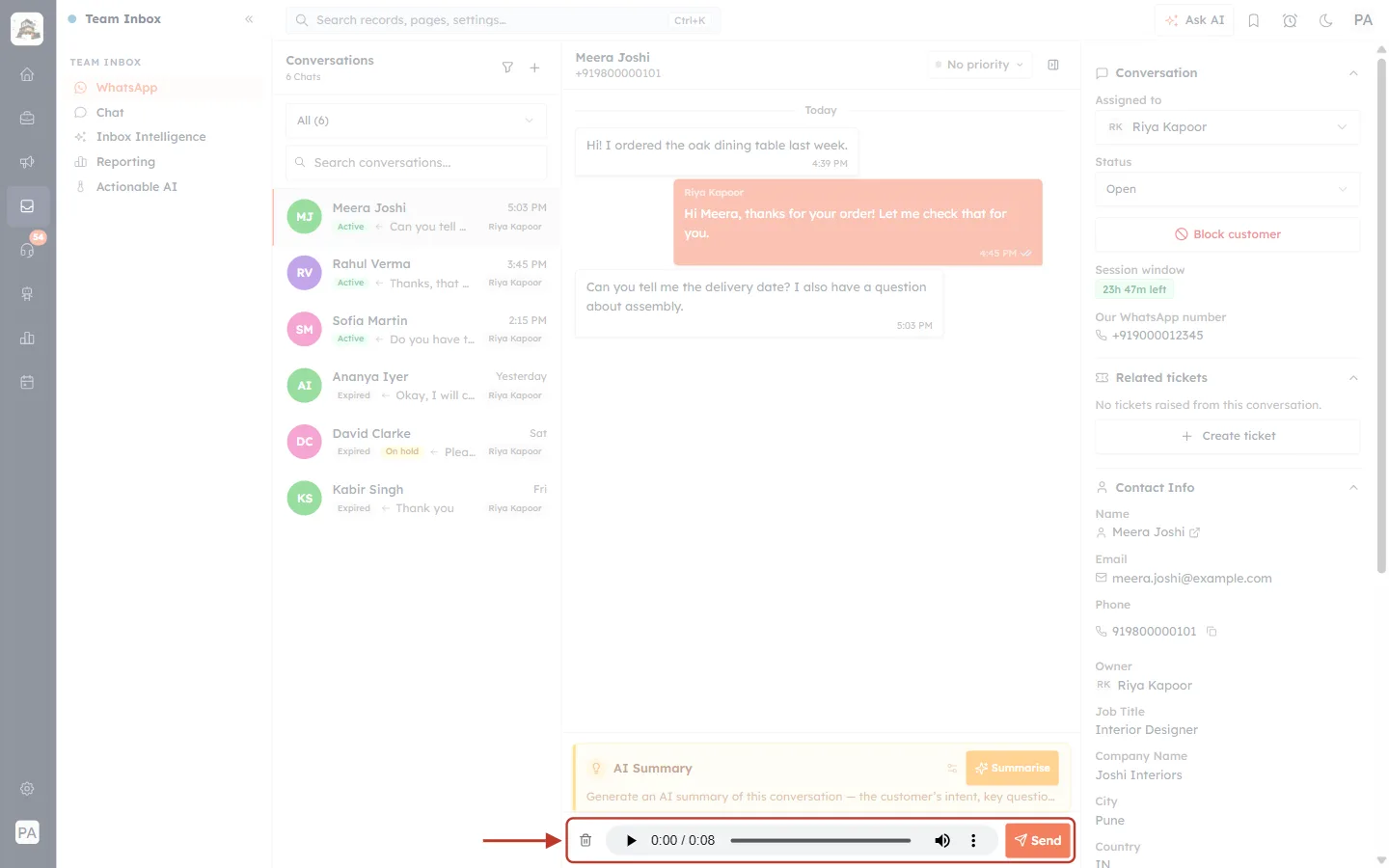
What this screenshot shows. The ringed bar is the preview of your voice message.
On the left, the bin button discards the recording if you want to start again.
In the middle is an audio player: ▶ plays your recording, 0:00 / 0:08 shows the position and total length, and you can drag the bar, change the volume, or use ⋮ for more options.
On the right, the orange Send button sends the voice message to the customer.
✅
Always play your recording once before sending. Check that it is clear and that background noise isn’t too loud. A voice message can’t be unsent.
Step 8: Click Send#
Click Send. The button shows a spinning circle for a moment while the voice message is uploaded and sent through WhatsApp.
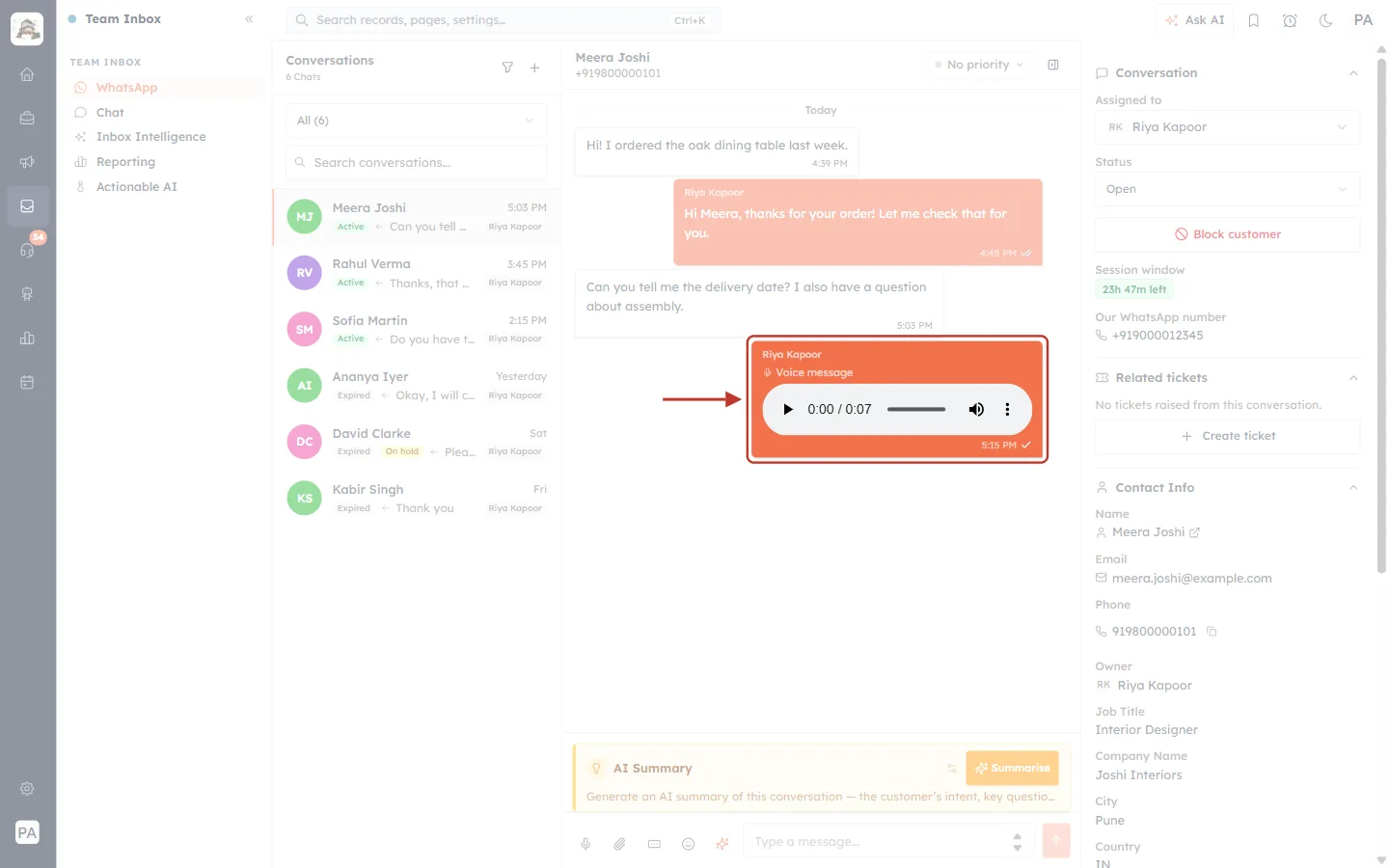
What this screenshot shows. The ringed orange bubble on the right is the voice message you sent.
At the top is the name of the person who sent it (Riya Kapoor), then a small microphone and the label Voice message, so it is easy to tell apart from other audio files.
The audio player lets anyone on your team play it back later (here 0:00 / 0:07).
At the bottom right are the time it was sent and the tick marks: one tick means sent, and two ticks mean it has been delivered or read.
The reply box is back to normal, ready for your next message.
ℹ️
The customer receives your recording in WhatsApp as a voice message, which they can play on their phone like any other.
Part 4: Reply to a Specific Message with Your Voice#
If the customer asked several things, you can link your voice message to the exact message you are answering, just like swiping to reply on your phone.
Step 9: Choose Reply on the customer’s message#
Hold your mouse over the customer’s message. A small ⌄ arrow appears beside it. Click it and choose Reply.
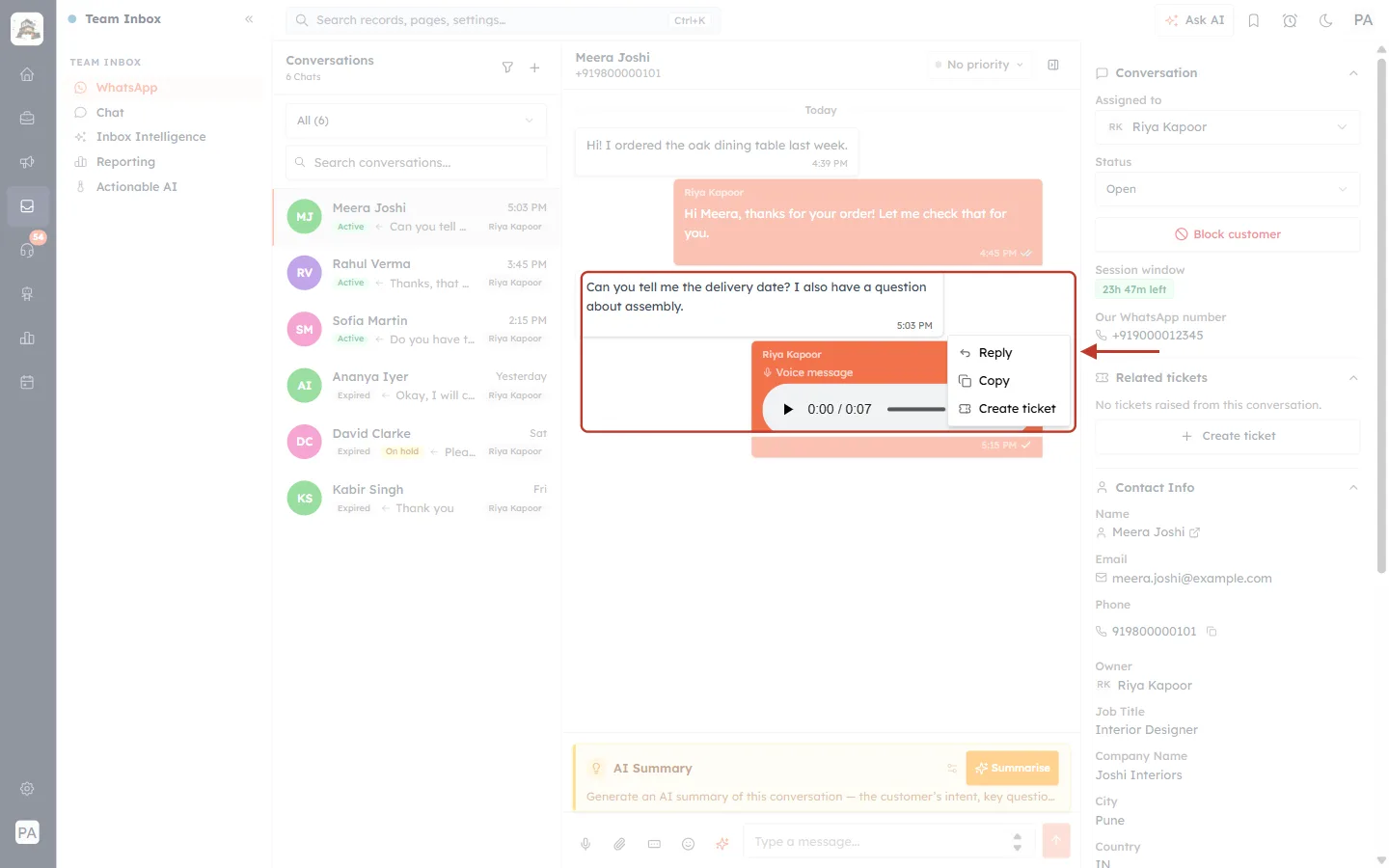
What this screenshot shows. The ringed area shows Meera’s message, Can you tell me the delivery date? I also have a question about assembly., and the menu that opened beside it.
Reply: answer this exact message (with text or voice).
Copy: copy the message text.
Create ticket: raise a support ticket from this message.
Step 10: Record and send as usual#
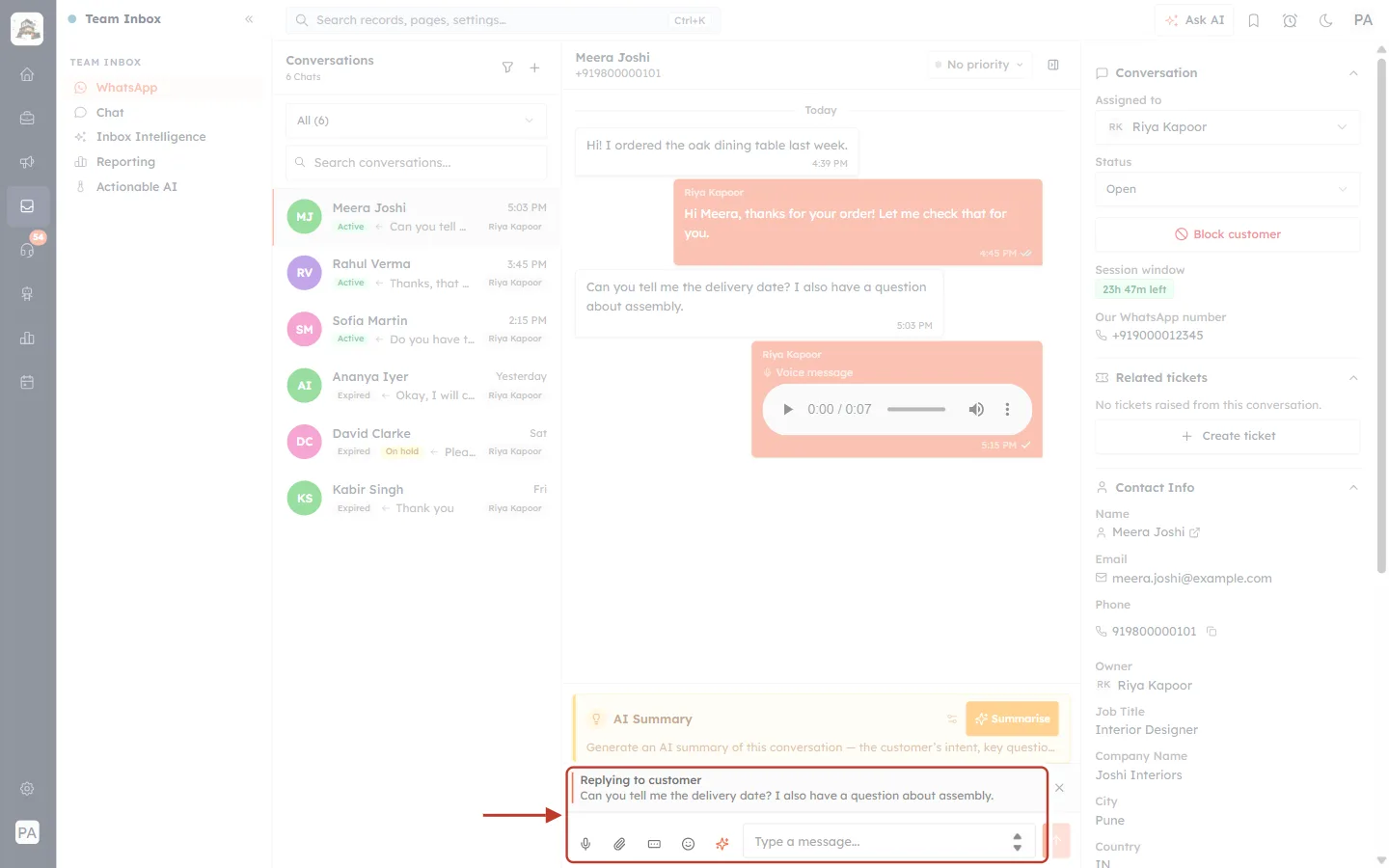
What this screenshot shows. A ringed Replying to customer strip now sits above the reply box.
It quotes the message you are answering: Can you tell me the delivery date? I also have a question about assembly.
The × on the right cancels the reply if you picked the wrong message.
Click the microphone, record, click Stop, listen, then Send, exactly as in Parts 2 and 3.
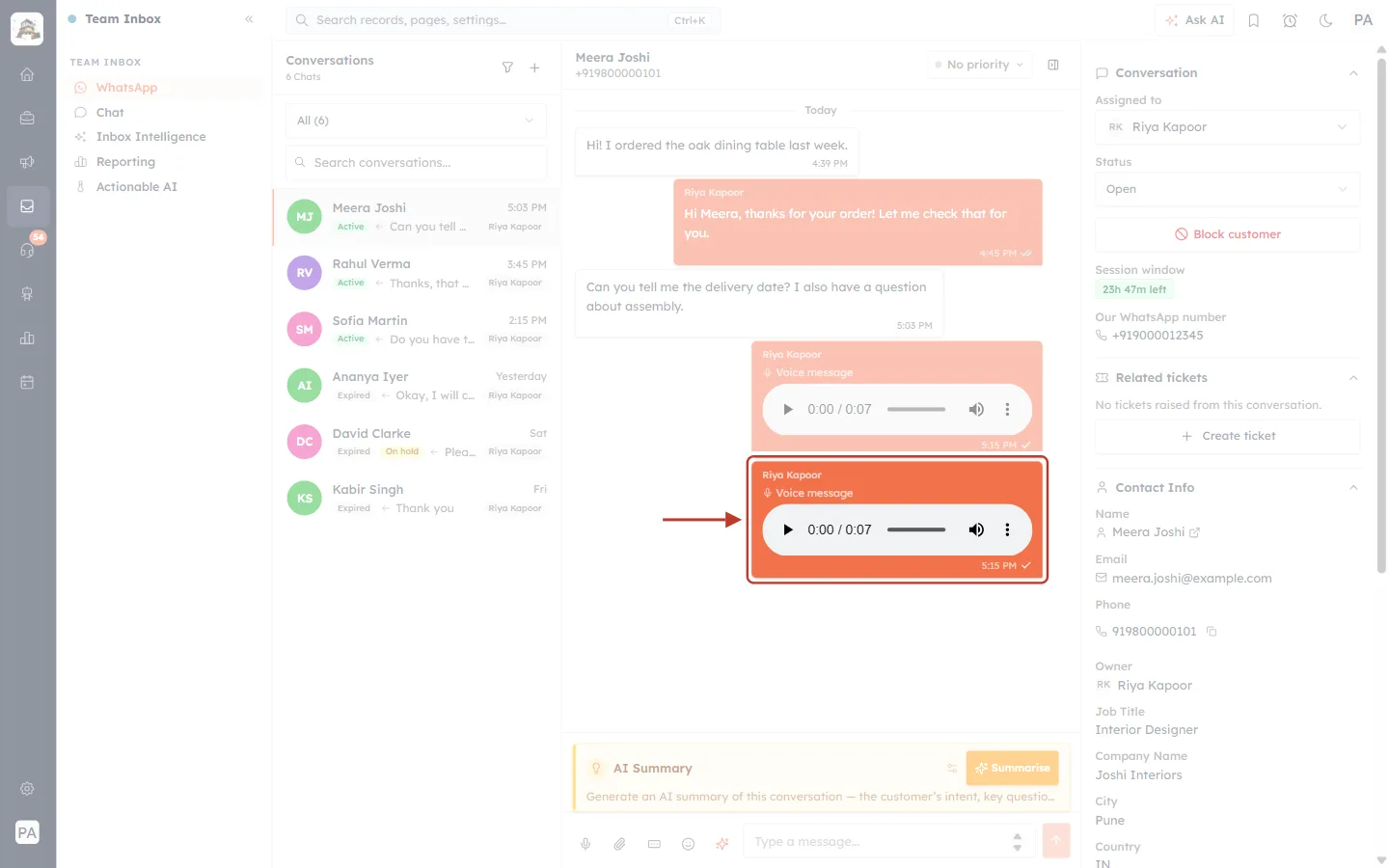
What this screenshot shows. The ringed bubble is your voice reply. It appears below your earlier voice message, with the same Voice message label and player.
It is sent as a reply to Meera’s question, so on her phone she sees which message you are answering.
The Replying to customer strip disappears once the message is sent.
Part 5: If the Microphone Is Blocked#
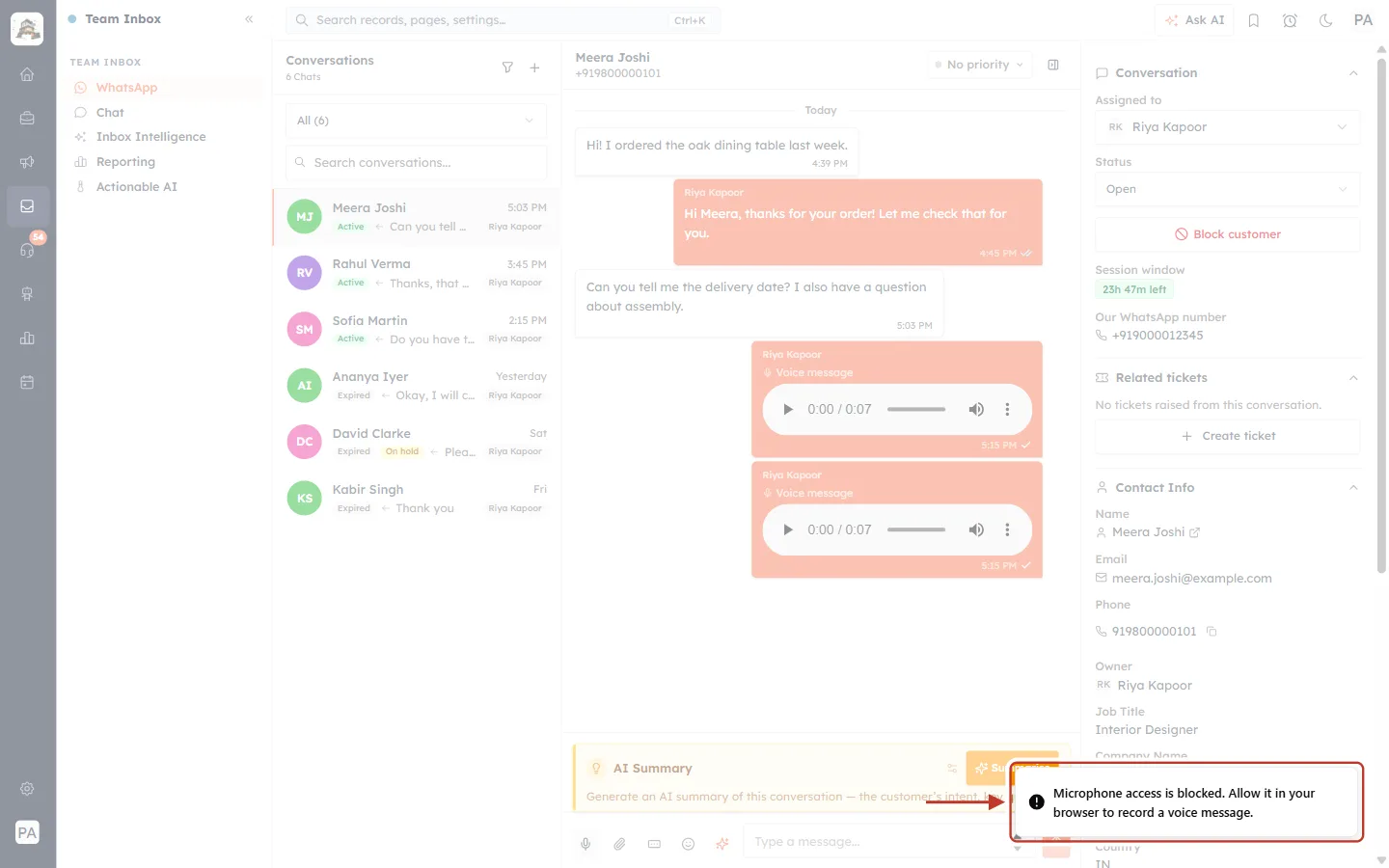
What this screenshot shows. The ringed message at the bottom right reads Microphone access is blocked. Allow it in your browser to record a voice message.
It appears when you click the microphone but the browser isn’t allowed to use it, for example because Block was chosen earlier.
Nothing is recorded or sent. The reply box stays as it was.
To allow the microphone again:
Click the site settings icon at the left end of your browser’s address bar (a padlock or sliders icon).
Find Microphone and set it to Allow.
Reload the page, open the conversation, and click the microphone again.
Also check that a microphone is connected and switched on in your computer’s sound settings, and that no other app (such as a video call) is using it.
Part 6: When the 24-Hour Window Has Closed#
If more than 24 hours have passed since the customer’s last message, WhatsApp only allows approved template messages. Voice messages, text and files can’t be sent until the customer writes to you again.
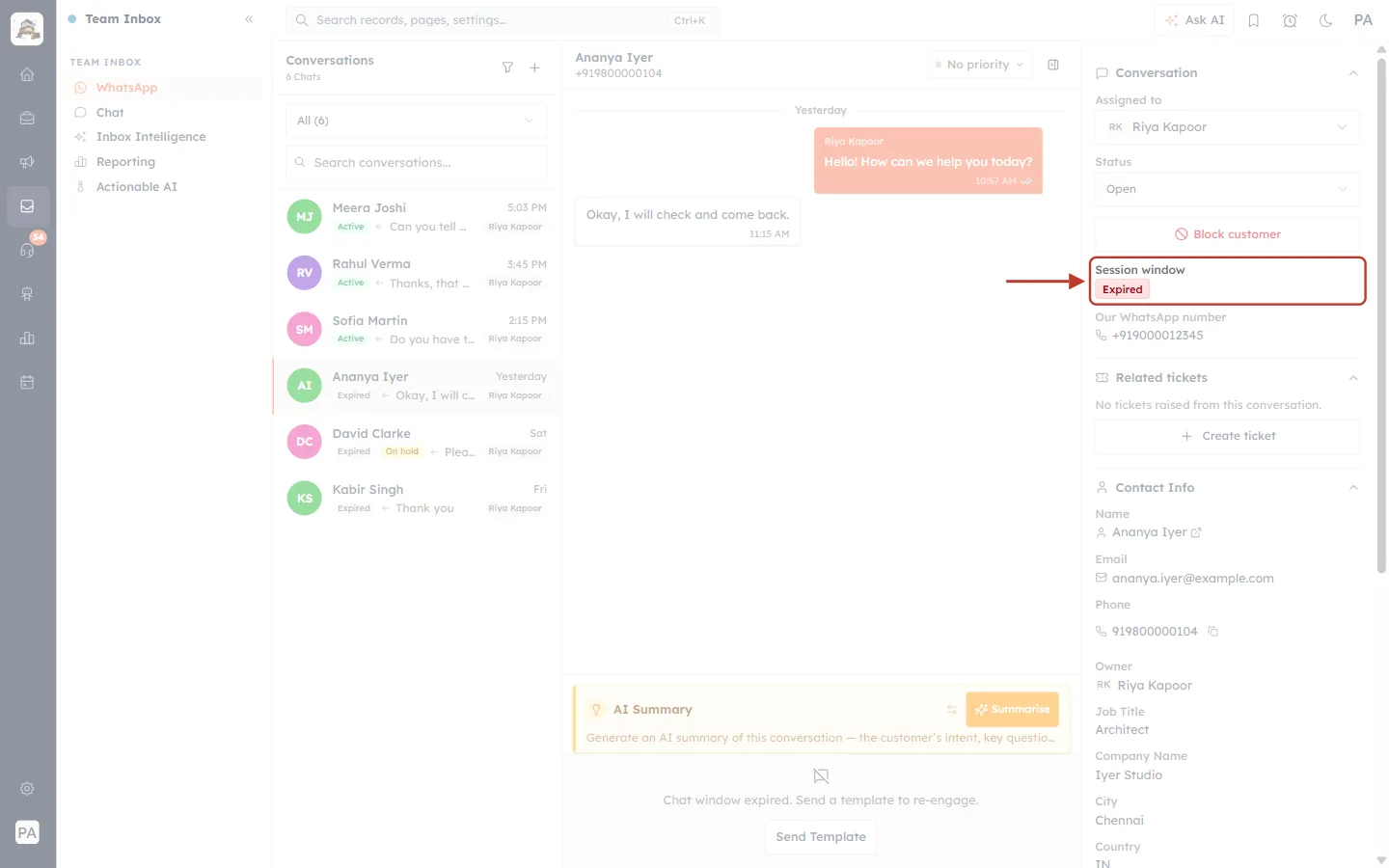
What this screenshot shows. In a conversation with Ananya Iyer, whose last message was yesterday, the ringed Session window badge is red and reads Expired.
The conversation list on the left shows the same grey Expired badge on her row.
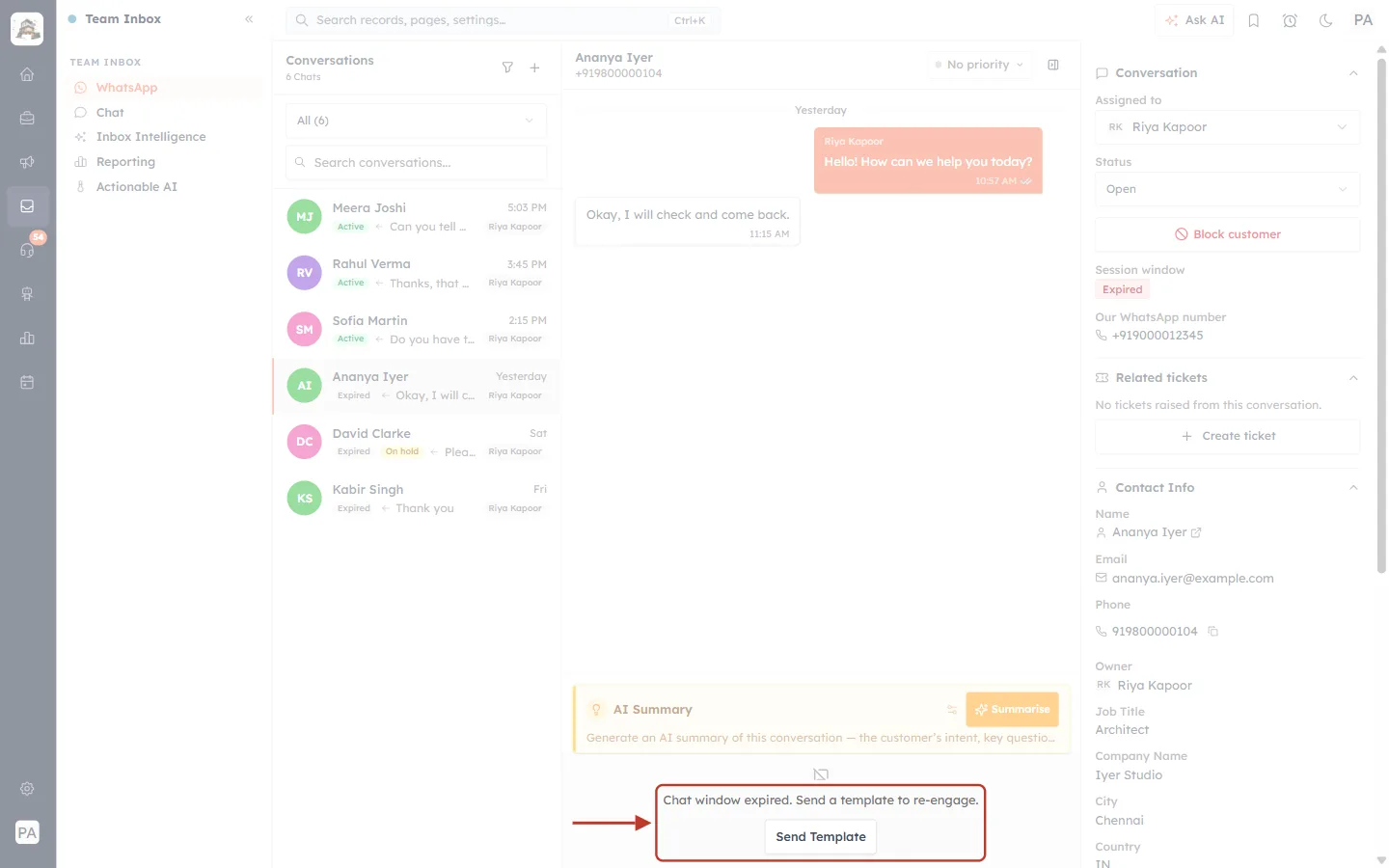
What this screenshot shows. Where the reply box would be, the ringed area reads Chat window expired. Send a template to re-engage. with a Send Template button.
There is no microphone, paperclip or text box, because free-form messages are not allowed.
Click Send Template to send an approved WhatsApp template. When the customer replies, the window opens again for 24 hours and the microphone comes back.
To create templates, see Create and Manage WhatsApp Message Templates.
Quick Reference#
I want to… | Do this |
|---|---|
Record a voice message | Open the conversation → click the microphone → speak |
Finish recording | Click Stop (or wait: it stops by itself at 5:00) |
Check it before sending | Press ▶ in the preview |
Send it | Click Send |
Throw it away | Click the bin (Discard), while recording or in the preview |
Answer one message with my voice | Message ⌄ → Reply → record → Send |
Fix “Microphone access is blocked” | Address bar site settings → Microphone → Allow → reload |
Message a customer after 24 hours | Use Send Template, then send voice once they reply |
Best Practices#
Keep it short. Most customers prefer voice messages under a minute. Split longer explanations into a few messages.
Find a quiet spot and use a headset if you can. It makes a big difference to clarity.
Listen before you send. A voice message can’t be unsent.
Follow up important details in text (order numbers, dates, links), so the customer can copy them.
Use Reply when the customer asked several questions, so it is clear which one you are answering.
Watch the session window. Reply while the badge is green to avoid needing a template.
Troubleshooting#
I can’t see the microphone button#
Check that you are in a WhatsApp conversation (not a Chat conversation), that the 24-hour window is open, and that you have reply access to the conversation. If all of these are fine, update your browser or try Chrome or Edge. Browsers that can’t record audio don’t show the button.
“Microphone access is blocked”#
Your browser isn’t allowed to use the microphone. Follow the steps in Part 5.
The recording is silent or very quiet#
Your computer may be using a different microphone than you expect. Check the input device in your computer’s sound settings and in the browser’s site settings, then record again.
“Failed to send voice message”#
The message couldn’t be sent, for example because of a network problem. The message may also show the reason. Your recording stays in the preview, so check your connection and click Send again. If the window has expired, use Send Template instead.
The recording stopped on its own#
Voice messages are limited to 5 minutes. When the timer reaches 5:00, recording stops and the preview opens, so you can still listen and send what you recorded.
Frequently Asked Questions#
Does the customer need to do anything special to hear it?
No. It arrives in WhatsApp as a normal voice message.
Can I add text to a voice message?
No. Send your text as a separate message before or after the voice message.
Can my teammates hear voice messages I sent?
Yes. Everyone who can open the conversation can play it from the chat.
Can I send a voice message to a customer who hasn’t written in the last 24 hours?
No. WhatsApp only allows templates then. Send a template, and once the customer replies you can send voice messages again.
Is there a length limit?
Yes, 5 minutes per voice message.
Previous and Next#
Previous: WhatsApp Inbox: Manage Conversations with Your Contacts
Next: Inbox Notifications: Unread Counts & Assignment Alerts
Related Articles#
Was this article helpful?
Ready to implement this?
OpenAI Engage and apply what you just learned to your own workspace.
Open AI Engage CRM